KEY4ALL X2100 - Keyboard HAMA - Free user manual and instructions
Find the device manual for free KEY4ALL X2100 HAMA in PDF.


| Brand | Hama |
| Model | KEY4ALL X2100 |
| Product type | Bluetooth Multi-Device Keyboard |
| Compatibility | Android 4.0+, iOS 7.0+, Windows 7+ |
| Bluetooth version | 3.0 |
| Maximum range | 10 m |
| Number of keys | 78 (including 14 multimedia keys) |
| Power supply | 2 AAA batteries (1.5 V) included |
| Dimensions (L x W x H) | 28.6 x 12.8 x 1.7 cm |
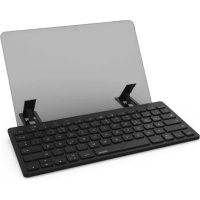
| Tablet support | Yes, with legs and wings |
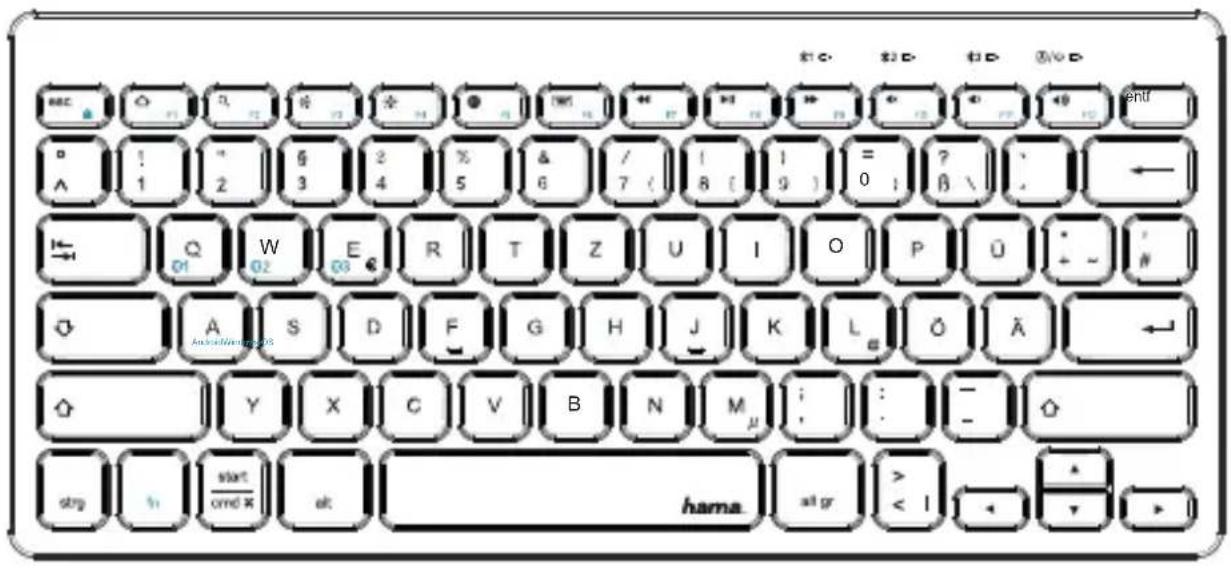
| Bluetooth channels | 3 selectable channels (fn+Q/W/E) |
| Sleep mode | Automatic after 2 hours of inactivity |
| Multimedia functions | 14 keys (lock, volume, etc.) |
| Maintenance | Slightly damp lint-free cloth |
| Safety | Use in dry indoor environments, avoid moisture |
| Package contents | Keyboard, user manual, 2 AAA batteries |
| Repairability | Replaceable batteries |
| Frequency band | 2402 - 2480 MHz |
| Max. radio frequency power | 0.51 mW EIRP |
| Certification | CE, directive 2014/53/EU |
Frequently Asked Questions - KEY4ALL X2100 HAMA
User questions about KEY4ALL X2100 HAMA
0 question about this device. Answer the ones you know or ask your own.
Ask a new question about this device
Download the instructions for your Keyboard in PDF format for free! Find your manual KEY4ALL X2100 - HAMA and take your electronic device back in hand. On this page are published all the documents necessary for the use of your device. KEY4ALL X2100 by HAMA.
USER MANUAL KEY4ALL X2100 HAMA
Bluetooth® Keyboard "KEY4ALLX2100"
Bluetooth®-Tastatur Multi-Device
Operating Instructions
Bedienungsanleitung
Moded'employoi
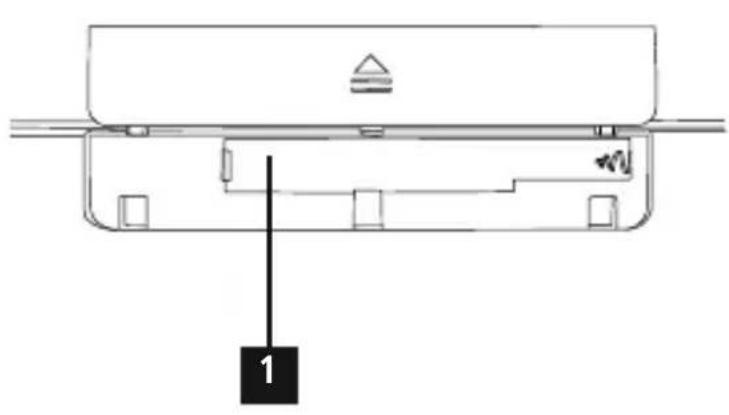
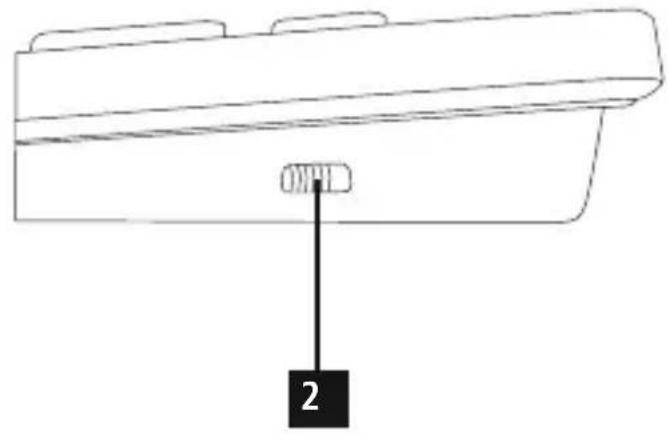
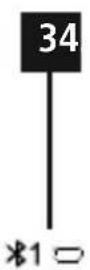
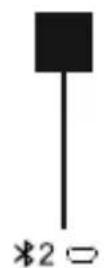
ControlsandDisplays
- Batterycompartment
2.[OFF/ON]switch(ON = green) - Bluetooth © statusLED-1 stchannel
- Bluetooth 假 statusLED-2 ndchannel
- Bluetooth 假 statusLED-3 rdchannel
6.CapsLock/PowerLED
- Stand
8.Holder
Thankyouforchoosinga H amaproduct.
Takeyourtimeandreadthefollowinginstructionsand informationcompletely. P leasekeeptheseinstructions in a safe place for future reference. If you sell the device, pleasepasstheseseoperatingsinstructionsontothew owner.
1.ExplanationofWarningSymbolsandNotes

Warning
Thissymbolisusedtoindicatesafetyinstructions ortodrawyourattentionospecifichazards andrisks.

Note
Thissymbolisusedtoindicateadditionalinformation orimportantnotes.
2.PackageContents
KEY4ALLX2100"Multi-DeviceBluetooth® Keyboard
- T theseoperatinginstructions
- 2 x 1 .5V(AAA)batteries
3.SafetyNotes
- T heproductisintendedforprivate,non-commercial useonly.
- P rotectheproductfromdirt, moisture a nd overheating, andonlyuseitina d ryenvironment.
- Do not use the product in areas where the use of electronic devices is not permitted.
- D o n otusetheproductinmoistenvironmentsand avoidsplashes.
- D o n otdroptheproductanddonotexposeittoany majorshocks.
- D isposeofpackagingmaterialimmediatelyaccord ing tolocallyapplicableregulations.
- Do not modify the product in any way. Doing so voids the warranty.
4. Systemrequirements
Thekeyboard w orkswithBluetooth®-enabledtabletPCs andsmartphonesrunningiOS,AndroidandWindows.
The requirements for keyboard use are as follows:
Android devices require Android 4.0 or newer.
- Apple devices require iOS 7.0 or newer.
- W indowsdevicesrequireWindows7,Windows8, Windows10ornewer.
Checkwhetherthelatestversionisinstalledand,if necessary,performasoftwareupdate.

Note
To ensure that the keyboard functions properly, checkthattherightkeyboard I ayout(QWERTZ, QWERTY etc.) is set in your device's settings.
- N otethatsupportforcertainkeyfunctionsmay varydependingonyourdevice.
- I fs omekeysontheBluetooth® keyboard don not work properly on your device for software reasons, youcanrunthemviathevirtualkeyboard.
- P leaserefertotheoperatingsinstructionsforthedeviceyouare u sing.
5. Getting Started

Warning-Batteries
- I immediatelyremoveddeadbatteriesfrom the productanddisposeofthem.
- O nlyusebatteries(orrechargeablebatteries)that matchthespecifiedtype.
- D o n otmixoldandnewbatteriesorbatteriesofa differenttypeormake.
- When inserting the batteries, make sure that the polarity is correct(+ and - markings). Failure to do so could result in the batteries leaking or exploding.
- Don't chargeon-rechargeablebatteries.
- K eepbatteriesoutofthereachofchildren.
-
D o n otshortcircuitbatteries/rechargeable batteriesandkeepthemawayfromuncoated metalobjects.
-
O penthebatterycompartment.Removethecontact breaker. R replacethebatterycompartmentcover.
Batteryswitch
- O penthebatterycompartment,removeandproperly disposeofthedeadbatteriesandinsert2xnewAAA batterieswiththecorrectpolarity. C losethebattery compartment.
- If the battery charge is low, the Caps Lock / Power LED (6) begins to flash red during operation. Replace the batteries immediately as described above.
Standfunction
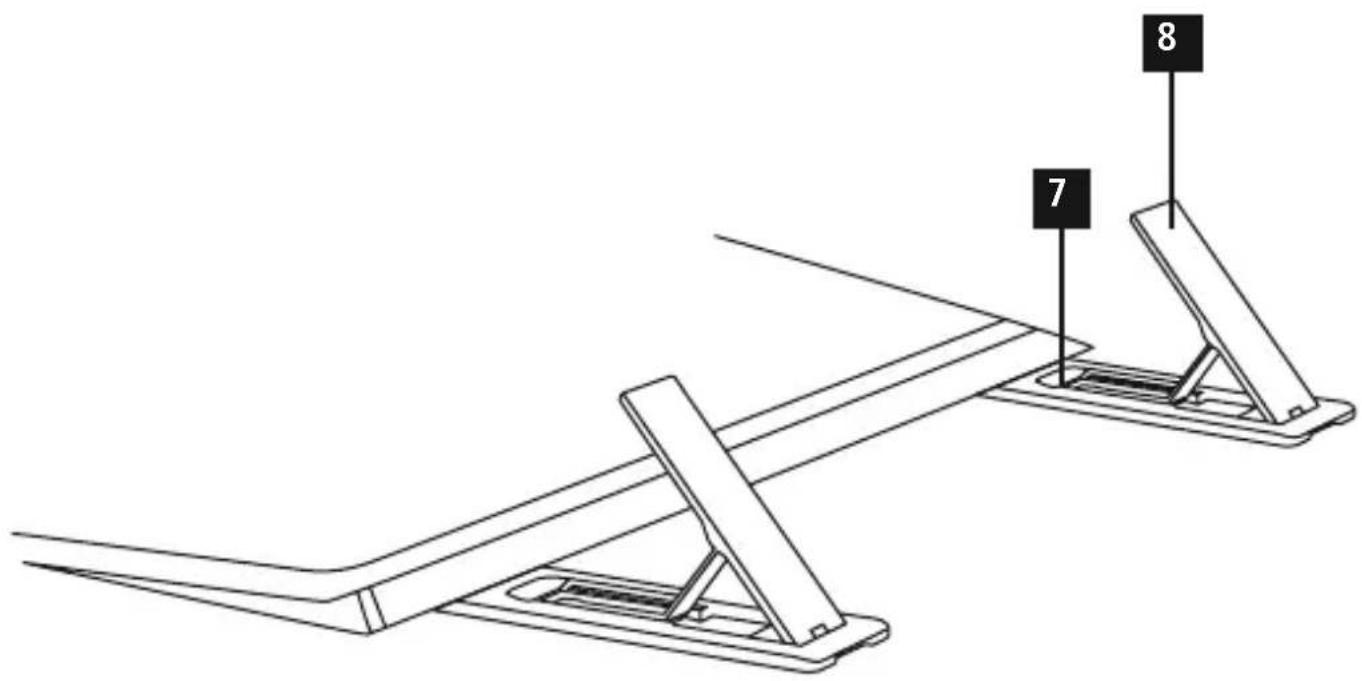
- Fold out the feet from beneath the keyboard (7) and releasethetainingflapsfromthefeet(8).
- W iththereturningflapsfoldedout,positionyourtablet betweenthekeyboard a ndthereturningflaps.
- T o c losethestand,proceedinthereverseorder.
6. Operation

Note
- T hefunctionsdescribedinthissectionare only availablefor Bluetooth®-capableterminaldevices.
- N otethathemaximumrangefor Bluetooth® is10metreswithoutobstaclessuchaswalls, people,etc.
6.1Bluetooth® pairing

Note-Pairing
- Makesure that your Bluetooth®-capable terminal deviceisonandBluetooth ® isactivated.
- Makesure that your Bluetooth®-capableterminal deviceisvisibleforotherBluetooth® devices.
-
For more information, please refer to the operating instructions of your terminal device.
-
Slide the [OFF/ON] switch (2) to the ON position to switch on the Bluetooth® keyboard. The CapsLock/ Power LED (6) emits a green light for ten seconds.
- FirstselectoneofthethreeBluetooth® channels using thefollowingshortcutkeys:
- fn + Q f orthe1stBluetooth® channel
- fn + W f orthe2ndBluetooth® channel
- fn + E f orthe3rdBluetooth® channel
- T hechannelisselecteddassoonasthecorresponding Bluetooth® statusLED((3),(4)or(5),depending on selectedchannel)briefly Ightsupinblue.
- Press and hold the [fn + letter of the selected channel] keysforfivesecondstostartthepairingprocess.
- When you release the shortcut key, the Bluetooth® statusLEDflashesblue.
- The keyboard is searching for a Bluetooth® connection.
- O pentheBluetooth® settingsandwaituntilHama KEY4ALLX2100appearsinthelistofBluetooth devicesfound.
- Select Hama KEY4ALL X2100, follow any instructions onyourterminaldevice, and wait until the keyboard is shown as connected in the Bluetooth settings on your terminal device. The Bluetooth status LED((3), (4) or (5), depending on selected channel) goes out.
- Y oucannowusetheBluetooth 念 keyboard.
6.2 Automatic Bluetooth connection (after successful pairing)

Note
- Makesurethatyour Bluetooth®-capableterminal deviceisonand Bluetooth® isactivated.
- Make sure that your Bluetooth®-capableterminal deviceisvisibleforother Bluetooth® devices.
-
For more information, please refer to the operating instructions of your terminal device.
-
Slide the [OFF/ON] switch (2) to the ON position to switch on the Bluetooth keyboard. The CapsLock/ Power LED (6) emits a green light for ten seconds.
- Y oucannowusetheBluetooth® keyboard.

Note Connectionimpaired
Afterthedeviceshavebeenpairedonce,the connectionisthenestablishedautomatically. IftheBluetooth ^ 假 connectionisnotestablished automatically, checkthefollowing:
- C hecktheBluetooth® settingsofyourterminal device to see whether HamaKEY4ALLX2100 is connected. If not, repeat the steps listed under 6.1 Bluetooth® pairing.
- Check whether obstacles are impairing the range. If so, movethedevicesclosertogether.
6.3DeletingallBluetooth 假 connections
- Press the shortcut key [fn + Shift key + Backspace key] to delete all currently active Bluetooth ® connections atthesametime.

Note
- Do not remove the keyboard from the list of stored Bluetooth® devicesonyourterminaldevice. Otherwise, it will not be able to connect your terminal device.
6.4Changingtheoperatingsystem
TheHamaKEY4ALLX2100keyboard supportsthree different operating systems. You can use the following shortcutkeystosectthedesiredoperatingsystem:
- f n + A forAndroid
- f n + S forAppleiOS
- f n + D for Windows
6.5Multimediakeys
Themultimediakeysgiveyoudirectaccessstovarious applicationsandfunctions.
Key symbolAndroidiOSWindows
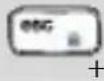
LockscreenLockscreenLockscreen
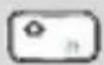
Start screen Start screen
Web browser
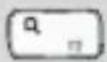
SearchSearchSearch
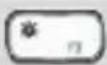
Decrease brightness
Decrease brightness
Decrease brightness
Increase brightness
Increase brightness
Increase brightness

Changeinput language
Changeinput language
Changeinput language
Virtual keyboard
Virtual keyboard
N/A
PreviousstrackPreviousstrackPreviousstrack
Play/Pause
Play/Pause
Play/Pause
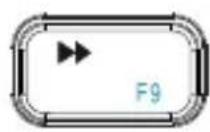
Nexttrack
Nexttrack
Nexttrack
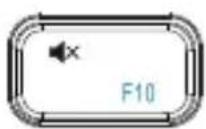
Mute
Mute
Mute
Decrease volume
Decrease volume
Decrease volume
Increase volume
Increase volume
Increase volume
6.6Standbyandswitchingoff
- If y oudonotusethekeyboard d orlongerthantwo hours, itwillautomatically switchstostandbymode.
- P ressanykeytoreactivatethekeyboard.
- S lidethe[OFF/ON]switch(2)totheOFFpositiontowitchofftheBluetooth 串 keyboard.
7.CareandMaintenance
- Only clean this product with a slightly damp, lint-free cloth and do not use aggressive cleaning agents.
- Make sure that water does not get into the product.
8.WarrantyDisclaimer
HamaGmbH& Co K G a ssumesnoliabilityandprovides nowartryfordamageresultingfromimproper installation/mounting,improperuseoftheproductor from failure to observe the operating instructions and/ or safetynotes.
9. Service and Support
PleasecontactHamaProductConsultingifyouhaveany questionsaboutthisproduct.Hotline:+499091502-115 (German/English)Furthersupportinformationcanbefoundhere:www.hama.com
10. Technical Data
| Bluetooth® version3.0 | |
| Rangemax.10m | |
| Dimensions(Lx W x H) | 28,6x 1 2,8x 1 ,7cm |
| Numberofkeys | 78incl. 14mediakeys |
| Batterytype2x1.5V(AAA) | |
| Frequencyband2402- 2 480MHz | |
| Maximumradio- frequencypower transmitted | 0.51mWEIRP |
11.RecyclingInformation
Noteonenvironmentalprotection:
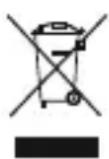
AftertheimplementationoftheEuropean Directive2012/19/EUand2006/66/EUnthe nationallegalsystem,thefollowingapplies: Electricandecronicidevicesaswellas batteriesmustnotbedisposedofwith
householdwaste. Consumers are bligedbylawtoreturn electricalandelectronicdevicesaswellasbatteriesat theendoftheirservicelivestothepubliccollecting pointssetupforthispurposeorpointofsale.Detailssto this are defined by the national law of the respective country. Thissymbolontheproduct, theinstruction manual or the package indicates that a product is subject totheseregulations.Byrecycling,reusingthematerials, otherformsofutilisingolddevices/batteries,youare makinganimportantcontributiontoprotectingour environment.
12.DeclarationofConformity

Hereby, Hama GmbH & Co KG declares that theradioequipmenttype[00123523]isin compliancewithDirective2014/53/EU. The
fulltextoftheEUdeclarationofconformityis availableatthefollowinginternetaddress: www.hama.com 00123523 Downloads.
The Bluetooth® word mark and logos are registered trademarks owned by Bluetooth SIG, Inc. and any use of such marks by Hama GmbH & Co KG is under license. Other trademarks and trade names are those of their respective owners.
All listed brands are trademarks of the corresponding companies. Errors and omissions excepted, and subject to technical changes. Our general terms of delivery and payment are applied.