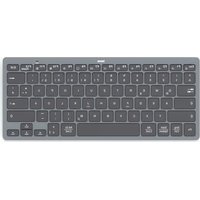
KEY4ALL X510 - Keyboard HAMA - Free user manual and instructions
Find the device manual for free KEY4ALL X510 HAMA in PDF.


| Product type | Bluetooth keyboard |
| Brand | Hama |
| Model | KEY4ALL X510 |
| Dimensions (L x W x H) | 28.5 x 12.0 x 1.8 cm |
| Weight | Approximately 250 g (with batteries) |
| Power supply | 2 LR03/AAA 1.5 V batteries |
| Battery type | Non-rechargeable AAA alkaline batteries |
| Number of keys | 78 keys |
| Multimedia keys | 14 dedicated keys |
| Bluetooth version | 3.0 |
| Bluetooth range | Up to 10 m (without obstacles) |
| Compatible operating systems | iOS, Android 3.0+, Windows XP/7/8/10 |
| Connection type | Wireless Bluetooth |
| Standby mode | Automatic after 15 minutes of inactivity |
| LED indicator | Bluetooth connection status and battery level |
| Care and cleaning | Clean with a slightly damp, lint-free cloth, without harsh detergents |
| Safety instructions | Do not expose to moisture, shocks; respect battery polarity |
| Package contents | Keyboard, 2 AAA batteries, instruction manual |
Frequently Asked Questions - KEY4ALL X510 HAMA
User questions about KEY4ALL X510 HAMA
0 question about this device. Answer the ones you know or ask your own.
Ask a new question about this device
Download the instructions for your Keyboard in PDF format for free! Find your manual KEY4ALL X510 - HAMA and take your electronic device back in hand. On this page are published all the documents necessary for the use of your device. KEY4ALL X510 by HAMA.
USER MANUAL KEY4ALL X510 HAMA
OperatingInstructions
Bedienungsanleitung
Moded'employoi
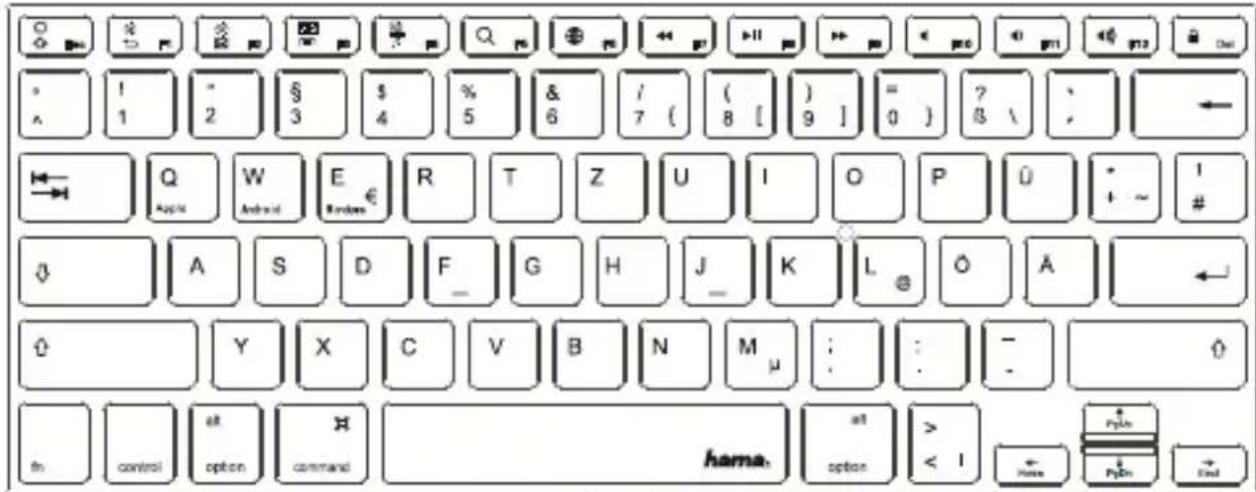
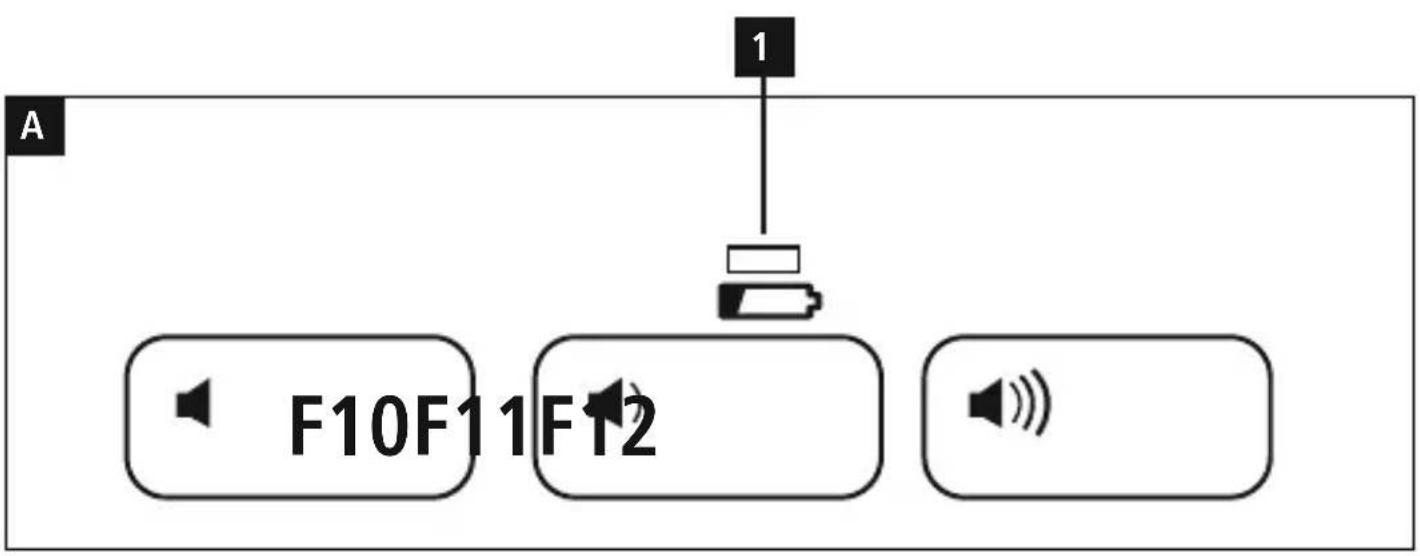
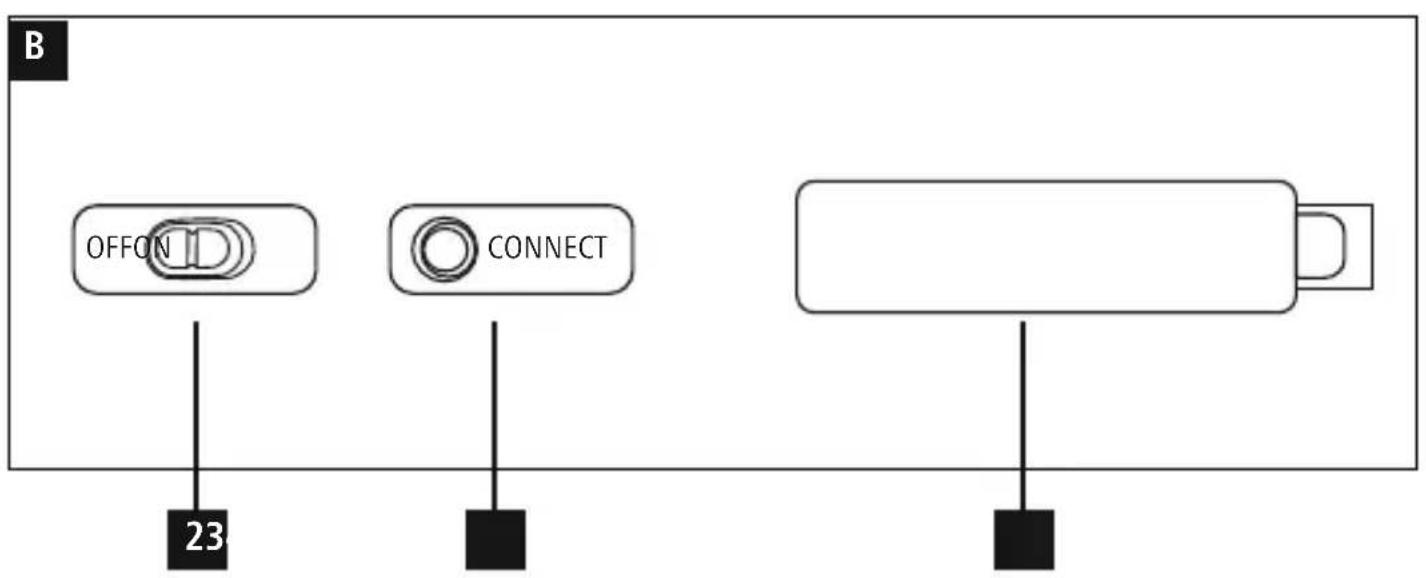
ControlsandDisplays
ADisplaybar
1.StatusLED-Blue to o't connection/battery charge
BControls
2.[OFF/ON]switch
3.[CONNECT]button
4. Batterycompartment
Thankyouforchoosinga H amaproduct.
Takeyourtimeandreadthefollowinginstructions andinformationcompletely. P leasekeepthese instructions in a safe place for future reference. If yousellthedevicepleasepasstheseseoperating instructionsontothewowner.
1.ExplanationofWarningSymbolsandNotes

Warning
Thissymbolisusedtoindicatesafety instructionsortodrawyourattentiont o specifichazardsandrisks.

Note
Thissymbolisusedtoindicateadditional informationorimportantnotes.
2.PackageContents
- ' KEY4ALLX510'Bluetooth® keyboard
- t theseoperatinginstructions
- 2 × 1.5V(AAA) batteries
3.SafetyNotes
T heproductisintendedforprivate,non-commercialuseonly.
- P rotecctheproductfromdirt, moisture a nd overheating, andonlyuseitina d ryenvironment.
- D disconnect the product from thenetwork using the power button - if this is not available, unplug the power cord from the socket.
- D o n otusetheproductinmoistenvironmentsand avoidsplashes.
- D o n otdroptheproductanddonotexposeitto anymajorshocks.
- D isposeofpackagingmaterialimmediately accordingtolocallyapplicableleregulations.
- Do not modify the product in any way. Doing so voidsthewarranty.
4. Systemrequirements
Thekeyboard w orkswithBluetooth®-enabledtablet PCsandsmartphonesrunningiOS,Android and Windows.
The requirements for keyboard use are as follows:
- All iPad and iPhone devices can be used.
- A ndroiddevicesrequire Android3.0ornewer.
- B bluetooth-enabledWindowsdevicesrequire Windows XP, Windows 7, Windows 8 or Windows 10.
Checkwhetherthelatestversionisinstalledand,if necessary,performasoftwareupdate.

Note
To ensure that the keyboard functions properly, checkthattherightkeyboard layout(QWERTZ,QWERTY e tc.)issetin yourdevice's settings.
- N otethatsupportforcertainkeyfunctions mayvarydependingonyourdevice.
- I fs omekeysontheBluetooth®keyboard donotworkproperlyonyourdevicefor software r reasons,youcanrunthemvia thevirtualkeyboard.
- P leaserefertotheoperatingsinstructions forthedeviceyouare u sing.
5. Getting Started

Warning-Batteries
- I mmediatelyremoveddeadbatteriesfrom theproductanddisposeofthem.
- O nlyusebatteries(orrechargeable batteries)thatmatchthespecifiedtype.
- D o n otmixoldandnewbatteriesor batteriesofa differenttypeormake.
- W heninsertingthebatteries, makesure that thepolarityiscorrect( ^+ and'-' markings).Failure to do so could result in the batteriesleakingoreexploding.
- Don't charge non-rechargeable batteries.
- K eepbatteriesoutofthereachof children.
-
D o n otshortcircuitbatteries/rechargeable batteriesandkeepthemawayfrom uncoatedmetalobjects.
-
O penthebatterycompartment(4),inserttwoAAA batterieswiththecorrectpolarityandclosethe batterycompartment(4).
- If the battery charge is low, the Bluetooth/battery statusLED(1)willbegintoflashblueduring operation.Replacethebatteriesimmediatelyas describedabove.
6. Operation

Note
- T hefunctionsdescribedinthissection are onlyavailableforBluetooth-capable terminaldevices.
- N otethatthemaximumrangefor Bluetoothis10metreswithoutobstacles suchaswalls,people,etc.
6.1Bluetooth® pairing

Note-Pairing
- Makesure t hatyourBluetooth®-capable terminaldeviceisonandBluetooth ® is activated.
- Makesure t hatyourBluetooth®-capable terminaldeviceisvisibleforother Bluetooth® devices.
-
F ormore i nformation,pleaserefertothe operatinginstructionsofyourterminal device.
-
Slide the [OFF/ON] switch (2) to the ON position to switch on the Bluetooth® keyboard. The Bluetooth® /batterystatusLED(1) flashes blue.
- Press and hold the [CONNECT] button (3) until theBluetooth®batterystatusLED(1)beginsto continuallyflashblue.Thekeyboard is s e a r c h i n g fora Bl u e t o B t o n c h i o n.
-
O pentheBluetooth® settingsonyourterminal deviceandwaituntilHamaKEY4ALLX510 appearsinthelistofBluetooth® devicesfound.
-
Select Hama KEY4ALL X510, follow any instructionsonyourterminaldevice, and wait until the keyboard is shown as connected in the Bluetooth settings on your terminal device. The Bluetooth /battery status LED(1) goes out.
- Y oucannowusetheBluetooth®keyboard.
6.2 Automatic Bluetooth connection(after successful pairing)

Note
- Makesure that you Bluetooth®-capable terminal device is on and Bluetooth® is activated.
- Makesure that you Bluetooth® - capable terminal device is visible for other Bluetooth® devices.
-
For more information, please refer to the operating instructions of your terminal device.
-
Slide the [OFF/ON] switch (2) to the ON position toswitchontheBluetooth® keyboard.The Bluetooth®/batterystatusLED(1)flashesblue.
- Y oucannowusetheBluetooth ® keyboard.

Note Connectionimpaired
Afterthedeviceshavebeenpaired once, the connectionisthenestablished automatically. If theBluetooth connection isnotestablishedautomatically, checkthe following:
- C hecktheBluetooth® settingsof your terminaldevicecetoseewhat Hama KEY4ALLX510isconnected.Ifnot, repeatsthesteplistedunder6.1 Bluetooth® pairing.
- Checkwhetherobstaclesareimpairingtherange.lfso,movethedevicesclosetogether.
6.3 Changing the operationsystem
TheHamaKEY4ALLX510keyboard s u p p o r t s threedifferentoperatingsystems.You can use thefollowingshortcutkeystoselectthedesired operatingsystem:
- f n + Q f orAppleiOS
- fn + W forAndroid
- f n + E for Windows
6.4Multimediakeys
Themultimediakeysgiveyoudirectaccesstovarious applicationsandfunctions.
You can use them by pressing fn + the required multimediakey.
| Key symbol | AndroidWindowsiOS | ||
| StartscreenStartscreenStartscreen | |||
| BackBack | Brightness down | ||
| E-mailE-mail | Brightness up | ||
| MenuSelectlink* | Virtual keyboard | ||
| MediaPlayer | Browse folders** | Screenshot | |
| SearchSearchSearch | |||
| Language exchange | Language exchange | Language exchange | |
| Previous track | Previous track | Previous track | |
| Play/PausePlay/Pause | Play/Pause | Play/Pause | |
| Nexttrack | Nexttrack | Nexttrack | |
| Mute | Mute | Mute | |
| Decrease volume | Decrease volume | Decrease volume | |
| Increase volume | Increase volume | Increase volume | |
| LockLockLock | |||
*InWindowsExplorer
**InternetExplorer
6.5 Standby and switchingoff
- If you do not use the keyboard for longer than 15 minutes, it will automatically switch to stand by mode.
- P ressanykeytoreactivatethekeyboard.
- S lidethe[OFF/ON]switch(2)totheOFFposition toswitchofftheBluetooth keyboard.
7.CareandMaintenance
- O nlycleanthisproductwitha s lightlydamp, lint-freeclothanddonotuseaggressivecleaning agents.
- Make sure that water does not get into the product.
8.WarrantyDisclaimer
Hama GmbH & Co KG assumes no liability and providesnowwarrantyfordamageresultingfrom improperinstallation/mounting,improperuseof theproductorfromfailure to o bservetheoperating instructionsand/orsafetynotes.
9. Service and Support
PleasecontactHamaProductConsultingifyou haveanyquestionsaboutthisproduct.Hotline:+49 9091502-115(German/English)Furthersupport informationcanbefoundhere:www.hama.com
10. Technical Data
| Bluetooth® version | 3.0 |
| Rangemax.10m | |
| Dimensions(Lx W x H) | 28,5x 1 2,0x 1 ,8cm |
| Numberofkeys | 78incl. 14mediakeys |
| BATTERYtype2x1.5V(AAA) | |
| Frequencyband2402- 2 480MHz | |
| Maximumradio- frequencypower transmitted | 2.09mWEIRP |
11.RecyclingInformation
Noteonenvironmentalprotection:

AftertheimplementationoftheEuropean Directive2012/19/EUand2006/66/EUin thenationallegalsystem,thefollowing applies:Electricandecronicidevicesas well as batteriesmustnotbedisposed of beholdwaste.Consumersareobligebylaw electricalandecronicidevicesaswellas theeendoftheirservicelivestothepublic pointssetupforthispurposeorpointofails to this are defined by the national law of activecountry.T hissymbolontheproduct, actionmanualorthepackageindicatesthat tissubjecttotheseregulations.By reusingthematerialsorotherformsof olddevices/batteries,youaremakingan tcontributiontoprotectingour ent.
12.DeclarationofConformity
Hereby, Hama GmbH & Co KG declares that theradioequipmenttype [00108392/0 0108393]isincompliance withDirective2014/53/EU. The fulltextoftheEU declaration of conformity is available at the following internetaddress: www.hama.com 00108392/0 0108393 Downloads.
- fn + Q p ourAppleiOS
- fn + Wp ourAndroid
- fn + E p ourWindows
6.4Multimediakeys
The Bluetooth® word mark and logos are registered trademarks owned by Bluetooth SIG, Inc. and any use of such marks by Hama GmbH & Co KG is under license. Other trademarks and trade names are those of their respective owners.
All listed brands are trademarks of the corresponding companies. Errors and omissions excepted, and subject to technical changes. Our general terms of delivery and payment are applied.