CA7CHIL - Tablet Sunstech - Free user manual and instructions
Find the device manual for free CA7CHIL Sunstech in PDF.



| Product type | Kids tablet |
| Brand | Sunstech |
| Model | CA7CHIL |
| Operating system | Android 4.1.1 |
| Screen size | 7 inches (17.8 cm) |
| Screen resolution | 800 x 480 pixels (16:9) |
| Screen type | Capacitive TFT LCD |
| RAM memory | 512 MB |
| Internal storage | 4 GB |
| Expandable storage | micro SD card up to 32 GB |
| Front camera | 0.3 MP |
| Wi-Fi connectivity | 802.11 b/g |
| Battery | Lithium polymer 2800 mAh |
| Battery life (Wi-Fi) | Up to 3 hours |
| Ports | Micro USB 2.0 (OTG), 3.5 mm headphone jack, T-Flash slot, DC 5V/2A input |
| Recommended power supply | Power adapter 5V, 1500 mA |
| Parental control | Yes, with 4-digit code |
| Preloaded educational content | Yes (ABC, Sports, Fun Camera, Mini games) |
| Estimated weight | Approximately 300 g |
| Estimated dimensions | Approximately 190 x 120 x 10 mm |
| Warranty | 2 years |
| Operating temperature | 20 °C to 60 °C (internal) |
| Maintenance and cleaning | Soft, slightly damp cloth, no abrasive products |
| Safety precautions | Do not expose to water, heat, magnetic fields; do not disassemble; do not block ventilation |
Frequently Asked Questions - CA7CHIL Sunstech
User questions about CA7CHIL Sunstech
0 question about this device. Answer the ones you know or ask your own.
Ask a new question about this device
Download the instructions for your Tablet in PDF format for free! Find your manual CA7CHIL - Sunstech and take your electronic device back in hand. On this page are published all the documents necessary for the use of your device. CA7CHIL by Sunstech.
USER MANUAL CA7CHIL Sunstech
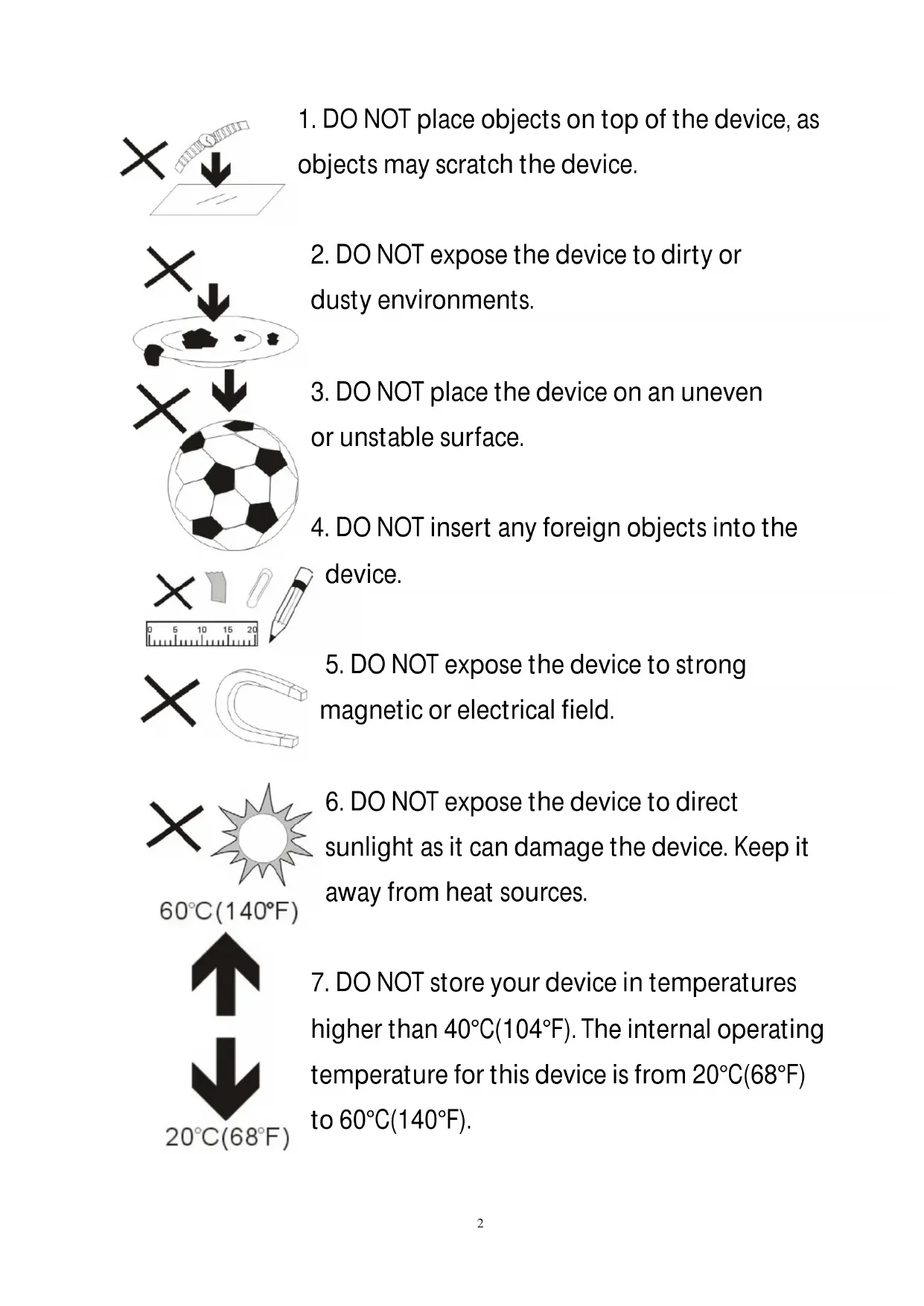
- DO NOT place objects on top of the device, as objects may scratch the device.
-
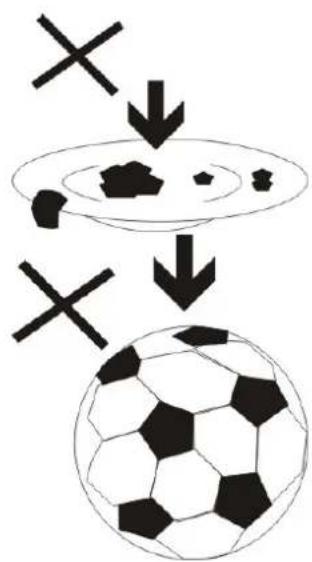
DO NOT expose the device to dirty or dusty environments.
-
DO NOT place the device on an uneven or unstable surface.
-
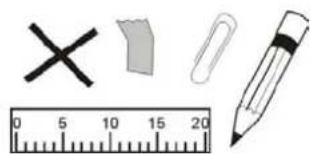
DO NOT insert any foreign objects into the device.
natural_image
Illustration of four basic objects: a cross, a paperclip, a ruler, and a pencil (no text or symbols)- DO NOT expose the device to strong magnetic or electrical field.
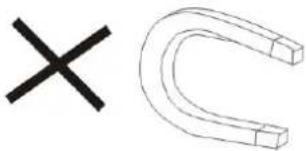
natural_image
Simple line drawing of a crossed-out black X and a U-shaped magnet (no text or symbols)- DO NOT expose the device to direct sunlight as it can damage the device. Keep it away from heat sources.
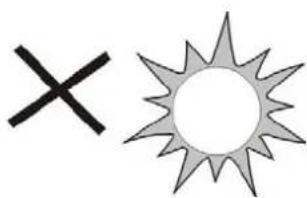
natural_image
Simple graphic with a black X and a sunburst shape (no text or symbols)60^ C(140^ F)
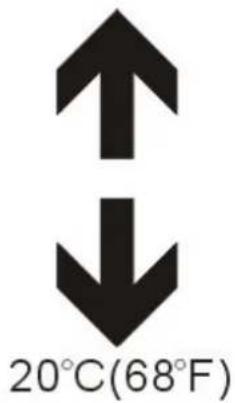
- DO NOT store your device in temperatures higher than 40^ C(104^ F) . The internal operating temperature for this device is from 20^ C(68^ F) to 60^ C(140^ F) .

natural_image
Simple illustration of a cloud with raindrops and a cross symbol (no text or labels)- DO NOT use the device in the rain.
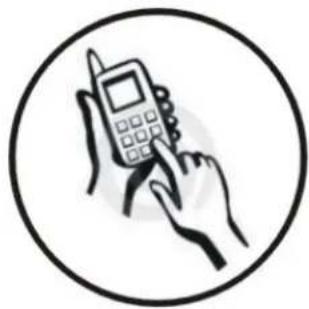
natural_image
Illustration of a hand holding a mobile phone inside a circle (no text or symbols)- Please check with your Local Authority or retailer for proper disposal of electronic products.
natural_image
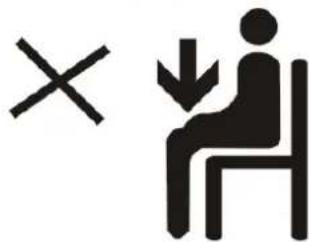
Symbolic illustration of a person sitting with a cross and downward arrow, no text or numbers present- The device and adaptor may product some heat during normal operation of charging. To prevent discomfort or injury from heat
exposure, DO NOT leave the device on your lap.
- POWER INPUT RATING: Refer to the rating label on the device and be sure that the power adaptor complies with the rating. Only use accessories
specified by the manufacturer.
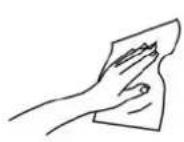

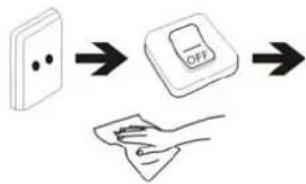
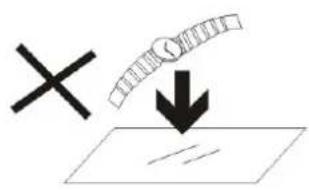
- Clean the device with a soft cloth. If needed, dampen the cloth slightly before
cleaning. Never use abrasives or cleaning solutions.
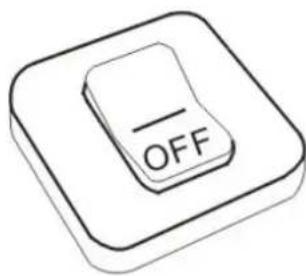
- Always power off the device to install or remove external devices that do not support hot-plug.
flowchart
graph TD
    A["Switch with two dots"] --> B["OFF button"]
    B --> C["Hand holding paper clip"]
- Disconnect the device from an electrical outlet and power off before cleaning the device.
natural_image
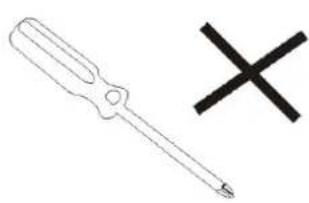
Simple line drawing of a screwdriver and a black X symbol (no text or labels)- DO NOT disassemble the device. Only a certified service technician should perform repair.
-
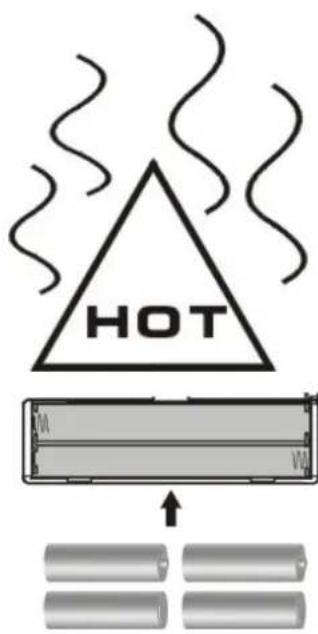
The device has apertures to disperse heat. DO NOT block the device ventilation, the device may become hot and malfunction as a result.
-
Risk of explosion if battery replaced by an incorrect type. Dispose of used batteries according to the instruction.
natural_image
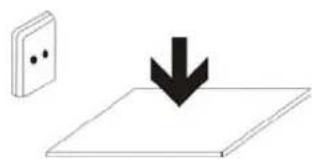
Simple line drawing of a wall-mounted switch with a downward arrow indicating compression (no text or symbols)- PLUGGABLE EQUIPMENT: the socket-outlet shall be installed near the equipment and shall be easily accessible.
Contents
PRECAUTIONS....6
FEATURES 7
BUTTONS....8
OPERATION
1.1: LED Indicator....9
1.2: Switch On/Off 9
1.3: Main Menu
1.3.1: Parents Mode Enter....10
1.3.2: Children Mode Enter....11
1.4: Parents Setting....11
1.4.1: Parents Setting
1.4.1.1: Power off time setting....12
1.4.1.2: Display brightness setting....13
1.4.1.3: App Manage....13
1.4.1.4: Parents Passcode Manage
1.4.1.4.1: Parents Passcode Change – First time....14
1.4.1.4.2: Parents Passcode Change – After first time change......14
1.4.1.4.3: Forgot Parents Passcode ....14
1.4.1.4.4: Forgot Reset Code ....15
1.4.1.4.5: Change Reset Code 15
1.4.1.5: Kids Passcode Manage
1.4.1.5.1: Kids Passcode Change....15
1.4.1.5.2: Forgot Kids Passcode....15
1.5: Children Mode....16
1.5.1: Icons & function....16
1.5.2: User Interface
1.5.2.1: ABC....17
1.5.2.2: Funny Camera....17
1.5.2.3: Family Sports....18
1.5.2.4: Mini Games....19
1.5.2.5: Apps....19
1.5.2.6: Photos....19
1.5.2.7: Music....19
1.5.2.8: Video....20
1.5.2.9: Camera....20
1.5.2.10: MIC....20
1.5.2.11: Calculator....20
1.5.2.12: Parents Mode....20
1.6: Factory Reset....21
1.7: WiFi Connection....22
1.8:USB Host (OTG)....22
1.9: File Copy/Transfer....22
1.10: System Settings....23
PRECAUTIONS
Follow these tips to preserve the operational lifespan of your Kids Tablet
- This device is neither break-proof nor water-proof. Please handle with care.
- It is recommended that you charge the device around 12 hours before using the device for the first time.
● Do not allow young children to charge your Kids Tablet
● Recommended AC adaptor spec: Input: 100-240V 50/60 Hz and Output: 5V, 1500 mA - Please don't charge the Kids Tablet if the temperature is too high.
- If the device is nearly running out the battery, please charge it immediately.
- To keep the battery in good condition, please make sure to charge the power once per two weeks if you don't use this device for a long time.
- Do not use this Kids Tablet in extreme temperatures. Keep away from extreme hot, cold, dry, or damp areas. Also keep away from water, fire, and radiation.
● Do not disassemble your Kids Tablet
● Never force any cable connectors into the ports of your Kids Tablet or computer. Always make sure that your cable connectors are identical in shape and size before attempting to connect. - When disconnecting your Kids Tablet from a computer, use the Safely Remove Device function on your computer. Do not disconnect your Kids Tablet while it is still transmitting data.
Features
Operation System
● Android OS V4.1.1 preinstalled.
Wireless
● Built-in Wi-Fi 802.11b/g. Support USB _LAN
Display
● 7-inch Digital TFT Full Screen capacitive touch screen
● 800 x 480 pixels (16:9) display resolution
Cameras and Photos
● Features a 0.3 Megapixel front camera.
- Can use it for video conference through Skype, MSN or any other instant messenger. Easy to shoot and share photos and videos wherever you are.
Parental Controls
● Preloaded with educational content and games for kids
● Parents can easily pick and choose which Apps the kids are allowed to use;
● Parents can unlock device and turn it into a full-featured tablet
Video
● Supports all major video formats such as Flash player 10.1, Plays Flash player 10.1, AVI, RM, RMVB WMV, MOV, MP4, DAT (VCD), VOB (DVD), MPEG, MPG, FLV, ASF, TS, 3GP, MPG etc HD 1080P, WebM VP8 decoding video format files
Music Player
● Music player.
- Simply glide through favorite music by album covers and tap on the track list to play. Support all major music MP3,WMA, OGG,AAC, FLAC,APE, WAV
Power and Battery
● Built-in 2800mAh li-poly Battery
● Up to 3 hours of surfing the web on Wi-Fi, watching video, or listening to music
● Charging via power adapter or USB to computer system
Memory
Ram 512MB
Internal Memory 4GB up to 32GB via Micro SD.
Input/Output
● T- Flash Card slot
● Micro 5p USB Jacket
- USB OTG port
● 3.5-mm stereo headphone mini jacket
● Input DC 5V / 2 A.
Windows System Requirements
● PC with USB 2.0 port
● Windows 7; Windows Vista; or Windows XP Home or Professional with Service Pack 3 or later
- Internet access
Size and Weight
● Working: Blue LED Indicator
● Charging: Red LED indicator
● Fully Charged: Red LED Indicator turns to Blue LED Indicator
1.2: Switch On/Off
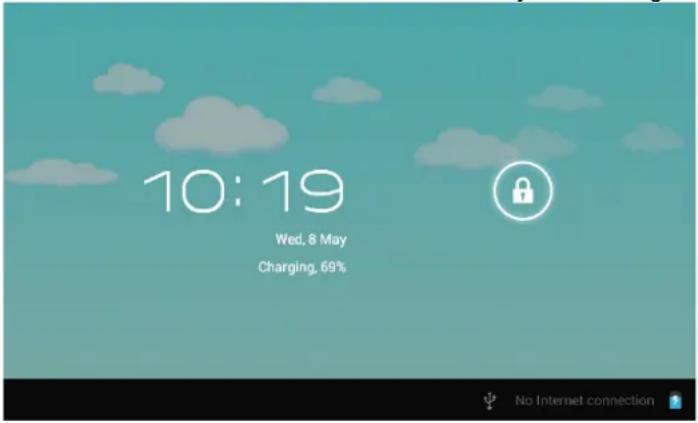
1.2.1: Switch On and Unlock:
- When the device is in the OFF mode, press and hold "Power" key for 3 seconds to enter the Android startup progress bar, it need about 28 seconds enter to the system desktop, when
the LCD is under locked mode, please press and drag the then the LCD will unlocked automatically, see the figures be

icon to the green point,
1.2.2: Power Saving Modes and lock screen.
- Press the "POWER" key shortly after starting up, system enter to power save and lock mode.
- Press the "POWER" key or tap the touch screen, system will return to turn on in 1 second
● The primary operation of the device will not stop under the power save mode, just the LCD is shut and with black screen. For example: playing music, movie, etc - Switch OFF: When the device is in the OFF mode, press and hold the "POWER" key for 3 seconds, the screen will display the power off interface, choose the power off item to confirm, the system will shut automatically
【Note】When the device show low battery after a while shut automatically.
If the device can not start up please check if the battery is low, and connect an adaptor.
1.3: Main Menu
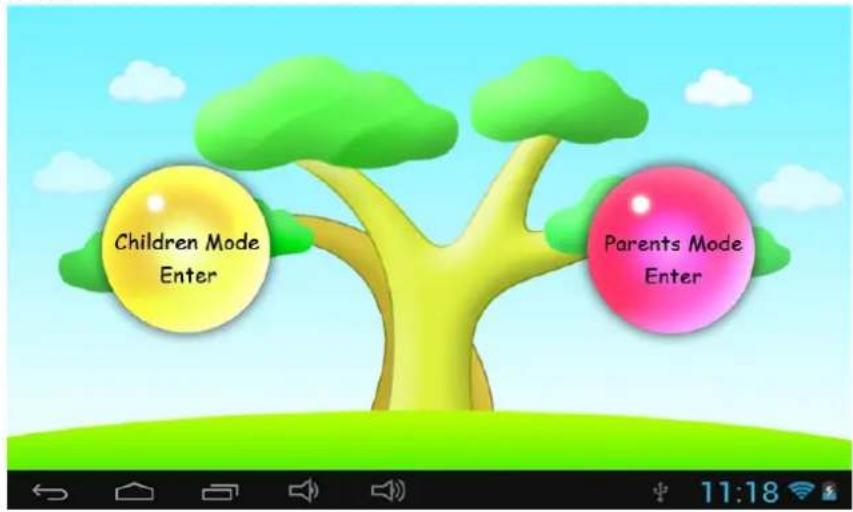
1.3.1: Parents Mode Enter
- Choose "Parents Mode Enter". You are requested to enter the 4-digital
Passcode factory default: 8888
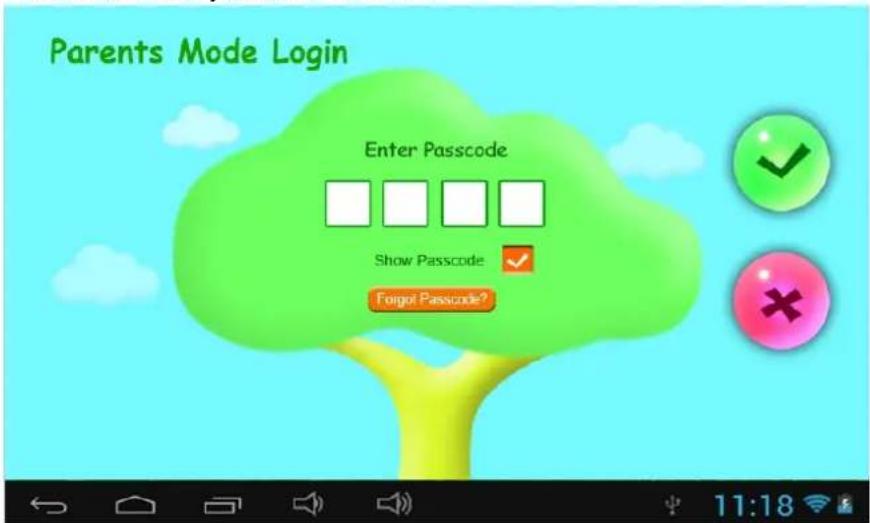
Show Passcode

: To display Passcode, please tick


: Wrong Passcode inputted

: Correct Passcode and Login

: Return to last menu
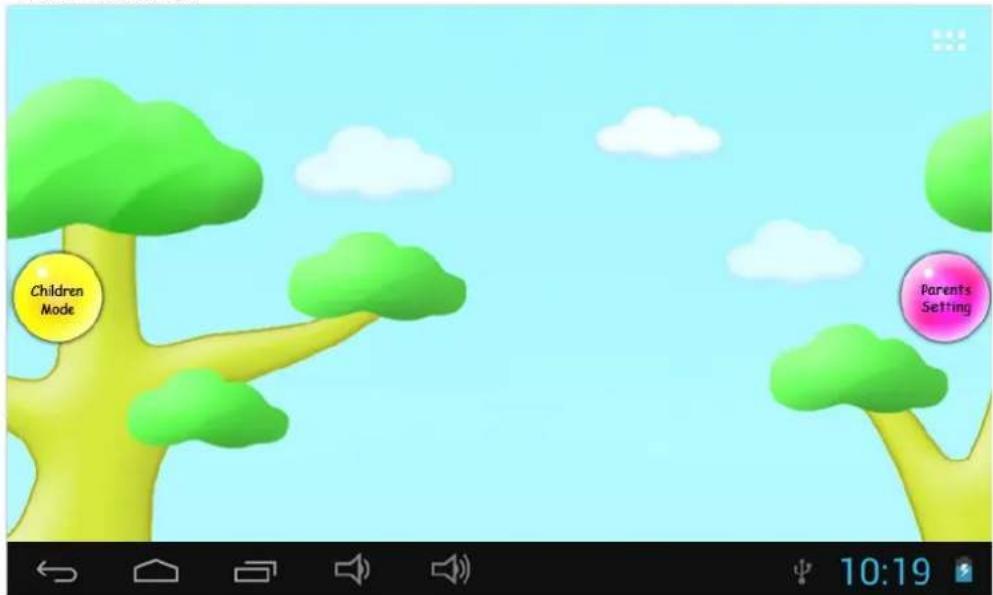
● Once Passcode correctly inputted. It will go to,
A1: Children Mode
A2: Parents Setting
A3: Android OS
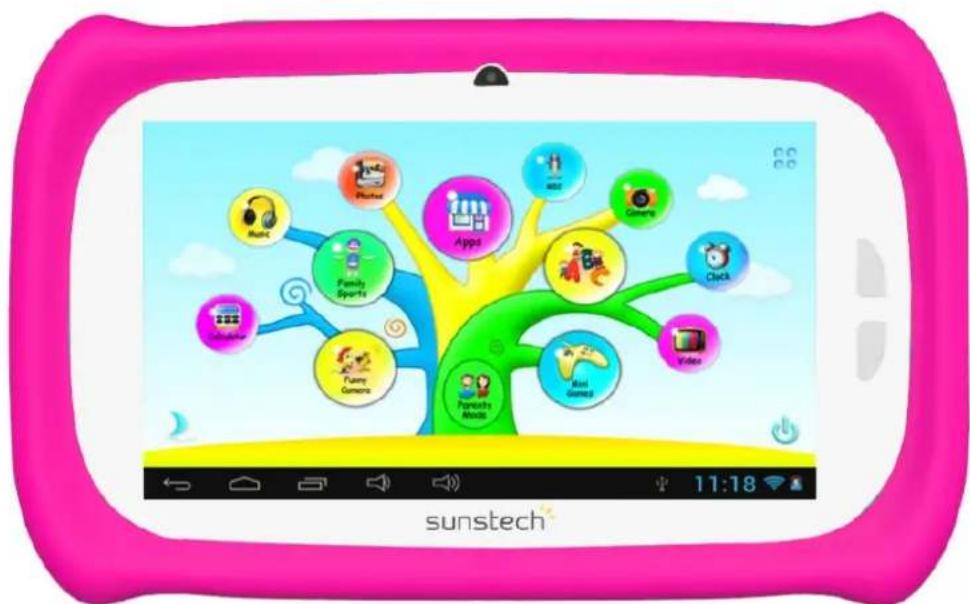
1.3.2: Children Mode Enter
Children Mode Login:
- Choose "Children Mode Enter". You are requested to enter the 4-digital
Passcode factory default. 8888
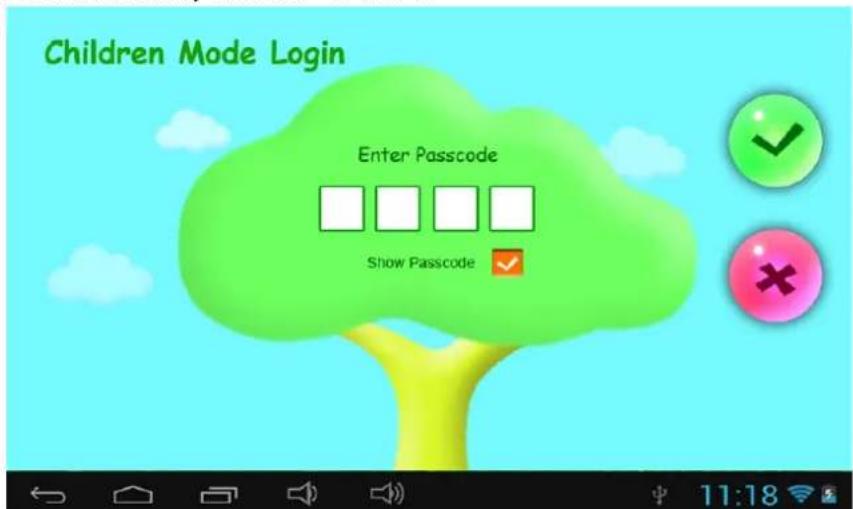
● Once Passcode correctly inputted. It will go to,
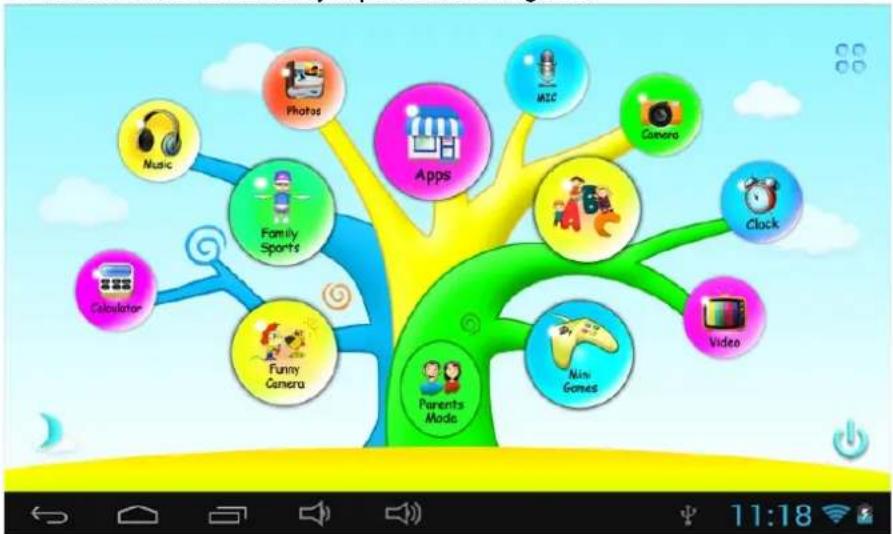
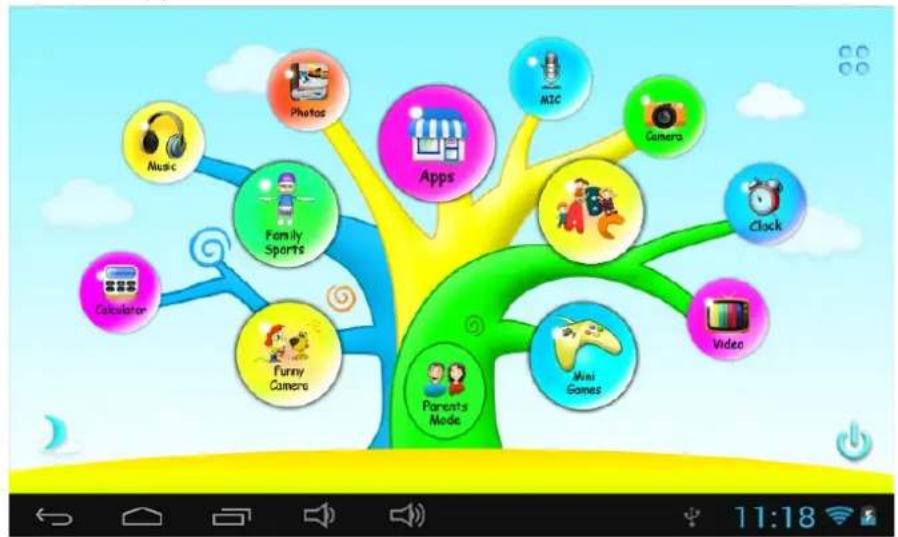
flowchart
graph TD
    A["Music"] --> B["Family Sports"]
    C["Calculator"] --> D["Funny Camera"]
    E["Photos"] --> F["Apps"]
    G["Camera"] --> H["Clock"]
    I["Video"] --> J["Mini Games"]
    K["Parents Mode"] --> L["Main Video"]
    M["Music"] --> N["Music"]
1.4: Parents Setting
1.4.1: Parents Setting
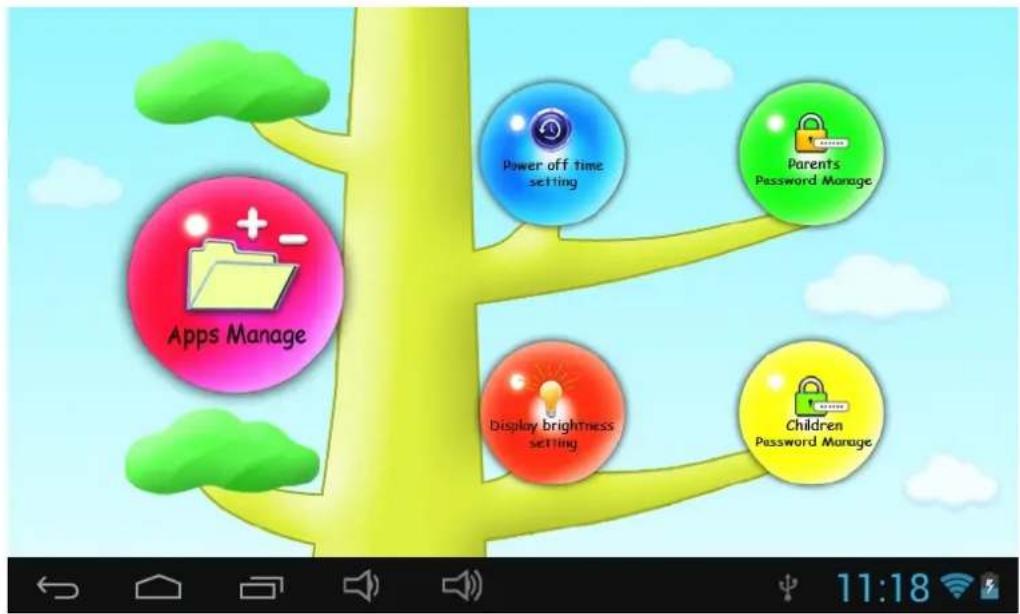
flowchart
graph TD
    A["Apps Manage"] --> B["Power off time setting"]
    A --> C["Parents Password Manage"]
    A --> D["Display brightness setting"]
    A --> E["Children Password Manage"]
1.4.1.1: Power off time setting
● This is to choose the power off time of the Kids Tablet.
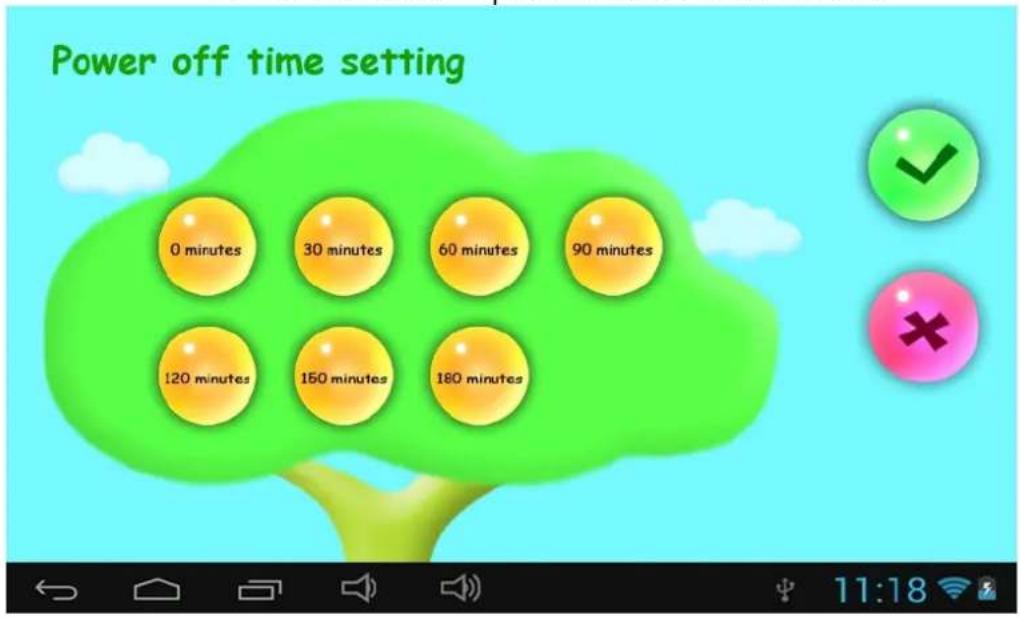
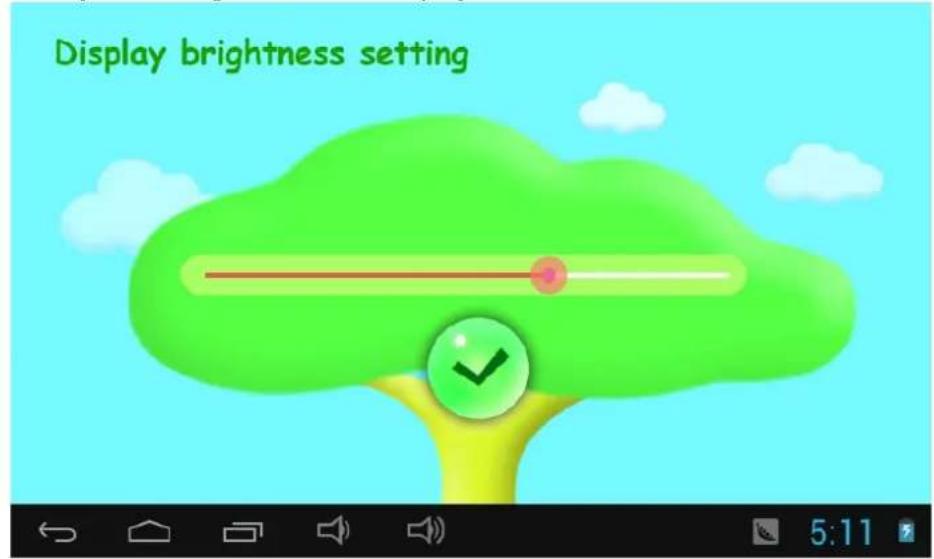
1.4.1.2: Display brightness setting
● To adjust the brightness of the display.
1.4.1.3: App Manage
● These Apps are installed under Android Operation System or Children Mode Tick(√)any Apps you want your children to access.
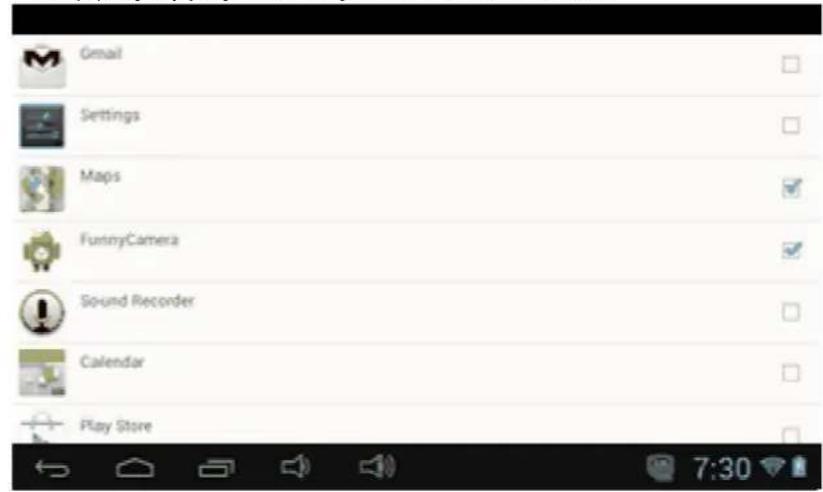

● Chosen Apps will be seen in Children Mode at
flowchart
graph TD
    A["Apps"] --> B["Music"]
    A --> C["Photos"]
    A --> D["Family Sports"]
    A --> E["Calculator"]
    A --> F["Funny Camera"]
    A --> G["Video"]
    A --> H["Mini Games"]
    A --> I["Parents Mode"]
    A --> J["Clock"]
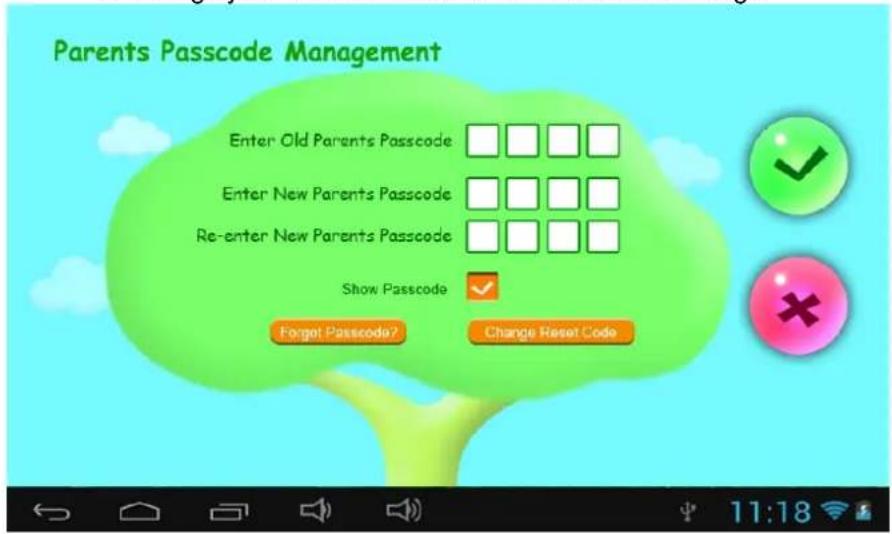
- For the first time Parents Passcode change. You are requested to set Reset Code. You will need the Reset Code to reset the Parent Passcode if you forget your Parents Passcode. Please don't lose the Reset Code.
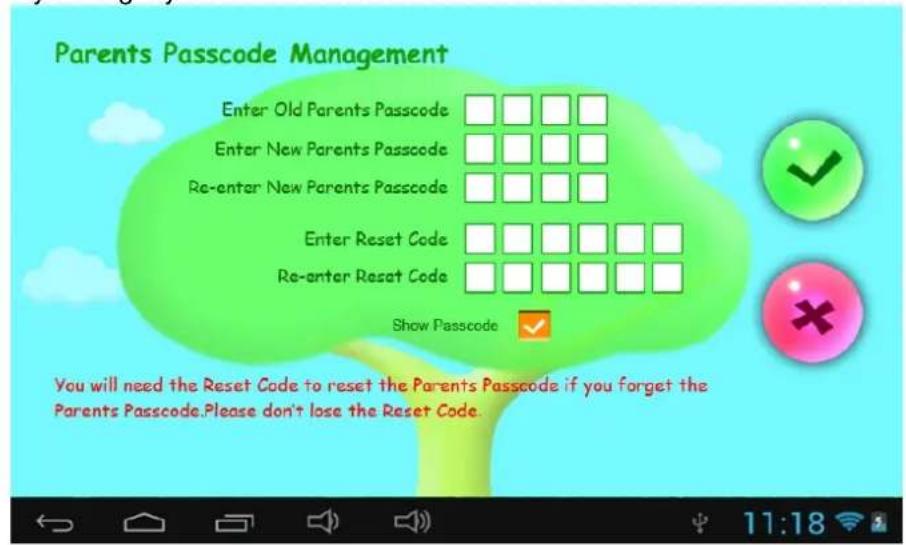
1.4.1.4.2: Parents Passcode Change – After first time change
● Change your Parents Passcode after first time change.
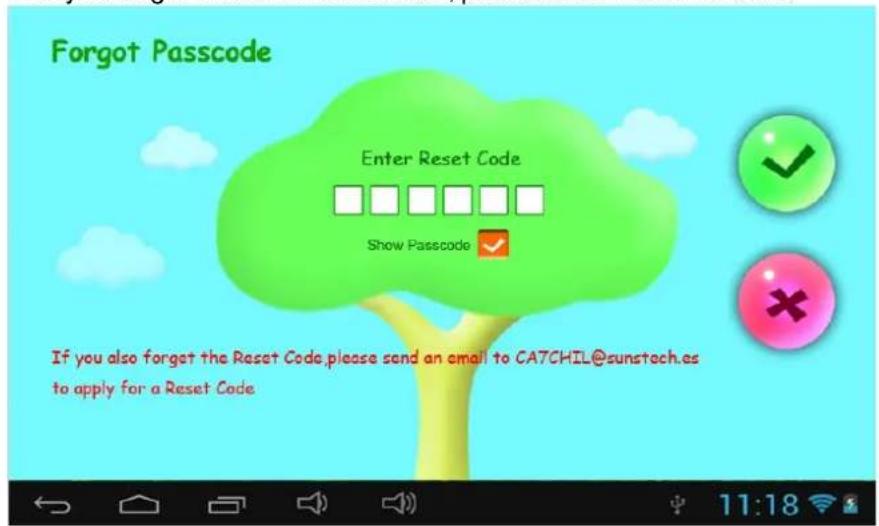
1.4.1.4.3: Forgot Parents Passcode
● If you forget the Parents Passcode, please enter the Reset Code
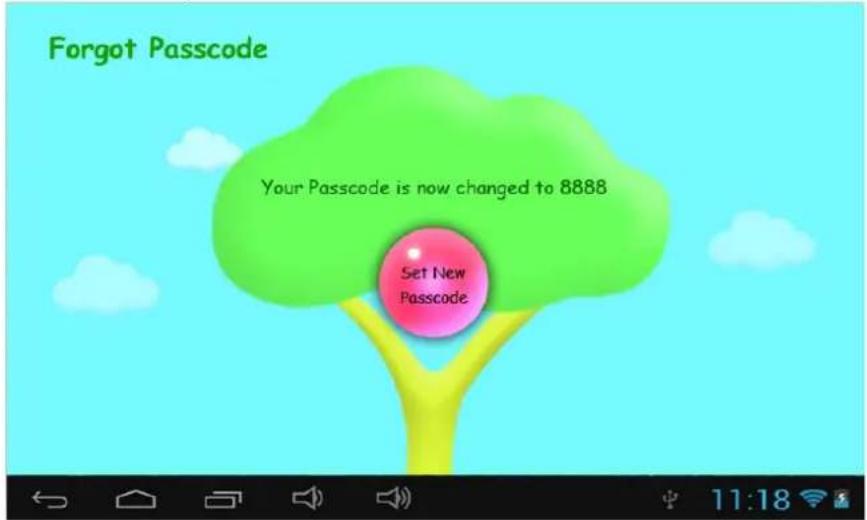
● Once you enter the Reset code. Your Parents Passcode will automatically
reset to factory Passcode 8888
1.4.1.4.4: Forgot Reset Code
● If you also forget the Reset Code. Please send an email to
CA7CHIL@sunstech.es to apply for a Reset Code
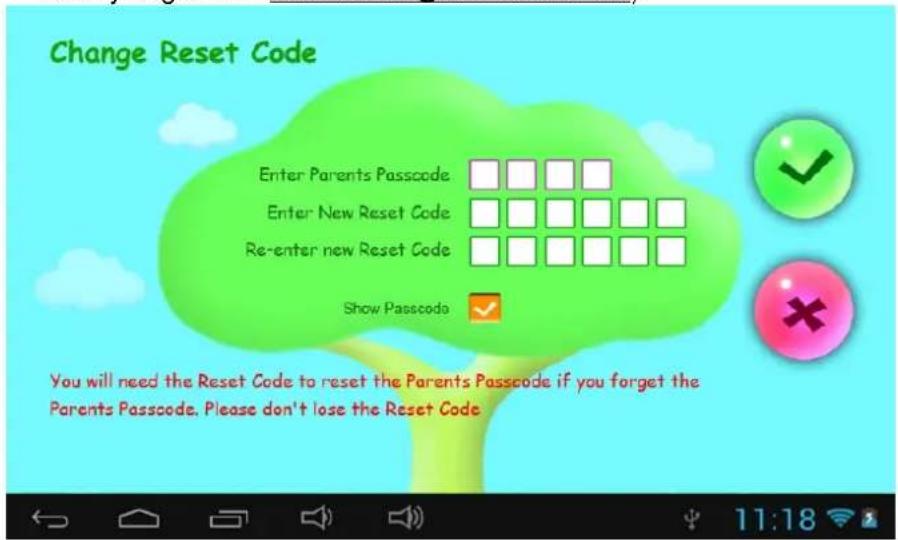
1.4.1.4.5: Change Reset Code
- Change your Reset code (either your own Reset Code or the Reset Code you got from CA7CHIL@sunstech.es).
1.4.1.5: Kids Passcode Manage
1.4.1.5.1: Kids Passcode Change
● You can change your Kids Passcode.
1.4.1.5.2: Forgot Kids Passcode
● You can change Kids Passcode freely by using Parents Passcode if you
forgot your kids Passcode
1.5: Children Mode
1.5.1: Icons & function
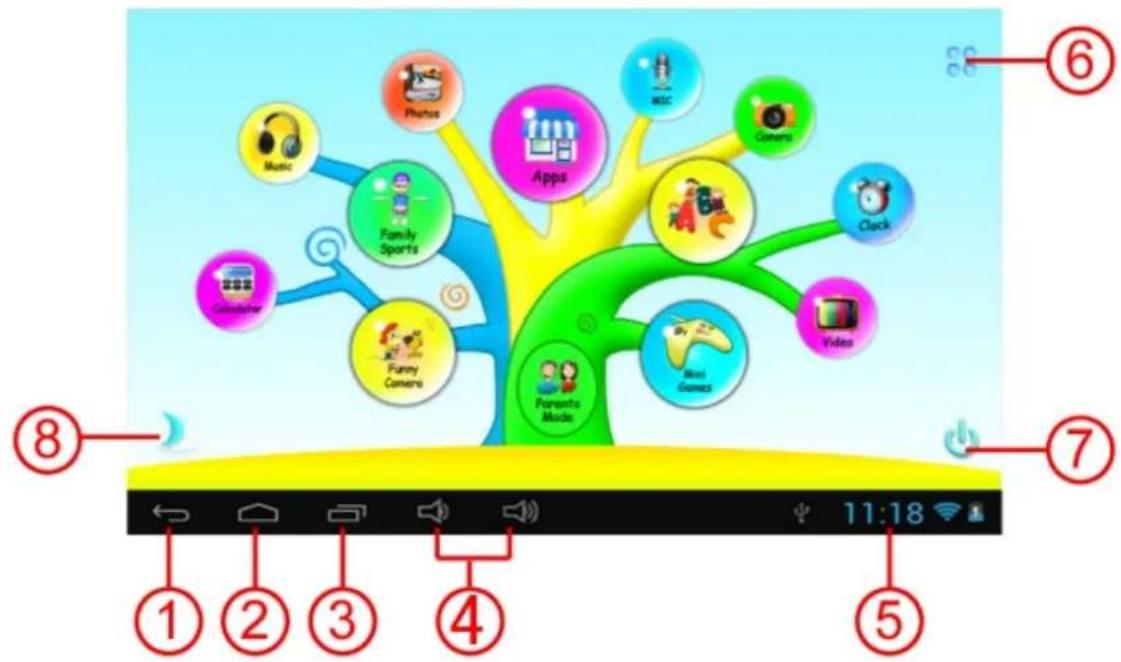
flowchart
graph TD
    A["Music"] --> B["Family Sports"]
    C["Games"] --> D["Apps"]
    E["Clock"] --> F["Video"]
    G["Fuzzy Camera"] --> H["Parents Mode"]
    I["Mini Games"] --> J["Main Games"]
    K["Gaming Theater"] --> L["Content"]
    M["Music"] --> N["Family Sports"]
    O["Games"] --> P["Apps"]
    Q["Clock"] --> R["Video"]
    S["Main Games"] --> T["Parent Mode"]
    U["Gaming Theater"] --> V["Content"]
- Back to last menu
- Back to Children Mode Main Menu
- Children Mode: No function Android OS: Go to history window.
- VOL - & VOL +
- Battery Icon, Time Icon
- Apps
- Power Off
- Background Change

Manually change to day-background.

Manually change to night-background.
It will automatically change to day-background from 6:00am-18:00p.m and night-background from 18:01pm-5:59a.m
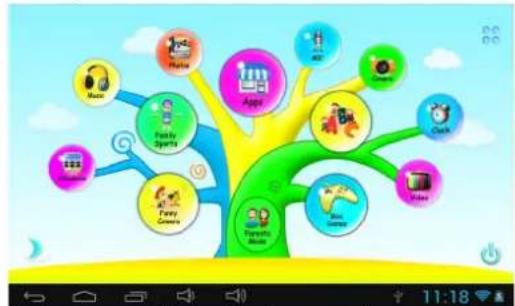
flowchart
graph TD
    A["App"] --> B["Fruits"]
    A --> C["TV News"]
    A --> D["News"]
    A --> E["Music"]
    A --> F["Play Sports"]
    A --> G["News"]
    A --> H["Entertainment"]
    A --> I["Comedy"]
    A --> J["Action"]
    A --> K["Video"]
    A --> L["Clock"]
    A --> M["Mobile"]
    A --> N["Game News"]
    A --> O["Entertainment News"]
    A --> P["Entertainment News"]
    style A fill:#f9f,stroke:#333
    style B fill:#ccf,stroke:#333
    style C fill:#cfc,stroke:#333
    style D fill:#fcc,stroke:#333
    style E fill:#cff,stroke:#333
    style F fill:#ffc,stroke:#333
    style G fill:#cfc,stroke:#333
    style H fill:#fcc,stroke:#333
    style I fill:#cfc,stroke:#333
    style J fill:#fcc,stroke:#333
    style K fill:#cfc,stroke:#333
    style L fill:#fcc,stroke:#333
    style M fill:#cfc,stroke:#333
    style N fill:#fcc,stroke:#333
    style O fill:#cfc,stroke:#333
    style P fill:#fcc,stroke:#333
(Day- Background)
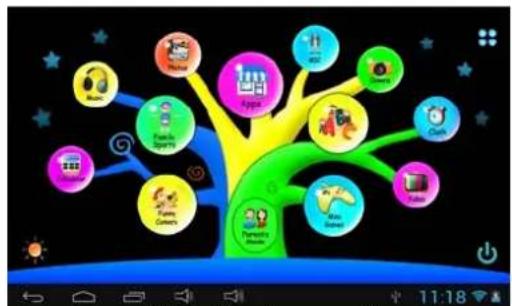
flowchart
graph TD
    A["Smart Home"] --> B["Family Sports"]
    A --> C["Games"]
    B --> D["Game Icon"]
    C --> E["Game Icon"]
    D --> F["Game Icon"]
    E --> G["Game Icon"]
    F --> H["Game Icon"]
    G --> I["Game Icon"]
    H --> J["Game Icon"]
    I --> K["Game Icon"]
(Night-background)
1.5.2: User Interface
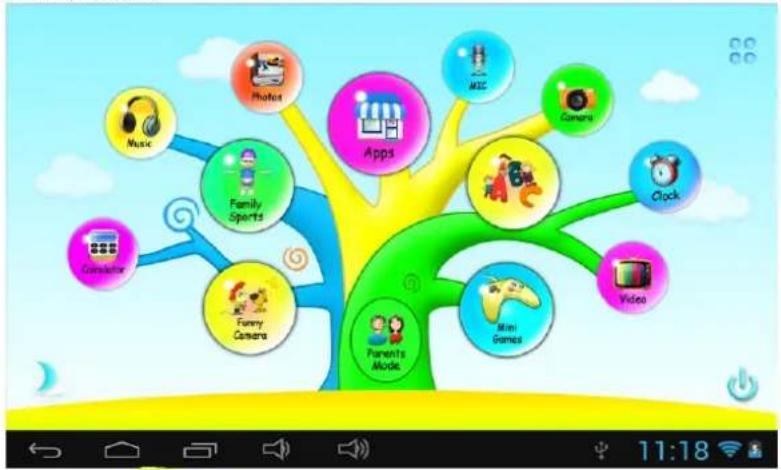
flowchart
graph TD
    A["Apps"] --> B["Music"]
    A --> C["Camera"]
    A --> D["Family Sports"]
    A --> E["Funny Camera"]
    A --> F["Video"]
    A --> G["Mini Games"]
    A --> H["Clock"]
    A --> I["Main App"]
    A --> J["Main Video"]
1.5.2.1: ABC
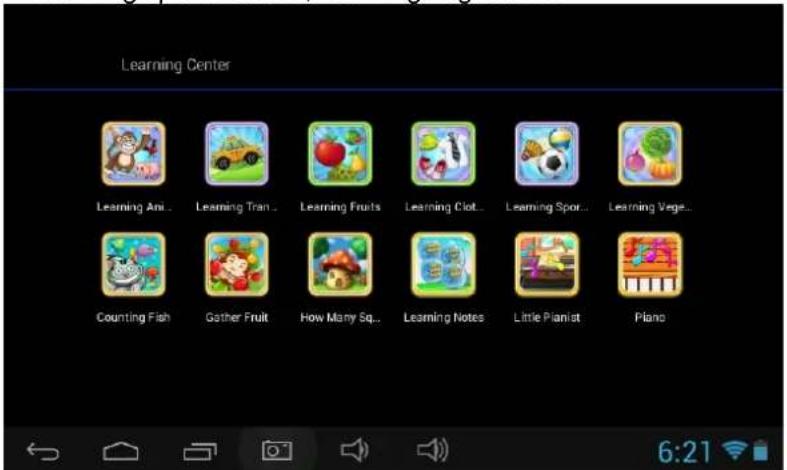
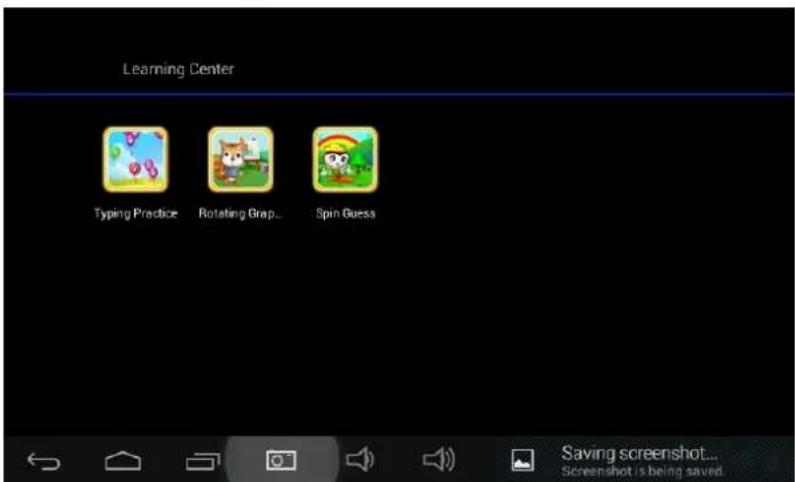
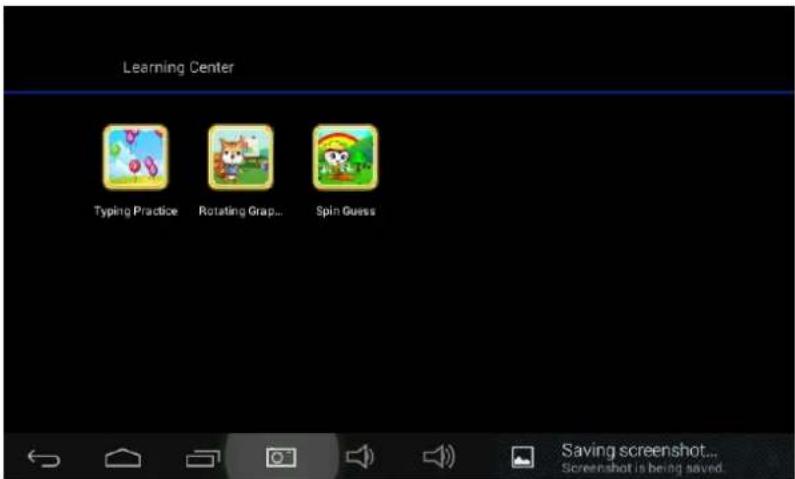
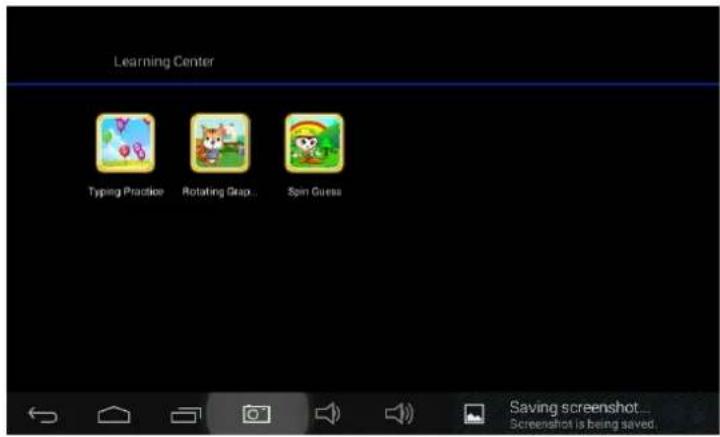
These fifteen educational contents teach children Animals, Transportation and Fruits. Counting Fish, Gathering Fruits, How Many Squirrels, Piano, Typing Practice, Rotating Graphics, SpinGuess, Little Pianist, Learning Notes, Learning Clothes, Learning Sports Goods, Learning Vegetables.

1.5.2.2: Funny Camera
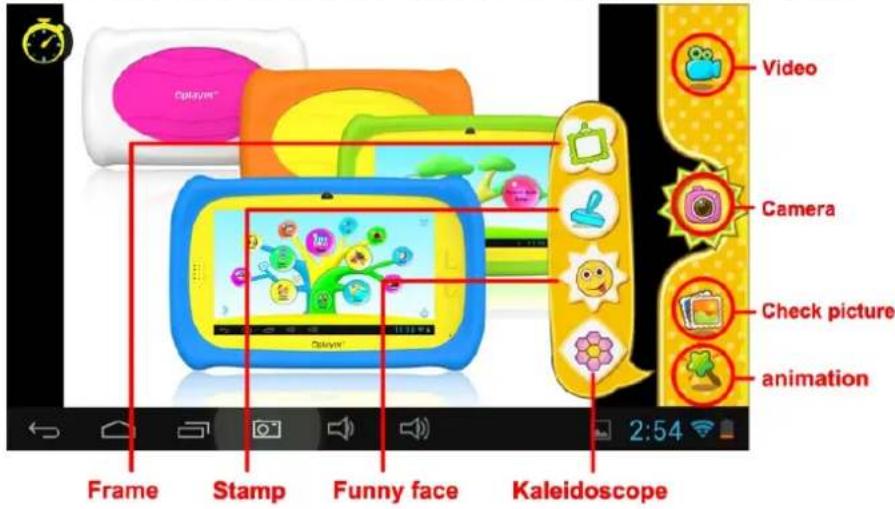
● There are 4 kinds of animation elements for choices
- Photo Frame model : 11 kinds of animation elements for your choice.
- Stamp model : 16 kinds of animation elements for your choice.
- Funny Face model : 11 kinds of animation elements for your choice. - Kaleidoscope model : 9 kinds of animation elements for your choice.
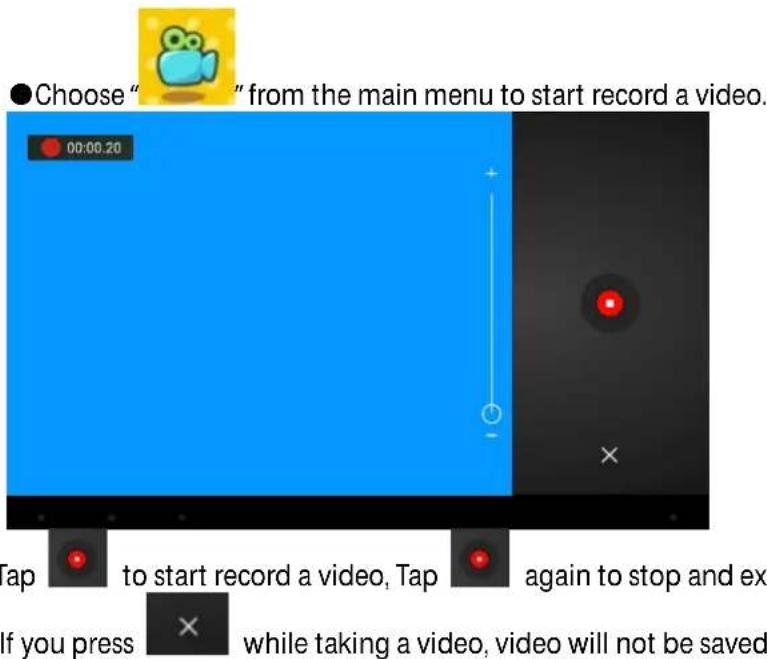

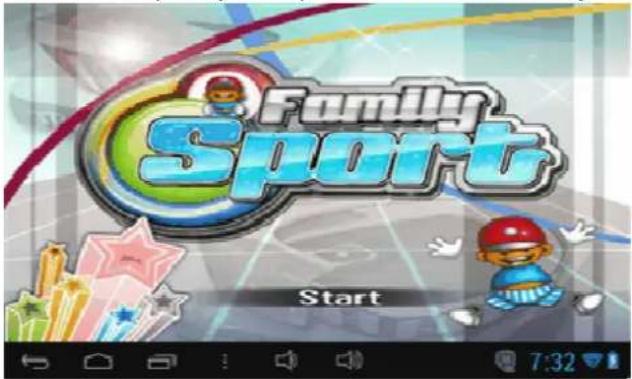
1.5.2.3: Family Sports
There are 9 Sport games pre-loaded. All these 9 games are fantastic Olympic games

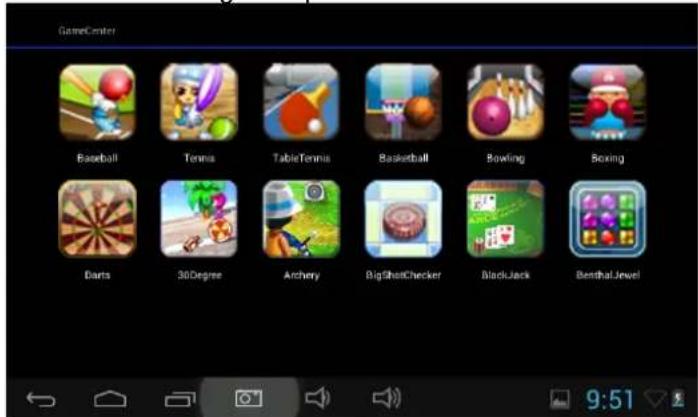
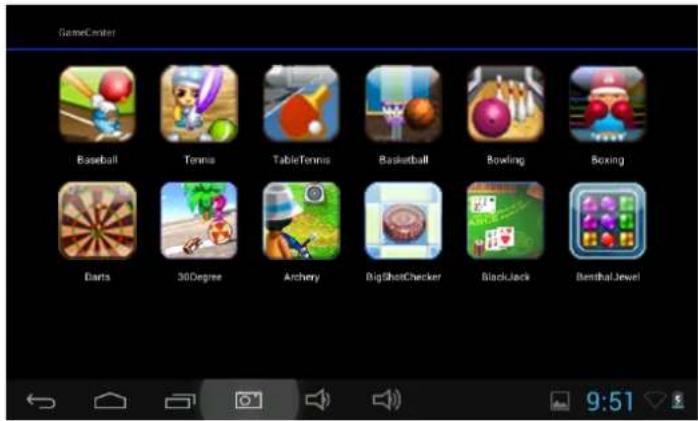
1.5.2.4: Mini Games
There are 50 mini games pre-loaded.

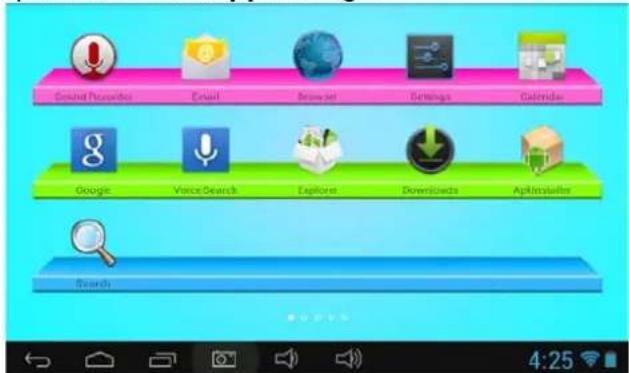
1.5.2.5: Apps
Apps is the manager of all the Apps selected by Parents and allowed children to use
it
Explained more in App Manager
1.5.2.6: Photos
- Choose to enter the picture viewer interface
- If there are no files in the photo list, the system will automatically load the image files from the memory card to the photo list when the picture viewer is started.
- Open the corresponding folder, find the image file and add the picture you want

1.5.2.7: Music

- Choose to enter music player interface.
- Browse through the lists of music and tap the selected song to start playing it.

1.5.2.8: Video

- Choose to enter the video player interface.
- If there are no video files in the video player playlist yet, the system will automatically load the video files from the memory card to the playlist when the video player is started.
- Drag the playback progress bar to adjust video playback
progress.

1.5.2.9: Camera
Features a 0.3 Megapixel front camera. Can use it for video conference through Skype, MSN or any other instant messenger. Easy to shoot and share photos and videos wherever you are.

1.5.2.10: MIC

- Choose to enter the recorder interface.
● Tap" "to start recording.
● Tap" "to stop recording.
● Tap ▶ to preview the recording.

1.5.2.11: Calculator
1.5.2.12: Parents Mode
1.6: Factory Reset
● We strongly suggest you not to factory reset your kids tablet
- If for any reason you have to factory reset your kids tablet.
Please follow these steps.
Settings-Backup & Reset-Factory data reset
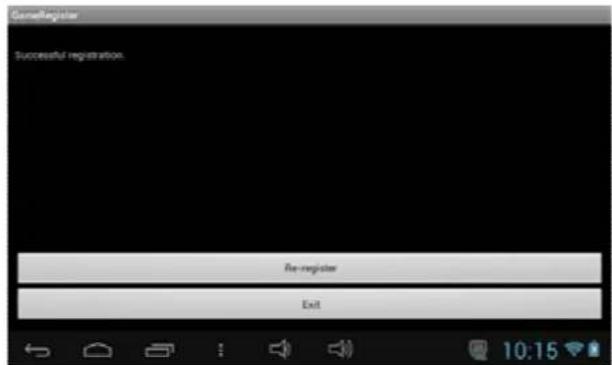
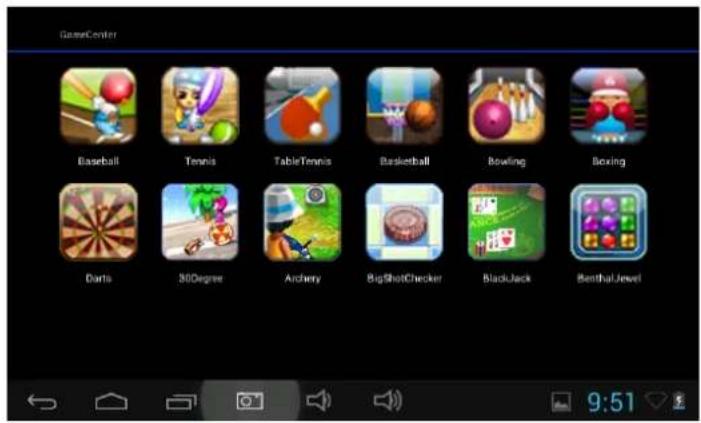
- In case you MAY required to re-register Family Sports, ABC,Funny Camera,Mini Games where under Children Mode Following steps will teach you how to re-register them,
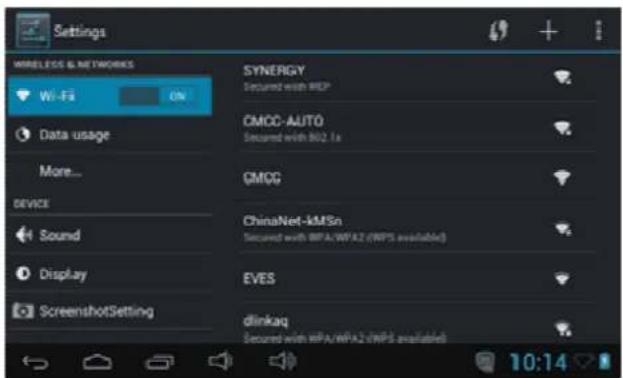
Step 1: Parents Mode ± Android OS ± Setting ± WIFI ± Put "ON" ± Back
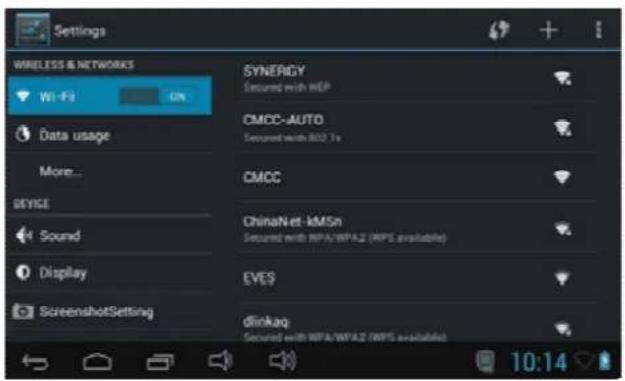
Step 2: Enter Family Sports or ABC or Mini Games. It will show below, Choose" Exit"
Step 3: Re-register is finished (example below)
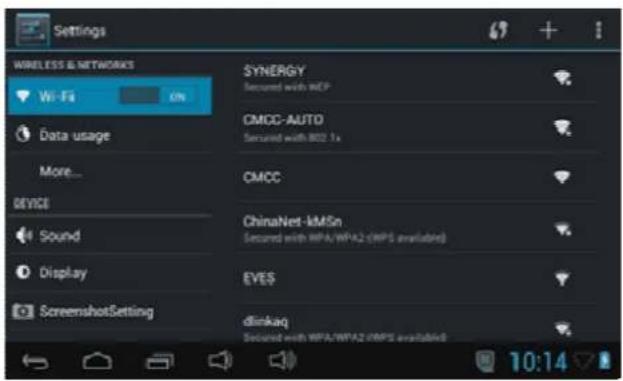
1.7: WiFi Connection
● The device support Wi-Fi network and external 3G network.
● Turn on Wi-Fi, and Press Wi-Fi settings. The device will scans automatically for available Wi-Fi Network.
- Choose the Wi-Fi network that you want to connect to.
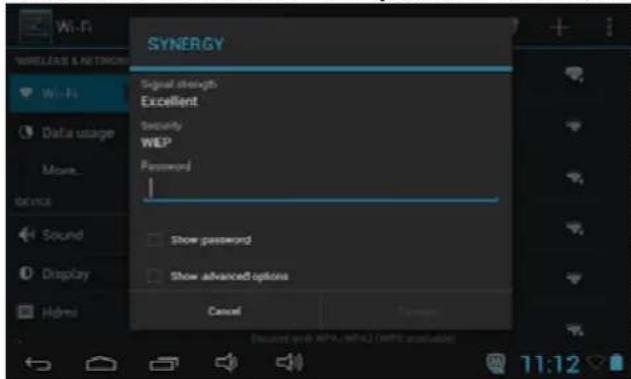
- Press Connect. Some network may need you input the password.
- On the Wi-Fi settings screen, press the Menu key, touch Advanced, you will get more settings for Wi-Fi.
1.8 : USB Host (OTG)
● The Mini USB on the device can be used as USB Host.
- Read U-disk:
Insert the U-disk into the HOST port, press the Resource manager in the desktop, press USB enter into u-disk.
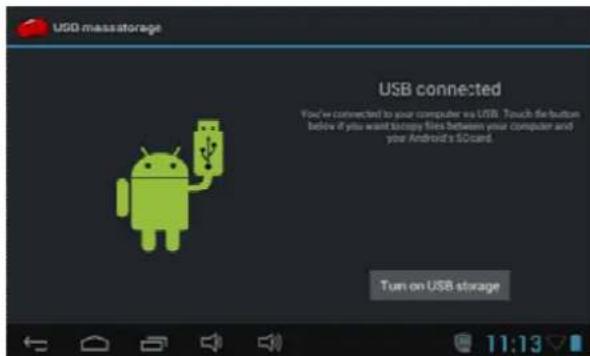
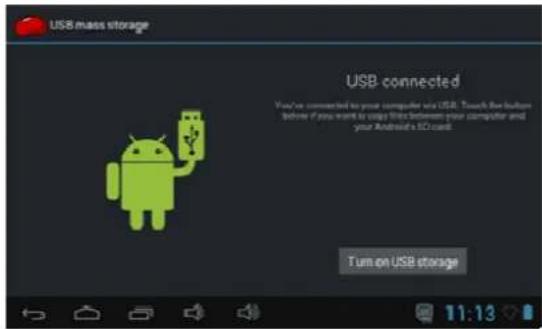
1.9: File Copy/Transfer
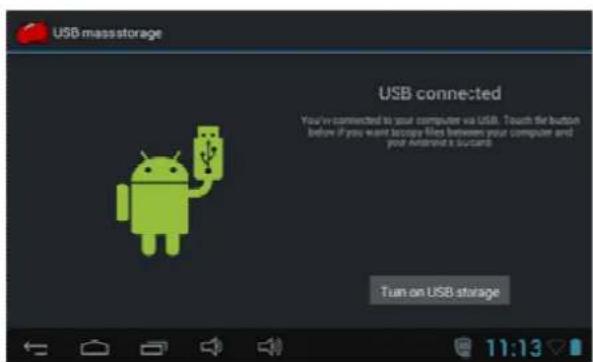
- Connect the device to computer by USB Cable, there will be notification in the status bar that USB connected.

- Choose USB Connected
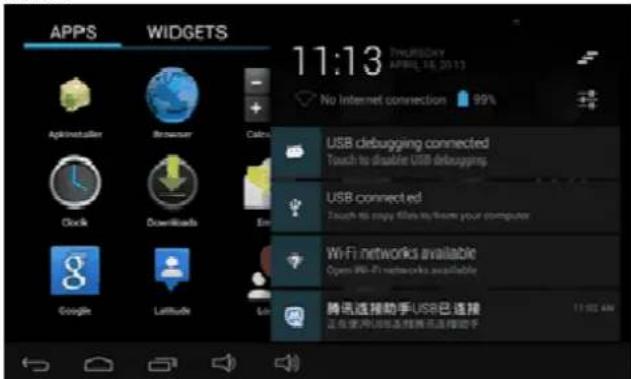
- Choose USB Connected. Then, Turn on USB storage.
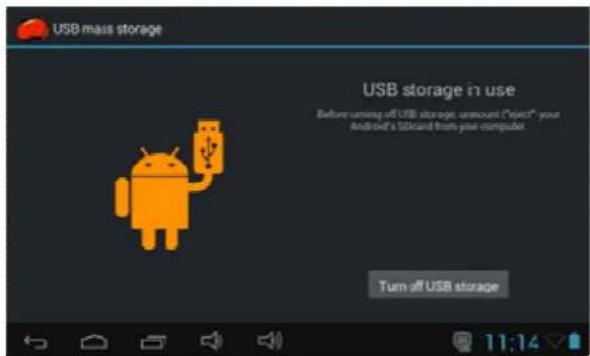
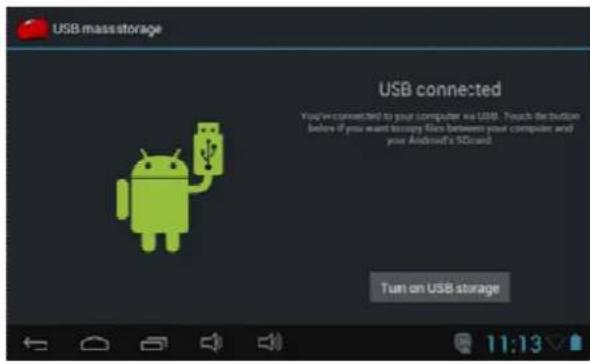
● The left picture shows that device storage content could be viewed and modified from computer.
The right picture means that device storage content could NOT be viewed or modified from computer.
1.10: System Settings
Click setting icon

to enter system settings, then you can change wireless & networks, security, Applications, Storage, language & input, voice input & output,
● Wireless & Networks Setting: Please refer to "7- Internet Access"
● Sound Setting: You can adjust Silent mode, Volume, Notification ringtone, Audible selection, Screen lock sounds, and Haptic feedback.
● Display Setting: You can adjust Brightness, Auto-rotate screen, Animation, Screen timeout.
● Storage Setting: In this setting, you can check storage use and Mount & Erase TF cards.
● Battery Setting: check storage battery usage.
- Apps Setting: You can manage applications here, and check storage & battery usage.
● Security Setting: In this Setting, you can set up screen lock and device administrators, as well as TF card password.
● Privacy Setting: In this setting, you can back up data, and reset factory default.
● Language & input: In this setting, you can change the language of system, and choose Keyboard inputs.
Notice: If you have installed an input and you want to use it, please remember to turn on it in this setting (All inputs could be turned on here). Long Press the blank where you want to type, there will be popup to choose inputs.
● Date & time Setting: In this setting, you can adjust date and time.
● About tablet: Check device information.
Warranty conditions
- The warranty of this product is for 2 years since the purchase date.
- The warranty will exclude breakdowns caused by bad use of the product, wrong installation or installation in not desirable places for a proper maintenance of the product, rips, updates of the products
that are not the supplied by the brand, pieces wore away for its use or for not domestic or inappropriate use. Also are excluded breakdowns caused for manipulations of the products by people or companies alien to our company.
- For any request regarding the warranty terms, the purchase receipt must be attached.
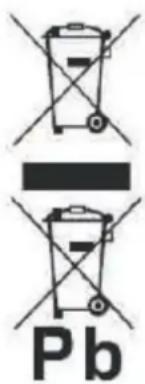
Correct disposal of this Product
(Waste Electrical & Electronic Equipment(WEEE)
Your product is designed and manufactured with high quality materials and components which can be recycled and reused.
This symbol means that electrical and electronic equipment, at their endof-life should be disposed of separately from your household waste.
Please dispose of this equipment at your local community waste collection/recycling centre.
In the European Union there are separate collection systems for used electrical and electronic products. Please help us to conserve the environment we live in!
sunstech ^12
Guía rápida
Modelo: CA7CHIL
Spanish
natural_image
Illustration of four basic objects: a cross, a paperclip, a ruler, and a pencil (no text or symbols)natural_image
Simple line drawing of a crossed-out black X and a U-shaped magnet (no text or symbols)natural_image
Simple illustration of a cloud with raindrops and a cross symbol (no text or labels)natural_image
Illustration of a hand holding a mobile phone with a keypad, enclosed in a circle (no text or symbols)natural_image
Symbolic illustration of a person sitting on a chair with an 'X' mark and a downward arrow, no text present.natural_image
Illustration showing a hand cleaning a cloth next to a spray bottle with a cross mark (no text or symbols)flowchart
graph TD
    A["Electrical socket"] --> B["OFF button"]
    B --> C["Hand holding paper"]
natural_image
Simple line drawing of a screwdriver and a black X symbol (no text or labels)natural_image
Diagram showing a rectangular component with internal structure and four cylindrical battery cells below (no text or symbols)natural_image
Simple line drawing of a wall-mounted switch with a downward arrow indicating compression or disassembly (no text or symbols)flowchart
graph TD
    A["Apps Manage"] --> B["Power off time setting"]
    A --> C["Parents Password Manage"]
    A --> D["Display brightness setting"]
    A --> E["Children Password Manage"]
flowchart
graph TD
    A["Music"] --> B["Family Sports"]
    C["Games"] --> D["Apps"]
    E["Clock"] --> F["Video"]
    G["Blue Games"] --> H["Parents Music"]
    I["Funny Camera"] --> J["Game Icon"]
    K["Other Features"] --> L["Music Icon"]
    M["Game Icon"] --> N["Games Icon"]
    O["Game Icon"] --> P["Games Icon"]
    Q["Game Icon"] --> R["Games Icon"]
    S["Game Icon"] --> T["Games Icon"]
    U["Game Icon"] --> V["Games Icon"]
    W["Game Icon"] --> X["Games Icon"]
    Y["Game Icon"] --> Z["Games Icon"]
flowchart
graph TD
    A["Game Icon"] --> B["Game Icon"]
    B --> C["Family Game Icon"]
    C --> D["Family Game Icon"]
    D --> E["Game Icon"]
    E --> F["Game Icon"]
    F --> G["Game Icon"]
    G --> H["Game Icon"]
    H --> I["Game Icon"]
    I --> J["Game Icon"]
    J --> K["Game Icon"]
    K --> L["Game Icon"]
    L --> M["Game Icon"]
    M --> N["Game Icon"]
    N --> O["Game Icon"]
    O --> P["Game Icon"]
    P --> Q["Game Icon"]
    Q --> R["Game Icon"]
    R --> S["Game Icon"]
    S --> T["Game Icon"]
    T --> U["Game Icon"]
    U --> V["Game Icon"]
    V --> W["Game Icon"]
    W --> X["Game Icon"]
    X --> Y["Game Icon"]
(Fondo de noche)


Toque


1.5.2.4: Minijuegos

1.5.2.5: Apps
Paso 1: Parents Mode ‡ Android OS ‡ Setting ‡ WIFI ‡ Put "ON" ‡ Back
natural_image
Simple diagram showing a cross above a circular pattern with scattered shapes and a downward arrow (no text or symbols)natural_image
Black and white soccer ball with a cross symbol and downward arrow, no text or labels presentnatural_image
Illustration of five basic objects: a cross, eraser, paperclip, and pencil, all arranged on a ruler for scale (no text or symbols present)natural_image
Simple graphic with a black X and a sunburst shape (no text or symbols)natural_image
Simple illustration of a cloud with raindrops and a cross symbol (no text or labels)natural_image
Illustration of a hand holding a mobile phone with a keypad, enclosed in a circle (no text or symbols)natural_image
Symbolic illustration of a person sitting with a cross and downward arrow, no text or numbers presentnatural_image
Illustration showing a hand cleaning a cloth next to a spray bottle with a cross mark (no text or symbols)natural_image
Simple line drawing of a screwdriver and a black X symbol (no text or labels)natural_image
Diagram showing a rectangular object with internal layers and four cylindrical battery cells below, no text or symbols present.natural_image
Simple line drawing of a wall-mounted switch with a downward arrow indicating compression (no text or symbols)● Dimensions: 225mm × 135mm × 16mm
● Poids: 472g
TOUCHES
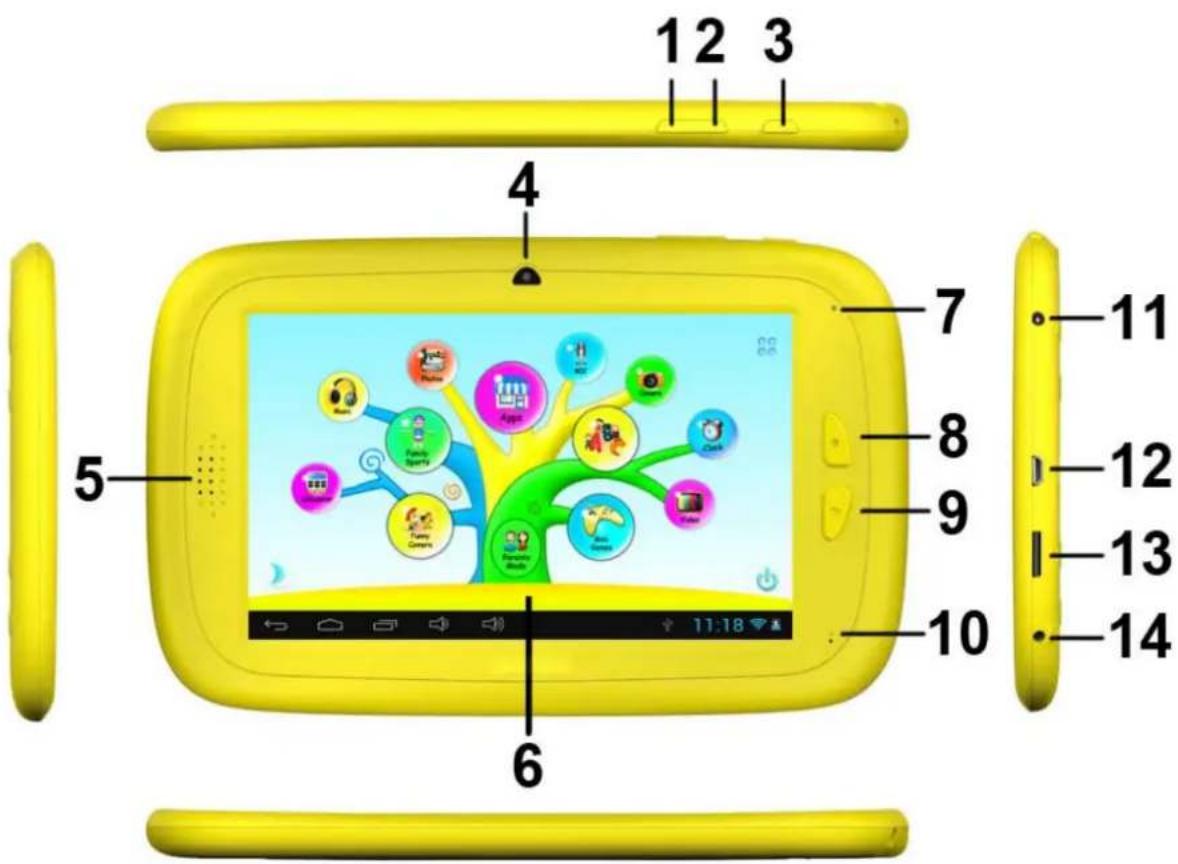
1.3.2: Entrée en mode Enfants
flowchart
graph TD
    A["Apps Manage"] --> B["Power off time setting"]
    A --> C["Parents Password Manage"]
    A --> D["Display brightness setting"]
    A --> E["Children Password Manage"]


1.5.2.2: Caméra amusante


1.5.2.4: Mini Jeux

1.5.2.5: Applications
natural_image
Illustration of four basic objects: a cross, eraser, paperclip, and pencil, all arranged on a ruler for scale (no text or symbols)natural_image
Simple line drawing of a black 'X' and a U-shaped magnet (no text or symbols)natural_image
Simple graphic with a black X and a sunburst shape (no text or symbols)natural_image
Simple illustration of a cloud with raindrops and a cross symbol (no text or labels)natural_image
Illustration of a hand holding a mobile phone with a keypad, enclosed in a circle (no text or symbols)natural_image
Symbolic illustration of a person sitting on a chair with a cross and downward arrow, no text or numbers present.natural_image
Illustration showing a hand cleaning a cloth next to a spray bottle with a cross mark (no text or symbols)flowchart
graph TD
    A["Switch 1"] --> B["OFF Button"]
    B --> C["Hand with Paper Icon"]
natural_image
Simple line drawing of a screwdriver and a black X symbol (no text or labels)natural_image
Diagram showing a rectangular component with internal structure and four cylindrical cells below, no text or symbols present.natural_image
Simple line drawing of a wall-mounted switch and a downward arrow on a flat surface (no text or symbols)1.3.1: Entrar no Modo Parental
flowchart
graph TD
    A["Apps Manage"] --> B["Power off Time setting"]
    A --> C["Parents Password Manage"]
    A --> D["Display brightness setting"]
    A --> E["Children Password Manage"]

1.5.2.2: Funny Camera

natural_image
Game interface screenshot showing a blue game area with a vertical blue line and a red circular marker, no readable text or symbols.
1.5.2.4: Mini Jogos
Existem 50 mini jogos pré-instalados.

1.5.2.5: Aplicações
●Passo 1: Parents Mode ± Androide OS ± Setting ± WIFI ± Put "ON" ± Back
1.7: Ligação Wi-Fi


- Contents
- PRECAUTIONS....6
- FEATURES 7
- BUTTONS....8
- OPERATION
- PRECAUTIONS
- Features
- Operation System
- Wireless
- Display
- Cameras and Photos
- Parental Controls
- Video
- Music Player
- Power and Battery
- Memory
- Input/Output
- Windows System Requirements
- Size and Weight
- 1.2: Switch On/Off
- 1.2.1: Switch On and Unlock:
- 1.2.2: Power Saving Modes and lock screen.
- 1.3: Main Menu
- 1.3.1: Parents Mode Enter
- Show Passcode
- 1.3.2: Children Mode Enter
- Children Mode Login:
- 1.4: Parents Setting
- 1.4.1: Parents Setting
- 1.4.1.1: Power off time setting
- 1.4.1.2: Display brightness setting
- 1.4.1.3: App Manage
- 1.4.1.4.2: Parents Passcode Change – After first time change
- 1.4.1.4.3: Forgot Parents Passcode
- 1.4.1.4.4: Forgot Reset Code
- 1.4.1.4.5: Change Reset Code
- 1.4.1.5: Kids Passcode Manage
- 1.4.1.5.1: Kids Passcode Change
- 1.4.1.5.2: Forgot Kids Passcode
- 1.5: Children Mode
- 1.5.1: Icons & function
- 1.5.2: User Interface
- 1.5.2.1: ABC
- 1.5.2.2: Funny Camera
- 1.5.2.3: Family Sports
- 1.5.2.4: Mini Games
- 1.5.2.5: Apps
- 1.5.2.6: Photos
- 1.5.2.7: Music
- 1.5.2.8: Video
- 1.5.2.9: Camera
- 1.5.2.10: MIC
- 1.5.2.11: Calculator
- 1.5.2.12: Parents Mode
- 1.6: Factory Reset
- 1.7: WiFi Connection
- : USB Host (OTG)
- 1.9: File Copy/Transfer
- 1.10: System Settings
- Warranty conditions
- Correct disposal of this Product
- sunstech 12
- Guía rápida
- 1.5.2.4: Minijuegos
- TOUCHES
- 1.3.2: Entrée en mode Enfants
- 1.5.2.2: Caméra amusante
- 1.5.2.4: Mini Jeux
- 1.5.2.5: Applications
- 1.3.1: Entrar no Modo Parental
- 1.5.2.4: Mini Jogos
- 1.5.2.5: Aplicações
- 1.7: Ligação Wi-Fi
Brand : Sunstech
Model : CA7CHIL
Category : Tablet