
TLWR802N - Router TP-LINK - Free user manual and instructions
Find the device manual for free TLWR802N TP-LINK in PDF.
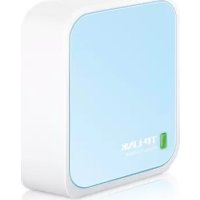



| Product Type | Portable Wi-Fi Router |
| Dimensions (L x W x H) | 57 x 57 x 18 mm |
| Weight | 70 g |
| Power Supply | Micro USB 5V/1A |
| Frequency Band | 2.4 GHz |
| Maximum Speed | 150 Mbps |
| Wi-Fi Standards | IEEE 802.11b/g/n |
| Operating Modes | Router, Repeater, Access Point, Wi-Fi Client |
| Ports | 1 x Ethernet RJ45 10/100 Mbps port |
| Antennas | 1 Internal Antenna |
| Buttons | Reset, WPS/Reset |
| Wireless Security | WPA/WPA2, WEP |
| Operating Temperature | 0 °C to 40 °C |
| Warranty | 3 Years Limited |
| Maintenance | Clean with a dry cloth, no solvents |
| Safety | Do not disassemble, keep away from water |
| Package Contents | Router, Micro USB cable, Quick Installation Guide |
Frequently Asked Questions - TLWR802N TP-LINK
User questions about TLWR802N TP-LINK
0 question about this device. Answer the ones you know or ask your own.
Ask a new question about this device
Download the instructions for your Router in PDF format for free! Find your manual TLWR802N - TP-LINK and take your electronic device back in hand. On this page are published all the documents necessary for the use of your device. TLWR802N by TP-LINK.
USER MANUAL TLWR802N TP-LINK
TP-LINK TECHNOLOGIES CO., LTD. South Building (floors 1, 3, 4, 5) and 28 (floors 1-6), Central Science
& Technology Park, Shannan Rd, Nanshan, Shenzhen, China
34775 Omrshiy6/Icshibul
TP-LINK IBERIA, S.L. C/ Quintanawides 15, Bajo A, 28050 Madrid, Spain
TP-LINK Netherlands B.V. Archimedesban 18, 3439 ME Nisuengsin
TP-LINK Hellas Ltd. Marathonodromou 77, Marousl 161 24, Greece
Specifications are subject to change without notice. TP-LINK is a registered trademark of TP-LINK
TECHNOLOGIES CO., LTD. Other brands and product names are trademarks or registered trademarks
of their respective holders.
No part of the specifications may be reproduced in any form or by any means or used to make any
derivative such as translation, transformation, or adaptation without permission from TP-LINK
TECHNOLOGIES CO., LTD. Copyright © 2016 T-P LINK TECHNOLOGIES CO., LTD. All rights reserved.
www.tp-link.com
MADE IN CHINA
710650S275 REV 0.0
Quick Installation Guide
- German - English - Spanish - Greek - French
Wireless DSL Modem Router
CONTENTS
1 / German 5 / English 9 / Spanish 13 / Greek 17 / French 21 / Italian 25 / Portuguese 29 / Finnish 33 / Dutch 37 / Swedish 41 / Norwegian 45 / Danish 49 / Turkish
Hardware Installation
Connect the Hardware
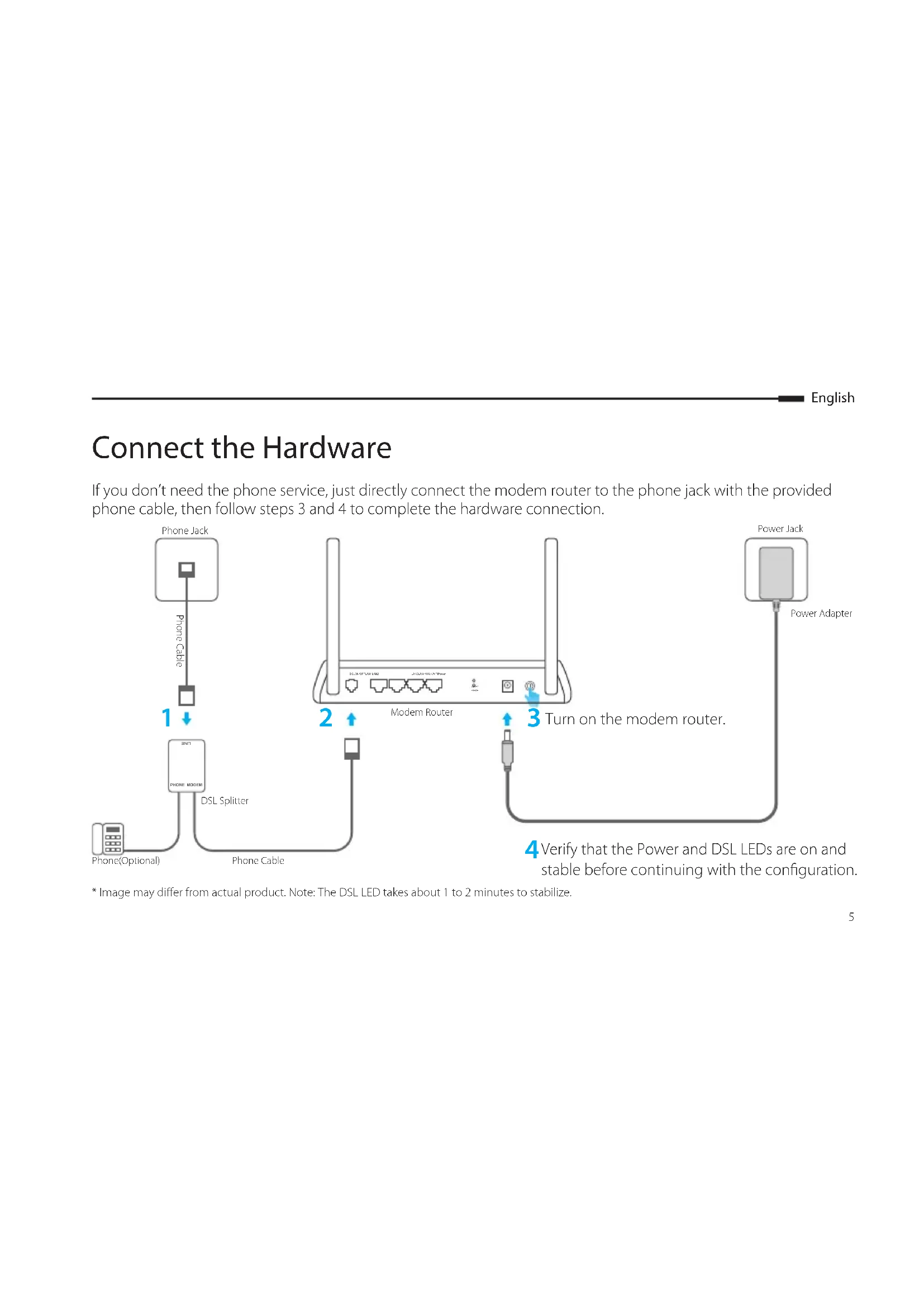
If you don't need the phone service, just directly connect the modem router to the phone jack with the provided phone cable, then follow steps 3 and 4 to complete the hardware connection.
![graph TD A["Phone Jack"] -->|1| B["DSL Splitter"] B --> C["Phone Cable"] C --> D["Modem Router"] D -->|2| E["Power Adapter"] D -->|3| F["Turn on the modem router."] F --> G["Power Jack"] style A fill:#f9f,stroke:#333 style B fill:#ccf,stroke:#333 style C fill:#cfc,stroke:#333 style D fill:#fcc,strok…](/content/2026/02/384125/images/2b48eee9300a2927b97406fda18c42ea83b84f421d940688f070f4af56cdf445.jpg)
* Image may differ from actual product. Note: The DSL LED takes about 1 to 2 minutes to stabilize.
Configure via Web Browser
1 Connecting your computer to the modem router via a wired or wireless connection
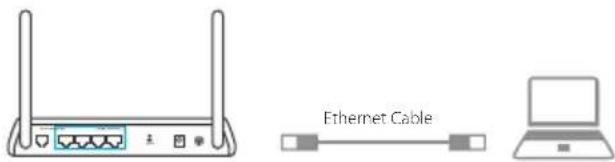
Wired
Connect your computer to the LAN port using an Ethernet cable.
Wireless
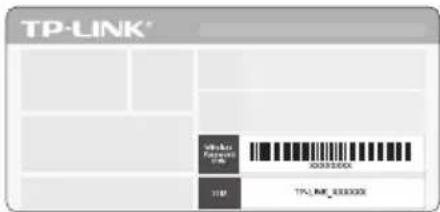
Connect wirelessly by using the SSID (network name) and Wireless Password printed on the product label at the bottom of the modem router.
2 Configuring the modem router via a web browser
A Launch a web browser and type in http://tplinkmodem.net or 192.168.1.1. Use admin for both username and password, and then click Login.
Note: If the login page does not appear, please refer to FAQ > Q1.

B Go to Quick Start, click RUN WIZARD or NEXT or go to Quick Setup, and follow the step-by-step instructions to complete the initial configuration.
Now you can enjoy your Internet. For more advanced settings, refer to the User Guide on TP-LINK official website at www.tp-link.com.
FAQ (Frequently Asked Questions)
Q1. What can I do if the login page does not appear?
A1. If the computer is set to a static or fixed IP address, change it to obtain an IP address automatically from the modem router. A2. Verify http://tplinkmodem.net is correctly entered in the web browser and press Enter. A3. Use another web browser and try again. A4. Reboot your modem router and try again. A5. Disable and enable the active network adapter.
Q2. What can I do if the DSL LED does not turn solid on?
A1. Check your cables and make sure they are all plugged in correctly, including the telephone lines and power adapter. A2. Restore your modem router to its factory default settings. A3. Remove the DSL splitter, directly connect the modem router to the phone jack and then reconfigure the modem router by following the instructions in this Quick Installation Guide. A4. Contact your ISP to verify if the DSL line is in good status. A5. If you have tried all the suggestions above and the problem still exists, contact our Technical Support.
Q3. What can I do if I cannot access the Internet?
A1. Make sure the telephone and Ethernet cables are plugged in correctly. A2. Try to log into the web management page of the modem router using the default address at http://tplinkmodem.net. If you can, try the following answers. If you cannot, change your computer to obtain an IP address automatically from the modem router. A3. Consult your ISP and make sure all the VPI/VCI (or VLAN ID), Connection Type, account username and password are correct. If they are not, replace them with the correct settings and try again. A4. Restore the modem router to its factory default settings and reconfigure the modem router by following the instructions in this Quick Installation Guide. A5. Please contact our Technical Support if the problem still exists.
Q4. What can I do if I forget my password?
- Web Management page password:
With the modem router powered on, press and hold down the reset button of the modem router until there is an obvious change of LEDs, and then release the button. Use admin for both username and password, and then click Login.
- Wireless Network password:
A1. The default Wireless Password/PIN is printed on the product label of the modem router. A2. If the default wireless password has been changed, log into the modem router's web management page and go to wireless settings page to retrieve or reset your password. Q5. How do I restore the modem router to its factory default settings? A1. With the modem router powered on, press and hold down the reset button of the modem router until there is an obvious change of LEDs, and then release the button. A2. Log in Web Management page of the modem router and go to the system management page to restore the modem router.
For Wi-Fi
When a product has a power on/off button, the power on/off button is one way to turn-off the product. For products without the on/off button, the only way to completely turn-off the product is to disconnect the product or the power adapter from the power source. The disconnected device shall remain readily operable.
Do not open this product or attempt to service it; it may expose you to dangerous high voltage or other risks. Opening a sealed component or sealed product/s will void the warranty. For product servicing, please contact us.
Do not operate this product near water.
TP-LINK Three Years Limited Product Warranty
For TP-LINK Branded Products Only.
THIS WARRANTY GIVES YOU SPECIFIC LEGAL RIGHTS, AND YOU MAY HAVE OTHER RIGHTS THAT VARY FROM STATE TO STATE (OR BY COUNTRY OR PROVINCE).
TO THE EXTENT ALLOWED BY LOCAL LAW, THIS WARRANTY AND THE REMEDIES SET FORTH ARE EXCLUSIVE AND IN LIEU OF ALL OTHER WARRANTIES, REMEDIES AND CONDITIONS.
TP-LINK warrants the TP-LINK branded hardware product contained in the original packaging against defects in materials and workmanship when used normally in according with TP-LINK's guidelines for a period of THREE YEARS form the date of original retail purchase by the end-user purchaser.
Spanish
- QUICK INSTALLATION GUIDE
- CONTENTS
- HARDWARE INSTALLATION
- CONNECT THE HARDWARE
- CONFIGURE VIA WEB BROWSER
- WIRED
- WIRELESS
- FAQ (FREQUENTLY ASKED QUESTIONS)
- Q1. WHAT CAN I DO IF THE LOGIN PAGE DOES NOT APPEAR
- Q2. WHAT CAN I DO IF THE DSL LED DOES NOT TURN SOLID ON
- Q3. WHAT CAN I DO IF I CANNOT ACCESS THE INTERNET
- Q4. WHAT CAN I DO IF I FORGET MY PASSWORD
- FOR WI-FI
- TP-LINK THREE YEARS LIMITED PRODUCT WARRANTY
- SPANISH
Brand : TP-LINK
Model : TLWR802N
Category : Router