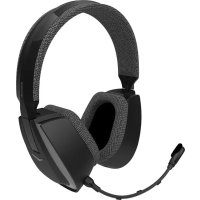
KG300 - Earphones KLIPSCH - Free user manual and instructions
Find the device manual for free KG300 KLIPSCH in PDF.



| Product type | Wireless headset for video games |
| Brand | Klipsch |
| Model | KG300 |
| Transmission type | Wireless (RF) with base transmitter |
| Headset power | 2 AA batteries (not included) |
| Transmitter connectivity | Toslink optical input, 3.5mm analog audio input, USB (power) |
| Auxiliary headphone output | 3.5mm jack for passive headset |
| Audio functions | Dolby Digital, Klipsch Spherespace Surround, SVM, equalizer settings |
| Headset controls | Game/chat volume, tone, microphone, power/pairing |
| Gaming modes | Xbox, PS3, PC |
| LED indicators | Power (blue/red), Dolby (red), Surround (blue), mode (green) |
| Auto power off | Yes, after 10 minutes without sound |
| Dimensions (transmitter) | Approximately 10 x 10 x 2 cm |
| Weight (headset) | Approximately 250 g |
| Estimated battery life | 8 to 10 hours |
| Maintenance | Clean with a soft, dry cloth |
| Safety | Do not expose to moisture or extreme temperatures |
| Spare parts | Batteries, audio and USB cables |
| Repairability | Contact Klipsch customer service |
| General information | User manual available for download |
Frequently Asked Questions - KG300 KLIPSCH
User questions about KG300 KLIPSCH
0 question about this device. Answer the ones you know or ask your own.
Ask a new question about this device
Download the instructions for your Earphones in PDF format for free! Find your manual KG300 - KLIPSCH and take your electronic device back in hand. On this page are published all the documents necessary for the use of your device. KG300 by KLIPSCH.
USER MANUAL KG300 KLIPSCH
KG-300 GAMING HEADPHONES OWNER'S MANUAL
Klipsch
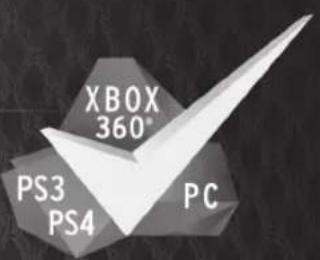
IN THE BOX
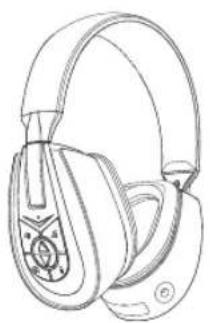
KG-300 Gaming Headphone
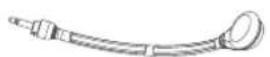
Microphone
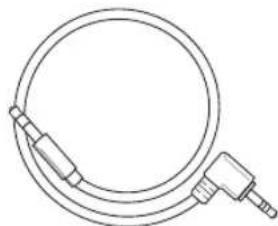
PS4 Chat Cable
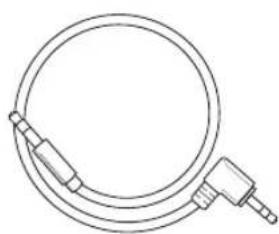
Xbox Talkback Cable

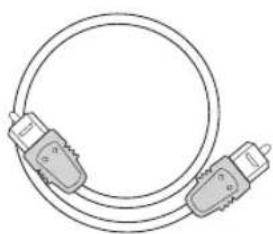
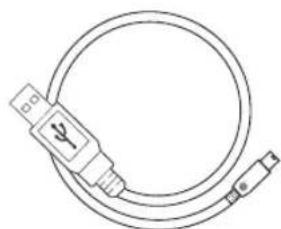
3 AAA Batteries USB Cable
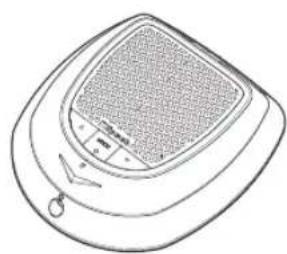
Optical Cable KG-300 Transmitter
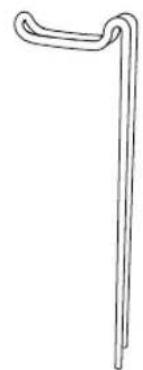
Headphone Hanger
PREPARE HEADSET AND TRANSMITTER USE
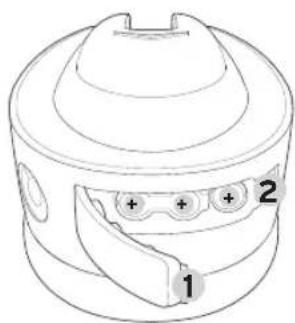
Place the 3 AAA batteries in the left ear cup battery compartment
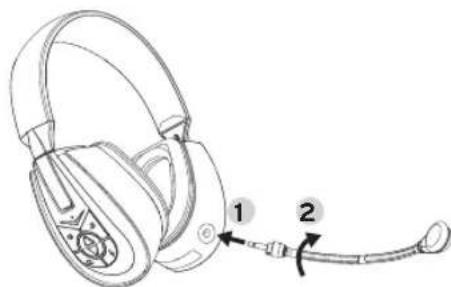
Place the microphone connector (1) into the microphone jack on the left ear cup and twist clockwise (2) to lock it in place.
- Open the battery door by sliding the door latch (2)
- Place 3 AAA batteries in the battery compartment with + of batteries facing out
- Close the battery door and ensure it is latched shut
Note: Replace batteries as needed
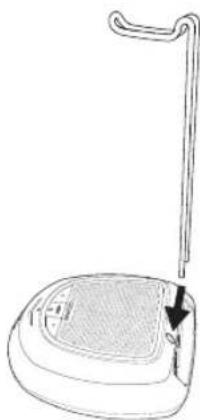
Place the posts of the hanger into the slots on the back of the transmitter and press down.
CONNECT TO XBOX 360
Mode light on the transmitter should be GREEN. If not, press MODE button until LED turns GREEN
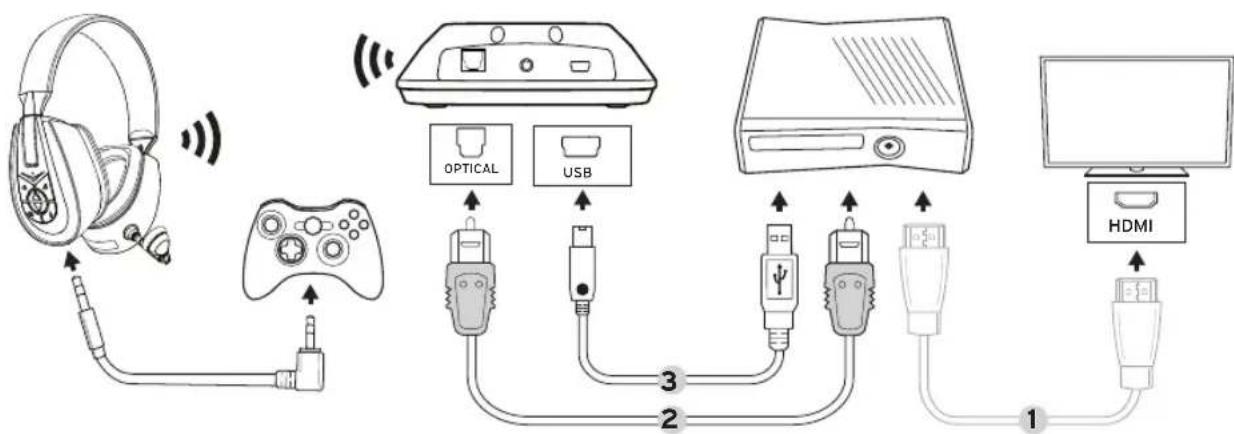
- Connect the HDMI output from the console to your TV.
- Connect the Optical Audio connector between the console and the transmitter.
- Connect USB connector from console to transmitter. Set Xbox output to use the optical output.
Visit Klipsch.com for additional connection options.
| Levoyant de mode de l'émetteur doit être VERT. Sinon, appuyez sur le bouton MODE jusqu'à ce que levoyant devienne VERT Consultez le site Klipsch.com pour des options de connexion supplémentaires | Die Modusanzeige am Sender solte GRÜN sein. Drücken sie andernfalls die Taste MODE, bis die LED grün leuchtet. Weitere Anschlussoptionen finden Sie unter Klipsch.com. |
| La luz de modalidad del transmisorDebe estar VERDE. Si no lo está, oprima el botón de modalidad (MODE) hasta que el indicator LED seonga VERDE. En Klipsch.com hay más options de connexion. | A luz indicadora de modo no transmisor deve estar VERDE. Se não estiver, pressione o botão seletor de modo (MODE) até o LED ficar VERDE. Visite Klipsch.com para conhecer autres opções de connexion. |
| La spia della modalità sul trasmettitore deve essere VERDE. In caso contrario, premere il pulsante MODE finché la spia non si accende in VERDE. Visitare Klipsch.com per ulteriori opzioni di connessione. | 发射器上的模式指示灯应为绿色。 如果不是,按下【模式】按钮直到指示灯变成绿色。 更多连接选项,请访问 Klipsch.com。 |
CONNECT TO PS3
Mode light on the transmitter should be AMBER. If not, press MODE button until LED turns AMBER
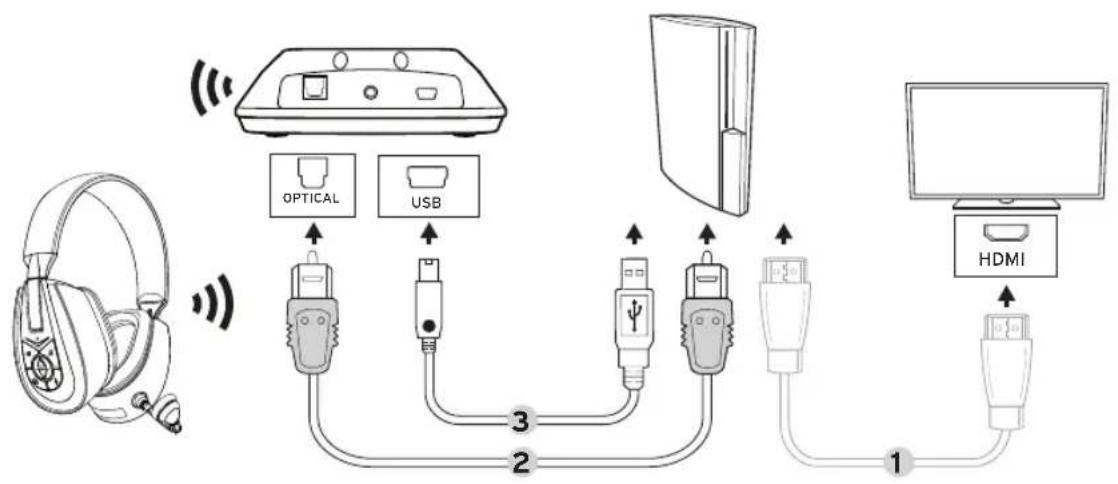
- Connect PS3 to TV using HDMI Connector
- Connect Transmitter to PS3 using the Digital Optical Cable or connect it to TV using the Digital Optical Cable
- Connect the USB cable between the PS3 and Transmitter
Set the PS3 Audio settings to use the Optical Output for game audio. Set the Chat and Mic audio to use the USB port.
| Levoyant de mode de l'émetteur doit être ORANGE. Sinon, appuyez sur le bouton MODE jusqu'à ce que levoyant devienne ORANGE | Die Modusanzeige am Sender sollte GELB sein. Drücken sie andernfalls die Taste MODE, bis die LED gelb leuchtet. |
| La luz de modalidad del transmisorDebe estar ÀMBAR. Si no lo está, oprima el botón de modalidad (MODE) hasta que el indicator LED seonga ÀMBAR. | A luz indicadora de modo no transmisor deve estar AMARELA. Se não estiver, pressione o botão seletor de modo (MODE) até o LED ficar AMARELO. |
| La spía della modalità sul trasmettitore deve essere AMBRA. In caso contrario, premere il pulsante MODE finché la spía non si accende in AMBRA. | 发射器上的模式指示灯应为黄褐色。 如果不是,按下【模式】按钮直到指示灯变成黄褐色。 |
CONNECT TO PS4
Mode light on the transmitter should be AMBER. If not, press MODE button until LED turns AMBER
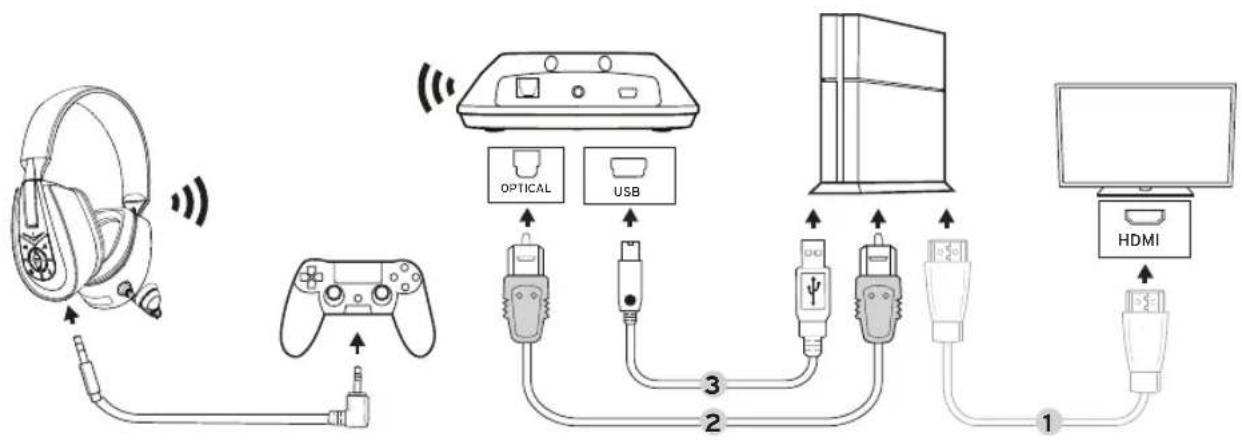
- Connect PS4 to TV using HDMI Connector
- Connect Transmitter to PS4 using the Digital Optical Cable or connect it to TV using the Digital Optical Cable
- Connect the USB cable between the PS4 and Transmitter
Go to Settings > Screen and Sound > Audio Output Settings > Primary Output Port. Select "Digital Out" (OPTICAL). Select ONLY "Dolby Digital 5.1ch". Then go to Settings > Sound and Screen > Audio Output Settings > Output to Headphones and select "Chat Audio". Go to Settings > Sound and Screen > Audio Output Settings > Audio Format (Priority) and select "Bitstream (Dolby)".
| Levoyant de mode de l'émetteur doit être ORANGE. Sinon, appuyez sur le bouton MODE jusqu'à ce que levoyant devienne ORANGE | Die Modusanzeige am Sender sollte GELB sein. Drücken sie andernfalls die Taste MODE, bis die LED gelb leuchtet. |
| La luz de modalidad del transmisorDebe estar ÀMBAR. Si no lo está, oprima el botón de modalidad (MODE) hasta que el indicator LED seonga ÀMBAR. | A luz indicadora de modo no transmisor deve estar AMARELA. Se não estiver, pressione o botão seletor de modo (MODE) até o LED ficar AMARELO. |
| La spía della modalità sul trasmettitore deve essere AMBRA. In caso contrario, premere il pulsante MODE finché la spía non si accende in AMBRA. | 发射器上的模式指示灯应为黄褐色。 如果不是,按下【模式】按钮直到指示灯变成黄褐色。 |
CONNECT TO PC
Mode light on the transmitter should be AMBER. If not, press MODE button until LED turns AMBER
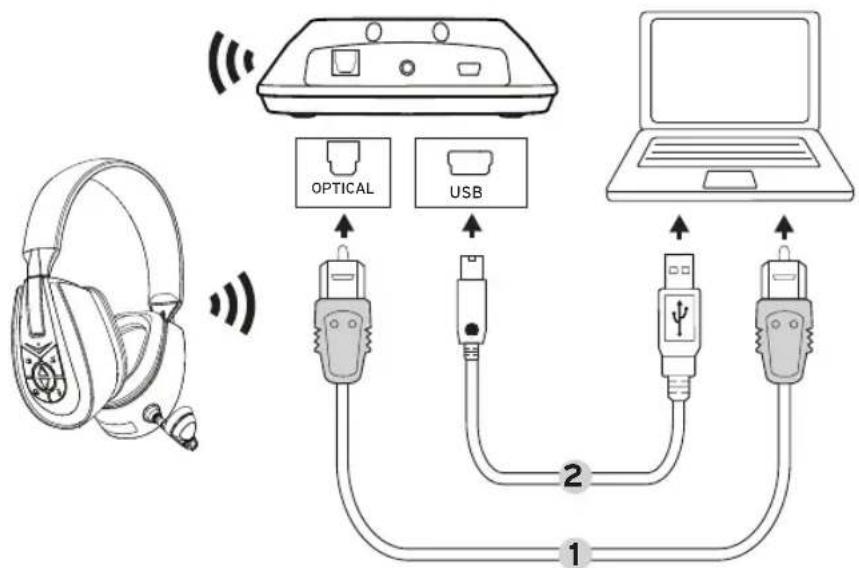
- Connect Optical Audio Cable from PC to Transmitter
- Connect USB cable between PC and Transmitter
Set PC Audio settings to use the Optical Cable for game audio. Set the Chat and Mic audio to use the USB port.
| Levoyant de mode de l'émetteur doit être ORANGE. Sinon, appuyez sur le bouton MODE jusqu'à ce que levoyant devienne ORANGE | Die Modusanzeige am Sender sollte GELB sein. Drücken sie andernfalls die Taste MODE, bis die LED gelb leuchtet. |
| La luz de modalidad del transmisorDebe estar ÀMBAR. Si no lo está, oprima el botón de modalidad (MODE) hasta que el indicator LED seonga ÀMBAR. | A luz indicadora de modo no transmisor deve estar AMARELA. Se não estiver, pressione o botão seletor de modo (MODE) até o LED ficar AMARELO. |
| La spía della modalità sul trasmettitore deve essere AMBRA. In caso contrario, premere il pulsante MODE finché la spía non si accende in AMBRA. | 发射器上的模式指示灯应为黄褐色。 如果不是,按下【模式】按钮直到指示灯变成黄褐色。 |
PAIR THE HEADPHONE AND THE TRANSMITTER (IF NECESSARY)
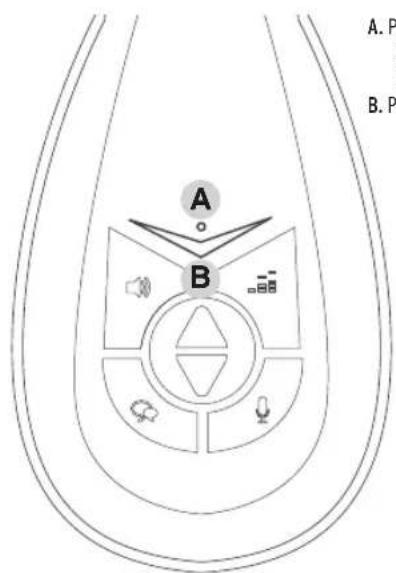
PowerLED solidBlue PAIREDashingBlue = PAIRINGMODE
wer Button
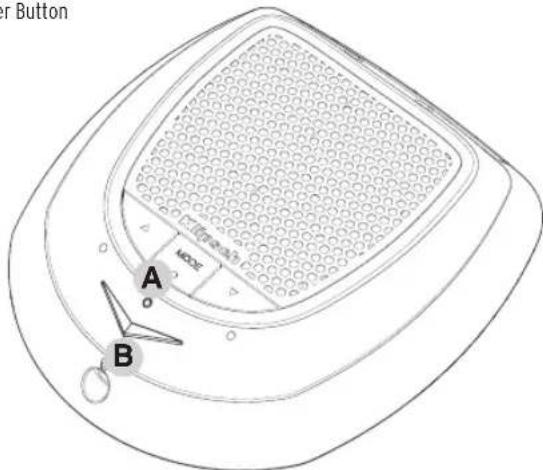
The headphones and transmitter come pre-paired. If they become unpaired follow these steps.
- Press and hold the power button(B) on the transmitter until the LED(A) begins flashing blue.
- Press and hold the power button(B) on the KG-300 until the LED(A) begins flashing blue.
- When pairing is complete the LEDs on both will turn solid blue.
| A. Voyant d'alimentation. Bleu continu = APPARÉ /Bleu clignotant = MODE D'APPARIEMENT B. Bouton d'alimentation Le casque et l'émetteur sont pré-appariés. Si cet appariment est perturbé, suivez les étapes ci-dessous. 1. Appuyez sur le bouton d'alimentation (B) de l'émetteur et maintainez-le enforcé jusqu'à ce que levoyant (A) commence à clignoter en bleu. 2. Appuyez sur le bouton d'alimentation (B) du KG-300 et maintenez-le enforcé jusqu'à ce que levoyant (A) commence à clignoter en bleu. 3. Une fois l'apparition terminé, le voyant des deux apparêts reste allumé en bleu continu. | A. Netz-LED. Dauerhaft blau = GEKOPPELT/Blinkt blau = KOPPELMODUS B. Ein/Aus-Taste Der Kopflöher und der Sender werden bereits gekoppelt ausgeliefert. Solite die Kopplung deaktiviert werden, folgen Sieitte diesen Schritten. 1. Halten Sie die Ein/Aus-Taste (B) am Sender gedrückt, bis die LED(A) blau zu blinken beginnnt. 2. Halten Sie die Ein/Aus-Taste (B) am KG-300 gedrückt, bis die LED (A) blau zu blinken beginnnt. 3. Nach Anschluss der Kopplung leuchtten die LEDs auf beiden Geräten dauerhaft blau. |
| A. Indicador LED de alimentación. Azul continuo = SINCRONIZADO/Azul destellando = MODALIDAD DE SINCRONIZACION B. Botón de alimentación Los auriculares y el transmisor vienen sincronizados de antemano. Si pierden la sincronización, haga lo singular. 1. Oprima y mantenga oprimido el botón de alimentación (B) del transmisor hasta que el indicador LED (A) comience a destellar de color azul. 2. Oprima y mantenga oprimido el botón de alimentación (B) de los KG-300 hasta que el indicador LED (A) comience a destellar de color azul. 3. Cuando se complete la sincronización, losindicadores LED de los dos dispositivos se ponen de color azul continuo. | A. LED indicator de potência. Azul constante = PAREADO/Azul intermitente = MODO DE PAREAMENTO B. Botão liga/desliga Os fones de ouvido e o transmisor não vēm pareados. Se perdern o pareamento, siga estas passos. 1. Pressione e mantenha pressiónado o botão liga/desliga (B) do transmisor até o LED (A) começar a piscar na cor azul. 2. Pressione e mantenha pressiónado o botão liga/desliga (B) do KG-300 até o LED (A) começar a piscar na cor azul. 3. Quando o pareamento terminar, os LEDs de ambos ficarão azuis. |
| A. LED di alimentazione. Blu a luce fissa = ASSOCIATI/Blu lampeggiante = MODALITA DI ASSOCIAZIONE B. Pulsante di alimentazione La cuffia e il trasmettitore vengono forniti più associati. Se l'associazioneiene persa, procedere comme segue: 1. Tenere premuto il pulsante di alimentazione (B) del trasmettitore finché il LED (A) non inizi a lampeggiaré in blu. 2. Tenere premuto il pulsante di alimentazione (B) della KG-300 finché il LED (A) non inizi a lampeggiaré in blu. 3. Quando l'associazione è stata completeness, entrambi i LED si accendono in blu a luce fissa. | 头戴式耳机与发射器已预先配对。如果耳机与发射器失配,请按下列步骤操作: 1. 按住发射器上的电源按钮 (B),直到指示灯 (A) 变成蓝色闪烁。 2. 按住 KG-300 上的电源按钮 (B),直到指示灯 (A) 变成蓝色闪烁。 3. 配对完成后,两个指示灯都变成蓝色常亮。 |
TRANSMITTER CONTROLS
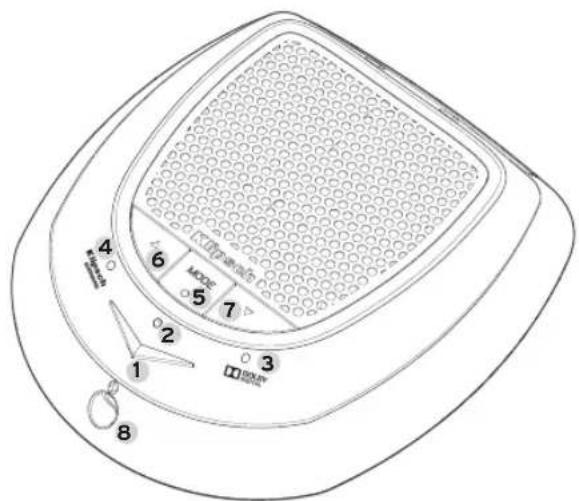
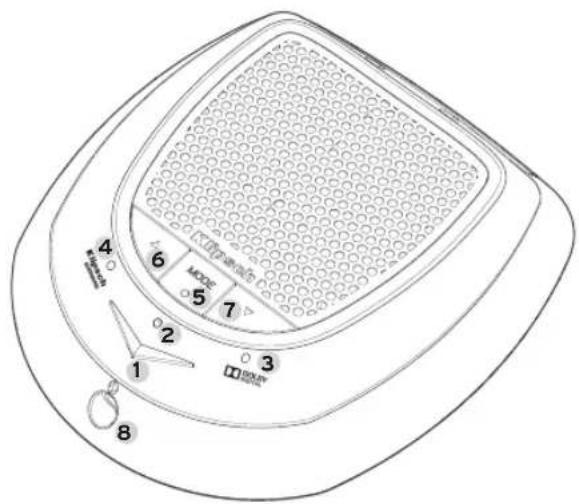
- Logo /Power Button
Press On/OFF
Press and Hold initiates Pairing Mode
Headset will automatically turn off if no audio is present for 10 minutes.
- Power LED - Blue /Red LED
Blue LED on - unit is on and linked to transmitter
Blue flashing - Unit is in pairing mode
Red - On but not paired to the transmitter
LED off when unit is Off
- Dolby Digital LED
Red = Dolby Signal is present and being Decoded
OFF = Dolby Signal is not present
- Klipsch Spherespace Surround LED
Blue = Surround Processing is ON
OFF = Surround Processing is OFF
- Mode Button with LED
Pressing the Mode Button Cycles thru the different operational modes. The modes are Xbox, PS3 and PC
GreenLED XboxMode
AmberLED=PS3Mode
RedLED PCMode
- Headphone Volume Up - this is for headphone jack output on front of transmitter, does not effect headphone volume of KG300. Press increases volume of headphone amplifier
- Headphone Volume Down - this is for headphone jack output on front of transmitter, does not effect headphone volume of KG300. Press decreases volume of headphone amplifier.
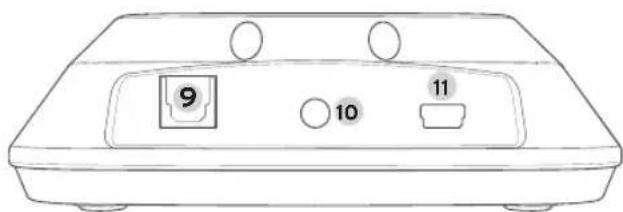
- Auxiliary Headphone Out - connect a passive headphone to listen to game audio
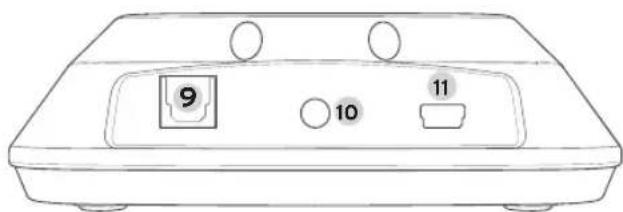
- Digital Toslink Optical Audio Input Jack
- Analog Audio Input - 3.5 mm Stereo Input Jack
- USB power input jack
HEADPHONE CONTROLS
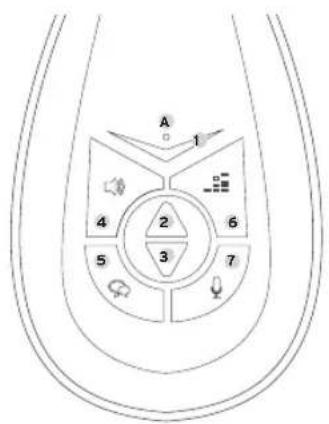
A. Power LED
Blue LED on - unit is on and linked to transmitter
Blue flashing - Unit is in pairing mode
Red - On but not paired to the transmitter
LED off when unit is Off
- Logo /Power Button
Press On/OFF
Press and Hold initiates Pairing Mode
Headset will automatically turn off if no audio is present for 10 minutes.
-
Rocker Plus - adjusts game volume, Chat Volume up
-
Rocker Minus- adjusts game volume, Chat Volume down
-
Game Volume
Single press enables +/- rocker to adjust game volume
(this is default function of rocker)
Press and hold mutes game audio and mic
- Chat Volume
Single press enables + / - rocker to adjust Chat volume
Press and hold Mutes the microphone
- Tone Control
Press cycles thru EQ presets (Bass+, Bass-, Treble+, Treble-, Bass+/Treble+)
Note: there are different EQ's for Surround On/Off. One beep indicates non Surround EQ default,
Two Beeps indicates Dolby or Surround default EO.
Press and Hold the tone control toggles the surround sound on/off
- SVM
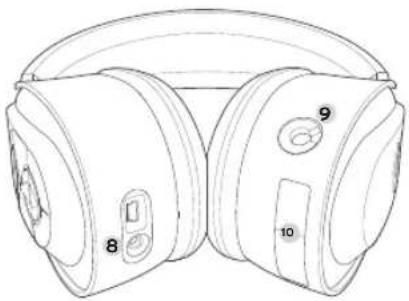
Single press toggles SVM on/Off - Talkback/Chat Cable connection
- Microphone input Jack
- Battery Compartment
TRANSMITTER CONTROLS
Voyant orange = Mode PS3
Voyant rouge = Mode PC
Presionar acesa as pre-configuration do EO (+ graves, - graves, + agudos, - agudos, + graves/+ agudos)
KEEPERS OF THE SOUND
3502 WOODVIEWTRACE,INDIANAPOLIS,IN,USA
KLIPSCH.COM
Xbox 360 is a registered trademark of Microsoft Corporation in the United States and/or other countries.
PlayStation 3, PS3 and PS4 are trademarks or registered trademarks of Sony Computer Entertainment Inc.
©2013, Klipsch Group, Inc.
Kilpsch Group, Inc. is a wholly-owned
subsidiary of Voxx International Corporation.
Klipsch is a trademark of Klipsch Group Inc., registered in
the U.S. and other countries,

Brand : KLIPSCH
Model : KG300
Category : Earphones