
KG-200 - Earphones KLIPSCH - Free user manual and instructions
Find the device manual for free KG-200 KLIPSCH in PDF.


| Product Type | In-Ear Earphones |
| Brand | Klipsch |
| Model | KG-200 |
| Driver Type | Dynamic |
| Driver Size | 9 mm |
| Impedance | 16 ohms |
| Sensitivity | 110 dB |
| Frequency Response | 20 Hz – 20 kHz |
| Cable Length | 1.2 m |
| Weight | 12 g |
| Connector | 3.5 mm gold-plated |
| Noise Isolation | Passive, up to -22 dB |
| Microphone | In-line with remote |
| Ear Tips Included | S, M, L silicone and foam |
| Carrying Case | Included |
| Power Source | None (passive) |
| Care and Cleaning | Wipe with dry cloth; remove ear tips for cleaning |
| Safety Warning | Avoid prolonged high volume to prevent hearing damage |
| Spare Parts Available | Replacement ear tips and cables |
| Warranty | 2 years limited |
Frequently Asked Questions - KG-200 KLIPSCH
User questions about KG-200 KLIPSCH
0 question about this device. Answer the ones you know or ask your own.
Ask a new question about this device
Download the instructions for your Earphones in PDF format for free! Find your manual KG-200 - KLIPSCH and take your electronic device back in hand. On this page are published all the documents necessary for the use of your device. KG-200 by KLIPSCH.
USER MANUAL KG-200 KLIPSCH
KG-200 GAMING HEADPHONES OWNER'S MANUAL
Klipsch®

IN THE BOX
KG-200
Gaming
Headphone
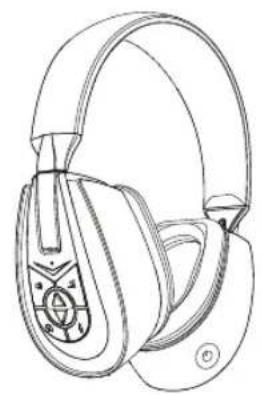
Microphone

USB Power
Adapter


RCA to 3.5mm
Female Splitter
Cable
Xbox
Talkback
Cable
PS4
Chat Cable
Visit Klipsch.com for the most up to date manual and compatibility info.
XBOX 360 - COMPOSITE OR COMPONENT
![graph TD A["Desktop Computer"] -->|5| B["Switch"] B --> C["Router 1"] C --> D["Router Y"] C --> E["Router PB"] C --> F["Router PR"] C --> G["Router L"] C --> H["Router R"] C --> I["Router 2"] I --> J["Switch"] J --> K["Router 3"] K --> L["Game Console"] L --> M["Switch"] M --> N["Router 4"]](/content/2026/06/1262700/images/a58bc206ff0b7686028761dfa6a64fa33c79213662e9fe495eb0c386ebac4727.jpg)
-
Connect Xbox AV cable to RCA splitter, then to TV
-
Connect headset audio jack (green) to RCA splitter
-
Plug 3.5mm jack on Xbox Talkback cable into headset
-
Connect 2.5mm jack on Xbox Talkback cable to Xbox controller
-
Connect headset USB to a USB port on the Xbox
XBOX 360 - HDMI
![graph TD A["Desktop"] -->|5| B["Switch 1"] A -->|5| C["Switch 2"] A -->|5| D["Switch 3"] A -->|5| E["Switch 4"] B --> F["HDMI"] C --> G["Game Head"] D --> H["Game Console"]](/content/2026/06/1262700/images/7c098ccc8ca1522eaadf9815926d20f1133562203b7e50020cc43150868cdf4a.jpg)
- Connect Xbox AV cable to RCA splitter
- Connect headset audio jack (green) to RCA splitter
-
Plug 3.5mm jack on Xbox Talkback cable into headset
-
Connect 2.5mm jack on Xbox Talkback cable to Xbox controller
-
Connect headset USB to a USB port on the Xbox
PS3 - COMPOSITE

- Connect PS3 AV cable to RCA splitter, then to TV
- Connect headset audio jack (green) to RCA splitter
- Connect headset USB to a USB port on the PS3
On PS3 go to Settings > Sound Settings > Audio Output Settings and change the audio output to "Audio Input Connector/SCART/AV Multi". For PS3 voice chat go to Settings > Accessory Settings > Audio Device Settings and select "Klipsch KG-200" for both "Input Device" and "Output Device"
| Sur la PS3, accédez au menu Paramètres > Paramètres son > Paramètres de sortie audio et sélectionnez pour la sortie audio l'option « Connecteur d'entrée audio / Péritel / AV MULTI ».Pour le chat vocal avec la PS3, accédez au menu Paramètres > Paramètres accessoires > Paramètres périphériques audio et sélectionnez « Klipsch KG-200 » en tant que « Périphérique d'entrée » et « Périphérique de sortie ». | Sulla PS3 andare a Settings > Sound Settings > Audio Output Settings (Impostazioni > Impostazioni audio > Impostazioni uscita audio) e modifi-care l'uscita audio in “Audio Input Connector/SCART/AV Multi” (“AV Multi/ SCART/Connettore ingresso audio”). Per la chat vocale con la PS3 andare a Settings > Accessory Settings >Audio Device Settings (Impostazioni > Impostazioni ausiliarie > Impostazioni dispositivo audio) e selezionare “Klipsch KG-200” sia per “Input Device” (“Dispositivo ingresso”) sia per “Output Device” (“Dispositivo uscita”). |
| En PS3 vaya a Configuraciones > Configuraciones de sonido > Configuraciones de salida de audio y cambie la salida de audio a “Conector de entrada de audio /SCART/AV Multi”. Para el chat de voz de PS3, vaya a Configuraciones > Configuraciones de accesorios > Configuraciones de dispositivo de audio y seleccione “Klipsch KG 200” como “Dispositivo de entrada” y “Dispositivo de salida”. | No PS3, acesse Configurações > Configurações de som > Configurações de saída de áudio e altere a saída de áudio para “Conector de entrada de áudio/SCART/AV Multi”. Para bate-papo por voz no PS3 acesse Configurações > Configurações de acessórios > Configurações de dispositivo de áudio e seleccione “Klipsch KG-200” para “Dispositivo de entrada” e “Dispositivo de saída”. |
| Gehen Sie auf der PS3 zu Einstellungen > Sound-Einstellungen > Audio-Ausgangs-Einstellungen und Ändern Sie den Audio-Ausgang auf „Audio-Eingangsanschluss/SCART/AV MULTI“. Für den PS3-Sprach-Chat gehen Sie zu Einstellungen > Peripheriegeräte-Einstellungen > Audio-Gerät-Einstellungen und wählen „Klipsch KG-200“ sowohl für „Eingabe-Gerät“ als auch für „Ausgabe-Gerät“ | 在PS3上,进入Settings(设置)>Sound Settings(声音设置)>Audio Output Settings(音频输出设置),将音频输出选项改为“Audio Input Connector/SCART/AV Multi(音频输入连接器/ SCART/AV Multi)”若设置PS3的语音聊天功能,则请进入Settings(设置)>Accessory Settings(附件设置)>Audio Device Settings(音频设备设置),然后将“Input Device(输入设备)”和“Output Device(输出设备)”都选为“Klipsch KG-200” |
PS3 - HDMI
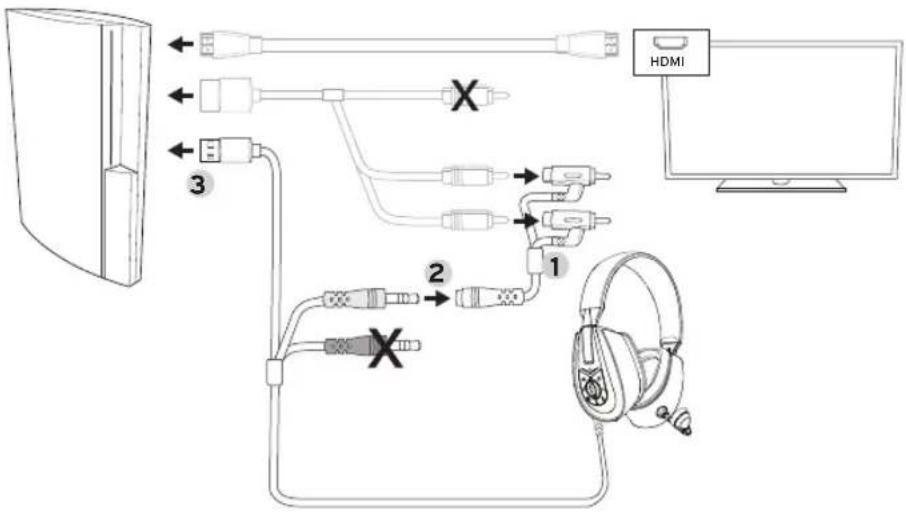
- Connect PS3 AV cable to RCA splitter
- Connect headset audio jack (green) to RCA splitter
- Connect headset USB to a USB port on the PS3
On PS3 go to Settings > Sound Settings and turn "Audio Multi-Output" on. For PS3 voice chat go to Settings > Accessory Settings > Audio Device Settings and select "Klipsch KG-200" for both "Input Device" and "Output Device"
| Sur la PS3, accédez au menu Paramètres > Paramètres son et activez l’option « Sortie audio multiple ». Pour le chat vocal avec la PS3, accédez au menu Paramètres > Paramètres accessoires > Paramètres périphériques audio et sélectionnez « Klipsch KG-200 » en tant que « Périphérique d’entrée » et « Périphérique de sortie ». | Sulla PS3 andare a Settings > Sound Settings e attivare “Audio Multi-Output” (“Multi-uscita audio”). Per la chat vocale con la PS3 andare a Settings > Accessory Settings >Audio Device Settings e selezionare “Klipsch KG-200” sia per “Input Device” sia per “Output Device”. |
| En PS3, vaya a Configuraciones > Configuraciones de sonido y active “Multi salida de audio”. Para el chat de voz de PS3, vaya a Configuraciones > Configuraciones de accesorios > Configuraciones de dispositivos de audio y seleccione “Klipsch KG 200” como “Dispositivo de entrada” y “Dispositivo de salida”. | No PS3, acesse Configurações > Configurações de som e ative “Multi-saída de áudio”. Para bate-papo por voz no PS3 acesse Configurações > Configurações de acessórios > Configurações de dispositivo de áudio e seleccione “Klipsch KG-200” para “Dispositivo de entrada” e “Dispositivo de saída”. |
| Gehen Sie auf der PS3 zu Einstellungen > Sound -Einstellungen und aktivieren Sie „Audio-Mehrfachausgang“. Für den PS3-Sprach-Chat gehen Sie zu Einstellungen > Peripheriegeräte-Einstellungen > Audio-Gerät-Einstellungen und wählen „Klipsch KG-200“ sowohl für „Eingabe-Gerät“ als auch für „Ausgabe-Gerät“ | 在PS3上,进入Settings(设置) > Sound Settings(声音设置),打开“Audio Multi-Output(音频多路输出)”。若设置PS3的语音聊天功能,则请进入Settings(设置) > Accessory Settings(附件设置) > Audio Device Settings(音频设备设置),然后将“Input Device(输入设备)”和“Output Device(输出设备)”都选为“Klipsch KG-200” |
PS4 - HDMI
![graph TD A["Computer monitor"] -->|3| B["Game controller"] B -->|1| C["Play button"] B -->|2| D["Play button"] D -->|X| E["Game controller"] C --> F["Play button"] F --> G["Play button"] G --> H["Game controller"]](/content/2026/06/1262700/images/1912fa574645a6c0d52956d17469445c0e9838a792d334d24507b225b8c99d54.jpg)
- Connect PS4 AV cable to RCA splitter, then to TV
- Connect headset audio jack (green) to RCA splitter or TV Headphone Output
- Connect headset USB to a USB port on the PS4
Go to Settings > Sound and Screen > Audio Output Settings > Primary Output Port and select "HDMI Out." Then go to Settings > Sound and Screen > Audio Output Settings > Output to Headphones and select "Chat Audio." Finally go to Settings > Sound and Screen > Audio Output Settings > Audio Format(Priority) and Select "Linear PCM."
PC


4
3
- Use the analog mic input from computer or laptop. Connect Klispch KG-200 Red 3.5mm Audio Jack to the female 3.5mm jack on the computer.
- Plug the Klipsch KG-200 Green 3.5mm Audio Jack into the audio output connector on the laptop or computer
-
Plug USB connector into female USB Power Adapter
-
Plug the male USB Power Adapter into the computer USB to apply power to the unit.
Please Note: USB Audio is not enabled in PC mode, use analog plugs for Mic and Game Audio Operation. Chat and Game Audio are mixed together in PC.
| Veuillez noter : une connexion audio USB n'est pas disponible en mode PC. Utilisez les fiches analogiques pour le micro et le son des jeux. Le chat vocal et le son des jeux sont mélangés en mode PC. | NOTA BENE. L'audio USB non è abilitato nella modalità PC; usare i jack analogici per il funzionamento dell'audio del microfono e dei giochi. L'audio chat e quello dei giochi vengono miscelati nel PC. |
| Nota: El audio de USB no se habilita en modalidad de PC. Use enchufes analógicos para el micrófono y el audio de juego. El audio de chat y de juego se mezclan en la PC. | Observação: O áudio por USB não é ativado no modo PC, use plugues analógicos para operação do áudio do microfone e jogos. O áudio do bate-papo e o dos jogos são misturados no PC. |
| Hinweis: Im PC-Modus ist das USB-Audio nicht aktiviert, verwenden Sie für das Mikrofon und das Spiel-Audio analoge Stecker. Beim PC werden Chat- und Spiel-Audio vermischt. | 请注意: USB音频功能在PC模式下不可用。进行麦克风及游戏音频操作时,请使用模拟插头。聊天和游戏的音频在个人电脑上是混音的。 |
ATTACH MICROPHONE
- On Left ear cup, locate microphone connection as shown. Push microphone into the connector, making sure to align it with the key.
- Twist the microphone to lock it in place
When placed on your head adjust microphone for your comfort and sound quality.

CONTROLS

A. LED INDICATOR - Blue/Red LED
i. Blue LED on when unit is on
ii. LED's off when unit is Off
iii. Blue LED Flashing when game volume is muted
iv. Red LED when Mic is muted
v. Red flashing when Chat is muted
vi. Red/Blue flashing when any two or three items are muted
- ROCKER PLUS
this allows adjusting game volume and Chat Volume
- ROCKER MINUS
this allows adjusting game volume and Chat Volume
-
GAME VOLUME
-
Single press enables +/- rocker to adjust game volume (this is default for up/down key pad)
- Press and hold mutes the game audio - pressing game volume again when game muted un-mutes the game audio
4. CHAT VOLUME
- Single press enables +/- rocker to adjust Chat volume
- Press and hold Mutes the Game Chat - pressing Chat volume again when game muted un-mutes the chat audio
5. TONE CONTROL
- Press to cycle thru EQ presets. A beep will indicate that you have cycled back to the first EQ. Last EQ is remembered on power up.
- Press and Hold resets EQ to the FIDELITY preset.
6. MIC MONITOR
- Single press toggles Mic Monitor On/Off
- Press and Hold toggles the Microphone Mute (On/Off)
• Level automatically adjusts based on game volume
EQ LIST
1. FIDELITY
Clear, balanced sound for any situation
2. COMBAT
Optimized bass enhances explosions, gunshots, and vocals
3. STEALTH
Clean highs and clear mids enhance every detail around you
4. SPORT
Bass and mids tuned to enhance the impact of big hits and clutch plays
CONTROLS

A. VOYANT DEL - Bleu/rouge
KEEPERS OF THE SOUND
3502 WOODVIEW TRACE, INDIANAPOLIS, IN, USA
KLIPSCH.COM
Xbox 360 is a registered trademark of Microsoft
Corporation in the United States and/or other countries.
PlayStation 3, PS3 and PS4 are trademarks or registered
trademarks of Sony Computer Entertainment Inc.
©2013, Klipsch Group, Inc.
Klipsch Group, Inc. is a wholly-owned
subsidiary of Voxx International Corporation.
Klipsch is a trademark of Klipsch Group Inc., registered in
the U.S. and other countries.


Brand : KLIPSCH
Model : KG-200
Category : Earphones