DTFT 271 - TV DUAL - Free user manual and instructions
Find the device manual for free DTFT 271 DUAL in PDF.



| Product type | 27-inch (68.6 cm) LCD TV |
| Screen resolution | WXGA 1280 x 720 pixels |
| Contrast ratio | 600:1 (typical) |
| Brightness | 550 cd/m² (typical) |
| Response time | 16 ms (typical) |
| Viewing angle | 170° horizontal and vertical |
| Number of colors | 16.7 million |
| Power supply | 220-240 V AC, 50 Hz |
| Dimensions with stand (W x H x D) | 797 x 470 x 245 mm |
| Dimensions without stand (W x H x D) | 797 x 440 x 102 mm |
| Weight with stand | 12.8 kg |
| Weight without stand | 11 kg |
| Number of programmable channels | 100 |
| Input connectors | 2 SCART, S-Video, AV (RCA), PC VGA, DVI, headphone, audio |
| Special functions | PIP, PAP, PAT, teletext, APS, sleep timer, parental lock |
| Audio system | NICAM stereo, equalizer, surround sound, dynamic bass |
| Standby power consumption | Not specified (estimated < 1 W) |
| Wall mount | VESA 400 x 200 mm compatible (bracket supplied as option) |
| Screen maintenance | Clean with a soft slightly damp cloth; do not use solvents |
| Operating temperature | Tropical and/or moderate climate |
Frequently Asked Questions - DTFT 271 DUAL
User questions about DTFT 271 DUAL
0 question about this device. Answer the ones you know or ask your own.
Ask a new question about this device
Download the instructions for your TV in PDF format for free! Find your manual DTFT 271 - DUAL and take your electronic device back in hand. On this page are published all the documents necessary for the use of your device. DTFT 271 by DUAL.
USER MANUAL DTFT 271 DUAL
Antennenanschlüsse 27
natural_image
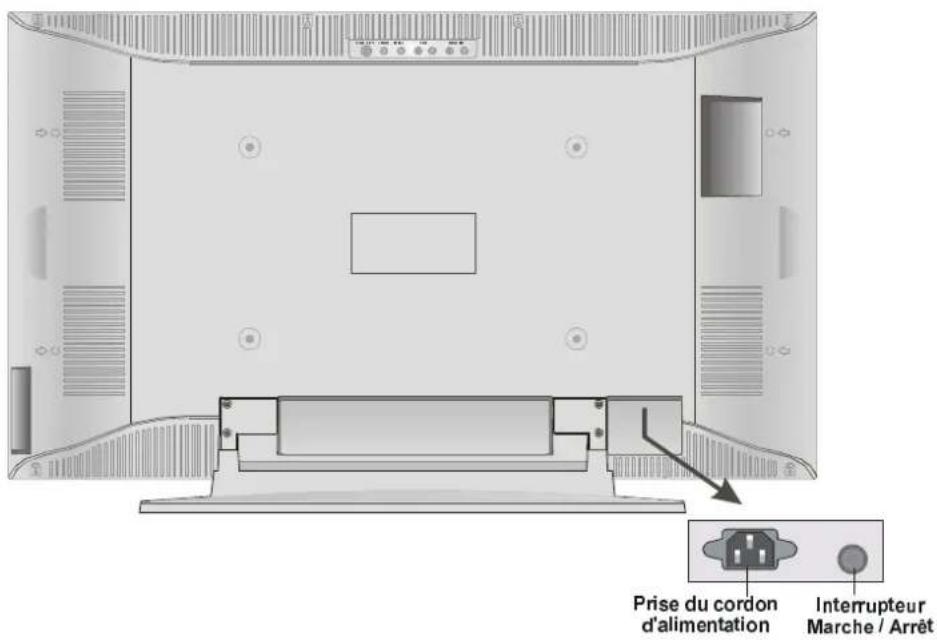
Illustration of a flat-screen television monitor with front and back panels (no text or symbols)FACE ARRIERE
natural_image
Three-step diagram showing a mechanical component with internal structure, no text or symbols presentProgramme précédent
PAL SECAM B/G D/K K' I/I'
CANAUX
VHF (BANDE I/III)
UHF (BANDE U)
HYPERBANDE
German + Nicam Stéréo
PUISSANCE DE SORTIE AUDIO (WRMS.) (%10 THD)
2×8W
CONSOMMATION ELECTRIQUE (W) (max.)
136 W
< 3 W (attente)
TYPE D'ECRAN
Safety Precautions 36
Before Switching On Your TV 38
Power Connection .... 38 Connections To The RF Input Socket .... 38 How To Connect Other Devices .... 38 Inserting Batteries In The Remote Control Handset .... 38
Switching The TV ON/OFF 38
To switch the TV on: 38
To switch the TV off: 38
Operating The TV 39
Initial APS (Automatic Programming System) 39 Operating with the buttons on the TV set 39
Operating With Remote Control ..... 39 layout menu ..... 40 picture menu ..... 41
When VGA Or DVI Is Connected To TV: 41
window menu....42 When VGA Or DVI Is Connected To TV:....43
audio menu .... 43
options menu .... 44
settings menu .... 45
aps menu .... 45
program table .... 45
programming menu .... 47
source select .... 48
Other Features 48
TV Status .... 48 Active window switch .... 49 Programme Swap (SWAP) .... 49 Freeze Picture .... 49 Sound Indicator .... 49
Mute Indicator 49
AV Modes 49
Teletext 50
To Operate Teletext .... 50 To Select A Page Of Teletext .... 50 To Select Index Page .... 50 To Select Teletext With A TV Programme .... 50
To Select Double Height Text .... 50 To Reveal “Concealed” Information ... 50 To Stop Automatic Page Change .... 50 To Select A Subcode Page .... 50 Split Screen .... 51 To Exit Teletext .... 51 To Display The Time .... 51 Fastext .... 51
Connect Peripheral Equipment ..... 51
Via The Euroconnector .... 51 Via Ant Input .... 52 Decoder .... 52 TV And Video Recorder .... 52 Playback NTSC .... 52 Copy Facility .... 52 Search For And Store The Test Signal Of The Video Recorder .... 52 Camera And Camcorder .... 52
Antenna Connections 53
Connect Peripheral Equipment 53
Connect The Decoder To The Video Recorder .... 54 Connecting Headphones .... 54
Tips .... 54 Care Of The Screen .... 54 Poor Picture .... 54 No Picture .... 54 Sound .... 54 Remote Control .... 54
Specifications 55
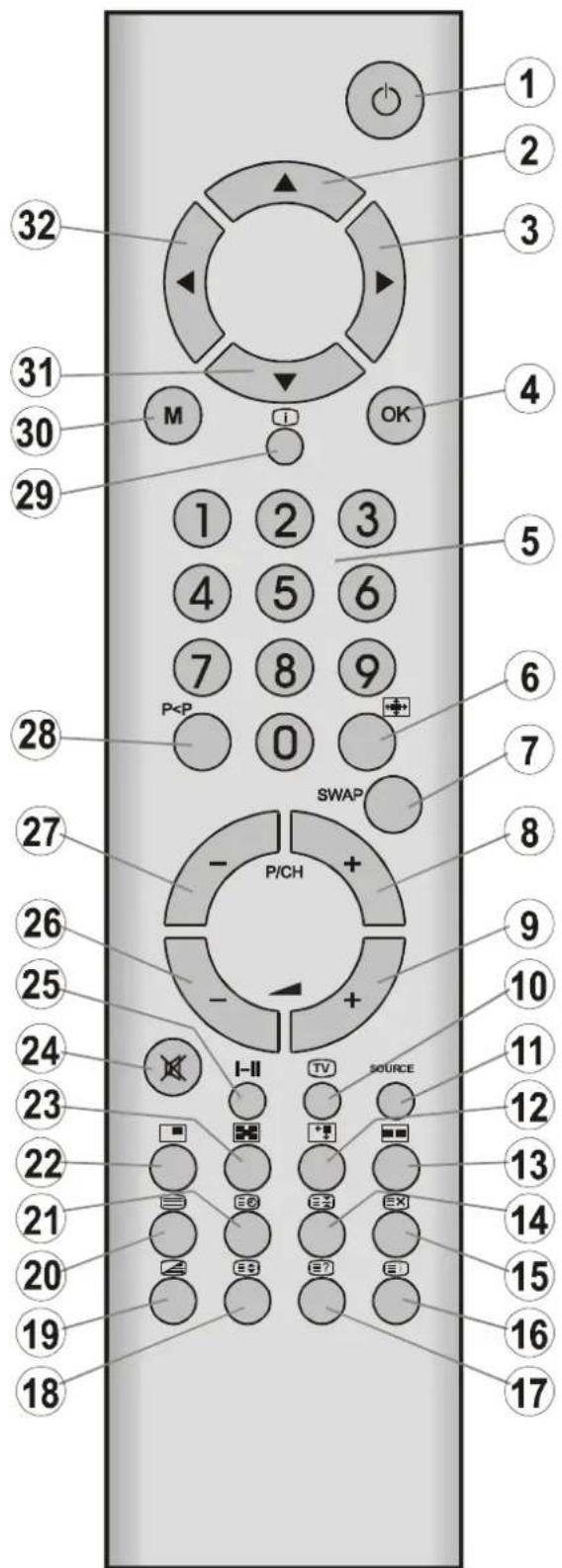
Remote Control Buttons
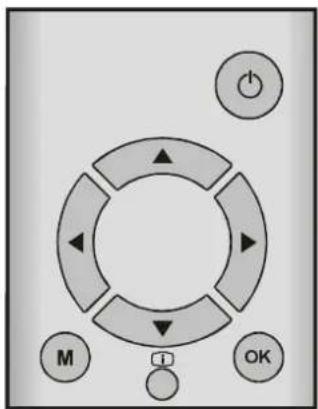
1 Stand By
2 ▲ Cursor Up
3 ▶ Cursor Right
④ OK = Okay / Freeze
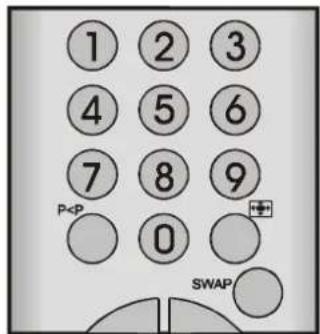
5 0 - 9 = Direct Program
6 Image size
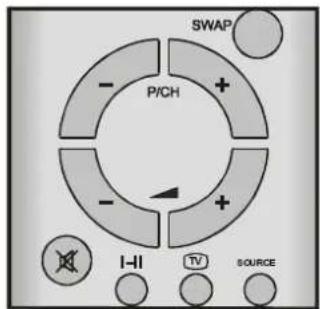
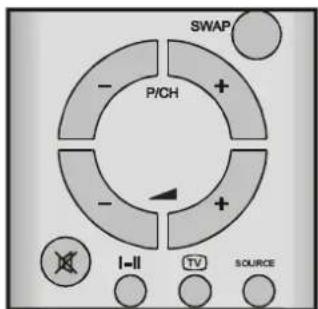
7 SWAP = Program / Source swap
8 P/CH + = Programme Up
9 Volume Up
10 TV / Quit Menu
11 SOURCE = Source select
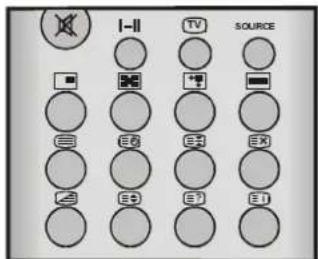
12 PIP size / YELLOW
13 Split screen / BLUE
14 Hold
15 Update
16 Index Page
17 Reveal
18 Expand
19 Mix / Zoom-Pan
20 Teletext
21 Time / Subpage
22 PIP / RED
23 PIP position / GREEN
24 Mute
25 I-II = Mono/Stereo - Dual A-B
26 - Volume Down
27 - P/CH = Programme Down
28 P=Previous Programme
29 +info (Program Table)
30 M = Menu
31▼ Cursor Down
32 ← Cursor Left
Installation Of The TFT TV To The Wall (Optional)
1- To install the TFT TV on the wall, first of all, foot assembly should be removed. (Figure 1). Unscrew the 4 screws (M4 x 6) that attach the foot assembly to the TFT panel and remove the foot assembly from the TFT panel. 2- Place the 4 plastic pins to the circular screw holes at the rear of the TFT and screw them to the TFT panel with 4 (M6 x 20) screws. 3- Install the wall hanger as in figure 2 to the wall with 4 anchors (M7 x 30) and 4 screws (M4 x 30). Decide the place on the wall where the TFT panel would be placed. Level and mark with a pencil the 4 mounting points on the wall hanger. Drill pilot holes for the plastic anchors and then fix the wall hanger with 4 screws (M4 x 30). 4- Raise the TFT panel and hang it to the holes on the wall hanger from the 4 hanging screws at the rear of the TFT panel.  FIGURE 1  FIGURE 2Preparation
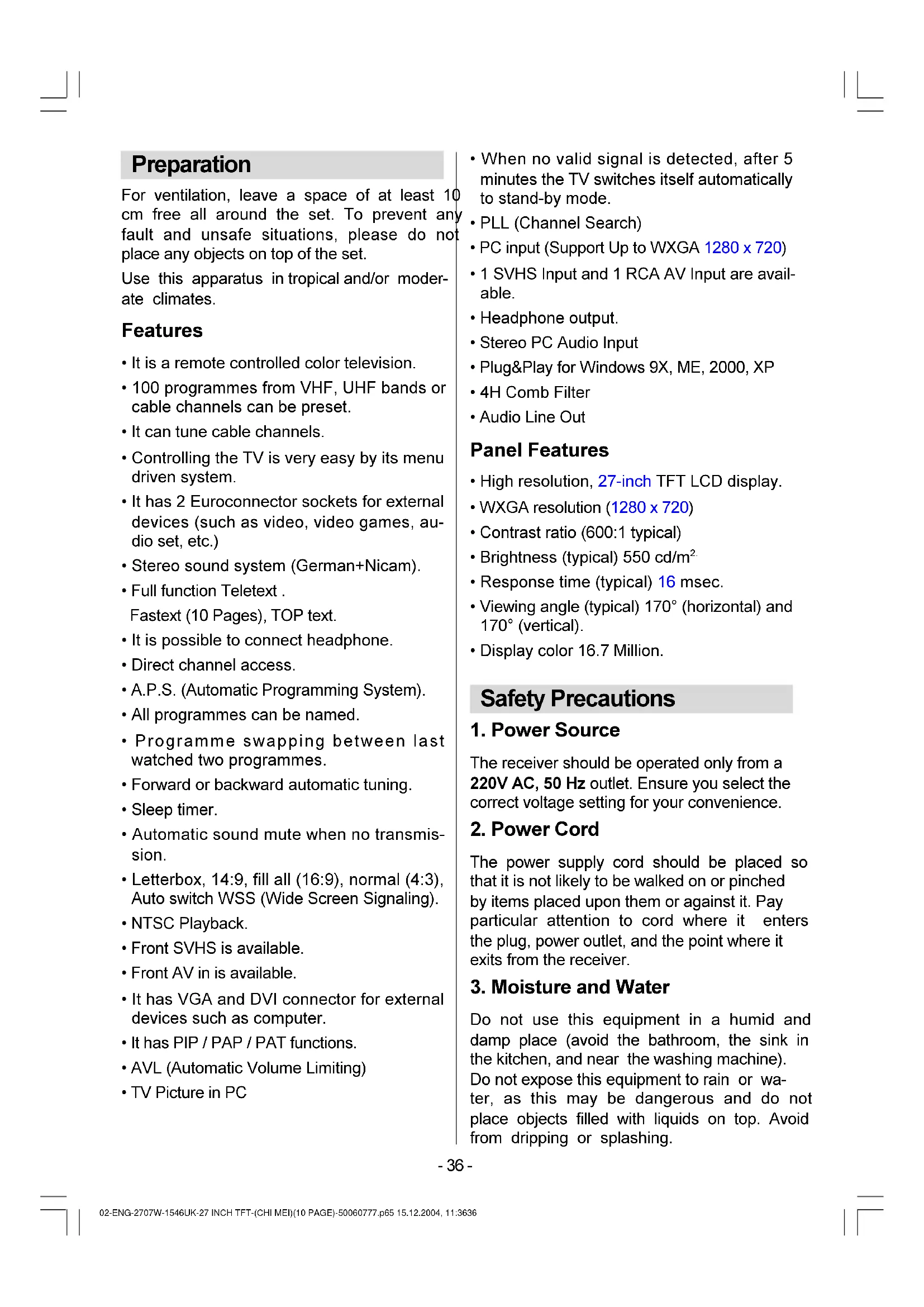
For ventilation, leave a space of at least 10 cm free all around the set. To prevent any fault and unsafe situations, please do not place any objects on top of the set. Use this apparatus in tropical and/or moderate climates.Features
- It is a remote controlled color television. - 100 programmes from VHF, UHF bands or cable channels can be preset. - It can tune cable channels. - Controlling the TV is very easy by its menu driven system. - It has 2 Euroconnector sockets for external devices (such as video, video games, audio set, etc.) - Stereo sound system (German+Nicam). • Full function Teletext. Fastext (10 Pages), TOP text. - It is possible to connect headphone. - Direct channel access. • A.P.S. (Automatic Programming System). \- All programmes can be named. \- Programme swapping between last watched two programmes. \- Forward or backward automatic tuning. \- Sleep timer. \- Automatic sound mute when no transmission. \- Letterbox, 14:9, fill all (16:9), normal (4:3), Auto switch WSS (Wide Screen Signaling). \- NTSC Playback. \- Front SVHS is available. \- Front AV in is available. \- It has VGA and DVI connector for external devices such as computer. \- It has PIP / PAP / PAT functions. • AVL (Automatic Volume Limiting) \- TV Picture in PC - When no valid signal is detected, after 5 minutes the TV switches itself automatically to stand-by mode. - PLL (Channel Search) • PC input (Support Up to WXGA 1280 x 720) - 1 SVHS Input and 1 RCA AV Input are available. - Headphone output. - Stereo PC Audio Input - Plug&Play for Windows 9X, ME, 2000, XP - 4H Comb Filter - Audio Line OutPanel Features
• High resolution, 27-inch TFT LCD display. • WXGA resolution (1280 x 720) - Contrast ratio (600:1 typical) • Brightness (typical) 550 cd/m ^4 . - Response time (typical) 16 msec. - Viewing angle (typical) 170^ (horizontal) and 170^ (vertical). • Display color 16.7 Million.Safety Precautions
1. Power Source
The receiver should be operated only from a 220V AC, 50 Hz outlet. Ensure you select the correct voltage setting for your convenience.2. Power Cord
The power supply cord should be placed so that it is not likely to be walked on or pinched by items placed upon them or against it. Pay particular attention to cord where it enters the plug, power outlet, and the point where it exits from the receiver.3. Moisture and Water
Do not use this equipment in a humid and damp place (avoid the bathroom, the sink in the kitchen, and near the washing machine). Do not expose this equipment to rain or water, as this may be dangerous and do not place objects filled with liquids on top. Avoid from dripping or splashing.4. Cleaning
Before cleaning, unplug the receiver from the main supply, outlet. Do not use liquid or aerosol cleaners. Use soft and dry cloth.5. Ventilation
The slots and openings on the receiver are intended for ventilation and to ensure reliable operation. To prevent overheating, these openings must not be blocked or covered in anyway.6. Lightning
In case of storm and lightning or when going on holiday, disconnect the power cord from the wall outlet.7. Replacement Part
When replacement parts are required, be sure the service technician has used replacement parts which are specified by the manufacturer or have the same specifications as the original one. Unauthorised substitutions may result in fire, electrical shock, or other hazards.8. Servicing
Please refer all servicing to qualified personnel. Do not remove cover as this may result in electric shock.9. Naked Flame Sources
Do not place naked flame sources on the apparatus. WARNING: When the device is not in use for a long time, disconnect from power.Instructions for waste disposal:
- Packaging and packaging aids are recyclable and should principally be recycled. Packaging materials, such as foil bag, must be kept away from children. - Battery, including those which is heavy metal-free, should not be disposed of with household waste. Please dispose of used battery in an environmentally sound manner. Find out about the legal regulations which apply in your area. \- Cold cathode fluorescent lamp in LCD PANEL contains a small amount of mercury, please follow local ordinates or regulations for disposal.   "The LCD panel is very high technology product with about a million thin film transistors, giving you fine picture details. Occasionally, a few non-active pixels may appear on the screen as a fixed point of blue, green or red. Please note that this does not affect the performance of your product." "DO NOT LEAVE YOUR TV AT STAND-BY OR OPERATING WHEN YOU LEAVE YOUR HOUSE"Before Switching On Your TV
Power Connection
IMPORTANT: The TV set is designed to operate on 220V AC, 50 Hz. • After unpacking, allow the TV set to reach the ambient room temperature before you connect the set to the mains.Connections To The RF Input Socket
 \- Connect the aerial or cable TV plug to the RF input socket located at the back of the TV and connect the cable plug coming out from the TV out socket located at the devices (VCR, DVB etc.) to this socket as well.How To Connect Other Devices
IMPORTANT: Switch off the TV before connecting any external device. Sockets for external connections are at the back and side of the TV (optional). For connection of other devices via Euroconnector refer to the manuals of the related devices.Inserting Batteries In The Remote Control Handset
- Place the batteries in the right directions as seen below. - Remove the battery cover located on the back of the handset by gently pulling upwards from the indicated part. - Insert two MN2400 AAA or equivalent type batteries inside. - Replace the battery cover.  NOTE: Remove batteries from remote control handset when it is not to be used for a long period. Otherwise it can be damaged due to any leakage of batteries.Switching The TV ON/OFF
To switch the TV on:
Your TV will switch on in two steps: 1- Connect the power supply cord to the system. Press On/Off switch at the rear of the TV. Then the TV switches itself to stand-by mode and the led becomes red located on the front of the TV. 2- To switch on the TV from stand-by mode either: Press a digit button on the remote control so that a programme number is selected, or, Press “☐”, "-P/CH" or "P/CH+" button at the top of the TV or press "-P/CH" or "P/CH+" button on the remote control, so that last switched off mode is selected. By either ways the TV will switch on and the led becomes green.To switch the TV off:
\- Press the "stand-by" button on the remote control, so the TV will switch to stand-by mode and the GREEN LED will become RED, or, Press the ⚙” button located on the top of the TV, so the TV will switch off and the GREEN LED will become RED. To power down the TV completely, press On/Off switch, or unplug the power cord from the mains socket.Operating The TV
You can operate your TV both using the remote control handset and onset buttons.Initial APS (Automatic Programming System)
The following menu will be displayed on the screen when you turn on your TV for the first time. APS, searches and sorts all channels and stores them automatically on your TV, according to the transmission of programme systems in your area.   To cancell APS before estaining press "TVV" button. First of all choices a language can and country by using "▲" / "▼" and "◀"/"but" buttons. This, will effect the sort process in APS. To start aps select autoset, by using "▲" / "▼" buttons and press "◀" / "▶" or "OK" button.  After APS is finalized, the programme table will be appeared on the screen. In the programme table you will see the programme numbers and names assigned to the programmes. If you do not accept the locations and / or the programme names of programmes, you can change them in aps submenu in the settings menu. (See page 46 for Program table explanation.)Operating with the buttons on the TV set
Volume setting and programme selection can be made by using the buttons at the control panel on the top of the TV.Volume Setting
Press "VOLUME -" button to decrease volume or "VOLUME +" button to increase volume, so a volume level scale (slider) will be displayed at the middle of the bottom on the screen. Programme Selecting
Press "P/CH+" button to select the next programme or "PCH-" button to select the previous programme. "P/CH+ / PCH-" and "VOLUME + / VOLUME - " buttons on the TV are used as an negation buttons in menu.Entering The Menu
Press "MENU" button at the control panel on the top of the TV to enter the menu. "P/CH+/PCH-" and "VOLUME+/VOLUME - " buttons at the control panel on the top of the TV work as direction buttons in the menu.AV Mode
Press "TV / AV" button at the control panel on the top of the TV to switch your TV to AV mode (See AV Modes in page 49).Operating With Remote Control
The remote control handset of your TV is designed to control all the functions of the model you selected. The functions will be described in accordance with the menu system of your TV. Functions of the menu system are described in Menu System section.Volume Setting
Press "▲+" button to increase volume. Press "-▲" button to decrease volume. A volume level scale (slider) will be displayed at the middle of the bottom on the screen.  Programme Selecting
(Previous or next programme)
- Press “- P/CH” button to select the previous programme. - Press "P/CH+" button to select the next programme.Programme Selecting (direct access):
Press digit buttons on the remote control handset to select programmes between 0 and 9. TV will switch to the selected program after a short delay. \- For a two digit program number enter the second digit after pressing the first digit within 2 seconds.Menu System
Your TV has been designed with a menu system to provide an easy manipulation of a multifunction system. Press the "M" (MENU) button to enter the menu. "M" button has two functions. The first function of it is open and close the menu, the second function is closing the submenu and then opening its parent menu. Press "◀" / "▶" button to select a menu title and then "▲" / "▼" button to select a menu item and "◀" / "▶" or "OK" button to enter the menu item. To exit a menu press "M" button.layout menu
By pressing “◀/ “”▶button, select the first icon. Layout menu appears on the screen. full screen
By pressing “▲” / “▼” button, select full screen. “pip
By pressing “▲” / “▼” button, select pip. “split screen
By pressing “▲” / “▼” button, select split screen. “picture menu
By pressing "◀" button, select the second icon. Picture menu appears on the screen. bar
| Category | Value | |---|---| | brightness | 61 | | contrast | 36 | | sharpness | 50 | | color | 43 | down for picture settings for current windowbrightness
By pressing "▲" / "▼" button, select brightness. "right/left to adjust brightness" is seen on the screen. Press ▶" button to increase brightness. Press ◀" button to decrease brightness. Brightness level can be adjusted between 0 and 100.contrast
By pressing “▲” / “▼” button, select contrast. “right/left to adjust contrast” is seen on the screen. Press ▶” button to increase contrast. Press “◀” button to decrease contrast. Contrast level can be adjusted between 0 and 100.sharpness
By pressing “▲” / “▼” button, select sharpness. “right/left to change sharpness” is seen on the screen. Press ▶” button to increase sharpness. Press ◀” button to decrease sharpness. Sharpness level can be adjusted between 0 and 8.color
By pressing “▲” / “▼” button, select color. “right/left to adjust color” is seen on the screen. Press “▶” button to increase color. Press “◀” button to decrease color. Color level can be adjusted between 0 and 100.tint
This item is displayed in picture menu when TV is in AV mode and at NTSC signal. By pressing "▲" / "▼" button, select tint. "right/left to adjust tint" is seen on the screen. Press "▶" button to increase tint. Press◀" button to decrease tint. Tint level can be adjusted between 0 and 100. bar
| Category | Value | |---|---| | brightness | 61 | | contrast | 36 | | sharpness | 50 | | color | 43 | | tint | 50 | down for picture settings for current windowWhen VGA Or DVI Is Connected To TV:
brightness
By pressing "▲" / "▼" button, select brightness. "right/left to adjust brightness" is seen on the screen. Press ▶" button to in- crease brightness. Press "◀" button to decrease brightness. Brightness level can be adjusted between 0 and 100.contrast
By pressing “▲” / “▼” button, select contrast. "right/left to adjust contrast" is seen on the screen. Press ▶” button to increase contrast. Press “◀” button to decrease contrast. Contrast level can be adjusted between 0 and 100.phase (optimal)
This item is not available in the picture menu when DVI is connected to the TV. By pressing “▲” / “▼” button, select phase. "right/left to adjust phase" is seen on the screen. Press ▶ button to increase phase. Press “◀” button to decrease phase. Phase level can be adjusted between 0 and 100.window menu
By pressing “” button, select the third icon. Window menu appears on the screen. \- If full screen option was selected at the layout menu, the window menu is seen as below. image size
By pressing "▲" // "▼" button, select image size. "right/left to change image size" is seen on the screen. By pressing◄" / ►" button, you can change image size to fill all, zoom, letterbox, subtitles, normal, 14:9 and auto. You can enter image size directly by pressing "☐" button. \- If pip option was selected, the window menu is seen as below. image size
By pressing "▲" / "▼" button, select image size. "right/left to change images size" is seen on the screen. By pressing "▲" / "▼" button, you can change image size to fill all, normal and auto. You can enter image size directly by pressing "button.pip size
By pressing "▲/“" button, select pip size. "right/left to adjust PIP size" is seen on the screen. Press "▶" button to increase pip size. Press "◀" button to decrease pip size. Pip size can be adjusted between 0 and 100. You can change the pip size directly by pressing "☐" (YELLOW) button.pip position
By pressing "▲" / "▼" button, select pip position. "right/left to adjust PIP position" is seen on the screen. By pressing◄" / ►" button, you can change the pip position as left top, right top, middle, left bottom or right bottom (as seen on the menu above). You can enter pip position directly by pressing "GREEN" button.When VGA Or DVI Is Connected To TV:
image size
By pressing "▲" // "▼" button, select image size. "right/left to change image size" is seen on the screen. By pressing ▶" / ▶" button, you can change image size to fill all, fill 1:1 and fill aspect.audio menu
By pressing “◀” / “▶” button, select the fourth icon. Audio menu appears on the screen. volume
By pressing "▲/“" button, select volume.me. "right/left to adjust volume" is seen on the screen. Press "▶" button to increase volume level. Press "◀" button to decrease volume level. Volume level can be adjusted between 0 and 63.hp volume
By pressing “▲” / “▼” button, select hp volume. "right/left to adjust hp volume" is seen on the screen. Press ▶” button to increase hp volume level. Press ◀” button to decrease hp volume level. Hp volume (headphone volume) level can be adjusted between 0 and 100.hp sound mode
By pressing “▲” / “▼” button, select hp sound mode. "right to adjust hp sound mode" is seen on the screen. Press▶" button change hp sound mode. Hp sound mode is used to identify sound mode of the headphone. hp sound mode can be set to mono, stereo, dual a or dual b according to the transmission.balance
By pressing "▲" / "▼button, select balance. "right/left to adjust balance" is seen on the screen. Press "►" button to increase balance rightward. Press "◀" button to decrease balance leftward. Balance level can be adjusted between -50 and 50.equalizer
By pressing “▲” / “▼” button, select equalizer. "right/left for equalizer settings" is seen on the screen. Press “◀” / “▶” or “OK” button to enter equalizer menu. In equalizer menu the sound mode can be changed to user, flat, pop, rock, jazz and classic by pressing “◀” / “▶” button. Equalizer menu settings can be changed only when sound mode is user. Select the desired frequency by “▲” / “” button and increase or decrease the frequency gain by pressing “◀” / “▶” button. “M” button to exit the equalizer menu. bar
| sound mode | user | count | |---|---|---| | 120Hz | Black | 42 | | 500Hz | Black | 13 | | 1.5kHz | Black | 71 | | 5kHz | Black | 83 | | 10kHz | Black | 100 |AVL
By pressing "▲" / "▼" button, select AVL. "right/left for AVL on/off" is seen on the screen. By pressing "◀/ " ▶button set to AVL on to activate it or off to deactivate it.wide sound
It is used to gain saloon effect to the sound. By pressing "▲" / "▼" button, select wide sound. "right/left for wide sound off/stereo/mono" is seen on the screen. By pressing "◀" / "▶" button set to wide sound on to activate it or off to deactivate it.dynamic bass
Dynamic Bass is used to increase bass effect of the TV set. By pressing "▲" / "▼button, select dynamic bass. "right/left for dynamic bass on/off" is seen on the screen. By pressing◄" / ►" button set to dynamic bass on to activate or off to deactivate it.options menu
By pressing “◀” button, select the fifth icon. Options menu appears on the screen. language
By pressing "▲" / "▼" button, select language. "right/left to change laggagge" is seen on the screen. By pressing "◀" // "▶" button, you can select the language.vcr
This item is displayed only when TV is in AV mode. By pressing “▲” / “▼” button, select vcr. "right/left to change vcr status" is seen on the screen. By pressing “◀” / “▶” button set vcr to on or off. osd timeout
By pressing "▲" / "▼" button, select osd timeout. "right/left to change osd timeout" is seen on the screen. By pressing "★" ▶ button, you can change osd timeout to 5 sec, 15 sec or 60 sec.menu background
By pressing "▲" / "▼" button, select menu background. "right to change menu background" is seen on the screen. You can change menu background to translucent or opaque by pressing "▶buttotonchild lock
You can use this feature to prevent children turning on TV or changing programs or adjustments etc. without remote control. By pressing “▲” / “▼” button, select child lock. "right/left to change" is seen on the screen. The child lock feature can be set by “◀” or “▶” button to either on or off. When off is selected, there will be no difference in the operation of your TV. When on is selected, the TV can only be controlled by the remote control handset.scart 2 out
By pressing “▲” / “▼” button, select scart 2 out. "right/left to select scart 2 out" is seen on the screen. You can set scart 2 out to Scart 1, Tuner or FAV by pressing “◀” / “▶” button.sleep timer
By pressing “▲” / “▼” button, select sleep timer. "adjust sleeptimer" is seen on the screen. You can set the sleep time to Off, 15, 30, 60, 90 or 120 minutes by pressing “◀” / “▶” button. The sleep timer is used to turn the TV off after a pre-defined period.sleep time remaining
Selected and remaining sleep time is displayed at this area. Sleep time remaining item can not be selected by "▲" / "▼button.settings menu
By pressing “◀” button, select the sixth icon. Settings menu appears on the screen. \- If full screen option was selected at the layout menu, the settings menu is seen as below.  down for various system settings \- If pip or split screen option was selected at the layout menu or in AV mode, the settings menu is seen as below.  down for various system settingstv tuner
By pressing "▲/"" button, select tv tuner. "aps menu
By pressing "◀/“” button in tv tuner menu select the second icon. aps menu appears on the screen.  down to change aps optionsprogram table
By pressing "▲" / "▼" button, select program table. "right/left to enter program table" is seen on the screen. By pressing "◀" / "▶" or "OK" button, you can enter the following program table. Programme table is also entered directly by pressing "i" button. \- Program table may be entered only when the layout is full screen. You can not enter to program table when layout is pip or split screen.| program table | ||
| 1 CNN | 11 --- | 21 --- |
| 2 RAI2 | 12 --- | 22 --- |
| 3 SAT | 13 --- | 23 --- |
| 4 RAI3 | 14 --- | 24 --- |
| 5 TV5 | 15 --- | 25 --- |
| 6 ZDF | 16 --- | 26 --- |
| 7 RA1 | 17 --- | 27 --- |
| 8 C02 | 18 --- | 28 --- |
| 9 S07 | 19 --- | 29 --- |
| 10 C05 | 20 --- | 30 --- |
Delete:
For "Delete" process RED button is pressed. The following warning menu comes to screen. Pressing "M" button cancels the activated "Delete" process. Pressing "OK" button erases the selected programme from the programme list, and the programmes below shift one up. Insert:
Select the program which you want to insert by navigation buttons. Press GREEN button. By navigation buttons move the selected program to the decided programme space and press GREEN button again.Name:
To change the name of a decided programme, that programme is is selected and pressed to the YELLOW button. The following menu comes to screen.  The first letter of the selected name is highlighted. To change that letter “/” button can be used, and to select the other letters, “/” button can be used. If the cursor is at the last letter of the Programme Name, pressing “button moves the cursor at the beginning. On the contrary, if the cursor is at the beginning of the ProgrammeName, pressing “button moves the cursor at the end.country
By pressing "▲" / "▼button, select country. "right/left to change country" is seen on the screen. By pressing "◀" / "▶button, you should select the country where you are.autoset
By pressing "▲" / "▼button, select autoset. "right/left to start aps function" is seen on the screen. When "◀" / "▶" or "OK" button is pressed, the following menu comes to the screen. If you want to cancel autoset func- tion, press "M" button. You return to aps menu. If you press "M" button after autoset is started, program table appears on the screen.  If "OK" button is suppressed, automatic function starts and the following menu comes to the screen.  After autoset is finalized, the program table comes to the screen.programming menu
By pressing “◀” / “▶” button in tv tuner menu select the first icon. Programming menu appears on the screen. program
By pressing "▲" / "▼" button, select program. "right/left to select program" is seen on the screen. By pressing "◀" / button, you can select the sleep program number. You can also enter a number via digit buttons on the remote control. There are 100 program storage between 0 and 99.fine tune
By pressing “▲” / ▼ button, select fine tune. "right/left to adjust fine tuning" is seen on the screen. By pressing ◀ / ▶ button, you can adjust the tuning. The adjust values are between -50 and +50.channel
By pressing "▲" / "▼" button, select channel. "right/left to change channel" is seen on the screen. By pressing "◀" button, you can change the channel number. You can also enter a number via digit buttons on the remote control. The adjust values change according to the standard and channel type.standard
By pressing "▲" / "▼" button, select standard. "right/left to change standard" is seen on the screen. By pressing "◀" / "▶" button, you can change the standard to B/G, D/K, I or L/L'.channel type
By pressing "▲/"" button, select channel type. "right/left to change channel type" is seen on the screen. By pressing◄/"" button, you can change the channel type to C or S.edit labels
By pressing "▲" / "▼" button, select edit labels. "right/left to edit labels" is seen on the screen. By pressing "◀" / "▶" or "OK" button, you can enter the following menu.  “▲” / “▼” or “◀” / “▶” buttons are used to edit labels.store program
By pressing “▲” / “▼” button, select store program. "right/left to store program" is seen on the screen. By pressing “◀” or "OK" button, you can store the program and following menu appears on the screen. manual search
By pressing "▲/“” button, select manual search. "right/left to search" is seen on the screen. By pressing “◀” or “▶” button, you can start program searching and following menu appears on the screen. source select
By pressing "▲" / "▼" button, select source select in settings menu. "Other Features
TV Status
Programme Number, Programme Name and Sound Indicator are displayed on the upper right side of the screen. Source is also displayed with them on the right bottom side of the screen. They are displayed after programme change during 3 seconds. P 01 Programme Number PR\_01 Programme Name (5 characters) These OSD's are displayed when a new programme is entered by digit button, by pressing "PPrevious Programme
- Press "P<P" (Previous Programme) button to select the last selected programme. This button provides swapping between last two selected programmes. For example, select programme 8, then select programme 2. Now, if you press "P<P" button, programme 8 will be selected. If you press the same button again, programme 2 will be selected and so on.
Active window switch
In PIP and PAP modes “” and “” buttons are used to select active window. “◀” and
“▶” cursors are used to show the mute status osd of the active window.
flowchart
graph TD
    A["Power"] --> B["Arrow Up"]
    B --> C["Arrow Down"]
    C --> D["Arrow Left"]
    D --> E["Arrow Right"]
    E --> F["Arrow Down"]
    F --> G["Arrow Left"]
    G --> H["Arrow Up"]
    H --> I["OK"]
Programme Swap (SWAP)
This button is used to swap between the programmes in the PIP window and main picture if the screen layout is selected as PIP.
PC screen is not displayed in PIP window.
Freeze Picture
You can freeze the picture on the screen by pressing "OK" button. Display layout should be selected as full screen for this feature. At split screen and PIP layouts; this function is invalid.
Sound Indicator
The alternatives of the indicator are Mono, Stereo, Dual A and Dual B. This indicator is displayed under the programme number indicator on the screen. "I-II" button is used to select Mono, Stereo, Dual A or Dual B.
MONO
In Mono broadcast or in forced-mono (for stereo broadcast).
STEREO
In Stereo broadcast.
DUAL A
If dual broadcast detected. Dual A is selected in default and also can be selected after Dual B by Remote Control.
DUAL B
If Dual B selected by Remote Control.
Mute Indicator
It is placed in the upper left side of the screen when enabled.

To cancel mute, there are two alternatives, the first one is pressing 🎧 button, thus the volume is set to the preceding value, and the second one is increasing/decreasing the volume level, thus it starts from the previous level to increase/decrease.
If PIP layout is selected, mute indicator is displayed at the upper middle of the PIP window.
If Split Screen is selected, mute indicator is displayed at the upper left side of the active window.
AV Modes
By pressing the "SOURCE" button or via source select menu, you can switch your TV to AV modes (except being in Teletext). Pressing this button will consecutively switch the TV in one of the optional AV modes: Tuner 1, Scart 1, Scart 1 RGB, Scart 2, Scart 2 RGB, PC, DVI, FAV and SVideo.
While watching VCR; vcr item in options menu should be set to on.
In order to quit the AV mode press the "TV", digit buttons or "-P/CH" or "P/CH+".
Teletext
Teletext is an information system that displays text on your TV screen. Using the Teletext information system you can view a page of information on a subject that is available in the list of contents (index).
On screen display is not available in text mode.
Contrast, brightness or colour control is not available, but volume control is available in text mode.
To Operate Teletext
- Select a TV station on which Teletext is being transmitted.
- Press "☐" button. Usually the list of contents (index) is displayed on the screen.
To Select A Page Of Teletext
- Press the appropriate digit buttons for the required Teletext page number.
The selected page number is displayed at the top left corner of the screen. The Teletext page counter searches until the selected page number is located, so that the desired page is displayed on the screen.
- Press "P/CH+" button to move the Teletext screen forward one page at a time.
- Press "- P/CH" button to move the Teletext screen backward one page at a time.
To Select Index Page
- To select the page number of the index (generally page 100), press "button.
To Select Teletext With A TV Programme
- Press "Button. The text is now superimposed over the programme on the screen.
- Press "⚡" button again to return to the Teletext page.
To Select Double Height Text
- Press "button for the top half of the information page to be displayed in double height text.
- Press "Button again for the bottom half of the information page to be displayed in double height text.
- Press "≡" button once more for the full page of normal height text.
To Reveal "Concealed" Information
- Pressing "button once will reveal answers on a quiz or games page.
- Pressing "≡?" button again will conceal the revealed answers.
To Stop Automatic Page Change
The teletext page you have selected may contain more information than what is on the screen; the rest of the information will be displayed after a period of time.
- Press "☒" button to stop the automatic page change.
- Press "≡" button again to allow the next page to be displayed.
To Select A Subcode Page
Subcode pages are subsections of long Teletext pages that can only be displayed on the screen one section at a time.
- Select the required Teletext page.
- Press "≡" button.
- Select the required subcode page number by pressing four digit buttons (e.g. 0001).
- If the selected subcode page is not displayed in a short time, press "EX" button. TV programme will be displayed on the screen.
- Teletext page number will be displayed on the upper left corner of the screen when the selected page is found.
- Press "EX" button to display the selected Teletext page.
Split Screen
- During split screen, you can switch to the teletext mode of the TV programme on the left side of the screen only. Teletext is not available on the right side of the screen.
- Select the programme on the left side of the screen as the active window. Press the "☐" button. Teletext will be displayed on the screen. To exit teletext press "☐" or "☐" button.
To Exit Teletext
- Press "or" TV" button. The screen will switch to TV mode.
To Display The Time
- While watching a TV programme with Tele-text transmission press "button. The current time information, captured from Tele-text will be displayed on the screen.
- Press "≡⊕" button again to remove the time from the screen.
- If the programme being watched does not have Teletext transmission, no information will be displayed.
Fastext
Your TV supports the 10 page Teletext system. When the page number of any of the 10 pages in memory is entered, the system will not search for the requested page; instead it will display the page automatically. If the requested page is not in memory, the system will search for the requested page number and save the 10 pages including the requested page into memory after finding it.
For Fastext
The subject-heading for the information may have a particular color.
- Press an appropriate RED, GREEN, YELLOW or BLUE button in order to reach the relevant page quickly.
For TOP text
TOP text mode of operation will be activated automatically according to the transmission.
- If TOP text transmission is present, color coded buttons will appear in status row.
- If TOP text transmission is not present, status row will not appear.
The subject-heading for information may be located in colored box.
In TOP mode the “-P/CH” or “P/CH+” commands will request the next or previous page respectively. If TOP text transmission is not available, in case of operation of these commands, wraparound occurs. For example page 100 appears to be one greater than page 199.
Connect Peripheral Equipment
There is a wide range of audio and video equipment that can be connected to your TV.
The following connection diagrams show you where the different (Optional) equipment should be connected at the back or right side of the TV.
Via The Euroconnector
TFT TV has 2 Euroconnector sockets. If you want to connect peripherals (e.g. video, decoder, etc.) which have Euroconnectors, to the TV, use SCART 1 or SCART 2 inputs.
If an external device is connected via Euroconnector sockets TV is switched to AV mode automatically. If the signal is RGB, select RGB in the source select menu to view picture. If the external device is connected to SCART 1, choose Scart 1 RGB. If the external device is connected to SCART 2, choose Scart 2 RGB.
Via Ant Input
If you want to connect to your TV, peripherals like video recorders or decoders, but the device you want to connect does not have Euroconnector, you should connect it to the ANT input of the TV.
If the VCR is connected via antenna input it is suggested to use the Programme 0.
Decoder
Cable TV offers you a wide choice of programs. Most of them are free, others are to be paid for by the viewer. This means that you will need to subscribe to the broadcasting organisation whose programmes you wish to receive. This organisation will supply you a corresponding decoder unit to allow the programmes to be unscrambled.
For further information ask your dealer. See also the booklet supplied with your decoder.
Connect a decoder with an aerial socket to the TV
- Connect the aerial cable.
Connect a decoder without an aerial socket to the TV
- Connect the decoder to the TV with a eurocable to SCART 1.
TV And Video Recorder
- Connect the aerial cables.
Better picture quality can be obtained if you also connect a eurocable to SCART sockets.
Playback NTSC
To use this option you can;
- Connect NTSC VCR player Euroconnector at the rear side of the TV.
- Connect NTSC VCR player to RCA Jacks at the right side of the TV.
Then, press "SOURCE" button to select proper source.
Copy Facility
Source selection for VCR recording.
- Select options menu.
- Select scart 2 out source pressing “▲” / “▼” button.
- Select Scart 1 to copy the picture from tuner.
- Select Scart 2 to copy the picture from FAV or SCART 2.
Search For And Store The Test Signal Of The Video Recorder
- Unplug the aerial cable from the aerial socket "ANT" of your video recorder.
- Switch on your TV and put the video recorder on the test signal. (See the booklet for your video recorder.)
- Enter the tv tuner menu in settings menu. Enter the programming menu in tv tuner menu and select manual search.
- Search for the test signal of your video recorder in the same way as you searched for and stored the TV signals. See programming menu. Store the test signal under programme number 0.
- Replace the aerial cable in the aerial socket "ANT" of your video recorder once you have stored the test signal.
Camera And Camcorder
To Connect To FAV Input
Connect your camera or camcorder FAV input at the right side of the TV.
- Connect your equipment to the TV via VIDEO (yellow), AUDIO R (red) and AUDIO L (white) inputs. You should connect the jacks to the input in the same color.
To Connect To S-VHS Input
Connect your camera or camcorder S-VHS input at the right side of the TV.
- Connect your equipment to the TV via S-VHS input and audio inputs of FAV inputs by using S-VHS cables.
Antenna Connections
Outdoor Antenna Connections
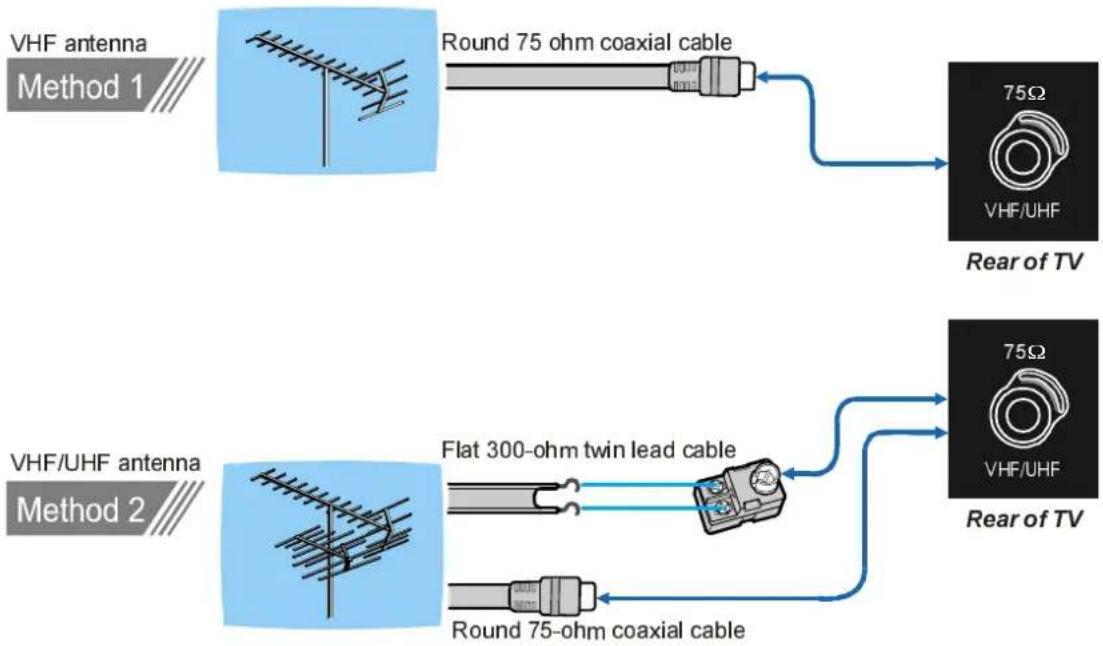
flowchart
graph TD
    A["VHF antenna Method 1"] --> B["Round 75 ohm coaxial cable"]
    C["VHF/UHF antenna Method 2"] --> D["Flat 300-ohm twin lead cable"]
    B --> E["Rear of TV: 75Ω VHF/UHF"]
    D --> F["Rear of TV: 75Ω VHF/UHF"]
Connect Peripheral Equipment
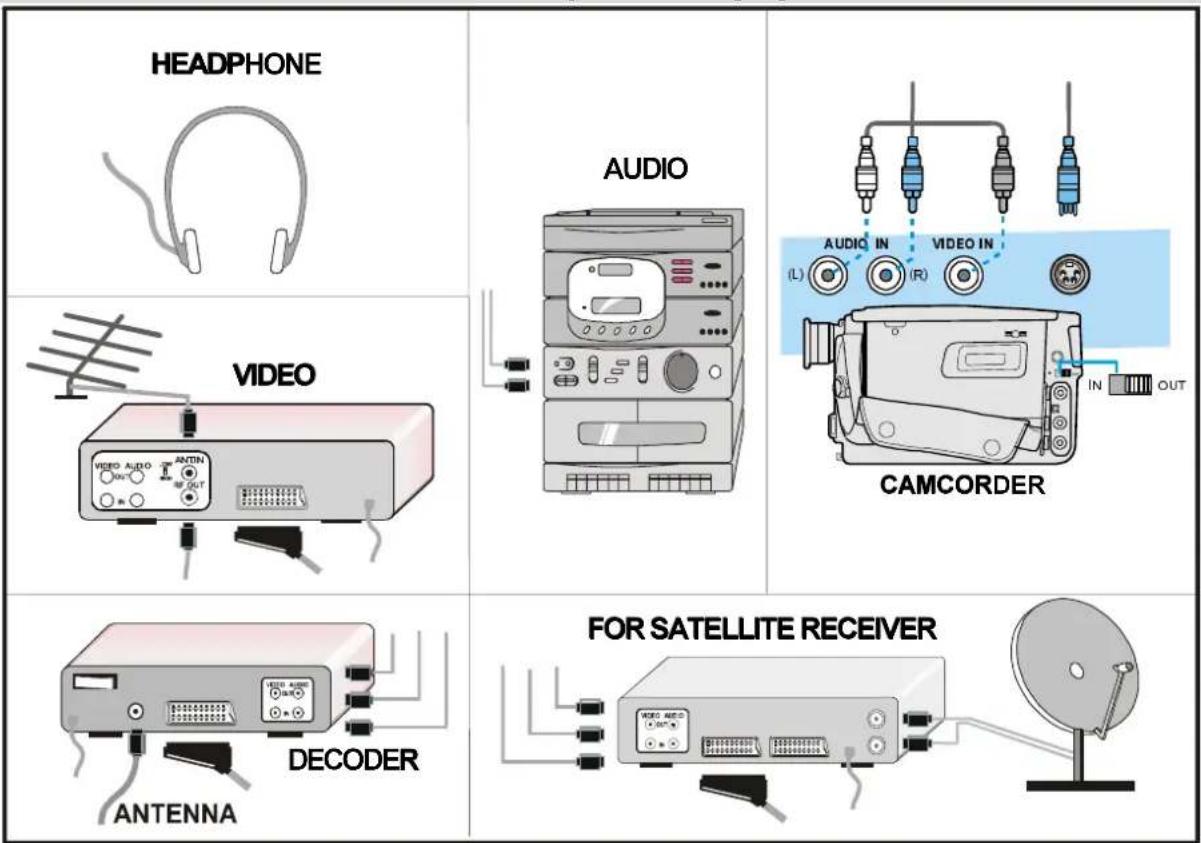
Connect The Decoder To The Video Recorder
Some video recorders have a special euroconnector for decoder.
- Connect a eurocable to the euroconnector of your decoder and to the special euroconnector of your video recorder. See also the booklet of your video recorder.
- To connect your video recorder to the TV, see TV and Video Recorder section.
If you want to connect more equipment to your TV, consult your dealer.
Connecting Headphones
Use the stereo headphone socket at the right side of the TV, to connect headphones.
Tips
Care Of The Screen
Clean the screen with a slightly damp, soft cloth. Do not use abrasive solvents as they may damage the TV screen coating layer.
Poor Picture
Have you selected the correct TV system? Is your TV set or house aerial located too close to the loudspeakers, non-earthed audio equipment or neon lights, etc.?
Mountains or high buildings can cause double pictures or ghost images. Sometimes you can improve the picture quality by changing the direction of the aerial.
Is the picture or Teletext unrecognisable? Check if you have entered the correct frequency.
The picture quality may degrade when two peripherals are connected to the TV at the same time. In such a case, disconnect one of the peripherals.
No Picture
Is the aerial connected properly? Are the plugs connected tightly to the aerial socket? Is the aerial cable damaged? Are suitable plugs used to connect the aerial? If you are in doubt, consult your dealer.
No Picture means that your TV is not receiving any transmission. Have you pressed the correct buttons on the remote control? Try once more.
Sound
You can not hear any sound. Did you perhaps interrupt the sound, pressing "button? Are external speakers connected to the TV?"
Sound is coming from only one of the speakers. Is the balance set to one direction extreme? See audio menu.
Remote Control
Your TV no longer responds to the remote control. Press the TV" button on the remote control once more. Perhaps the batteries are exhausted. If so you can still use the local buttons on the top of the TV.
Have you selected the wrong menu? Press "TV" button to return to TV mode or press "M" button to return to the previous menu.
No solution:
Switch your TV set off and on. If this does not work, call the service personnel; never attempt to repair it yourself.
Specifications
TV BROADCASTING
PAL SECAM B/G L/L'
RECEIVING CHANNELS
VHF (BAND I/III)
UHF (BAND U)
HYPERBAND
CABLE TV (S1-S20/ S21-S41)
NUMBER OF PRESET CHANNELS 100
CHANNEL INDICATOR
On Screen Display
RF AERIAL INPUT
75 Ohm (unbalanced)
OPERATING VOLTAGE
220V AC, 50 Hz.
AUDIO
German+Nicam Stereo
AUDIO OUTPUT POWER (W _RMS. ) (%10 THD)
2 × 8
POWER CONSUMPTION (W) (max.)
136 W
< 3 W (Stand-by)
PANEL
16:9 display, 27" Screen Size
DIMENSIONS (mm)
| DIMENSIONS (mm) | ||||
| D | L | H | Weight (kg) | |
| 245 | 797 | 470 | 12.8 | With foot |
| 102 | 797 | 440 | 11 | Without foot |
INDICE
Programa Anterior
75 Ohm (sin balance)