39734 USB VOIP - Phone HAMA - Free user manual and instructions
Find the device manual for free 39734 USB VOIP HAMA in PDF.


| Product Type | USB VoIP Phone |
| Brand | Hama |
| Model | 39734 USB VOIP |
| Power Supply | Via USB port, no external power needed |
| Interfaces | USB 1.1, Plug and Play |
| Software Compatibility | Skype, Netmeeting/Messenger, Mediaring, Net2phone, Dialpad |
| Supported Protocols | H.323, MGCP, SIP |
| Main Functions | PC to PC and PC to phone calls, VoIP caller ID, memory for 199 incoming calls and 199 dialed numbers, LCD and LED display, echo cancellation, noise reduction, duplex transmission |
| Minimum System Requirements | Pentium II 200 MHz, 64 MB RAM, 10 MB disk space, Windows 98/ME/2000/XP/Vista, internet connection (LAN, ADSL, ISDN, 33.6k modem) |
| Package Contents | 1 USB phone, 1 user manual, 1 installation CD |
| Care and Cleaning | Clean with a soft dry cloth. Do not use abrasive products. |
Frequently Asked Questions - 39734 USB VOIP HAMA
User questions about 39734 USB VOIP HAMA
0 question about this device. Answer the ones you know or ask your own.
Ask a new question about this device
Download the instructions for your Phone in PDF format for free! Find your manual 39734 USB VOIP - HAMA and take your electronic device back in hand. On this page are published all the documents necessary for the use of your device. 39734 USB VOIP by HAMA.
USER MANUAL 39734 USB VOIP HAMA
86651 Monheim/Germany
Tel. +49 (0)9091/502-0
Fax +49 (0)9091/502-274
hama@hama.de
www.hama.de
00039734-07.05
hama®
00039734
natural_image
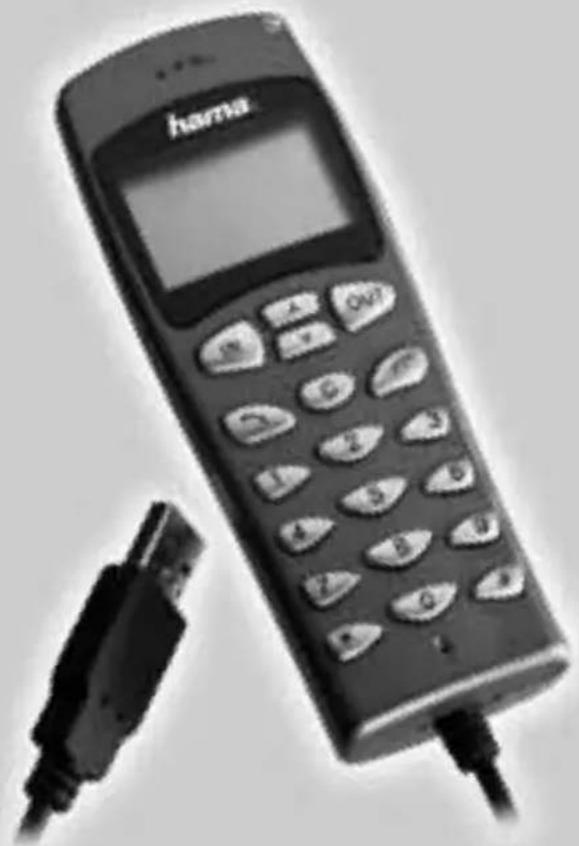
Black and white photo of a Hama mobile phone with attached USB cable (no visible text or symbols on device body)USB Telefon USB Phone Téléphone USB
hama®
D USB Telefon
4
hama®
hama®
Problem 3
hama®
GB USB Phone
- Make/receive both VoIP calls and PSTN regular calls simultaneously
• PC-to-PC, PC-to-Phone operation
• Complies with H.323, MGCP, SIP protocol
• SKYPE ready, share your standard phone with Skype - Cheap calls
CONTENTS
CHAPTER 1 Welcome to USB Phone
1.1 Summary 14
1.2 Features 14
1.3 System Requirements 14
1.4 Package Contents 15
CHAPTER 2 Use of USB Phone
2.1 Run Skype 15
2.2 Connect USB Phone to PC 17
2.3 Run SkypeMate 17
2.4 Call another Skype user (PC to PC) 18
2.5 Call to regular phone (PC to Phone) 20
2.6 Answer a call 20
2.7 Adjust options (Volume and Ringer) 20
2.8 Function Keys 20
2.9 FAQ 21
The information in this document is subject to change without notice and does not represent a commitment on the part of the developer. This document contains materials protected by copyright. All rights are reserved. No part of this manual may be reproduced or transmitted in any form, by any means or for purpose without express written consent.
hama®
CHAPTER 1
Welcome to USB Phone
1.1 Summary
The Hama USB Phone is a most effective and easy mode of communication. User can enjoy an Internet phone just as regular phone. It's convenience and big savings can be made.
1.2 Features
- PC-to-PC and PC-to-phone operation
- Driver built-in, plug and play
- USB1.1 compatible, no need sound card
- No external power required
- Complies with H.323, MGCP, SIP protocol
- Caller ID function of VoIP calls
- 199 incoming call and 199 dialed number
- With LCD and LED show
- Echo cancellation, noise reduction
- Full duplex communication
- Application support: Netmeeting /Messenger, Mediaring, Net2phone, Dialpad, Skype
1.3 System Requirements
- Pentium II with 200 MHz CPU or better with USB interface
- 64MB of RAM
- 10MB or more hard disk space
- Operating System: Windows 98/ME/2000/XP/Vista
- Network: LAN, ADSL, ISDN, 33.6K modem or better
hama®
1.4 Package Contents
- USB Phone x1
- User Guide x1
- Installation CD x1
CHAPTER 2
Use of USB Phone
2.1 Run Skype
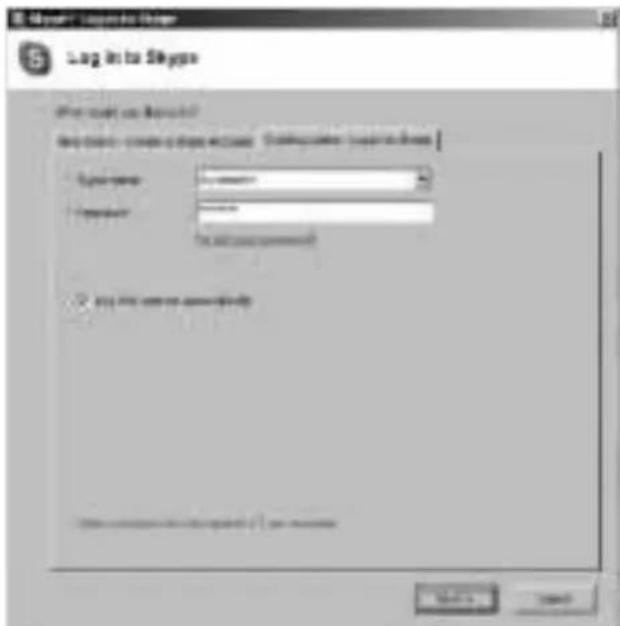
Download Skype software and install it (www.skype.com), the version must be 1.0.0.106 or higher. Run Skype and log in with skype account.
15
hama®
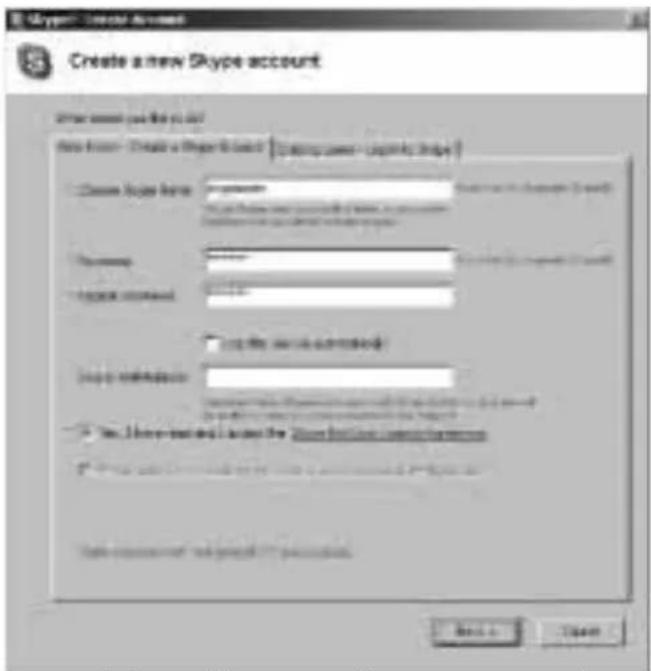
You can create a Skype account as shown below:
After the software startup, the icon will appear to the system tray as shown below:
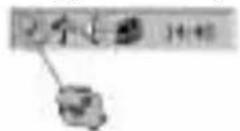
That indicates the Skype has successfully connected to Internet. If it hasn't connected to Internet, the icon will be shown as ☒, now you have to check whether PC is connected to Internet successfully or not.
hama®
2.2 Connect USB Phone to PC
Connect USB Phone to PC, the LCD shows "VOIP- Phone".
2.3 Run SkypeMate
Insert the enclosed CD and install it
Run SkypeMate
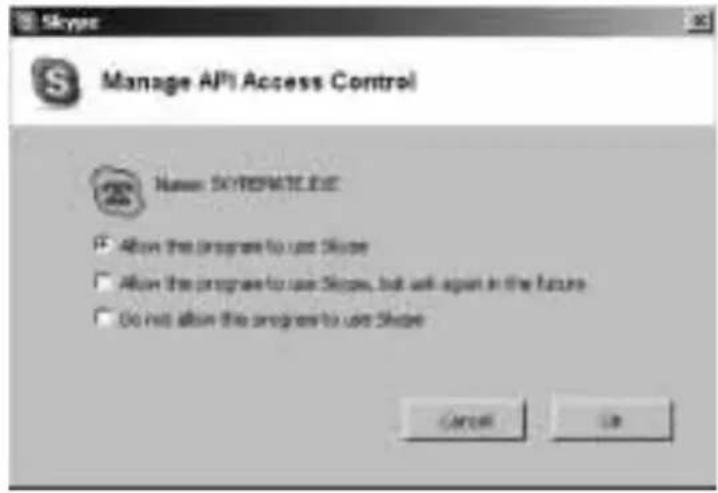
Double-click the icon 📄 on the desktop, the Skype program will pop up the window as shown below:
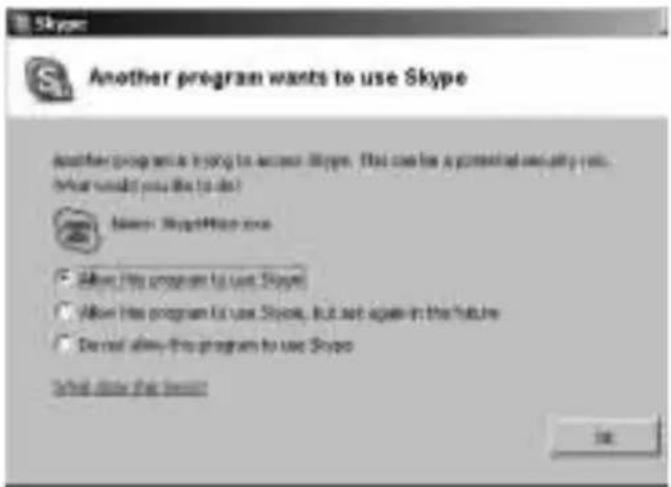
Select the first item "Allow this program to use Skype", click "OK" button.
Note: If you selected the wrong item, you can execute "File->Options->Privacy-> Manage other programs' access to Skype->Change->OK" to open the window as above to make another selection.
hama®
After running SkypeMate, the icon will appear to the system tray as shown below:
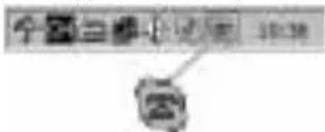
That indicates the device and Skype are connected successfully.
If the icon shown as ☐, please run Skype first.
If the icon shown as 📄, it means USB Phone connected incorrectly, please reconnect USB Phone to PC.
2.4 Call another Skype user (PC to PC)
Add "skypemate" to Contacts Assign Speed-Dial for it, example "11"
Input number and call out:
Press digital "1" and "1" on USB Phone, this number will be shown on Skype window, then press SEND key 📋 on USB Phone to call out.
hama®
2.5 Call to regular phone (PC to Phone)
Press "00"+"country number"+"phone number", then press
Example: call to China, beijing, press 00861012345678, then press SEND key.
| 0086 | 10 | 12345678 |
| country code | city code | destination number |
Note: If you want to use this function, you should buy SkypeOut Credit first.
2.6 Answer a call
When a call comes in, the USB-P1K will ring, press to answer the call, press to refuse the call.
2.7 Adjust options (Volume and Ringer)
Double-click the 📄 on the taskbar, then you can adjust the volume and ringer.
2.8 Function keys
IN: Caller number review, delete and redial You can press "IN" button to review the caller numbers with the time and date. Press "IN" button repeatedly to review the caller numbers from the latest memory to the oldest memory round by round. While you are reviewing, you can double-click "C" button to delete this number or press SEND key to call out.
OUT: Out number review, delete and redial
The usage is similar to "IN" button.
C: Delete phone number and input wrong number
(1) Double click to delete caller number or out number.
(2) Delete the input wrong number while you are dialing number.
hama®
?: UP
Review caller number or out number from oldest to latest.
?: DOWN
Review caller number or out number from latest to oldest.
2.9 FAQ
Problem 1
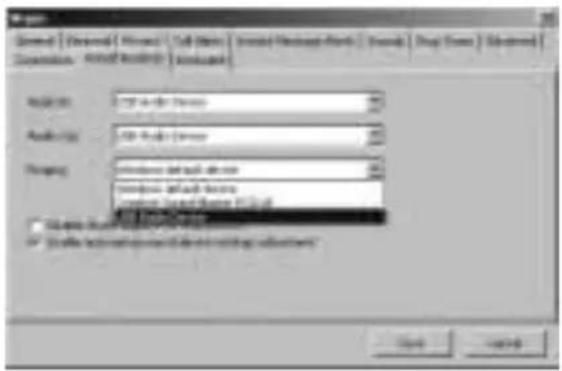
The voice is played from the PC's sound card instead of the USB phone when I make/answer a call?
Resolution
Open the Main window of Skype, click on "File->Options", and go to the table Hand/headsets, set Audio In, Audio Out and Ringing to the USB Audio Device.
hama®
Problem 2
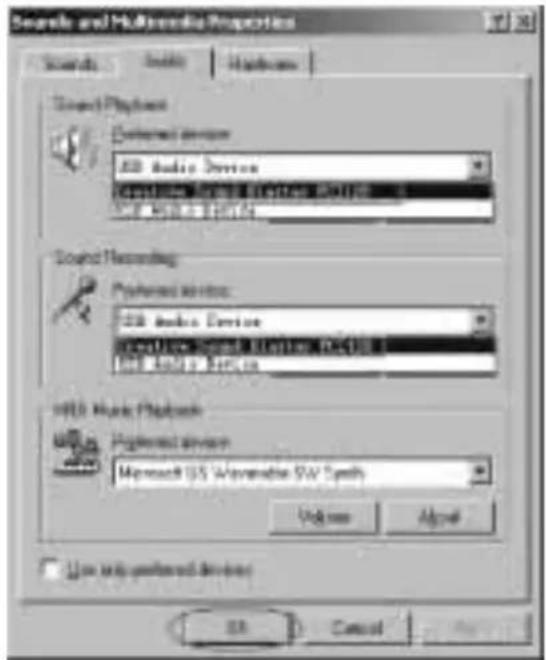
No voice is heard when playing music.
Resolution
Please execute the "Control Panel->Sound and Video (✗) ->Audio", set Sound Playback and Sound Recording's Preferred device to your sound card, it shown as below:
hama®
Problem 3
Skype has been startup, but the icon of SkypeMate still shown as

Resolution
Maybe you selected the wrong item, you can execute "File->Options->Privacy->Manage other programs' access to Skype->Change->OK" to open the window as below, and make another selection.
hama®
F Téléphone USB
26
hama®
32
hama®
Problème 2
hama®
Problème 3

- hama®
- USB Telefon USB Phone Téléphone USB
- D USB Telefon
- Problem 3
- GB USB Phone
- CONTENTS
- CHAPTER 1 Welcome to USB Phone
- CHAPTER 2 Use of USB Phone
- CHAPTER 1
- Welcome to USB Phone
- Summary
- Features
- System Requirements
- Package Contents
- CHAPTER 2
- Use of USB Phone
- Run Skype
- Connect USB Phone to PC
- Run SkypeMate
- Call another Skype user (PC to PC)
- Call to regular phone (PC to Phone)
- Answer a call
- Adjust options (Volume and Ringer)
- Function keys
- ?: UP
- ?: DOWN
- FAQ
- Problem 1
- Resolution
- Problem 2
- F Téléphone USB
- Problème 2
- Problème 3
Brand : HAMA
Model : 39734 USB VOIP
Category : Phone