HAMA 39750 USB VOIP - Phone

39750 USB VOIP - Phone HAMA - Free user manual and instructions

Find the device manual for free 39750 USB VOIP HAMA in PDF.

📄 10 pages English EN Download 💬 AI Question 10 questions ⚙️ Specs
Notice HAMA 39750 USB VOIP - page 7
View the manual : Deutsch DE English EN
Pick your language and provide your email: we'll send you a specifically translated version.
Product Type USB VoIP Phone
Brand Hama
Model 39750 USB VOIP
Connectivity USB 2.0 Type-A
VoIP Protocols SIP (Session Initiation Protocol)
Power Supply USB bus powered (5V, 500mA)
Handset Wired handset with coiled cord
Speakerphone Full-duplex speakerphone
Keypad Numeric keypad with function keys (Redial, Mute, Volume, Hold)
Display Backlit LCD alphanumeric display (2 lines)
Dimensions (L x W x H) 200 x 170 x 80 mm
Weight 500 g
Operating Temperature 0 to 40 °C
Compatibility Windows 7/8/10/11, macOS 10.12+, Linux
Functions Call waiting, Call hold, Mute, Redial, Volume control, Flash
Package Contents Telephone, USB cable, Handset cord, User manual
Color Black
USB Cable Length 1.5 m
Certifications CE, FCC
Warranty 2 years

Frequently Asked Questions - 39750 USB VOIP HAMA

How do I connect the Hama 39750 USB VoIP phone to my computer?
Plug the USB cable into an available USB port on your computer. The phone will be detected automatically as a USB audio device. If not, install the driver from the included CD or download from Hama's website.
Is the phone compatible with Skype, Zoom, or other softphones?
Yes, the Hama 39750 works as a standard USB audio device and is compatible with most softphones like Skype, Zoom, Microsoft Teams, and any application that supports USB headsets.
How do I set up the phone for VoIP calls?
Configure your softphone to use the Hama 39750 as the default audio device. In the softphone settings, select 'Hama USB VoIP Phone' for microphone and speaker. Then enter your VoIP account credentials.
Why is the phone not detected by my computer?
Ensure the USB cable is firmly connected. Try a different USB port. If still not detected, check if the phone appears in Device Manager under 'Sound, video and game controllers'. Update or reinstall the driver from Hama's support page.
How can I adjust the volume of the handset and speakerphone?
Use the volume up/down buttons on the phone. During a call, press the volume buttons to adjust the earpiece or speakerphone level. The display will show the current volume level.
Can I use the phone without a computer?
No, the Hama 39750 requires a computer with a USB port and VoIP software to make calls. It does not function as a standalone telephone.
How to clean the phone?
Unplug the USB cable. Use a soft, dry cloth to wipe the surfaces. Do not use any liquids, solvents, or abrasive cleaners. For the handset, use a slightly damp cloth and dry immediately.
What should I do if the keys are unresponsive?
First, disconnect and reconnect the USB cable. If the problem persists, check if the phone is selected as the active audio device in your operating system's sound settings. Reset the phone by unplugging it for 10 seconds. Contact Hama support if the issue continues.
Is there a warranty for this product?
Yes, Hama provides a 2-year limited warranty against manufacturing defects. Retain your purchase receipt for warranty claims. Warranty does not cover damage from misuse or unauthorized modifications.
How to update the firmware of the phone?
Check Hama's support website for firmware updates for model 39750. Download the firmware file and follow the provided instructions. Typically, you run an update utility while the phone is connected via USB. Do not disconnect the phone during the update.

User questions about 39750 USB VOIP HAMA

0 question about this device. Answer the ones you know or ask your own.

Ask a new question about this device

The email remains private: it is only used to notify you if someone responds to your question.

No questions yet. Be the first to ask one.

Download the instructions for your Phone in PDF format for free! Find your manual 39750 USB VOIP - HAMA and take your electronic device back in hand. On this page are published all the documents necessary for the use of your device. 39750 USB VOIP by HAMA.

USER MANUAL 39750 USB VOIP HAMA

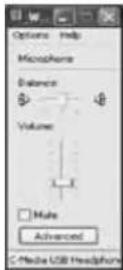
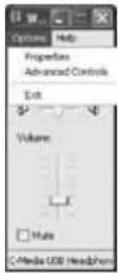
  1. Choose the "Option" and click the "Advanced Controls".
HAMA 39750 USB VOIP - 1

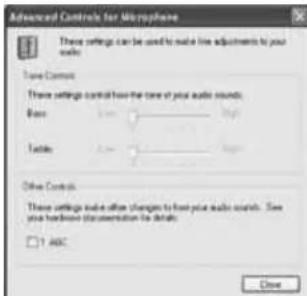
HAMA 39750 USB VOIP - 2

  1. Disable the "AGC" function. (no mark)

Advanced Controls for Microphone These settings can be used to make line adjustments to your audio. Time Controls These settings control how the time of your audio sounds: Base High Table Low High Other Controls These settings enable other changes to have your audio sounds. See your hardware (transmission for details) 1 ABC Close

Hama GmbH & Co KG

Postlach du YR551 Moehelm/Goformers

Tel. +6910/6001/502-0

Fax +49 1019091/502-274

hama@hama.de

www.hama.com

00039750-05.06

hama®

00039750
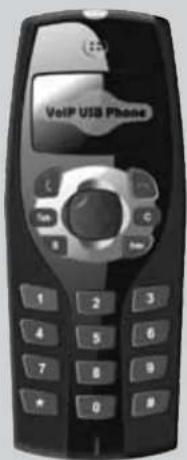
VoIP USB Phone

VoIP USB Telephone

hama®

Problem 3

hama®

③H User's manual

Contents

1. Scope....Page 12
2. Features....Page 12
3. System Requirements....Page 12
4. Use of the Phone....Page 12
5. Electrical Specification....Page 17
6. FAO....Page 17

1. Scope

USB Phone is a most effective and easy mode of communication. User can enjoy an Internet phone just as regular phone. It embraces the great convenience and big savings. It doesn't need any driver; fully support plug & play function.

2. Features

  1. PC-to-PC and PC-to-phone operation
  2. Plug and play
  3. USB1.1/2.0 compatible, no need sound card
  4. No external power required
  5. Echo cancellation, noise reduction
  6. Full duplex communication
  7. Customized hand phone casing designs available

3. System Requirements

  1. PC with 200 MHz CPU or better with USB interface
  2. 64MB of RAM
  3. Operating System: Windows 2000/XP
  4. Network: LAN, ADSL, ISDN, 33.6K modem or better

4. Use of the USB Phone

You can use the USB Phone with any PC based internet telephony provider. For example, we would like to explain function with "Skype".

- Download Skype software and install it (www.skype.com), the version must be 1.0.0.106 or higher.

hama®

• Run Skype and log in with skype account.
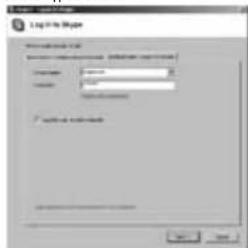
Log to Mouse User name: log User type: mouse User size: 100 mm User position: 0.0000000000000000000000000000000000000000000000000000000000000000000000000000000000000000000000000000 Log to Mouse

You can create a Skype account as shown below:
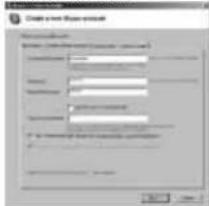
Create a new version of the Model 1 Name: Type: Version: Design: Form: Edit: Edit as... Edit as... Edit as... Edit as... Edit as... Edit as... Edit as... Edit as... Edit as... Edit as... Edit as... Edit as... Edit as... Edit as... Edit as... Edit as... Edit as... Edit as... Edit as... Edit as... Edit as... Edit as... Edit as... Edit as... Edit as... Edit as... Edit as... Edit as... Edit as... Edit as... Edit as... Edit as... Edit as... Edit as... Update Update Update Update Update Update Update Update Update Update Update Update Update Update Update Update Update Update Update Update Update Update Update Update Update Update Update Update Update Update Update Update Update Update Update Update Update Update Update Update Update Update Update Update Update Update Update Update Update Update Update

After the software startup, the icon will appear to the system tray as shown below:
HAMA 39750 USB VOIP - hama® - 3

That indicates the Skype has successfully connected to Internet. If it hasn't connected to Internet, the icon will be shown as Ⓧ, now you have to check whether PC is connected to Internet successfully or not.

hama®

Connect the USB phone to PC

Connect the USB phone to your PC. The Found New Hardware Wizard appears and the OS will install the driver automatically. No other steps are necessary.

Call another Skype user (PC to PC)

- Add _skypemate" to Contacts

- Assign Speed-Dial for it, example „11 ^b

Send? - Asymmetric File Edit View Insert Help Share Contents [ Solid ] [ Calculate ] Browse Call Pro-Contact Send or Invest Messages... Send Contacts... Send Profile New Profile Dynamic... Assign Speed-End Suggests Press Contracts and Block Page New Install Message History New Callout

- Input number and call out:

Press digital „1“ and „1“ on the USB Phone, this number will be shown on Skype window, then press "Enter" key on USB Phone to call out.

Call to regular phone (PC to Phone)

Press "011" - "country code" + "phone number", and then press "Enter". Example: call to Taiwan, Taipei, press 011886212345678, then press "Enter" key.

886

2

12345678

country code

city code

destination number

Note: If you want to use this function, you should buy SkypeOut Credit first.

Answer a call

When a call in, the USB phone is ringing, press to refuse the call.

HAMA 39750 USB VOIP - Answer a call - 1

to answer the call, press

HAMA 39750 USB VOIP - Answer a call - 2

hama®

Function keys

Key Location Function Description
0~8Keypad 0~9
#Keyboard #
*Keypad *
Enter After dialing numbers, press the "Enter" key to call out.
V+Volume up
V-Volume down
Move up
Move down
Open the contact list
Close the contact list
TabSwitch "Contacts" number text" and "Type"
CDelete input number
SCall Skype window
Answer the phone
Hang up

Note:

To enable the hotkey "S" and "T" function, you need to set on Skype. Enable the "S" key:

hama®

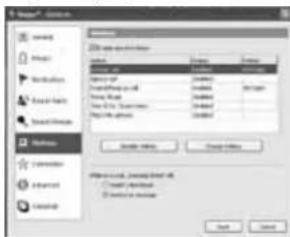
  1. Run the Skype software, click the "Tools"->"Option"
  2. Choose the "Hotkeys" option
  3. Click the "Enable global hotkeys" option.
Data Access Data Storage Settings Basic Data Basic Data Database Database Database Database Database Database Database Database Database Database Database Database Database Database Database Database Database Database Database Database Database Database Database Database Database Database Database Database Database Database Database Database Database Database Database Database Database Database Database Database Database Database Database Database Database Database Database Database Database Database Software & Internet Explorer Software & Internet Explorer Software & Internet Explorer Software & Internet Explorer Software & Internet Explorer Software & Internet Explorer Software & Internet Explorer Software & Internet Explorer Software & Internet Explorer Software & Internet Explorer Software & Internet Explorer Software & Internet Explorer Software & Internet Explorer Software & Internet Explorer Software & Internet Explorer Software & Internet Explorer Software & Internet Explorer

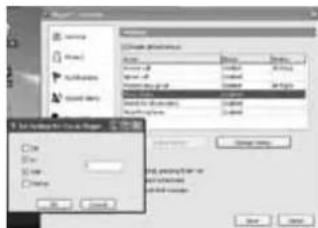
  1. Choose the "Focus Skype" option and click the "Change Hotkey" button.
  2. Click the "Alt", "Shift", and type "S" in the text; then click "OK".
New Name: Applications Edit Menu: Create new documents Edit Menu: Edit Subdivisions Edit Subdivisions Edit Subdivisions Edit Subdivisions Edit Subdivisions Edit Subdivisions Edit Subdivisions Edit Subdivisions Edit Subdivisions Edit Subdivisions Edit Subdivisions Edit Subdivisions Edit Subdivisions Edit Subdivisions Edit Subdivisions Edit Subdivisions Edit Subdivisions Edit Subdivisions Edit Subdivisions Edit Subdivisions Edit Subdivisions

  1. Finally, click the "Enable Hotkey" button. The "S" hotkey will start to work.

hama®

Enable the

HAMA 39750 USB VOIP - hama® - 1

"key:

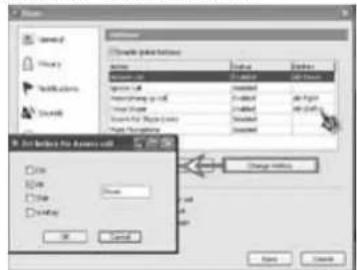
  1. Repeat the same steps 1\~3 as the "S" key setting.
  2. Choose the "Answer Call" option and click the "Change Hotkey" button.
  3. Click the "Alt", and type "in the text; then click "OK".
Name Save As Delete As Details Show Change selection Name Add As Delete As Add As Show As Add As Show As Show As Show As Show As Show As Show As Show As Show As Show As Show As Show As Show As Show As Show As Show As Show As Show As Show As Show As Show As Show As Show As Show As Show As Show As Show As Show As Show As Show As Show As Show As Show As Show As Show 100% as follows: Show As Show As Show As Show As Show As Show As Show As Show As Show As Show As Show As Show As Show As Show As Show As Show As Show As Show As Show As Show As Show As Show As Show As Show As Show As Show As Show As Show As Show As Show As Show As Show As Show As show 100% as follows: Show 100% as follows: Show 100% as follows: Show 100% as follows: Show 100% as follows: Show 100% as follows: Show 100% as follows: Show 100% as follows: Show 100% as follows: Show 100% as follows: Show 100% as follows: Show 100% as follows: Show Currents: Show Currents: Show Currents: Show Currents: Show Currents: Show Currents: Show Currents: Show Currents: Show Currents: Show Currents: Show Currents: Show Currents: Show Currents: Show Currents: Show Currents: Show Currents: Show Currents: Show Currents: Show Currents: Show Currents: Show Currents: Show Currents: Show Currents: Show Currents: Show Currents: Show Currents: OK Cancel Add Now Show Now Show Now Show Now Show Now Show Now Show Now Show Now Show Now Show Now Show Now Show Now Show Now Show Now Show Now Show Now Show Now Show Now Show Now Show Now Show Now Show Now Show Now Show Now Show Now Show Now Show Now Show Now Show Now Show Now Show Now Show Now Show Now Show Now ShowNow

  1. Finally, click the "Enable Hotkey" button. The "hotkey" will start to work.

5. Electrical Specification

  1. Fully compatible with Windows 2000/XP.
  2. Fully Support plug and play and hot swapping.
  3. Power consumption: 52mA
  4. Key switch: membrane key switch with tactile feeling.
  5. Operation Force: 175±25g
  6. Total Travel: 1.0 mm
  7. Dimension: 124*47.5*25.5 mm

6. FAQ

Problem 1

The voice is played from the PC's sound card instead of the USB phone when I make/answer a call?

hama®

Solution

Open the Main window of Skype, click on "File->Options", and go to the table Hand/headsets, set Audio In, Audio Out and Ringing to the USB Audio Device.
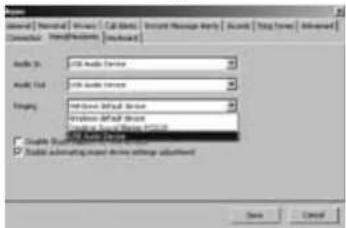
Audio Audio List Timing Audio Mode Audio Format Audio Object Audio Object Audio Object Audio Object Audio Object Audio Object Audio Object Audio Object Audio Object Audio Object Audio Object Audio Object Audio Object Audio Object Audio Object Audio Object Audio Object Audio Object Audio Object Audio Object Audio Object Audio Object Audio Object Audio Object Audio Object Audio Object Audio Object Audio Object Audio Object Audio Object Audio Object Audio Object Audio Object Audio Object

Problem 2

There is no voice comes out when play music?

Solution

Please execute the "Control Panel->Sound and Video ( )->Audio", set Sound Playback and Sound Recording's Preferred device to your sound card, it shown as below:
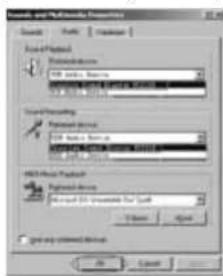
Double and Mixed Properties Options Form1: Default Form2: Default Form3: Default Form4: Default Form5: Default Form6: Default Form7: Default Form8: Default Form9: Default Form10: Default Form11: Default Form12: Default Form13: Default Form14: Default Form15: Default Form16: Default Form17: Default Form18: Default Form19: Default Form20: Default Form21: Default Form22: Default Form23: Default Form24: Default Form25: Default Form26: Default Form27: Default Form28: Default Form29: Default Form30: Default Form31: Default Form32: Default Form33: Default Form34: Default Form35: Default Form36: Default Form37: Default Form38: Default Form39: Default Form40: Default Form41: Default Form42: Default Form43: Default Form44: Default Form45: Default Form46: Default Form47: Default Form48: Default Form49: Default Form50: Default Form51: Default Form52: Default Form53: Default Form54: Default Form55: Default Form56: Default Form57: Default Form58: Default Form59: Default Form60: Default Form61: Default Form62: Default Form63: Default Form64: Default Form65: Default Form66: Default Form67: Default Form68: Default Form69: Default Form70: Default Form71: Default Form72: Default Form73: Default Form74: Default Form75: Default Form76: Default Form77: Default Form78: Default Form79: Default Form80: Default Form81: Default Form82: Default Form83: Default Form84: Default Form85: Default Form86: Default Form87: Default Form88: Default Form89: Default Form90: Default Form91: Default Form92: Default Form93: Default Form94: Default Form95: Default Form96: Default Form97: Default Form98: Default Form99: Default

hama®

Problem 3

I connect the USB phone with USB hub, but it cannot work.

Solution

You need to connect with a self-power USB hub. Our USB phone cannot work with a bus-power USB hub, because the bus-power USB hub cannot provide enough power

Problem 4

I can't dial the extension by USB phone.

Solution

Because the Skype software didn't support this function by USB phone, so you need to click the extension number onscreen.

Problem 5

During the conversation, the other side cannot hear my voice.

Solution

Because the Skype will automate sound device settings adjustment, it might adjust the microphone volume too low. To solve this problem, you need to set your sound device. But you need to hang up first!

  1. Go to Start - Control Panel - Sounds and Audio Devices and choose "Audio".

Audio and Audio Devices Properties Volume Actions Audio Video Channels SoundPhoto Default Device [ Mode USB Headphone Set ] Volume Advanced SoundSetting Click this button Default Device [ Mode USB Headphone Set ] Volume Advanced WIFI user playback Default Device Microsoft SQL Unavailable CMY Script Volume Show... Security User Options OK Cancel Help

Manual assistant
Powered by Anthropic
Waiting for your message
Product information

Brand : HAMA

Model : 39750 USB VOIP

Category : Phone