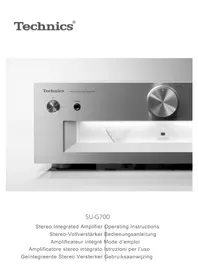
STG30L - Hi-fi system TECHNICS - Free user manual and instructions
Find the device manual for free STG30L TECHNICS in PDF.



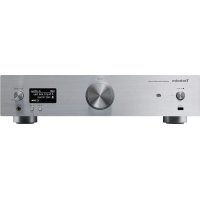
| Product Type | Stereo Integrated Amplifier |
| Brand | Technics |
| Model | STG30L |
| Dimensions (W × H × D) | 430 mm × 148 mm × 428 mm |
| Weight | Approx. 12.3 kg |
| Power Supply | 220 V – 240 V AC, 50/60 Hz |
| Power Consumption | 85 W (standby: approx. 0.3 W) |
| Output Power | 70 W + 70 W (8 Ω, 1 kHz, 0.5% THD); 140 W + 140 W (4 Ω, 1 kHz, 0.5% THD) |
| Load Impedance | 4 Ω to 16 Ω |
| Frequency Response | PHONO (MM): 20 Hz – 20 kHz; LINE: 5 Hz – 80 kHz; Digital: 5 Hz – 90 kHz |
| Inputs | 2 × Optical (OPT1/OPT2), 2 × Coaxial (COAX1/COAX2), 1 × USB-B (PC), 2 × Analog (LINE1/LINE2), 1 × PHONO (MM) |
| Outputs | 1 × Headphone (6.35 mm), 1 × LINE OUT, 1 × PRE OUT, Speaker terminals (4 Ω – 16 Ω) |
| Main Functions | JENO Circuit (digital processing), LAPC (Load Adaptive Phase Calibration), Peak Power Meter, Remote control, System control |
| Maintenance and Cleaning | Unplug the device; clean with a soft dry or slightly damp cloth; do not use solvents (alcohol, gasoline, etc.) |
| Safety | Auto power off (20 min), thermal protection, grounding (Class I) |
| Spare Parts and Repairability | Power cord (2), remote control, batteries; repair by qualified personnel only |
| General Information | Operating temperature: 0 °C to 40 °C; humidity: 35% to 80% (no condensation) |
Frequently Asked Questions - STG30L TECHNICS
User questions about STG30L TECHNICS
0 question about this device. Answer the ones you know or ask your own.
Ask a new question about this device
Download the instructions for your Hi-fi system in PDF format for free! Find your manual STG30L - TECHNICS and take your electronic device back in hand. On this page are published all the documents necessary for the use of your device. STG30L by TECHNICS.
USER MANUAL STG30L TECHNICS
Stereo Integrated Amplifier Operating Instructions
Music is borderless and timeless, touching people's hearts across cultures and generations.
Each day the discovery of a truly emotive experience from an unencumbered sound awaits.
Let us take you on your journey to rediscover music.
Rediscover Music/ Technics
Delivering the Ultimate Emotive Musical Experience to All
At Technics we understand that the listening experience is not purely about technology but the magical and emotional relationship between people and music.
We want people to experience music as it was originally intended and enable them to feel the emotional impact that enthuses and delights them.
Through delivering this experience we want to support the development and enjoyment of the world's many musical cultures. This is our philosophy.
With a combination of our love of music and the vast high-end audio experience of the Technics team, we stand committed to building a brand that provides the ultimate emotive musical experience by music lovers, for music lovers.
Director Michiko Ogawa
Thank you for purchasing this product.
Please read these instructions carefully before using this product, and save this manual for future use.
- About descriptions in these operating instructions
Pages to be referred to are indicated as ⇒ ∞
- The illustrations shown may differ from your unit.
For the United Kingdom and Ireland customer
Sales and Support Information
Customer Communications Centre
For customers within the UK: 0333 222 8777
For customers within Ireland: 01 447 5229
- Monday-Friday 9:00 am - 5:00 pm, (Excluding public holidays).
For further support on your product, please visit our website: www.technics.com/uk/
Features
High-Quality Audio Technologies Employed including JENO Engine and LAPC
The JENO Engine transmits and processes audio signals in full digital and with minimal jitter from the input stage to the power stage. The LAPC conducts speaker load adaptive phase calibration to achieve ideal gain and phase characteristics for any type of speaker. Also, a unique, high-precision PWM conversion circuit is used for PWM conversion, which is important for sound quality.
Three-section Configuration
In integrated amplifiers, there are a variety of circuits such as circuits handling the microsignals of input, circuits handling large current, etc. SU-G700 uses a three-section construction with partitions installed between the circuit blocks according to the signal level handled. This eliminates interference between circuit blocks, thus achieving clear sound quality.
High Rigidity Aluminum Cabinet
The high-rigidity metal double chassis features a steel-plate inner chassis and a steel-plate outer chassis to reduce vibration and noise that degrade the purity of sound.
Table of contents
Accessories
| Safety precautions 08 | Please carefully read the "Safety precautions" of this manual before use. | |
| Control reference guide 10 | This unit, Remote control | |
| Connections 14 | Speaker connection, AC mains lead connection | |
| Operations 16 | Playing back connected devices | |
| Settings 24 | Other settings, Using output correction function (LAIPC) | |
| Troubleshooting 30 | Before requesting service, read the troubleshooting. | |
| Others | 33 | Specifications, etc. |
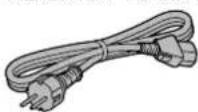
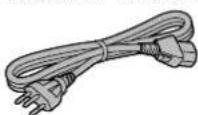
AC mains lead (2)
Except for Switzerland
K2CM3YY00041
Remote control (1) N2QAYA000143
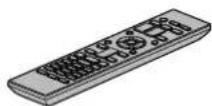
Batteries for remote control (2)

For Switzerland
K2CS3YY00033
- Product numbers provided in these operating instructions are correct as of February 2017.
These may be subject to change. - Do not use AC mains lead with other equipment.
Warning
Unit
- To reduce the risk of fire, electric shock or product damage,
-Do not expose this unit to rain, moisture, dripping or splashing.
-Do not place objects filled with liquids, such as vases, on this unit.
-
Use only the recommended accessories.
-
Do not remove covers.
-Do not repair this unit by yourself. Refer servicing to qualified service personnel.
-Do not let metal objects fall inside this unit.
- Do not place heavy items on this unit.
AC mains lead
To reduce the risk of fire, electric shock or product damage,
- Ensure that the power supply voltage corresponds to the voltage printed on this unit.
-Insert the mains plug fully into the socket outlet.
-Do not pull, bend, or place heavy items on the lead.
-
Do not handle the plug with wet hands.
-
Hold onto the mains plug body when disconnecting the plug.
-
Do not use a damaged mains plug or socket outlet.
-
The mains plug is the disconnecting device. Install this unit so that the mains plug can be unplugged from the socket outlet immediately.
-
Ensure the earth pin on the mains plug is securely connected to prevent electrical shock.
-
An apparatus with CLASS I construction shall be connected to a mains socket outlet with a protective earth connection.
Caution
Unit
- Do not place sources of naked flames, such as lighted candles, on this unit.
- This unit may receive radio interference caused by mobile telephones during use. If such interference occurs, please increase separation between this unit and the mobile telephone.
- This unit is intended for use in moderate and tropical climates.
- Do not put any objects on this unit. This unit becomes hot while it is on.
- Do not touch the top surface of this unit. This unit becomes hot while it is on.
Placement
- Place this unit on an even surface.
To reduce the risk of fire, electric shock or product damage,
-Do not install or place this unit in a bookcase, built-in cabinet or in another confined space. Ensure this unit is well ventilated.
-Do not obstruct this unit's ventilation openings with newspapers, tablecloths, curtains, and similar items. - Do not expose this unit to direct sunlight, high temperatures, high humidity, and excessive vibration.
- Ensure that the placement location is sturdy enough to accommodate the weight of this unit (⇒ 34) .
- Do not lift or carry this unit by holding the knobs. Doing so may cause this unit to fall, resulting in personal injury or malfunction of this unit.
Battery
- Danger of explosion if battery is incorrectly replaced. Replace only with the type recommended by the manufacturer.
-
Mishandling of batteries can cause electrolyte leakage and may cause a fire.
-
Remove the battery if you do not intend to use the remote control for a long period of time. Store in a cool, dark place.
- Do not heat or expose to flame.
-Do not leave the battery(ies) in a car exposed to direct sunlight for a long period of time with doors and windows closed. - Do not take apart or short circuit.
- Do not recharge alkaline or manganese batteries.
- Do not use batteries if the covering has been peeled off.
-Do not mix old and new batteries or different types at the same time. - When disposing of the batteries, please contact your local authorities or dealer and ask for the correct method of disposal.
Installation
Turn off all equipment before connection and read the appropriate operating instructions.
For the United Kingdom and Ireland customer
Caution for AC Mains Lead
(For the AC mains plug of three pins)
For your safety, please read the following text carefully.
This appliance is supplied with a moulded three pin mains plug for your safety and convenience.
A 10-ampere fuse is fitted in this plug.
Should the fuse need to be replaced please ensure that the replacement fuse has a rating of 10-ampere and that it is approved by ASTA or BSI to BS1362.
Check for the ASTA mark or the BSI mark on the body of the fuse.
If the plug contains a removable fuse cover you must ensure that it is refitted when the fuse is replaced.
If you lose the fuse cover the plug must not be used until a replacement cover is obtained.
A replacement fuse cover can be purchased from your local dealer.
Before use
Remove the connector cover.
How to replace the fuse
The location of the fuse differ according to the type of AC mains plug (figures A and B). Confirm the AC mains plug fitted and follow the instructions below.
Illustrations may differ from actual AC mains plug.
- Open the fuse cover with a screwdriver.
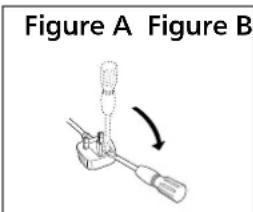
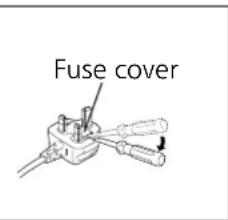
- Replace the fuse and close or attach the fuse cover.
Figure A Figure B
Fuse
(10 ampere)
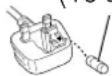
Fuse
(10 ampere)
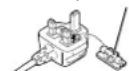
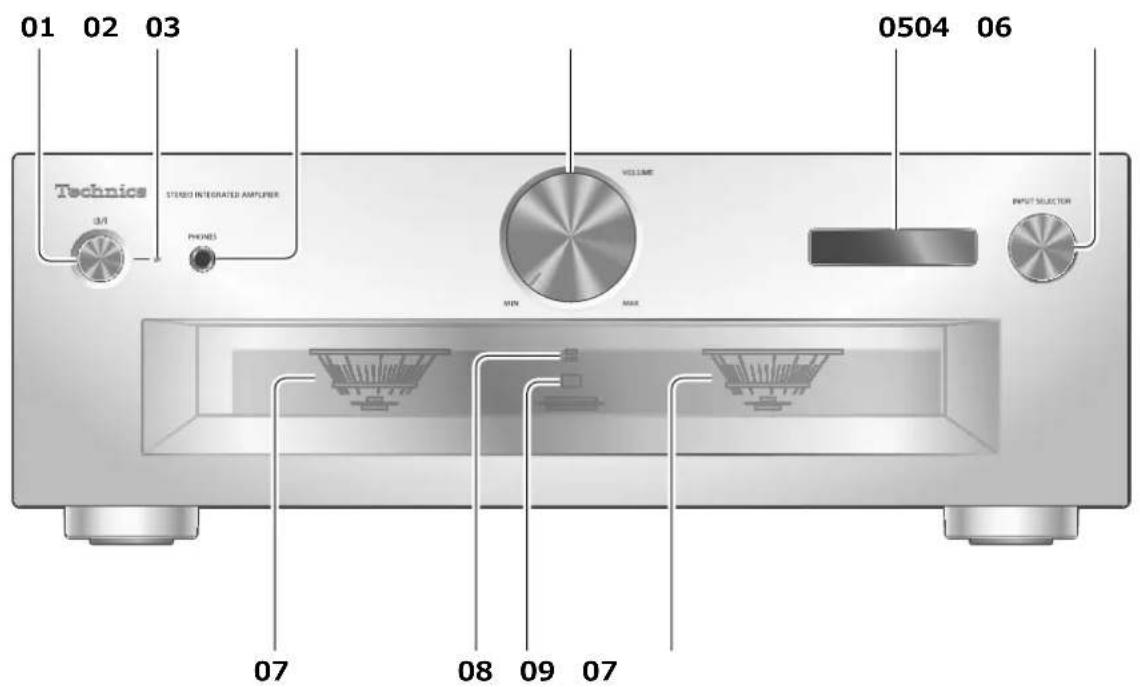
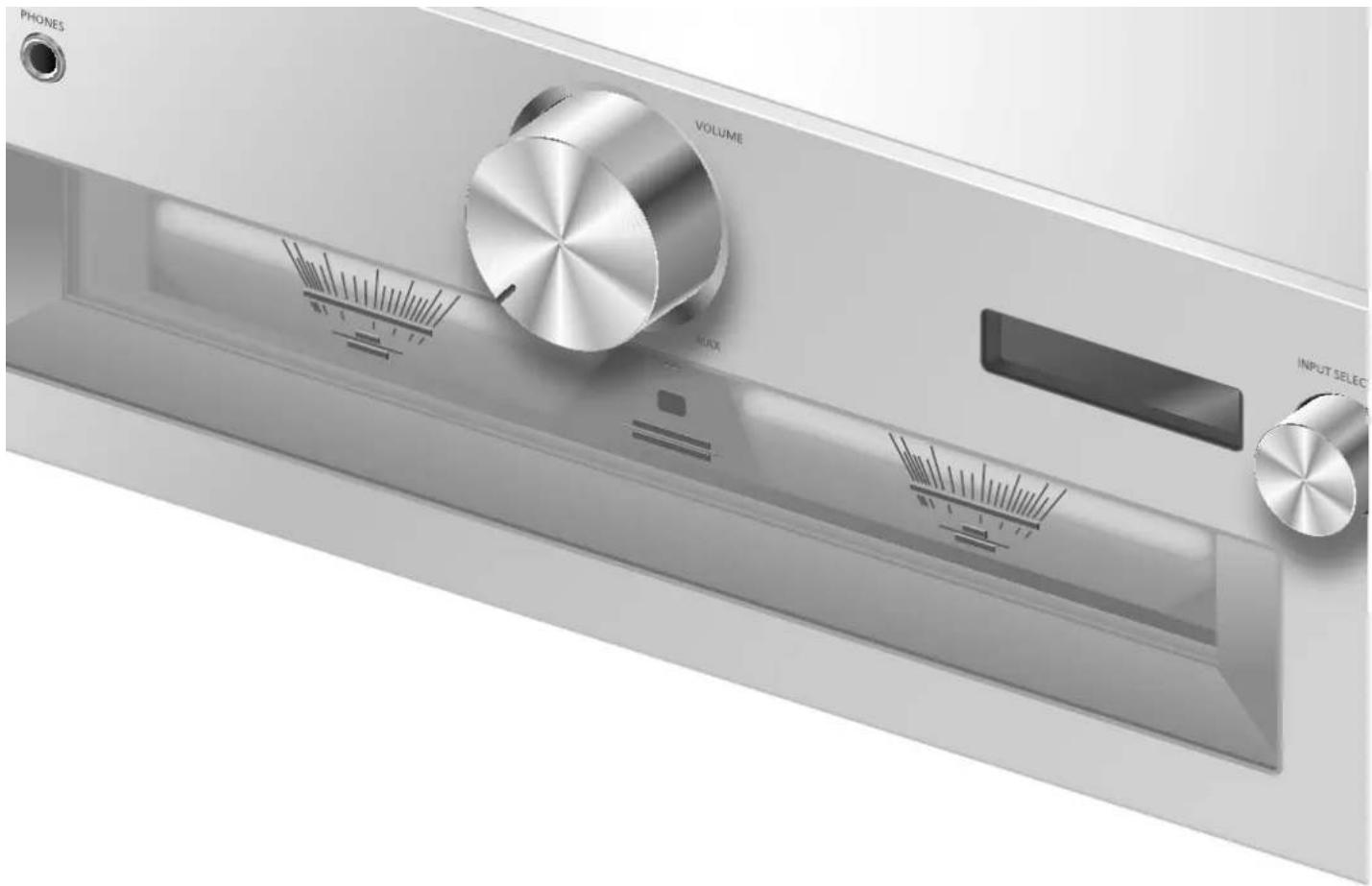
01 Standby/on button()
- Press to switch the unit from on to standby mode or vice versa. In standby mode, the unit is still consuming a small amount of power.
02 Power indicator
- Blue: The unit is on.
- Off: The unit is in standby mode.
03 Headphones jack
- When a plug is connected, the speakers and PRE OUT terminals do not output sound. (⇒ 22)
Sound is not output from headphones jack while "MAIN IN" is selected as input source of this unit. (⇒ 20) - Excessive sound pressure from earphones and headphones can cause hearing loss.
- Listening at full volume for long periods may damage the user's ears.
04 Volume knob
- -- (min), 1 to 100 (max)
To display the volume, set "VOLUME Display" to "On". (⇒ 25)
05 Display
Information such as input source, etc. is displayed. (⇒ 32)
06 Input selector knob
- Turn this knob clockwise or anticlockwise to switch the input source.
07 Peak power meter
- Display the output level. 100% is the rated output (⇒ 34) .
- Peak power meter does not work while the light is turned off.
08 LAPC indicator (⇒ 26)
09 Remote control signal sensor
- Reception distance: Within approx. 7 m directly in front
- Reception angle: Approx. 30° left and right
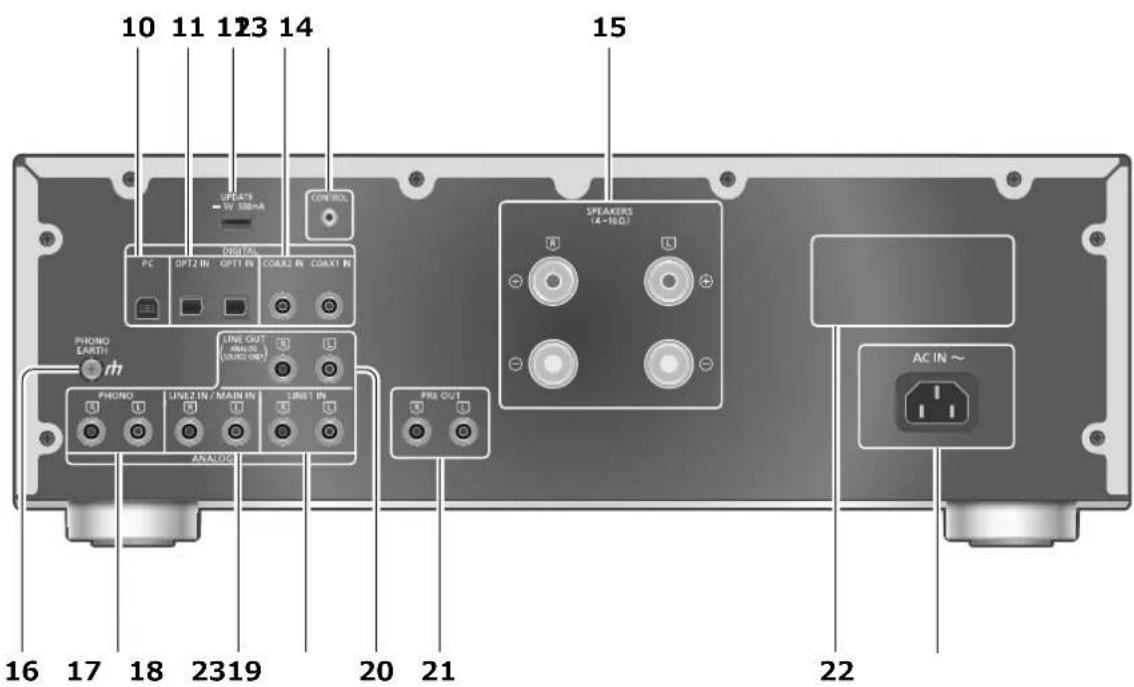
10 USB-B terminal
For connecting to a PC, etc. (⇒ 17)
11 Optical digital input terminal (OPT1 IN/OPT2 IN) (⇒ 16)
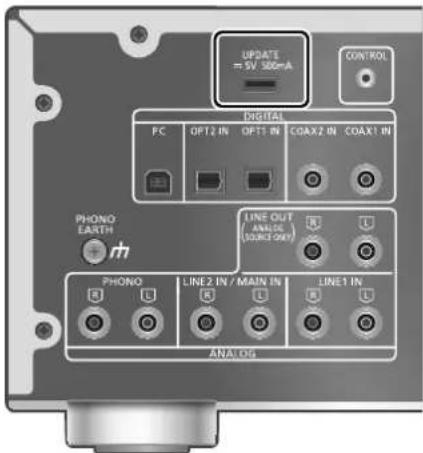
12 UPDATE terminal (USB-A)
(= DC 5 V 500 mA) (⇒ 27)
13 Coaxial digital input terminals (COAX1 IN/COAX2 IN) (⇒ 16)
14 System terminal (CONTROL) (⇒ 28)
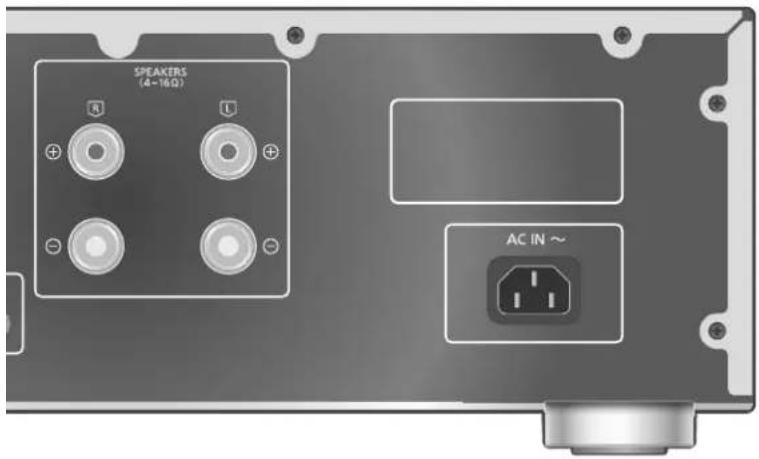
15 Speaker output terminals (⇒ 14)
16 PHONO EARTH terminal (⇒ 18)
- For connecting the ground wire of a turntable.
17 Analogue audio input terminals (PHONO) (⇒ 18)
MM cartridges are supported.
18 Analogue audio input terminals (LINE2 IN/MAIN IN)
These input terminals are combined with LINE2 IN and MAIN IN. Switch the function according to the connected equipment. (⇒ 19,20)
19 Analogue audio input terminals (LINE1 IN) (⇒ 19)
20 Analogue audio output terminals (LINE OUT) (⇒ 23)
21 Analogue audio output terminals (PRE OUT) (⇒ 22)
22 Product identification marking The model number is indicated.
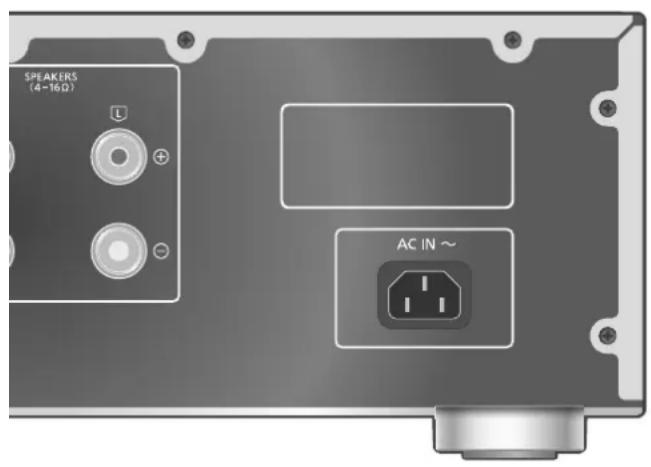
23 AC IN terminal () ( ⇒ 15)
Control reference guide
Remote control
Using the remote control
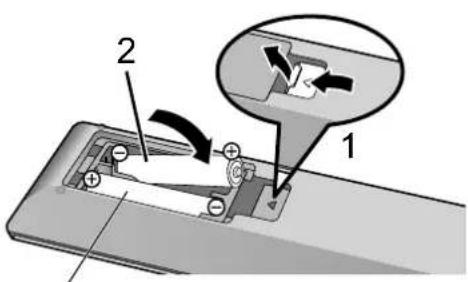
R03/LR03, AAA
(Alkaline or manganese batteries)
Note
- Insert the battery so the terminals (and ) match those in the remote control.
- Point it at the remote control signal sensor on this unit. (⇒ 10)
- Keep the batteries out of reach of children to prevent swallowing.
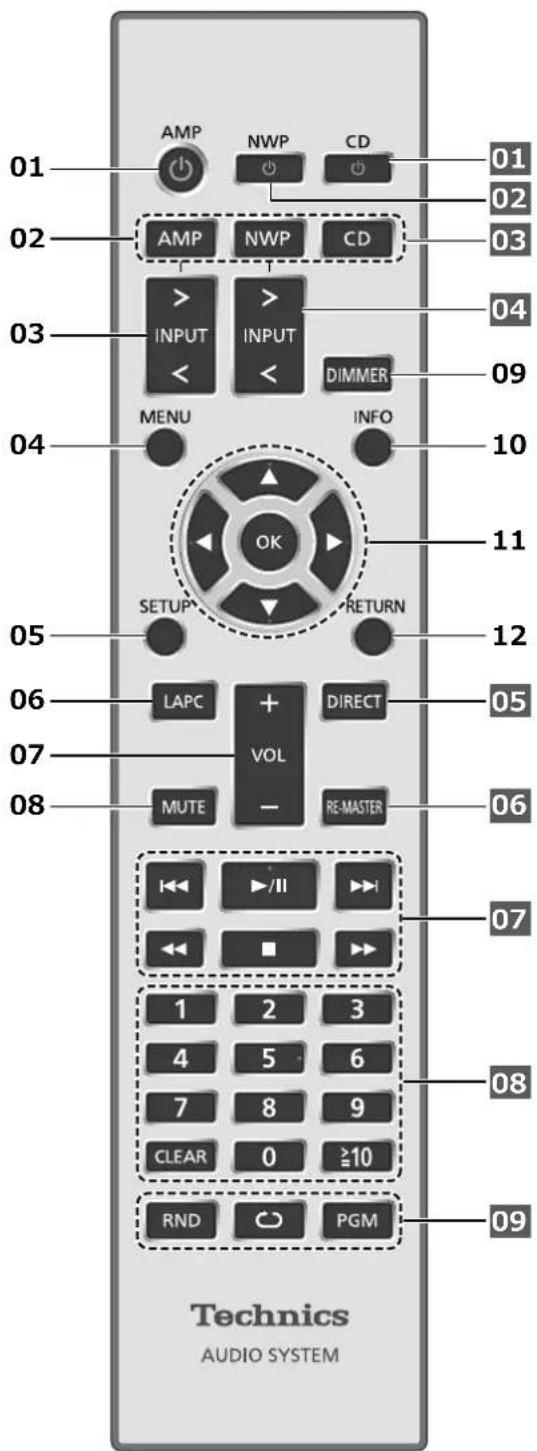
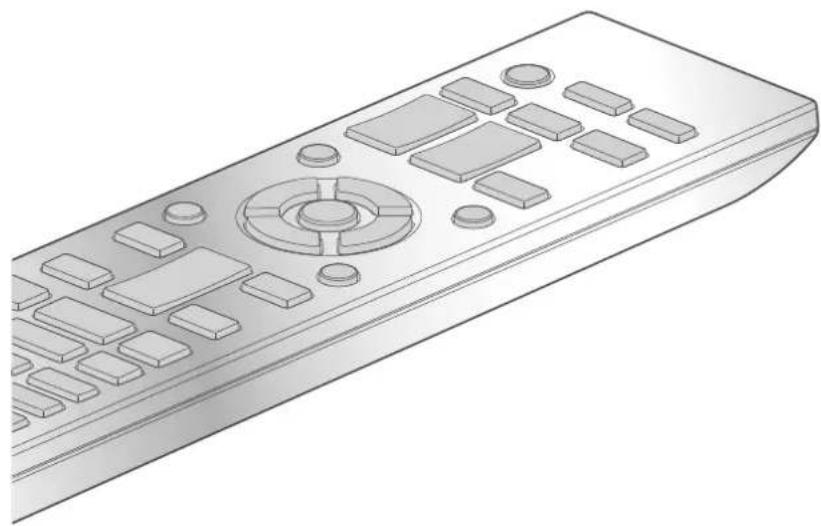
01 [AMPO]: Standby/on button
- Press to switch the unit from on to standby mode or vice versa. In standby mode, the unit is still consuming a small amount of power.
02 [AMP]/[NWP]/[CD]:
Select the device to be operated
03 [INPUT<]: Switch the input source (⇒ 16,17,18,19,20)
04 [MENU]: Enter menu (⇒ 18, 19, 20, 21)*
05 [SETUP]: Enter setup menu (⇒ 24)*
06 [LAPC]: Measure the output signal of the amplifier when speakers are connected, and correct its output (⇒ 26)
07 [+VOL - ] Adjust the volume
Volume range: -- (min), 1 to 100 (max)
08 [MUTE]: Mute the sound
- Press [MUTE] again to cancel. "MUTE" is also cancelled when you adjust the volume with this unit or when you turn the unit to standby.
09 [DIMMER]: Adjust the brightness of the peak power meter light, display, etc.
- When the display is turned off, it will light up for a few seconds only when you operate this unit. Before the display turns off, "Display Off" will be displayed for a few seconds.
- Press repeatedly to switch the brightness.
- Peak power meter does not work while the light is turned off.
10 [INFO]: View content information
- Press this button to display sampling frequency and other information. (The information varies depending on the input source.)
11 [ ], [ ], [ ] OK]: Selection/OK
12 [RETURN]: Return to the previous display*
*: Press [AMP] first to operate this unit. (The remote control may work for other Technics devices and may not for this unit when pressing [NWP] or [CD].)
- Buttons that work for Technics devices supporting system control function
The remote control of this unit also works for Technics devices supporting system control function (Network Audio Player, Compact Disc Player, etc.). For information on the operations of the devices, please also refer to their operating instructions.
01 [O] Standby/on switch for the Compact Disc Player
02 [ ] Standby/on switch for the Network Audio Player
03 Select the device to be operated
04 Select the input source of the Network Audio Player
05 Turn on/off Direct mode
06 Turn on/off Re-master
07 Playback control buttons
08 Numeric buttons, etc.
09Playback control buttons
Remote control mode
When other equipment responds to the supplied remote control, change the remote control mode.
The factory default is "Mode 1".
1 Press [AMP].
2 Press [SETUP].
3 Press [▲], [▼] repeatedly to select "Remote Control" and then press [OK].
- The current remote control mode of this unit is displayed for a few seconds.
4 When "Set Mode 1/2" is displayed, change the remote control mode of the remote control.
To set "Mode 1":
Press and hold [OK] and [1] for at least 4 seconds.
To set "Mode 2",
Press and hold [OK] and [2] for at least 4 seconds.
5 Point the remote control at this unit, and press and hold [OK] for at least 4 seconds.
- When the remote control mode is changed, the new mode will appear on the display for a few seconds.
■ When "Remote 1" or "Remote 2" is displayed
When "Remote 1" or "Remote 2" is displayed, the remote control modes of this unit and remote control are different. Perform step 3 above.
Connections
Speakers/AC mains lead
- Use only the supplied AC mains lead.
- Do not connect the AC mains lead until all other connections are complete.
- Insert the plugs of the cables to be connected all the way in.
- Do not bend cables at sharp angles.
To optimise the audio output, you can measure the amplifier output signal and correct its output when it is connected to the speakers. (⇒ 26)
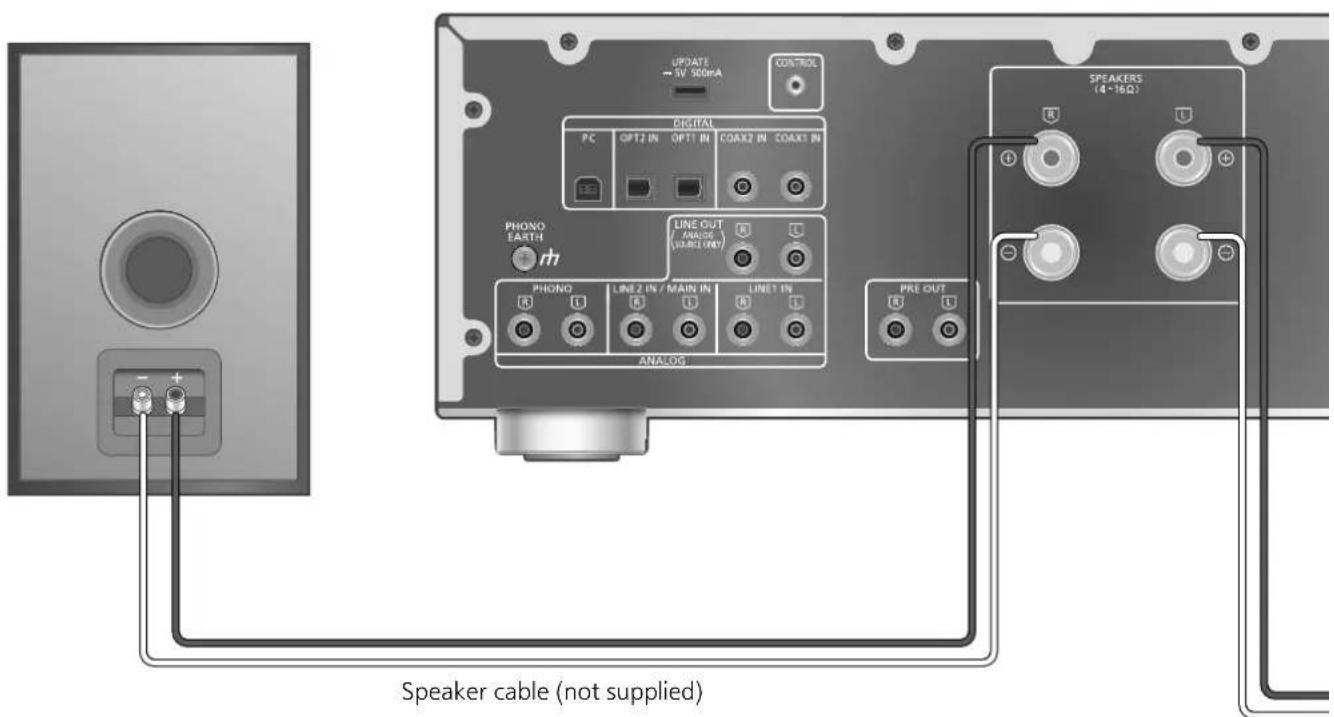
Speaker connection
1 Turn the knobs to loosen them, and insert the core wires into the holes.
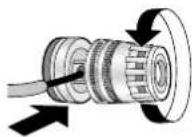
2 Tighten the knobs.
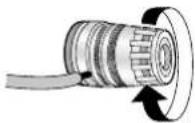
Note
-
When the connections are completed, pull the speaker cables lightly to check that they are connected firmly.
-
Be careful not to cross (short-circuit) or reverse the polarity of the speaker wires as doing so may damage the amplifier.
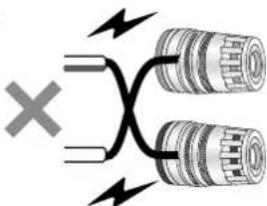
DO NOT
-
Wire the polarity (+/-) of the terminals correctly. Not doing so may adversely affect stereo effects or cause malfunction.
-
For details, refer to the operating instructions of the speakers.
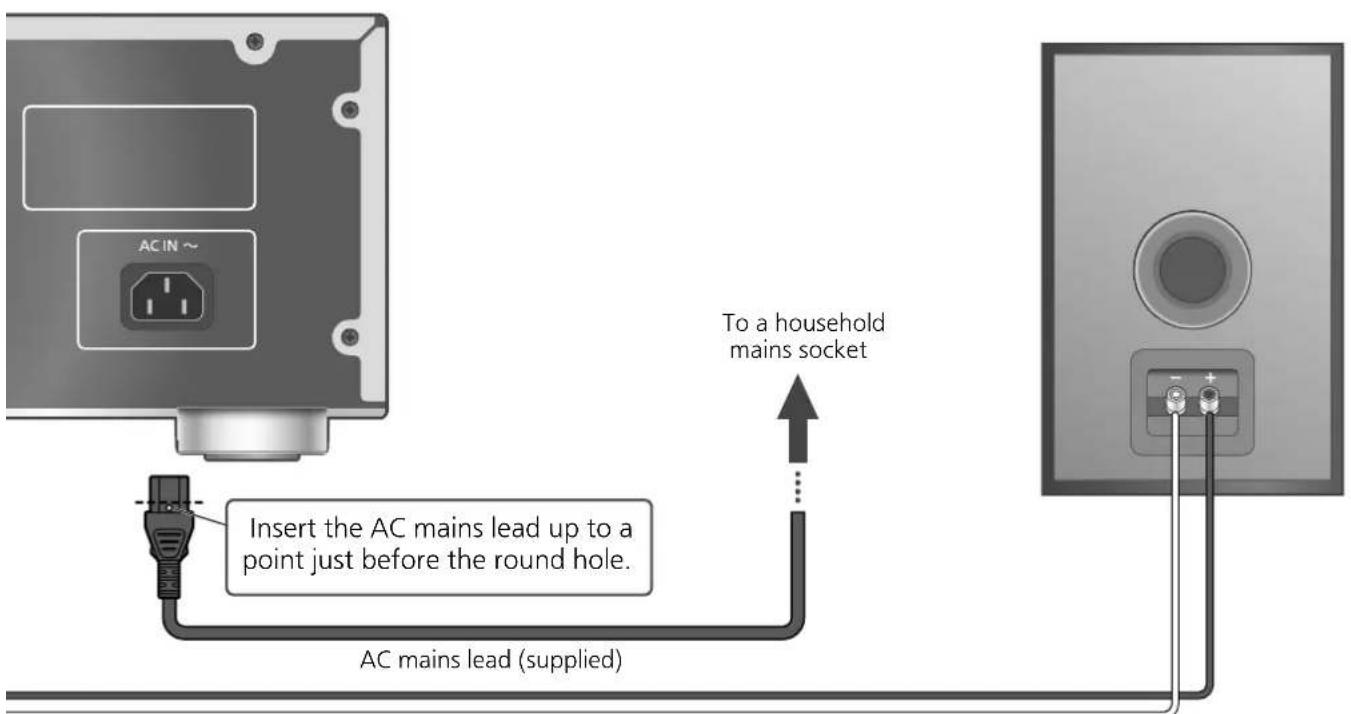
Speaker cable (not supplied)
AC mains lead connection
Connect only after all other connections are completed.
Note
- This unit consumes a small amount of AC power (⇒ 34) even when the unit is in standby mode. Remove the plug from the main electrical outlet if you will not be using the unit for an extended period of time. Place the unit so the plug can be easily removed.
Speaker output correction (LAPC)
You can make the optimum adjustment according to your own speakers. (⇒ 26)
Operations
Using digital audio output device
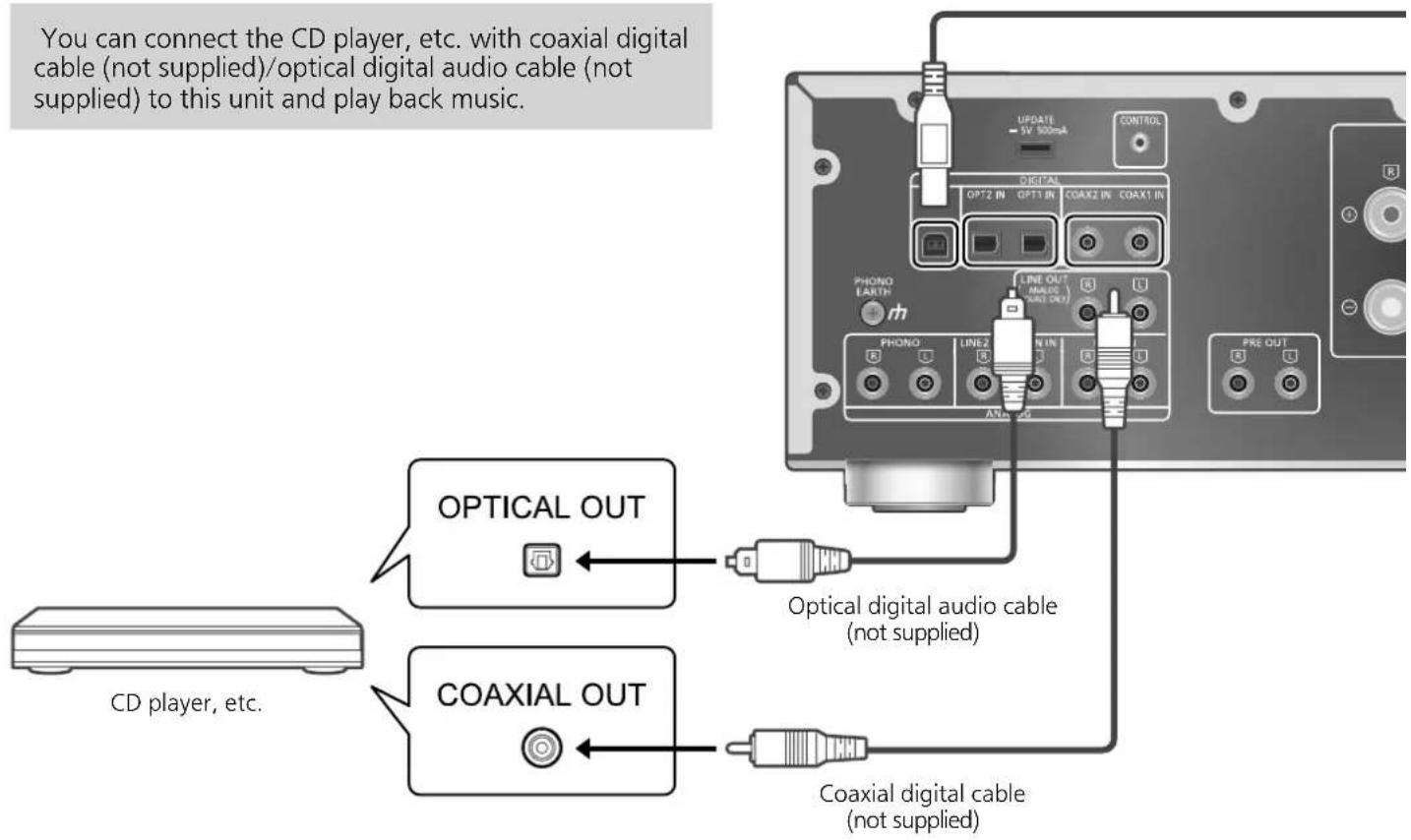
Using coaxial digital cable
1 Disconnect the AC mains lead.
2 Connect this unit and a CD player, etc.
3 Connect the AC mains lead to this unit. (⇒ 15)
4 Press [AMB] to turn this unit on.
5 Press [>INPUT<] repeatedly to select "COAX1" or "COAX2".
- You can also select the input source by turning the input selector knob on the unit.
6 Start playback on the connected device.
Note
-
The digital audio input terminals of this unit can only detect the following linear PCM signals. For details, refer to the operating instructions of the connected device.
-
Sampling frequency:
Coaxial digital input 32/44.1/48/88.2/96/176.4/192 kHz
Optical digital input 32/44.1/48/88.2/96 kHz
Number of quantisation bits: 16/24 bit
Using optical digital audio cable
1 Disconnect the AC mains lead.
2 Connect this unit and a CD player, etc.
3 Connect the AC mains lead to this unit. (⇒ 15)
4 Press [AMB] to turn this unit on.
5 Press [>INPUT<] repeatedly to select "OPT1" or "OPT2".
- You can also select the input source by turning the input selector knob on the unit.
6 Start playback on the connected device.
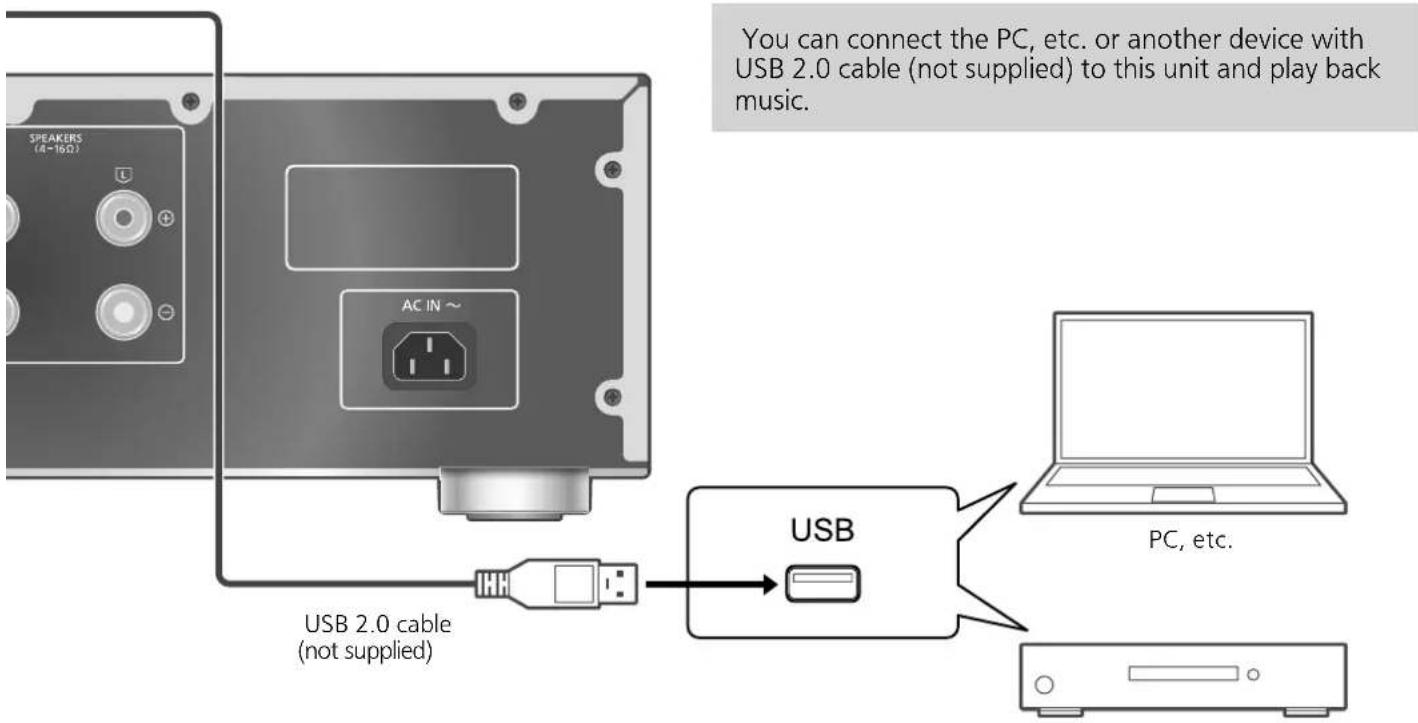
Audio device with USB-DAC output terminal such as ST-G30, etc.
Preparation
Connecting to a PC
Before connecting to a PC, follow the steps below.
Refer to the following for the recommend OS versions for your PC (as of February 2017):
- Windows 7, Windows 8, Windows 8.1, Windows 10
- OS X 10.7, 10.8, 10.9, 10.10, 10.11, macOS 10.12
① Download and install the dedicated USB driver to the PC. (Only for Windows OS)
- Download and install the driver from the website below. www.technics.com/support/
② Download and install the dedicated app "Technics Audio Player" (free of charge) on your PC.
- Download and install the app from the website below. www.technics.com/support/
Using USB 2.0 cable
1 Disconnect the AC mains lead.
2 Connect this unit and a PC, etc.
3 Connect the AC mains lead to this unit. (⇒ 15)
4 Press [AMB] to turn this unit on.
5 Press [>INPUT<] repeatedly to select "PC".
- You can also select the input source by turning the input selector knob on the unit.
6 Start playback using the dedicated app "Technics Audio Player" on the connected PC.
Note
- When connecting an audio device with USB-DAC output terminal such as ST-G30, etc., refer to the operating instructions of the connected device.
- About supported format, refer to "Format support". (⇒ 35)
- Windows is a trademark or a registered trademark of Microsoft Corporation in the United States and other countries.
- Mac and OS X are trademarks of Apple Inc., registered in the U.S. and other countries.
- macOS is a trademark of Apple Inc.
Operations
Using turntable (PHONO)
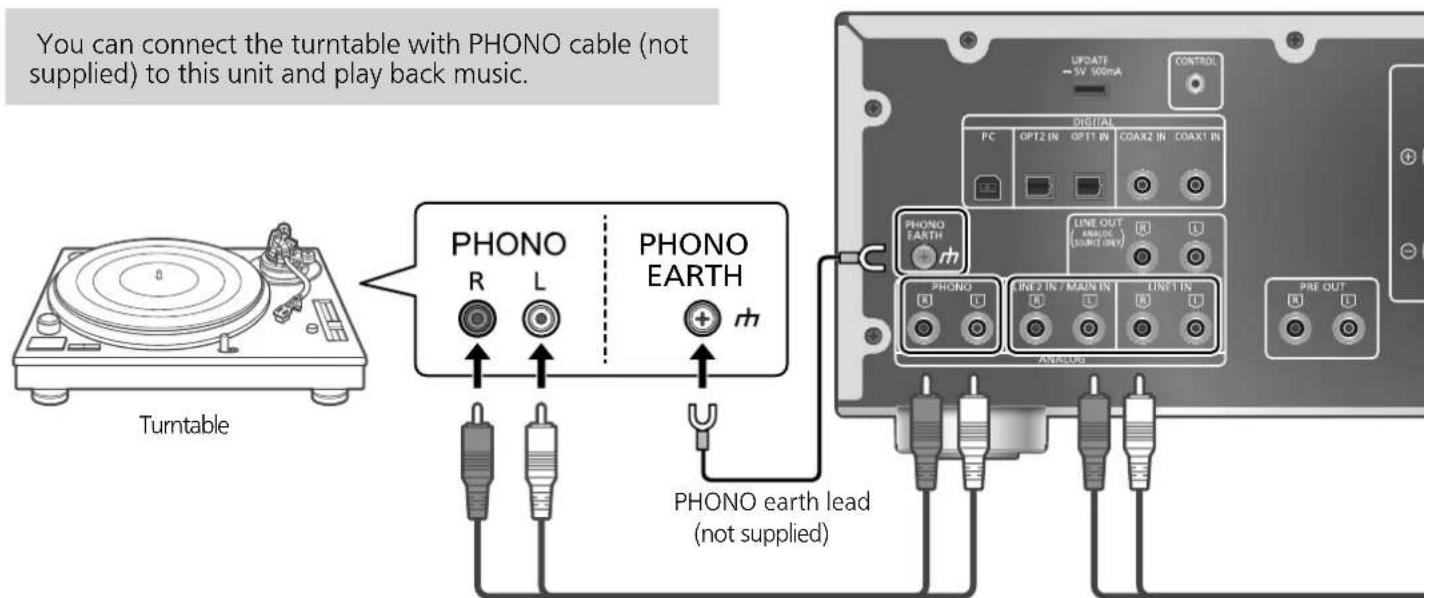
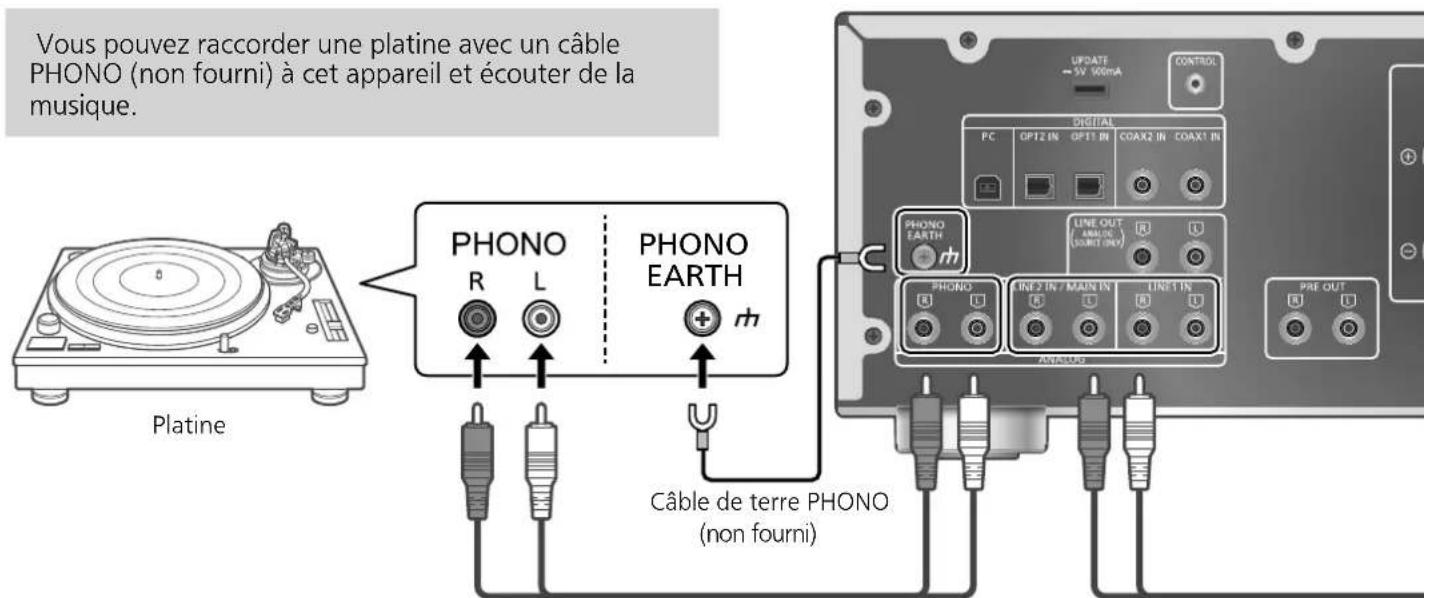
PHONO cable (not supplied)
Using PHONO cable
1 Disconnect the AC mains lead.
2 Connect this unit and a turntable.
3 Connect the AC mains lead to this unit. (⇒ 15)
4 Press [AMB] to turn this unit on.
5 Press [INPUT<] repeatedly to select "PHONO".
- You can also select the input source by turning the input selector knob on the unit.
6 Start playback on the connected turntable.
Note
- When connecting a turntable with a built-in PHONO equalizer, connect the PHONO cable to the analogue audio input terminals (LINE1 IN or LINE2 IN) of this unit. (⇒ 19)
- When connecting a turntable with a PHONO earth lead, connect the PHONO earth lead to the PHONO EARTH terminal of this unit.
Minimising sound distortion
If sound distortion occurs when using the analogue audio input terminals, setting the attenuator to "On(-3dB)/" "On(-6dB)/" "On(-10dB)" may improve the sound quality.
The factory default is "Off".
1 Press [AMP].
2 Press [MENU].
3 Press, [ ] repeatedly to select "Attenuator" and then press [OK].
4 Press[], [ ] to select "On(-3dB)"/ "On(-6dB)"/ "On(-10dB)" and then press [OK].
Reducing low frequency noise
Reduces the low frequency noise caused by the warpage of record.
The factory default is "Off".
- You can also set this menu while "LINE1" or "LINE2" is selected as input source of this unit.
1 Press [AMP].
2 Press [MENU].
3 Press[] [repeatedly to select "Subsonic Filter" and then press [OK].
4 Press[] to select "On" and then press [OK].
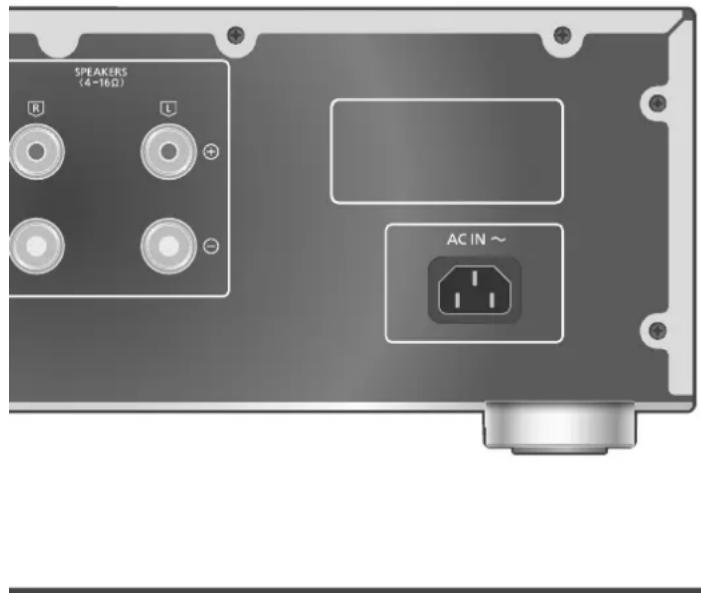
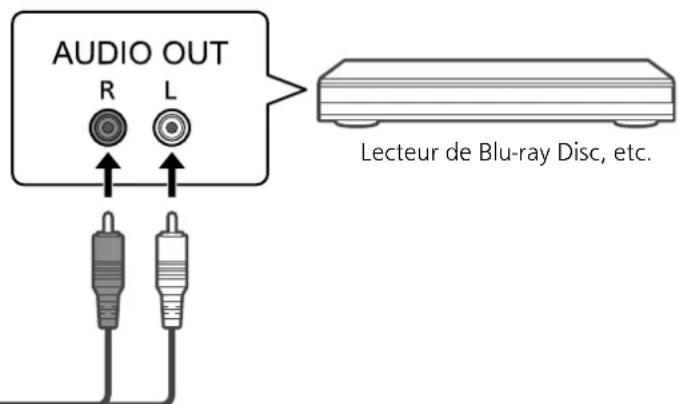
You can connect the Blu-ray Disc player, etc. with analogue audio cable (not supplied) to this unit and play back music.
AUDIO OUT
Analogue audio cable (not supplied)
Blu-ray Disc player, etc.
Using analogue audio cable
1 Disconnect the AC mains lead.
2 Connect this unit and a Blu-ray Disc player, etc.
3 Connect the AC mains lead to this unit. (⇒ 15)
4 Press [AMB] to turn this unit on.
5 Press [>INPUT<] repeatedly to select "LINE1" or "LINE2".
- You can also select the input source by turning the input selector knob on the unit.
- Set to "LINE2" (see below) when "MAIN IN" is displayed as input source of this unit.
6 Start playback on the connected device.
When connecting to "LINE2"
Analogue audio input terminals (LINE2 IN/MAIN IN) have both LINE2 and MAIN IN functions. When connecting an analogue audio output device, switch the input setting of this unit to "LINE2".
The factory default is "LINE2".
1 Press [AMP].
2 Press [>INPUT<] repeatedly to select "MAIN IN".
3 Press [MENU].
4 Press, [repeatedly to select "Input Mode" and then press [OK].
5 Press[repeatedly to select "LINE2" and then press [OK].
6 Confirm the displayed message and press [OK].
- The volume level set after switching to "LINE2" is displayed. Confirm and adjust the volume before pressing [OK].
7 Press [ ] [v] to select "Yes" and then press [OK].
Minimising sound distortion
If sound distortion occurs when using the analogue audio input terminals, setting the attenuator to "On" may improve the sound quality.
The factory default is "Off".
1 Press [AMP].
2 Press [MENU].
3 Press[] [repeatedly to select "Attenuator" and then press [OK].
4 Press[] to select "On" and then press [OK].
Operations
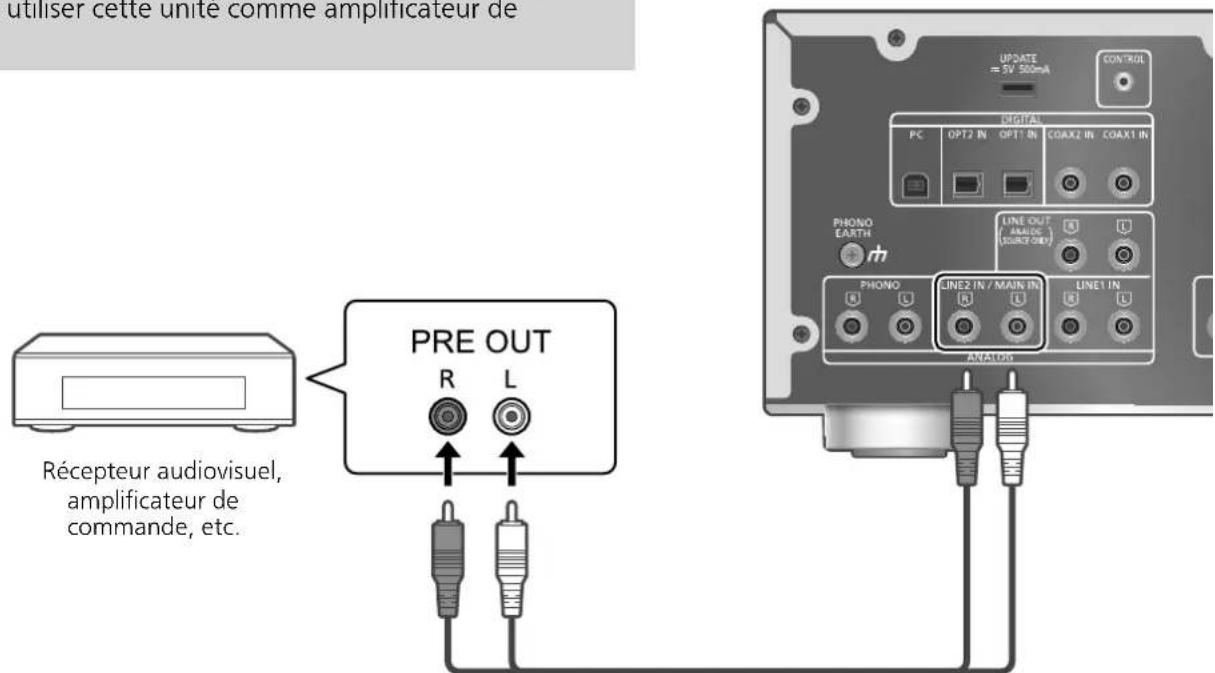
Using this unit as power amplifier
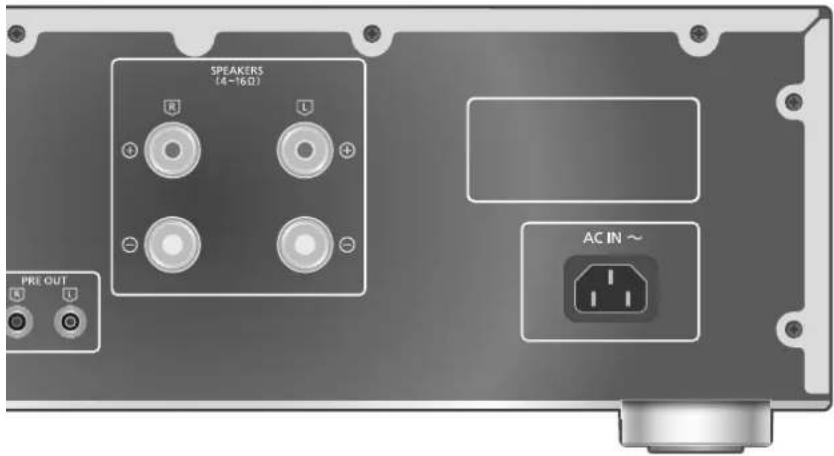
You can connect the AV receiver, control amplifier, etc. with analogue audio cable (not supplied) to this unit and use this unit as power amplifier.
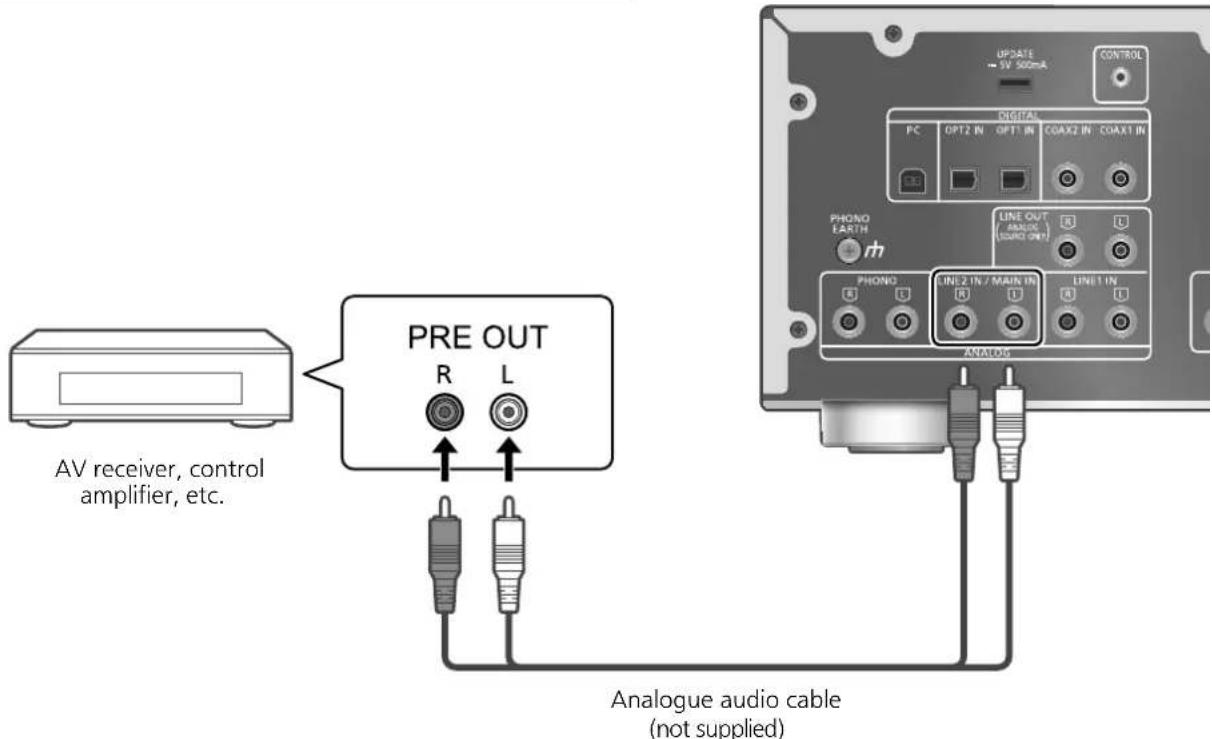
Set the volume of the AV receiver, control amplifier, etc. to minimum before connecting.
While using this unit as power amplifier, the volume adjustment with this unit is disabled. Adjust the volume little by little with the connected device.
Do not input the audio signal from PRE OUT/LINE OUT terminals to the MAIN IN terminals of this unit. Doing so may cause malfunction.
Using analogue audio cable
1 Disconnect the AC mains lead.
2 Connect this unit and AV receiver, control amplifier, etc. after minimising the volume of the device.
3 Connect the AC mains lead to this unit. (⇒ 15)
4 Press [AM] to turn this unit on.
5 Press [>INPUT<] repeatedly to select "LINE2".
- You can also select the input source by turning the input selector knob on the unit.
6 Press [AMP].
7 Press [MENU].
8 Press, [ ] repeatedly to select "Input Mode" and then press [OK].
9 Pres, [to select "MAIN IN" and press [OK].
10 Confirm the displayed message and press [OK].
11 Press [ ], [ ] to select "Yes" and then press [OK].
12 Start playback on the connected device.
Note
It is not possible to adjust the volume with this unit.
Sound is not output from headphones jack and PRE OUT terminals.
- Select "LINE2" when not using this unit as power amplifier. (⇒ 19)
- When the input source is switched to "LINE2" or other source from "MAIN IN" and the current volume level is higher than previous level, the volume is automatically adjusted.
Minimising sound distortion
If sound distortion occurs, setting the attenuator to "On" may improve the sound quality.
The factory default is "Off".
1 Press [AMP].
2 Press [MENU].
3 Press[] [repeatedly to select "Attenuator" and then press [OK].
4 Press[] [to select "On" and then press [OK].
Operations
Connecting a power amplifier, subwoofer, etc.
You can connect the power amplifier, subwoofer, etc. with analogue audio cable (not supplied) to output the analogue audio signals.
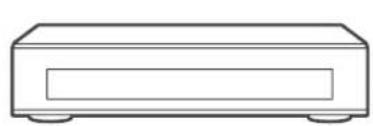
Power amplifier, Subwoofer, etc.
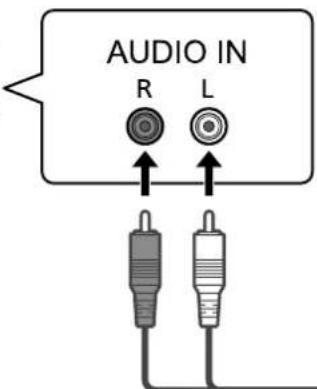
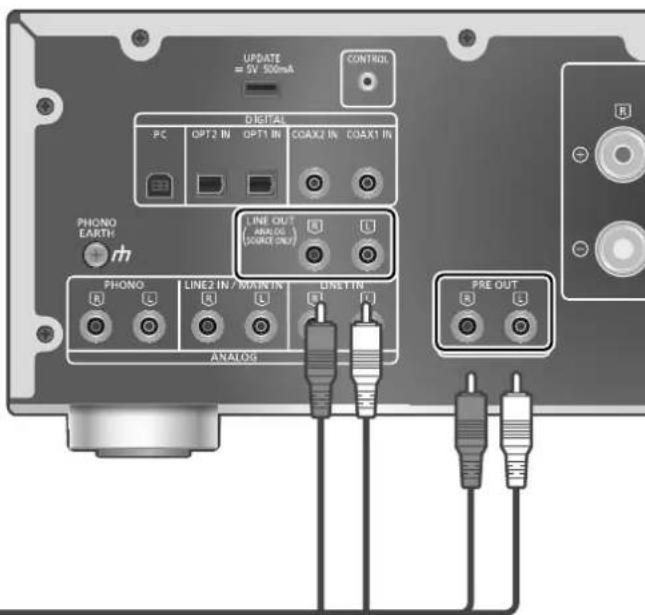
Analogue audio cable (not supplied)
Do not input the audio signal from PRE OUT/LINE OUT terminals to the analogue audio input terminals of this unit. Doing so may cause malfunction.
Using analogue audio cable
1 Disconnect the AC mains lead.
2 Connect this unit and a power amplifier, subwoofer, etc.
3 Connect the AC mains lead to this unit. (⇒ 15)
4 Press [AMB] to turn this unit on.
Note
- For details, refer to the operating instructions of the connected device.
Sound is not output from PRE OUT terminals while "MAIN IN" is selected as input source of this unit.
Setting the audio output (PRE OUT)
You can set the audio output of the speaker output terminals and PRE OUT terminals.
1 Press [AMP].
2 Press [SETUP].
3 Press[repeatedly to select "PRE OUT" and then press [OK].
4 Press[] to select the output setting and then press [OK].
The factory default is "On".
- Not available when "MAIN IN" is selected as input source of this unit.
On:
Sound is output from the speaker output terminals and PRE OUT terminals.
On (Speaker:Off):
Sound is not output from the speaker output terminals. Sound is output from PRE OUT terminals.
Off:
Sound is not output from PRE OUT terminals.
Sound is output from the speaker output terminals.
Note
- It is recommended to set to "On (Speaker:Off)" (rated output: 1 V) when connecting a power amplifier.
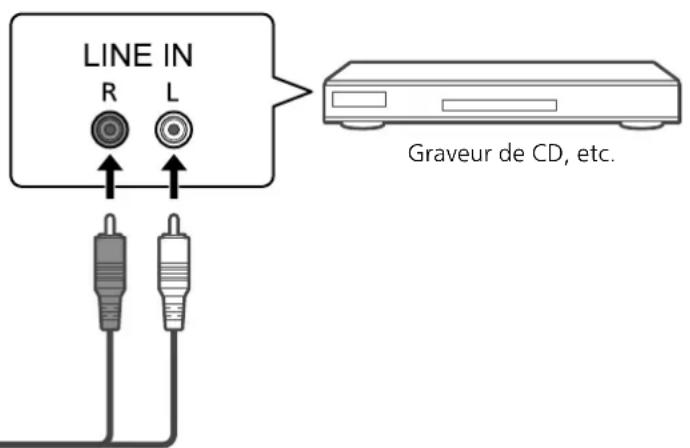
You can connect the CD recorder, etc. with analogue audio cable (not supplied) to output analogue audio signals from this unit (LINE1/LINE2/PHONO).
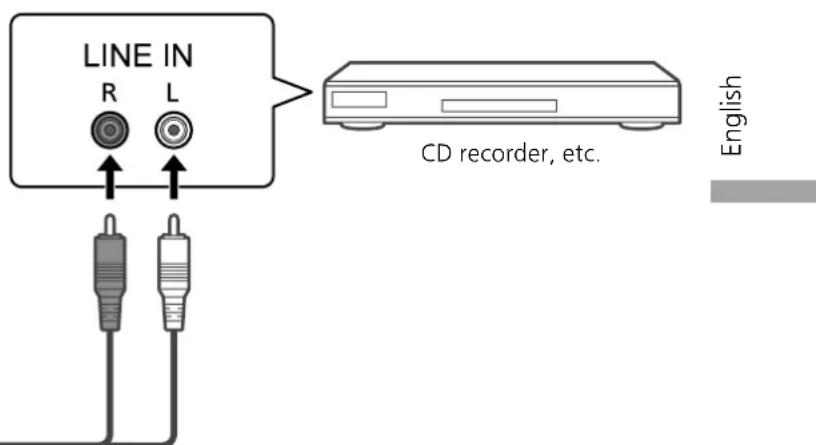
Analogue audio cable (not supplied)
Do not input the audio signal from PRE OUT/LINE OUT terminals to the analogue audio input terminals of this unit. Doing so may cause malfunction.
Using analogue audio cable
1 Disconnect the AC mains lead.
2 Connect this unit and a CD recorder, etc.
3 Connect the AC mains lead to this unit. (⇒ 15)
4 Press [AMB] to turn this unit on.
Note
- When a digital audio signal (COAX1/COAX2/OPT1/OPT2/PC) is selected as input source of this unit, analogue audio signal (LINE1) is output.
- The choppy audio occurs in output audio signal when switching the input source.
Settings
Sound adjustment, Other settings
The sound effects and other settings can be set up.
1 Press [AMP].
2 Press [SETUP].
3 Press[] [ ] repeatedly to select the menu and then press [OK].
4 Press[],[,[]to select a desired item or value, and press [OK].
Adjusting BASS/MID/TREBLE "Tone Control"
You can adjust the tone of this unit. Each tonal range (BASS/MID/TREBLE) can be adjusted.
To enable this function, select "On (adjustment)".
Each level can be adjusted between "10" and +10
TONE" is displayed after setting.
While connecting Technics device supporting system control function (Network Audio Player, etc.) to this unit, sound setting on the connected device may have a priority over this unit. Adjust the sound with the connected device.
- Not available when using this unit as power amplifier (⇒ 20) . Adjust the sound with the AV receiver, control amplifier, etc.
Adjusting the volume attenuator "VOLUME Attenuator"
Set to "On (-20dB) for the attenuator to ease the volume adjustment at a low volume.
The factory default is "Off".
- "ATT" is displayed after setting.
- Not available when using this unit as power amplifier (⇒ 20) . Adjust the sound with the AV receiver, control amplifier, etc.
Auto off function "AUTO OFF"
This unit is designed to conserve its power consumption and save energy. The unit has been left unused for about 20 minutes and will enter standby mode within a minute. Press any button to cancel it.
The factory default is "On". To disable this function, select "Off".
"AUTO OFF" is displayed 3 minutes before this unit is turned off.
Note
- The setting is stored even if the power is turned off and on.
Displaying the volume status "VOLUME Display"
The volume status is displayed when adjusting the volume.
The factory default is "Off".
- Not available when "MAIN IN" is selected as input source of this unit.
Checking the model name "Model No."
The model name is displayed.
Checking the firmware version "F/W Version"
The version of the installed firmware is displayed.
Settings
Using output correction function (LAPC)
You can make the optimum adjustment according to your own speakers.
Measuring the output signal of the amplifier and correcting its output (LAPC)
Preparation
- Disconnect the headphones.
Test tone emitted during measurement
To ensure the measurement accuracy, the speakers output a test tone at regular intervals. (For approximately 3 minutes)
It is not possible to change the volume of the audio being output while the measurement is in progress.
1 Press [AMP] to turn this unit on.
2 Press and hold [LAPC] until "Please Wait" is displayed.
"LAPC Measuring" is displayed and this unit will start measuring the output signal of the amplifier. Check that a test tone is output from both the left and right speakers.
When the measurement is complete, amplifier output correction will be automatically turned on.
- If you press [LAPC] while the measurement is in progress, it will be cancelled.
- If you connect headphones during amplifier signal measurement or amplifier output correction, it will be cancelled.
- Turning on/off the output correction function
Press [LAPC] to select "On"/"Off".
- LAPC indicator lights and "LAPC:On" is displayed while the output correction function is in progress.
Note
- Measurement is not available for the audio output signal from PRE OUT terminals of this unit. (⇒ 22)
Depending on the type of the connected speakers, the effect of the output correction function may be minimal. - The corrected output remains in effect until you measure the output signal again. When you use other speakers, redo the measurement.
Firmware updates "F/W Update"
Occasionally, Panasonic may release updated firmware for this unit that may add or improve the way a feature operates. These updates are available free of charge.
For the update information, refer to the following website. www.technics.com/support/firmware/
Downloading takes approx. 3 minutes.
Do not disconnect the AC mains lead or turn this unit to standby while updating.
Do not disconnect the USB flash memory while updating.
The progress is displayed as "Updating % while updating. ("□" stands for a number.)
Note
- During the update process, no other operations can be performed.
- If there are no updates, "Firmware is Up To Date" is displayed. (No need to update it.)
- Updating the firmware may reset the settings of this unit.
Preparation
- Download the latest firmware on the USB flash memory. For details, refer to the following website. www.technics.com/support/firmware/
1 Connect the USB flash memory with new firmware.
2 Press [AMP].
3 Press [SETUP].
4 Press[] [repeatedly to select "F/W Update" and then press [OK].
5 Press[] to select "Yes" and then press [OK].
The progress is displayed as "Updating % while updating. (" stands for a number.)
- When the update has finished successfully, "Success" is displayed.
6 Disconnect the AC mains lead and USB flash memory, and reconnect it after 3 minutes.
Note
- Downloading may take longer depending on the USB flash memory.
- Use a USB flash memory with FAT16 or FAT32 format.
- UPDATE terminal is used only for firmware updating. Do not connect any USB device other than the USB flash memory for firmware updating.
- No USB device can be charged from the UPDATE terminal of this unit.
Settings
System control connection
You can operate this unit and Technics devices supporting system control function (Network Audio Player, Compact Disc Player, etc.) simultaneously with ease on the remote control. For details, refer to the operating instructions of each device.
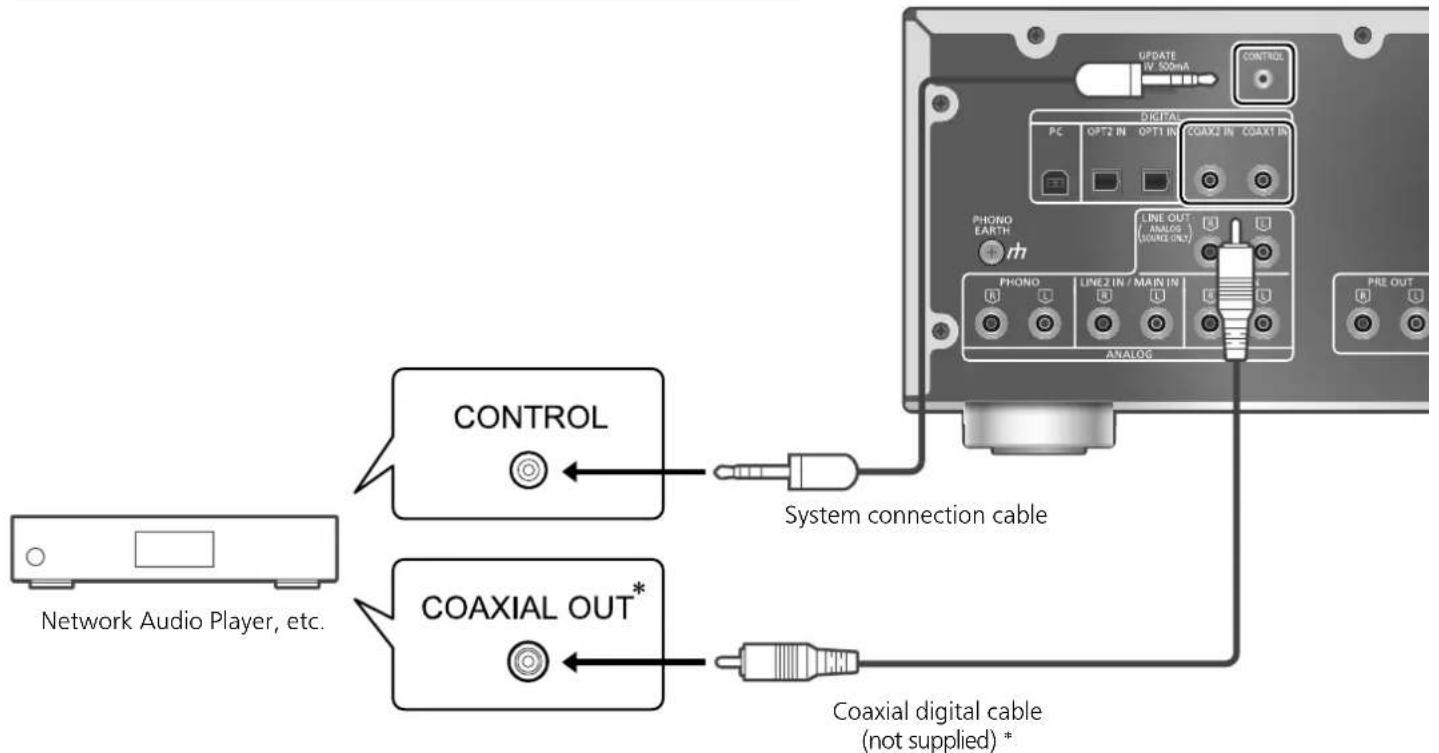
Using system connection cable and audio cable
1 Disconnect the AC mains lead.
2 Connect this unit and Technics device supporting system control function (Network Audio Player, etc.).
- Use both of the system connection cable and the audio cables when connecting this unit and the device.
- Use the system connection cable supplied with the connected device.
3 Connect the AC mains lead to this unit. (⇒ 15)
4 Press [AMPO] to turn this unit on.
5 Press [AMP].
6 Press [SETUP].
7 Press[repeatedly to select "System Control" and then press [OK].
8 Press [] , [] to select the input source for the device which is connected at step 2, and press [OK].
- Select "Off" to disable the system control function.
*: The illustration shows the example when connecting with coax digital cable. Connect the device with proper cable/terminal supporting the device.
Note
- When using the system control function by connecting the Technics device to the LINE2 IN terminal of this unit, select "LINE2" (⇒ 19) for the input setting of the analogue audio input terminals (LINE2 IN/MAIN IN) of this unit.
- When using this unit as power amplifier (⇒ 20) , the system control function for the Technics device connected to the MAIN IN terminals is disabled.
Switching this unit and the connected device
- If you point the remote control at this unit and press [AMP] when this unit and the connected device are in standby mode, this unit and the device of the selected input source which is set with "System Control" will be turned on simultaneously.
- If you point the remote control at this unit and press [AMP] when this unit and the connected device are turned on, this unit and the connected device will enter standby mode.
- You can also switch this unit and the connected device by pressing the standby/on button on this unit.
Switching this unit's input source automatically
When you perform an operation such as playback on the connected device, the input source of this unit will be automatically switched to the source which is set with "System Control".
Before requesting service, make the following checks. If you are uncertain about some of the check points, or if the solutions indicated in the following guide do not resolve the issue, then consult your dealer for instructions.
Heat buildup of this unit
This unit becomes warm while in use. This is not a malfunction.
Do you have the latest firmware installed?
Panasonic is constantly improving the unit's firmware to ensure that our customers are enjoying the latest technology. (⇒ 27)
To restore all settings to the factory defaults
When the following situations occur, reset the memory:
- There is no response when buttons are pressed.
- You want to clear and reset the memory contents.
1 Press [AMP].
2 Press [SETUP].
3 Press[] [repeatedly to select "Initialization" and then press [OK].
- A confirmation screen appears. Select "Yes" in the following steps to restore all the settings to defaults.
4 Press [ ] [v] to select "Yes" and then press [OK].
5 Press[] [ to select "Yes" and then press [OK] again.
General
The unit does not work.
Operations are not done properly.
-
One of the unit's safety devices may have been activated.
① Press on the unit to switch the unit to standby. -
If the unit does not switch to standby, disconnect the AC mains lead, wait for at least 3 minutes, then reconnect it.
② Press on the unit to switch on. If the unit still cannot be operated, consult the dealer.
A "humming" sound can be heard during playback.
- An AC mains lead of another device or fluorescent light is near the cables. Turn off other appliances, or keep them away from the cables of this unit.
- A strong magnetic field near a TV or other device may adversely affect the audio quality. Keep this unit away from such a location.
- The speakers may output noise when a device nearby is emitting powerful radio waves, such as when a mobile phone is on a call.
No sound.
- Check the volume of this unit and the connected device.
- Check connections to speakers and other equipment.
-
Connect speakers and measure the output signal of the amplifier. (⇒ 26)
-
Check the impedance of the connected speakers.
-
Check to see if the correct input source is selected.
- Insert the plugs of the cables to be connected all the way in.
- Confirm the sound output setting. (Sound is not output from the speakers connected to the speaker output terminals of this unit while "PRE OUT" is set to "On (Speaker:Off)".) (⇒ 22)
- Playback of multi-channel content is not supported.
- The digital audio input terminals of this unit can only detect linear PCM signals. For details, refer to the operating instructions of the device.
Sound is distorted.
- Setting "Attenuator" to "On" according to the analogue audio input may minimise the sound distortion. (⇒ 18, 19, 21)
- Setting the attenuator is not available for the output audio signal from LINE OUT terminal.
The volume is automatically changed.
- When the input source is switched to "LINE2" or other source from "MAIN IN" and the current volume level is higher than previous level, the volume is automatically adjusted. (Volume knob automatically turns.) (⇒ 20)
The unit turns to standby mode automatically.
Is the auto off function turned on? (⇒ 25)
- This unit incorporates a protection circuit to prevent damage caused by heat buildup. When you use this unit at a high volume level for a long period of time, it may turn off automatically. Wait for this unit to cool down before turning on this unit again. (For approximately 3 minutes)
The settings are reset to the factory defaults.
- Updating the firmware may reset the settings.
The peak power meter does not operate.
-
In the following cases, this meter does not operate:
-
When the headphones are connected.
- When the peak power meter light is turned off by pressing [DIMMER].
- When this unit is muted by pressing [MUTE].
- When "PRE OUT" is set to "On (Speaker:Off)" (⇒ 22)
The system control function is not working.
- Use the system connection cable supplied with the connected device.
-
Connect the system connection cable to the system terminals (CONTROL). (⇒ 28)
-
Check the connection of system connection cable, audio cable and the input source which is set with "System Control". (⇒ 28)
-
Connect Technics device supporting system control function (Network Audio Player, Compact Disc Player, etc.) to this unit. For details, refer to the following website.
www.technics.com/support/
PC
The PC does not recognise this unit.
- Check your operating environment. (⇒ 17)
- Restart the PC, turn this unit to standby and on, and then reconnect the USB cable.
- Use another USB port of the connected PC.
Install the dedicated USB driver if using a PC with Windows. (⇒ 17)
Remote control
The remote control does not work properly.
- The batteries are depleted or inserted incorrectly. (⇒ 12)
- To avoid interference, please do not put any objects in front of signal sensor. (⇒ 10)
- If the remote control mode of the remote control differs from that of this unit, match the mode of the remote control to the mode of this unit. (⇒ 13)
Messages
ATTENTION: MAX Output Setting
- While using this unit as power amplifier, the volume adjustment with this unit is disabled.
- Adjust the volume little by little with the connected device. (⇒ 20)
AUTO OFF
The unit has been left unused for about 20 minutes and will shut down within a minute. Press any button to cancel it. (⇒ 25)
Connect USB Device
The firmware download has failed.
- Download the latest firmware on the USB flash memory and try again. (⇒ 27)
Disconnect PHONES
- When the headphones are connected, measuring the output signal of the amplifier (LAPC) will not start.
- Disconnect the headphones.
If you connect headphones during amplifier signal measurement or amplifier output correction, it will be cancelled. (⇒ 26)
"F□”(" stands for a number.)
An abnormality has occurred. (If this unit detects an abnormality, the protection circuit is activated, and the power may be turned off automatically.)
- Is the volume extremely high? Or is this unit placed in an extremely hot place?
Wait a few seconds and then turn the unit on again. (The protection circuit will be deactivated.)
Load Fail
-
The firmware cannot be found on the USB flash memory.
-
Download the latest firmware on the USB flash memory and try again. (⇒ 27)
No Device
- USB flash memory with new firmware is not connected.
Connect the USB flash memory with new firmware. (⇒ 27)
Not Measured
- Measuring the output signal for the output correction function (LAPC) has not been done yet.
Measure the output signal. (⇒ 26)
Not Valid
- The function you have tried to use is not available with the current settings. Check the steps and settings.
PHONES Connected
The headphones are connected.
Sound is not output from headphones jack and speaker output terminals when the headphones are connected and "MAIN IN" is selected as input source of this unit. (⇒ 20)
"Remote" (" stands for a number.)
- The remote control and this unit are using different modes.
Change the mode on the remote control. (⇒ 13)
Signal Overflow
- The sound from the analogue audio input terminals in use is distorted. Select "Attenuator" according to the selected analogue audio input, and change the setting of the attenuator to "On". (⇒ 19)
Unlocked
-
"COAX1", "COAX2", "OPT1", "OPT2" or "PC" is selected, but no device is connected. Check the connection with the device. (⇒ 16, 17)
-
The sampling frequency components, etc. of the audio signals are not input correctly.
-
About supported format, refer to "Format support". (⇒ 35)
USB Over Current Error
USB device is drawing too much power.
- Disconnect the USB device and connect it again. (⇒ 27)
- Turn the unit to standby and on again.
VOLUME OK (" stands for a number.)
- When the input source is switched to "LINE2" or other source from "MAIN IN", the volume level after switching the input source is displayed.
- Confirm and adjust the volume before pressing [OK].
Unit care
- Pull out the AC mains lead from the outlet before maintenance. Clean this unit with a soft cloth.
- When dirt is heavy, wring a wet cloth tightly to wipe the dirt, and then wipe it with a soft cloth.
- Do not use solvents including benzine, thinner, alcohol, kitchen detergent, a chemical wiper, etc. This might cause the exterior case to be deformed or the coating to come off.
To dispose or transfer this unit
- This unit may contain private information. Before disposing of or transferring this unit, perform the following to delete the data, including personal or secret information.
To restore all settings to the factory defaults (⇒ 30)
Disposal of Old Equipment and Batteries
Only for European Union and countries with recycling systems
These symbols on the products, packaging, and/or accompanying documents mean that used electrical and electronic products and batteries must not be mixed with general household waste.
For proper treatment, recovery and recycling of old products and used batteries, please take them to applicable collection points in accordance with your national legislation.
By disposing of them correctly, you will help to save valuable resources and prevent any potential negative effects on human health and the environment.
For more information about collection and recycling, please contact your local municipality. Penalties may be applicable for incorrect disposal of this waste, in accordance with national legislation.

Note for the battery symbol (bottom symbol):
This symbol might be used in combination with a chemical symbol. In this case it complies with the requirement set by the Directive for the chemical involved.
Others
Specifications
GENERAL
| Power supply | AC 220 V to 240 V, 50/60 Hz |
| Power consumption | 85 W |
| Power consumption in standby mode | Approx. 0.3 W |
| Dimensions (W×H×D) | 430 mm × 148 mm × 428 mm |
| Mass Approx. 12.3 kg | |
| Operating temperature range | 0 °C to 40 °C |
| Operating humidity range | 35 % to 80 % RH (no condensation) |
AMPLIFIER SECTION
| Output power | 70 W + 70 W (1 kHz, T.H.D. 0.5 %, 8 Ω, 20 kHz LPF) 140 W + 140 W (1 kHz, T.H.D. 0.5 %, 4 Ω, 20 kHz LPF) |
| Load impedance | 4 Ω - 16 Ω |
| Frequency response | |
| PHONO (MM) | 20 Hz to 20 kHz (RIAA DEVIATION ±1 dB, 8 Ω) |
| LINE | 5 Hz to 80 kHz (-3 dB, 8 Ω) |
| DIGITAL | 5 Hz to 90 kHz (-3 dB, 8 Ω) |
| Input sensitivity/ Input impedance | |
| PHONO (MM) 2.5 mV / 47 kΩ | |
| LINE 200 mV / 22 kΩ | |
TERMINALS SECTION
| Headphones Jack | Stereo, φ6.3 mm 0.75 mW, 32 Ω |
| PC | REAR USB Type B Connector |
| Analogue input | |
| LINE IN ×2 Pin jack | |
| PHONO (MM) Pin jack | |
| Digital input | |
| OPT IN ×2 Optical terminal | |
| COAX IN ×2 | Pin jack |
| Format support | LPCM |
| Analogue output | |
| LINE OUT | Pin jack |
| PRE OUT | Pin jack |
| System port | |
| System control | φ3.5 mm, Jack |
FORMAT SECTION
USB-B
| USB Standard | USB 2.0 high-speed USB Audio Class 2.0, Asynchronous mode |
| DSD control mode | ASIO Native mode, DoP mode |
Format support
This unit supports the following formats.
- Playback of all formats supported by this unit is not guaranteed.
- Playback of a format not supported by this unit may cause choppy audio or noise. In such cases, check to see if this unit supports the format.
- File information (sampling frequency, etc.) shown by this unit and playback software may differ from each other.
PC (USB-B)
| File format Sampling frequency | Bit rate / Number of quantisation bits | |
| PCM | 32/44.1/48/88.2/96/176.4/192/352.8/384 kHz | 16/24/32 bit |
| DSD 2.8 MHz/5.6 MHz/11.2 MHz | ||
*: If you download and install the dedicated app, you can play back files in wide-ranging formats. (⇒ 17) For details, refer to the operating instructions of the app.
Note
- Specifications are subject to change without notice.
Mass and dimensions are approximate. - DSD is a trademark of Sony Corporation.
ATTENTION: MAX Output Setting
USB Over Current Error
Cable PHONO (non fourni)
Cable audio analogue (non fourni)
Cable audio analogue (non fourni)
Cable audio analogue (non fourni)
ATTENTION: MAX Output Setting
USB Over Current Error
ATTENTION: MAX Output Setting
USB Over Current Error
- De fabrieksinstelling is "Off".
ATTENTION: MAX Output Setting
USB Over Current Error
Headquarter Address:
Panasonic Corporation
Kadoma, Osaka, Japan
Importer for Europe:
Panasonic Marketing Europe GmbH
Panasonic Testing Centre
Winsbergring 15, 22525 Hamburg, Germany
EU
Panasonic Corporation
Web Site: http://www.panasonic.com
- DELIVERING THE ULTIMATE EMOTIVE MUSICAL EXPERIENCE TO ALL
- FOR THE UNITED KINGDOM AND IRELAND CUSTOMER
- SALES AND SUPPORT INFORMATION
- CUSTOMER COMMUNICATIONS CENTRE
- FEATURES
- HIGH-QUALITY AUDIO TECHNOLOGIES EMPLOYED INCLUDING JENO ENGINE AND LAPC
- THREE-SECTION CONFIGURATION
- HIGH RIGIDITY ALUMINUM CABINET
- WARNING
- UNIT
- AC MAINS LEAD
- CAUTION
- PLACEMENT
- BATTERY
- INSTALLATION
- CAUTION FOR AC MAINS LEAD
- BEFORE USE
- HOW TO REPLACE THE FUSE
- FIGURE A FIGURE B
- 01 STANDBY/ON BUTTON()
- 02 POWER INDICATOR
- 03 HEADPHONES JACK
- 04 VOLUME KNOB
- 05 DISPLAY
- 06 INPUT SELECTOR KNOB
- 07 PEAK POWER METER
- 08 LAPC INDICATOR (⇒ 26)
- 09 REMOTE CONTROL SIGNAL SENSOR
- CONTROL REFERENCE GUIDE
- REMOTE CONTROL
- NOTE
- REMOTE CONTROL MODE
- CONNECTIONS
- SPEAKERS/AC MAINS LEAD
- SPEAKER CONNECTION
- AC MAINS LEAD CONNECTION
- CONNECT ONLY AFTER ALL OTHER CONNECTIONS ARE COMPLETED
- SPEAKER OUTPUT CORRECTION (LAPC)
- OPERATIONS
- USING DIGITAL AUDIO OUTPUT DEVICE
- USING COAXIAL DIGITAL CABLE
- USING OPTICAL DIGITAL AUDIO CABLE
- PREPARATION
- CONNECTING TO A PC
- USING TURNTABLE (PHONO)
- USING PHONO CABLE
- MINIMISING SOUND DISTORTION
- REDUCING LOW FREQUENCY NOISE
- USING THIS UNIT AS POWER AMPLIFIER
- USING ANALOGUE AUDIO CABLE
- SETTING THE AUDIO OUTPUT (PRE OUT)
- ON
- ON (SPEAKER:OFF)
- OFF
- SETTINGS
- SOUND ADJUSTMENT, OTHER SETTINGS
- ADJUSTING BASS/MID/TREBLE "TONE CONTROL
- ADJUSTING THE VOLUME ATTENUATOR "VOLUME ATTENUATOR
- AUTO OFF FUNCTION "AUTO OFF
- DISPLAYING THE VOLUME STATUS "VOLUME DISPLAY
- CHECKING THE MODEL NAME "MODEL NO
- CHECKING THE FIRMWARE VERSION "F/W VERSION
- USING OUTPUT CORRECTION FUNCTION (LAPC)
- TEST TONE EMITTED DURING MEASUREMENT
- 1 PRESS [AMP] TO TURN THIS UNIT ON
- 2 PRESS AND HOLD [LAPC] UNTIL "PLEASE WAIT" IS DISPLAYED
- TURNING ON/OFF THE OUTPUT CORRECTION FUNCTION
- PRESS [LAPC] TO SELECT "ON"/"OFF
- FIRMWARE UPDATES "F/W UPDATE
- SYSTEM CONTROL CONNECTION
- SWITCHING THIS UNIT AND THE CONNECTED DEVICE
- SWITCHING THIS UNIT'S INPUT SOURCE AUTOMATICALLY
- HEAT BUILDUP OF THIS UNIT
- DO YOU HAVE THE LATEST FIRMWARE INSTALLED
- TO RESTORE ALL SETTINGS TO THE FACTORY DEFAULTS
- GENERAL
- THE UNIT DOES NOT WORK
- OPERATIONS ARE NOT DONE PROPERLY
- A "HUMMING" SOUND CAN BE HEARD DURING PLAYBACK
- NO SOUND
- SOUND IS DISTORTED
- THE VOLUME IS AUTOMATICALLY CHANGED
- THE UNIT TURNS TO STANDBY MODE AUTOMATICALLY
- THE SETTINGS ARE RESET TO THE FACTORY DEFAULTS
- THE PEAK POWER METER DOES NOT OPERATE
- THE SYSTEM CONTROL FUNCTION IS NOT WORKING
- PC
- THE PC DOES NOT RECOGNISE THIS UNIT
- THE REMOTE CONTROL DOES NOT WORK PROPERLY
- MESSAGES
- ATTENTION: MAX OUTPUT SETTING
- AUTO OFF
- CONNECT USB DEVICE
- DISCONNECT PHONES
- F□”(" STANDS FOR A NUMBER.)
- LOAD FAIL
- NO DEVICE
- NOT MEASURED
- NOT VALID
- PHONES CONNECTED
- REMOTE" (" STANDS FOR A NUMBER.)
- SIGNAL OVERFLOW
- UNLOCKED
- USB OVER CURRENT ERROR
- VOLUME OK (" STANDS FOR A NUMBER.)
- UNIT CARE
- TO DISPOSE OR TRANSFER THIS UNIT
- DISPOSAL OF OLD EQUIPMENT AND BATTERIES
- ONLY FOR EUROPEAN UNION AND COUNTRIES WITH RECYCLING SYSTEMS
- NOTE FOR THE BATTERY SYMBOL (BOTTOM SYMBOL)
- OTHERS
- SPECIFICATIONS
- FORMAT SUPPORT
Brand : TECHNICS
Model : STG30L
Category : Hi-fi system