CDMix Bluetooth - Mixer NUMARK - Free user manual and instructions
Find the device manual for free CDMix Bluetooth NUMARK in PDF.



User questions about CDMix Bluetooth NUMARK
0 question about this device. Answer the ones you know or ask your own.
Ask a new question about this device
Download the instructions for your Mixer in PDF format for free! Find your manual CDMix Bluetooth - NUMARK and take your electronic device back in hand. On this page are published all the documents necessary for the use of your device. CDMix Bluetooth by NUMARK.
USER MANUAL CDMix Bluetooth NUMARK
Please go to www.numark.com to register your CDMIX Bluetooth. Registering your product ensures that we can keep you up-to-date with any new product developments and provide you with world-class technical support, should you run into any problems.
SETUP
- Make sure all items listed in the BOX CONTENTS section are included in the box.
- READ SAFETY & WARRANTY INFORMATION BOOKLET BEFORE USING THE PRODUCT.
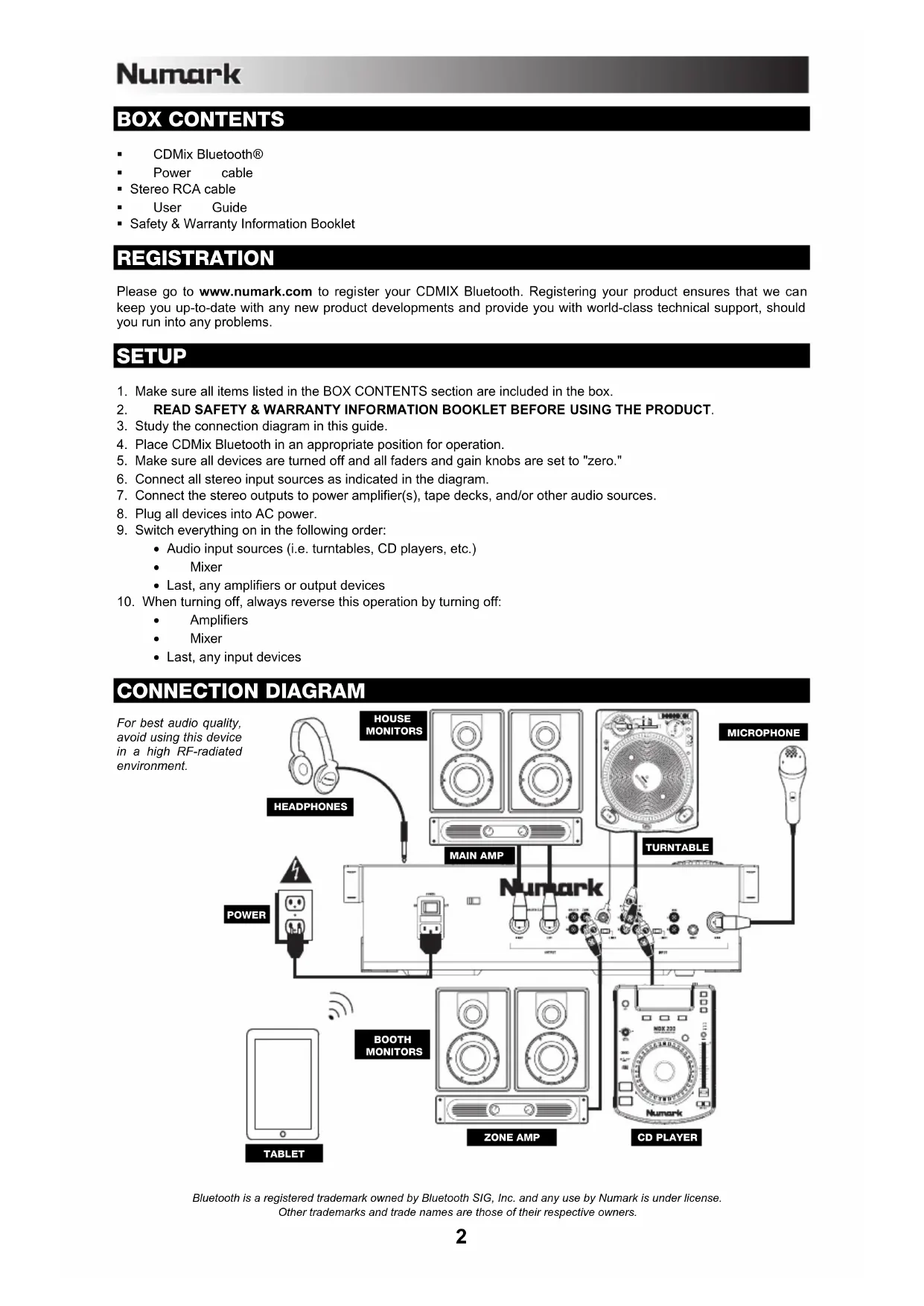
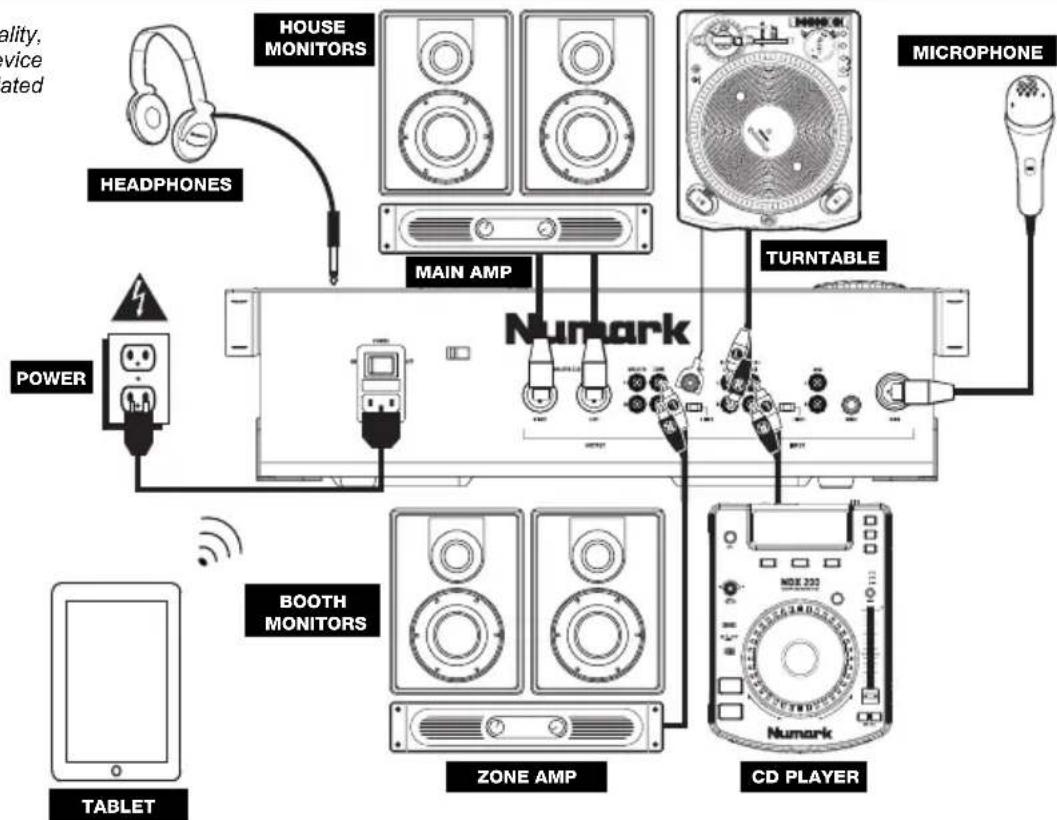
- Study the connection diagram in this guide.
- Place CDMix Bluetooth in an appropriate position for operation.
- Make sure all devices are turned off and all faders and gain knobs are set to "zero."
- Connect all stereo input sources as indicated in the diagram.
- Connect the stereo outputs to power amplifier(s), tape decks, and/or other audio sources.
- Plug all devices into AC power.
- Switch everything on in the following order:
Audio input sources (i.e. turntables, CD players, etc.)
Mixer
- Last, any amplifiers or output devices
- When turning off, always reverse this operation by turning off:
Amplifiers
Mixer
- Last, any input devices
CONNECTION DIAGRAM
For best audio quality, avoid using this device in a high RF-radiated environment.
Bluetooth is a registered trademark owned by Bluetooth SIG, Inc. and any use by Numark is under license. Other trademarks and trade names are those of their respective owners.
TOP PANEL FEATURES
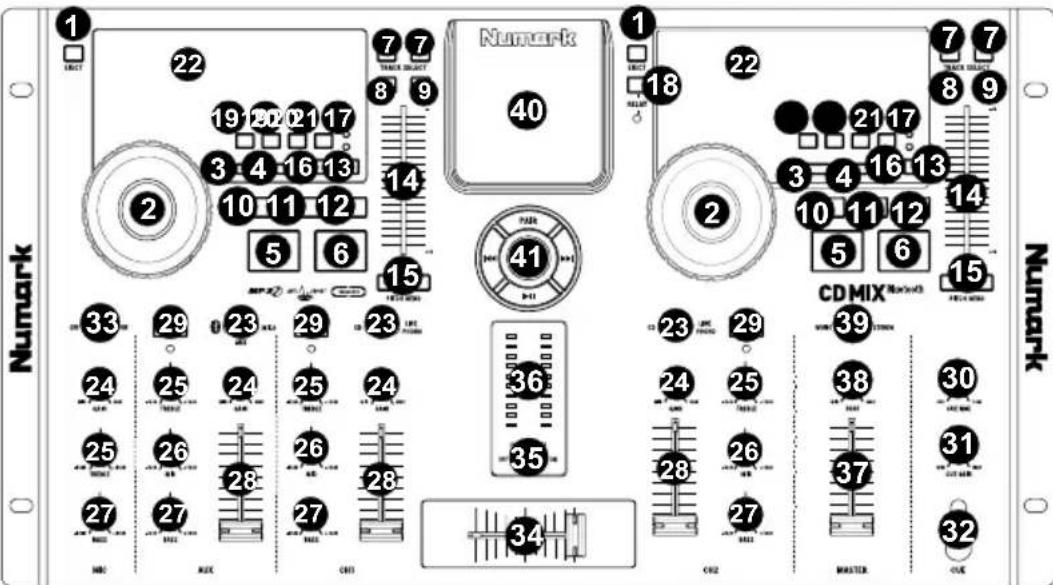
- EJECT - Press this button to open or close the CD disc tray.
- JOG WHEEL - The jog wheel functions differently depending on its current mode.
a) If a track is not playing, the JOG WHEEL will search slowly through a track's frames. To set a new cue point, rotate the JOG WHEEL then begin playback when you have determined the proper position. Press CUE to return to that cue point.
b) If a track is playing, the JOG WHEEL will temporarily bend the pitch of the track. Rotating the JOG WHEEL clockwise temporarily speeds it up while rotating it counterclockwise slows it down. This is useful for beat-matching.
c) When the SEARCH button has been activated, rotating the JOG WHEEL will move rapidly through the track.
d) When the SCRATCH button has been activated, rotating the JOG WHEEL will "scratch" over the audio of the track, like a needle on a record.
Note: The JOG WHEEL is not touch-sensitive.
- SCRATCH - Activates or deactivates Scratch Mode. While activated, rotating the JOG WHEEL creates a 'scratch' effect. The LED indicator will be blue when Scratch Mode is active.
(Note: This feature is not optimal for searching through long audio passages. For longer searches, activate the SEARCH function.)
- SEARCH - Activates or deactivates Search Mode. Press this button to use the JOG WHEEL to rapidly scan through the track. The LED indicator will be red when Search Mode is active.
To create a cue point, move the JOG WHEEL when the track is paused. The cue point will be set once you start playback from that point (by pressing PLAY/PAUSE).
-
CUE - During playback, press CUE to return to the cue point and pause the track. Hold down CUE to start playback from the cue point, and release CUE to return to that point and pause the track. If the track is paused, use the JOG WHEEL to locate a new cue point.
-
PLAY / PAUSE - Plays or pauses the track.
Note: When paused, pressing PLAY will only set a new cue point if the JOG WHEEL has been moved.
- TRACK SELECT - Selects the track to be played. Press and hold either of the TRACK SELECT buttons to rapidly change tracks.
- FOLDER - Press this button to enter Folder Mode. The folder name will be displayed on the LCD. Here, you can press and hold the FOLDER button and use the TRACK SELECT buttons to select a folder. Release FOLDER to enter the selected folder. (When inside a folder, use the TRACK SELECT buttons to select the track.) Press FOLDER again to exit Folder Mode.
- +10 - Press this button to skip through the CD track listing 10 tracks at a time.
- LOOP IN - Sets a new cue point or the start point of a loop (a "Loop In" point) during playback.
- LOOP OUT - Sets the end point of a loop (a "Loop Out" point) and starts playing the loop. While playing a loop, press LOOP OUT to release it from the loop and continue normal playback.
- RELOOP - Plays the track immediately from the beginning of a loop (and reactivates the loop).
-
PITCH - Activates or deactivates the PITCH FADER. Press to cycle through the available pitch ranges (± 4%, 8%, and 16%) . The current range will be indicated on the LCD and by pitch percentage LED indicators.
-
PITCH FADER - The pitch can be changed by pressing the PITCH button, lighting the PITCH LED, and then move the fader. The pitch will not be changed if the PITCH LED is off.
- PITCH BEND j + - You can use these two pitch bend buttons to temporarily adjust the pitch and tempo of the music.
- KEYLOCK - Engages the Keylock feature, which locks the musical key of the track to the original key (as if it were playing with 0% pitch adjustment). You can then adjust the tempo of the track without affecting its key or pitch.
- TAP - Tap this button in time with the beats of the music on that deck. This will enter a new BPM ("beats per minute") reading for that track, which will be shown on the LCD. You can allow the automatic beat-counter to read the track's BPMs by holding it down until "AUTOBPM" is shown on the LCD.
- RELAY - Press this button to activate or deactivate Relay Play. When activated, relay play will cause the opposite deck to start playing whenever the currently playing deck stops. Playback will alternate between the two decks until one of the decks reaches the end of its disc or until Relay Play is deactivated.
- TIME - Switches the time display between "ELAPSED" playing time, "REMAINING" time on the track, and "TOTAL" remaining time on the entire CD.
- SNGL - Press this button to toggle between Single Play (the deck will stop at the end of each track) or Continuous Play (the entire disc will be played without interruption).
- ID3 TAG - Press this button to display additional MP3 information. Press it more than once to toggle through all the available information, including the track title, artist name, name of the current folder, and file name.
- LCD - Indicates all the functions, as they are occurring, with the CD.
- INPUT SELECTOR - Selects the input source to be routed to the corresponding channel. Input jacks are located on the rear panel.
- CHANNEL GAIN - Adjusts the channel's pre-fader and pre-EQ gain level.
- CHANNEL TREBLE - Adjusts the high (treble) frequencies of the corresponding channel.
- CHANNEL MID - Adjusts the mid-range frequencies of the corresponding channel.
- CHANNEL BASS - Adjusts the low (bass) frequencies of the corresponding channel.
- CHANNEL FADER - Adjusts the audio level on the corresponding channel.
- CHANNEL CUE - Sends pre-fader audio to the Cue Channel for headphone monitoring.
- CUE MIX - Turn to mix between Cue and Program in the Headphone channel. When all the way to the left, only channels routed to CUE will be heard. When all the way right, only the Program mix will be heard.
- CUE GAIN - Adjusts the audio level of the Cue channel.
- HEADPHONES - Connect your 1/4'' or 1/8'' headphones to this output for cueing and mix monitoring.
- MIC ON / OFF - Mutes and unmutes the microphone signal. When muted, the microphone signal will not be routed to the Master mix.
- CROSSFADER - Blends audio playing between Channels 1 and 2. Slide this to the left to play Channel 1 and slide to the right to play Channel 2.
Note: The crossfader is user replaceable. Simply unscrew the two large screws which hold it in place, lift it out and disconnect the cable. Re-attach the new crossfader and screw the mounting plate back onto the unit. Test and confirm new crossfader is working as intended.
- FADER START - When fader start is "ON," move the CROSSFADER to a side to cause that deck to start playing automatically (if it is paused). When fader start is "OFF," you will need to manually start playback on each deck.
- STEREO LEVEL INDICATOR - Displays the audio level of the Program mix.
- MASTER VOLUME - Adjusts the output volume of the Program mix.
- ZONE VOLUME - Controls the audio level of the Zone output.
- MONO / STEREO - Adjusts the Program mix for stereo or mono operation.
- DEVICE HOLDER - Rest your MP3 player or iOS device here.
- BLUETOOTH CONTROLS - Controls the functions for your Bluetooth device's menus while it is paired to the mixer. These controls include Pair, Track Skip Backward, Track Skip Forward, and Play/Pause. Press and hold the Pair button for 2 seconds to put CDMix Bluetooth into Pairing Mode. Hold down the Pair button for 2 seconds to disconnect Bluetooth pairing. The Bluetooth logo in the center of the Bluetooth Controls will no longer illuminate to show your Bluetooth device has been unpaired. See the BLUETOOTH PAIRING section for more information.
REAR PANEL FEATURES
- POWER CONNECTOR - Connect the supplied power cable here.
- POWER SWITCH - Turns the machine on and off. The unit should always be shut down with this switch first before any external power is removed.
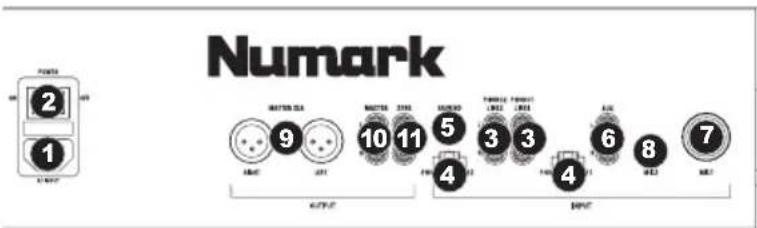
- LINE | PHONO INPUTS (RCA) -
Connect audio sources to these inputs. These inputs can accept both line and phono-level signals. Note: Plug mono audio sources into both left and right inputs using a "Y" cable connector.
- LINE | PHONO SWITCH - Flip this switch to the appropriate position, depending on the device connected to the LINE | PHONO INPUTS. If using phono-level turntables, set this switch to "PHONO" to provide the additional amplification needed for phono-level signals. If using a line-level device, such as a CD player or sampler, set this switch to "LINE."
- GROUNDING TERMINAL - If using phono-level turntables with a grounding wire, connect the grounding wire to these terminals. If you experience a low "hum" or "buzz", this could mean that your turntables are not grounded.
Note: Some turntables have a grounding wire built into the RCA connection and, therefore, nothing needs to be connected to the grounding terminal.
- AUX INPUT (RCA) - Connect an additional line-level audio source to this input. To route the AUX signal to the mix, you will need to flip the AUX channel's INPUT SELECTOR (located on the top panel) to "AUX."
- MIC 1 INPUT - Connect a microphone to this input with an XLR or 1/4" cable.
- MIC 2 INPUT - Connect a 1/4 microphone to this input if you would like to use an additional microphone on the Aux channel. To route the MIC2 signal to the mix, flip the AUX channel's INPUT SELECTOR (located on the top panel) to "MIC2."
- MASTER OUTPUT (XLR) - Connect this low-impedance XLR output to a PA system or powered monitors. Control the level of this output with the MASTER fader on the top panel.
- MASTER OUTPUT (RCA) - Use standard RCA cables to connect this output to a speaker or amplifier system. Control the level of this output by using the MASTER knob on the top panel.
- ZONE OUTPUT (RCA) - Connect this output to an external monitoring device, such as a PA system, powered monitors, or a home stereo. Control the level of this output with the ZONE knob on the top panel.
Note: When connecting microphones, make sure the mic channel's gain knob is at the lowest setting.
LCD FEATURES
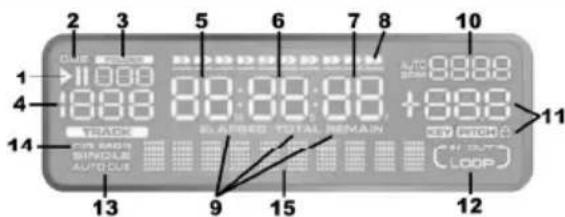
- PLAY / PAUSE - Illuminates when the unit is playing or paused.
- CUE - Flashes when a cue point is being set. This is continuously lit when the unit is paused at a cue point.
- FOLDER NUMBER - Shows the number of the current folder.
- TRACK NUMBER - Shows the current track number.
- MINUTES - Shows the minutes elapsed or remaining depending on the TIME MODE setting.
- SECONDS - Shows the seconds elapsed or remaining depending on the TIME MODE setting.
- FRAMES - The CD player breaks down a second into 75 frames for accurate cueing. This shows the frames elapsed or remaining depending on the TIME MODE setting.
- TIME BAR - Shows either time remaining or elapsed depending on the setting of the TIME button.
- TIME MODE - Indicates whether the time shown on the LCD is the elapsed time for the track, remaining time for the track, or total remaining time for the entire CD.
Note: When playing MP3 files, the total remaining time of the CD cannot be shown.
- BPM - The tempo, which is indicated in BPM (beats per minute). When the automatic beat-counter is on, this indicator will read "AUTOBPM."
- PITCH - Shows the percentage change in pitch. When the lock icon is lit, the KEY LOCK button is engaged.
- LOOP - Indicates when a loop is programmed. When the indicator is flashing, a loop is currently playing. When "IN / OUT" is shown, a loop is programmed but not currently playing.
- SINGLE - Shows when the unit is set to play just one track at a time (Single Play Mode). When this is not lit, the CD will play continuously through all tracks (Continuous Play Mode). This function is controlled by the TIME button.
Note: When in Single Play Mode, "AUTOCUE" will also be shown. When cueing up a new track, playback will start when the actual audio of the track starts, eliminating the silence at the beginning of the track.
- CD / MP3 - Shows when the unit is playing an audio CD or an MP3 CD.
- MATRIX DISPLAY - Displays folder names and MP3 tag information. If reading a disc with no encoding, the display will read "NO TEXT". For CBR-recorded MP3 tracks, the bitrate will be shown. For VBR-recorded MP3 tracks, the display will only show "VBR".
BLUETOOTH PAIRING
-
Power on your Bluetooth device.
-
Power on CDMix Bluetooth.
-
Press and hold the Pair button for 2 seconds on CDMix Bluetooth to go into Pairing Mode to search for Bluetooth devices.
-
Go to your Bluetooth device's setup screen, find "CDMix Bluetooth," and connect to it. The Bluetooth logo in the center of the Bluetooth Controls will illuminate when your device is paired successfully.
Note: If your Bluetooth device prompts for a pairing code, enter '0000'.
Note: If you experience trouble pairing or playing music, update your device's OS.
-
To disconnect pairing, hold down the Pair button on CDMix Bluetooth for 2 seconds. The Bluetooth logo in the center of the Bluetooth Controls will no longer illuminate to confirm pairing is disconnected.
-
To Pair and connect to another Bluetooth device, repeat Steps 3-4.
Note: Maximum range will be achieved when using devices with Bluetooth 4.0.
CUE POINTS
Setting Cue Points:
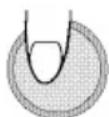
To locate a new cue point during playback, first press the "PLAY/PAUSE" button (pausing the track) and turn the JOG WHEEL for the CD player to repeatedly play small parts of the CD as you move to the desired position. To set the new cue point position, press "PLAY/PAUSE" (resuming playback).
Adjust the "CUE" point with the JOG WHEEL
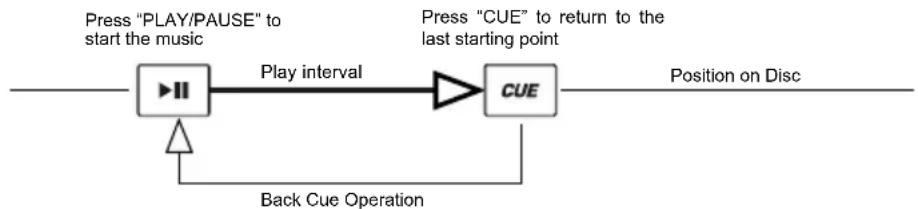
Back Cue Operation:
- Press the "PLAY/PAUSE" button to start the disc.
- Press the "CUE" button to return the disc to the last position (cue point) where it was started from.
NAVIGATING MP3 FOLDERS
One way to organize MP3 files on your CDs is by putting them in separate folders.Folders make it easier to quickly find the music you want.
- Place a MP3 CD that contains folders into one of CDMix Bluetooth's CD drives.
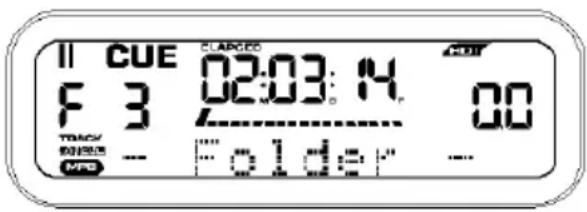
- When the disc is ready, the LCD display will change from "READ" to displaying the folder name.
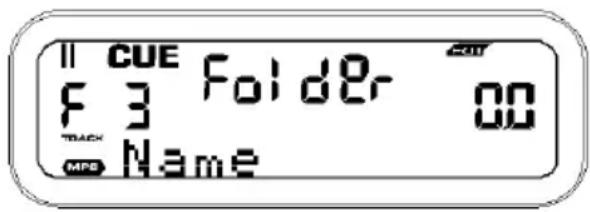
- Press the FOLDER button. The LCD display will flash "FOLDER". Use the TRACK SELECT buttons to scan through the named folders contained on the disc. Press the FOLDER button again to open a folder.
Note: The Track +10 feature is not available with a disc that contains folders. - Use the TRACK SELECT buttons to scan through the tracks contained within the folder. Also, press and hold either of the TRACK SELECT buttons to rapidly scan tracks.
Note: Hold the FOLDER button and press the right-hand TRACK button to toggle between displaying the filename of the current MP3 file or displaying the ID3 tag information.
BPM (BEATS PER MINUTE)
MATCHING THE BPM (BEATS PER MINUTE)
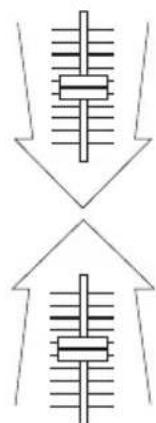
Match the tempo by hearing the music of PLAYER 1 and PLAYER 2 and adjusting the pitch. When the tempo of the music of the selected CD player is slow compared to the tempo of the other player, move the slider to the (+) side and match the tempo. When faster, move the pitch slider to the (-) side. The following illustration shows the case of matching the pitch of PLAYER 2 to the pitch of the music being played on PLAYER 1.
- Press PLAY/PAUSE to start PLAYER 1.
- Press PLAY/PAUSE to start PLAYER 2.
- Listen to PLAYER 2 in your headphones. If the beat of Channel 2 (in the headphones) is faster than Channel 1, slow down the beat of Channel 2 using the pitch control.
- If the beat of Channel 2 (in the headphones) is slower than the beat of Channel 1, speed up the beat using the pitch control.
BEAT-MATCHING USING PITCH BEND
If you find the BPMs (beats per minute or tempo) are the same but the drum beats are not matched, you will need to temporarily change the pitch. After matching the BPMs, adjust the pitch temporarily as follows:
- When PLAYER 2 is ahead, rotate its JOG WHEEL counter-clockwise.
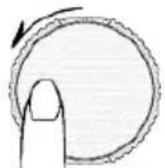
- When PLAYER 2 is behind, rotate its JOG WHEEL clockwise.
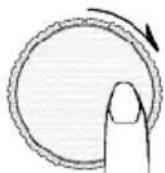
- The pitch changes automatically while the JOG WHEEL is rotated. The faster you rotate the wheel, the more the pitch is changed. Releasing the wheel results in a return to the original pitch with the BPMs once again the same.
CONTENIDO DE LA CAJA
CÓM O N A V E G A R P OR LAS CARPETAS MP3
TIME DISPLAY: Track Elapsed, Track Remaining, Total Remaining
FREQUENCY RESPONSE: ± 3.5 dB (20 Hz - 20 kHz)
OUTPUT LEVEL: 6.5 V
PITCH CONTROL RANGE: ±4%, 8%, and 16%
BLUETOOTH PROFILE: A2DP
BLUETOOTH RANGE: 30 feet
DIMENSIONS (W x D x H): 19" x 10.9" x 5.8"; 482 mm x 276 mm x 147 mm
WEIGHT: 16.8 lbs.; 7.6 kg
POWER SUPPLY: 100V-240V AC, 50/60 Hz
POWER CONSUMPTION: 36 W
Specifications are subject to change