LB510B1 - Monitor DAEWOO - Free user manual and instructions
Find the device manual for free LB510B1 DAEWOO in PDF.



User questions about LB510B1 DAEWOO
0 question about this device. Answer the ones you know or ask your own.
Ask a new question about this device
Download the instructions for your Monitor in PDF format for free! Find your manual LB510B1 - DAEWOO and take your electronic device back in hand. On this page are published all the documents necessary for the use of your device. LB510B1 by DAEWOO.
USER MANUAL LB510B1 DAEWOO
- Read all of these instructions.
- Save these instructions for later use.

-
Unplug this monitor from the wall outlet before cleaning. Do not use liquid cleaners or aerosol cleaners. Use a damp cloth for cleaning.
-
Do not use attachments not recommended by the monitor manufacturer as they may cause hazards.
- Do not use this monitor near water, e.g., near a bathtub, washbowl, kitchen sink, or laundry tub, in a wet basement, or near a swimming pool, etc.

- Do not place this monitor on an unstable cart, stand, or table. The monitor may fall, causing serious injury to a child or adult, and serious damage to the appliance.

- Slots and openings in the cabinet and the back or bottom are provided for ventilation, to ensure reliable operation of the monitor,
These openings must not be blocked or covered. The openings should never be blocked by placing the monitor on a bed, sofa, rug, or other similar surface. This monitor should never be placed near or over a radiator or heat register. This monitor should not be placed in a built-in installation such as a biocide unless proper ventilation is provided.

- This monitor should be operated only from the type of power source indicated on the marking label. If you are not sure of the power supplied to your home, consult dealer or local power company.
your monitor

- This monitor is equipped with a 3-wire grounding-type plug. That is, a plug having a third (grounding) pin. This plug will only fit into a grounding-type
power outlet. This is a safety feature. If you are unable to insert the plug into the outlet, contact your electrician to replace your obsolete outlet. Do not defeat the purpose of the grounding-type plug.

-
Do not allow anything to rest on the power cord. Do not locate this monitor where the cord will be exhausted by people walking on it.
-
Follow all warnings and instructions marked on the monitor.

- For added protection for this monitor during a lightning storm, or when it is left unattended and unused for long periods of time, unplug it from the wall outlet. This
will prevent damage to the monitor and/or the computer due to lightning and power line surges.
-
Du not overload wall outlets and extension cords as this can result in fire or electric shock.
-
Never push objects of any kind into this monitor through cabinet slots, as they may touch dangerous voltage points or short out parts that could result in a fire or electric shock. Never spill liquid of any kind on the monitor.

- Do not attempt to service this monitor yourself, as opening or removing covers may expose you to dangerous voltages or other hazards. Refer all servicing to
qualified service personnel.
- Unplug this monitor from the wall outlet and refer servicing to qualified service personnel under the following conditions:
a. When the power cord or plug is damaged or frayed.
b. If liquid has been spilled into the monitor.
c. If the monitor has been exposed to rain or water.
d. If the monitor does not operate normally by following the operating instructions. Adjust only those controls that are covered by the operating instructions, as improper adjustment of other controls may result in damage and will often require extensive work by a qualified technician to restore normal operation.
e. If the monitor has been dropped or the cabinet has been damaged.
f. When the monitor exhibits a distinct change in performance, this indicates a need for service.

- When replacement parts are required be sure the service technician has used replacement parts specified by the manufacturer that have the same characteristics as
the original part. Unauthorized substitutions may result in fire, electric shock, or other hazards.
- Upon completion of any service or repairs to this monitor, ask the service technician to perform routine safety checks to determine that the monitor is safe to operate.
FEDERAL COMMUNICATIONS COMMISSION RADIO FREQUENCY INTERFERENCE STATEMENT
NOTE: This equipment has been tested and found to comply with the limits for a Class B digital device, pursuant to Part 15 of the FCC Rules. These limits are designed to provide reasonable protection against harmful interference in a residential installation. This equipment generates, uses and can radiate radio frequency energy and, if not installed and used in accordance with the instructions, may cause harmful interference to radio communications. However, there is no guarantee that interference will not occur in a particular installation. If this equipment does cause harmful interference to radio or television reception, which can be determined by turning the equipment off and on, the user is encouraged to try to correct the interference by one or more of the following measures:
-
Reorient or relocate the receiving antenna.
-
Increase the separation between the equipment and receiver.
- Connect the equipment to an outlet on a circuit different from that to which the receiver is connected.
- Consult the dealer or an experienced radio or TV technician for help.
CAUTION: Any changes or modifications not expressly approved by the party responsible for compliance could void the user's authority to operate the equipment.
CANADIAN NOTICE
This Class B digital apparatus meets all requirements of the Canadian Interference-Caising Equipment Regulations.
AVIS CANADIEN
DECLARATION OF CONFORMITY
We, Manufacturer / Importer
DAEWOO ELECTRONICS CO., Ltd. 541, 5-Ga, Namdaemoon-Ro, Jung-Gu Seoul, Korea
declare under our sole responsibility that the product,
TFTLCD monitor L510B1
to which this declaration relates is in conformity with the following standard(s) or other normative document(s)
Safety: EN60950/1992/A1:1993/A2:1993
A3:1995/A4:1997
EMC: EN 55022/8.1994/A1:1995/A2:1995
EN 55024/1998
EN 61000-3-2,3/1995
following the provisions of 89/336 EEC-EMC Directive and the provisions of 73/23 EEC-Low Voltage Directive.
Handed over by: Jong K. Choi, Director. Display Business Division.
June, 2001 Seoul
Signature:

J.K.Chol Director. Display Business Division. DAEWOO ELECTRONIC
Emission Characteristics Tested by SEMKO
A sample of this type has been tested and has shown compliance with
theguidelines in the swedish document TCO 99.
This product is also designed for IT power system with phase to phase voltage of 230V .
The power cord is used as a main disconnect device. Disconnect the
power cord before servicing. The outlet must be installed near the monitor and must be easily accessible.
As an ENERGY STAR® Partner, Daewoo Electronics Co., Ltd. has
determined that this product meets the Energy Star® guidelines for
energy efficiency.
The appliance is not intended for use by young children or infirm
persons without supervision
Young children should be supervised to ensure that they do not play
with the appliance.
CONTENTS
Introduction 1
Product Features 2
Setup 3
Connecting the Signal Cable and Power Cord. 3
Changing the stand 4
Operation & Adjustment 6
Specifications 11
Factory Preset Timings 12
Troubleshooting 13
Appendix
Description for D-sub Connector
INTRODUCTION
This manual explains how to correctly install, operate and get the best performance from your monitor. Please read this user's guide carefully before installing your monitor, then keep it near your monitor for quick reference.
First, please check that the contents of the box corresponds with the following checklist :
TFT LCD monitor
Power cord
15 pin D-sub video cable
- User's guide
Warranty card (Optional)
If any item is missing or damaged, please contact your dealer. Please keep the box and packing materials so that you may properly store or transport your monitor.
PRODUCT FEATURES
- The convenient and user-friendly on-screen display allows for easy and accurate adjustments of horizontal and vertical screen size, position and screen color.
The monitor supports a safe working environment in strict compliance with the TCO 99 standard for low emissions. - The monitor complies with the VESA Display Data Channel (DDC) specification for Plug and Play compatibility. Advanced microcircuitry makes setup and configuration fast and effortless.
The monitor features Advanced Color Controls for fine-tuning to meet your own personal tastes or application requirements. Use the on-screen controls to adjust the color temperature, RGB gain value for the best possible screen color and intensity. - Press the menu button and activate the Self-Diagnosis menu to determine whether your monitor is functioning normally, not receiving a signal or is receiving a signal that is out of scanning range.
Activate the higher refresh rates of the monitor to stabilize the screen and eliminate the annoying flicker that contributes to eye-strain and headaches. - The "borderless" full-screen display capability works under all graphic modes and provides a larger viewing area than conventional monitors, giving you a better picture with more workspace.
The monitor supports the optimal display performance with 1024x768 at 75Hz.
SETUP
CONNECTING THE SIGNAL CABLE AND POWER CORD
- Turn off the computer and monitor.
- Connect the 15 pin D-sub connector to the output port of the video card in your computer and monitor.
- Tighten the screws of the connector.
- Plug the power cord into the AC receptacle located on the back of the monitor.
- Plug the other end of the power cord into the AC outlet.
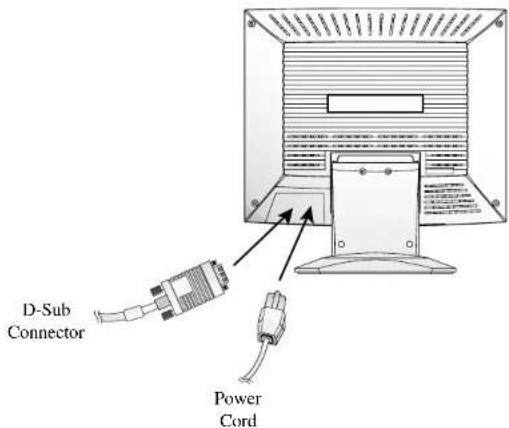
English - 3
CHANGING THE STAND
Removing the stand
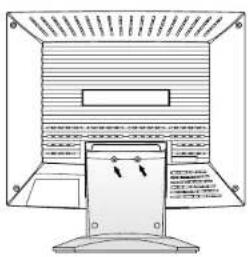
Remove 2 screws.
Removing the Hinge Cover
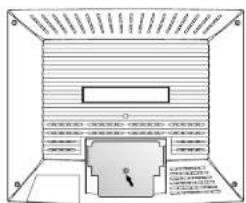
Remove I screw.
English - 4
Removing the Hinge
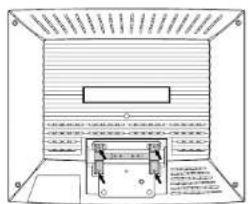
Remove 4 screws.
Attaching the monitor with the arm-stand
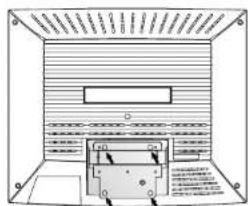
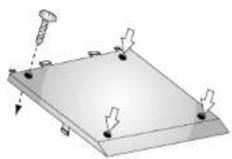
Tighten 4 screws.
Use the VESA approved arm-stand.
(75x75 mm hole spacing)
English - 5
The EXIT button turns the OSD (On-Screen Display) window off.
This button moves from sub menu to top menu in the OSD window.
MENU

The MENU button turns the OSD window on.
This button moves from top menu to sub menu in the OSD window.
BRIGHTNESS

The button moves cursor to the left or high window in the OSD window.
- This button decreases the value of any selected function.
BRIGHTNESS

The button moves cursor to the right or low window in the OSD window.
- This button increases the value of any selected function.
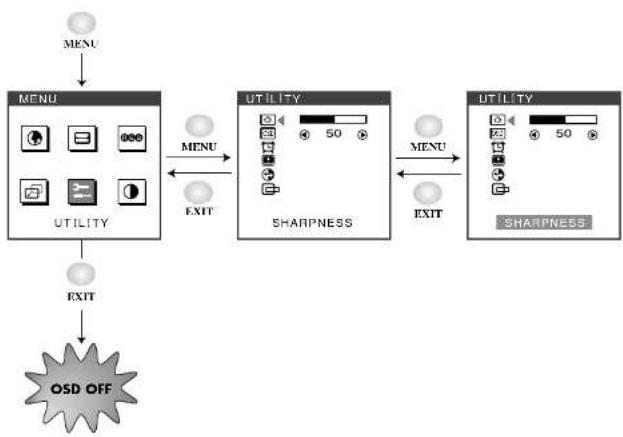
Key Process
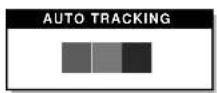
Hot Key
AUTO
BRIGHTNESS
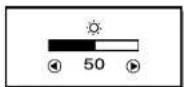
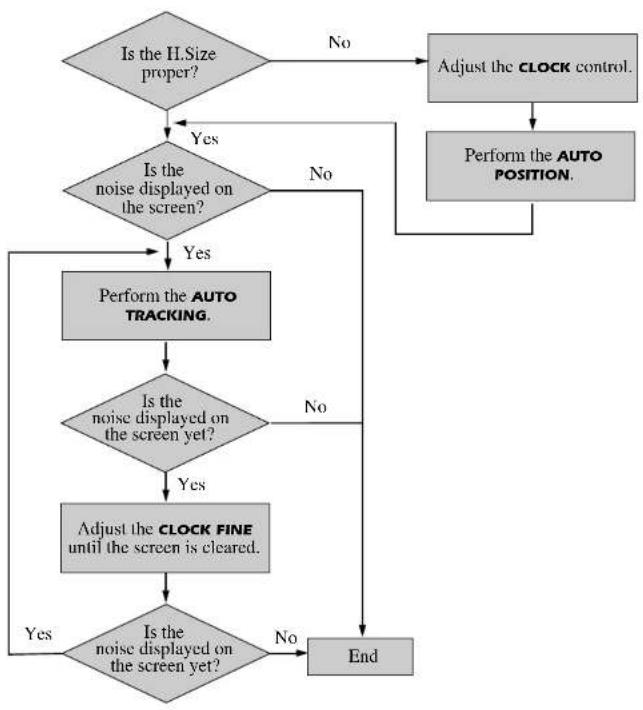
English - 9
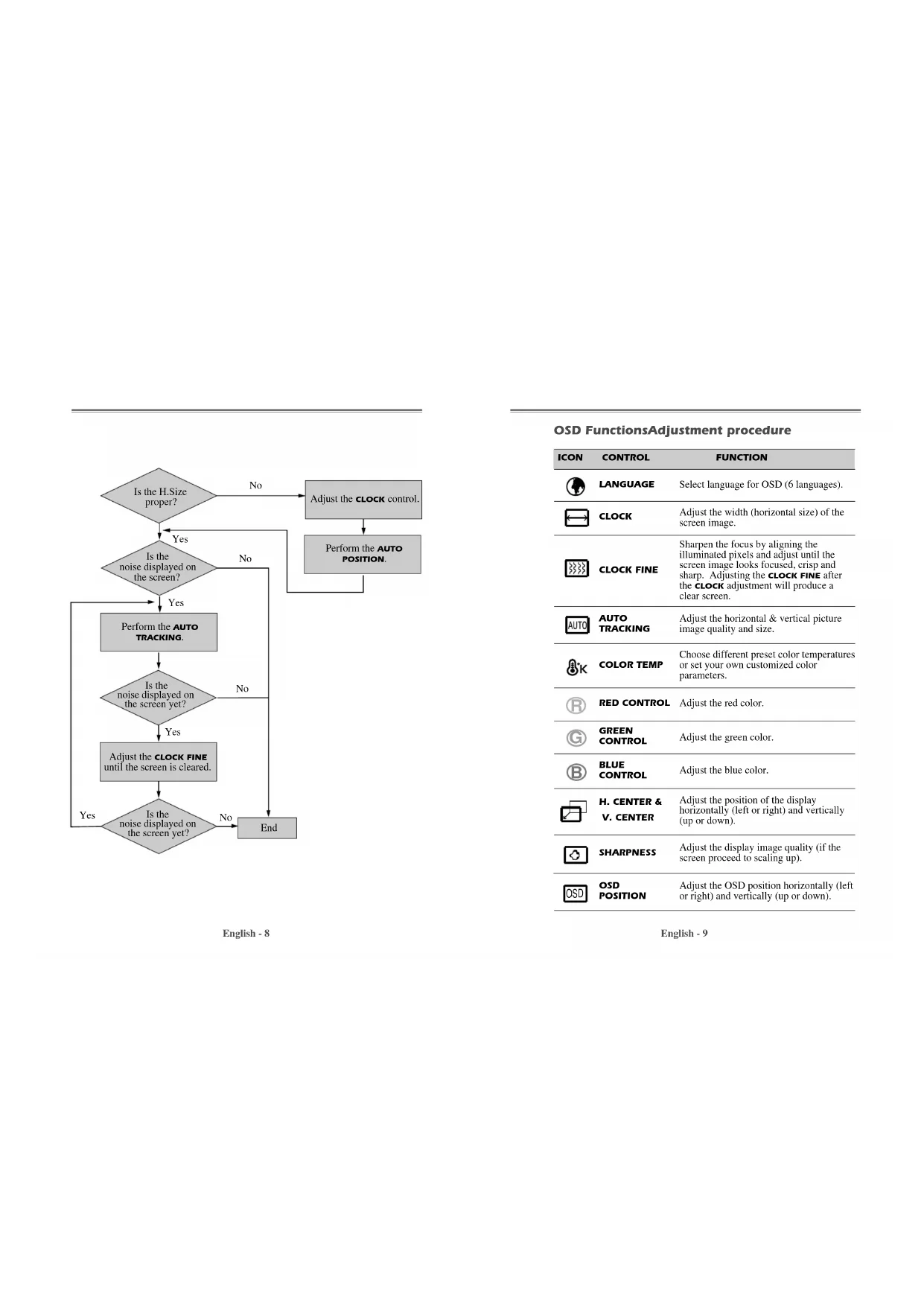
English - 8
OSD FunctionsAdjustment procedure
| ICON | CONTROL | FUNCTION |
| LANGUAGE | Select language for OSD (6 languages). | |
| CLOCK | Adjust the width (horizontal size) of the screen image. | |
| CLOCK FINE | Sharpen the focus by aligning the illuminated pixels and adjust until the screen image looks focused, crisp and sharp. Adjusting the CLOCK FINE after the CLOCK adjustment will produce a clear screen. | |
| AUTO | AUTO TRACKING | Adjust the horizontal & vertical picture image quality and size. |
| BK | COLOR TEMP | Choose different preset color temperatures or set your own customized color parameters. |
| R | RED CONTROL | Adjust the red color. |
| G | GREEN CONTROL | Adjust the green color. |
| B | BLUE CONTROL | Adjust the blue color. |
| H. CENTER & V. CENTER | Adjust the position of the display horizontally (left or right) and vertically (up or down). | |
| SHARPNESS | Adjust the display image quality (if the screen proceed to scaling up). | |
| OSD | OSD POSITION | Adjust the OSD position horizontally (left or right) and vertically (up or down). |
| OSD TIME OUT | Adjust the display OSD Menu. | |
| STATUS | Display horizontal & vertical frequency and polarity. | |
| RECALL | Reset the screen to the Factory Preset Display Settings. | |
| AUTO POSITION | Choose automatically the proper horizontal position and vertical position & size of the screen image. | |
| CONTRAST | Adjust the contrast of image, the difference between light and dark areas on the screen. | |
Self Diagnosis
When the monitor doesn't display, if you press any key, Self Diagnosis screen is displayed. Self Diagnosis function checks if the status of the monitor is No Signal or Out of range.
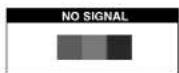
No Signal screen is displayed when the D-Sub signal connector is not connected or the status of the monitor is on DPMS mode.
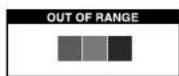
Out of Range screen is displayed when the applied frequency is under or over normal range.
Normal range
Non-interlaced mode only)
H:30-62KHz
V:50-75Hz
SPECIFICATIONS
| Panel Size 15-inch (38cm) diagonal | ||
| Pixel Pitch 0.297 x 0.297mm | ||
| Viewing Angle 75°(Right/Left) | ||
| 70°(up), 70°(down) | ||
| Contrast Ratio 350:1 contrast ratio (typ) | ||
| Brightness 250cd/m 2 brightness (typ) | ||
| Color Filter RGB vertical stripe | ||
| Synchronization Horizontal 30 - 62KHz | ||
| Vertical 50 - 75Hz | ||
| Video Bandwidth 80MHz | ||
| Max Resolution 1024 x 768 75Hz | @ | |
| Colors 6bit (With dithering 16.7M Colors) | ||
| Display Area 304.1mm x 228.1mm | ||
| Input Signal | Video | RGB analog (0.7Vp-p, 75ohms) |
| Sync | H/V separate (TTL) | |
| Input Signal Connector | 15 pin mini D-Sub | |
| Plug and Play | DDC1/2B/CI | |
| Power Source | 100-240Vac, 50/60Hz (Free Voltage) | |
| Power Consumption | 25.5W | |
| Dimension-W x H x D | 390 x 396 x 205mm (with stand) | |
| 390 x 325 x 70.5mm (without stand) | ||
| Weight(net/gross) | 4.6/6.1Kg | |
| 10/13.2lbs | ||
| Power Saving | EPA, VESA DPMS, Nutek Compliant | |
| Tilt/Swivel Range | Tilt | 5° forward, 30° backward |
| Swivel | 90° leftward, rightward | |
| Operating Temperature | 10 - 40°C /50 - 104°F | |
* This specification can be changed without any prior notice to improve the quality of the product.
The LCD panel may have some defective pixels (e.g. slightly light or dark) due to a characteristic of the LCD panel. But there is no defect in your LCD product itself.
FACTORY PRESET TIMINGS
| VESA MODES | ||||
| Mode Hreq(KHz Resolution (dots × times) | Remark | |||
| VGA | 640 × 480 @ 60Hz 31.5 | 60 Non-interlaced | ||
| VGA 640 | × 480 @ 72Hz 37.9 | 72 Non-interlaced | ||
| VGA | 640 × 480 @ 75Hz 37.5 | 75 Non-interlaced | ||
| SVGA 800 | × 600 @ 56Hz 35.2 | 56 Non-interlaced | ||
| SVGA 800 | × 600 @ 60Hz 37.9 | 60 Non-interlaced | ||
| SVGA 800 | × 600 @ 72Hz 48.1 | 72 Non-interlaced | ||
| SVGA 800 | × 600 @ 75Hz 46.9 | 75 Non-interlaced | ||
| XGA 1024 | × 768 @ 60Hz 48.4 | 60 Non-interlaced | ||
| XGA 1024 | × 768 @ 70Hz 56.5 | 70 Non-interlaced | ||
| XGA 1024 | × 768 @ 75Hz 60.0 | 75 Non-interlaced | ||
| IBM MODES | ||||
| Mode Hreq(KHz Resolution (dots × times) | Remark | |||
| EGA | 640 × 350 @ 70Hz 31.5 | 70 Non-interlaced | ||
| DOS | 720 × 400 @ 70Hz 31.3 | 70 Non-interlaced | ||
| MAC MODES | ||||
| Mode Hreq(KHz Resolution (dots × times) | Remark | |||
| VGA | 640 × 480 @ 67Hz 35.0 | 67 Non-interlaced | ||
| SVGA 832 | × 624 @ 75Hz 49.7 | 75 Non-interlaced | ||
* The LCD Monitor has only Non-interlanced modes without flicker.
TROUBLESHOOTING
| Symptom | Check |
| Picture is jittercd. | Adjust Clock to set the screen position and adjustClock fine until a noise isn't displayed. |
| No picture. | Check if power switch and computer power switch are in the on position.↓Check if the signal cable is correctly connected to the video card.↓Check if the pins of D subconnector are not bent.↓Check if the computer is in the power- saving mode. |
| POWER LED is not lit. | Check if power switch is in the on position.↓Check if the power cord is correctly connected. |
| Image is unstable. | Check if the signal cable is suitable to the video card. |
| Image is not centered, too small or too large. | Adjust Clock or H&V Center to get the proper image. |
| Picture bounces or a wave pattern is present in the picture. | Keep the devices that may cause electrical interference away from the monitor.↓See the FCC information at the front cover of the manual. |
| Picture is blurred. | Adjust Contrast and Brightness. |
APPENDIX
DESCRIPTION FOR D-SUB CONNECTOR
| Pin | Signal |
| 1 | Red |
| 2 | Green |
| 3 | Blue |
| 4 | GND |
| 5 | GND |
| 6 | GND-Red |
| 7 | GND-Green |
| 8 | GND-Blue |
| 9 | +5Vdc |
| 10 | GND-HSync |
| 11 | GND-V Sync |
| 12 | Bi-directional Data(SDA) |
| 13 | Horizontal Sync |
| 14 | Vertical Sync(VCLK) |
| 15 | Data Clock(SCL) |
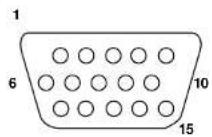
※ GND=Ground
TABLE DES MATIERES
Introduction 1