PDM1 - Monitor YAMAHA - Free user manual and instructions
Find the device manual for free PDM1 YAMAHA in PDF.



| Product Type | High-resolution plasma monitor |
| Brand | YAMAHA |
| Model | PDM1 |
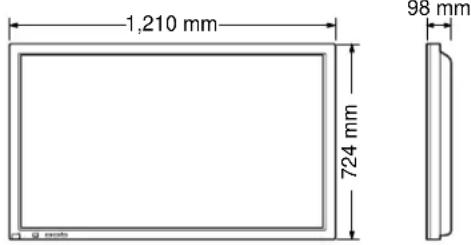
| Dimensions (W × H × D) | 1,210 mm × 724 mm × 98 mm |
| Net weight | 42.5 kg |
| Screen size | 50 inches (diagonal 1,269 mm) |
| Aspect ratio | 16:9 |
| Native resolution | 1,366 × 768 pixels |
| Power supply | AC 220-240 V, 50/60 Hz |
| Power consumption (normal) | 495 W |
| Power consumption (standby) | 3.0 W |
| Power consumption (off) | 1.7 W |
| Horizontal scanning frequency | 15.6 – 110 kHz |
| Vertical scanning frequency | 48 – 120 Hz |
| Video inputs | AV (S-Video), Component (Y/Pb/Pr), RGB, PC (D-sub 15) |
| PC audio input | 3.5 mm stereo mini-jack |
| Serial port | RS-232C (D-sub 9-pin) for external control |
| Built-in audio power | 16 W (2 × 8 W) with optional speakers SP-PDM1 |
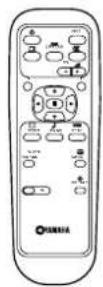
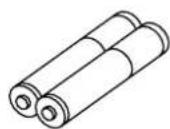
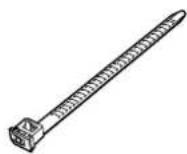
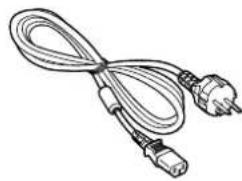
| Supplied accessories | Remote control, R6 batteries (×2), cable ties (×2), ferrite cores (small and large), power cord |
| Optional accessories | Speakers SP-PDM1, pedestal PDS-150, wall mount PWK-150, RCA card PTM-RCA1 |
| Operating conditions | Temperature 0°C – 40°C, humidity 20% – 80% |
| Maintenance and cleaning | Soft lint-free cloth, water and mild detergent if necessary. Do not use volatile substances. |
| Safety | Do not expose to rain or moisture. Do not open the casing. Use a grounded outlet. |
| Warranty | Image retention due to prolonged display of still images not covered by warranty. |
Frequently Asked Questions - PDM1 YAMAHA
User questions about PDM1 YAMAHA
0 question about this device. Answer the ones you know or ask your own.
Ask a new question about this device
Download the instructions for your Monitor in PDF format for free! Find your manual PDM1 - YAMAHA and take your electronic device back in hand. On this page are published all the documents necessary for the use of your device. PDM1 by YAMAHA.
USER MANUAL PDM1 YAMAHA
natural_image
Illustration of a flat-screen TV with a remote control unit beside it (no text or symbols visible)HIGH DEFINITION PLASMA MONITOR
natural_image
Modern flat-screen monitor with three side panels, shown in a row (no text or symbols visible)Operating Instructions
Table of Contents
Basic
Important Safety Notice.... 3
Safety Precautions.... 5
Accessories 7
Accessories Supply....7
Optional Accessories 7
Remote Control Batteries....8
Connections 9
PC Input Terminals connection 10
SERIAL Terminals connection.... 12
With Optional RCA Terminal Board
Basic Controls.... 13
Power On/Off and input signal selection .... 14
AC cord connection.... 14
Power On/Off 14
Select the input signal 15
Selecting the On-Screen Menu Language ..... 15
On-Screen Menu Display from Remote Control ..... 16
ASPECT Controls.... 18
Adjusting Picture Pos./Size 20
Sound Adjustment 22
Mute 22
Surround Controls 23
Picture Adjustments 24
Advanced settings.... 25
Set up TIMER 26
PRESENT TIME Set 26
TIMER Set 27
Screensaver (For preventing after-images)...... 28
Setup of Screensaver Time.... 29
Side Panel Adjustment 29
Set up for Input Signals.... 30
Component/RGB-in select 30
3D Y/C Filter – For NTSC AV images ...... 30
Colour system / Aspect Auto 31
3:2 Pulldown 31
Sync 32
H-Freq. (kHz)/V-Freq. (Hz) 32
Troubleshooting 33
Connections 34
Basic connection 35
Speaker Terminals connection 36
Component / RGB Input connection 37
Specifications.... 38
Important Safety Notice
WARNING: To prevent damage which may result in fire or shock hazard, do not expose this appliance to rain or moisture.
Do not place containers with water (flower vase, cups, cosmetics, etc.) above the set. (including on shelves above, etc.)
WARNING: 1) To prevent electric shock, do not remove cover. No user serviceable parts inside. Refer servicing to qualified service personnel.
2) Do not remove the earthing pin on the power plug. This apparatus is equipped with a three pin earthing-type power plug. This plug will only fit an earthing-type power outlet. This is a safety feature. If you are unable to insert the plug into the outlet, contact an electrician. Do not defeat the purpose of the earthing plug.
WARNING
This is a class A product. In a domestic environment this product may cause radio interference in which case you may be required to take adequate measures.
CAUTION
This appliance is intended for use in environments which are relatively free of electromagnetic fields. Using this appliance near sources of strong electromagnetic fields or where electrical noise may overlap with the input signals could cause the picture and sound to wobble or cause interference such as noise to appear. To avoid the possibility of harm to this appliance, keep it away from sources of strong electromagnetic fields.
To prevent electric shock, ensure the grounding pin on the AC cord power plug is securely connected.
Trademark Credits
• VGA is a trademark of International Business Machines Corporation.
• Macintosh is a registered trademark of Apple Computer, USA.
- S-VGA is a registered trademark of the Video Electronics Standard Association.
Even if no special notation has been made of company or product trademarks, these trademarks have been fully respected.
Note:
Do not allow a still picture to be displayed for an extended period, as this can cause a permanent after-image to remain on the plasma display.
Examples of still pictures include logos, video games, computer images, teletext and images displayed in 4:3 mode.
FOR UK ONLY
IMPORTANT: THE MOULDED PLUG
FOR YOUR SAFETY, PLEASE READ THE FOLLOWING TEXT CAREFULLY.
This appliance is supplied with a moulded three pin mains plug for your safety and convenience. A 5 amp fuse is fitted in this plug. Shall the fuse need to be replaced, please ensure that the replacement fuse has a rating of 5 amps and that it is approved by ASTA or BSI to BS1362.
Check for the ASTA mark 🍒 or the BSI mark 🌼 on the body of the fuse.
If the plug contains a removable fuse cover, you must ensure that it is refitted when the fuse is replaced. If you lose the fuse cover the plug must not be used until a replacement cover is obtained A replacement fuse cover can be purchased from your local Yamaha Dealer.
If the fitted moulded plug is unsuitable for the socket outlet in your home, then the fuse shall be removed and the plug cut off and disposed of safety. There is a danger of severe electrical shock if the cut off plug is inserted into any 13 amp socket.
If a new plug is to be fitted, please observe the wiring code as shown below. If in any doubt, please consult a qualified electrician.
WARNING: — THIS APPARATUS MUST BE EARTHED.
IMPORTANT: — The wires in this mains lead are coloured in accordance with the following code: — Green-and-Yellow: Earth Blue: Neutral Brown: Live
As the colours of the wire in the mains lead of this appliance may not correspond with the coloured markings identifying the terminals in your plug, proceed as follows.
The wire which is coloured GREEN-AND-YELLOW must be connected to the terminal in the plug which is marked with the letter E or by the Earth symbol ⏻ or coloured GREEN or GREEN-AND-YELLOW.
The wire which is coloured BLUE must be connected to the terminal in the plug which is marked with the letter N or coloured BLACK.
The wire which is coloured BROWN must be connected to the terminal in the plug which is marked with the letter L or coloured RED.
natural_image
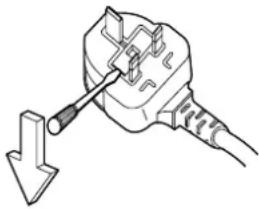
Line drawing of a plug with a screwdriver inserted, showing a downward arrow (no text or symbols)How to replace the fuse. Open the fuse compartment with a screwdriver and replace the fuse.
Safety Precautions
WARNING
Setup
This plasma display is for use only with the following optional accessories. Use with any other type of optional accessories may cause instability which could result in the possibility of injury.
- Pedestal PDS-150
• Wall Mounting Unit ...... PWK-150 - Plasma Display RCA Terminal Board……PTM-RCA1
- Speakers SP-PDM1
(In the case of connecting the speakers directly with the speaker terminals of the plasma display)
Always be sure to ask a qualified technician to carry out set-up.
Do not place the plasma display on sloped or unstable surfaces.
- The plasma display may fall off or tip over.
Do not place any objects on top of the plasma display.
- If water is spills onto the plasma display or foreign objects get inside it, a short-circuit may occur which could result in fire or electric shock. If any foreign objects get inside the plasma display, please consult your local Yamaha dealer.
If using the pedestal (optional accessory), leave a space of at least 10 cm at the top, left and right, at least 6 cm at the bottom, and at least 7 cm at the rear. If using some other setting-up method, leave a space of at least 10 cm at the top, bottom, left and right, and at least 1.9 cm at the rear.
Avoid installing this product near electronic equipment that is easy to receive electromagnetic waves.
- It may cause interference in image, sound, etc. In particular, keep video equipment away from this product.
When using the plasma display
The plasma display is designed to operate on 220 - 240 V AC, 50/60 Hz.
Do not cover the ventilation holes.
- Doing so may cause the plasma display to overheat, which can cause fire or damage to the plasma display.
Do not stick any foreign objects into the plasma display.
- Do not insert any metal or flammable objects into the ventilations holes or drop them onto the plasma display, as doing so can cause fire or electric shock.
Do not remove the cover or modify it in any way.
- High voltages which can cause severe electric shocks are present inside the plasma display. For any inspection, adjustment and repair work, please contact your local Yamaha dealer.
Securely insert the power cord plug as far as it will go.
- If the plug is not fully inserted, heat may be generated which could cause fire. If the plug is damaged or the wall socket plate is loose, they shall not be used.
Do not handle the power cord plug with wet hands.
- Doing so may cause electric shocks.
Do not do anything that may damage the power cable. When disconnecting the power cable, pull on the plug body, not the cable.
- Do not damage the cable, make any modifications to it, place heavy objects on top of it, heat it, place it near any hot objects, twist it, bend it excessively or pull it. To do so may cause fire and electric shock. If the power cable is damaged, have it repaired at your local Yamaha dealer.
If the plasma display is not going to be used for any prolonged length of time, unplug the power cord plug from the wall outlet.
If problems occur during use
If a problem occurs (such as no picture or no sound), or if smoke or an abnormal odour starts to come out from the plasma display, immediately unplug the power cord plug from the wall outlet.
- If you continue to use the plasma display in this condition, fire or electric shock could result. After checking that the smoke has stopped, contact your local Yamaha dealer so that the necessary repairs can be made. Repairing the plasma display yourself is extremely dangerous, and shall never be done.
If water or foreign objects get inside the plasma display, if the plasma display is dropped, or if the cabinet becomes damages, disconnect the power cord plug immediately.
- A short circuit may occur, which could cause fire. Contact your local Yamaha dealer for any repairs that need to be made.

CAUTION
When using the plasma display
Do not bring your hands, face or objects close to the ventilation holes of the plasma display.
- Heated air comes out from the ventilation holes at the top of plasma display will be hot. Do not bring your hands or face, or objects which cannot withstand heat, close to this port, otherwise burns or deformation could result.
Be sure to disconnect all cables before moving the plasma display.
- If the plasma display is moved while some of the cables are still connected, the cables may become damaged, and fire or electric shock could result.
Disconnect the power cord plug from the wall socket as a safety precaution before carrying out any cleaning.
• Electric shocks can result if this is not done.
Clean the power cable regularly to prevent it becoming dusty.
- If dust built up on the power cord plug, the resultant humidity can damage the insulation, which could result in fire. Pull the power cord plug out from the wall outlet and wipe the mains lead with a dry cloth.
This Plasma Display radiates infrared rays, therefore it may affect other infrared communication equipment. Install your infrared sensor in a place away from direct or reflected light from your Plasma Display.
Cleaning and maintenance
The front of the display panel has been specially treated. Wipe the panel surface gently using only a cleaning cloth or a soft, lint-free cloth.
- If the surface is particularly dirty, wipe with a soft, lint-free cloth which has been soaked in pure water or water to which a small amount of neutral detergent has been added, and then wipe it evenly with a dry cloth of the same type until the surface is dry.
- Do not scratch or hit the surface of the panel with fingernails or other hard objects, otherwise the surface may become damaged. Furthermore, avoid contact with volatile substances such as insect sprays, solvents and thinner, otherwise the quality of the surface may be adversely affected.
If the cabinet becomes dirty, wipe it with a soft, dry cloth.
- If the cabinet is particularly dirty, soak the cloth in water to which a small amount of neutral detergent has been added and then wring the cloth dry. Use this cloth to wipe the cabinet, and then wipe it dry with a dry cloth.
- Do not allow any detergent to come into direct contact with the surface of the plasma display. If water droplets get inside the unit, operating problems may result.
- Avoid contact with volatile substances such as insect sprays, solvents and thinner, otherwise the quality of the cabinet surface may be adversely affected or the coating may peel off. Furthermore, do not leave it for long periods in contact with articles made from rubber or PVC.
Accessories
Accessories Supply
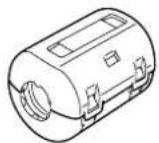
Check that you have the accessories and items shown


Remote Control
Transmitter

Batteries for the Remote Control Transmitter (2 · R6 Size)

Fixing bands
2 pcs

AC cord

AC cord (UK)

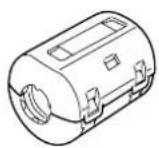
Ferrite core (small size) · 1

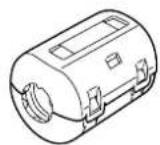
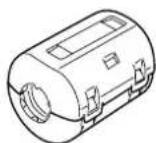
Ferrite core
(large size) · 2
natural_image
Illustration of a coiled electrical plug with two terminal plugs (no text or symbols)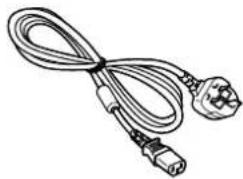
natural_image
Line drawing of a cable with two connectors and a plug, no text or symbols present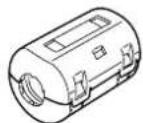
Optional Accessories
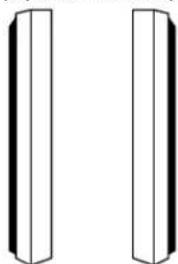
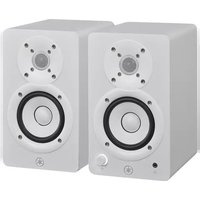
- Speakers
SP-PDM1
(Special order products)
natural_image
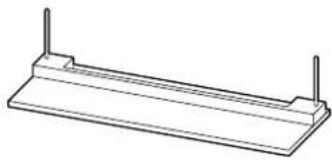
Two identical 3D geometric shapes resembling vertical cylinders or funnels, with no text or symbols.- Pedestal
PDS-150
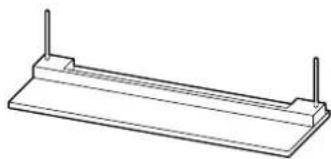
natural_image
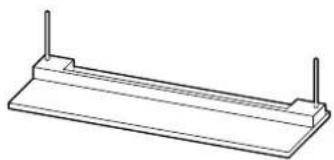
Technical line drawing of a rectangular electronic component with two vertical posts (no text or symbols)• Wall Mounting Unit PWK-150
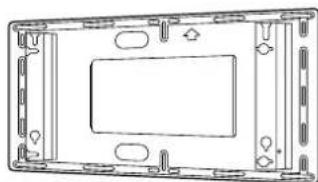
natural_image
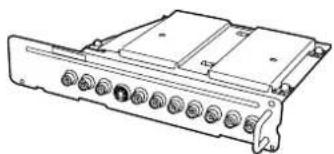
Technical line drawing of a rectangular electronic component with mounting holes and internal compartments (no text or symbols)- Plasma Display
RCA Terminal Board PTM-RCA1
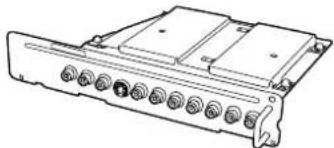
natural_image
Line drawing of a rectangular electronic device with multiple ports and connectors (no text or symbols)For assembling
Full instructions are supplied with each optional accessory for use with this plasma display.
Remote Control Batteries
Requires two R6 batteries.
-
Turn the transmitter face down. Press and slide off the battery cover.
-
Install the batteries as shown in the battery compartment. (Polarity + or – must match the markings in the compartment.)
-
Replace the cover and slide in reverse until the lock snaps.
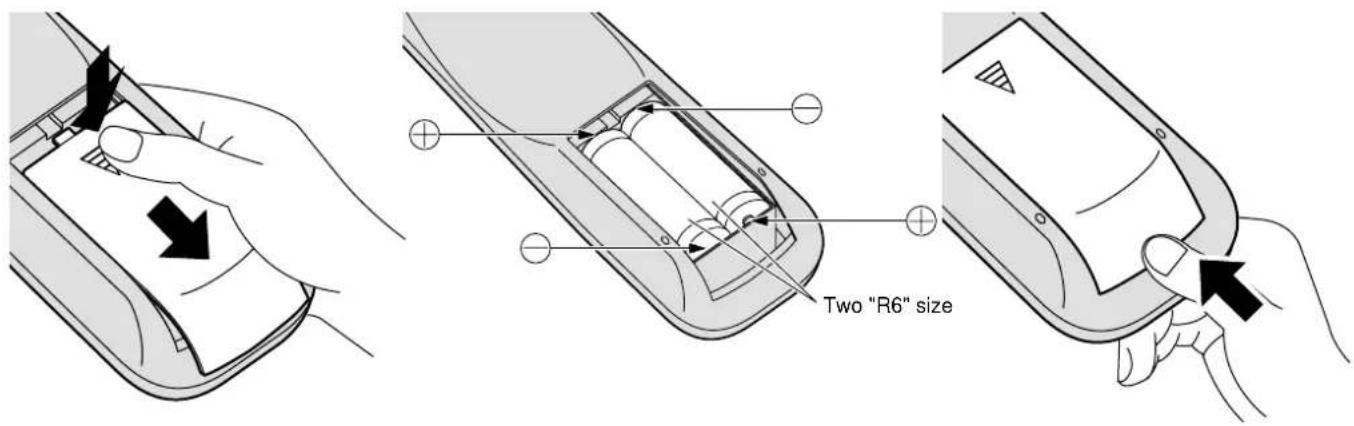
Helpful Hint:
For frequent remote control users, replace old batteries with Alkaline batteries for longer life.

Precaution on battery use
Incorrect installation can cause battery leakage and corrosion that will damage the remote control transmitter.
Observe the following precaution:
- Batteries shall always be replaced as a pair. Always use new batteries when replacing the old set.
- Do not combine a used battery with a new one.
- Do not mix battery types (example: "Zinc Carbon" with "Alkaline").
- Do not attempt to charge, short-circuit, disassemble, heat or burn used batteries.
- Battery replacement is necessary when remote control acts sporadically or stops operating the plasma display set.
Connections
PC Input Terminals connection
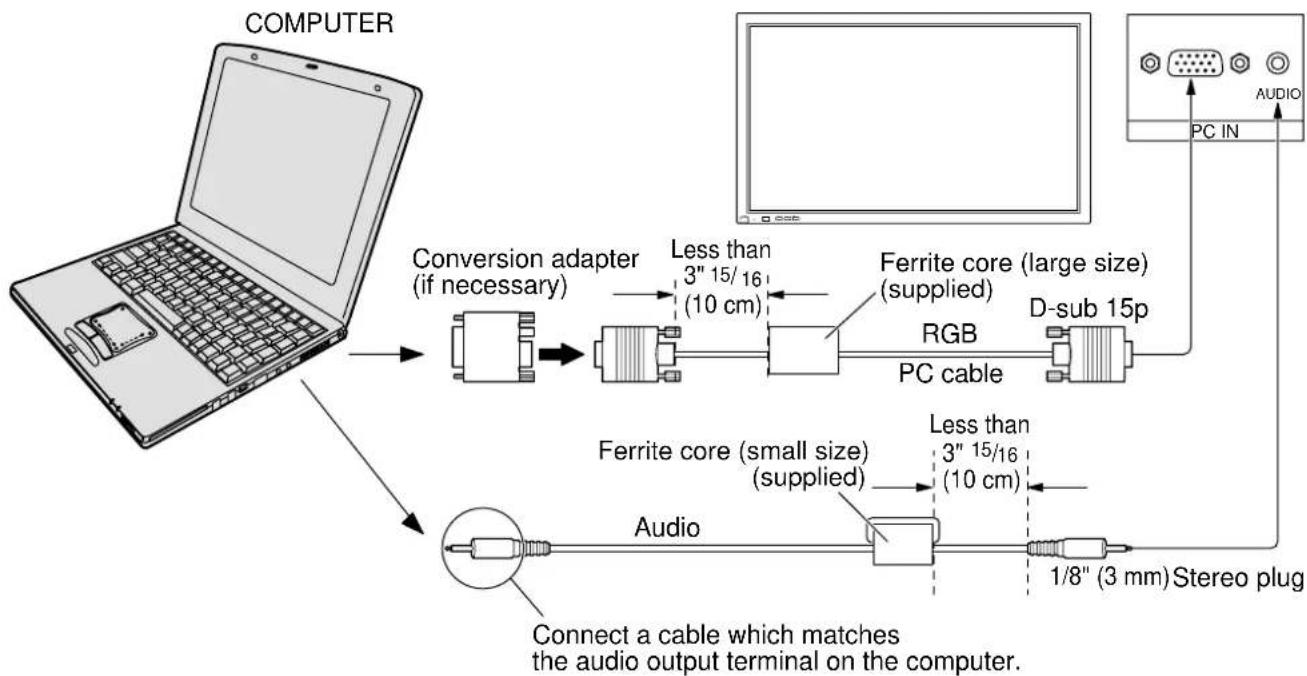
flowchart
graph TD
    A["COMPUTER"] --> B["Conversion adapter (if necessary)"]
    B --> C["PC cable"]
    C --> D["Ferrite core (supplied) (10 cm)"]
    D --> E["RGB"]
    E --> F["D-sub 15p"]
    F --> G["PC IN"]
    G --> H["Audio"]
    H --> I["1/8" (3 mm) Stereo plug"]
    I --> J["Audio"]
    B --> K["Less than 3" 15/16 (10 cm)"]
    K --> L["Ferrite core (small size) (supplied)"]
    L --> M["Audio"]
    M --> N["Connect a cable which matches the audio output terminal on the computer."]
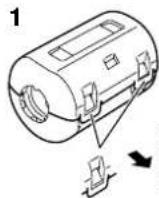
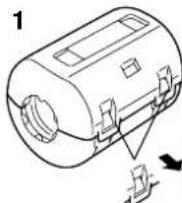
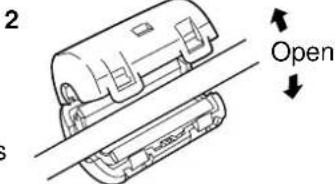
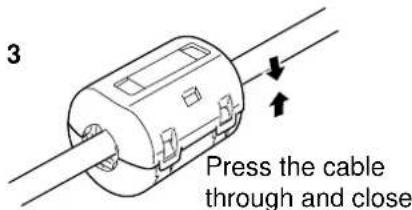
Installing the ferrite core (Small size)
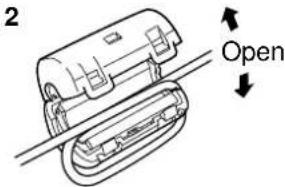
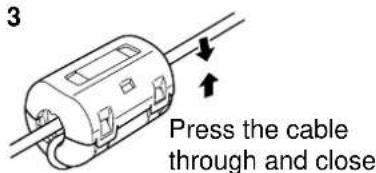
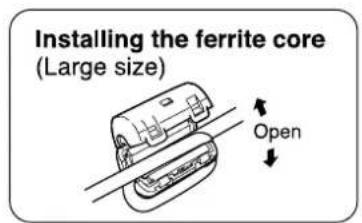
Installing the ferrite core (Large size)
Notes:
(1) Computer signals which can be input are those with a horizontal scanning frequency of 15.6 to 110 kHz and vertical scanning frequency of 48 to 120 Hz. (However, the image will not be displayed properly if the signals exceed 1,200 lines.)
(2) The display resolution is a maximum 1,024 · 768 dots when the aspect mode is set to "4:3", and 1,366 · 768 dots when the aspect mode is set to "16:9". If the display resolution exceeds these maximums, it may not be possible to show fine detail with sufficient clarity.
(3) The PC input terminals are DDC1/2B-compatible. If the computer being connected is not DDC1/2B-compatible, you will need to make setting changes to the computer at the time of connection.
(4) Some PC models cannot be connected to the set.
(5) There is no need to use an adapter for computers with DOS/V compatible D-sub 15P terminal.
(6) The computer shown in the illustration is for example purposes only.
(7) Additional equipment and cables shown are not supplied with this set.
(8) Do not set the horizontal and vertical scanning frequencies for PC signals which are above or below the specified frequency range.
Signal Names for D-sub 15P Connector
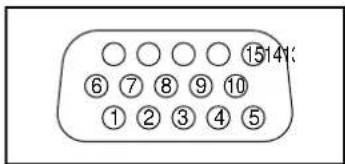
Pin Layout for PC Input Terminal
| Pin No. | Signal Name | Pin No. | Signal Name | Pin No. | Signal Name |
| 1 | R | 6 | GND (Ground) | 11 | GND (Ground) |
| 2 | G | 7 | GND (Ground) | 12 | SDA |
| 3 | B | 8 | GND (Ground) | 13 | HD/SYNC |
| 4 | GND (Ground) | 9 | NC (not connected) | 14 | VD |
| 5 | GND (Ground) | 10 | GND (Ground) | 15 | SCL |
SERIAL Terminals connection
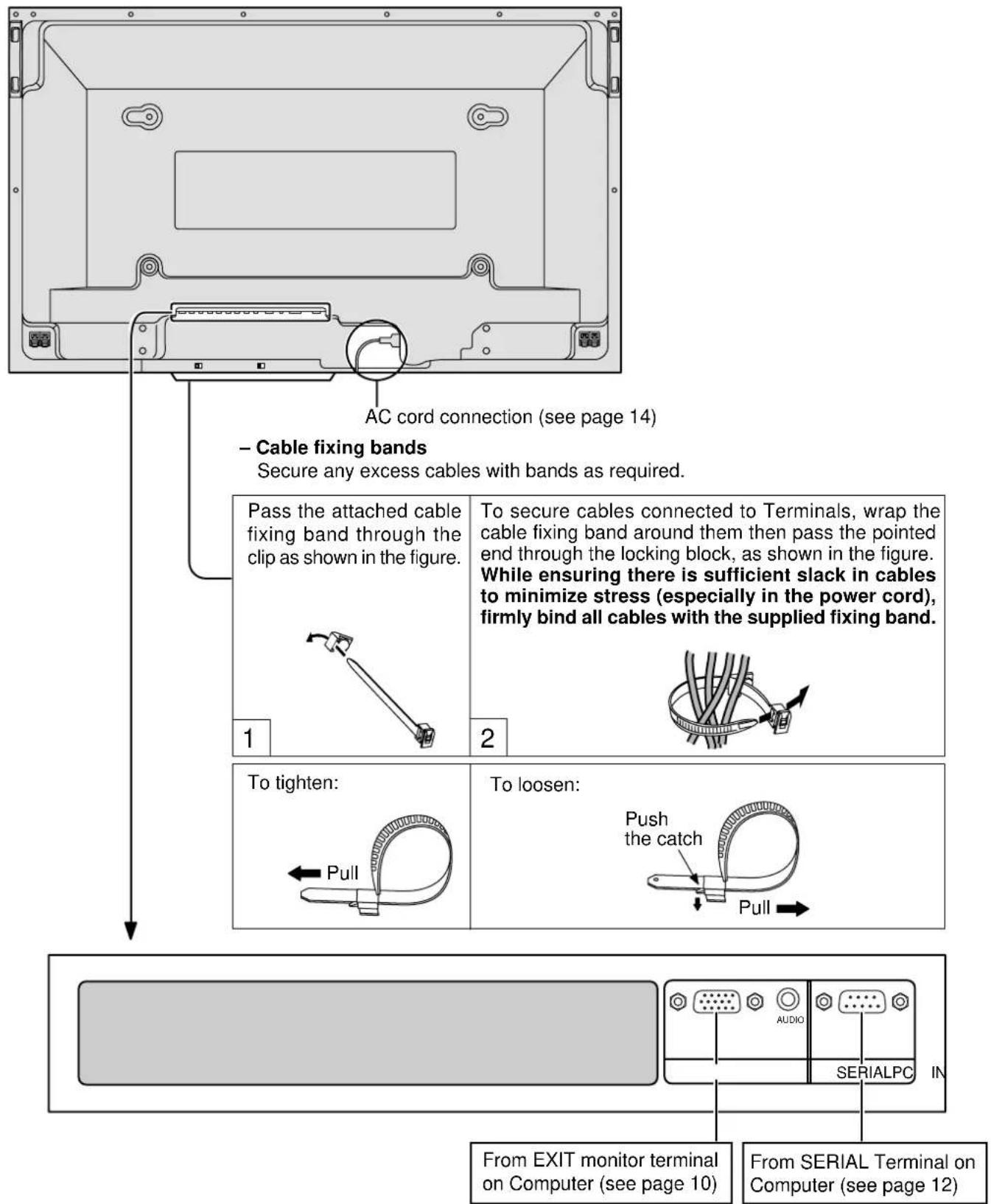
The SERIAL terminal is used when the plasma display is controlled by a computer.
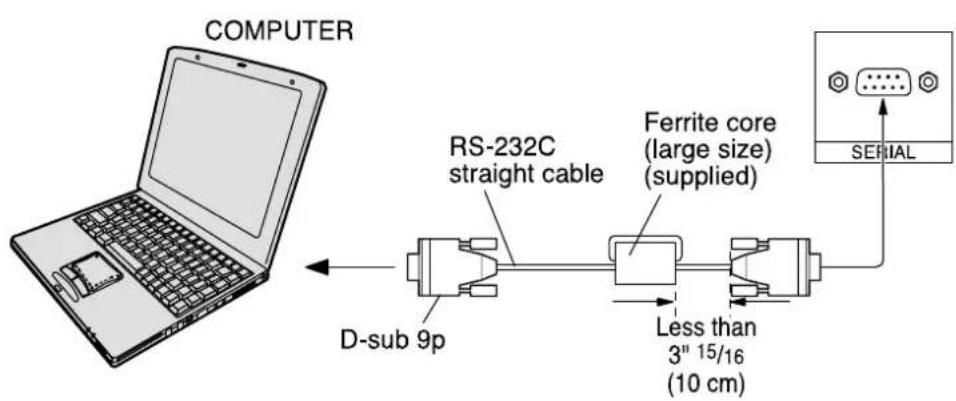
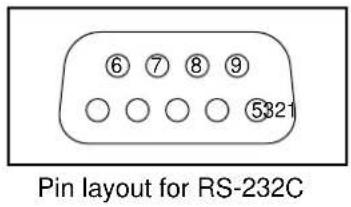
Notes:
(1) Use the RS-232C cable to connect the computer to the plasma display.
(2) The computer shown is for example purposes only.
(3) Additional equipment and cables shown are not supplied with this set.
The SERIAL terminal conforms to the RS-232C interface specification, so that the plasma display can be controlled by a computer which is connected to this terminal.
The computer will require software which allows the sending and receiving of control data which satisfies the conditions given below. Use a computer application such as programming language software. Refer to the documentation for the computer application for details.
Communication parameters
| Signal level | RS-232C compliant |
| Synchronization method | Asynchronous |
| Baud rate | 9600 bps |
| Parity | None |
| Character length | 8 bits |
| Stop bit | 1 bit |
| Flow control | — |
| RS-232C Conversion cable | |
| D-sub 9-pin female | Details |
| 2 | R X D |
| 3 | T X D |
| 5 | GND |
| 4·6 | Non use |
| 78 | Shorted |
| 1·9 | NC |
Basic format for control data
The transmission of control data from the computer starts with a STX signal, followed by the command, the parameters, and lastly an ETX signal in that order. If there are no parameters, then the parameter signal does not need to be sent.
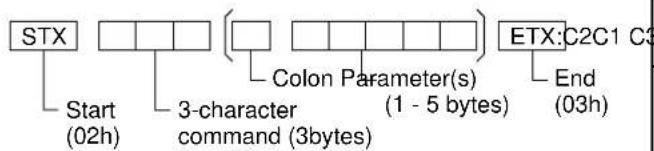
flowchart
graph TD
    A["STX"] --> B["Start (02h)"]
    B --> C["3-character command (3bytes)"]
    C --> D["Colon Parameter(s) (1 - 5 bytes)"]
    D --> E["ETX: C2C1 C3"]
    E --> F["End (03h)"]
Notes:
(1) If multiple commands are transmitted, be sure to wait for the response for the first command to come from this unit before sending the next command.
(2) If an incorrect command is sent by mistake, this unit will send an "ER401" command back to the computer.
Command
| Command | Parameter | Control details |
| PON | None | Power ON |
| POF | None | Power OFF |
| AVL | ** | Volume 00 - 63 |
| 3 P2P1 P3 P4 | 0 | Audio mute OFF |
| P5 | Audio mute ON | |
| IIS | None | Input select (toggle) |
| VID | AV Mode | |
| YP1 | Component / RGB mode (processed as a Y/PB/PR or RGB signals as set by this unit) | |
| RG1 | PC Mode | |
| DAM | None | Screen mode select (toggle) |
| NORM | 4 : 3 | |
| ZOOM | Zoom | |
| FULL | 16 : 9 | |
| JUST | Just | |
| SELF | Auto |
With the power off, this display responds to PON command only.
Basic Controls
Explanations from here onward describe the functions when the optional RCA Terminal Board is installed.

The Power Indicator will light.
- Power-OFF .. Indicator not illuminated (The unit will still consume some power as long as the power cord is still inserted into the wall outlet.)
- Stand-by ⏻ .....Red
• Power-ON .....Green
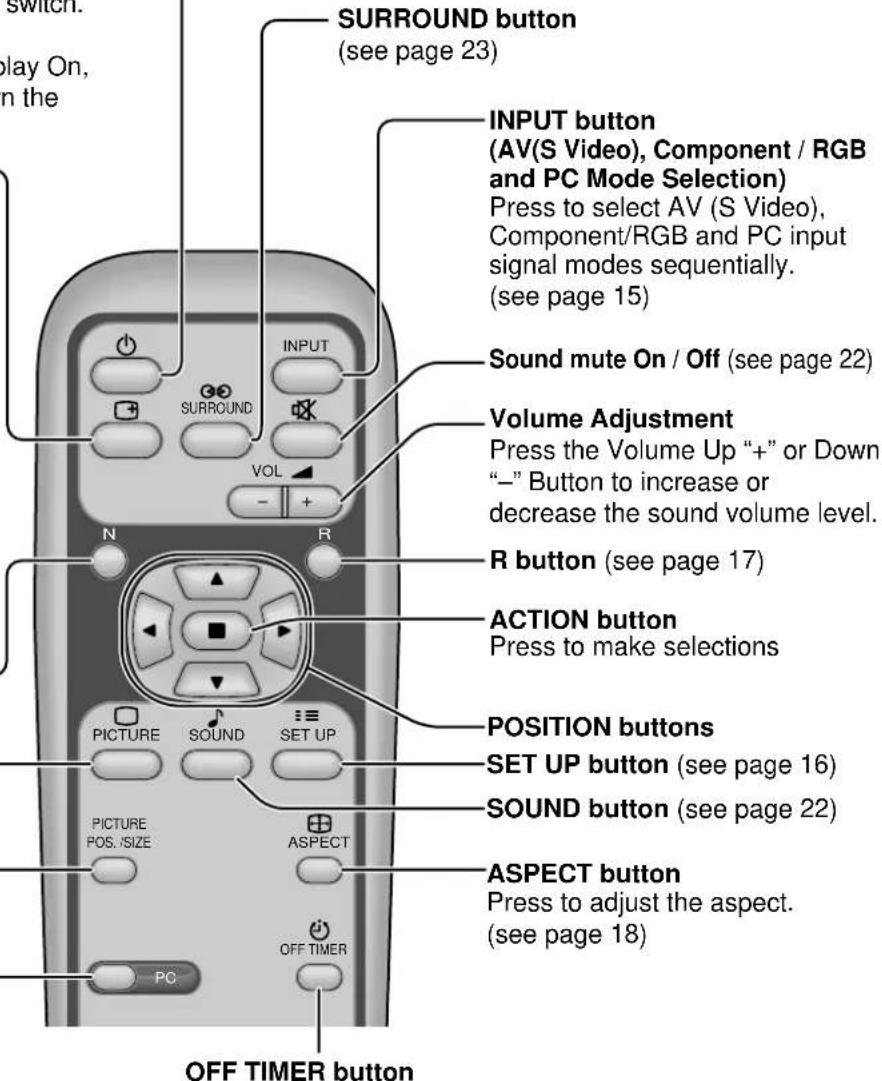
(AV(S Video), Component/RGB and PC Mode Selection)
Press the "INPUT" button to select AV (S Video), Component/RGB and PC input signal modes sequentially. (see page 15)
Volume Adjustment
Press the Volume Up "+" or Down "-" button to increase or decrease the sound volume level.
Stand-by (ON/OFF) button
The Plasma Display must first be plugged into the wall outlet and turned on at the power switch. (see page 14)
Press this button to turn the Plasma Display On, from Standby mode. Press it again to turn the Plasma Display Off to Standby mode.
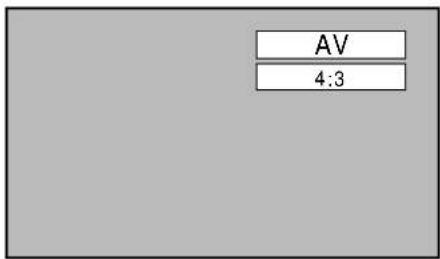
Status button
Press the "Status" Button to display the current system status.
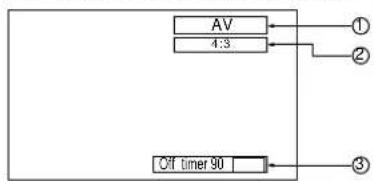
flowchart
graph TD
    A["AV"] --> B["4:3"]
    B --> C["①"]
    B --> D["②"]
    B --> E["Off Timer 90"]
    E --> F["③"]
① AV(S Video), Component/RGB, PC mode
② Aspect mode (see page 18)
③ Off timer
The off timer indicator is displayed only when the off timer has been set.
N button
(see page 21, 22, 24, 25)
PICTURE button
(see page 24)
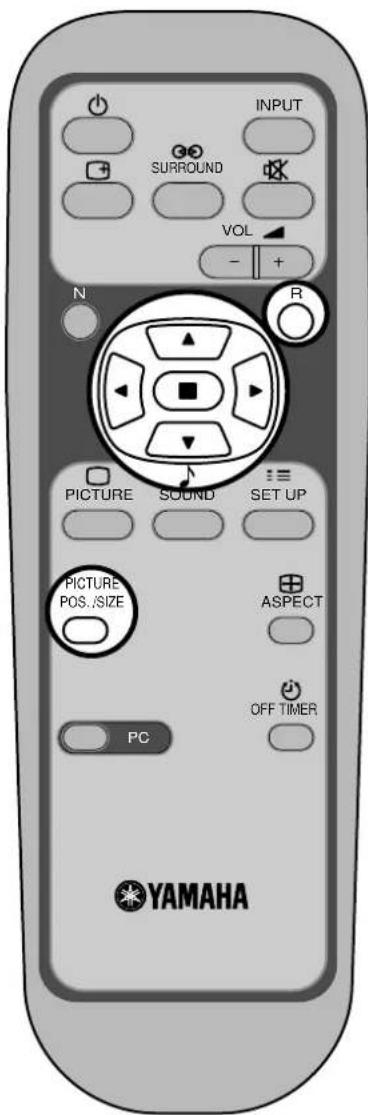
PICTURE POS./SIZE button
(see page 20)
PC button
Press the "PC" mode selection button to select the PC mode. This button is used to switch directly to PC mode.
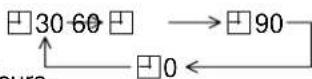
The Plasma Display can be preset to switch to stand-by after a fixed period. The setting changes to 30 minutes, 60 minutes, 90 minutes and 0 minutes (off timer cancelled) each time the button is pressed.
When three minutes remain, "Off timer 3" will flash.
The off timer is cancelled if a power interruption occurs.
Power On/Off and input signal selection
AC cord connection
Connecting the AC cord plug to the plasma display.
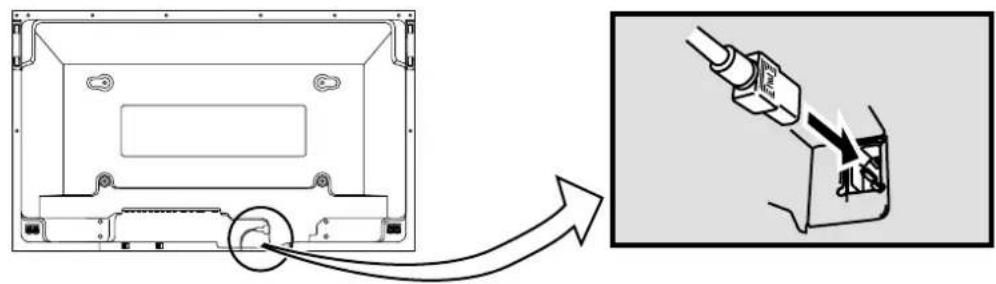
natural_image
Technical diagram showing a device casing with internal components and a close-up of its internal structure (no text or symbols present)Power On/Off
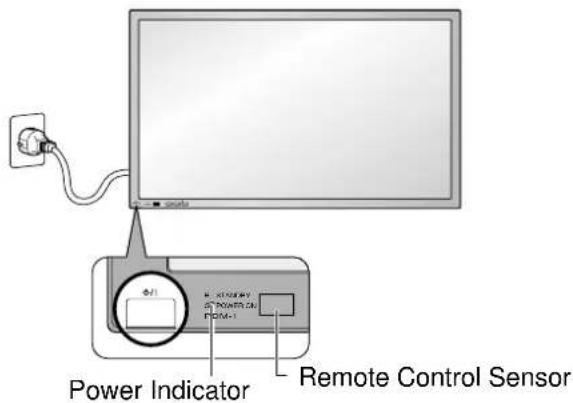
Connecting the plug to the Wall Outlet Note:
Main plug types vary between countries. The power plug shown at left may, therefore, not be the type fitted to your set.
Press the switch on the plasma display to turn the set on:Power-On.
Power Indicator: Green
Example: The screen below is displayed for a while after the plasma display is turned on. (setting condition is an example.)
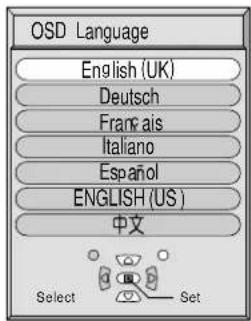
When the Power is turned on for the first time, the Language selection screen is displayed.
From the second time on, language selection can be done from the setup menu. (see page 15)
Select the desired language using the ▲ and ▼ keys and press the ACTION ☐ button.
From the second time on, the below screen is displayed for a while (setting condition is an example).
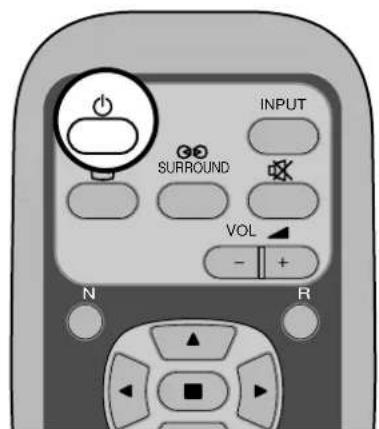

Press the ⏻ button on the remote control to turn the plasma display off.
Power Indicator: Red (standby)
Press the ⏻ button on the remote control to turn the plasma display on.
Power Indicator: Green
Turn the power to the plasma display set off by pressing the ⏻/| switch on the plasma display, when the plasma display is on or in standby mode.
Select the input signal
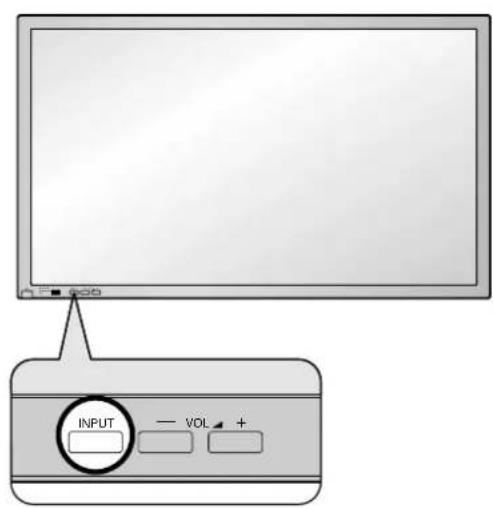
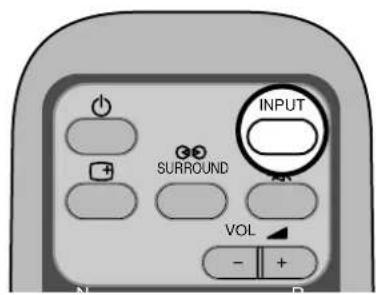

Press the INPUT button to select the input signal to be played back from the equipment which has been connected to the plasma display.
Select the input signals to be connected by installing the optional Terminal Board. (see page 30)
Input signals will change as follows:
For Component Input

For RGB Input

Note: Input buttons do not work if no optional Terminal Board is installed.
Selecting the On-Screen Menu Language
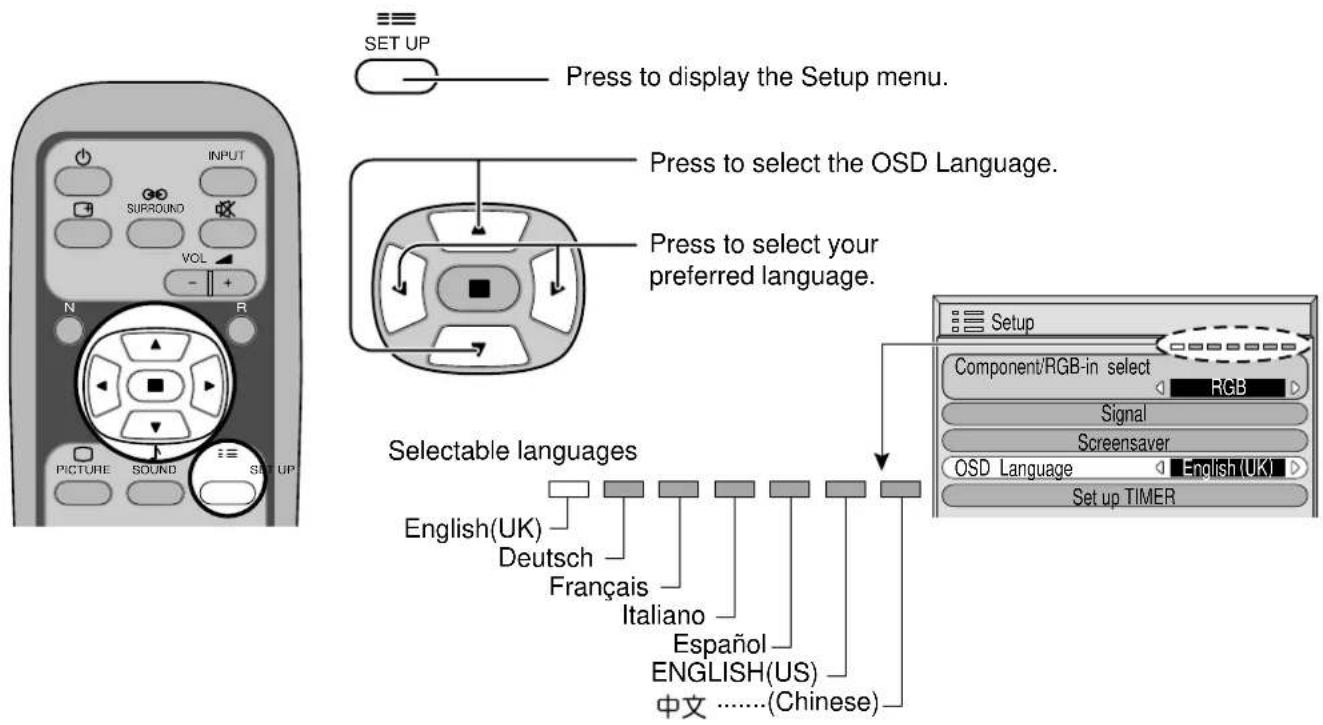
On-Screen Menu Display from Remote Control
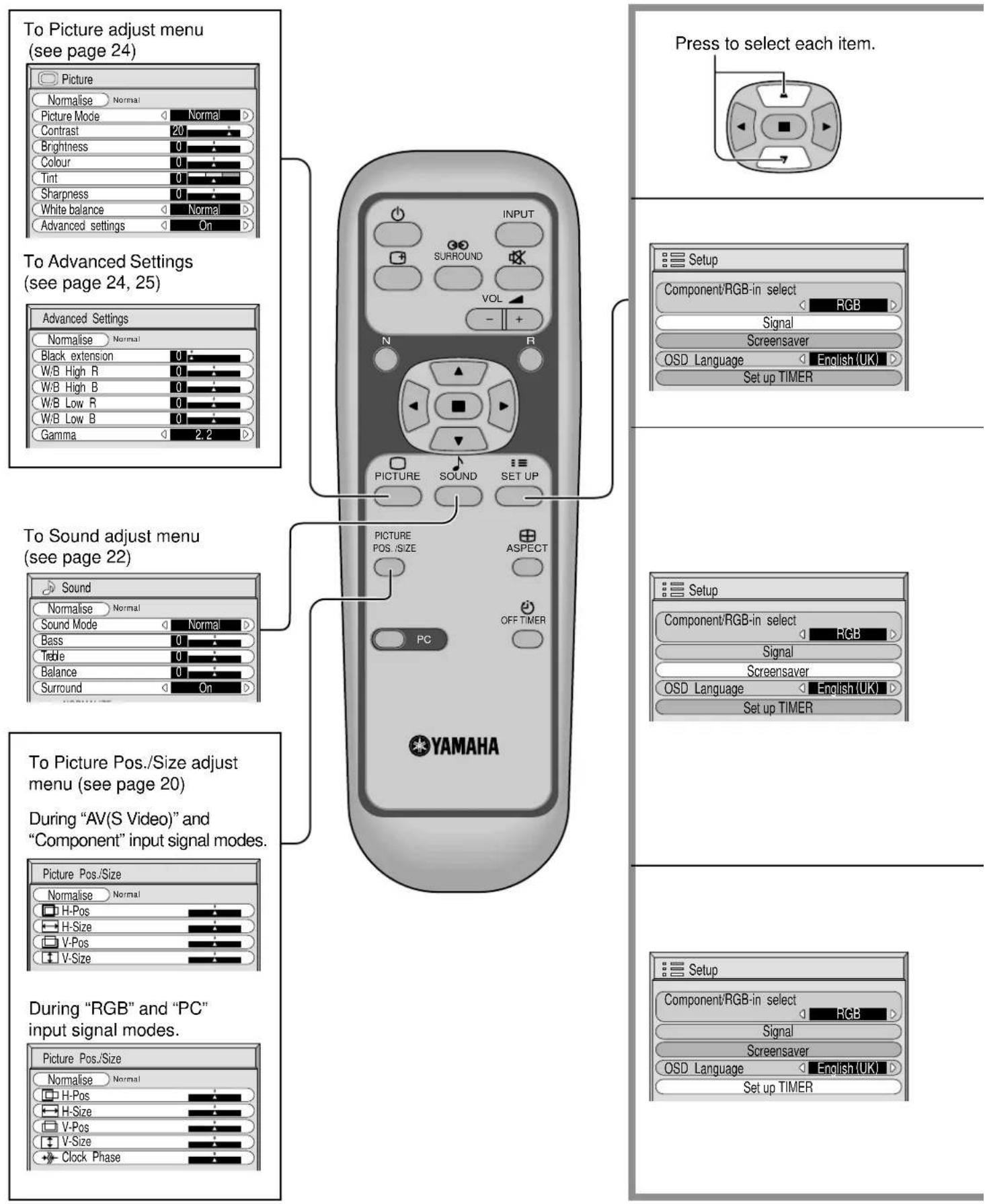
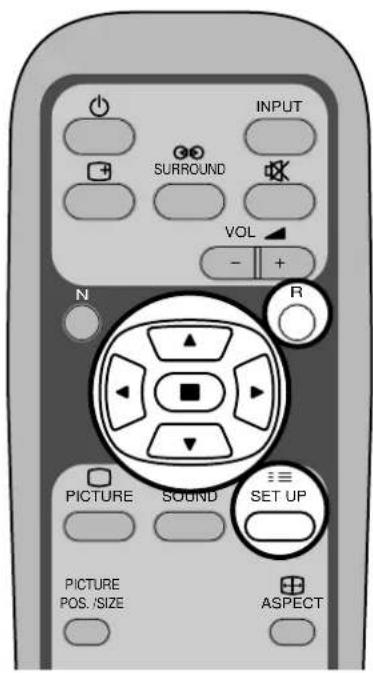
Press to access each adjust screen.
Press the R button to return to "Setup" menu.
To Signal screen for AV (see page 30, 31)
![Signal [ AV ] 3D Y/C Filter (NTSC) On Colour system Auto 3:2 Pulldown On Aspect Auto (4:3) 4:3](/content/2026/02/379393/images/0b73361d7f1d1e3ba19a9e5f0befa43343591a18017d69dd847c65d90ffc06d2.jpg)
To Signal screen for Component (see page 31)
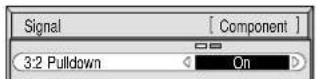
To Signal screen for RGB (see page 32)
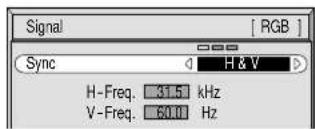
To Signal screen for PC (see page 32)
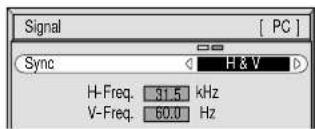
Note:
"Signal" setup menu displays different setting condition for each input signals. (see page 15)
To setup Screensaver (see page 28)
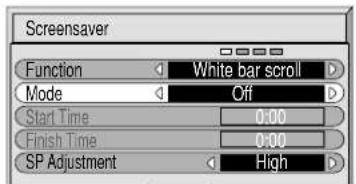
natural_image
Diagram of a circular device with directional arrows and control buttons (no text or symbols)Press to select each time adjust screen.
Press to display each adjust screen.
Press the R buttun to return to "Screensaver" menu.
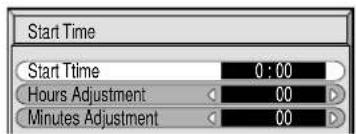
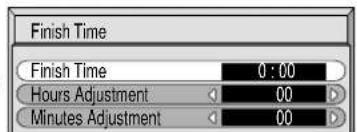
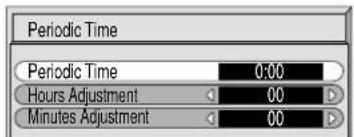
To Set up Timer selection screen (see page 26)
Press to select each Timer adjustment items.
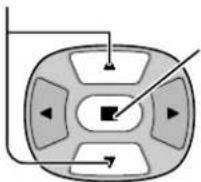
When select Timer adjustment item, press this button to Set up TIMER screen.
Press the R button to return to "Setup" menu.
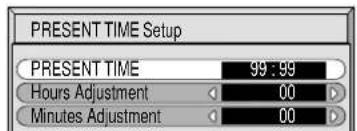
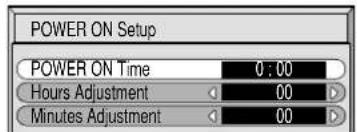
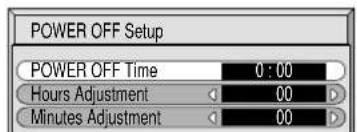
ASPECT Controls
The plasma display will allow you to enjoy viewing the picture at its maximum size, including wide screen cinema format picture.
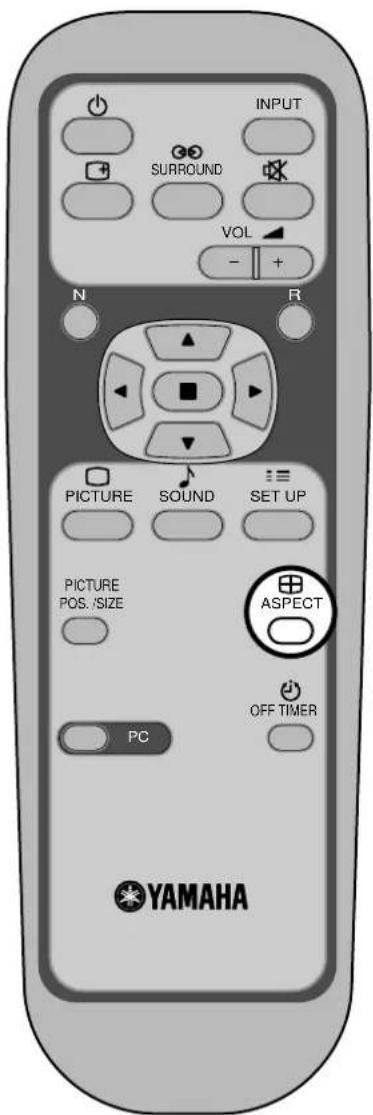

ASPECT button
The aspect mode changes each time the ASPECT button is pressed.

flowchart
graph LR
    A["4:3"] --> B["Zoom"]
    B --> C["16:9"]
    C --> D["Just"]
    D --> E["Auto"]
Notes:
(1) During RGB and PC input signal modes, the mode switches between "4:3", "Zoom" and "16:9" only.
(2) For a 1,125i (1,080i), 750p (720p) signal input during "Component" input signal mode, the mode is set to "16:9" mode, and switching is not possible.
For a 525i (480i), 625i (575i), 525p (480p) and 625p (575p) signal input during "Component" input signal mode, "Auto" can not be selected.
(3) The aspect mode is memorized separately for each input terminal (AV(S Video), Component, RGB and PC).
| Mode | Picture | Explanation |
| 4:3 | 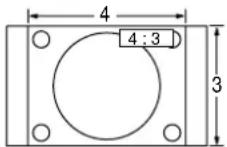 | 4:3 will display a 4:3 picture at its standard 4:3 size. |
| Zoom | 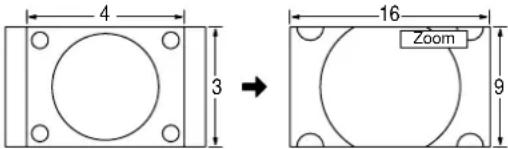 | Zoom mode magnifies the central section of the picture. |
| 16:9 | 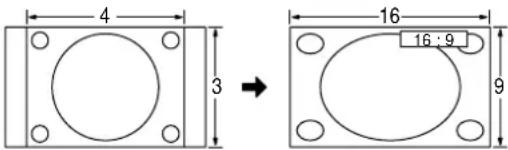 | 16:9 will display the picture at its maximum size but with sight elongation. |
| Just | 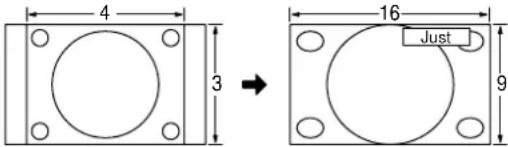 | Just mode will display a 4:3 picture at its maximum size but with aspect correction applied to the center of the screen so that elongation is only apparent at the left and right edges of the screen. The size of the picture will depend on the original signal. |
| Auto | 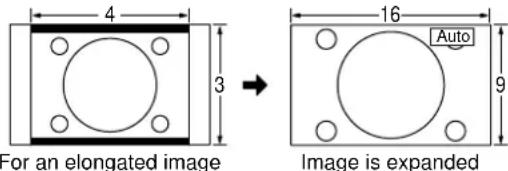 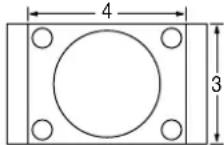 →Changes in accordance with the Aspect Auto mode setting (see page 31).For a 4:3 image →Changes in accordance with the Aspect Auto mode setting (see page 31).For a 4:3 image | The display will automatically become enlarged (depending on the picture source), allowing you to view the picture at its maximum size.Note:Auto mode is designed to automatically adjust the aspect ratio to handle a mix of 16:9 and 4:3 program material. Certain 4:3 program material, such as stock market data screens, may occasionally cause the image size to change unexpectedly. When viewing such programs, it is recommended that the ASPECT be set to 4:3. |
Note:
Do not allow 4:3 mode to be displayed for an extended period, as this can cause a permanent after-image to remain on the plasma display panel.
Adjusting Picture Pos./Size
Adjusting screen
1

2
natural_image
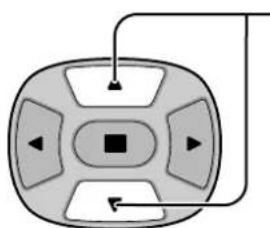
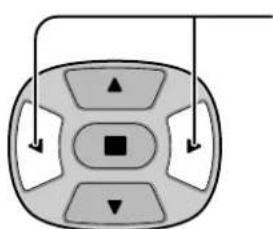
Diagram of a control panel with directional arrows and a central square (no text or symbols)Press to select H-Pos/H-Size/V-Pos/V-Size/Clock Phase.
During "AV(S Video)" and "Component" input signal modes.
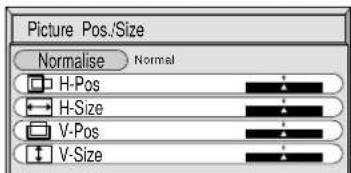
During "RGB" and "PC" input signal modes.
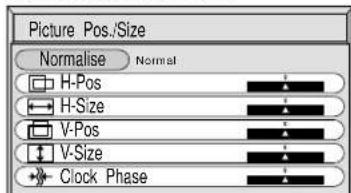
3
flowchart
graph TD
    A["Top Left"] --> B["Bottom Left"]
    B --> C["Bottom Right"]
    C --> D["Bottom Left"]
    D --> E["Bottom Right"]
    E --> F["Bottom Left"]
    F --> G["Bottom Right"]
    G --> H["Bottom Left"]
    H --> I["Bottom Right"]
    I --> J["Bottom Left"]
    J --> K["Bottom Right"]
    K --> L["Bottom Left"]
    L --> M["Bottom Right"]
    M --> N["Bottom Left"]
    N --> O["Bottom Right"]
    O --> P["Bottom Left"]
    P --> Q["Bottom Right"]
    Q --> R["Bottom Left"]
    R --> S["Bottom Right"]
    S --> T["Bottom Left"]
    T --> U["Bottom Right"]
    U --> V["Bottom Left"]
    V --> W["Bottom Right"]
    W --> X["Bottom Left"]
    X --> Y["Bottom Right"]
    Y --> Z["Bottom Left"]
Press to adjust Pos./Size.

Press to exit from adjust mode.
Notes:
(1) Adjustment details are memorized separately for different input signal formats (Adjustments for component signals are memorized for 525i (480i), 625i (575i), 525p (480p), 1,125i (1,080i) and 625p (575p), 750p (720p) each, and RGB/PC signals are memorized for each frequency.)
(2) If a "Cue" or "Rew" signal from a VCR or DVD player is received, the picture position will shift up or down. This picture position movement cannot be controlled by the Picture Pos./Size function.
| H-Pos | When the Position Left “◀ button is pressed.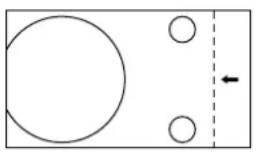 | When the Position Right “▶ button is pressed.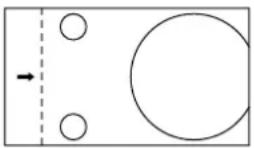 |
| H-Size | When the Position Left “◀ button is pressed.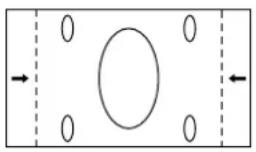 | When the Position Right “▶ button is pressed.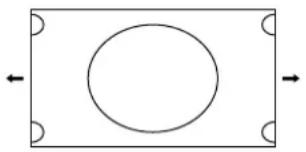 |
| V-Pos | When the Position Left “◀ button is pressed.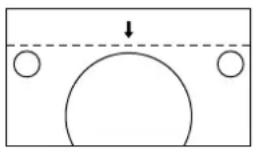 | When the Position Right “▶ button is pressed.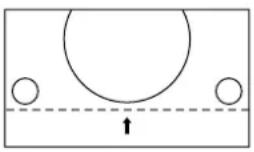 |
| V-Size | When the Position Left “◀ button is pressed.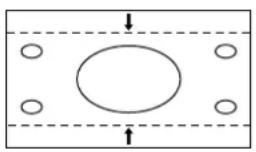 | When the Position Right “▶ button is pressed.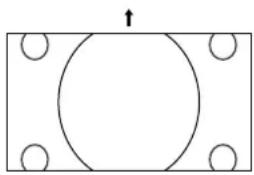 ↓ ↓ |
| Clock Phase (RGB/PC in Mode) | Flickering and distortion can be eliminated by using the Position Left “◀ or Right “▶ button to carry out adjustment. | |

Helpful Hint ( ^N / Normalise Normalisation)
While the Picture Pos./Size display is active, if either the N button on the remote control is pressed at any time or the (ACTION button) is pressed during "Normalise", then all adjustment values are returned to the factory settings.
Sound Adjustment
1
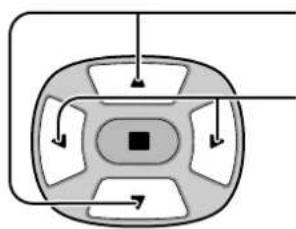
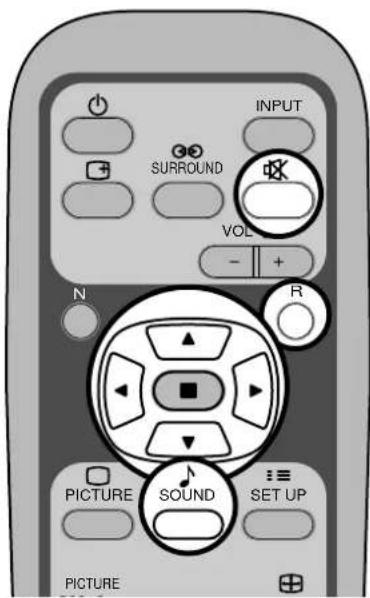
Press to display the Sound menu.
2
Select to adjust each item.
flowchart
graph TD
    A["Outer Ring"] --> B["Inner Ring"]
    B --> C["Central Square"]
    C --> D["Outer Ring"]
    D --> E["Inner Ring"]
    E --> F["Outer Ring"]
    F --> G["Outer Ring"]
    G --> H["Outer Ring"]
    H --> I["Outer Ring"]
    I --> J["Outer Ring"]
    J --> K["Outer Ring"]
    K --> L["Outer Ring"]
    L --> M["Outer Ring"]
    M --> N["Outer Ring"]
    N --> O["Outer Ring"]
    O --> P["Outer Ring"]
    P --> Q["Outer Ring"]
    Q --> R["Outer Ring"]
    R --> S["Outer Ring"]
    S --> T["Outer Ring"]
    T --> U["Outer Ring"]
    U --> V["Outer Ring"]
    V --> W["Outer Ring"]
    W --> X["Outer Ring"]
    X --> Y["Outer Ring"]
Press to select the desired adjustment menu.
Select the desired level by listening to the sound.
Bass
Adjusts low sounds
Treble
Adjusts high sounds
Balance
Adjusts left and right volumes
Surround (see next page)
Select On or Off

Sound
Normalise Normal
Sound Mode
Bass
Treble
Balance
Surround
Normal
Emits the original sound.

Auto
Automatically controls proper volume level.
- To end adjustments

Press the R button
Note:
Press the SURROUND button to directly turn the surround effect On and Off. (see next page)
Bass, Treble and Surround settings are memorized separately for each Sound mode (Normal, Auto).

Helpful Hint ( N / Normalise Normalisation)
While the "Sound" menu is displayed, if either the N button on the remote control is pressed at any time or the (ACTION button) is pressed during "Normalise", then all adjustment values are returned to the factory settings.
Mute
Useful when answering the phone or receiving unexpected visitors.

Press this button to mute the sound.
Press again to reactivate sound. Sound is also reactivated when power is turned off or volume level is changed.
Surround Controls
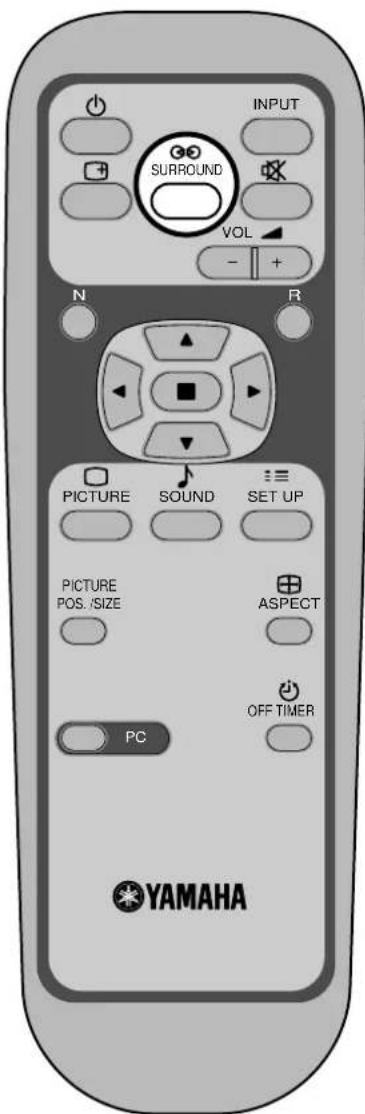

SURROUND Button
The benefits of surround sound are enormous. You can be completely enveloped in sound; just as if you were at a concert hall or cinema.
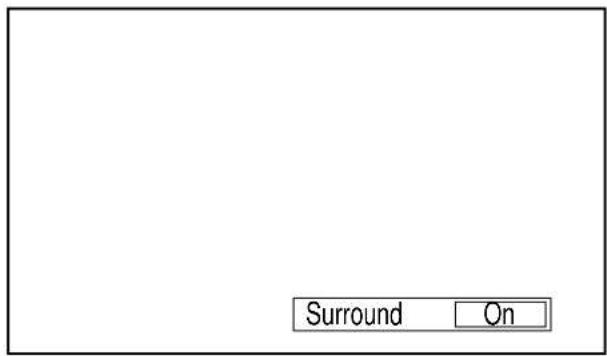
The surround setting switches on and off each time the SURROUND button is pressed.
On Off
Note:
The surround settings are memorized separately for each Sound mode (Normal, Auto).
Picture Adjustments
1

Press to display the Picture menu.
2
Select to adjust each item.
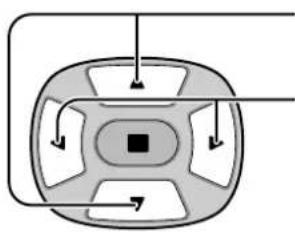
flowchart
graph TD
    A["Central Square Node"] --> B["Top Left"]
    A --> C["Top Right"]
    A --> D["Bottom Left"]
    A --> E["Bottom Right"]
    A --> F["Bottom Left"]
    A --> G["Bottom Right"]
Press to select the menu to adjust.
Select the desired level by looking at the picture behind the menu.
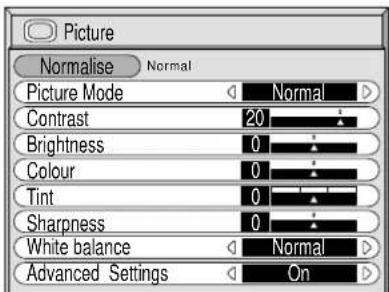
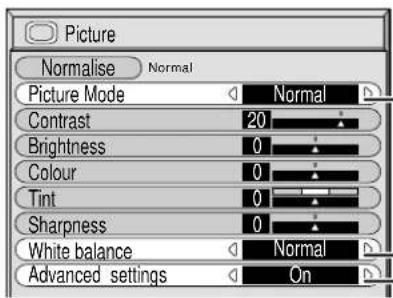
Press the left ◀ or right ▶ button to select "On". Press the down ▼ button to enter Advanced Settings mode. Advanced Settings On Enables fine picture adjustment at a professional level (see next page).
Advanced Settings Off Displays images with settings of the Picture menu.
Press the left ◀ or right ▶ button to switch between modes.
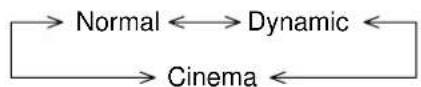
Normal
For viewing in standard (evening lighting) environments.
This menu selects the normal levels of Brightness and Contrast.
Dynamic
For viewing in brighter environments.
This menu selects higher than normal levels of Brightness and Contrast.
Cinema
Ideal for movies.
Note:
If you would like to change the picture and colour of the selected Picture menu to something else, adjust using the items in the Picture menu. (see next page)
Press the left ◀ or right ▶ button to switch between modes.


Helpful Hint ( ^N / Normalise Normalisation)
While the "Picture" menu is displayed, if either the N button on the remote control is pressed at any time or the (ACTION button) is pressed during "Normalise", then all adjustment values are returned to the factory settings.
| Item | Effect | Adjustments |
| Contrast |  | Selects the proper brightness and density for the room. |
| Brightness |  ar ar | Adjusts for easier viewing of dark pictures such as night scenes and black hair. |
| Colour |  | Adjusts colour saturation. |
| Tint (NTSC only) |  sh sh | Adjust for nice skin colour. |
| Sharpness |  | Adjusts picture sharpness. |
Notes:
(1) "Colour" and "Tint" settings cannot be adjusted for "RGB" and "PC" input signal modes.
(2) You can change the level of each Function (Contrast, Brightness, Colour, Tint, Sharpness) for each Picture Menu.
(3) The setting details for normal, dynamic and cinema respectively are memorized separately for each input mode (AV(S Video), Component, RGB and PC).
(4) The "Tint" setting can be adjusted for NTSC signal only during "AV (S Video)" input signal.
Note:
In PICTURE, there is not a noticeable change even when contrast is increased with a bright picture or reduced with a dark picture.
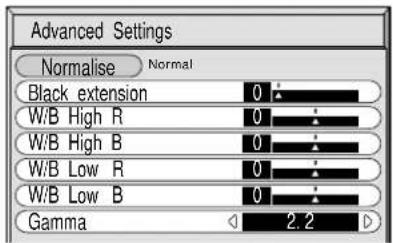
Advanced Settings
| Item | Effect | Details |
| Black extension |  | Adjusts the dark shades of the image in gradiation. |
| W/B High R |  | Adjusts the white balance for light red areas. |
| W/B High B |  | Adjusts the white balance for light blue areas. |
| W/B Low R |  | Adjusts the white balance for dark red areas. |
| W/B Low B |  | Adjusts the white balance for dark blue areas. |
| Gamma |  | 2.0 2.2 2.5 |
Notes:
(1) Carry out "W/B" adjustment as follows.
A Adjust the white balance of the bright sections using the "W/B High R" and "W/B High B" settings.
Adjust the white balance of the dark sections using the "W/B Low R" and "W/B Low B" settings.
C Repeat steps A and B to adjust.
Steps A and B affect each other's settings, so repeat each step in turn to make the adjustment.
(2) The adjustment values are memorized separately for each input mode (AV(S Video), Component, RGB and PC).
(3) The adjustment range values should be used as an adjustment reference.

Helpful Hint ( ^N / Normalise Normalisation)
On the remote control unit, while the “Advanced settings” menu is displayed, if either the N button is pressed at any time or the ☐ (ACTION button) is pressed during “Normalise”, then all adjustment values are returned to the factory settings.
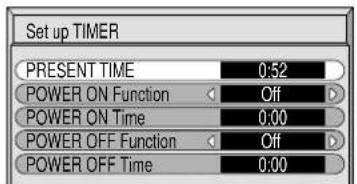
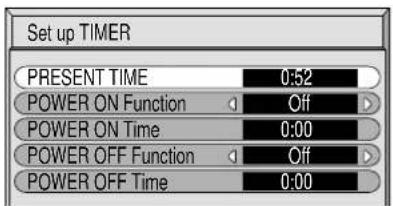
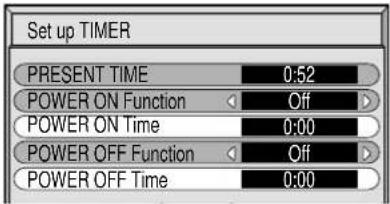
Set up TIMER
The timer can switch the plasma display On or Off.
Before attempting Timer Set, confirm the PRESENT TIME and adjust if necessary.
Then set POWER ON Time / POWER OFF Time.
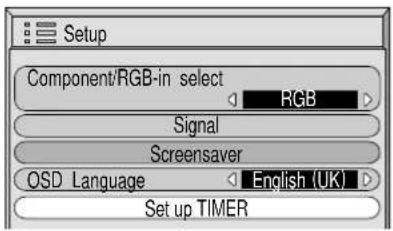
Display the Set up TIMER screen
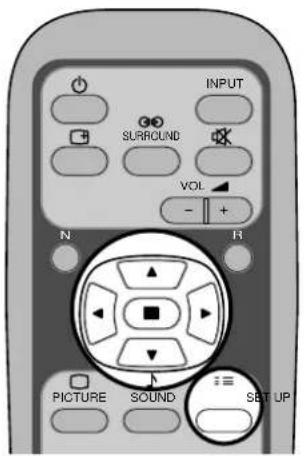
1
2
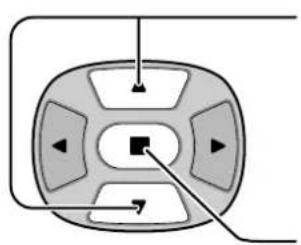
natural_image
Diagram of a control panel with directional arrows and a central square button (no text or symbols)Press to select
Set up TIMER.
Press to display the Set up TIMER screen.
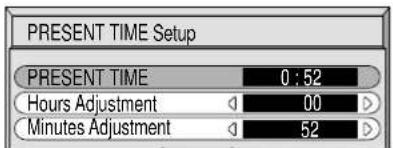
PRESENT TIME Set
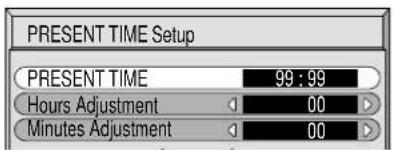
To set up PRESENT TIME, follow the procedure described below.
1
natural_image
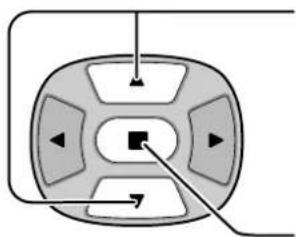
Diagram of a control panel with directional arrows and a central square button (no text or symbols)Press to select PRESENT TIME.
Press to display the PRESENT TIME Setting screen.
2
natural_image
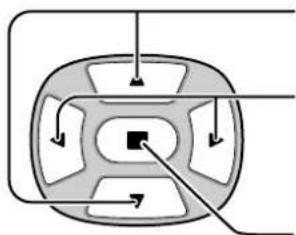
Diagram of a circular mechanical or electrical component with directional arrows and a central square (no text or symbols)Press to select Hours Adjustment / Minutes Adjustment.
Press to set up Hours or Minutes.
▶ button: Forward
button: Back
Press to store PRESENT TIME Setup.
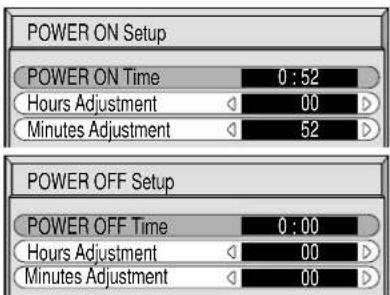
TIMER Set
1
natural_image
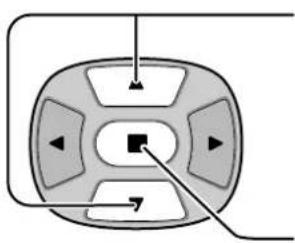
Diagram of a circular device with directional arrows and control buttons, no text or symbols presentPress to select POWER ON Time/POWER OFF Time.
Press to display the POWER ON Setup/POWER OFF Setup screen.
2
natural_image
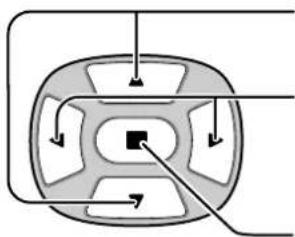
Diagram of a biological or mechanical structure with arrows indicating direction (no text or symbols)Press to select Hours Adjustment/Minutes Adjustment.
Press to adjust each time.
Press to complete POWER ON Time/POWER OFF Time.
3
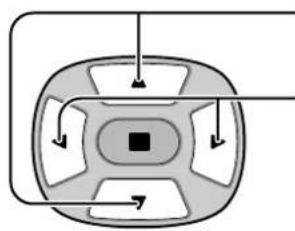
flowchart
graph TD
    A["Central Square Node"] --> B["Arrow Right"]
    A --> C["Arrow Left"]
    A --> D["Arrow Up"]
    A --> E["Arrow Down"]
Press to select POWER ON Function/POWER OFF Function.
Press to select On.
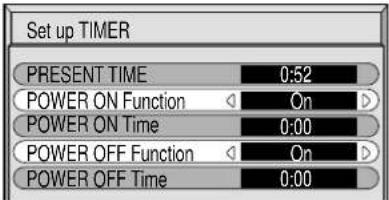
4

Press twice to exit from Setup.
Note:
Timer function will not work unless "PRESENT TIME" is set.
Screensaver (For preventing after-images)
Do not display a still picture, especially in 4:3 mode, for any length of time. If the display must remain on, a Screensaver should be used.
1
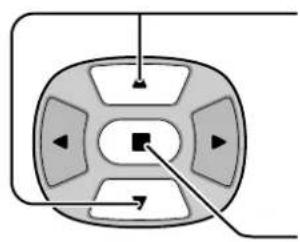
Press to display the Setup menu screen.
2
natural_image
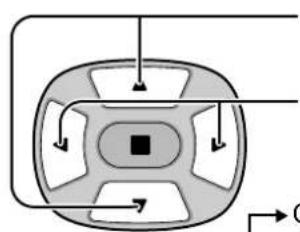
Diagram of a circular device with directional arrows and control buttons, no text or symbols presentPress to select the Screensaver.
Press to select the Screensaver screen.
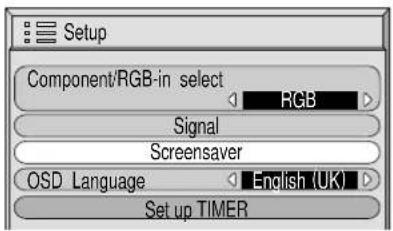
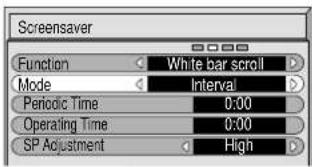
Reversal / Scroll selection
3
natural_image
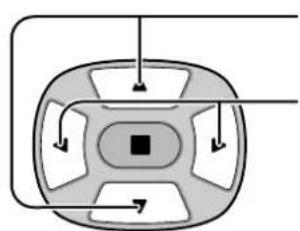
Diagram of a circular mechanical or electrical component with internal arrows and a central square (no text or symbols)Press to select the Function.
Press to select the desired function.
White bar scroll
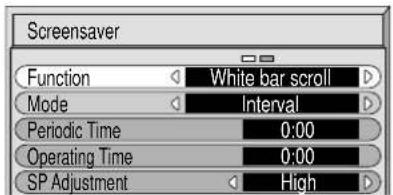
White bar scroll : The white bar will scroll from left to right.
Image Reversal : Negative image will be displayed on the screen.
Mode selection
4
flowchart
graph TD
    A["Start"] --> B{Condition}
    B --> C["Process"]
    C --> D["End"]
    style C fill:#000,stroke:#000,color:#fff
    style D fill:#000,stroke:#000,color:#fff
    note1["Arrow right"] --> B
    note2["Arrow left"] --> C
Press to select the Mode.
Press to select each mode items.
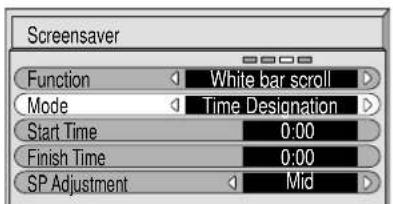
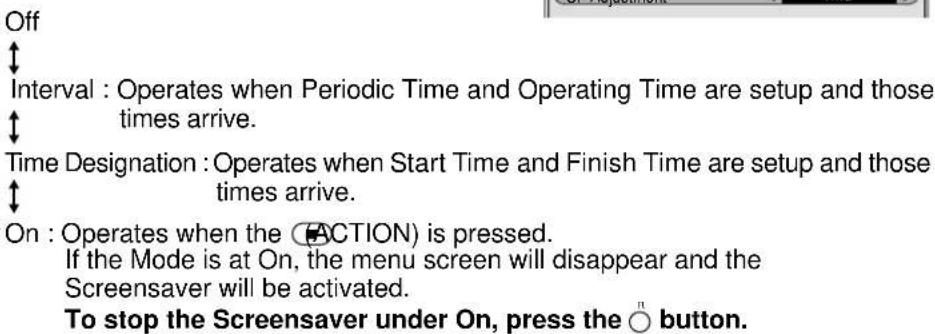
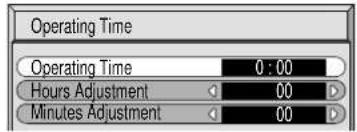
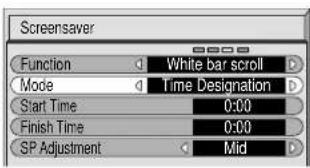
After selecting Time Designation or Interval, the relevant Time Setup will become available for selection and the Operating Time may be set. (Time cannot be set when "Mode" is "On" or "Off.")
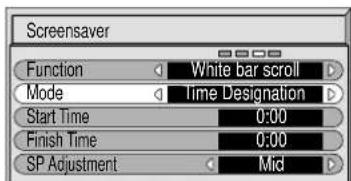
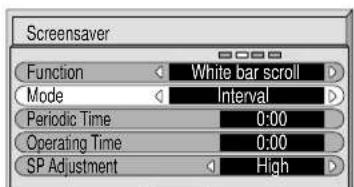
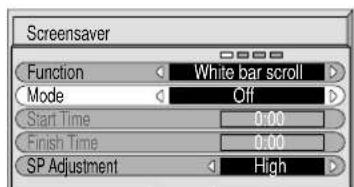
Setup of Screensaver Time
5
natural_image
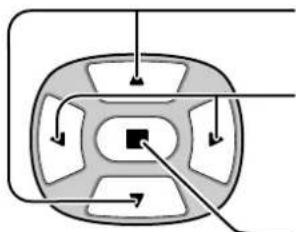
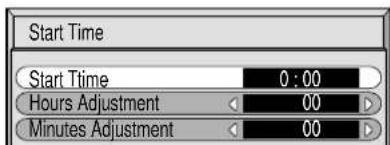
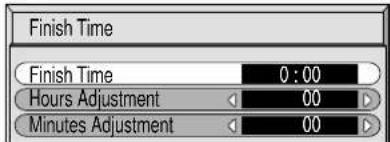
Diagram of a control panel with directional arrows and a central square button (no text or symbols)Press to select Start Time/Finish Time (When Time Designation is selected). Press to select Periodic Time/Operating Time (When Interval is selected).
Press to select each Time Adjustment screen.

6
flowchart
graph TD
    A["Start"] --> B{Condition}
    B --> C["Node"]
    B --> D["End"]
    style B fill:#f9f,stroke:#333,stroke-width:2px
Press to select Hours Adjustment/Minutes Adjustment.
Press to Setup Hours or Minutes.
▶ button: Forward
button: Back
Press to store settings.
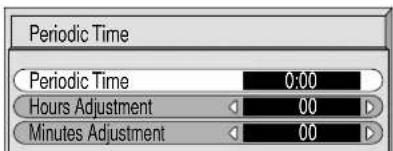
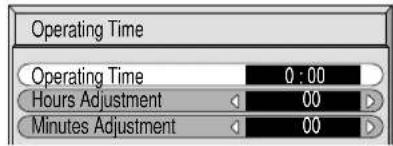
Note:
Timer function will not work unless "PRESENT TIME" is set.
Side Panel Adjustment
Do not display a picture in 4:3 mode for an extended period, as this can cause an after-image to remain on the side panels either side of the display field.
To prevent the appearance of such an after-image, illuminate the side panels.
1
To display the Screensaver screen.
(Refer to the previous page, operation guide steps 1 and 2)
2
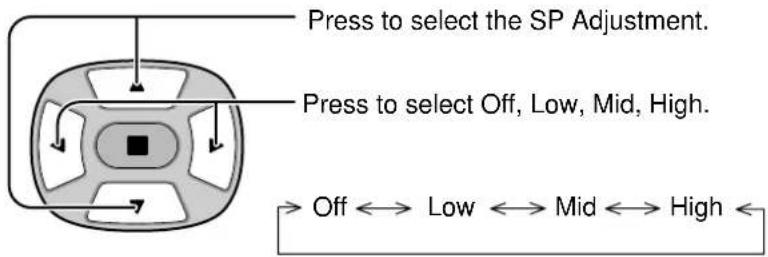
3
Press to exit from Screensaver.
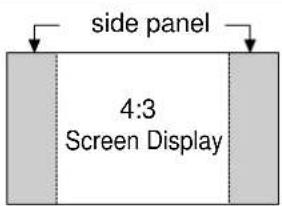
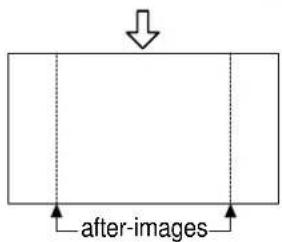
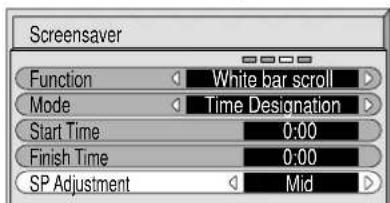
Notes:
- Setting the side panel to High mode for an extended period may result in occurrence of after-images.
- The side panels may flash (alternate black/white) depending on the picture being shown on the screen. In such an occurrence, use the Cinema mode.
Setup for Input Signals
Component/RGB-in select
Select the input signals to be connected by installing the optional Terminal Board.
(Refer to the service manual for the optional Terminal Board.)
Select to match the signals from the source connected to the Componen/RGB input terminals.
Y, P_B , P_R signals “Component”
R, G, B, HD, VD signals "RGB"
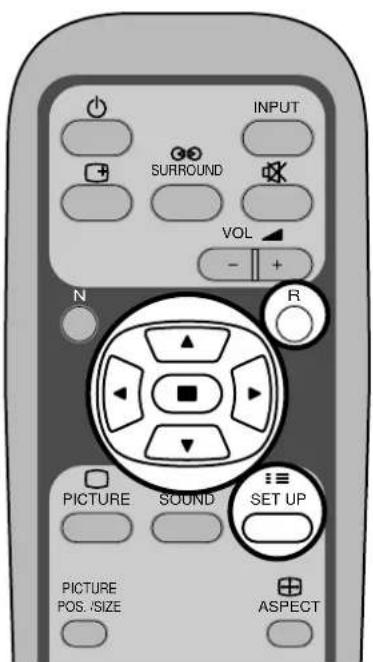
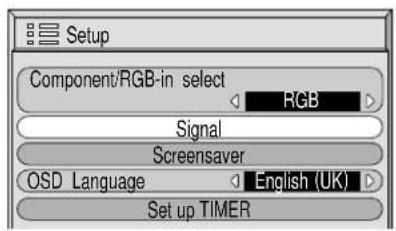
1
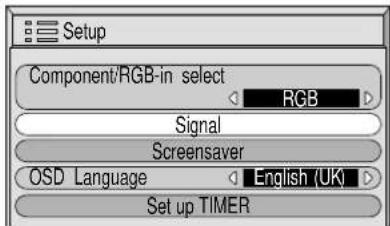
Press to display the Setup menu screen.
2
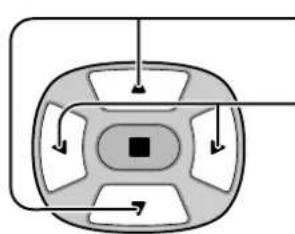
flowchart
graph TD
    A["Top Left"] --> B["Central Square"]
    B --> C["Right"]
    B --> D["Bottom Right"]
    B --> E["Left"]
    B --> F["Right"]
    style B fill:#000,stroke:#000,color:#fff
    style C fill:#000,stroke:#000,color:#fff
    style D fill:#000,stroke:#000,color:#fff
    style E fill:#000,stroke:#000,color:#fff
    style F fill:#000,stroke:#000,color:#fff
Press to select the "Component/RGB-in select".
Press to select the desired mode.
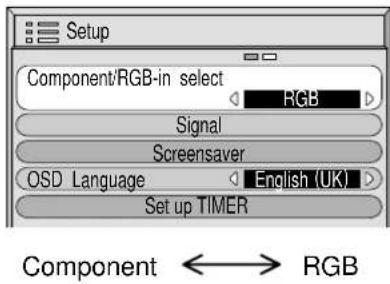
Press to exit from adjust mode.
3D Y/C Filter – For NTSC AV images
Select "Signal" from the "Setup" menu during AV(S Video) input signal mode.
("Signal [AV]" menu is displayed.)
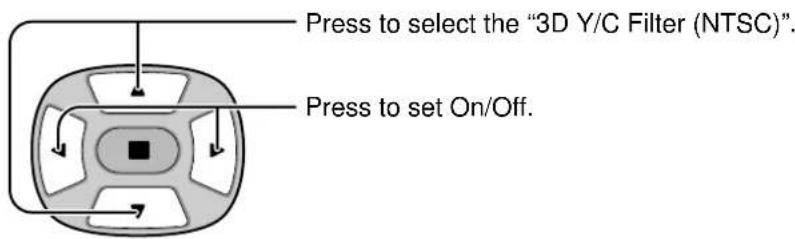


![Signal [ AV ] 3D Y/C Filter (NTSC) On Colour system Auto 3:2 Pulldown On Aspect Auto (4:3) 4 : 3](/content/2026/02/379393/images/f36cf2fabb8644e8dc35560fd881c01023d300e44a567d9844d9f2e821f19d5f.jpg)
Note:
When On, this setting only affects NTSC input signals.
Colour system / Aspect Auto
Select Signal from the "Setup" menu during AV(S Video) input signal mode. ("Signal [AV]" menu is displayed.)
flowchart
graph TD
    A["Top Left"] --> B["Central Square"]
    B --> C["Bottom Right"]
    B --> D["Bottom Left"]
    B --> E["Bottom Right"]
    B --> F["Bottom Left"]
    style B fill:#000,stroke:#000,color:#fff
    style C fill:#000,stroke:#000,color:#fff
    style D fill:#000,stroke:#000,color:#fff
    style E fill:#000,stroke:#000,color:#fff
    style F fill:#000,stroke:#000,color:#fff
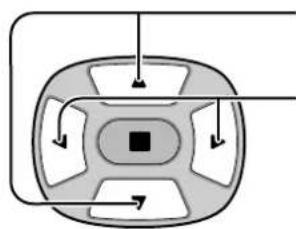
Press to select the "Colour system" or "Aspect Auto".
Press to select each functions.

Press ■ (ACTION) button
If the picture image becomes unstable:
With the system set on Auto, under conditions of low level or noisy input signals the image may in rare cases become unstable. Should this occur, set the system to match the format of the input signal.
![Signal [ AV ] 3D Y/C Filter (NTSC) On Colour system Auto 3:2 Pulldown On Aspect Auto (4:3 ) 4 : 3](/content/2026/02/379393/images/a3bc6b23fd0a5359f582879dda7573180926738a189b87857efd682782f6136d.jpg)
| Mode | Function |
| Colour system | Set the colour system to match the input signal. If set to “Auto”, the colour system is determined automatically. Auto PAL SECAM M.NTSC NTSC |
| Aspect Auto (4:3) | Set to “4 : 3” to view 4:3 images in an unchanged format when Aspect Auto is selected. If you would like to view 4:3 images in “Just” format, set to “Just”. |
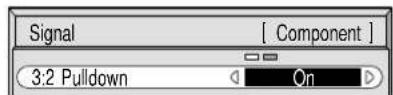
3:2 Pulldown
When on, the display attempts to reproduce a more natural interpretation of sources such as movie pictures, which are recorded at 24 frames per second.
If the picture is not stable, turn the setting to off.
Select "Signal" from the "Setup" menu during AV(S Video) or Component input signal mode. ("Signal [AV]" menu is displayed.)
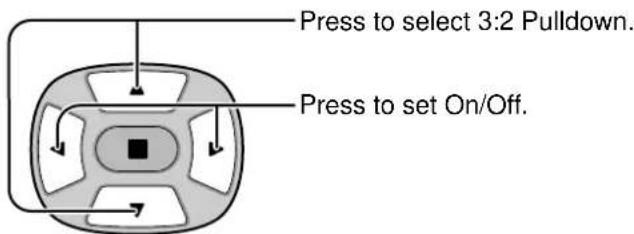
Note:
When On, this setting only affects the following signal input.
- NTSC signal input during "AV(S Video)" input signal mode.
- 525i(480i) signal input during "Component" input signal mode.
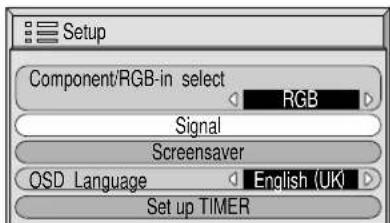

Press ■ (ACTION) button
![Signal [AV] 3D Y/C Filter (NTSC) On Colour system Auto 3:2 Pulldown On Aspect Auto (4:3) 4 : 3](/content/2026/02/379393/images/ac99016ba8b91de3d2f7eff035dc5f32c2d3a53e6b1cba6ae99c0776aeac3197.jpg)
Press to exit from adjust mode.
Sync
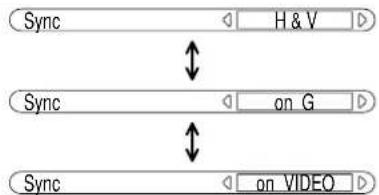
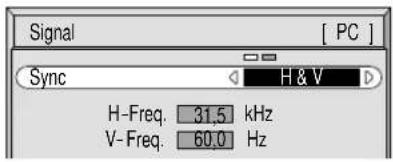
Select Signal from the "Setup" menu during RGB or PC input signal mode.
![Setup Component/RGB-in select RGB Signal Screensaver OSD Language English (UK) Set up TIMER Press ■ (ACTION) button Signal [ RGB ] Sync H & V H-Freq. 31.5 kHz V-Freq. 60.0 Hz Signal [ PC ] Sync H & V H-Freq. 31.5 kHz V-Freq. 60.0 Hz](/content/2026/02/379393/images/eefa3928e3d68523808461c17780c07b7f3a7ec5c898c3ea37d3be781e144440.jpg)
Setting RGB sync signal:
Confirm that the input is set to RGB input (this setting is valid only for RGB input).
H & V: The H and V sync signals are input from the HD/VD connector.
on G: Uses a synchronized signal on the Video G signal, which is input from the G connector.
on VIDEO: Compatible with the scart plug (Europe) The composite video signal input from the VIDEO input terminal is used by dividing the sync signals.
flowchart
graph TD
    A["Sync"] --> B["H & V"]
    B --> C["Sync"]
    C --> D["on G"]
    D --> E["Sync"]
    E --> F["on VIDEO"]
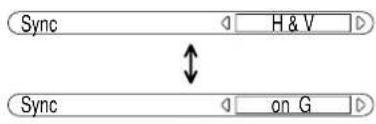
Setting PC sync signal:
Confirm that the input is set to PC input (this setting is valid only for PC input).
H & V: The H and V sync signals are input from the HD/VD connector.
on G: Uses a synchronized signal on the Video G signal, which is input from the G connector.
H-Freq. (kHz) / V-Freq. (Hz)
Displays the H (Horizontal)/V (Vertical) frequencies.
This display is valid only for RGB input and PC input.
Display range:
Horizontal 15.6 - 110 kHz
Vertical 48 - 120 Hz
H-Freq. 31.5 kHz
V-Freq. 60.0 Hz
Troubleshooting
Before you call for service, determine the symptoms and make a few simple checks as shown below.
| Symptoms | Checks | |||
| Picture | Sound | |||
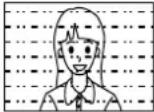 | Interference | 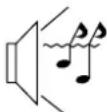 | Noisy Sound | Electrical Appliances Cars/Motorcycles Fluorescent light |
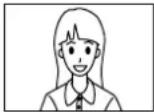 | Normal Picture | 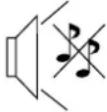 | No Sound | Volume (Check whether the mute function has been activated on the remote control.) |
 | No Picture | 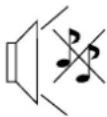 | No Sound | Not plugged into AC outlet Not switched on Contrast and Brightness/Volume setting (Check by pressing the Power Switch or stand-by button on the Remote Control.) |
 | No Picture |  | Normal Sound | If a signal with a non-applicable colour system format, or frequency is input, only the input terminal indication is displayed. |
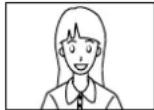 | No Colour |  | Normal Sound | Colour controls set at minimum level. (see page 24, 25) Colour system (see page 31) |
| Symptoms | Checks |
| Game console picture or similar is distorted. | There are some game consoles or similar that output different video signals from those regularly used. Distortion due to lack of synchronization may occur when such equipment is connected. However, this is not a malfunction. |
| Picture is distorted during the function of play, rewind, fast-forward, or other operations of the VCR or similar. | When AUTO is selected under Colour System of SET UP for Input Signals, the picture may not be coloured or may be distorted due to lack of synchronization, depending on the quality of the recorded signal. However, this is not a malfunction. On such an occurrence, select the appropriate Colour System for the input signal in use. |
Plasma display panel
| Symptoms | Checks |
| Some parts of the screen do not light up. | The plasma display panel is manufactured using an extremely high level of precision technology, however, sometimes some parts of the screen may be missing picture elements or have luminous spots. This is not a malfunction. |
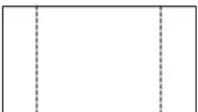 After-images appear After-images appear | Do not allow a still picture to be displayed for an extended period, as this can cause a permanent after-image to remain on the plasma display.Examples of still pictures include logos, video games, computer images, teletext and images displayed in 4:3 mode.Note:The permanent after-image on the plasma display resulting from fixed image use is not an operating defect and as such is not covered by the Warranty.This product is not designed to display fixed images for extended periods of time. |
| Whirring sounds can be heard from the display unit. | The display unit is fitted with a cooling fan to dissipate heat generated during normal use.The whirring sound is caused by rotation of the fan and is not a malfunction. |
Connections
Connection to the Optional Terminal Board (PTM-RCA 1)
By installing the optional RCA Terminal Board, the Plasma Display can handle high quality input signals such as AV (S Video), DVD, and RGB. Below is the connecting method when the optional RCA Terminal Board is installed.
AV/Component/RGB/PC input signals
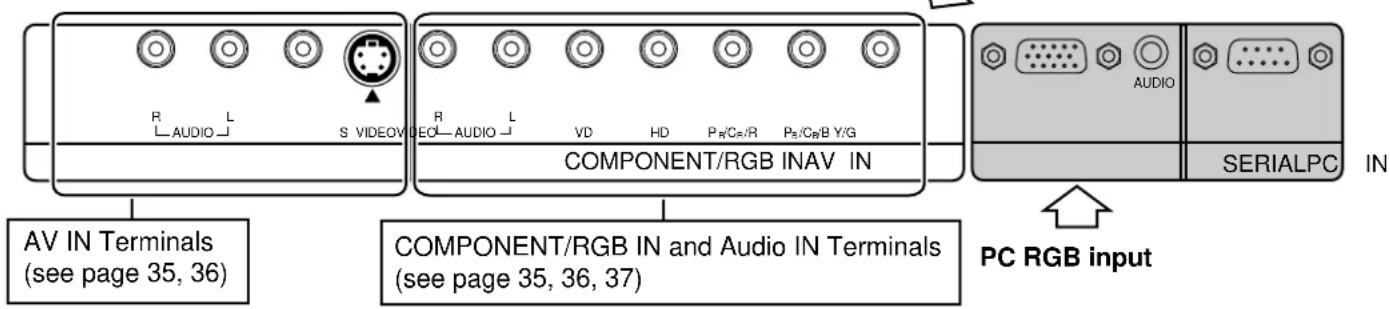
AV input
| signal name | horizontal vertical frequency(kHz) frequency(Hz) | ||
| 1 NTSC 15.734 59.95 | |||
| 2 PAL 15.625 50 | |||
| 3 PAL60 15.734 59.95 | |||
| 4 | SECAM | 15.625 50 | |
| 5 | Modified NTSC | 15.734 59.95 | |
*Mark:
Input signal can be displayed.
Component/RGB/PC input
| signal name | horizontal vertical frequency(kHz) frequency(Hz) | Component | RGB | PC | ||
| 1 | 525 (480) /60i | 15.734 59.94 | * | * | ||
| 2 | 625 (575) /50i | 15.625 50 | * | * | ||
| 3 | 525 (480) /60p | 31.468 59.94 | * | * | ||
| 4 | 625 (575) /50p | 31.25 | 50 | * | * | |
| 5 | 750 (720) /60p | 45 | 60 | * | * | |
| 6 | 1,125 (1,080) /60i | 33.75 | 60 | * | * | |
| 7 | 1,125 (1,080) /50i | 28.125 50 | * | * | ||
| 8 | 1,125 (1,080) /24p | 27 | 24 | * | * | |
| 9 | 1,125 (1,080) /24sF 27 | 48 | * | * | ||
| 10 | 640 · 400 @70 | 31.5 | 70 | * | * | |
| 11 | 640 · 480 @60 | 31.5 | 59.94 | * | * | |
| 12 | Macintosh13" (640 · 480) | 35 | 67 | * | * | |
| 13 | 640 · 480 @75 | 37.5 | 75 | * | * | |
| 14 | 852 · 480 @60 | 31.7 | 60 | * | * | |
| 15 | 800 · 600 @60 | 37.9 | 60 | * | * | |
| 16 | 800 · 600 @75 | 46.9 | 75 | * | * | |
| 17 | 800 · 600 @85 | 53.7 | 85 | * | * | |
| 18 | Macintosh16" (832 · 624) | 49.7 | 75 | * | * | |
| 19 | 1,024 · 768 @60 | 48.4 | 60 | * | * | |
| 20 | 1,024 · 768 @70 | 56.5 | 70 | * | * | |
| 21 | 1,024 · 768 @75 | 60 | 75 | * | * | |
| 22 | 1,024 · 768 @85 | 68.7 | 85 | * | * | |
| 23 | Macintosh21" (1,152 · 870) | 68.7 | 75 | * | * | |
| 24 | 1,280 · 1,024 @60 | 64 | 60 | * | * | |
| 25 | 1,280 · 1,024 @75 | 80 | 75 | * | * | |
| 26 | 1,280 · 1,024 @85 | 91.1 | 85 | * | * | |
| 27 | 1,600 · 1,200 @60 | 75 | 60 | * | * | |
Notes:
After installing the Optional Terminal Board, the Setup menu screen on the Plasma Display will change. (The input signal cables should be connected to the relevant terminals).
- The input signals that may be selected by the INPUT button will change.
- The required mode, either "Component" or "RGB" and "Component/RGB-In Select", will be available for selection.
- On the Setup menu screen, the setting contents under Signal will change.
Basic connection
(Example) When connecting an AV amplifier
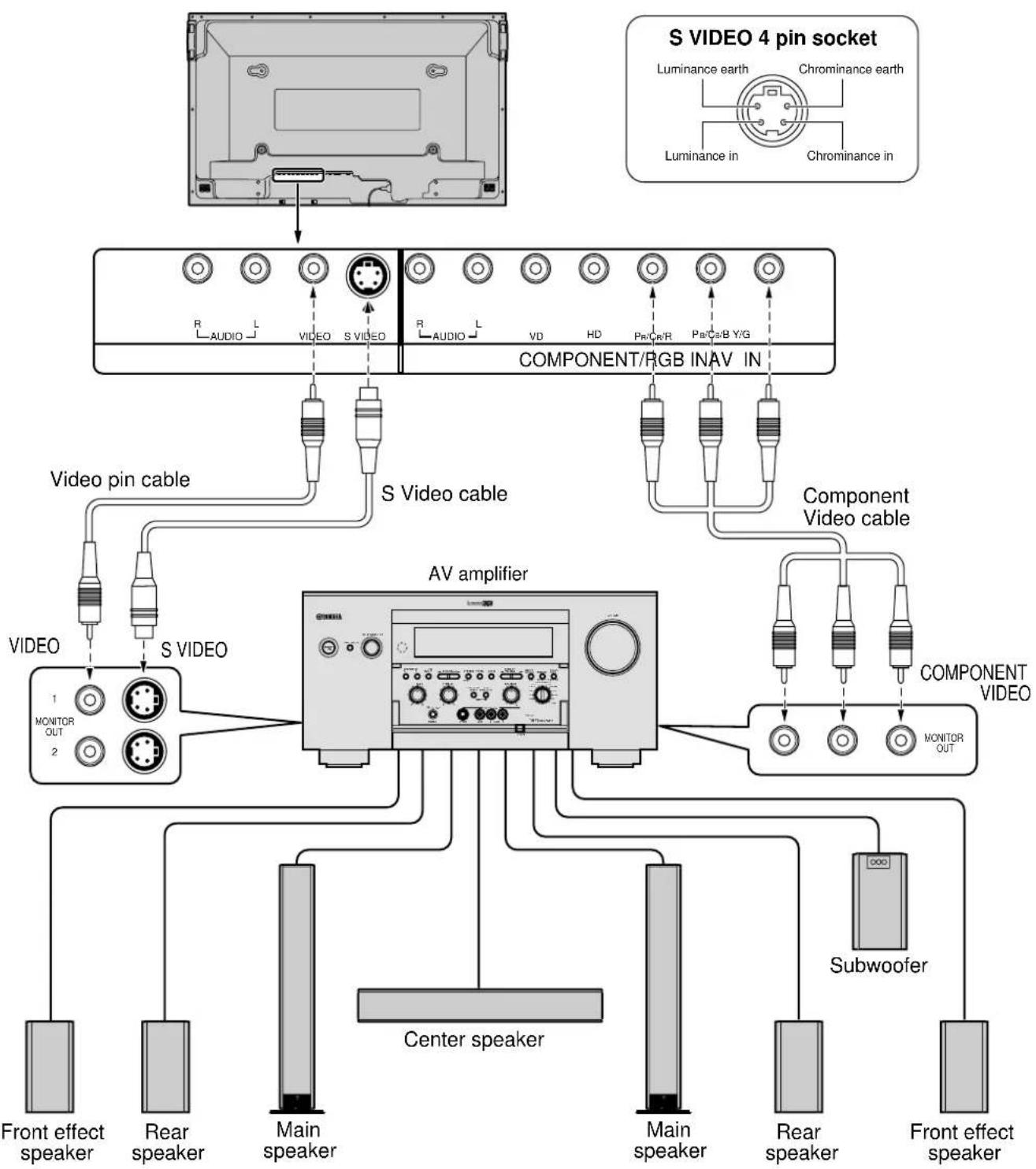
flowchart
graph TD
    A["S VIDEO 4 pin socket"] --> B["Component/RGB INAV IN"]
    B --> C["AV amplifier"]
    C --> D["Subwoofer"]
    C --> E["Main speaker"]
    C --> F["Rear speaker"]
    C --> G["Front effect speaker"]
    C --> H["Center speaker"]
    C --> I["Front effect speaker"]
    C --> J["Front effect speaker"]
    C --> K["Monitor OUT 1"]
    C --> L["Monitor OUT 2"]
    C --> M["Monitor OUT 3"]
    C --> N["Monitor OUT 4"]
    C --> O["Monitor OUT 5"]
    C --> P["Monitor OUT 6"]
    C --> Q["Monitor OUT 7"]
    C --> R["Monitor OUT 8"]
    C --> S["Monitor OUT 9"]
    C --> T["Monitor OUT 10"]
    C --> U["Monitor OUT 11"]
    C --> V["Monitor OUT 12"]
    C --> W["Monitor OUT 13"]
    C --> X["Monitor OUT 14"]
    C --> Y["Monitor OUT 15"]
    C --> Z["Monitor OUT 16"]
    C --> AA["Monitor OUT 17"]
    C --> AB["Monitor OUT 18"]
    C --> AC["Monitor OUT 19"]
    C --> AD["Monitor OUT 20"]
    C --> AE["Monitor OUT 21"]
    C --> AF["Monitor OUT 22"]
    C --> AG["Monitor OUT 23"]
    C --> AH["Monitor OUT 24"]
    C --> AI["Monitor OUT 25"]
    C --> AJ["Monitor OUT 26"]
    C --> AK["Monitor OUT 27"]
    C --> AL["Monitor OUT 28"]
    C --> AM["Monitor OUT 29"]
    C --> AN["Monitor OUT 30"]
    C --> AO["Monitor OUT 31"]
    C --> AP["Monitor OUT 32"]
    C --> AQ["Monitor OUT 33"]
    C --> AR["Monitor OUT 34"]
    C --> AS["Monitor OUT 35"]
    C --> AT["Monitor OUT 36"]
    C --> AU["Monitor OUT 37"]
    C --> AV["Monitor OUT 38"]
    C --> AW["Monitor OUT 39"]
    C --> AX["Monitor OUT 40"]
Notes:
(1) Change the "Component / RGB-in" setting in the "Setup" menu to "Component". (see page 30)
(2) Any equipment and cables other than the display illustrated above are not included.
(3) Choose one connecting cable from Video, S Video or Component Video, that is suitable for the equipment being used.
(4) Generally the quality of images obtained varies between connection methods in the descending order of Component Video, S Video and Video.
Speaker Terminals connection
When you do not use an AV amplifier, connect the speakers directly with the speaker terminals of the plasma display. Refer to the speaker's Installation Manual for details on speaker installation.
When connecting the speakers, be sure to use only the optional accessory speakers.
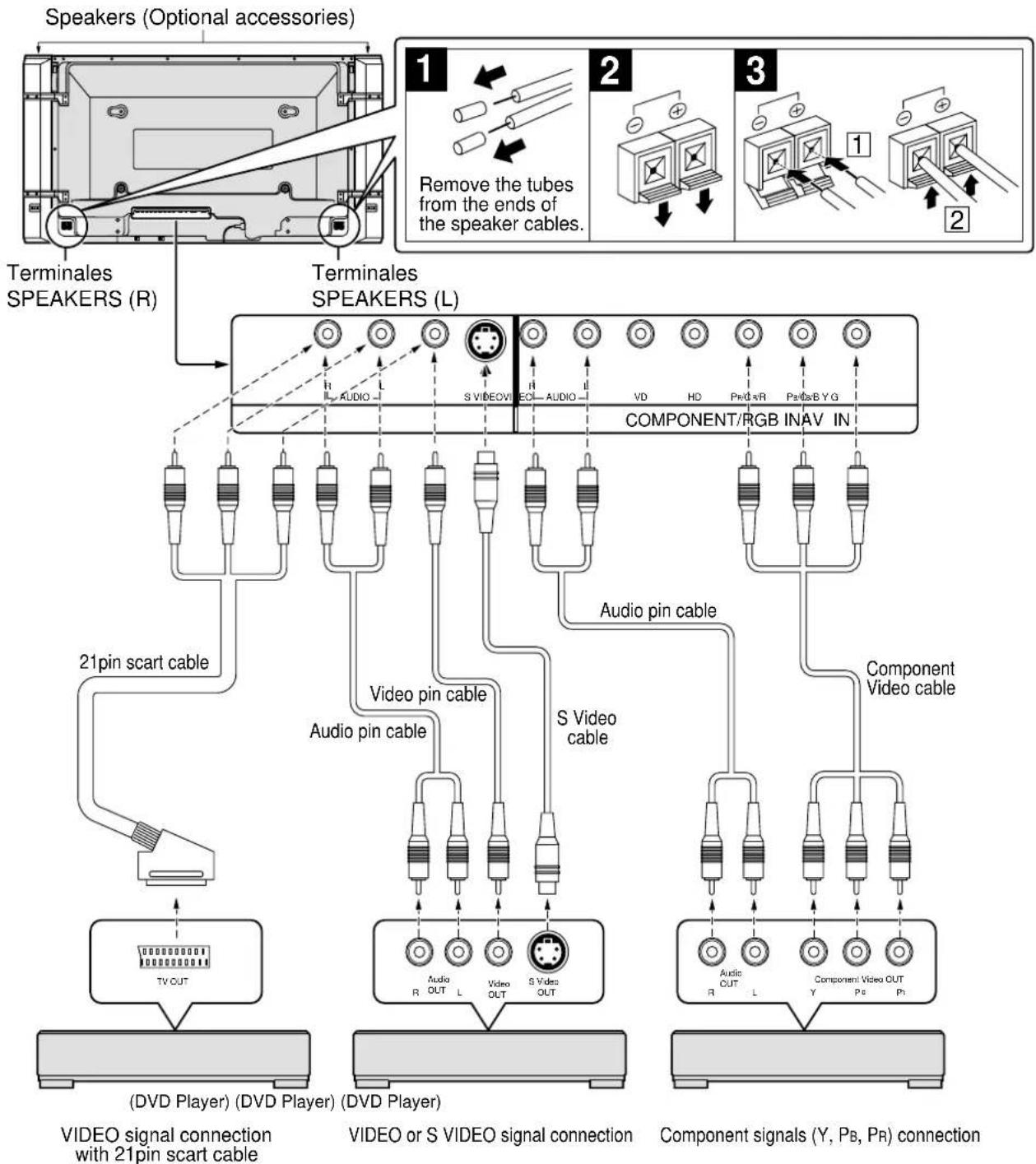
flowchart
graph TD
    A["Speaker (Optional accessories)"] --> B["Terminales SPEAKERS (R)"]
    B --> C["21pin scart cable"]
    C --> D["TV OUT"]
    D --> E["(DVD Player) (DVD Player) (DVD Player)"]
    E --> F["VIDEO signal connection with 21pin scart cable"]
    F --> G["Video or S VIDEO signal connection"]
    G --> H["Component signals (Y, Pb, Pr) connection"]

    I["Remove the tubes from the ends of the speaker cables."] --> J["1"]
    J --> K["2"]
    K --> L["3"]
    L --> M["1"]
    M --> N["2"]
Notes:
(1) Change the "Component / RGB-in" setting in the "Setup" menu to "Component". (see page 30)
(2) Any equipment and cables other than the display illustrated above are not included.
(3) Choose one connecting cable from Video, S Video or Component Video, that is suitable for the equipment being used.
(4) Generally the quality of images obtained varies between connection methods in the descending order of Component Video, S Video and Video.
(5) When utilizing the R/G/B/Video signals from the TV OUT(SCART) terminal of a DVD player or similar, use a 4-pin cable to connect signals to the appropriate input terminal of the display.
Component / RGB Input connection
RGB signal (R, G, B, HD, VD) connection
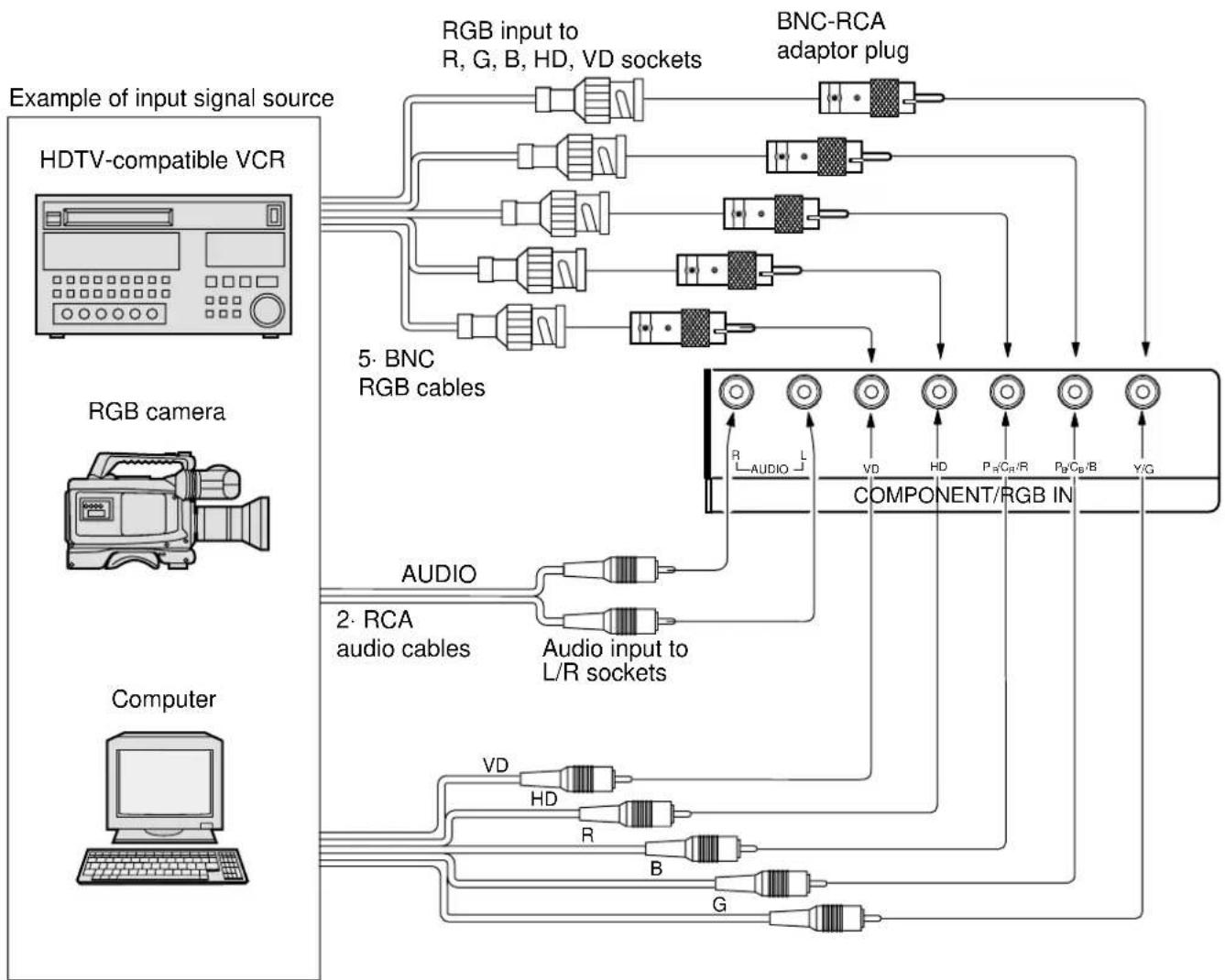
flowchart
graph TD
    A["Example of input signal source"] --> B["HDTV-compatible VCR"]
    B --> C["RGB input to R, G, B, HD, VD sockets"]
    B --> D["BNC-RCA adaptor plug"]
    C --> E["5-BNC RGB cables"]
    D --> E
    E --> F["COMPONENT/RGB IN"]
    G["RGB camera"] --> H["AUDIO"]
    G --> I["2-RCA audio cables"]
    G --> J["Computer"]
    H --> K["Audio input to L/R sockets"]
    I --> K
    J --> K
    K --> L["VD"]
    K --> M["HD"]
    K --> N["R"]
    K --> O["B"]
    K --> P["G"]
    L --> Q["+"]
    M --> Q
    N --> Q
    O --> Q
    P --> Q
Notes:
(1) Change the "Component / RGB-in" setting in the "Setup" menu to "RGB". (see page 30)
(2) Any equipment and cables other than the display illustrated above are not included.
(3) Choose one connecting cable from Video, S Video or Component Video, that is suitable for the equipment being used.
(4) Generally the quality of images obtained varies between connection methods in the descending order of Component Video, S Video and Video.
Specifications
| PDM-1 | ||
| Power Source | 220 - 240 V AC, 50/60 Hz | |
| Power ConsumptionNormal useStand-by conditionPower off condition | 495 W3.0 W1.7 W | |
| plasma display panel | Drive method AC type50-inch, 16:9 aspect ratio | |
| Contrast Ratio | 3000:1 | |
| Screen size | 1,106 mm (W) · 622 mm (H) · 1,269 mm (diagonal)No. of pixels1,049,088 (1,366 (W) · 768 (H)) [4,098 · 768 dots] | |
| Operating conditionTemperatureHumidity | 0 °C - 40 °C20 % - 80 % | |
| Applicable signals | ||
| Colour System | NTSC, PAL, PAL60, SECAM, Modified NTSC | |
| Scanning format | 525i (480i), 625i (575i), 525p (480p), 625p (575p), 750p (720p), 1,125/60i, 50i, 24p, 24sF (1,080/60i, 50i, 24p, 24sF) ...... SMPTE 274M | |
| PC signals | XGA displayVGA, SVGA, XGASXGA, UXGA (compressed)Horizontal scanning frequency 15.6 - 110 kHzVertical scanning frequency 48 - 120 Hz | |
| Connection terminals | ||
| PC | (HIGH-DENSITY D-SUB 15PIN) R,G,B/0.7 Vp-p (75-ohm)HD, VD/1.0 - 5.0 Vp-p (high impedance)AUDIO IN (M3 JACK) 0.5 Vrms (high impedance) | |
| SERIAL | EXTERNAL CONTROL TERMINAL (D-SUB 9PIN) RS-232C COMPATIBLE | |
| SPEAKERS (6 Ω) | 16 W [8 W + 8 W] (10 % THD)For SP-PDM1 | |
| Accessories Supplied | ||
| Remote Control Transmitter | EUR646528 | |
| Batteries | 2 · R6 Size | |
| Fixing bands | 2 pcs | |
| Ferrite core | (small size) · 1, (large size) · 2 | |
| PDM-1 | ||
| Optional Supplied | ||
| Speakers | SP-PDM1 | |
| Pedestal | PDS-150 | |
| Wall Mounting Unit | PWK-150 | |
| Plasma DisplayRCA Terminal Board | PTM-RCA1 | |
| Dimensions(W·H·D) | 1,210 mm · 724 mm · 98 mm | |
 | ||
| Mass (Weight) | approx. 42.5 kg net (main unit only) | |
Notes:
(1) Design and specifications are subject to change without notice. Weight and dimensions shown are approximate.
(2) This equipment complies with the EMC standards listed below.
EN55022, EN61000-3-2, EN61000-3-3, EN61000-6-2.

YAMAHA
PDM-1
natural_image
Illustration of a flat-screen TV with a remote control unit beside it (no text or symbols visible)
natural_image
Modern flat-screen monitor with three side panels, shown in a row (no text or symbols visible)Mode d'emploi
Français
Sommaire
Basique
Notice de securite importante .... 4
natural_image
Coiled electrical plug with two terminal connectors (no text or symbols visible)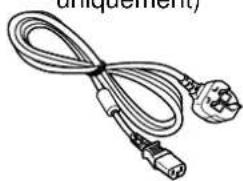
natural_image
Coiled electrical plug with two connectors (no text or symbols visible)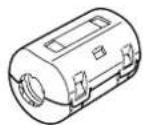
Accessoires en option
- Enceintes
SP-PDM1
natural_image
Two identical 3D rectangular prisms with no text or symbols• Piédestal
PDS-150
natural_image
Technical line drawing of a rectangular metal bracket with two vertical posts (no text or symbols)natural_image
Technical line drawing of a rectangular electronic device casing with mounting holes and internal compartments (no text or symbols)- Écran á plasma RCA carte de connexion PTM-RCA1
natural_image
Line drawing of an electronic device chassis with multiple ports and connectors (no text or symbols)natural_image
Technical diagram showing a device casing with a highlighted circular component and a close-up of its internal structure (no text or symbols)Remarque:
natural_image
Diagram of a device with directional arrows and central square (no text or symbols)natural_image
Diagram of a control panel with directional arrows and a central square (no text or symbols)natural_image
Diagram of a control panel with directional arrows and control buttons (no text or symbols)natural_image
Diagram of a control panel with directional arrows and a central square button (no text or symbols)natural_image
Diagram of a device control panel with directional arrows and a central button (no text or symbols)natural_image
Diagram of a symmetrical mechanical or electrical component with directional arrows, no text or symbols present.natural_image
Diagram of a circular mechanical or electrical component with directional arrows, no text or symbols presentnatural_image
Diagram of a circular object with internal arrows and a central square, no text or symbols presentSYNC
natural_image
Illustration of a flat-screen TV with a remote control unit beside it (no text or symbols visible)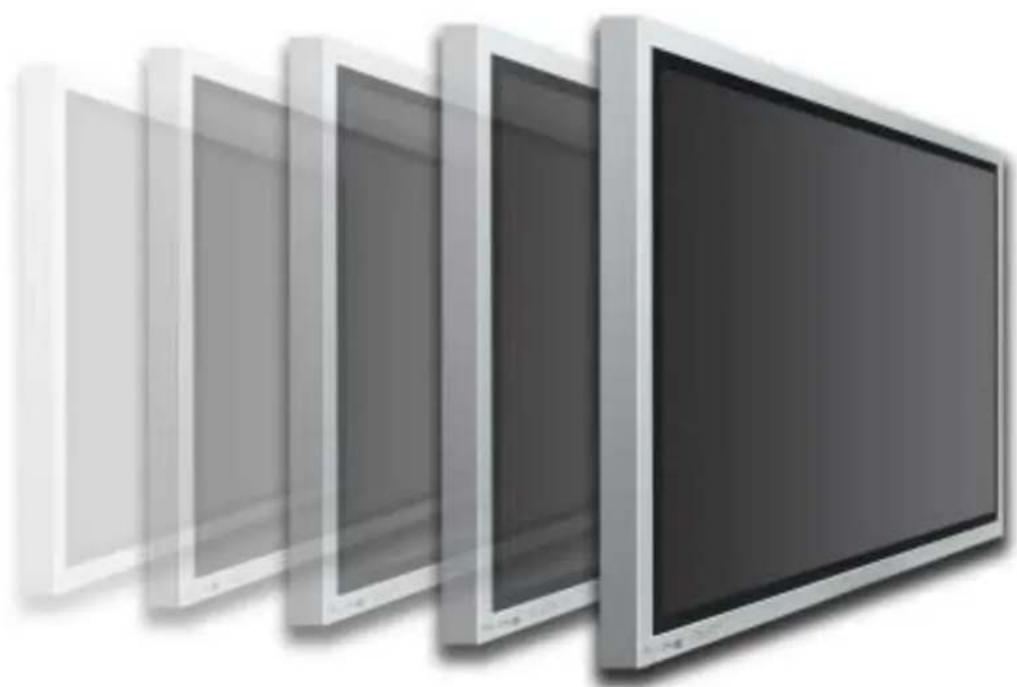
natural_image
Modern flat-screen monitor with three side panels, shown in a row (no text or symbols visible)Bedienungsanleitung
Inhaltsverzeichnis
Grundlegend
natural_image
Line drawing of a coiled electrical plug with two terminal plugs (no text or symbols)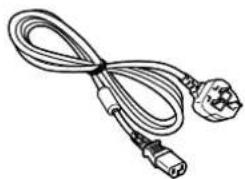
natural_image
Line drawing of a coiled electrical plug with terminal connectors (no text or symbols)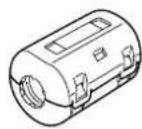
Sonderzubehör
natural_image
Two identical 3D rectangular prisms with no text or symbols- Sockel
PDS-150
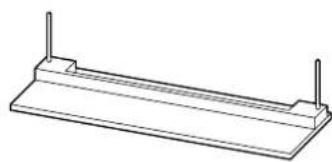
natural_image
Simple line drawing of a rectangular metal plate with two vertical posts (no text or symbols)natural_image
Technical line drawing of a rectangular electronic component with mounting holes and internal compartments (no text or symbols)natural_image
Line drawing of a multi-chamber electronic device with ports and connectors (no text or symbols)natural_image
Technical line drawing of a laptop chassis frame with mounting holes and a circular component detail (no text or symbols)natural_image
Blank gray rectangular shape with rounded corners (no text or symbols)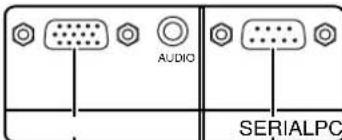
natural_image
Diagram showing a device inside a container connected to a plug, with an arrow indicating the process (no text or symbols present)natural_image
Diagram of a control panel with directional arrows and a central square button (no text or symbols)natural_image
Diagram of a control panel with directional arrows and a central square button (no text or symbols)natural_image
Diagram of a device interior with directional arrows and a central square button (no text or symbols)natural_image
Diagram of a circular device with internal components and directional arrows, no text or symbols presentnatural_image
Diagram of a control panel with directional arrows and a central square button (no text or symbols)natural_image
Diagram of a circular mechanical or electrical component with directional arrows and a central square (no text or symbols)natural_image
Diagram of a symmetrical mechanical or electrical component with directional arrows, no text or symbols present.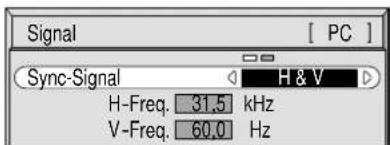
natural_image
Technical line drawing of a device rear panel with mounting holes and a handle (no text or symbols)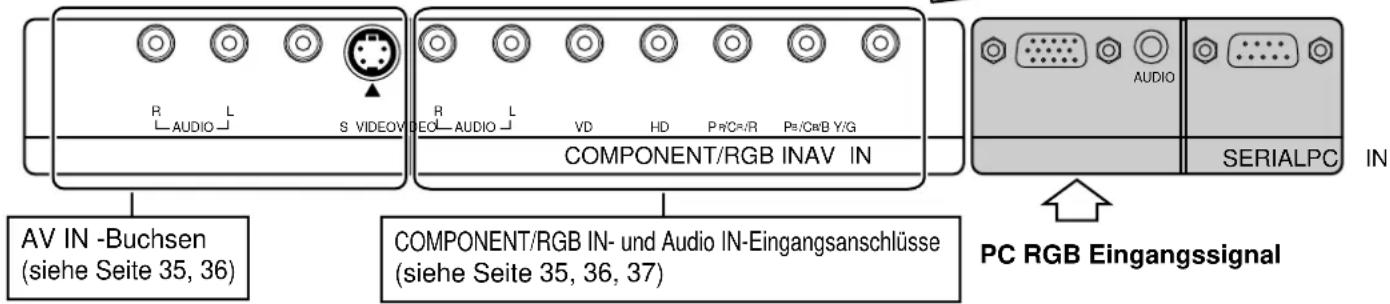
natural_image
Illustration of a flat-screen TV with a remote control unit beside it (no text or symbols visible)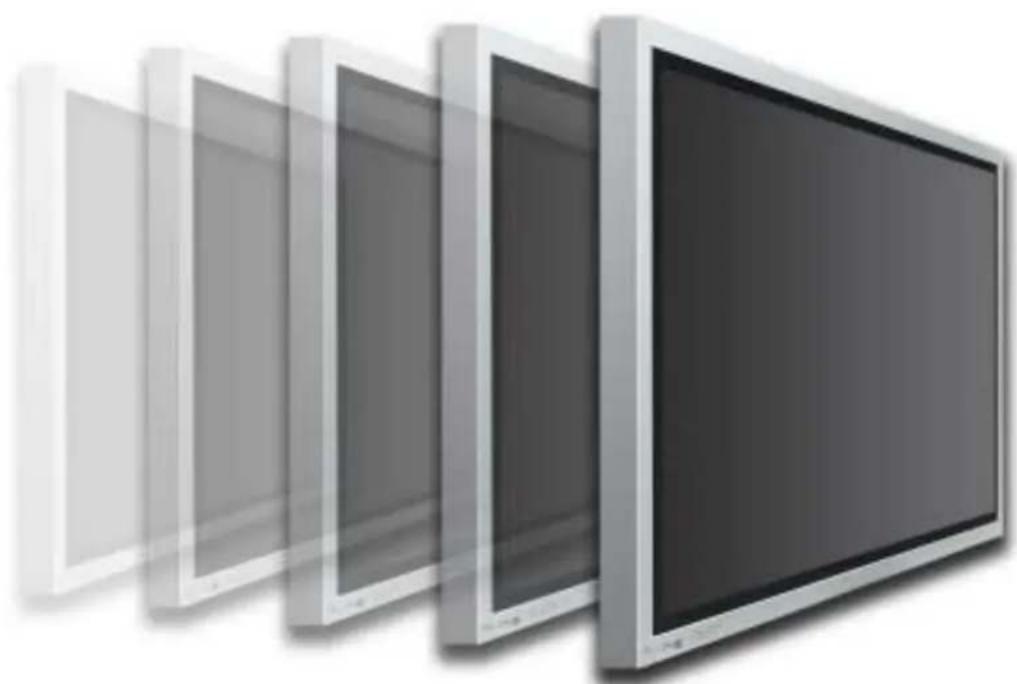
natural_image
Modern flat-screen monitor with three side panels, shown in a row (no text or symbols visible)natural_image
Line drawing of a coiled electrical plug with two terminal plugs (no text or symbols)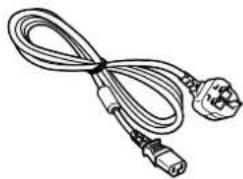
natural_image
Coiled electrical plug with two connectors (no text or symbols visible)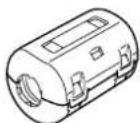
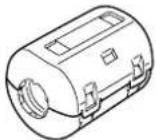
natural_image
Two identical 3D rectangular prisms with black outlines, symmetrically placed (no text or symbols)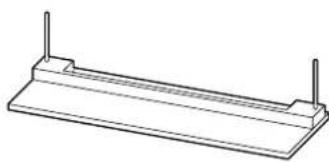
natural_image
Simple line drawing of a rectangular metal plate with two vertical posts (no text or symbols)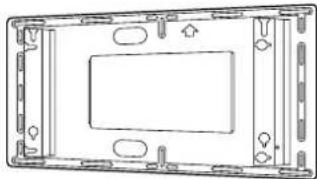
natural_image
Technical line drawing of a rectangular electronic component with mounting holes and internal compartments (no text or symbols)natural_image
Line drawing of a rectangular electronic device with multiple ports and connectors (no text or symbols)Para el montaje
natural_image
Technical line drawing of a laptop chassis frame with mounting holes and ventilation slots (no text or symbols)natural_image
Technical diagram showing a device casing with internal components and a close-up of its internal structure (no text or symbols present)natural_image
Diagram of a circular device with six labeled buttons and an arrow pointing to the center (no text or symbols)natural_image
Diagram of a control panel with directional arrows and labeled buttons (no text or symbols)natural_image
Diagram of a symmetrical mechanical or electrical component with directional arrows, no text or symbols present.natural_image
Diagram of a control panel with directional arrows and a central square button (no text or symbols)natural_image
Diagram of a circular device with directional arrows and control buttons, no text or symbols presentnatural_image
Diagram of a circular mechanical or electrical component with internal arrows and a central square (no text or symbols)natural_image
Diagram of a control panel with directional arrows and a central square button (no text or symbols)natural_image
Diagram of a circular mechanical or electrical component with directional arrows indicating flow or movement (no text or symbols)natural_image
Diagram of a device control panel with directional arrows and a central square button (no text or symbols)natural_image
Diagram of a control panel with directional arrows and a central square button (no text or symbols)Señales R, G, B, HD, VD = "RGB"
1
natural_image
Diagram of a symmetrical mechanical or electrical component with directional arrows, no text or symbols present.natural_image
Technical line drawing of a device casing with internal components and a downward arrow indicating motion (no text or symbols)natural_image
Illustration of a flat-screen TV with a remote control unit beside it (no text or symbols visible)
natural_image
Modern flat-screen monitor with three side panels, shown in a row (no text or symbols visible)Freq. O. (kHz) / Freq. V. (Hz) 32
natural_image
Line drawing of a coiled electrical plug with two terminal connectors (no text or symbols)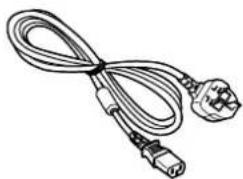
natural_image
Illustration of a coiled electrical plug with terminal connectors (no text or symbols)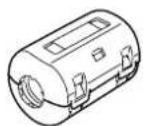
Accessori opzionali
- Altoparlanti
SP-PDM1
natural_image
Two identical 3D rectangular prisms with black outlines, symmetrically placed (no text or symbols)- Piedistallo PDS-150
natural_image
Simple line drawing of a rectangular metal plate with two vertical posts (no text or symbols)natural_image
Technical line drawing of a rectangular electronic component with mounting holes and internal compartments (no text or symbols)natural_image
Line drawing of a multi-chamber electronic device with ports and connectors (no text or symbols)Per il montaggio
natural_image
Technical diagram showing a device casing with internal components and a close-up of its electrical plug (no text or symbols present)![Segnale [ PC ] Sync H & V Freq. O. 31.5 kHz Freq. V. 60.0 Hz](/content/2026/02/379393/images/e63e03b8c414e652598a5d6bef703f93c5444cc5ebf303d7130046d11811844a.jpg)
Nota:
natural_image
Diagram of a device control panel with arrows indicating input and output ports (no text or symbols)Nota:
flowchart
graph TD
    A["Top Left"] --> B["Central Square"]
    B --> C["Bottom Right"]
    C --> D["Right"]
    D --> E["Bottom Left"]
    E --> F["Left"]
    F --> G["Right"]
    G --> H["Bottom Right"]
    H --> I["Bottom Left"]
    I --> J["Left"]
    J --> K["Right"]
    K --> L["Bottom Right"]
    L --> M["Bottom Left"]
    M --> N["Left"]
    N --> O["Right"]
natural_image
Diagram of a control panel with directional arrows and a central square button (no text or symbols)natural_image
Diagram of a device control panel with directional arrows and a central square button (no text or symbols)natural_image
Diagram of a circular mechanical or electrical component with directional arrows and a central square (no text or symbols)natural_image
Diagram of a control panel with directional arrows and a central button (no text or symbols)natural_image
Diagram of a mechanical or electrical component with arrows indicating direction (no text or symbols)natural_image
Diagram of a circular mechanical or electrical component with directional arrows, no text or symbols presentnatural_image
Diagram of a control panel with directional arrows and a central square button (no text or symbols)natural_image
Diagram of a cross-shaped object with internal arrows and a central square, no text or symbols presentflowchart
graph TD
    A["Top Left"] --> B["Center Square"]
    B --> C["Bottom Right"]
    C --> D["Right"]
    D --> E["Left"]
    E --> F["Bottom Left"]
    F --> G["Right"]
    G --> H["Left"]
    H --> I["Bottom Right"]
    I --> J["Right"]
natural_image
Diagram of a circular object with internal arrows and a central square, no text or symbols present![Segnale [ PC ] Sync H & V Freq. O. 31,5 kHz Freq. V. 60,0 Hz](/content/2026/02/379393/images/4233c5fec31fdd5c72f261b832c91382c058bf7d40135b261704e7bbda9f2628.jpg)
Freq. O. (kHz) / Freq. V. (Hz)
natural_image
Technical line drawing of a mechanical component with no visible text or symbols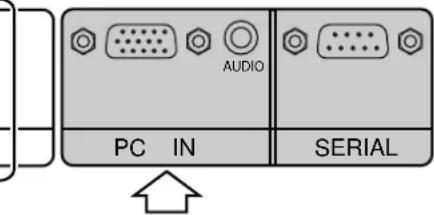


- HIGH DEFINITION PLASMA MONITOR
- Operating Instructions
- Table of Contents
- Basic
- With Optional RCA Terminal Board
- Important Safety Notice
- WARNING
- CAUTION
- Trademark Credits
- Note:
- FOR UK ONLY
- IMPORTANT: THE MOULDED PLUG
- Safety Precautions
- Setup
- When using the plasma display
- If problems occur during use
- Cleaning and maintenance
- Accessories
- Accessories Supply
- Check that you have the accessories and items shown
- Optional Accessories
- For assembling
- Remote Control Batteries
- Requires two R6 batteries.
- Helpful Hint:
- Precaution on battery use
- Observe the following precaution:
- Connections
- PC Input Terminals connection
- Notes:
- Signal Names for D-sub 15P Connector
- SERIAL Terminals connection
- Basic format for control data
- Basic Controls
- (AV(S Video), Component/RGB and PC Mode Selection)
- Volume Adjustment
- Stand-by (ON/OFF) button
- Power On/Off and input signal selection
- AC cord connection
- Power On/Off
- Connecting the plug to the Wall Outlet Note:
- Select the input signal
- Selecting the On-Screen Menu Language
- On-Screen Menu Display from Remote Control
- ASPECT Controls
- ASPECT button
- Adjusting Picture Pos./Size
- Adjusting screen
- Helpful Hint ( N / Normalise Normalisation)
- Sound Adjustment
- 1
- 2
- Bass
- Treble
- Balance
- Helpful Hint ( N / Normalise Normalisation)
- Mute
- Surround Controls
- SURROUND Button
- Picture Adjustments
- Normal
- Dynamic
- Cinema
- Set up TIMER
- PRESENT TIME Set
- TIMER Set
- 3
- 4
- Screensaver (For preventing after-images)
- Reversal / Scroll selection
- Mode selection
- Setup of Screensaver Time
- Side Panel Adjustment
- Setup for Input Signals
- Component/RGB-in select
- 3D Y/C Filter – For NTSC AV images
- Colour system / Aspect Auto
- If the picture image becomes unstable:
- 3:2 Pulldown
- Sync
- Setting RGB sync signal:
- Setting PC sync signal:
- H-Freq. (kHz) / V-Freq. (Hz)
- Displays the H (Horizontal)/V (Vertical) frequencies.
- Troubleshooting
- Connection to the Optional Terminal Board (PTM-RCA 1)
- Basic connection
- Speaker Terminals connection
- Component / RGB Input connection
- Specifications
- YAMAHA
- PDM-1
- Sommaire
- Basique
- Accessoires en option
- Remarque:
- Bedienungsanleitung
- Inhaltsverzeichnis
- Grundlegend
- Sonderzubehör
- Para el montaje
- Accessori opzionali
- Per il montaggio
- Nota:
- Freq. O. (kHz) / Freq. V. (Hz)
Brand : YAMAHA
Model : PDM1
Category : Monitor