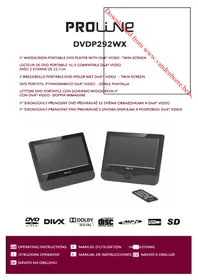
DVDP292WX - DVD player PROLINE - Free user manual and instructions
Find the device manual for free DVDP292WX PROLINE in PDF.



| Brand | Proline |
| Model | DVDP292WX |
| Category | Portable DVD player |
| Product type | DVD player with 9-inch LCD screen |
| Power supply | 100-240 V~ 50/60 Hz (mains adapter) / 12 V car cigarette lighter |
| Screen size | 9 inches (23 cm) |
| Main unit dimensions | 230 x 192 x 39.5 mm |
| Screen dimensions | 230 x 192 x 26 mm |
| Weight | 1.36 kg |
| Compatible disc formats | DVD, Audio CD, MP3 CD, JPEG CD, DivX |
| Playback functions | DVD/CD/MP3/JPEG playback, A-B repeat, zoom, pause, chapter/track navigation |
| USB and memory card playback | Yes (MP3 and JPEG files on USB key or SD/MMC card) |
| Remote control | Yes, with CR2025 lithium battery |
| Earphones | 3.5 mm jack socket |
| Parental control | Yes, 8 levels (from KID SAFE to ADULT), 4-digit password |
| Display languages (OSD) | Selectable (French, English, etc.) |
| Screen saver | Yes, activates after 5 minutes of inactivity |
| Frequency response | 20 Hz to 20 kHz (1 dB) |
| Signal-to-noise ratio | Greater than 60 dB |
| Dynamic range | Greater than 85 dB |
| Operating temperature | 5 to 35 °C |
| Maintenance and cleaning | Soft dry cloth; do not use solvents; lens cleaning recommended every 1000 hours |
| Safety | Double insulation, laser protection, automatic shutdown in case of malfunction |
| Usage | Domestic (at home or in car) |
Frequently Asked Questions - DVDP292WX PROLINE
User questions about DVDP292WX PROLINE
0 question about this device. Answer the ones you know or ask your own.
Ask a new question about this device
Download the instructions for your DVD player in PDF format for free! Find your manual DVDP292WX - PROLINE and take your electronic device back in hand. On this page are published all the documents necessary for the use of your device. DVDP292WX by PROLINE.
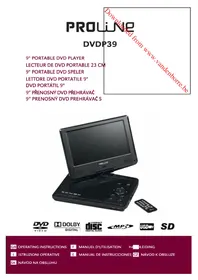
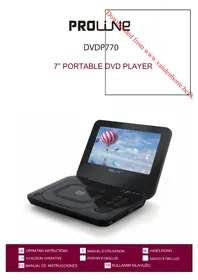
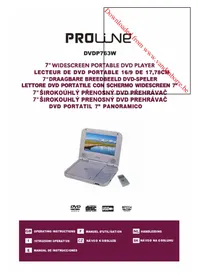
USER MANUAL DVDP292WX PROLINE
natural_image
Exterior view of a black rectangular electronic device labeled 'PROLLINE' (no additional text or symbols visible)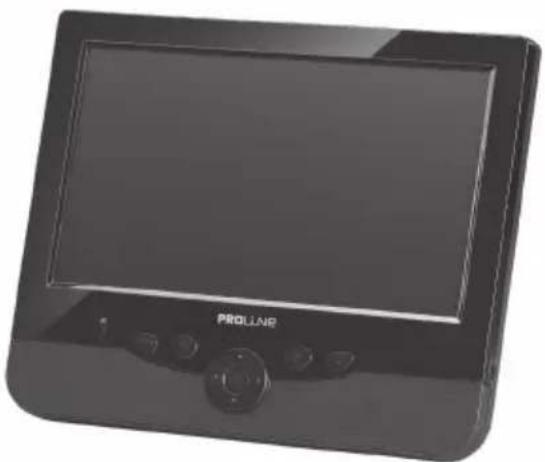
natural_image
Black rectangular electronic device with a screen and control buttons (no visible text or symbols)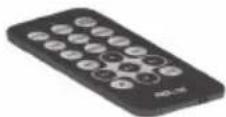





GB OPERATING INSTRUCTIONS
ISTRUZIONI OPERATIVE
SK NÁVOD NA OBSLUHU
F MANUEL D'UTILISATION
Table of Contents
SAFETY INFORMATION ......2
IDENTIFICATION OF CONTROLS......6
MAIN UNIT....6
MONITOR 7
REMOTE CONTROL....8
GETTING STARTED 9
INSTALLING DVD PLAYER TO CAR SEATS....9
CONNECTING POWER....9
CONNECTING AUDIO/VIDEO CABLE 10
INSTALL REMOTE CONTROL BATTERY....10
BASIC OPERATION....10
PLAYING A DVD....10
PLAYING AN AUDIO CD OR MP3....12
PLAYING A JPEG DISC 13
DIGITAL CARD AND USB PLAY 14
SETUP MENU SETTING ....14
GENERAL SETUP PAGE 14
VIDEO QUALITY SETUP....16
PASSWORD SETUP PAGE 16
PREFERENCE PAGE 17
PARAMETERS AND MAINTENANCE ....18
TROUBLESHOOTING....19
IMPORTANT DISPOSAL INSTRUCTIONS ....20
Safety Information
Mains supply
This equipment is designed to operate from a 100-240 Volt, 50/60Hz AC mains supply. Other power sources may damage it.
Mains adapter
The power adapter supplied is compatible with a standard mains socket.
- If the power adapter or its lead gets damaged it must be replaced by a qualified service agent with an approved adapter of the same type and rating.
Symbols

This equipment is double insulated and an earth connection is not required.

Dangerous voltage constituting a risk of electric shock is present inside this equipment.

This mark is applied to show the equipment conforms to European safety and electro-magnetic compatibility standards.

There are important operating and maintenance instructions in the literature accompanying this equipment.
TO REDUCE THE RISK OF BURNS, ELECTRIC SHOCK, FIRE OR INJURY TO PERSONS, PLEASE CAREFULLY READ ALL SAFETY INSTRUCTIONS.

TO PREVENT ELECTRIC SHOCK, DO NOT REMOVE ANY COVER.

Save these instructions for future reference.
We have designed and made this product to meet European safety standards, but as with any electronic equipment you must take care.
Here is some good advice to help you stay safe and get the best results.
Install or locate this product only in accordance with the installation instructions.
Use this product only for its intended purpose as described in the operating instructions.
Children and the infirm must be closely supervised by a competent person. If the product includes small parts, do not let children play with it.
Examine the product thoroughly: if it is damaged in any way notify the retail store
where you purchased it.
To save power: switch off mains power or pull out the power adapter when you are not using the equipment.
The plug shall be the main disconnect device and should remain operable at all times.
Avoid harsh conditions such as wet or damp places, high humidity, strong vibration, extremely high or low temperatures, strong sunlight and places that are very dusty.
Protect the power lead. You must ensure the power adapter lead cannot be walked on, crushed, chafed or cut and routed in a way that reduces the risk of a tripping hazard.
Never let anyone push objects into holes and ventilation slots.
Don't continue to use this equipment if you have split liquids in it, if it is damaged in any way or if it does not work as expected. Immediately unplug the equipment and get expert advice.
Protect the screens from fingerprints and dirt.
This product is designed for domestic use only. Any other use may invalidate the guarantee and might be dangerous.
DO NOT store this product outdoors or expose to rain or moisture.
DO NOT use this product near water, for example near a kitchen sink, in a bathroom or near a swimming pool.
DO NOT remove outer panels or covers from the product. Repairs must only be undertaken by a qualified service person.
DO NOT place the product or mains lead near a hot surface such as a gas or electric cooker or fire.
DO NOT operate the product when room humidity is excessive.
Ventilation
Place the equipment on a hard flat surface away from direct sunlight and heat sources. If it is in a cabinet, allow at least a 10cm gap all around. Don't obstruct the ventilation slots, including those underneath, with soft furnishings. Overheating will shorten the life of the equipment and increase the risk of fire.
Cleaning
Disconnect the mains supply and use only a lightly dampened soft cloth. Do not use chemical solvents or strong detergents as these may damage the cosmetic finish. Do not leave any liquid drops on the screens.
Battery
Remove battery when the remote is not to be used for a long time. Battery left in the remote may cause damage through deterioration and corrosive leakage, invalidating the guarantee. To protect the environment please use local recycling facilities for battery disposal. Do not dispose of the battery in a fire, danger of explosion!
Battery handling and usage
WARNING: Only adults should handle battery. Do not allow a child to use this product unless the Battery Compartment Cover is securely attached to the Battery Compartment in accordance with all product usage instructions.
- Follow the battery manufacturer's safety and usage instructions.
- Keep battery away from children and pets.
- Insert the battery observing the proper polarity (+/-) as indicated inside the battery compartment. Failure to properly align the battery polarity can cause personal injury and/or damage. The battery compartment is located on the bottom of the remote.
Important Safety Warnings
- If anything goes wrong, don't try and fix it yourself, get a qualified service agent to carry out any repairs or maintenance.
- Do not expose this equipment to dripping or splashing or place any objects filled with liquids, such as vases, on the product.
• Never put a naked flame source such as lighted candles on or near the product.
• Small parts. Do not let young children play with the equipment. - Do not use the equipment for any purpose other than its intended use.
- Do not let the cord on the adapter hang over the edge of a table or counter top.
- Do not let the cord on the adapter touch any hot surface.
- Do not operate the equipment with a damaged adapter or after the equipment has been dropped or damaged in any way.
- Do not immerse the equipment in water or any other liquid.
- Never operate the equipment and try to view video while driving a vehicle.
- To prevent injury, this equipment must be securely attached to the car seats as in accordance with the installation instructions.
- Remove the battery when not using the remote for an extended period.
Class 1 laser product

This product contains a low power laser device. Invisible laser radiation when open and interlocks defeated. Avoid exposure to beam.
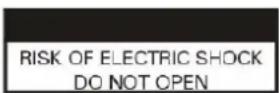

Warning: This digital video disc player employs a laser system. Use of controls, adjustments, or the performance of procedures other than those specified herein may result in hazardous radiation Exposure.

Warning: To prevent direct exposure to laser beam, do not open the enclosure. Invisible laser radiation when opening.

Warning: Never stare directly into the laser beam.

Caution: Do not install this product in a confined space such as a book case or similar unit.
Notes on Copyrights:
- It is forbidden by law to copy, broadcast, show, broadcast via cable, play in public, or rent copyrighted material without permission.
- This product features the copy protection function developed by Macrovision. Copy protection signals are recorded on some discs. When recording and playing the pictures of these discs picture noise will appear. This product incorporates copyright protection technology that is protected by method claims of certain U.S. Patents and other intellectual property rights owned by Macrovision Corporation and other rights owners. Use of this copyright protection technology must be authorised by Macrovision Corporation, and is intended for home and other limited viewing uses only unless otherwise authorised by Macrovision Corporation. Reverse engineering or disassembly is prohibited.
Notes on Discs
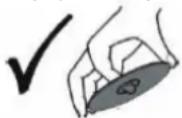
Handling Discs
Do not touch the play side of the disc. Hold the disc by the edges so that fingerprints do not get on the surface. Never stick paper or tape on the disc.
Storing Discs
After playing, store the disc in its case. Do not expose the disc to direct sunlight or source of heat and never leave it in a parked car exposed to direct sunlight.
Cleaning Discs
Fingerprints and dust on the disc can cause poor picture quality and sound distortion. Before playing, clean the disc with a clean cloth. Wipe the disc from the centre out.
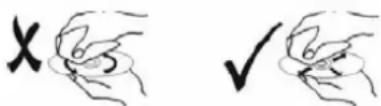
Do not use strong solvents such as alcohol, benzine, thinner, commercially available cleaners, or anti-static spray intended for older vinyl records.
Identification of Controls
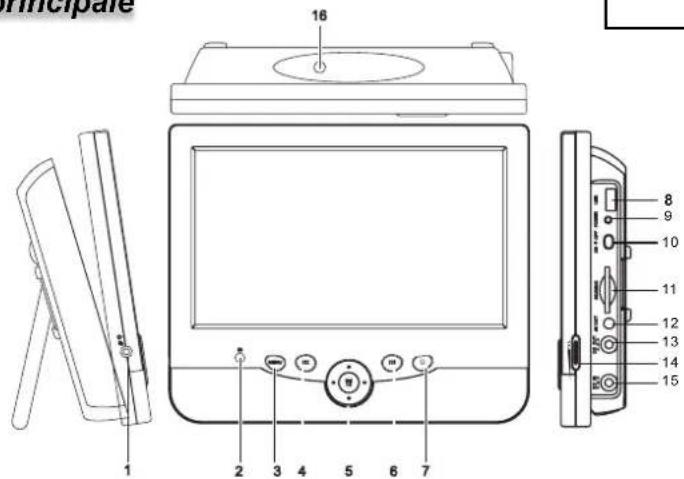
Main Unit

- Earphone Socket
- Remote Sensor
- MENU button
- Press to go to the root menu of DVD, CD.
4.
- Press to skip to the previous chapter, track or scene during playback.
- ▶/OK/up/down/left/right
- Navigation controls
6.
- Press to skip to the next chapter, track or scene during playback.
- ■ Stop
- USB Slot
- Power Indicator
- Power ON/OFF Switch
- SD/ MMC Card Slot
- AV OUT Jack
- Use this jack to connect the AV and DC cable to connect the main unit to the display.
- DC OUT Jack

- Connect to the display via the AV and CD cable.
- Volume Button
- DC IN Jack
- Connect to the AC adapter or car cigarette lighter adapter.
- Eject Button ▲
- Open the unit to insert a disc onto the tray.
Monitor
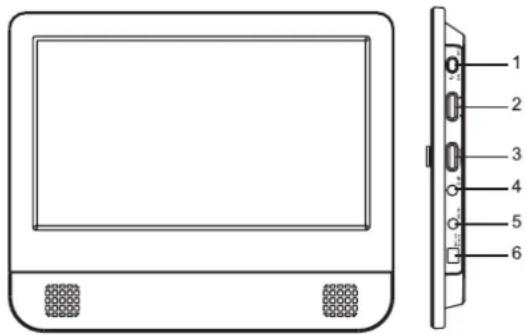
- Power ON/OFF Switch
- Brightness +/-
- Volume +/-
- Headphone Socket
- AV IN Jack
- Use this jack to connect the AV and DC cable to connect the display to the main unit.
- DC 9-12V Jack
Headphones: Insert a standard 3.5mm headphone into the headphone socket. The speakers will be muted.
HEADPHONE VOLUME WARNING
Connect headphones with volume set low and increase it if required. Prolonged listening through some headphones at high volume settings can result in hearing damage.
Earphones or headphones must comply with EN 50332-1 / EN 50332-2 to ensure continued protection from excessive sound pressure.

At full power, prolonged listening to the player can damage the ear of the user.
WARNING: To protect your hearing, it is important that any headphones or earphones used in conjunction with this product are compliant with French Decree of 8 November 2005 implementing Article L.5232-1. This ensures that the sound level does not exceed 100 dB SPL. The prolonged listening at high volume for more than five hours a week can damage your hearing.
Remote Control

1. SETUP
- Enter or exit setup menu.
2. DISPLAY
- Accesses On-Screen display.
3. DVD / SD-USB
4. SUB
- Select a subtitle language (DVD).
5. AUDIO
- Select an audio language (DVD).
6. MENU
- Access menu on a DVD disc.
7. A-B
- Repeat play of a specific section.
8. REPEAT
- Repeat chapter, track or title.
9. ZOOM
- Press to zoom in an image.
10.
- Skip to previous chapter, track or title.
11. ▲
- Navigate the cursor up on the screen.
12.
- Skip to the next chapter, track or title.
13.
- Navigate the cursor left on the screen or fast backward.
14. PLAY/PAUSE (▶II)
• Start / pause / resume play.
15.
- Navigate the cursor right on the screen or fast forward.
16. ▼
- Navigate the cursor down on the screen.

17. STOP (☐)
- Stop play.
18. NUM
- Press to activate or deactivate the 0-9 numeric buttons.
Getting Started
Installing DVD player to Car Seats
Use the supplied straps to fit the DVD player and the display tightly around the headrests.

natural_image
Line drawings of two electronic devices: a front panel with cable and a mounted device (no text or symbols)Connecting Power
- To connect power from inside a car, connect the supplied car power cord to the DC IN jack of the main unit and to the car cigarette lighter socket.
- To connect power from household power sources: Connect the supplied adaptor cable to the DC IN jack of the main unit and to the mains socket.
Caution!
- Check that the voltage marked on the adapter rating plate matches your local supply.
- When you unplug the adaptor, always pull the plug from the mains socket. Never pull the cord.
Connecting Audio/Video Cable

Install Remote Control Battery
Before using the remote control, remove the plastic protective spacer tab.
To replace the battery, remove the battery clip from the remote control and insert one 3V CR2025 lithium battery in the battery holder with the print face up, then replace the battery holder.
CAUTION:
- If the battery is placed incorrectly the remote control will not work.
- Danger of damage or injury if the battery is replaced incorrectly.
- Replace only with the same or equivalent type.

Basic Operation
Playing a DVD
-
Slide the power switch on the DVD player to the ON position.
-
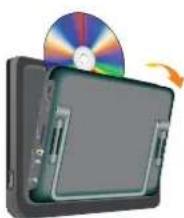
Press the eject button on the top of the main unit to open the disc tray and insert your chosen disc in the tray, with the label side facing up.
-
Close the tray. Play starts automatically.
-
Turn the Volume knob to adjust the desired volume.
-
To interrupt playing, press ▶II. To resume playing, press again.
-
To stop playing, press ■.
-
Press MENU to return to the menu screen. Some discs do not support menus and start to play automatically.
natural_image
Illustration of a CD or DVD disc emerging from a flat case, with an arrow indicating rotation (no text or symbols present)
Notes:
-
If parental control is set and the disc isn't fit for the rating setting you must input the password. (See "Parental").
-
DVDs may have a region code. Your player does not play discs that have a region code different from your player.
● Moving to another CHAPTER/TRACK
When a title on a disc has more than one chapter or a disc has more than one track, you can move to another chapter/track as follows:
- Press ◀◀ or ◀ briefly during play to select the next or previous chapter/track.
- To go directly to any chapter / track during DVD playback, press NUM to activate the 0-9 numeric buttons then input the chapter/track number.
- Repeat A-B
To repeat a sequence,
- Press A-B at the chosen starting point. “A” appears on the screen.
- Press A-B again at the chosen end point. "AB" appears on the screen and the repeat sequence begins.
- Press A-B again to cancel.
- Repeat
Press REPEAT during play to select a desired repeat mode.
"Repeat chapter / title / all"
CHAPTER: repeats the current chapter.
TITLE: repeats the current title.
ALL: repeats all the tracks on a disc.
- Zoom
You can zoom in for video images or pictures.
Press ZOOM repeatedly to change the size in the following sequence.
2X size → 3X size → 4X size → normal size
●MENU
- Press MENU. If the current title has a menu, the menu appears on the screen. Otherwise, the disc menu will not appear.
- The MENU offers features such as language, subtitle options and chapters for the title.
- Selecting the Audio Language
For DVDs that contain two or more audio languages, during play press AUDIO repeatedly until the desired language is selected.
- Selecting the Subtitle Language
For DVDs that contain two or more subtitle languages, during play press SUBTITLE repeatedly until the desired language is selected.
● Display Feature
a. When playing a DVD disc, press DISPLAY to display the following information.
- Current Title Number
- Total Number of Titles
- Current Chapter Number
- Total Number of Chapters
- Elapsed Playing Time

b. Press DISPLAY repeatedly to cycle through the following options:
Title Elapsed: The elapsed time of the title.
Title Remain: The remaining time of the title.
Chapter Elapsed: The elapsed time of the chapter.
Chapter Remain: The remaining time of the chapter.
Display Off: The DVD time information will not be displayed.
Playing an Audio CD or MP3
●Pause
- Press ▶ during play.
- To return to play, press ▶ again.
● Moving to another Track
-
For audio CD, Press ◀◀ or ▶during play to go to the next or previous track or move to the beginning of the current track.
For MP3, press ◀◀, ▶▶, ▲ and ▼ during play to select the track you want to play and then press ▶b play. -
You can play any track by inputting its number.
- Repeat
For audio CD, when REPEAT is pressed the repeat mode icon appears on the screen.
Track: repeats the current track.
All: repeats all the tracks on a disc.
Off (No display): normal play.
For MP3, when REPEAT is pressed the repeat mode icon briefly appears on the screen. Select the desired mode in the following modes.
REPEAT ONE→REPEAT FOLDER→REPEAT OFF
- Repeat A-B
- To repeat a sequence during disc play press A-B at your chosen starting point. “A” appears on the screen.
- Press A-B again at your chosen end point. "AB" appears on the screen and the sequence begins to play repeatedly.
- To exit the sequence and return to normal play, press A-B again. "AB" disappears on the screen.
● Display Feature
When playing an audio CD, press DISPLAY repeatedly to view the following information.
Single Elapsed: The current playing track and playing time of the track. Single Remain: The current playing track and the amount of remaining time.
Total Remain: The current playing track and the amount of total remaining time on the CD.
Display Off: The CD time information will not be displayed.
Playing a JPEG Disc
●Viewing a JPEG Disc
- Insert a JPEG disc and close the tray. The file menu appears on the screen.
- Use ▲▼ to highlight the file you want to play and press ▶II. Slide show starts from the selected file.
- During playing JPEG disc, press MENU to enter the digest view.
- During playing JPEG disc, press ▶▶ to move to the next page, press ◀to return to previous page, and press ■ to return to the folder menu.
● Still Picture
- Press ▶ during slide show. The player will now go into PAUSE mode.
- To return to the slide show, press ▶ again.
- Zoom
- Press ZOOM repeatedly to zoom in and out.
- When the picture is enlarged, press ◀◀, ▶▶, ▲ and ▼ to pan through it.
●To rotate a picture
Press ▼ during play to rotate the picture clockwise.
Digital Card and USB Play
Digital cards (MMC/SD card) and USB with mp3&pictures (.jpg) may be played and displayed through the main unit. MMC/SD cards may be directly inserted through the card reader slot. The USB socket can be used to supply signals to the main unit from USB sources.
Select digital USB/CARD to play
- Turn the main unit on.
- Insert a USB cable into the USB port or a card into the card reader slot on the unit's right.
- Press DVD/SD-USB on the remote the units would automatically detect the USB/CARD.
- If USB/CARD is selected, the unit will begin to read the card or USB connected to it.
SETUP Menu Setting
General Setup Page
● General Operation
- Press SETUP to enter the setup menu.
- Press ◀◀ or ▶▶ to enter the submenu or return to the previous menu.
- Press ▲▼ to highlight the desired menu.
- Press ▶ to enter the next level of submenu or confirm your selection.
To exit from the menu
Press SETUP →The settings will be stored in the player's memory.
● General Setup Page
The options included in General Setup page are: "TV Display", "Angle Mark", "OSD language", "Screen Saver", "Last Memory" and "DivX(R) VOD".
- Press SETUP to enter the setup menu.
- Press ◀◀ or ▶▶ to select the "General Setup Page".
● TV Display
Set the aspect ratio of the DVD Player according to the TV you have connected.
- Press ▲▼ to highlight "TV Display".
- Enter its submenu by pressing ▶.

-
Press ▲▼ to highlight the selected item.
-
Press ▶ to confirm.
Normal/PS
→ If you have a normal TV and want both sides of the picture to be trimmed or formatted to fit your TV screen.
Normal/LB
→ If you have a normal TV. In this case, a wide picture with black bands on the upper and lower portions of the TV screen will be displayed.
Wide
→ If you have a wide-screen TV.
● Angle Mark
- Press ▲▼ to highlight "Angle Mark".
- Enter its submenu by pressing ▶.
- Press ▲▼ to highlight the selected item.
→ On: Enable Angle Mark.
→ Off: Disable the current angle setting display. - Press ▶ to confirm.
●OSD Lang
You can select your own preferred language settings. This DVD system will automatically switch to the selected language whenever you load a disc. If the language selected is not available on the disc, the disc's default language will be used instead. The OSD language in the system menu will remain once selected.
- Press ▲▼ to highlight "OSD Lang".
- Enter its submenu by pressing ▶.
- Press ▲▼ to highlight the selected language.
- Press to confirm.
●Screen Saver
This function is used to turn the screen saver On or Off.
- Press ▲▼ to highlight "Screen Saver".
- Enter its submenu by pressing ▶▶.
- Press ▲▼ to highlight the selected item.
→ On: In STOP, PAUSE or No DISC mode, if no actions are performed about 5 minutes, the Screen Saver will be activated.
→ Off: Screen Saver is disabled.
- Press to confirm.
●Last Memory (Effective only when opening the disc tray during playing)
- Press ▲▼ to highlight "Last Memory".
- Enter its submenu by pressing ▶.
- Press ▲▼ to highlight the selected item.
→ On: The player resumes playing from the last location memorised on the disc.
→ Off: The player won't resume the last location memorised on the disc.
- Press ▶ to confirm.
●DivX(R) VOD
Choose it to display the DivX Video On Demand.
Video Quality Setup
The options included in Video Quality Setup are "Brightness", "Contrast", "Hue" and "Saturation".
- Press ▲▼ to highlight one option.
- Enter its submenu by pressing ▶▶.
- Press or to select the desired value.
- Press ▶ to confirm.
Password Setup Page
This feature is used for Parental Control. Enter your four digit password when a hint is displayed on the screen. The default password is 3308.
- Press ▲▼ to highlight "Password"
- Enter its submenu by pressing ▶▶.
- Press ▶ to open the "Password Change" page.
- Press NUM to switch the function buttons to 0-9 numeric buttons.
- Enter the default password 4-digitcode.
- Enter the new 4-digit code.
- Enter the new 4-digit code again to confirm.
The new 4 digit code will take effect.
- Press OK to exit.
Helpful Hints:
- If the password has been changed, the parental and disc lock code will also be changed.
- The default password (3308) is always active even though the password has been
changed.

Preference Page (accessible when no disc is inserted)
● Preference Page
The options included in Preference page are: "Audio", "Subtitle", "Disc Menu", "Parental" and "Default".
●Audio, Subtitle and Disc menu
These options set the Audio, Subtitle and Disc menu language for you
- "Audio" (disc's soundtrack)
- "Subtitle" (disc's subtitles)
-
"Disc Menu" (disc's menu)
-
Press ▲▼to highlight "Audio".
- Enter its submenu by pressing ▶.
- Press ▲▼ to highlight a selected language and press ▶I to confirm.
- Repeat steps 1\~3 for Subtitle and Disc menu language settings.
●Parental
Some DVDs may have a parental level assigned to the complete disc or to certain scenes on the disc. This feature lets you set a play limitation level. The rating levels are from 1 to 8 and are country dependent. You can prohibit the playing of certain discs that are not suitable for your children or have certain discs played with alternative scenes.
- Press▲▼ to highlight "Parental".
- Enter its submenu by pressing ▶▶.
- Use ▲▼ to highlight a rating level for the disc inserted.
- Press ▶ to confirm.
→ DVDs that are rated above the level you selected will not play unless you enter your four-digit password or choose a higher level rating.
Helpful Hint:
Some DVDs are not encoded with a rating though the movie rating may be printed on the Disc cover. The rating level feature does not work for such Discs.
Rating explanations
1. KID SAF
Kids material; recommended especially for children and viewers of all ages.
2. G
General Audience; recommended as acceptable for viewers of all ages.

3. PG
Parental Guidance suggested.
4. PG13
Material is unsuitable for children under age 13.
5. PGR 6. R
Parental Guidance-Restricted; recommended that parents restrict children under 17 from viewing or allow to view only when supervised by a parent or adult guardian.
7. NC17
No children under age 17; not recommended viewing for children under age 17.
8. ADULT
Mature material; should be viewed only by adults due to graphic sexual material, violence or language.
Default
Setting the "Default" function will reset all options and your personal settings to the factory defaults and all your personal settings will be erased.
- Press ▲▼ to highlight "Default".
- Highlight "Reset" by pressing ▶▶.
- Press ▶ to confirm selection.
Caution!
When this function is activated, all settings will be reset to factory defaults except the parental setting.
Parameters and Maintenance
| Power supply | 100-240V~ 50-60Hz |
| Screen size | 9 inches |
| Frequency response | 20Hz to 20 kHz (1dB) |
| Signal-to-noise ratio | More than 60 dB |
| Dynamic range | More than 85 dB |
| Operating temperature | 5~35°C |
| Weight | 1.36 kg |
| Dimensions(W x D x H) | main unit: 230 x 192 x 39.5 mmmonitor: 230 x 192 x 26 mm |
| Compatible disc formats | DVD, CD, MP3 and DivX |
Note: Design and specifications are subject to change without prior notice.
Maintenance and Service
● Refer to the information in this chapter before contacting a service technician.

●When shipping the unit
Please save the original shipping carton and packing materials. If you need to ship the unit, for maximum protection, re-pack the unit as it was originally packed at the factory.
● Keeping the exterior surfaces clean
Do not use volatile liquids such as insecticide spray near the unit. Do not leave rubber or plastic products in contact with the unit for a long period of time since they leave marks on the surface.
●Cleaning the unit
To clean the player, use a soft, dry cloth. If the surfaces are extremely dirty, use a soft cloth lightly moistened with a mild detergent solution. Do not use strong solvents such as alcohol, benzine or thinner, as these might damage the surface of the unit.
●Maintaining the unit
The DVD player is a high-tech, precision device. If the optical pick-up lens and disc drive parts are dirty or worn, the picture quality could be diminished. Depending on the operating environment, regular inspection and maintenance are recommended after every 1,000 hours of use. For details, please contact your nearest authorized service center.
Troubleshooting
Before calling for service, you can check the following items on symptoms and solutions.
No sound or distorted sound:
Ensure that the equipment is connected properly.
Ensure that the input settings for the TV and stereo system are proper.
No picture:
Ensure that the equipment is connected properly.
Ensure that the LCD is on.
No play:
Condensation has formed: wait about 1 to 2 hours to allow the player to dry out. This player can't play discs other than DVDs, MP3s and CDs.
The disc may be dirty and require cleaning.
Ensure that the disc is installed with the label side up.
No remote control:
Check the batteries are installed with the correct polarities (+&-).
The batteries are depleted: replace them with new ones.
Point the remote control at the remote control sensor and operate.
Remove the obstacles between the remote control and the remote control sensor.
Operate the remote control at a distance of not more than 8 meters from the remote
control sensor.
No key operation (by the unit and/or the remote control) is effective:
Turn the unit off and then back to on. Alternatively, turn off the unit, disconnect the AC power cord and the re-connect it. (The player may not be operating properly due to lightning, static electricity or some other external factor.)
Battery does not work:
Check whether the battery is out of power or in proper connection.
Play does not commence even when title is selected:
Confirm the "Rating" settings.
Audio soundtrack and/or subtitle language is not the one selected at the initial settings:
If the audio soundtrack and/or subtitle language does not exist on the disc, the language selected at the initial setting will not be seen/ heard.
No subtitles:
Subtitles appear only with discs which contain them.
Alternative audio soundtrack (or subtitle) language fails to be selected:
- An alternative language is not selected with discs which do not contain more than one language.
- In the case of some discs, the alternative language cannot be selected by operating AUDIO or SUBTITLE. Try selecting it from the DVD menu if one is available.
Angle cannot be changed:
This function is dependent on software availability. Even if a disc has a number of angles recorded, these angles may be recorded for specific scenes only.
Important Disposal Instructions

natural_image
Symbol of a trash bin with crossed lines indicating no waste or restriction (no text or labels)As a responsible retailer we care about the environment.
As such we urge you to follow the correct disposal procedure for your product, batteries and packaging materials. This will help conserve natural resources and ensure that it is recycled in a manner that protects health and the environment.
You must dispose of this product and its packaging according to local laws and regulations. Because this product contains electronic components and batteries, the product and its accessories must be disposed of separately from household
waste when the product reaches its end of life.
Contact your local authority to learn about disposal and recycling.
The product and if applicable, its batteries should be taken to your local collection point for recycling. Some collection points accept products free of charge.
The battery type used in this product is one CR2025 Lithium battery in the remote. This battery is located internally and is readily accessible.
Slide out the battery holder at the rear of the remote to remove the battery.
This battery must be disposed of at your local recycling point.
We apologise for any inconvenience caused by minor inconsistencies in these instructions, which may occur as a result of product improvement and development.
Kesa Electricals UK, HU1 3AU 24 / 05 / 2011

Sommaire
PRODUIT LASER DE CLASSE 1

- SETUP (Configuration)
natural_image
Line drawings of two electronic devices: a front panel with cable and a mounted device (no text or symbols)ATTENTION :
Kesa Electricals UK, HU1 3AU 24 / 05 / 2011
Inhoudstafel
BELANGRIJKE VEILIGHEIDSINFORMATIE 2
BEDIENINGEN....6
HOOFDTOESTEL 6
MONITOR 8
AFSTANDSBEDIENING....9
HOE TE BEGINNEN....10
DE DVD SPELER IN AUTOZETELS INSTALLEREN --- 10
DE VOEDING AANSLUITEN .... 10
AUDIO/VIDEO-KABEL AANSLUITEN....10
DE BATTERIJEN VAN DE AFSTANDSBEDIENING INSTALLEREN....11
BASISBEDIENING....11
EEN DVD AFSPELEN....11
EEN AUDIO CD OF MP3 AFSPELEN....13
BELANGRIJKE AFVALINSTRUCTIES....23
Ventilatie
BELANGRIJKE VEILIGHEIDSWAARSCHUWINGEN

-
Koptelefooningang
-
Draadloze Sensor
-
MENU
- ▶/OK/Up/Down/Left/Right--Navigation controls
6.
Monitor

- Power ON/OFF Schakelaar
- Helderheid +/-
- Volume +/-
- Koptelefooningang
- DC Ingang
1. SETUP (INSTELLING)
natural_image
Line drawing of a mechanical or electronic component with no visible text or symbols
natural_image
Line drawing of a medical or testing device with a screen and base, no text or symbols presentnatural_image
Illustration of a CD or DVD disc emerging from a flat case, with no visible text or symbols.● Algemene Instellingpagina
De opties in de Algemene Instellingpagina zijn:"TV Display", "Angle Mark", "OSD language", "Screen Saver", "Last Memory" en "DivX(R) VOD".
- Druk ▶ om te bevestigen
●Screen Saver (Schermbeveiliging)
●Parental (Kinderslot)
Kesa Electricals UK, HU1 3AU
24 / 05 / 2011
Indice
This product is designed for domestic use only. Any other use may invalidate the guarantee and might be dangerous.
DO NOT store this product outdoors or expose to rain or moisture.
- Presa cuffie
- Sensore telecomando
- MENU
• Per accedere a un menu su un disco
4.
- ▶/OK/Up/Down/Left/Right--Navigation controls
6.
13. Presa DC OUT
• Collegare al display tramite l'AV e il cavo CD.
14. Pulsante volume
15. Presa DC IN
- ▼
natural_image
Line drawings of two electronic devices: a front-mounted device with cable and a digital display unit (no text or symbols)Funzionamento base
natural_image
Illustration of a CD or DVD disc emerging from a flat case, with no visible text or symbols.•MENU
•Pausa
natural_image
Symbol of a trash bin crossed with no text or numbers, representing waste sorting or disposal (no text present)Kesa Electricals dUK, HU1 3AU
24 / 05 / 2011
- Table of Contents
- SAFETY INFORMATION ......2
- IDENTIFICATION OF CONTROLS......6
- GETTING STARTED 9
- BASIC OPERATION....10
- SETUP MENU SETTING ....14
- PARAMETERS AND MAINTENANCE ....18
- TROUBLESHOOTING....19
- IMPORTANT DISPOSAL INSTRUCTIONS ....20
- Safety Information
- Mains supply
- Mains adapter
- Symbols
- Save these instructions for future reference.
- Here is some good advice to help you stay safe and get the best results.
- Ventilation
- Cleaning
- Battery
- Battery handling and usage
- Important Safety Warnings
- Class 1 laser product
- Notes on Copyrights:
- Notes on Discs
- Handling Discs
- Storing Discs
- Cleaning Discs
- Identification of Controls
- Main Unit
- Monitor
- HEADPHONE VOLUME WARNING
- Remote Control
- SETUP
- DISPLAY
- DVD / SD-USB
- SUB
- AUDIO
- MENU
- A-B
- REPEAT
- ZOOM
- ▲
- 12.
- 13.
- PLAY/PAUSE (▶II)
- 15.
- ▼
- STOP (☐)
- NUM
- Getting Started
- Installing DVD player to Car Seats
- Connecting Power
- Caution!
- Install Remote Control Battery
- CAUTION:
- Basic Operation
- Playing a DVD
- Notes:
- ● Moving to another CHAPTER/TRACK
- - Repeat A-B
- - Repeat
- "Repeat chapter / title / all"
- - Zoom
- ●MENU
- - Selecting the Audio Language
- - Selecting the Subtitle Language
- ● Display Feature
- Playing an Audio CD or MP3
- ●Pause
- ● Moving to another Track
- REPEAT ONE→REPEAT FOLDER→REPEAT OFF
- Playing a JPEG Disc
- ●Viewing a JPEG Disc
- ● Still Picture
- ●To rotate a picture
- Digital Card and USB Play
- Select digital USB/CARD to play
- SETUP Menu Setting
- General Setup Page
- ● General Operation
- To exit from the menu
- ● General Setup Page
- ● TV Display
- Normal/PS
- Normal/LB
- Wide
- ● Angle Mark
- ●OSD Lang
- ●Screen Saver
- Video Quality Setup
- Password Setup Page
- Helpful Hints:
- Preference Page (accessible when no disc is inserted)
- ● Preference Page
- ●Audio, Subtitle and Disc menu
- ●Parental
- Helpful Hint:
- Rating explanations
- KID SAF
- G
- PG
- PG13
- PGR 6. R
- NC17
- ADULT
- Default
- Parameters and Maintenance
- Maintenance and Service
- ●When shipping the unit
- ● Keeping the exterior surfaces clean
- ●Cleaning the unit
- ●Maintaining the unit
- Troubleshooting
- No sound or distorted sound:
- No picture:
- No play:
- No remote control:
- Battery does not work:
- No subtitles:
- Angle cannot be changed:
- Important Disposal Instructions
- As a responsible retailer we care about the environment.
- Sommaire
- PRODUIT LASER DE CLASSE 1
- ATTENTION :
- Inhoudstafel
- BELANGRIJKE VEILIGHEIDSINFORMATIE 2
- BEDIENINGEN....6
- HOE TE BEGINNEN....10
- BASISBEDIENING....11
- BELANGRIJKE AFVALINSTRUCTIES....23
- Ventilatie
- BELANGRIJKE VEILIGHEIDSWAARSCHUWINGEN
- SETUP (INSTELLING)
- ● Algemene Instellingpagina
- ●Screen Saver (Schermbeveiliging)
- ●Parental (Kinderslot)
- Indice
- Presa DC OUT
- Pulsante volume
- Presa DC IN
- Funzionamento base
- •MENU
- •Pausa
Brand : PROLINE
Model : DVDP292WX
Category : DVD player