USER MANUAL DVP9021TWIN SALORA
Portable DVD player with two 9” LCD screen

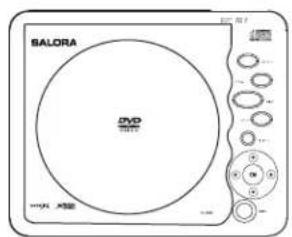
Owner's Manual


Notice:
This Product incorporates copyright protection technology that is protected by method claims of certain U.S. Patents and other intellectual property rights owned by Macrovision Corporation and other rights owners. Use of this copyright protection technology must be authorized by Macrovision Corporation, and is intended for home and other limited viewing uses only unless otherwise authorized by Macrovision Corporation. Reverse engineering or disassembly is prohibited.
Content
A. Introduction 1
B.Cautions andWarnings 1
C. Contents 3
D. Powering and installation 3
E. Controls, Indicators, and Connectors 6
F. Loading and Playing a Disc 8
G. Setup. 9
H. Basic Operation 13
I. Menu 14
J.Display 14
K.VariablePlayingMode 18
L. Playing MPEG4 Discs 23
M. Connecting to other Electronic Equipment 24
N. Specifications 25
O. Troubleshooting 26

A. Introduction
Thank you for choosing the portable DVD player with twin 9" LCD screen. The main features include two 9" Wide Screen (16:9 Aspect Ratio) Liquid Crystal Display (LCD) monitors and a single DVD player. Please read the entire instruction manual supplied with this product prior to using. The documentation will assist you in installing the system properly to obtain the best equipment performance. Please save this manual for later use.
B. Cautions andWarnings
1. Placement
To prevent fire or electric shock, do not expose this appliance to rain or moisture. Do not place the set on an unstable cart, stand, tripod, bracket or table to prevent it from falling. Keep the unit away from strong magnets, heat sources, direct sunlight, excessive dust. If the unit is brought directly from a cold to a warm location, moisture may condense inside the unit. When you move it from a cold to a warm location, wait for about one hour before operating the unit, or remove the disc and leave the unit turned on until the moisture evaporates.
2. Installation
Ensure that 9" the DVD player and monitors are installed in accordance with the instructions and illustrations provided in this manual.
3. Caution
Do not push objects of any kind into the unit through openings; do not spill or spray liquid of any kind on or in the system (this may result in a fire or electric shock). Do not place anything heavy on the unit. To ensure proper ventilation and proper operation, never cover or block the slots and openings with a cloth or other material. Keep the unit away from an open flame such as fire, candle etc.It is hazardous to replace the remote control battery incorrectly.Replace the battery only with the same or equivalent type, in order to protect
the environment, please dispose the battery properly. Do not use the unit in temperatures higher than 95 degrees Fahrenheit or 35 degrees Celsius.
4.Disassemble
Do not attempt to disassemble the cabinet. There is a risk of electric shock and/or exposure to Laser Radiation. Contact qualified service personnel if your system needs repair.
5. Cleaning Unit
When cleaning, make sure the system is unplugged from the power source. Do not use liquid cleaners or aerosol cleaners. Use a cloth lightly dampened with water for cleaning the exterior of the system only.
6. Disc
Do not use irregularly shaped discs such as heart or star-shaped discs as they may cause the unit to malfunction. Do not stick paper, tape or glue on the disc. Do not expose the disc to direct sunlight or heat sources. Do not touch the surface of disc. Handle the disc by its edge. Clean the disc by wiping the disc from the center out with a cleaning cloth. Remove the disc from the unit and store it in its case after playing. Some playback operations of discs may be intentionally fixed by software producers. Since this unit plays discs according to the disc contents the software producers designed, some playback features may not be available. Also refer to the instructions supplied with the discs.
7. Regional Coding
Both the DVD player and disc are coded by region. These regional codes must match in order for the disc to play. If the codes don't match, the disc won't play. This unit's code is region 2. DVD's with other regional codes cannot be played in this unit.

C. Contents
- 1 x DVD Player
- 2 × 9 "Monitors
- 1 x Remote Control with battery (CR2025)
4.2 x DIN to AV Adapter
5.1 x AC to DC Adapter
6.1 x Cigarette Lighter Adapter
- 1 x Instruction Manual
- 1 x Carry Bag
- 2 x Pouch for 9” single monitor
- 1 x Pouch for DVD
D. Powering and installation
- Powering the system indoors (Refer to Figure 1)
Plug one end of the AC to DC adapter into the DC Input jack on the right side of the DVD player, then plug the other end into the 100~240V AC power receptacle.
- Powering the system in a car (Refer to Figure 1)
Plug one end of the cigarette lighter adapter into the DC Input jack on the DVD player, then plug the other end into the cigarette lighter socket.
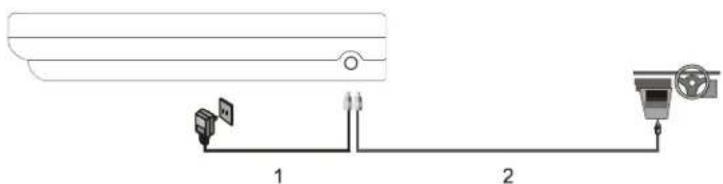
Figure 1
3

The single monitors only can be powered by DVD player.
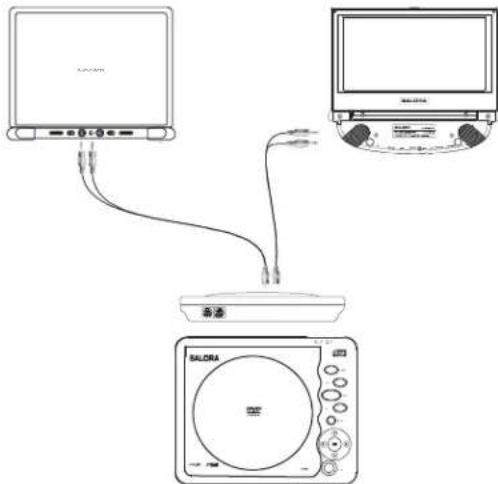

Figure 2
4. Installation Prior to use
1)PouchingtheDVDplayer(Refer to Figure 3)
Pull out the slide fastener of the pouch to slide the DVD player into the pouch, and feed the bottom piece of the DVD into the bottom of the pouch. Then close the slide fastener.
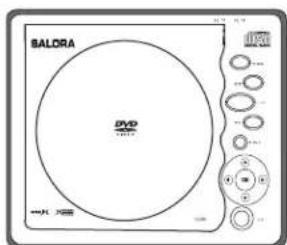
Figure 3
4

2) Positioning the Monitor
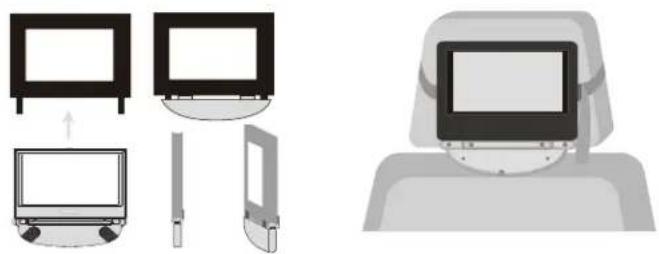
Option 1 Vehicle Headrest (Refer to Figure 4)
Figure 4
Slide screen in to the case with display pointing out Squeeze the magic tape between tilting foot and display and fix on back side. Then loop the strap of the pouch around the headrest in the vehicle and pull the end of the strap while holding the buckle until the pouch is tightly secured.

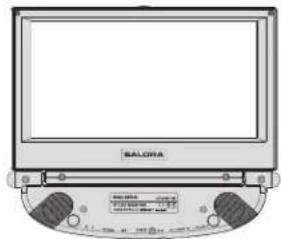
Figure 5
Rotate the base of Monitor backward and place it on a flat surface. Adjust the screen for a proper viewing angle. This can be done with the Monitor inside or outside the pouch.

E. Controls, Indicators, and Connectors
- Unit View (Refer to Figure 6)
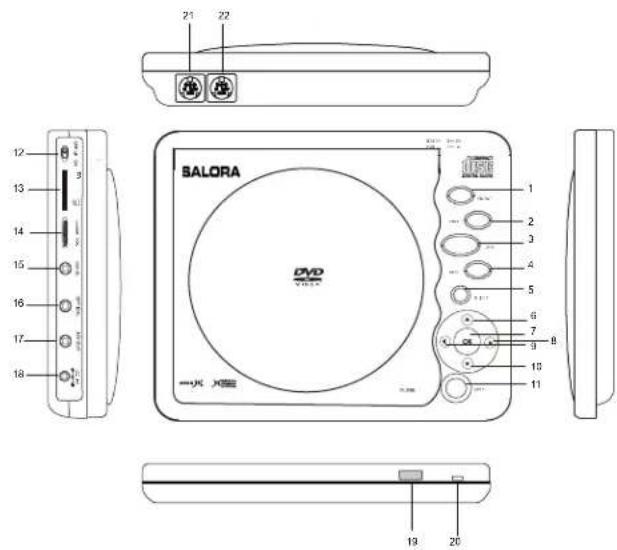
Figure 6
1) SD/DVD
12) Power On/ Off Switch
2) Previous Button
13)SD Card
3) Stop Button
(14) Volume Control
4) Next Button
15) HiFi Jack
5) Menu Button
16) Optical Jack
6) Up button
17) AV Out Jack
7) OK Button
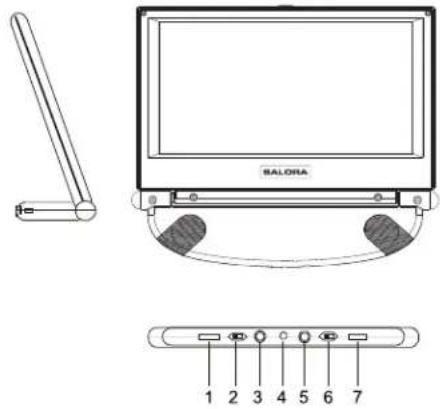
2. Single Monitor View (Refer to Figure 7)
Figure 7
1). Volume Up/Down Control
2). Power Off/On Switch
3). AV In Jack
4). DC 9V Input Jack
5). Headphone Jack
6).REVERSE Switch
7). Brightness Up/Down Control
NOTE: Press the REVISE Switch, you can reverse the screen image.

F. Loading and Playing a Disc
a. After connecting power to the unit, power on "DVD player" with the power switch. The power indicator will light.
b. Open the disc tray by pressing OPEN, and place a disc into the tray with the label side facing up.
c. Close the tray by pressing the "CLOSE" button. The unit will load the disc and start playing.
d. Rotate BRIGHTNESS and VOLUME to adjust the LCD's brightness and the DVD player's volume.
e. To stop playing a disc, press STOP.
G. Setup
1. General Setup Page
1)With no disc inside the player, press SETUP' to display the Main screen of the Setup Menu on the screen and General Setup Page"appears. At the same time, "□" is highlighted. Press SETUP' again to exit the Setup Menu and the unit will resume its last playback mode.
2)Press the ENTER button, SPDIF Output"is highlighted.
3) Press the or button to select the other menus in general setup page.
4) Press to enter the sub menu.
5) Press the or button to select the sub menu and press the ENTER to confirm your selection.
6) Repeat steps 3-5 for other menus.
Note: Press to return the previous menu.
a) SPDIF Output
- SPDIF Off: The digital signal audio output will be off.
- SPDIF/RAW: The audio output will be not modulated.
- SPDIF/PCM: The audio output will be modulated in Pulse Code Modulation mode.
b) TV Display
- Normal/PS: When the player outputs signal to a normal TV, a normal picture is shown on the full screen.
- Normal/LB: When the player outputs signal to a normal TV, a normal picture is shown on the screen with a black strip at both the top and bottom of the screen.
- Wide: When the player outputs signal to a wide screen TV, a wide picture is shown on the full screen.

c) AngleMark
- On: The screen will show the angle mark icon. (*If an angle option is available).
- Off: The screen will not display the Angle Mark
NOTE: Not all discs contain above features. The above features are disc dependent.
d)OsdLanguage
Chesse different language as your OSD language
e).ScreenSaver
*On: Enables screen saver
*NOTE: The DVD player will enter the Screen Saver mode after approximately five minutes if the same image remains on the screen.
*Off: Enables screen saver (off)
f) LastMemory
On: The unit will return to the last position on the disc.
Off: The unit will not return to the last position on the disc.
Note: The Last position memory function only effect for OPEN operation.
2. Video Quality Setup
1) In Setup menu, Press the or button to select Video Quality Setup and highlighted. Press ENTER to enter the video quality setup page.
2)Press the ENTER button, Brightness" is highlighted.
3) Press the or button to select the other menus in video quality setup page.
4) Press to enter the sub menu.
5) Press the or button to adjust the quantity and press the ENTER to confirm your selection.
6) Repeat steps 3-5 for other menus.
Note: Press to return the previous menu.
a) Brightness
b) Contrast
c) Hue
d) Saturation
10

3. Password
In Setup menu, Press the or button to select Password Setup Page"and is highlighted. Press ENTER to enter the password page. Press ENTER twice to enter the Password Change Page. Input the Old Password or the Default Password, the New Password, and the Confirmed New Password. Press ENTER to confirm the change. Note:The default password is 3308.
4. Preference Page
1) In Setup menu, Press the or button to select Preference Page and is highlighted. Press ENTER to enter the preference page.
2)Press the ENTER button, Audio"is highlighted.
3) Press the or button to select the other menus in preference page.
4) Press to enter the sub menu.
5) Press the or button to select the sub menu and press the ENTER to confirm your selection.
6) Repeat steps 3-5 for other menus.
Note: Press to return the previous menu.
a) Audio
b) Subtitle
c) Disc Menu
Note: Language and subtitle selection is only available for discs that are recorded in the above listed languages. If the selected language is not available, the player will play and display on the screen the original recorded language contained in the disc.
d) Select 'Parental' using the UP/DOWN button, then press RIGHT to enter the submenu.
Select the parental level you desire using the UP/DOWN button for discs with lock-out function or multiple rating levels. These are listed from the lowest level (1 Kid Safe) to the highest level (8 Adult). Press ENTER and input 4 digit password, then press ENTER again to confirm the parental level setting.
NOTE: The level of 8 Adult is the factory default.
e) Select 'Default' using the UP/DOWN button, then press RIGHT to enter the menu. Press ENTER to make the setting return to the factory-set mode.
NOTE: The parental setting is not affected by the default reset function.
NOTE: The Default Password is 3308. This password is always effective even after you have selected your own password and changed it. To avoid the possibility of others using the default password to set the parental level and change the password, you can record this default password in another area and delete it from this manual. Some discs can be limited depending on the age of users while some discs cannot.
H. Basic Operation
| POWER | Turn the unit on/off |
| OPEN | Remove/load the disc |
| PLAY | Start Play/Execute item or setting |
| PAUSE | Still Picture |
| STOP | (1 time) Stop at the present playing point / (2 times) Stop playing |
| NEXT | Go to the next chapter, track or scene dur-ing play back |
| PREVIOUS | Go back to the previous chapter, track or scene during play back |
| FORWARD | Scan forward at 2, 4, 8,16 or 32 times speed |
| REVERSE | Scan backward at 2, 4, 8, 16 or 32 times speed |
| LEFT/RIGHT/UP/DOWN | Used for Menu Navigation |
| ENTER | Execute item or confirm setting |
| NUMBERS | Select item or setting |
| MENU | Display the main menu of the disc |
| REPEAT | Repeat playing title, chapter, or track |
| A-B | Repeat a specific portion from point A to point B of the disc |
| DISPLAY | Display information (title, chapter, track, time, etc.). |
| ANGLE | Change the viewing angles on the scene |
| SUBTITLE | Select the subtitle language and turn it on/off |
| AUDIO | Select the audio language |
| ZOOM | Enlarge an image to 2, 3, or 4 times the original size. |
| SETUP | Display the setup menu to select and set items, and exit the setup menu. |

A DVD is divided into sections called titles and chapters. When you play a DVD, a root menu of the disc will appear on the screen of your TV or Monitor. The contents of the menu vary from disc to disc. Press MENU during playback to display the menu. Some DVDs only allow you to select disc playback options using the DVD root menu.
J. Display
1. PLAYING TIME AND REMAINING TIME
a. During playback press the DISPLAY' button to display the current Title Number (1), the total Number of Titles (2), the current Chapter Number (3), the total Number of Chapters (4), and the Playing elapsed Time for the title (5). The heading will disappear automatically after 3 seconds if DISPLAY button is not pressed.
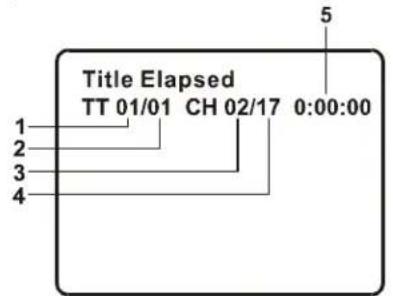
Title, Chapter Number, and Time Screen Display
b. Press DISPLAY'constantly to choose the options below circularly.
Title Elapsed: The elapsed time of the title
Title Remain: The remaining time of the title
Chapter Elapsed: The elapsed time of the chapter
Chapter Remain: The remaining time of the chapter
Display Off: The DVD's time Information will not be displayed.

2.ANGLE
During playback of a disc, press ANGLE' to display the available angles for discs containing multi-angles*, with the current angle number (1) and the total number of angles (2) displaying. Press ANGLE' to select another angle, then press again to exit and return to the normal viewing angle. The angle display will disappear automatically if the ANGLE' button is not pressed again within 3 seconds.
*NOTE:Not all discs contain this feature.
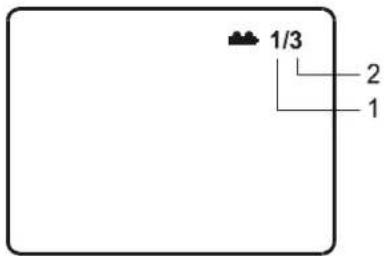
AngleScreenDisplay
3. SUBTITLE
During disc playback press SUBTITLE' to select the subtitle language you desire*, with the current Subtitle Language Number (1) and the total Number of Subtitle Languages (2) displayed. If there are multiple languages press SUBTITLE' again to select another subtitle language. To turn subtitles OFF, press the SUBTITLE' button until Subtitle Off' is displayed. The Subtitle display will disappear automatically if the SUBTITLE' button is not pressed again within 3 seconds.
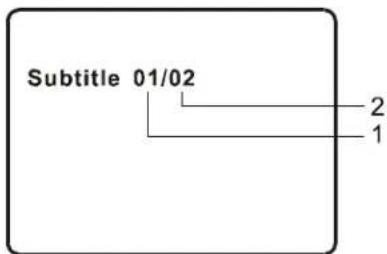
SubtitleScreenDisplay
- Some DVDs only allow access to this function through the DVD menu

4.AUDIO
During playback press AUDIO' to select the audio language you desire*, with the current Audio Channel Number (1) and the total number of Audio Channels (2) displayed. Press AUDIO again to select another audio language. The audio display will disappear automatically if the AUDIO' button is not pressed within for 3 seconds.
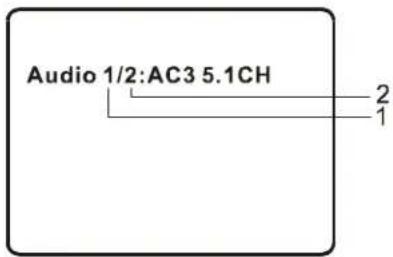
Audio Language Screen Display
- Some DVDs only allow access to this function through the DVD menu.
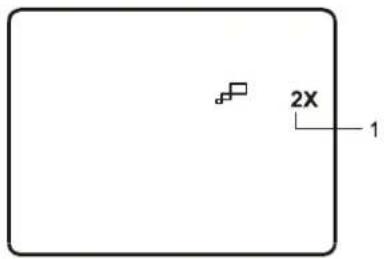
Zoom Screen Display
16

6. A-B REPEAT
a. During playback press a first time 'A-B' to set the Starting Point A.
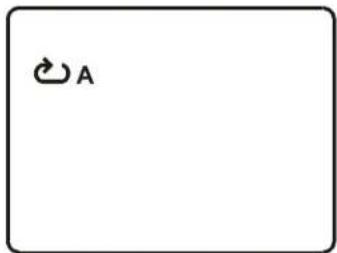
A-B Repeat Starting Point Screen Display
b. Press 'A-B' a second time to set the Ending Point B and the player will repeatedly play the part between Point A and Point B.
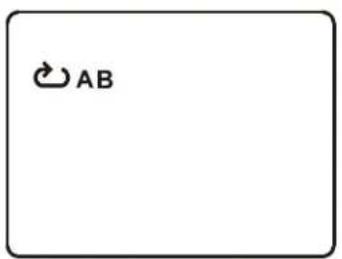
A-B Repeat Ending Point Screen Display
c. Press A-B a third time to cancel A-B repeat and resume normal
playback.
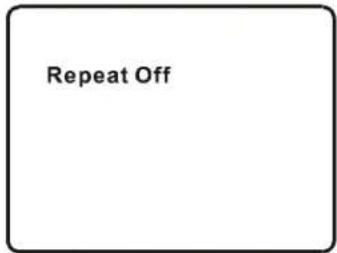
A-B Repeat Cancelled Screen Display
17

7. REPEAT
a. During playback press REPEAT'constantly to see the repeat mode.
Chapter: Repeat the current chapter
Title: Repeat the current title
All: Repeat all chapters and titles
Off:Resume normal playback
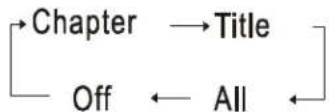
DVD Repeat Mode
The Chapter's repeat display shows below for example:
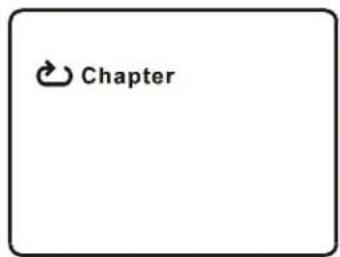
Chapter Repeat Screen Display

1. Playing Audio CDS
When playing an audio CD press the DISPLAY button constantly on the remote to view time information. The options below appear on screen display circularly to show you what information is available using this function.

CD Display Mode
Single Elapsed: The current track playing and playing time of that track will display on the screen.
Single Remain: The current track playing and the amount of time left.
Total Elapsed: The current track playing and the total time that the CD has been playing.
Total Remain: The current track playing and the amount of time remaining on the CD.
Display Off: The CD time Information will not be displayed.
Take 'Single Elapsed' display as a example:
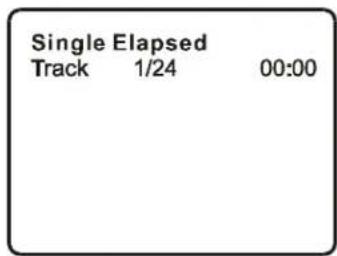
Single Elapsed Screen Display

USING THE REPEAT FEATURE
The default mode for the Repeat feature is OFF. Pressing REPEAT consecutively changes the repeat options:
Track- repeats the track that is playing.
All- repeats the disc that is playing.
- Off
As you toggle through the options, the repeat option changes. The selected repeat option loops repeatedly until you turn it off.
2. Playing MP3 Discs
MP3 is a format for storing digital audio. An audio CD-quality song is compressed into the MP3 format with very little loss of audio quality while taking up much less disc space. CD-R /RW discs that have been encoded in MP3 format are compatible with this system.
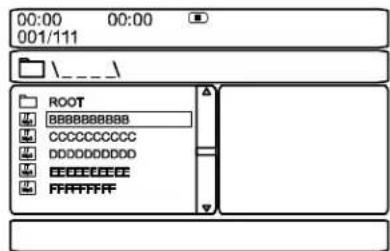
MP3MENUScreenDisplay
When a MP3 disc is inserted into the unit, the menu screen appears automatically. You can use the menu screen to select your desired folders and songs or the system plays the songs in the order they were burned onto the disc.
- Press the button to choose a folder from the folder list on the left side of the screen.
- Press ENTER to select the highlighted folder. The songs available under the folder will be listed.
- Use button to choose a song from the list. Press ENTER to select and begin playback of the highlighted song.

- Use the (NEXT) button to move to the next song. Press the (PREVIOUS) button to move to the beginning of the previous song.
USING THE REPEAT FEATURE
The default mode for the Repeat feature is OFF(Folder). Pressing REPEAT consecutively changes the repeat options:
- Single
- Repeat One (repeat playback of a song)
- Repeat Folder (repeat playback of a specific folder)
- Folder (normal playback)
As you toggle through the options, the repeat mode changes. The selected repeat mode loops repeatedly until you turn it off.
NOTICE
- " " icon in front of a file name indicates that this is a folder, not an MP3 file.
- "MP3" icon in front of a file name indicates that this is a MP3 file.
Note:
Due to the company's policy of constant improvement and technical refinement, the company reserves the right to change or alter software.
3. Playing.JPG File
1) Load the JPG Disc into tray.
2) Select JPG file by pressing "UP/DOWN" or ENTER button through menus or submenus. To go back previous menu page, use LEFT button.
3) You can preview the JPG file which you selected by pressing "PLAY" or "ENTER".
4) Pressing the "LEFT" Key will rotate the picture 90 degrees counterclockwise. Pressing the "RIGHT" Key will rotate the picture clockwise.
5) When browsing the photos, you can reverse the photo vertically by pressing "UP" key, or you can reverse the photos horizontally by pressing "DOWN" key.
6) When you browse the JPG file, press "DISPLAY", there will be different refresh mode below:
WIPE LEFT TOP, DIAGONAL WIPE RIGHT TOP, DIAGONAL WIPE LEFT BOTTOM, DIAGONAL WIPE RIGHT BOTTOM, EXTEND FROM CENTER H, EXTEND FROM CENTER V, COMPRESS TO CENTER H, COMPRESS TO CENTER V, WINDOW H, WINDOW V, WIPE FROM EDGE TO CENTER
7) When previewing the file, pressing "ANGLE", "SUBTITLE", "AUDIO", "NUMBER", "AB", a hand icon will appear on the display meaning that these options are not available.
8) Press "STOP" to browse the JPG file, "SLIDE SHOW" "MENU" will display on the screen.
9) When browsing the picture, press "STOP" and thumbnail size picture will be displayed. You can select the picture you desire by using the UP/DOWN/LEFT/RIGHT/ENTER key.
L.Playing MPEG4 Discs
MPEG4 is the brand name of the world's most popular video compression technology. It's a piece of software that compresses video from virtually any source down to a size that is transportable over the Internet without reducing the original video's visual quality.
DVD, CD-R /RW discs that have been encoded in MPEG4 format are compatible with this system.
Note: Only the files whose suffix is avi' can be displayed.
The operation of a MPEG4 Disc is the same as the MP3 discs. Using UP, DOWN, LEFT, RIGHT to move the cursor and press ENTER to confirm.
- Press MENU to return to the available menu.

M. Connecting to other Electronic Equipment
You can also connect the DVD player to a TV to enjoy high quality stereo sound and picture on another monitor.
1). Connect one end of the audio/video cable's black plug (optional, 1/8"stereo plug) into the unit's DVD AUDIO OUT jack, and connect the other end to the AUDIO INPUT jacks on your TV or Monitor (white = left channel, red = right channel).
2). Connect the audio/video cable's yellow plug (optional) into the DVD VIDEO OUT jack on the right of the unit, and the other yellow plug to the VIDEO INPUT jack on your TV or Monitor.

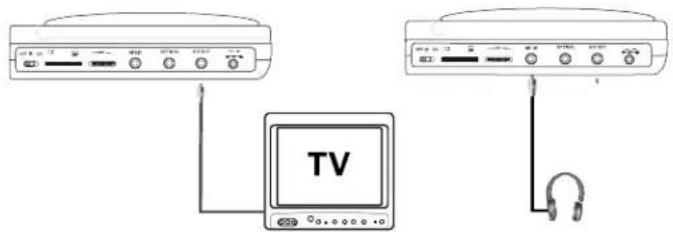

Figure 9
- Optional wired headphones may be used with the unit. Simply plug in the headset to headphone jack.
2. SD Card
With no disc in the unit, insert a SD card with JPEG or MP3 files into the appropriate input. Press the DVD/SD button to switch between DVD and SD modes.
N.Specifications
Compatible DISC: DVD/CD/MP3/MPEG4
Signal system: PAL
Panel size: 9 inch
Frequency response: 20Hz to 20kHz
Video output: 1 Vp-p/75 Ohm, unbalanced
Audio output: 1.4Vrms / 10kOhm
Audio S/N: Better than 60 dB
Dynamic range: Better than 85 dB
Laser: Semiconductor Laser, Wave Length: 650 nm/795 nm
Power source: DC 9V
Power consumption: 6 W
Operating temperature: 5 35°C
Weight: 0.37 kg
Dimensions (W x D x H): 7.24 x 6.14 x 1.14 inches
184× 156× 29mm
SingleMonitor
Colour System: PAL
Screen Size: 9 Inches
Power Supply: DC 9-12V
Power Consumption: 7W
Operating Temperature: 41~104° F (5~40°C)
Operating Humidity: 10-75%
Storage Temperature: 4~140° F (-20~60°C)
Dimensions (W× D× H) 238× 158× 12mm
Weight: 0.503kg
O.Troubleshooting
| PROBLEM | SOLUTION |
| No sound or distorted sound | Make sure your DVD is connected properly.
Make sure all cables are securely inserted into the appropriate jacks. |
| Can't advance through a movie | You can't advance through the opening credits and warning information that appears at the beginning of movies because the disc is programmed to prohibit that action. |
| The icon (film) appears on screen | The feature or action cannot be completed at this time because:
1. The disc's software restricts it.
2. The disc's software doesn't support the feature (e.g., angles)
3. The feature is not available at the moment.
4. You've requested a title or chapter number that is out of range. |
| Picture is distorted | The disc might be damaged. Try another disc.
It is normal for some distortion to appear during forward or reverse scan. |
| No forward or reverse scan | Some discs have sections that prohibit rapid scanning or title and chapter skip.
If you try to skip through the warning information and credits at the beginning of a movie, you won't be able to. This part of the movie is often programmed to prohibit skipping through it. |
Troubleshooting (Cont)
| PROBLEM | SOLUTION |
| IR sensor inoperative | ·Verify that the batteries in the remote are fresh.
·Verify that the remote sensor eye is not obstructed.
·Verify that the infrared transmitter is affixed over the sensor eye of the component to be controlled. |
| Disc won't play | ·Insert a disc with the label side facing up.
·Check the type of disc you put into disc tray. This DVD only plays digital video discs, audio CDs and MP3s. |
| Play starts, but then stops immediately | ·Both the unit and the disc are coded by region. If the regional codes don't match, the disc can't be played. This DVD is Region Number 2.
·The disc is dirty. Clean it.
·Condensation has formed. Allow player to dry out. |

This symbol on the product or in the instructions means that your electrical and electronic equipment should be disposed at the end of its life separately from your household waste. There are separate collection systems for recycling in the EU.
For more information, please contact the local authority or your retailer where you purchased the product.
SALORA
Off: reprend la lecture normale

Mode Repeat
Single elapsed- Single remain - Total elapsed-Display off - Totalremain

Mode d'affichage CD
Dimensions (L xP x H): 7.24 X 6.14 X1.14inches
184 x 156 x 29mm
Moniteur
Système couleur PAL
Alimentation: DC 9-12V
Consommation: 7 W
Laser: Semiconductor Laser, Wave Length: 650 nm/795 nm
Voeding: DC 9V
Verbruik: 6 W