
DVP7047TWIN - Portable DVD Player SALORA - Free user manual and instructions
Find the device manual for free DVP7047TWIN SALORA in PDF.


| Product type | Portable DVD player |
| Brand | Salora |
| Model | DVP7047TWIN |
| Dimensions (approx.) | 25 x 18 x 3 cm |
| Weight (approx.) | 1.2 kg |
| Power supply | Built-in rechargeable battery or AC adapter |
| Screen | 7-inch LCD screen |
| Playable formats | DVD, DVD±R/RW, CD, CD-R/RW, MP3, JPEG, DivX |
| Main functions | Disc playback, pause, zoom, track programming |
| Outputs | AV output (audio/video) and headphone jack |
| Speakers | Built-in stereo speakers |
| Battery life | Approximately 3 hours |
| Care and cleaning | Clean with a soft, dry cloth. Do not use abrasive products. |
| Safety | Do not expose to moisture, extreme temperatures, or shocks. |
| Spare parts and repairability | Battery and AC adapter available. Repair by a professional recommended. |
| Included accessories | Remote control, AC adapter, AV cable, protective case |
Frequently Asked Questions - DVP7047TWIN SALORA
User questions about DVP7047TWIN SALORA
0 question about this device. Answer the ones you know or ask your own.
Ask a new question about this device
Download the instructions for your Portable DVD Player in PDF format for free! Find your manual DVP7047TWIN - SALORA and take your electronic device back in hand. On this page are published all the documents necessary for the use of your device. DVP7047TWIN by SALORA.
USER MANUAL DVP7047TWIN SALORA
natural_image
Two portable electronic devices displaying a large wave wallpaper, one with a person climbing the waves (no visible text or symbols)HANDLEIDING
MODE D' EMPLOI
USER MANUAL
Inhoud
natural_image
Diagram of a device with rotating cables and a circular component, no text or symbols presentnatural_image
Line drawing of a device with connected power and plug connections (no text or symbols)natural_image
Line drawing of a portable electronic device with ports and cables (no text or symbols)Opmerkingen:
natural_image
Four small icons on a dark background, no text or symbols visiblenatural_image
Grid of grayscale images showing various landscape or terrain views, no text or symbols present.Systeeminstelling

| Preference Setup | ||
| Audio | ENG | English |
| Subtitle | Off | French |
| Disc Menu | ENG | German |
| Parental | Dutch | |
| Default | ||
Overview of Unit Controls 3
In Car Installation 4
System Connection 6
The Remote Control 9
Basic operation 11
System Setup 19
Specification 23
Troubleshooting 24
Safety Precaution
Thank you for choosing our portable DVD player. It includes a 7" wide screen and a DVD player. The unit applies the latest state of art electronics and is designed for use at home, in hotels and in offices etc for relaxation. The compact size makes carrying easier as well as installation. Please read the manual carefully prior to use and keep it well for future reference.


Remind user to be careful to avoid electric shock

Warning: To reduce the risk of fire or electric shock, do not expose this apparatus to rain or moisture.
1) Please read the instruction manual carefully and follow all the requirements of safe operation to operate the device.
2) Do not use this unit near water. Do not place the unit over any container with liquid inside.
3) Do not install near any heat sources such as radiators, heat registers, stoves, or other apparatus (including amplifiers) that produce heat.
4) Unplug this unit during lightning storms or when unused for long time.
5) About Cleaning: Unplug the system, use only wet cloth to clean. Do not use liquid detergent or aerosol.
6) Only use accessories specified by the manufacturer.
7) Refer all servicing to qualified service personnel, servicing is required when the unit has been damaged in any way. Such as power supply cord or plug damaged, liquid spilled or objects falling into the unit, exposed to moisture, not operating normally. Don't try to repair the machine by yourself because of the danger of high voltage and electric shock.
8) Do not use irregular shaped discs such as heart or star-shaped discs as they may cause to the unit malfunction.
Package
| DVD Player | 1 |
| 7 " LCD Monitor | 1 |
| Remote Control with battery | 1 |
| AV Cable(DVD to TV) | 1 |
| Cigarette Lighter Adapter | 1 |
| User Manual | 1 |
| Mounting straps | 2 |
Main Features
● High brightness color 7" LCD screen
● Compatible with disc of DVD, VCD, MP3, MPEG4, CD, JPEG, etc
● Built-in stereo speaker
● Built-in rechargeable Lithium polymer battery
● Support PAL or NTSC system
● Support Multi-language OSD, speed forward/backward, repeat function
- Zoom in/out function
Main Unit Controls

- Open knob
- Power ON/OFF switch
- SETUP
- MODE button
- ▲(◀)/▼▶◀(◀◀)▶▶
- OK button
- PLAY/PAUSE button
- STOP button
- DC IN 9-12V
Monitor View

- Power ON/OFF
- Volume knob
- Earphone jack
-
AV IN
-
DC IN 9-12V
- Brightness knob
- Bracket
- Rating label position
In Car Installation
- Fit the headrest mount to the DVD Player / Monitor as required.
NOTE: Both the headrest mounts are the same, there is no difference for DVD Player or Monitor.

Turn the headrest mount and player around so the backs are facing you.

Slide the vertical straps A and B through the strap lock upon the back of the DVD player, or monitor, as shown.
Fold and secure the horizontal straps on to the back of the mount until the velcro attaches. Ensure the DVD player or monitor is mounted centrally.
Turn the headrest mount and player around so the front is facing you.
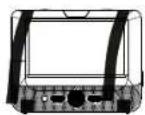
Bring straps C, D, E & F in front of the DVD Player and attach to the velcro as shown.
- Fitting the headrest mount to the headrest

natural_image
Diagram of a device with rotating cables and a circular component, no text or symbols presentFit the straps around the headrest and engage the 2 trident clips. Ensure clips are securely fastened.

Pull the straps tight using the adjustment. Tuck the loose ends into the strap tidy.
This item incorporates copyright protection technology that is protected by U.S. patents and other intellectual property rights of Rovi Corporation. Reverse engineering and disassembly are prohibited.
System Connection
Powering and installation
Plug one end of the AC/DC power adaptor into the DC IN 9-12V jack on the right of the unit, then plug the other end into the AC power receptacle. Please refer to the following illustration.

natural_image
Line drawing of a wall-mounted air conditioner unit connected to an electrical outlet (no text or symbols)If using car cigarette lighter adaptor to connect to the power: Plug one end of the cigarette lighter adaptor into the DC IN 9-12V jack on the unit, plug the other end into the car cigarette lighter socket. See illustration below.
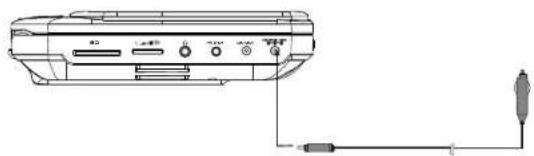
natural_image
Technical line drawing of a device rear panel with connectors and cables (no text or symbols)Note:
- Car cigarette lighter adaptor is not recommended to recharge the battery.
2.Car cigarette light adaptor can only be used when the car power supply is 9-12V. - The mains plug is used as the disconnect device, the disconnect device should remain readily operable.
Connecting to monitor
The unit can also be connected to the external LCD monitor.
Connect the unit to power by AC/DC adapter or cigarette lighter adapter.
Then connect the unit DC OUT jack to DC IN 9-12V Jack of the LCD Monitor by a DC/AV cable. Also use this DC/AV cable to connect the AV OUT jack of the unit to AV IN jack of the Monitor.
Please refer to the illustration below.

You can connect unit with TV to enjoy high quality picture and stereo sound. Please refer to the following illustration:

Please use AV cable to connect the machine and the TV. Make sure it is connected correctly.
Connecting with external speaker
The unit can be connected with external speaker. Please see the following illustration.

flowchart
graph TD
    A["TV"] --> B["AV CABLE"]
    A --> C["Not supplied"]
    A --> D["AUDIO INVIDEO IN AMPLIFIER"]
    D --> E["Left front speaker"]
    D --> F["Center speaker"]
    D --> G["Right front speaker"]
    E --> H["Subwoofer"]
    F --> H
    G --> H
    H --> I["Left rear speaker"]
    H --> J["Right rear speaker"]
Note:
There is no 5.1 channel in the unit, however, after connecting to APM it is available to output audio in 5.1 channel.
The Remote Control

- Number button
- TITLE(To display title information)
- AUDIO(To select audio language)
- SETUP(To go to or exit setup menu)
- Previous/Next button(To go to previous/next chapter or scene during playing)
- Fast forward/backward button(To scan forward/backward at 2,4,8,16,or 32 times)
- OSD(To display disc information during playing such as elapsed and remaining time)
- ▶ II PLAY/PAUSE
- ■ STOP(press once to stop playback, then press ▶ to resume playback from the point where you stopped; press stop button twice to stop playback completely)
-
MODE(To select the source)
-
ZOOM(To zoom in/out the image during the playback)
- MENU(To enter or exit root menu)
- SUBTITLE(To select subtitle language when playing DVD disc)
- 16:9/4:3(To select aspect ratio)
- A-B(Repeat a specific portion from point A to B, press it again to cancel repeat playing)
- REPEAT(To repeat playing title, chapter or track)
- RETURN(To return to the main menu)
- MUTE(To turn to mute)
- VOL +/- (To adjust the volume)
- ENTER(To confirm)
The Use of Remote Control
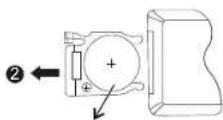
Please put the battery into the remote control as per illustration below.
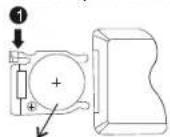
CR2025 CR2025
When using remote control, make sure the infrared window is pointed to infrared receiving window of the unit. The distance between the unit and remote control must be within 3 metres. Please refer to the following illustration.

Note:
- To avoid falling off or place near damp environment.
- To avoid infrared receiving window of the unit being under direct sunlight.
- Please use a new battery to replace old one if the remote control doesn't work.
Basic Operation

Playing disc of DVD, MPEG4, SVCD, VCD, CD, MP3.
- In the Source Mode, you can press "select and ENTER key to enter the source you want.
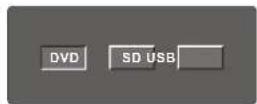
- Open the disc door and insert a disc into the door with the label side facing up.
- Close the disc door. The unit will load the disc and start playing.
- Press" ■ "once to stop playback; press" ▶ "to resume playback from the point where you stopped; press" ■ "twice to stop playback completely.
- During playback, press"▶"to pause; press it again to resume playback.
- When the playing is finished, please turn off the power by sliding ON/OFF switch to OFF.
- For some DVD disc with Title or Chapter menu, press"MENU"button to entermenu page, and use"◀◀◀◀◀◀◀◀◀◀◀◀◀◀◀◀◀◀◀◀◀◀◀◀◀◀◀◀◀◀◀◀◀◀◀◀◀◀◀◀◀◀◀◀◀◀◀◀◀◀◀◀◀◀◀◀◀◀◀◀◀◀◀◀◀◀◀◀◀◀◀◀◀◀◀◀◀◀◀◀◀◀◀◀◀◀◀◀◀◀◀◀◀◀◀◀◀◀◀◀▶
Note:
Please do not disconnect USB devices or plug out SD/MMC cards while they are working with the unit. Functional failure may occur in case of wrong operations.

Fast forward and fast backward

When playing disc of DVD,MPEG4,SVCD,VCD,CD, the machine can search forward or backward.
- Press ",the unit will search forward. Press it repeatedly ,the machine will play at 2, 4,8, 16, 32 times of speed.

flowchart
graph TD
    A["▶"] --> B["▶ 2X 4X"]
    B --> C["▶"]
    C --> D["▶ 8X 16X32"]
    D --> E["▶"]
    E --> F["▶ 2X 4X"]
    F --> G["▶"]
    G --> H["▶ 16X32"]
    H --> I["▶ 8X"]
Repeat playing

When playing disc of DVD,MPEG4,SVCD,VCD,CD,MP3,user can repeat playing one chapter, title or the whole disc.
For DVD disc, press "repeat" button, user can repeat playing one Chapter; press it again to repeat playing Title; press it the third time to repeat playing the whole disc.

For MP3 disc, press "repeat" button to repeat playing present file; press it again to repeat playing the folder; press it the third time to cancel repeat function.

For CD/VCD disc, press "repeat" button repeatedly to repeat the track and the whole disc.

Repeat playing of favorite scene

When playing disc of DVD,MPEG4,SVCD,VCD,CD,MP3.user can repeatedly play a specific section.
During playback, press "A-B" button at a point A, then press this button again in point B, the unit will automatically repeat playing the part between "A-B"

Press it the third time, the unit will return to normal playback.


Zoom in/ out

When playing disc of DVD,MPEG4,SVCD,VCD,user can zoom in or zoom out the image.
During playback, press "Zoom" button, the image will be enlarged; press it again the image will be enlarged again; press it fourth time, the image will zoom out, press it repeatedly and the image will return to normal status.



When the image is enlarged, user can press" «/»/«/» "to move the image.
Playing JPEG file in date disc
- Place a JPEG disc into the tray, the unit will start reading and play.
- Press "◀◀◀" to select a JPEG file and press "ENTER" button to confirm. Note: you can press "MENU" to return to the folder list. Press "◀◀" or "ENTER" to preview the file selected.
- To rotate the picture counter-clockwise, press ""; Press " to rotate the picture clockwise.
-
Press OSD button when viewing pictures, you can select different refresh mode as follows:
-
from top to bottom
- from bottom to top
- from left side to right side
- from right side to left side
- from left top to right bottom
- from right top to left bottom 7. from left bottom to right top
- from left bottom to right top
- from right bottom to left top
- from right bottom to left top
- from horizontal center to both sides
- from vertical center to both sides
- from top and bottom to center
- from right and left to center
- from four window's top side to bottom side
- from four window's left side to right side
-
from 4 edges to center
-
During viewing files, ^* may appear when pressing "Angle" or "Subtitle" or "Audio" or "A-B" or "Title" etc; in this situation these options are unavailable to operate.
-
When viewing JPEG files, press ■ ",pictures will be displayed in thumbnail mode, press "◀◀◀◀◀◀" or "ENTER" button to select one picture to view.
Playing MP3 files in date disc
- Place MP3 disc into the disc door. Press 🔊▶▶ or "ENTER" button to choose an MP3 file; Press "▶" or "ENTER" button to play the file selected.

SD/MMC/USB main menu

natural_image
Four blurred icons on a dark background, no text or symbols visibleAfter entering the SD/MMC or USB, the system will show Main Menu which includes 4 Function ICONS. You can select them by press key to confirm." "ENTER"

Browser Mode Please refer to P16 for detail explanation
Photo Mode Please refer to P16 -17 for detail explanation

Music Mode Please refer to P17 for detail explanation

Movie Mode Please refer to P18 for detail explanation
Note: Media cards formatted in exFAT file system are not supported.
Browser mode
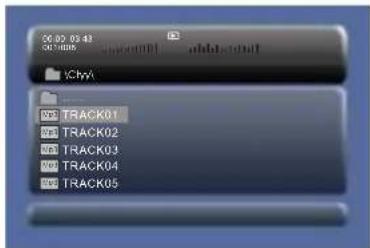
In the Browser Mode, the system will show the list of file and folder.
"◀", "▶key:ENB@Rnd play
Enter the folder
“◀”: Quit the folder
Note:
If you want to return to the Main Menu, please make sure the system is in list of file or folder status, then press RETURN KEY."
Photo mode

natural_image
Grid of grayscale image thumbnails showing various landscape scenes (no text or symbols)In the Photo Mode, the System will show the thumbnail Mode first.
"◀", "▶":selectand"polyER
Slide Show: play the JPEG.
Menu:Enter the Help Menu.
Prev:Page Up
Next:Page Down.
When playing JPEG :
- To rotate the picture counter-clockwise, press "◀"; Press" ▶" to rotate the picture clockwise
-
Press OSD button when viewing pictures, you can select different refresh mode as follows:
-
from top to bottom
- from bottom to top
- from left side to right side
- from right side to left side
- from left top to right bottom
- from right top to left bottom
- from left bottom to right top
- from right bottom to left top
- from horizontal center to both sides
- from vertical center to both sides
- from top and bottom to center
12 from right and left to center - from four window's top side to bottom side
- from four window's left side to right side
-
from 4 edges to center
-
During viewing files, "may appear when pressing"Angle"or"Subtitle"or"Audio" or"A-B"or"Title"etc; in this situation these options are unavailable to operate.
- When viewing JPEG files, press "■ "and"RETURN"key,pictures will be displayed in thumbnail mode,press"◀◀◀◀◀◀◀"or"ENTER"button to select one picture to view.
Note :
If you want to return the Main Menu, please press"RETURN"key in the thumbnail mode.
Music mode
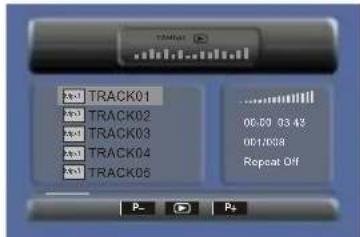
In the Music Mode, the system will show the list of music file, like Mp3 and so on.
Press",Select "ENDTRE"
Press to fast forward /backward MP3 during playing
Press to select the function button when in stop status.
Page-:Page Up.
:play
Page+:Page Down
Note: Press 'Return Key to Return to the Main Menu.
Movie mode

In the Movie Mode, the system will show the list of Movie file, like AVI and so on.
"◀", "Key ISNTERänd Play.
When playing movie you can press MENU and Return Key to back to the list of movie file status. And if you want to Return to the Main Menu, Please Press Return key in list of Movie file status.
CD RIPPING
During playing the CD/HDCD disc, you can enter CD Ripping function. By pressing subtitle button, DVD player will be able to change the CD format into MP3 format, and then store it in the USB or SD card.
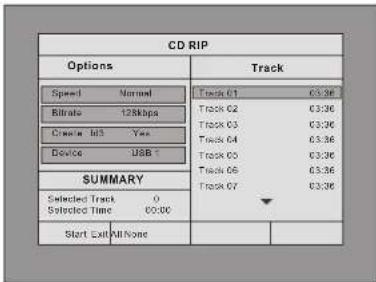
Speed: In this item, you can set the rip speed: Normal or Fast.
Bitrate: In this item, you can set the bitrate. It has 6 choices, 128Kbps, 192Kbps, 256Kbps, 320Kbps, 96Kbps and 112Kbps.
Create ID3: In this item, you can create ID3 when playing CD text.
Device: This item indicates whether USB or SD CARD is connected with DVD player.
Exit: Exit to the previous menu.
All: Select all the files in the disc for conversion and storage.
None: Cancel the selection.
Start: Move the cursor to the item and press "ENTER" button, the conversion begins.
During the converting, you can select "CANCEL" to stop it.

System Setup

General Setup Page
| TV display:Enter this option, user can set screen display format(Nomal/PS, Nomal/LB, Wide)The default is "Wide"Note:☆ The function depends on the display ratio with which the DVD disc is recorded.☆ Please choose "Wide(16:9) when using a 16:9 wide screen TV set. | |
| Ratio:Enter this option to set the ratio during playback.Optional setting:16:9,4:3The default is:16:9 | |
| OSD Language:In the option user can set OSD menu language(English,French,German,Dutch).The default:Dutch | |
| Screen Saver:Enter this option to set whether to activate the screen saver function.The default is ON. |
Video Setup Page
 | TV Type:Enter this option to select TV type(PAL,NTSC)The default is PAL. |
 | Set the Video Quality of AV OUT |
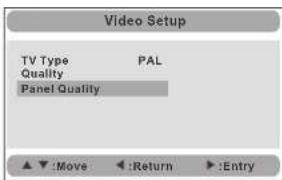 | Set the Video Quality of PANEL |
Preference Page
| Preference Setup | ||
| Audio | ENG | English |
| Subtitle | Off | French |
| Disc Menu | ENG | German |
| Parental | Dutch | |
| Default | ||
 | Subtitle:Select your preferred language to show the subtitles on the screen.The default is OFFThe subtitle languages depend on the information available on each disc.You can also change the subtitle language during playback by press the SUBTITLE button. |
 | Disc Menu:This function allows you to choose the menu language stored on the disc.The default is Dutch.Note:the disc menu languages depend on the information available on the disc. |
 | Parental:Enter this option to set the parental control level to some unsuitable disc scenes being watched by the children.Optional parental control levels: KID SAFE, G, PG,PG 13,PGR, R, Nc17, ADULT.The default is ADULT.The default password:8888. |
 | Default:Select this item and press ENTERto reset. |
Specification
Compatible disc: DVD/VCD/CD/MP3/MPEG4
Signal system: PAL/NTSC
Panel size: 7 in
Frequency response: 20 Hz to 20 kHz
Video output: 1 Vp-p/75Ohm, unbalanced
Audio output: 1.4Vrms/10kOhm
Audio S/N: Better than 80dB
Dynamic range: Better than 85dB
Laser: Semiconductor Laser, Wave Length: 650nm/795nm
Power source: DC 9-12V
Power consumption: 10 W
Operating temperature: 0\~40°C
Weight(Monitor/DVD Player): 0.36 / 0.7kg
Dimensions (Monitor/DVD Player)(W x Dx H): 212x166.5x25/212.5x167x39.8 mm
Battery Type: Li Polymer
Note:
-
The quality and speed for reading JPEG photos depend on the resolution and compression ratio of the photos. Some JPEG photo may not be played due to the disc quality and the formats.
-
Some DVD+R/RW, DVD-R/RW, CD-R/RW disc may not be played due to the quality on burning conditions.
Rechargeable battery use
The machine utilize s long-life Li polymer battery for portable power supply. The battery has no "Memory Effect" and thus can be recharged safely regardless of whether the battery is fully or partially discharged. It's enough to recharge no longer than 3H each time, fully recharged battery can last about 2 hours with earphone.
Precautions related to Battery Recharge
The battery can be only recharged when turning power to OFF state, and keep continuous power supply, the red light will be on, and the light will turn yellow when it's fully charged.
Using and Maintaining Rechargeable Battery
-
The normal working temperature is:0°G-40;
-
Always unplug AC/DC power supply for the unit when not in use;
-
Heat will create during playing, it's normal, while avoid long time playing and unattendance;
-
Avoid having the unit collide with any objects, and place away from all possible heat sources or damp areas.
Caution: Danger of explosion if battery is incorrectly replaced. Replace only with the same or equivalent type.
Troubleshooting
| PROBLEM | SOLUTION |
| No sound or distorted sound | Make sure the machine is connected properly.Make sure all cables are securely inserted into the appropriate jacks. |
| Can't advance through a movie | You can't advance through the opening credits and warning information that appears at the beginning of movies because the disc is programmed to prohibit that action. |
| The icon 7 appears on screen | The feature or action cannot be completed at this time because:1.The disc's software restricts it.2.The disc's software doesn't support the feature (e.g.,angles)3.The feature is not available at the moment.4.You've requested a title or chapter number that is out of range. |
| Picture is distorted | The disc might be damaged.Try another disc; it is normal for some distortion to appear during forward or reverse scan. |
| No forward or reverse scan | Some discs have sections that prohibit rapid scanning or chapter skip;if you try to skip through the warning information and credits at the beginning of a movie,you won't be able to.This part of the movie is often programmed to prohibit skipping through it. |

If at any time in the future you should need to dispose of this product please note that waste electrical products should not be disposed of with household waste. Please recycle where facilities exist. Check with your Local Authority or retailer for recycling advice. (Waste Electrical and Electronic equipment Directive)
Owing to continuous improvement, no prior notice will be given regarding changes on above feature and spec.
Sommaire
natural_image
Diagram of a device with rotating arms and a circular body, showing directional arrows (no text or symbols)natural_image
Line drawing of a device with a power outlet connected to a plug, showing internal components and wiring (no text or symbols)natural_image
Line drawing of a device rear panel with connectors and cables (no text or symbols)Notes:
natural_image
Diagram showing connection between a device and a monitor, with no visible text or symbolsConnexion au TV
Lecture des documents JPG
Lecture documents Mp3
Menu principal SD/MMC/USB

natural_image
Four small icons arranged horizontally on a dark background (no text or symbols)natural_image
Grid of grayscale images showing various landscape or terrain views, no text or symbols present.Réglage système

| Preference Setup | ||
| Audio | ENG | English |
| Subtitle | Off | French |
| Disc Menu | ENG | German |
| Parental | Dutch | |
| Default | ||
Alimentation: DC 9-12 V
Consommation : 10 W


- Inhoud
- Opmerkingen:
- Systeeminstelling
- Safety Precaution
- Main Features
- In Car Installation
- System Connection
- Powering and installation
- Note:
- Connecting to monitor
- Connecting with external speaker
- The Remote Control
- The Use of Remote Control
- Basic Operation
- Fast forward and fast backward
- Repeat playing
- Repeat playing of favorite scene
- Zoom in/ out
- Playing JPEG file in date disc
- Playing MP3 files in date disc
- SD/MMC/USB main menu
- Browser mode
- Photo mode
- Music mode
- Movie mode
- CD RIPPING
- System Setup
- Specification
- Rechargeable battery use
- Precautions related to Battery Recharge
- Using and Maintaining Rechargeable Battery
- Sommaire
- Notes:
- Connexion au TV
- Lecture des documents JPG
- Lecture documents Mp3
- Menu principal SD/MMC/USB
- Réglage système
Brand : SALORA
Model : DVP7047TWIN
Category : Portable DVD Player