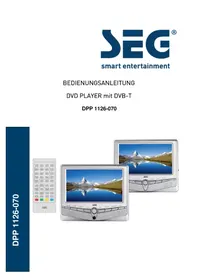
DPP 1126070 TWIN - Portable DVD Player SEG - Free user manual and instructions
Find the device manual for free DPP 1126070 TWIN SEG in PDF.


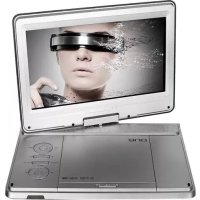
| Product type | Portable DVD player with built-in DTT tuner |
| Brand | SEG |
| Model | DPP 1126070 TWIN |
| Dimensions (main unit) | 210 x 150 x 30 mm |
| Weight (main unit) | 0.68 kg |
| Weight (auxiliary monitor) | 0.34 kg |
| Power supply | 9 V DC, 2 A (mains adapter or cigarette lighter) |
| Power consumption | 18 W |
| Screen size | 7 inches |
| Screen resolution | 480 x 3 (RGB) x 234 |
| Display formats | 4:3 letterbox, Pan & Scan, 16:9 |
| DVD signal system | NTSC/PAL |
| TV signal system | DTT, MPEG-2, compliant with ETSI EN 300 744 |
| Playback formats | DVD, VCD, CD, MP3, JPEG, DivX, XviD, MP4, VOB, MPG |
| Removable media | USB (up to 16 GB), SD/MMC card (up to 8 GB) |
| OSD languages | English, German, Spanish, French, Italian |
| Video output | 3.5 mm mini jack (AV OUT) |
| Audio output | 3.5 mm mini jack (AV OUT), headphone jack |
| Audio-video input | AV IN jack on the auxiliary monitor |
| Remote control | Yes, with CR2025 coin cell battery |
| Internal battery | Li-ion 7.4 V 1400 mAh |
| Operating temperature | 0 to 35 °C |
| Maintenance and cleaning | Clean with a soft, slightly damp cloth; do not use chemical products |
| Safety | Class 1 laser; do not open the casing; avoid exposure to moisture and heat |
| Spare parts and repairability | Repairs by an authorized technician; unauthorized opening voids the warranty |
Frequently Asked Questions - DPP 1126070 TWIN SEG
User questions about DPP 1126070 TWIN SEG
0 question about this device. Answer the ones you know or ask your own.
Ask a new question about this device
Download the instructions for your Portable DVD Player in PDF format for free! Find your manual DPP 1126070 TWIN - SEG and take your electronic device back in hand. On this page are published all the documents necessary for the use of your device. DPP 1126070 TWIN by SEG.
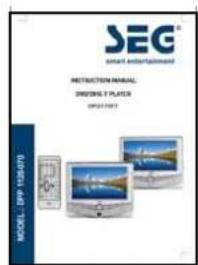
USER MANUAL DPP 1126070 TWIN SEG
natural_image
Three JEGs displaying outdoor screens with snowy mountain scenery, alongside a remote control panel (no visible text or symbols on screens)CLASS 1 LASER PRODUCT KLASSE 1 LASER PRODUKT CLASSE 1 APPAREIL LASER CLASE 1 PRODUCTO LASER

natural_image
Two identical 3D TV screens displaying a snowy mountain landscape with reflection in water (no text or symbols visible)Fernbedienung
natural_image
Black handheld electric shaver with attached cable and power outlet (no visible text or symbols)Kfz-Adapter
natural_image
Black electrical plug with power cord and cable, no visible text or symbolsNetzteil
natural_image
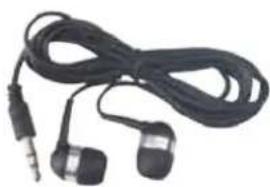
Coiled black audio jack with earplugs and a small microphone (no text or symbols visible)Ohrhörer x 2
natural_image
Coiled black electrical plug with two terminal pins (no text or symbols visible)Verbindungskabel
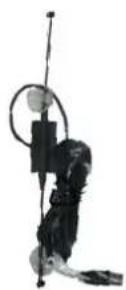
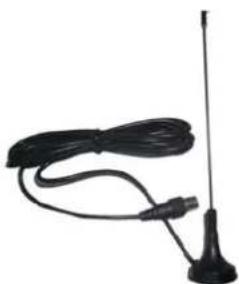
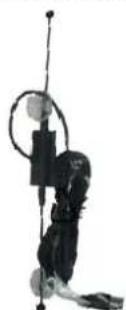
Kfz-Antenne
natural_image
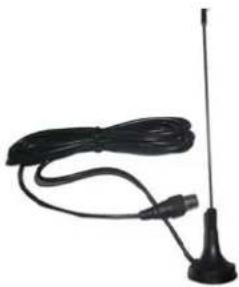
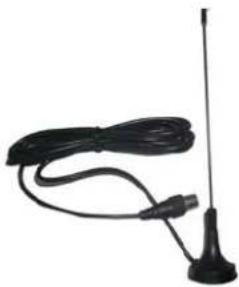
Black antenna with coiled cable and antenna, no visible text or symbolsDVB-T-Antenne
natural_image
Two gray plastic or plastic mold cavities with internal compartments, no visible text or symbols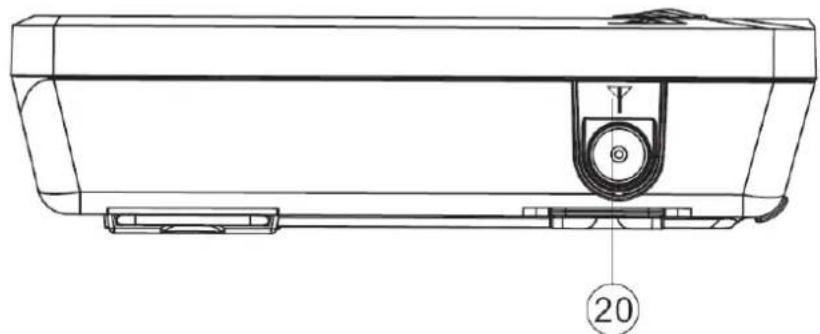
natural_image
Technical line drawing of a mechanical component with no visible text or symbols-
LCD-Monitor (7 Zoll)
-
DVD/DVB
natural_image
Black electronic device with a stand, showing ports and buttons (no visible text or symbols)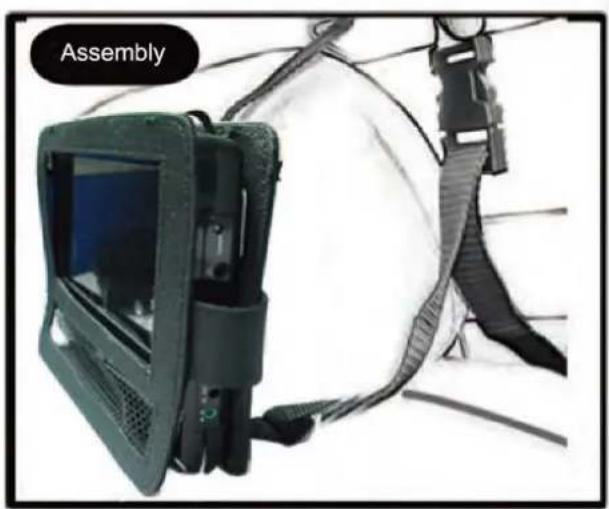
natural_image
Assembly device with attached safety harness and cable, no visible text or symbols on the device itself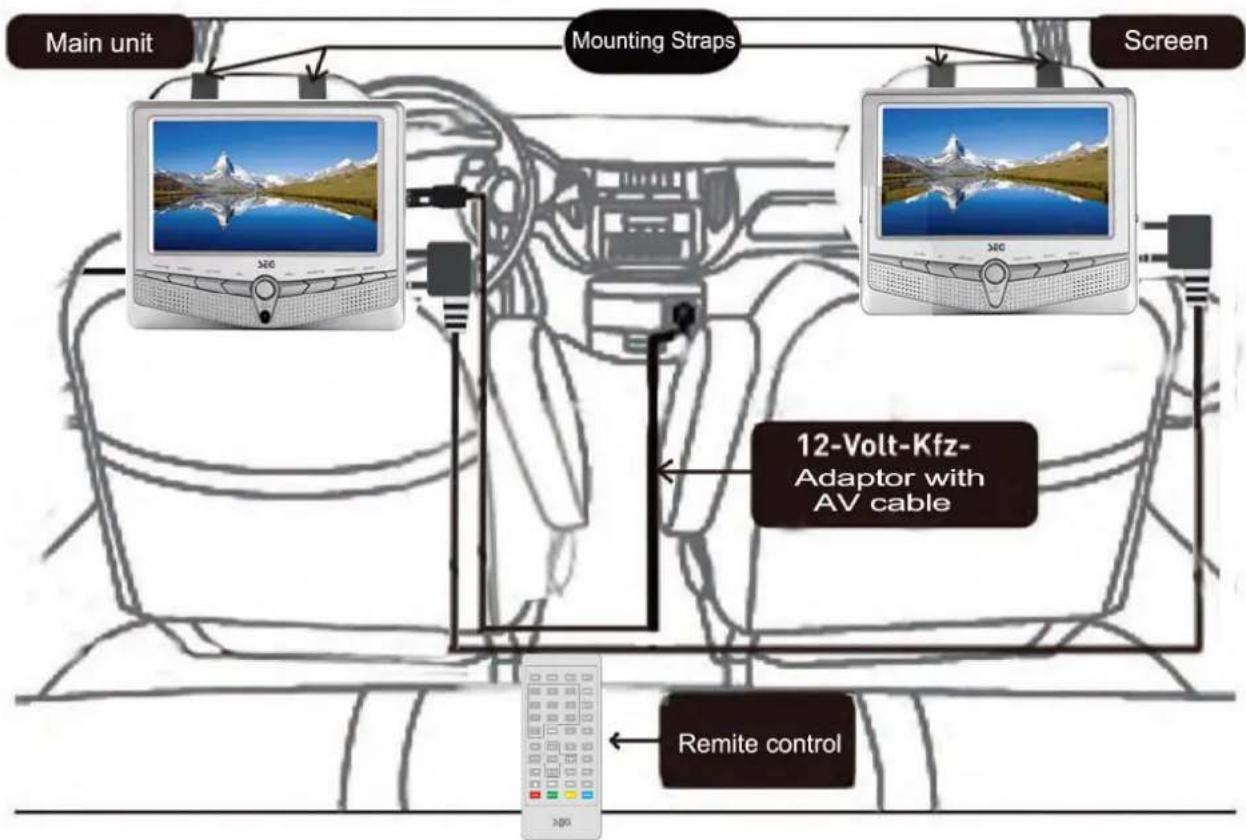
flowchart
graph TD
    A["Main unit"] --> B["Mounting Straps"]
    B --> C["Screen"]
    C --> D["Remote control"]
    D --> E["12-Volt-Kfz-Adaptor with AV cable"]
    E --> F["Main unit"]
natural_image
Illustration of a red car with a sensor or sensor device on its side, set against a dark background (no text or symbols visible)Abbildung 1
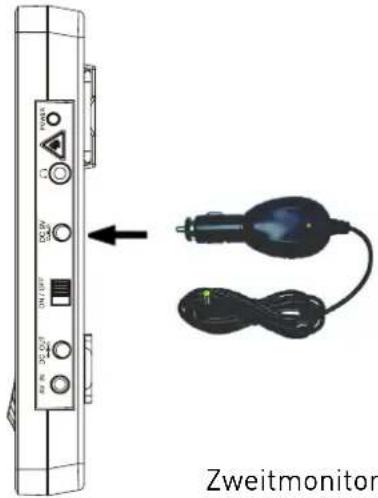
Abbildung 2
WIEDERGABE VERSCHIEDENER DATENTRÄGER
natural_image
Computer monitor interface showing music note icons and playback buttons (no text or symbols on screen)DISK-WIEDERGABE
※ DISK EINLEGEN
DIGITALER FERNSEHEMPFANG (DVB-T)
natural_image
Three JEGs displayed on different devices, one with a remote control and three back-to-back views of a snowy mountain landscape (no text or symbols visible on screens or background)Safety Instructions and Important Information About Intended Use Please read the following instructions and safety notes thoroughly before starting to use your product!
- Intended Use: this device has been designed for playing back DVD/CD discs and watching TV. If the product is not used according to the instructions, the user's and other persons' safety is not guaranteed and the warranty will be void.
- User manual: please read this User Manual thoroughly and keep it for any future reference in a safe place. For your own safety and in order to familiarize yourself with the different functions of the product, please follow the instructions in this manual carefully.
When passing this product to other persons, please also hand over this User Manual.
Please also read the user manuals of all devices that you are going to connect to this device.
- Connecting to the Power Supply: do not use the device if the device or its cables present visible damage.
Connect the device only to the voltage indicated on the corresponding label on the product or AC adapter, resp. Never connect the device to a different voltage. Connect the device to grounded power outlets that comply with the corresponding safety standards only. Do not bend or squeeze the cables.
WARNING: Inside the device there is dangerous voltage. Never open the housing of the device: there is risk of personal injury by electric shock.
In order to completely disconnect the device from the mains, the power plug must be pulled out from the wall outlet. Always pull the power cord from the plug and never from the cable itself. Electric storms may damage any electric equipment; therefore disconnect the power plug from the wall outlet during a thunderstorm. It is also recommended to disconnect the device from the mains and to remove any batteries when you are intending not to use the device for a longer time.
- Objects inside the device: make sure that no foreign objects or liquids enter the device via the ventilation holes or other openings. There is risk of electric shock, damage to the device and short-circuit. In case of any emergency, immediately pull the power plug and contact a qualified service technician.
- Laser product: DVD-products employ a laser system (Class 1 Laser). To ensure proper use of this product please read this owner's manual carefully and retain for future reference. There is laser radiation inside the device. Laser radiation can damage your eyes permanently. To prevent direct exposure to the laser beam, do not try to open the enclosure. Never attempt to repair the device. Hazardous laser radiation when open and interlock failed or defeated.
DANGER: do not expose yourself to the laser beam!
- Installation: place the device onto a flat and even surface. Never cover the ventilation holes of the device and make sure that the air can easily flow around the device (keep at least 10 cm / 4 inch space on the back and sides).
The device has anti-skid rubber feet. Over the long-term, these feet can dissolve due to chemical substances. It is recommended that you place the device on an anti-skid surface.
WARNING: do not use this device outdoors!
- Condensation: when bringing this device from a cold to a warm environment (e.g. after transportation) moisture can condensate inside the device. In order to protect the device from damage and failure wait at least 2 hours prior to using the device.
- Health injury: extremely high audio volumes can damage your hearing permanently. Therefore carefully adjust the volume.
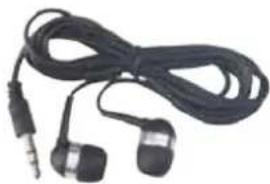
Connect the headphones or earphones to the device prior to powering it on, as connecting it when already powered on can produce high sound levels causing damage to your hearing.
- Children: Do not allow children to play with electrical devices. Children may not be able to comprehend the presence of potential risks.
- Batteries: Keep batteries away from children.
Always replace all the batteries at the same time (never mix old and new batteries). Do not short-circuit any batteries. There is risk of explosion when misusing the batteries.
- Rechargeable battery: if your device has been designed for mobile use and contains any rechargeable batteries, please note the following instructions: charge the battery before using the device for the first time. If you are planning not to use the device for a longer period of time, recharge the battery every 2 or 3 months. This will improve the battery's lifetime. Keep batteries away from any heat sources or direct sunlight. Do not short-circuit any rechargeable batteries. There is risk of explosion. Use the rechargeable battery supplied with the product only. If you have to replace the rechargeable battery, contact a qualified service technician or our Service Hotline. Rechargeable batteries are components subject to wearing out and not covered by the manufacturer warranty.
Do not place any objects on the device and never apply any pressure onto the housing or the display. Do not place any recipients containing liquids (beverages, vases, etc.) onto or next to the device. Do not place any fire sources (such as candles) onto the device. This could damage the product.
- LCD screens: If a still image gets displayed over a period longer than 2 hours, it might lead to a permanent visibility of the outlines of the former displayed content on the screen. The same applies with teletext, computer images, logos, video games, an unchanged background or a longer display of a non full screen sized (with black stripes) format. This unit is not suitable for a long term display of still pictures of the above mentioned content. Improper use and the associated consequential damages are not covered by the manufacturer's warranty.
- Antenna: If Your unit is equipped with a TV or radio receiver, which you want to connect to an antenna installation, please note the following: antenna installations need to be grounded according to regulations, which need to get observed.
Note: If the unit will not be used for a longer period of time or during a thunderstorm, please disconnect the power plug, as well as the connection to the antenna.
- Environmental effects: Keep the device away from any heat sources (heating equipment, ovens, cooking places, candlelight, etc.), direct sun radiation, dirt, dust, vibrations, strong magnetic fields, moisture and rain.
- Cleaning: Clean the device with a soft, slightly moistened cloth. Do not use any chemicals, alcohol or solvents for cleaning. The finish of the device can be damaged by using these substances.
Always make sure that no moisture enters the device.
- Servicing: when using the device according to the operating instructions, no special service or maintenance is required. In case of any loss of performance or other malfunction, contact a qualified service technician.
- Repairs: never open the device! Any repairs must be performed by authorized technicians or service personnel. Any unauthorised opening or modification will void the warranty and also the safety of the product may be altered.
WARNING: Inside the device there is dangerous voltage. Never open the housing of the device: there is risk of personal injury by electric shock.
- Keep this User's Manual for future reference.
- Lay this equipment on a reliable flat surface before setting it up. Do not stand it on soft furnishings.
- Where the power plug is used as the disconnect device, the disconnect device shall remain readily operable.
- The apparatus shall not be exposed to dripping or splashing and objects filled with liquids, such as vases, shall not be placed on the apparatus.
- Batteries (battery pack or batteries installed) shall not be exposed to excessive heat such as sunshine, fire or the likes.
• If any of the following situation arises, get the equipment checked by a service technician:
The equipment has been exposed to moisture.
The equipment has been dropped and damaged.
The equipment has obvious sign of breakage.
The equipment has not been working well or you cannot get it work according to User's Manual.
• To prevent the risk of electric shock, do not open the cover or the back of the receiver.
- Do not block the ventilation holes of the device. Leave appropriate gap above and around it to allow for adequate ventilation.
- Do not place the device in an unventilated cabinet or on top of a unit which emits heat.
Warning
CLASS 1 LASER PRODUCT KLASSE 1 LASER PRODUKT CLASSE 1 APPAREIL LASER CLASE 1 PRODUCTO LASER
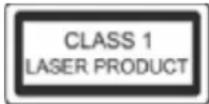

This appliance is classified as a CLASS 1 LASER product. The CLASS 1 LASER PRODUCT MARKING is located on the rear exterior.
Caution

The use of optical instruments with this product will increase eye hazard. As the laser beam used in this DVD player is harmful to eyes, do not attempt to disassemble the cabinet.
"The region number for this DVD Player is
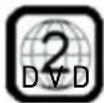
Copyright Statement
No part of this publication may be reproduced in any form by any means without the prior written permission. Other trademarks or brand names mentioned herein are trademarks or registered trademarks of their respective companies.
Disclaimer
Information in this document is subject to change without notice. The manufacturer does not make any representations or warranties (implied or otherwise) regarding the accuracy and completeness of this document and shall in no event be liable for any loss of profit or any commercial damage, including but not limited to special, incidental, consequential, or other damage.
Dolby
Manufactured under license to Dolby Laboratories. «Dolby» and the double-D symbol are trademarks of dolby laboratories.
ROVI
This item incorporates copy protection technology that is protected by U.S. patents and other intellectual property rights of Rovi Corporation. Reverse engineering and disassembly are prohibited.
TABLE OF CONTENTS
Introduction......6
Features....8
Front panel....9
Remote control....11
Side panel....13
Connections....13
Media Play Operation....16
DVD operation....16
USB/SD operation....21
DVBT Operation....21
First time installation....21
The main menu....22
Electronic programs guide (EPG)....27
Teletext....27
Subtitle/audio function....27
Troubleshooting....28
Specifications....29
EnvironmentEnvironment
Old batteries do not belong in with the domestic waste! Old batteries do not belong in with the domestic waste! Consumers are obliged by law to return any old batteries and rechargeable batteries to the corresponding local and/or public collection centres or to return them to the retail shops. This ensures that batteries will be disposed of respecting the environment. Make sure to return any batteries and rechargeable batteries discharged.
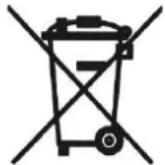
Disposal of old electric and electronic devices: Disposal of old electric and electronic devices:
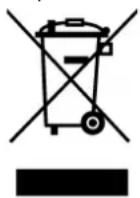
The icon of a dashed-out waste bin means that a separate disposal of electric/electronic equipment is necessary.
According to the Legislation of the European Union, any electric and electronic devices may not be disposed of with domestic trash but must be returned to a special collection center enabled for the recycling of these devices. The local waste companies should have set up specific collecting centres for this purpose, allowing private consumers to return any old devices for free. Please contact your local authorities or the local waste company for the available disposal possibilities.
Please support us actively by protecting the environment and recycle this product accordingly by returning it to a specific collection centre. This will protect the environment, other people and yourself. Thank you very much!
Disposal of Packaging and Packaging Materials: Disposal of Packaging and Packaging Materials:
Packaging and any packaging materials do not belong in with the domestic waste! Your system consists of materials which can be recycled and reused if disassembled by a specialized company. Please observe the local regulations regarding the disposal of packaging materials.
INTRODUCTION
Features
\~ DVD player
\~ Bandwidth of 6/7/8MHz supported
\~ Automatic/manual/area channel search
\~ COFDM demodulator
\~ Supports remote control
\~ NTSC/PAL converting automatically and manually
\~ EPG (Electronic Program Guide) and Teletext function
\~ Multiple-language OSD
\~ Channel edit, move, deletion and grouping
\~ Parental lock control
\~ SDTV only
\~ Supports subtitle
\~ ETSI EN 300 744 DVB-T Compliance
2. YOUR DVD PLAYER
In the box
The following accessories are including in this product. If anything is missing, contact your dealer.
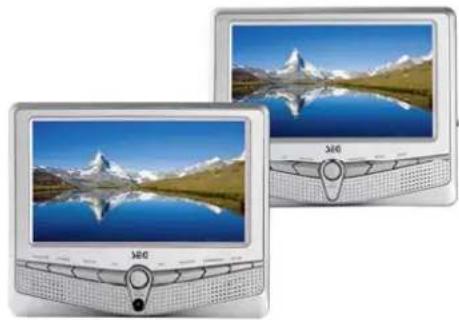
natural_image
Two silver-framed 340G TVs displaying a scenic mountain landscape with reflection in water (no text or symbols visible)Main Unit and Monitor
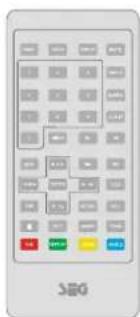
Remote Control
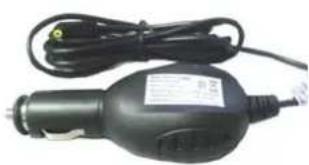
natural_image
Black handheld electric shaver with power cord and cable (no visible text or symbols)Car Adapter
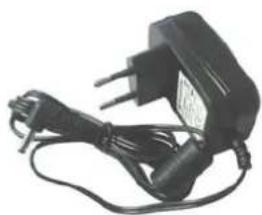
natural_image
Black electrical plug with three leads and a power outlet, no visible text or symbolsPower Adaptor
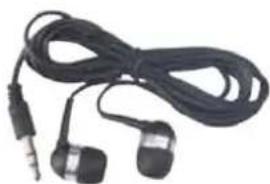
natural_image
Black and white photo of a pair of earphones with a coiled cable, no visible text or symbolsEarphones x 2
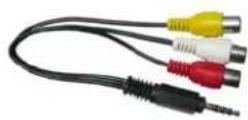
Video/Audio Cable adaptor
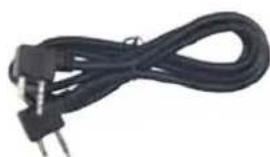
natural_image
Coiled black electrical plug with two terminal pins (no text or symbols visible)Connection Cable
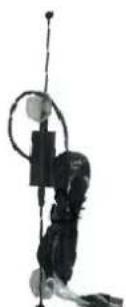
car antenna
natural_image
Black antenna with coiled cable and antenna, no visible text or symbolsDVB-T Antenna
This Menu
natural_image
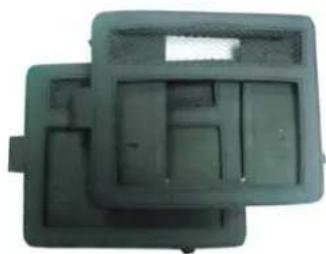
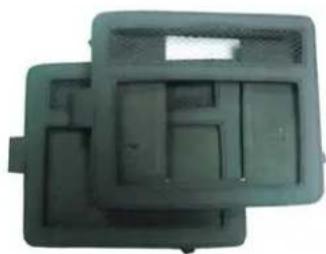
Two dark rectangular plastic enclosures or washers with internal compartments, no visible text or symbols.Headrest bag
Main unit (DVD player)
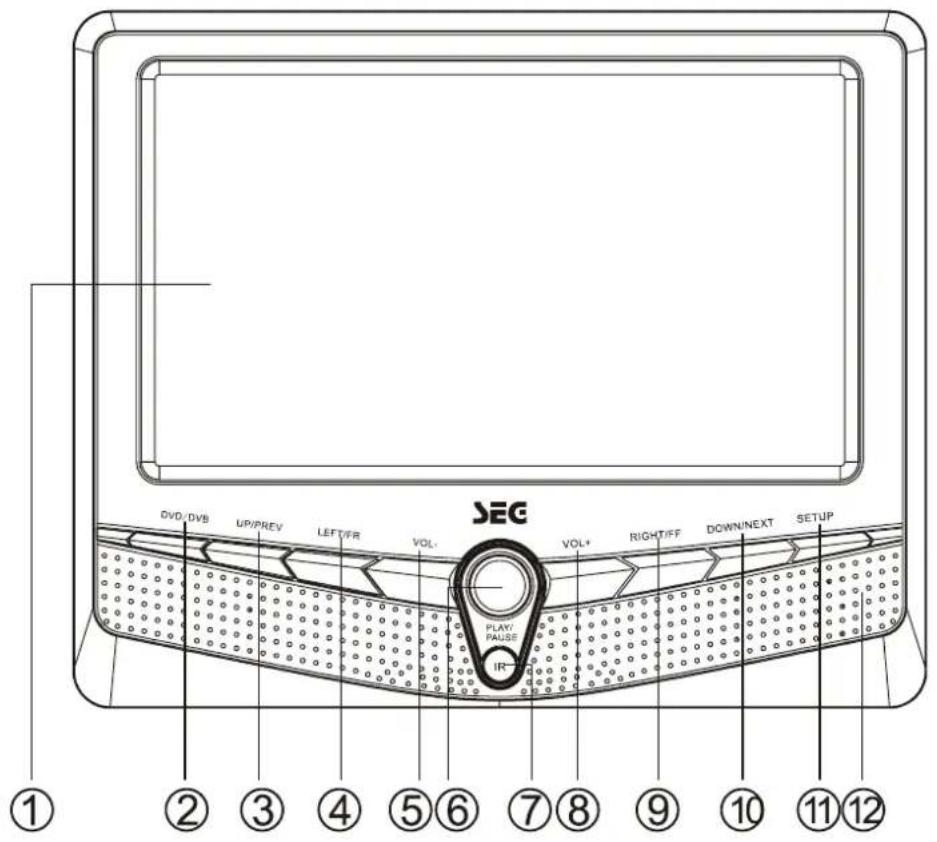
Front View
Side View
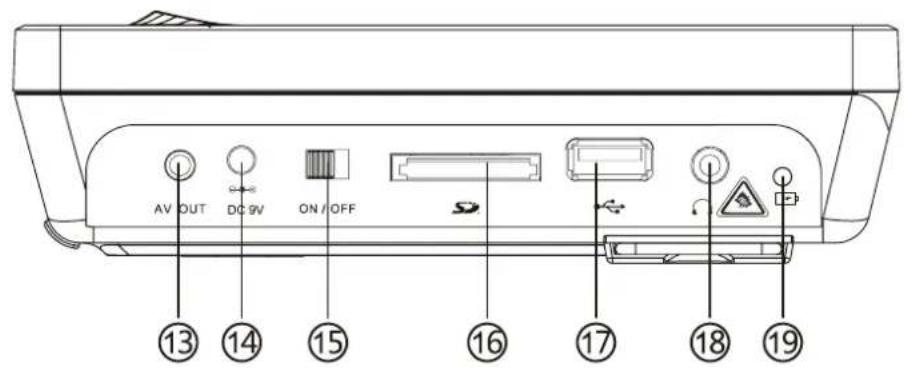
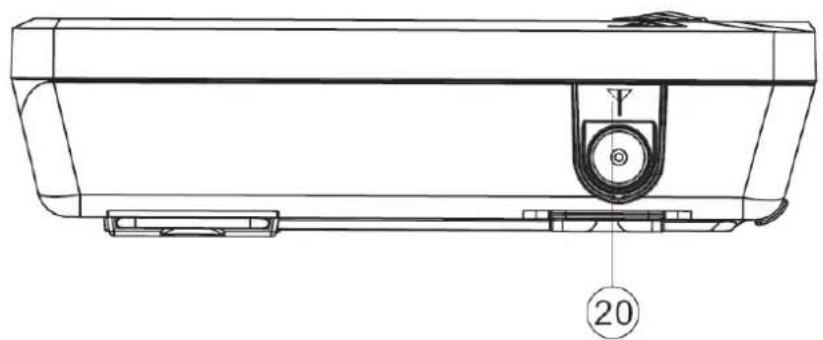
natural_image
Technical line drawing of a mechanical component with no visible text or symbols-
7 inch LCD monitor
-
DVD/DVB
Press to select DVD or DVB mode.
- UP/PREV
On media play, press to select the previous track. In menu interface, press to select item up.
- LEFT/FR (Fast reverse)
On media play, press to fast reverse. In menu interface, press to select item left.
- VOL-
Decrease the volume level.
- PLAY/PAUSE
Start, pause or resume disc play.
-
IR (Remote sensor)
-
VOL+
Increase the volume level.
- RIGHT/FF (Fast forward)
On media play, press to fast forward. In menu interface, press to select item right.
- DOWN/NEXT
On media play, press to select the next track. In menu interface, press to select item down.
- SETUP
Press to enter the DVD setup menu in DVD mode.
-
SPEAKER
-
AV OUT jack
-
DC IN jack
-
POWER OFF/ON Switch
-
SD/MMC/MS interface
-
USB interface
-
Earphone jack
-
Charge/Power indicator
-
DVBT Antenna jack
Vice Monitor Front View
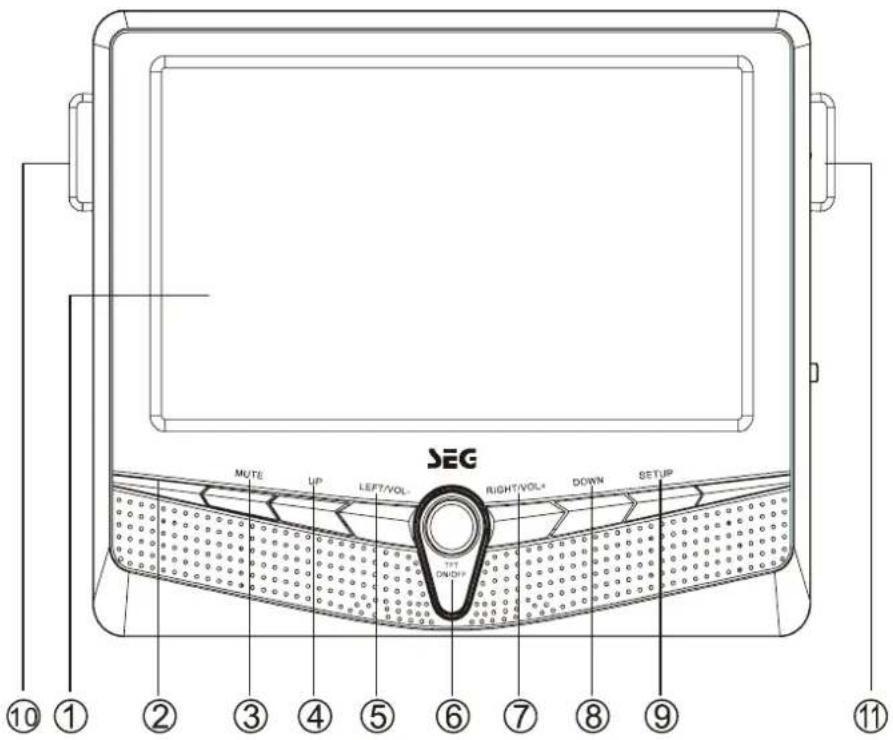
Side View
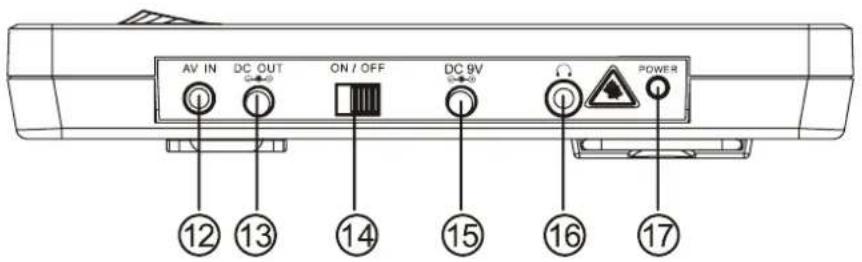
- 7 inch LCD monitor
- Speaker
- MUTE
- UP
- LEFT/VOL-
- TFT ON/OFF
- RIGHT/VOL+
- DOWN
-
SETUP
10&11. Beckets -
AV IN jack
- DC OUT jack
- POWER OFF/ON Switch
- DC IN jack
- Earphone jack
- Power indicator
Remote Control
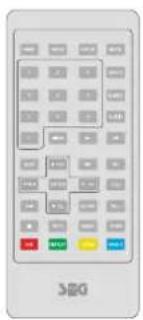
Buttons of the Remote Control:
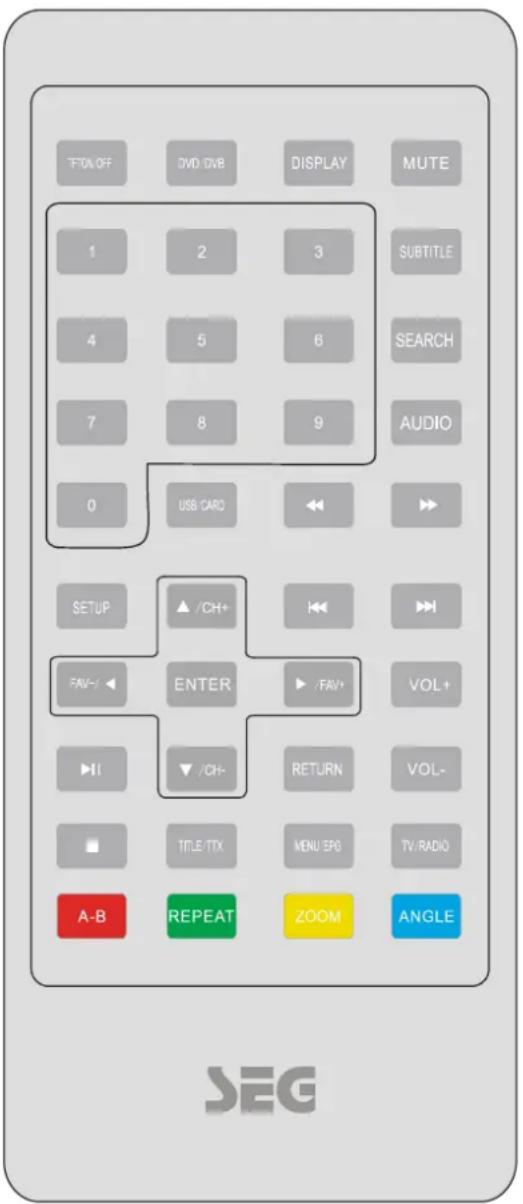
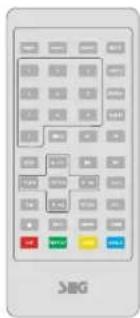
- TFT ON/OFF button: press to turn the TFT display on or off.
- DVD/DVB button: press to select DVD or DVB mode.
- DISPLAY: For disc, display the current status or disc information.
- MUTE button: press to mute/resume the sound.
- SUBTITLE button: press to select the subtitle language.
- Numeric buttons (0-9, 10+): press to input number to select the track or channel.
- SEARCH button: press to search the stations automatically in radio mode.
- AUDIO button: press to display the audio information of the DVD/VCD disc.
- USB/CARD: Press to select the USB or CARD mode.
- SETUP button: press to enter the DVD setup menu in DVD mode.
- ▲(CH+) / (OH-): Press to select the previous/next channel.
Moves the cursor up/down in the on-screen menu.
Also referred to as Up/Down keys throughout the manual.
- (FAV-) / (FAV+): Moves the cursor left/right in the on-screen menu.
Also referred to as Left/Right keys throughout the manual.
In DVBT mode, Press to enter the favorite channels list.
- ◀◀/▶ in media play mode, press it to activate fast reverse/forward function.
- ◄◄◄/►◄ in media play mode, press shortly to skip to the previous/next track.
- VOL+/- button: press to adjust the volume level
- RETURN button: press to return to the previous menu.
- TITLE/TTX button: press to display the title menu of the DVD disc.
In DVB mode, displays the teletext (if available)
- MENU/ EPG buttons: Press to display/exit the menu information of the DVD disc, Displays EPG menu (if available).
- TV/RADIO: To switch between TV/radio channels.
- ▶ button: press to play/pause the playback.
- ☐ button: Press once to enter pre-stop mode, press twice to enter stop mode.
- A-B button: press to repeat play the part you selected.
- REPEAT button: press to switch the repeat modes of the program.
- ZOOM button: press to allow the picture to be increased in size.
- ANGLE button: press to change the view angle on multi-angle DVD disc.
Inserting batteries and Operation radius
- Open the battery compartment cover.
- Insert the new batteries. Make sure that the positive and negative terminals of the batteries are oriented as indicated.
- Close the cover.
- Battery: One button cell lithium battery (CR2025).
Using the Remote Control
Point the remote control towards the remote control signal receiver on the player front face.
Stay within 5 meters and angles of 30 degrees or less in each the direction of the front of the remote sensor.
Under normal use the battery will last for one year.
Remove battery during storage or when you are not using the DVD player for a long time.
Notes:
- Weak batteries can leak and several damage by the remote control.
- Leaking out battery acid can damage your health.
- Remove the battery from the battery compartment as soon as it is exhausted or if the remote control is not going to be used for a longer period of time.
- Wipe up leaked out battery acid with a cloth.
- In case of skin contact immediately wash the affected area.
- Seek medical advice if battery acid has been swallowed. In case of contact with your eyes wash out the eyes and seek medical advice.
Connections
A. For home use (the main unit)
On the back of the unit there is a bracket. When you pull out the bracket, you can
place the main unit on the flat position to operate it.
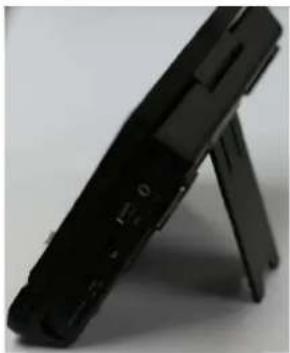
natural_image
Black electronic device with a stand, shown against a plain background (no text or symbols visible)Connect to power outlet
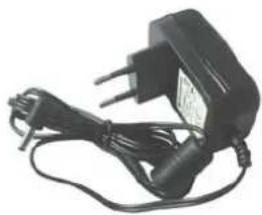
Connect the one terminal of the power cord to the DC IN jack on the side of the unit and the plug to the power outlet.
The DVD player is ready to be set up for use.
·Risk of product damage! Ensure that the power supply voltage corresponds to the voltage range for the DVD player.
Connect Video/Audio cables
Make the following basic connections to
use the DVD player.
Connect the video/audio cable to the AV OUT jack on the side of the main unit.
- Video/Audio cables
Audio left channel (WHITE)
Audio right channel (RED)
Video channel (YELLOW)
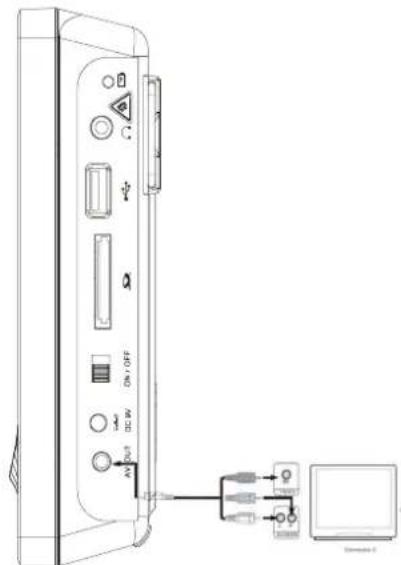
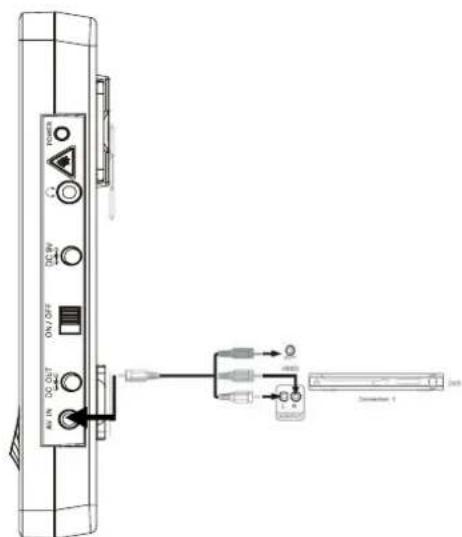
If you want to enjoy high quality music or enjoy home theater effect, you can select connection 1.
Connect USB device/Memory card
Connect the USB flash drive to the USB
jack on the side of the DVD player or insert the memory card to the SD/MMC/MS interface.
Note:
This DVD player can only play/view MP3 or JPEG files that are stored on such devices.
- Press USB/CARD button on the remote control to select the mode to play the files on the USB or memory card.
Playback Vedio
Notes: The USB-host function and SD/MMC-card reader function of this product does not guarantee the compatibility with all of USB or SD/MMC memory devices.
B. For car use (the main unit with the vice monitor)
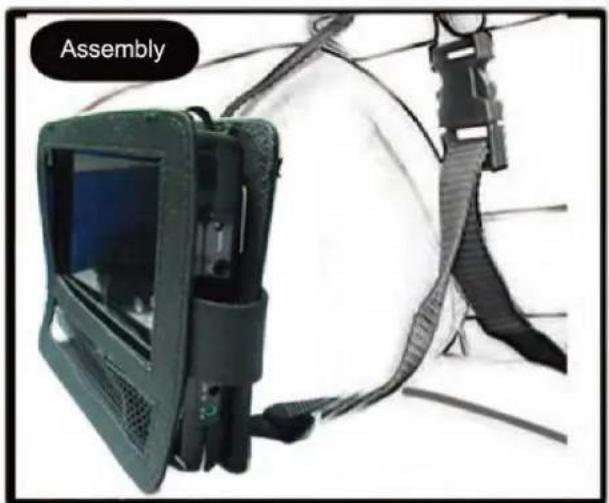
On the back of the main unit and the second monitor are two mounting bracket. These brackets are used to fasten the device to the headrest in the car. The passengers in the backseats can enjoy the program
- Attach the mounting kits for the headrest to hold the main unit and the vice monitor to the headrest of your car.
- The mounting kits have two belts, you will be guided around the headrest. The bag assembly kits are used to hold the main unit or the Monitor.
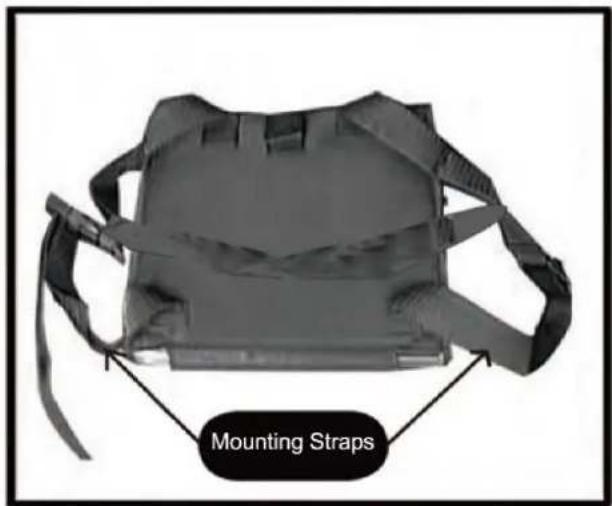
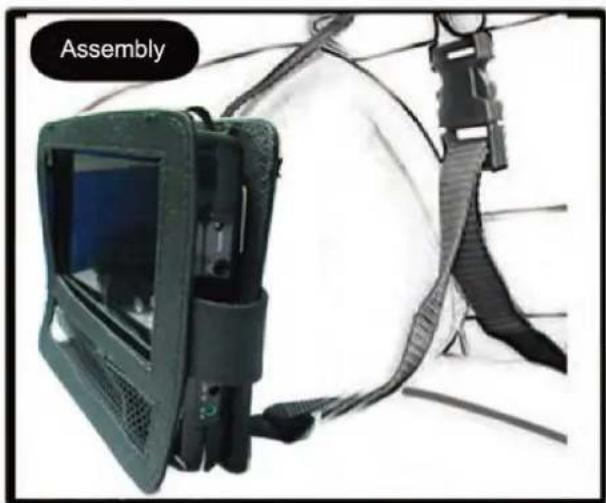
natural_image
Assembly device with mounted device and safety harness (no visible text or symbols)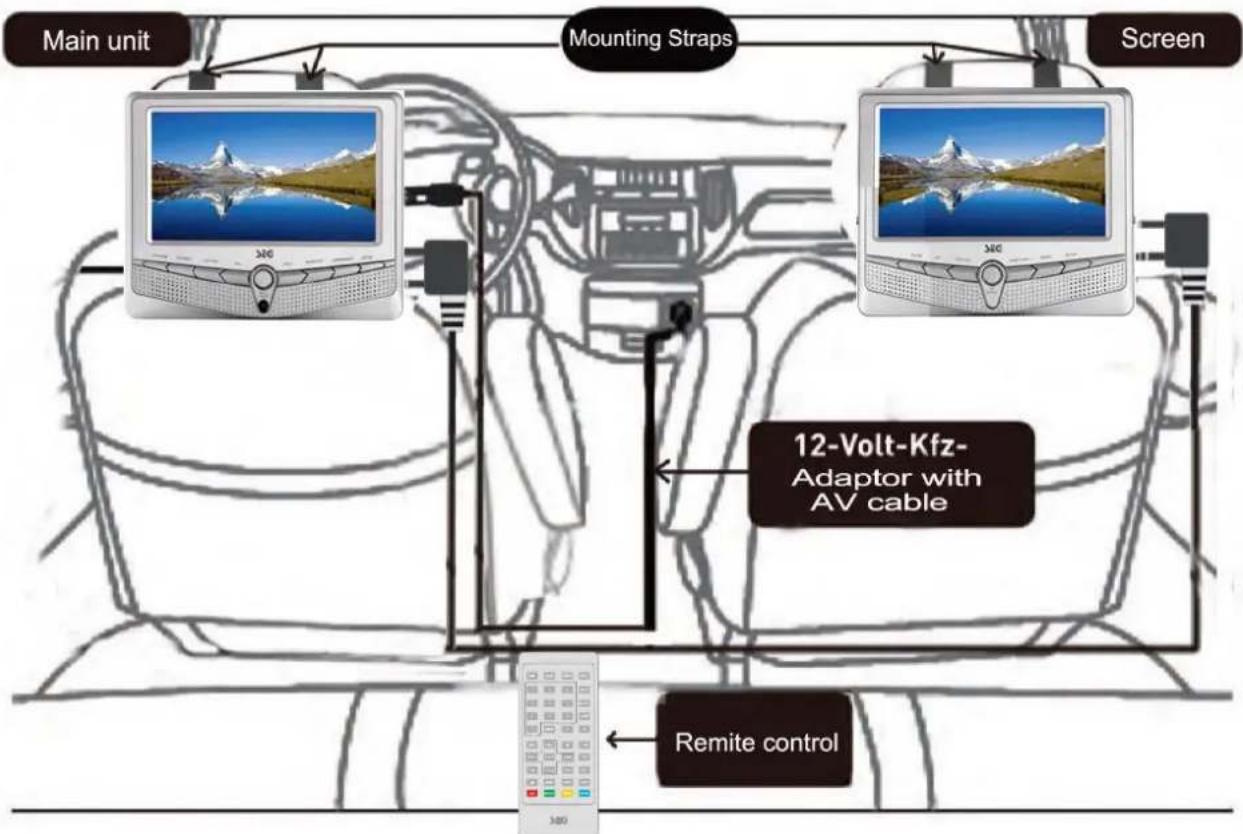
flowchart
graph TD
    A["Main unit"] --> B["Mounting Straps"]
    B --> C["Screen"]
    D["Remote control"] --> E["12-Volt-Kfz-Adaptor with AV cable"]
    E --> F["300Ω"]
Connect to antenna for car
The unit has integrated a DVB-T TV tuner. To receive the terrestrial broadcast, you need to connect the player with an antenna:
Antenna installation in the car: fix the antennas on the car in the rear (or side) of the glass picture 1.
Notes: "A flawless TV function can't be guaranteed due to connection issues while the vehicle is moving, especially when speed is more than 60km / h ".
notice: A standard antenna with magnetic food and also a antenna for car using with vacuum cup is included in delivery
Connect to power
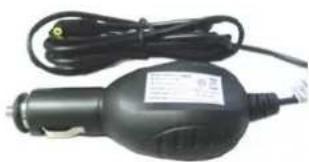
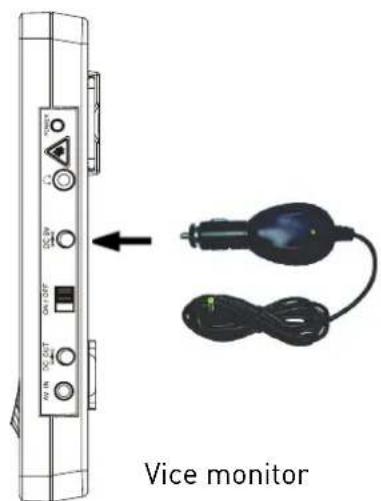
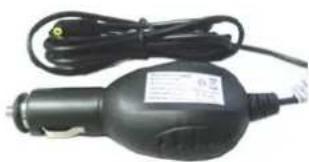
Connect the jack of the cigarette lighter cable to the DC IN 9V jack on the side of the vice monitor and the other plug to the car picture 2.
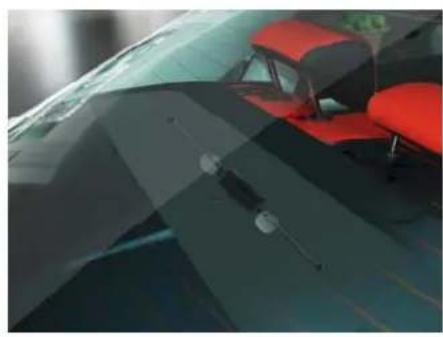
natural_image
Illustration of a red car with blue roof and white seat, partially obscured by a dark background (no text or symbols visible)Picture 1
picture 2
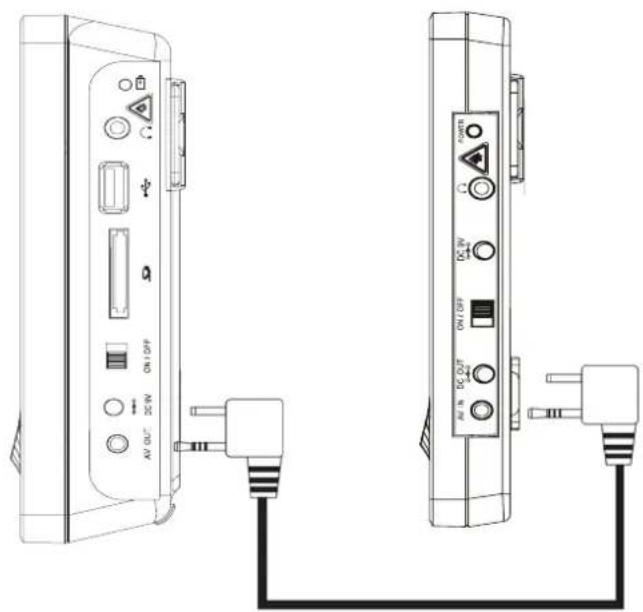
Connect the main unit with the vice monitor
Use the cable to connect the two units.
natural_image
Technical line drawing of two electronic device connectors with labeled ports and connections (no text or symbols present)The unit supports disc play, USB play and card play. Press the USB/CARD button on the unit or on the remote control to select DVD mode. When entering into the DVD mode, press USB/CARD button on the remote control, the picture will appear on the screen. If you have play the disc on the unit and a card or USB device on the unit, you can select the DISC or CARD or USB device to play.
DISC OPERATION
※ LOADING THE DISC
Open the monitor then press ▲ button on the unit to eject the CD cover, then you will see the disc tray. When there is no disc in the tray, insert the disc with printed side facing up into the disc slot. Then put the cover down to close the cover. The player will start playback automatically.
When playing a DVD disc in the DVD player:
1) The disc will be played automatically and stop at menu picture.
Use ◀ / ▶, ▲/ ▼ cursor buttons on the remote control to move between the highlight bars in the menu. You can also press MENU button on the remote control to start menu play.
2) Press ENTER button on the remote control to confirm the selected item.
3) You can press TITLE/TTX button on the remote control to return to the title of the DVD disc.
※ STOP PLAYBACK
Press STOP button on the remote control one time to stop the playback and go back to the DVD LOGO. Then press ▶ on the remote control or press ▶ on the front panel of the player to start play.
During playing, press ▶▶▶/▶◀◀ on the remote control or ▶▶▶/▶◀◀ buttons on the front panel during playback will skip to the previous/next track.
Note: For some VCD2.0 discs (PBC-playback control), ▶▶▶/▶buttons may be unavailable.
Note you can use the numeric buttons (0-9) and 10+ button on the remote control to select the track directly.
Press ▶ on the remote control during playback will stop playback temporarily. To return to
normal playback, press button.
※ RAPID FORWARD/RAPID REVERSE
Press ◀◀/▶▶ on the remote control or press ◀◀/▶▶ on the unit during playback.
Each time the button is pressed, the speed of rapid forward /reverse changes according to the disc.

flowchart
graph LR
    A["Normal playback"] --> B["X2"]
    B --> C["X4"]
    C --> D["X8"]
    D --> E["X20"]
Press the OSD button on the remote control during playback to display the console information of the current disc on the screen.
For an example (when playing a DVD disc):
Once you press OSD button on the remote control, you will see the information as the following
order.

1) Item: TT
Function: Display the current title number and total title number.
2) Item: CH
Function: Display the current chapter number and total chapter number.
3) Item:

Function: Display the played time of the current chapter.
4)

Display the current disc's language, audio type, subtitle language and play angle.
Note: The displayed information is different according to different type of discs.
Repeat play: when you want to repeat playing the whole disc or a track or a chapter in the disc.
■ Press REPEAT button on the remote control repeatedly to select different repeat modes.
■ For different kinds of discs, pressing REPEAT button has different effects.
For example:
DVD:
REP:[OFF]→ REP:[CHAPTER]→ REP:[TITLE] → REP:[ALL]
Note: REPEAT feature does not support VCD2.0 (with PBC ON).
Paragraph play: When you want to play a paragraph repeatedly, A-B repeat allows a passage to be repeated continuously.
1) Press A-B button on the remote control first at the start of the required passage: REPEAT A-
2) Press A-B button secondly at the end of the passage: REPEAT A-B
Then the unit will repeat playing the passage you just set from A to B.
3) Pressing A-B button again will exit repeating mode, and "A-B CANCEL" will be displayed on the screen.
※ ZOOM FUNCTION
Allows the picture to be increased in size. Press ZOOM button on the remote control to toggle among 2 scale, 3 scale and 4 scale, 1/2 scale, 1/3 scale, 1/4 scale.
When the scale is 1/4 times, press ZOOM button again to cancel the zoom function.
During Zoom mode, press ▲/√ buttons on the remote control to move pictures up, down, left or right direction.
Multi-subtitle Language Function
Press SUBTITLE on the remote control during playback. The corresponding information will be shown on the screen.
Each time the button is pressed, the subtitle language changes in sequential order.
Notes:
- The language number is different according to the disc.
- Some discs only contain one soundtrack subtitle.
Multi-audio Language Function
Press L/R on the remote control during playback. The corresponding information will be shown on the screen.
Each time the button is pressed, the audio soundtrack language changes on sequential order.
Notes:
- The language number is different according to the disc.
- Some discs only contain one soundtrack language.
Multi-angle Function
Press ANGLE button on the remote control during playback. The corresponding information will be shown on the screen.
Each time the button is pressed, the angle changes in sequential order.
Notes:
- The angle number is different according to the disc.
- The function only works for discs having scenes recorded at different angles.
Press L/R button on the remote control during playback to change the channel.
※ DVD SETUP
In DVD mode, when the disc is playing or in stop mode, press SETUP on the remote control to enter setup menu.
When the cursor is on the topside, use /, buttons to move between the different pages, such as SYSTEM SETUP, LANGUAGE SETUP, AUDIO SETUP, VIDEO SETUP and SETUP.
* Press ▼ button to move the cursor to the setup page below and then you can use ▲ / buttons to move between the different setup options.
* Press ▶ button to display the choice list for each setup option and then use ▲/▼ buttons and ENTER button to change your selection.
1) SYSTEM SETUP
When you open the setup menu, you will see the system setup page at first, see below:
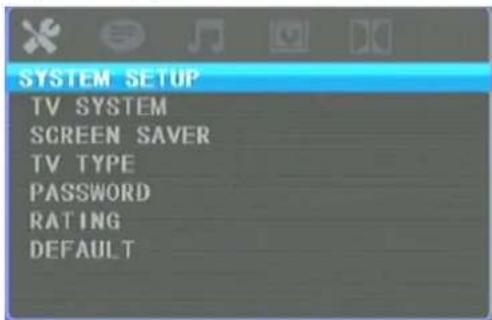
* TV SYSTEM: Change the TV SYSTEM among NTSC and PAL.
* SCREEN SAVER: Change the SCREEN SAVER between ON and OFF.
If the screen saver is on, when your DVD player is in Stop, Open or No Disc state, or there is a frame frozen for more than 60sec, the screen saver will be displayed; this feature can protect the screen from damage.
* TV TYPE: Change the TV TYPE among 4:3 PS, 4:3 LB and 16:9.
4:3PS (Pan&Scan): Choose this setting if your DVD player is connected to a normal ratio TV. You can fill the movie to the entire screen of your TV. This might mean that parts of the picture (the left and right edges) won't be seen.
4:3LB (Letter Box): Choose this setting if your DVD player is connected to a normal ratio TV, connector you will see the movies in their original aspect ratio (height-to-width ratio).you will see the entire frame of the movie, but if will take up a smaller portion of the screen vertically, the movie might appear with black bars at the top and bottom of the screen.
16:9 (Wide Screen): Choose this setting if your DVD player is connected to a wide screen TV. If you choose this setting and you don't have a wide screen TV, the images on the screen may appear distorted due to vertical compression.
* PASSWORD: Change the PASSWORD lock or unlock, the default PASSWORD is "0000".
* RATING: Change the parental RATING among 1G, 2, 3PG, 4PG13, 5, 6R, 7NC-17, 8.
The rating feature is a rating limit system, like movie rating. It works with DVD discs that have been assigned a rating. This helps you control the types of DVDs that your family watches.
* DEFAULT: Restore the system setup to the default setup.
2) LANGUAGE SETUP
When you open the language setup menu, you will see the language setup page:
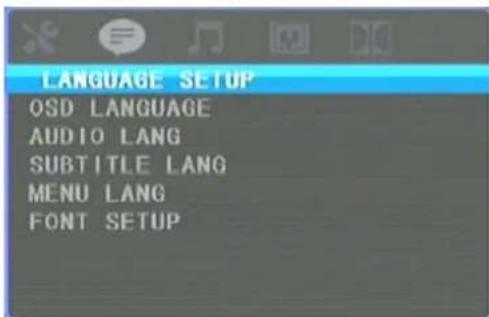
*You can change the OSD LANGUAGE among: English, German, Spanish, French. *You can change the AUDIO LANGUAGE among: English, German, Spanish, French, and Italian
*You can change the SUBTITLE LANGUAGE among: English, German, Spanish, French, Italian and Portuguese and OFF.
*You can change the MENU LANGUAGE among: English, German, Spanish, French, Italian and Portuguese.
3) AUDIO SETUP
When you open the AUDIO menu, you will see the following picture:
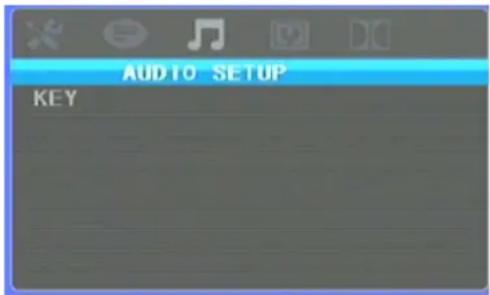
* KEY: Change the tone within a certain range.
4) VIDEO SETUP
When you open the VIDEO menu, you will see the following picture:

You can use the ▲/▼ buttons on the remote control or on the unit to adjust the value of the brightness, contrast, hue, saturation and sharpness.
5) DIGITAL SETUP
When you open the DIGITAL menu, you will see the following picture:
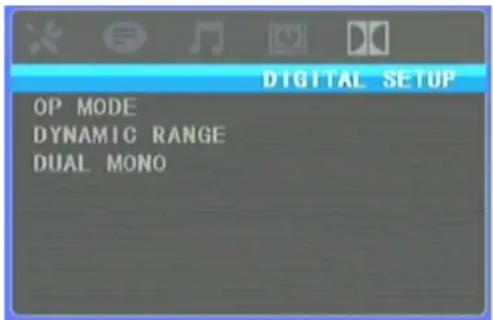
*OP MODE: to set the operating modes for Dolby Digital decoder, there are LINE OUT and RF REMOD to be selected.
* DYNAMIC RANGE: you can adjust the dynamic range between 1/8, 2/8. 3/8, 1/2, 5/8, 3/4, FULL.
Choose this setting to adjust the line out ratio and get different effect. If adjusting to FULL, the audio signal peak value will be the minimum, while adjusting to OFF, maximum.
* DUAL MONO: there are STEREO, MONO L, MONO R and MIX MONO to be selected.
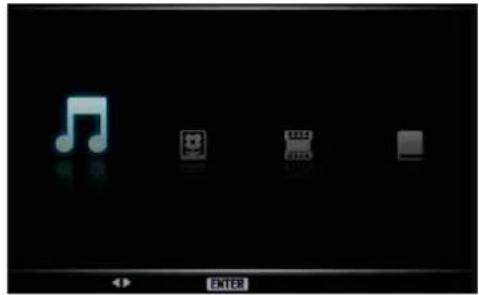
USB/CARD OPERATION
When you select the USB or CARD mode, the operation is the same with DISC operation.
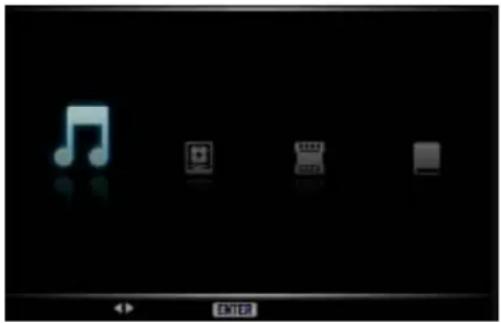
For example, when entering into the USB mode, the picture will appear.
You can select the audio/photo/video/E-book item to play.
DVBT OPERATION
Press FUNCTION button on the remote control or on the unit to select DVB-T mode.
1. First time installation
If you are using the unit for the first time, an Initial Installation menu will be displayed to guide you through the first time installation (Picture 1). After selecting "YES", a new frame appears, shown in Picture 2, requesting the area, OSD language. Use the ▲/▼/ cursor buttons to choose the right options. Then select "NEXT" and press ENTER button on the remote control or OK button on the unit to go the next picture, shown in Picture 3. Then select "YES", it begins to auto searching. Wait to complete the scanning. In case you want to stop the scanning, press the STOP button.
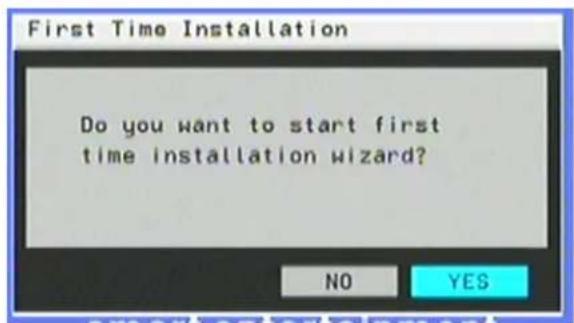
Picture 1
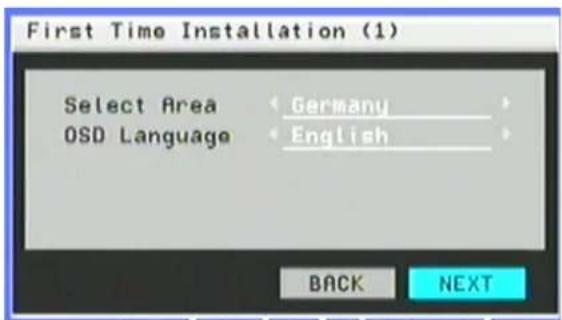
Picture 2
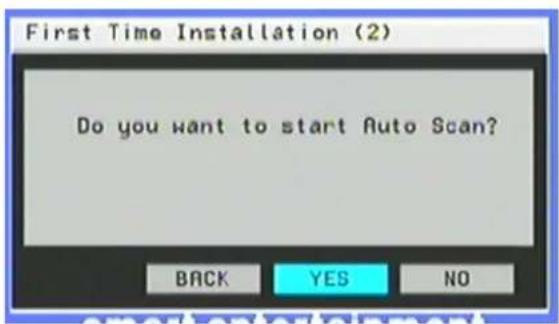
Picture 3
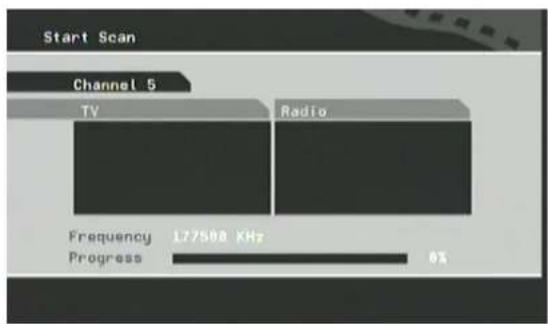
Picture 4
2. The Main Menu
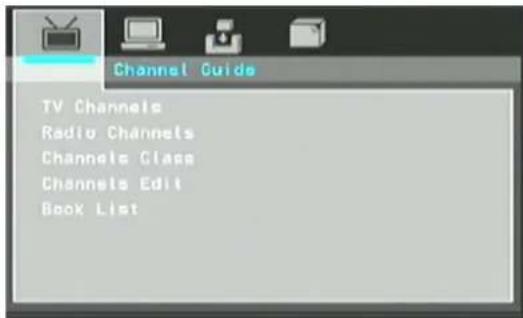
Press the SETUP button to enter the main menu. Press the SETUP button again or press RETURN button to exit the menu. There are Channel Guide, System Config, Installation and Game four items to be selected and set.
2.1 Channel Guide
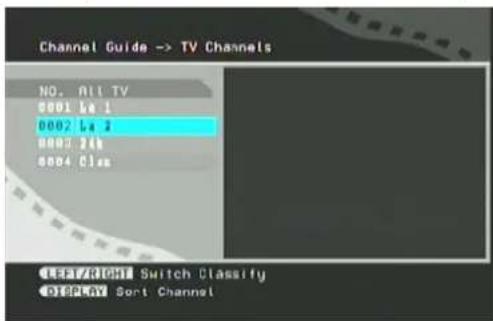
2.1.1 TV Channels
When select TV channels item and press ENTER or OK button enter the menu. The channels appear on the left of the menu and a preview window appears on the right. From here, the channel can be changed by using the ▲/▼ buttons and ENTER to start viewing and ◀/▶ buttons to change the channel group. The channel groups include news, sports, favorites, etc. press DISPLAY button to classify channels, which can be arranged in alphabetical order (A-Z), inverted alphabetical order, free viewing at the top, coded at the bottom and by transponder.
2.1.2 Radio Channels
The Radio Channels Menu is similar to the TV Channels Menu. The channels are listed on the left. The channels can be changed by using the ▲/▼ buttons and the groups can be changed by using ◀/▶ buttons. Press DISPLAY button to classify channels.
2.1.3 Channels Class
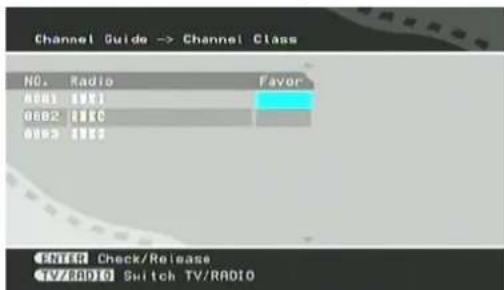
In this interface, each channel can be classified into a group.
Use ▲/▼, ◀/▶ buttons to let the cursor to the proper position then press ENTER or OK to add the series channels to the column category. Press ENTER or OK button again to release the
corresponding function.
Press TV/RADIO button to alternate between TV channels and radio channels.
Note: When there are not any channels, the user can not be able to enter the menu.
2.1.4 Channels Class
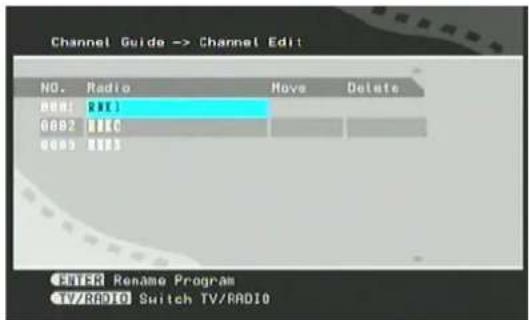
To change the name of a channel, you can select the channel and press ENTER or OK button. Use the ◀/▶ buttons to select a character and ▲/▼ buttons to change a character. Press ENTER to confirm the name you input.
To change the position of a channel, select the Move column and press ENTER or OK. Then use the ▲/▼ buttons to change the number order of the channel and press ENTER to confirm.
To delete a channel, select the Delete column and press ENTER button.
Use the TV/RADIO button to alternate between TV channels and radio channels.
Note: When there are not any channels, the user can not be able to enter the menu.
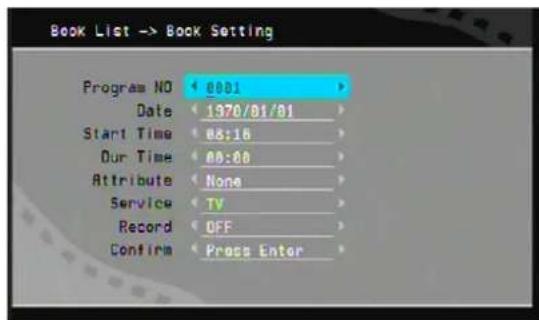
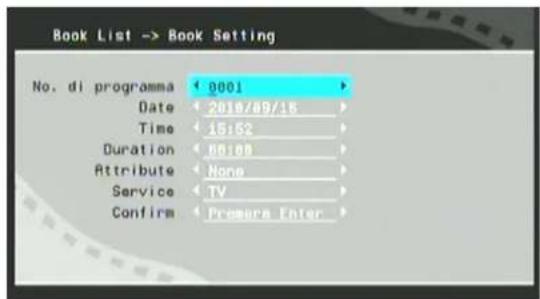
2.1.5 Book List
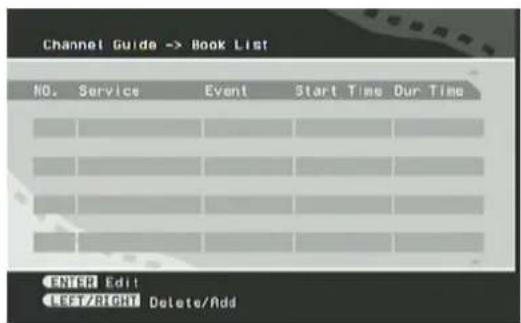
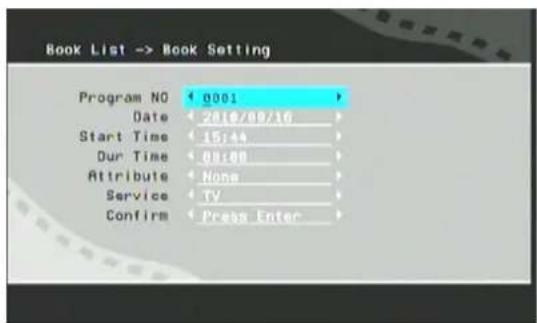
In Book List interface, it will display the notes that appear in the EPG (Electronic Programs Guide) menu and that you have added manually.
Press ENTER to enter the Book Setting menu. Then you can use the ▲/,▼ buttons to
set the items, such as the program NO, Date, Start Time, Dur time and etc. Then press ENTER to
confirm.
2.2 System Config
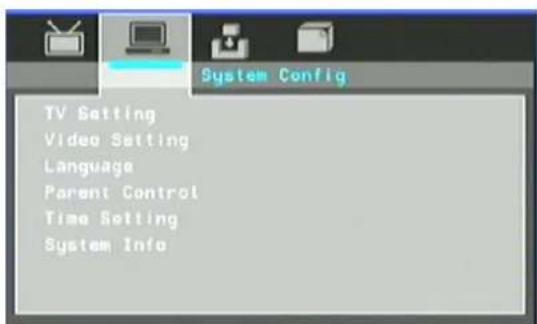
2.2.1 TV Setting
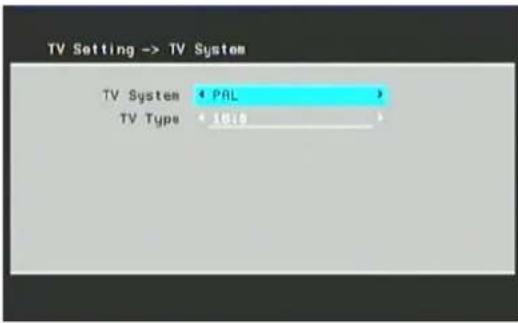
* TV SYSTEM: Change the TV SYSTEM among NTSC, PAL and AUTO.
* TV TYPE: Change the TV TYPE among 4:3 PS, 4:3 LB and 16:9.
2.2.2 Video Setting
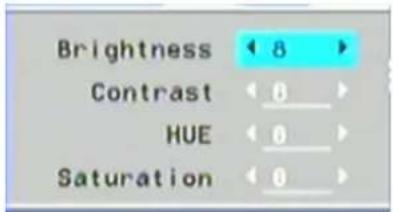
Select the Video Setting item and press ENTER to enter the menu. You can use the ▲/▼ buttons to select the Brightness, Contrast, HUE and Saturation to adjust and use ◀/▶buttons to change the value then press ENTER button to confirm.
2.2.3 Language
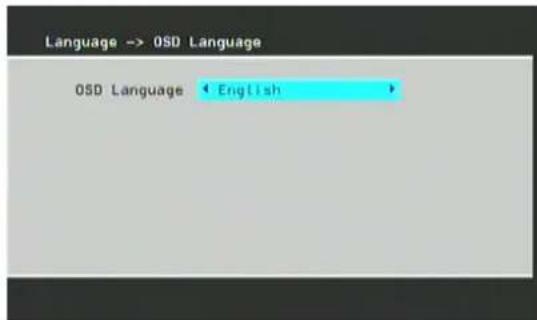
Use ◀/▶ buttons to change the OSD Language and press ENTER button to confirm. Such as English, Spanish, Italian and etc.
2.2.4 Parent Control
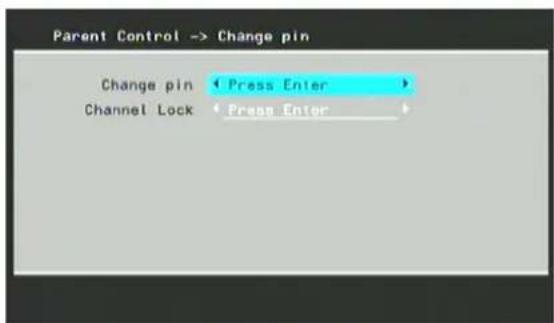
When changing the password the user will be requested to input the old password, the new one and the new one once again.
To change the channel lock, the user will first have to input the correct password to enter the channel lock menu. Then use the ▲/▼ button to select a channel and press ENTER button to lock or unlock a channel. Use the TV/RADIO button to alternate between TV channels and radio channels.
2.2.5 Time Setting
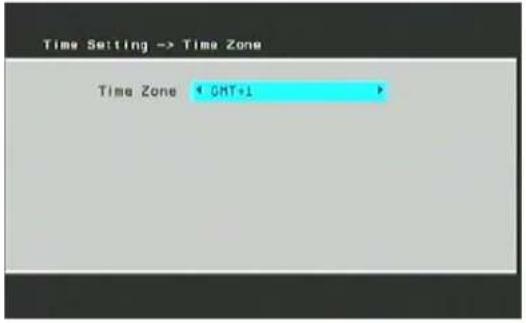
Use the ▲/▼ buttons to select a point and ◀/▶ buttons to change the setting then press ENTER button to confirm.
2.2.6 System Info
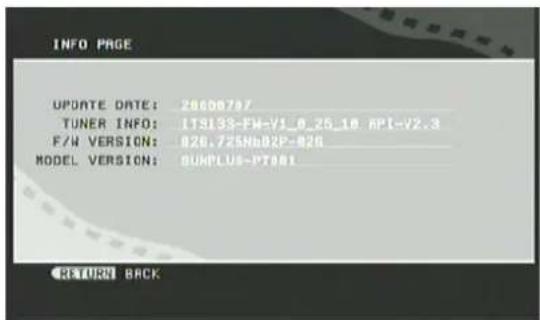
The system information shows the update date, tuner information, firmware version and model version. Such as the information displayed on the picture above.
2.3 Installation
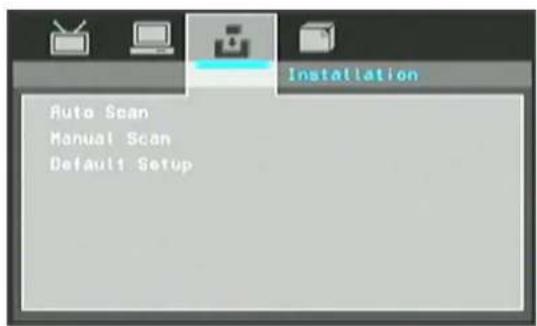
2.3.1 Auto Scan
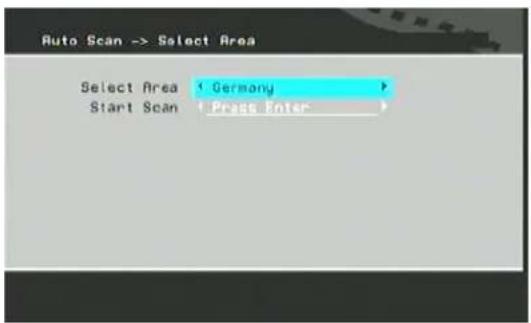
Use the ◀/▶ buttons to change the area then press ▼ button to select "Start Scan" and
press ENTER button. Scanning will start after choosing "yes".
2.3.2 Manual Scan
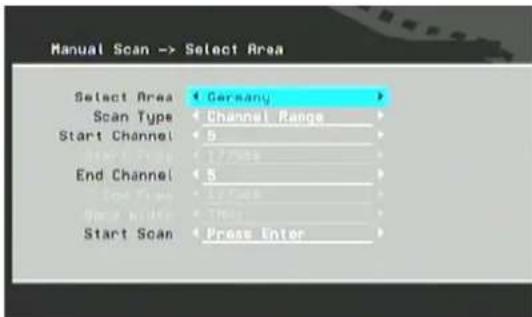
A channel scan or search can be done establishing the following points: Country, type of search, Start with channel, Start with frequency..., Finish with frequency... and Wide band.
If the search type is single channel, then the country and start channel can be set. If the search type is range of channels, then the country, start channel and finish channel can be set.
Use the ▲/▼ buttons to select a point and ◀/▶ buttons to change the settings. Once you have done this, select the "Start Scan" and press ENTER button.
2.3.3 Default Setup
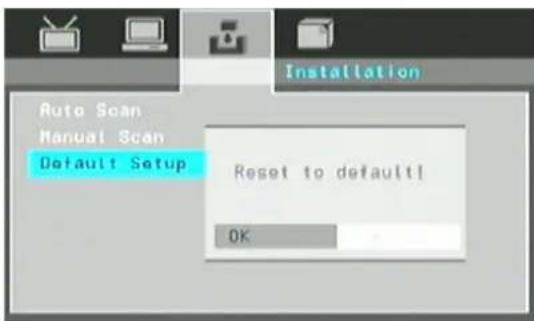
A message frame will appear, as shown on the picture above, asking whether the user wishes to reset the factory settings system. After returning to the factory settings, the installation message will appear. You can refer to the "1. First time installation" section.
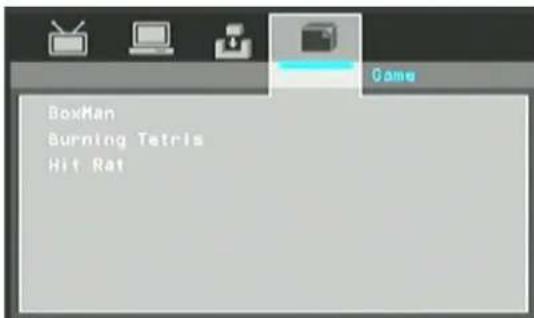
2.4 Game
If you want to have a rest or to relieve yourself after hard working, you can play some games provided with the system.
Press SETUP button to enter the Main Menu. Then you can select Game to enter the Game menu.
3. Electronic programs guide (EPG)
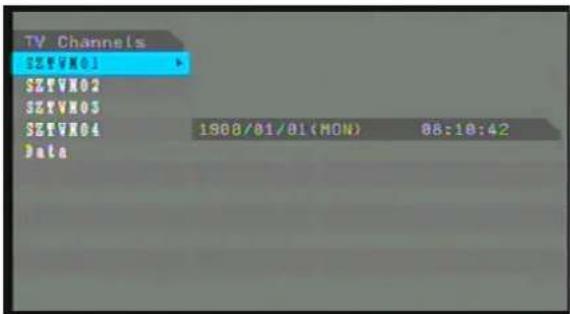
Press EPG key on the remote controller to enter into the EPG page to know more information about the current channel. As shown in the figure below;
4. Teletext
Press TITLE/TTX key on the remote control to enter the teletext page.
Some local program providers do not provide services in this area and "No teletext information!"
5. Subtitle/audio function
You can select the subtitle or audio language if the program provides subtitle or audio information by using the SUBTITLE button or AUDIO button on the remote control.
You can press L/R button to switch between Left, Right and Stereo.
TROUBLESHOOTING
FOR DVD
No power
Check if AC adapter of power is connected securely.
Switch the device On by pressing the power button.
No sound
Ensure that the equipment is connected properly.
Please make sure that the audio track exists on the disc.
Control the volume.
No key operation
Turn the unit off and then back to on.
Disconnect the unit from power and from battery and connect them again.
No playback
The disc may be dirty and require cleaning.
Ensure that the disc is installed with the label side up.
The disc has too many scratches.
Remove the laser pickup protection on the disc tray.
The DVD+/-RW should be finalized.
Wrong region code by the Video-DVD
Cancel the parental lock function or change the parental lock level.
Check TV type is correct: PAL/NTSC
No remote control
Are the polarities of the batteries correct?
Batteries are depleted. Please uses new one.
Point the remote control unit at the Infrared sensor and operate.
Remove the obstacles between the remote control and the inferred sensor.
Operate the remote control unit at a distance of not more than 5 meters from the Infrared sensor.
FOR DVB-T
Any problems
Our custom service will help you. Did you already read the Troubleshooting pages?
No DVB-T Signal
Please check if the unit is in DVB-T mode? If not please switch to this mode.
Bad reception quality
Please, align your antenna optimally. Use an antenna with active amplifier (house antenna or roof antenna). If you have moved the unit, adjust the antenna again or connect an active antenna.
No TV programs
If there are no more programs shown in the Channel list. Please start the automatic search again.
Remote control does not work
Please direct the remote control upon the device. If the problem continues, please change the batteries.
SPECIFICATIONS
| Specification | |
| Power supply | DC 9V 2A |
| Adaptor | Input :AC 100-240V~ 50Hz DC 9V 2A max |
| Power consumption | ≤q 18 W |
| DVD signal system | NTSC / PAL |
| TV signal system | DVB-T, MPEG-2, ETSI EN 300 744 DVB-T Compliance |
| Sound mode | Right, Left, Stereo |
| OSD language | English, French, Germany, Italian |
| Video output | 1±0.2 V rms 1kHz 0dB), 3.5mm mini jack *1 |
| Audio output | 0.3V+/- 1.2Vrms 1kHz0dB), 3.5mm mini jack *1 |
| Earphone terminal Signal/Noise ratio | 3.5mm stereo mini jack *1 earphone output150mv,32ohm |
| (audio) | 90dB typical |
| Panel Size | 7in |
| Aspect ratio | (4:3 letterbox , Pan & Scan), 16:9 |
| Resolution | 480 * 3 (RGB) *234 |
| Laser | Wavelength 650nm |
| Operating conditions | Temp. 0-35°C, operation status: Horizontal |
| Dimensions of main unit | 210*150*30mm |
| Weight of main unit (kg) | main unit:0.68KGS Vice unit:0.34KGS |
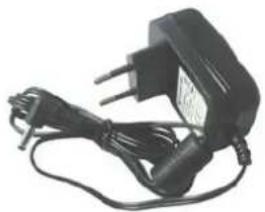
| Adaptor | ShenZhen Flypower Technology Co.,Ltd.Model: Ps18k0902000E5 OUTPUT: 9.0V = 2000mA |
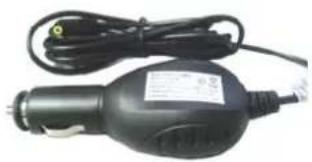
| Car adaptor | Shenzhen Fujia Appliance Co.,Ltd.B1,Xujing Chang. Industrial Part,Haoye Road,518003Fuyong Town, Baoan District,Shenzhen,ChinaModel number: AT2412-0902000 Rating : DC 9V 2000MAManufacture:shenzhen Fujia Appliance Co.,Ltd |
| Battery | Model number :702994P Rating :7.4V 1400mAh(Li-ion)Manufacture:Shenzhen Rexpower Electronics Co.,Ltd |
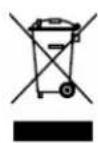
This symbol on the product or in the instructions means that your and electronic equipment should be disposed at the end of life separately from your household waste. There are separate collection systems for recycling in the EU. For more information, please contact the local authority or your retailer where you purchased the product.

This appliance complies with European Safety and Electrical directives. It fulfills the following EU regulations:
EN60065:2002+A1:2006+A11:2008
EN 55013:2001+A1:2003+A2:2006
EN 55020:2007
EN 61000-3-2:2006
SEG®
smart entertainment
MANUEL D'UTILISATION
LECTEUR DVD / TNT
DPP 1126-070

natural_image
Three JEGs displaying outdoor screens with snowy mountain scenery, alongside a remote control panel (no visible text or symbols on screens)CLASS 1 LASER PRODUCT KLASSE 1 LASER PRODUKT CLASSE 1 APPAREIL LASER CLASE 1 PRODUCTO LASER

natural_image
Two identical flat-screen TVs displaying a snowy mountain landscape with reflection in water (no text or symbols visible)Lecteur et Moniteur
Télécommande
natural_image
Black handheld electric shaver with attached cable and power outlet (no visible text or symbols)natural_image
Black electrical plug with power outlet and cord, no visible text or symbolsAdaptateur secteur
natural_image
Coiled black audio jack with earplugs and a small microphone (no text or symbols visible)natural_image
Coiled black cable with two terminal plugs (no text or symbols visible)Câble de connexion
natural_image
Person performing a martial arts or exercise pose with a long pole and abstract circular elements (no text or symbols visible)Antenne de voiture
natural_image
Black antenna with coiled cable and antenna, no visible text or symbolsAntenne TNT
natural_image
Two gray plastic or plastic enclosures with internal compartments and cutouts (no text or symbols visible)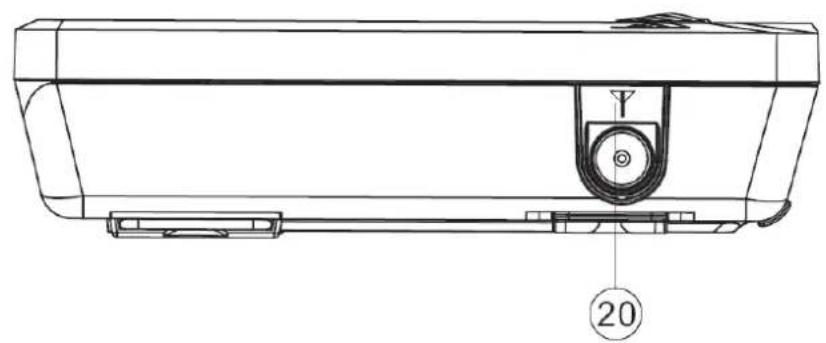
natural_image
Technical line drawing of a mechanical component with labeled part (20), no readable text or symbols present- PLAY/PAUSE (Lecture/Pause)
- SETUP (Configuration)
natural_image
Black electronic device with a stand, showing internal components and mounting holes (no text or symbols visible)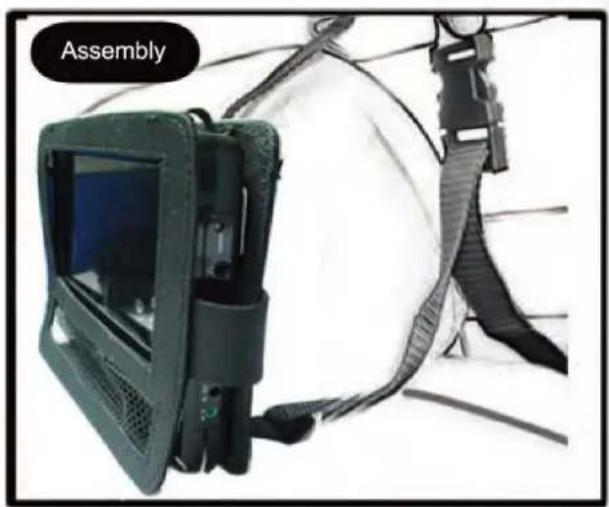
natural_image
Exterior view of a mechanical assembly device with a mounted device and safety harness (no visible text or symbols)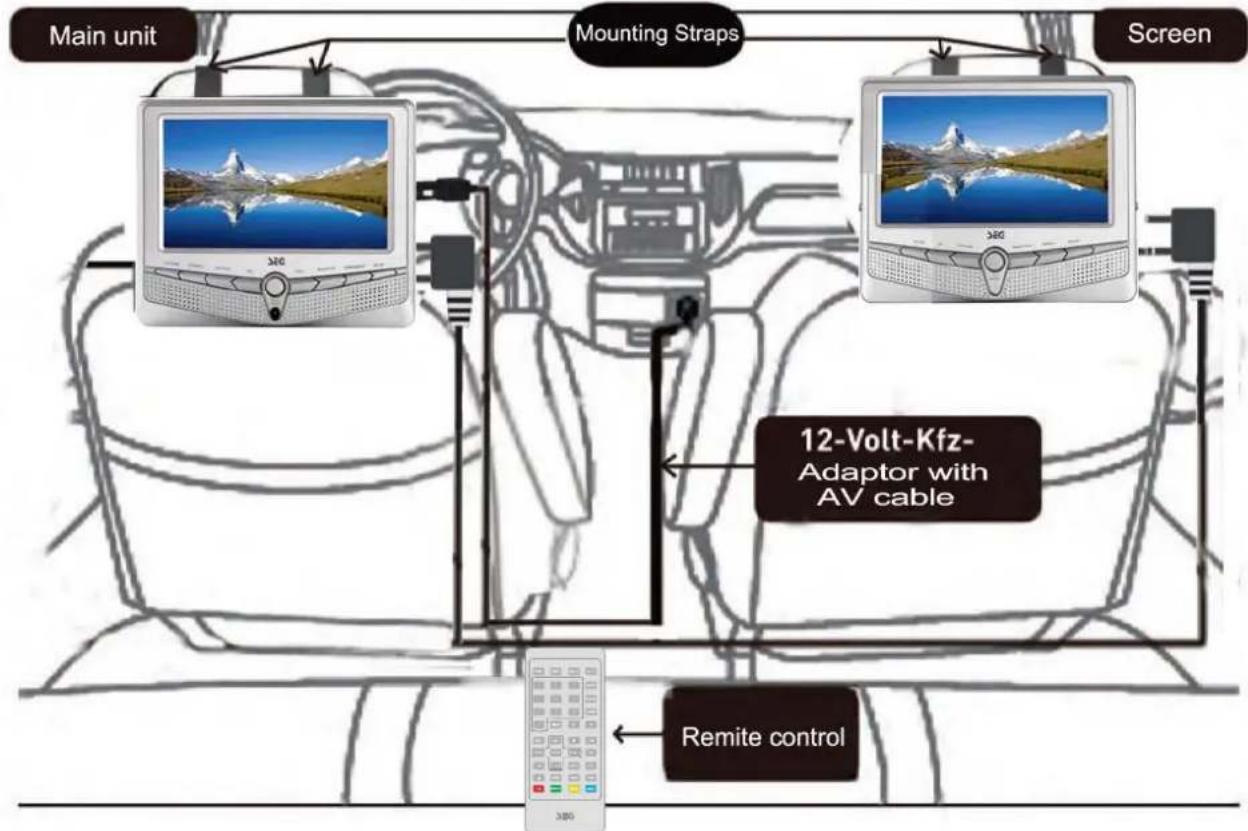
flowchart
graph TD
    A["Main unit"] --> B["Mounting Straps"]
    B --> C["Screen"]
    D["Remote control"] --> E["12-Volt-Kfz-Adaptor with AV cable"]
    E --> F["Display screen"]
    style A fill:#f9f,stroke:#333
    style B fill:#ccf,stroke:#333
    style C fill:#cfc,stroke:#333
    style D fill:#fcc,stroke:#333
    style E fill:#cff,stroke:#333
    style F fill:#ffc,stroke:#333
natural_image
Illustration of a red car with a white suspension attached, showing structural elements (no text or symbols)figure 1
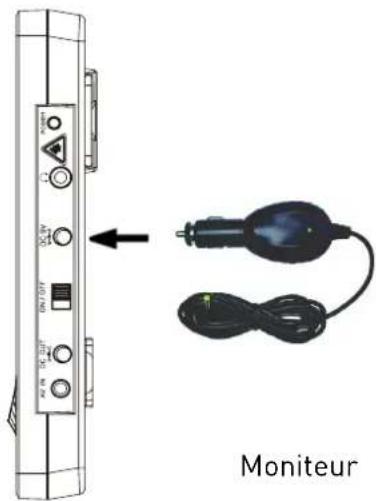
figure 2
natural_image
Technical line drawing of two electronic device ports connected by cable (no text or symbols)LECTURE DE CONTENUS MULTIMÉDIA
natural_image
Three small icons on a black background: a musical note, two audio keys, and a gray square (no text or symbols)LECTURE DE DISQUES
2.1.1 TV Channels (Chaines TV)
4. Télétexte
natural_image
Three JEGs displaying outdoor screens with snowy mountain scenery, alongside a remote control panel (no visible text or symbols on screens)CLASS 1 LASER PRODUCT
KLASSE 1 LASER PRODUKT
CLASSE 1 APPAREIL LASER
CLASE 1 PRODUCTO LASER

natural_image
Symbol of a trash bin with crossed lines indicating no waste or restriction, and a solid black rectangle below (no text or symbols)natural_image
Two silver-framed laptops displaying a scenic mountain landscape with reflection in water (no text or symbols visible)Unità principale
e
Schermo
Telecomando
natural_image
Electric car charger with attached cable and power plug (no visible text or symbols)Adattatore per auto
natural_image
Black electrical plug with power cord and cable, no visible text or symbolsnatural_image
Coiled black audio jack with earplugs and a small microphone (no text or symbols visible)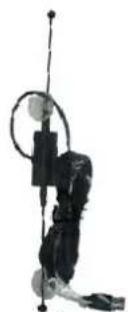
natural_image
Silhouette of a person in motion with a circular target and stick (no text or symbols)Antenna da auto
natural_image
Coiled black electrical plug with two terminal pins (no text or symbols visible)natural_image
Black antenna with attached cable and antenna, no visible text or symbolsAntenna DVB-T
Questo Menu
natural_image
Two dark plastic rectangular enclosures or washers with internal compartments, no visible text or symbols.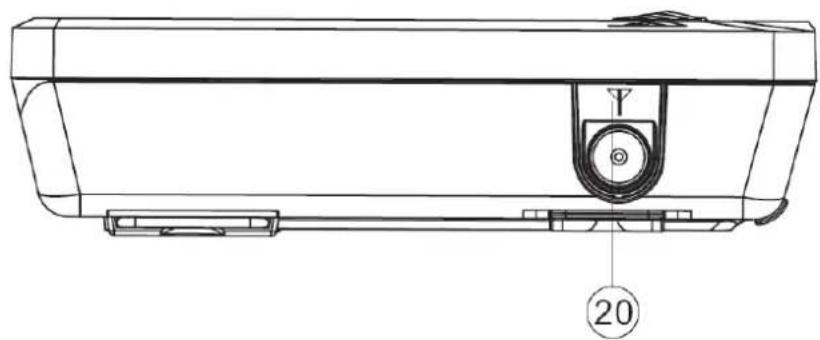
natural_image
Technical line drawing of a mechanical component with labeled part 20 (no text or symbols beyond label)-
Schermo LCD da 7 pollici
-
DVD/DVB
natural_image
Black electronic device with a stand, shown from an angle (no visible text or symbols)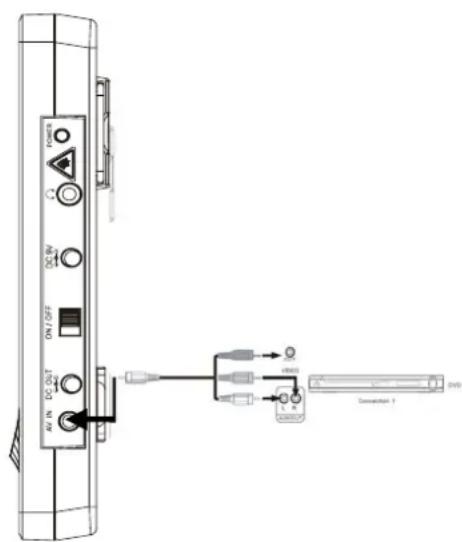
natural_image
Exterior view of a device labeled 'Assembly' with a person wearing a harness (no other text or symbols visible)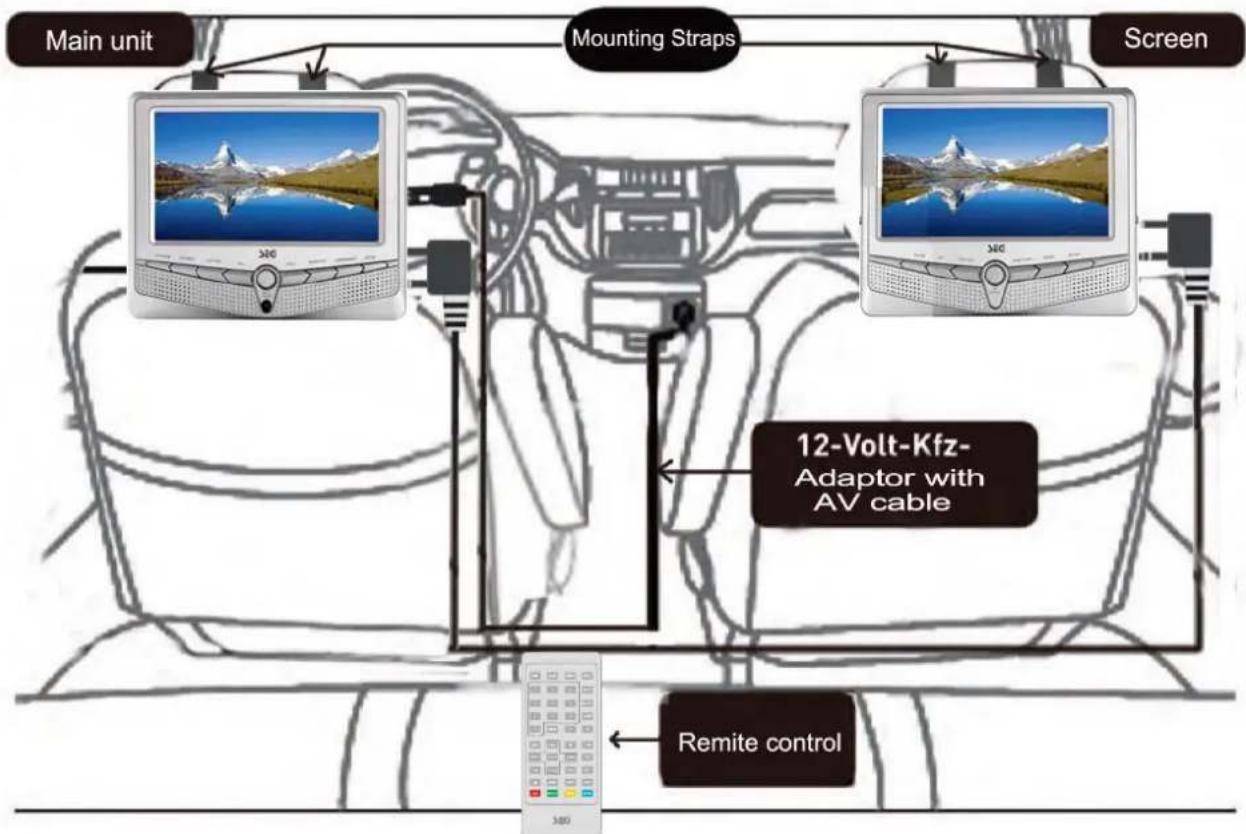
flowchart
graph TD
    A["Main unit"] --> B["Mounting Straps"]
    B --> C["Screen"]
    D["Remote control"] --> E["12-Volt-Kfz-Adaptor with AV cable"]
    E --> F["Main unit"]
natural_image
Technical line drawing of two electronic device ports connected by a cable, showing ports with labels and connection points (no text or symbols beyond basic labels)MEDIA PLAY (RIPRODUZIONE MEDIA)
FUNZIONAMENTO DISCO
※ CARICAMENTO DEL DISCO
FUNZIONAMENTO DVBT
service@schmid-electronics.de
service@schmid-electronics.de

- WIEDERGABE VERSCHIEDENER DATENTRÄGER
- DISK-WIEDERGABE
- ※ DISK EINLEGEN
- DIGITALER FERNSEHEMPFANG (DVB-T)
- Safety Instructions and Important Information About Intended Use Please read the following instructions and safety notes thoroughly before starting to use your product!
- Warning
- Caution
- Copyright Statement
- Disclaimer
- Dolby
- ROVI
- TABLE OF CONTENTS
- Introduction......6
- Media Play Operation....16
- DVBT Operation....21
- Troubleshooting....28
- Specifications....29
- EnvironmentEnvironment
- INTRODUCTION
- Features
- YOUR DVD PLAYER
- Main unit (DVD player)
- Vice Monitor Front View
- Side View
- Remote Control
- Inserting batteries and Operation radius
- Using the Remote Control
- Notes:
- Connections
- For home use (the main unit)
- Connect to power outlet
- Connect Video/Audio cables
- Connect USB device/Memory card
- Playback Vedio
- For car use (the main unit with the vice monitor)
- Connect to antenna for car
- Connect to power
- Connect the main unit with the vice monitor
- DISC OPERATION
- ※ LOADING THE DISC
- ※ STOP PLAYBACK
- ※ ZOOM FUNCTION
- Multi-subtitle Language Function
- Multi-audio Language Function
- Multi-angle Function
- ※ DVD SETUP
- 1) SYSTEM SETUP
- 2) LANGUAGE SETUP
- 3) AUDIO SETUP
- 4) VIDEO SETUP
- 5) DIGITAL SETUP
- USB/CARD OPERATION
- DVBT OPERATION
- First time installation
- The Main Menu
- Channel Guide
- TV Channels
- Radio Channels
- Channels Class
- Channels Class
- Book List
- System Config
- TV Setting
- Video Setting
- Language
- Parent Control
- Time Setting
- System Info
- Installation
- Auto Scan
- Manual Scan
- Default Setup
- Game
- Electronic programs guide (EPG)
- Teletext
- Subtitle/audio function
- TROUBLESHOOTING
- SPECIFICATIONS
- SEG®
- smart entertainment
- MANUEL D'UTILISATION
- LECTEUR DVD / TNT
- LECTURE DE CONTENUS MULTIMÉDIA
- LECTURE DE DISQUES
- TV Channels (Chaines TV)
- Télétexte
- MEDIA PLAY (RIPRODUZIONE MEDIA)
- FUNZIONAMENTO DISCO
- ※ CARICAMENTO DEL DISCO
- FUNZIONAMENTO DVBT
Brand : SEG
Model : DPP 1126070 TWIN
Category : Portable DVD Player