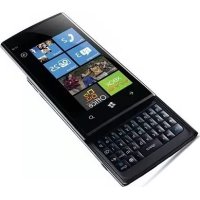
Venue Pro - Mobile Phone DELL - Free user manual and instructions
Find the device manual for free Venue Pro DELL in PDF.

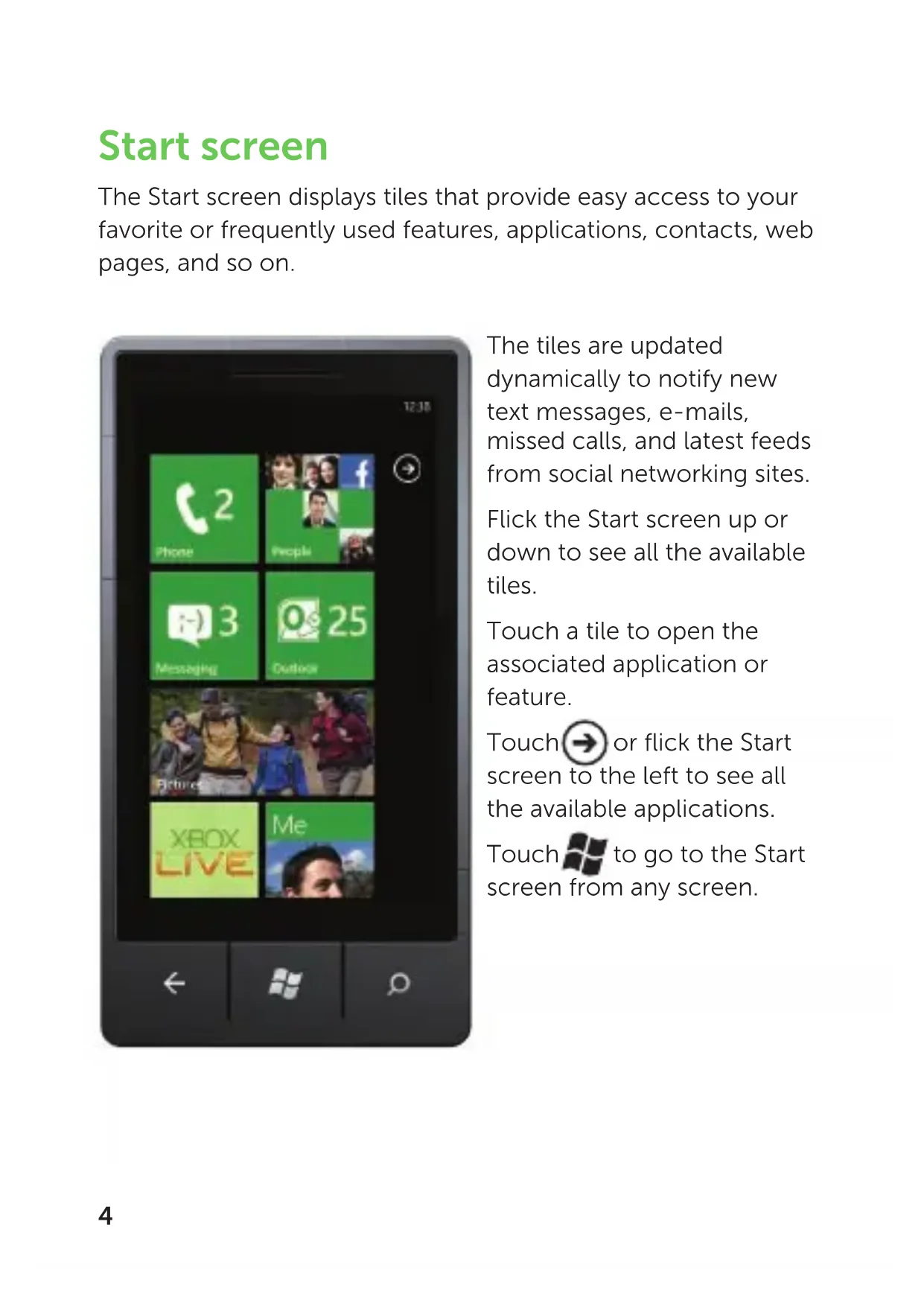


| Product Type | Mobile phone with Windows Phone 7 |
| Brand | Dell |
| Model | Venue Pro |
| Dimensions (approx.) | 122 x 64 x 15 mm |
| Weight (approx.) | 170 g |
| Power Supply | Built-in rechargeable Li-ion battery |
| Display | Multi-touch touchscreen with automatic orientation (portrait/landscape) |
| Keyboard | Physical slide-out QWERTY keyboard + on-screen keyboard |
| Operating System | Windows Phone 7 |
| Main Features | Calls, messaging, email, web browsing, music and videos (Zune), voice recognition, Xbox LIVE and Facebook integration, contact import, voice search |
| Storage | Internal memory and microSD card (non-removable, do not attempt to remove) |
| Connectivity | Wi-Fi, Bluetooth, GPS (unconfirmed but likely) |
| Maintenance and Cleaning | Clean the screen and case with a soft, dry cloth. Avoid contact with liquids. |
| Safety | Screen lock with password, Windows Live ID identification for Microsoft services |
| Spare Parts and Repairability | Integrated battery, non-removable microSD card. Contact Dell support for any repairs. |
| General Information | Full manual available at support.dell.com/manuals. Zune software required for media synchronization. |
Frequently Asked Questions - Venue Pro DELL
User questions about Venue Pro DELL
0 question about this device. Answer the ones you know or ask your own.
Ask a new question about this device
Download the instructions for your Mobile Phone in PDF format for free! Find your manual Venue Pro - DELL and take your electronic device back in hand. On this page are published all the documents necessary for the use of your device. Venue Pro by DELL.
USER MANUAL Venue Pro DELL
Dell™ Venue Pro With Windows Phone 7
Getting Started Guide
WARNING: The microSD card and the built-in memory on your phone act as a single storage system. Do not attempt to remove or replace the microSD card. Removing the microSD card will render your phone unusable.
Know your phone
Start screen
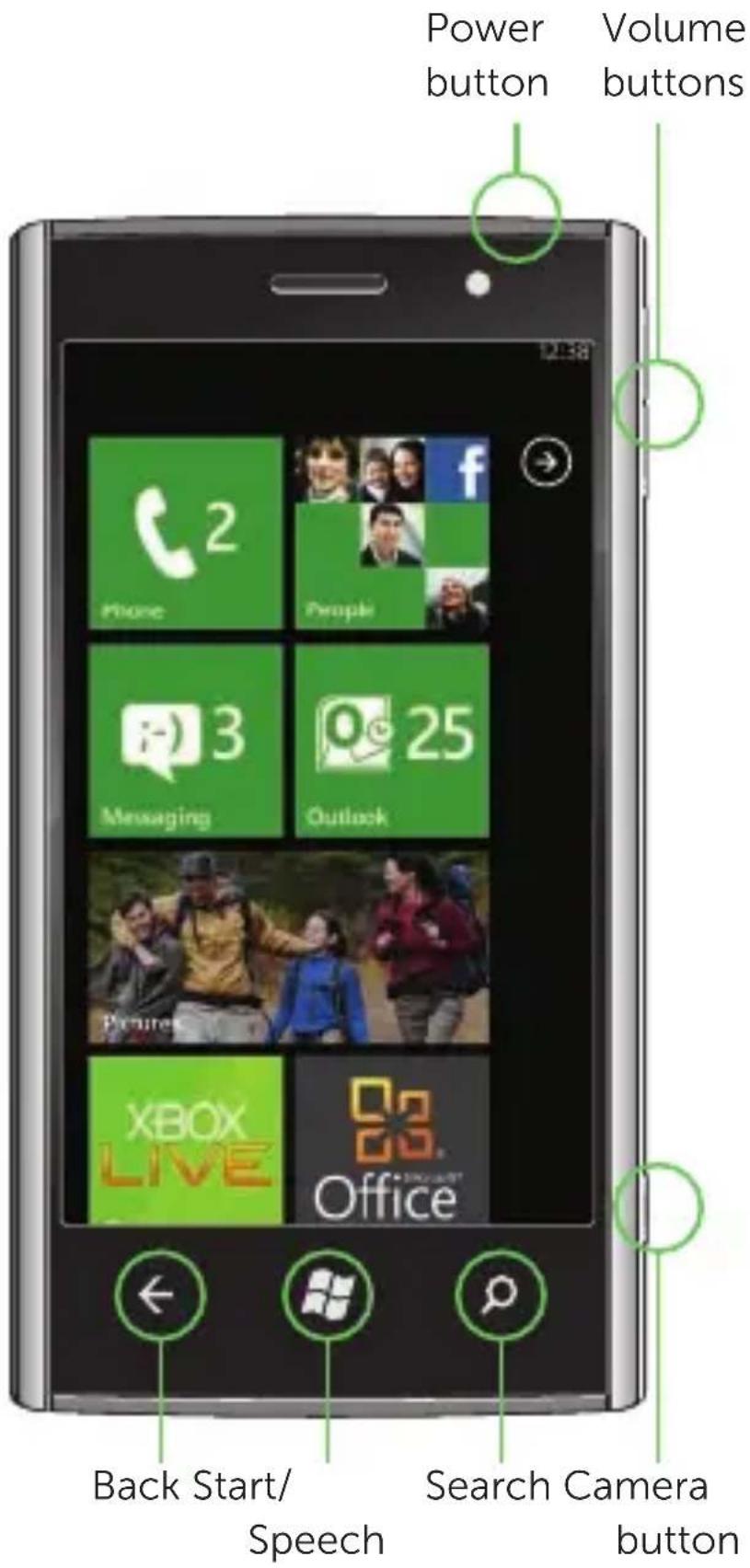
The Start screen displays tiles that provide easy access to your favorite or frequently used features, applications, contacts, web pages, and so on.
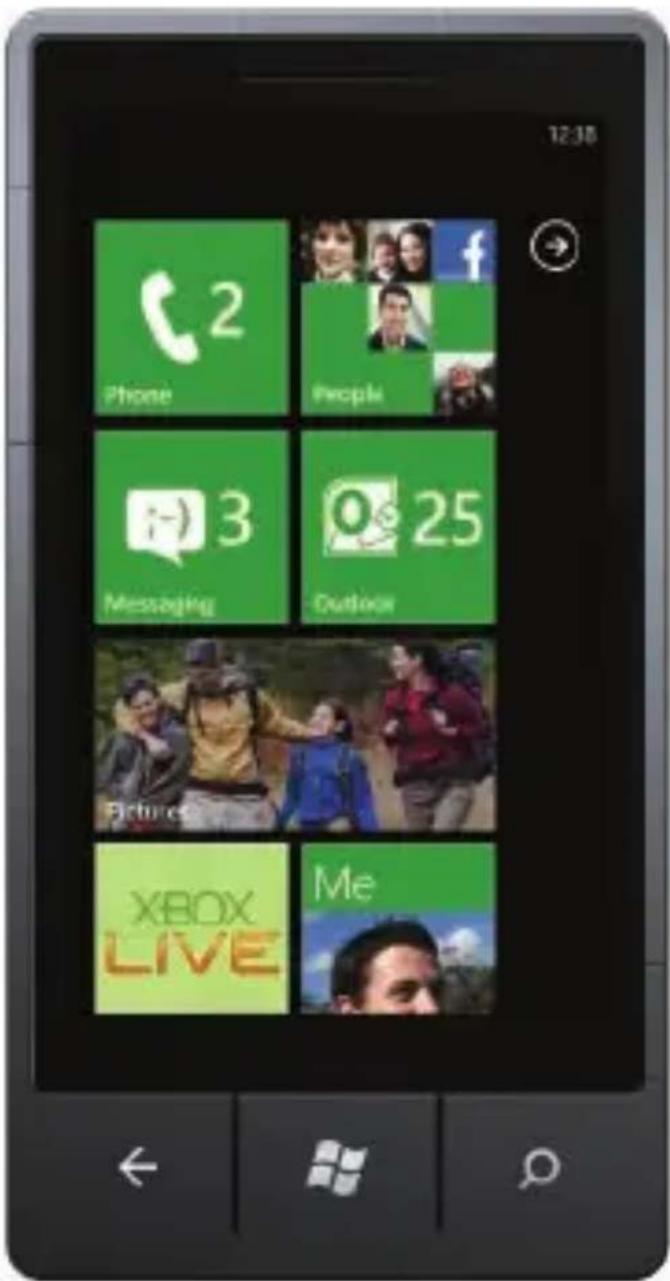
The tiles are updated dynamically to notify new text messages, e-mails, missed calls, and latest feeds from social networking sites.
Flick the Start screen up or down to see all the available tiles.
Touch a tile to open the associated application or feature.
Touch → or flick the Start screen to the left to see all the available applications.
Touch 📋 to go to the Start screen from any screen.
Personalize it
You can "pin" an application, media item, or favorite contact to the Start screen to add it as a tile.
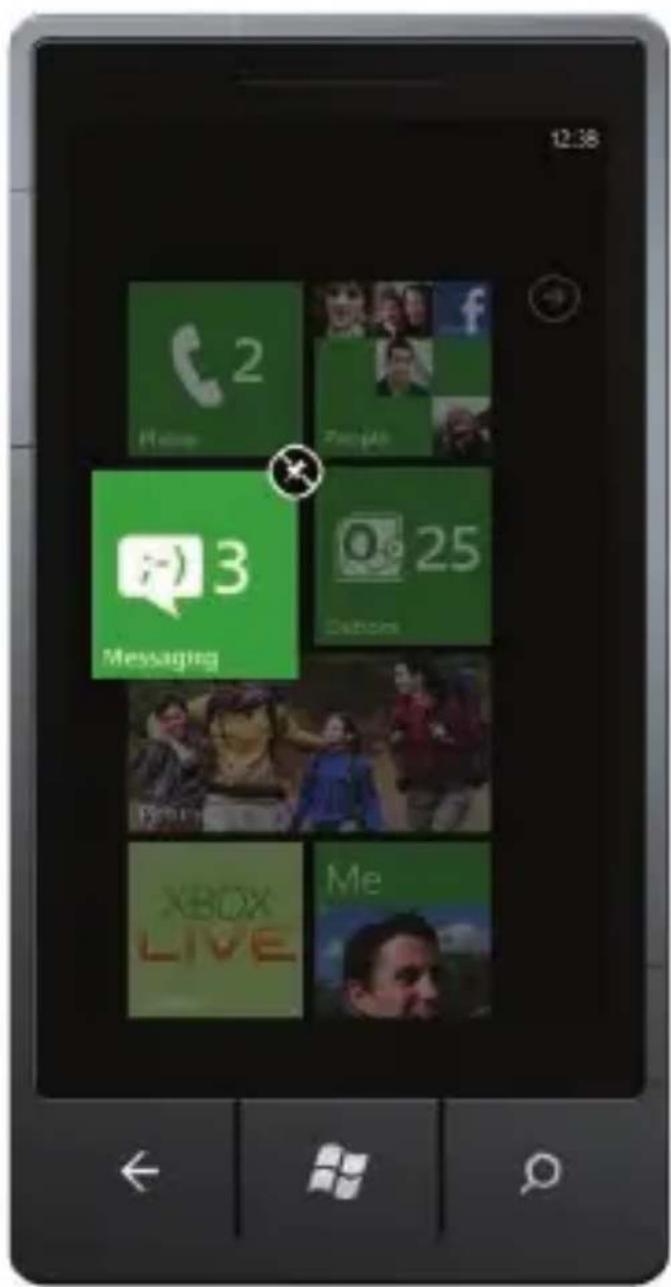
To pin an item, touch and hold the item until the context menu appears, and then touch pin to start or pin favorites to start.
To pin a contact, touch the People tile on the Start screen. Touch the desired contact to open the profile, and then touch ↗.
To remove a tile, touch and hold the tile, and then

Sign into your phone
A Windows Live ID is the e-mail address you use to sign in to services like Xbox LIVE®, Zune®, Hotmail®, and so on. If you can't remember the e-mail address you use:
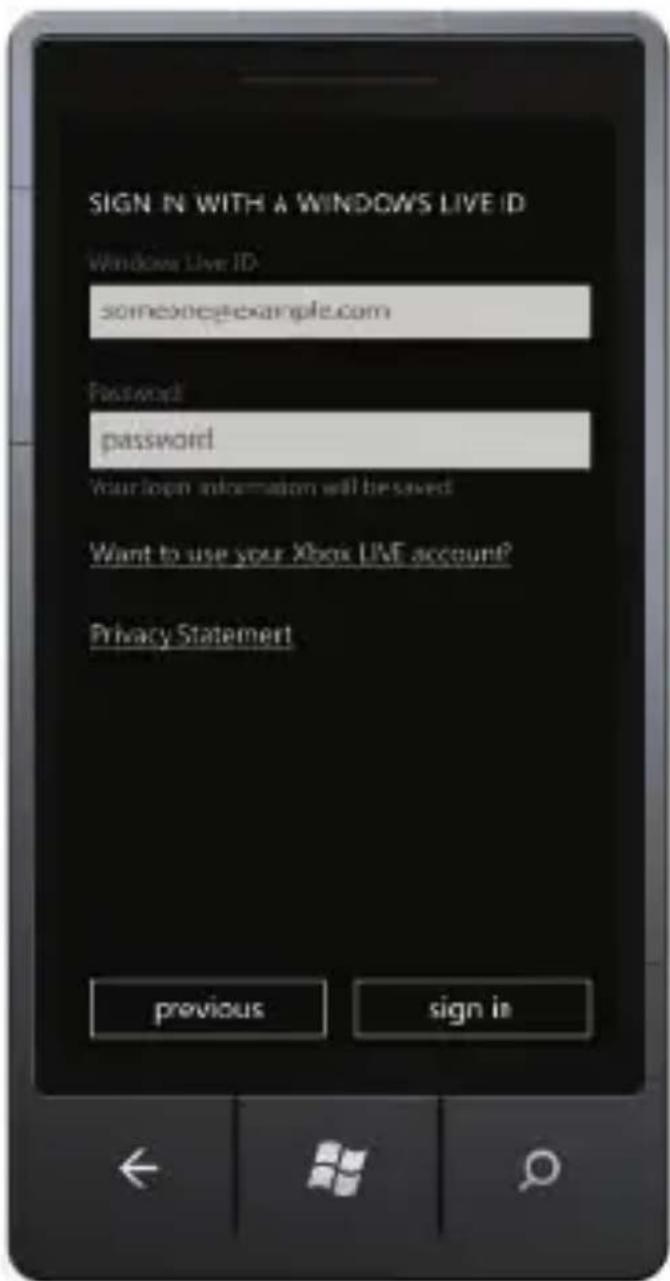
For Xbox LIVE: On your Xbox 360 ^ console, sign in with your gamertag, then press the Guide button on your controller (the one in the middle that looks like the Xbox logo). In Settings, click Account Management > Windows Live ID.
For Zune: Sign in to the Zune software on your computer. Right-click your profile picture and click Switch user to see your Windows Live ID.
To reset your password or get a reminder, go to account.live.com/ ResetPassword.aspx.
Make a call
You can make a call by selecting a contact from the contacts list, dialing a number using the keypad, or by using speech commands.
Using the contacts list:
Touch the 1. People tile on the Start screen.
Flick the contacts list and touch the desired contact.2.
Touch the phone number you want to call.3.
Using the keypad:
Touch the 1. Phone tile on the Start screen, and then touch 📋.
Type the number using the on-screen keypad.2.
Touch 3. call.
To make a conference call:
While you are on a call, touch 1.
Touch 2+ and call another contact.
Touch 3. to merge the calls.
To end a call, touch end call.
Speak to act
The voice recognition feature on your phone allows you to use speech commands to make calls, start applications, and search the Internet.
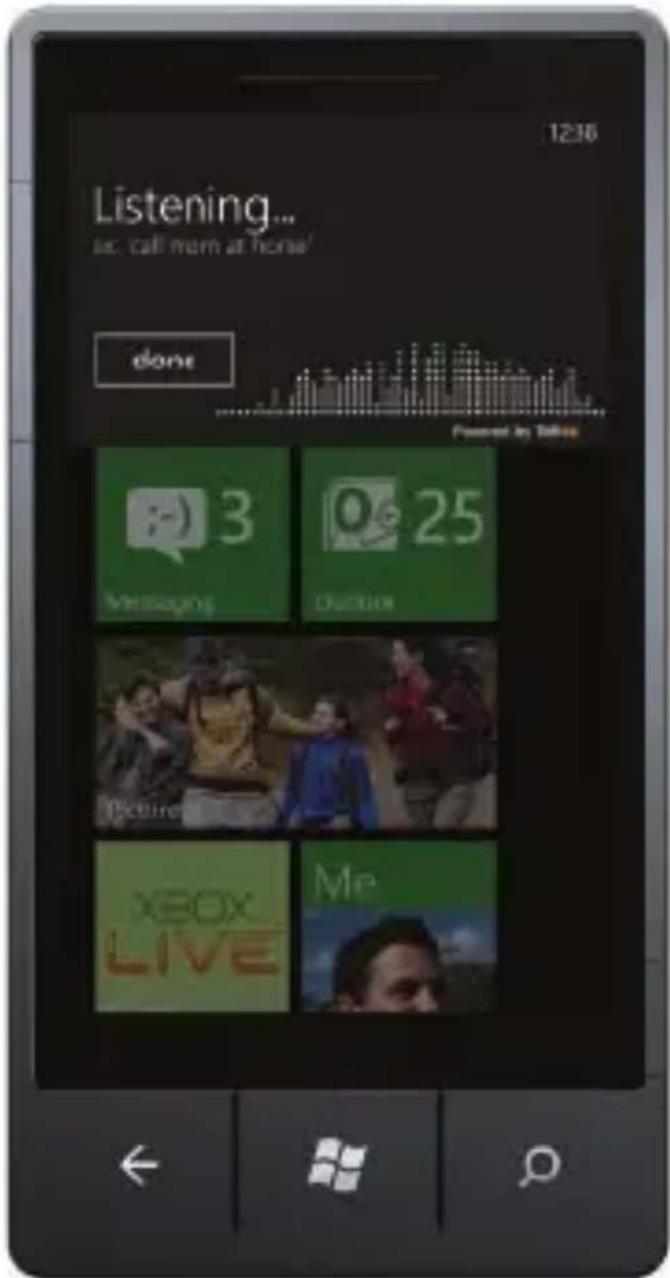
Touch and hold until the voice application opens, and then use speech commands.
To make a call, say the contact's name. For example, "Call Andrew Sullivan, mobile."
To start an application • such as a calendar, say "Open calendar."
To search for information • on the Internet, say what you want. For example, "Find movie theaters."
To hear or listen to • examples of speech commands that you can use, say "What can I say?"
Search becomes find
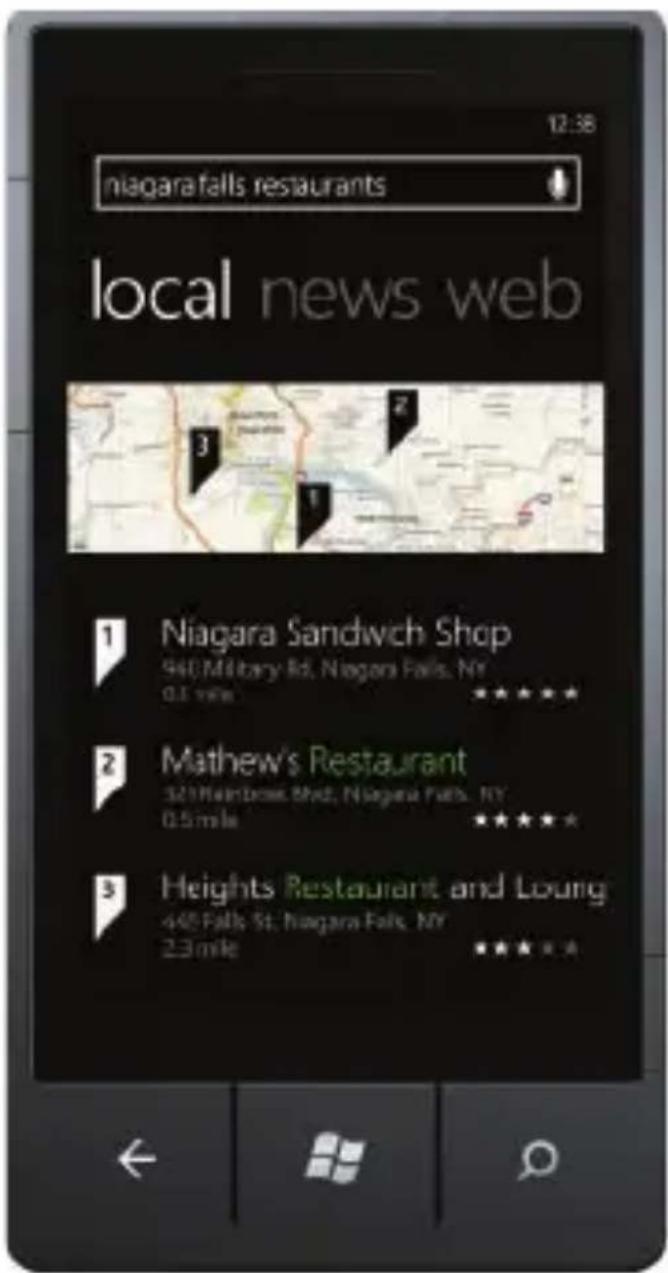
Search is your one-button gateway to all kinds of answers. Want to find a contact? Touch Search from People or call history. Looking for an e-mail message? Touch Search in e-mail. Or touch it in Maps to find an address, coffee shop, zoo, or any other place. Looking for a movie time? Flight info? Weather? Stock prices? Just touch Search.
Import your contacts
When you set up your e-mail or Facebook account, your contacts are imported automatically into your people hub.
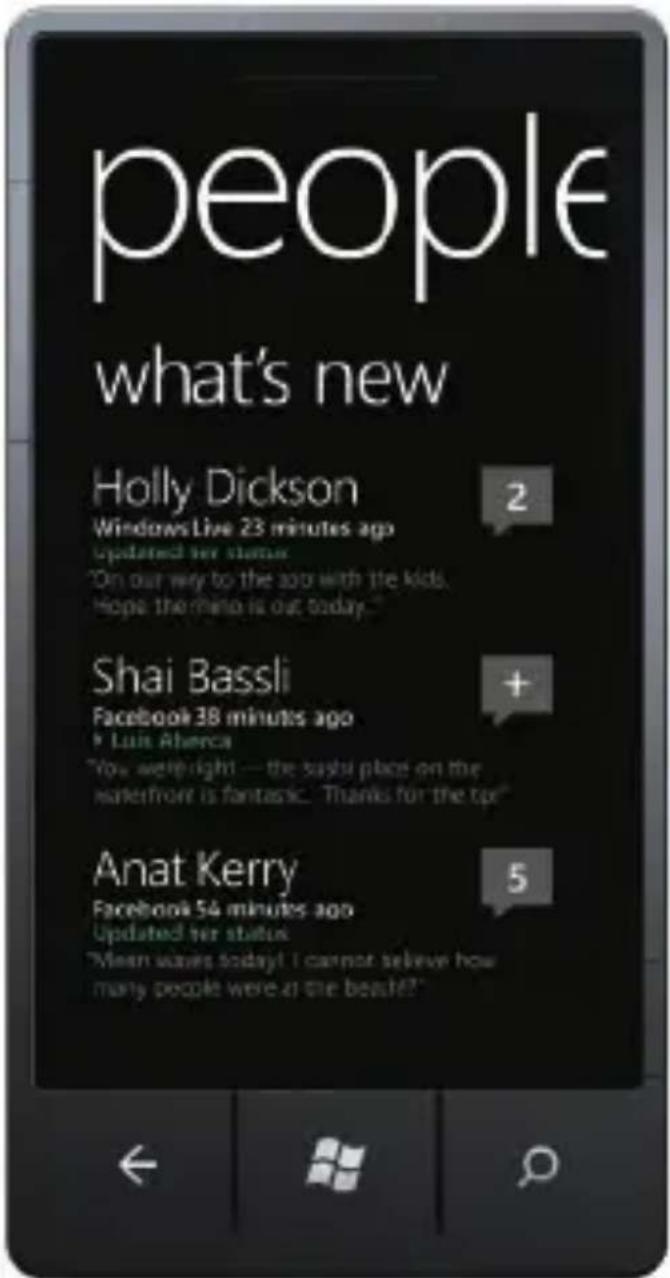
And when you add Facebook, your friends' feeds appear in your people hub, their photos show up in your pictures hub, and your own feeds pop up in your Me tile.
To set up a Facebook (or any kind of e-mail) account:
Touch the arrow 1.→ on Start to go to your Applications list.
Touch 2. Settings > email & accounts.
Getting your contacts from your old phone is also easy. Put your old SIM card into your new phone, then go to Settings. Flick to applications, touch people, then touch import SIM contacts.
Screen orientation
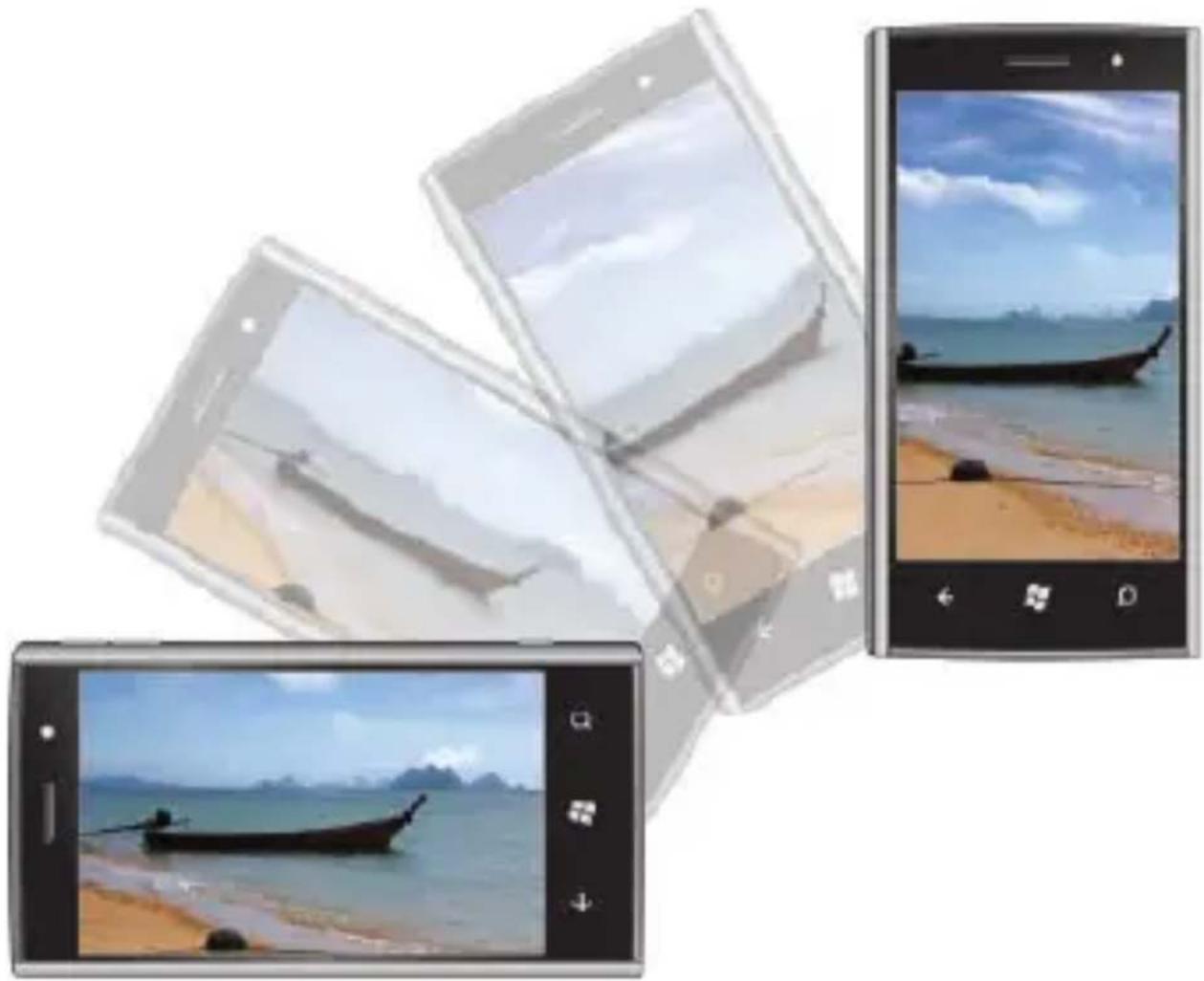
The screen reorients automatically depending on the way you hold the phone.
Rotate the phone sideways to change the orientation of the screen from portrait to landscape mode, and vice versa. In landscape mode, the screen content expands to fit the screen.

NOTE: The Start screen and Applications list always appear in portrait mode. Landscape mode is not supported on certain applications or while the physical QWERTY keyboard is open.
natural_image
Three smartphone screens displaying beach scenes: one with a long boat on the water, two with photos of boats and beach views (no text or symbols visible)Touch screen gestures
The multi-touch screen on your phone allows you to use your finger to move the screen content, scroll through menus, view photos, and so on.
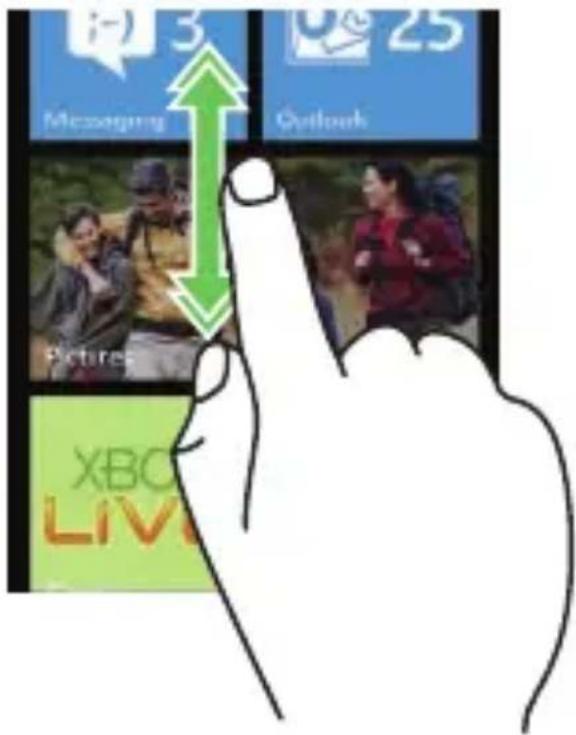
Flick – allows you to quickly scroll through lists, menus, or pages, and move sideways in hubs.
Slide a finger quickly in the direction you want the screen content to move.
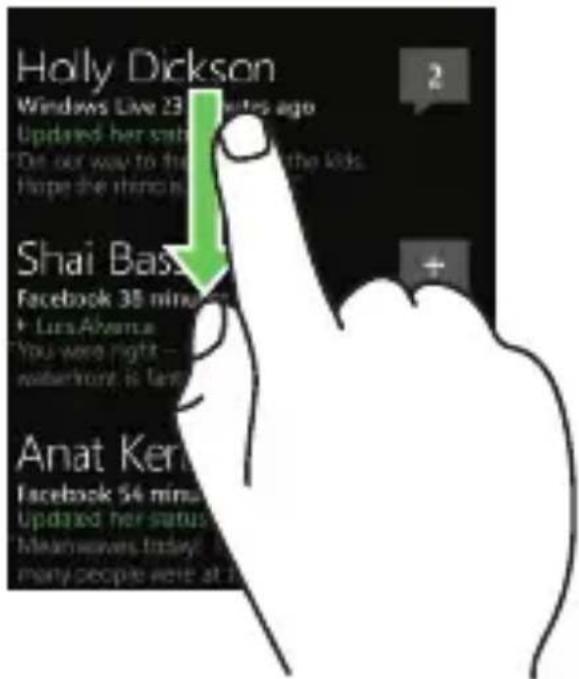
Pan – allows you to scroll through lists, menus, or pages, and move sideways in hubs at a controlled rate.
Touch your finger on the screen and then drag it slowly in the direction you want the screen content to move.
natural_image
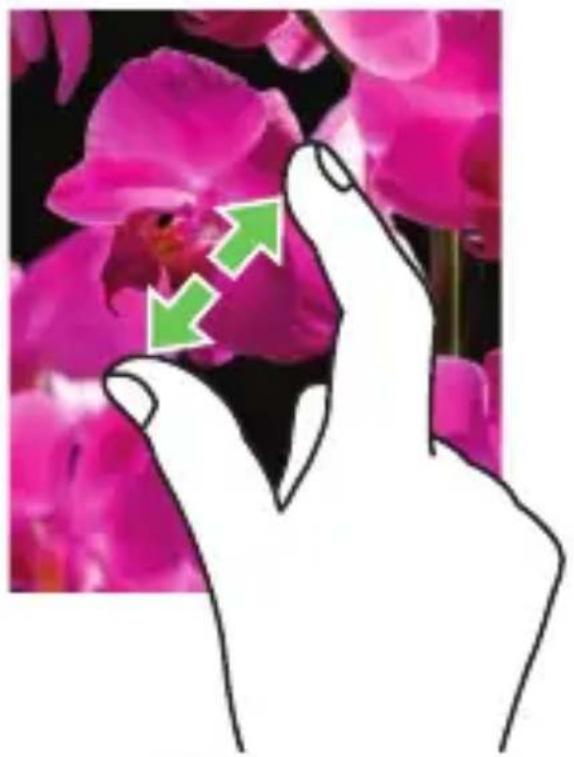
Illustration of a hand holding a pink orchid with green arrows indicating rotation or movement (no text or symbols)Stretch – allows you to zoom-in on websites, maps, or pictures.
Move two fingers apart to enlarge the view of the screen content.
natural_image
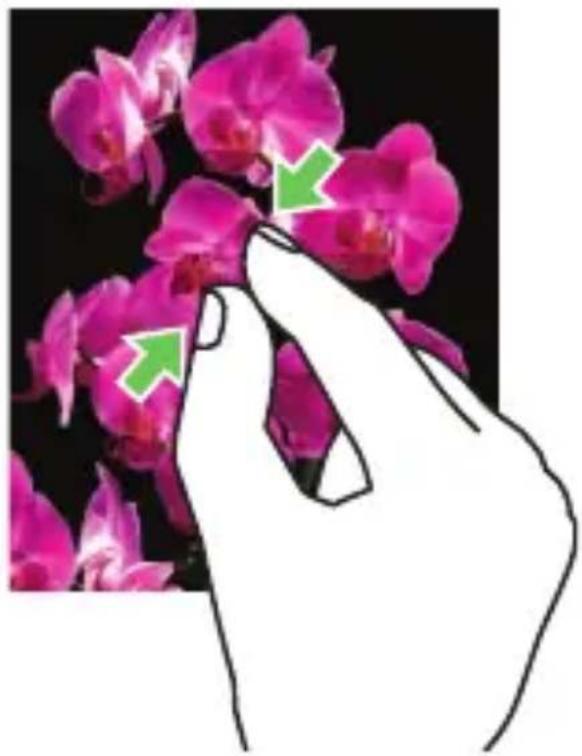
Illustration of a hand touching pink orchid flowers with green arrows pointing to the flower (no text or symbols)Pinch – allows you to zoom-out on websites, maps, or pictures.
Move two fingers close together to reduce the view of the screen content.
Smart text input
To type text in a text field, you can either use the on-screen keyboard or the slide-out physical QWERTY keyboard.
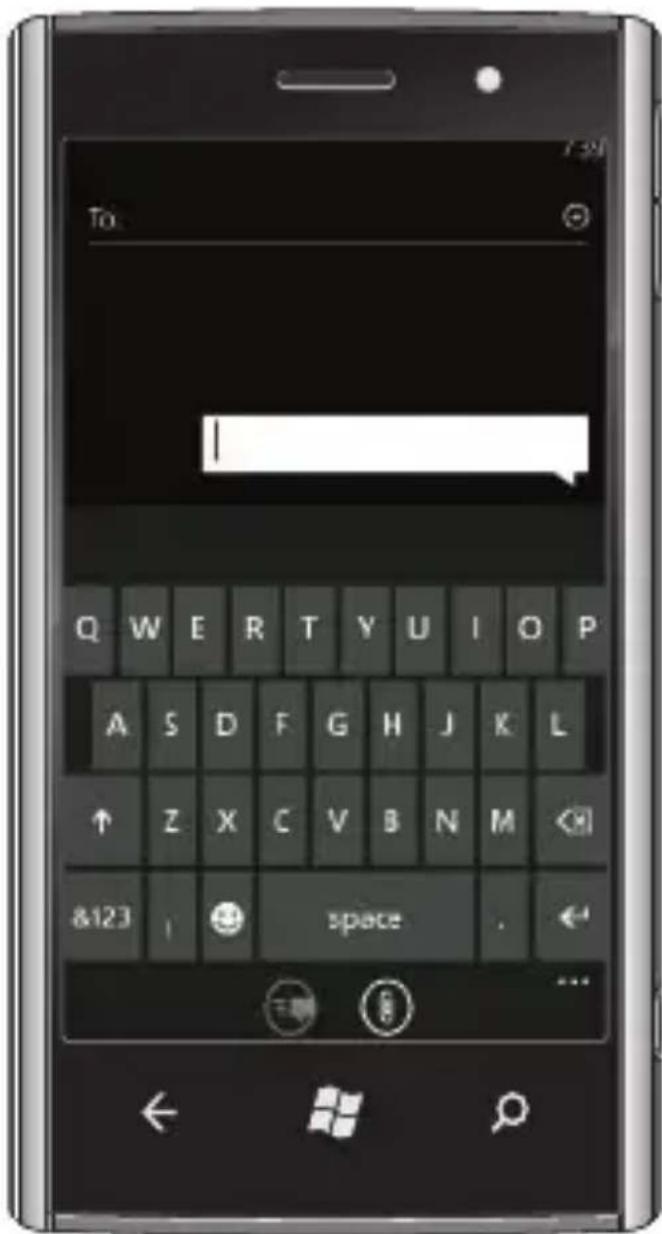
On-screen keyboard:
The on-screen keyboard appears when you touch any text field. The keyboard layout varies based on the selected field. For example, the @ and .com keys appear when you type an e-mail address.
As you type, text suggestions and auto corrections occur to help you insert text quickly.
To type symbols, touch &123 or 123. To see more symbols such as underscore, touch →.
To close the on-screen keyboard, touch anywhere outside the text field.
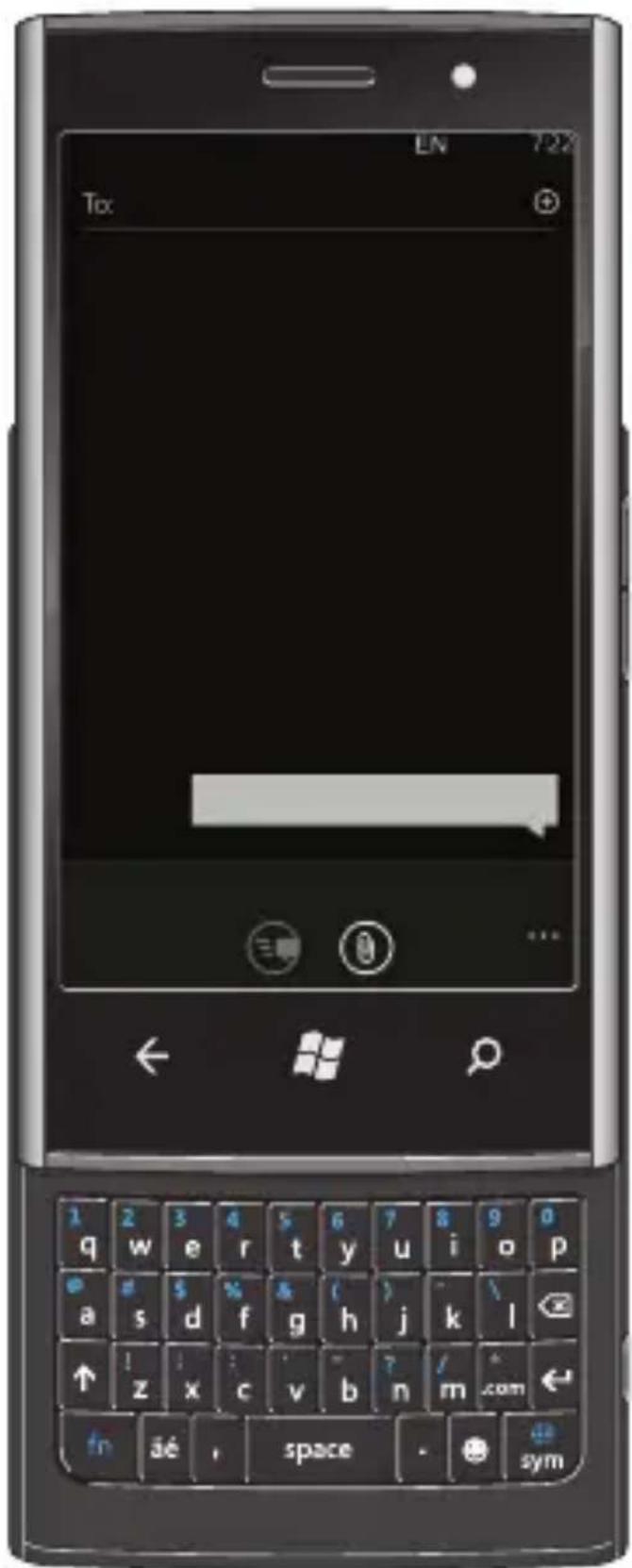
QWERTY keyboard:
The on-screen keyboard closes automatically when you slide out the QWERTY keyboard.
As you type using the QWERTY keyboard, text suggestions appear on the screen. Touch a suggestion to insert it.
To type text in upper case, press ↑.
To make text corrections, press 🔒.
To type symbols, press and then touch the appropriate symbol that appears on the screen.
Messaging
The Messaging screen displays a list of message conversations representing all the received and sent messages.
To send a text message:
Touch the 1. Messaging tile on the Start screen.
Touch 2. in the messaging screen.
Enter the name of the recipient in the 3. To: field using one of the following methods:
Type the contact's name, mobile number, or e-mail – address. Touch to select the desired contact in the list that appears.
To add more recipients, touch ←.
Touch + next to the To: field, then flick to see the desired contact, and touch to select the contact.
To add more recipients, touch ⊕.
- Touch the type a message field to compose your message.

NOTE: To add an attachment, touch Ⓞ and then select any file saved on your phone.
Touch 5 to send the message.
Stay in sync
To sync your music, videos, pictures, and updates from your computer to your phone (or vice versa), you will need the Zune software.
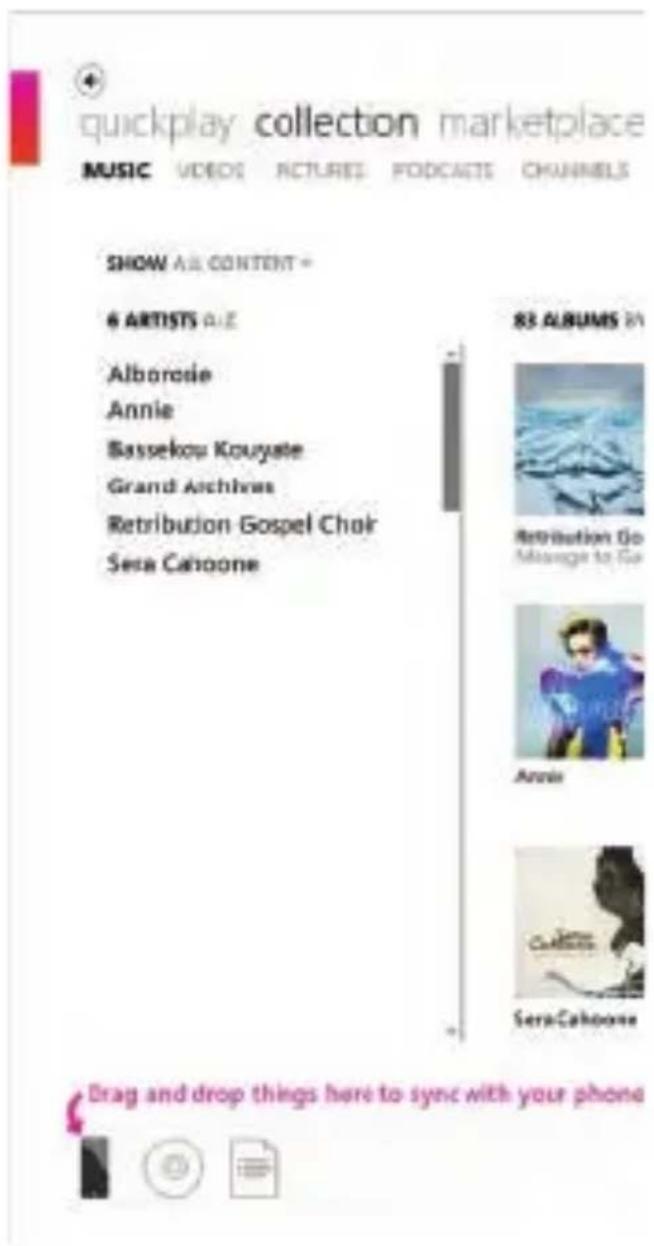
Connect your phone to 1. your computer using the cable.
Go to 2.
windowsphone.com to install the Zune software.
Open the Zune software, 3. then follow the instructions to get your music, videos, pictures, and so on into your collection.
Click collection, then 4. drag everything you want to sync to the phone icon in the lower left.
Music + Videos
The music + videos hub allows you to quickly access your music, videos, podcasts, FM radio, and media applications.
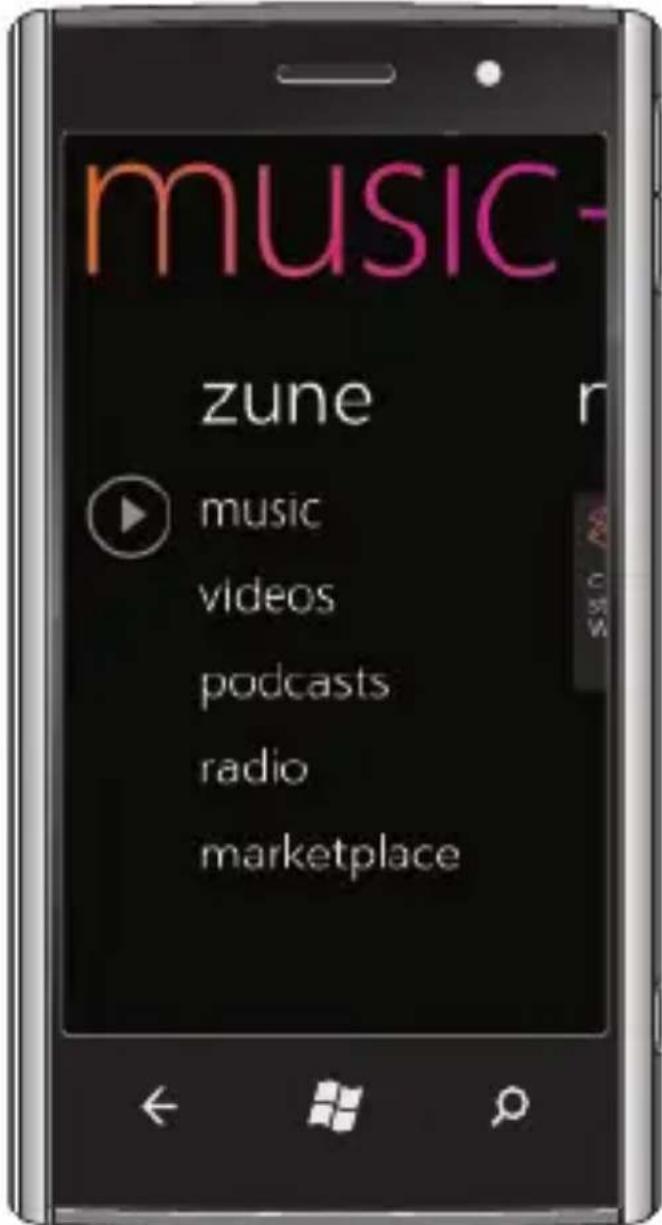
To launch the music + videos hub, touch the Music + Videos tile on the Start screen.
To get more music from zune, touch marketplace.
You can sync content on your computer to your phone using the Zune software. After you sync your music, videos, and podcasts to your phone everything appears in your music + videos hub. As you listen to music and watch videos, the hub will reflect your tastes by showcasing the things you prefer most – your favorite songs or albums, your playlists, and your history.
More information
For more information about using your phone, see the User's Manual available at support.dell.com/manuals.
Information in this document is subject to change without notice.
© 2010 Dell Inc. All rights reserved.
Reproduction of these materials in any manner whatsoever without the written permission of Dell Inc. is strictly forbidden.
Some features and services may vary by area, phone, carrier, plan, and version of Windows Phone software.
© 2010 Microsoft Corporation
natural_image
Two smartphone screens displaying beach scenes: one with a long boat on the water, the other with a beach scene under a blue sky.natural_image
Illustration of a hand holding a pink orchid with two green arrows pointing to the flower (no text or symbols)natural_image
Hand touching pink orchid flowers with green arrows pointing to the flower (no text or symbols)Clavier visuel :
© 2010 Microsoft Corporation
natural_image
Two smartphone screens displaying beach scenes: one with a long boat on the water, the other with a beach scene under a blue sky.Touchscreen-Gesten
natural_image
Illustration of a hand holding a pink orchid with green arrows indicating rotation or movement (no text or symbols)natural_image
Hand touching pink orchid flowers with green arrows pointing to the flower (no text or symbols)Bildschirmtastatur:
QWERTY-Tastatur:
© 2010 Microsoft Corporation
Dell™ Venue Pro con Windows Phone 7
Guida introduttiva
www.windowsphone.com
natural_image
Two smartphone screens displaying beach scenes: one with a long boat on the water, the other with a beach scene under a blue sky.Comandi gestuali del touchscreen
natural_image
Illustration of a hand holding a pink orchid with two green arrows pointing to the flower (no text or symbols)natural_image
Hand touching pink orchid flowers with green arrows pointing to the flower (no text or symbols)© 2010 Microsoft Corporation
Dell™ Venue Pro con Windows Phone 7
www.windowsphone.com
natural_image
Two smartphone screens displaying beach scenes: one with a long boat on the water, the other with a beach scene under a blue sky.natural_image
Hand holding a pink orchid with green arrows indicating rotation or movement (no text or symbols)natural_image
Hand touching pink orchid flowers with green arrows pointing to the flower (no text or symbols)© 2010 Microsoft Corporation
Printed in China.
Imprimé en Chine.
Gedruckt in China.
Stampato in Cina.
Impreso en China.
www.dell.com | support.dell.com

OTP7HXA01
- Getting Started Guide
- Know your phone
- Start screen
- Personalize it
- Sign into your phone
- Make a call
- Using the contacts list:
- Using the keypad:
- To make a conference call:
- Speak to act
- Search becomes find
- Import your contacts
- Screen orientation
- Touch screen gestures
- Smart text input
- On-screen keyboard:
- QWERTY keyboard:
- Messaging
- To send a text message:
- Stay in sync
- Music + Videos
- More information
- Clavier visuel :
- Touchscreen-Gesten
- Bildschirmtastatur:
- QWERTY-Tastatur:
- Dell™ Venue Pro con Windows Phone 7
- Guida introduttiva
- Comandi gestuali del touchscreen
Brand : DELL
Model : Venue Pro
Category : Mobile Phone