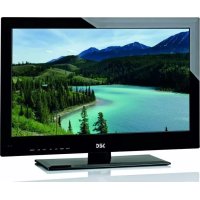
Virginia - TV SEG - Free user manual and instructions
Find the device manual for free Virginia SEG in PDF.



| Brand | SEG |
| Model | Virginia |
| Product type | LED TV with built-in satellite tuner |
| Screen size | 32 inches (diagonal) |
| Resolution | 1920 x 1080 pixels (Full HD) |
| Weight | 9.20 kg (without stand) |
| Dimensions (approx.) | 73 cm (width) x 43 cm (height) x 8 cm (depth, without stand) |
| Power supply | 100-240 V, 50/60 Hz |
| Power consumption | < 120 W (max), < 1 W standby |
| Audio output power | 2 x 6 W |
| Video inputs | HDMI (x3), VGA, SCART, YPbPr, USB (x2) |
| Audio outputs | Headphone jack, coaxial audio output, RCA audio output |
| Tuner | Digital terrestrial (DVB-T), Satellite (DVB-S), Analog |
| Main functions | PVR recording via USB, Media playback (photo, music, video, text), Teletext, EPG guide, Recording timer |
| Common interface | Yes (CI) for pay TV smart cards |
| Wall mounting | VESA 100 x 100 mm standard (M5 x 25 screws not supplied) |
| Remote control batteries | 2 x AAA (1.5 V) |
| Maintenance and cleaning | Soft dry cloth; do not use solvents |
| Safety | Do not expose to water or moisture; do not block ventilation; unplug during storms |
| Spare parts and repairability | Repair exclusively by qualified personnel; no user serviceable parts |
| General information | 2-year manufacturer warranty; compliance with European standards |
Frequently Asked Questions - Virginia SEG
User questions about Virginia SEG
0 question about this device. Answer the ones you know or ask your own.
Ask a new question about this device
Download the instructions for your TV in PDF format for free! Find your manual Virginia - SEG and take your electronic device back in hand. On this page are published all the documents necessary for the use of your device. Virginia by SEG.
USER MANUAL Virginia SEG
text_image
32" (81cm)_
| _
一
1
Inhalt
text_image
Diagram showing internal components of a remote control with battery, battery, and power supply labelsAntenne anschließen
natural_image
Front view of a silver convertible sports car (no visible text or symbols)text_image
bejune - m3 06:00:05 / 00:52:4text_image
3. Playing Forms To customize your Instagram, can't use free and more bookmark Forms and Property Form to any ideal position of the page, about or even the text atting the feature or to get it out of the web. Readout: Image Setup: Microsoft Setup: Peru Back Show Music Hotspot Helptext_image
[00:00:05/00:05:00] Wrg. St SV Var. Nam Pause Stop 12:07text_image
PROGRAMMÜHRER 20 MJ 2005 13:00-13:30 20 MJ 2005 13:08 The remaining warriors must battle each other in Swing Bell, cross the perfous Demon Square and avoid the dragon's breath in Buring Settlements. [ADS] Followed by Friends International. 20 MJ 1 BBC ONE 13:00-13:30 Raven 2 BBC TWO 13:30-14:00 Get Your Own Back 3 BBC THREE 14:00-14:30 Tracy Beaker 4 BBC NEWS 24 14:30-15:00 Tracy Beaker 5 BBCI 15:00-15:45 Dennis the Menace 6 CBC Channel 15:45-16:30 ChuckteVision 7 BBC World News 16:30-17:00 Xchange 8 Disney XD 17:00-17:30 CBC Dance Factory Asfrah Ansage Zeitplan Eina.
text_image
SETUP - SW Update 01/01/07 00:04 Update Our USBCard Reader Backup on USBCard ReaderWerkseinstellungen
text_image
Formate TVTV-Liste
text_image
200mm 200mmservice@schmid-electronics.de
SAFETY INFORMATION ....3
Headphone Warning....4
Where to install....4
LCD Screen....4
Unit and Accessories 5
Getting Started....5
Front view....5
Remote Control 6
Functions of remote control buttons....6
To Set the Multi-Satellite Mode button 8
Installing Batteries in the Remote Control 9
Using the Remote Control....9
Aerial connection....9
Connecting the TV Antenna 9
Connecting external devices 9
HDMI Lead....9
SCART Lead....9
VGA Cable 9
CONNECTIONS 11
PC connection....11
VGA, HDMI PC Connection....11
Connecting Video camera and Video recorder 12
Connecting an audio system 12
Connecting a DVD player 12
Common Interface Slot....13
USING YOUR COMMON INTERFACE SLOT 13
Auto installation setup....13
Power On / Off the LED TV....13
Source Menu 14
Menu Settings ....14
CHANNEL MENU 14
PICTURE MENU 14
SOUND MENU....14
TIME MENU 15
LOCK MENU....15
SETUP MENU....15
CHANNEL MENU 15
Picture Menu 16
Sound Menu 17
Time Menu....17
Lock Menu....17
Setup Menu 17
Multimedia Operation....18
Photo 18
Music 19
Movie 19
Text....19
Recording Operation 20
PVR Settings....20
Recorded List 20
Schedule List....20
Timer Record....20
Recording 21
Time shift 21
EPG Recording....21
MAIN SATELLITE MENU....22
1) SETUP....22
2) TV/Radio 23
3) MULTIMEDIA....25
4) GAME 25
TROUBLE SHOOTING GUIDE....26
TECHNICAL SPECIFICATIONS ...... 26
TV Specifications 26
DVBS Specifications 26
Wall Mounting 27
Waste Electrical Recycling 27
Correct disposal of Product....27
Introduction
Thank you for purchasing this LED TV which has been designed and manufactured to give you many years of trouble free service.
You may already be familiar with using a similar product but please take time to read these instructions which have been written to ensure you get the very best from your purchase.
HDMI
HDMI (High Definition Multimedia Interface) is the next generation of digital interface. Unlike conventional connections, it transmits uncompressed digital and audio signals using a single cable. This TV supports high-definition video input via the HDMI socket on the back of the TV.
Safety is important
To ensure your safety and the safety of others, please read the safety precautions BEFORE you operate this product.
Disclaimer
The illustrations of the LCD-TV, accessories and menus shown in this User's Manual may differ from the actual product.
SAFETY INFORMATION
IMPORTANT SAFETY INSTRUCTIONS - READ CAREFULLY BEFORE USE.
Take note of the following safety information which appears on the back of the TV.


CAUTION: TO PREVENT ELECTRICAL SHOCK, DO NOT REMOVE ANY COVER SCREWS, NO USER SERVICEABLE PARTS INSIDE, REFER SERVICING TO QUALIFIED SERVICE PERSONNEL.
This symbol indicates that there are important operating maintenance instructions in the literature accompanying this unit.
This symbol indicates that dangerous voltage constituting a risk of electric shock is present within this unit.
Keep these instructions
- Do not use this TV near water.
- Clean only with a slightly damp cloth.
- Do not block any ventilation openings.
• Install in accordance with the supplied Quick Start Guide and this User Guide. - Protect the power chord from being walked on or pinched, particularly at plugs, and the point where it exits from the TV.
- Do not allow the power chord to overhang the edge of a table.
- Unplug this TV during lightening storms or when unused for long periods of time.

WARNING! TO REDUCE THE RISK OF FIRE OR ELECTRICAL SHOCK, DO NOT EXPOSE THIS TV TO RAIN OR MOISTURE. THE TV MUST NOT BE EXPOSED TO DRIPPING AND SPLASHING AND NO OBJECTS FILLED WITH LIQUIDS SHOULD BE PLACED ON THE TV.
NOTE: No naked flames such as candles should be placed on the TV.
NOTE: When displaying the same still picture for more than 2 hours without any interruption, the picture contours of the continuously displayed contents may remain visible on screen, i.e. a persistent image remains. The same applies, when displaying for more than 2 hours:
• the same background/wallpaper
- logos, video games, computer images, Teletext
- contents with a non-filling aspect ratio (e.g. 4:3 format)
These do not represent any malfunction and will not be covered by the manufacturer's warranty
This unit has been produced according to all current safety regulations. The following safety tips should safeguard users against careless use and the dangers connected with such use.
- Although this appliance has been carefully manufactured and rigorously checked prior leaving the factory, as with all electrical appliances it is possible for problems to develop. If you notice smoke, an excessive build up of heat or any other unexpected phenomena, you should disconnect the plug from the mains power socket immediately.
- Ensure that the unit is sufficiently ventilated! Never place next to or underneath curtains!
- The mains plug or appliance coupler is used as the disconnect device, the disconnect device shall remain readily operable.
- This set should only be connected to a mains power supply which matches that stated on the label on the rear of the TV - do not attempt to connect it to any other type of supply.
- The socket - outlet must be installed near the equipment and easily accessible.
- To prevent overload, don't share the same mains supply socket with too many other items of equipment.
- Apparatus with Class 1 construction shall be connected to a mains socket outlet with a protective earth connection.
- Keep away from rodents. Rodents enjoy biting into electric flexes.
- Always hold the plug when pulling out the plug from the mains supply socket. Do not pull on the flex, the flex can become overloaded and cause a short circuit.
- Set up the unit so that no one is able to trip over the flex.
- Do not place heavy items on the flex, which may damage it.
- Take note that the flex cannot be reached and pulled by young children, avoiding injury.
- Do not set up the unit near to heat sources. The casing and the flex could be damaged by the impact of heat.
- The screen is made of plastic and can break if damage is done to it. Be careful when collecting sharp edged plastic splinters to avoid injury.
- Avoid placing the unit on any surfaces that may be subject to vibrations or shocks.
- To protect the unit during a thunderstorm unplug the AC power cable and disconnect the aerial. Caution: Do not touch the aerial (RF) connector.
- When you leave your home for long periods of time, unplug the AC power cable for safety reasons.
- The unit becomes warm when in operation. Do not place any covers or blankets on the unit in order to prevent overheating. The ventilation holes are not to be blocked. Do not set up near radiators. Do not place in direct sunshine. When placing on a shelf leave 5 cm (2") free space around the whole unit.
- Do not allow water or moisture to enter the TV. Do NOT use in wet or moist areas such as Bathrooms,
steamy kitchens or near swimming pools.
- Do not use this unit when moisture condensation may occur
- Any repairs must be carried out by qualified personnel only.
- Do not open this unit. A non-expert attempting to repair the unit could be dangerous and potentially cause a fire hazard.
- Liquids spilt into the unit can cause serious damage. Switch the set OFF and disconnect the mains power supply, then consult a qualified service person before attempting to use the unit again.
- Do NOT remove the safety covers. There are no useable or serviceable parts inside. You may invalidate the warranty. Qualified personnel must only service this apparatus.
- Do NOT tap or shake the screen, you may damage the internal circuits. Take good care of the remote control, do not drop.
- Never place hot objects or open flame sources on or close to the TV.
• High temperatures can melt plastic and lead to fires. - To clean the TV use a soft dry cloth. Do NOT use solvents or petrol based fluids. For stubborn stains, you may use a damp cloth with dilute detergent.
Headphone Warning

Loud music can damage your hearing irreversibly, therefore do not set the volume to a high level when listening through headphones, particularly for lengthy listening periods.
Where to install
Locate the television away from direct sunlight and strong lights, soft indirect lighting is recommended for comfortable viewing. Use curtains or blinds to prevent direct sunlight falling on the screen. Place the TV on a sturdy platform of which the surface should be flat and steady. This will prevent it from falling over.
Make sure the television is located in a position where it cannot be pushed or hit by objects, as pressure will break or damage the screen, and so that small objects cannot be inserted into the ventilation slots or openings in the cabinet.
LCD Screen
The LCD display panels are manufactured using an extremely high level of precision technology, however sometimes some parts of the screen may be missing picture elements or have luminous spots. This is not a sign of malfunction.
Unit and Accessories
natural_image
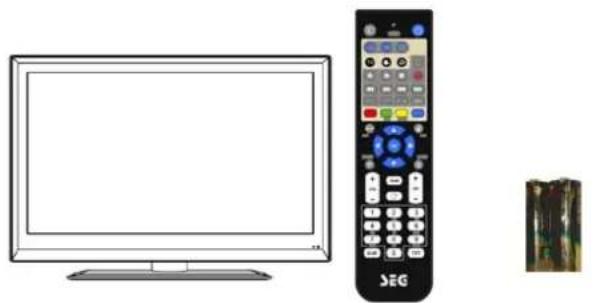
Illustration of a flat-screen TV and a black SEG remote control with a separate cable case (no text or symbols visible)TV set
Remote Control Batteries
for Remote
Control
Getting Started
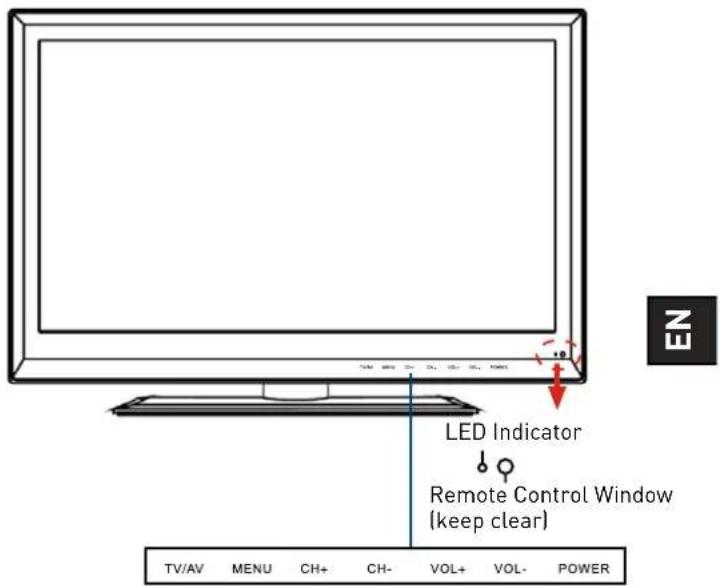
Front view
text_image
LED Indicator Remote Control Window (keep clear) TV/AV MENU CH+ CH- VOL+ VOL- POWER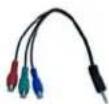
Converter cable for YPbPr video
User Guide
Packaging materials are no toys. Please keep away from children. Plastic bags can cause suffocation when pulled over the head.
Remote Control
Remote control may differ in shape from actual remote
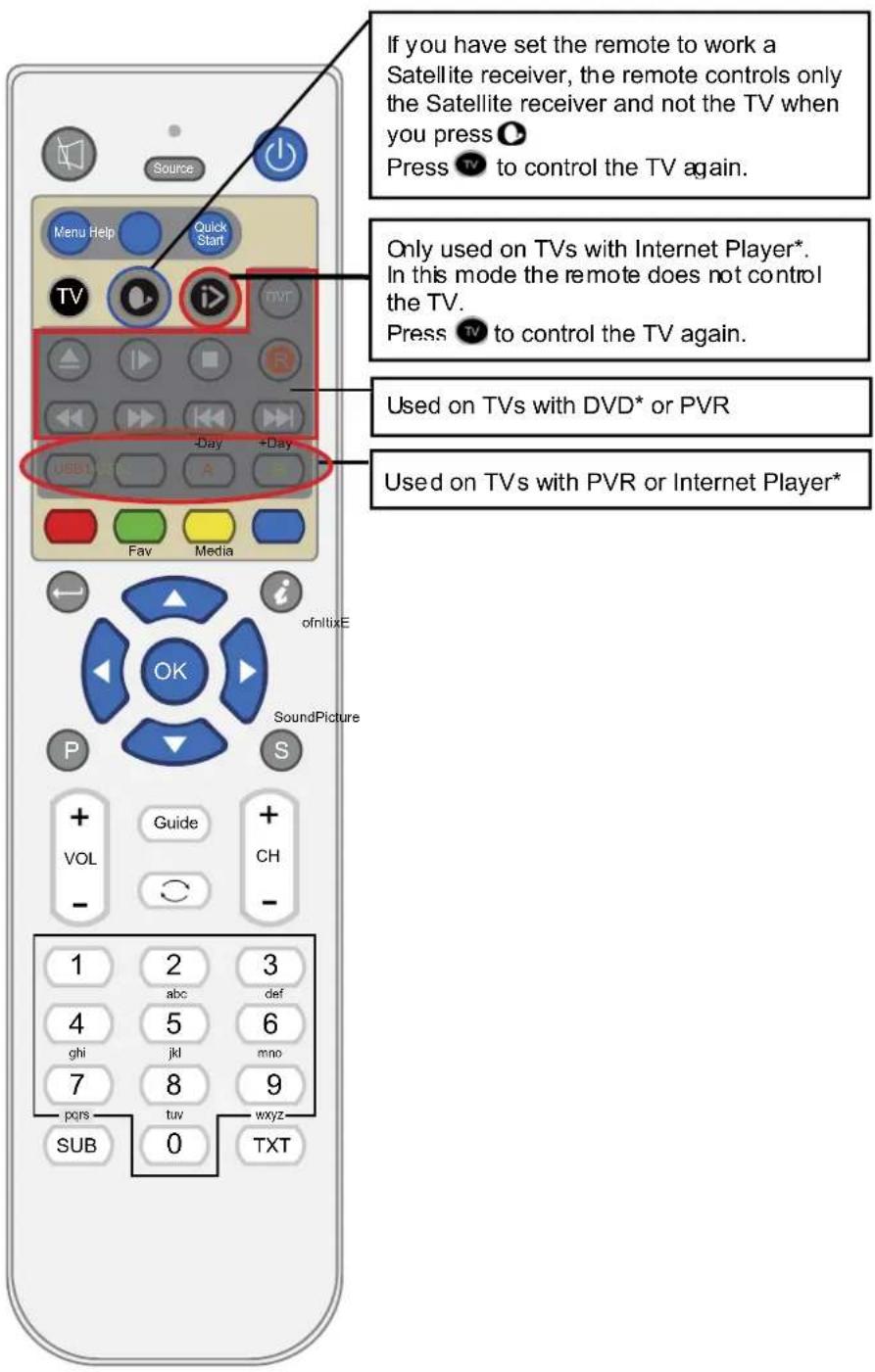
Functions of remote control buttons
Depending on the model of the Television some keys will have no function
text_image
If you have set the remote to work a Satellite receiver, the remote controls only the Satellite receiver and not the TV when you press 🔒 Press TV to control the TV again. Only used on TVs with Internet Player*. In this mode the remote does not control the TV. Press TV to control the TV again. Used on TVs with DVD* or PVR Used on TVs with PVR or Internet Player* Menu Help Quick Start TV i> +Day +Day USB A Fav Media ofnitixE OK SoundPicture P S + VOL Guide CH - 1 2 3 abc def 4 5 6 ghi jkl mno 7 8 9 pors tuv wxyz SUB 0 TXT* Depending on the model
Remote control (continued)
Functions of remote control buttons
Depending on the model of the Television some keys will have no function
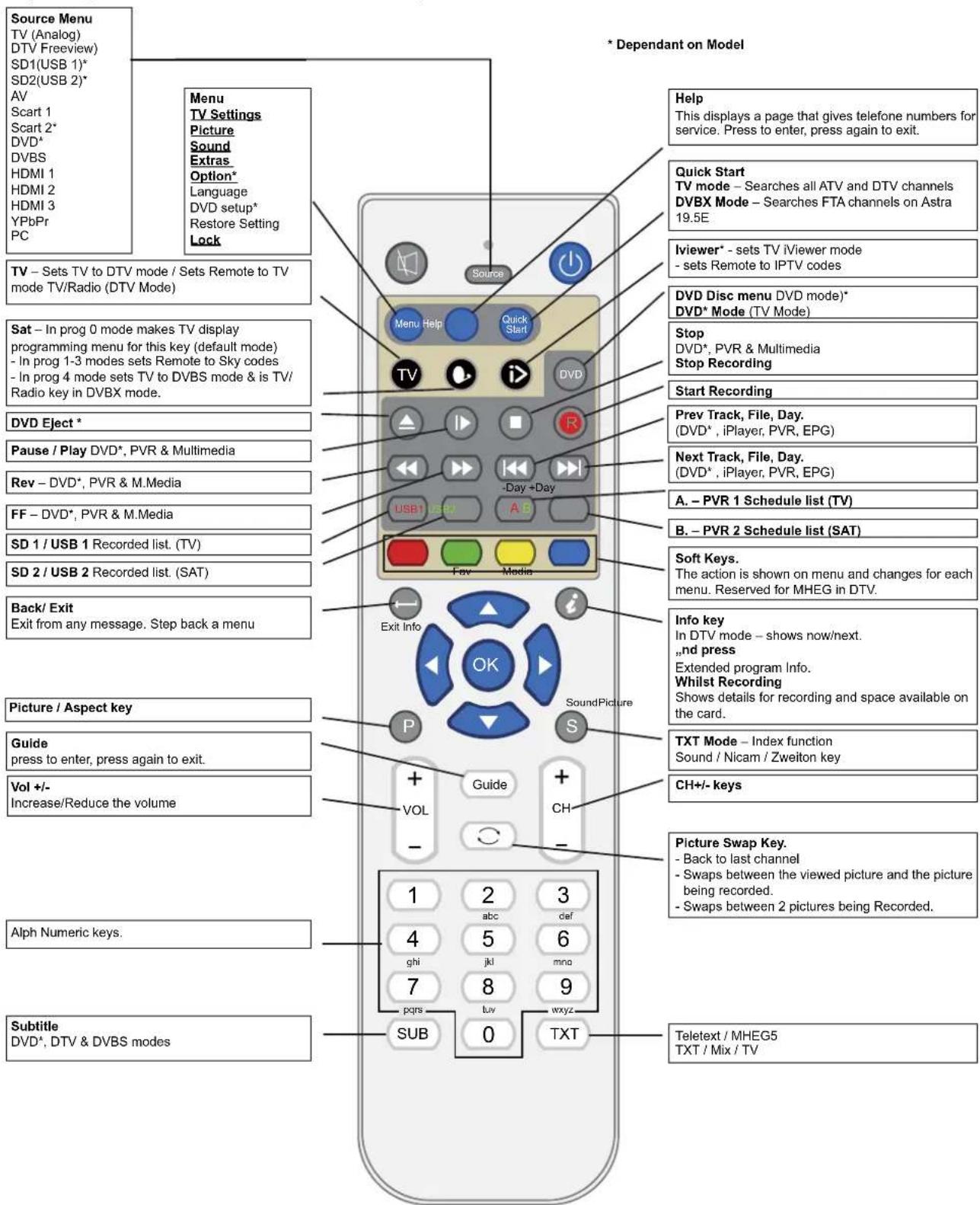
text_image
Source Menu TV (Analog) DTV Freeview) SD1(USB 1)* SD2(USB 2)* AV Scart 1 Scart 2* DVD* DVBS HDMI 1 HDMI 2 HDMI 3 YPbPr PC Menu TV Settings Picture Sound Extras Option* Language DVD setup* Restore Setting Lock * Dependant on Model Help This displays a page that gives telephone numbers for service. Press to enter, press again to exit. Quick Start TV mode - Searches all ATV and DTV channels DVBX Mode - Searches FTA channels on Astra 19.5E Iviewer* - sets TV iViewer mode - sets Remote to IPTV codes DVD Disc menu DVD mode)* DVD* Mode (TV Mode) Stop DVD*, PVR & Multimedia Stop Recording Start Recording Prev Track, File, Day. (DVD*, iPlayer, PVR, EPG) Next Track, File, Day. (DVD*, iPlayer, PVR, EPG) A. - PVR 1 Schedule list (TV) B. - PVR 2 Schedule list (SAT) Soft Keys. The action is shown on menu and changes for each menu. Reserved for MHEG in DTV. Info key In DTV mode - shows now/next. ,,nd press Extended program Info. Whilst Recording Shows details for recording and space available on the card. TXT Mode - Index function Sound / Nicam / Zweiton key CH+/- keys Picture Swap Key. - Back to last channel - Swaps between the viewed picture and the picture being recorded. - Swaps between 2 pictures being Recorded. Subtitle DVD*, DTV & DVBS modes 1 2 3 abc def 4 5 6 ghi jkl mno 7 8 9 pqrs luv wxyz- SUB 0 TXT Teletext / MHEG5 TXT / Mix / TVRemote control (continued)
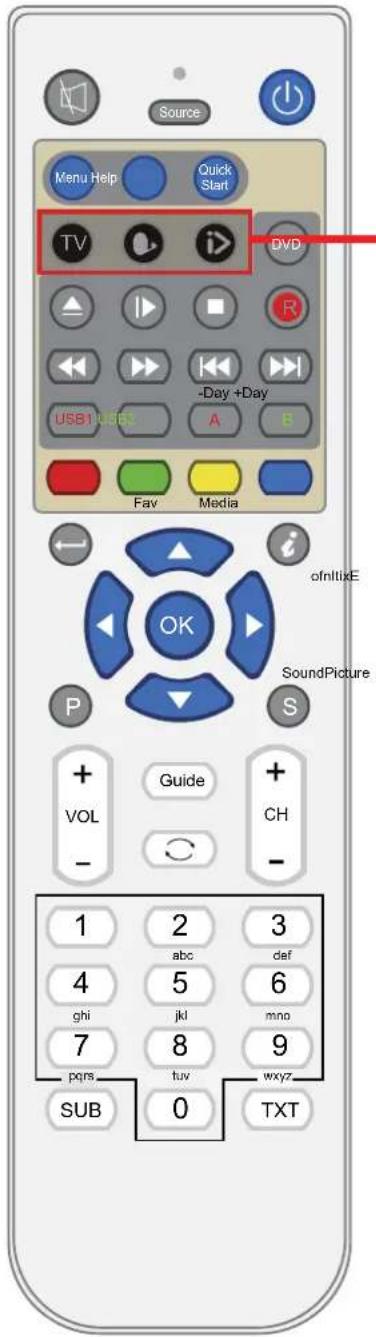
text_image
Source Menu Help Quick Start TV DVD USB1 USB2 -Day +Day A B Fav Media ofInitiE SoundPicture OK P S + Guide + VOL CH - - 1 2 3 abc def 4 5 6 ghi jkl mn0 7 8 9 pqrs tuv wxyz SUB 0 TXTDependant on the model of TV some keys will have no function
*Dependant on Model
This button puts the Remote in TV control mode
This button puts the Remote in a Multi Satellite control mode
* A number of modes are available. See below for details
This button puts the Remote into an Internet Player mode
* This is only used on some TVs and Digital Boxes
To Set the Multi-Satellite Mode button
The Sat button ⬆ is programmable in the remote and can be set as follows:
To set the button if you have no Satellite Receiver: Press and at the same time press 0.
If you have a Satellite Receiver with Recorder (Known as "Plus" type)
Press and at the same time press 1.
If you have a Satellite Receiver with High Definition (Known as "HD" type)
Press and at the same time press 2.
If you have a normal Digital Satellite Receiver (Known as "Digital" type)
Press and at the same time press 3.
If you want to use this button to switch on the DVBS* Player*
Press and at the same time press 4.
*DVBS only fitted on certain models.
O + 0 \~ NO SAT RECEIVER
+ 1 SAT +
+ 2 SAT HD
O + 3 \~ SAT DIGITAL
O + 4 \~ FTA DVBS
Installing Batteries in the Remote Control
- Remove the battery compartment cover at the rear of the remote control by pushing the retaining clip forward and pulling up.
- Install the supplied batteries, ensuring the polarity matches what is shown in the battery compartment.
- Replace the battery compartment cover.
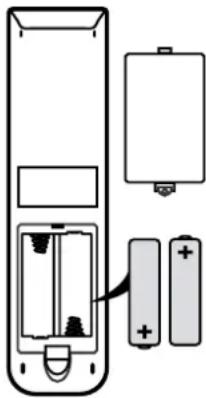
natural_image
Diagram of a remote control panel with battery, battery pack, and two partially open batteries (no text or labels)Aerial connection
WARNING! ENSURE THE TV AND ALL ANCILLARY EQUIPMENT IS UNPLUGGED FROM THE MAINS BEFORE MAKING ANY CONNECTIONS!
Connecting the TV Antenna
Connect the TV antenna to the aerial socket with a 75 ohm co-axial plug. For best results use a high gain TV aerial, preferably roof or loft mounted.
- To improve picture quality in a poor signal area, purchase and install a signal amplifier.
- If the antenna needs to be split for two TVs, use a 2-Way Signal Splitter (not supplied).
Using the Remote Control
To use the remote control point it at the TV and press the required buttons. You must be within 6 meters and at an angle of less than 30 degrees from the center of the TV.
NOTE: Sunshine or other strong light sources may interfere with the signal from the remote control. In this situation turn the TV away from the light source.

WARNING! DO NOT LEAVE BATTERIES IN THE REMOTE CONTROL FOR EXTENDED PERIODS AS THEY CAN LEAK OR CORRODE CAUSING DAMAGE TO THE REMOTE CONTROL. CHECK THEM PERIODICALLY AND REPLACE THEM AS REQUIRED.

WARNING! DO NOT MIX BATTERY TYPES. WHEN INSERTING BATTERIES, REPLACE ALL BATTERIES AT THE SAME TIME. DO NOT MIX OLD AND NEW BATTERIES.

WARNING! EXHAUSTED BATTERIES MUST BE TREATED WITH CARE AND DISPOSED OF ACCORDING TO ANY SAFETY OR RECYCLING REGULATIONS IN FORCE IN YOUR LOCAL AREA, NEVER DISPOSE OF BATTERIES INTO GENERAL WASTE, OR FIRE.

WARNING! NEVER EXPOSE BATTERIES TO EXCESSIVE HEAT SUCH AS SUNSHINE, FIRE OR THE LIKE.

text_image
TSPV Media Rn LR nr Curr Control MediaConnecting external devices
This instruction manual shows the simplest and most effective way of connecting your TV to ancillary equipment. Alternate methods are listed below.
HDMI Lead
You can connect this TV to a compatible device using a HDMI lead. This method will give the best picture.
Connect the cable from the HDMI equipment to the TV HDMI socket.
SCART Lead
You can connect this TV to a compatible device using a SCART lead. The connection uses component video signals, i.e. the red, green and blue (RGB) content of the video are sent on separate signals.
VGA Cable
You can use your TV as a monitor for your personal computer by using a VGA cable. Sound from your personal computer may also be played through the TV.
Connecting external devices (continued)
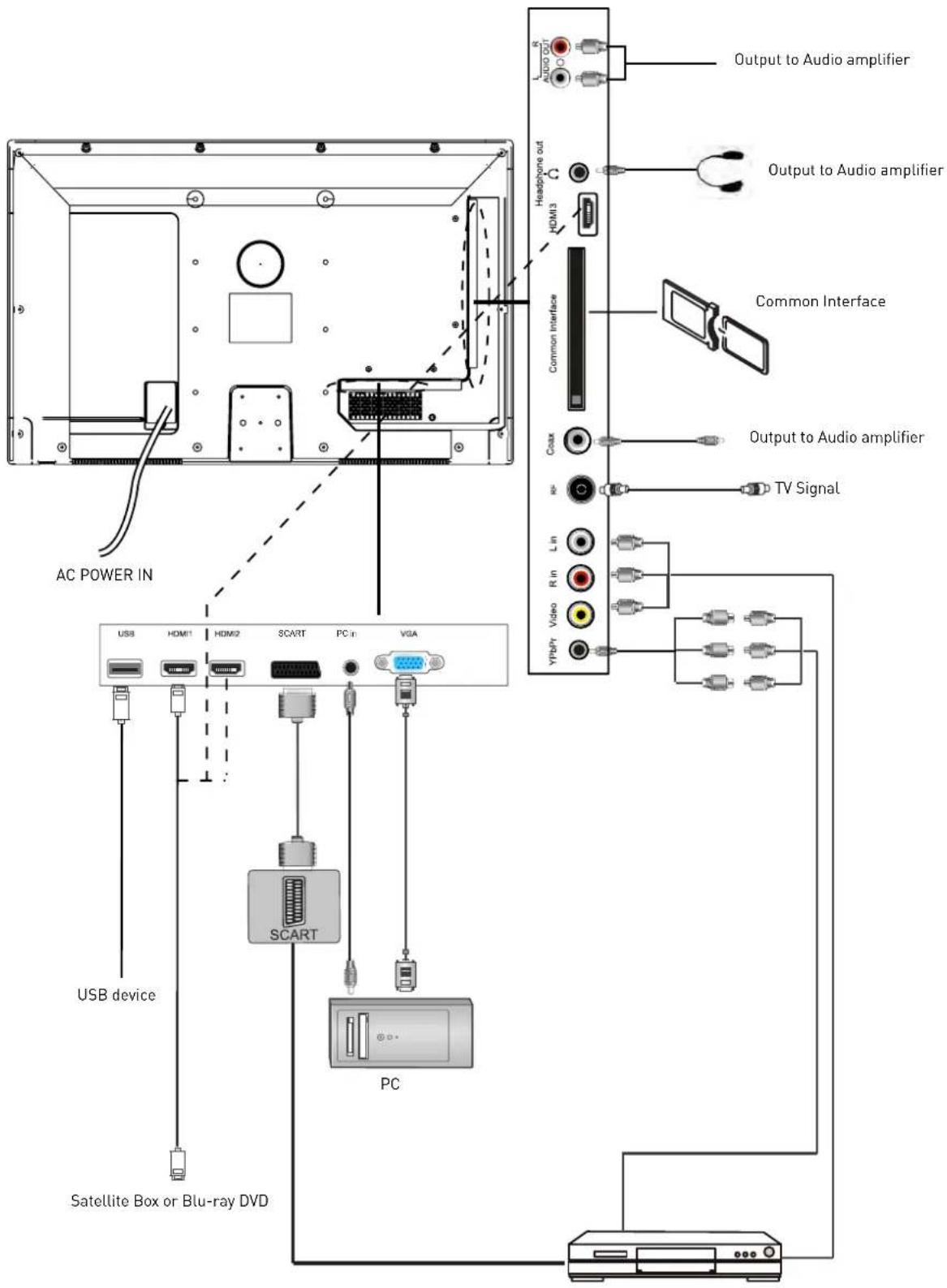
text_image
AC POWER IN USB HDM1 HDM2 SCART PC in VGA USB device SCART PC Satellite Box or Blu-ray DVD Output to Audio amplifier Output to Audio amplifier Common Interface Headphone out HDMI3 Common Interface Cmax TV Signal Video R in YPBPrConnecting external devices (continued)
CONNECTIONS
| Name Function | Description |
| AC POWER IN | Connect to power supply |
| HDMI 1, 2, 3 | Connect to the HDMI socket of your DVD or Satellite Box |
| VGA | Connect to the PC VGA output to display PC graphics |
| PC-IN PC audio input | |
| mini YpbPr | Connect to the YPbPr output on external devices |
| RCA audio out | Audio output to audio amplifier |
| USB Connect to | USB device for multimedia |
| SCART | Connect to the Scart input / output of external devices |
| RF Connect to antenna or cable source | |
| Headphone Connect Headphone | |
| CI CI slot (pay as you view card slot) | |
| USB (DVB-S) | Connect to USB device for multimedia and PVR |
| Coax Output to audio amplifier | |
Caution:
Before connecting external devices:
- Makes sure to disconnect the appliances from the power supply in order to avoid any potential damage from occurring.
- Make sure to establish the required connection.
- Make sure that the connectors are properly and correctly attached before connecting the appliances to the power supply.
PC connection
As PCs are sometimes still supplied with a 'conventional' CRT monitor, you may need to adjust the display settings of your PCs graphics card, otherwise the pictures may not appear correctly. Switch on your PC (still with your original monitor connected) now select the screen resolution, and select 60Hz refresh rate. Switch off your PC, then connect it to your TV while both appliances are still switched off.
VGA, HDMI PC Connection
Use a PC-VGA cable (not supplied) to connect the TV to your PC. You can also use an HDMI cable to connect to your PC (if your PC Graphic card supports HDMI). When the HDMI cable is used, the PC audio cable is no longer required. If you use the HDMI to DVI cable, you will need to use the PC audio cable. Connect all cables carefully and do not bend or break the connector pins.
When using the VGA cable
- Switch on the TV
- Switch on the PC
- Select PC/VGA as input source
When using the HDMI cable - Select HDMI as input source
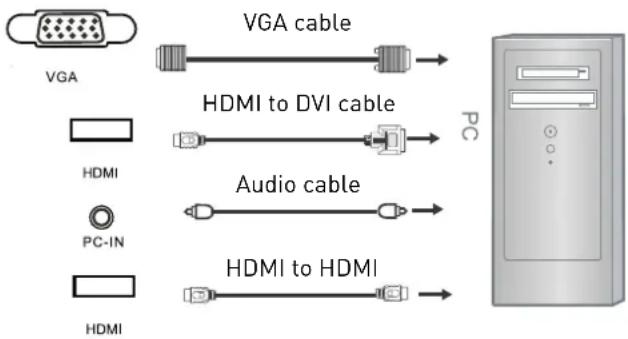
text_image
VGA VGA cable HDMI to DVI cable PC HDMI Audio cable PC-IN HDMI HDMI to HDMI(All illustrated cables are not supplied)
Connecting Video camera and Video recorder Video camera
- Connect the AV cable to the TV and to the video camera.
- Turn on both video camera and the TV.
- Select AV/CVBS source
- You can now see the playback picture from the video camera. Note:
- To connect the video camera using other cables, refer to the video camera instruction manual.
Video recorder
- Connect the Scart cable to the TV and video recorder.
- Turn on both video recorder and the TV.
- Select Scart source
- You can now see the playback picture from the video recorder.
Note:
- To connect the video recorder using other cables, refer to the video recorder instruction manual.
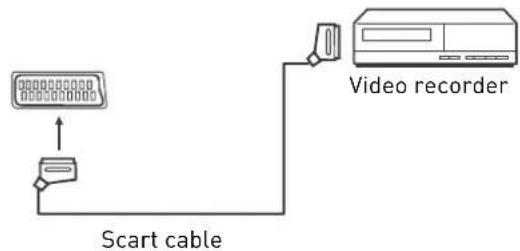
text_image
Scart cable Video recorderUse Scart adapter cable
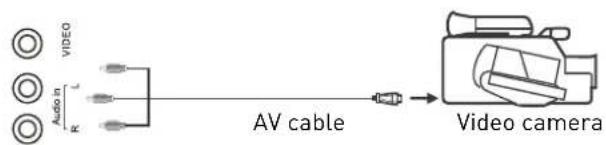
text_image
VIDEO Audio in L K AV cable Video camera(All illustrated cables are not supplied)
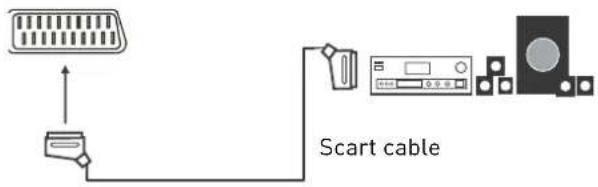
Connecting an audio system
You can supply the TV sound to the stereo system (A) with the Scart socket. Use a special Scart cable SCART to RCA. (Please consult your hi-fi instructions for details). If you have a surround sound amplifier/decoder (B) Use the Scart cable or the special Scart cable Scart to RCA.
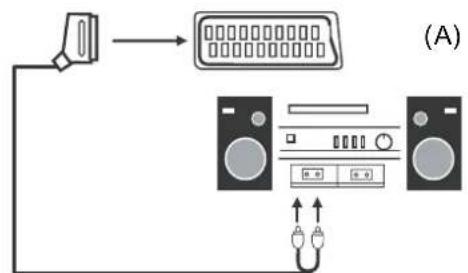
flowchart
graph TD
    A["Device"] --> B["Ethernet"]
    B --> C["Audio Device 1"]
    B --> D["Audio Device 2"]
    C --> E["Output"]
    D --> F["Output"]
Scart to RCA cable
text_image
Scart cable(All illustrated cables are not supplied)
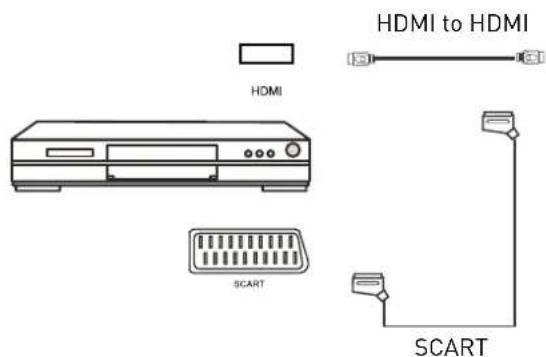
Connecting a DVD player
Connect a DVD player using either a SCART cable or the HDMI cable. (only if your external equipment supports HDMI).
text_image
HDMI to HDMI HDMI SCART SCART(All illustrated cables are not supplied)
When using the SCART cable
- Switch on the TV
- Switch on the DVD player
- Select SCART as input source
When using the HDMI cable - Select HDMI as input source
Common Interface Slot
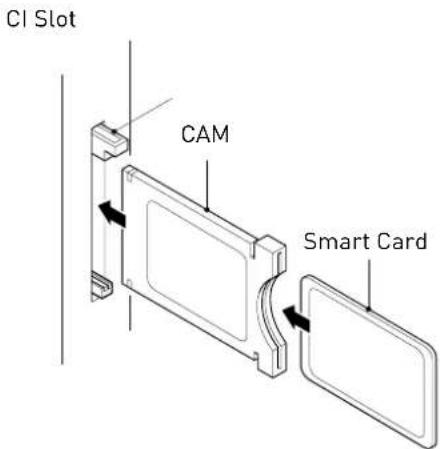
USING YOUR COMMON INTERFACE SLOT Common Interface
The Common Interface (CI) slot is designed to accept the Conditional Access Module (CAM) and Smart Card in order to view the pay TV programmes and additional services. Contact your Pay Per View TV service provider to get more information about the modules and subscriptions.
NOTE: Conditional Access Module and Smart Cards are sold separately.
WARNING! SWITCH OFF YOUR TV BEFORE ANY MODULE IS INSERTED INTO THE COMMON INTERFACE SLOT, THEN ADD THE SMART CARD TO THE CAM.
text_image
CI Slot CAM Smart Card-
Turn on the TV and ensure 'DTV' Source is selected.
-
If the CAM is detected the TV will display the following message on the screen. "Common Interface Module inserted" wait for a few moments until the card is activated.
-
Select the relevant digital Pay Per View channel.
-
Detailed information on the Smart Card in use is displayed
-
Press the Ok button to access the card menu. Refer to the Module Instruction Manual for setting details.
-
When the module is removed, the following message will appear on the screen. "Common Interface module removed".
Auto installation setup
Power On / Off the LED TV
To turn on the LED TV
Press the power button on the LED TV or the ⏻ button on the remote control, the standby indicator will light green.
To turn off the LED TV
Press the power button on the LED TV or the ⏻ button on the remote control, the standby indicator will light red.
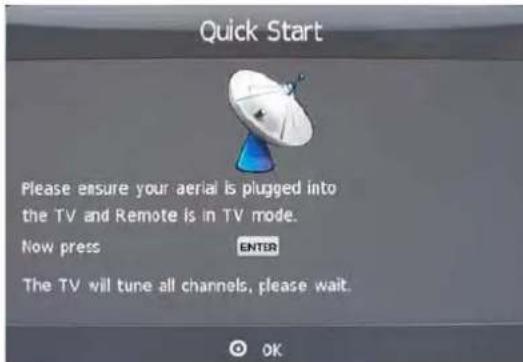
When you initially turn on the LED TV you will see the first time installation menu as below:
text_image
Quick Start Please ensure your aerial is plugged into the TV and Remote is in TV mode. Now press ENTER The TV will tune all channels, please wait.
Ensure that the aerial is plugged in to the TV, Make sure your Remote is in TV mode (by pressing ▼ button), switch on the TV by pressing Ⓗ. You will see the first time installation menu.
Press the OK button on the remote control to start the tuning procedure. This process will find all available ATV and DTV channels and store them.
By pressing the Quick Start button the first time installation can be recalled at any time.
Source Menu
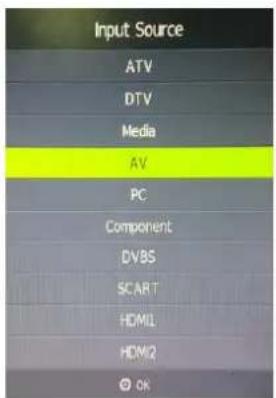
You can select the input source menu by pressing the Source button on the remote control or the TV / AV button on the LED TV.
text_image
Input Source ATV DTV Media AV PC Component DVBS SCART HDMI HDMI2 OKPress Source button on the remote control.
Use ▲▼ to move to the desired input source
Press OK to select.
Menu Settings
- Turn the LED TV on.
- Press the MENU button on the Remote Control.
- Use the ◀ and ▶ buttons to navigate through the menu.
- Press the EXIT button to exit the Menu.
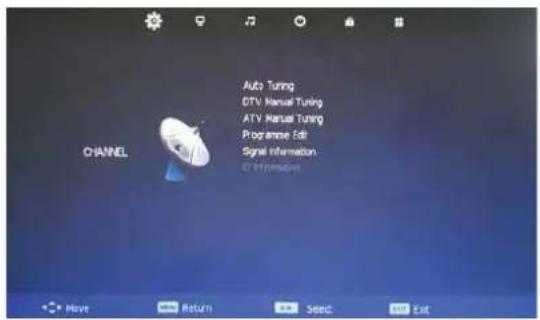
CHANNEL MENU
Allows you to search channels and set up a variety of channel options. (Select DTV source for example)
text_image
CHANNEL Auto Tuning DTV Manual Tuning ATV Manual Tuning Programme Edit Signal Information © InfrafastnetPICTURE MENU
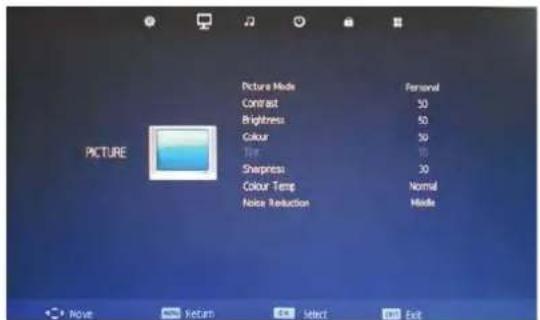
Allows you to make adjustments to your picture settings. (Select DTV source for example)
text_image
Picture Mode Contrast Brightness Colour Tape Sharpness Colour Temp Noise Reduction Personal 50 50 50 10 30 Normal HidesSOUND MENU
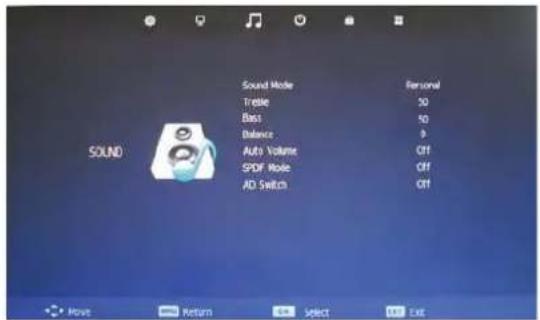
Allows you to customize the sound options and effects. (Select DTV source for example)
text_image
Sound Mode Trestle Bass Balance Auto Volume SPDF Mode AD Switch Personal 50 50 0 OFF OFF OFFTIME MENU
Allows you to setup a variety of time options. (Select DTV source for example)
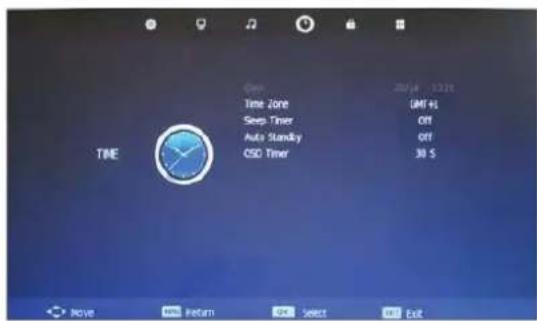
text_image
Open Time Zone Sep Timer Auto Standley CSD Timer TIME 20/4 - 13:11 GMI+L Off Off 30 S Move Return Select ExitLOCK MENU
Allows you to set up a variety of lock options. (Select DTV source for example)
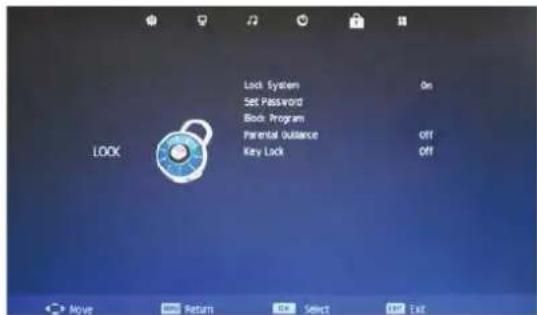
text_image
Lock System Set Password Block Program Parental Guidance Key Lock ON OFF OFF LookSETUP MENU
Allows you to set up a variety of options. (Select DTV source for example)

text_image
CSD Language English TT Language West Hearing Impaired On PVR File System Aspect Ratio 10:9 Blue Screen On First Time Installation Reset SETUP Move Return Select ExitCHANNEL MENU
Use the ◀ and ▶ buttons to select the CHANNEL menu (as the picture above), press ▼ button to enter the menu.
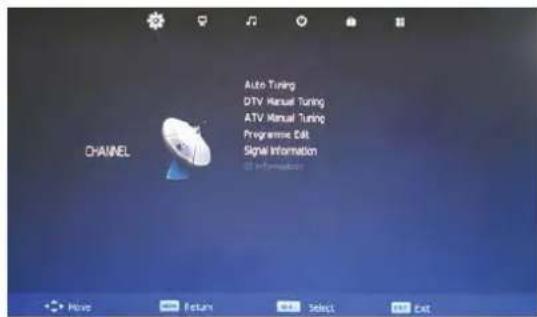
text_image
CHANNEL Auto Tuning DTV Manual Tuning ATV Manual Tuning Programme Edit Signal Information Information Have Return Select ExitThe CHANNEL menu includes the following options :
Auto Tuning
Press the OK button to enter the language menu, and press ◀▶ buttons to select the tuning mode. Then press ▼ button and use ▲▼◀ ▶ buttons to select the country, then press the Ok button to start the auto tune.
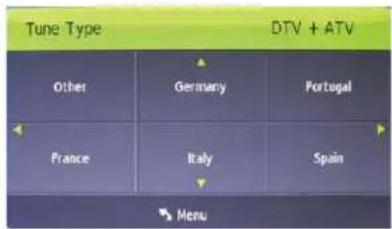
text_image
Tune Type DTV + ATV Other Germany Portugal France Italy Spain MenuDTV Manual Tuning
Allows you to manually tune a selected DTV channel.
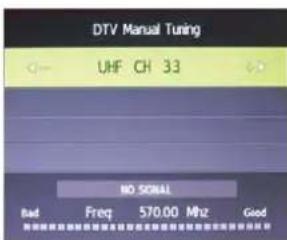
text_image
DTV Manual Tuning UHF CH 33 NO SIGNAL Bad Freq 570.00 MHz GoodATV Manual Tuning
Allows you to manually tune a selected ATV channel.
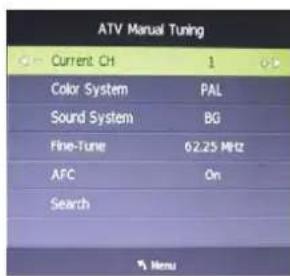
text_image
ATV Manual Tuning Current Ch 1 0.5 Color System PAL Sound System BG Fine-Tune 62.25 MHz AFC On Search MenuPress OK button to enter the ATV manual Tuning menu.
Current CH: Select a channel for storing the programme
Colour System: Select from PAL and AUTO
Sound System: Select from I, BG, DK
Search: Press ◀▶ button to manual search
Fine Tune: Press ◀▶ button to fine-tune
AFC: Automatic Frequency control ON/OFF
| Programme Edit | Opens the Programme Edit window where you can organise (delete, re-name, move, etc.) your channels. |
| Signal Information | Displays information about the signal strength and quality (DTV mode only). |
| CI Information | Displays information about the inserted CI Pay-TV card (if any). |
Programme Edit
Press OK button to enter the Programme Edit menu as the following picture.
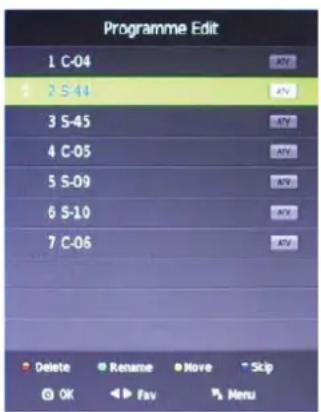
text_image
Programme Edit 1 C-04 2 S-44 3 S-45 4 C-05 5 S-09 6 S-10 7 C-06 Delete Rename Move Skip OK Fav MenuDelete: Select a channel and press RED button, "Delete" will appear on the right of the programme edit menu next to the channel you have chosen, then press RED button again, the programme will be deleted. However if you decide not to continue to delete press the menu button to quit.
Rename: Select an ATV channel and press the GREEN button to change the name of the channel by buttons.
Move: Select an ATV channel and press YELLOW button, then you can use ◀▶ buttons to exit and it will automatically save the current setting.
Skip: Select a channel and press the BLUE button to label the channel, as long as the channel has a skip label it will be skipped when searching through the channels with the CH+/- buttons.
Picture Menu
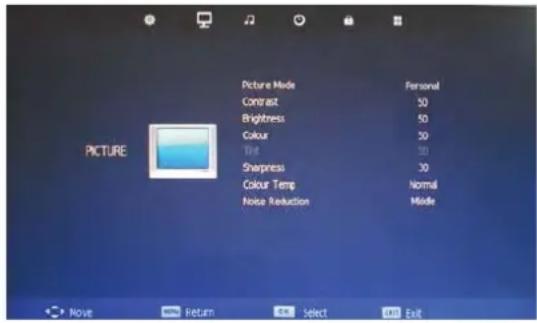
text_image
Picture Mode Contrast Brightness Colour Tilt Sharpness Colour Temp Noise Reduction Personal 50 50 30 30 Normal Middle PicturePicture Mode: Choose from Standard, Dynamic, User and Mild
Note: Contrast, Brightness, Colour and Sharpness are only available and can be adjusted in the User mode option.
Contrast: Controls the difference between the brightest and darkest regions of the picture.
Brightness: Controls the overall brightness of the picture.
Color: Controls the colour
Sharpness: Increase this setting to see crisp edges in the picture, decrease it for soft edges
Tint: Controls the (Tint / Hue) NTSC mode only.
Color Temp: Choose from Medium, Cool, User and Warm.
Noise Reduction: Choose interference noise modes from OFF, LOW, MIDDLE, HIGH and DEFAULT
Sound Menu
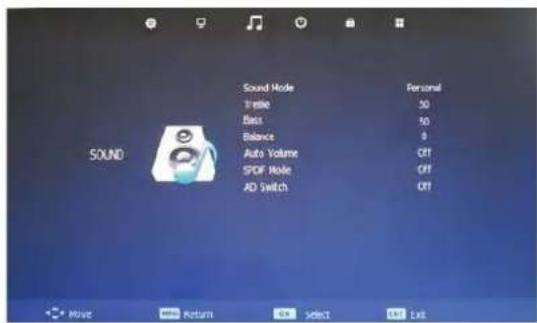
text_image
Sound Mode Static Noise Balance Auto Volume SPDF Mode AD Switch Personal 30 50 0 OFF OFF OFFSound Mode: Allows you to select Standard, Music, Movie, Sports or User. Note: Treble, Bass, Balance can only be adjusted when set in User mode.
Treble: Controls the relative intensity of higher pitched sounds
Bass: Controls the relative intensity of lower pitched sounds
Balance: Controls the volume between the left and right speaker.
Auto Volume: Controls the TVs volume automatically when ON is selected
SPDIF mode: Select the SPDIF mode AD Switch: Audio Descriptor ON/OFF
AD Switch: Audio Descriptor ON/OFF
Time Menu
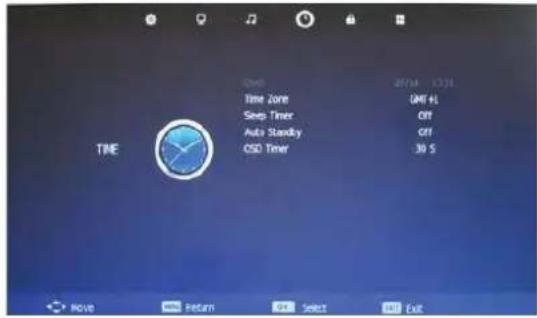
text_image
Time Clock 207:4 13:11 Time Zone OFF Sleep Timer Off Auto Standby Off CSD Timer 30 S Move Return Exit Select ExitClock: Display the time
Time Zone: Allows you to select the time zone
Sleep Timer: Allows you to setup the sleep timer among 10min, 20min, 30min, 60min, 90min, 120min, 180min, 24-0min and off
Auto Standby: Turn ON/OFF the auto standby function
OSD Timer: Allows you to select how long the menu is displayed on screen.
Lock Menu
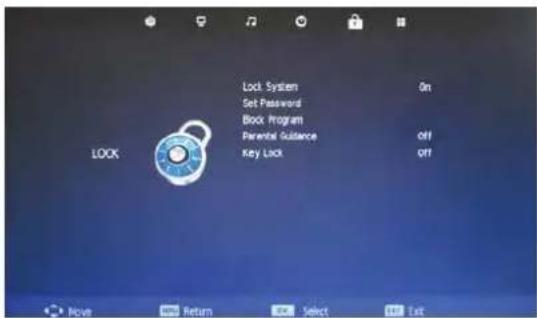
text_image
Lock System Set Password Block Program Parental Guidance key Lock ON off OFFLock System: Turn ON/OFF the lock system function
Note: you should enter the code to operate the menu (Default code is 0000)
Set Password: If the code has been changed you must enter the current password.
New: Enter new password
Confirm: Enter new password
Block Program: Use ▲▼ buttons to select the channel and press the GREEN button on the remote control to lock the channel.
Note: You must enter your password to view channels that have been blocked.
Parental Guidance: Allows you to select the parental guidance mode.
Key Lock: Lock the buttons on the TV set when you turn on this function.
Setup Menu
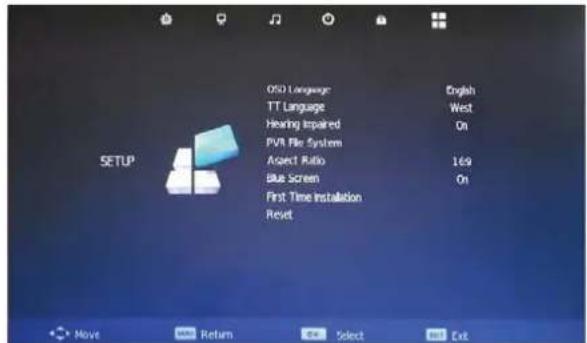
text_image
SETUP OSO Language English TT Language West Hearing Impaired On PVN File System Aspect Ratio 169 Blue Screen On First Time Installation ResetOSD Language: choose the menu language
TT Language: Allows you to select teletext language
Hearing Impaired: Turn ON/OFF the hearing impaired function
PVR File System: Setup the PVR file system
Aspect Ratio: AUTO, 4-3, 16:9, Zoom1, Zoom2, just scan and Panorama
Blue Screen: Turn ON/OFF the blue screen function
First Time Installation: Display the First Time Installation menu
Reset: Press OK to restore factory default settings
Multimedia Operation
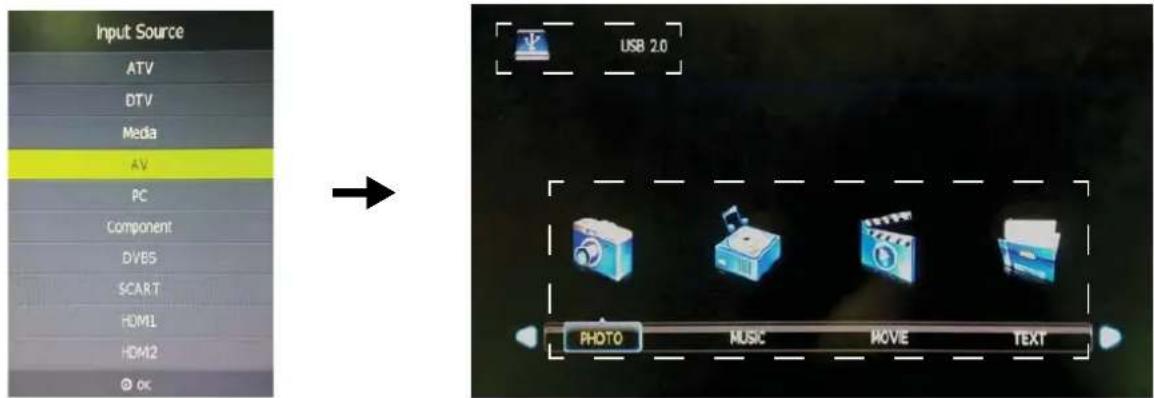
Hints and informations of USB device
text_image
Input Source ATV DTV Media AV PC Component DVB5 SCART HOM1 HOM2 © OK USB 2.0 PHOTO MUSIC MOVE(TEXT)Press the source button to display the Input source menu and select MEDIA, press the OK button to enter the MEDIA menu as seen in picture above.
Insert USB device and select the type of files you want to listen too or view from PHOTO, MUSIC, MOVIE and TEXT. Then Press OK to enter the menu and choose the folder or file you wish to activate.
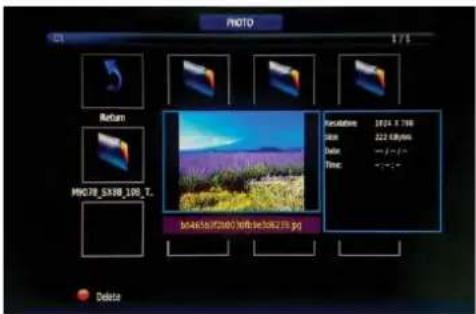
Return - Return to previous folder or menu Press play/pause button to preview files
text_image
PHOTO 51 175 Return MHO7B_SX80_100_T_ M4K50/FC200/306-se30K273.jpg Delete Parameters: 1924 X 700 Color: 222 CMYK Delay: -1.5 ± 1.5 Time: -1.5 ± 1.5 DeletePress up/down/left/right arrow buttons to select and the OK button to activate the file or open the folder. Press OK to play the files in full screen mode. When in full screen mode press the OK button to show the navigation menu on the bottom of the screen or press stop button to return to files.
Note: Press RED button to delete any files
Photo
Photo viewing
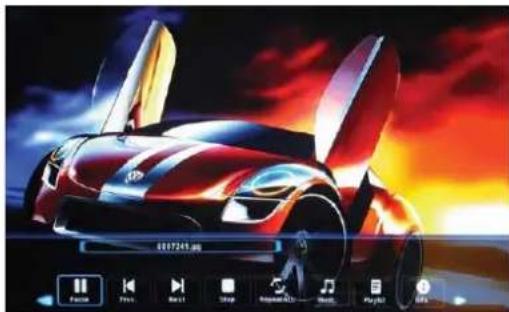
Press ◀▶ buttons to select the option on the navigation menu and press OK to activate.
natural_image
Illustration of a futuristic sports car with dynamic lighting and action buttons (no readable text or symbols)Pause: play/pause the photo viewing
Prev/Next: View the Previous or Next photo
Stop: Stop the photo viewing
Repeat: Select the repeat mode from REPEAT ALL, REPEAT 1 and OFF
Music: Play/Pause the music
Playlist: Display the playlist on screen
Info: Display the file information
Rotate: Turn the photo clockwise or counter clockwise
Zoom: Zoom IN/OUT of the photo.
Move View: Move the photo in Zoom in mode.
Music
Play the music
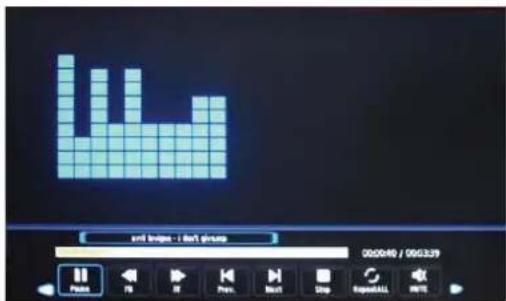
Press ◀▶ buttons to select the option on the menu and press OK button to activate.
text_image
play image - I don't give up 00:00:46 / 05:3:39 PlayPause: Play/Pause the music
FB/FF: Fast back and Fast forward
Prev/Next: Play the previous or next file
Stop: Stop the music
Repeat: Select from REPEAT ALL, REPEAT 1 and OFF
Mute: Mute the Audio
Playlist: Display the playlist on screen
Goto Time: Play the music or audio book from the time you set
Movie
Play the movie
Press ◀▶ buttons to select the option on the menu and press OK button to activate.
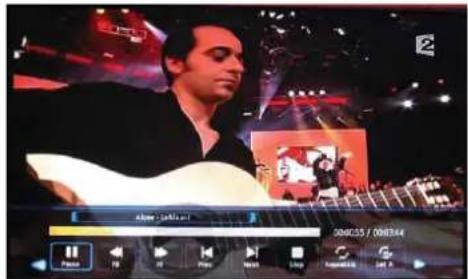
text_image
Screenshot of a music recording interface showing a man playing guitar with playback controls and track tracks in the background.Pause: Play/Pause the movie
FB/FF: Fast back and Fast forward
Prev/Next: Play the previous or next file
Stop: Stop the movie playback
Set A-B: Select and play a chosen part of the movie file by setting A as start point and B as end. Press OK button to cancel.
Playlist: Display the playlist on screen
Slow forward: Play the movies at slow speed, press T for normal playback speed.
Step forward: Step quickly through the movie using this option
Goto Time: Play the movie from the time you set
Zoom: Zoom IN/OUT of the movie screen.
Aspect Ratio: Select the size of the screen display
Move View: Move the photo in Zoom mode
Text
View text files
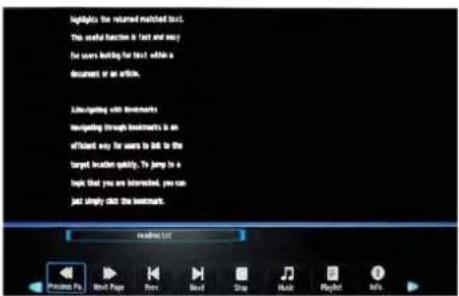
text_image
Highlights the returned matched text. This useful function is text and easy for users looking for text while a document or an article. Linking with Investments navigating through Investments is an officiated way for users to list to the target location quickly. To jump to a high that you are interested, you can just simply click the bookmark. readout list Preview Ps Next Page Prev Next Stop Make Right M'sPrev/Next Page: Turn to the Previous or Next page
Prev/Next: Turn to the previous or next file
Music: Play/Pause the music programme
Playlist: Display the playlist on screen
Info: Display the file information
Stop: Stop the text viewing

Recording Operation
PVR Settings
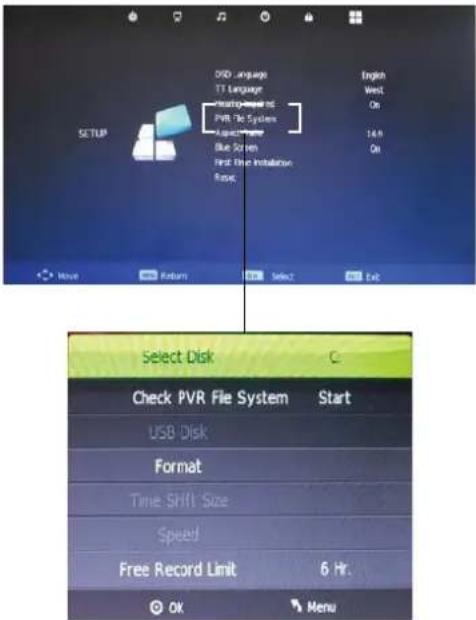
PVR File System Press the MENU button and select SETUP menu, choose PVR File System and press OK.
text_image
SETUP DVD language TT Language Hanging PVR The System Aspect Blue Screen First Fire Installation Rapid English West On 14 H On Move Return Select Exit Select Disk Check PVR File System Start USB Disk Format Time Shift Size Speed Free Record Limit 6 Hr. OK MenuSelect Disc: Select the USB device to record on.
Check PVR File System: Check the system of the USB device
USB Disc: Displays information
Format: Format the USB device for PVR operating
Time Shift Size: Displays the memory size of the USB device
Speed: Displays the speed of the USB device
Free Record Limit: Set the record time limit
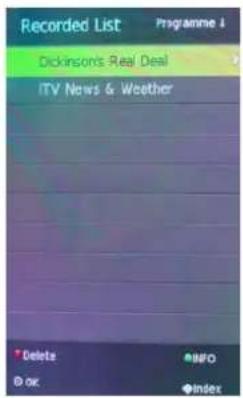
Recorded List
Press the SD1 button on the remote control to display the recorded list
text_image
Recorded List Dickinson's Real Deal iTV News & Weather Delete INFO OK IndexNote: Delete any scheduled recordings out of this list with the RED button.
Schedule List
Press the A button on the remote control to display the recorder schedule list

text_image
Schedule List 11:08 20th Jul Time Date Programme Title Channel NameNote: Delete any scheduled recordings out of this list with the RED button
Timer Record
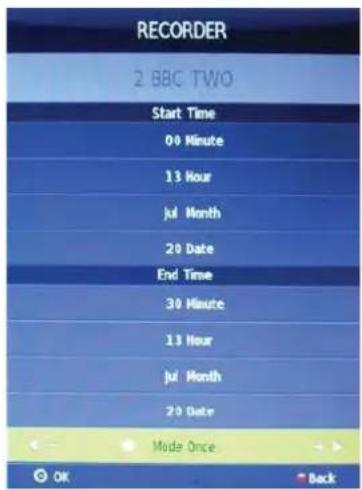
When selecting a programme in the EPG for Timer record the Recorder menu will appear. Press OK and the Timer will set automatically from the EPG data. If you choose to manually programme the Recorder menu you can.
text_image
RECORDER 2 BBC TWO Start Time 00 Minute 13 Hour Jul Month 20 Date End Time 30 Minute 13 Hour Jul Month 20 Date Mode Once OK BackChannel: Select the channel you want to record
Mode: Select the recording mode
Start time: Select the record time begin
End time: Select the record time end
Press the OK button to save and exit the menu
Recording
Record and Time shift function buttons
When you press the Rec button the navigation menu will display on screen.
Note: Display and exit the navigation menu by pressing the Ⓞ button. While you are recording you can press the play button and watch what has already been recorded.

text_image
[0:00:28] Play RS FF Prev. Next Pause Stop (0000:53:10) 2 80C TWO 1399Recording: Press to start instant recording
Pause: Press T to activate the time shift function and pause live TV.
Stop: Press x to stop the recording or the time shift process.
Remote Control button SD1: Displays the recorded List
Remote Control button A: Displays the Recording Schedule List
Time shift
When you press the EXIT Rec button the navigation menu will display on screen.
Note: Display and exit the navigation menu by pressing the EXIT button While you are recording you can press the play button and watch what has already been recorded.
When you press the T Pause/Play button the picture will be paused and the navigation menu will displayed on screen

text_image
00:00:04/00:00:09 Play FB FF Prev. Next Pause Stop 13:58While you are doing a time shift recording you can press the play button and watch what has already been recorded
EPG Recording
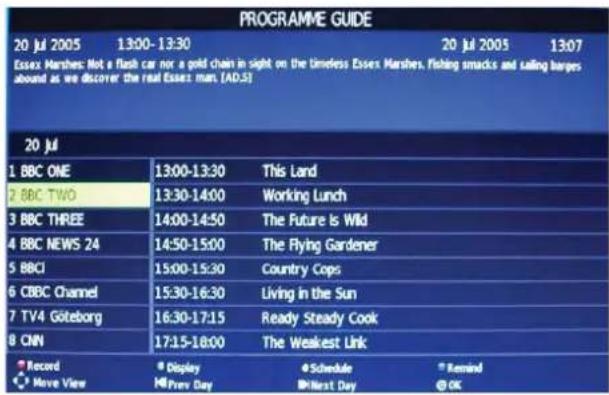
Display the programme guide by pressing the GUIDE button
Select a programme to record by navigating through the EPG with the ▲▼◀ ▶ buttons.
text_image
PROGRAMME GUIDE 20 Jul 2005 13:00-13:30 20 Jul 2005 13:07 Essex Marshes Not a flash car nor a gold chain in sight on the timeless Essex Marshes, Fishing smacks and sailing budgets around as we discover the real Essex man [AD.S] 20 Jul 1 BBC ONE 13:00-13:30 This Land 2 BBC TWO 13:30-14:00 Working Lunch 3 BBC THREE 14:00-14:50 The Future Is Wild 4 BBC NEWS 24 14:50-15:00 The Flying Gardener 5 BBCI 15:00-15:30 Country Cops 6 CBBC Channel 15:30-16:30 Living in the Sun 7 TV4 Göteborg 16:30-17:15 Ready Steady Cook 8 CNN 17:15-18:00 The Weakest Link Record Display Schedule Remind Have View Hi Prev Day Most Last Day OK
Record: Press the RED button to display the recorder menu and set the timer record. When the programme starts it will be recorded to the USB device.
Display: Press the GREEN button to display the information of the programme
Schedule: Press YELLOW button to display the recording Schedule List
Remind: Press BLUE button to display the remind menu. Once the programme starts the TV will automatically switch to this programme.
MAIN SATELLITE MENU
All the important settings and features of your receiver can be operated in Main Menu. The Main Menu consists of five sub-menus: "SETUP", "TV", "Radio", "Multimedia" and "Game". Press the MENU button when the menu is off, the MAIN MENU screen will appear.
Note: In Satellite mode the menus have a different appearance to TV mode. This is helpful to ensure you are in the correct mode.
Enter the menu of each mode by first selecting the mode (using Source key) and then press MENU.
1) SETUP
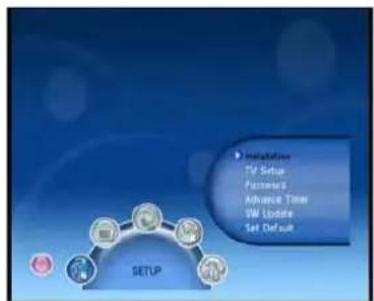
In MAIN MENU screen, press ◀▶ to select SETUP, this menu consists of the "Installation", "TV Setup", "Password", "Advance Timer", "SW Update" and "Set Default".
flowchart
graph TD
    A["Setup"] --> B["Mastercard"]
    A --> C["Advanced Time"]
    A --> D["SW Update"]
    A --> E["Set Default"]
    F["Initiation"] --> G["TV Setup"]
    F --> H["Performance"]
    F --> I["Advance Time"]
    F --> J["SW Update"]
    F --> K["Set Default"]
Installation
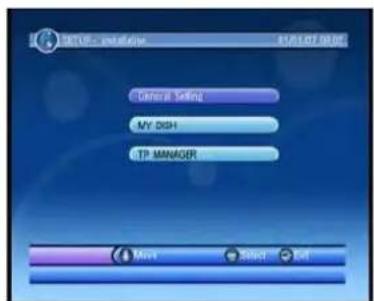
In SETUP menu, press ▲▼ to select Installation, then press OK key to enter Installation menu. In this menu, you can set General Setting, MY DISH, TP MANAGER.
text_image
SETUP - installation 81/01/07 08:00 General Setting MY DISH TP MANAGER Move Select EditGeneral Setting: In this menu, you can set OSD Language, Audio Language, Subtitle Language, GMT usage, Time Zone, Set Date and Set Time.
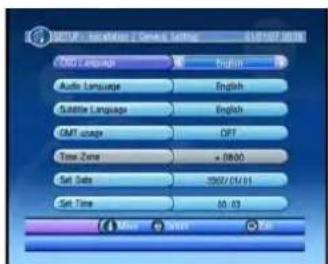
text_image
AUDIO - Audio/Video & Genre: Setting 01:00:07:08:08 CMT Language English Audio Language English Subtable Language English GMT usage OFF Time Zone + 00:00 Set Data 2002/01/01 Set Time 40.03MY DISH: In this menu, you can add satellite by pressing RED key, delete satellite by pressing GREEN key, edit satellite by pressing YELLOW key and auto scan by pressing BLUE key.
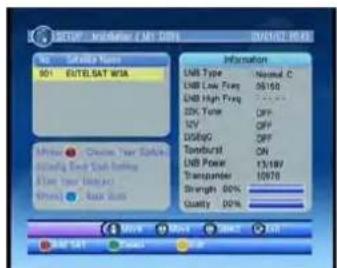
text_image
SETUP - Mechanical EASI GINS USI Settle Name 901 ENTELSAT WISA Information UNB Type Normal C UNB Low Temp 56150 UNB High Temp DCK Type OFF ICV OFF DSGIP OFF Turb-total ON UNB Power 13/18V Transporter 10070 Strength 00% Quality 00%TP MANAGER: In this menu, press ◀▶ to switch satellite, press ▲▼ to switch Frequency, then press RED key, you can add Frequency, press GREEN key, you can delete Frequency, press YELLOW key, you can delete all.
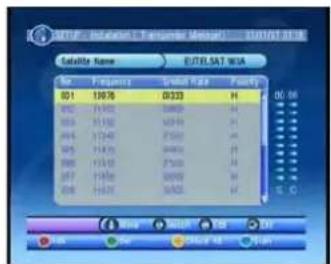
text_image
Catalator Name E/ELSAT WIA No. Frequency Session Date Family 01 130/76 08:333 H 02:00 02 14/05 5:00:00 + - 03 15/10 5:04:49 + - 04 17:04:00 2:55:02 + - 05 18:15:00 9:48:02 + - 06 19:15:00 2:55:02 + - 07 20:15:00 9:48:02 + - 08 21:15:00 3:55:02 + - Total Count Date DayPress OK key, you can edit Frequency.
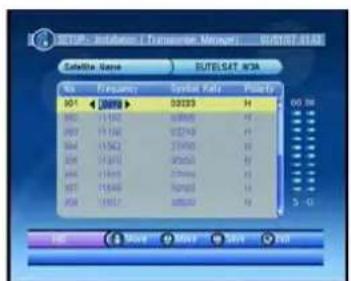
text_image
Satellite Name EUTELSAT W3A No. Frequency Syria Fali Power H01 50099 50235 H 60 M H02 11102 10800 H 7 H03 11106 10210 H 6 H04 11342 17400 H 5 H05 11410 9760 H 5 H06 11493 27900 H 4 H07 11549 54900 H 3 H08 11612 88500 H 2 S - G Bus More Move Save AddTV Setup
In SETUP menu, press ▲▼ to select TV Setup, then press OK key to enter TV Setup menu. In this menu, you can set TV Mode (Auto, PAL), OSD Transparency (1\~8), Banner Display Time (1S, 3S, 5S, 10S, 30S, Always),
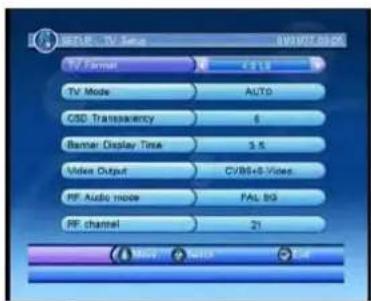
text_image
TV Format TV Mode CSD Transparency Banner Display Time Video Output PF Audio mode PF channel 6.18 AUTO 5.5 CY/88+8-Videos PAL BG 21Password
In SET UP menu, press ▲▼ to select Password, then press OK key to enter Password menu (if supported by the broadcasting channel). In this menu, you can setup Menu Lock(ON/OFF), Channel Lock (ON/OFF), Censorship Lock (No Block, Total Block, 02-18), and Change Password (NO/YES). The Master password is 0000.
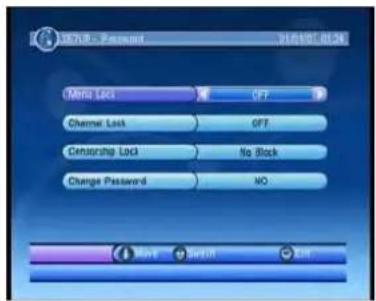
text_image
SETUB - Passout 01/01/07 / 08:34 Meri Lock OFF Channel Lock OFF Censoring Lock NiQ Block Change Password NiQ Mend SatUser OKAdvance Timer
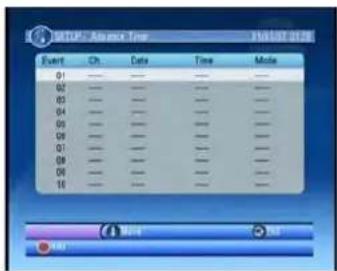
In SET UP menu, press ▲▼ to select Advance Timer, press OK key to enter this menu. In this menu, you can add timer by pressing RED key, you can setup Channel Type, Channel No., Channel Name, Start Date (Y/M/D), Start Time, End Time, Mode and Timer Mode, then press OK key to save.
In SET UP menu, press ▲▼ to select SW Update, press OK key to enter this menu. In this menu, you can update the software by USB and backup to USB.
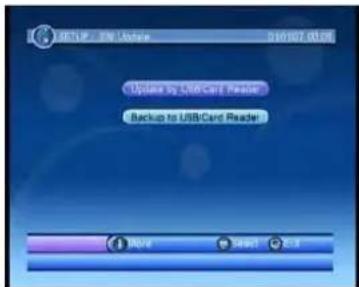
text_image
Microsoft Internet Explorer 010907.00:08 Update by USB Card Reader Backup to USB Card Reader More Next NextSet Default
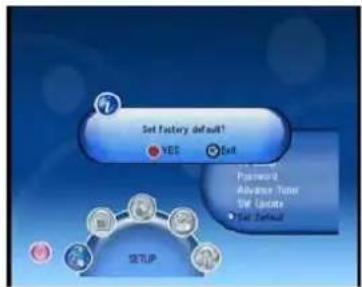
Select Set Default and press OK key, then press OK key. This will delete all user settings and installed channels.
text_image
Set factory default! YES Exit Password-2 Advance Timer SW Update User Default SETUP2) TV/Radio
The Radio operation is the same as TV.
In MAIN MENU screen, press ◀▶ to select TV, this menu consists of the "TV List" and "TV Guide".
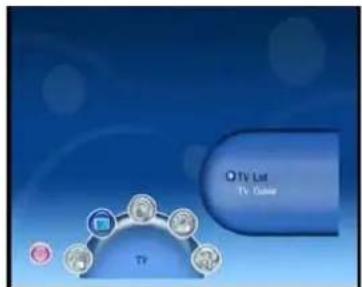
text_image
O TV List TV OutletTV List
Select TV List and press OK key to enter TV List menu, in this menu, you can add channels to different favorite groups, Lock channels, Edit channels, Move channels, Sort channels, Delete channels.
Favorites: Press ▲▼ button to select a channel, press ◀▶ button to select Favorites, then press 1\~8 key to add the channel to the favorite group which you want to add to.
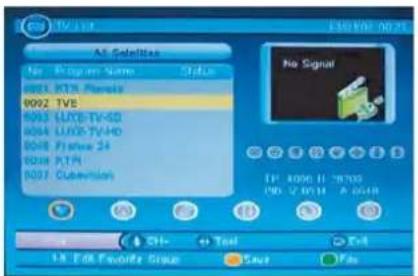
text_image
All Satellites No. Program Name Status 0021 K15 Panels 0022 TVE 0033 LUXO-TV-5D 0044 LUXO-TV-HD 0058 Frontier 24 0068 PTR 0079 Subdivision No Signal IP: 4000 H 78700 PDL: V 2011 A 0548 18 PSF Favorite Group Save PinLock: Press ▲▼ button to select a channel, press ◀▶ button to select Lock, then press OK key to lock the channel, press OK key again to cancel lock. Press YELLOW button to save.
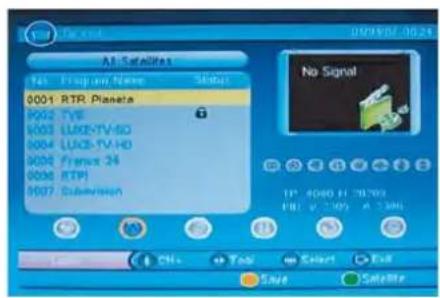
text_image
All Satellites No Flag on Name Status 0001 RTR Planeta 0002 TV8 0003 LUXO-TV-HO 0004 LUXO-TV-HO 0005 Francis 24 0006 RTP 0007 Substation No Signal IP: 4080 H 20.793 FBI: V-2.95 A 1.14M Save SubstituteEdit: Press ▲▼ button to select a channel, press ◀▶ button to select Edit, then press OK key to enter the Program Info menu, in this menu, you can see the program information and rename the channel,
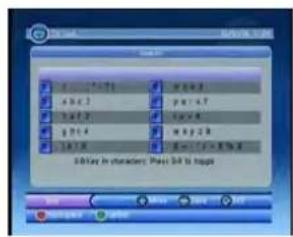
text_image
Add to the image OK/Show in characters: Press OK to ImageMove: Press ▲▼ button to select a channel, press ◀▶ button to select Move, press OK key, then press ▲▼ button to move the channel to the position where you want to move.
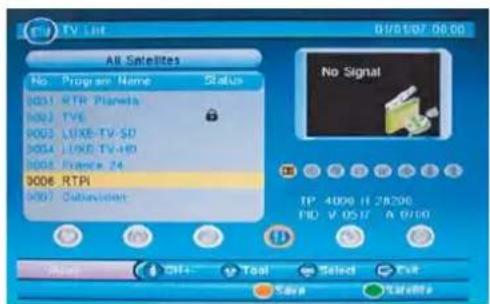
text_image
TV List 01/01/07 06:00 All Satellites No Program Name Status 8001 RTP Planets 8002 TVE 8003 LUXE-TV-5D 8004 LUXE-TV+8D 8005 Panama 24 8006 RTPi 8007 Subscribers No Signal TP 4009 H 28200 HD V 0517 A 0100 Add Off+ Tool Select CancelSort: Press ▲▼ button to select a channel, press ◀▶ button to select Sort, you can sort the channels by "A-Z/Z-A", "Free-Pay/Pay-Free", "TP Asc./TP Desc.".
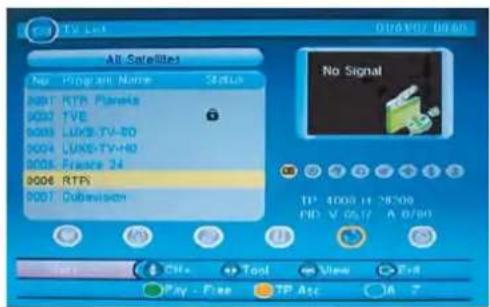
text_image
All Satellites No Program Name Status 0001 RTR Planets 0002 TVE 0003 LIME-TV-80 0004 UWEI-TV-H0 0005 France 24 0006 RTPS 0007 Duboisson No Signal TP: 1000 H 28:00 HD: V 05/7 A 07:00 Play - Free TP Asc A ?Delete: Press ◀ button to select Delete, press OK key to delete the selected channel. Press GREEN button to delete all channels.
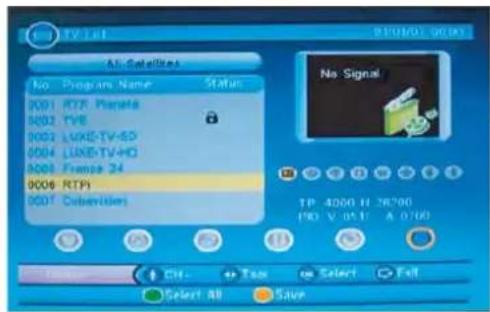
text_image
TV 161 SUN01 00:00 All Satellites No Program Name Status 9001 RTP Panama 9002 FVE 9003 LUXE-TV-5D 9004 LUXE-TV+HO 9005 France 24 9006 RTP 9007 Subellites No Signal TP 4000 H 28.200 (90 V 0.5 V A 0.5/6) Select All SaveTV Guide
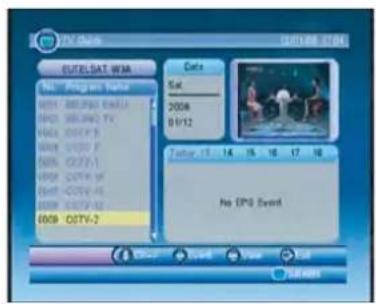
Select TV Guide and press OK key to enter TV Guide menu, in this menu, you can view the channel guide.
text_image
TV Guide 2011-08 27:04 EQUISAT WM Sat: Sat: 2006 B1/12 2006 B1/12 No EPS Event Add... Event View Add... Add... Add... Add... Add...Press Guide button to enter the program guide. Press ▲▼ to select a program. Press Red button to book the program for recording.
3) MULTIMEDIA
In MAIN MENU screen, press ◀▶ to select MULTIMEDIA, this menu consists of the "My Album", "My Music", "My Movie" and "My Recorder".
You can also select this menu directly from viewing mode by the Media key (Yellow button)
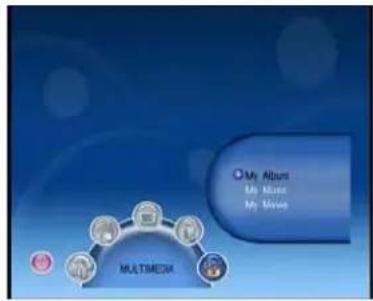
text_image
My Album My Music My Movies MULTIMEDIAMy Album
Select My Album and press OK key, then press BLUE button to choose you photo folder, select a photo and press OK key to view.
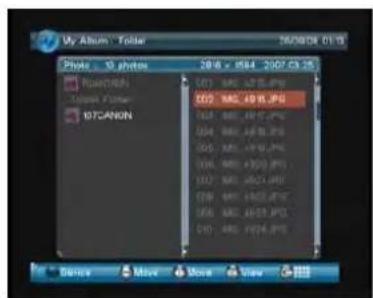
text_image
My Album® Folder 10 photos 20/6 x 1844 2007/03/25 NATIONAL Image Color PTCANON 102 MAC 49.8.jpg 103 MAC 49.8.jpg 104 MAC 49.8.jpg 105 MAC 49.8.jpg 106 MAC 49.8.jpg 107 MAC 49.8.jpg 108 MAC 49.8.jpg 109 MAC 49.8.jpg 110 MAC 49.8.jpgMy Music
Select My Music and press OK key to enter, press ▲▼ button to choose a song, press OK or RED button to play, in playing, press RED button to pause, press GREEN button to stop, press YELLOW button to cycle and press BLUE button to speed
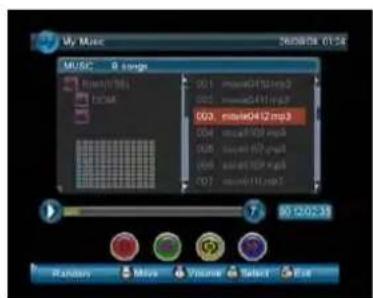
text_image
My Music MUSIC 0 songs 001 movie04/32.mp3 002 movie04/11.mp3 003 movie04/2.mp3 004 movie09/02.mp3 005 movie09/27.mp3 006 movie09/28.mp3 007 movie09/11.mp3 90:20:23 Playtime Miss Volume Select ExitMy Movie
Select "My Movie" and press the OK key. Select folder through Menu structure on the left of screen. Use the ▲▼ keys to select a movie file. Press the OK key to play selected file. Press ▲▼ keys to play the previous movie or next movie, press ◀▶ to change the volume.
My Record
This menu consists of three sub-menus; "Recorded List", "Recording Device" and "Recording Preference".
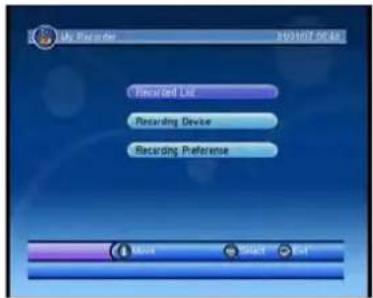
text_image
My Recorder 163107.20:48 Recorded List Recarding Device Recording Preference Music Start End
Recorded List (You can also enter this list directly using the SD2 button)
In this menu, you can view your record information and play your record. Press ▲▼ keys to select the program, and press OK key to play.
Recording Device: In this menu, you can view the recording device and format disk. Recording Preference: In this menu, you can setup the Recording Preference.
(Scheduled recordings List: You can see a list or recordings you have scheduled by Pressing the B button)
4) GAME
In MAIN MENU screen, press ◀▶ to select GAME, in this menu, you can play the game, view the calendar and use the calculator.
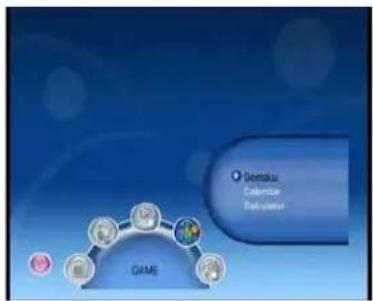
flowchart
graph TD
    A["Game"] --> B["GoNetzu Calendar"]
    B --> C["Calendar"]
    style A fill:#f9f,stroke:#333
    style B fill:#ccf,stroke:#333
    style C fill:#cfc,stroke:#333
TROUBLE SHOOTING GUIDE
To assist in locating possible faults use the help guide below.
| SYMPTOM SOLUTION | |
| No Picture, no sound | Check that the TV is correctly plugged in. Check that the TV is connected to a suitable power source. Check the electrical supply is turned on. |
| No Picture | Ensure that the TV is powered on. Check that the cables are fitted securely. Ensure the aerial and/or external sources are connected. Press the SOURCE button to change the source. Turn the TV on or off. |
| No Sound Press the MUTE button | and check if Mute mode is set. Switch to another channel and see if the same problem occurs. Press V+ button to see if the problem can be solved. |
| No picture on some channels Check that correct channel is selected. Adjust the antenna. | |
| No colour on some channels (black &white) | Check if the same problem exists on other channels. Ensure the correct picture settings are selected. |
| Noisy, Snowy, Ghosting picture. | Check the antenna is connected correctly. Check that the antenna Is in good condition. Try moving the antenna. |
If none of the suggestions seem to work, try switching your TV off and then on again. If this does not work contact our technical helpline.
NOTE: The TV must only be repaired by a qualified registered service person. Never attempt to remove the back cover as the TV has dangerous voltages inside that may cause fatality or fire.
TECHNICAL SPECIFICATIONS
Specifications of the TV that you have just purchased may vary from the information in this table due to technical innovations.
TV Specifications
| TV System PAL/BG/DK/I | |
| Audio System BG/DK/I | |
| Screen size 32” (Diagonal) | |
| Resolution 1920 x 1080 Pixels (RGB) | |
| Aerial input 75 Ohm (unbalanced) | |
| Audio output power 2 x 6W | |
| Power requirements 100-240V ~ 50/60Hz | |
| Power consumption < 120W | |
| Standby power consumption | <1W |
| Weight | 9.20 kg |
DVBS Specifications
| DVBS Module | YES |
| TV-Radio | YES |
| LNB | Universal / 22KHz / DiSeqC |
| LNB Power 500mA | |
| EPG | YES |
| Quick-start tuning | YES |
| Favorite list | YES |
| Multimedia playback | USB |
| Sockets | LNB in & out, USB |
| DVBS PVR Function | YES |
| Instant recording | YES |
| Timer recording | YES |
| Watch same bouquet while recording | YES |
| Recording media | YES |
Remote control specifications
| Type Infrared | |
| Control distance 5m | |
| Control angle 30 degrees (Horizontal) | |
| Batteries 2 x 1.5V, Size AAA | |
| Dimensions 48 x 193 x 20 mm | |
| Weight 120g (without batteries) | |
Wall Mounting
- The stand must first be removed. Place the TV face down.
- Remove the five screws on the back of the TV to release the remaining part of the stand.
- Remove and store the stand and screws.
- Use four machine screws to mount the TV on the bracket.
This unit is VESA-Compliant and designed to be wall mounted with a VESA-Compliant 100mm x 100 mm mounting kit. Mount this unit according to the instructions of the wall bracket (not supplied)
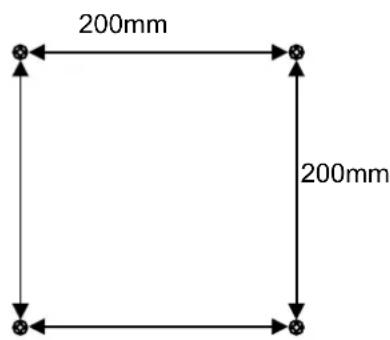
text_image
200mm 200mm4 Mounting holes Screw size MB5 x 25
Waste Electrical Recycling
Correct disposal of Product

This sign indicates that this product may not be disposed of with your regular household waste. The recycling and separate collection of such products is your responsibility. Please drop off the above mentioned waste at a designated place for recycling waste electrical and electronic equipment. If you do not know where to drop off your waste equipment for recycling, please contact your local city office or household waste collection service.
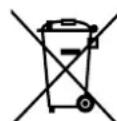
The crossed out wheeled dust bin symbol indicates that batteries and/or accumulators must be collected and disposed of separately from household waste.
Hg Cd Pb
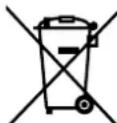
If the battery or accumulator contains more than the specified values of lead (Pb), mercury (Hg), and/or cadmium (Cd) defined in the Battery Directive (2006/66/EC), then the chemicals Hg Cd Pb symbols for lead(Pb), mercury (Hg) and/or cadmium (Cd) will appear below the crossed out wheeled dust bin symbol.
By participating in separate collection of batteries, you will help to assure the proper disposal of products and batteries thus help to prevent potential negative consequences for the environment and human health.
For more detailed information about the collection and recycling programmes available in your country, please contact your local city office or the shop where you purchased this product.

This appliance complies with European Safety and Electrical directives. It fulfils the following EU regulations:
En55013:2001+A1:2003+A2:2006
EN55020: 2007
EN61000-3-2: 2006 EN61000-3-3:1995+A1:2001+A2:2005
EN55022:2006(CLASS-A)
EN55024:1998+A1:2001+A2:2003
Manufacturer:
D-66780 Rehlingen-Siersburg (Germany)
Fon: +49(0)6835 92350-0
Fax: +49(0)6835 92350-500
_
| _
一
1
Contenu
PRÉCAUTIONS D'EMPLOI ....3
natural_image
Diagram of a remote control panel with battery, battery pack, and two batteries (no text or labels)Modification programme
natural_image
Front view of a silver convertible sports car (no visible text or symbols)text_image
I Starting Form To customize your workspace, store can Find and record bookmark. Panel and Property Panel to any local position of the page. Note for ways for not dilling the feature or to get it out of the web. create It
text_image
[00:00:15] Live FB FT Pabc Sat Face Stop ID:00:1248 1 BBC ONE 1311text_image
CONFIGURATION: Installation 2019/07/2019 Regulate On Non antenna Configuration IP Replace Select Closetext_image
COMPUTATION - Inhibitor / Mac device NO. No. No. No. No. No. No. No. No. No. No. No. No. No. No. No. No. No. No. No. No. No. No. No. No. No. No. No. No. No. No. No. No. No. No. Type: LNB Type: LNB LNP Type: LNB LNB Type: LNB LNB Type: LNB LNB Type: LNB LNB Type: LNB LNB Type: LNB LNB Type: LNB LNB Type: LNB LNB Type: LNB LNB Type: LNB LNB Type: LNB LNB Type: LNB LNB Type: LNB LNB Type: LNB LNB Type: LNB LNB TYPE: 0% QUANTITY: 0% Status: Status OK/OK/OKtext_image
CONFIGURATION: Installation 1 (Start, End, 00:00:00) Name: C#5 Position: 00:00:00 Position: 00:00:00 Position: 00:00:00 Position: 00:00:00 Position: 00:00:00 Position: 00:00:00 Position: 00:00:00 Position: 00:00:00 Position: 00:00:00 Position: -1 Position: -2 Position: -3 Position: -4 Position: -5 Position: -6 Position: -7 Position: -8 Position: -9 Position: -10 Position: -11 Position: -12 Position: -13 Position: -14 Position: -15 Position: -16 Position: -17 Position: -18 Position: -19 Position: -20 Position: -21 Position: -22 Position: -23 Position: -24 Position: -25 Position: -26 Position: -27 Position: -28 Position: -29 Position: -30 Position: -31 Position: -32 Position: -33 Position: -34 Position: -35 Position: -36 Position: -37 Position: -38 Position: -39 Position: -40 Position: -41 Position: -42 Position: -43 Position: -44 Position: -45 Position: -46 Position: -47 Position: -48 Position: -49 Position: -50 Position: -51 Position: -52 Position: -53 Position: -54 Position: -55 Position: -56 Position: -57 Position: -58 Position: -59 Position: -60 Position: -61 Position: -62 Position: -63 Position: -64 Position: -65 Position: -66 Position: -67 Position: -68 Position: -69 Position: -70 Position: -71 Position: -72 Position: -73 Position: -74 Position: -75 Position: -76 Position: -77 Position: -78 Position: -79 Position: -80 Position: -81 Position: -82 Position: -83 Position: -84 Position: -85 Position: -86 Position: -87 Position: -88 Position: -89 Position: -90 Position: -91 Position: -92 Position: -93 Position: -94 Position: -95 Position: -96 Position: -97 Position: -98 Position: -99 Position: -100text_image
NONE TURN ON No table found in the table: None table found in the table: Add to 80.00 Add to 100.00 Add to 120.00 Add to 140.00 Add to 160.00 Add to 180.00 Add to 200.00 Add to 220.00 Add to 240.00 Add to 260.00 Add to 280.00 Add to 300.00 Add to 320.00 Add to 340.00 Add to 360.00 Add to 380.00 Add to 400.00 Add to 420.00 Add to 440.00 Add to 460.00 Add to 480.00 Add to 500.00 Add to 520.00 Add to 540.00 Add to 560.00 Add to 580.00 Add to 600.00 Add to 620.00 Add to 640.00 Add to 660.00 Add to 680.00 Add to 700.00 Add to 720.00 Add to 740.00 Add to 760.00 Add to 780.00 Add to 800.00Configuration TV
text_image
Video TV 7:00:TVListe TV
text_image
200mm 200mmSlot Common Interface....13
UTILIZZARE LO SLOT COMMON INTERFACE....13
(DVD*, iPlayer, PVR, EPG)
(DVD*, iPlayer, PVR, EPG)
A. - PVR 1 Elenco programma (TV)
B. - PVR 2 Elenco programma (SAT)
Tasti virtuali
natural_image
Diagram of a remote control panel with battery, battery pack, and two labeled components (no text or symbols)Uso del telecomando
Slot Common Interface
UTILIZZARE LO SLOT COMMON INTERFACE Common Interface
text_image
BLOCCA Set Password BLOCCA programma Gutis parentale Key Lock Off OffMENU IMPOSTAZIONI
text_image
Modifica programma 1 C-04 ATV 2 S-44 ATV 3 C-05 ATV Delete Resume Move SkinSist. file PVR: Imposta Sistema file PVR
Rapporto del formato: AUTO, 4:3, 16:9, Zoom1, Zoom2, Solo scan e Panorama
natural_image
Blue and silver convertible sports car on display with camera interface buttons (no readable text or symbols)text_image
I Chating Fees to customize your workspace, tools can Find and move a bookmark. Realistic Property Fees to any ideal position of the page. What is sure the net nothing the features or to get it out of the web. realistic! Radio mask, Printers Pi, Rev, Next, Stop, Notice, Playlist, On!
| Ei progr. | 13.12 20th Uqj | Delete | ||
| Ora | Data | Programme Title | Channel Name | |