USER MANUAL DeskJet 3634 AllinOne HP
- Follow the illustrations on the setup flyer to set up your printer.
- Visit 123. hp.com/dj3630 to install the mobile app or HP printer software and connect the printer to your network.
Note: For Windows® users, If your computer is not connected to the Internet, insert the printer software CD into your computer. If the installation program does not start, browse to Computer, double-click the CD/DVD drive icon with the HP logo, and then double-click setup.exe.
Learn more
Electronic Help: Install the electronic Help by selecting it from the recommended software during software installation. Learn about product features, printing, troubleshooting, and support. Find notices, environmental, and regulatory information, including the European Union Regulatory Notice and compliance statements, in the Technical Information section.
- Windows® 8.1: Click the down arrow in lower left corner of the Start screen, select the printer name, click Help, and then select Search HP Help.
- Windows® 8: On the Start screen, right-click an empty area on the screen, click All Apps on the app bar, click the icon with the printer's name, and then click Help.
- Windows® 7, Windows Vista®, and Windows® XP: Click Start, select All Programs, select HP, and then select the printer name.
- OS X: Click Help > Help Center. In the Help Viewer window, click Help for all your apps, and then click the Help for your printer.
Readme: Contains HP support information, operating system requirements, and recent printer updates.
- Windows: Insert the software CD in your computer, and then browse to the ReadMe.chm file. Double-click ReadMe.chm to open, and then select the ReadMe in your language.
- Mac: Open the Documents folder located at the top-level of the software installer. Double-click ReadMe, and then select the ReadMe in your language.
On the Web: Additional help and information: www.hp.com/go/support. Printer registration: www.registerer.hp.com. Declaration of Conformity: www.hp.eu/certificates. Ink usage: www.hp.com/go/inkusage.
Scan to find out more!
Standard data rates may apply. Might not be available in all languages.



www.hp.com/eu/m/DJ3630

The information contained herein is subject to change without notice.

Printed in [English]
© 2014 Hewlett-Packard Development Company, L.P.
Control Panel
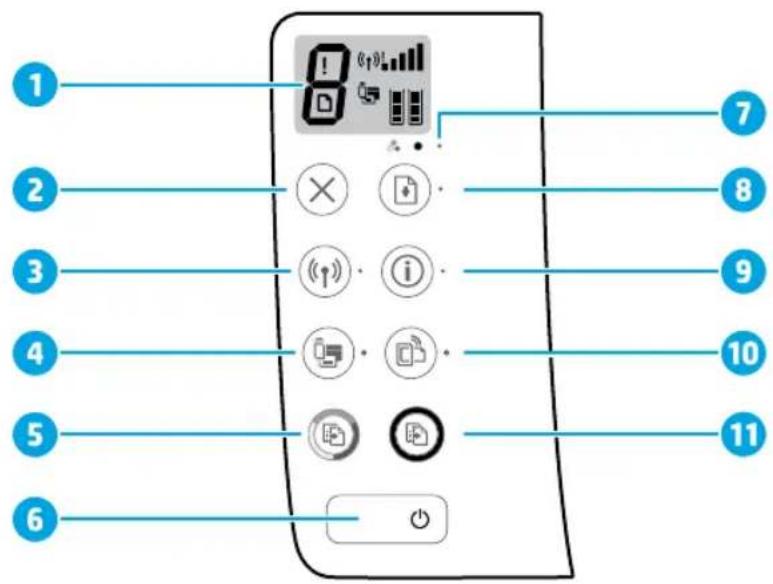
1 Control panel display: Indicates number of copies, media errors, wireless status and signal strength, Wi-Fi Direct status, and ink levels.
2 Cancel button: Stops the current operation.
Wireless button: Turns on or off the printer wireless capabilities.
3 Wireless light: Indicates whether the printer is connected to a wireless network or not. A blinking light indicates that wireless has not been setup or that the printer is attempting to connect.
Wi-Fi Direct button: Turns on or off Wi-Fi Direct.
4 Wi-Fi Direct light: Indicates the on or off status of Wi-Fi Direct. A blinking light indicates that the printer is connecting to a mobile device in the Wi-Fi Protected Setup (WPS) push mode or there is a problem of the Wi-Fi Direct connection.
Start Copy Color button: Starts a color copy job. To increase the number of color copies, press the button multiple times. Copying will start two seconds after the last button press.
6 Power button: Turns the printer on or off.
7 Ink Alert light: Indicates low ink or ink cartridge problems.
Resume button: Resumes a job after a disruption (for example, after loading paper or clearing a paper jam).
Resume light: Indicates that you can press the Resume button to assist in solving a problem.
Information button:Prints out a printer information page. Press the button in combination with the Wireless button, the Wi-Fi Direct button, or the HP ePrint button to get more specific help pages tied to each of those buttons.
Information light: Indicates that you can press the Information button to get help for a warning or error.
HP ePrint button: Turns HP ePrint on or off.
HP ePrint light: Indicates the on or off status of HP ePrint. A blinking light indicates a problem with the connection to Web Services.
Start Copy Black button: Starts a black-and-white copy job. To increase the number of black-and-white copies, press the button multiple times. Copying will start two seconds after the last button press.
Basic Troubleshooting
If you are unable to print:
- Make sure the power cord connections are secure and the printer is powered on. The Power button will be lit.
- If your computer is connected to the printer with a USB cable, make sure the USB connections are secure. If your computer is connected to the printer with a wireless connection, confirm that the wireless connection is working.
- Visit the HP Diagnostic Tools website at www.hp.com/go/tools to download free diagnostic utilities (tools) that you can use to fix common printer problems.
Make sure that the printer is set as your default printing device:
- Windows 8.1 and Windows 8: Point to or tap the upper-right corner of the screen to open the Charms bar, click the Settings icon, click or tap Control Panel, and then click or tap View devices and printers.
- Windows 7: From the Windows Start menu, click Devices and Printers.
- Windows Vista: On the Windows taskbar, click Start, click Control Panel, and then click Printer.
- Windows XP: On the Windows taskbar, click Start, click Control Panel, and then click Printers and Faxes.
Make sure that your printer has a check mark in the circle next to it. If your printer is not selected as the default printer, right-click the printer icon and choose Set as Default Printer from the menu.
If using a USB cable and you are still unable to print, or the software installation fails:
- Remove the CD from the CD/DVD drive, and then disconnect the USB cable from the computer.
- Restart the computer.
- Insert the printer software CD in the CD/DVD drive, and then follow the on-screen instructions to install the printer software. Do not connect the USB cable until you are told to do so.
- After the installation finishes, restart the computer.
If you are using wireless and you are still unable to print:
Go to the "Wireless Networking" section on the next page for more information.
MacWindows
Check your print queue:
- In System Preferences, click Printers & Scanners (Print & Scan in OS X v10.8 Mountain Lion).
- Click Open Print Queue.
- Click a print job to select it.
-
Use the following buttons to manage the print job:
-
Cancel icon: Cancel the selected print job.
-
Resume: Continue a paused print job.
-
If you made any changes, try to print again.
Restart and reset:
- Restart the computer.
- Reset the printer.
a. Turn off the printer and unplug the power cord.
b. Wait a minute, then plug the power cord back in and turn on the printer.
Reset the printing system:
- In System Preferences, click Printers & Scanners (Print & Scan in OS X v10.8 Mountain Lion).
- Press and hold the Control key as you click the list at the left, and then choose Reset printing system.
- Add the printer you want to use.
Uninstall the software:
- If the printer is connected to your computer through USB, disconnect the printer from your computer.
- Open the Applications/Hewlett-Packard folder.
- Double-click HP Uninstaller, and then follow the on-screen instructions.
Acknowledgements
Windows XP, Windows Vista, Windows 7, Windows 8, and Windows 8.1 are U.S. registered trademarks of Microsoft Corporation.
Mac, OS X, and AirPrint are trademarks of Apple Inc., registered in the U.S. and other countries.
Wireless Networking
You can connect your printer to a wireless network during the printer software installation.
Note: During the software installation, a USB cable might be required for temporary connection between the printer and the computer. Do not connect the USB cable until the printer software prompts to do so.
Tip: To print a wireless quick start guide, press the Information button (i) for three seconds.
Need networking help?
www.hp.com/go/wirelessprinting
The HP Wireless Printing Center at www.hp.com/go/wirelessprinting can help you prepare your wireless network, set up or reconfigure your printer, and troubleshoot networking problems.
If connecting your printer to the network was unsuccessful
- Confirm that wireless is enabled on your printer.
From the printer control panel, if the Wireless light is off, press the Wireless button (()) to turn on the printer wireless capabilities.
-
Confirm that your printer is connected to your network.
-
From your printer control panel, press the Wireless button (p) and the Information button (b) the same time to print the wireless network test report and network configuration page.
- Check the top of the wireless network test report to see if something failed during the test.
See the DIAGNOSTICS RESULTS section for all tests that were performed, to determine whether or not your printer passed.
- From the CURRENT CONFIGURATION section, find out the Network Name (SSID) to which your printer is currently connected. Make sure that the printer is connected to the same network as your computer.
Note: If your computer is connected to a Virtual Private Network (VPN), temporarily disconnect from the VPN before proceeding with the installation. After installation you will need to disconnect from the VPN to access your printer over your home network.
- Make sure security software is not blocking communication over your network.
Security software, such as firewalls, can block communication between your computer and printer when installing over a network. If your printer cannot be found, temporarily disable your firewall and check if the problem goes away. For more help and tips on security software, go to: www.hp.com/go/wpc-firewall.
- Restart components of the wireless network.
Turn off the router and the printer, and then turn them back on in this order: router first and then printer. Sometimes, turning off devices and then turning them back on helps resolve network communication issues. If you still cannot connect, turn off the router, the printer, and the computer, and then turn them back on in this order: router first, then printer, and then computer.
If you still have problems, visit the HP Wireless Printing Center (www.hp.com/go/wirelessprinting). This website contains the most complete, up-to-date information about wireless printing, as well as information to help you prepare your wireless network; solve problems when connecting the printer to the wireless network; and resolve security software issues.
Note: If you are using a computer running Windows, you can use the Print and Scan Doctor tool, which can help solve many problems you might have with the printer. To download this tool, visit www.hp.com/go/tools.
If you want to share your printer with multiple computers on your network
First install your printer on your home network. After you have successfully connected your printer to your home network, you can share your printer with other computers on the same network. For each additional computer you only need to install the HP printer software. During the software installation, select Wireless from the Connection Options screen and then follow the on-screen instructions.
Wireless Networking (continued)
If you want to change from a USB connection to a wireless connection
First make sure that you have already successfully installed your printer software.
Windows
-
Double-click the printer icon on the desktop or do one of the following to open the printer software:
-
Windows 8.1: Click the down arrow in lower left corner of the Start screen, and then select the printer name.
- Windows 8: Right-click an empty area on the Start screen, click All Apps on the app bar, and then select the printer name.
-
Windows 7, Windows Vista, and Windows XP: From the computer desktop, click Start, select All Programs or Programs, click HP, click the folder for the printer, and then select the icon with the printer's name.
-
In the printer software, click Utilities.
- Select Printer Setup & Software.
- Select Convert a USB connected printer to wireless. Follow the on-screen instructions.
Mac
Use HP Utility in Applications/Hewlett-Packard to change the software connection to wireless for this printer.
If you want to use the printer wirelessly without a router
Use Wi-Fi Direct to print wirelessly without a router, from your computer, smartphone, or other wireless enabled device. To use Wi-Fi Direct from a computer, the printer software must be installed on the computer.
- If the Wi-Fi Direct light on the printer is off, press the Wi-Fi Direct button ( ) to turn on Wi-Fi Direct.
The Wi-Fi Direct light is on when Wi-Fi Direct is turned on.
- Press the Wi-Fi Direct button (O) and the Information button (together to print a Wi-Fi Direct guide.
- Follow the instruction on the Wi-Fi Direct guide to connect your computer or mobile device to the printer.
- Print as you normally do from your computer or mobile device.
Note: Wi-Fi Direct connection does not provide Internet access.
Visit the HP Wireless Printing Center at www.hp.com/go/wirelessprinting for more information about Wi-Fi Direct.
This product is designed for use in open environments (e.g., in homes and not connected to the public Internet) in which anyone may access and use the printer. As a result, the Wi-Fi Direct setting is in "Automatic" mode by default, without an administrator password; this allows anyone in wireless range to connect and access all functions and settings of the printer. If higher security levels are desired, HP recommends changing the Wi-Fi Direct Connection Method from "Automatic" to "Manual" and establishing an administrator password.
If you want to print with AirPrint
This printer is Apple AirPrint™-enabled. You can print wirelessly from your iOS device or Mac.
- Your printer and iOS device or Mac must be on the same wireless network.
- With Apple AirPrint™, you cannot scan documents from the printer to your iOS device.
Note: Always make sure that the input tray is loaded with the desired paper.
Use only with the power cord and power adapter (if provided) supplied by HP.
HP printer limited warranty statement
| HP product Duration of limited warranty | |
| Software Media 90 days | |
| Printer 1 year hardware warranty | |
| Print or Ink cartridges Until the HP ink is depleted or the "end of warranty" date printed on the cartridge has been reached, whichever that have been refilled, remanufactured, refurbished, misused, or tampered with. | occurs first. This warranty does not cover HP ink products |
| Printheads (only applies to products with customer 1 year replaceable printheads) | |
| Accessories 1 year unless otherwise stated | |
A. Extent of limited warranty
- Hewlett-Packard (HP) warrants to the end-user customer that the HP products specified above will be free from defects in materials and workmanship for the duration specified above, which duration begins on the date of purchase by the customer.
- For software products, HP's limited warranty applies only to a failure to execute programming instructions. HP does not warrant that the operation of any product will be interrupted or error free.
- HP's limited warranty covers only those defects that arise as a result of normal use of the product, and does not cover any other problems, including those that arise as a result of:
a. Improper maintenance or modification;
b. Software, media, parts, or supplies not provided or supported by HP;
c. Operation outside the product's specifications;
d. Unauthorized modification or misuse.
- For HP printer products, the use of a non-HP cartridge or a refilled cartridge does not affect either the warranty to the customer or any HP support contract with the customer. However, if printer failure or damage is attributable to the use of a non-HP or refilled cartridge or an expired ink cartridge, HP will charge its standard time and materials charges to service the printer for the particular failure or damage.
- If HP receives, during the applicable warranty period, notice of a defect in any product which is covered by HP's warranty, HP shall either repair or replace the product, at HP's option.
- If HP is unable to repair or replace, as applicable, a defective product which is covered by HP's warranty, HP shall within a reasonable time after being notified of the defect, refund the purchase price for the product.
- HP shall have no obligation to repair, replace, or refund until the customer returns the defective product to HP.
- Any replacement product may be either new or like-new, provided that it has functionality at least equal to that of the product being replaced.
- HP products may contain remanufactured parts, components, or materials equivalent to new in performance.
- HP's Limited Warranty Statement is valid in any country where the covered HP product is distributed by HP. Contracts for additional warranty services, such as on-site service, may be available from any authorized HP service facility in countries where the product is distributed by HP or by an authorized importer.
B. Limitations of warranty
TO THE EXTENT ALLOWED BY LOCAL LAW, NEITHER HP NOR ITS THIRD PARTY SUPPLIERS MAKES ANY
OTHER WARRANTY OR CONDITION OF ANY KIND. WHETHER EXPRESS OR IMPLIED WARRANTYES OR
CONDITIONS OF MERCHANTABILITY, SATISFACTORY QUALITY, AND FITNESS FOR A PARTICULAR PURPOSE.
C. Limitations of liability
- To the extent allowed by local law, the remedies provided in this Warranty Statement are the customer's sole and exclusive remedies.
- TO THE EXTENT ALLOWED BY LOCAL LAW, EXCEPT FOR THE OBLIGATIONS SPECIFICALLY SET FORTH IN THIS WARRANTY STATEMENT, IN NO EVENT SHALL HP OR ITS THIRD PARTY SUPPLIERS BE LIABLE FOR DIRECT, INDIRECT, SPECIAL, INCIDENTAL, OR CONSEQUENTIAL DAMAGES, WHETHER BASED ON
CONTRACT, TORT, OR ANY OTHER LEGAL THEORY AND WHETHER ADVISED OF THE POSSIBILITY OF SUCH DAMAGES.
D. Local law
- This Warranty Statement gives the customer specific legal rights. The customer may also have other rights which vary from state to state in the United States, from province to province in Canada, and from country to country elsewhere in the world.
- To the extent that this Warranty Statement is inconsistent with local law, this Warranty Statement shall be deemed modified to be consistent with such local law. Under such local law, certain disclaimers and limitations of this Warranty Statement may not apply to the customer. For example, some states in the United States, as well as some governments outside the United States (including provinces in Canada), may:
a. Preclude the disclaimers and limitations in this Warranty Statement from limiting the statutory rights of a consumer (e.g., the United Kingdom);
b. Otherwise restrict the ability of a manufacturer to enforce such disclaimers or limitations; or
c. Grant the customer additional warranty rights, specify the duration of implied warranties which the manufacturer cannot disclaim, or allow limitations on the duration of implied warranties.
- THE TERMS IN THIS WARRANTY STATEMENT, EXCEPT TO THE EXTENT LAWFULLY PERMITTED, DO NOT
EXCLUDE, RESTRICT, OR MODIFY, AND ARE IN ADDITION TO, THE MANDATORY STATUTORY RIGHTS
APPLICABLE TO THE SALE OF THE HP PRODUCTS TO SUCH CUSTOMERS.
HP Limited Warranty
Complimentary Support: 365 days of online chat support and 90 days of phone support (both from date of purchase). In regions outside of the US where chat support is not available, phone support will be provided for 365 days. Support includes general troubleshooting related to setup, installation, assembly and connectivity. You may also refer to the HP Support Website (www.hp.com/support) for additional information. During the term of HP's limited warranty, you may contact your authorized HP reseller or HP authorized service provided for additional information about support.
The name and address of the HP entity responsible for the performance of the HP Limited Warranty in your country is as follows:
United Kingdom : Hewlett-Packard Ltd Cain Road Bracknell GB-Berks RG12 1HN
Eire : Hewlett-Packard Ireland Limited, 63-74 Sir John Rogerson's Quay, Dublin 2
Malta: Hewlett-Packard International Trade B.V. Malta Branch, 48, Amery Street, Sliema SLM 1701, MALTA
You may have additional statutory rights against the seller based on your purchase agreement. Those rights are not in any way affected by this HP Limited Warranty.
Erste Schritte
www.hp.com/go/wirelessprinting
Bouton Wi-Fi Direct: active ou désactive Wi-Fi Direct.
www.hp.com/go/wirelessprinting
www.hp.com/go/wirelessprinting
www.hp.com/go/wirelessprinting
www.hp.com/go/wirelessprinting
www.hp.com/go/wirelessprinting
www.hp.com/go/wirelessprinting
www.hp.com/go/wirelessprinting
www.hp.com/go/wirelessprinting
www.hp.com/go/wpc-firewall.
www.hp.com/go/wirelessprinting
www.hp.com/go/wirelessprinting
www.hp.com/go/wirelessprinting
HP bezvadu drukasanas centra vietne www.hp.com/go/wirelessprinting var iegut informaciju par bezvadu tikla sagatavoisanu, printera iestatisanu vai parkonfiguresanu un tiklosanas problemu noverstanu.
www.hp.com/go/wirelessprinting
HP belaidzio ryso spausdinimo centre adresu www.hp.com/go/wirelessprinting jums gali buti suteikta pagalba ruosiant belaidzio ryso tinkla, nustatant arba iis naujo konfiguruojant spausdintuvir salinant tinklo problemas.