
CoPilot Pocket PC6 - Browser ACER - Free user manual and instructions
Find the device manual for free CoPilot Pocket PC6 ACER in PDF.


| Product type | Satellite navigation kit |
| Brand | Acer |
| Model | CoPilot Pocket PC6 |
| Compatibility | Acer n300, c510, c530 |
| Kit contents | SD memory card (preloaded maps), installation CD-ROM, 2 data CD-ROMs, car charger, car mounting kit, Holux GPS-236 Bluetooth receiver, TMC FM9 cable (optional) |
| Main functions | GPS navigation with voice guidance, calculated route, points of interest, multiple stop management, route optimization |
| Connectivity | Bluetooth (for external GPS receiver), SD slot for memory card |
| Power supply | Car charger (cigarette lighter) |
| Advanced options | Real-time traffic information via TMC (with optional FM9 cable) |
| Navigation modes | Navigation (vehicle), Pedestrian, Planning |
| Destination entry | Address, home/work, favorites, recent, Outlook contact, point of interest, zip code (United Kingdom), map selection, intersection, GPS coordinates, saved route |
| Installation | Insert the SD card for automatic installation; software and maps preloaded |
| Support | Acer technical support for hardware failures; CoPilot support for navigation issues (contact details on www.alk.com/acer) |
| Note | The Acer c510 and c530 models have a built-in GPS receiver; the n300 requires the Holux GPS-236 Bluetooth receiver |
Frequently Asked Questions - CoPilot Pocket PC6 ACER
User questions about CoPilot Pocket PC6 ACER
0 question about this device. Answer the ones you know or ask your own.
Ask a new question about this device
Download the instructions for your Browser in PDF format for free! Find your manual CoPilot Pocket PC6 - ACER and take your electronic device back in hand. On this page are published all the documents necessary for the use of your device. CoPilot Pocket PC6 by ACER.
USER MANUAL CoPilot Pocket PC6 ACER
CoPilot Pocket PC6
Satellite Navigation Quickstart Guide
EN/FR/DE/ES/IT/NL
CoPilot Satellite Navigation Kit
CoPilot Satellite Navigation Kit for Acer n300, c510 or c530
Your CoPilot kit contains the following:
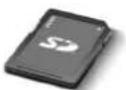
SD storage card pre-loaded with single region or pan-European maps
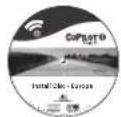
1 x installation CD (single region or pan-European)
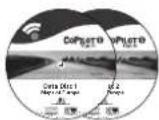
2 x data CDs
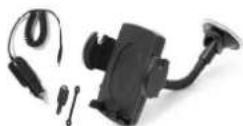
n300 car charger and n300 car mount kit
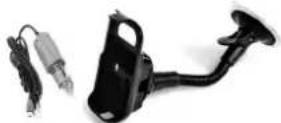
c500 series car charger and c500 series car mount kit
EN
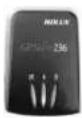
Bluetooth receiver
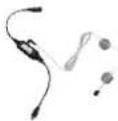
FM9 cable
Optional accessory. n300 car charger and converter varies between standard GPS and TMC models. Not included with Acer c510 or c530. Note: All images are for illustration purposes and are subject to change.
22 CoPilot Pocket PC 6
Acer n300, c510 and c530 Edition


Getting Started
Setting up your Acer n300, c510 or c530
Set up your Acer PDA following the instructions as described in the PDA's manual.
Please ensure your Acer PDA's battery is fully charged.
Set the correct date and time on your Acer PDA for optimum performance.
Installing CoPilot on your Acer n300, c510 or c530 CoPilot software and maps is pre-loaded on the CoPilot storage card.
Simply insert the card into the SD card slot of the Acer PDA. Installation will begin automatically.
Follow the on-screen steps:
Safety and license agreement: Select 'I accept' GPS technology information: Select 'OK' Installation of the CoPilot Pocket PC application will commence. Select 'Device' as the location to install the CoPilot Pocket PC application. Press 'Install'.
Note: If set-up does not automatically run after inserting the card, select Windows Start > Programs > File Explorer then browse to the storage card and select the "2577" folder and press 'Autorun'.

User Interface and Keys User Interface and Keys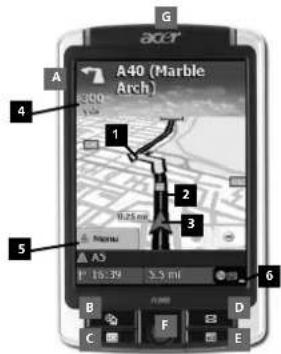
Acer n300 series
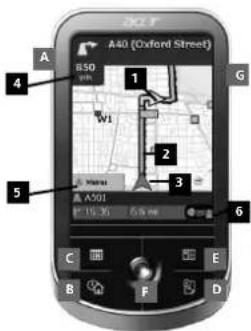
Acer c500 series
EN
CoPilot user interface
1 Next turn arrow 2 Route ahead highlighted 3 Driver's current position 4 Distance to next turn 5 CoPilot Menu button 6 GPS status indicator
Acer n300/c500 series keys
A Power button B Today button C Calendar button D Messaging button E Contacts button F 5-way joystick G SD memory card slot


GPS Set-up
CoPilot uses Global Positioning Satellites (GPS) to locate your position on a map and to provide turn-by-turn guidance to a destination.
Note: Please see instructions below for Acer n300. Please refer to page 6 for instructions on setting up Acer c510 and c530 devices.
Instructions for Acer n300
It is essential that you connect a Holux GPS-236 Bluetooth receiver with your Acer n300 to obtain a GPS fix so you can enjoy satellite navigation on your device. Press the grey Bluetooth symbol in the bottom right corner of the Windows Start screen and select 'Turn Bluetooth ON' from the pop-up menu. The Bluetooth symbol will turn blue to indicate that it is switched on. If you have the optional GNS FM9 TMC cable, attach it now. Otherwise, proceed to the next step. Switch on your Holux GPS-236 Bluetooth receiver. Launch CoPilot by selecting Windows Start > Programs and then select the 'CoPilot' icon. After several seconds delay, you will be asked in a pop-up screen to select your Bluetooth device. Select 'Holux GPSlim236'.
GPS Set-up
Instructions for Acer c510 and c530
The Acer c510 and c530 have an integrated GPS receiver which allows you to obtain a GPS fix so you can enjoy satellite navigation on your device. Launch CoPilot by selecting Windows Start > Programs and then select the 'CoPilot' icon. If you have the optional GNS FM9 TMC cable, attach it now.
Connecting a GNS FM9 TMC cable (By Model) If you have the optional GNS FM9 TMC cable you can receive real-time traffic information via TMC.
The GNS FM9 TMC cable attaches to the n300/c510/c530 car charger which connects to your Acer PDA.
CoPilot will search for TMC channels and report traffic information.
63 CoPilot Pocket PC 6
Acer n300, c510 and c530 Edition


CoPilot Menus
Take a look at the CoPilot Home Screen
The 'Home' screen is displayed when you first launch CoPilot, or it can be accessed by selecting Menu > Options > Home.
Home screen menu options are:
Going To to enter a destination and receive guidance Start Demo to view a CoPilot demonstration to see CoPilot navigate to a pre-defined location Help topics about basics such as entering a destination and GPS setup Settings to customise advanced Routing options, change Guidance, Map and Language options. Plus, additional settings to enable/disable Points of Interest (POIs) and safety camera alerts GPS for setting up an integrated/Bluetooth receiver.

CoPilot Menu Button
Press the 'Menu' button to access the following sub-menus:
View allows you to change between a choice of 6 driving views Trip enables you to enter a new destination, edit an existing destination, add additional destinations and access saved trips. Mode is used to set CoPilot for Guidance, Walking or Planning purposes Traffic incidents along your planned route are reported into CoPilot using a TMC data feed (optional) Options to run the CoPilot demonstration, use the CoPilot Help and Tutorial functions, and read CoPilot license information Quit CoPilot to close and exit the program.


Navigating to a destination

Navigating to a Destination
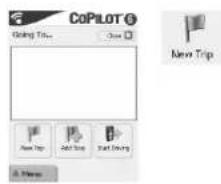
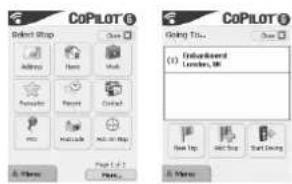
Select 'Going To' from the 'Home' screen. In the 'Going To' screen, press the 'New Trip' button.
The 'Select Stop' screen will be displayed and provides you with several different ways to enter a destination.
Enter an Address, Your Home or Work address, Favourites, Recent places, An Outlook Contact, A Point of Interest.
A UK Postcode, Pick a point on a map, Intersection/cross roads, A Latitude/Longitude, Enter a previously Saved Trip.
The destination(s) entered for your journey will be displayed in the 'Going To' screen.
You can enter multiple destinations and optimise your journey by selecting a destination in the 'Going To' screen and pressing 'Optimise Stops' from the pop-up menu.
Once you have finished entering your stops, select 'Start Driving'.
8 CoPilot Pocket PC 6
Acer n300, c510 and c530 Edition


CoPilot Satellite Navigation Kit
Acer n300 - Instructions
Acer c500 Series

Acer Support Services

Acer Support Services
Hardware Support
If you experience hardware issues with your system, e.g. problems with the device or the GPS Receiver not acquiring a satellite fix, please contact Acer Technical Support. Details are available in the device QuickStart guide and Acer Warranty booklet.
Navigation Support
For problems relating to CoPilot Navigation, e.g. navigating to a destination or downloading map data, please contact one of the following telephone numbers listed below (see next page).
Hardware Assistance
Acer Support Services
For more information about CoPilot Navigation and map upgrades visit www.alk.com/acer
Brand : ACER
Model : CoPilot Pocket PC6
Category : Browser