
D100 - Browser ACER - Free user manual and instructions
Find the device manual for free D100 ACER in PDF.


| Product Type | Portable GPS Navigator |
| Dimensions (L x W x H) | 97.6 x 113 x 50 mm (3.8 x 4.4 x 2.0 in) |
| Weight | 300 g (10.6 oz) |
| Power Source | Rechargeable 2200 mAh Lithium Ion battery; AC adapter, car charger, USB cable |
| Battery Life | Up to 10 hours of operation (backlight off) |
| Charging Time | 6 hours from empty to full capacity |
| Processor | Samsung S3C2410 266 MHz application processor |
| Operating System | Microsoft Windows CE .NET 4.2 |
| GPS Chipset | SiRF Star II LP with Xtrac v2 firmware |
| Display | 3.5-inch 200-nit QVGA TMR LCD touch screen (320 x 240, 65,536 colors) |
| Memory | 64 MB SDRAM (system memory), 32 MB onboard flash (OS and embedded apps) |
| Navigation Software | Destinator DS with NAVTEQ digital map database |
| Multimedia | MP3 player (MP3, WMA, WAV), Photo viewer (JPEG, BMP) |
| Connectivity | USB 1.1, SD/MMC card slot, 3.5 mm earphone jack |
| Included Accessories | Car mount, cradle, car charger, AC adapter, USB cable, Destinator DS SD card, documentation |
| Operating Temperature | -20°C to 50°C (-4°F to 122°F) |
| Storage Temperature | -40°C to 60°C (-40°F to 140°F) |
| Cleaning | Wipe casing with damp soft cloth; clean screen with lint-free cloth; do not use organic solvents |
| Safety Precautions | Do not use while driving; avoid extreme temperatures; do not disassemble; use only approved accessories |
| Repair | Refer to authorized Acer dealer; do not attempt self-repair |
Frequently Asked Questions - D100 ACER
User questions about D100 ACER
0 question about this device. Answer the ones you know or ask your own.
Ask a new question about this device
Download the instructions for your Browser in PDF format for free! Find your manual D100 - ACER and take your electronic device back in hand. On this page are published all the documents necessary for the use of your device. D100 by ACER.
USER MANUAL D100 ACER
Acer d100 Portable Navigator User's Guide Original issue: July 2005
Acer and the Acer logo are registered trademarks of Acer Inc. Other products or system names appearing in this document are trademarks or registered trademarks of their respective owners. Further, the © or ™ symbols are not used in the text.
Changes may be made periodically to the information in this publication without obligation to notify any person of such revision or changes. Such changes will be incorporated in new editions of this User's Guide or supplementary documents and publications.
No part of this publication may be reproduced, stored in a retrieval system, or transmitted, in any form or by any means, electronic, mechanical, photocopy, recording, or otherwise, without the prior written permission of Acer Inc.
DISCLAIMER AND LIMITATION OF LIABILITY
Acer and its subsidiaries makes no representations or warranties, either expressed or implied, with respect to the contents hereof and specifically disclaims the implied warranties of merchantability or fitness for a particular purpose. Acer and its subsidiaries assume no responsibility for any damage or loss resulting from the use of this Acer d100 Portable Navigator User's Guide.
NOTES
Record the device ID, serial number, purchase date, and place of purchase information in the space provided below. The serial number is indicated on the label affixed to your Acer device. All correspondence concerning your unit should include the serial number, device ID, and purchase information.
Acer d100 Portable Navigator
Device ID: ____
Device serial number:
Date of purchase: ____
Place of purchase: ____
Table of Contents
Acer d100 feature highlights...4
Powerful system 4 Wide and accurate GPS coverage 4 Mobile design 4 Ergonomic features....5 Multimedia programs 5 Contacts management programs....5
CHAPTER 1 - FIRST THINGS FIRST....1
System tour 11
Rear and front panels 1 Right and left panels 3 Top and bottom views 4
Peripherals tour ....55
Car mount kit....5 Car mount 5 Cradle 6 Car charger 6
Acer d100 setup....π.
Unpack the Acer d100....7 Set up the Acer d100 on your vehicle 8 Start up the Acer d100....11
CHAPTER 2 - ACER d100 FUNDAMENTALS....15
Hardware interface 115
Using the touch screen backlight.... 15 Using the SD/MMC slot 15 Establishing device-PC connection.... 17 Using the car mount 23 Recharging the Acer d100 25
Command interfaceCommand.interface....-27.
Using the hot keys 27
Using the joystick....27
Using the Acer d100 touch screen 28
Using the Main menu panel 28
CHAPTER 3 - CONTACTS MANAGEMENT....30
Contacts- 300
Using Contacts 30
Creating a new contact....31
Editing contact information....31
Navigating to a contacts address.... 32
Exporting contacts from your Acer d100.... 32
Importing contacts from your Acer d100: 33
Deleting a contact 34
Contacts Exchange....35
Using Contacts Exchange 35
Exporting contacts from your computer 36
Importing contacts from your Acer d100 37
ActiveSync 368
Synchronizing contacts....38
CHAPTER 4 - MULTIMEDIA MODE.... 40
Multimedia mode overview 40
MP3 40
Using MP3 41
Photo....45
Using Photo 45
Viewing files in Full Screen mode 46
Viewing files in Slide Show mode 47
CHAPTER 5 - SYSTEM CONFIGURATION....48
System settings overview-488
Customizing user preferences Customizing user preferences 49
Volume 49
Power 50
Backlight 50
Date Time....51
Language 51
System Info 52
CHAPTER 6 – SYSTEM MAINTENANCE AND USER SUPPORT ....53
Using your Acer d100 safely....53
Driving precautions....53
Operating precautions 54
Storage precautions....56
Accessories and repair precautions 56
Cleaning your Acer d100....56
Troubleshooting your Acer d100....-56
Recalibrating the screen 56
Resetting the Acer d100 57
Loading the factory default settings....58
Resetting the GPS function....58
FAQs ....-599
Customer support....661
CHAPTER 7 - SYSTEM SPECIFICATIONS....62
Hardware features 682
GPS specifications....663
Software specifications....64
Design and ergonomics-65
Environmental specifications....66
Regulatory information 636
Acer d100 Portable GPS Navigator
Acer d100 feature highlights Acer d100 feature highlights
No more fumbling with unwieldy, outdated paper maps. No more sheepish "I think I'm lost" expression. And most definitely, no more going in circles finding that particular spot. Get to your destination the fast and easy way with your new Acer d100 Portable Navigator.
Powerful system
• Microsoft Windows CE .NET 4.2 operating system • Samsung S3C2410 266 MHz application processor • SiRF Star II LP chipset with Xtrac v2 firmware • High-density rechargeable 2200 mAh Lithium Ion battery
Wide and accurate GPS coverage
- Destinator DS • NAVTEQ digital map database • Integrated patch antenna for optimum satellite pick up at every angle
Mobile design
- Compact and lightweight body makes it easy for users to carry it anywhere while driving or hiking • Car mount kit for multi-vehicle usage (windshield or dashboard mounting)
- On-the-road recharging options via the car charger and USB cable
Ergonomic features
• 3.5-inch 200-nit QVGA TMR LCD touch-sensitive screen - Accessible control hot keys with backlight illumination - Simple, easy-to-use user interface with large icons and command buttons - Multi-language support for user interface o Pre-loaded languages: International English, French, German, Italian, and Spanish ○ Additional language options for navigation mode: Danish, Dutch, Norwegian, Portuguese, and Swedish - Advanced power-saving options
Multimedia programs
• MP3 for your musical entertainment • Photo for your favourite digital pictures
Contacts management programs
- Contacts for managing contact information on your device
- Acer d100 Contacts Exchange for managing contact information on your computer
- Microsoft ActiveSync 3.8 for synchronizing contact information
CHAPTER 1
First things first
This chapter describes the hardware interface of the Acer d100 and its peripherals. Instructions for setting up the device and some basic system operations are also discussed.
System tour
This section gives you a tour of the device hardware interface.
Rear and front panels
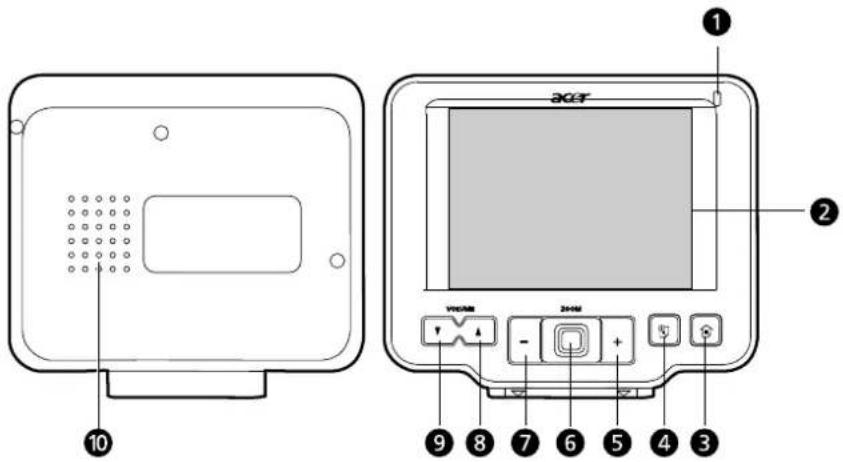
| No. | IconIcon | Component | Description |
| 1 | Power status LED indicator | Indicates the battery power status.Green – Battery is fully charged; the device is running on battery power.Orange – Battery chargingRed – Battery charge is near depletion level. You need to recharge your device. |
| No. | Icon | Icon | Component | Description | Description |
| 2 | Touch screen | Displays the applications, data, and map | |||
| 3 | [3022] | Main Menu hot key | Displays the Main Menu panel; also called the Home panel. | ||
| 4 |  | Navigation hot key | Displays the Navigation panel. | ||
| 5 |  | Zoom in hot key | When in navigation mode, zooms in on the center of a map.When in full screen mode inPhoto, zooms in on the displayed image. | ||
| 6 | Multi-directional | joystick | Move in a left-right or up-down direction to scroll through displayed items.Press to open (if it's a file icon) or launch (if it is a program or settings icon) a selected item. | ||
| 7 | — | Zoom out hot key | When in navigation mode, zooms out from the center of a map.When in full screen mode inPhoto, zooms out on the displayed image. | ||
| 8 | [1287] | Volume up hot key | Press to increase volume. | ||
| 9 | [8KTO] | Volume down hot key | Press to decrease volume. | ||
| 10 | Speaker | Emits system sounds. | |||
| Note: For more information on how to use your Acer d100 in navigation mode, refer to the Destinator DS Quick Starter Guide or the Destinator DS User's Guide (located in the Destinator DS CD). | |||||
Right and left panels
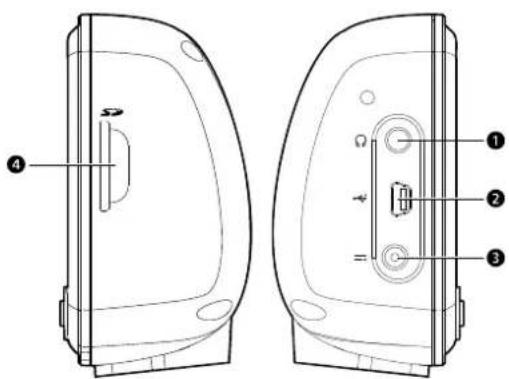
| No. | Icon | Icon component | Description |
| 1 | SD/MMC slot | Accepts SD and MMC storage cards,allowing you to use audio, image, andmap files stored in it for use with internalapplications. You can also use it to back updata from your device. | |
| 2 | Earphone jack | Connects to audio line-out devices(earphones/headphones). | |
| 3 | USB port | Connects the device to computer runningon the Microsoft Windows platform. | |
| 4 | Power connector | Connects the device to an AC poweroutlet. |
Top and bottom views
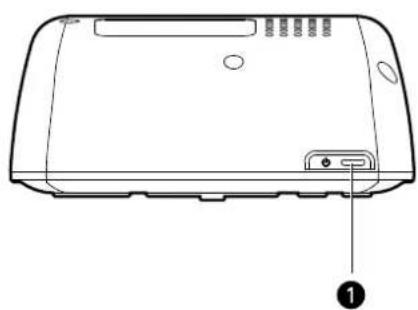
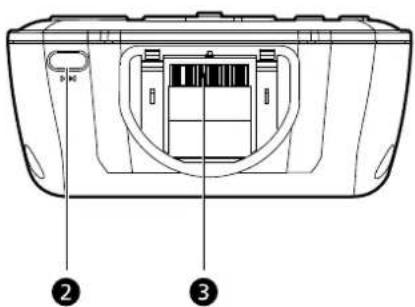
| No. | Icon | Icon Ic | Component Description | Description Description |
| 1 | Power button/backlight control | As a power button:If the device is off, press the button to turn it on. The power LED indicator on the front panel lights up green.If the device is on, press the button to turn it off. The power LED indicator also turns off.As a backlight control:Press and hold to activate or deactivate the screen backlight. | ||
| 2 | Soft reset button | Press to perform a soft reset if the device freezes (i.e., device no longer responds to the buttons on the screen). | ||
| 3 | 8-pin cradle connector | Connects the device to the cradle, which in turn connects to the car mount. | ||
Peripherals tour
This section gives you a tour of the peripherals bundled with your Acer d100.
Car mount kit
The car mount kit consists of the car mount and the cradle.
Car mount
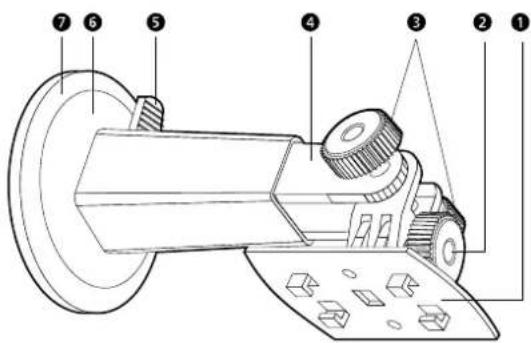
| No, No Component | Description | |
| 1 | Cradle plate | Connects the car mount to the cradle. |
| 2 | Horizontal angle adjustment knob | Slightly loosen the knob to adjust the viewing angle in a left-right direction. |
| 3 | Vertical angle adjustment knobs | Slightly loosen the knobs to adjust the viewing angle in an up-down direction. |
| 4 | Extendable rod | Extend the rod to adjust the device position in a front to rear direction. |
| 5 | Suction cup locking lever | Secures the vacuum seal of the car mount. |
| 6 | Suction cup | Fixes the car mount on the selected mounting area. |
| 7 | Suction cup release tab | Pull to release the vacuum seal of the suction cup. |
Cradle
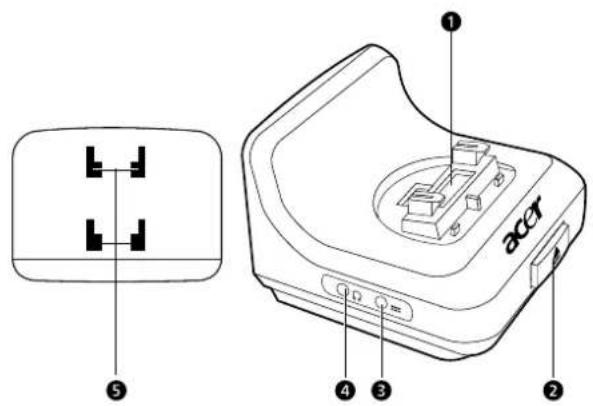
| No. | Icon | Icon | Component | Description | Description |
| 1 | 8-pin device | connector | Accepts the device when installed in the car mount. | ||
| 2 | ▲ | Release button | Press to detach the device from the cradle. | ||
| 3 | --- | Power connector | Connects the device to a vehicle's cigarette lighter for recharging. | ||
| 4 | ○ | Earphone jack | Connects to audio line-out devices (earphones/headphones). | ||
| 5 | Car mount holes | Accepts the pegs on the cradle plate of the car mount. | |||
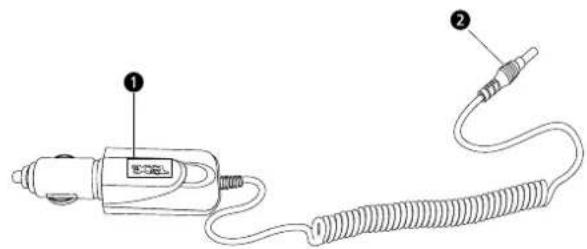
| No.No. | Component | Description |
| 1 Cigarette lighter plug | Connects to the vehicle's cigarette lighter outlet. | |
| 2 Power plug | Connects to the power connector on the device or cradle. | |
Using your new Acer d100 is a doddle. Unpack, mount, turn on, and you're ready to go. Perform the following easy installation tasks to start using the device straight out of the box:
- Unpack the device.
- Set up the device on your vehicle.
- Turn on and configure the device.
Thank you for purchasing the Acer d100 Portable Navigator. The Acer d100 box contains all of the items listed below.
- Acer d100 Portable Navigator unit
- Car mount kit: car mount, cradle
- Self-adhesive power disc connector
- Car charger
- AC adaptor
- USB cable
- Destinator DS SD card
- User documentation
- Acer d100 Portable Navigator Companion CD
- Acer d100 Portable Navigator Starter Guide
- Acer d100 Portable Navigator Warranty Booklet
- Destinator DS Quick Starter Guide
- Destinator DS CD

Report any product defects or missing items to the place of purchase immediately. Save the boxes and packing materials for future use.
Set up the Acer d100 on your vehicle
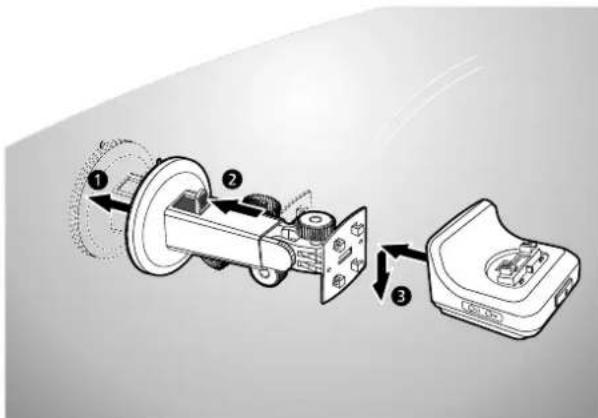
The Acer d100 comes with a car mount kit and a car charger with which you can set up your device on your vehicle. You can choose to position the car mount kit on the windshield using the suction cup, or on the dashboard using the self-adhesive power disc connector.

Some countries prohibit the mounting of any electronic device in any location on the vehicle dashboard. Be sure to check your local laws for acceptable mounting areas before installing the car mount bracket.

Some newer vehicle models may have a heat reflective shield embedded in the windshield. This may in some cases obstruct the GPS signal reception. If you encounter this problem in your vehicle, you need to purchase an external GPS antenna. For more information, contact your local Acer dealer.
Car mount installation reminders
Install the car mount on the surface of your vehicle:
- That is smooth, flat and free of dirt and oil
- Where the driver can easily view/reach it without taking his/her eyes off too far from the road
- Where the device will not obscure car controls nor restrict the driver's view of the road • Far from the air bag deployment area
To set up the device on your vehicle:
This section shows how to install the car mount kit in your vehicle's windshield using the suction cup. For dashboard installation procedures using the self-adhesive power disc connector refer to the Acer d100 Portable Navigator Starter Guide.
- Clean the mounting surface with a glass cleaner and a clean cotton cloth.
- If the ambient temperature is below +15°C (60°F), warm the mounting area and the suction cup (e.g., with a hair dryer) to ensure a strong suction bond.
- Install the car mount on the selected area.
a. Fix the suction cup to the selected area with the locking lever facing up.
b. Flip the locking lever away from you to create a vacuum between the suction cup and the mounting surface.
Make sure that the suction bond is strong enough before proceeding to the next step.
c. Insert the pegs on the car mount's cradle plate into the holes on the back of the cradle, then move the cradle downwards until both parts are engaged.
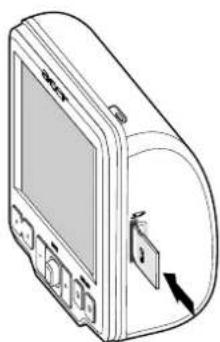
- Insert the Destinator DS SD card into the device.
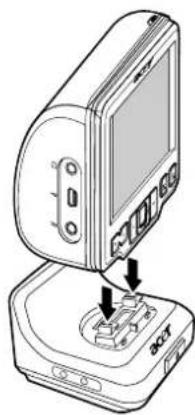
- Dock the device on the cradle.
- Adjust the car mount for the best viewing angle.
- After setting up the device on the car mount, connect the car charger.

If the car engine is turned off, you may be required to switch the vehicle ignition back into the Accessories position. Consult your vehicle owner's manual.
a. Connect the car charger to the power connector on the cradle.
b. Plug the other end of the car charger into your vehicle's cigarette lighter.
The power LED indicator lights up orange during charging. The hot keys backlight is also lit up.
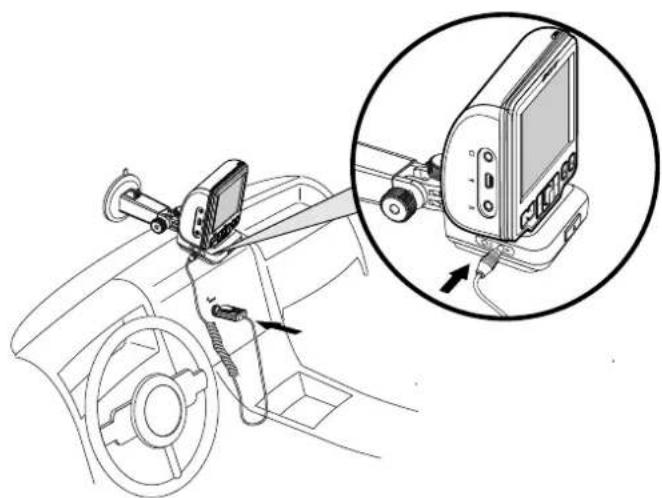

The device comes with the battery pre-charged to at least 30% capacity. You can start using it once it is mounted in your vehicle and connected to the cigarette lighter. However, for maximum usage time you need to charge your device to full capacity. Go to the "Recharging the device" section for instructions.
Start up the Acer d100
After mounting the Acer d100 on your vehicle it is ready to be used. You can now turn it on to calibrate the screen. After screen calibration, proceed to system settings configuration.
To turn on and calibrate the device:
- Turn on your device by pressing the power button on the top right panel of the device.
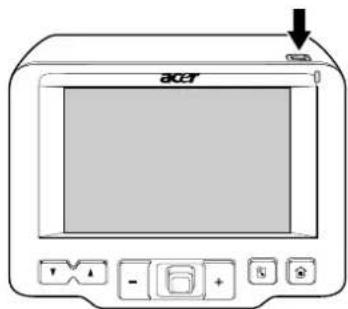
When you first turn on your device, you will be asked to calibrate the screen. This process ensures that when you tap the screen the item tapped is activated.
- Tap the center of the black dot as it moves around the screen.
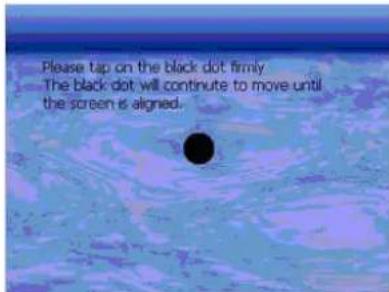
After calibrating the screen, the Main Menu panel displays. This is also referred to as the Home panel.
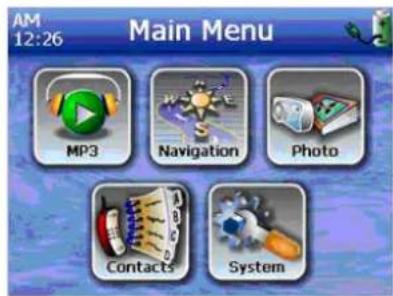
To configure system settings:
If you intend to start using your Acer d100 at once, we recommend that you configure the language and date/time settings first. The rest of the user preferences can be set up later.
- Tap On the Main Menu panel.
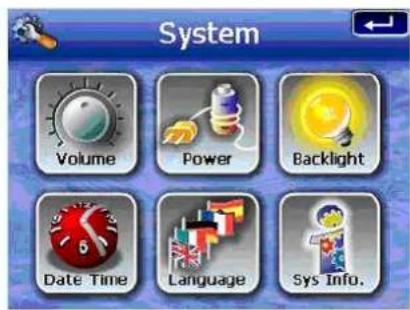
- To set the system language settings, tap

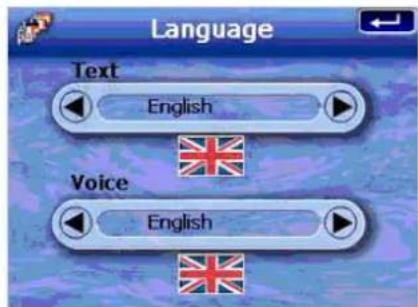
a. Tap / under the Text and Voice settings until the language of your choice is displayed.
b. Tap to apply the changes made.
- To set the system date and time, tap

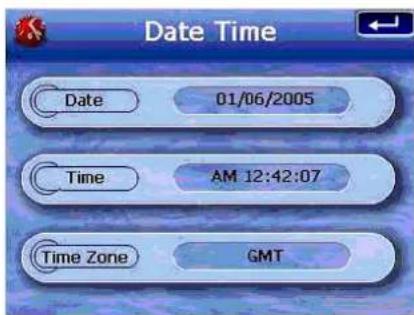
- Tap Date.
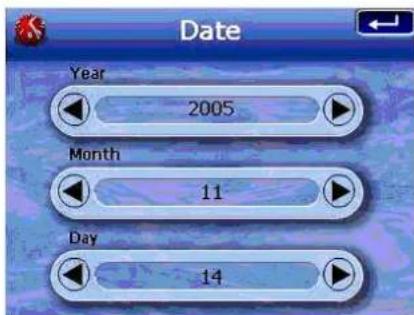
a. Tap / under the Year, Month, and Day settings to set the date values.
b. Tap to apply the changes made.
- Tap Time.
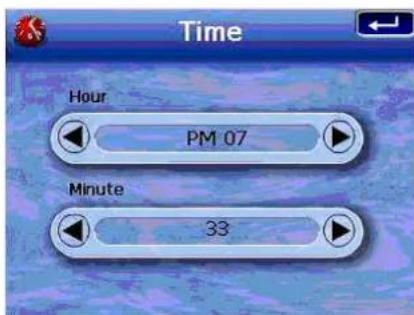
a. Tap / under the Hour and Minute settings to set the time values. b. Tap to apply the changes made.
- Tap Time Zone.
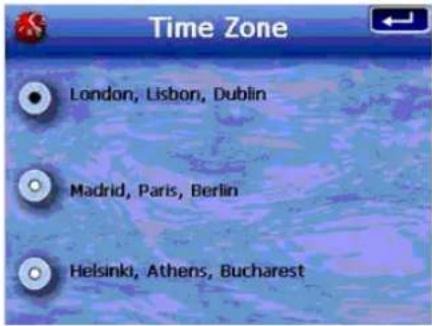
a. Tap the radio button for the time zone of your choice.
b. Tap to apply the changes made.
- Tap to apply the changes made, and return to the Main Menu panel.
For more information on the rest of the system configuration options, go to "Chapter 5 – System configuration".
Congratulations! Your new Acer d100 is now ready for use. Proceed to "Chapter 2 – Acer d100 fundamentals" for more information on the device's user interface or you can refer to the Destinator DS Quick Starter Guide to start using the device in navigation mode.
CHAPTER 2
Acer d100 fundamentals
This chapter describes basic hardware procedures in using your Acer d100. Information on the device's command interface is also discussed.
Hardware interface
Using the touch screen backlight
Under some lighting conditions, viewing the information on your device may be difficult. If this is the case, use the backlight to illuminate the touch screen.
To activate the touch screen backlight:
- Press and hold the power button ⏻ until the backlight turns on.
To turn off the touch screen backlight:
- Press and hold the power button ⏻ until the backlight turns off.
Using the SD/MMC slot
Your Acer d100 has an SD/MMC slot compatible with a range of SD and MMC storage cards that you can use to back up or transfer files and data.
Also, the Acer d100's GPS navigation system has its core on the Destinator DS program. Using this program requires that users load the digital maps available in the Destinator DS SD card included with the device.
To insert a storage card:
- Hold the device securely, then push the card into the slot until you hear an audible system sound; this will signal that the card is already properly seated within the slot. The card is secure when it is not protruding from the slot.
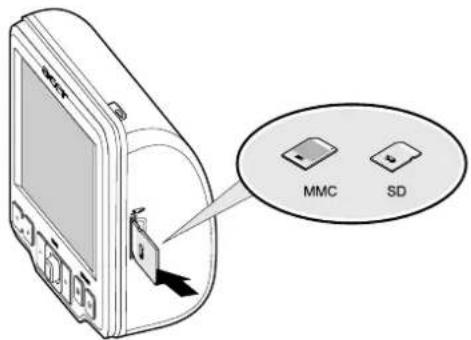
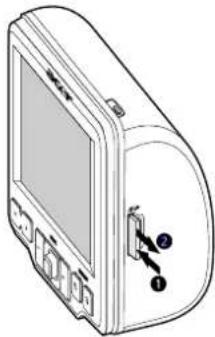
To remove a storage card:
- Hold the device securely, then push against the top of the card, as if you were pushing it further into the slot, letting the card spring out. An audible system sound will signal that the card has been released.
- Gently remove the card from the slot.
Establishing a USB connection between the device and a PC
The USB cable that comes with your device enables you to connect the device to your computer. File Explorer displays the Acer d100 as a USB mass storage device, with the SD/MMC card shown as a sub-folder. Once connected, you can:
- Use File Explorer to copy digital music and image files into your device's SD/MMC card and access them when in Multimedia mode.
It is advisable to organize files into subfolders. This will serve as playlists and albums when you access the files from your device.

To enable access of multimedia files from your device, they should be located on the SD/MMC card, not on the device's memory.
Go to "Chapter 4 – Multimedia mode" for more information on how to work in Multimedia mode.
- Recharge the device via the USB connection
- Use Acer d100 Contacts Exchange to import/export contact information between your device and your computer
- Use ActiveSync to synchronize contact information located on your device and your computer
Refer to "Chapter 3 – Contacts management" for more information on contact information import/export as well as synchronization.
Installing Microsoft ActiveSync
Use Microsoft ActiveSync to exchange information between your Acer d100 and a computer running on the Microsoft Windows platform.

If you have a previous version of Microsoft ActiveSync installed on your computer, uninstall it first before installing Microsoft ActiveSync 3.8 from the Acer d100 Companion CD.
Minimum installation requirements:
• Microsoft Windows XP, 2000, ME, and 98 SE • Microsoft Outlook 2000 or later required for Contacts synchronization • Microsoft Internet Explorer 5.0 or later • Hard disk drive with 12 to 65 MB of available hard disk space
• Available USB port
• CD-ROM drive
• VGA graphics card or compatible video graphics adapter at 256 color or higher
To install Microsoft ActiveSync on your computer:
- Close any open programs, including those that run at startup, and disable any virus-scanning software.
- Insert the Acer d100 Companion CD into your computer's CD-ROM drive. The CD's welcome page appears.
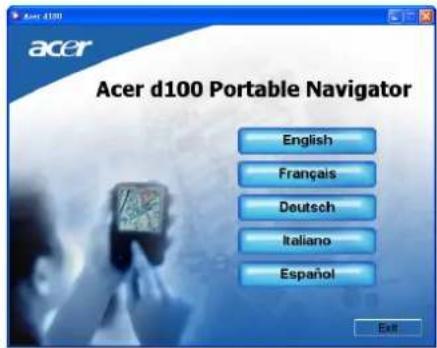
- Click the installation language of your choice.
- Click Install ActiveSync on the Please select your task screen.
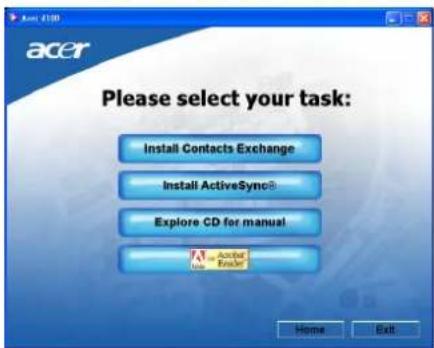
The installation wizard will automatically begin.
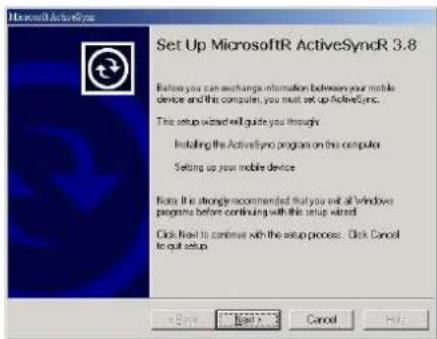
- Follow the on-screen instructions.
After installation, the ActiveSync icon will appear on your computer's system tray (on the lower right-hand corner of the screen).

For detailed information on how to use ActiveSync on your computer, start ActiveSync on your computer, click Help, then Microsoft ActiveSync Help.
- Proceed to the Acer d100 Contacts Exchange installation in the next section.
Installing Acer d100 Contacts Exchange
Use Contacts Exchange to manage the contact information located on your device and on your computer. This PC program shares the same contact database as the Contacts component of Microsoft Outlook. It only has an import/export function; you still have to create contact entries in Microsoft Outlook Contacts.
To install Contacts Exchange:
- Click Install Contacts Exchange on the Please select your task screen.
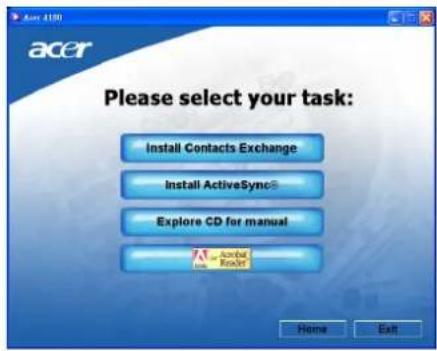
The installation wizard will automatically begin.
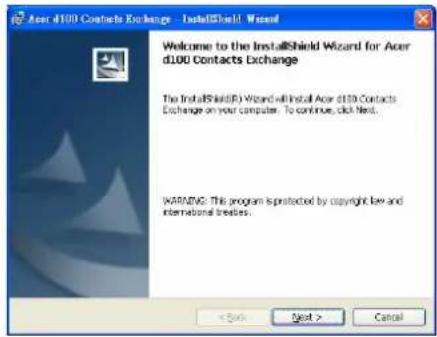
- Follow the on-screen instructions.
- Click Finish after the installation process is completed.
Creating a partnership
After completing the installation procedures, set up a partnership between your Acer d100 and your computer with the help of the New Partnership setup wizard.
Once you've created a partnership, you will be able to synchronize contact information using ActiveSync. Refer to the "Synchronizing contacts" section for more information.
To create a partnership:
- If you want to upload files into an SD/MMC card for use with your Acer d100, insert the card into the device.
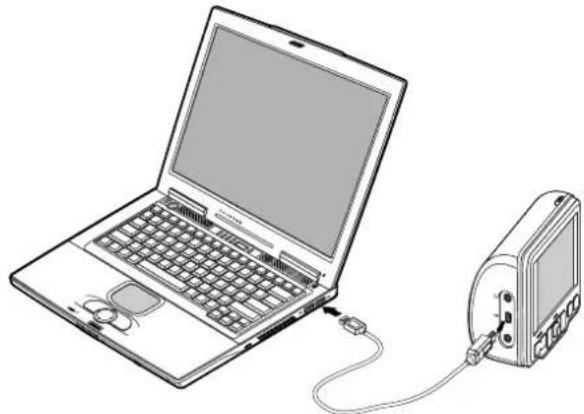
- Connect the device to your computer using the bundled USB cable. a. Plug the cable's smaller connector into the USB port on the left panel of the device. b. Plug the USB client connector into an available USB port on your computer.
The New Partnership setup wizard will automatically start on your computer screen.
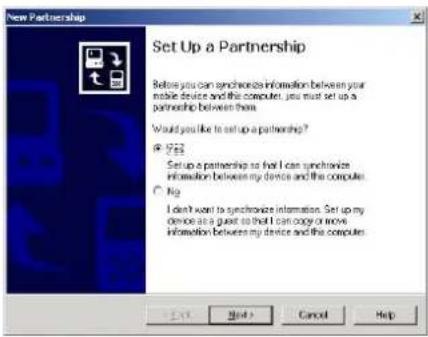
- Follow the onscreen instructions.
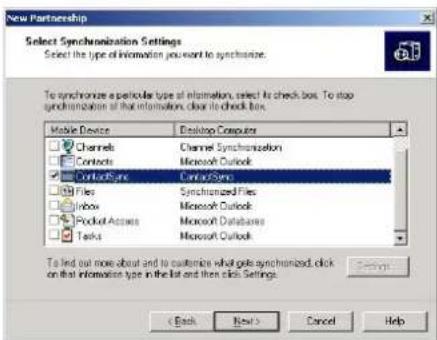
- When prompted to select the items to be synchronized, select only ContactSync.
- Click Finish on the Setup Complete dialog box.
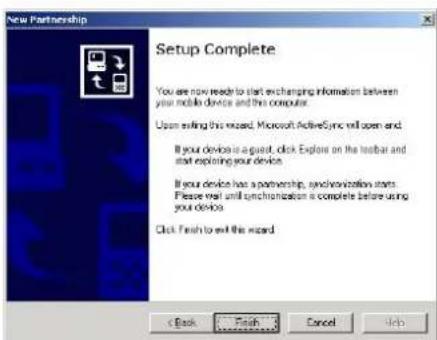
The initial synchronization process will automatically begin when you finish using the wizard. After the initial synchronization, information you've stored in Microsoft Outlook Contacts on your computer will now be available on your Acer d100 without you having to type a word.
- Disconnect your device from the computer and you're ready to go.

Once you have completed the first synchronization process, you can initiate synchronization from your device anytime, using the USB cable.
Using the car mount
The Acer d100's car mount features a firm grip suction cup that provides a steady vibration-free support even during sharp turns. The swiveling mechanism and axial rod allow users to position the device in the best viewing angle possible. And being of a portable nature, users can easily detach the unit for use in other vehicles (e.g. rental cars) without leaving unsightly marks on the vehicle's interior.

To avoid extreme temperature from damaging the car mount, remove the unit if the temperature inside your vehicle exceeds 70°C (160°F).
To adjust the device's viewing angle:
- Slightly loosen the angle adjustment knobs, then swivel and/or tilt the device until an optimum viewing angle is achieved. If you prefer, you can extend the axial rod for a closer view of the screen.
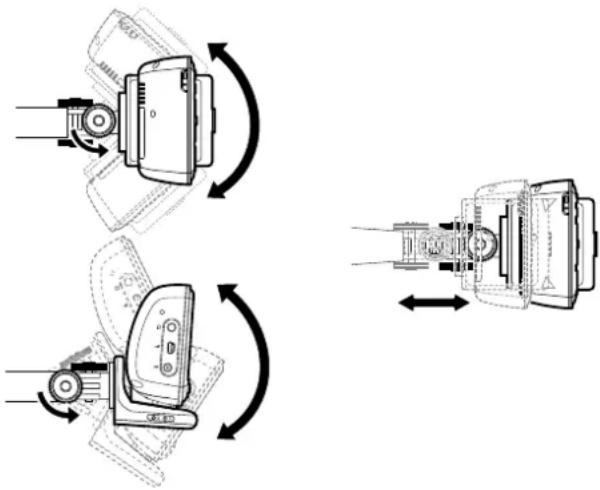
- Tighten the angle adjustment knobs to secure the device in position.
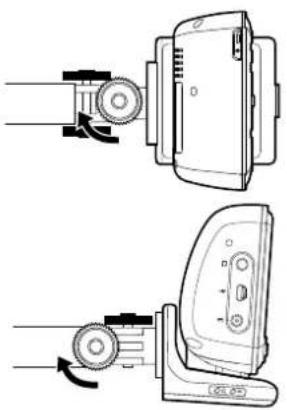
To detach the car mount:
- Detach the device from the cradle.
a. Press the cradle's release button ▲
b. Pull the device up to detach it from the cradle.
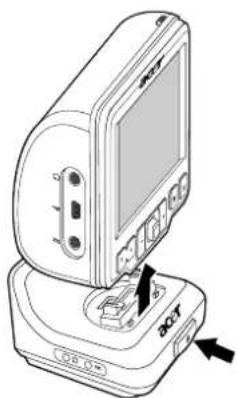
- Detach the car mount from the windshield.
a. Flip the locking lever towards yourself to release the vacuum seal of the suction cup.
b. Firmly grip the base of the car mount, then pull the suction cup release tab.
c. Pull the car mount away from the windshield.
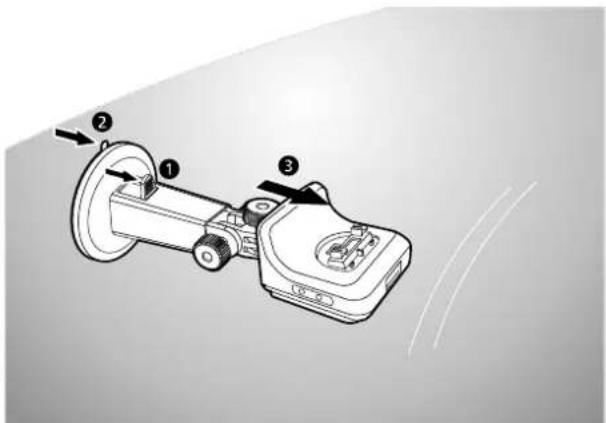
Recharging the Acer d100
Your Acer d100 uses a high-density rechargeable 2200 mAh Lithium Ion battery. The status icon located on the top left corner of the Main Menu panel indicates the level of the device's battery power.
- Battery full charged
- Battery charging
- Battery level low
- Battery level very low, recharging required
- Battery power depleted, device will automatically turn off; recharging required. You
If the battery level becomes low in the course of normal use, recharge the device. Normally, you can use the AC adapter to recharge your Acer d100. However, this may be difficult when there's no available AC power outlet on hand. When your device battery is drained while on the road, you can still recharge your device by using either the car charger cable or the USB cable bundled with your device. Recharging time from empty to full capacity is about six (6) hours in all cases.

If the battery level reaches very low status, the device will automatically turn off. In this case, you have about 12 hours to recharge your device after which you risk losing all data on the device's internal memory. In case all data is lost, the next time you power on the device you will be prompted to restore the data.
To recharge the device using the AC adapter:
- Plug the AC adapter into any AC current outlet.
- Connect the AC adapter cord to the power connector on the left panel of the device.
The power LED indicator lights up orange during charging. The hot keys backlight is also lit up.
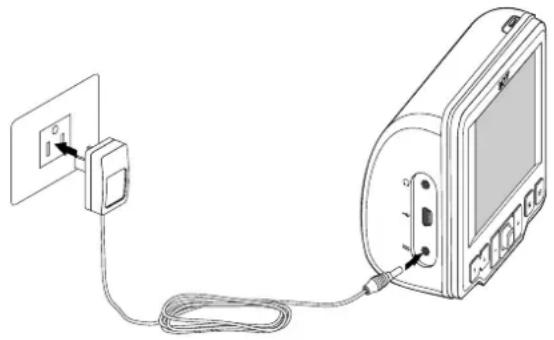
- Once charging is complete, as indicated when the power LED indicator lights up green, disconnect the AC adapter cord from the device.
To recharge the device using the car charger:
Use the car charger to recharge your device while it is mounted on your vehicle. Perform step 7 of the "To set up the device on your vehicle" section for instructions.
To recharge the device using the USB cable:
The USB cable that comes with your device enables you to connect your device to a computer running on the Microsoft Windows platform. When connected, the device battery is also recharged via the USB connection.
Go to the "Establishing device-PC connection" section for instructions on how to connect your Acer d100 to a computer.
Command interface
Using the hot keys
The hot keys on your Acer d100 allow users to:
- Control the volume level of system sounds
- Control the magnification level of images
- Launch the Navigation panel
- Launch the Main Menu panel
All six hot keys light up when pressed for easier operation under low light conditions.

The function of the hot keys may be disabled in some screens. For example, the magnification level hot keys are inactive when viewing the MP3 directory.
Using the joystick
The multi-directional joystick controls actions and scroll through functions in your device, and at the same time act as an Enter key when pressed.

The function of the joystick may be disabled in some screens. For example, the up/down direction is inactive when in MP3 playback mode.
Using the Acer d100 touch screen
The Acer d100 touch sensitive screen allows for a more natural way of entering information into the device using fingers instead of a stylus—no more wasted time finding a lost stylus or fumbling with an awkwardly shaped one! In this Guide, the tap and hold-and-drag actions are done by:
- Tap - Touch the screen once with your finger to open items and select options.
- Hold and drag – Tap a slider icon and drag it across the screen. In Photo's Full Screen mode, hold and drag the image to pan it in different directions.
- Return – Tap ← to apply any changes made and/or revert to the previous screen.
Using the Main menu panel
When you turn on your device for the first time each day, you'll see the Main Menu panel, also called the Home panel. From any other screen, you can
revert to it by pressing the Main Menu hot key
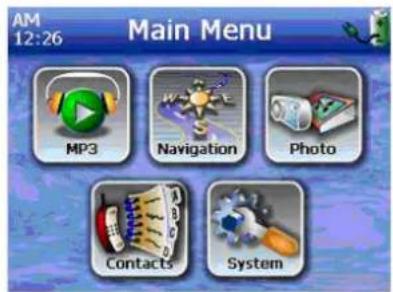
The panel's title bar displays the current time (with 12-hour notation), the panel name, and the battery power level status icon. Go to the "Recharging the device" section for more information on this status icon.
There are six program icons on the Main Menu panel.
- Tap to launch MP3 for music mode operation. Go to "Chapter 4 - Multimedia mode" for more information.
- Tap to display the Navigation panel. Refer to the Destinator DS Quick Starter Guide or the Destinator DS User's Guide for more information on how to use the device in navigation mode.
- Tap to launch Photo for picture mode operation. Go to "Chapter 4 - Multimedia mode" for more information.
- Tap to launch the Contacts program to access your contacts list. Refer to the Destinator DS Quick Starter Guide or the Destinator DS User's Guide for more information on how to use this program.
- Tap to open the System panel to configure the device's user preferences. Go to "Chapter 5 – System configuration" for more information.
CHAPTER 3
Contacts management
This chapter discusses the basic functions of Contacts in your device. Details on how to perform contacts management tasks from your computer are also provided.

Contact files imported/exported to and from your device and computer are saved in .fs format.
Contacts
Contacts maintains a list of your friends' and colleagues' contact information. This includes their email address, street address, multiple phone numbers, and other related information, such as birthday or anniversary date.
Contacts maintains a list of your friends' and colleagues' contact addresses. You can enter multiple address entries for each contact. This program is integrated with Destinator DS, enabling users to treat all address entries as possible destination points in navigation mode.
Using Contacts
To open Contacts:
- Tap on the Main Menu panel.
The Contacts control pad displays.
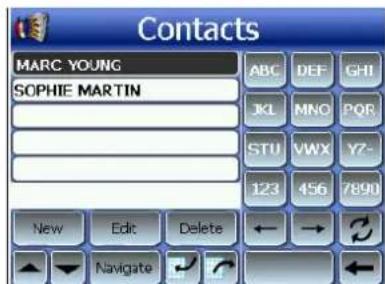
The control pad displays the list of contacts and several command buttons for performing various Contacts tasks.
Creating a new contact
- Tap New.
- Enter the related information for the new contact.
- Tap (XXXXX) to save the new contact.
Editing contact information
- In the Contacts control pad, tap the contact you wish to edit.
- Tap Edit.
- Enter the new information for the contact.
- Tap (XXXXX) to save the new contact.
Navigating to a contact's address
- In the Contacts control pad, tap the contact whose address you want to navigate to.
- Tap Navigate.
Address entries for the selected contact appear.
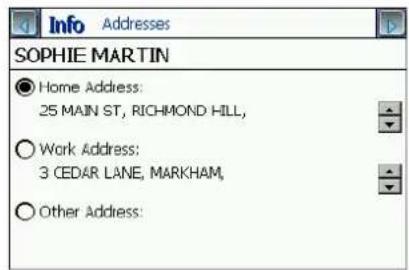
- Tap the address you want to navigate to.
- Tap Navigate.
Destinator DS plans your route. The calculated route is shown on the map as a blue line from your current GPS position.
For more information on how to work in navigation mode, refer to the Destinator DS Quick Starter Guide or the Destinator DS User's Guide (located on the Destinator DS CD).
Exporting contacts from your Acer d100
- Insert an SD or MMC storage card into the device.
Exported contact file(s) will be saved to this storage card for later access from your computer.
- Tap in the Contacts control pad.
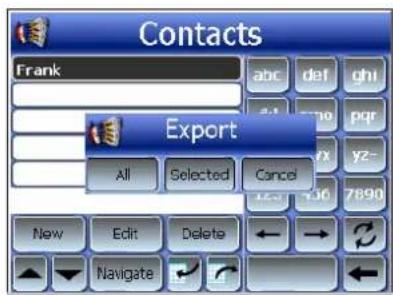
- Select whether to export all contacts, or just the currently selected one.
Selected contact(s) will be exported to the SD/MMC card installed in your device.
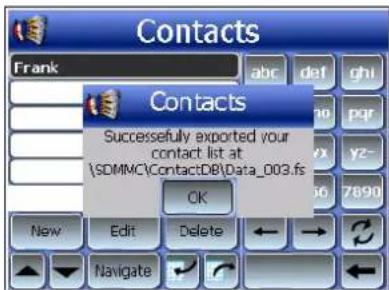
- Click OK on the completion dialog box.
Use Contacts Exchange to import this contact file to your computer. Refer to the "Importing contacts from your Acer d100" section.
Importing contacts from your Acer d100
- Insert the SD or MMC storage card containing the contact file(s) you wish to import into the device.
Use Contacts Exchange to export contact file(s) from your computer. Refer to the "Exporting contacts from your Acer d100" section.
- Tap in the Contacts control pad.

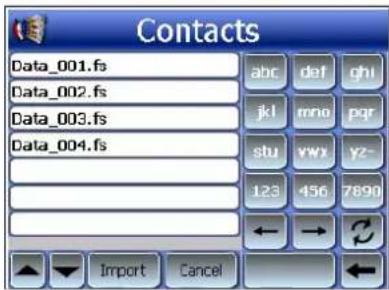
- Tap the contact file you wish to import into your device.
- Tap Import.
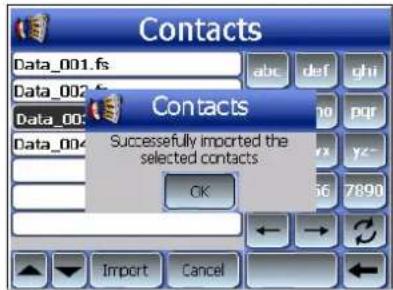
- Click OK on the completion dialog box.
Selected contact file will be added to the Contacts list.
Deleting a contact
- In the Contacts control pad, tap the contact you wish to delete.
- Tap Delete.
- Tap Yes to confirm the deletion.
Contacts Exchange
Use Acer d100 Contacts Exchange to manage the contact information located on your device and on your computer. This PC program shares the same contact database as the Contacts component of Microsoft Outlook. It only has an import/export function; you still have to create contact entries in Microsoft Outlook Contacts.
For more information on how to use Microsoft Outlook Contacts on your computer, open Microsoft Outlook, press F1, type 'Using Contacts', then press Enter.
For instructions on how to install Contacts Exchange on your computer, go to the "To install Contacts Exchange" section.
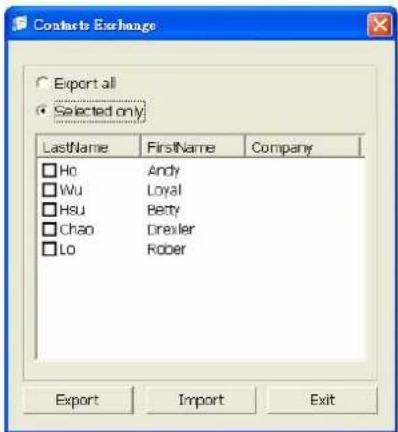
Using Contacts Exchange
Use Contacts Exchange to export and import contact information between your Acer d100 and your computer.
To open Contacts Exchange:
- Click Start > Programs > Acer d100 > Contacts Exchange
The Contacts Exchange main window displays.
Exporting contacts from your computer
- Insert an SD or MMC storage card into the device.
Exported contact file(s) will be saved to this storage card for later access from your device.
- Connect the device to your computer using the bundled USB cable.
- Open File Explorer to check that the device is now displayed as a USB mass storage device.
- Click Selected Only on the Contacts Exchange window.
- Click the contact(s) you want to export.
- Click Export.
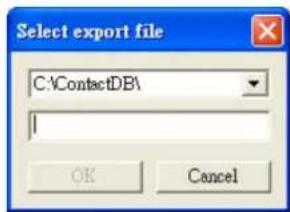
- Select the drive name corresponding to the Acer d100.
- Type a filename for the contact file.
- Click OK.
Selected contacts will be exported to the SD/MMC card installed in your device.
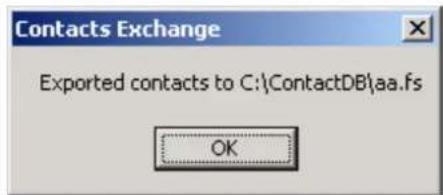
- Click OK on the completion dialog box.
Importing contacts from JyopurAcer d100 cysofroAcer d100
- Insert the SD or MMC storage card containing the contact file(s) you wish to import into the device.
- Perform steps 2 through 4 of the previous section.
- Click Import.
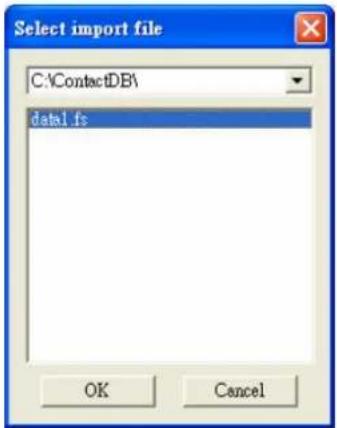
- Select the drive name corresponding to the Acer d100.
- Select the contact entries you want to import.
- Click OK.
Contacts will now be imported to your computer.
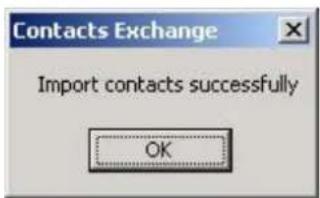
- Click OK on the completion dialog box. Imported contact information will be added to your Microsoft Outlook Contacts list and be shared with Contacts Exchange.
ActiveSyncActiveSync
Use ActiveSync to synchronize the contact information located on your Acer d100 and your computer. Each time you synchronize, ActiveSync compares the information on your device with the information on your computer and updates both locations. This means you'll always have the most up-to-date contacts list wherever you are.
For instructions on how to install ActiveSync on your computer, go to the "Installing Microsoft ActiveSync" section.
S y nchroniz ing contacts S y nchroniz ing contacts
Follow the instructions below to synchronize contact information located on your Acer d100 and your computer.
- Perform steps 1 and 2 of the "Exporting contacts from your computer" section.
- Double-click the ActiveSync icon 📂 on your computer's system tray. If the wizard does not automatically appear, launch ActiveSync on your computer by clicking on its icon from Start, then Programs.
- Click Options 📄, then the Rules tab to configure synchronization settings.
![Options: Sync Options | Sync Mode | Rule | Conflict Resolution. If there is a conflict (an item has been changed on both the mobile device and desktop computer), leave the item unresolved. [Click "Resolve item" to choose which one to keep.] Always replace the item on my device. Always replace the it…](/content/2026/05/773472/images/cf79d945e7ff0665633d0c4549c37d0a5f1cf693301c4c2bf1d245af4b331d94.jpg)
- Select your preferred settings for the Conflict Resolution and File Conversion options.
- Click OK.
The settings you've selected would apply to all future contacts synchronizations.
- Click Sync to start contacts synchronization.
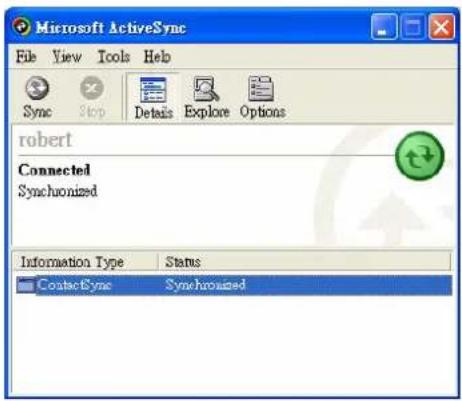
Contact information located on your Acer d100 and your computer will now be synchronized.
CHAPTER 4
Multimedia mode
This chapter describes the multimedia programs bundled with your Acer d100.

The device's multimedia programs—MP3 and Photo—are not available in navigation mode. This is for safety reasons so as not to distract the driver's attention from the road.
Multimedia mode overview
In addition to its navigating function, your Acer d100 is also a mobile entertainment tool that lets you enjoy your digital music and image collection on the road. MP3 and Photo extend your device's function to the multimedia scene.
To enable access of multimedia files from your device, it should be located on the SD/MMC card, not on the device's memory. Do this either by:
- Using the USB cable to connect the device, with the SD/MMC card inside, to your computer, then use File Explorer to copy digital music and image files into the device's SD/MMC card folder.
- Using a compatible card reader to directly copy digital music and image files to the SD/MMC card.

It is advisable to organize files into subfolders. This will served as playlists and albums when you access the files from your device.
MP3
Enjoy your favorite music on the road. The program features:
• Support for MP3, WMA, and WAV files - Auto-scanning of supported files in the device's SD/MMC card - Separate volume control enabling you to adjust the playback sound level while retaining the volume level set for system sounds
• Hot key function for volume control
- Playlist support based on sub-directory contents
Each sub-directory containing compatible music files is treated as an individual playlist. For a more organized file search, it is advisable to name sub-directories based on genre or listening preferences. To illustrate, a sub-directory containing music you listen to when traveling can be named "Journey favorites"; or "Top alternative" for a sub-directory consisting of your favorite alternative songs.
- Shuffle and repeat playback functions
Using MP3
To open MP3:
- Tap on the Main Menu panel.
The MP3 playback pad displays.
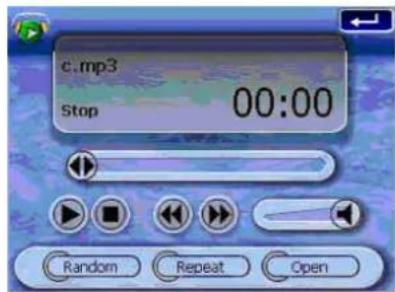
To open files for playback:
1. Tap OPEN.
The program will automatically scan the device SD/MMC card for supported digital files. Only sub-directories containing compatible music files will be displayed.
- Search for the file you want to play.
Tap → use the joystick to scroll through all available files.
- Tap a file or press the joystick to start playback of the selected file.
- When the file is located in the root directory, tap the file for playback.
When the file is located inside a sub-directory, tap the sub-directory icon, then tap a file for playback.
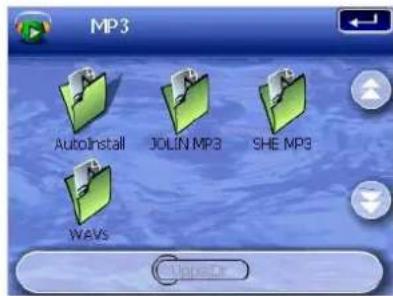
Tap Upper Dir to return to the device's root directory.
The selected file will automatically be played. Files in the same directory will also be played provided the Repeat function is disabled.
To control file playback:
The icons in the playback pad let you control the playback mode.
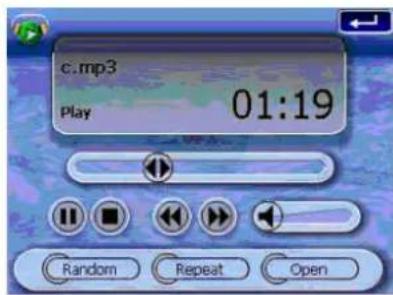
- Tap to pause or resume playback.
- Tap to stop playback.
- Hold and drag the slider of the progress bar to adjust the progress of the current track.
- Tap to skip backward to the previous track. If the current file is the first track in the list, the last track will be played.
- Tap to skip forward to the next available track. If the current file is the last track in the list, the first track will be played.

You can also move the joystick left/right to skip to the previous/next track. Pressing the joystick during file playback will revert the screen to the Main Menu panel.
To rearrange the playback sequence:
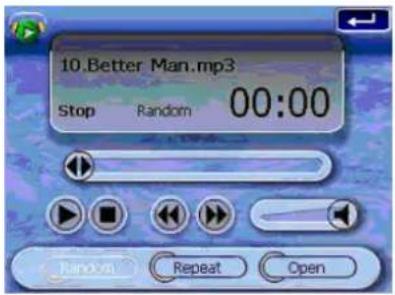
Each directory containing supported music files is considered a playlist. You can choose to shuffle the playback sequence to play files in random order.
• To enable the Shuffle mode, tap RANDOM. An enabled Shuffle mode is indicated by the word 'Random' on the playback display pad, and a fade-out Random icon. • To disable the Shuffle mode, tap the fade-out RANDOM button.

Tapping REPEAT will automatically disable the Shuffle mode.
To enable/disable the Repeat mode:
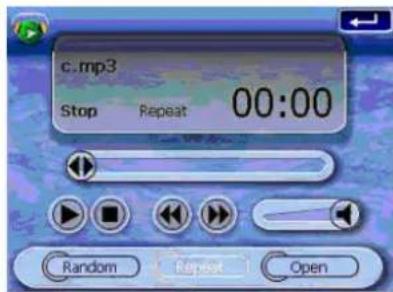
The Repeat mode lets you play the current track in a loop. The same track will be played over and over again until you disable the Repeat mode.
• To enable the Repeat mode, tap REPEAT.
An enabled Repeat mode is indicated by the word 'Repeat' on the playback display pad, and a fade-out Repeat icon.
• To disable the Repeat mode, tap the fade-out REPEAT button.

Tapping RANDOM will automatically disable the Repeat mode.
To control the playback volume:
To adjust the playback volume, you can use either the MP3 volume control slider or the volume control hot keys.
- Hold and drag the slider of the volume progress bar. This will only affect the volume of the track playback.
- Press the volume hot keys. This will also adjust the sound level for the device's system sounds.
Photo
These days every mobile gadget seems to be equipped with a digital camera, better for capturing that spontaneous moment. With Acer d100 you can keep these images of your favorite moments as mobile as you are by using Photo. The program features:
• Support for JPEG and BMP (1-, 4-, 8-, and 24-bit) files - Auto-scanning of supported files in the device's SD/MMC card. - Three viewing modes: Thumbnail, Full Screen, and Slide Show • Album support based on sub-directory contents
Each sub-directory containing compatible image files is treated as an individual album. For a more organized file search, it is advisable to sort image files into sub-directories based on something, such as a particular event or a certain period. To illustrate, a sub-directory containing pictures from your daughter's birthday can be named "Cassie's 10th birthday"; or "May 11 to June 24 log" for a sub-directory consisting of pictures taken during that period.
Using Photo
To open Photo:
- Tap on the Main Menu panel.
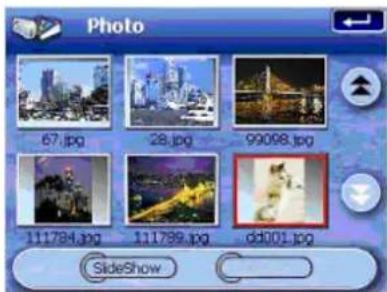
The program will automatically scan the device's SD/MMC card for supported image files. Image files will be displayed as thumbnails; only sub-directories containing compatible files will be displayed.
Tap → Use the joystick to scroll through all available files. When a thumbnail is selected, a red border appears around it.
Viewing files in Full Screen mode
In Full Screen mode, image files can be viewed in a larger or smaller scale. You can also change its orientation angle.
To open image files in Full Screen mode:
- Search for the file you want to view.
Tap → use the joystick to scroll through all available files.
Tap Upper Dir to return to the device's root directory.
- Open the file in full screen mode.
- When the file is located in the root directory, tap the file.
When the file is located inside a sub-directory, tap the sub-directory icon, then tap the file you want to view.
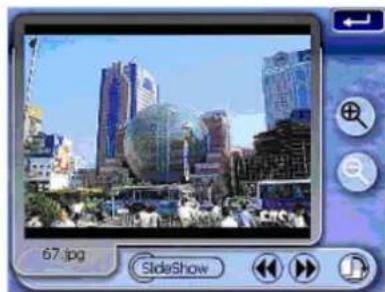
To view files in Full Screen mode:
- Tap 📋 or move the joystick left/up to display the previous available image file.
- Tap 🎨 or move the joystick in a right/down direction to display the next available image file.
To change the image magnification level:
- Tap or press the Zoom In hot key + to zoom into the center of the image.
When in a Zoom In state, you can hold and drag the image to pan it in any direction you want.
- Tap or press the Zoom Out hot key _ to zoom out the image display.
To change the image orientation:
- Tap to rotate the images 90 degrees clockwise.
To return to Thumbnail mode:
- Tap or press the joystick.
Viewing files in Slide Show mode
You have the option to view images in a slide show much like viewing a PowerPoint presentation in your computer. Images are adjusted to fit the entire display area and are shown in a 3-second interval.
To enable the Slide Show mode:
• In Thumbnail or Full Screen mode, tap Slide Show.

Tap the touch screen or press the joystick to stop the slide show and return to the previous viewing mode.
CHAPTER 5
System configuration
This chapter describes the ways you can customize your Acer d100 by setting user preferences.
System settings overview
You can adjust the settings of your device to suit the way you work. Adjusting certain settings, such as those for system volume, power LED, and hot keys/touch screen backlight may increase your standby time.
To access the System panel:
- Tap on the Main Menu panel.
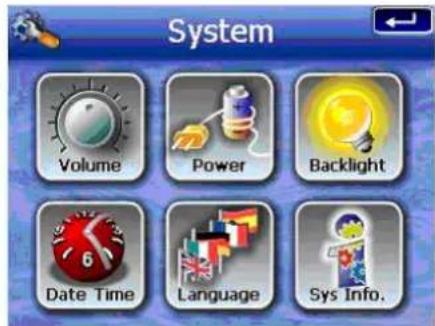
There are six preferences icons on this panel:
- Tap to set the volume level for system sounds and enable tapping sound.
- Tap to view the battery power level and enable the hot keys backlight.
- Tap to set the touch screen backlight level and enable its auto-off function.
- Tap to change the system date, time, and time zone settings.
- Tap to set the language option for the system menus and voice prompts.
- Tap to display your device's model name and related technical specifications. Options for factory reset, GPS reset, and screen recalibration are also shown.
Customizing user preferences
Volume
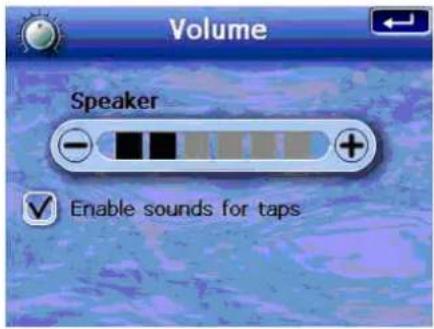
To set the system sounds volume level:
- Tap 7 to adjust the volume level.
- Tap 1: Apply the changes made.
To enable tap sounds:
- Tap the Enable sounds for taps check box.
- Tap to apply the changes made.
Power
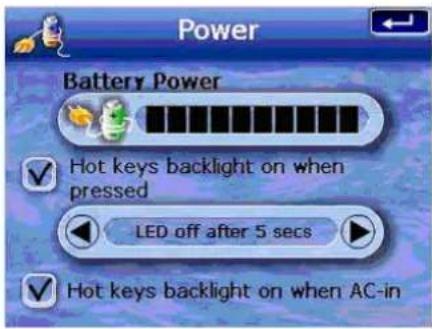
To enable the hot keys back light:
- Tap the Hot keys backlight on when pressed check box.
- Tap A to set the hot keys backlight's auto-off function. Options include backlight off after 5, 10, 15, and 20 seconds.
- Tap to apply the changes made.
To enable the hot keys backlight when running on AC power:
- Tap the Hot keys backlight on when AC-in check box.
- Tap to apply the changes made.
Backlight Backlight
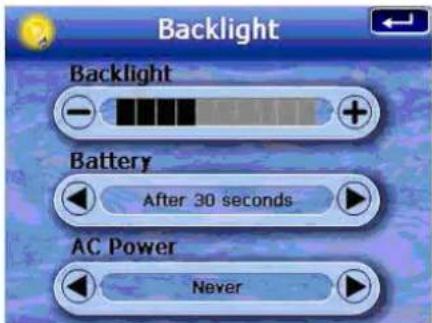
To set the screen backlight level:
- Tap 7 to adjust the screen backlight level.
- Tap to apply the changes made.
To set the screen backlight auto-off function:
- Tap under the Battery and AC Power settings.
Options include Never, backlight off after 10 or 15 seconds, and backlight off after 1, 2, or 3 minutes.
- Tap to apply the changes made.
Date Time Date Time
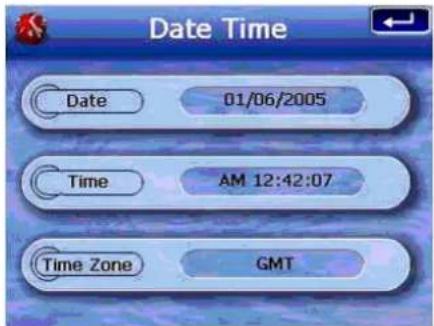
Go to step 3 of the "To configure system settings" section for instructions on how to set the system date and time.
Language Language
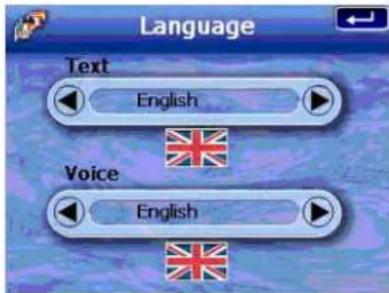
The Acer d100's user interface supports five pre-loaded languages: International English, French, German, Italian, and Spanish. Additional language support is provided in navigation mode (i.e., when using Destinator DS). This includes Danish, Dutch, Norwegian, Portuguese, and Swedish.
Go to step 2 of the "To configure system settings" section for instructions on how to set the system language.
To load additional language options, refer to the Destinator DS User's Guide.

When an additional language is installed and selected, it will only affect the Destinator DS user interface. System menus and non-navigation screens (Contacts, MP3, and Photo) will default to English.
System InfoSystem Info
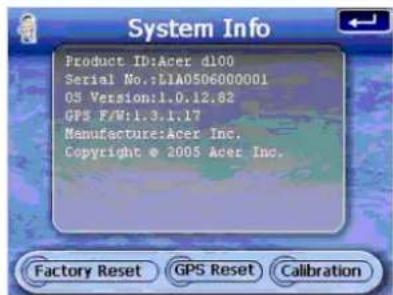
Go to the "Troubleshooting your Acer d100" section for instructions on how to use the three command buttons on the System Info screen.
CHAPTER 6
System maintenance and user support System Maintenance
This chapter contains information regarding system usage, maintenance, and troubleshooting. Lists of frequently-asked questions (FAQs) and user support contact information are also provided for reference.
Using your Acer d100 safely

The precautions and instructions stated in this Guide shall be executed in the English language. In the event of any discrepancy between the English language original hereof and any translation hereof into any other language, the English language original shall govern.
Driving precautions
When using the device in a vehicle, the vehicle operator is solely responsible for operating the vehicle in a safe manner. It is your responsibility to comply with all traffic laws. Failure to follow the directions below could result in death or catastrophic bodily injury to you or to others.
- Do not attempt to enter information or configure the device while driving. If you need to do so, pull out of traffic and come to a stop in a legally permissible and safe location before using your device.
- Vehicle operators must maintain full surveillance of pertinent driving conditions at all times. Minimize the need to view the device screen while driving and use voice prompts to guide you.
- Never place the device on the passenger seat or any place else in the car where it can become a projectile during a collision or stop.
- An air bag inflates with great force. DO NOT mount the device in the area over the air bag or in the air bag deployment area.
- Although reasonable attempts have been made to ensure that the database in your Acer d100 is accurate, such information may change from time to time. The Acer d100 database does not include any of the following: o Legal restrictions (such as vehicular type, weight, height, width, load and speed restrictions)
- Road slope, bridge height, weight or other limits ○ Construction work zones or hazards; road closures, traffic conditions
- Weather conditions Emergency events It is your responsibility to disregard any unsafe, hazardous or illegal route suggestions. Your judgment and common sense shall take precedence over any information that may be received through the use of your device.
Operating precautions Operating precautions
Device usage precautions Device usage precautions
- Do not use your device anywhere it may be exposed to water or in conditions of high humidity.
- Do not expose the device to extreme temperatures, which could occur in a vehicle under direct sunlight. Such exposure can shorten the life of the device, damage the plastic housing and/or battery, and increase the risk of explosion.
- Do not subject your device to sudden and severe temperature changes. This could result in moisture condensation in the device that could cause damage to your device. In the event of moisture condensation, allow your device to dry out completely.
- Do not leave the device unattended on an automobile dashboard. When your vehicle is parked and the device is not in use, protect it from theft and extreme heat by storing it in an unobtrusive location, away from direct sunlight.
- Your device is not a toy. Never allow children to play with your device.
- Never touch the liquid that might leak from a broken liquid crystal display. Contact with this liquid could cause a skin rash. If the crystal display liquid should come into contact with the skin or clothing, wash it immediately with clean water.
- Never raise the sound volume level too high when using the device with earphones. An excessive sound volume level could cause damage to your hearing.
Car mount precautions
- Some countries prohibit the mounting of any electronic device in any location on the vehicle dashboard. Be sure to check your local laws for applicable mounting before installing the car mount.
- Some newer vehicle models may have a heat reflective shield embedded in the windshield. This may in some cases obstruct the GPS signal reception. If you encounter this problem in your vehicle, you need to purchase an external GPS antenna. For more information, contact your local Acer dealer.
- The heating and cooling cycle of a vehicle's interior will in some cases loosen the adhesion of the suction cup. Check the vacuum seal of the car mount for adequate adhesion each time you use the unit, and reinstall it if necessary.
- If the car mount has problems staying on, clean the plastic suction cup with alcohol, then reinstall. Moistening the suction cup may help adhesion in some cases.
- To avoid extreme temperature from damaging the car mount, remove the unit if the temperature inside your vehicle exceeds 70°C (160°F).
- The dip in humidity and temperature at night may loosen the adhesion of the suction cup. For this reason, as well as for security, it is recommended that you remove both the car mount kit and the Acer d100 when leaving your vehicle overnight.
Storage precautions
- Do not store your device anywhere it may be exposed to water or in conditions of high humidity.
- When the device is not in use for an extended period of time, bring it indoors and store it in some location with a temperature range of -30° to 70°C (41° to 158°F).
Accessories and repair precautions
- Only Acer authorized accessories should be used with the device. The use of incompatible accessories could result in bodily injury and/or damage to the device. The use of unauthorized accessories will also void your warranty.
- Never attempt to disassemble, repair or make any modification to your device. Refer all repair needs to your local Acer dealer.
Cleaning your Acer
- Use a damp soft dry cloth to wipe the device's casing (not the display screen). Never use organic solvents such as benzene or paint thinner to clean your device. Use of these solvents can cause deformation or discoloration.
- Use a soft, clean, lint-free cloth to clean the display screen. Moistened LCD screen wipes could also be used as required.
Troubleshooting your Acer d100
Recalibrating the screen
If while using your device, you discover tapping an item doesn't bring up the appropriate response, it means your device has lost its calibration. Recalibrate the screen.
To recalibrate the screen:
- Tap on the Main Menu panel.
- Tap on the System panel.
- Tap Calibration on the System Info screen.
- Tap the center of the black dot as it moves around the screen.
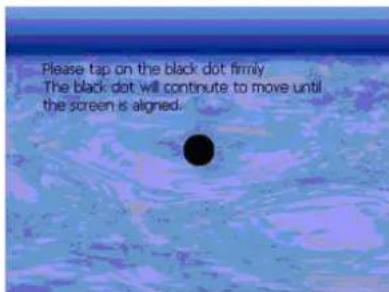
- Tap to apply the changes made.
Resetting the Acer d100
You may have to perform a reset if the device freezes (i.e., device no longer responds to the buttons on the screen). A soft reset allows your device to get a fresh start, similar to rebooting a computer. This will restart your device and adjust memory allocation. All records and entries are retained after a soft reset. GPS settings are also retained.
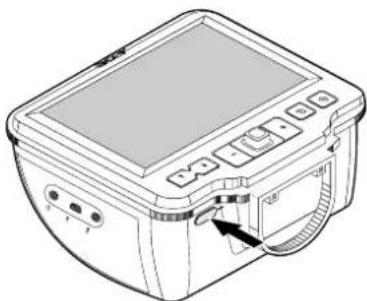
To perform a soft reset:
- Hold the device securely, then press the soft reset button ▶o◀ on the bottom of your device.
Loading the factory default settings
If you still encounter system errors even after soft resetting the device, load the factory default settings to correct the error. These default settings have been selected to optimize your device's performance.
To load the factory default settings:
- Tap on the Main Menu panel.
- Tap on the System panel.
- Tap Factory Reset on the System Info screen.
- Tap Yes on the dialog box.
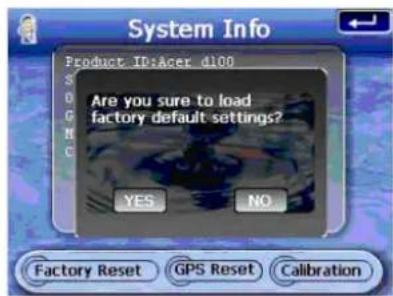
- After the factory reset, reconfigure your device's user preferences.
Resetting the GPS function
In the following circumstances, the TTFF (Time To Fix First) values of your Acer d100 may be longer than usual.
• After a long period of inactivity - If the current GPS fix position is more than 500 km, or more than 12 hours apart, from the previous position
This is due to the nature of the GPS algorithm and rotational velocity between the satellites and planet Earth, and is deemed normal. To correct this, perform a GPS reset. This will update the GPS database which contains information about the GPS satellites that the unit needs to function in navigation mode.
To load the factory default settings:
- Tap on the Main Menu panel.
- Tap on the System panel.
- Tap GPS Reset on the System Info screen.
- Tap Yes on the dialog box.
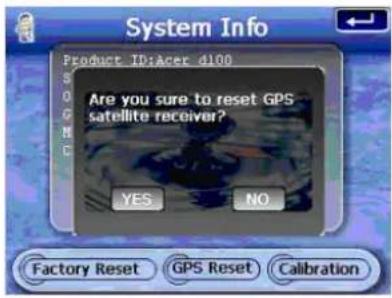
The GPS reset process will take about a minute to complete.
FAQs
This section lists down frequently-asked questions that may arise during the use of your Acer d100, and gives easy answers and solutions to these questions.
| AspectAQuestion | QuestionAnswer | Answer |
| Audio | Why is there no sound coming from the device? | If the earphone is plugged into the device, the speaker is automatically shut off.Disconnect the earphone.Check that the device's volume settings is not muted. In theSystempanel, tap Volume. |
| Touch screen | Why is the touch screen not responding to my finger taps? | The screen may have lost its calibration.Recalibrate the screen. Go to the"Recalibrating the screen"section for instructions. |
| Language setting | When I switched the language setting to Dutch, why do I still get an English Main Menu? | If a user selects a language that is not one of the five pre-loaded options (International English, French, German, Italian, and Spanish), the new setting will only affect the Destinator DS user interface. System menus and non-navigation screens will default to English. |
| Aspect A Question | Question Answer | Answer Answer |
| Multimedia mode | Why can't I view my picture files? You may be trying to view an image that is not supported by Photo. Go to the "Photo" section for a list of supported image formats. | |
| Why can't I play my music files or view my pictures while navigating? | The device's multimedia programs—MP3 and Photo—are not available in navigation mode. This is for safety reasons so as not to distract the driver's attention from the road. | |
| Navigation mode | Why is it that sometimes my device takes longer than 5 minutes to get a GPS fix? | If the previous GPS fix position was more than 500 km or 12 hours apart from your current position and time, it will take significantly longer than the standard TTFF time to get a GPS fix. This is due to the nature of the GPS algorithm and rotational velocity between the satellites and planet Earth, and deemed normal and is not the fault of your Acer d100 device. |
| How do I acquire a GPS fix within standard time frame (about 1 minute in general)? | Perform a GPS reset. Go to the "Resetting the GPS function" section for instructions. | |
| System information and performance | How do I check the OS version of my device? | Perform a soft reset on the device. Go to the "Resetting the Acer d100" section for instructions. The device's OS version appears on the bottom left corner of the screen.View the device's OS version and other technical specifications. In the System panel, tap Sys Info. |
| How do I restore the system back to its default factory settings? | Users can perform this task by using the Factory Reset button on the System Info screen. Go to the "Loading the factory default settings" section for instructions. | |
| Does performing a factory reset means a GPS reset as well? | No. The Factory Reset function mainly reset the OS settings to their default factory values; it will not cause the GPS settings to reset. | |
| What should I do if the system stops functioning normally? | Perform a soft reset on the device. Go to the "Resetting the Acer d100" section for instructions. | |
| Power I couldn't turn on the device. The battery power may be depleted.Recharge the device. Go to the "Recharging the device" section for instructions. | ||
Customer support
Technical assistance
If you encounter a problem with your Acer d100, review the following first:
- "Troubleshooting your Acer d100" section
- "FAQs" section
- Latest Acer d100 Portable Navigator User's Guide on your regional Acer web site. Go to http://global.acer.com/support/.
If the problem still persists, you will need technical assistance. Refer to the http://global.acer.com/about/webmaster.htm/web site for information on how and where to contact the Acer Service Centers available in your area.
Product warranty
Refer to the Acer d100 Portable Navigator Warranty Booklet for details on the warranty coverage of your Acer d100.
CHAPTER 7
System specifications
This chapter lists the features and operating specifications of the Acer d100.
Hardware features
| Aspect | Description | |
| Processor | Samsung S3C2410 266 MHz application processor | |
| GPS chipset | SiRF Star II LP chipset with Xtrac v2 firmware | |
| Memory | 64 MB SDRAM for system memory (for user applications and map storage)32 MB SDRAM onboard flash memory (for operating system and embedded applications) | |
| Power | High-density rechargeable 2200 mAh Lithium Ion batteryUp to10 straight hours of operation (backlight off)6 hours charging time from empty to full capacityRecharging optionsIndoors using the AC adapterOn-the-road using either the car charger or the USB cablePower status LED indicator | |
| Display | 3.5-inch screen for a wider viewing angle320 x 240 QVGA screen with 65,536 colors for a full-color display200-nit LCD provides higher brightness, high contrast, and low power consuming displayTMR (Transmissive with Micro Reflective) technology allows the screen to display well-reproduced images even under bright outdoors lighting.Hardware backlight control via the power button | |
| Audio | 2W built-in speaker3.5 mm stereo earphone jack (both on the device and on the cradle) | |
| AspectDescription | DescriptionDescription | |
| Connectivity | USB portSD/MMC slot | |
| Hardware command interface | Volume control hot keysImage magnification level hot keysMain Menu hot keyNavigation hot keyMulti-directional joystick | |
GPS specifications
| AspectDescription | DescriptionDescription | |
| Chipset | SiRF Star II LP with Xtrac v2 firmware | |
| Receiver | 12 parallel channel, WAAS enabled | |
| Antenna | Integrated patch antenna for optimum satellite pick up at every angleOptional connection for external antenna when the vehicle's windshield has a heat reflective shield | |
| Navigation software | Destinator DS, features include:Destinator Address ManagerFavourite destination hot listDestination historyNavigation mode support for driving, hiking, and cycling activitiesTrip planner | |
| Map database | NAVTEQ digital map database | |
| Aspect Description | Description Description | ||
| Map coverage | Pre-installed maps on the Destinator DS SD card: | ||
| United Kingdom and Ireland | The Scandinavian states of Denmark, Norway, and Sweden | ||
| France | |||
| Germany | The Alpine countries of Austria, Switzerland, Northern Italy, Southwestern France, and South Germany | ||
| Italy | |||
| Spain | |||
| Benelux (Belgium, Netherlands, Luxemburg) | |||
| Pre-installed maps on the Destinator DS CD: The same maps contained in the Destinator DS SD card, plus maps for major European roads. | |||
| Note: Availability of map files may vary in different countries. | |||
| TTFF (Time To Fix First, typical) | Reacquisition: 1 sec. | ||
| Hot start: 8 sec. | |||
| Warm start: 35 sec. | |||
| Cold start: 55 sec. | |||
| Accuracy of position fix (horizontal position) | 10 m for 90% | ||
| Velocity 0.1 m/s | |||
| NMEA-0183 v3.0 supporting the following commands: Protocol | |||
| GGA | GSV | ||
| GGL | RMC | ||
| GSA | VTG | ||
Software specifications
| AspectDescription | DescriptionDescription | |
| Operating system | Microsoft Windows CE .NET 4.2 | |
| Navigation software | Destinator DS | |
| Address book | Contacts | |
| Maximum capacity of 500 contact entriesIntegrated with Destinator DS for faster navigation using address entries as destination points | ||
| Contacts management | Contacts for managing contact information on your deviceAcer d100 Contacts Exchange for managing contact information on your computerMicrosoft ActiveSync 3.8 for synchronizing contact information between your device and your computer | |
| Multimedia applications | MP3– supports MP3, WMA, and WAV formatsPhoto– supports JPEG and BMP formats | |
Design and ergonomics
| AspectDescription | DescriptionDescription | |
| Compact and lightweight | Dimensions (L x W x H): 97.6 x 113 x 50 mm (3.8 x 4.4 x 2.0 in)Weight: 300 g (10.6 oz) | |
| User-friendly interface | Acer d100Hot keys with dynamic backlight featureQuick launch hot keys for Main Menu and Navigation panelsControl hot keys for volume and image magnification levelsMulti-directional joystickTouch sensitive screenCar mountVersatile mounting options: windshield or dashboard positioningFirm grip suction cup provides a steady vibration-free supportSwiveling mechanism and axial rod allows for multi-angle adjustment for optimum viewing positionSoftwareMulti-language user interface options: International English, French, German, Italian, and SpanishAdditional navigation mode language support: Danish, Dutch, Norwegian, Portuguese, and Swedish.Contacts-integration with navigation functionSystem configuration based on individual user preferences | |
| Power-saving options | • Auto-off function for touch screen backlight• Auto-off function for hot keys backlight | |
| Mobile design | • Suction-based car mount facilitates multi-vehicle usage• Compact and lightweight body makes it easy for users to carry it anywhere• On-the-road recharging options via the car charger and USB cable• Simple, out-of-the-box operation: Mount, dock, and you're on the go. No fussing with screws and cables. | |
| Entertainment function | Pre-loaded software for accessing digital music (MP3) and image files (Photo) | |
| Bundled peripherals | • Car mount• Cradle• Car charger• AC adaptor• USB cable | |
| Accessory options | • External GPS antenna• Screen protector• Protective carrying bag | |
Environmental specifications
| Aspect Description | Description Description | |
| Temperature | ||
| Operating | -20° to 50°C (-4° to 122°F) | |
| Storage | -40° to 60°C (-40° to 140°F) | |
| Relative humidity (non-condensing) | ||
| Operating | 20% to 90% RH | |
| Non-operating | 20% to 90% RH | |
Regulatory information
This device fully satisfies the requirements for CE marking when used in a residential, commercial or light industrial environment.
Index
Acer d100
accessories, 66
cleaning, 56
design and ergonomics, 65
driving precautions, 54
environmental specifications, 66
factory default settings, 58
FAQs, 59
feature highlights, 4
fundamentals, 15
GPS specifications, 63
hardware specifications, 62
initial setup, 7
multimedia mode, 40
package contents, 7
peripherals, 66
product warranty, 61
regulatory information, 66
safety information, 53
serial number, 52
software specifications, 64
system configuration, 48
system information, 52
system tour, 1
technical assistance, 61
troubleshooting, 56
user preferences, 48
ActiveSync
creating a partnership, 21
installation requirements, 18
installing, 18
synchronization rules, 38
synchronizing contacts, 38
audio
earphone jack, cradle, 6
earphone jack, device, 3
hot keys, 2
speaker, 2
specifications, 62
system settings, 49
back light
control button, 4
hot keys, 50
touch screen, 15
basic operations
command interface, 27
hardware interface, 15
battery
lost data warning, 26
specifications, 62
status icons, 25
viewing status, 50
bottom view, 4
car charger
parts, 6
usage, 10
car mount
ergonomics, 65
extreme temperature caution, 23
GPS signal obstruction, 8, 17
parts, 5
removing, 24
troubleshooting, 55
usage, 23
usage precautions, 55
car mount bracket
legal prohibition, 8
car mount kit
installation reminders, 8
installing, 8
parts, 5
command interface
hot keys, 27
joystick, 27
Main Menu panel, 28
touch screen, 28
Contacts
creating, 31
deleting, 34
editing, 31
exporting, 32
importing, 33
navigating, 32
opening program, 30
overview, 30
Contacts Exchange
exporting, 36
importing, 37
installation procedures, 20
opening program, 35
overview, 35
cradle
docking the device, 10
parts, 6
removing the device, 24
device release button, 6
hardware specifications, 62
driving precautions, 53
earphone jack
cradle, 6
device, 3
environmental specifications
humidity, 66
temperature, 66
ergonomics
Acer d100, 65
car mount, 65
dimensions, 65
entertainment function, 66
mobile options, 66
power-saving options, 66
software command interface, 65
weight, 65
FAQs
audio, 59
language setting, 59
multimedia mode, 60
navigation mode, 60
power, 60
system information, 60
system performance, 60
touch screen, 59
front panel, 1
Full Screen mode, 46
GPS specifications
accuracy value, 64
antenna, 63
chipset, 63
map coverage, 64
map database, 63
navigation software, 63
protocols, 64
receiver, 63
TIFF values, 64
velocity value, 64
hardware procedures
battery recharging, 25
SD/MMC slot, 15
touch screen backlight, 15
USB cable usage, 21
using the car mount, 23
hardware specifications
audio, 62
battery, 62
command interface, 63
connectivity options, 63
flash memory, 62
GPS antenna, 63
GPS chipset, 62
GPS receiver, 63
processor, 62
system memory, 62
Home panel. See Main Menu
hot keys
enabling backlight, 50
enabling backlight auto-off timer, 50
location, 2
Main Menu, 2
Navigation panel, 2
usage, 27
Volume down, 2
Volume up, 2
Zoom in, 2
Zoom out, 2
humidity
non-operating, 66
operating, 66
image files
supported formats, 45
viewing, 45
joystick
limitation, 27, 30
location, 2
usage, 27
left panel, 3
Main Menu
hot key, 2
icons, 28
memory
flash memory, 62
system memory, 62
MP3 program
controlling playback, 42
features, 40
opening files, 41
opening program, 41
playback pad icons, 42
playback volume, 44
Repeat mode, 44
Shuffle mode, 43
supported formats, 40
multimedia mode
FAQ, 60
overview, 40
safety limitation, 40
using MP3, 40
using Photo, 45
music files
playing, 40
supported formats, 40
navigation mode
driving precautions, 53
FAQ, 60
GPS database limitations, 54
GPS reset, 58
GPS specifications, 63
operating precautions
Acer d100, 54
car mount, 55
peripherals tour
car charger, 6
car mount, 5
cradle, 6
Photo program
changing image orientation, 47
changing magnification level, 46
features, 45
Full Screen mode, 46
opening program, 45
panning images, 46
Slide Show mode, 47
Thumbnail mode, 45
power
battery level status icons, 25
button, 4
recharging via AC adapter, 26
recharging via car charger, 10
recharging via USB cable charger, 27
status LED indicator, 1
viewing battery status, 50
power connector
cradle, 6
device, 3
power-saving options
hot keys backlight, 50
touch screen backlight, 51
processor, 62
rear panel, 1
recharging
time, empty to full capacity, 26
via AC adapter, 26
via car charger, 10
via USB cable, 27
Repeat mode, 44
right panel, 3
safety information
cleaning instructions, 56
compatible accessories, 56
driving precautions, 53
operating precautions, 54
repair, 56
storage precautions, 56
SD/ MMC slot
location, 3
usage, 15
setup procedures
calibrating the device, 11
configuring preferences, 12
installing the car mount kit, 8
overview, 7
turning on the device, 11
unpacking, 7
Shuffle mode, 43
Slide Show mode, 47
soft reset
button, 4
performing, 57
software specifications
address book, 65
contacts management, 65
multimedia, 65
navigation, 64
operating system, 64
speaker, 2
storage card
inserting into device, 16
removing from device, 16
synchronization
contacts, 38
rules, 38
system configuration
battery status, 50
date and time, 51
hot keys backlight, 50
language, 51
overview, 48
preference icons, 48
system information, 52
System panel, 48
touch screen backlight, 50
volume, 49
system date
preference icon, 49
setting, 13
system information
preference icon, 49
System Info screen, 52
system language
additional languages, 52
loading additional language support, 52
preference icon, 49
pre-loaded languages, 52
setting system default, 12
System panel
Backlight, 50
Date Time, 51
icons, 48
Language, 51
Power, 50
System Info, 52
Volume, 49
system reset
factory reset, 58
GPS reset, 58
soft reset, 57
system specifications
environmental, 66
ergonomics, 65
GPS, 63
hardware, 62
physical dimensions, 65
regulatory information, 66
software, 64
system time
preference icon, 49
setting, 13
system time zone
preference icon, 49
setting, 14
system tour
bottom view, 4
front panel, 1
left panel, 3
rear panel, 1
right panel, 3
top view, 4
temperature
operating, 66
storage, 66
Thumbnail mode, 45
top view, 4
touch screen
adjusting the viewing angle, 23
location, 2
specifications, 62
usage, 28
touch screen back light
setting auto-off timer, 51
setting brightness level, 51
usage, 15
troubleshooting
factory reset, 58
GPS reset, 58
screen recalibration, 56
soft reset, 57
USB cable
connection, 21
recharging, 27
USB port
location, 3
usage, 21
user preferences
date and time, 51
hot keys backlight, 50
language options, 51
power, 50
System panel, 48
touch screen backlight, 50
volume, 49
volume
enabling tap sound, 49
hot keys, 2
setting volume level, 49
Zoom in hot key
location, 2
use in Photo, 46
Zoom out hot key
location, 2
use in Photo, 46
- DISCLAIMER AND LIMITATION OF LIABILITY
- NOTES
- TABLE OF CONTENTS
- ACER D100 FEATURE HIGHLIGHTS
- CHAPTER 1 - FIRST THINGS FIRST
- SYSTEM TOUR
- PERIPHERALS TOUR
- ACER D100 SETUP....Π
- CHAPTER 2 - ACER D100 FUNDAMENTALS
- HARDWARE INTERFACE
- COMMAND INTERFACECOMMAND.INTERFACE
- CHAPTER 3 - CONTACTS MANAGEMENT
- CONTACTS
- CONTACTS EXCHANGE
- ACTIVESYNC
- CHAPTER 4 - MULTIMEDIA MODE
- MULTIMEDIA MODE OVERVIEW
- MP
- PHOTO
- CHAPTER 5 - SYSTEM CONFIGURATION
- SYSTEM SETTINGS OVERVIEW
- CUSTOMIZING USER PREFERENCES CUSTOMIZING USER PREFERENCES
- CHAPTER 6 – SYSTEM MAINTENANCE AND USER SUPPORT
- USING YOUR ACER D100 SAFELY
- CLEANING YOUR ACER D
- TROUBLESHOOTING YOUR ACER D
- FAQS
- CUSTOMER SUPPORT
- CHAPTER 7 - SYSTEM SPECIFICATIONS
- HARDWARE FEATURES
- GPS SPECIFICATIONS
- SOFTWARE SPECIFICATIONS
- DESIGN AND ERGONOMICS
- ENVIRONMENTAL SPECIFICATIONS
- REGULATORY INFORMATION
- ACER D100 PORTABLE GPS NAVIGATOR
- ACER D100 FEATURE HIGHLIGHTS ACER D100 FEATURE HIGHLIGHTS
- POWERFUL SYSTEM
- WIDE AND ACCURATE GPS COVERAGE
- MOBILE DESIGN
- ERGONOMIC FEATURES
- MULTIMEDIA PROGRAMS
- CONTACTS MANAGEMENT PROGRAMS
- CHAPTER
- FIRST THINGS FIRST
- REAR AND FRONT PANELS
- RIGHT AND LEFT PANELS
- TOP AND BOTTOM VIEWS
- CAR MOUNT KIT
- CAR MOUNT
- CRADLE
- SET UP THE ACER D100 ON YOUR VEHICLE
- CAR MOUNT INSTALLATION REMINDERS
- TO SET UP THE DEVICE ON YOUR VEHICLE
- START UP THE ACER D
- TO TURN ON AND CALIBRATE THE DEVICE
- TO CONFIGURE SYSTEM SETTINGS
- ACER D100 FUNDAMENTALS
- USING THE TOUCH SCREEN BACKLIGHT
- USING THE SD/MMC SLOT
- TO INSERT A STORAGE CARD
- TO REMOVE A STORAGE CARD
- ESTABLISHING A USB CONNECTION BETWEEN THE DEVICE AND A PC
- INSTALLING MICROSOFT ACTIVESYNC
- MINIMUM INSTALLATION REQUIREMENTS
- TO INSTALL MICROSOFT ACTIVESYNC ON YOUR COMPUTER
- INSTALLING ACER D100 CONTACTS EXCHANGE
- TO INSTALL CONTACTS EXCHANGE
- CREATING A PARTNERSHIP
- TO CREATE A PARTNERSHIP
- USING THE CAR MOUNT
- TO ADJUST THE DEVICE'S VIEWING ANGLE
- TO DETACH THE CAR MOUNT
- RECHARGING THE ACER D
- TO RECHARGE THE DEVICE USING THE AC ADAPTER
- TO RECHARGE THE DEVICE USING THE CAR CHARGER
- TO RECHARGE THE DEVICE USING THE USB CABLE
- COMMAND INTERFACE
- USING THE HOT KEYS
- USING THE JOYSTICK
- USING THE ACER D100 TOUCH SCREEN
- USING THE MAIN MENU PANEL
- CONTACTS MANAGEMENT
- USING CONTACTS
- CREATING A NEW CONTACT
- EDITING CONTACT INFORMATION
- NAVIGATING TO A CONTACT'S ADDRESS
- EXPORTING CONTACTS FROM YOUR ACER D
- IMPORTING CONTACTS FROM YOUR ACER D
- DELETING A CONTACT
- USING CONTACTS EXCHANGE
- EXPORTING CONTACTS FROM YOUR COMPUTER
- IMPORTING CONTACTS FROM JYOPURACER D100 CYSOFROACER D
- ACTIVESYNCACTIVESYNC
- S Y NCHRONIZ ING CONTACTS S Y NCHRONIZ ING CONTACTS
- MULTIMEDIA MODE
- USING MP
- TO OPEN MP
- TO OPEN FILES FOR PLAYBACK
- TAP OPEN
- TO REARRANGE THE PLAYBACK SEQUENCE
- TO ENABLE/DISABLE THE REPEAT MODE
- TO CONTROL THE PLAYBACK VOLUME
- USING PHOTO
- TO OPEN PHOTO
- VIEWING FILES IN FULL SCREEN MODE
- TO OPEN IMAGE FILES IN FULL SCREEN MODE
- TO VIEW FILES IN FULL SCREEN MODE
- TO CHANGE THE IMAGE MAGNIFICATION LEVEL
- VIEWING FILES IN SLIDE SHOW MODE
- SYSTEM CONFIGURATION
- CUSTOMIZING USER PREFERENCES
- VOLUME
- POWER
- TO ENABLE THE HOT KEYS BACK LIGHT
- BACKLIGHT BACKLIGHT
- TO SET THE SCREEN BACKLIGHT LEVEL
- TO SET THE SCREEN BACKLIGHT AUTO-OFF FUNCTION
- DATE TIME DATE TIME
- LANGUAGE LANGUAGE
- SYSTEM INFOSYSTEM INFO
- SYSTEM MAINTENANCE AND USER SUPPORT SYSTEM MAINTENANCE
- DRIVING PRECAUTIONS
- OPERATING PRECAUTIONS OPERATING PRECAUTIONS
- DEVICE USAGE PRECAUTIONS DEVICE USAGE PRECAUTIONS
- CAR MOUNT PRECAUTIONS
- STORAGE PRECAUTIONS
- ACCESSORIES AND REPAIR PRECAUTIONS
- CLEANING YOUR ACER
- RECALIBRATING THE SCREEN
- TO RECALIBRATE THE SCREEN
- RESETTING THE ACER D
- TO PERFORM A SOFT RESET
- LOADING THE FACTORY DEFAULT SETTINGS
- TO LOAD THE FACTORY DEFAULT SETTINGS
- RESETTING THE GPS FUNCTION
- TECHNICAL ASSISTANCE
- PRODUCT WARRANTY
- SYSTEM SPECIFICATIONS
- INDEX
- ACER D
- AUDIO
- BACK LIGHT
- BASIC OPERATIONS
- BATTERY
- BOTTOM VIEW
- CAR CHARGER
- CAR MOUNT BRACKET
Brand : ACER
Model : D100
Category : Browser