iStation Podium - Docking station Logic3 - Free user manual and instructions
Find the device manual for free iStation Podium Logic3 in PDF.



| Product Type | iPad docking station with built-in speakers |
| Brand | Logic3 |
| Model | iStation Podium |
| Compatibility | iPad (models with 30-pin dock connector) |
| Power | 5V DC power adapter with interchangeable plugs (Euro and UK) |
| Main functions | Charges iPad, plays audio via speakers, adjusts viewing angle (portrait/landscape), Aux input for external sources, control app (date, time, weather, internet radio) |
| Controls | Power button, volume control (up/down), iPad/Aux source selection |
| LED indicators | Power indicator: solid in iPad mode, blinking in Aux mode |
| Included accessories | Power adapter, line-in cable, security clip |
| Material | Plastic |
| Care and cleaning | Clean with a soft dry cloth. Do not use abrasive products. |
| Safety | Use only the supplied adapter. Do not expose to moisture. |
| Spare parts and repairability | Power adapter (code YAD028), input cable (code YCB000K). Available at logic3.com. Technical support: support@logic3.com |
Frequently Asked Questions - iStation Podium Logic3
User questions about iStation Podium Logic3
0 question about this device. Answer the ones you know or ask your own.
Ask a new question about this device
Download the instructions for your Docking station in PDF format for free! Find your manual iStation Podium - Logic3 and take your electronic device back in hand. On this page are published all the documents necessary for the use of your device. iStation Podium by Logic3.
USER MANUAL iStation Podium Logic3
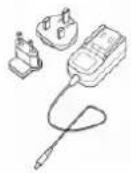
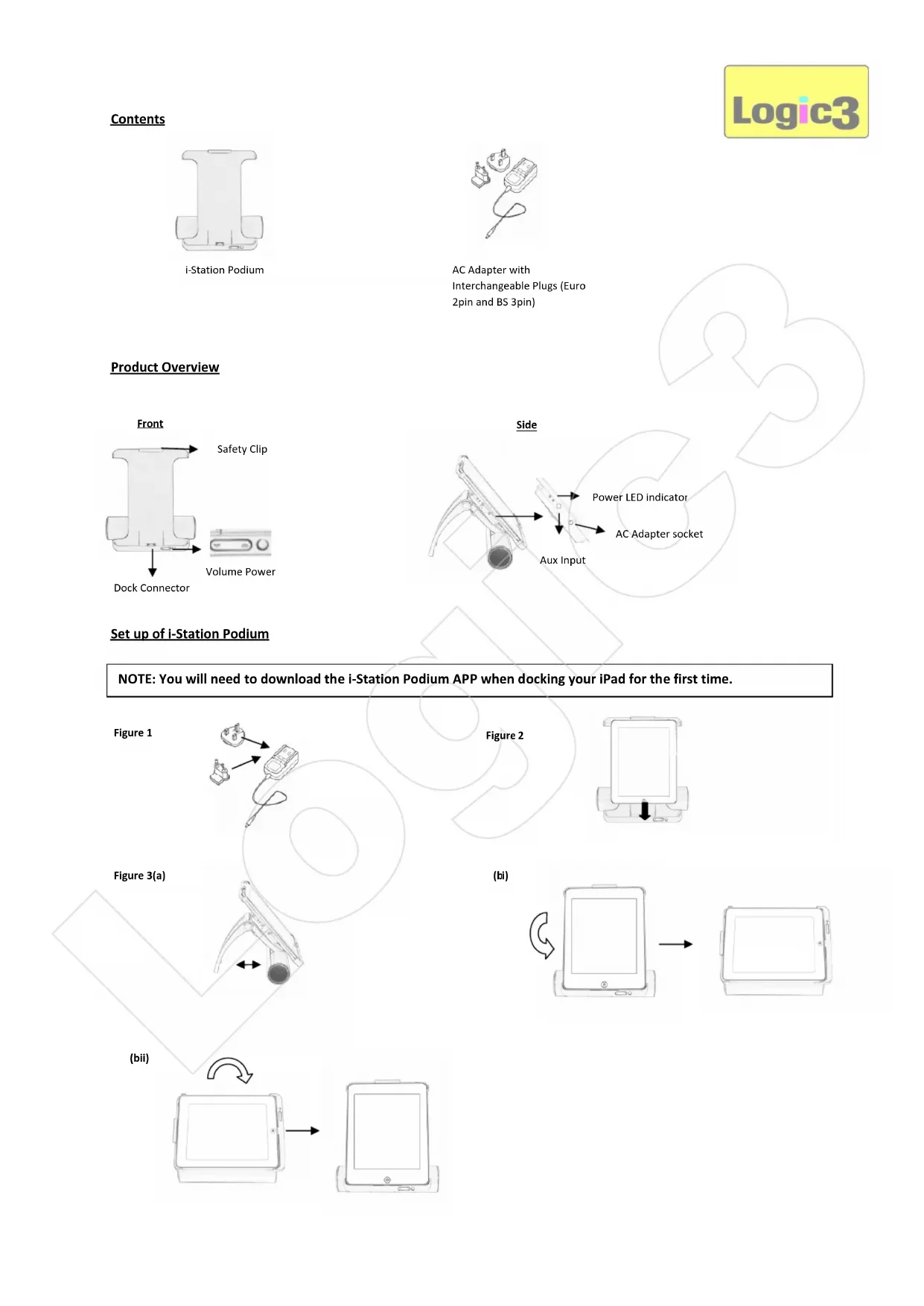
AC Adapter with
Interchangeable Plugs (Euro
2pin and BS 3pin)
Product Overview
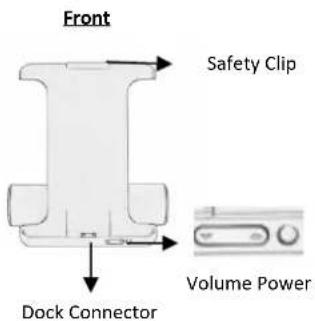
text_image
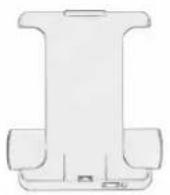
Front Safety Clip Dock Connector Volume PowerSet up of i-Station Podium
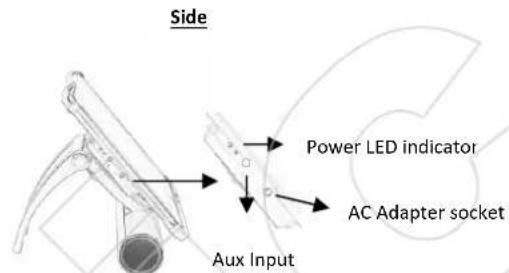
text_image
Side Power LED indicator AC Adapter socket Aux InputNOTE: You will need to download the i-Station Podium APP when docking your iPad for the first time.
Figure 1
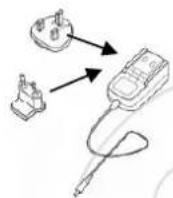
Figure 2
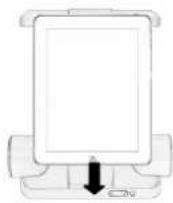
Figure 3(a)
(bi)
natural_image
Diagram showing a device transitioning from a flat screen to a rectangular screen, with an arrow indicating the process (no text or symbols present)(bii)
flowchart
graph TD
    A["Table with blank space"] -->|Rotation Arrow| B["Smartphone with blank screen"]
Thank you for purchasing the Logic3 i-Station Podium for use with iPad, the latest in our long and established range of speakers. As with all Logic3 products, the i-Station Podium has been built to the highest manufacturing standards, to bring you the very latest and advanced technology available. This product has been designed specifically to work with iPad and has been certified by Logic3 to meet Apple performance standards.
This innovative unit with adjustable angle and height allows you to watch videos, read your favourite book and type. By using the line-in port, the i-Station Podium can also be used as a speaker system in conjunction with a number of other portable audio devices such as MiniDisc, MP3 Players or Portable CD Players.
Setup
Please follow the steps within the quick Setup guide to set up the i-Station
- Select and fit the correct plug adaptor to suit your power supply (Figure 1)
- Connect the mains AC Adaptor to the i-Station Podium (DC 5V)
- Plug the power supply into your mains socket and turn the mains socket ON
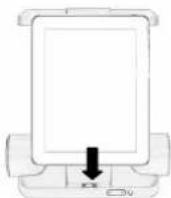
- Insert your iPad vertically (Portrait Position) into the dock (Figure 2)
- Fasten the safety clip once the iPad is docked. (Figure 2)
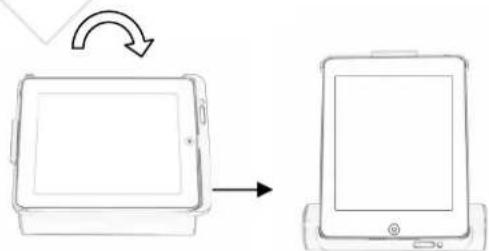
Viewing Angle
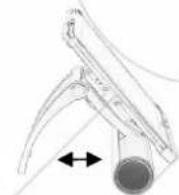
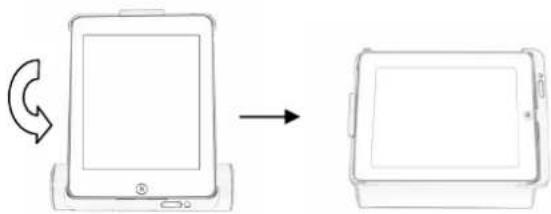
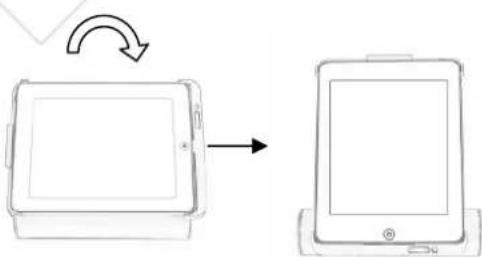
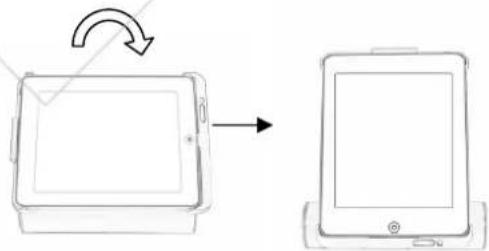
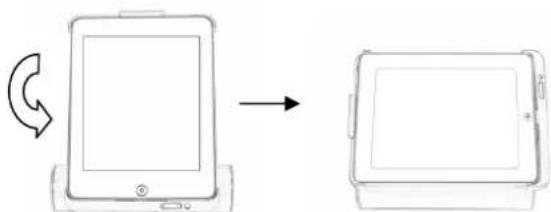
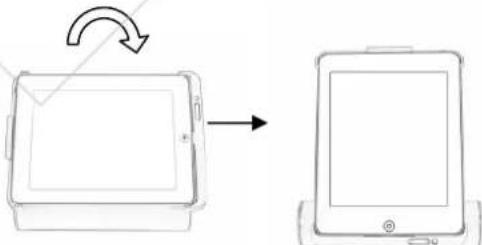
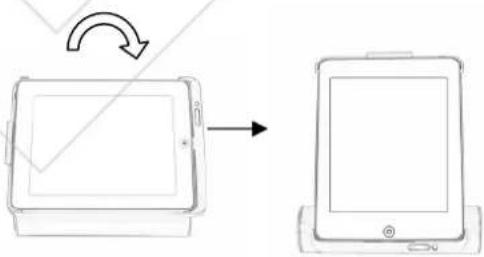
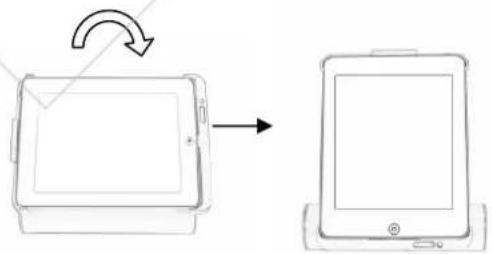
Adjust to your preferred viewing position: (Figure 3)
a) Adjust the angle of the Support Stand
b) Rotate to either:
i. Horizontal (Landscape Position)
ii. Vertical (Portrait Position)
Speaker Controls
1. Power On/Off button
a) Push the button once to switch on the i-Station. The Power LED will illuminate when the i-Station podium is powered.
b) Press and Hold the button to switch off the i-Station Podium.
2. Volume Controls
Press the Up or Down Arrows to adjust the i-Station's volume level.
3. Selecting iPod/Aux-in Mode
Once the unit is switched ON, press the Power button which will toggle the source between iPad and Aux-In mode.
LED Power Status
iPad Mode – Power LED (Permantly ON)
Aux-In Mode – Power LED (Flashing)
APP
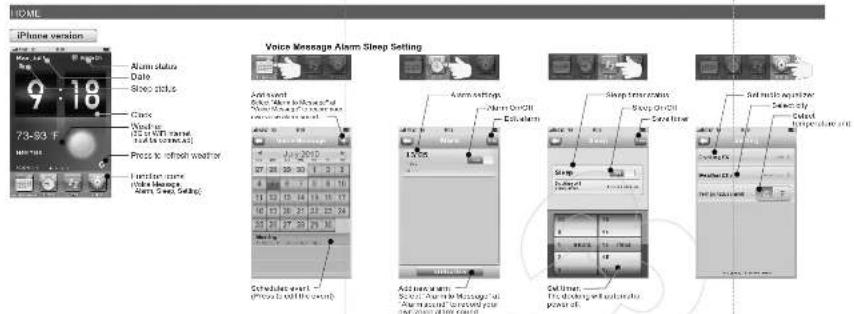
The APP control has numerous features including Time/Date/Weather/Internet Radio – see separate manual
Recharging the iPad
To recharge your iPad, please ensure that the i-Station is connected to the AC Adaptor. The iPad will recharge automatically when docked onto the i-Station.
Trouble Shooting
| Problem What Should I do? | |
| No Sound | Check play status on the iPad |
| Please try updating the software for your iPad using the latest iTunes. | |
| Ensure that the correct source is selected (iPad/Aux –In) – See ‘Select iPad/Aux In mode’ section in manual. |
Spare Part List
| Part No. | Item code Item Name Price | ||
| 1 YAD028 AC Adapter (Interchangeable Plugs) | For prices visit our website at www.logic3.com | ||
| 2 YCB000K Line in Cable (Black) | |||
Please use Item Codes above, when searching for Spare Parts on our Website www.logic3.com
Should you have any setup problems with the i-Station Podium (MPS028K) please contact our Technical Support Hotline on +44 (01923) 471 000 – National/International call rates apply or Email support@logic3.com - Spare parts are available for some models at our website www.logic3.com

text_image
Logic3Contenu
i-Station Podium
natural_image
Diagram showing a device being transferred from a blank screen to a closed tablet, with an arrow indicating the process (no text or symbols present)(bii)
natural_image
Diagram showing a device being processed from a screen, with no text or symbols present.i-Station Podium (MPS028K)
natural_image
Diagram showing a device transitioning from a blank screen to a rectangular tablet, with an arrow indicating the process (no text or symbols present)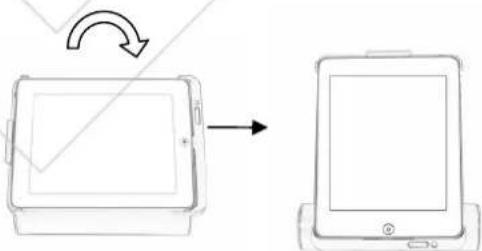
natural_image
Diagram showing a device being processed from a screen to a tablet, with no text or symbols present.text_image
Diagram showing electrical connections with labeled components and directional arrows indicating connection paths.Immagine 2
(bi)
natural_image
Diagram showing a device being processed from a blank screen, with an arrow indicating rotation (no text or symbols present)(bii)
natural_image
Diagram showing a device being rotated from its left to the right, with no text or symbols present.natural_image
Diagram showing a device transitioning from a flat screen to a rectangular tablet, with an arrow indicating the process (no text or symbols present)(bii)
natural_image
Diagram showing a device being processed from a screen to a tablet, with no text or symbols present.natural_image
Diagram showing a device transitioning from a flat screen to a rectangular screen, with an arrow indicating the process (no text or symbols present)(bii)
natural_image
Diagram showing a device being processed from a screen, with no text or symbols present.natural_image
Diagram showing a device transitioning from a flat screen to a rectangular screen, with an arrow indicating the process (no text or symbols present)(bii)
flowchart
graph LR
    A["Table with Screen"] -->|Rotation Arrow| B["Table with Tablet"]
iPhone/iPad docking station app
USER'S GUIDE
Install Logic3 i-Station
TM
Logic3 I-Station™ is a free app for iPhone, iPod Touch and iPad.
It extends expanded functions compatible clocking station
Inrebell 1-Station ^TM
-
Open "App Store" at your iPhone, iPod Touch or iPad.
-
Search * i Station.
-
In the search results, press the Station icon level
-
Press FREE to install the cap
(1) REE
Getting started
Press the i-Station icon on the device to open the app.
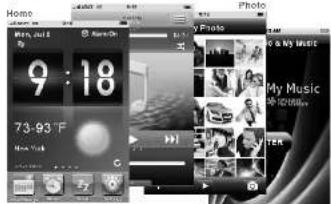
5 scroll left and right to access the four function main screens.
Audio
text_image
Home 9:18 73-93°F My Music TOKInternet radio & My Music
text_image
iPhone version 9:18 73-93 F Alum status Date Sleep status Class Wind to (52 or 60 Hz) (14 or 24 Hz) Press to offset wind to Transfer time Voice listening Alarm Sleep Setting Voice Message Alarm Sleep Setting Add sound Slew Time to the voice and Sound Time to the voice and Slew Time to the voice and Add sound Slew Time to the voice and Add sound Slew Time to the voice and Add sound Slew Time to the voice and Add sound Slew Time to the voice and Add sound Slew Time to the voice and Add sound Slew Time to the voice and Add sound Slew Time to the voice and Add sound Slew Time to the voice and Add sound Slew Time to the voice and Add sound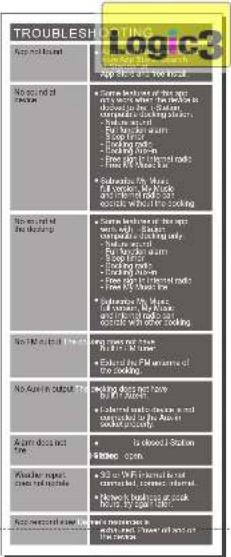
text_image
TROUBLESH App not listed No need of cooking Some kitchen of the cooking Some kitchen of the cooking Some kitchen of the cooking Some kitchen of the cooking Some kitchen of the cooking Some kitchen of the cooking Some kitchen of the cooking Some kitchen of the cooking Some kitchen of the cooking Some kitchen of the cooking Some kitchen of the cooking Some kitchen of the cooking Some kitchen of the cooking Some kitchen of the cooking Some kitchen of the cooking Some kitchen of the cooking Some kitchen of the cooking Some food is used to use a cooking method, but it is used to use a cooking method for cooking. Some food is used to use a cooking method for cooking. Some food is used to use a cooking method for cooking. Some food is used to use a cooking method for cooking. Some food is used to use a cooking method for cooking. Some food is used to use a cooking method for cooking. Some food is used to use a cooking method for cooking. Some food is used to use a cooking method for cooking. Some food is used to use a cooking method for cooking. Some food is used to make a cooking method for cooking. Some food is used to make a cooking method for cooking. Some food is used to make a cooking method for cooking. Some food is used to make a cooking method for cooking. Some food is used to make a cooking method for cooking. Some food is used to make a cooking method for cooking. Some food is used to make a cooking method for cooking. Some food is used to make a cooking method for cooking. Some food is used to make a cooking method by using a cooking method for cooking. Some food is used to make a cooking method by using a cooking method for cooking. Some food is used to make a cooking method by using a cooking method for cooking. Some food is used to make a cooking method by using a cooking method for cooking. Some food is used to make a cooking method by using a cooking method for cooking. Some food is used to make a cooking method by using a cooking method for cooking. Some food is used to make a cooking methods by using a cooking method for cooking. Some food is used to make a cooking methods by using a cooking method for cooking. Some food is used to make a cooking methods by using a cooking method for cooking. Some food is used to make a cooking methods by using a cooking method for cooking. Some food is used to make a cooking methods by using a cooking method for cooking. Some food is used to make a cooking methods by using a cooking method for cooking. Some food is used to make an cooking method by using a cooking method for cooking. Some food is used to make an cooking method by using a cooking method for cooking. Some food is used to make an cooking method by using a cooking method for cooking. Some food is used to make an cooking method by using a cooking method for cooking. Some food is used to make an cooking method by using a cooking method for cooking. Some food is used to make an cooking method by using a cooking method for cooking. Some food is used to make a cooking method by using a cooking method for cooking. Some food is used to make an cooking method by using a cooking method for cooking. Some food is used to make an cooking method by using a cooking method for cooking. Some food is used to make an cooking method by using a cooking method for cooking. Some food is used to make an cooking method by using a cooking method for cooking. Some food is used to make an cooking method by using a cooking method for cooking. Some food is used in the following: - Some foods are used in the following: - Some foods are used in the following: - Some foods are used in the following: - Some foods are used in the following: - Some foods are used in the following: - Some foods are used in the following: - Some foods are used in the following: - Some foods are used in the following: - Some foods are used in the following: - Some foods are used in the following: - Some foods are used in the following: - Some foods areused in the following: - Some foods areused in the following: - Some foods areused in the following: - Some foods areused in the following: - Some foods areused in the following: - Some foods areused in the following: - Some foods areused in the following: - Some foods areused in the following: - Some foods areused in the following: - Some foods areused in the following: - Some foods areused in the following: - Some foods areusedin the following: - Some foods areused in the following: - Some foods areused in the following: - Some foods areused in the following: - Some foods areused in the following: - Some foods areused in the following: - Some foods areused in the following: - Some foods areused in the following: - Some foods areused in the following: - Some foods areused in the following: - Some foods areused in the following: - Some foods areused in 1000 gm - Some foods areused in 100 gm - Some foods areused in 100 gm - Some foods areused in 100 gm - Some foods areused in 100 gm - Some foods areused in 100 gm - Some foods areused in 100 gm - Some foods areused in 100 gm - Some foods areused in 100 gm - Some foods areused in 100 gm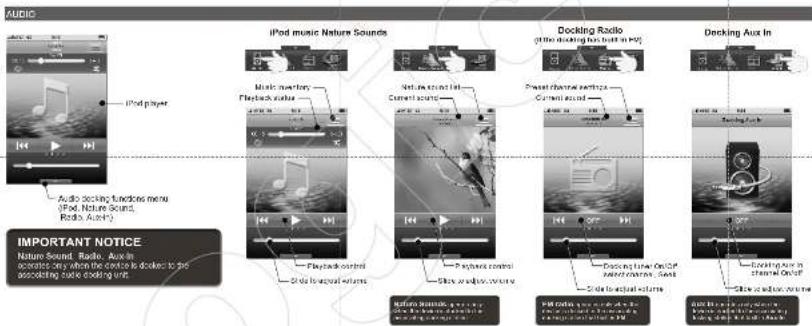
text_image
AUDIO iPod player Audio docking functions menu iPod, Nature Sound, Radio, Aux In iPod music Nature Sounds Music inventory Playback cube Playback control Slide to audio volume Net in channel Current sound Playback control Show audio volume Docking Radio (see docking bus built-in port) Power hours extra time Current sound Decking Aux In Touching Bus Switch to audio volume Audio video, video set Audio video set Audio video set Audio video set Audio video set Audio video set Audio video set Audio video set Audio video set Audio video set Audio video set Audio video set Audio video set Audio video set Audio video set Audio video set Audio video set Audio video set Audio video set Audio video set Audio video set Audio video set Audio video set Audio video set Audio video set Audio video set Audi in a mini audio file Audio in a mini audio file Audio in a mini audio file Audio in a mini audio file Audio in a mini audio file Audio in a mini audio file
Copyright(c)2010 Docking Partner
text_image
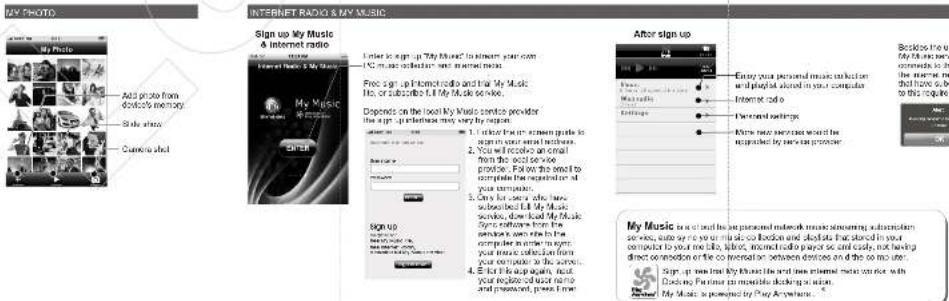
MY PHOTO INTERNET RADIO & MY MUSIC Sign up My Music & Internet radio Add photo from docket's memory Slide share Connected My Music My Music SIGN UP SIGN UP After sign up Enter your personal music collection and playful stored in your computer Internet to do Personal settings Home new services would be appurchased by any user provider. My Music is a tool to get personal network music streaming subscription service, easy to use your radio to download and double that stored in your computer by your life, video, audio radio player so, and easily, not having direct connection or the co-internet between devices on the co-meter. Sign up main trust My Music and new internal radio carrier with Docking Partner can monitor docking position. My Music is powered by Play Anywhere...Valid Docking
Besides the users that have subscribed full
the C#e: 98-718, this is required to be a connects to the social docking division in Korea
the missed referral line My Mapac the Libors that have a bounded My Maps are not limited.
that have subscribed my kids are not missed to this requirement

For a free user attempt to use these feel per if a task
theaching stadium or red
cielered, set alert when
will display on the Phone service. Cancel the Phone
to a valid docking press OK