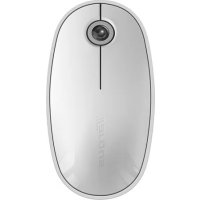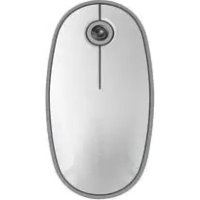
AMB08CA - Mouse TARGUS - Free user manual and instructions
Find the device manual for free AMB08CA TARGUS in PDF.


User questions about AMB08CA TARGUS
0 question about this device. Answer the ones you know or ask your own.
Ask a new question about this device
Download the instructions for your Mouse in PDF format for free! Find your manual AMB08CA - TARGUS and take your electronic device back in hand. On this page are published all the documents necessary for the use of your device. AMB08CA by TARGUS.
USER MANUAL AMB08CA TARGUS
www.targus.com/ca/forMac
2008 Manufactured or imported by Tampa Caracas Ltd. 3C Industrial Limited, Missa group, CN 1537-794. All rights reserved. Tampa is the region of trademark or trade mark of Tampa & City International Inc. in the United States and other local district. Farmers and specifants are subject to change without notice Mac Mac Bag, Mac OS, B#### and TtBox are trademarks of Appeloc, Inc. in the U.S. and other countries. The Boston must mark and ages are used by the Boston, 5G, Inc. at any rate of such markets by Tampa in under state. All manufacturers and registered manufacturers are property of their respective owners. This product and business features are protected under power in US\$20682 TXM 1011 CHZJ 3275520 JH482 010 020000054152 CHF 200800104415- JH320198 027000005565-02000006318-00 in United States and other services provided.
ONE YEAR LIMITED WARRANTY
www.targus.com/ca/forMac
LASER RADIATION. DO NOT STARE INTO THE BEAM OR VIEW DIRECTLY WITH OPTICAL INSTRUMENTS. CLASS I LASER PRODUCT.
NEVER POINT A LASER BEAM INTO A PERSON'S EYES OR VIEW A LASER BEAM DIRECTLY, AS PROLONGED EXPOSURE CAN BE HAZARDOUS TO THE EYES.
MOMENTARY EXPOSURE FROM A LASER POINTER, SUCH AS AN INADVERTENT SWEEP OF THE LIGHT ACROSS A PERSON'S EYES, MAY CAUSE TEMPORARY FLASH BLINDNESS SIMILAR TO THE EFFECT OF A CAMERA FLASH BULB. ALTHOUGH THIS CONDITION IS TEMPORARY, IT CAN BECOME MORE DANGEROUS IF THE EXPOSED PERSON IS ENGAGED IN A VISION-CRITICAL ACTIVITY SUCH AS DRIVING.
Bluetooth ^® Laser Mouse
Targus Bluetooth® Laser Mouse
Introduction
Congratulations on your purchase of the Targus Bluetooth Laser Mouse. This mouse uses Bluetooth wireless technology which provides a seamless connection up to 33 ft (10 m) away.
System Requirements
Hardware
- Bluetooth-enabled notebook or desktop computer
Operating System
• Mac OS® X 10.4 or later
Bluetooth ^® Laser Mouse
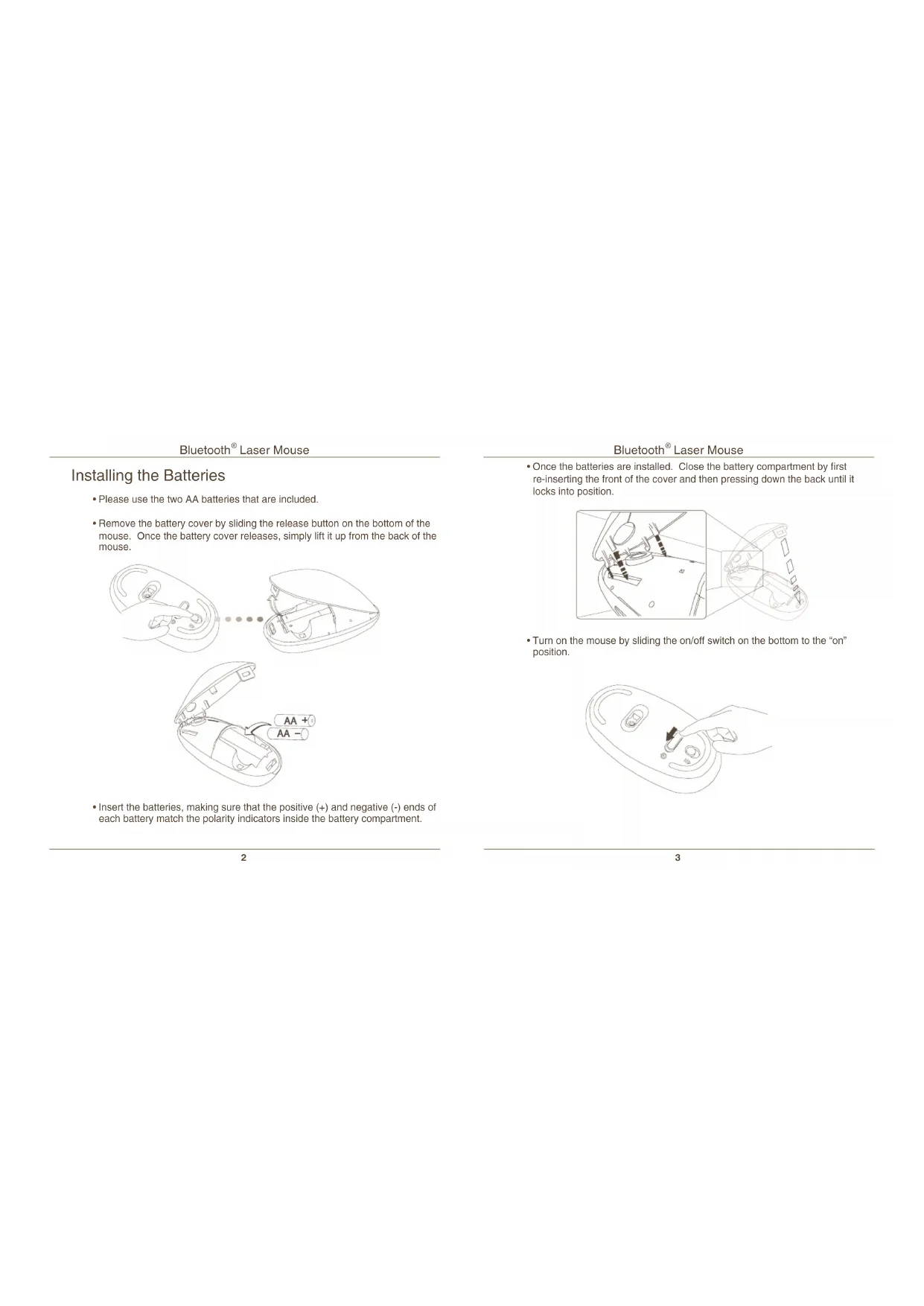
Installing the Batteries
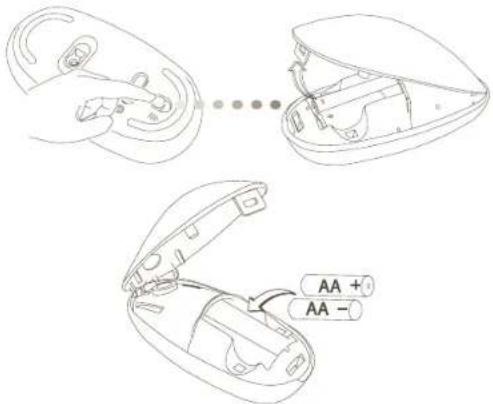
- Please use the two AA batteries that are included.
- Remove the battery cover by sliding the release button on the bottom of the mouse. Once the battery cover releases, simply lift it up from the back of the mouse.
text_image
AA + AA -- Insert the batteries, making sure that the positive (+) and negative (-) ends of each battery match the polarity indicators inside the battery compartment.
Bluetooth ^® Laser Mouse
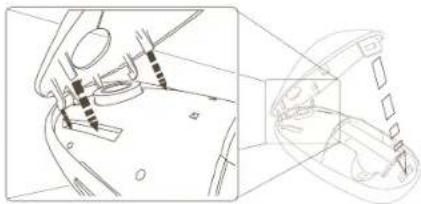
- Once the batteries are installed. Close the battery compartment by first re-inserting the front of the cover and then pressing down the back until it locks into position.
natural_image
Technical line drawing of a mechanical component with no visible text or symbols- Turn on the mouse by sliding the on/off switch on the bottom to the "on" position.
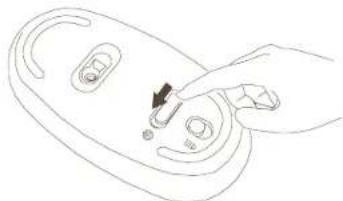
natural_image
Line drawing of a hand pressing a button on a device (no text or symbols)Bluetooth ^® Laser Mouse
Low Battery Power Indicator

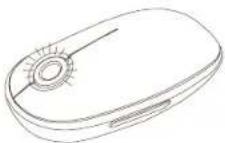
NOTE: WHEN THE BATTERY POWER IS LOW, THE TOUCH SCROLL WILL FLASH RED. PLEASE REPLACE THE BATTERIES.
When 60 minutes of power remains, a red indicator light will glow for 8 seconds.
When only 30 minutes of power remains, the red indicator light will blink continuously.
Using the Mouse
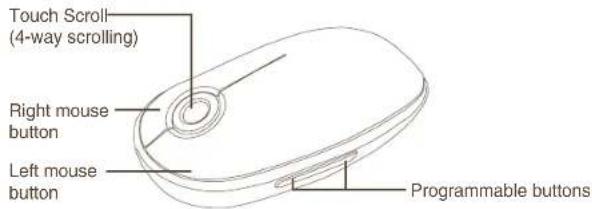
text_image
Touch Scroll (4-way scrolling) Right mouse button Left mouse button Programmable buttonsBluetooth ^® Laser Mouse
Using the Touch Scroll
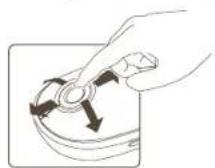
- Slide your finger over the Touch Scroll sensing area to use the 4-way scrolling function.
- Quickly slide your finger (either up or down) over the Touch Scroll to activate the quick scrolling function.
- Press any button to disable the quick scrolling function.

NOTE: PLEASE REMOVE THE PROTECTIVE PLASTIC FILM ON THE TOUCH SCROLL BEFORE USING THE DEVICE.
Initial Configuration
Before you can begin using your Bluetooth mouse, you will first need to perform some initial setup steps.

NOTE: PLEASE USE THE LATEST BLUETOOTH DEVICE DRIVER. INSTRUCTION SCREENS MIGHT VARY DEPENDING ON THE VERSION OF YOUR BLUETOOTH DEVICE DRIVER.
Bluetooth Software: Mac
- Go to the Bluetooth icon located on your desktop or in the system bar and click the icon to begin setup. Select "Turn Bluetooth On" to activate the Bluetooth function on your Mac.
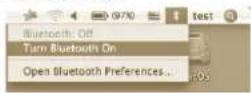
Bluetooth ^® Laser Mouse
- Scroll down the list and select "Set up Bluetooth Device..."
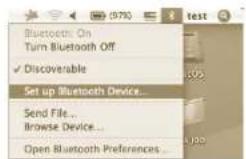
- The Bluetooth Setup Assistant will begin. Please follow the on-screen instructions.
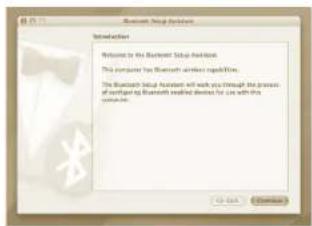
text_image
Bluetooth Setup Options Introduction Welcome to the Bluetooth Setup Options This computer has Bluetooth server specifications. The Bluetooth Setup Assistant will work you through the process of installing Bluetooth installed devices for use with this system.Bluetooth® Laser Mouse
- Select "mouse" and click continue to proceed with setup. Your mouse will need to be in "discovery" mode to connect. To enable "discovery" mode, turn on the mouse and after 3 seconds press any button on the mouse to enter into discovery mode.
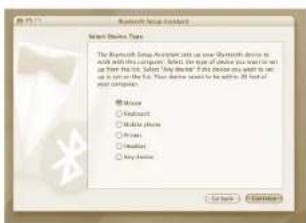
text_image
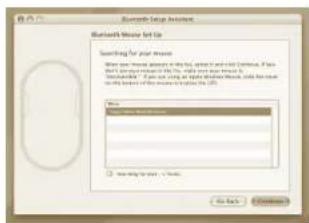
Microsoft Group installed Select Blocks Type The Microsoft Group installed can use new Microsoft devices in which this device will be installed. This device is not available to any other platform. The "You" device will not be installed or used to create the next three blocks. Your device will be within 30 hours of our software. Show options: □ Advanced □ Mobile phone □ iPhone □ Bluetooth □ Keyphone Get Back Cancel- Your computer will begin to search for the mouse. Once the mouse is found, it will show up in the list. Highlight your mouse and press continue.
text_image
Bluetooth Setup Environment Bluetooth's Device Set Up Searching for your mode When your mode is selected, the system will be closed. If you start a session in the Web, you will start your mode. You can use a single or multiple device, then any user will have been used to access the Web. View: □ 请在下面的选项中选择一个选项。 □ 请在下面的选项中选择一个选项。Bluetooth ^® Laser Mouse
- The Bluetooth mouse will now begin pairing. Click continue to proceed.
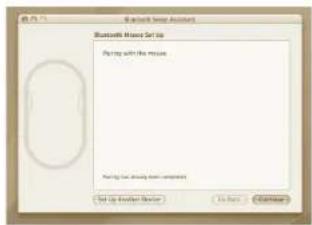
text_image
Bluetooth Master Award Playing with the music Playing but always been composed Set Up Another Event On Save... Change- Congratulations. Your Bluetooth mouse is setup and ready to use. You can choose to setup another device or click Quit to exit setup.
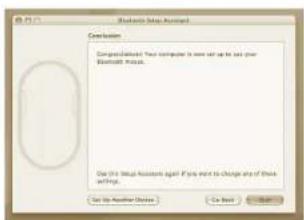
text_image
Microsoft Setup Assistant Conclusion Composational: Your computer is now set up to last your Bluetooth Phone. Use this Setup Assistant again if you want to change any of these settings. Set Up Assistant Options Cash Back NextBluetooth ^® Laser Mouse
Installing Software for Programmable Buttons
Installing the software enables configuration of the programmable buttons.
The latest software (Model # AMB08) can be downloaded from the official Targus web site: http://www.targus.com
Double click the setup icon to launch the installation software.

text_image
TargusDeviceController er1.0.0d1.dmg Targus Device Controller.pkgFollow the on-screen instructions to complete the installation.
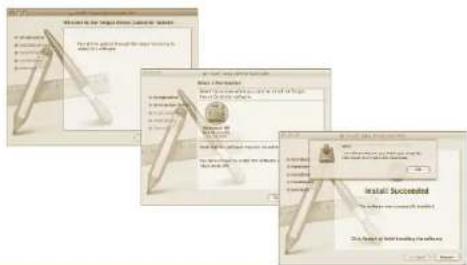
text_image
Welcome to the Magic Island (Magic Island) Server File Edit View Help Tools Help Window Help Get the Web Help Tools Help Window Help Make a new file Save as needed for this file in the Internet Explorer You can access your website or your email. Install Successful This is also available to all users.Bluetooth ^® Laser Mouse
After the software is successfully installed, restart your computer to finish installing the software.
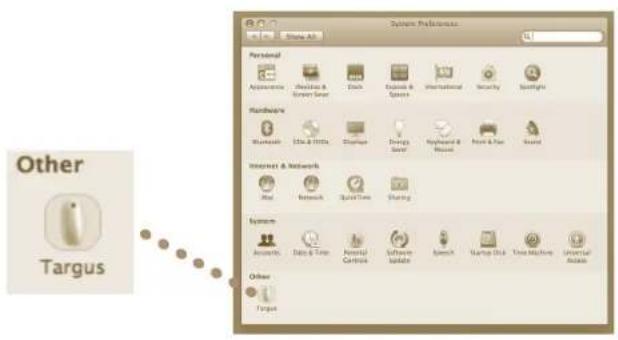
A Targus icon will appear in the System Preferences window.
text_image
System Preferences Personal Accessories Windows & Server Smart Duck Windows & Servers International Security Spotlights Hardware Workloads Data & HDDs Dispersed Energy Savings Keyboard & Mouse Forest & Tree Sound Internet & Network Real Network Quick Tree Sharing System Accessories Data & Tools Personal Networks Software Safari Speech Market Club Time Machines Universal Access Other TargetBluetooth ^® Laser Mouse
Programming the Buttons
Click on the Targus logo to launch the device application.
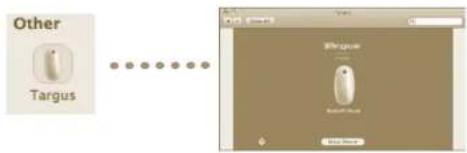
text_image
Other TargusClick to highlight the image of the device and then press "Setup Device" to launch the configuration software.
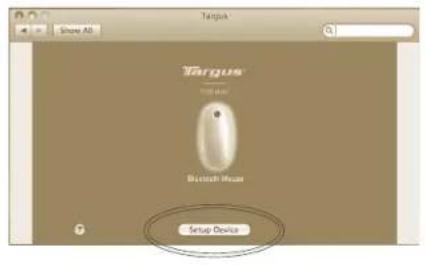
text_image
Targus Setup DeviceBluetooth ^® Laser Mouse
Click the arrows on the right-side of the drop down lists to configure each button.
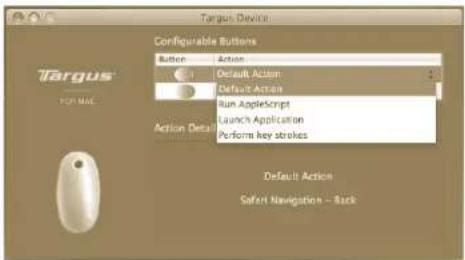
text_image
Targus Device Configurable Buttons Button Action Default Action Default Action Run AppleScript Launch Application Perform key strokes Action Detail Default Action Safari Navigation - BackEach button can be programmed to any of the following types of functions:
| Default Action Set the buttons to a specific function. | |
| Run AppleScript Set the buttons to load an AppleScript | |
| Launch Application | Set the buttons to launch specific application installed in the computer. |
| Perform key strokes Set the button to recall key strokes. | |
| Predefined functions Set the button to map pre-set actions | |
Close the application window to apply the changes.
Bluetooth ^® Laser Mouse
Troubleshooting
The mouse is not working.
- Make sure the batteries are installed correctly. The positive (+) and negative (-) ends of each battery must match the positive (+) and negative (-) connections in the battery compartment.
- Make sure the batteries are charged. Replace if necessary.
- Verify that the computer is Bluetooth enabled.
-
Verify that the device drivers are installed:
-
Click "Apple Logo --> System Preference --> Hardware --> Bluetooth"
-
Check under "Bluetooth Devices" that a "Targus Bluetooth Laser Mouse" is installed.
- Paired devices are always displayed in "Bluetooth" windows, even if the mouse is out of range or not powered up.
Bluetooth ^® Laser Mouse
Technical Support
For technical questions, please visit:
Internet: www.targus.com/ca/support.asp
Email: info.cn@targus.com
Product Registration
Targus recommends that you register your Targus accessory shortly after purchasing it. To register your Targus accessory, go to:
http://www.targus.com/registration.asp
You will need to provide your full name, email address, country of residence and product information.
Warranty
Targus warrants this product to be free from defects in materials and workmanship for one year. If your Targus accessory is found to be defective within that time, we will promptly repair or replace it. This warranty does not cover accidental damage, wear and tear, or consequential or incidental loss. Under no conditions is Targus liable for loss of, or damage to, a computer or other device(s); nor loss of, or damage to, programs, records, or data; nor any consequential or incidental damages, even if Targus has been informed of their possibility. This warranty does not affect your statutory rights.
Bluetooth ^® Laser Mouse
Regulatory Compliance
This device complies with Part 15 of the FCC Rules. Operation is subject to the following two conditions: (1) This device may not cause harmful interference; and (2) this device must accept any interference received, including interference that may cause undesired operation.
FCC Statement
Tested to Comply
This equipment has been tested and found to comply with the limits of a Class B digital device, pursuant to Part 15 of the FCC Rules. These limits are designed to provide reasonable protection against harmful interference in a residential installation. This equipment generates, uses, and can radiate radio frequency energy and if not installed and used in accordance with the instructions, may cause harmful interference to radio communications. However, there is no guarantee that interference will not occur in a particular installation. If this equipment does cause harmful interference to radio or television reception, which can be determined by turning the equipment off and on, the user is encouraged to try to correct the interference by one or more of the following measures:
- Reorient or relocate the receiving antenna;
- Increase the separation between the equipment and receiver;
- Connect the equipment into an outlet on a circuit different from that to which the receiver is connected;
- Consult the dealer or an experienced radio/TV technician for help
Changes or modifications not authorized by the party responsible for compliance could void the user's authority to operate this product.
This Class B digital apparatus complies with Canadian ICES-003.
Bluetooth ^® Laser Mouse

ATTENTION
RAYONNEMENT LASER. NE FIXEZ PAS LE FAISCEAU ET NE L'EXAMINEZ PAS DIRECTEMENT AU MOYEN D'INSTRUMENTS OPTIQUES. PRODUIT LASER DE CLASSE I.
NE DIRIGEZ JAMAIS UN FAISCEAU LASER VERS LES YEUX D'UNE PERSONNE ET NE REGARDEZ JAMAIS DIRECTEMENT UN FAISCEAU LASER, TOUTE EXPOSITION PROLONGÉE À UN FAISCEAU LASER POUVANT ÊTRE DANGEREUX POUR LES YEUX.
UNE EXPOSITION MOMENTANÉE À UN POINTEUR LASER RÉSULTANT PAR EXEMPLE DU PASSAGE ACCIDENTEL DU FAISCEAU DANS LES YEUX D'UNE PERSONNE PEUT AVOIR POUR CONSÉQUENCE UN AVEUGLEMENT PAR L'ÉCLAIR TEMPORAIRE SIMILAIRE AUX EFFETS PROVOQUÉS PAR L'AMPOULE DE FLASH D'UN APPAREIL PHOTO. BIEN QUE CET ÉTAT SOIT TEMPORAIRE, IL PEUT SE RÉVÉLER DANGEREUX SI LA PERSONNE EXPOSÉE EST ENGAGÉE DANS UNE ACTIVITÉ DANS LE CADRE DE LAQUELLE SA VUE LUI EST INDISPENSABLE (CONDUIRE, PAR EXEMPLE).
Souris Laser Bluetooth ^® Targus
Souris Laser Bluetooth® Targus
Introduction
text_image
AA + AA -natural_image
Technical line drawing of a mechanical component with internal parts and a close-up inset showing a detail (no text or symbols)natural_image
Line drawing of a hand pressing a button on a device (no text or symbols)Souris Laser Bluetooth ^® Targus