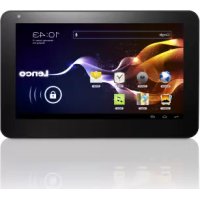
TAB1012 - Tablet LENCO - Free user manual and instructions
Find the device manual for free TAB1012 LENCO in PDF.


| Brand | Lenco |
| Model | TAB1012 |
| Product Type | Touchscreen Tablet |
| Dimensions (approx.) | 262 x 172 x 12 mm |
| Weight (approx.) | 580 g |
| Power Supply | Rechargeable Lithium-Polymer battery, 12V DC 2A adapter |
| Processor | Rockchip2918 1 GHz (Cortex A8) |
| RAM Memory | 1 GB DDR3 |
| Internal Storage | 8 GB (Flash, expandable via microSD card up to 32 GB) |
| Screen | 10.1" TFT LCD (1024×600), resistive touchscreen |
| Operating System | Android™ 4.0 |
| Wi-Fi Connectivity | IEEE 802.11 b/g/n |
| Video Output | Mini HDMI type C (1080p/720p) |
| Ports | USB 2.0 high speed, USB OTG, 3.5 mm headphone jack, microSD, DC 12V |
| Camera | Front 0.3 MP, Rear 2 MP |
| Speakers | 2 × 1.5 W |
| Microphone | Built-in |
| Battery Life (approx.) | Up to 6 h music, 3 h video, 4 h web browsing |
| Main Functions | Internet browsing, email, video/audio playback, e-reader, Android Market access, HDMI to TV |
| Care and Cleaning | Clean with a soft dry cloth, avoid liquids |
| Safety | Use only the supplied adapter, do not expose to water |
| Spare Parts and Repairability | Integrated battery, removable SD card. For repairs, contact an authorized service center. |
| General Information | Manual available in multiple languages. www.lenco.eu |
Frequently Asked Questions - TAB1012 LENCO
User questions about TAB1012 LENCO
0 question about this device. Answer the ones you know or ask your own.
Ask a new question about this device
Download the instructions for your Tablet in PDF format for free! Find your manual TAB1012 - LENCO and take your electronic device back in hand. On this page are published all the documents necessary for the use of your device. TAB1012 by LENCO.
USER MANUAL TAB1012 LENCO
Visit your favorite websites
Check your e-mail
Keep in touch with friends and family
Watch YouTube™ videos
Browse the world's most popular video-sharing community
Read your favorite books
Download thousands of books with the included E-book reader *
Discover thousands of apps for Android™ Games, applications, and more with marketplace(need for customer installed)
Connect to the Internet wirelessly
High-speed Wi-Fi 802.11 b/g/n networking
HDMI™ output to your TV™
Features
Enjoy in the comfort of your living room
Enjoy your media library anywhere
Portable powerhouse plays popular music, video,and photo formats
microSD memory card reader
Increase your storage capacity (up to 32 GB supported)
Built-in camera
Convenient front-facing camera and back camera
Automatic orientation detection
Read any way you want; the display adjusts automatically!
Reading books in the ePub format requires the E-book reader application.
Requires optional HDMI cable
(Type A-to-Type C). 1080p HD video playback requires a video file encoded at 1080p.
Streaming video quality will be affected by the source, and the quality and condition of your network connection.
Unit at a Glance
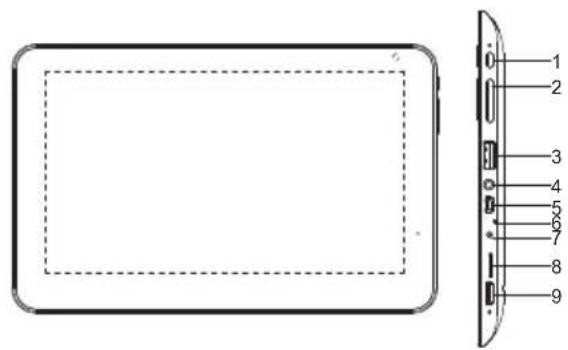
1. ON/OFF
Press on/off to turn the table on/off/sleep /weak up.
2. VOL-/VOL+
Press VOL- to decrease the volume level. Press VOL+ to increase the volume level.
3.USB HOST
Connect to a USB device
4. Earphone
Audio output connection for headphones.
5.USB OTG
Connect to a USB device or a computer to transfer data (e.g. music, videos, photos, files).
6.MIC
Record audio.
7.DC12V
Charge and power the tablet with the included power adapter.
8. microSD
Load external microSD memory cards here.
9.HDMI
Connect to a TV or other displays.
Getting Started Turning the Tablet on or off
To turn the tablet on:
Press and hold the Power key until the LCD screen turns on. Wait until the Home screen appears; the tablet is now ready for use.
To turn the tablet off:
- Press and hold the Power key until the Device Options menu appears.
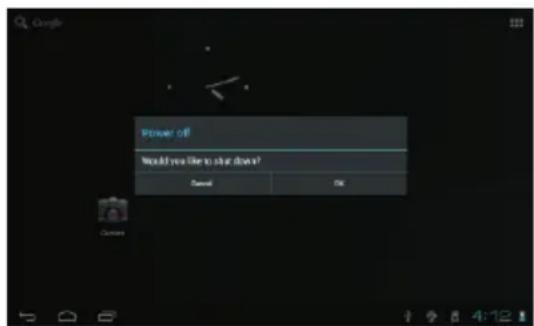
- Touch ok the screen to turn off the tablet.
Turning the Screen On or off (Standby)
When the tablet is on, you can turn off the screen to conserve battery power. Simply press the Power key once to turn the screen off. Press the Power key again to turn the screen back on.
To conserve battery power, the screen can be set to turn off automatically when the tablet is not in use (between
1 minute and 30 minutes).
This Screen timeout option can be found in the Display menu.
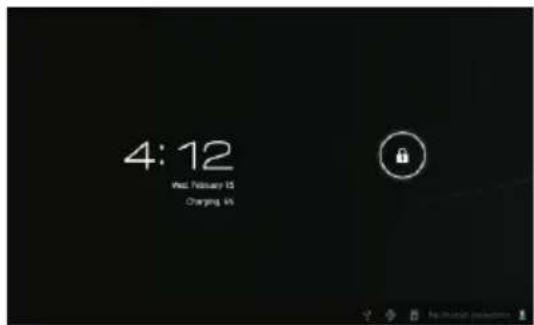
Getting Started Unlocking the Screen
When the screen turns off, you will have to unlock the screen, when you turn it back on. To unlock the screen, drag the lock icon across the screen towards the lock icon.
About Applications
To open an application, touch the application icon on the home screen or in the Launcher where you can tap the icon right up on the home screen to get in..
Launcher screen:
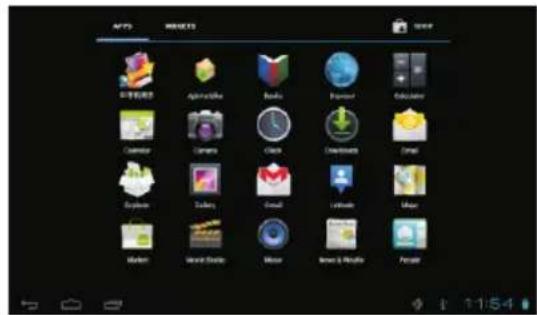
The screen shown above is for illustrative purposes only. Reserves the right to modify and improve the final list of applications available on the tablet.
About Applications Preinstalled Applications
Some applications have been installed on your tablet for your convenience. These applications include:

Browse the web.

Perform simple mathematical operations.

Take pictures or videos with the frontfacing camera.

Check your e-mail.

Play music

Access the Settings menu to adjust the tablet's options.
Preinstalled Applications Installing Applications
You can also download an install additional applications from the device's applications marketplace, the web browser, or other sources.
The tablet must be set to allow installation of applications from non-Market sources. The Unknown sources option can be set in the Application settings menu.
Connect to a Wi-Fi network
The Notification bar displays icons that indicate your tablet's Wi-Fi status.

Notification that an open
Wi-Fi network is in range.

Connected to a Wi-Fi network
(waves indicate connection strength).
[no icon] There are no Wi-Fi networks in range, or the Wi-Fi radio is off.
- Turn on the Wi-Fi radio if it is not already on.
To turn on Wi-Fi:
a.Go to the Home screen: Press the Home key. b.Open the Settings menu: tap the icon right up on the home screen to get into the launcher, then touch Settings icon.
c.Open the Wireless & networks menu: Slide the icon to ON status.
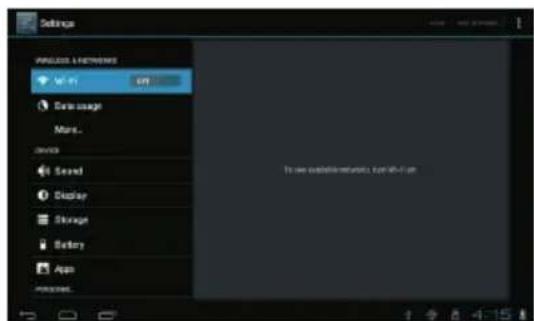
When Wi-Fi is on, the tablet will look for and display a list of available Wi-Fi networks.
If a network that you have connected to previously is found, the tablet will connect to it. If you don't see your network in the list, you can force the tablet to re-scan. To scan for networks, tap the Menu key, and then touch Scan.
- Select an available Wi-Fi network to connect to: In the same Wi-Fi settings menu above, touch a network in the list. If the network is open, the tablet will prompt you to confirm connection to the network. Touch Connect to confirm. If the network is secured (as indicated by a Lock icon), the tablet will prompt you to enter a password or other credentials. Touch the Wireless password box to show the on-screen keyboard and then use it to enter the password. Touch Connect to confirm.
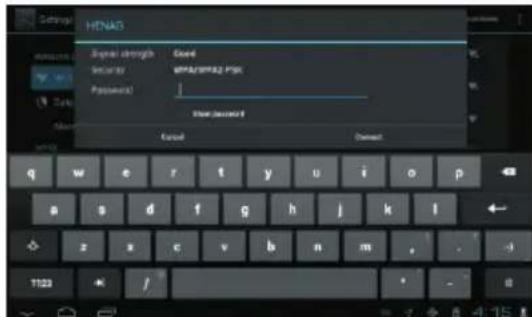
When you have successfully connected to a Wi-Fi network, the Notifications bar at the low of the screen will show a Wi-Fi signal indicator.
B. b = - 1( 1 + u)
To learn about how to add a Wi-Fi network when it is not in range or when the router is set to obscure the network name (SSID); or to configure advanced Wi-Fi options, please refer to the manual.
Optional Connections Connecting to a Computer
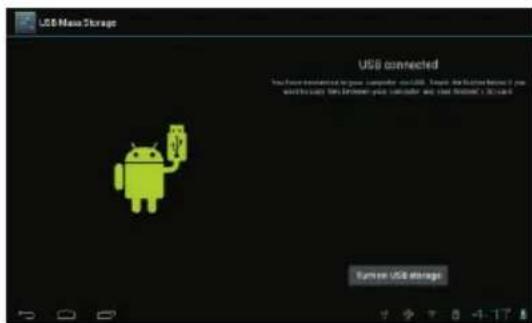
Connect the tablet to a computer to transfer files. 1. Connect your tablet to the computer. With the included USB cable: Plug the small end of the cable into OTG connector of the tablet. Plug the large end of the cable into an available USB 2.0 high speed port on the computer.
2.When your tablet is connected, slide up the USB icon right down on the screen and then touch icon USB connected.
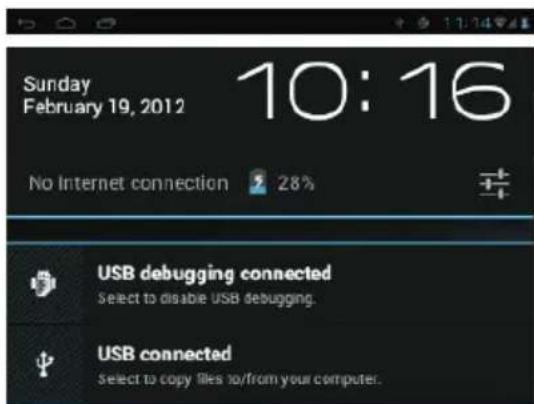
3.Mount the storage.
Touch button Turn on USB storage to mount the tablet's built-in storage. When it is mounted, you can copy files to or from your tablet.
To connect the tablet to the TV:
- Plug the small end of the HDMI cable into the mini HDMI connector on the tablet.
- Plug the large end of the HDMI cable into the HDMI port on the TV.
- Turn on the TV, and set its display mode to the HDMI port that the tablet is connected to.
If you need help setting the display mode of the TV, please refer to the documentation provided by the TV manufacturer. If there is no sound from the tablet on your TV, you may need to set the HDMI switch sound settings.
Specifications
Please visit www.henag.com for the latest product information. Design, specifications, and manual are subject to change without notice.
| Processor | ROCKCHIP2918 1GHz(Cortex A8) |
| RAM | 1GDDR3 |
| Storage | 8GB(option) flash built-in; microSD card slot (max.32GB supported) |
| Display | 10.1"TFT LCD(1024x600),Capactive touch screen |
| Wi-Fi Networking | IEEE 802.11 b/g/n |
| Video Output | Mini HDMI,type C(1080p and 720p supported) |
| Audio Output | 3.5mm headphone |
| PC Interface | USB 2.0 high speed |
| Additional Features | Built-in microphoneFront facing camera(0.3MP)Back camera(2MP)2X1.5W speaker |
| Operating System | AndroidTM 4.0 |
| Power | Rechargeable Li-poly batterypowerAdapter(DC 12V,2A) |
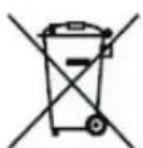

If at any time in the future you should need to dispose of this product please note that: Waste electrical products should not be disposed of with household waste.
Please recycle where facilities exist. Check with your Local Authority or retailer for recycling advice. (Waste Electrical and Electronic Equipment Directive)
Lenco
BENUTZERHANDBUCH
TAB-1012
Verbinding makes meteen Wi-Fi network

- Unit at a Glance
- ON/OFF
- VOL-/VOL+
- 3.USB HOST
- Earphone
- 5.USB OTG
- 6.MIC
- 7.DC12V
- microSD
- 9.HDMI
- Getting Started Turning the Tablet on or off
- Turning the Screen On or off (Standby)
- Getting Started Unlocking the Screen
- About Applications
- About Applications Preinstalled Applications
- Preinstalled Applications Installing Applications
- Connect to a Wi-Fi network
- b = - 1( 1 + u)
- Optional Connections Connecting to a Computer
- Specifications
- Lenco
- BENUTZERHANDBUCH
- TAB-1012
- Verbinding makes meteen Wi-Fi network
Brand : LENCO
Model : TAB1012
Category : Tablet