ViewPad VPAD10 - Tablet VIEWSONIC - Free user manual and instructions
Find the device manual for free ViewPad VPAD10 VIEWSONIC in PDF.



| Product Type | Tablet PC |
| Brand | ViewSonic |
| Model | ViewPad VPAD10 |
| Screen Size | 10 inches (approx.) |
| Touchscreen | Multi-touch (supports two-finger gestures) |
| Processor | Not specified (likely Intel Atom or similar) |
| RAM | Not specified (likely 1 GB) |
| Storage | Internal SSD (driver located on last partition) |
| Operating System | Windows 7 |
| Wireless Connectivity | WiFi 802.11 b/g, Bluetooth, 3G (optional via SIM card) |
| Ports | 1 x USB 2.0, 1 x mini VGA, 1 x audio jack (headphone), 1 x microphone, 1 x Micro SD slot, 1 x 3G SIM slot, 1 x power |
| Camera | Built-in webcam (front) |
| Power Supply | External AC adapter, rechargeable lithium-ion battery |
| Battery Life | Not specified (estimated: 4-6 hours) |
| G-sensor | Yes, for automatic screen rotation |
| Speakers | Built-in stereo speakers |
| Operating Temperature | 5°C to 35°C |
| Care and Cleaning | Clean with a soft, dry cloth. Do not use liquids. |
| Safety | Do not expose to moisture, do not open, use only approved accessories. |
| Warranty | 1 year (limited) |
| Weight | Not specified (approx. 700-900 g) |
| Dimensions | Not specified (approx. 260 x 180 x 15 mm) |
Frequently Asked Questions - ViewPad VPAD10 VIEWSONIC
User questions about ViewPad VPAD10 VIEWSONIC
0 question about this device. Answer the ones you know or ask your own.
Ask a new question about this device
Download the instructions for your Tablet in PDF format for free! Find your manual ViewPad VPAD10 - VIEWSONIC and take your electronic device back in hand. On this page are published all the documents necessary for the use of your device. ViewPad VPAD10 by VIEWSONIC.
USER MANUAL ViewPad VPAD10 VIEWSONIC
CE Conformity for European Countries
The device complies with the EMC Directive 2004/108/EC and Low Voltage Directive 2006/95/EC.
Following information is only for EU-member states:
The mark shown to the right is in compliance with the Waste Electrical and Electronic Equipment Directive 2002/96/EC (WEEE).
The mark indicates the requirement NOT to dispose the equipment as unsorted municipal waste, but use the return and collection systems according to local law.
If the batteries, accumulators and button cells included with this equipment, display the chemical symbol Hg, Cd, or Pb, then it means that the battery has a heavy metal content of more than 0.0005% Mercury, or more than 0.002% Cadmium, or more than 0.004% Lead.
R&TTE Compliance Statement C E
This wireless module device complies with the Essential Requirements of the R&TTE Directive of the European Union (1999/5/EC). This equipment meets the following conformance standards:
ETSI EN 300 328
EN301489
EN301489
Notified Countries: Germany, UK, Netherlands, Belgium, Sweden, Denmark, Finland, France, Italy, Spain, Austria, Ireland, Portugal, Greece, Luxembourg, Estonia, Latvia, Lithuania, Czech Republic, Slovakia, Slovenia, Hungary, Poland and Malta.
Important Safety Instructions
- DO NOT press or touch the LCD Screen. DO NOT place the tablet PC with small items, they may scratch LCD Screen or enter the tablet PC.
- DO NOT expose the tablet PC to dirty or dusty environments. Keep the environment clean and dry.
- DO NOT place the tablet PC on uneven or unstable work surface.
- DO NOT place or drop objects on the top of the tablet PC. DO NOT shove any foreign objects into the tablet PC. DO NOT cover the LCD Screen strongly.
- DO NOT expose the tablet PC to strong magnetic or electrical fields; DO NOT place the floppy disk near or on the tablet PC, that may cause a loss of data on the floppy disk.
- DO NOT leave the tablet PC facing the sun as it can damage the LCD Screen, especially when in the car.
- SAFE TEMPERATURE: This tablet PC should only be used in environments with ambient temperatures between 5^ (41°F) and 35^(95^) .
- DO NOT expose the tablet PC to or use near liquids, rain, or moisture.
- Caution: risk of explosion if battery is replaced by an incorrect type. Dispase of used batteries according to the instructions.
- DO NOT throw the tablet PC in municipal waste. Check local regulations for disposal of electronic products. Please recycle the Battery Pack, and check with your Local Authority or retailer for recycling advice.
- The tablet PC and the Adapter may produce some heat during operation or charging. DO NOT leave the tablet PC on your lap or any part of your body in order to prevent discomfort or injury from heat exposure.
- INPUT RATING: Refer to the rating label on the tablet PC and be sure that the Power Adapter complies with the rating. Only use accessories specified by the manufacturer.
- Check the connections between the main unit and attachments before turning on the tablet PC.
- DO NOT use the tablet PC while eating food, avoid dirtying the tablet PC.
- DO NOT insert anything into the tablet PC that may result in short circuit or damage the circuit.
- Power off the tablet PC, if you want to install or remove some external devices, which do not support hot-plug.
ViewSonicVPAD10
- Disconnect the tablet PC from the electrical outlet and remove any installed batteries before cleaning the tablet PC. Keep the tablet PC and its accessories away from children.
- DO NOT disassemble the tablet PC, only a certified service technician should perform repairs on your computer.
- Only use Battery Packs approved by the manufacturer or else damage may occur.
- The tablet PC has apertures to disperse heat. DO NOT place the tablet PC on soft objects (e.g.: bed, sofa, your lap), or else the tablet PC may become hot and the system may halt.
Declaration of RoHS Compliance
This product has been designed and manufactured in compliance with Directive 2002/95/EC of the European Parliament and the Council on restriction of the use of certain hazardous substances in electrical and electronic equipment (RoHS Directive) and is deemed to comply with the maximum concentration values issued by the European Technical Adaptation Committee (TAC) as shown below:
| Substance | Proposed Maximum Concentration | Actual Concentration |
| Lead (Pb) 0,1% < 0,1% | ||
| Mercury (Hg) 0,1% < 0,1% | ||
| Cadmium (Cd) 0,01% < 0,01% | ||
| Hexavalent Chromium (Cr6+) 0,1% < 0,1% | 0,1% | |
| Polybrominated biphenyls (PBB) 0,1% < 0,1% | ||
| Polybrominated diphenyl ethers (PBDE) | 0,1% < 0,1% |
Certain components of products as stated above are exempted under the Annex of the RoHS Directives as noted below: Examples of exempted components are:
1.Mercury in compact fluorescent lamps not exceeding 5 mg per lamp and in other lamps not specifically mentioned in the Annex of RoHS Directive.
2. Lead in glass of cathode ray tubes, electronic components, fluorescent tubes, and electronic ceramic parts (e.g. piezoelectronic devices).
3. Lead in high temperature type solders (i.e. lead-based alloys containing 85% by weight or more lead).
4. Lead as an allotting element in steel containing up to 0.35% lead by weight, aluminium containing up to 0.4% lead by weight and as a cooper alloy containing up to 4% lead by weight.
Copyright Information
Copyright © ViewSonic® Corporation, 2010. All rights reserved.
ViewSonic, the three birds logo, OnView, ViewMatch, and ViewMeter are registered trademarks of ViewSonic
Corporation.
Android is a trademark of Google Inc. Use of this trademark is subject to Google Permissions.
This product has an Android™ platform based on Linux, which can be expanded by a variety of JME-based applications. SW.
All products use in this device and trademarks mentioned herein are trademarks or registered trademarks of their respective owners.
Google™, the Google logo, Android™, the Android logo and Gmail™ are trademarks of
Google Inc. Use of this trademark is subject to Google Permissions.
Wi-Fi and the Wi-Fi CERTIFIED logo are registered trademarks of the Wireless Fidelity Alliance.
microSD™ is a trademark of SD Card Association.
Bluetooth and the Bluetooth logo are trademarks owned by Bluetooth SIG, Inc.
The prediction engine of the input method is TOUCHPAL, provided by COOTEK.
Disclaimer: ViewSonic Corporation shall not be liable for technical or editorial errors or omissions contained herein; nor for incidental or consequential damages resulting from furnishing this material, or the performance or use of this product.
In the interest of continuing product improvement, ViewSonic Corporation reserves the right to change product specifications without notice. Information in this document may change without notice.
No part of this document may be copied, reproduced, or transmitted by any means, for any purpose without prior written permission from ViewSonic Corporation.
Product Registration
To meet your future needs, and to receive any additional product information as it becomes available, please register your product on the Internet at: www.viewsonic.com. The ViewSonic Wizard CD-ROM also provides an opportunity for you to print the registration form, which you may mail or fax to ViewSonic.
For Your Records
Product Name:
VPAD10
Model Number:
ViewSonic Tablet PC
Document Number:
VS13790
Serial Number:
VPAD10_UG_ENG Rev.1A 09-28-10
Purchase Date:
Product disposal at end of product life
ViewSonic respects the environment and is committed to working and living green. Thank you for being part of Smarter, Greener Computing. Please visit ViewSonic website to learn more.
USA & Canada: http://www.viewsonic.com/company/green/recycle-program/
Europe: http://www.viewsoniceurope.com/uk/support/recycling-information/
Taiwan: http://recycle.epa.gov.tw/recycle/index2.aspx
Table of Contents
Brief introduction.
Package contents. 1
Exploring the Table PC 1
Front View. 1
Rear View 3
Side view 5
Indicators 8
Windows 7 system application 10
Using the Camera 27
Using the Multi-Touch Screen 27
General hardware problems / possible causes and solutions 28
Brief introduction
Safety Instructions
Use the following safety guidelines to help protect yourself and VPAD10.
- Do not attempt to service the VPAD10 yourself. Always follow installation instructions closely.
- Be sure that nothing rests on the AC adapter's power cable and that the cable is not located where it can be tripped over or stepped on.
- Do not cover the AC adaptor with papers or other items that will reduce cooling; also, do not use the AC adapter while it is inside a carrying case.
- Use only the AC adapter, power cord, and batteries that area proved for use with this VPAD10. Use of another type of battery or AC adapter may cause risk of fire or explosion.
- If you use an extension cable with the AC adapter, ensure that the total ampere rating of the products plugged in to the extension cable does not exceed the ampere rating of the extension cable.
- When you move the VPAD10 between environments with very different temperature and/or humidity ranges, condensation may form on or within the VPAD10. To avoid damaging the VPAD10, allow sufficient time for the moisture to evaporate before using the VPAD10.
- When you disconnect a cable, pull on its connector or on its strain relief loop, not on the cable itself. As you pull out the connector, keep it evenly aligned to avoid bending any connector pins. Also, before you connect a cable make sure both connectors are correctly oriented and aligned.
This guide shown may vary from Actual products, please follow the actual products.
Package contents
After opening the package, carefully inspect the contents. If any of the items is missing or appear damaged, contact your dealer.
The shipping carton should contain the following:
STANDARD
- A VPAD10
An AC adapter with power cord - User's guide
- Driver CD (Installed on SSD)
WARNING
This VPAD10 driver put on SSD last partition,be careful do not delete or formate the fles.
OPTIONAL
The following items are normally optional, but some vendors may include them in the standard package. Some items may not be available in some countries, or some vendors may choose not to carry all the items. Not to carry all the items.
Pouch
- Mini VGA Cable
- Cleaning cloth
- Earphone
Exploring the Table PC
Front View
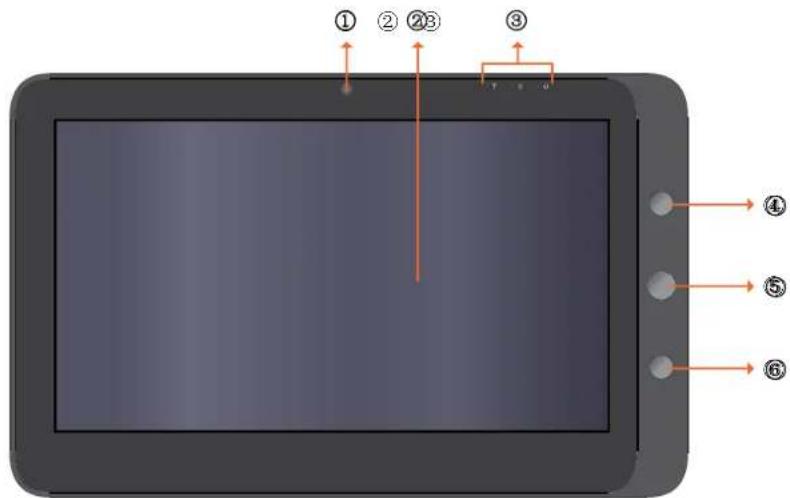
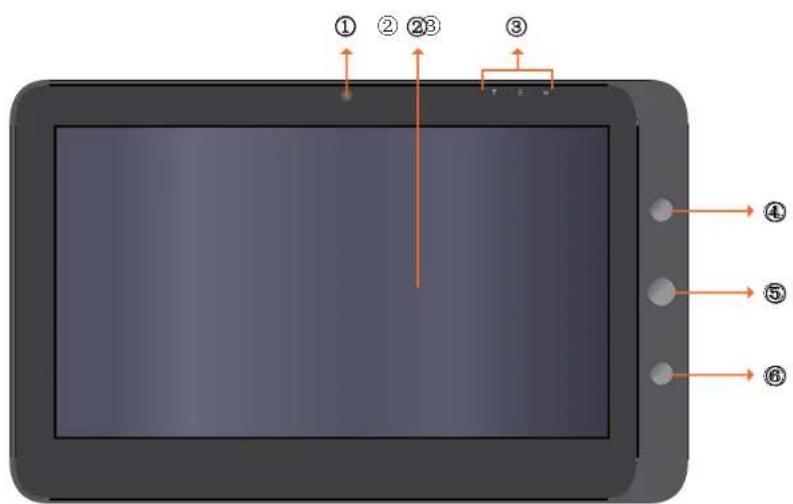
① Camera
A built-in webcam that allows you to capture still images, record videos, and chat online.
② Touch screen
Use finger to control system & application.
③ Indicators
Refer to "Indicators" on page 8~9 for details.
④ Power button
Turns your VPAD10 on or off.
Function button 1
Press and hold for "Esc" key, short press for call "Tablet input panel".
(If not access the systems, press and hold for the arrow keys"up", short press for the arrow keys "down".)
⑥ Function button 2
Press and hold for turn on/off 3G, short press that you can quick turn on/o Wi-Fi and bluetooth.
(If not access the systems, for the keys "enter".)
Rear View
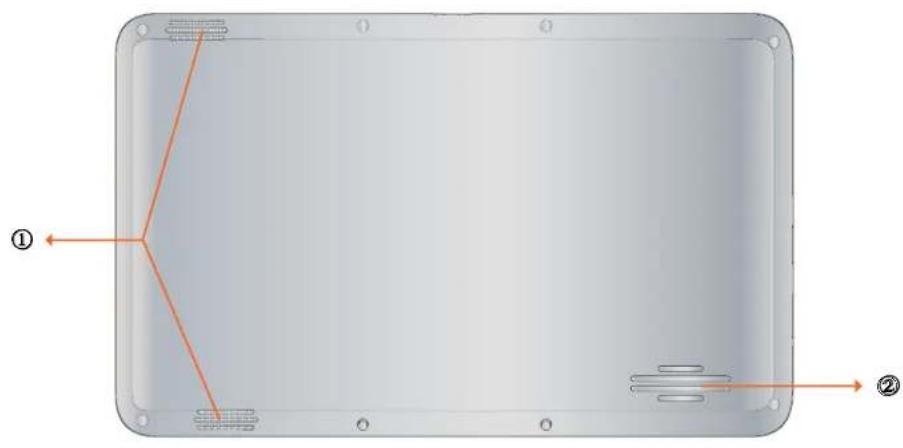
ViewSonicVPAD10
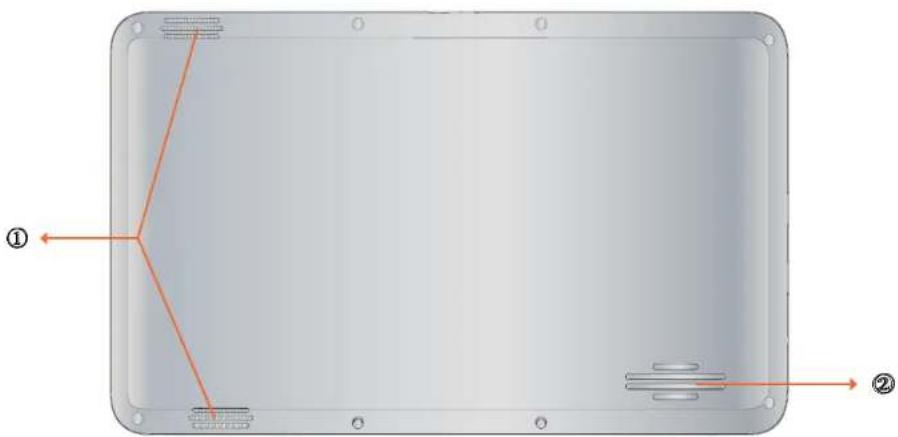
① Speaker
Produces sounds from multimedia files or the operating system.
② Vents
Dissipate heat and keep your VPAD10 at an optimal temperature.
Side view
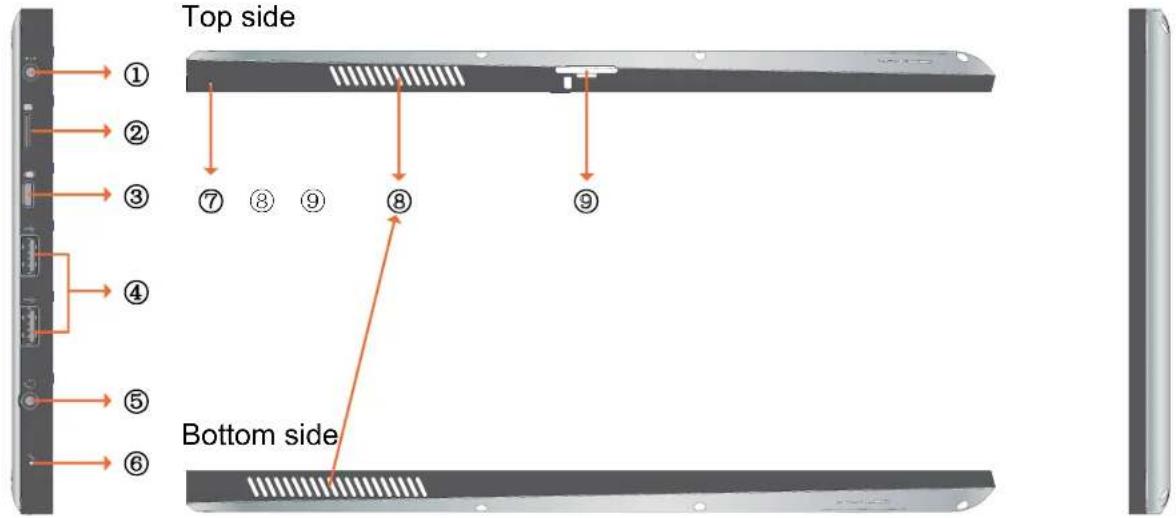
Left side
Right side
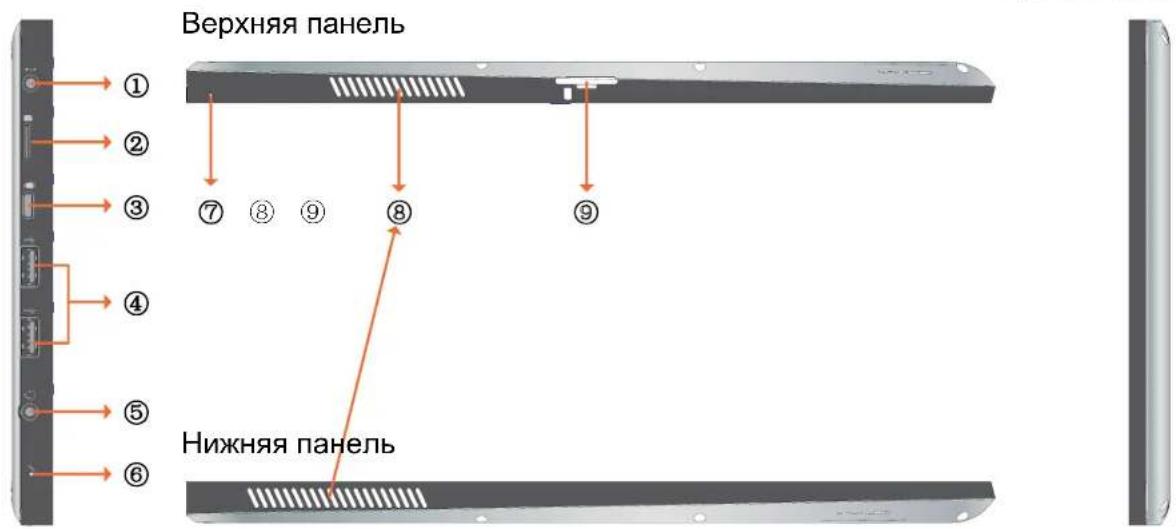
① Power jack
Connects AC power supply to power the VPAD10 and charge the battery.
② Micro SD card slot
Insert a Micro SD memory card, you can exchange data material with VPAD10.
③ Mini VGA port
Connect an external display device (such as a monitor or projector) to the Mini VGA video jack of your Notebook with a Mini VGA cable.
④ Power button
Connects peripherals such as mice, digital cameras and MP3 players that use the USB 2.0 interface.
⑤ Audio output jack
Connects to an earphone/headset or external speaker for playing the VPAD10 audio.
⑥ MIC
Receives sounds and voices for recording.
⑦ Reset eject hole
When system abnormal (can't start the system or turn o the system), insert a thin, straight object(such as a paper clip) in the manual eject hole on the Tablet.
Vents
Dissipate heat and keep your VPAD10 at an optimal temperature.
⑨ 3G SIM card slot
Insert a 3G SIM card (can not support PnP), then you can connect to 3G network.
(For more information, please contact local Telecom Operators.)
Indicators
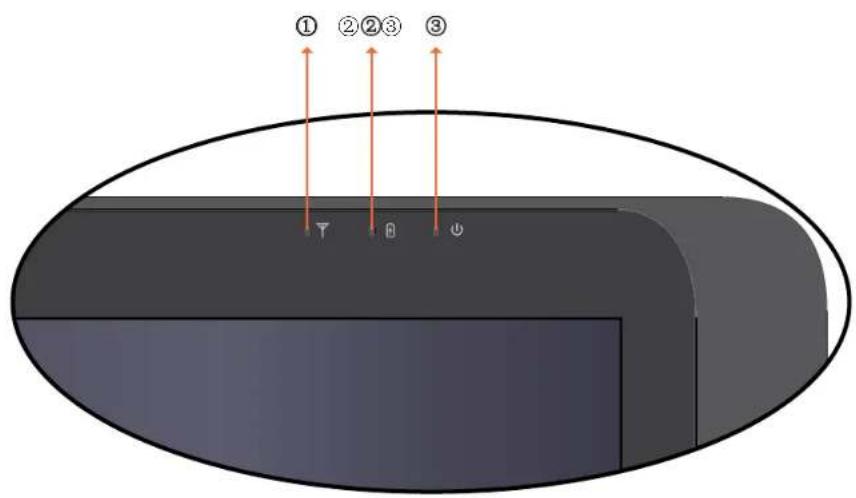
ViewSonic VPAD10
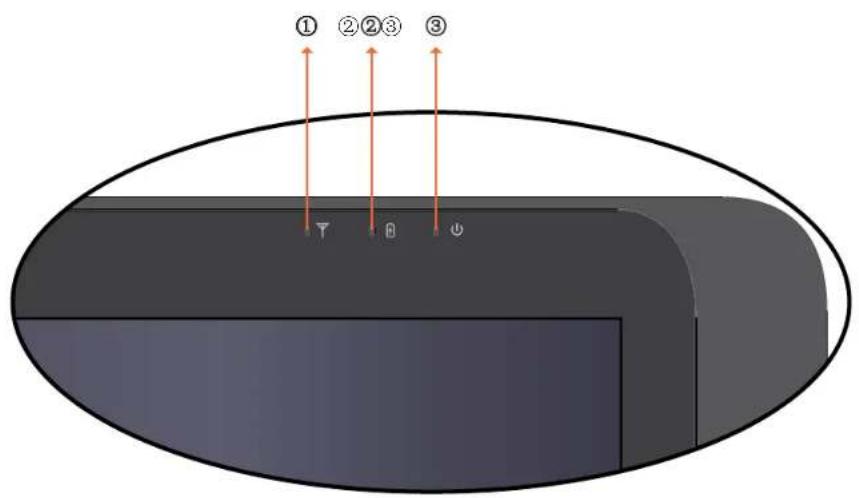
① Wireless LAN indicator
When WLAN is turned on, it lights up in blue.
When WLAN is turned off, the light goes off.
② Battery status indicator
When the battery is charging, it lights up in red.
When the battery is low, it flashes in red.
When the battery is fully charged, it lights up in blue.
③ Power indicator
When the system is on, it lights up in blue.
When the system is in Sleep mode, it flashes in blue.
When the system is o or in Hibernation mode, the light goes off.
Windows 7 system application
Start use your VPAD10
Connect the VPAD10 to the external power source via the AC adapter, press and hold the power button for 2-3 seconds, then start on your VPAD10. Release the press when the power indicator is light up in blue. And then follow the on-screen instructions to complete the initial Operating system setup.
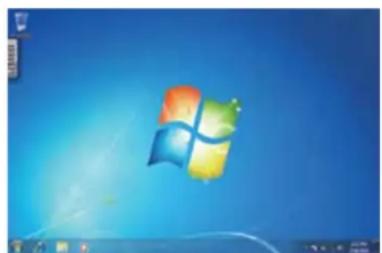
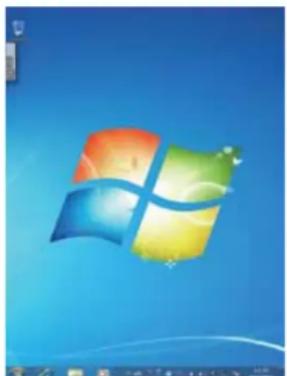
The system home (destop) screen will appear as follows (The device's built-in G-sensor movement and changes its angle/ orientation).
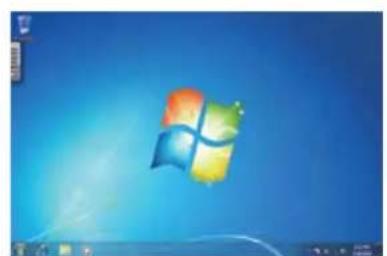
Landscape view
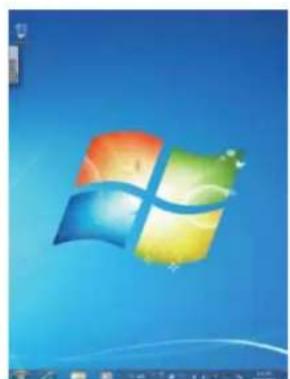
Portrait view
Home (desk)
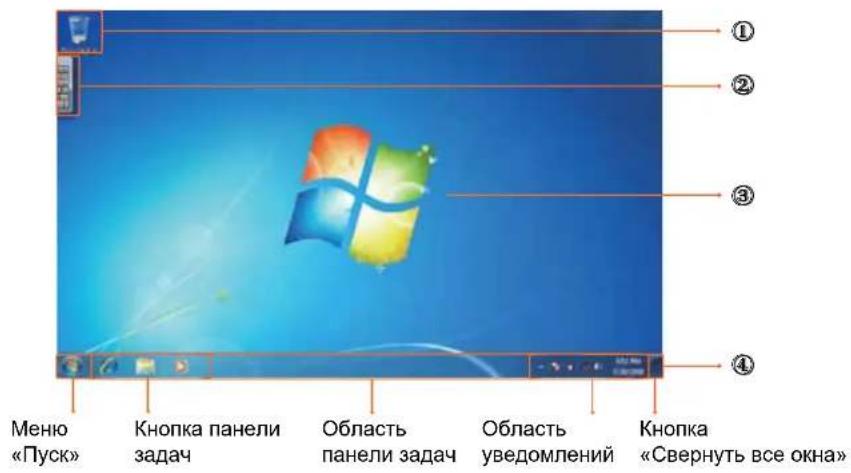
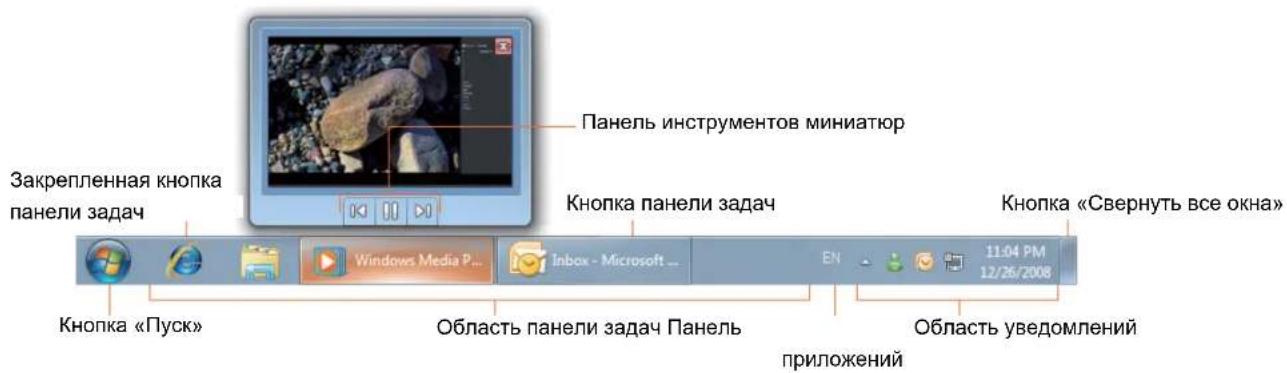
The default system desk include: ① Recycle Bin, ② Virtual keyboard, ③ Work area, and ④ Taskbar.
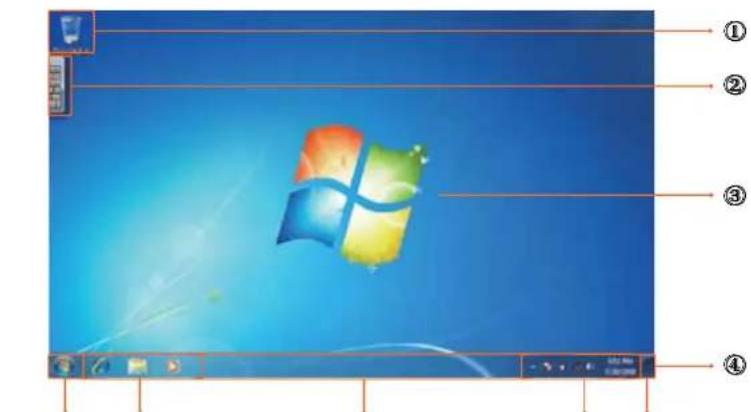
Start Menu Taskbar Button Taskbar Area Notification Area Show Desk
Work area
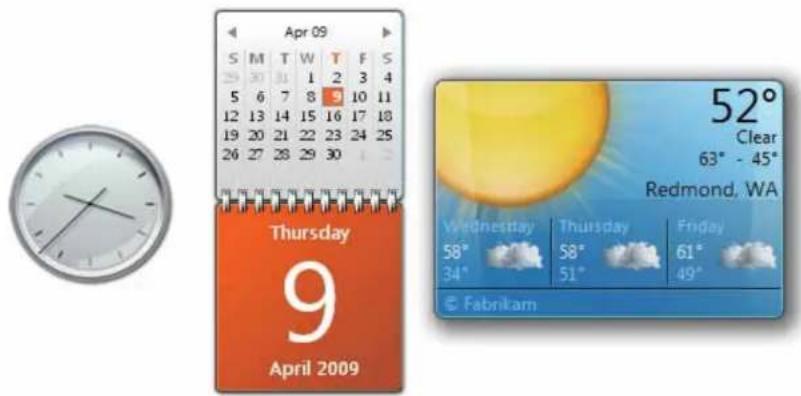
The onscreen area where users can perform their work, as well as store programs, documents, and their shortcuts. you can add Gadgets for give users fast access to personally relevant information and simple tasks — without getting in the way
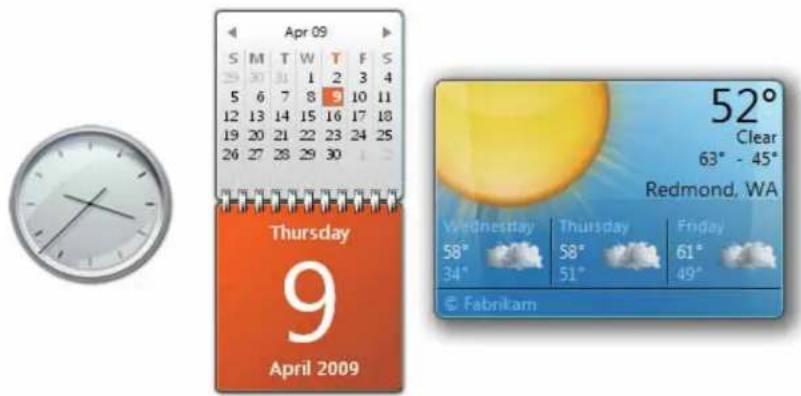
Gadgets(samples)
Taskbar
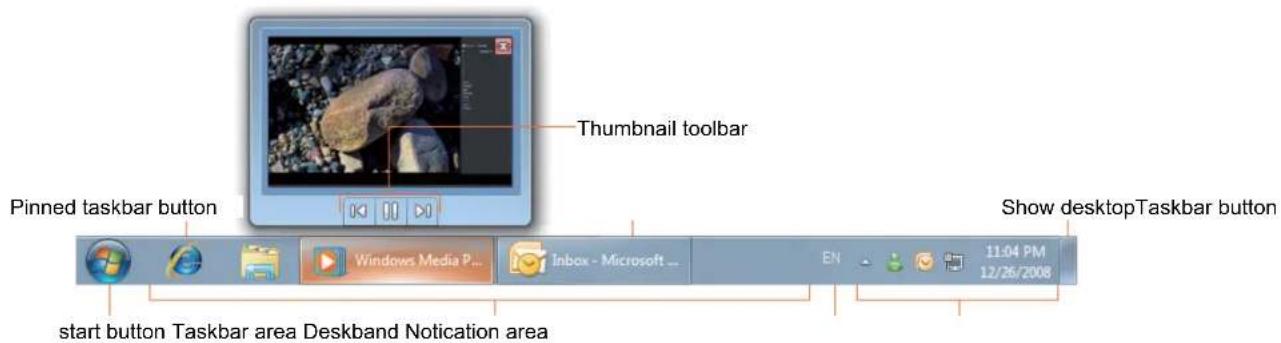
The taskbar is the access point for programs displayed on the desktop, even if the program is minimized. Such programs are said to have desktop presence. With the taskbar, users can view the open primary windows and certain secondary windows on the desktop, and can quickly switch between them.
Start button: The access point for all programs and special Windows places (Documents, Pictures, Music, Games, Computer,
Control Panel), with "most recently used" lists for quick access to recently used programs and documents.
Deskbands: Minimized functional, long-running programs, such as the Language Bar. Programs that minimize to desks don't display taskbar buttons when minimized. Deskbands are not recommended for Windows 7.
Notication area: A short-term source for notifications and status, as well as an access point for system- and program-related features that have no presence on the desktop.
Connect to a wireless networks
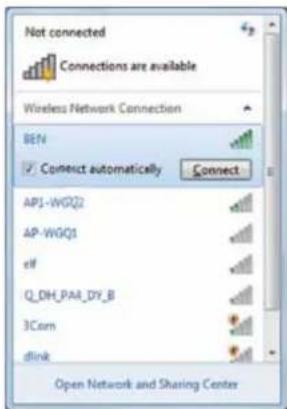
- Make sure you are located within the wireless network service area. Press the Wi-Fi button to turn on Wi-Fi, and the Wi-Fi indicator light up in blue. (If insert a 3G SIM card, and turn on 3G, you also can connect to a 3G networks)
- Click the network icon in the notification area, a list of available wireless networks will be displayed.
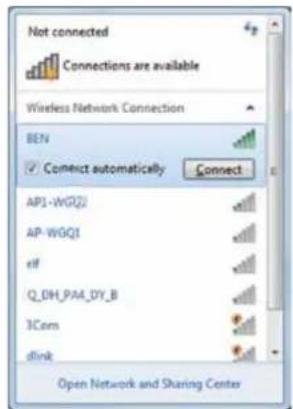
(Wi-Fi hotspots and 3G networks will show up together in the same list. Windows 7 also virtualises the Wi-Fi card so you can use it twice, for example to connect WPS devices to a non-WPS access point.)
(To connect to some networks that require security authentication, you may have to undergo another authorization process and enter username and password. For details, please consult your network administrator.)
(For data security, it is strongly recommended to connect to security-enabled wireless networks whenever possible.)
(When travelling by air, please be sure to turn o wireless networking to avoid any possible risks to ight safety.)
- Choose a network and then click Connect. If security authentication is not required by the network you are using, there will be a successful message showing that you have connected to the network.
Bluetooth
- Right-click in the notification area (located at the lowerright corner of the desktop or clicking to access from the hidden icons) and select Open Settings.(If adapter off, please turn on.)
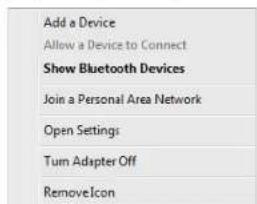
- In the Options tab, select Allow Bluetooth devices to find this computer, and click OK. So, other Bluetooth devices can find your Notebook and make the Bluetooth connection.
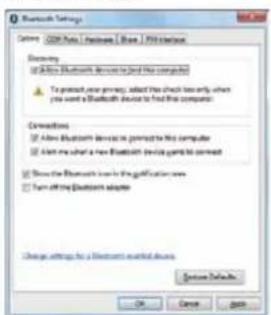
(You also need to activate the Bluetooth connection feature of the device that you want to connect to.)
- Right-click and select Add a Device. Wait for a while and the found active Bluetooth devices will show.

(For details about how to activate the device's Bluetooth function, please refer to its documentation.) (The maximum effective range of connection between your VPAD10 and the Bluetooth device is about 10 meters.)
- Select a Bluetooth device and click Next.
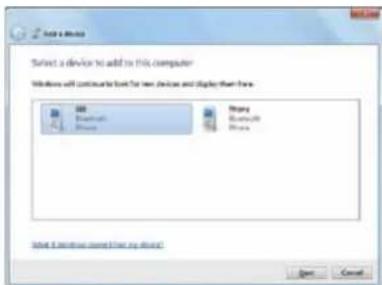
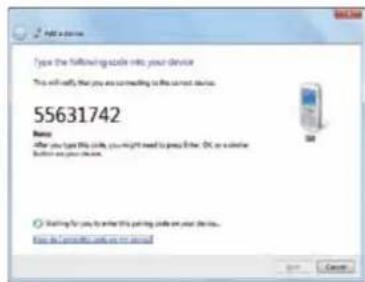
- Windows generates a random code number shown on the screen. Type in this code number into the Bluetooth device your VPAD10 is trying to connecting to.
Sending a file to a Bluetooth device
If your Bluetooth device is capable of sending and receiving data, such as a mobile handset, you can use the Bluetooth connectivity to transfer data wirelessly between your Bluetooth device and Tablet.
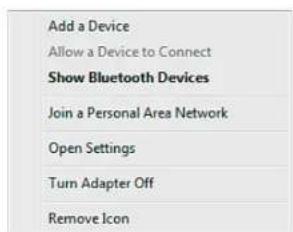
- Right-click 0 and select Show Bluetooth Devices.
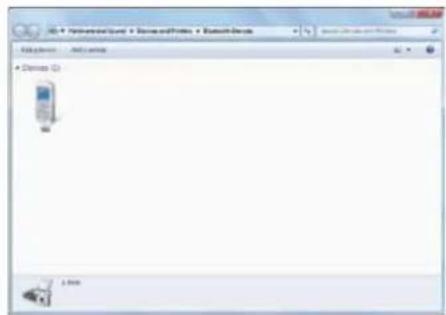
- In this example, double-click the S88 icon (the S88 handset can transfer data via Bluetooth).
- Click Send files to your phone (S88).
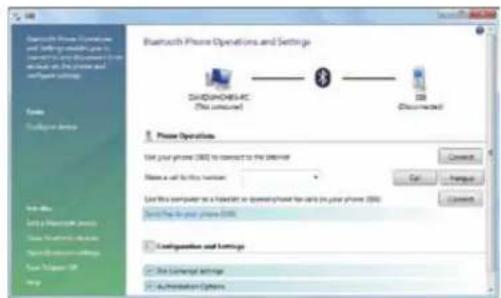
- Click Browse Files to select files to transfer, and then click send.
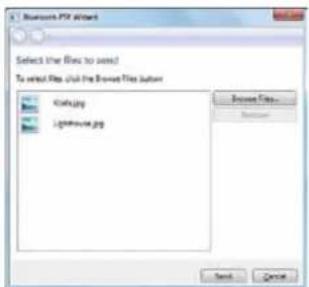
- The selected files are now sending to the S88 handset. Once the transfer is done, the Sending Items dialog box will automatically close.
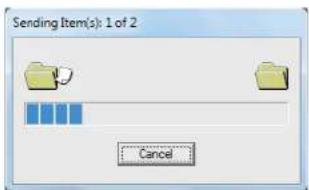
(The example shown above is specifically for connecting to a mobile handset. When connecting to other types of a Bluetooth device, the steps may vary.)
Touch Panel Input
VPAD10 input panel
The VPAD10 input panel is the main input panel used to enter textual content.
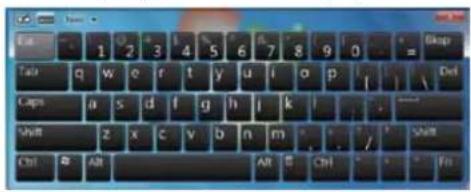
Writing Board
There is also a Writing Board that captures handwriting and converts it to printed text. There are two methods for capturing hand writing: Free writing or Write to Grid.
1.Free writing

2. Write to Grid

VPAD10 Settings
In order to fully exploit all the Touch features of this system, you should go to "Start" > "Control Panel" and then select "VPAD10 Settings".
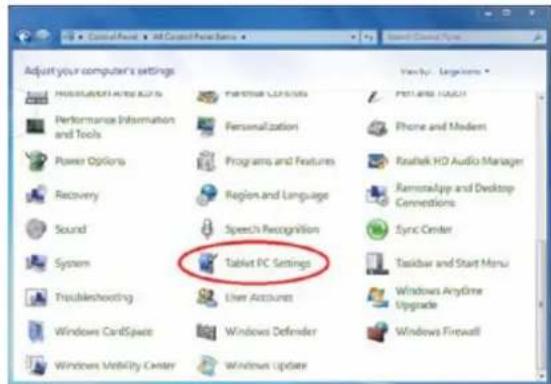
ViewSonic VPAD10
VPAD10 Settings Introduction
Display
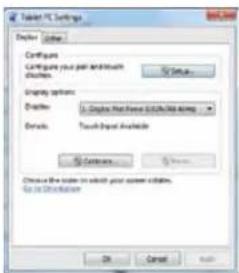
1. Conguration
To conure the pen and touch screen, click the Setup button. Then touch the scre with your finger to complete the touch-screen identification settings.
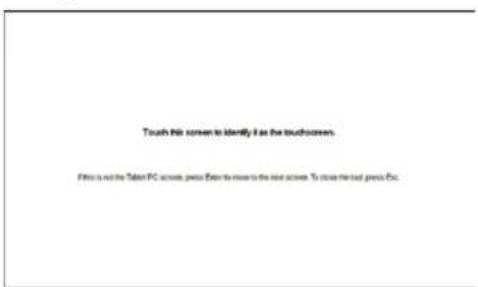
ViewSonicVPAD10
2. Display Options
Display: Select the output display device
Calibration: Do not use windows system build-in screen calibration, if you wanted to Calibrate a Touch screen, please refer to the additional page: "Calibration of the touch screen".
Reset: If you did wrong that with build-in screen calibration, you can click the Reset button to restore the default.
Go to Orientation
This device's built-in G-sensor, you don't need to do this settings.
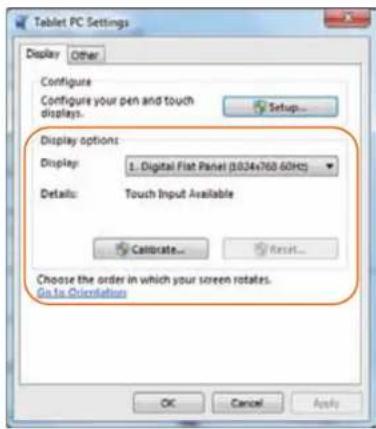
Others
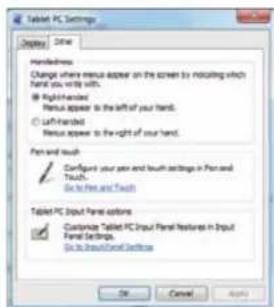
1. Handedness
Select the preferred position of menus based on whether you're right or left handed. If you select the left-handed setting, menus appear on the right; if you select the right-handed setting, menus appear on the left.
2. Pen and Touch
Click the "Go to Pen and Touch" link in the Pen and Touch box.
3. VPAD10 Input Panel Options
Click the "Go to Input Panel Settings" link in the VPAD10 Input Panel options.
Pen and Touch Settings
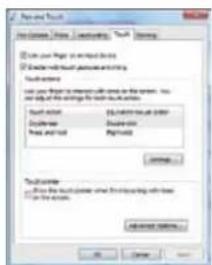
Enable Touch
- Select the checkbox "Use your finger as an input device" to enable the touch interface.
- Select the checkbox "Enable multi-touch gestures and inking" to enable multi-touch gestures such as 2 finger zooming.
Settings
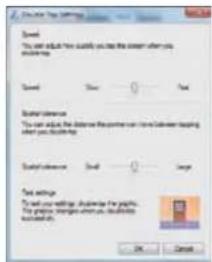
Click the "Settings" button to adjust double tap speed and spatial tolerance, and to test your settings.
ViewSonicVPAD10
Touch Pointer
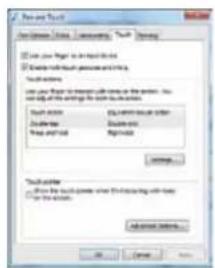
Select the "Touch pointer" check box to show the touch pointer when fingers interact with items on the screen.
In the Advanced Option, you can set the "Touch Pointer Location Option" and "Touch Pointer Appearance and Behavior".
Panning
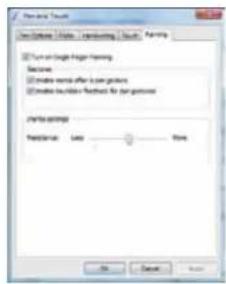
In the "Panning" tab, select the "Turn on Single Finger Panning" checkbox to enable single finger panning.
Select both checkboxes in the "Gestures" box and select the desired Inertia settings.
ViewSonic VPAD10
Using the Camera
The built-in camera allows to participate in video calls and to take pictures.
Using the Multi-Touch Screen
Multi touch technology allows you to control your computer with one or two fingers simultaneously. A double click is equivalent to tapping a finger twice. Scrolling web pages is as intuitive as moving your finger up and down a page. Use two fingers to zoom in and out of pictures - pinch to zoom out, separate to zoom in. To right click a file, touch it with one finger and tap the screen with a second (you can use one finger to touch the screen for 2-3 seconds too).
General hardware problems / possible causes and solutions
Some common hardware problems and recommended solutions are in the below:
- System Ceased Operation during the Execution of the Program.
Cause: error by using the current procedure. Solution: Click keys. Windows operating system causes error; restart the system by using the power supply.
- Operating System cannot be Restored to the Using State.
If the operating system can not resume operation after a pause, please check the following possible causes: The battery may have a malfunction, or the current power level may be very low. To solve this problem, please connect an external power supply such as the AC adapter.
- The System cannot Shutdown Normally.
Hold down the power button 4-6 seconds, until the system shuts down.
- After Shutdown, if the System cannot reboot:
Connect the AC power adapter immediately; as it means that the battery did not have sucent power to reboot.
- Measures to Extend Battery Life?
Adjust the screen brightness to the minimum possible level.
Adjust the computer screen to the normal standard.
Remove the VPAD10 card if not often used.
Turn o the VPAD10 Bluetooth function.
Turn o the VPAD10 wireless network function.
Ensure that the power congestion setting is in the "Save power" mode.
- Wireless Network Breaks after 2 to 3 Minutes on line, and cannot resume on-line.
This may be due to interference caused by channel, please change the AP's channel and re-line.
- VPAD10 cannot connect to the Internet Network.
Internet service providers (ISP) account is not setup; please contact your network service company for assistance.
- The VPAD10 has been online via a Wireless Network, but still cannot connect to another Computer.
Please check the device driver is installed correctly. If the driver is not installed correctly, press the [Start] -> [Control Panel] -> [System] -> [Device Manager] -> [Network Adapters], you will find a yellow exclamation mark on the network tag. If a yellow exclamation mark occurs, please use the driver CD to reinstall the device driver.
- Good Signal Strength, but cannot connect to the Network.
Please check the TCP/IP address settings are correct or not.
- If water accidentally penetrates the VPAD10, how to solve this problem?
At this point, do not connect the VPAD10's power supply, or it will cause more serious damage to the VPAD10. Unplug the power supply and power cord, remove any attached external devices (such as: drive). Dry any liquid that was spilled on the VPAD10; wipe stains with a soft cloth to reduce potential damage to the unit. Dry the body and other equipment with fans, and then send it to the nearest VPAD10 repair center to diagnose and repair the VPAD10 by qualified engineers, in order to reduce the damage to the VPAD10.
- The computer cannot continue running.
An external or internal storage device could be the cause of this problem as it is not operating properly when storing the content.
External peripheral devices may not compatible with the VPAD10 - such as external USB devices, Micro SD cards that are belong to precision devices; if incorrectly used, they can easily cause the VPAD10 to move to a standby situation when connected to the VPAD10. Incompatible software or drivers - the driver which is not compatible will cause .dll, .sys and .exe extension les and will put the VPAD10 into standby or hibernation mode.
Contact Distributors
After reading the previous section, if the problem persists, the next step is to contact the distributor.
Distributors can determine whether the computer needs to be sent back to the store.
Before you call the distributor, please prepare the following information:
- What conjugation/model is your VPAD10? Distributors need to know what peripherals you use.
- Is there any error message on the screen?
- When operation failure occurs, which software are you trying to use?
- What steps have you tried to solve the problem? If you omit some steps, distributors may be able to help you over the phone to complete the steps.
Customer Support
For technical support or product service, see the table below or contact your reseller.
NOTE: You will need the product serial number.
| Country/Region Website T = Telephone F = FAX Email | |||
| Australia/New Zealand www. | viewsonic.com.au | AUS= 1800 880 818NZ= 0800 008 822 | service@au.viewsonic.com |
| Canada www.viewsonic.com | T (Toll-Free)= 1-866-463-4775T (Toll)= 1-424-233-2533F= 1-909-468-3757 | service.ca@viewsonic.com | |
| Europe www.viewsoniceuropoe.com www.viewsoniceurope.com/uk/Support/Caldesk.htm | |||
| Hong Kong www.hk.viewsonic.com T= 852 3102 2900 service@hk-viewsonic.com | |||
| India www.in.viewsonic.com | T= 1800 11 9999 service@in.viewsonic.com | ||
| Ireland (Eire) | www.viewsoniceurope.com/uk/ | www.viewsoniceurope.com/uk/support/call-desk/ | service_ie@viewsoniceurope.com |
| Korea | www.kr.viewsonic.com | T= 080 333 2131 | service@kr.viewsonic.com |
| Latin America(Argentina) | www.viewsonic.com/la/ T= 0800-4441185 | soporte@viewsonic.com | |
| Latin America (Chile) | www.viewsonic.com/la/ | T= 1230-020-7975 | soporte@viewsonic.com |
| Latin America(Columbia) | www.viewsonic.com/la/ T= 01800-9-157 | 235 soporte@viewsonic.com | |
| Latin America (Mexico) | www.viewsonic.com/la/ | T= 001-88823287222 | soporte@viewsonic.com |
| Renta y Datos, 29 SUR 721, COL. LA PAZ, 72160 PUEBLA, PUE. Tel: 01.222.891.55.77 CON 10 LINEASElectroser, Av Reforma No. 403Gx39 y 41, 97000 Mérida, Yucatán. Tel: 01.999.925.19.16Other places please refer to http://www.viewsonic.com/la/sopporte/index.htm#Mexico | |||
| Latin America (Peru) | www.viewsonic.com/la/ | T= 0800-54565 | soporte@viewsonic.com |
| Macau | www.hk.viewsonic.com T= 853 2870 03 | 03 service@hk.viewsonic.com | |
| Middle East | ap.viewsonic.com/me/ | Contact your reseller | service@ap.viewsonic.com |
| Puerto Rico & Virgin Islands | www.viewsonic.com | T= 1-800-688-6688 (English)T= 1-866-379-1304 (Spanish)F= 1-909-468-3757 | service.us@viewsonic.comsopporte@viewsonic.com |
| Singapore/Malaysia/Thailand | www.ap.viewsonic.com | T= 65 6461 6044 service@sg.viewsonic.com | |
| South Africa | ap.viewsonic.com/za/ | Contact your reseller | service@ap.viewsonic.com |
| United Kingdom | www.viewsoniceurope.com/uk/ | www.viewsoniceurope.com/uk/support/call-desk/ | service_gb@viewsoniceurope.com |
| United States | www.viewsonic.com | T (Toll-Free)= 1-800-688-6688T (Toll)= 1-424-233-2530F= 1-909-468-3757 | service.us@viewsonic.com |
Limited Warranty VIEWSONIC® Tablet PC
What the warranty covers:
ViewSonic warrants its products to be free from defects in material and workmanship, under normal use, during the warranty period. If a product proves to be defective in material or workmanship during the warranty period, ViewSonic will, at its sole option, repair or replace the product with a like product. Replacement product or parts may include remanufactured or refurbished parts or components.
How long the warranty is effective:
ViewSonic Tablet PC are warranted for 1 year for labor from the date of the first customer purchase.
Who the warranty protects:
This warranty is valid only for the first consumer purchaser.
What the warranty does not cover:
- Any product on which the serial number has been defaced, modified or removed.
- Damage, deterioration or malfunction resulting from:
a. Accident, misuse, neglect, fire, water, lightning, or other acts of nature, unauthorized product modification, or failure to follow instructions supplied with the product.
b. Repair or attempted repair by anyone not authorized by ViewSonic.
c. Causes external to the product, such as electric power fluctuations or failure.
d. Use of supplies or parts not meeting ViewSonic's specifications.
e. Normal wear and tear.
f. Any other cause which does not relate to a product defect.
- Any product exhibiting a condition commonly known as "image burn-in" which results when a static image is displayed on the product for an extended period of time.
How to get service:
- For information about receiving service under warranty, contact ViewSonic Customer Support (Please refer to Customer Support page). You will need to provide your product's serial number.
- To obtain warranty service, you will be required to provide (a) the original dated sales slip, (b) your name, (c) your address, (d) a description of the problem, and (e) the serial number of the product.
- Take or ship the product freight prepaid in the original container to an authorized ViewSonic service center or ViewSonic.
- For additional information or the name of the nearest ViewSonic service center, contact ViewSonic.
Limitation of implied warranties:
There are no warranties, express or implied, which extend beyond the description contained herein including the implied warranty of merchantability and fitness for a particular purpose.
Exclusion of damages:
ViewSonic's liability is limited to the cost of repair or replacement of the product. ViewSonic shall not be liable for:
- Damage to other property caused by any defects in the product, damages based upon inconvenience, loss of use of the product, loss of time, loss of profits, loss of business opportunity, loss of goodwill, interference with business relationships, or other commercial loss, even if advised of the possibility of such damages.
- Any other damages, whether incidental, consequential or otherwise.
- Any claim against the customer by any other party
- Repair or attempted repair by anyone not authorized by ViewSonic.
4.3: ViewSonic TPC Warranty
TPC_LW01 Rev. 1A 06-20-08
ViewSonicVPAD10


ViewSonic®
VPAD10 Tablet PC

-User Guide
- Guide de l'utilisateur
-Bedienungsanleitung
-Guia del usuario
- Kullanici kilavuzu
-PykoBoIDCTBO nOJIb3OBATeJIA
Model No.: VS13790
Android is a trademark of Google Inc. Use of this trademark is subject to Google Permissions.
This product has an Android™ platform based on Linux, which can be expanded by a variety of JME-based application SW.
All products use in this device and trademarks mentioned herein are trademarks or registered trademarks of their respective owners.
Google™, the Google logo, Android™, the Android logo and Gmail™ are trademarks of
Google Inc. Use of this trademark is subject to Google Permissions.
Wi-Fi and the Wi-Fi CERTIFIED logo are registered trademarks of the Wireless Fidelity Alliance.
microSD™ is a trademark of SD Card Association.
Bluetooth and the Bluetooth logo are trademarks owned by Bluetooth SIG, Inc.
The prediction engine of the input method is TOUCHPAL, provided by COOTEK.
Europe: http://www.viewsoniceurope.com/uk/support/recycling-information/
Taiwan: http://recycle.epa.gov.tw/recycle/index2.aspx
Table des matieres
1. Conguration (Configuration)
2. Pen and Touch (Stylet et tactile)
4.3: ViewSonic TPC Warranty
TPC_LW01 Rev. 1A 06-20-08
ViewSonicVPAD10
33


ViewSonic®
VPAD10 Tablet PC

-User Guide
- Guide de l'utilisateur
-Bedienungsanleitung
-Guia del usuario
- Kullanici kilavuzu
-PykoBoOCTBO noJIb3ObaTeJIA
Model No.: VS13790
Android is a trademark of Google Inc. Use of this trademark is subject to Google Permissions.
This product has an Android™ platform based on Linux, which can be expanded by a variety of JME-based application SW.
All products use in this device and trademarks mentioned herein are trademarks or registered trademarks of their respective owners.
Google™, the Google logo, Android™, the Android logo and Gmail™ are trademarks of Google Inc. Use of this trademark is subject to Google Permissions.
Wi-Fi and the Wi-Fi CERTIFIED logo are registered trademarks of the Wireless Fidelity Alliance. microSD™ is a trademark of SD Card Association.
Bluetooth and the Bluetooth logo are trademarks owned by Bluetooth SIG, Inc.
The prediction engine of the input method is TOUCHPAL, provided by COOTEK.
Disclaimer: ViewSonic Corporation shall not be liable for technical or editorial errors or omissions contained herein; nor for incidental or consequential damages resulting from furnishing this material, or the performance or use of this product.
In the interest of continuing product improvement, ViewSonic Corporation reserves the right to change product specifications without notice. Information in this document may change without notice.
No part of this document may be copied, reproduced, or transmitted by any means, for any purpose without prior written permission from ViewSonic Corporation.
4.3: ViewSonic TPC Warranty
TPC_LW01 Rev. 1A 06-20-08


ViewSonic®
VPAD10 Tablet PC

-User Guide
- Guide de l'utilisateur
-Bedienungsanleitung
-Guia del usuario
- Kullanici kilavuzu
-PykoBoOCTBO nolb3OBaTeJIA
Model No.: VS13790
Android is a trademark of Google Inc. Use of this trademark is subject to Google Permissions.
This product has an Android™ platform based on Linux, which can be expanded by a variety of JME-based application SW.
All products use in this device and trademarks mentioned herein are trademarks or registered trademarks of their respective owners.
Google™, the Google logo, Android™, the Android logo and Gmail™ are trademarks of
Google Inc. Use of this trademark is subject to Google Permissions.
Wi-Fi and the Wi-Fi CERTIFIED logo are registered trademarks of the Wireless Fidelity Alliance.
microSD™ is a trademark of SD Card Association.
Bluetooth and the Bluetooth logo are trademarks owned by Bluetooth SIG, Inc.
The prediction engine of the input method is TOUCHPAL, provided by COOTEK.
For technical support or product service, see the table below or contact your reseller.
NOTE: You will need the product serial number.
| Country/Region Website | T = Telephone F = FAX | ||
| Australia/New Zealand www.viewsonic.com.au | AUS= 1800 880 818 NZ= 0800 008 822 | service@au.viewsonic.com | |
| Canada www.viewsonic.com | T (Toll-Free)= 1-866-463-4775 T (Toll)= 1-424-233-2533 F= 1-909-468-3757 | service.ca@viewsonic.com | |
| Europe www.viewsonicurope.com | com www.viewsonicurope.com/uk/Support/Calldesk.htm | ||
| Hong Kong | www.hk.viewsonic.com | T= 852 3102 2900 | service@hk.viewsonic.com |
| India www.in.viewsonic.com T= 1800 11 9999 service@in.viewsonic.com | |||
| Ireland (Eire) www.viewsonicurope.com/uk/ www.viewsonicurope.com/uk/support/call-desk/ service_ie@viewsoniceurope.com | |||
| Korea | www.kr.viewsonic.com | T= 080 333 2131 | service@kr.viewsonic.com |
| Latin America (Argentina) | www.viewsonic.com/la/ T= 0800-4441185 | soporte@viewsonic.com | |
| Latin America (Chile) | www.viewsonic.com/la/ | T= 1230-020-7975 | soporte@viewsonic.com |
| Latin America (Columbia) | www.viewsonic.com/la/ T= 01800-9-157235 | soporte@viewsonic.com | |
| Latin America (Mexico) | www.viewsonic.com/la/ | T= 001-8882328722 | soporte@viewsonic.com |
| Renta y Datos, 29 SUR 721, COL. LA PAZ, 72160 PUEBLA, PUE. Tel: 01.222.891.55.77 CON 10 LINEAS Electroser, Av Reforma No. 403Gx39 y 41, 97000 Mérida, Yucatán. Tel: 01.999.925.19.16 Other places please refer to http://www.viewsonic.com/la/soporte/index.htm#Mexico | |||
| Latin America (Peru) | www.viewsonic.com/la/ | T= 0800-54565 | soporte@viewsonic.com |
| Macau | www.hk.viewsonic.com T= 853 2870 0303 service@hk.viewsonic.com | ||
| Middle East | ap.viewsonic.com/me/ | Contact your reseller | service@ap.viewsonic.com |
| Puerto Rico & Virgin Islands | www.viewsonic.com | T= 1-800-688-6688 (English) T= 1-866-379-1304 (Spanish) F= 1-909-468-3757 | service.us@viewsonic.com soporte@viewsonic.com |
| Singapore/Malaysia/Thailand | www.ap.viewsonic.com | T= 65 6461 6044 | service@sg.viewsonic.com |
| South Africa | ap.viewsonic.com/zai/ | Contact your reseller | service@ap.viewsonic.com |
| United Kingdom | www.viewsoniceurope.com/uk/ | www.viewsoniceurope.com/uk/support/call-desk/ | service_nb@viewsoniceurope.com |
| United States | www.viewsonic.com | T (Toll-Free)= 1-800-688-6688 T (Toll)= 1-424-233-2530 F= 1-909-468-3757 | service.us@viewsonic.com |
Garantía limitada
Tablet PC ViewSonic®
4.3: ViewSonic TPC Warranty
TPC_LW01 Rev. 1A 06-20-08
ViewSonicVPAD10


ViewSonic®
VPAD10 Tablet PC

-User Guide
- Guide de l'utilisateur
-Bedienungsanleitung
-Guia del usuario
- Kullanici kilavuzu
-PykoBoIDCTBO nOJIb3OBATeJIA
Model No.: VS13790
Uygunluk Bilgisi
Android is a trademark of Google Inc. Use of this trademark is subject to Google Permissions.
This product has an Android™ platform based on Linux, which can be expanded by a variety of JME-based application SW.
All products use in this device and trademarks mentioned herein are trademarks or registered trademarks of their respective owners.
Google™, the Google logo, Android™, the Android logo and Gmail™ are trademarks of
Google Inc. Use of this trademark is subject to Google Permissions.
Wi-Fi and the Wi-Fi CERTIFIED logo are registered trademarks of the Wireless Fidelity Alliance.
microSD™ is a trademark of SD Card Association.
Bluetooth and the Bluetooth logo are trademarks owned by Bluetooth SIG, Inc.
The prediction engine of the input method is TOUCHPAL, provided by COOTEK.
VPAD10_UG_TRK Rev. 1A 09-28-10
Seri Numarasi:
Avrupa: http://www.viewsoniceurope.com/uk/support/recycling-information/
Tayvan: http://recycle.epa.gov.tw/recycle/index2.aspx
icindekiler
Sistem Uyku modundayken mavi yanip soner.
- Pen and Touch (Kalem ve Dokunma)
Kalem ve Dokunma kutusundaki "Go to Pen and Touch" (Kalem ve Dokunmaya Gidin) baglantisini tiklatin.
- VPAD10 Input Panel Option (VPAD10 Giris Paneli Seçenekleri)
VPAD10 Giris Paneli segeneklerindeki "Go to Input Panel Settings" (Giris Paneli Ayarlarina Gidin) baglantisini tiklatin.
4.3: ViewSonic TPC Warranty
TPC_LW01 Rev. 1A 06-20-08
ViewSonicVPAD10


ViewSonic®
VPAD10 Tablet PC

-User Guide
- Guide de l'utilisateur
-Bedienungsanleitung
-Guia del usuario
- Kullanici kilavuzu
-PykoBoOCTBO nolb3OBaTeJIA
Model No.: VS13790
CoOTBcTcTBnCTaHdApTaM
COOTBETCTBNE CE IIN eBponecknx cTpaH
YcTpoIcTBcooTBeCTbByET DnpeKtNBe No 3NeKtpomarHHTHOJ COBMeCTHMocTn 2004/108/EC n DnpeKtNBe no 3neKtpo6e3oNaChocTn 2006/95/EC.
CnMBOJ, yka3aHHbI cnpaBA, COOTBeTCTByeT DnpeKTHBe 2002/96/EC o5 OTxOax 3JIeKTNuEcKOrO n 3JIeKTPOHHO o6OpyDoBaHna (WEEE).
IpoDyKzna, o603NaeHHa daHbIM cMBOJOM, He MoKet 6bITb yTnIN3NPOBaHa B BVNe O6bIHO rOpoDcKOrO MyCopa, a DoJIkHa 6bITb yTnIN3NPOBaHa npi NOMOu CnCTEm Bo3BpaTa n C6opa, DocTyINbIX B BaWe i CtpaHe nn pereNoHe, B COOTBeTCTBn C MecTHbIM 3aKOHOdaTeNbCTBOM.


EcHnHa 6aTapeax, akMyIopax MmKpO6aTapex, NOCTabIeMbIX C3TNM yCTPOIcTBOM, IMeOTcXMMueckne cIMBOIbI Hg, Cd nPi Pb, 3TO O3NaAeT, YTO 6aTapeu CoepkAT TKeJIbI MeTaIIbI: 60Jee 0,0005% pTuTn, 60Jee 0,002% KaAMn IIN 60Jee 0,004% CBNuCa.
CoOTBeTCTBnE cTaHapTAM R&TTE C①
3To yctpoCTBO C 6ecnpoBnHbIM MOyIeM COOTBeTCTByET Tpe6oBaHnM DnpeKtNBbI EbpocOHa3a R&TTE (1999/5/ EC). 3To o6opyOBaHne COOTBeTCTByET CNEduOuIm CTaHapTaM:
ETSI EN 300 328
EN301489
EN301489
CtpaHbI: FepMaHn, BeNko6pTuHaHn, HnDepNaHdbI, BEnbTn, UBeu, DaHn, FInHnHn, FpaHn, NtAin, NcnaHn, ABCTPN, InpaHn, NopTyraHn, Tpeu, LIOKcem6ypr, 3ctOnn, NaTBn, NITBa, Yexn, CNoBaKn, CnoBHeHn, BeHrpN, POnbua n ManbTa.
HnctpykunnoBe3onacchoctn
- He haxmaite Ha kndokpnctaaunueckn 3kpan. He knaite pnaHwetbI K BnepeMeKy c MeKNIM npedmetam, T.K. OHN MOrT NOapanaTb cam PnAHeTbI PIK n, B qactHOCTn, eO 3kpan HIN nonactb BHytbp PnAHeTHoro PIK uee3 ero BEHTnlaUIOHHbIe OTBepCTnI.
- 136eraTe xpaHEnn nn nCnoB3ObaHN nn anweTHoro PK B rpr3HO nn nbHbOH cpee.
3.He cTabbTe nnaHWeThbI NK Ha HepOBHbIe IIN HeCTa6nJIbHbIe NOBepxHOCTM. - He knaIte n He 6pocai Te NoctopOHnne npedMeTbHa KpbIuKy pNaHweTHoro PI, He NbTaIaTeCb 3acyHyTB IN B noocTu PnAhnweTHoro PIK. He 3axlonbBaIe T c CnIOk KpbUky PnAhnweTHoro PIK.
- He noDBeprAte PAnAHWeTbI PIK BO3DeIcTBnO CnBHoro 3NEKtpOMaHHTHO n3NyHeHr. He KlaTe pONnnn DnCKeTbI PdAm Nn Ha PAnAHWeTbI PIK, T.K. 3TO MOXeT PnBECTN K NOTEpe DaHHbIX Ha DnCKeTAX.
- He noDBepraTe PnAnHWeTbI PI K npOdoJXnTeBHO Myo3DcCTBnO npRmbix CoNHeuBx Iyuei, Oco6EHNO, 6vduyB ABTOMoBnE, T.K, 3TO MOKeT NOBpeNTb JxuKOKpNCTaIINuYeCKN 3KpaH PnAnHMeTHoro PIK.
7.Диana30H 6e3oNaChbIX TemnepaTpy: nlaHWeTHbI INK cTOnT nCNoJIb3ObaT npN TeMnepaTpyax ot 5 do 35 rpaDycOB UeJbcna. - He noDBepraTe nlaHneTbI NK BO3JeCTBnIO BnaI, He nCnoJIb3yIe erO nOddoJxDmNnBHeNoCpeDCTBeHHoB 6n3OCTnOT NCTOCHNKOB BODbl.
- Праздостеоржел: Истлбзоваимь батарс с НевернIMТхическIMXХарактетрNTКAMMМожETпИВecTиКВ3рыВ.УТПИЗАСДБашару ДОЛЖHA пОИЗВODITbCBС BCOOTBETCTBIM C INHCTPyKUЯMHN.
10.Даньи Планштны PK He DoJxeh yTINI3OBbIBaTbCBAmte C O6bHbIM TPOIDcKIM MycOpOM, a TOJIbKO B COOTBETCBN C MecTHbIM 3aKOHODaTeJBCTBOM NO yTINI3aUIN 3JIeKTPoHNKn. BaTapeЯ DoJXHa 6bITb OTdHa B Nepepa6OtKy. PpOKOHcyIbTnpuYTeCb C OprAHAMM MeCTHO RAMO CamOynpaBJIeHn IIN C MeCTHbIM npedctabNTeJIbCTBOM ViewSonic o TOM, KAK DoJXHa OCUYeCTBnTbCRA YTNIN3aUIN.
11.ДанньпланшetньПКи er0 6JIOK nITaHnM OryT He3HaHTeNbHO HarpeBaTcB B npOcece pa6oTBi N/nn 3apRKn 6batapeN.Bo n36exaHne DnCKOMΦopTa nIIN Oxora,He KnaIte PnAnhSeTHbI PIK Ha KOJIeHn NII npyTne Yactn Tena. -
XapaKTepeNtIK 3JIeKTpONITAHnJaDHHORO nAaHWeTHORO K yka3aHbHa H aKaNeKe Ha dHnIe PnAaHWeTHORO PI. IpeE INcNoJIb3OBaHHeM, y6eIntecB, YTO 3JIeKTpPueCckne XapaKTepeNCTIK 6NOKa 3JIeKTpONITAHncoOTBeTCTBYOT 3JIeKTpPueCKIM XapaKTepeNCTIKAM nAaHWeTHORO PI. Heo6xOIMO NcNoJIb3OBaTB TOnbKO akceccyapbl, peKOMeHNIOBaHHble ViewSonic.
-
NpeD BKNHueHnEM PAnHWeTHoro PIK npOBepbTe BCE coeHHeHnMexy PAnHWeTHbIM PIK n nepuFepnHBiM yCTpOJCTBAMN.
14.Bo n36exaHHe 3aqr3HeHnI pHaHSeTHOrO PI, He nIb3yTeCb IpaHSeTHbIM PI BO BpEm ebl.
15.He 3acobbBaIe B nHaHWeTHbI NK npEIMTebl, KOTOpBle MOrYt Bbl3BaTb KopoTKoe 3ambikHne IIN KaKIM-JIN60 HhBIM 6pb3OM NOBpeNTb erO 3JIeKTPOHHbe CXEmbl. - NpeTe TM KAK yCTaHaBnBaTb, NOkNIOuATb HIN OTKIOUaTb nepuΦepuHbIye cTPOcTBa, KOToPbIe He noDdEpxKBAHO TExHOJOrHIO《TOpRyero》 NOkNIOUeHry, BbIKIOuHTe OObctOHTe DaHHbI pHaHTbI PIK.
- NpeTe KAK YNCTNTb PAnAHWeTHbI INK, BbIKJIIOHTe eRO, OTKJIIOHTe OT cETN 3JIeKTponNTaHnR n OTCoeDHNTE erO 6atapen.
- He pa3bpaTte daHHbI nnHWeTHbI PK. 3To dOnKeH DeNaTb ToJbKO cepTnOuPObaHHbI cneuaJIInCT.
- Pa3pe7aetcna nCnONb3OBaTb TOnIbKO Te aKkyMnyTopHbIe 6aTapeN, KOTOpBIE 6blIN cepTuΦuPobAHbI ViewSonic dnnncnoJIb3OBAHnca DaHHbIM PnAHeTHbIM NK.
- DaaHbI nnahWeThbI PI MEeBHTnraOHHbIe OTBepCTna IaT OToBa Tenna. He peKomeHdyetc KnaCTb PAnAHweThbI PK Ha MmKne NOBepxHOCTN (KPOBaTb, KOJIeHN T.I.) T.K. pIn 3Tom BeHTnraOHHbIe OTBepCTNa MOryt 6bItb 3a6JIOKnPOBaHbI, a nnahWeThbI PI K 3aBnCHyTb OT nepepeBa.
Android is a trademark of Google Inc. Use of this trademark is subject to Google Permissions.
This product has an Android™ platform based on Linux, which can be expanded by a variety of JME-based application SW.
All products use in this device and trademarks mentioned herein are trademarks or registered trademarks of their respective owners.
Google™, the Google logo, Android™, the Android logo and Gmail™ are trademarks of Google Inc. Use of this trademark is subject to Google Permissions.
Wi-Fi and the Wi-Fi CERTIFIED logo are registered trademarks of the Wireless Fidelity Alliance. microSD™ is a trademark of SD Card Association.
Bluetooth and the Bluetooth logo are trademarks owned by Bluetooth SIG, Inc.
The prediction engine of the input method is TOUCHPAL, provided by COOTEK.
OTka3 OT OTBeTCTBeHHOCTn: KomnaHnry ViewSonic He Hecet OTBeTCTBeHHOCTn 3a TexHueckne n peJaKtopCKne OuN6Kn B 3Tom DOKyMeHTe N IIObIe HamepeHHbIe, CnyaHbIe INJ KOCBeHHbIe y6bITKn, BO3HnKaHOUne B CB3n C COdepKaUIMcR B HEM MaTePnaJIOM, a TAKKe C XapaKTepNCaMn INJ INCNOJIb3OBaHNem 3TOrO npOdyKTa.
B INHTepecax HnpepebHBOrO COBepseHcTBOBaHNr N3dJIIM, KOMNaHry ViewSonic coXpaHraET 3a c06o npabO n3MeHrTb KOHCTpyKUHIO, KOMNKeT NOCTaBKn I npaMeTpbl N3dJIINr 6e3 ppeDbapnteHoro yBeDOMHeHr. IHOpMaUNr B 3tOM DOKyMeHrTe MoKET 6bIb N3MeHeHa 6e3 ppeDbapnteHoro yBeDOMHeHr.
HnKaJa aactb 3TOrO DOKyMeHTa He MoKet 6bITb CkONIpoBaHa, BocnpOn3BeDeHa NIn NepeDaHa KaKmN-1No60 cpeCTBaMn, dIg KaKnx-Ni5o ceJeN b KaKoB 6bl To HN 6blNO fOpMe 6e3 NoJyHeHn PpeDbapntelbHoro NncbMeHHoro pa3peWeHn O T KOMNaHn ViewSonic.
Pernctpaunn n3deJnna
B 6dyuem Bam MoKet NOHaO6bTcBcI dONHnTeIbHn HOpMaun O npOyuknn Kopnpaun ViewSonic. IInr polnyeHn30n HOpMaun Bam Heo6xOIMo 3apeNCTpnpoBaT Baue n3dne Ha cTpaHnce ceTn INtepHet: www. viewsonic.com. Bby TaKxe MoKete C NOMOsbIO KOMNaKT-dNcKa MaCtepa ViewSonic paCneYataTb perNCTpaUHOHy oFopMy, KOtopyo Bbl MoKete NocNaTb No NoHTe Nn fakcy Bkopnpaunio ViewSonic.
CnpaBoUHnHΦopMaun
HaMeHOBaHne H3dJIeN:VPAD10
ViewSonic Tablet PC
VS13790
HOMEP DOKYMehTa:
CepinHbH HOpE:
Data nokynk:
Yttnn3aun npodykta no ncteueHn cpoka 3Knnyataun
KoMaHnY ViewSonic 3a60ntcTc o cOCToHmOkpykaUoSeI Cpebl n O83yeTcHnPaBnBt Bce cBoy uCnJnHa Co3dAnHe 3KoJOnrHuEeCKn YnCTbX yCNoBn pa6ToBn JxN3Hn. KOMpaHn np3HaTeNbHa 3a BaW BKJaD B 6Oone «YMHbE» I EKoJOnrHuEeCKn YnCTbE IHΦopMauONHbE TexHOJIOrn. IJRA NOUYeHn DOONHInTeNbHoi INHΦOpMaun NocTeNTe Be6-caIT KOMpaHnY ViewSonic.
СШа и Канада: http://www.viewsonic.com/company/green/recycle-program/
Ebpona: http://www.viewsoniceurope.com/uk/support/recycling-information/
Tainbanb: http://recycle.epa.gov.tw/recycle/index2.aspx
OrnaBHeHne
KpaTkoe onncanne ii
KOMnneKT noCTaBkn. iii
BHeHn BvI nnAnHoeTHoro PK. 1
Bud cnpedn 1
Bud c3aui 3
Bud c6oky 5
HdkaTopbI 8
IcnoIb3ObaHne onepaunonHou cncTeMbI Windows 7. 10
IcnoJIb3OBAHne kamepbI 27
IcnoJIb3OBAHHe MyJIbTITaU-ekpHa 27
Tunobblie annapatbIe npo6nembl, IN BO3MOXHbI pnpuHbI n peueHnra 28
KpaTkoe onncaHne
INCTpykunnoTexnke6e30nacHOCTN
Hnke npBBeHebI peKOMeHdaucn no Texnke 6e3oNaChocTn, n03BOnraUcne obecneuHTb 6e3oNaChocTb noJb3oBaTeNei nnahwetHorO PIK VPAD10.
- He nbitaTeCb camocToaTeNbHO ocUeCTbIaTb peMOHT nlaHWeTHoro PK VPAD10. Bcerda HeykOCHntbHo co6nIoJaTe HNCTpyKUnn no yctAHOBKe.
- He donyckaite haxoxkdenya kakx-ni6o npedMeTob Ha ka6e nHTaHnCeTeBO 6noka nHTaHnHa He paCnoIaraiTe Ka6eBb TaKnx MeCTax, rde o6 Hero MOrY cNOTKHytcb IHOu NnHa Hero MOrY HAcTyNTb.
He hakpbBaIe ceTeBo 6nok nItaHna 6yMaRo nn DpyHmnpedMeTAMK, KOTopbIe MOrTy HApUHT bero oxJaXdHne. Kpome Toro, He donyckaetcNcNoIb3ObaTbcTeBO 6nok nItaHna, KOrda OH HaxoNTCB YeXJIe dIpeHoHckn. - NcnoB3yIe TOnbKO cTeBOH 6nK nTahn, Ka6JIb nTahn n AKKymyIaTopbl, npEHa3NaueHHbIe IINu IcNoJb3OBAHN
c pHaETbIM Pk VPAD10. IcnoIb3OBAHne akKymyTopa nn CTeBOro 6noka nntaHnA npuBeCTN K BO3rOpAHIO nn B3pbBy. - Pnncno30BAAHm C cTeBBIM 6Iokom nTAnHy yDInHtEnr cIeJy tBeIbTcR, YTO cyMMapHbI nOTpe6nREMbI TK (B amepax) np6opOB, NOKJIIOUeHHbIX K yDInHtENlO, He npeBbIaE TOMHaJIbHbI TK yDInHtENr.
- Ppi nepemeueHn pnaHsEHoro PK VPAD10 MeKdy MeCTaMn C cnBHo pa3nuaOUMmncr Tempeatpyoi (uN) BnaxHoctbBO HHTPN pnaHsEHoro PK VPAD10 MoKET KOHeHCnPObaTbCBAra. Bo n36exaHne nobpexJeHn pnaHsEHoro PK VPAD10 nepei nCnoJIb3ObaHnem VPAD10 BbXknte DoCTaTOOHoe BpEm, YTO6bl Bnara nCnpNJAcB.
- Ppi OTCoeDHeHn KaBJI TaHITe ero 3a pa3bem nIN 3a neTlIO ChrTna HATXKeHn, HO He TAHITE 3a cam KaBEnb. OToeDInHpa3bem, ydepxNBaiTe ero pOBHO, YTO6bl npEDoTbpAHTb N3Rn6aHne erO KOHTAKTOB. Kpome TOrO, nepeI NOdcoEHNHeHm KaBJI npABINbHO COPIENTHpyTE n COBMectNTe oBa erO pa3bema.
IINIOCTpaunB HactoIeM pyKOoDcTBe MOrT OTJNUaTbCra O T oAKTNueCKOrO BHeHrero BnDa n3deJIi, CM. fakTNueckoe n3dene.
KOMNJIeKT NOCTABKN
Pacnakobab H3dJIeNBE, BHMaTeBbHO npOBepbTe KOMnJIeKTHoCTb. Ecnn KaKoJ-JIb6 Oy kAsaHHbIX Hxke IpeMeTob OTCyTCTByET INI NOBpeJdeH, o6paTntecb K npOaBcy KaMepb.I B yNaKOBKe H3dJIeNBAOnXHbI HaxoDITbcra nepeuCneHHbIe Hxke npeMeTbI. CTAHAPThbIKOMnJIeKT
-ПланшеТьн PKVPAD10
- CeteBOI 6NOK NHTAHNc Ka6eJIeM NITAHIN
PykoBOCTBO NOb3OBaTeJIa
- 06pa3 komnakT-DnCk a dpaBepamn (pacnoIooKeH ha SSD-dncke)
PENEUYIPEXDEHNE
IpaBepbVPAD10 xpaHcTcHa nocneHem pa3dene SSD-dncka,co6nOdaTe octopoxHoCTb,yo6bHe ydaNt b 3TN paHbI He otFopMaTnpBaTb daHbI pa3den.
DONOJIHHTEJIbHO
IpeueHcneHHbIe npedMeTbIObIuHO RAJIHTcO DonONHITbHbIMN, HO HeKOTOpBIE NOCTABUKN BKIOUaOT IN B CTAndapTHbIKOMnKeT. HeKOToPbIE npedMeTbMOrY T npedNaTaBcR He BO Bcex CtpaHax. HeKOTOpBie NOCTABUKN MOrYT BKIOUaTB KOMnNeKT He BCE npedMeTbI.
- Yexon
Kabenb Mini VGA
TkaHbIaOuMCTKIN
Hayunnki
BHeHnBnIpaHsTeHoro PIK
Bvndcpeepn
① Kamepa
BcTpoehna Be6-kamepa No3BOJnEeT FOToRpaΦHIpOBAb, 3aIINCbBaTa BnDEOpOJIuNKn N O6UaTbC B OHJaHOHBxqTaX.
② CeHCOPHbI 3KpaH
CenocbpHn 3KpaH n03BONaT ynpabNtB cntemOn I npInIOXeHNMaM C nOMObNo naIbceB.
③ INHdkaTopbl
Ioppo6hble cBeDnna CM. B pa3dene «HnDnkaTOpbi» Ha ctp. 8-9.
④ KhonkaNTaHNA
3Ta KhoNka CnyKNT DnA BkHIOUeHn N BbKlIOUeHn PIIaHHeTHOrO PIKVPAD10.
⑤ ΦyHKUHOHaJIbHaKHNKa1
Дипелhoeнхатne 3ог Кногк COOTBeTCTByeТ haxaTIO KlaBUN «Esc》,KpaTKOBpeMeHHoe HaxaTne NO3BOJIaRET Bbl3BaTb NaHelen BBOda ПланшetHorO ПК.
(Bhe onepaunOHn CnCTembl dnttehoe haxatne 3to KhoNk COOTBeTCTBye T KaBnue Kypcopa «BBepx», KpaTKOBpeMeHHoe Haukatne - KnaBmUe Kypcopa «BHn3»).
⑥ ΦyHKUHOHaJIbHaI KHONKa 2
Динтелhoe Haxatne 3ToN KhoNKn N03BOJnEET BKNIOHHTb NIN BblKIOHHTb MoyIb 3G-cBraN, KpaTkoBpeMeHHoe HaxaTne N03BOJnE 6bICrPo BKIOHHTb NIN BblKIOHHTb MoyIu Wi-Fi n Bluetooth.
(BHe OepaunHOnH CnCTeMbI HauKaTne 3Toi KhoNk COOTBeTCTByET KnabuIe «Enter» (BBoD).)
BnC3aDn
ViewSonicVPAD10
①ДиHAmNK
INHAMNK BOCPON3BOIDNT CODEPKIMOE MyIbTImeIMnHbIX φaIIOB IN 3ByKIN ONEpaUNHOH CnCTembl.
② BeHTnIaUNHOHbIe OTBepCTN
3TNOTBepCTNcnykataOBaTnOIBaHIONDepKAnOnNTIMaJIbHOI TEmpeAtpyblnAnHeTHoroIKVPAD10.
BnC6oky
Jebar naheIb
PpaBar naHeJIb
ViewSonicVPAD10
5
① THe3Do nTaNHn.
3To rHe3do cIyKNT dIa IIOkIIOUeHnE K IIaHaUNeTHOMy PK VPAD10 6NoKa nITaHnI INI 3apAdkn aKKMyJITopa.
② Φe3dO dπa KapTb namTn Micro SD
YcTaHOBnTe B 3To THe3do KapTy nAmrTn Micro SD dIa o6MeHa daHHbIM C IJIaHHeTHbIM PK VPAD10.
③ NopT Mini VGA
IopKIOHHTe BHeUHe yCtpoiCTBO OTo6paKeHn (Haep, MoHTOp IIN IpoeKTO) K BInDeOBxOy Mini VGA nAnuTHoro PIK c nomoubio Ka6eNra Mini VGA.
④ KhoNka nIITaHnIa
3Tn npotbI npedHa3NaueHb I nI npKIOUeHnpePepnHbIX yCTpOcTB, TAKNX KAK MbIuN, UΦpoBblc KaMepbl MP3-nneepbl c Hntepfcom USB 2.0.
⑤Γhe3doaydnoBbixoDa
3To rHe3do npedHa3nueHo dnn noKlnuoyHnnaHayHnKOB (rapHnTypb) nBHeHne akcytecko cnCTembln Bocnpon3BeDnna ayndnoaioB, coxaHehhix B naTn nnahwTeHoro PKVPAD10.
MnKpOph
MnKpOoH no3B0JraT 3aIINCbIbA Tb 3ByKn n peYb.
OTBepTne KhoNKn c6poca
Ecni pa6oTa cnTeMbH npHySeHa (cnTeMa He 3anyckaetc HnH He BkHouaetc), BCTaBt ToHKn nprMoI npEmT (HanpMep, KaHcJIepckyO cKpeNk) B OTBepCTne KHOKN CbPoCA Ha nnAnHeTOM NK.
BentnnaHbIe OTBepCTnA
3TN OTBepCTN Cnykata OTObOa TcNla NnoDpeKAnn OONMaJIbHOI Tempepatpyi nnHaeTHoro PKVPAD10.
⑨Γhe3dOДЯ SIM-kapTbI 3G-CB83N
BcTaBte B 3To THe3do SIM-KapTy 3G-CB3n (pezmIM «PnP» He nOeepKNaBaetC) dIy nOKnIOueHn K cOTOBcTeN 3G-CB3n.
(3a DOnONHInTeBnHnHΦopMaueNe O6paaAteb KonepaTopam CBa3n.)
INdkaTopbI
ViewSonicVPAD10
① INHINKaTOp 6ecnpoBOdHoi IIBC
Korda moynb 6ecnpoBDOH JBC BkHIOueH, 3OT INHINKAATOP CBETTCa CINHM LBeTOM.
Korda6ecnpoBdoHaCetb BbIKIOueHa, INHnKaTOp He CBETTCa.
② INHДиKaTOp COCTOЯня akKуЛТopa
KordaakymyIaTOp3apxkaeTc,3OTHnDKaTOpCBETITcKpaCHbIMCbETOM.
Пи ИзКOM урOBHe Зapяда akKуМЯТОпа 3TOИнДИКАТОМ MИгaET КраСьIM LВETOM.
KordaakkymyIaTOp nonHocbIoo3apJxKe,3OT INdikatop CBETTCnHIM CEBOTM.
③ INHdkaTop nHTaHn
Korda cnCTema BKNIOUeHa, 3OT INHINKAkOp CBETnCnHM LBeTOM.
Korda cnctema haoonTcB cnaepekme,3TOHnKaTOp Mraet CnHm CBetom.
Korda cntema BbIKIOyeHa HIN HaxoITcraB pexime rIbephaun, 3OT INHnkaTOp He CBETtca.
IcnoJb3OBaHne onepauOnHHoCnCTeMbI Windows 7
Hauano nCnoJb3ObaHn nnHaNeTHoro PK VPAD10
IopknioHTe nlaHneTbI PK VPAD10 K 3neKtpnuecko cetn npn nmoOn ciTeBoro 6loka nntaHna, haxmte n ydepXNBaTe KhoNky ntaHna 2-3 cekyndbl, nocne 3toro nnaHneTbI NK VPAD10 BkIOHNTcra. OtnycTe KhoNky, korga HnDnKaTOp nntaHna CTaHET CBeNTbcraCnHM uBeTom. DnBa BbINOHeHnepBOHaayalbHOH NaCTpOKn OepauNOHHoCnCTEmbl CNeDuYMe NHCTpyKUaM, OTobpaKaIOuIMcra Ha 3kpaHe.
Pa6oHn cTOn OnpaunHOH CNCTeMb bBflnNT, KaN poka3aHO Hxke. KOMnbTOpeOCHaUeHN BCTPOeHHbIM akceIepomm npn pa3BOPoTe n3MeHReT opneHTaUNIO 106paKeHn Ha 3KpaHe.
Anb6omna opneHTaun
KnHkHaOpneHTaTna
Pa60nCToJ
No yMOJHAnHO Ha pa6oem cToJe onepauOnHHcIeMbI OTObpaKaIOTcIeNyIOUe 3JIeMeHTbI: ① «KOp3Ha》,BnptyajbHa KaabNAtya, ③ pa6oay o6nactb n 4 NaHeJb 3aJa.
Pa6o7a o6laCTb
B pa6oey o6bactn 3kpaHa nOb3OBaTeN MOryT BblONHb T CBOI 3aDaun, a TaKxpe XpaHHT nporpAMMbI, DOKyMeHbI I npbIKn. Ha pa6oyu 6bactb MoXHO Do6abNtB rAIXeTb (MHN-PrINOKeHNA), o6cneHBAIOUHe 6bICTpbI JOCTyI K NOE3HOI HΦopMaun N BblONHHeHne Ipoc7bx 3aDaay 6e3 OTKpbITNa KaHX-Jn60 nporpAMM.
PnimepbiradkeTob
PanaheIb 3aada
Nahe 3aay oecneuBaet DocTyn K nporpamMam, OTo6paKaioUmmcna Ha pa6oem cToJe, daxe ecnn nporpammbl cbepHybl. TaKe nporpamMb CHTaOTcra OTo6paKaioUmmncra Ha pa6oem cToJe. Nahe 3aay No3BOJeT pOcMaTPNBb OTkpbltie OCHOBHbE OKHa NIOXeHHbE OKHa Ha pa6oem cToJe, a TAKke 6bICTpo nepeKIOUaTB OKHa.
KhONka «Tnyck» - 3To ToUka DoCTyNa Ko Bcem nporpamMm n CneuaJIbHbIM nAnkM Windows (DokymeHTb, FoToRpaФn, My3bIka, Nrpbl, KomlbIoTeP, NaHeIb ynpaBHeHra) co cnNcKaIM HeDaHbO oTKpbIbABuXcx nporpAMM nФaIIOB dIg 6bICTporo DoCTyNa K HeDaBHO INCNoJIb3OBAHHbIM nporpAMM m DOKymeHTAm.
Pnne npnoxehn coepkata CepHytbe cneuaHn3npoAHhBte nporpaMMbl, BbIOHnHOuieceB FOHOBMpeKIMe, Hapnpemr 3bkoab naHeIb. Dn nporpamm, CBopauBaHooXxCB nanei npinoxeHm, He OTObpaKaIoTcKHOKN naHeIN 3aadA. PaneHn npinoxeHm He peKOMeHdyTeCnONb3ObaTb B Windows 7.
Obnactb yBeDMHeH -3To MeCTo KpaTKBpeMeHHoro OTo6paKeHry YBeOMHeH N HOpMaUO C0CTOHHa TaIOKe TOyKa DOCTyNa K FyHKmM CNTeMbI IN pOrpAMM, KOtOpBie He OTo6paKaHOTcHa paBOeM CTone.
IopKnIOueHHe K 6ecnpoBOHbIM ceTAM
- YIOCTOBePbTecb, yTO KOMNBIOTep HaxOHTcB 30He DeIcTBnB 6ecnpoBDHO Cetn. HaxMNTe KONKy «Wi-Fi» dIy BKNIOHEN MoDyJn Wi-Fi, INDINKATop Wi-Fi NaHET CBETbCnHM UBeTom. (EcnY cTaHOBNeHa SIM-KapTa 3G-CB3N IN BKNIOHEN MOyJb 3G-CB3N, TAKKE MOKHO NODKIOHHTb KOMNBIOTep K COTOBIM CETm 3G-CB3N.)
- ⅢeJIKNHTe 3NaOHcETn B O6IaTn YBeOMJIeHNI, OTO6pa3NTcCINOC KOCTyNHBx CeTei.
B ODHOM Cnncke OTo6pa3rTcN TockN DocTyna Wi-Fi n cotoBbIe CETN 3G-CB3N. Windows 7 TAKKE co3daET BnPTyAaHbHyo KapTy Wi-Fi, YTO6bl ee MOKHO bIIO NCNOB3OBAtB DBaXdbI, HAnpIMep, dIra NODKnIOHeHIN WPS-yCTPoiCTB K TOUKe DOCTyna 6e3 WPS.
IIOKIOHENKHEKOTOpbIM CETAM, Tpe6yUOUMNPOBepKNoDNIHHOCHTM,MOXET IOTpe6OBaTcBpONITN PPOeCC ayTeHTNΦKAuIN N BBeCTN NMR NOJb3OBaTeJI N apOJIb. 3a noPbOHOH INΦOPMaUneI ObpaAaTecb K aDMNHcTpaTopy cTeN.
C cIbIO oecneueHn 6e3oNaChOCTn HactoTbeHo peKOMeHnyeTcno Bo3MOxHOCTn NOKIOUaTHb KOMbHOtep K 3aunuieHHbIM BeCnpOBdHbIM CETM.
HaxoKdHn Ha 60pTy camoIeta o63aTeNbHO bIKIOaIe Moynb 6ecnpoBODH JBC BO n36eKaHne yrpo3bl 6e3onacHocTn noneta.
- Bb6epnte cTe b n Haxmnte «Connect (POnknoHHTbcra)». EcnI dnnr nCnObnSyemoi CETn He Tpe6yeTc npOBepka POnHHoCTn, OTo6pa3NTc coo6ueHHe 05 yceHOM POnKIOUeHIn K cTeH.
Bluetooth
OtnpabKa paINa Ha Bluetooth-ycTpoCTBO
EcnnuBleoth-ycpoaTBO MoKeT OTnpabnTa n npHnMaTb DaHHbIe KaK, HapnMep, MobnHbIy TepeoH, MoXHO mnoNob3oBaT Bluetooth-coeHHeHne dna nepeaun daHHbx Mekdy Bluetooth-ycpoaTbOM nlaHueTHbIM PK.
Tinobbie annapathbie npo6neMbI, INX BO3MOxHbIE npuynHbI nepeweHn
Hnke nepueucnnebI TnIOBbe aInpaTHbI nepOBeMbI npKeMeHIOBaHbIpeeHn.
1.CnCTema npekpatnla pa6oTaB BO Bpemr BbINHeHn nporpaMMbl.
PnunHa: oun6ka npn BbIOnHeHm TeKUeI npOeDpybl. PeueHne: HaxMIte OndHOBpeMeHHo KnaBn. B onepaOnHnoCnCTeme Windows Bo3HKnla oun6ka, BbIOnHnTe nepe3arpy3ky CnCTeMbI, BbIKIOuH N BkIOuH B ee.
2.He ydaetcB03o6HOBHTpa6Oty onepaunHHO cnTeMbI.
Ecn He ydaetc3aynctntb onepauonHny cncTeMy nocne 3abepseHnpa60tby, npobepbTe cneIyoUe npuHbI BO3MOxHO, HncnpaBeH aKKyMylTOp, nn npoBeHb 3apJa da aKKyMylTOp aOehb Hn3Kn. Ipy ycTaPHeHn 3ToI npuHbI NOkJIouHTe BHeHHN uCTOCHN NITaHn, HanpIMep ceTeBOB 6lOK NITaHn.
3.He ydaetc BbIKIOHTb CNTeMy.
HaxMMTE u ydepKNaBae KhoNky nHTaHa 4-6 cekyH, YTObbl BkKnIOHTb KOMNbIOTep.
4.ПослБыкючениСистema He 3arpykaetca.
IopKnIOUHTe CeTeB0 6nok nITaHn, TaK Kaq 3apd akkymyIaTopa HeoctatoueH nIpez3arpy3kn KOMNbIOTepa.
- KaK MoXHo npOanITb BpeMra6oTb KOMNbIOTepa ot AkkMyJrTopa?
YCTAHOBITE MNHIMAbHo BO3MOKHyO RPKoCTb 3kpaHa.
BbIbepInTe cTaHndapThyH NaCTpoKy 3KpaHa.
N3BNEKNTe 13 nnaHueTHoro PKVPAD10 KapTy naMaTn,ecn OHa He nCnonb3yETcra.
OTKIOHTe yHKUHnO Bluetooth nnaHueTHoro PIVPAD10.
OTKIOHTEyHKUHOBeCnpoBOHOnIIBCnHaHeTHOrOIKVPAD10.
YIOCTOBepeTcByTO Bb6paH peKm ynpaBHeHnI nTuHaHem Save power (3Kohomna 3heprin)
- CoeHHeHHe c 6ecnpoBDoHcetbpoa3pbBaTeCpe32-3MHyTbI eHOeYdaTeCBOcCTaHOBnTb.
3TO MOKET 6bItb Bb3BaHO NmexAMn B KaHaJIe CBa3N, CMeHNTe KaHaI ToOcTyNa I yCTaHOBInTe CoeINHeHne 3aHOBO.
7.Планштейн ВPAD10 He noДКИоуаетс КИНТерпety.
He hactpoeHa yueTha 3anncb y noctabuika ycnyr INtepheTa (ISP), obaTntecb 3a nomouB B KOMnHIO, npedocTabnaioyU cynyr nIntepheTa.
8.Планштейн ВPAD10 noKIOHEn K 6ecnpoBODHO CETN, Ho He MoXeT noKIOHHTbCra KpyrOmy KOMNBIOTepy.
YdoctOBepbTcB, YTO dpaBep cTeBOrO aAnTepe yCTaHOBnE DoJXHbIM o6pa3OM. EcI npAusbep He yCTaHOBnE DoJXHbIM o6pa3OM, Bb6bpnte nyHKtB | «Start (Pyck)» -> «Control Panel (Pahenb ynpabneHna)» -> «System (CncTeMa)» -> «Device Manager (Ducnetup ycToiCb)» -> «Network Adapters (CetBeBle aAnTepbI)», prdom C hazBaHmE cTeBOrO aAnTepe 6ydet OTo6paxaTbcg KeNTbI BOCKNlCuATEJIbHbI 3HaK. EcI npO6paxaETcR XeJIbI BOCKnUaTeJIbHbI 3HaK, IpeyeCTaHOBnTE dpaBep ycToiCTBa, NcNoIb3yKOMnAKT-DnCK C dpaBepamn.
9.CnHAn 6ecnpoBDOHO CTe N IMeET DOCTaTOUHYO MOUHOCTb, HO NOIKNIOHTbcK CTeN He ydaTcra.
PpOBeBpe npabInbHocTh hAcTpoKn npaMeTpOB TCP/IP.
- TTo DeNaTb B Cnyae nonaHaHn BObl B nHaHneTHbIKVPAD10?
B Tako cntyaun Heh6rno nnKIOUaTb K nnaHWeTHOMy PK VPAD10 6nok nntaHnB, B npoTNBHOM cnyae nnaHWeTHbI
PKVPAD10 moKet 6bIb Cepbe3HO NOBpeXeH. OTKnIOHTe 6nok nntaHnI N OTCoeHNHTe Ka6eJIb nntaHnI, OTKnIOHTe OT
KOMnbOTepa IIObIe BHeWHe YcTPOCTBa (HaNPmEP, DnCKOBOD). YdAnTE XnIKOCtB, nonAByO Ha nnaHWeTHbI PK VPAD10.
PpOtpTe KOMNbOTep MRAKO TKAHBO, UTObI CBCTN K MNHMMy BO3MOXHbIe NOBpeXeHnR np6opA. PpocuHTe Kopnyc
np6opa i npyroTo obopyoBaHnri pni nmoOni BeHTnIaTopa i 3aTeM OTnpABte PnaHWeTHbI PK B 6LnKaIwIe cepBnchbI
ueHTp dnn daNaTHocTkn I pemOnTa nnaHWeTHoro PK VPAD10 cnilamn KBaInΦuipoBaHHbx INHexEhePoB. 3To no3BOJNTb cBeCTN K
MNHNMy NOBpeXeHnI nnHaWEthoro PK VPAD10.
- KomblbopTe He Bo3o6HOBn8eT pa60Tu n3 peKmua OxuHaHna.
PnHOn 3ToI np6bEmbl MoKET RbTbcB BHeUHee IIN BHyTpEHHee 3anOMHaIOoee yCTpoCTBO, KOtOpoe pa60aet HnpabNlbHO npCoxpaHEHm DaHbIx.
ViewSonic VPAD10
BHeuHne nepnepnHbIe ycTpoCTBa mOyT 6bIT hecOBMeCTNbIM c nnaHweThBM NK VPAD10, HapnMep, USB-ycTpoCTBa, Kapb Micro SD, KOtOpbIe AIBaOTc cNOxHbIM yCToPcTBAm. B clyae IN He npabunbHO rncnoB3oBAHnnp IN pIOKnIOueHHn PAnAHWeTHbIK VPAD10 MOKeT nepeHT b peKIM OXHaHn. IMeIOr c HecOBMeCTNmbIe dpAIBep MokET codepKaTbC B paanax C paacnpeHnMa .dll, .sys .exe IN Bb3bBaTb NepexoD nAnHwTeHOrO NK VPAD10 B pEXIM OXHaHn INn Rn6bpHaun.
06paueHHeK DnCTpN6bIOTopam
Ecn nocn BbnoHne HnpeKomeHdaun, npBbeHHbx B npdeIyue m pa3ene, npoBnemy yctpaHntb He ydaetc, cne dyet 6btpncb0topy.
IInCTpN6bIoTOpBmOryOnpeDEnITb,Heo6xOJIMMOJI BepHyTB KOMMbTeP B Mara3nH,JeO h 6bl npno6peTeH.
IpeedobpaueHemKdntprnbotopyco6epntyeka3aHHyHnHexeHHopMaunIO.
- KoHnIpyaunu MmoJeB PnaHneTHoro PIK VPAD10. IucTpni6bIOTopam Heo6xoJIMO 3HaTb, KaKHe nepupeepnHbIe ycTpoiCTBa Bblncnonb3yeTe.
- Coo6eHne o6 ouin6ke, OTo6paKaioueeec Ha 3kpaHe, ecJIn OHO OTo6paKaaeTcR.
- NpOrrpaMMHOe o6ecneueHHe, KOtOpoe nCIOJb3yeTcR, KOrJa npOncXoDnT c6oB B pa6Ote KOMNbHoTepa.
- ⅢaH, npednpnAthe IrapeeHnnaPobIeMb. EcnBbI npOnyctnH HeKOTOpbe 7aH, nCTpN6bIOTOpBmOryT nomOyB BAM BInONHtB IN, daBaI IHCTpykCmIO TelefoHy.
Cnyx6a noDepKKn
IJIIOJUyHnIaTexHuecko NOeepKKn IIN TexHueckoro 6cnykBaHnI 3dennBocnoIb3yTeCb INOpMaunei, npuBeHHn Hxke, nII OpaTntecb B opraHn3aunO, B KOtopoB Bbl npNo6peN daHnoe 3dene.
PIMMEAHHE: Bam 6ydet HxjkeH cepnHbH HOMep daHHo n3deJna.
| Стра на симпунов Be6-сай Спсбок телегонов Адеса онлайнюнй посту | |
| Россая www.viewsoniceurope.com/ru/ www.viewsoniceurope.com/ru/support/call-desk/ service_ru@viewsoniceurope.com | |
| Бениль (Рсский) | www.viewsoniceurope.com/ru/ www.viewsoniceurope.com/ru/support/call-desk/ service_br@viewsoniceurope.com |
| Патва (Рсский) | www.viewsoniceurope.com/ru/ www.viewsoniceurope.com/ru/support/call-desk/ service_lv@viewsoniceurope.com |
OrpaHnueHHa rapaHTna PamkaΦotoero ViewSonic® uΦpOB
06laactb deicTBn rapaHTn:
B TeueHne rapaHTnHoro cpoKa Kopnpaunr ViewSonic rapaHTnpyET oCytCTBNE B CBOx n3dJIeNAX DepeKTOB B MaTePnaJax n 3rOTOBHeHH. EcIn B TeueHne rapaHTnHoro cpoKa B n3dJIeHH 6ydyT ObHApYKeHbI DepeKtBtB MaTePnaJax n 3rOTOBHeHH, Kopnpaunr ViewSonic no CBOeMy yCMOpTeHHIO OTpeMOHTnpyET nIN 3aMeHH Tn3dJIeN Ha aHaNoRnuHoE. 3aMeHReMoE n3dJIeN e INI dTaII MOrYT coDEpXkA Tb OTpeMOHTnpoBaHHbI e INI BOCCTaHOBHeHHie DetaII N KOMNoHEHTbl.
TapaHTnHbIcpoK:
Ha nlaHwetnI K ViewSonic npedocTabrTcraPANTc pOKOM 1 roD co DnI npo6peHnI IaHwTeHOrO IK nepBOHauNbHbIM NokyataJIeM, KOtopa pacnpocTaHreTc Ha npou3B0dCTBeHHbI 6paK.
Cy6bekt rapaHTn:
IapaHTnpaacnpoctpaHReTcToNbKOHa nepBoro KOHeuHOro NOKyNaTeJia.
IapaetnHe pacnpoctpaehetcHa cneyuoune cnuyan:
- JIO6oe n3dene C uNcnpueHHbIM, n3MeHeHHbIM UJIN ydaJIeHHbIM cepHbIM HOMepom.
- Nopexdene, yxduene paobtbnn HncnpabHocTB, RnBunecr CneCTBnem CneDyUux O6ctoTeNbCTB
a. HecacThbI cnyaH, HenpaBnIbHoe IcnoIb3ObaHne, He6peXHoe o6paueHne, noxap, nonadHne BObl, MoHNHm IIN dpYrHe npnpOdbIe RaBHeHna, HecaHKUHOHpOBaHHa MOnuΦnKauaN u3deJnN Heco6HIOHeH NHCtpKlun, NoCTabJIeMbIX C n3dJIeM.
b. IIO6ble NOBpeKDeHnI3DeHn BO BpeM TpaHCnOpTnpOBKn.
c.CHrTne nJIn yCTaHOBka n3DeJIIn.
d. PnHbI, He CBA3aHHbIe C n3JeJIeM, HApPIMep KOJIe6aHIn NIN OTKNHOeHne NTaHn.
e. IcnoIb3ObaHne paXoDhbIX MaTePnaJIOB IN KOMnIeKTyHOuNX, He yIOBJIeTBOPraIOUxN TxHnuecknM Tpe6OBAHnM Kopnpaun ViewSonic.
f. ECTeCTBeHHbI N3HOC INN CTapeHne.
g. IIO6bIe DpyrIe npuHbI, He OTHOCaUncEcK DepeKtAm B n3denn.
-
IIO6oe n3dene noka3bIaet coctoHne, n3BeCTHOe KaK «npupa60ka n3o6paXeHnra», KOTOpoe npOxCoDNT KOrda CTatNueckoe n3o6paXeHne OTo6paXaETcRa Ha n3denn B TeueHne dntteBHoro nepnoDa BpeMeHn.
-
PacxoIbHa yCnytn No demoHTaxy, ycTaHOBKe, TpaHCnOpTupOBKe B OdIN KOHeU, CtpaxObaHIO HAcTpOKe.
06paueHHe 3a 06cIyKuBaHneM:
1.Длгплolyчени Инфорmaци O npordke rapaHTHnHOrO obcnykBaHnA obpaauTeCb B OTdJI obcIyKuBaHnKlneHTOB KOMPahnN ViewSonic (cm. cTpaHnky obcnykBaHnKlneHTOB).Пр STOM nOTpe6yETc coo6uNTb cepnhHbH HOpE n3deHn.
2.Дя noIyueHnra rapaHTnHoro obcnykBaHnna Heo6xOIMO npedoctabntb (a) Yek c daToN nepBnuHoi nOKyn, (b) CBOO famnHO, (c) CBOI aDpeC, (d) ONCAHne HncnpaBHOCTn I (e) cepuHbI HOMep n3dJIINr.
3. DoCTaBbTe nI IN OTnpaBbTe n3dJIe NOnJaueHHoN NOcbIKo B 3aBOcKo yNaKOBKe B cepBnCHbI ueHTp, yNoHOMOeHHbI KOpnpaUnei ViewSonic, nIN B KopnpaUuio ViewSonic.
4. 3a dononHntelbHoi nHΦopMauee nn aDpecom 6nKaiwero cepBnCHoro uehtra ViewSonic obaaTecb B KopnpauuHo ViewSonic.
OrpaHnueHne noDpa3yMeBaembix rapaHTn:
He npedoctablaetc Hnkaux rapaHTn, bybTO ABbIX INN NOp, BblOdaunx 3a npedeIb daHORo OnncanH, BKIOUay dpa3yMeBaemble rapaHTn pnproHOCTN K npoDAxe N COOTBETCTBn OnpedeENHOMy Ha3HaueHIO.
OrpAHueHne Bo3Meaemoro yuep6a:
OTBeTCTBHeHocTh KopnpaunViewSonic orpaHnUbaetcra cToIMocTbH peMOHTa HIN 3ameHbI N3dEInr. Kopnpaun ViewSonic He Hecet OTBeTCTBHeHocTH 3a:
1.Повржденя ду耗罗IMyuctBa,CB3aHbIe C HeucnpaBHocTbIO dAHORO n3dENr, y6bITKn,CB3aHHbIe C HeydoCTBOM,HeBO3MOxHOCtBIO NcNoIb3OBaHnI N3dJIIN,NOTepe BpEmEH,NyUSeHHo BBIOdoN,yNyUeHHo BO3MOxHOCtBIO,NOTepe DeNoBOPenpyTaun,uyepbOM DeNoBbIM OTHoUeHHnM INn Dpyrne KOMMepeckNe y6bITKn,DaKe ecIn 6blIO NOJyuEHO YBeDomLeHne O BO3MOxHOCt TaKnx y6bITKOB.
2.Пьбье pyгпу y6bITKn, He3aBnCmO OT TORO, 6bJIIN JIN OHN BTOPoCTeHbIMN, NO6OuHbIMN JIN KaKmMn-JI60dpyTmN.
3.Пьбьпретени,прдьгьгьмьпОьзOBATEJITOТрБИМNIIUcAMN.
4. PemOH T IN NONBITKA peMOHTA JINIOM, He yNOJHOMOueHHbIM KOpNopaJIeN ViewSonic.
4.3: ViewSonic TPC Warranty
TPC_LW01 Rev. 1A 08-05-08


- Following information is only for EU-member states:
- R&TTE Compliance Statement C E
- Important Safety Instructions
- Declaration of RoHS Compliance
- Copyright Information
- Product Registration
- For Your Records
- Product disposal at end of product life
- Table of Contents
- Brief introduction
- Safety Instructions
- Package contents
- WARNING
- OPTIONAL
- Exploring the Table PC
- Windows 7 system application
- Start use your VPAD10
- Home (desk)
- Work area
- Taskbar
- Connect to a wireless networks
- Bluetooth
- Sending a file to a Bluetooth device
- Touch Panel Input
- Write to Grid
- VPAD10 Settings
- VPAD10 Settings Introduction
- Display
- Conguration
- Display Options
- Go to Orientation
- Others
- Handedness
- Pen and Touch
- VPAD10 Input Panel Options
- Pen and Touch Settings
- Enable Touch
- Settings
- Touch Pointer
- Panning
- Using the Camera
- Using the Multi-Touch Screen
- General hardware problems / possible causes and solutions
- Contact Distributors
- Customer Support
- Limited Warranty VIEWSONIC® Tablet PC
- What the warranty covers:
- How long the warranty is effective:
- Who the warranty protects:
- What the warranty does not cover:
- How to get service:
- Limitation of implied warranties:
- Exclusion of damages:
- ViewSonic®
- VPAD10 Tablet PC
- Table des matieres
- Conguration (Configuration)
- Pen and Touch (Stylet et tactile)
- Garantía limitada
- Tablet PC ViewSonic®
- Uygunluk Bilgisi
- icindekiler
- CoOTBcTcTBnCTaHdApTaM
- CoOTBeTCTBnE cTaHapTAM R&TTE C①
- HnctpykunnoBe3onacchoctn
- Pernctpaunn n3deJnna
- CnpaBoUHnHΦopMaun
- Yttnn3aun npodykta no ncteueHn cpoka 3Knnyataun
- OrnaBHeHne
- KpaTkoe onncaHne
- INCTpykunnoTexnke6e30nacHOCTN
- KOMNJIeKT NOCTABKN
- PENEUYIPEXDEHNE
- DONOJIHHTEJIbHO
- BHeHnBnIpaHsTeHoro PIK
- IcnoJb3OBaHne onepauOnHHoCnCTeMbI Windows 7
- Hauano nCnoJb3ObaHn nnHaNeTHoro PK VPAD10
- Pa60nCToJ
- Pa6o7a o6laCTb
- PanaheIb 3aada
- IopKnIOueHHe K 6ecnpoBOHbIM ceTAM
- OtnpabKa paINa Ha Bluetooth-ycTpoCTBO
- Tinobbie annapathbie npo6neMbI, INX BO3MOxHbIE npuynHbI nepeweHn
- 06paueHHeK DnCTpN6bIOTopam
- Cnyx6a noDepKKn
- OrpaHnueHHa rapaHTna PamkaΦotoero ViewSonic® uΦpOB
- 06laactb deicTBn rapaHTn:
- TapaHTnHbIcpoK:
- Cy6bekt rapaHTn:
- IapaetnHe pacnpoctpaehetcHa cneyuoune cnuyan:
- 06paueHHe 3a 06cIyKuBaHneM:
- OrpaHnueHne noDpa3yMeBaembix rapaHTn:
- OrpAHueHne Bo3Meaemoro yuep6a:
Brand : VIEWSONIC
Model : ViewPad VPAD10
Category : Tablet