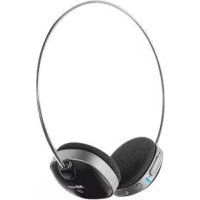
18066 - Earphones TRUST - Free user manual and instructions
Find the device manual for free 18066 TRUST in PDF.


| Product type | Bluetooth stereo headset |
| Model | Trust 18066 |
| Dimensions | Approx. 50 x 20 x 20 mm (main unit) |
| Weight | Approx. 40 g |
| Power supply | Rechargeable lithium-ion battery via USB cable (5V) |
| Battery life | Up to 6 hours talk time / 5 hours music |
| Charging time | Approx. 2 hours |
| Bluetooth range | Up to 10 meters (open field) |
| Bluetooth profiles | A2DP, HFP, HSP |
| Main functions | Music playback, hands-free calls, volume control, Bluetooth pairing |
| LED indicators | Battery (red) and Bluetooth (blue) |
| Care and cleaning | Wipe with a soft dry cloth. Do not immerse in water. |
| Safety | Use at moderate volume to prevent hearing damage. Do not expose to heat source. |
| Spare parts and repairability | USB cable included. No user-serviceable parts. Contact Trust support. |
| General information | Brand: Trust. Warranty: 2 years. |
Frequently Asked Questions - 18066 TRUST
User questions about 18066 TRUST
0 question about this device. Answer the ones you know or ask your own.
Ask a new question about this device
Download the instructions for your Earphones in PDF format for free! Find your manual 18066 - TRUST and take your electronic device back in hand. On this page are published all the documents necessary for the use of your device. 18066 by TRUST.
USER MANUAL 18066 TRUST
www.trust.com/18066/faq

natural_image
Black and white photo of a multi-band earless headphones with a 'Trust' logo visible in the top-left corner (no other text or symbols)Quick Installation Guide
Bluetooth Headset
18066
flowchart
graph TD
    A["Installation"] --> B["1"]
    B --> C["2"]
    C --> D["3"]
    D --> E["4"]
    E --> F["5"]
    F --> G["6"]
    G --> H["7"]
    H --> I["8"]
    I --> J["9"]
    J --> K["10"]
    K --> L["11"]
    L --> M["12"]
    M --> N["13"]
    N --> O["14"]
    O --> P["15"]
    P --> Q["16"]
    Q --> R["17"]
    R --> S["18"]
    S --> T["19"]
    T --> U["20"]
iPad/ iPhone And
4

5


6

7

8

⑨

10
11


Windows
12

13

1415
A

O

Bluetooth Audio Headset - USER'S MANUAL
Trust
| IndexLanguage | |||
| page | |||
| Englisch | 2 | ||
| Deutsch | 5 | ||
| Français | 8 | ||
| Italiano | 11 | ||
| Español | 14 | ||
| Português | 17 | ||
| Nederlands | 20 | ||
| Dansk | 23 | ||
| Suomi | 26 | ||
| Norsk | 29 | ||
| Svenska | 32 | ||
| Polski | 35 | ||
| Česky | 38 | ||
| Slovenčina | 41 | ||
| Magyar | 44 | ||
| Română | 47 | ||
| Български | 50 | ||
| Русский | 53 | ||
| Еллэнvíкá | 56 | ||
| Türkçe | 59 | ||
| Hrvatski | 62 | ||
| Slovenski | 65 | ||
| C | рпски | 68 | |
Bluetooth Audio Headset - USER'S MANUAL
Trust
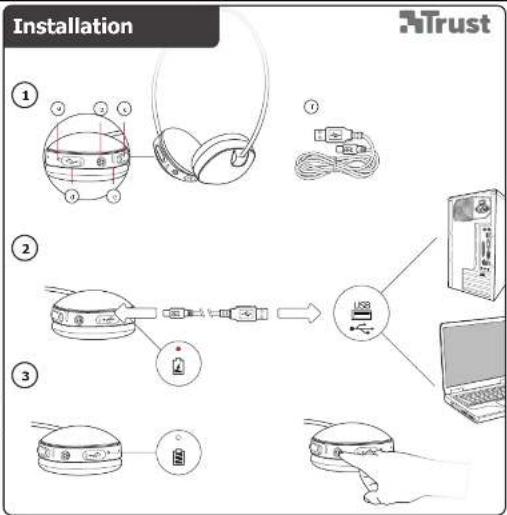
Installation
①
A Battery LED indicator
B Power button
C Volume control
D USB power connection
E Bluetooth status LED:
Blue 3x every sec. Pairing mode
Blue 1x every 2sec. Connected
F USB charge cable
②
- Connect USB cable to headset and a USB port of your computer or laptop.
- The battery LED indicator will light red when charging.
③
- If the headset is fully charged the battery LED indicator will go off.
- Press and hold the power button on for 8sec until the LED light starts blinking fast (paring mode).
▶
power off the headset. Press and hold the power button for 3sec.
▶ I
passcode is requested during the configuration of the device Use '0000'.
▶
headset can also be used during charging.
Standard Configuration
iPad/ iPhone
④
- Go to 'Settings'.
- Go to the 'General' settings.
- Go to 'Bluetooth'.
⑤
- Make sure that Bluetooth is on.
- Select 'Trust BT Headset' in the list of Bluetooth devices (make sure the headset is in pairing mode).
When the device status is 'paired', your device is ready to use.
Android
⑥
Go to 'Settings'.
7
Go to 'Wireless and network'.
⑧
Go to 'Bluetooth settings' and press 'find nearby devices' if needed.
⑨
Select 'Trust BT Headset' in the list of Bluetooth devices (make sure the headset is in pairing mode).
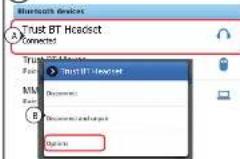
⑩
Press and hold 'Trust BT Headset' to go to the options menu of the wireless audio device.
⑪
take sure that the device is 'Connected'
- For listening to music make sure that the 'Media' profile is enabled
- For making phone calls make sure that the 'Phone' profile is enabled.
Your device is ready to use.
Bluetooth Audio Headset - USER'S MANUAL
Trust
Windows
⑫ A. Open the taskbar icons.
B. Click on the Bluetooth icon.
C. Click on 'Add a device'
13 - Select 'Trust BT Headset' in the list of Bluetooth devices (make sure the headset is in pairing mode).
When the device is successfully added, your device is ready to use.
14 A. Right click the headset icon in the taskbar
B. Open the 'Playback devices'.
15 - Set the headset as your default device.
Configuration on a Mac system
- Click on the Bluetooth icon in the taskbar.
- Make sure Bluetooth is on.
- Go to 'set up Bluetooth device...'.
- Select 'Trust BT Headset' in the list of Bluetooth devices (make sure the device is in pairing mode).
- Click on 'Continue'.
- If the pairing attempt was unsuccessful. Go to 'Passcode options'.
- Select 'Use a specific passcode'.
- The passcode to use is '0000'.
- Click on 'ok'.
- Click on 'Continue'.
Your device is now ready to use.
Bluetooth Audio Headset - USER'S MANUAL
Trust
Trouble shooting
| Problem | Solution |
| Can't connect the BT headset to my device | - Make sure that the BT headset is in paring mode. Press and hold the power button for 8sec. to activate the pairing mode (blue led flashing quickly 3x every sec.).- If a passcode is requested. Use '0000'.- Move the BT headset closer to your audio source.(maximum distance 10m under ideal circumstances)- The headset can only be paired with one device simultaneously. |
| No Sound Distorted Sound | - Check the LED light. LED light needs to be flashing blue 1x every 2sec.- Repeat the standard configuration steps for your device (iPad/iPhone, Android, Windows, Mac).- Your BT headset is too far from your device (maximum distance 10m under ideal circumstances).- Make sure that your using at least an Bluetooth 2.0 adapter that supports the A2DP profile.- Reinstall/ update the drivers of your Bluetooth device and reboot your system.- If you are using the product around large metal surfaces, remove the metal surface or move you product away from the metal surface.- Walls and Floors drastically reduce the range of the product. Move the BT headset closer to your audio source.- Move the BT headset away from other wireless devices (like Wireless network routers, mouse and keyboard). |
| Sound volume is to low or to loud | - Check the volume setting of your device (Tablet, Smartphone, PC).- Increase or decrease the volume on the headset. |
If your problem is not solved, please contact the helpdesk at www.trust.com/18066/faq.
Bluetooth Audio Headset - USER'S MANUAL
Trust
Installation
①
Andare a 'Wireless e rete'.
⑧
- Vá a 'Bluetooth' ['Bluetooth'].
⑤
Brand : TRUST
Model : 18066
Category : Earphones