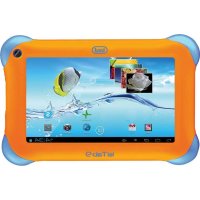
Kid Tab 9 - Tablet Trevi - Free user manual and instructions
Find the device manual for free Kid Tab 9 Trevi in PDF.



| Product type | Touchscreen tablet |
| Brand | Trevi |
| Model | Kid Tab 9 |
| Screen size | 9 inches (diagonal) |
| Screen type | Capacitive LCD TFT |
| Screen resolution | 800 x 480 pixels (16:9 aspect) |
| Operating system | Google Android 4.2 |
| Educational platform | MF Kids / MOFING UX |
| Connectivity | Wi-Fi, micro USB port (OTG), 3.5 mm headphone jack |
| Expandable storage | Yes, via micro SD card (not included) |
| Camera | Front camera |
| Power | Built-in rechargeable lithium-ion battery, 5V adapter included |
| Included accessories | Rubber protective case, USB cable, power adapter, manual |
| Parental features | Parental control via MF Kids interface |
| Sensors | Motion sensor (G-sensor) for auto rotation |
| Maintenance | Clean the screen with a soft cloth, no solvents |
Frequently Asked Questions - Kid Tab 9 Trevi
User questions about Kid Tab 9 Trevi
0 question about this device. Answer the ones you know or ask your own.
Ask a new question about this device
Download the instructions for your Tablet in PDF format for free! Find your manual Kid Tab 9 - Trevi and take your electronic device back in hand. On this page are published all the documents necessary for the use of your device. Kid Tab 9 by Trevi.
USER MANUAL Kid Tab 9 Trevi
TO SET YOUR LANGUAGE DEVICE
- Swicth on the appliance
- In Home Page select "AVVIO APPLICATIONS" and the icon for all applications
- Select the "IMPOSTAZIONI" icon
- Scroll through the list and select the icon A - LINGUA
- Select "LINGUA" and find their own language from those available.
- For information and updates of this product: www.trevi.it
POUR CONFIGURER LANGUAGE DE VOTRE APPAREIL:
DISPLAY. 9-inch TFT LCD, Capacitive (Touch- screen)
RESOLUTION 800X 480 (16:9)
CPU ARM Cortex A8, 1GHz
RAM 512MB DDR3
SISTEMA OPERativo Android 4.2
MEMORIA INTERNA 4 GB
WIRELESS NETWORK Wi-Fi (802.11 b/g/n)
FORMATI AUDIO MP3, WMA, AAC, OGG, FLAC, APE, WAV
FORMATIVIDEO .AVI,MP4,RMVB,MOV,FLV,WMV,MK
FORMATI FOTO . JPEG, PNG, BMP
WELCOME
Thank you for purchasing this tablet.
It brings you much convenience for your business (supports Word, Excel, send & receive e-mails...) and entertainment (supports 3D game, chatting, movie playback, eBooks....). Running on Android 4.2, with a 1GHz processor and highly responsive capacitive touch screen, it brings you wonderful user experience.
Before beginning, please refer to this user manual carefully.
IMPORTANTNOTICES
- Do not expose this product to rain or moisture.
- Keep the device out of direct sunlight and heat sources.
- Protect the power cord. Route power cords so that they are not likely to be walked on or pinched by items placed on or against them. Pay particular attention to the point where the cord attaches to the device.
- Only use the AC adapter included with the device. Using any other power adapter voids your warranty.
- Do not remove the cover. There are no user-serviceable parts inside.
- If the charger cord is damaged, have it repaired by the manufacturer, its service or a similarly qualified person in order to avoid any hazard.
- The charger is not intended for use by persons (including children) with reduced physical, sensory or mental capacity. Persons who have not read the manual, unless they have received explanations by a person responsible for their safety and supervision should not use this unit.
- Children should be monitored to ensure that they do not play with the charger.
- The charger should always be readily accessible.
- The device should not be exposed to dripping or splashing water.
- No objects filled with liquids such as vases shall be placed on the device.
- Always leave a minimum distance of 10cm around the unit to ensure sufficient ventilation.
- Naked flame sources, such as candles, should not be placed on top of the device.
- The device is intended for use only in a temperate climate.
- CAUTION: Danger of explosion if battery is incorrectly replaced or not replaced by the same type or equivalent.
- The battery should not be exposed to excessive heat such as sunshine, fire or similar.
- Different types of batteries, new and used batteries should not be mixed.
- The battery must be installed according to the polarity.
- If the battery is worn, it must be removed from the product.
- The battery must be disposed of safely. Always use the collection bins provided (check with your dealer) to protect the environment.
Clean your Device
Treat the screen gently. To clean fingerprints or dust from the screen, we recommend using a soft, non-abrasive cloth such as a camera lens cloth.
If the charger cord is damaged, have it repaired by the manufacturer, its service or a similarly qualified person in order to avoid any hazard.
The charger is not intended for use by persons (including children) with reduced physical, sensory or mental capacity. Persons who have not read the manual, unless they have received explanations by a person responsible for their safety and supervision should not use this unit. Children should be monitored to ensure that they do not play with the charger.
The charger should always be readily accessible.
The device should not be exposed to dripping or splashing water.
No objects filled with liquids such as vases shall be placed on the device.
Always leave a minimum distance of 10cm around the unit to ensure sufficient ventilation.
Naked flame sources, such as candles, should not be placed on top of the device.
The device is intended for use only in a temperate climate.
CAUTION: Danger of explosion if battery is incorrectly replaced or not replaced by the same type or equivalent.
The battery should not be exposed to excessive heat such as sunshine, fire or similar.
Different types of batteries, new and used batteries should not be mixed.
The battery must be installed according to the polarity.
If the battery is worn, it must be removed from the product.
The battery must be disposed of safely. Always use the collection bins provided (check with your dealer) to protect the environment.
ROAD SAFETY COMES FIRST
Check the current laws and regulations in the area where you drive, regarding the use of mobile devices such as this mobile device.
- Do not hold this mobile device while driving
- Concentrate fully on the driving
- Radio Frequency (RF) can affect certain electronic systems in your car, such as the audio-stereo system or security equipment.
- An airbag inflates with great force. Do not store the mobile device or any of its access in the area above the bag or in its deployment area.
INTERFERENCE
All wireless devices are susceptible to interference which can affect their performance.
CHILDREN
Keep the mobile device in a safe place out of the reach of young children. Your mobile device contains small pieces which can present a choking hazard.
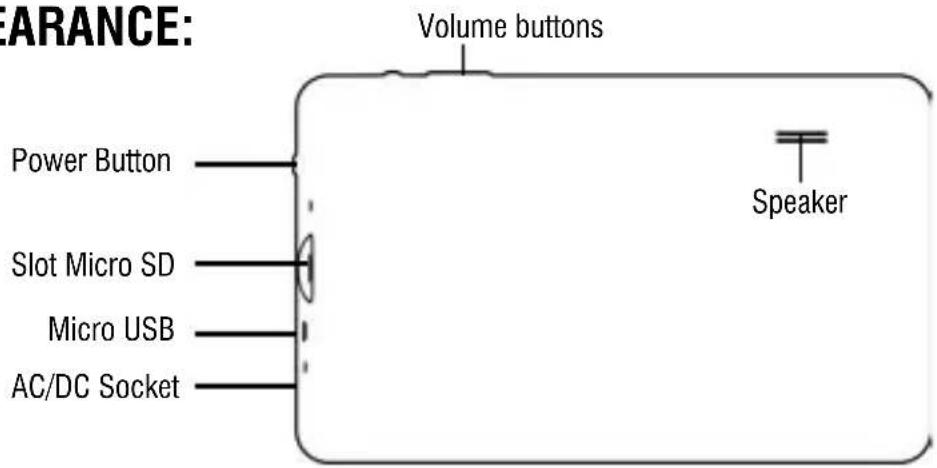
APPEARANCE:
Basic Operations
1. Turn on
A long press on the power bottom turns on the device
2. Turn off
In the normal state, long press the power button to shutdown, select "OK" when popup whether to shut down the inquiry box.
3. Power Reset
Crash maybe occurred in the process of using due to Smart operating system .Tap the RESET button to force shutdown and then reboot if occured.
4. Screen Saver
Press the power button, turn off the screen into the screen saver state, if you want to activate screen, press the power button again to enter the screen lock state, then slide the lock button to unlock.
5. Back to the desktop
Tap the screen bottom lower left of the Home icon "can return to the desktop under any interface
6. Back to the previous interface
Tap the Back icon "lower left of the screen bottom can return to the previous desktop under any interface
7. Settings
Tap the “ “ controls upper-right of the screen access to the application bar, tap the” Settings “icon into the set menu list interface
8. Charging
Plug the DC connector of adapter into the DC-in of device.Plug the adapter into AC power socket.While charging, the device may heat up. This is normal and should not affect your device's lifespan or performance.When the battery is fully charged (the charging icon is no longer moving), unplug the adapter, driver from the device and then from the power socket. [Warning]
*. Make sure the machine on a single charge once a month, then shut down before storing it without long use after fully charged.
*. PIs do not use the device while it is charging.
Tips: using authorized accessories can enjoy adequate security to guarantee the maintenance services.
Before using the device for the first time, you should charge the battery. The power adapter (charger) is a key component of the device and plays a vital role in protecting it work properly and your safety.
Unauthorized chargers can cause batteries to explode or damage your device. Any damage caused by misuse is not covered by warranty.
HOME SCREEN
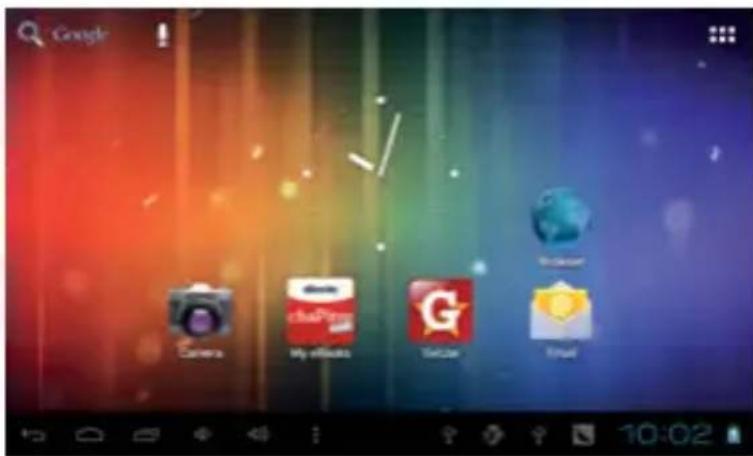
- By default, the home screen can open multiple pages, Implied icons are "Browser" and "Camera", etc. Sliding left / right can switch desktop display.
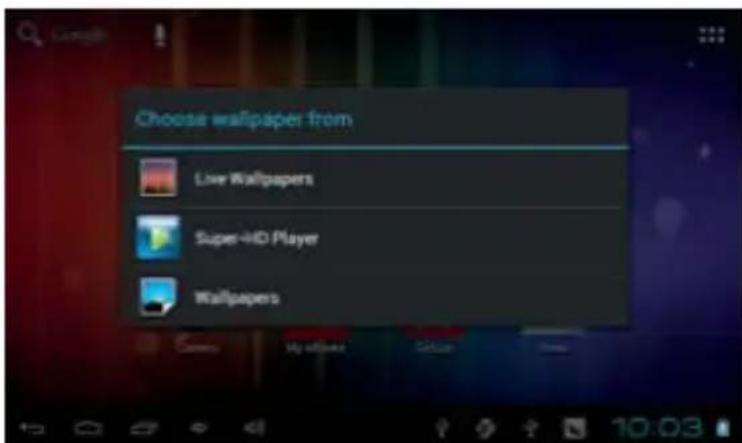
2. Set wallpaper
Long press the blank space of the home screen, then popup "Select Wallpaper from", Choose an image according to the categories.
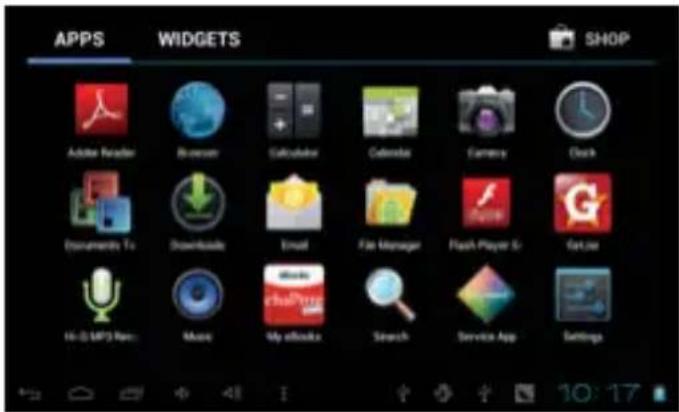
3. Display all applications
All installed applications will be displayed if tap “control upper right of the screen under the main interface.
4. Notification bar
Under the main interface, tap the status bar icon, such as USB connection into the notifications panel, which can display the current status of the USB, TF card status and the running application and status.
5. Mobile Desktop icon
Under the home screen, long press the application icon on the home screen, then you can move the selected icon after the icon be enlarged.
6. Delete the desktop icon
Under the home screen, long press the application icon on the home screen, move the selected icon to the trash can icon upper of the screen after the icon be enlarged, then stop pressing when the icon area displays orange and the desktop icon can be deleted.
INSTALL THE APK APPLICATION
- Copy the needed APK format application into the device or TF card.
- Tap "File Manager" to find the APK format application you want to install .
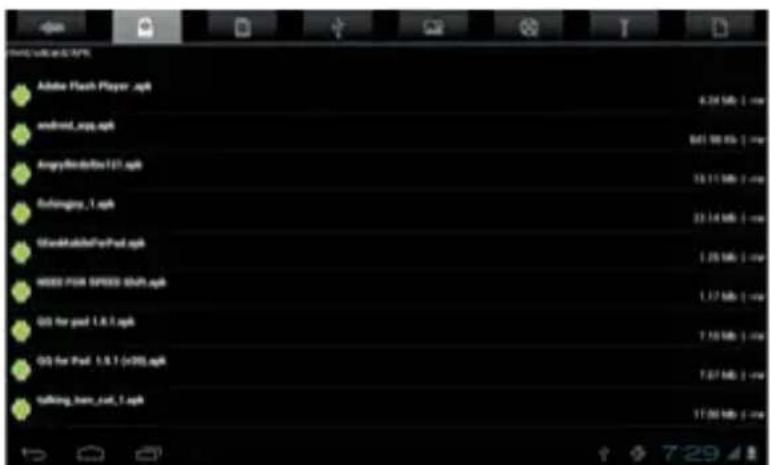
- Tap the APK format application you want to install, then popup "Do you want to install this application?"
4.Tap "Install" to begin the installation of APK application
UNINSTALL APK APPLICATION
- Tap “ controls, tap “ Settings” into Settings menu, then tap “Apps” and display installed applications list.
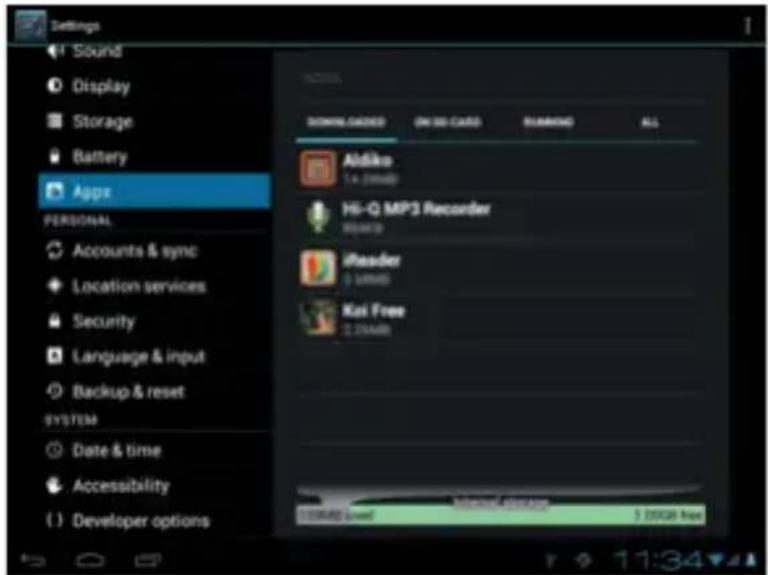
2.Tap the application you want to uninstall, popup prompt uninstall boxes
MOVIES
- Tap "Super-HD" in the home screen access to media files player interface.
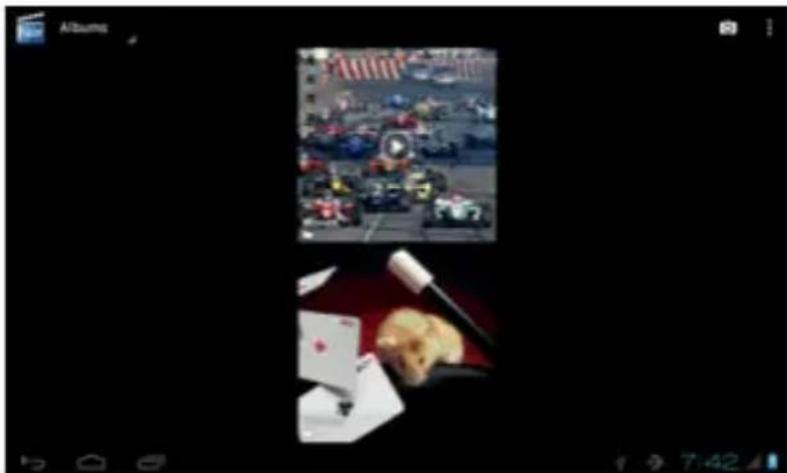
- Tap "Movies" access to the video file interface, then tap the video you want to watch
CAMERA
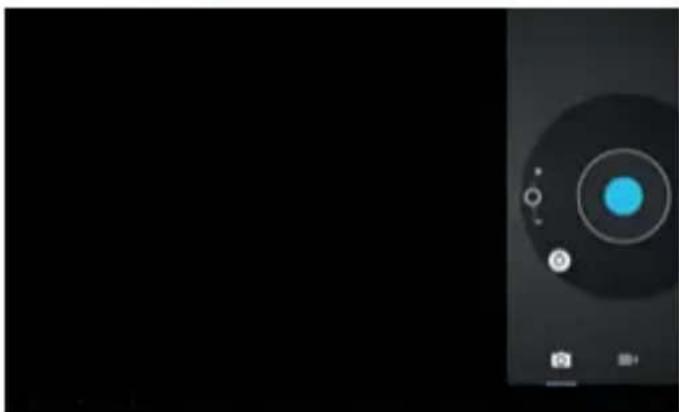
- Built-in camera to take photos and video Tap “camera” to take photos and video, ““ is status of taking photos, tap ““ to take photos and preserve automatically, ““ is recording video, tap ““ to start,
tap “ again to pause, tap “ to set related functions.
MUSIC
- Select "Music" in application bar access to music file list screen.
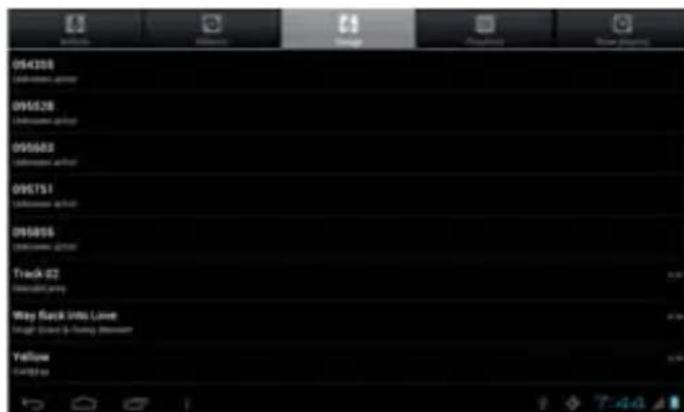
- Files:tap the music you selected and play music
- Tap back to home screen,tap back to previous screen.
- Tap up and down to process page.
- Artist:display music files classified by Artist
- Albums: display music files classified by album
Songs: display all music files - Playlists: display music files
- Now playing: access to the background music player interface.
ENGLISH
REGULAR SETTINGS
- Select "settings" after access into application bar to set list interface.
2.WIRELESS&NETWORKS
Wi-Fi function on or off
Wi-Fi settings set up and manage a network connection.
3. Sound
Volumes: adjust the volume level for call ringtones, music and videos, alarm ringtones, device system, and notifications.
Default Notification: Select the application which you want default notice.
Touch sounds: Set the device to sound when you unlock the touch screen.
Screen lock sounds: Set the device to sound when you lock the touch screen.
4. Display
Brightness: Set the brightness of the display.
Wallpaper: Select wallpaper for the home screen
Auto-rotate screen: viewing in portrait or landscape, adjusting automatically to fit the new orientation
Sleep:set sleeping time
Font size: set the size of the font
Accelerometer coordinate system: set the accelerometer coordinate system
Screen adaptation: used to adjust part of games' screen size.
5. Storage
Displays the memory card and USB storage settings of available storage space
6. Battery
Displays the battery level or charging status
Caution: Risk of explosion if battery is replaced by an incorrect type. Dispose of used batteries according to the instructions
7. Apps
View "DOWNLOADED", "ON SD CARD", "RUNNING" and "ALL" applications list, etc.
8. Accounts & sync
Change the settings for the auto sync feature or manage accounts for synchronization.
9. Location Services
Set to use the "Google's location service" and "Location & Google search" to gather and use date based on your location
10. Security
Screen lock: set screen lock and owner info
Encrypt tablet
Passwords: make passwords visible
Device administrators: view or deactivate device administrators
Unknown sources: allow installation of non-Market apps
Trusted credentials: display trusted CA certificates
Install from SD card: Install certificates from SD card
Clear credentials: remove all certificates
11. Language & input
Language: Select a display language for all menus and applications.
Personal dictionary: Add a word by touching the Add (+) button
KEYBOARD&INPUT METHODS: set keyboard and input methods
SPEECH: Set the voice search and text-to-Speech (TTS) output
MOUSE/TRACKPAD: set pointer speed
12. Back up and reset
Back up my data and reset factory data
13. Date & time
Set date and time
14. Accessibility
TalkBack: Set turn on /off TalkBack
Large text: display large text
Auto-reat screen
Touch & hold delay: set the time of touch and hold delay
Install web scripts: set whether to allow the installation of web scripts.
15. Developers options
USB Debugging: debug mode when USB is connected
Development device ID: display development device ID
Stay awake: screen will never sleep while charging
Allow mock locations
HDCP ichecking: use HDCP checking for DRM content only
Desktop backup password: Set the full desktop backup password.
Strict mode enabled : flash screen when apps operating do long operations on main thread
Pointer location: screen overlay showing current touch data
Show touches: show visual feedback for touches
Show screen updates: flash areas of screen when they update
Show CPU usage: screen overlay showing current CPU usage
Force GPU rendering: Use 2D hardware acceleration in applications
Window animation scale: animation scale 1x
Transition animation scale: animation scale 1x
Don't keep activities: Destroy every activity as soon as the user leaves it
Background process limit: standard limit
Show all ANRs: show App Not Responding dialog for background apps
16. About tablet
ENGLISH
CONNECT COMPUTER
The device could connect to PC via USB wire for data copy and delete.
- Connected the device to PC port via USB wire, then there will be showed "USB connected" on PC screen
2.Tap"USB connected" option, select "open USB storage setting", then you can see movable
MF KIDS - PLATFORM WITH EDUCATIONAL APPLICATIONS FOR FAMILY INSTALLATION AND ACTIVATION
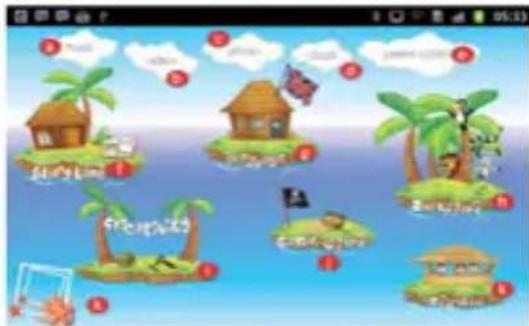
When you turn on the device and unlocked the controls (drag the cursor outside the circle), activate the WiFi connection with internet navigation. After you have established your Internet connection, press the HOME icon, a window will appear where you will be asked whether to boot the O.S ANDROID (Startup Applications) or MOFING UX (educational platform). Select "MOFING UX" and the following screen appears:
Shopping cart symbol with a + sign
At first use the educational platform need to be downloaded and to be activated.
This must be done by an adult, without this the only application available is Dino Adventure in Island Game.
To download and to activate additional applications proceed as follows:
- Select any of the thematic islands (if you select LANGUAGE also select the activity and the language preference). This will open 'a window like the following:
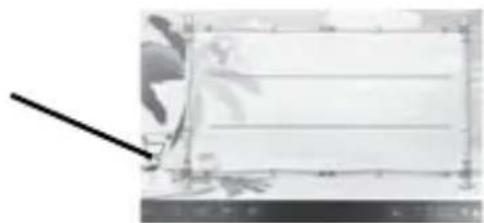
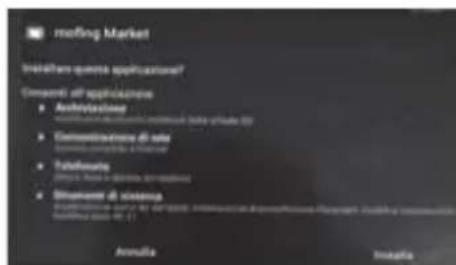
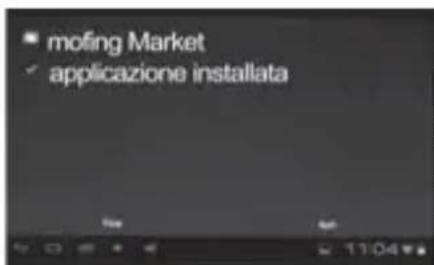
- Select the shopping cart icon with the + sign, will start 'automatic download of the platform MOFING UX (Fig 1 below), at the request of installation, press on the INSTALL con (Figure 2 below).
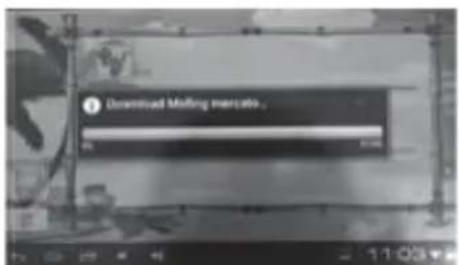
Fig.1 Fig.3Fig.2
H
- Wait until the application is installed and finished, press OPEN (Fig. 3), at which point it will 'can navigate between educational applications in the MOFING UX platform.
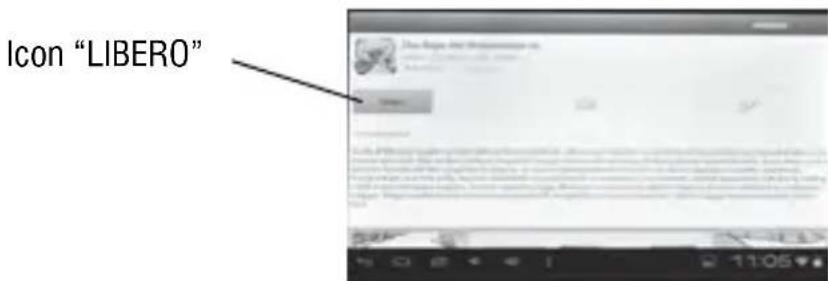
- Once you have chosen an application of self-interest, select it, it will open a page describing the application. To install it press on the icon LIBERO (Free):
- It's necessary (only once the first installation) register to the platform, when you get the ENTER (Fig. 4 below) select the word REGISTRO to begin the process:
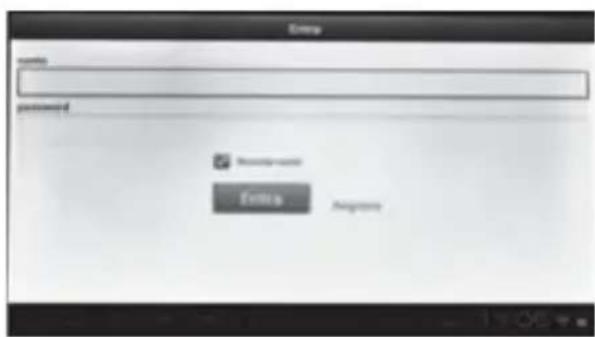
Fig.4
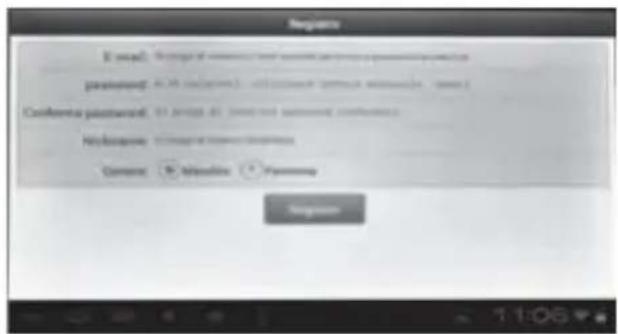
Fig.5
In registration page(REGISTRO, Fig.5) put:
- Own a valid email address in the field EMAIL
- Password and confirm password you want to use to access the platform (the password must be 6 to 16 characters)
- The nick (nickname) to be used when accessing the platform
- The gender (male or female) who uses the platform
Confirm the entries by clicking the icon and wait, it will re-open the previous window (Fig.4)) where you will enter your email and password. Wait a few seconds to access all applications and install the ones you want.
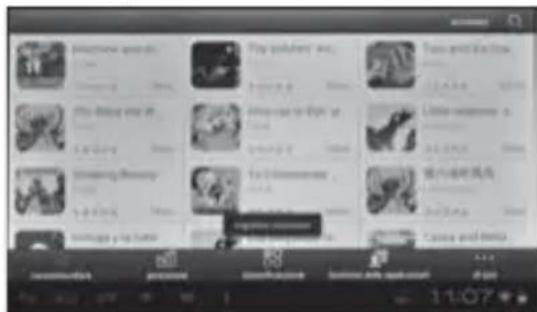
To install an application access to the educational platform, enter your email and password if required, and select the desired application, the applications available are indicated by FREE. Once you have selected the application select FREE icon, the download starts (need to have active internet connection). When the download end, confirm the installation and wait, when you see the Open icon you can use the application.
Depending on the chosen topic of the island will be available different applications (fairy tales, games, educational), once installed will be available on the bulletin board of the island, to initiate them 'just select the icon.
hardware icon which can be operated like using USB.
USE THE MF KID
Home page
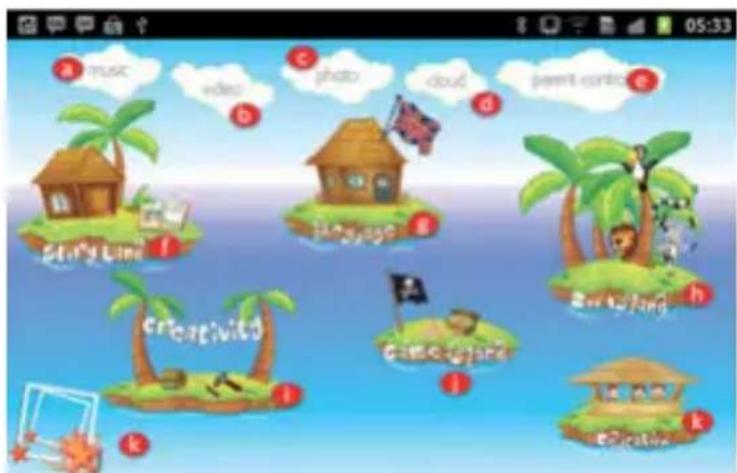
The Home Page gives you access to 6 mains categories (islands) and to 6 basics functions:
1- Overview of the 6 basics functions and 6 mains categories:
a. Music: listen and enjoy your own music
b. Video: watch all your own videos
c. Photo: find all your pictures
d. Cloud: not active
e. Parental control: Parents can control the use of the tablet
f. Storyland: read e-book and audio-book
q. Language: learn a new language (English, Spanish...)
h. Zoo island: discover and play with animals
i . Creativity: play to several games and create your own books or photo album
i. Game island: play to fun games
k. Education: learn with fun (courses sheet, educative games...
To open a function, click on the icon.
2- Market, add / delete applications
In the 6 mains categories, you have to download applications from the corresponding
market. To reach the market, press on the caddie.

When you will be in the market, to download an application, you will have to be logged. To do that, press on an application you want to download and this screen will appear:
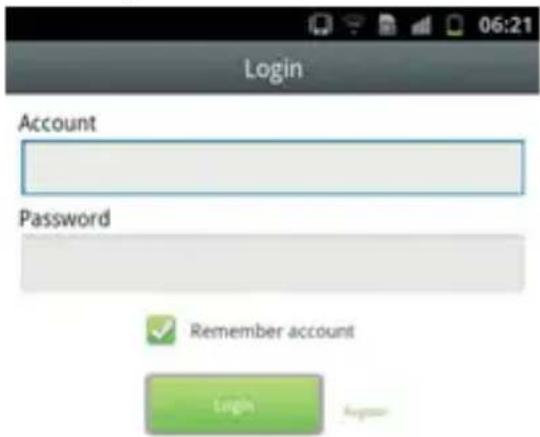
To log, write your email address in "account" and your password (for reference see the previous paragraph MF KIDS installation and activation). Then press "login". Then, the game will be downloaded automatically.
If you want to delete an application, press on the trash which is present in each category:

A little red cross will appear at the top of each application, select those you want to delete. The markets of each category are updated automatically. When an update is ready, you just have to confirm this by pressing on the button "update" of the message which will display automatically.
3-The 5 basics functions Music
Upload your Music inside the folder "Music_kids" (if copied to other folders files will not be displayed)
To open the music library, press the corresponding cloud button on the top of the home page
1-How to view all the albums in my Library?
In the music library, simply swipe the little screen at the bottom of the screen with your finger from right to left to go forward in the list, or from left to right to go backwards in the list. You can easily navigate through all the different pages of albums that way.
The music player plays song stored in your device. You can import songs through an usb
connection or with a Memory SD card.
You can browse your music by the name of the track, Artist, Album or creating playlist. The songs are classified in alphabetical order.
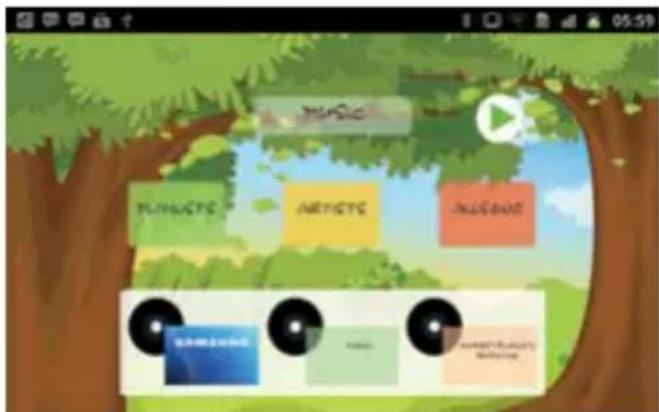
2-How to listen to music?
First choose an album and press on it. Then press on the song you want to listen, which launches the music player. Then you can use the controls of the player.
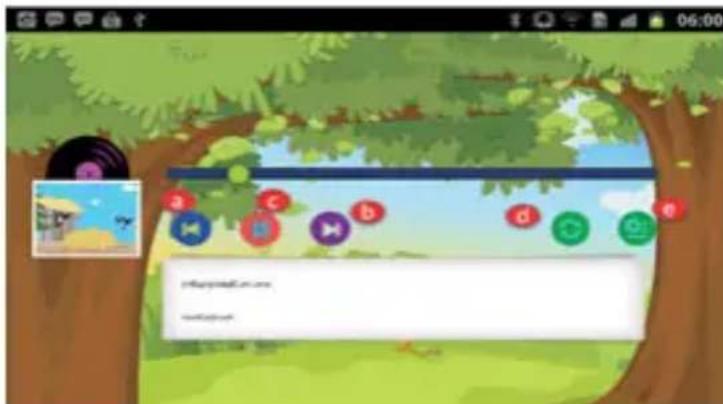
a- Previous song: go back to the previous track
b- Next song: go to the next song
c- Play/Pause: press to play/pause the song
d- Repeat/ Shuffle: Press this icon so the song is play in repeat/ select this option to play the music randomly.
e- Press on this bottom to create a new playlist.
Video
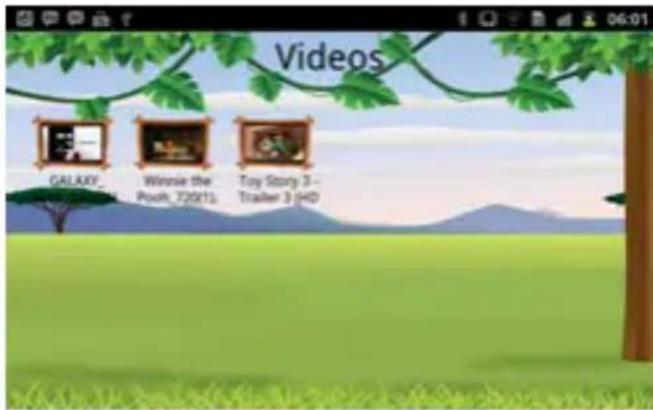
Upload your Video inside the folder "Video_kids" (if copied to other folders files will not be displayed)
To open the video gallery, press the corresponding cloud button on the top of the home p 1- How to view all the videos in my gallery?
When in you are the video gallery, simply swipe the screen with your finger from right to left to go forward in the list, or from left to right to go backwards in the list. You can easily navigate through all the different pages of videos that way.
2-How to watch a video?
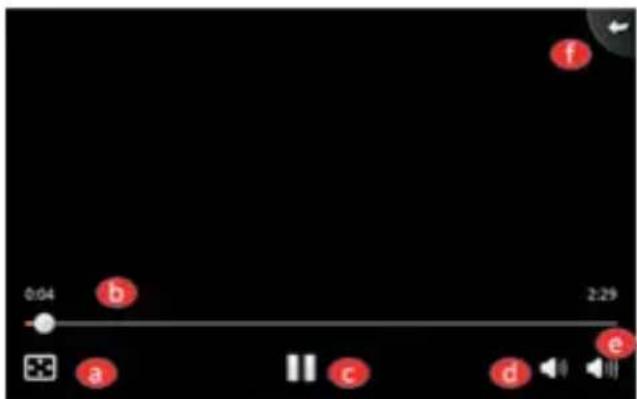
Press on the video you want to watch, it will launch the videoPlayer. Then you can use the controls of the player.
a- Press on this button to watch your video in full screen or not
b- Press on the small round if you want to go forwards in the movie.
c- Play / Pause: When a video is playing, press to pause it. Press again to resume.
d- Volume button: Press it to get a lower sound.
e- Volume button: Press it to get a louder sound.
f- Press this button to go backwards.
Photos
Upload your Photos inside the folder "Photo_kids" (if copied to other folders files will not be displayed)
To open the photo section, press the corresponding icon on the top of the home page.
To see your pictures, just move your finger on the screen from right to left to go forward in the list of pictures, or from left to right to go backwards in the list of pictures.
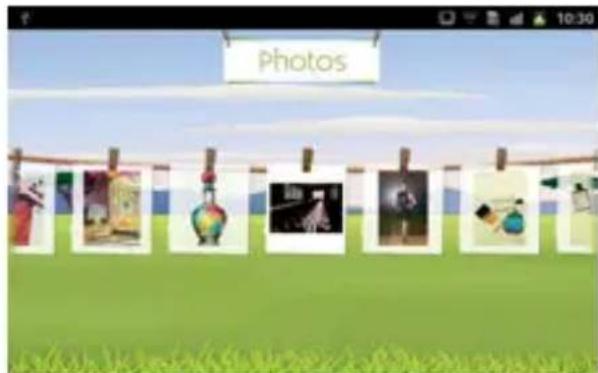
To delete a picture, press on one to be on full screen. Then press another time, and a trash will appear.
PARENTAL CONTROL
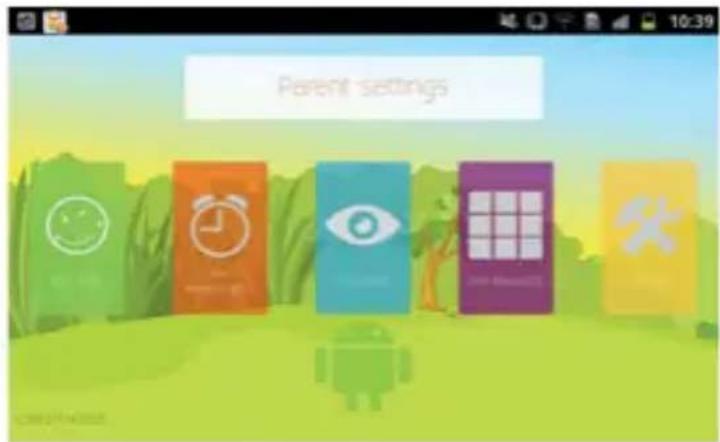
After you entered you password, you can access to the parental control home page. Just select the option you want to check or modify.
1-Kids info
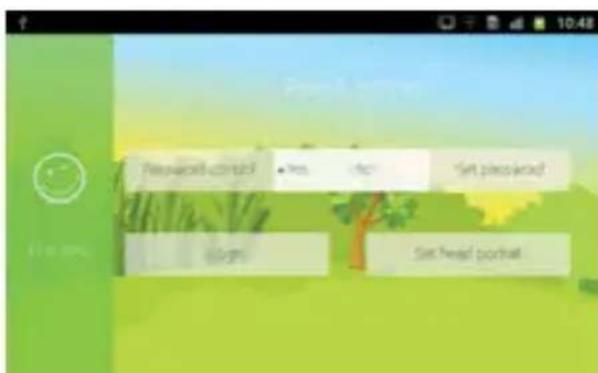
In this section, you can choose to get a password to reach the parental control category. In set password, write your new password and confirm it. If you want to change your password, just write your old password before your new one. The login bottom is used to connect the software to the kids market. About "set head portrait", you can choose a customized picture.
2- Time management
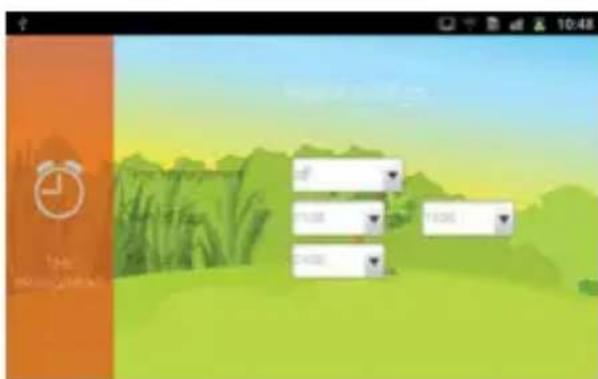
With this option you can just chose how long you want MF Kids to be use per day. First select the maximum of hours you want the interface to be active. You can then chose an interval of hours during which the kid is able to use MF. Finally, press on the last arrow to select the later the program can be used.
3-Statistics
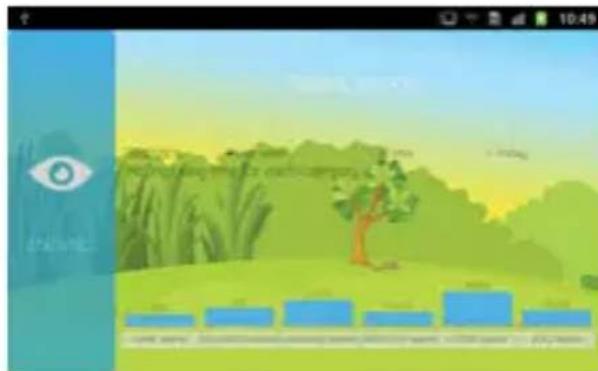
Thanks to this function, you will be able to check with details what the kid does with the device. Just select if you want a report from the last week, today or all time.
4-Application Manager
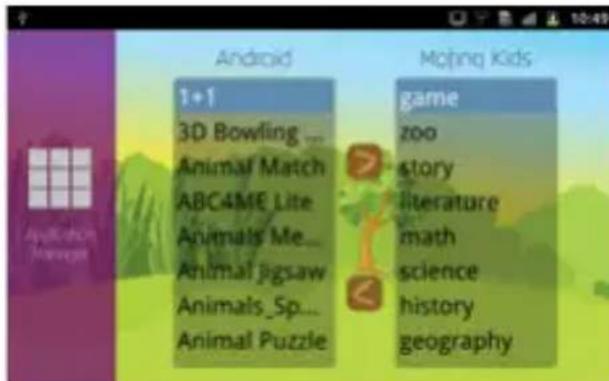
In this category, you can choose which application(s) from your Android device you enable your kid to play. There are two columns : one with your Android apps and one with the various categories of the software “kids”.
For example, if you want your child to play at "3D Bowling", press on it, then press on the highest arrow and then press on the category you want the application to appear (e.g. games). To delete the application from the software "kids", just select it and press on the arrow of the bottom.
5-Settings
Go on this category and you will be automatically redirected to the settings of your Android device.
THE 6 MAINS CATEGORIES
Press on the corresponding island (Storyland, Language, Zoo island, Creativity, Game island) that you want see on the Home Page.
a- To download a application, press on the caddy and you will go to the market. Then select what you want.
b- If you want to delete one of the application, just drag it to the trash.
Education
To go to "Education", press on the corresponding island on the Home Page Here you will find exercises for your kid in various fields: languages, geography, Math, Science and History.
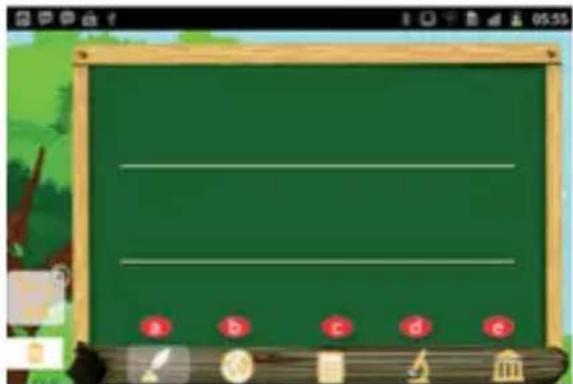
At the bottom of the screen, you will find the 5 icons which match with the various fields :
a-Languages
b-Geography
c-Math
d- Science
e- History
1- To download an application, press on the icon you want your child to study and then on the caddy and you will go to the market. Then select what you want.
2- If you want to delete one of the applications, just drag it to the trash.
FROM MF KIDS TOAndroid OS
If the tablet is set to be activated in MF KIDS system need to perform the following procedure to restore normal Android OS:
- In MF KIDS select the cloud PARENT CONTROL
- Select SETTINGS
- Scroll through the list settings and select APPS
-
Select the item ALL
-
Scroll through the list of applications and select MOFING UX
- Scroll to LAUNCH BY DEFAULT and select CLEAR DEFAULTS
- Press HOME and select LAUNCHER
TECHNICAL SPECIFICATION
DISPLAY. 9-inch TFT LCD, Capacitive (Touch- screen)
RESOLUTION 800X 480 (16:9)
CPU ARM Cortex A8, 1GHz
RAM 512MB DDR3
SISTEMA OPERativo Android 4.2
MEMORIA INTERNA 4 GB
WIRELESS NETWORK Wi-Fi (802.11 b/g/n)
AUDIO FORMAT MP3, WMA, AAC, OGG, FLAC, APE, WAV
VIDEO FORMAT AVI, MP4, RMVB, MOV, FLV, WMV, MKV
PICTURES FORMATJPEG,PNG,BMP
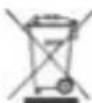
Precautions for correct disposal of the product.
The symbol shown on the equipment indicates that waste must be disposed of in "separate collection" and so the product must not be disposed of together with urban waste.
The user must take the product to special "separate waste collection centres" provided by local government, or deliver it to the retailer against the purchase of a new product.
Separate collection of waste and subsequent treatment, recycling and disposal operations promotes the production of equipment with recycled materials and limits negative effects on the environment and on health caused by improper handling of waste.
Illegal disposal of the product leads to the enforcement of administrative penalties.
BIENVENIDOS
To install an application access to the educational platform, enter your email and password if required, and select the desired application, the applications available are indicated by FREE. Once you have selected the application select FREE icon, the download starts (need to have active internet connection). When the download end, confirm the installation and wait, when you see the Open icon you can use the application.
Depending on the chosen topic of the island will be available different applications (fairy tales, games, educational), once installed will be available on the bulletin board of the island, to initiate them 'just select the icon.
MF KIDS
4-Application Manager
CPU ARM Cortex A8, 1GHz
RAM 512MB DDR3
SISTEMA OPERativo Android 4.2
MEMORIA INTERNA 4 GB
WIRELESS NETWORK. Wi-Fi (802.11 b/g/n)
AUDIO FORMATOS MP3, WMA, AAC, OGG, FLAC, APE, WAV
FORMATOS DE VIDEO AVI, MP4, RMVB, MOV, FLV, WMV, MKV
FOTOS JPEG, PNG, BMP
DISPLAY. 9-inch TFT LCD, Capacitive (Touch- screen)
CPU ARM Cortex A8, 1GHz
RAM 512MB DDR3
BETRIEBSSYSTEM Android 4.2
GESTION DES APPLICATIONS
MF KIDS - PLATEFORME AVEC DES APPLICATIONS ÉDUCATIVES INSTALLATION ET ACTIVATION
CPU ARM Cortex A8, 1GHz
RAM 512MB DDR3
SYSTEME D'EXPLOITATION Android 4.2
MÉMOIRE INTERNE 4 GB
Réseau SANS FIL. WI-FI (802.11 b/g/n)
FORMATSAUDIO MP3, WMA, AAC, OGG, FLAC, APE, WAV
FORMATS VIDEO AVI, MP4, RMVB, MOV, FLV, WMV, MKV


- TO SET YOUR LANGUAGE DEVICE
- POUR CONFIGURER LANGUAGE DE VOTRE APPAREIL:
- WELCOME
- IMPORTANTNOTICES
- Clean your Device
- ROAD SAFETY COMES FIRST
- INTERFERENCE
- CHILDREN
- APPEARANCE:
- Basic Operations
- Turn on
- Turn off
- Power Reset
- Screen Saver
- Back to the desktop
- Back to the previous interface
- Settings
- Charging
- HOME SCREEN
- Set wallpaper
- Display all applications
- Notification bar
- Mobile Desktop icon
- Delete the desktop icon
- INSTALL THE APK APPLICATION
- UNINSTALL APK APPLICATION
- MOVIES
- CAMERA
- MUSIC
- ENGLISH
- REGULAR SETTINGS
- Sound
- Display
- Storage
- Battery
- Apps
- Accounts & sync
- Location Services
- Security
- Language & input
- Back up and reset
- Date & time
- Accessibility
- Developers options
- About tablet
- CONNECT COMPUTER
- MF KIDS - PLATFORM WITH EDUCATIONAL APPLICATIONS FOR FAMILY INSTALLATION AND ACTIVATION
- At first use the educational platform need to be downloaded and to be activated.
- USE THE MF KID
- Home page
- 1- Overview of the 6 basics functions and 6 mains categories:
- 2- Market, add / delete applications
- 3-The 5 basics functions Music
- 1-How to view all the albums in my Library?
- 2-How to listen to music?
- Video
- 2-How to watch a video?
- Photos
- PARENTAL CONTROL
- 1-Kids info
- 2- Time management
- 3-Statistics
- 4-Application Manager
- 5-Settings
- THE 6 MAINS CATEGORIES
- Education
- FROM MF KIDS TOAndroid OS
- TECHNICAL SPECIFICATION
- Precautions for correct disposal of the product.
- BIENVENIDOS
- MF KIDS
- GESTION DES APPLICATIONS
- MF KIDS - PLATEFORME AVEC DES APPLICATIONS ÉDUCATIVES INSTALLATION ET ACTIVATION
Brand : Trevi
Model : Kid Tab 9
Category : Tablet