
Tab 10 C8 - Tablet Trevi - Free user manual and instructions
Find the device manual for free Tab 10 C8 Trevi in PDF.


| Product type | Touchscreen tablet |
| Brand | Trevi |
| Model | Tab 10 C8 |
| Dimensions (L x W x H) | 240 x 160 x 8 mm |
| Weight | 500 g |
| Display | 10.1 inches, 1280 x 800 pixel resolution |
| Processor | Quad-core 1.3 GHz |
| RAM memory | 2 GB |
| Internal storage | 32 GB |
| Connectivity | Wi-Fi 802.11 b/g/n, Bluetooth 4.0 |
| Cameras | Front 0.3 MP, Rear 2 MP |
| Battery | Lithium-ion 5000 mAh, charging via USB-C |
| Operating system | Android 9.0 (Pie) |
| Main functions | Internet browsing, multimedia playback, games, applications |
| Care and cleaning | Clean with a soft, dry cloth. Do not use abrasive products. |
| Safety | Do not expose to moisture or extreme temperatures. Use only the supplied charger. |
| Spare parts and repairability | Battery not user-replaceable. For any repairs, contact Trevi after-sales service. |
| General information | Versatile tablet for daily use. 2-year warranty. |
Frequently Asked Questions - Tab 10 C8 Trevi
User questions about Tab 10 C8 Trevi
0 question about this device. Answer the ones you know or ask your own.
Ask a new question about this device
Download the instructions for your Tablet in PDF format for free! Find your manual Tab 10 C8 - Trevi and take your electronic device back in hand. On this page are published all the documents necessary for the use of your device. Tab 10 C8 by Trevi.
USER MANUAL Tab 10 C8 Trevi
natural_image
Abstract digital illustration with globe, network lines, and floating elements (no readable text or symbols)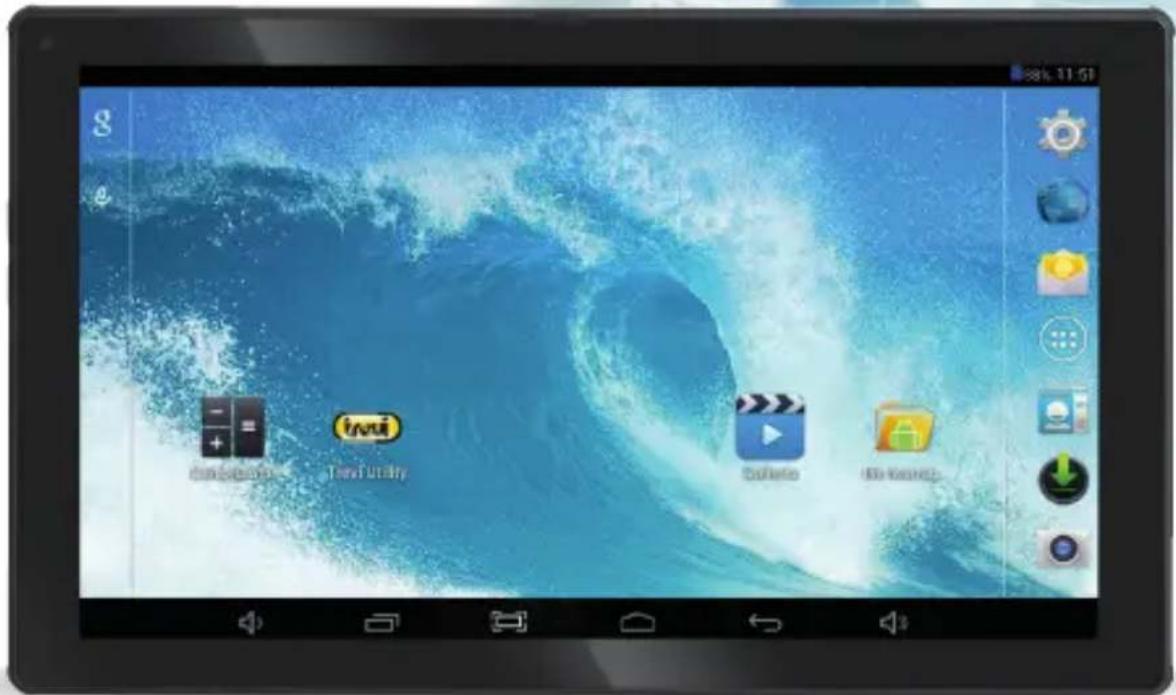
Tab10 C8
TO SET YOUR LANGUAGE DEVICE:
- Swicth on the appliance
- Go to the page with all applications
-
Select the "IMPOSTAZIONI" icon
-
Scroll through the list and select the icon
- Select "LINGUA" and find their own language from those available.
- LINGUA
Note: For information and updates of this product: www.trevi.it

POUR CONFIGURER LANGUE DE VOTRE APPAREIL:
natural_image
Simple line drawing of a finger pointing at a horizontal bar (no text or symbols)natural_image
Simple line drawing of a device with a plug and cable, connected to a blank screen (no text or symbols)Note:
natural_image
Landscape photo of a calm blue lake with distant hills and small boats (no text or symbols visible)

natural_image
Scenic landscape with a calm lake and distant hills under a clear blue sky (no text or symbols visible)Video
Immagini
natural_image
Grid of nine nature and fashion photos including butterfly, child, monkey, and forest (no text or symbols)Fotocamera/ Videocamera
Thank you for purchasing this tablet.
It brings you much convenience for your business and entertainment (supports game, chatting, movie playback, eBooks...).
Running on Android 4.4, with a 1,5GHz processor and highly responsive capacitive touch screen, it brings you wonderful user experience.
Before beginning, please refer to this user manual carefully.
IMPORTANT NOTICES
- The new battery will be in its best condition after 2-3 times full charge and discharge.
- While using the earphone, if the volume is excessively high it may cause hearing damage. So please adjust the volume of the player to a moderate level and balance the time of using.
- Do not disconnect the tablet suddenly when formatting or uploading and downloading, which can lead to program errors.
- Do not dismantle the tablet by yourself, and do not use alcohol, thinner or benzene to clean its surface
- The tablet is not moisture and water resistant. Please do not use it in a damp environment
- Do not drop or hit it to hard surface, or the screen may get damaged.
- Do not upgrade the firmware by yourself. This would cause damage to your tablet.
KEYS AND FUNCTIONS
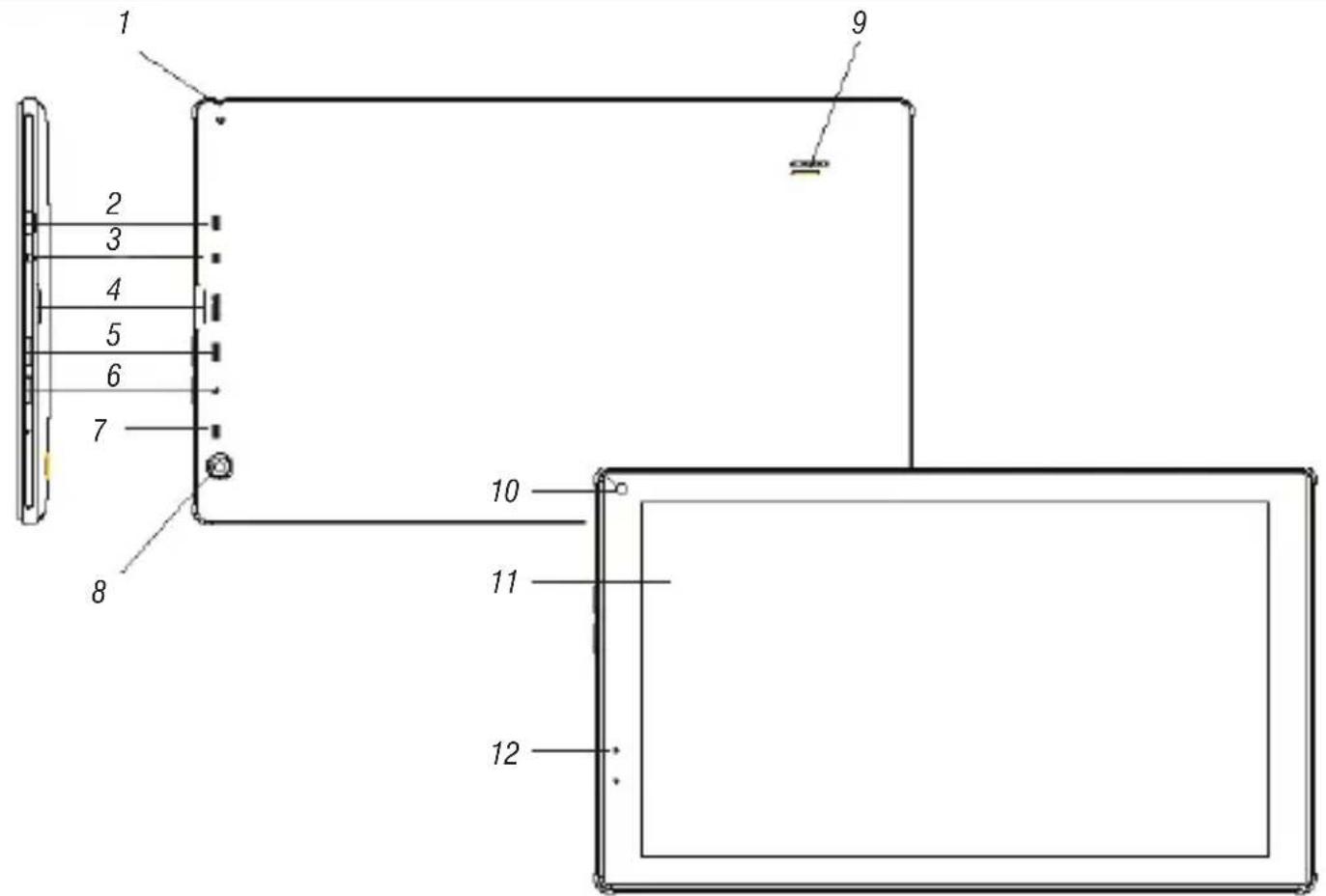
- Earphone Socket 3.5mm.
- Micro USB/Host Socket: connect the unit to external devices or PC.
- DC Socket: connect the DC 5V adaptor.
- Micro SD CARD slot.
- HOME key.
-
Power button and ON/OFF Display.
-
Microphone.
- Rear Camera.
- Speaker.
- Frontal Camera.
- Display.
- Led recharge indicator.
GETTING STARTED
Turning the Tablet on or off
To turn the tablet on:
Press and hold the Power key until the LCD screen turns on. Wait until the Home screen appears; the tablet is now ready for use.
To turn the tablet off:
- Press and hold the Power key until the Device Options menu appears.

- Touch "Power off"
- Touch "OK" the screen to turn off the tablet.
Turning the Screen On or off (Standby)
When the tablet is on, you can turn off the screen to conserve battery power. Simply press the Power key once to turn the screen off. Press the Power key again to turn the screen back on.
Note: To conserve battery power, the screen can be set to turn off automatically when the tablet is not in use (between 1 minute and 30 minutes). This Screen timeout option can be found in the Display menu.
Unlocking the Screen
When the screen turns off, you will have to unlock the screen when you turn it back on. To unlock the screen, drag the lock icon across the screen towards the lock icon.

ABOUT APPLICATIONS
To open an application, touch the application icon on the home screen or in the Launcher where you can tap the icon right up on the home screen to get in..
Launcher screen:

Note: The screen shown above is for illustrative purposes only. Reserves the right to modify and improve the final list of applications available on the tablet.
Preinstalled Applications
Some applications have been installed on your tablet for your convenience.
These applications include:

Browse the web.

Perform simple mathematical operations.

Take pictures or videos with the frontfacing camera.

Check your e-mail.

Play music.

Access the Settings menu to adjust the tablet's options.
PREINSTALLED APPLICATIONS
Installing Applications
You can also download an install additional applications from the devices applications marketplace, the web browser, or other sources.
The tablet must be set to allow installation of applications from non-Market sources. The Unknown sources option can be set in the Application settings menu.
CONNECT TO A WI-FI NETWORK
The Notification bar displays icons that indicate your tablet's Wi-Fi status.

Notification that an open Wi-Fi network is in range.

Connected to a Wi-Fi network (waves indicate connection strength).
[no icon] There are no Wi-Fi networks in range, or the Wi-Fi radio is off.
- Turn on the Wi-Fi radio if it is not already on. To turn on Wi-Fi:
a.Go to the Home screen: Press the Home key.
b.Open the Settings menu: tap the icon right up on the home screen to get into the launcher, then touch Settings icon.
c.Open the Wireless & networks menu: Slide the icon to ON status.

When Wi-Fi is on, the tablet will look for and display a list of available Wi-Fi networks.
Note: If a network that you have connected to previously is found, the tablet will connect to it. If you don't see your network in the list, you can force the tablet to re-scan. To scan for networks, tap the Menu key, and then touch Scan.
- Select an available Wi-Fi network to connect To:
In the same Wi-Fi settings menu above, touch a network in the list.
If the network is open, the tablet will prompt you to confirm connection to the network.
Touch Connect to confirm.
If the network is secured (as indicated by a Lock icon), the tablet will prompt you to enter a password or other credentials. Touch the Wireless password box to show the on-screen keyboard and then use it to enter the password. Touch Connect to confirm.

When you have successfully connected to a Wi-Fi network, the Notifications bar at the low of the screen will show a Wi-Fi signal indicator.
Note: To learn about how to add a Wi-Fi network when it is not in range or when the router is set to obscure the network name (SSID); or to configure advanced Wi-Fi options, please refer to the manual.
OPTIONAL CONNECTIONS
Connecting to a Computer
Connect the tablet to a computer to transfer files.
1. Connect your tablet to the computer.
With the included USB cable: Plug the small end of the cable into the USB 2.0 high speed connector of the tablet. Plug the large end of the cable into an available USB 2.0 high speed port on the computer.
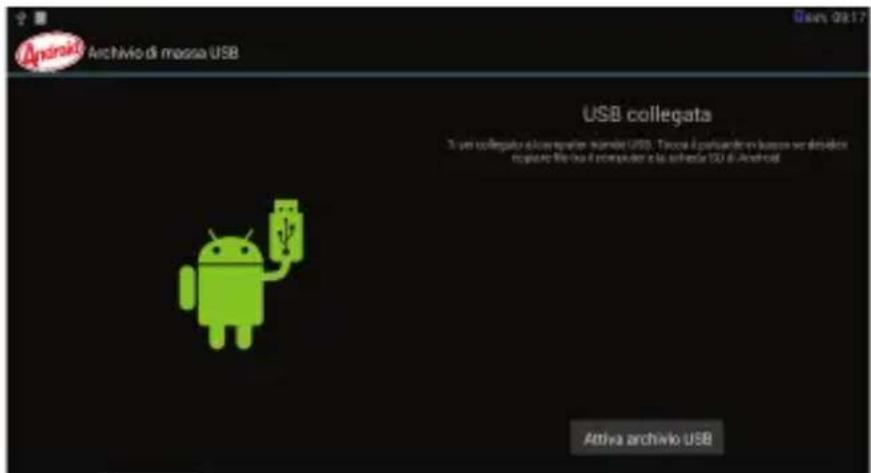
2. When your tablet is connected, slide down the USB icon left up on the screen and then touch icon USB connected.

3. Mount the storage.
Touch button Turn on USB storage to mount the tablet's built-in storage. When it is mounted, you can copy files to or from your tablet.
Tap the "Settings" icon to go to settings.
You can check and set wireless networks, sound, display, storage, Battery, Accounts &sync, security, language, date time, about tablet, etc.
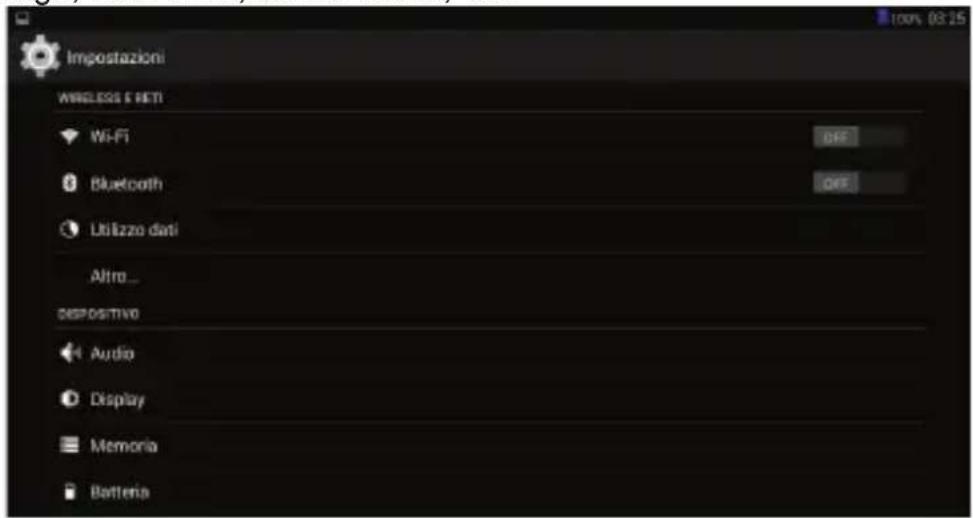
Tap “Settings” • Under “Wireless & networks” to slide in ON position the command. Touch Wi-Fi and it will show a list of Wi-Fi networks scanned in range. Choose a strong Wi-Fi network to connect. (You may need to input the password).
Bluetooth
Command to activate and perform a search for Bluetooth networks. This will display a list of available Bluetooth devices, coupled to the tablet device, and enter the password if required.
Data usage
a diagram showing the flow of data used.
More...
List of networks that can be used to connect the TAB 10 C8 unlike the Wi-Fi network. Turning on/off Aero mode.
Sound
Control to adjust the volumes, choose the ringtone notifications and enable sounds or sound pressure lock screen.
Display
Control to adjust the brightness, the background, adjust the sleep time panel and select the font size.
Storage
Check internal storage here. If you insert a Micro SD card, or USB disk, you can check the total and available space for your Micro SD card or USB disk. Please unmount it to
safely remove it.
NOTE: The pre-installed applications and the operating system Android OS occupy a considerable part of the capacity of the internal memory of the device, then it is normal to have a difference between “Available memory space” and “Total capacity”.
Battery
Check the Battery status here.
Apps
Selecting this item allows you to manage the various applications on the device. To delete an application, select it and touch the “Uninstall”.
Location
To allow or disallow the sending of your location data for Google search results and other Google services.
Security
Settings to enter a screen lock or information about the administrator.
Language & input
Selecting this item allows you to set the desired language, spell checking, set some functions of the virtual keyboard, voice commands and set the pointer speed.
Backup and Reset
Selecting this item allows you to make a backup of your data or restore the device with the factory records.
Date and Time
Selecting this item allows you to set the date and time of the device, the time zone, the format and display of the day/ month/ year.
Accessibility
Selecting this item allows you to set some parameters such as: Talk Back (which provides voice prompts to help users who are blind or visually impaired), Large Text, Auto Rotate, pronunciation of the password, touch delay and improves web accessibility.
Developer options
Selecting this item allows you to set / adjust the more advanced features of your device.
About Tablet
Selecting this item allows you to view all the information about the device.
INFORMATION ON REMOVAL AND DISPOSAL OF THE BATTERY
Caution: This operation is restricted to qualified personnel! The rechargeable battery incorporated in this product is not user replaceable.
- Remove the rear of the unit by moving lever up between the front and rear;
- Locate the battery;
- Unplug it and remove it.
Whatever type of low battery, it should not be placed in household waste, fire or water. Each type of battery should be recycled or disposed of at an appropriate collection centers dedicated.
TREVI pursues a policy of continuous research and development, the products may have different features from those described.
TECHNICAL SPECIFICATION
DISPLAY 10.1-inch TFT LCD, Capacitive (Multi Touch)
RESOLUTION 1024X 600
CPU ...... ARM Cortex A7, 1,5GHz Dual Core
RAM 512MB DDR3
OPERATIVE SISTEM Android 4.4
MEMORY BUILT-IN 4GB
WIRELESS NETWORK ...... Wi-Fi (802.11 b/g/n)
AUDIO FORMAT ...... MP3, WMA, AAC, FLAC, APE, WAV
VIDEO FORMAT ...... AVI, MKV, MP4, FLV, 3GP, RM, RMVB
PICTURES FORMAT ...... JPEG, BMP, JPG, PNG
BIENVENUE
Ces applications comprennent:
CPU ...... ARM Cortex A7, 1,5GHz Dual Core
RAM 512MB DDR3
OPERATIVE SISTEM Android 4.4
MEMORY BUILT-IN 4GB
WIRELESS NETWORK . ...... Wi-Fi (802.11 b/g/n)
AUDIO FORMAT ...... MP3, WMA, AAC, FLAC, APE, WAV
VIDEO FORMAT ......AVI, MKV, MP4, FLV, 3GP, RM, RMVB
PICTURES FORMAT . JPEG, BMP, JPG, PNG
AVVERTENZE CORRETTO SMALTIMENTO - CORRECT DISPOSAL WARNING

Precautions for correct disposal of the product.
The symbol shown on the equipment indicates that waste must be disposed of in “separate collection” and so the product must not be disposed of together with urban waste.
The user must take the product to special “separate waste collection centres” provided by local government, or deliver it to the retailer against the purchase of a new product.
Separate collection of waste and subsequent treatment, recycling and disposal operations promotes the production of equipment with recycled materials and limits negative effects on the environment and on health caused by improper handling of waste.
Illegal disposal of the product leads to the enforcement of administrative penalties.


Trevi S.p.A.
Strada Consolare Rimini-San Marino, 62
47924 RIMINI (RN) Italy
Tel. 0541/756420 - Fax 0541/756430
www.trevi.it - E-mail: info@trevi.it


- Tab10 C8
- TO SET YOUR LANGUAGE DEVICE:
- POUR CONFIGURER LANGUE DE VOTRE APPAREIL:
- Note:
- Video
- Immagini
- Fotocamera/ Videocamera
- IMPORTANT NOTICES
- GETTING STARTED
- Turning the Tablet on or off
- To turn the tablet on:
- To turn the tablet off:
- Turning the Screen On or off (Standby)
- Unlocking the Screen
- ABOUT APPLICATIONS
- Preinstalled Applications
- Installing Applications
- CONNECT TO A WI-FI NETWORK
- OPTIONAL CONNECTIONS
- Connecting to a Computer
- Connect your tablet to the computer.
- When your tablet is connected, slide down the USB icon left up on the screen and then touch icon USB connected.
- Mount the storage.
- Bluetooth
- Data usage
- More...
- Sound
- Display
- Storage
- Battery
- Apps
- Location
- Security
- Language & input
- Backup and Reset
- Date and Time
- Accessibility
- Developer options
- About Tablet
- INFORMATION ON REMOVAL AND DISPOSAL OF THE BATTERY
- TECHNICAL SPECIFICATION
- BIENVENUE
- AVVERTENZE CORRETTO SMALTIMENTO - CORRECT DISPOSAL WARNING
- Precautions for correct disposal of the product.
Brand : Trevi
Model : Tab 10 C8
Category : Tablet