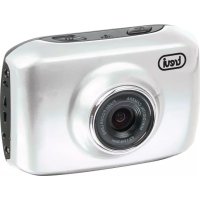
GO 2200 - Camcorder Trevi - Free user manual and instructions
Find the device manual for free GO 2200 Trevi in PDF.



| Product Type | Camcorder |
| Brand | Trevi |
| Model | GO 2200 |
| Dimensions (LxWxH) | 67 x 47 x 29 mm |
| Weight | Approx. 50 g |
| Power Supply | Built-in 3.7V rechargeable lithium battery |
| Charging Time | 2-4 hours |
| Image Sensor | 1.3 MP CMOS |
| Lens | F3.1, f=9.3mm |
| Digital Zoom | 4X |
| LCD Display | 2.0-inch touch screen |
| Video Resolution | 720P (1280x720 @30fps) / VGA (640x480 @60fps) |
| Photo Resolution | 5M (2592x1944), 3M (2048x1536), 1M (1280x1024) |
| Storage | microSD card up to 32 GB (not included) |
| File Formats | Image: JPEG, Video: AVI |
| USB Interface | High-speed USB 2.0 |
| Shutter | Electronic |
| White Balance | Automatic |
| Exposure | Automatic |
| Operating Modes | Video recording, Photo taking, Vehicle-mounted |
| Auto Shutdown | 5 minutes of inactivity |
| Accessories Included | Waterproof case, mounting accessories (handlebar, seatpost, helmet mount, etc.), USB cable, car charger |
| Battery Indicator | Yes |
| Recording Indicator | Yes (busy light) |
Frequently Asked Questions - GO 2200 Trevi
User questions about GO 2200 Trevi
0 question about this device. Answer the ones you know or ask your own.
Ask a new question about this device
Download the instructions for your Camcorder in PDF format for free! Find your manual GO 2200 - Trevi and take your electronic device back in hand. On this page are published all the documents necessary for the use of your device. GO 2200 by Trevi.
USER MANUAL GO 2200 Trevi
natural_image
Silver digital camera with 'trevi' branding and lens, no visible text or symbols beyond brandingITALIANO
Accessori a corredo
Scafandro
natural_image
Simple line drawing of a robot-like device on a textured surface (no text or symbols)natural_image
Three line drawings of mechanical components: a microscope, a camera, and a device (no text or symbols)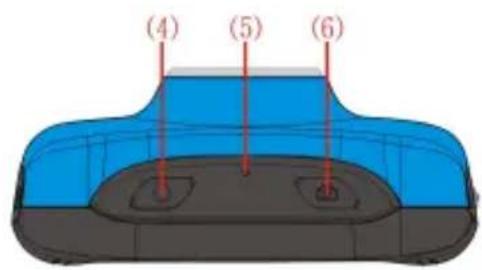
natural_image
Top-down view of a blue car head with red indicator line and number 7 (no text or symbols on the car itself)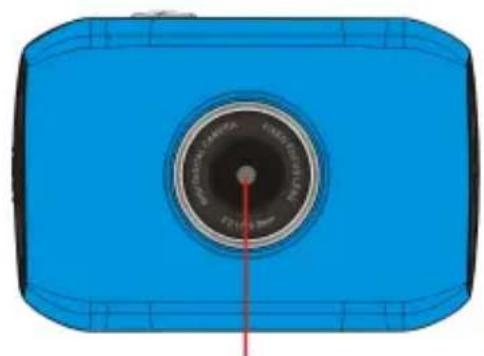
natural_image
Blue rectangular device with a circular dial and red pointer, no visible text or symbols(8)
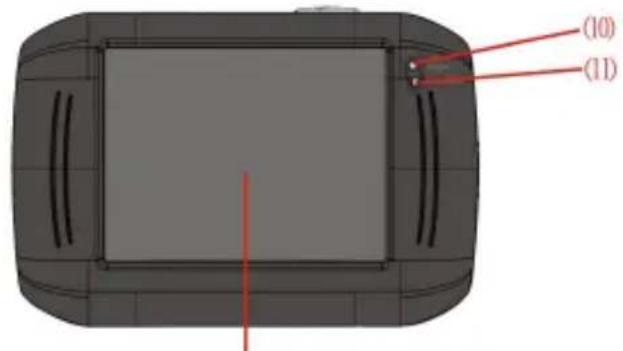
(9)
natural_image
Top-down view of a blue and black device casing with a USB port and CD40 label (no text or symbols on the main body)natural_image
Silver sedan driving on a road with greenery and trees in the background (no visible text or symbols)natural_image
Two side-by-side images showing a silver sedan on a road, one with UI icons and the other with playback controls (no readable text or symbols)natural_image
Close-up of an electronic circuit board with a battery and connector, showing internal components (no text or symbols visible)
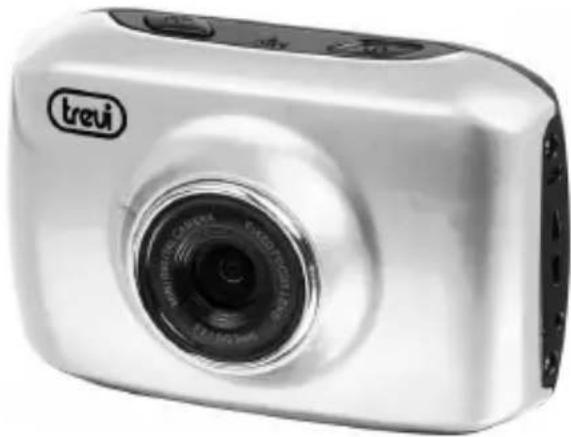
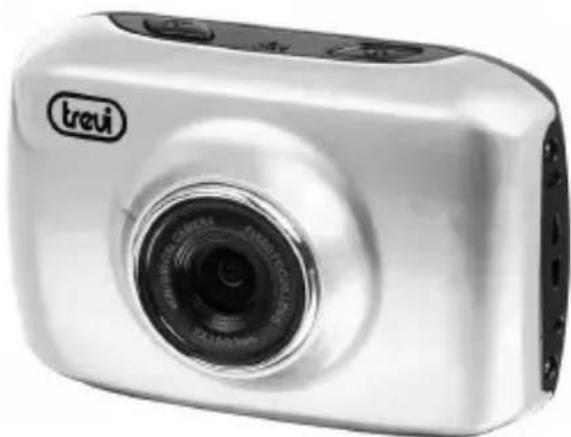
TREVI GO 2200HD
SPORT HD CAMCORDER
USER MANUAL
natural_image
Silver digital camera with 'trevi' branding and lens, no visible text or symbols beyond brandingENGLISH
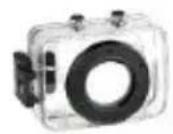
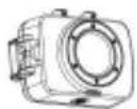
Waterproof Case
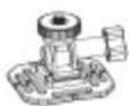
Mounting Accessories
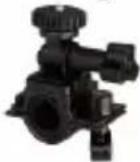
Handlebar
Seatpost
Mount
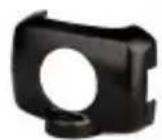
Shield
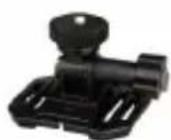
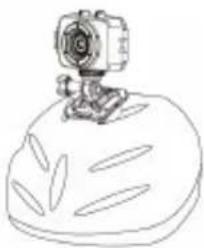
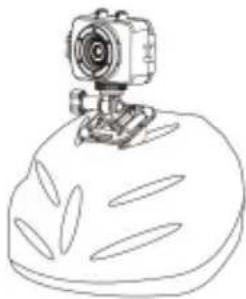
Helmet Mount
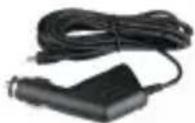
Car Charger
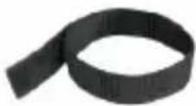
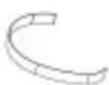
Helmet Belt
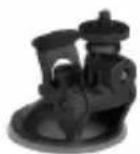
Suction Cup Mount
Quick User Guide
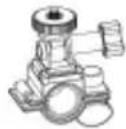
MOTO/BIKE SPORT EDITION
+
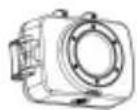
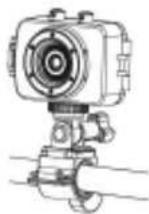
HELMET EDITION
+
+
natural_image
Line drawing of a camera on a tripod stand (no text or symbols)CAR DRIVING RECORDER EDITION
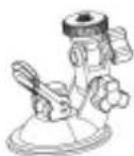
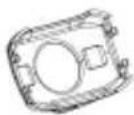
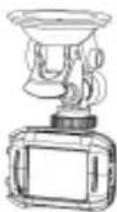
Functions
This user's manual has referred to the latest information we had when this user's manual was made. The screen display and illustrations are used in this user's manual for the purpose of introducing details of this digital camera in a more specific and direct way. Difference may arise between these displays and illustrations and the digital camera actually available for you due to difference in technological development and production batch, under which case, the actual functions of this video camera shall prevail.
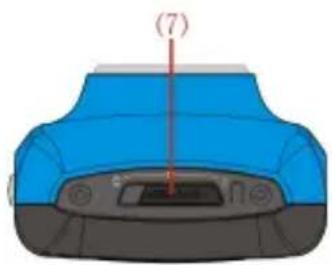
Introduction to Appearance and Keypad
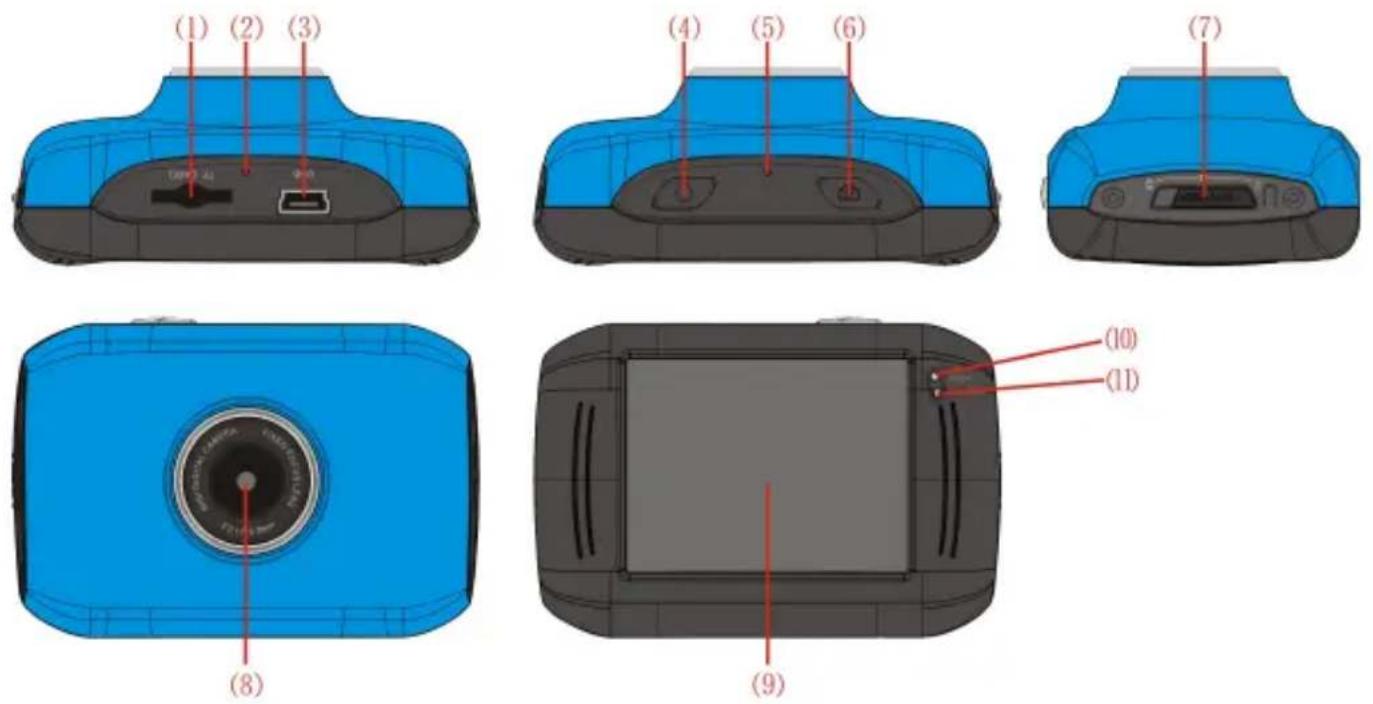
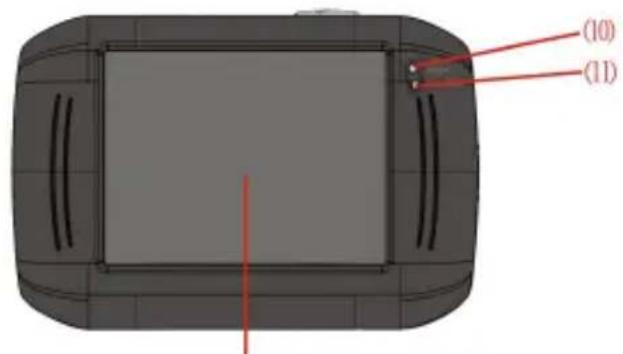
(1)Memory card slot
(8)Lens
(2)Reset
(9)LCD TFT
(3)USB slot
(10) Working Indicator Light
(4)Power button
(11)Indicator Light for charging
(5)MIC
(6)Shutter button
(7) Mode Switch:
Usage
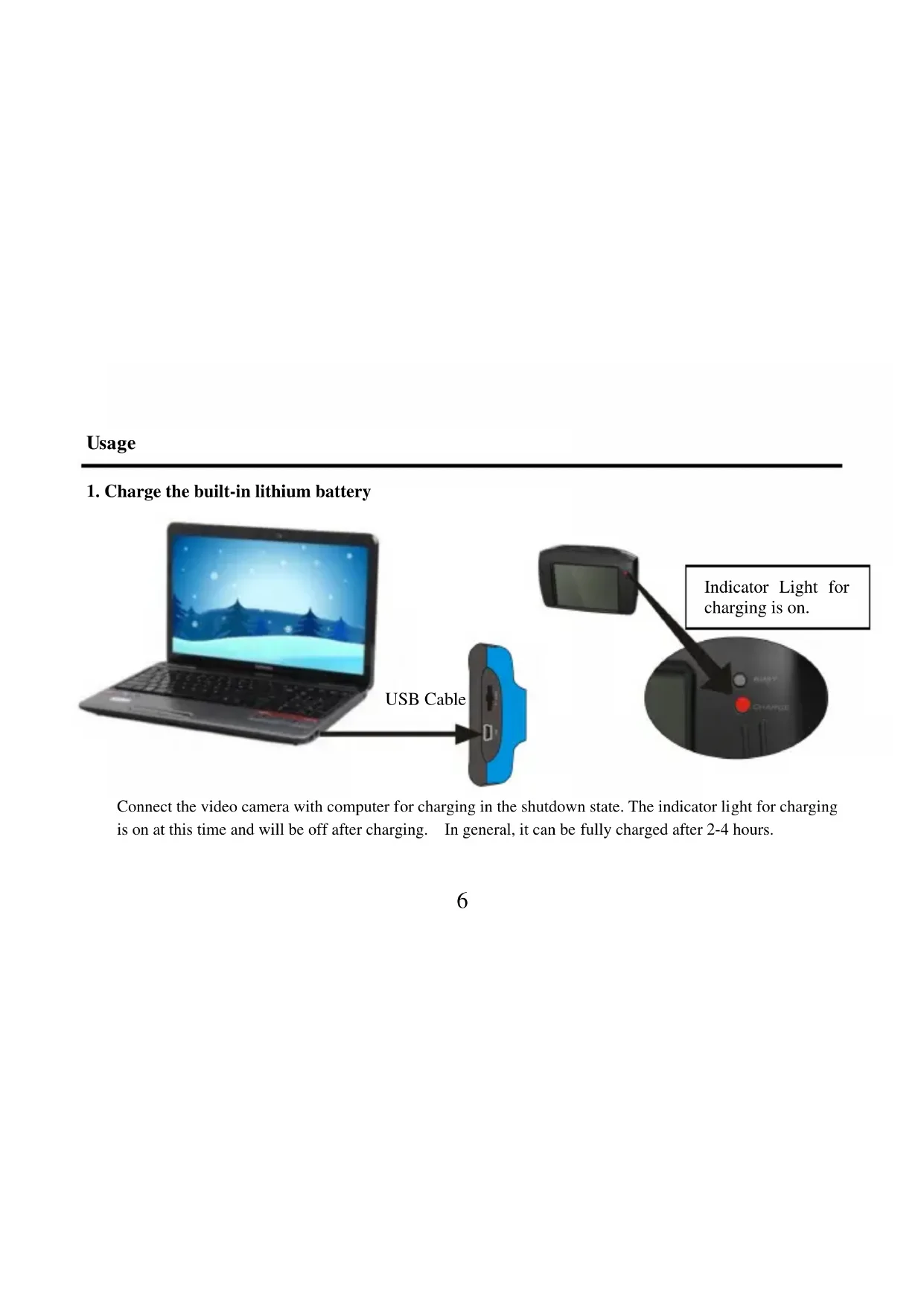
1. Charge the built-in lithium battery
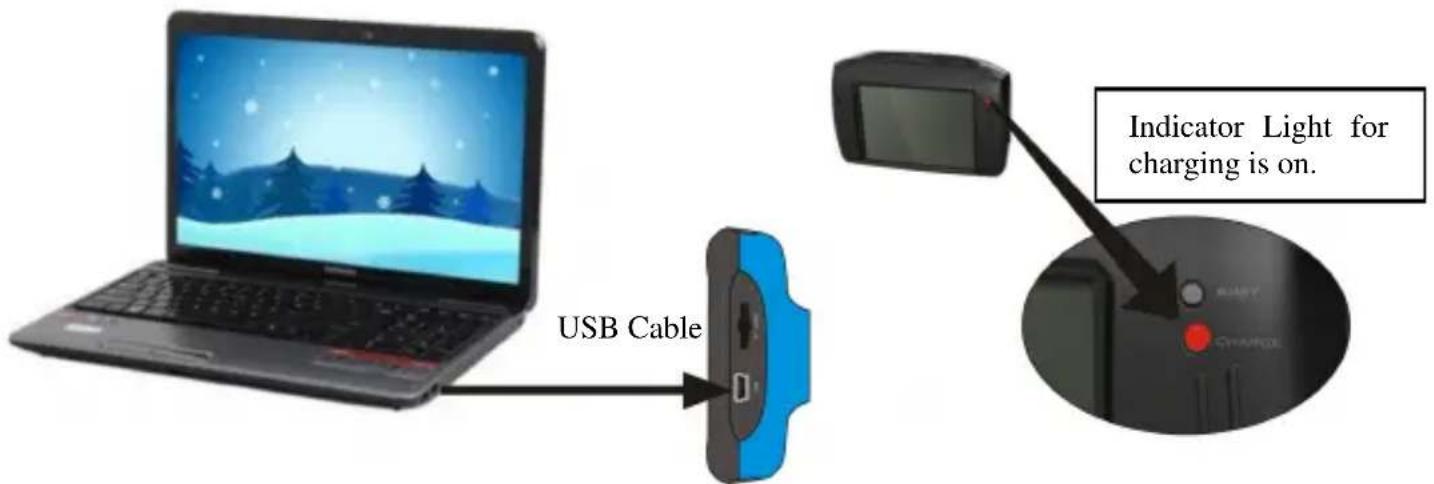
Connect the video camera with computer for charging in the shutdown state. The indicator light for charging is on at this time and will be off after charging. In general, it can be fully charged after 2-4 hours.
-
Use of Memory Card
-
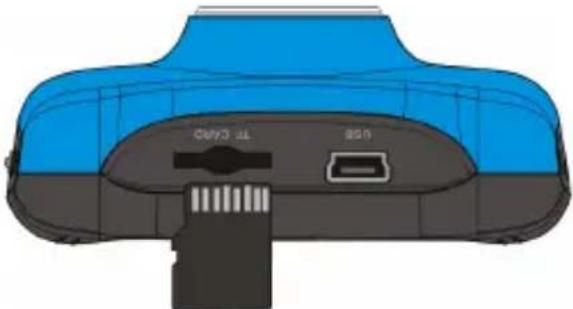
Push the memory card into the card slot according to the concave lettering beside the slot of memory card till it is completely inserted.
-
To take out the memory card, gently press the end of the memory card inward and it will pop up.
natural_image
3D diagram of a device casing with labeled ports (no text or symbols beyond 'USB' and 'TF CLASS')Note: No built-in memory is available in this video camera. Make sure to insert memory card before using.
3. Startup/Shutdown
3.1 Startup: Press the POWER button for 3 seconds, the screen is displayed and the camera is on.
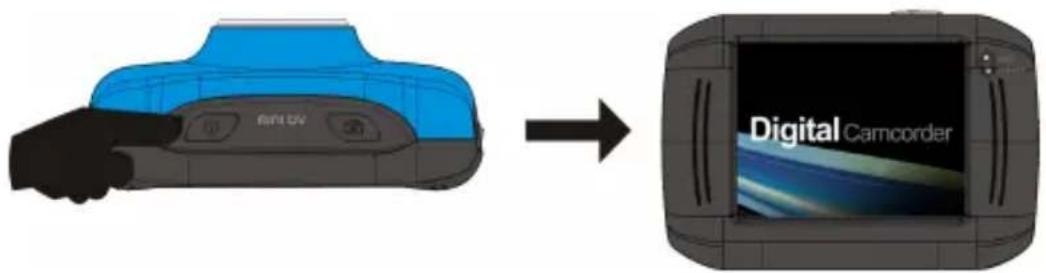
3.2. Shutdown: Press the POWER Key, and the camera will be shut down.
Automatic shutdown: when the idle time of the video camera reaches the time for automatic shutdown, it will be shut down automatically to save power. The default time of this camera for automatic shutdown is 5 minutes.
3.3. Shutdown in case of power shortage: when the power of the battery is insufficient, the LCD display screen will display the low power icon. Please charge it in time. When indicate light turns red and flickering, the video camera will be shut down automatically.
4. Conversion between Function Modes
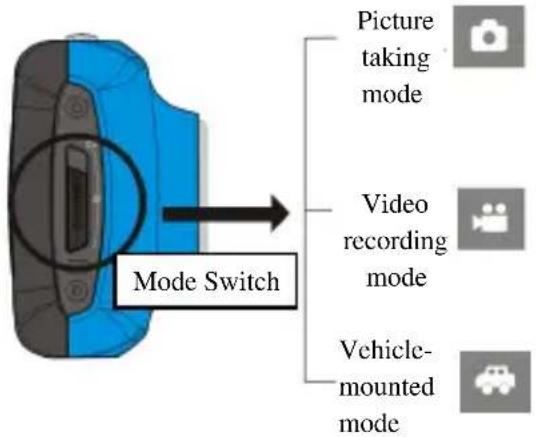
Three modes are available for this video camera, i.e. picture taking mode, video recording mode and vehicle-mounted mode. Conversion is available via the mode switch after startup.
Picture taking mode: pictures can be taken;
Video recording mode: video can be recorded;
Vehicle-mounted mode: videotape can be recorded.
(one section every 5 minutes)
5. Indicator light
Busy light: when the camera is busy (such as, recording a film, taking photos, automatic off-screen), the busy light will be on.
Charging light: when the light is on for a long time, it prompts the user that the camera is charging.
6. Video recording mode
When the mode switch is turned to video recording mode, press the shutter button once or click the LCD center once to begin recording under previewing state; press the shutter button once again if you want to stop recording, and the camera will also stop recording, automatically when the memory card is full or the power is insufficient.
1 00:12:18: Timer means that video recording can still last for 12 minutes and 18 seconds.
2 : mode icon, represents that the video camera is in video recording mode.
3 : videoing size, clicks this icon and you can choose 720P/VGA.
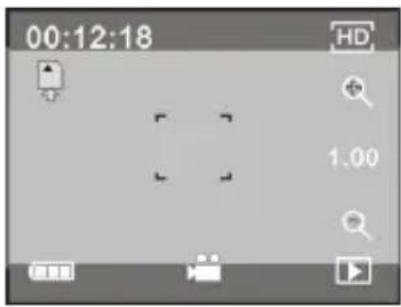
4 : means that the memory card is inserted at present.
5 : digital zoom icon, click it and enlarge it.
6 : digital zoom icon, click and minify it.
7 : visual shutter, touch this visible frame for taking photos or recording.
8 : battery icon, represents the power status of the battery.
9 : represents the status of digital zoom.
10 : click this icon to switch to the playback mode.
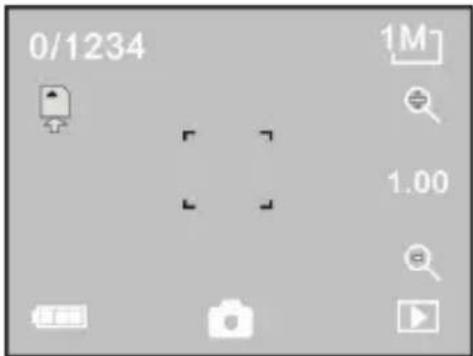
7 Picture taking mode:
Switch the mode switch into the Picture taking mode, press the shutter button or click the LCD center once under the previewing state to take a photo:
1 0/1234: Counter, indicating current number of photos taken already /number of photos to be taken.
2 : mode icon, indicating that the camera is in photo taking mode.
3 : video size, click this icon to select the photo resolution.
4 : means that the memory is been inserted at present.
5 : digital zoom icon, click it to enlarge.
6 : digital zoom icon, click it to minify.
7 : visual shutter, touch this visible frame for taking photos or recording.
8 : battery icon, indicates the power status of the battery.
9 : represents the status of digital zoom.
10 : click this icon to switch to the playback mode.
8 Vehicle-mounted mode:
Turn the mode switch to vehicle-mounted mode, press the shutter button or click the LCD center once under the preview state to begin recording, save a segment for recording every 5 minutes, then start to record the
next segment of video. When the storage card is full, the earliest segment of video will be deleted to release the corresponding space for continuous recording.
1 00:12:18 timer, indicating that the camera can still record for 12 minutes and 18 seconds.
2 : mode icon, representing that the camera is in vehicle-mounted mode.
3 : video size, click this icon to select 720P, VGA.
4 : represents that the memory card has been inserted.
5 : digital zoom icon, click it to enlarge.
6 : digital zoom icon, click it to minify.
7 : visual shutter, touch this visible frame for taking photos or recording.
8 : battery icon, representing the current power status of the battery.
9 : represents the status of digital zoom.
10 : click this icon to switch into the playback mode.
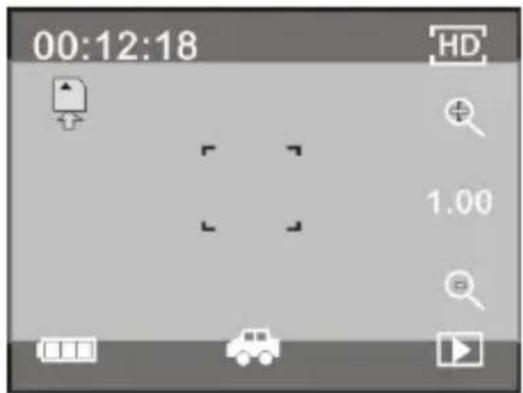
Note: the screen will be off automatically during recording process in order to save power; user can press the power button shortly to start the screen and restore display.
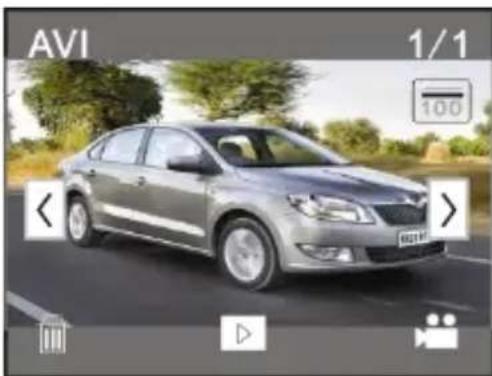
9 Playback mode:
9.1 After starting up and entering the previewing state, click the playback icon (☐) at the lower right corner of the LCD to switch to the playback mode:
Click
1 AVI : represents that the current file is an AVI video file.
2 : represents that there is one file in the current folder/one file in total.
3 : current folder name (such as: I:\DCIM\100MEDIA I: is the movable disk of the device).
4 : Means that clicking can select files frontwards.
5 : Means that clicking can select files backwards.
6 : Means that clicking can activate to confirm the deletion of the current file picture.
7 : Means that clicking can play the current movie clips.
8 : Means that clicking can switch back to the previous photo mode (video mode).
natural_image
Silver sedan driving on a road with trees and greenery in the background (no visible text or symbols)9.2 Movie clips playing:
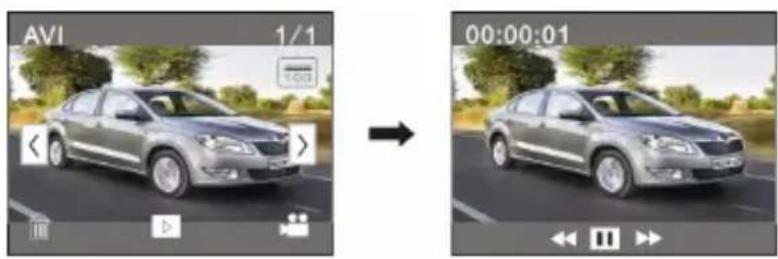
Click ☐ to pause playing, click ➤ to play forward, and click ◀ to play backward.
9.3 File deletion:
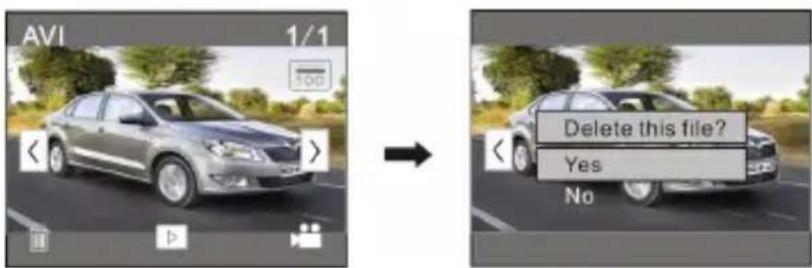
Click YES to delete the current file immediately, or click NO to cancel the request of deletion.
Apply on the personal computer
Connect to personal computer
The camera is provided with the plug and play function. Connect the device to the computer with USB line under turning-on state, then it will be switched into the movable hard disk mode.
Icon of movable disk will appear on the window of "my computer". Photos/videos you have taken are saved in folder I:\DCIM\100MEDIA (I is the movable disk of this device) in the movable disk. Files recorded in vehicle-mounted mode are saved in I:\DCIM\RECORDER.
Technical parameters
| Image sensor 1.3 million pixel (CMOS) | ||
| Function mode video, taking photos, vehicle-mounted mode, removable disk | ||
| Camera lens F3.1 f=9.3mm | ||
| Digital zooming 4X | ||
| Shutter | Electronic shutter | |
| LCD display screen 2.0-inch touch screen | ||
| Image resolution 5M (2592×1944), 3M (2048×1536), 1M(1280×1024) | ||
| Video resolution VGA: 640x480 (60 frames/second), 720P:1280x720 (30 frames/second) | ||
| White balance Automatic | ||
| Exposure | Automatic | |
| File formats | Image | JPEG |
| Video | AVI | |
| Storage medium | microSD card (Supporting up to 32GB), (without built-in flash memory) | |
| USB interface High-speed USB 2.0 interface | ||
| Power Supply Built-in 3.7V rechargeable lithium | ||
| Dimension (length × width × height) | 67*47*29mm | |
| Weight about 50 grams | ||
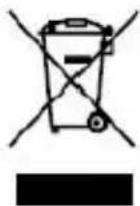
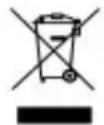
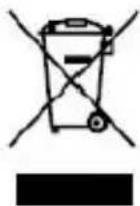
Precautions for correct disposal of the product.
The symbol shown on the equipment indicates that waste must be disposed of in "separate collection" and so the product must not be disposed of together with urban waste.
The user must take the product to special "separate waste collection centres" provided by local government, or deliver it to the retailer against the purchase of a new product.
Separate collection of waste and subsequent treatment, recycling and disposal operations promotes the production of equipment with recycled materials and limits negative effects on the environment and on health caused by improper handling of waste.
Illegal disposal of the product leads to the enforcement of administrative penalties.
INFORMATION NOTE ON THE REMOVAL AND DISPOSAL OF BATTERIES
Warning: Only high-qualified personnel should perform this operation!
BATTERY REMOVAL
THE APPLIANCE SHOULD NOT BE PLUGGED TO THE MAINS SOCKET WHEN PERFORMING THIS OPERATION!
-
Remove the screws tightening the part of the appliance;
-
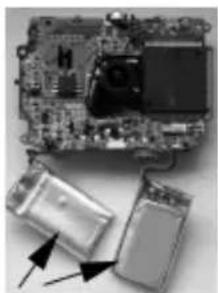
Select the battery shown by the arrow in the picture;
-
Disconnect and remove the battery. Used batteries should not be disposed of with household waste or thrown into fire or water.
Used batteries should be recycled or disposed of in separate waste collection centres.
natural_image
Close-up of a computer motherboard with a partially visible battery pack and connectors (no text or symbols)
For additional information and updates of this product see: www.trevi.it
Trevi S.p.A. Strada Consolare Rimini-San Marino, 62 - 47924 RIMINI (RN) Italy
Made in CHINA


TREVI GO 2200HD
SPORT HD CAMCORDER
natural_image
Silver digital camera with 'treui' branding and lens, no visible text or symbols beyond the logoFRANCAISE / DEUTSCH / ESPANOL
Exemple de fixation sur guidon de moto/vélo Beispiel für Befestigung am Lenker Motorrad/Fahrrad Ejemplo de enganche en manillar de moto/bicicleta
natural_image
Top-down view of a blue car head with red indicator line and number 7 (no text or symbols on the car itself)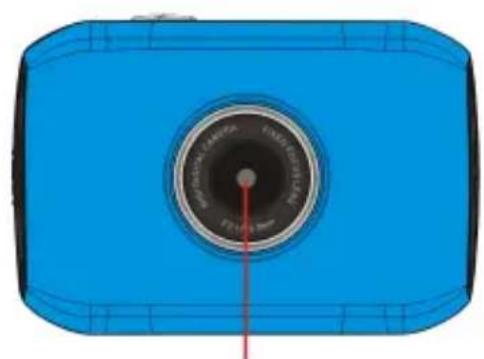
natural_image
Blue rectangular device with a circular lens and red pointer, no visible text or symbols(8)
(9)
| Image sensor 1.3 million pixel (CMOS) | ||
| Function mode video, taking photos, vehicle-mounted mode, removable disk | ||
| Camera lens F3.1 f=9.3mm | ||
| Digital zooming 4X | ||
| Shutter | Electronic shutter | |
| LCD display screen 2.0-inch touch screen | ||
| Image resolution 5M (2592×1944), 3M (2048×1536), 1M(1280×1024) | ||
| Video resolution VGA: 640x480 (60 frames/second), 720P:1280x720 (30 frames/second) | ||
| White balance Automatic | ||
| Exposure | Automatic | |
| File formats | Image | JPEG |
| Video | AVI | |
| Storage medium | microSD card (Supporting up to 32GB), (without built-in flash memory) | |
| USB interface High-speed USB 2.0 interface | ||
| Power Supply Built-in 3.7V rechargeable lithium | ||
| Dimension (length × width × height) | 67*47*29mm | |
| Weight about 50 grams | ||
natural_image
Electronic circuit board with components and connectors, no visible text or symbolsnatural_image
Close-up of an electronic circuit board with a battery and connectors, no visible text or symbolsnatural_image
Close-up of an electronic circuit board with two components and directional arrows indicating assembly or disassembly (no visible text or symbols)


- Accessori a corredo
- TREVI GO 2200HD
- SPORT HD CAMCORDER
- USER MANUAL
- Mounting Accessories
- Quick User Guide
- MOTO/BIKE SPORT EDITION
- HELMET EDITION
- CAR DRIVING RECORDER EDITION
- Functions
- Usage
- Charge the built-in lithium battery
- Startup/Shutdown
- Conversion between Function Modes
- Indicator light
- Video recording mode
- Picture taking mode:
- Vehicle-mounted mode:
- Playback mode:
- Click
- Movie clips playing:
- File deletion:
- Apply on the personal computer
- Precautions for correct disposal of the product.
- INFORMATION NOTE ON THE REMOVAL AND DISPOSAL OF BATTERIES
- BATTERY REMOVAL
- THE APPLIANCE SHOULD NOT BE PLUGGED TO THE MAINS SOCKET WHEN PERFORMING THIS OPERATION!
Brand : Trevi
Model : GO 2200
Category : Camcorder