
GO 2100 HD - Camcorder Trevi - Free user manual and instructions
Find the device manual for free GO 2100 HD Trevi in PDF.


| Product Type | HD Camcorder |
| Model | GO 2100 HD |
| Brand | Trevi |
| Video Resolution | 1920 x 1080 (Full HD) |
| Photo Resolution | Up to 16 MP (interpolated) |
| Optical Zoom | 10x |
| Digital Zoom | 20x |
| Display | 3.0 inch LCD touchscreen |
| Storage | Internal memory (approx. 32 MB) + microSD/SDHC card slot (up to 32 GB) |
| Connectivity | USB 2.0, HDMI mini, headphone jack |
| Power Supply | Rechargeable Li-ion battery (NP-120 or similar), 7.4V, 900 mAh |
| Dimensions (W x H x D) | Approx. 120 x 60 x 70 mm |
| Weight | Approx. 250 g (including battery) |
| Main Functions | Video recording, photo capture, playback, digital zoom, white balance, night mode, image stabilization |
| Care and Cleaning | Wipe with a soft, dry cloth. Do not use solvents or abrasive cleaners. |
| Safety | Keep away from water and extreme heat. Do not disassemble. Use only authorized chargers. |
| Spare Parts and Repairability | Contact Trevi customer service for spare parts and repairs. Refer to user manual for maintenance. |
Frequently Asked Questions - GO 2100 HD Trevi
User questions about GO 2100 HD Trevi
0 question about this device. Answer the ones you know or ask your own.
Ask a new question about this device
Download the instructions for your Camcorder in PDF format for free! Find your manual GO 2100 HD - Trevi and take your electronic device back in hand. On this page are published all the documents necessary for the use of your device. GO 2100 HD by Trevi.
USER MANUAL GO 2100 HD Trevi
natural_image
Black and yellow digital camera with a digital display showing '1805' (no text or symbols on device body)Foreword
Thank you for purchasing this digital camera. Please carefully read through this product manual before using, and keep this manual properly for future reference.
Contents of the product manual are based on the updated information when compiled. The screen display and figures used in the manual are for detailed and visual operation of the camera. Due to technical development and different production lots, they may differ from the digital camera you actually use.
Operation Notice
This camera uses the Micro SD card (Multimedia memory card) Instructions for using the memory card
- For the first time of using a new memory card, or when there is unrecognized data for the camera or images shot with other cameras in the memory card, please make sure to firstly format the memory card;
- Please power the camera off before plugging in or taking out the memory card;
● After using for many times, performance of the memory card will get lower. In case of lower performance of the memory card, please buy a new one;
● The memory card is a precision electronic device. Please do not bend the card and prevent from falling down or heavy load on it; - Keep the memory card away from the environment with strong electromagnetic field or magnetic field like places close to speaker or TV receiver;
- Keep the memory card away from the environment with over high or low temperature;
- Keep the memory card clean and prevent it from contacting liquid. In case of liquid contacted, clean and dry it with a piece of soft cloth;
- In case of idle use, please keep the memory card in a guard staple;
- Please note that the memory card will get hot after long-term use, and this is normal;
- Do use the memory card having been used on other digital video recorder or digital cameras. In case of using the memory card, please firstly format it;
-
Using the memory card formatted with other digital video recorders or digital cameras are prohibited;
-
In case of one of the followings for the memory card, the recoded data may be damaged:
- Improper use of the memory card;
-
Power-off of taking out the memory card during recording, deleting (formatting) or reading;
-
It is recommended to make backup for the important data on other media like soft disk, hard disk or CD;
- To ensure image quality, minimum class 4 high-speed card is needed for Micro SD card.
Camera maintenance
● Use proper protective cover to avoid lens and display scratched;
- It is to blow off dust and sand on surface of the lens before cleaning, and then gently clean the lens with cloth or paper suitable for cleaning optical devices. If needed, please use lens cleanser. It is strictly prohibited to clean the camera with organic solution;
- It is strictly prohibited to touch surface of the lens with finger.
System Requirements
When operating and using this digital camera, please pay attention to minimum system requirements from the camera. You are strongly recommended to use better computer to control the camera for better effect. The requirements for minimum system are as below:
| System Requirements | |
| Operating system | Microsoft Windows 7, 2000, XP, VISTA |
| CPU | Intel PIII667above or CPU with equivalent performance |
| International memory | 512 MB or above |
| Sound card, graphics card | Sound card and graphics card support DirectX8 or above |
| CD-ROM | 4X speed or above |
| Harddisk | Minimum 1 GB free space |
| Others | One standard USB 1.1 or USB 2.0 interface(s) |
Function Characteristics
This camera is equipped with various characteristics and functions:
- Digital video recorder;
● Digital camera (1.3 Mega pixel);
● Black and white digital display;
● Mass Storage (portable disc)


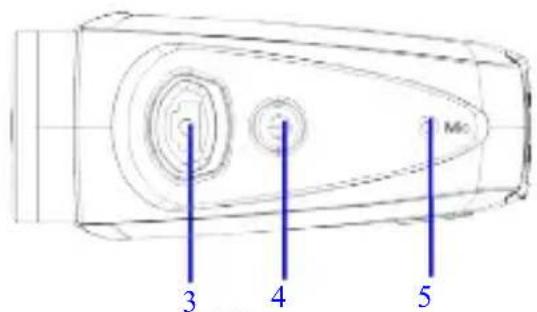

(1) Black and white digital screen (2) MODE key (3) Shutter (4) Power (5) Microphone (6) Lens (7) Reset (8) USB port (9) TV port (10) Micro SD card slot
Key Functions and Indictors
| Key/Indicator | Function |
| Power | Power On/Off |
| Shutter | Video recording mode, Recording/StopCapture mode, taking picturesReplay mode; after connecting to TV, short press to play the recorded video; long press to enter shortcut for deletion; short press to confirm file deletion. |
| MODE key | Switchover of video recording and capture mode in circle and change image size;In capture mode, long press MODE key to format Micro SD card;Replay mode: after connecting to TV, it is used for next or previous photo, or exit from deletion mode. |
Battery
This camera uses the original packaged built-in rechargeable 3.7V lithium battery. Battery disassembly is prohibited.
Battery Recharge
Before you turn off the camera, then connect the camera with the USB cable attached to the USB port of your computer. Once you have connected to your computer, the camera automatically goes into battery charging, the battery level indicator will Flash. After charging the battery level indicator will stop flashing. The charging time is around 1 hour and a half.
Memory card installation
Following instructions by the card slot, it is plug the Micro SD memory card into the card slot with metal pins inwards.
To take the memory card out, please press the Micro SD card downward and take it out.
Attention: ●Please disconnect power supply of the camera before replacing the memory card;
- Keep a correct direction to plug the card in. Gently plug the card to void card or camera parts damaged. In case of fail to plug in, check it is in a correct direction to plug in;
- Please format the memory card before the first time of use, using a card having been used on other cameras.

Power-on
Press and hold power key for 2 seconds and release it for power-on of the camera.
Mode switchover
After power-on, the camera enters the default mode of video recording at a default size of Lo. In video recording mode at Lo size, click MODE key to switch the size to HI; in video recording mode at HI size, click MODE key to enter capture mode at Lo size, and in capture mode at Lo size, click MODE key to return to video recording mode at Lo size.
Attention:
●Video recording mode: Lo indicates VGA (640x480) 60 frames, Hi indicates HD (1280x720) 30 frames

●Capture mode: Lo indicates 1.3M (1280x960), Hi indicates 5.0M (2592x1944)
Video recording
In video recording mode, click Shutter key to start video recording and click it again to stop recording.
Capture
In capture mode, press Shutter key to take pictures.
TV output
When output of image and audio from the camera to TV is needed, please plug common end of TV cable into TV port of the camera. The yellow port is for video input, and the red/white port is for audio.
Replay
After connecting to TV, the camera enters the replay mode. In replay mode, press MODE key to select photo or recorded video.
After selecting recorded video file, press Shutter key to play the file. During playing the recorded video, press Shutter key to stop playing.
In replay mode, long press Shutter key to enter shortcut deletion prompt, press Shutter key to confirm deletion, and press MODE key to exit from deletion.
Power-off
In power-on mode, long press Power key to power the camera off.
Connection to computer
Firstly power the camera on, and then connect the camera with attached USB cable to USB port of the computer. After connecting to the computer, the camera automatically enters portable disc mode.
Advanced Operation
Video recording, capture mode
After power-on, the camera automatically enters video recording mode. In video recording mode at HI size, click MODE key to switch the size to Lo; in video recording mode at Lo size, click MODE key to enter capture mode at HI size, and in capture mode at Lo size, click MODE key to return to video recording mode at HI size.
In video recording mode, press Shutter key to start recording and press it again to stop recording, press MODE key to switch to Lo size. In capture mode, press Shutter key to start shooting, and press MODE key to switch to Lo size.
◆ In video recording mode, information are displayed on the screen as below:

| No. | Icon Description | |
| 1 | Video recording HI | Indicates high resolution in current video recording mode |
| 2 | Video recording icon | Indicates currently in video recording mode (Flashing icon means in the process of video recording) |
| 3 | Battery level | Indicates level of battery |
| 4 | Micro SD card | Indicates a memory card available |
| 5 | Recording Lo | Indicates low resolution in current video recording mode |
| 6 | Time left for recording | Indicates time left in Micro SD card for video recording |
| 7 | Capture mode | Indicates currently in capture mode |
| 8 | Capture HI | Indicates high resolution in current capture mode |
| 9 | Photo to be captured | Indicates quantity of photos to be captured in current internal memory |
| 10 | Capture Lo | Indicates low resolution in current capture mode |

Attention: ●Due to limited characters displayed on the screen, video recording time can be displayed in minimum unit minute;
E.g. 0:02 indicates 2 minutes. During recording, 0:01 indicates video recorded for 1 minute.
Replay Mode
After power-on and connecting to TV, the camera enters the replay mode. In replay mode, press MODE key to select photo and recorded video. After selecting video file, press Shutter key to play it. During playing, press Shutter key to Stop playing.
In replay mode, long press Shutter key to enter file deletion mode. In file deletion mode, press Shutter key to confirm deletion, and press MODE key to exit from deletion.
◆In replay mode, information are displayed on the screen as below:
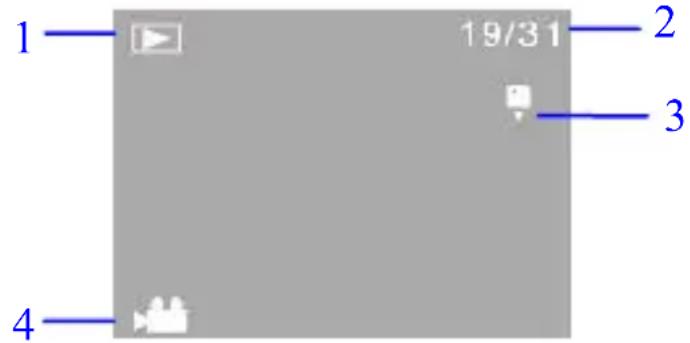
| No. | Icon | Description |
| 1 | Replay mode | Indicates reply mode |
| 2 File quantity | Indicates there are total 31 files, and the 19th file is being browsed currently. | |
| 3 | Micro SD card | Indicates a memory card available |
| 4 | Icon for video recording | Indicates the current file is a video recording file. |
File Deletion
After connecting to TV, the camera enters the replay mode. In replay mode, long press Shutter key to enter file deletion mode, press Shutter key to confirm deletion, and press MODE key to exit from deletion.
Delete This file ?
Enter
MODE Back
Connect to computer to download photo/video
After connecting to computer, the camera enters portable disc mode. In window of "My computer", there will be a portable disc added. The photos or video is stored under catalogue of "DCIM\100MEDIA" in the portable disc. You may enter this catalogue to copy files onto hard disk of your computer.

Attention: During file downloading, do not disconnect USB. Plug-in or plug-out of USB connection is prohibited to avoid loss of data.
Specification
| Image sensor | 1.30Mega pixel CMOS image sensor |
| Image resolution | Lo 1.3M (1280x960), HI 5.0M (2592x1944) |
| Memory | External Micro SD card (4GB to 32GB class 4 or above) |
| File format | JPEG, AVI |
| Video resolution | Hi HD 1280X720, Lo VGA 640×480 |
| White balance Automatic | |
| Exposure compensation control | Automatic |
| USB port | USB2.0 |
| TV Output PAL | |
| Display | Black and white digital screen |
| Power supply | Built-in 3.7V rechargeable lithium battery |
| Menu language English | |
| Focal length | f=5.8mm |
| Iris aperture F2.8 | |
| Automatic power-off | 3 minutes |
| Requirements for operating system | Microsoft Windows 7, 2000,XP,VISTA |
| Dimensions | 54x24x33 mm |
Attention: Design specification of the product is based on updated information when the product manual is compiled. Specification is subject to change without further notice.
| Failure of camera startup after placing battery in | Battery low. Recharging battery is required. |
| Fail to take picture or record video by pressing Shutter key | Full memory. Please store filed achieved on other memories. |
| Blur photo | Trembling hand when taking the photo. Hold the camera stead with two hands, or fix the camera stable with assistance of tripod to keep the camera from of moving during taking photo. |
| Dull photo or video | Insufficient light. Please take photo with sufficient light or use lamp to increase brightness. |
| Automatic power-off of the camera | Battery low. Recharge the battery. |
| To save power, the camera will automatically power off if no any operation performed for over 3 minutes. |

PRECAUTIONS FOR CORRECT DISPOSAL OF THE PRODUCT
The symbol shown on the equipment indicates that waste must be disposed of in “separate collection” and so the product must not be disposed of together with urban waste.
The user must take the product to special “separate waste collection centres” provided by local government, or deliver it to the retailer against the purchase of a new product.
Separate collection of waste and subsequent treatment, recycling and disposal operations promotes the production of equipment with recycled materials and limits negative effects on the environment and on health caused by improper handling of waste.
Illegal disposal of the product leads to the enforcement of administrative penalties.
WARNING FOR A CORRECT USE OF RECHARGEABLE BATTERY
- Recharge the battery in an ambient temperature between 5°C and 35°C.
- When the recharge is complete the device shows a message/signal (check the user's guide).
- Don't recharge more than the suitable period to prevent the risk of overheating and burst.
- Recharging the battery over the suitable period or an extended period of inactivity may reduce battery duration.
- Rechargeable battery is liable to wear and tear and its performance will reduce gradually.
- To extend the duration of the battery use it when is completely charged up to the complete discharging, then recharge it fully before use it again. Recharge a battery not completely consumed, will result in reduced duration. In this case, repeat the full charging/discharging cycle many times.
- Avoid recharge the battery for the whole night.
INFORMATION NOTE ON THE REMOVAL AND DISPOSAL OF BATTERIES
Warning: Only high-qualified personnel should perform this operation! BATTERY REMOVAL
The appliance should not be plugged to the mains socket when performing this operation!
1) Remove the screws tightening the lower part of the appliance;
2) Select the battery shown by the arrow in the picture;

natural_image
Close-up of a mechanical component with a black arrow pointing to a specific area (no visible text or symbols)3) Disconnect and remove the battery.
Used batteries should not be disposed of with household waste or thrown into fire or water. Used batteries should be recycled or disposed of in separate waste collection centers.

For additional information and updates of this product see:
www.trevi.it
Trevi S.p.A. Strada Consolare Rimini-San Marino, 62 47924 RIMINI (RN) Italy


- Foreword
- Operation Notice
- Camera maintenance
- System Requirements
- Function Characteristics
- Battery
- Battery Recharge
- Memory card installation
- Power-on
- Mode switchover
- Attention:
- Video recording
- Capture
- TV output
- Replay
- Power-off
- Connection to computer
- Advanced Operation
- Video recording, capture mode
- Replay Mode
- File Deletion
- Connect to computer to download photo/video
- PRECAUTIONS FOR CORRECT DISPOSAL OF THE PRODUCT
- WARNING FOR A CORRECT USE OF RECHARGEABLE BATTERY
- INFORMATION NOTE ON THE REMOVAL AND DISPOSAL OF BATTERIES
Brand : Trevi
Model : GO 2100 HD
Category : Camcorder