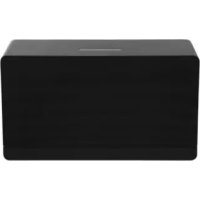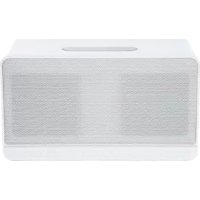
Munet Pro PMN700W - Docking station PEAQ - Free user manual and instructions
Find the device manual for free Munet Pro PMN700W PEAQ in PDF.



User questions about Munet Pro PMN700W PEAQ
0 question about this device. Answer the ones you know or ask your own.
Ask a new question about this device
Download the instructions for your Docking station in PDF format for free! Find your manual Munet Pro PMN700W - PEAQ and take your electronic device back in hand. On this page are published all the documents necessary for the use of your device. Munet Pro PMN700W by PEAQ.
USER MANUAL Munet Pro PMN700W PEAQ
natural_image
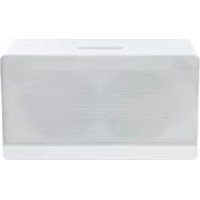
Two rectangular electronic devices, one white and one black, displayed against a plain background (no text or symbols visible)PEAQ MUNET PRO PMN700-B/W
DE Bedienungsanleitung
EL Οδηγίες χρήσης
EN Instruction manual
ES Manual de instrucciones
FR Mode d'emploi
HU Kezelési leírás
IT Manuale dell'utente
NL Gebruiksaanwijzing
PL Instrukcja obsługi
PT Instruções de utilização
SV Bruksanvisning
TR Kullanım kılavuzu
Deutsch 3 - 12
Ελληνικά 13 - 22
English 23 - 32
Español 34 - 42
Français 43 - 52
Magyar 53 - 62
Italiano 63 - 72
Nederlands 73 - 82
Polski 83 - 92
Português 93 - 102
Svenska 103 - 112
Türkçe 113 - 122
WiFi Mac Address Label
This MUNET PRO speaker features WiFi and Bluetooth connectivity. Under ideal setup conditions, up to 14 MUNET speakers can be managed wirelessly via a single iOS/Android App:
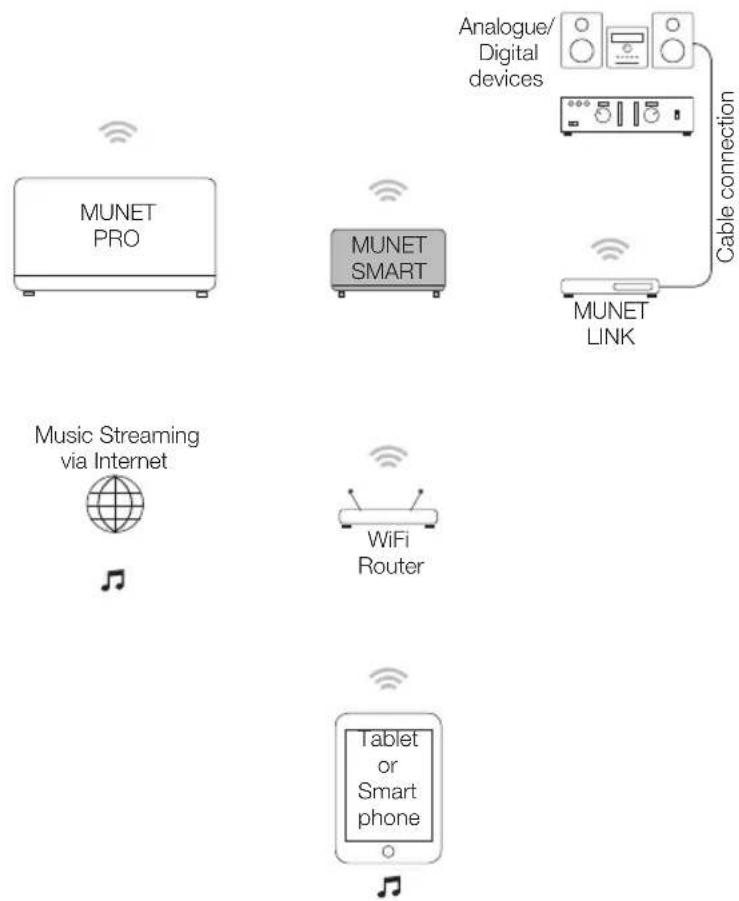
flowchart
graph TD
    A["MUNET PRO"] -->|Wireless| B["Analogue/ Digital devices"]
    C["MUNET SMART"] -->|Wireless| D["Cable connection"]
    E["MUNET LINK"] -->|Wireless| D
    F["Music Streaming via Internet"] --> G["WiFi Router"]
    H["Tablet or Smart phone"] --> I["Mobile device"]
Example setup
Components
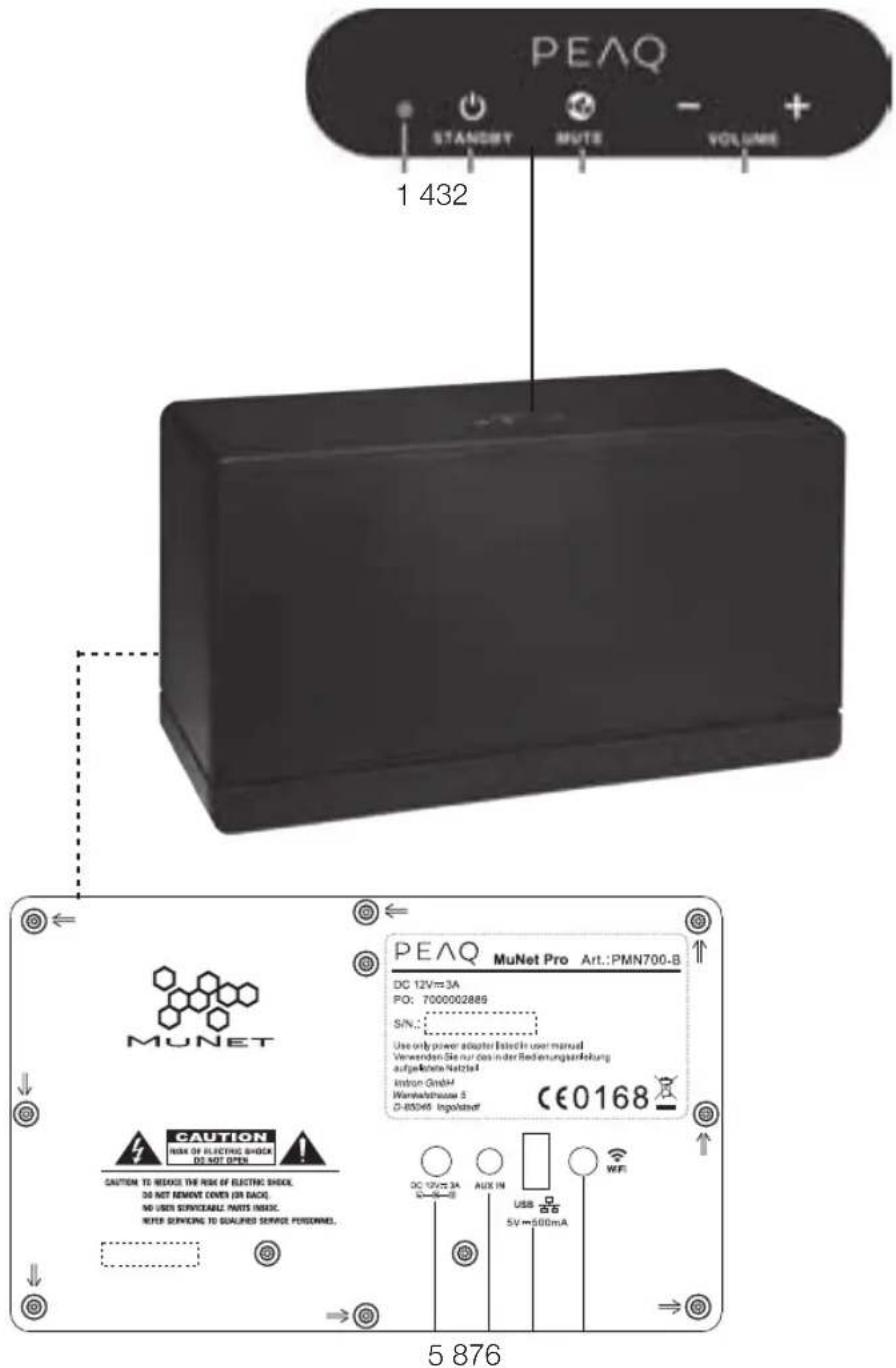
- Indicator light
- Standby Key
- Mute key
- Volume +/- key
- Power inlet DC12V

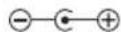
- AUX IN socket
- USB socket 5 V 500 mA (for software update)
- WiFi button
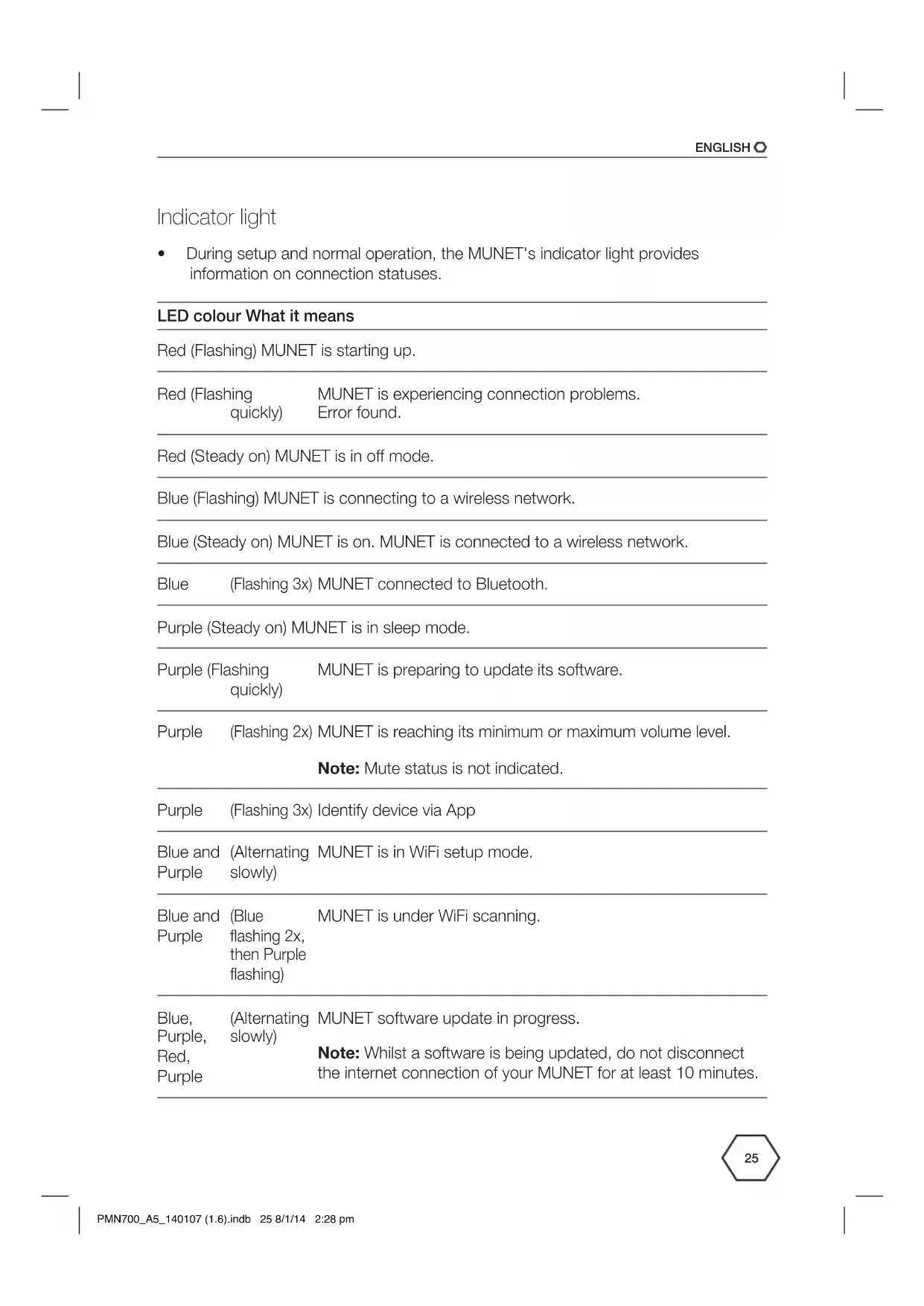
Indicator light
- During setup and normal operation, the MUNET's indicator light provides information on connection statuses.
LED colour What it means
| Red (Flashing) MUNET is starting up. | |
| Red (Flashing quickly) | MUNET is experiencing connection problems.Error found. |
| Red (Steady on) MUNET is in off mode. | |
| Blue (Flashing) MUNET is connecting to a wireless network. | |
| Blue (Steady on) MUNET is on. MUNET is connected to a wireless network. | |
| Blue (Flashing 3x) MUNET connected to Bluetooth. | |
| Purple (Steady on) MUNET is in sleep mode. | |
| Purple (Flashing quickly) | MUNET is preparing to update its software. |
| Purple (Flashing 2x) MUNET is reaching its minimum or maximum volume level.Note: Mute status is not indicated. | |
| Purple (Flashing 3x) Identify device via App | |
| Blue and Purple (Alternating slowly) | MUNET is in WiFi setup mode. |
| Blue and Purple (Blue flashing 2x, then Purple flashing) | MUNET is under WiFi scanning. |
| Blue, Purple, Red, Purple (Alternating slowly) | MUNET software update in progress.Note: Whilst a software is being updated, do not disconnect the internet connection of your MUNET for at least 10 minutes. |
Connection modes
- The MUNET can easily be connected to an external audio source by 3 different ways. With wired or Bluetooth connection, MUNET can act as audio source. Under ideal setup conditions, among them a suitable WiFi connection, up to 14 MUNET speakers can stream your music, everywhere throughout your house.
Wired connection
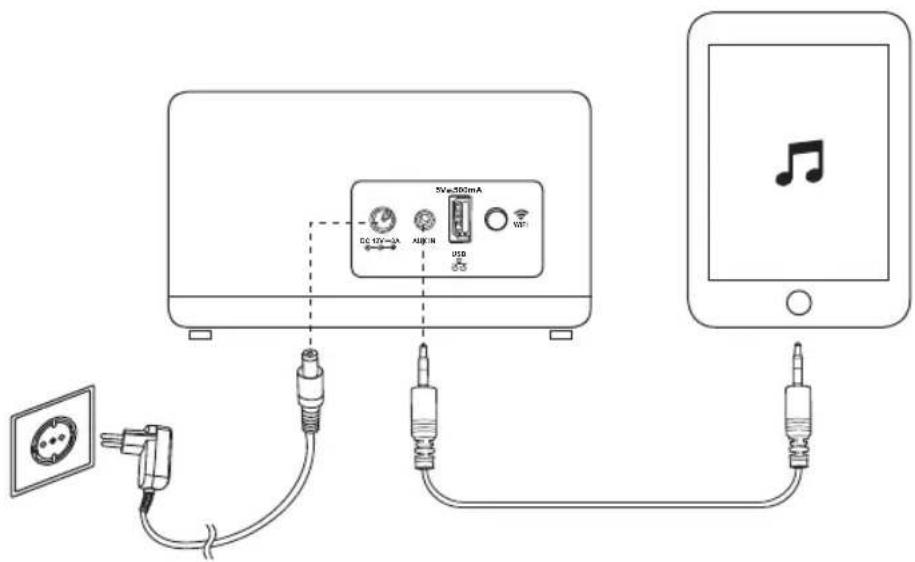
- Connect the supplied adaptor to the power inlet. Connect the adaptor to a suitable wall outlet.
- Connect the supplied audio cable to the AUX IN socket and to an external audio source (e.g. mobile phone).
- Start playing music from the audio source.
Note:
• No installation of the Munet App required.
Bluetooth connection
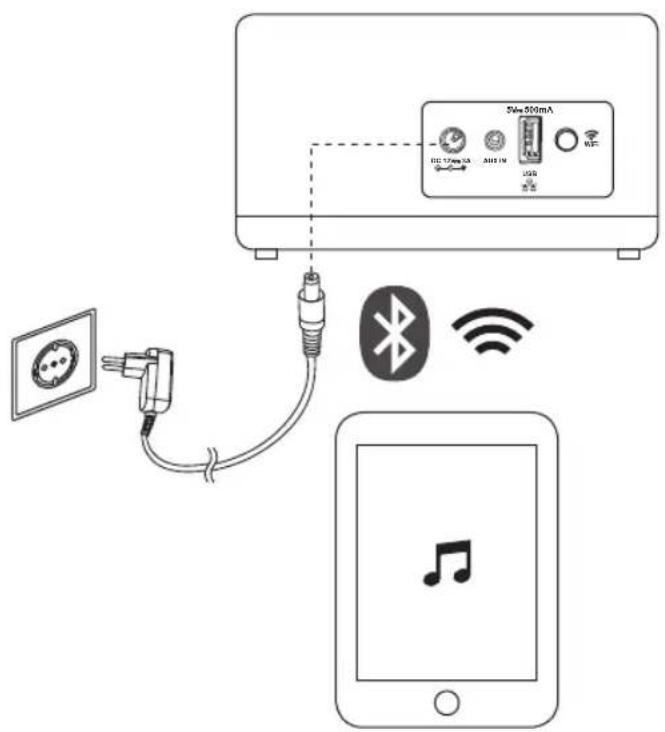
- Connect the supplied adaptor to the power inlet. Connect the adaptor to a suitable wall outlet.
- Activate Bluetooth on audio source (e.g. mobile phone). Browse for devices and select "My Munet xxxxxx *".
- Establish connection. If necessary, enter password 0000.
- If necessary, select "My Munet xxxxxx * " as audio output device.
Notes:
• No installation of the Munet App required.
• Only one Bluetooth connection is possible at a time.
- In order to connect another audio source with Bluetooth, the previous connected device must be disconnected.
* For "xxxxxx" use the WiFi Mac address of the individual speaker.
WiFi connection
Preparation
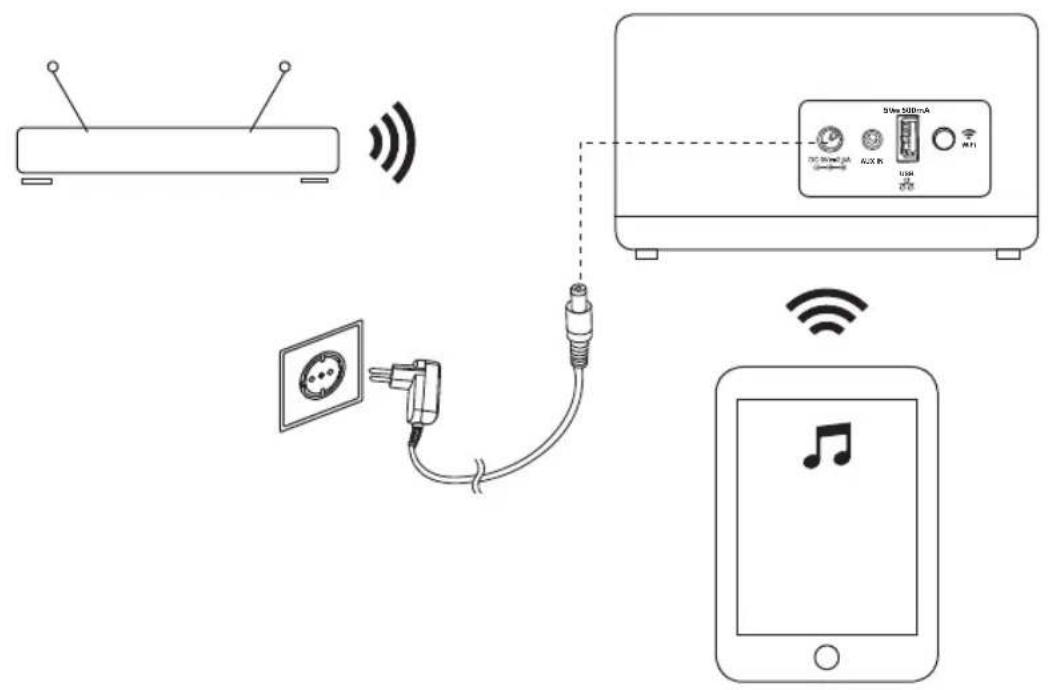
- Place the MUNET speaker in range of your WiFi router.
- Connect the supplied adaptor to the power inlet. Connect the adaptor to a suitable wall outlet.
- Activate WiFi on audio source (e.g. mobile phone).
- Open the list of available WiFi networks on your audio source.
WiFi connection
Establishing the WiFi connection
- Open the WiFi connection on your audio source (e.g. mobile or tablet).
- Connect to your designated MUNET device.
- Join the temporary WiFi Network "My Munet xxxxxx *". No password is required.
4a. For iOS devices: The network setup page will open up automatically:
4b. For Android devices: Enter the following address into your web browser: http://192.168.1.1. The network setup page will open up:
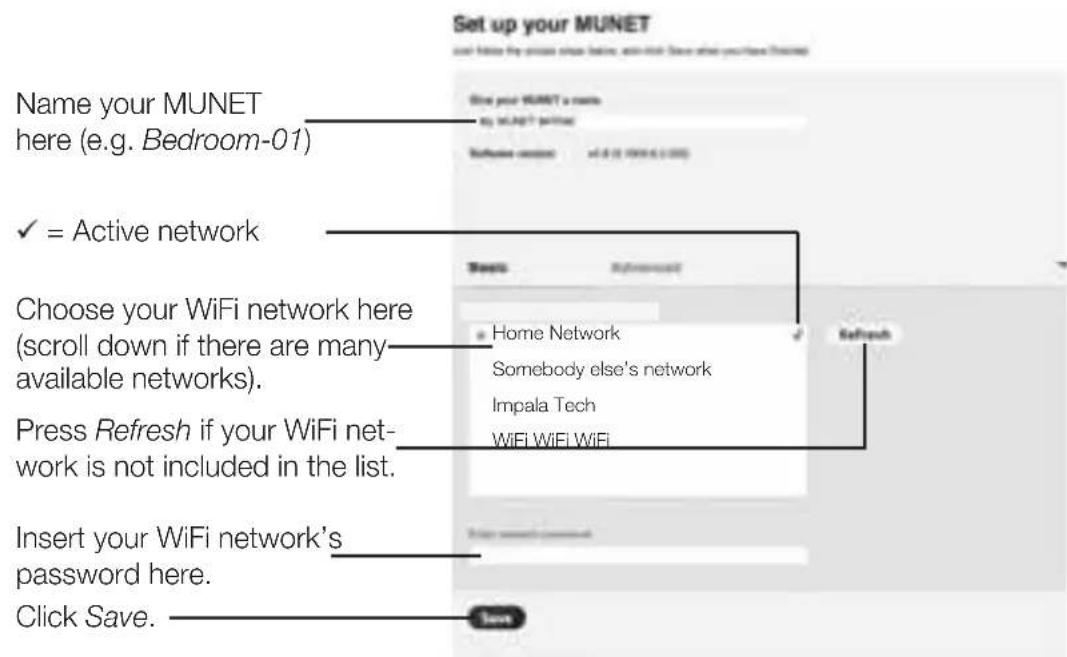
- Your MUNET is now paired with the WiFi network.
- Download the MUNET App from the Apple App Store (iOS) or from Google Play (Android) to control the speaker.
Adding another MUNET device to the WiFi network
Repeat above Steps 1 to 5 under Establishing the WiFi connection.
* For "xxxxxx" use the WiFi Mac address of the individual speaker.
Technical data
Adaptor
Input: 100 - 240 V\~, 50/60 Hz, 1 A
Output: 12 V, 3 A

Speaker output power: 2 x 14 Watt (RMS@THD10%)
Signal-to-noise ratio: ≥70 dB
Frequency response: 80 Hz – 20 kHz
USB socket: 5 V, 500 mA

AUDIO-IN socket: 3.5 mm
Streaming capabilities: up to 14 devices (@ 256 kbit/s AAC tracks)
Bluetooth version: Bluetooth version 2.1 + EDR
Supported Bluetooth profiles: AVRCP 1.0, A2DP 1.0
Operating range: Up to approx. 10 metres (measured in open space.
Wall and structures may affect range of appliance)
Bluetooth and wireless system requirements
- IEEE 802.11b/g
• Apple iOS 5.0 or above
• Android 10.1 or above
All PEAQ MuNet products are compatible with each other.
Bluetooth is a registered trademark of Bluetooth SIG, Inc.
Important safety instructions
READ CAREFULLY AND KEEP FOR FUTURE REFERENCE.
-
Follow all safety instructions in order to prevent damage being caused by incorrect use! Comply with all safety warning on the appliance.
-
Please keep the user manual for further use. If you pass this appliance on to third parties, you must also deliver this user manual with it.
-
Use the appliance for the intended use only. The appliance is not suitable for commercial use. This appliance has been designed for exclusively for household use. Do not use the appliance outdoors or in a bathroom.
-
No liability for any damage that occurs can be accepted in the event of improper use or incorrect handling.
-
Before connecting the appliance to the mains power supply, check that the power supply voltage and current rating corresponds with the power supply details shown on the appliance rating label.
-
Never use an appliance that is damaged! Disconnect the appliance from the mains and contact your supplier if it is damaged.
-
Danger of electric shock! Never try to repair the appliance yourself. In the event of any malfunction, repairs are to be conducted by qualified personnel only.

-
Warning! Never immerse electrical parts of the appliance in water or any other fluids when cleaning or during operation. Never hold the appliance under flowing water.
-
The appliance should not be used near water – for example, near a bathtub, wash bowl, kitchen sink, laundry tub, in a wet basement, or near a swimming pool.
-
Do not operate the appliance with wet hands or while standing on a wet floor. Never touch the mains plug with wet or moist hands.
-
Do not open the appliance casing under any circumstances. Do not insert any foreign objects into the inside of the casing.
-
Never use accessories which are not recommended by the manufacturer. They could pose a safety risk to the user and might damage the appliance. You must therefore use original accessories only.
-
The appliance is only suitable for use at moderate degrees of latitude. Do not use in the tropics or in particularly humid climates.
-
Keep the appliance away from any hot surfaces and open flames. Always operate the appliance on a level, stable, clean and dry surface. Protect the appliance against heat and cold, dust, direct sunlight, moisture, dripping and splashing water.
-
Do not place heavy objects on top of the appliance. Do not place objects with open flames, e.g. candles, on top or beside the appliance. Do not place objects filled with water, e.g. vases on or near the appliance.
-
Do not pull the power adaptor out of the electrical outlet by the connection cord and do not wrap the connection cord around the appliance.
-
Connect the power adaptor to an easily reachable electrical outlet so that in case of an emergency the appliance can be unplugged immediately. Pull the power adaptor out of the electrical outlet to completely switch off the appliance. Use the power adaptor as the disconnection device.
- Disconnect the power adaptor from the electrical outlet when not in use and before cleaning.
- Only use this appliance with the supplied power adaptor.
- Lay the cables in such a way that nobody can inadvertently pull them or trip over them.
- The appliance is powered when connected to the power adaptor.
- Attention! In the event of a malfunction as a result of electrostatic discharge and momentary electrical surges, unplug the appliance and plug it in again.
- Make sure that no electrical wires, water, gas or other lines are located around the installation location.
Disposal
The crossed-out wheeled bin logo requires the separate collection of waste electric and electronic equipment (WEEE). Electric and electronic equipment may contain dangerous and hazardous substances.
Do not dispose of this appliance as unsorted municipal waste. Return it to a designated collection point for the recycling of WEEE. By doing so, you will help to conserve resources and protect the environment. Contact your retailer or local authorities for more information.