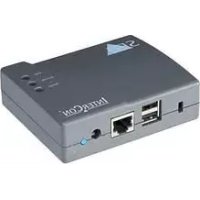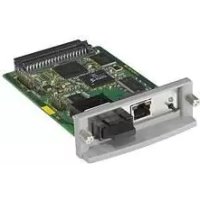
PS26 - Printing SEH - Free user manual and instructions
Find the device manual for free PS26 SEH in PDF.


User questions about PS26 SEH
0 question about this device. Answer the ones you know or ask your own.
Ask a new question about this device
Download the instructions for your Printing in PDF format for free! Find your manual PS26 - SEH and take your electronic device back in hand. On this page are published all the documents necessary for the use of your device. PS26 by SEH.
USER MANUAL PS26 SEH
Quick Installation Guide
natural_image
Illustration of a wireless network device with two ports and a beige case (no text or symbols visible)
natural_image
Illustration of an electronic device with ports and a central display (no text or symbols visible)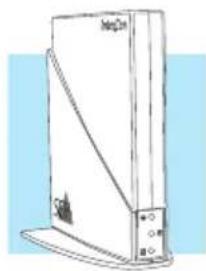
natural_image
Line drawing of a desktop computer tower with visible ports and cables (no text or symbols)Content
en
• Information about a Fast Operational Readiness .....3
- Printing in Windows.... 3
- Printing in Mac OS X 4
• Information about the Assignment of IP Addresses .... 5
• Information about the Print Server Administration ... 6
Information about further printing methods in other operating systems as well as additional information about the print server administration can be found in the User Manual.
Inhalt
Title: Print Server – PS Series
Version: 1.2
Order number: MHAB-QI-IV-SEH
All trademarks, registered trademarks, logos and product names are property of their respective owners.
Keep the documentation for further reference during the life cycle of the product. SEH Computertechnik GmbH has endeavoured to ensure that the information in all manuals is correct. If you detect any inaccuracies please inform us at the address indicated below. SEH Computertechnik GmbH will not accept any liability for any error or omission. The information in this manual is subject to change without notification. All rights are reserved. Copying, other reproduction or translation without the prior written consent from SEH Computertechnik GmbH is prohibited.
Information about a Fast Operational Readiness – Printing in Windows –

Print server and client must be in the same local network segment.

natural_image
Hand holding a blank sheet of paper with horizontal lines, no text or symbols visible
1 Read and observe the safety regulations and carry out the hardware installation, see: Hardware Installation Guide.
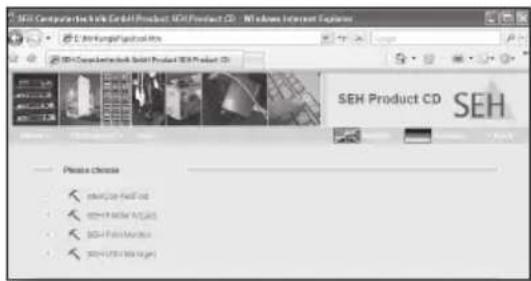
② Start the Product CD on the Windows client.
3 Select the Print Server – Tools menu.
text_image
SEH ComputerTech & Inc. GmbH Product SEH Product CD - NT Online Internet Explorer SEH ComputerTech & Inc. GmbH Product SEH Product CD Please choose sehProduct SEH sehProduct SEH sehProduct SEH sehProduct SEH4 Start the SEH Printer Wizard.
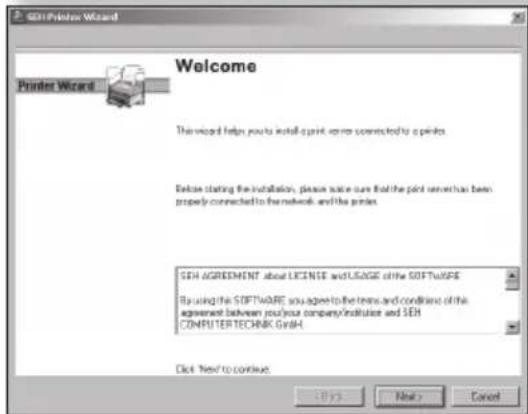
Follow the instructions of the SEH Printer Wizard.
text_image
GSI Printer Wizard Welcome Printer Wizard This wizard helps you to install a print error connected to a printer. Before starting the installation, please note sure that the print server has been properly connected to the network and the printer. GEN AGREEMENT about LICENSE and USAGE of the SOFTWARE By using the SOFTWARE, you agree to the terms and conditions of this agreement between you/you company/institute and SEM COMPUTERTECHNIK GmbH. Click Next to continue. OK Next Cancel
The SEH Printer Wizard supports 32-bit systems. If you want to install the print server on a 64-bit system, use the Windows default printer installation. Contact the manufacturer of your operating system for further information.
text_image
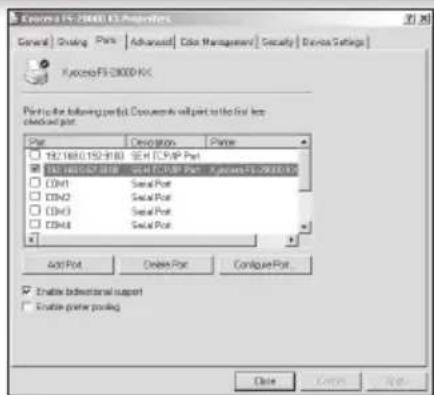
Kycena FS-2000-F3 Properties General | Continuing Port | Advanced | Color Management | Security | Device Settings | Kycena FS-2000-F3 Port to the following port: Documents will part to the final key checked port. Port Design Printer 197.168 (152-318) SEHTCPIP Port CD4110000000000000000000000000000000000000000000000000000000000000000000000000000000 CD41111111111111111111111111111111111111111111111111111111111111111 CD41122222222222222222222222222222222222222222222222 CD413333333333333333333333333333333333333333333333333333333333 CD44444444444444444444444444444444444444444444444 Add Port Cancel Port Configure Port. Enable Directional support Enable prior pooling. Close Cancel HelpPrinter and print server will be created on the Windows client and displayed in the Printer Properties dialog. The operational readiness will be established.
Information about a Fast Operational Readiness – Printing in Mac OS X –

Print server and client must be in the same local network segment.

natural_image
Hand holding a blank sheet of paper with horizontal lines, no text or symbols visible1 Read and observe the safety regulations and carry out the hardware installation, see: Hardware Installation Guide.
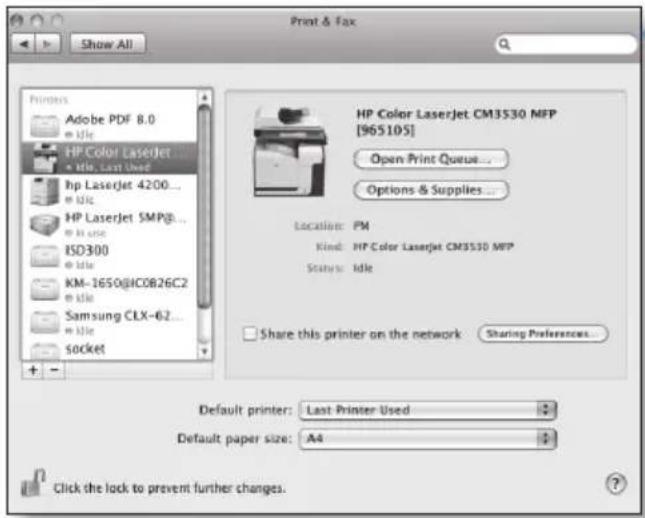
② Start Print & Fax on the Mac client.
Print & Fax
text_image
Print & Fax Show All Printers Adobe PDF 8.0 HP Color LaserJet Mile, Last Used hp LaserJet 4200... Mile HP LaserJet SMP@... Mile use ISD300 Mile KM-1650@IC0B26C2 Mile Samsung CLX-62... Mile Socket HP Color LaserJet CM3530 MFP [965105] Open Print Queue... Options & Supplies... Location: PM Kind: HP Color LaserJet CM3530 MFP Status: Idle Share this printer on the network Sharing Preferences... Default printer: Last Printer Used Default paper size: A4 Click the lock to prevent further changes.3 Click

text_image
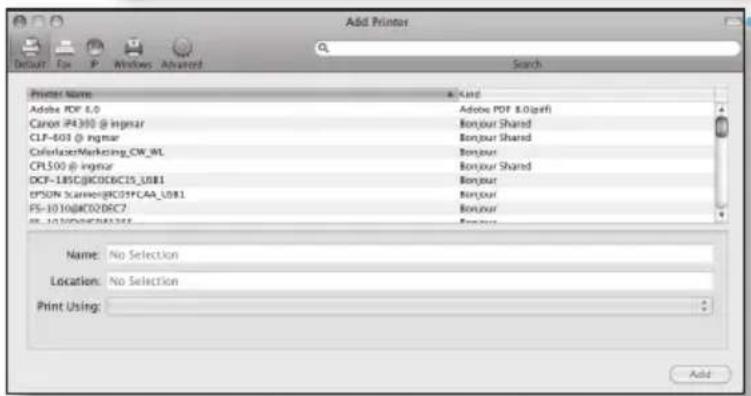
Add Printer Default F P Windows Advanced Search Printer Name: Adobe PDF 6.0 Canon iP4300 @ imgmar CLF-603 @ imgmar CoefactorMarketing_CW_9L CPL500 @ imgmar DCF-185C@K006C15_UBI1 EPSUN Scameng@K03FCAA_UBI1 FS-1010@K02DEC7 FL-1010@K02EFAE5 Name: No Selection Location: No Selection Print Using: Add4 Select the printer/print server from the list.
Define a name, location, and printer driver.
Click Add,

Define the Installable Options (if required).
▶ Printer and print server will be created on the Mac client and displayed in the list. The operational readiness will be established.
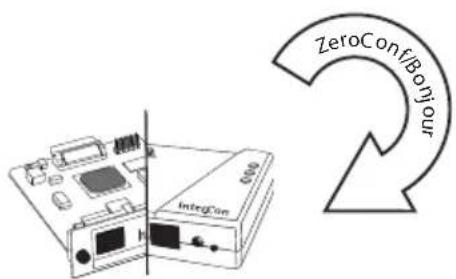
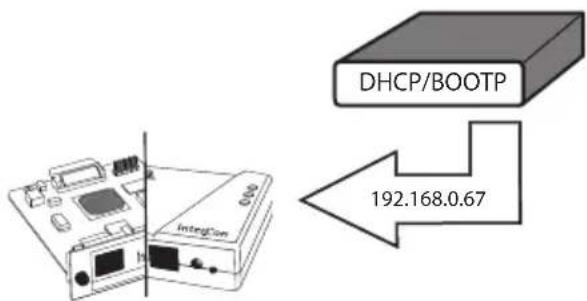
SEH print servers are shipped without an IP address. When you install the print server for the first time, the print server checks whether an IP address can be obtained from the boot protocols BOOTP or DHCP. If this is not the case, the print server assigns itself an IP address via ZeroConf from the address range (169.254.0.0/16) which is reserved for ZeroConf. A freely definable IP address can be saved manually in the print server, if necessary.
Automatic Assignment of IP Addresses
text_image
ZeroConf/BoYour IntegConThe print server assigns itself an IP address via ZeroConf from the address range 169.254.0.0/16.
text_image
DHCP/BOOTP 192.168.0.67If the boot protocols have been enabled (factory default setting) and a DHCP server is available in the network, the print server obtains its IP address via the DHCP server.
Displaying the IP Address
text_image
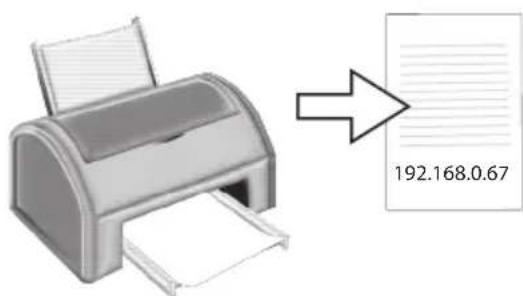
192.168.0.67The IP address can be found on the status page of the print server.
To print a status page, press the status button of the print server.
Manual Assignment of IP Addresses
1 Start the Product CD on the client.
2 Select the Print Server – Tools menu.
3 Install the InterCon-NetTool on the client. Start the installation routine.
4 Start the InterCon-NetTool on the client.
5 Mark the print server in the print server list and start the IP Wizard.
6 Follow the instructions of the IP Wizard. Enter the preferred IP address and save it.

Internet Explorer.exe Safari.app Firefox.exe


text_image
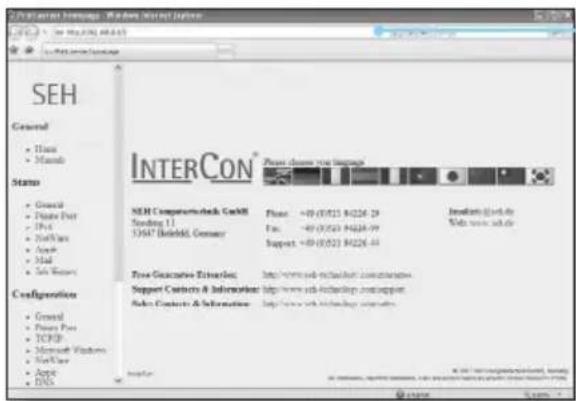
SEH General • Theme • Theme Status • General • Theme Post • ID(s) • 2nd/2nd • App# • 3rd • 5th Configuration • General • Theme Post • TCRP • Microsoft Windows • 3rd/3rd • App# • DNS INTERCON® Please choose via https://www.elseh.com/ SEH Comparisons GmbH Sending 11 33647 Betefeld, Germany Phone: +09-05/21 84226-29 Fax: +09-05/21 84226-29 Support: +09-05/21 84226-29 Focus Guidance Education: http://www.sch-technology.com/solutions/ Support Contacts & Information: http://www.sch-fintech.com/support/ Sales Contacts & Information: http://www.sch-fintech.com/support/ Search: http://www.sch-fintech.com/solutions/ © http://www.seh.com/ © http://www.seh.com/ © http://www.seh.com/ © http://www.seh.com/ © http://www.seh.com/ © http://www.seh.com/ © http://www.seh.com/ © http://www.seh.com/ © http://www.seh.com/ © http://www.seh.com/ © http://www.seh.com/ © http://www.seh.com/ © http://www.seh.com/ © http:/seh.com/ © http://seh.com/ © http://seh.com/ © http://seh.com/ © http://seh.com/ © http://seh.com/ © http://seh.com/ © http://seh.com/ © http://seh.com/ © http://seh.com/ © http://seh.com/ © http://seh.com/ © http://seh.com/ © http://seh.com/ © http://seh.com/ © http://se hinae.com/ © http://sinae.com/ © http://sinae.com/ © http://sinae.com/ © http://sinae.com/ © http://sinae.com/ © http://sinae.com/ © http://sinae.com/ © http://sinae.com/ © http://sinae.com/ © http://sinae.com/ © http://sinae.com/ © http://sinae.com/ © http://sinae.com/Administration via the Print Server Homepage
1 Start the browser software on the client.
2 Enter the IP address of the print server as URL
3 The Print Server Homepage is displayed. Carry out the desired action.
natural_image
Illustration of a CD and DVD disc (no text or symbols on the disc itself)
InterCon-NetTool.exe
text_image
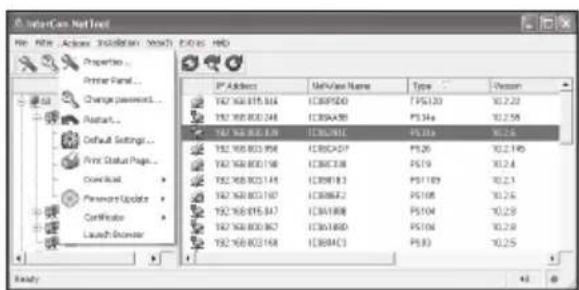
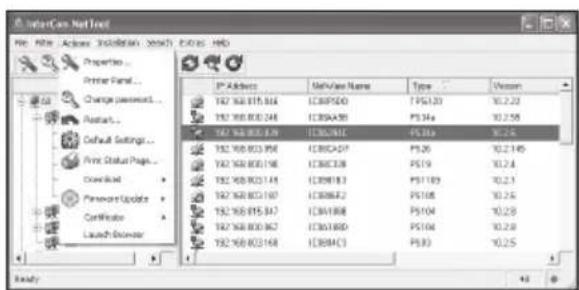
SinaCom Net Font File Edit Access Installation Search Entries Help Properties... Printer Panel... Change passwords... Default Settings... Print Status Page... Download... Password Update... Connector... Launch Browser IP Address NetView Name Type Version 192 100 815.314 ICD9P20 TPS120 10.2.22 192 100 803.248 CD9A59 PS14a 10.2.58 192 100 803.878 CD9A51 PS16a 10.2.5 192 100 803.956 CD9A57 PS26 10.2.149 192 100 803.158 CD9C738 PS19 10.2.4 192 100 803.145 CD9F13 PS1189 10.2.1 192 100 803.150 CD9B42 PS18 10.2.5 192 100 815.347 CD9A88 PS104 10.2.8 192 100 803.367 CD9A80 PS104 10.2.8 192 100 803.168 CD9A3 PS13 10.2.5 ReadyAdministration via the InterCon-NetTool
1 Start the Product CD on the client.
2 Select the Print Server – Tools menu.
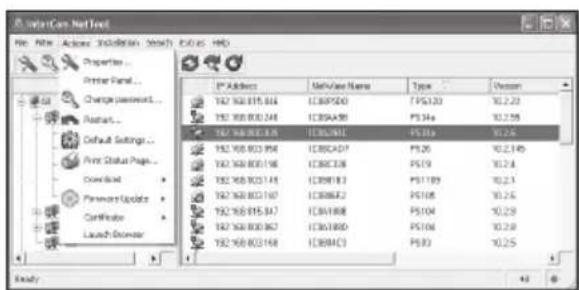
③ Install the InterCon-NetTool on the client. Start the installation routine.
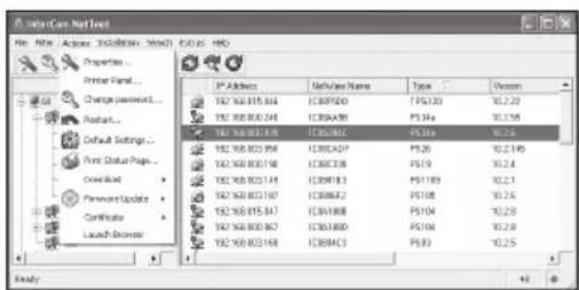
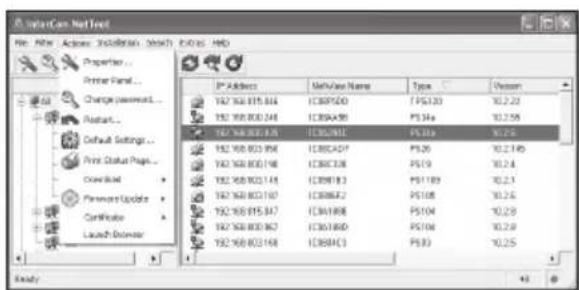
4 Start the InterCon-NetTool on the client.
5 Mark the print server in the print server list and carry out the desired action.
natural_image
Hand holding a blank sheet of paper with horizontal lines, no text or symbols visible
natural_image
Hand holding a blank sheet of paper with horizontal lines, no text or symbols visibletext_image
SEH General • House • Handels Status • General • Dette Post • Duct • DelfCare • App# • 3644 • Sis Retina Configuration • General • Power Post • TCRP • Microsoft Windows • WebWare • App# • DNS INTERCON® Please choose new language SEH Compaerschek GmbH Sending 11 53647 Beteblekt. Germany Phone: +09-0521 84226-29 Fax: +09-0521 84226-29 Support: +09-0521 84226-29 Free Guidance Education: http://www.net/media/other/other/other/other/other/other/other/other/other/other/other/other/other/other/other/other/other/other/other/other/other/other/other/other/other/other/other/other/other/other/other/other/other/other/other/other/other/other/other/other/other/other/other/other/other/other/other/other/other/other/Other Support Contacts & Information: http://www.net/media/other/other/other/other/other/other/other/other/other/other/other/other/other/other/other/other/other/other/other/other/other/other/other/other/other/other/other/other/other/other/other/other/other/Other http://www.net/media/biother/ http://www.net/media/biother/biother/biother/biother/biother/biother/biother/biother/biother/biother/biother/biother/biother/biother/biother/biother/biother/biother/biother/biother/biother/biother/biother/biother/biother/biother/biother/biother/biother/biother/biother/biother/biother/biother © store S.t.a.Administration via Printserver Homepage
natural_image
Illustration of a CD and DVD disc (no text or symbols on the disc itself)
InterCon-NetTool.exe
text_image
SolarCare Net Text File Edit Actions Installation Search Options Help Property... Printer Panel... Change password... Instant... Default Settings... Print Status Page... Download... Password Update... Certificate Launch Browser IP Address 192 100.015.344 192 100.003.248 192 100.003.248 192 100.003.248 192 100.003.248 192 100.003.248 192 100.003.248 192 100.003.248 193 100.015.344 193 100.003.248 193 100.003.248 193 100.003.248 193 100.003.248 193 100.003.248 193 100.003.248 193 100.003.248 194 100.015.344 194 100.003.248 194 100.003.248 194 100.003.248 194 100.003.248 194 100.003.248 194 100.003.248 195 100.015.344 195 100.003.248 195 100.003.248 195 100.003.248 195 100.003.248 195 100.015.344 195 100.003.248 195 100.003.248 195 100.003.248 195 100.015.344 195 100.003.248 195 100.003.248 196 100.015.344 196 100.003.248 196 100.003.248 196 100.015.344 196 100.003.248 196 100.015.344 196 100.025 EndAdministration via InterCon-NetTool
natural_image
Hand holding a blank sheet of paper with horizontal lines, no text or symbols visible
natural_image
Hand holding a blank sheet of paper with horizontal lines, no text or symbols visiblenatural_image
Illustration of a CD and DVD disc (no text or symbols on the disc itself)
InterCon-NetTool.exe
text_image
SailCom Net Font File Edit Access Installation Search Exports HD Properties... Printer Panel... Change password... Restart... Default Settings... Print Status Page... Download Password Update Certificate Launch Address IP Address 182 368 815 844 182 368 800 244 182 368 802 839 182 368 803 856 182 368 803 198 182 368 802 144 182 368 803 197 182 368 815 847 182 368 800 867 182 368 802 168 MeValue Name ICBPS20 ICBPS40 ICBPS41 ICBPS42 ICBPS43 ICBPS44 ICBPS45 ICBPS46 ICBPS47 ICBPS48 ICBPS49 ICBPS50 ICBPS51 ICBPS52 ICBPS53 ICBPS54 ICBPS55 ICBPS56 ICBPS57 ICBPS58 ICBPS59 ICBPS60 ICBPS61 ICBPS62 ICBPS63 ICBPS64 ICBPS65 ICBPS66 ICBPS67 ICBPS68 ICBPS69 ICBPS70 ICBPS71 ICBPS72 ICBPS73 ICBPS74 ICBPS75 ICBPS76 ICBPS77 ICBPS78 ICBPS79 ICBPS80 ICBPS81 ICBPS82 ICBPS83 ICBPS84 ICBPS85 ICBPS86 ICBPS87 ICBPS88 ICBPS89 ICBPS90 ICBPS91 ICBPS92 ICBPS93 ICBPS94 ICBPS95 ICBPS96 ICBPS97 ICBPS98 ICBPS99 ICBPS100 ICBPS101 ICBPS102 ICBPS103 ICBPS104 ICBPS105 ICBPS106 ICBPS107 ICBPS108 ICBPS109 ICBPS110 ICBPS111 ICBPS112 ICBPS113 ICBPS114 ICBPS115 ICBPS116 ICBPS117 ICBPS118 ICBPS119 ICBPS120 ICBPS121 ICBPS122 ICBPS123 ICBPS124 ICBPS125 ICBPS126 ICBPS127 ICBPS128 ICBPS129 ICBPS130 ICBPS131 ICBPS132 ICBPS133 ICBPS134 ICBPS135 ICBPS136 ICBPS137 ICBPS138 ICBPS139 ICBPS140 ICBPS141 ICBPS142 ICBPS143 ICBPS144 ICBPS145 ICBPS146 ICBPS147 ICBPS148 ICBPS149 ICBPS150 ICBPS151 ICBPS152 ICBPS153 ICBPS154 ICBPS155 ICBPS156 ICBPS157 ICBPS158 ICBPS159 ICBPS160 ICBPS161 ICBPS162 ICBPS163 ICBPS164 ICBPS165 ICBPS166 ICBPS167 ICBPS168 ICBPS169 ICBPS170 ICBPS171 ICBPS172 ICBPS173 ICBPS174 ICBPS175 ICBPS176 ICBPS177 ICBPS178 ICBPS179 ICBPS180 ICBPS181 ICBPS182 ICBPS183 ICBPS184 ICBPS185 ICBPS186 ICBPS187 ICBPS188 ICBPS189 ICBPS190 ICBPS191 ICBPS192 ICBPS193 ICBPS194 ICBPS195 ICBPS196 ICBPS197 ICBPS198 ICBPS199 ICB PS 2000-00-00:00:00:00:00:00:00:00:00:00:00:00:00:00:00:00:00:00:00:00:00:00:00:00:00:00:00:00:00:00:00:00:00:00: 99.99.99.99.99.99.99.99.99.99.99.99.99.99.99.99.99.99.99.99.99.99.99.99.99.99.99.99.99.99. 99.99.99.99.99.99.99.99.99.99. 99.99. 99.99. 99.99. 99.99. 99. 99. 99. 99. 99. 99. 99. 99. 99. 99. 99. 99. 99. 99. 99. 99. 9natural_image
Hand holding a blank sheet of paper with horizontal lines, no text or symbols visible
natural_image
Hand holding a blank sheet of paper with horizontal lines, no text or symbols visiblenatural_image
Illustration of a CD or DVD next to a flatbed notebook labeled 'Product CD' (no additional text or symbols)
InterCon-NetTool.exe
text_image
Printer Panel Properties... Printer Panel... Change password... Reset... Default Settings... Print Status Page... Download Password Updates Confirmer Launch Designer IP Address 192 308 815 844 192 308 800 244 192 308 800 838 192 308 800 856 192 308 800 198 192 308 800 144 192 308 800 197 192 308 800 347 192 308 800 367 192 308 800 168 MaiView Name ICBSPS20 ICBSPS30 ICBSPS40 ICBSPS50 ICBSPS60 ICBSPS70 ICBSPS80 ICBSPS90 ICBSPS100 ICBSPS110 ICBSPS120 ICBSPS130 ICBSPS140 ICBSPS150 ICBSPS160 ICBSPS170 ICBSPS180 ICBSPS190 ICBSPS200 ICBSPS210 ICBSPS220 ICBSPS230 ICBSPS240 ICBSPS250 ICBSPS260 ICBSPS270 ICBSPS280 ICBSPS290 ICBSPS300 ICBSPS310 ICBSPS320 ICBSPS330 ICBSPS340 ICBSPS350 ICBSPS360 ICBSPS370 ICBSPS380 ICBSPS390 ICBSPS400 ICBSPS410 ICBSPS420 ICBSPS430 ICBSPS440 ICBSPS450 ICBSPS460 ICBSPS470 ICBSPS480 ICBSPS490 ICBSPS500 ICBSPS510 ICBSPS520 ICBSPS530 ICBSPS540 ICBSPS550 ICBSPS560 ICBSPS570 ICBSPS580 ICBSPS590 ICBSPS600 ICBSPS610 ICBSPS620 ICBSPS630 ICBSPS640 ICBSPS650 ICBSPS660 ICBSPS670 ICBSPS680 ICBSPS690 ICBSPS700 ICBSPS710 ICBSPS720 ICBSPS730 ICBSPS740 ICBSPS750 ICBSPS760 ICBSPS770 ICBSPS780 ICBSPS790 ICBSPS800 ICBSPS810 ICBSPS820 ICBSPS830 ICBSPS840 ICBSPS850 ICBSPS860 ICBSPS870 ICBSPS880 ICBSPS890 ICBSPS900 ICBSPS910 ICBSPS920 ICBSPS930 ICBSPS940 ICBSPS950 ICBSPS960 ICBSPS970 ICBSPS980 ICBSPS990 ICBSPS1000natural_image
Hand holding a blank sheet of paper with horizontal lines, no text or symbols visible
text_image
SEH Company-Check In-SEH Product SEH Product CD - MT values Internet Explorer SEH Company-Check In-SEH Product SEH Product CD SEH Product CD SEH Product Description Select the product Select the product Select the product Select the product Select the product Select the product Select the product Select the product Select the product Select the product Select the product Select the product Select the product Select the product Select the product Select the product Select the product Select the product Select the product Select the product Select the product Select the product Select the product Select the product Select the product Select the products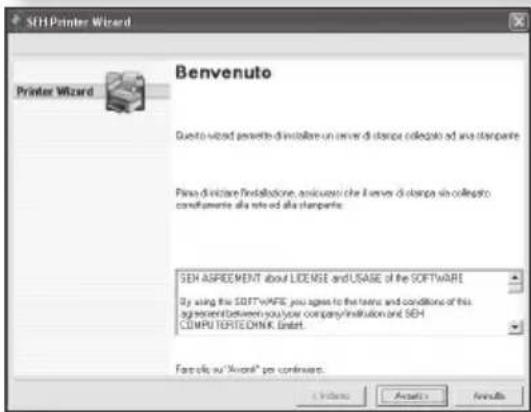
text_image
Proprieta KONICA NMDLTA magulator 2400W Generate Condcine Puts Avanzake Settleze solve About KONICA NMDLTA magulator 2400W Junka change alle seguenti port, I document seawno stampall cullle prime port files selectenta Ports Descritome Graspante CDM2 Porta minielle CDM4 Porta minielle FLE Stampa cullle USB Virtual panel port to... Canon MFS790 Series (Kcp. USB Virtual panel port to... Canon MFS790 Series http... SEM HTTP Port KONICA NMDLTA magulator V5 Local Port Append ports Elevators Confirm ports Ange support disk console Advanced distances OK Anvuto Applynatural_image
Hand holding a blank sheet of paper with horizontal lines, no text or symbols visiblenatural_image
Illustration of a CD or DVD next to a blank product CD (no text or symbols on the image itself)
InterCon-NetTool.exe
text_image
Internet Net Font File Edit Access Installation Search Exports Help Properties... Printer Panel... Change password... Default Settings... Print Status Page... Download... Password Updates... Certificate Launch Browser IP Address 192 108 015 364 192 108 000 244 192 108 003 639 192 108 003 956 192 108 003 198 192 108 003 174 192 108 003 197 192 108 015 347 192 108 003 367 192 108 003 168 MeValue Name ICSPSDD ICSPSAD ICSPSAD ICSPSAD ICSPSAD ICSPSAD ICSPSAD ICSPSAD ICSPSAD ICSPSAD ICSPSAD ICSPSAD ICSPSAD ICSPSAD ICSPSAD ICSPSAD ICSPSAD ICSPSAD ICSPSAD ICSPSAD ICSPSAD ICSPSAS ICSPSAD ICSPSAD ICSPSAD ICSPSAD ICSPSAD ICSPSAD ICSPSAD ICSPSAD ICSPSAD ICSPSAD ICSPSAD ICSPSAD ICSPSAD ICSPSAD ICSPSAD ICSPSAD ICSPSAD ICSPSAD ICSPSAD ICSPSUS ICSPSAD ICSPSAD ICSPSAD ICSPSAD ICSPSAD ICSPSAD ICSPSUS ICSPSAD ICSPSAD ICSPSAD ICSPSAD ICSPSUS ICSPSAD ICSPSAD ICSPSAD ICSPSUS ICSPSAD ICSPSAD ICSPSUS ICSPSAD ICSPSUS ICSPSUS ICSPSUS ICSPSUS ICSPSUS ICSPSUS ICSPSUS ICSPSUS ICSPSUS ICSPSUS ICSPSUS ICSPSUS ICSPSUS ICSPSUS ICSPSUS ICSPSUS ICSPSUS ICSPSUS ICSPSUS ICSPSUSnatural_image
Hand holding a blank sheet of paper with horizontal lines, no text or symbols visible
text_image
Windows F5.20000 (E:\Properties) Search | Sharing | Port | Advanced | Color Management | Security | Server Settings | Kylower F5.20000.12 Port to the following ports: Documents will port to the first line checked port. Port Description Printer 132 100.0 132 0100 SDH TCP/IP Port ENGLISH SYSTEMS - NEW TCP/IP Port Supercis F5.20000.12 COM1 Social Port COM2 Social Port COM3 Social Port COM4 Social Port Add Port... Delete Port... Configure Port □ Create Directional Support □ Create Prime Hosting Close ...natural_image
Hand holding a blank sheet of paper with horizontal lines, no text or symbols visiblenatural_image
Illustration of a CD or DVD next to a blank flatboard labeled 'Product CD' (no additional text or symbols)
InterCon-NetTool.exe
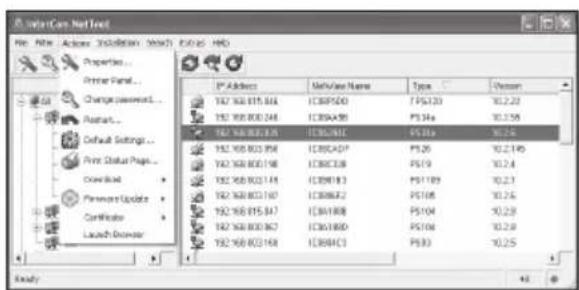
text_image
SailCare Net Load File Edit Access Installation Search Options Help Property... Printer Panel... Change password... Abstract... Default Settings... Print Status Page... Download... Password Update... Certificate Launch Browser IP Address 192 308 815.844 192 308 800.244 192 308 800.876 192 308 800.856 192 308 800.856 192 308 800.8198 192 308 800.8198 192 308 800.8198 192 308 800.8198 192 308 800.8198 192 308 800.8198 192 308 800.867 192 308 800.867 192 308 800.867 192 308 800.867 192 308 800.867 192 308 800.867 192 308 800.867 193 308A5D 193 308A5D 193 308A5D 193 308A5D 193 308A5D 193 308A5D 193 308A5D 193 308A5D 193 308A5D 193 308A5D Name/View Name Type Version IP Address 192 308 815.844 192 308 800.244 192 308 800.876 192 308 800.856 192 308 800.856 192 308 800.856 192 308 800.856 192 308 800.856 192 308 800.856 192 308 800.856 1:5P-120 PS-14a PS-14b PS-14c PS-14d PS-14e PS-14f PS-14g PS-14h PS-14i PS-14j PS-14k PS-14l PS-14m PS-14n PS-14o PS-14p PS-14q PS-14r PS-14s PS-14t PS-14u PS-14v PS-14w PS-14x PS-14y PS-14z PS-14t PS-14u PS-14v PS-14w PS-14x PS-14y PS-14z PS-14t PS-14u PS-14v PS-14w PS-14x PS-14y PS-14zSEH TECHNOLOGY UK LTD. United Kingdom/Ireland
The Sussex Innovation Centre, Science Park Square, Falmer, Brighton, BN1 9SB, Great Britain
Phone +44 (0) 12 73 - 23 46-81
Fax +44 (0) 12 73 - 23 46-82
Internet www.seh-technology.co.uk Email info@seh-technology.co.uk
SEH TECHNOLOGY Inc. USA
518 Kimberton Rd. / PMB 410
Phoenixville, PA 19460
USA
Phone +1 610-9 33-20 88
Fax +1 484 - 2 29-06 97
Internet www.seh-technology.com
Email info@seh-technology.com