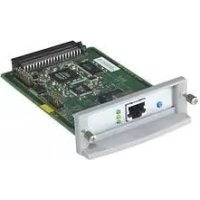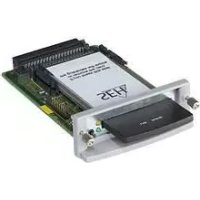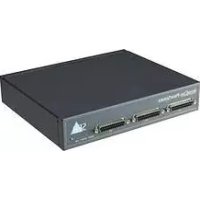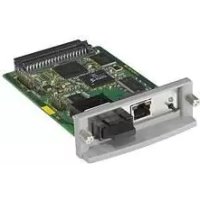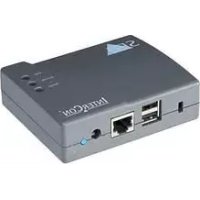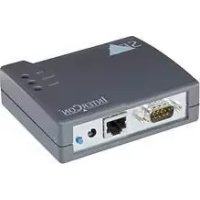
PS01a - Printing SEH - Free user manual and instructions
Find the device manual for free PS01a SEH in PDF.


User questions about PS01a SEH
0 question about this device. Answer the ones you know or ask your own.
Ask a new question about this device
Download the instructions for your Printing in PDF format for free! Find your manual PS01a - SEH and take your electronic device back in hand. On this page are published all the documents necessary for the use of your device. PS01a by SEH.
USER MANUAL PS01a SEH
Quick Installation Guide
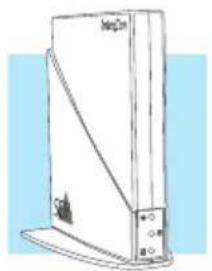
Content
en
Information about a Fast Operational Readiness ....3
- Printing in Windows 3
- Printing in Mac OS X 4
Information about the Assignment of IP Addresses .... 5
Information about the Print Server Administration ... 6
Information about further printing methods in other operating systems as well as additional information about the print server administration can be found in the User Manual.
Inhalt
Title: Print Server - PS Series
Version: 1.2
Order number: MHAB-QI-IV-SEH
All trademarks, registered trademarks, logos and product names are property of their respective owners.
Keep the documentation for further reference during the life cycle of the product. SEH Computertechnik GmbH has endeavoured to ensure that the information in all manuals is correct. If you detect any inaccuracies please inform us at the address indicated below.
SEH Computertechnik GmbH will not accept any liability for any error or omission. The information in this manual is subject to change without notification. All rights are reserved. Copying, other reproduction or translation without the prior written consent from SEH Computertechnik GmbH is prohibited.
Information about a Fast Operational Readiness - Printing in Windows -

Print server and client must be in the same local network segment.

Read and observe the safety regulations and carry out the hardware installation, see: Hardware Installation Guide.
Start the Product CD on the Windows client.
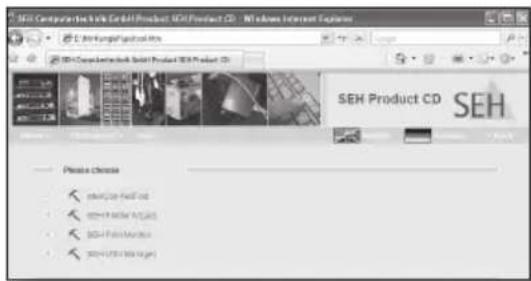
3 Select the Print Server - Tools menu.
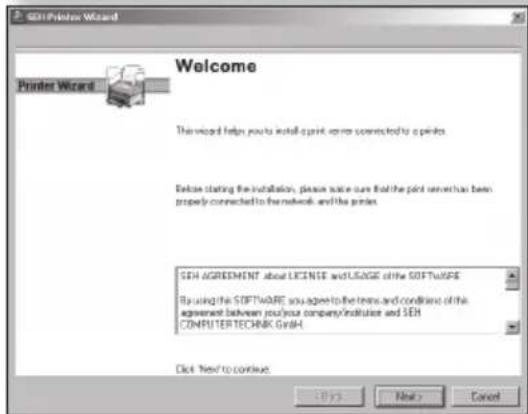
Start the SEH Printer Wizard.
Follow the instructions of the SEH Printer Wizard.
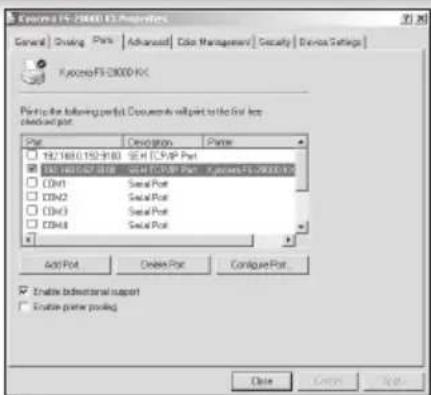
The SEH Printer Wizard supports 32-bit systems. If you want to install the print server on a 64-bit system, use the Windows default printer installation. Contact the manufacturer of your operating system for further information.
- Printer and print server will be created on the Windows client and displayed in the Printer Properties dialog. The operational readiness will be established.
Information about a Fast Operational Readiness - Printing in Mac OS X -

Print server and client must be in the same local network segment.

1 Read and observe the safety regulations and carry out the hardware installation, see: Hardware Installation Guide.
2 Start Print & Fax on the Mac client.
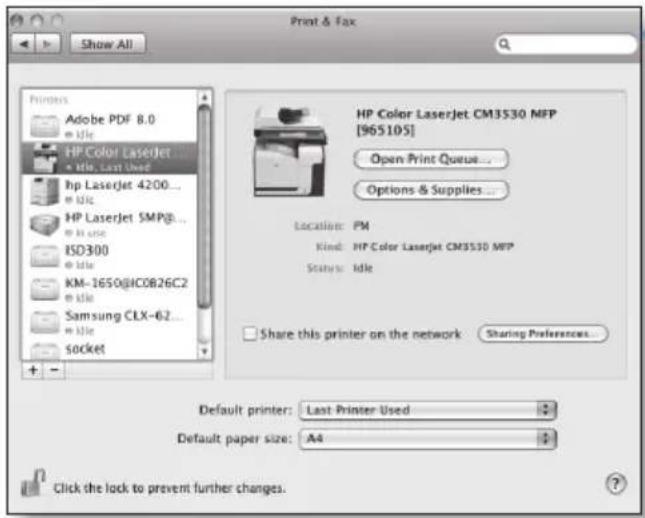
Print & Fax
3 Click

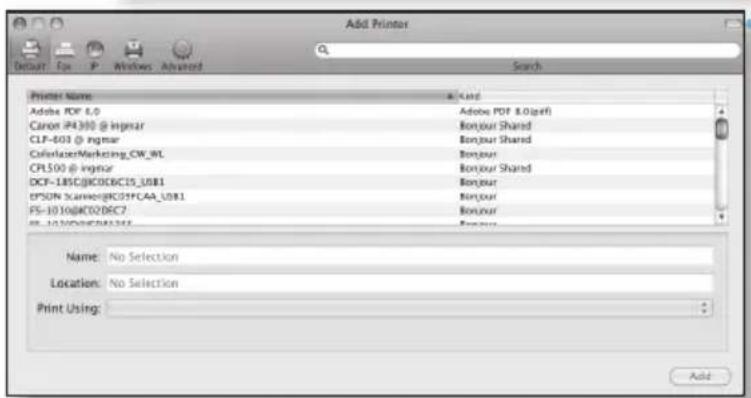
4 Select the printer/print server from the list.
Define a name, location, and printer driver.
Click Add.

Define the Installable Options (if required).
- Printer and print server will be created on the Mac client and displayed in the list. The operational readiness will be established.
SEH print servers are shipped without an IP address. When you install the print server for the first time, the print server checks whether an IP address can be obtained from the boot protocols BOOTP or DHCP. If this is not the case, the print server assigns itself an IP address via ZeroConf from the address range (169.254.0.0/16) which is reserved for ZeroConf. A freely definable IP address can be saved manually in the print server, if necessary.
Automatic Assignment of IP Addresses
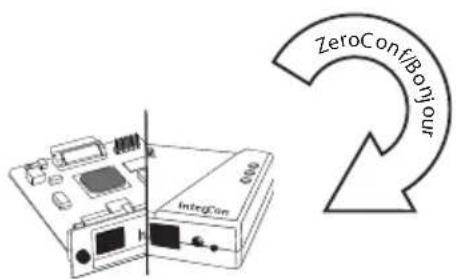
The print server assigns itself an IP address via ZeroConf from the address range 169.254.0.0/16.
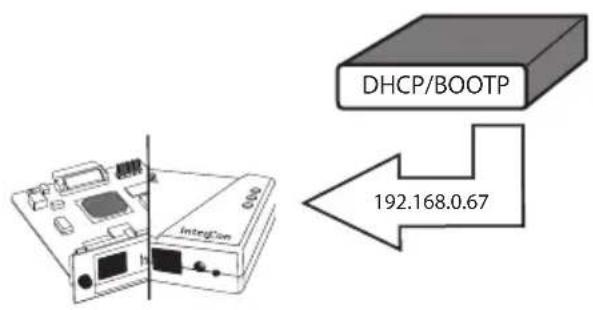
If the boot protocols have been enabled (factory default setting) and a DHCP server is available in the network, the print server obtains its IP address via the DHCP server.
Displaying the IP Address
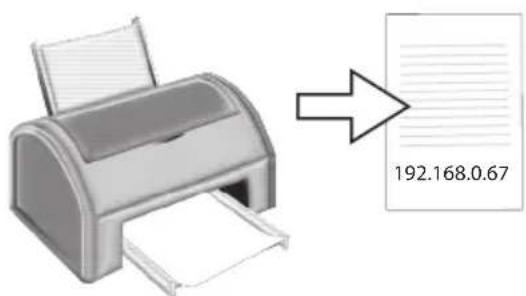
The IP address can be found on the status page of the print server.
To print a status page, press the status button of the print server.
Manual Assignment of IP Addresses
Start the Product CD on the client.
Select the Print Server - Tools menu.
Install the InterCon-NetTool on the client. Start the installation routine.
Start the InterCon-NetTool on the client.
Mark the print server in the print server list and start the IP Wizard.
6 Follow the instructions of the IP Wizard. Enter the preferred IP address and save it.

Administration via the Print Server Homepage
Start the browser software on the client.
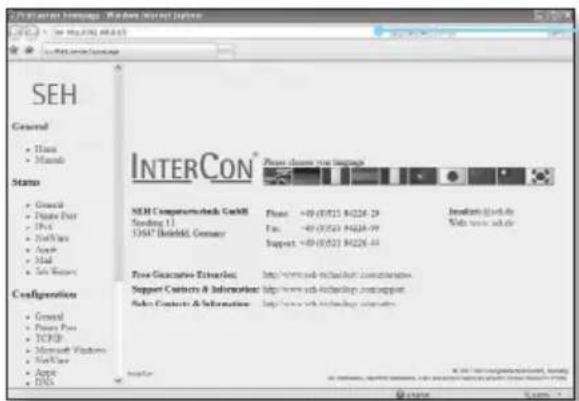
Enter the IP address of the print server as URL
The Print Server Homepage is displayed. Carry out the desired action.
Administration via the InterCon-NetTool
Start the Product CD on the client.
Select the Print Server - Tools menu.
Install the InterCon-NetTool on the client. Start the installation routine.
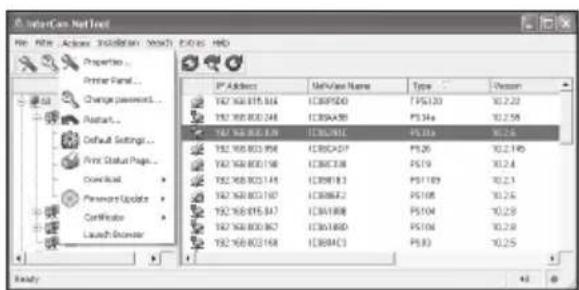
Start the InterCon-NetTool on the client.
Mark the print server in the print server list and carry out the desired action.
Administration via Printserver Homepage
Administration via InterCon-NetTool
SEH TECHNOLOGY UK LTD. United Kingdom/Ireland
The Sussex Innovation Centre, Science Park Square, Falmer, Brighton, BN1 9SB, Great Britain
Phone +44 (0) 12 73 - 23 46-81
Fax +44 (0) 12 73 - 23 46-82
Internet www.seh-technology.co.uk Email info@seh-technology.co.uk
SEH TECHNOLOGY Inc. USA
518 Kimberton Rd./PMB 410
Phoenixville, PA 19460
USA
Phone +1 610-933-2088
Fax +1484-229-0697
Internet www.seh-technology.com Email info@seh-technology.com