LE46B550A5WXXN - TV SAMSUNG - Free user manual and instructions
Find the device manual for free LE46B550A5WXXN SAMSUNG in PDF.



User questions about LE46B550A5WXXN SAMSUNG
0 question about this device. Answer the ones you know or ask your own.
Ask a new question about this device
Download the instructions for your TV in PDF format for free! Find your manual LE46B550A5WXXN - SAMSUNG and take your electronic device back in hand. On this page are published all the documents necessary for the use of your device. LE46B550A5WXXN by SAMSUNG.
USER MANUAL LE46B550A5WXXN SAMSUNG
If you have any questions or comments relating to Samsung products, please contact the SAMSUNG customer care centre.
| Country | Customer Care Centre | Web Site |
| AUSTRIA 0800-SAMSUNG (726-7864) www.samsung.com/ai | ||
| BELGIUM 0032 (0)2 201 24 18 www.samsung.com/be | ||
| CZECH REPUBLIC | 844 000 844 www.samsung.com/oz | |
| Distributor pro Češkou republiku: Samsung Zt., Česka organizatni složka Vyskočlova 4, 14000 Praha 4 | ||
| DENMARK 70 70 19 70 www.samsung.com/dk | ||
| EIRE 0816 717 100 www.samsung.com/e | ||
| FINLAND 030-6227 515 www.samsung.com/ii | ||
| FRANCE | 3260 SAMSUNG (€ 0,15/Min) 09 25 08 66 65 (€ 0,15/Min) | www.samsung.com |
| GERMANY 01805 - SAMSUNG (726-7864) (€ 0,14/Min) www.samsung.com | ||
| HUNGARY 06-80-SAMSUNG (726-7864) www.samsung.com | ||
| ITALIA | 800-SAMSUNG (726-7864) | www.samsung.com |
| LUXEMBURG | D335 (0)2 281 03 710 | www.samsung.com/be |
| NETHERLANDS | 0900-SAMSUNG (726-7864) (€ 0,10/Min) | www.samsung.com/nl |
| NORWAY | 515-58 480 | www.samsung.com/no |
| POLAND | 0 801 801 861 022 827 93-33 | www.samsung.com/pl |
| PORTUGAL | B3820-SAMSUNG (726-7864) | www.samsung.com/pl |
| SLOVAKIA | 0800-SAMSUNG (726-7864) www.samsung.com/sk | |
| SPAIN | 902 10 11 30 | www.samsung.com |
| SWEDEN | 0771-400 200 www.samsung.com/se | |
| SWITZERLAND | 0800-SAMSUNG (726-7864) www.samsung.com/vh | |
| U.K | 0845 SAMSUNG (7267864) www.samsung.com | |
| TURKEY | 444 77 11 | www.samsung.com |
| ESTONIA | 800-7267 | www.samsung.ee |
| LATVIA | 800-7267 | www.samsung.com/ly |
| LITHUANIA | 8-800-77777 | www.samsung.it |
| KAZAHSTAN | 8-10-800-500-55-500 | www.samsung.kz |
| KYRGYZSTAN | 00-800-500-55-500 | - |
| RUSSIA | 8-800-555-55-55 | www.samsung.com |
| TADJIKISTAN | 8-10-800-500-55-500 | - |
| UKRAINE | 6-800-502-2000 | www.samsung.com |
| UZBEKISTAN | 8-10-800-500-55-500 | www.samsung.uz |

BN66-01410A-00

text_image
LCD TV user manualimagine the possibilities
Thank you for purchasing this Samsung product. To receive more complete service, please register your product at.
www.samsung.com/global/register
Model ____ Serial No. ____

Contact SAMSUNG WORLDWIDE
If you have any questions or comments relating to Samsung products, please contact the SAMSUNG customer care centre. (See back cover for more informations.)
Precautions When Displaying a Still Image
A still image may cause permanent damage to the TV screen.
- Do not display a still image on the LCD panel for more than 2 hours as it can cause screen image retention. This image retention is also known as "screen burn". To avoid such image retention, reduce the degree of brightness and contrast of the screen when displaying a still image.
- Watching the LCD TV in 4:3 format for a long period of time may leave traces of borders displayed on the left, right and center of the screen caused by the difference of light emission on the screen. Playing a DVD or a game console may cause a similar effect to the screen. Damages caused by the above effect are not covered by the Warranty.
- Displaying still images from Video games and PC for longer than a certain period of time may produce partial after-images. To prevent this effect, reduce the ‘brightness’ and ‘contrast’ when displaying still images.
Contents
CONNECTING AND PREPARING YOUR TV
◆ List of Parts ...... 2
◆ Installing the Stand 2
◆ Installing the Wall Mount Kit ...... 2
◆ Viewing the Control Panel 3
◆ Viewing the Connection Panel ...... 4
◆ Viewing the Remote Control 6
◆ Installing Batteries in the Remote Control ...... 7
◆ Switching On and Off 7
◆ Placing Your Television in Standby Mode...... 7
◆ Viewing the Menus 8
◆ Using the TOOLS Button 8
◆ Plug & Play 9
SETTING THE CHANNELS
◆ Storing Channels Automatically .... 10
◆ Storing Channels Manually .....11
◆ Adding / Locking Channels 12
◆ Sorting the Stored Channels 13
◆ Assigning Channels Names ...... 13
◆ Fine Tuning Channel Reception .... 14
SETTING THE PICTURE
◆ Changing the Picture Standard 15
◆ Adjusting the Custom Picture 16
◆ Configuring Detailed Settings on the Picture ... 16
◆ Resetting the Picture Settings to the Factory Defaults .... 17
◆ Configuring Picture Option 18
◆ Viewing the Picture In Picture (PIP) ...... 20
SETTING THE SOUND
◆ Sound Features 21
◆ Selecting the Sound Mode 22
◆ Connecting Headphones (Sold separately) ..... 22
SETTING THE TIME
◆ Setting and Displaying the Current Time ...... 23
Setting the Sleep Timer 23
◆ Switching the Television On and Off
Automatically 24
FUNCTION DESCRIPTION
◆ Choosing Your Language ...... 24
Setting the Light Effect (depending on the model) 25
◆Melody / Entertainment / Energy Saving ...... 25
◆Selecting the Source 27
◆Editing the Input Source Names 27
SETTING THE PC
◆Setting up Your PC Software
(Based on Windows XP) 28
◆ Display Modes 28
◆Setting up the TV with your PC 29
WISELINK
◆ Using the WISELINK Function ...... 30
◆ Using the WISELINK Menu .... 31
◆ Using the PHOTO (JPEG) List ...... 32
◆ Using the MP3 List 35
◆ Using the Setup Menu 36
ABOUT ANYNET ^+
◆What is Anynet+? 37
◆ Connecting Anynet+ Devices ...... 37
◆Setting Up Anynet+ 38
◆ Scanning and Switching between Anynet+ Devices 39
◆Recording 41
◆Listening through a Receiver 41
◆Check Points before Requesting Service ...... 42
RECOMMENDATIONS FOR USE
◆Teletext Feature 43
◆Auto Wall-Mount (Sold separately) 45
◆ Using the Anti-Theft Kensington Lock (depending on the model) 46
◆Troubleshooting: Before Contacting Service Personnel 47
◆Technical and Environmental Specifications ... 48
List of Parts
Please make sure the following items are included with your LCD TV. If any items are missing, contact your dealer.
| Remote Control & Batteries (AAA x 2) | Power Cord Cover-Bottom | Stand Screw X 4 | Stand Cleaning Cloth |
| Owner's Instructions Warranty card Safety Guide Registration Cards | |||
Warranty card / Safety Guide / Registration Cards (Not available in all locations)
The stand and stand screw may not be included depending on the model.
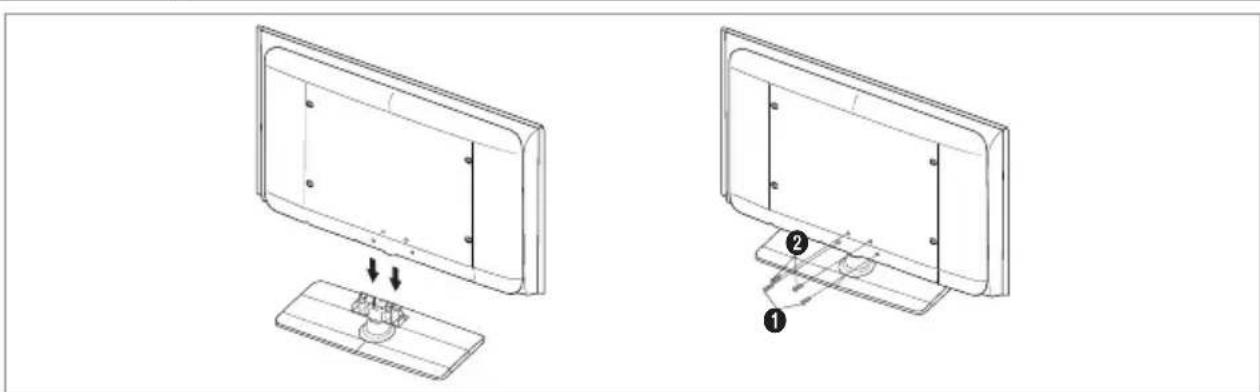
Installing the Stand
natural_image
Technical line drawing showing two views of a monitor with a base and a switch, labeled with numbers 1 and 2 (no text or symbols beyond labels)- Connect your LCD TV and the stand.
Two or more people should carry the TV.
Make sure to distinguish between the front and back of the stand when assembling them.
- Fasten two screws at position ① and then fasten two screw at position ②.
➢ Stand the product up and fasten the screws. If you fasten the screws with the LCD TV placed down, it may lean to one side.
The stand is installed for models with the screen size of 37 inch and above.
Installing the Wall Mount Kit
natural_image
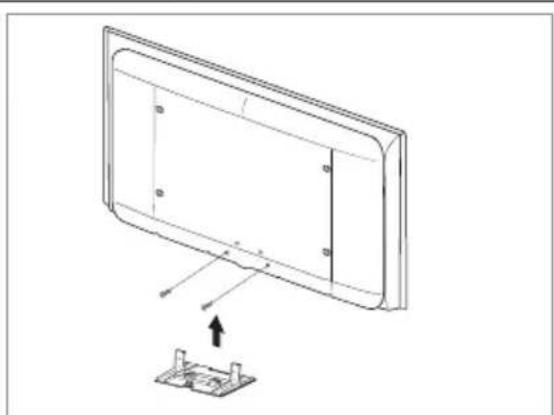
Diagram of a computer monitor with an attached circuit board, showing no text or symbolsWall mount items (sold separately) allow you to mount the TV on the wall.
For detailed information on installing the wall mount, see the instructions provided with the Wall Mount items. Contact a technician for assistance when installing the wall mounted bracket.
Samsung Electronics is not responsible for any damage to the product or injury to yourself or others if you elect to install the TV on your own.

Do not install your Wall Mount Kit while your TV is turned on. It may result in personal injury due to electric shock.

Remove the stand and cover the bottom hole with a cap and fasten with two screws.
Viewing the Control Panel
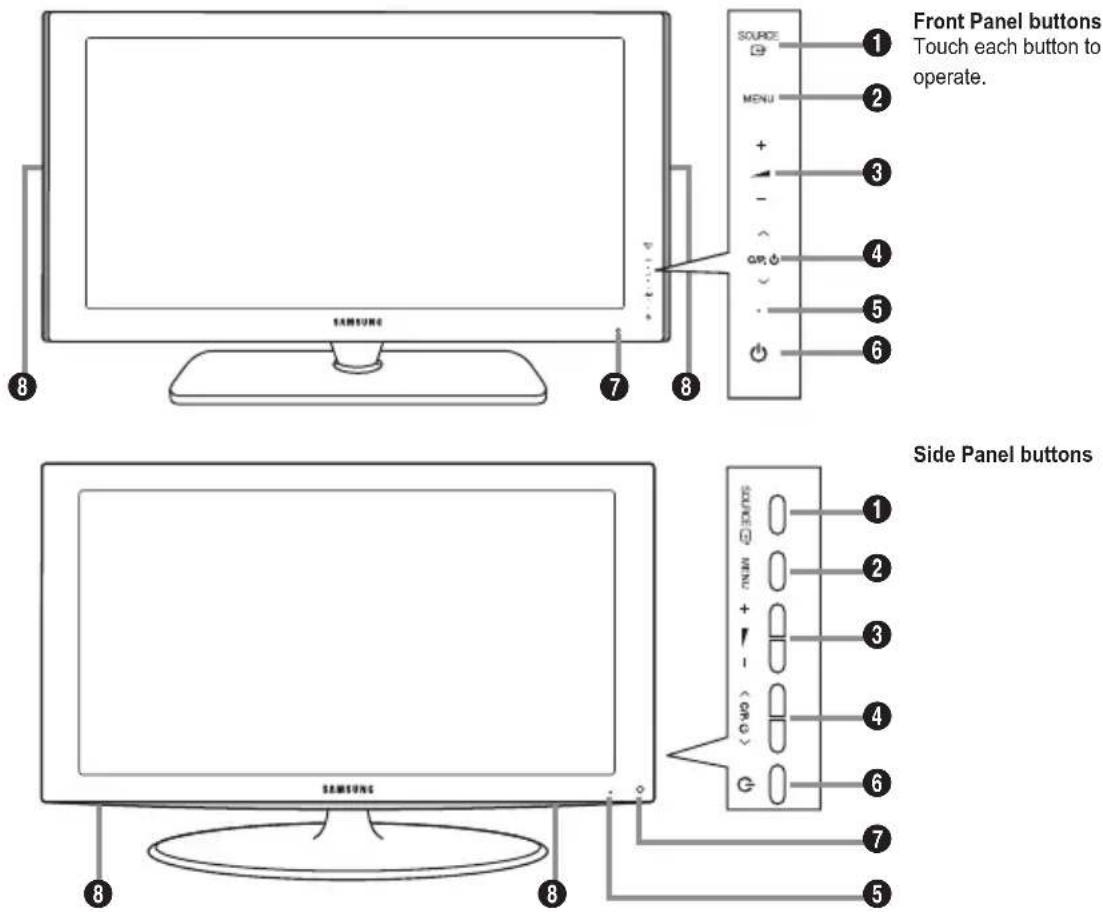
Front Panel buttons
Touch each button to
operate.
Side Panel buttons
The product colour and shape may vary depending on the model.
① SOURCE
Toggles between all the available input sources (TV, Ext.1, Ext.2, AV, S-Video, Component, PC, HDMI1, HDMI2, HDMI3). In the on-screen menu, use this button as you use the ENTER button on the remote control.
② MENU
Press to see an on-screen menu of your TV's features.
③ - △ +
Press to decrease or increase the volume. In the on-screen menu, use the -buttons as you use the ◀ and ▶ buttons on the remote control.
4 ∨ C/P. ⏻ ∧
Press to change channels.
In the on-screen menu, use the ▼C/P. 🔊▲ buttons as you use the ▼ and ▲ buttons on the remote control.
(Without the Remote Control, you can turn on the TV by using the Channel buttons.)
⑤ Power Indicator
Blinks and turns off when the power is on and lights up in stand-by mode.
6 (Power)
Press to turn the TV on and off.
⑦ Remote Control Sensor
Aim the remote control towards this spot on the TV.
8 Speakers
Viewing the Connection Panel
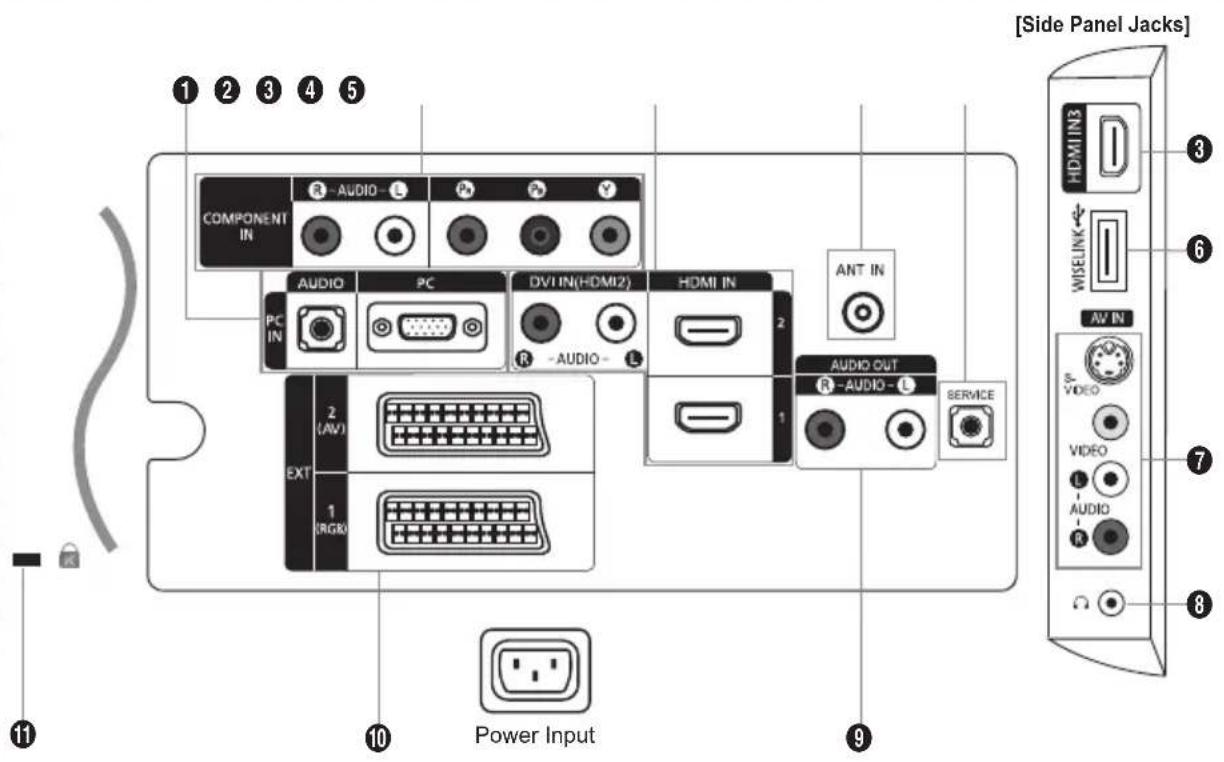
text_image
[Side Panel Jacks] COMPONENT IN R-AUDIO-L PC P Y AUDIO PC DVI IN(HDMI2) HDMI IN PC IN R-AUDIO-L ANT IN 2 1 AUDIO OUT R-AUDIO-L SERVICE EXT 2 (AV) 1 (RGB) Power Input 11 9The product colour and shape may vary depending on the model.
Whenever you connect an external device to your TV, make sure that power on the unit is turned off
When connecting an external device, match the colour of the connection terminal to the cable.
① PC IN [PC] / [AUDIO]
- Connect to the video and audio output jack on your PC.
② COMPONENT IN
- Connect component video cables (optional) to component connector ("PR", "PB", "Y") on the rear of your set and the other ends to corresponding component video out connectors on the DVD.
- If you wish to connect both the Set-Top Box and DVD, you should connect the Set-Top Box to the DVD and connect the DVD to component connector ("PR", "PB", "Y") on your set.
- The PR, PB and Y connectors on your component devices (DVD) are sometimes labeled Y, B-Y and R-Y or Y, Cb and Cr.
- Connect RCA audio cables (optional) to "R - AUDIO - L" on the rear of your set and the other ends to corresponding audio out connectors on the DVD.
③ HDMI IN 1, HDMI IN 2, HDMI IN 3
- Supports connections between HDMI-connection-enabled AV devices (Set-Top Boxes, DVD players)
- No additional Audio connection is needed for an HDMI to HDMI connection.
- When using an HDMI/DVI cable connection, you must use the HDMI IN 2 jack.
What is HDMI?
- "High Definition Multimedia interface" allows the transmission of high definition digital video data and multiple channels of digital audio.
- The HDMI/DVI terminal supports DVI connection to an extended device with the appropriate cable (not supplied). The difference between HDMI and DVI is that the HDMI device is smaller in size, has the HDCP (High Bandwidth Digital Copy Protection) coding feature installed, and supports multi-channel digital audio.
The TV may not output sound and pictures may be displayed with abnormal colour when DVD players/Cable Boxes/Satellite receivers supporting HDMI versions older than 1.3 are connected. When connecting an older HDMI cable and there is no sound, connect the HDMI cable to the HDMI IN 2 jack and the audio cables to the DVI IN (HDMI2) [R-AUDIO-L] jacks on the back of the TV. If this happens, contact the company that provided the DVD player/Cable Box/Satellite receiver to confirm the HDMI version, then request a firmware update. HDMI cables that are not 1.3 may cause annoying flicker or no screen display.
DVI IN(HDMI2) [R-AUDIO-L]
- DVI audio outputs for external devices.
▶ Supported modes for HDMI/DVI and Component
| 480i 480p | 576i 576p | 720p | 1080i | 1080p | |||
| HDMI/DVI 50Hz | X | X | X | O | O | O | O |
| HDMI/DVI 60Hz | X | O | X | X | O | O | O |
| Component | O O O O | O O O |
4 ANT IN
To view television channels correctly, a signal must be received by the set from one of the following sources:
- An outdoor aerial / A cable television network / A satellite network
5 SERVICE
Connect this to the jack on the optional wall mount bracket. This will allow you to adjust the TV viewing angle using your remote control.
6 WISELINK
- Connect a USB mass storage device to view photo files (JPEG) and play audio files (MP3)
⑦ S-VIDEO or VIDEO / R-AUDIO-L
- Connect RCA or S-VIDEO cable to an appropriate external A/V device such as VCR, DVD or Camcorder.
- Connect RCA audio cables to "R-AUDIO-L" on your set and the other ends to corresponding audio out connectors on the A/V device.
8 Headphones jack
- Headphone may be connected to the headphone output on your set. While the head phone is connected, the sound from the built-in speakers will be disabled.
⑨ AUDIO OUT [R-AUDIO-L]
- Connect RCA audio cables to AUDIO OUT [R-AUDIO-L] on the rear of your set and the other ends to corresponding audio in connectors on the Amplifier or DVD Home Theatre.
⑩ EXT 1, EXT 2
| Connector | Input Output | ||
| Video Audio (L/R) RGB Video + Audio (L/R) | |||
| EXT 1 O O O | Only TV output is available. | ||
| EXT 2 O O Output you can choose. | |||
- Inputs or outputs for external devices, such as VCR, DVD, video game device or video disc players.
⑪ Kensington Lock (depending on the model)
- The Kensington lock (optional) is a device used to physically fix the system when used in a public place.
- If you want to use a locking device, contact the dealer where you purchased the TV.
- The location of the kensington lock may be different depending on its model.
Viewing the Remote Control
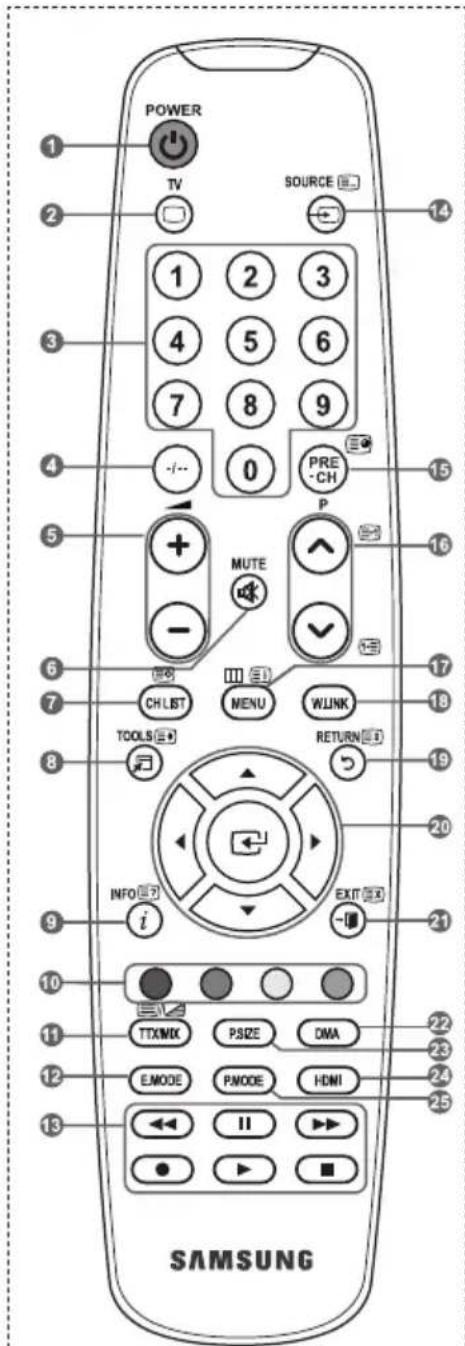
① Television Standby button
② Selects the TV mode directly
③ Number buttons for direct channel access
④ One/Two-digit channel selection
⑤ ⊕: Volume increase ⊖: Volume decrease
6 Temporary sound switch-Temporary more in switch on the off operating procedures,
⑦ It display "Channel List" on the screen.
8 Use to quickly select frequently used functions.
9 Use to see information on the current broadcast
10 Colour buttons :Colour buttons Use these buttons in the Channel list and WISELINK, etc.
12 Press to select the optional display and sound modes for sports, cinema and games.
13 Use these buttons in the DMA, WISELINK, and Anynet+.
( This remote can be used to control recording on Samsung recorders with the Anynet ^+ feature)
14 Available source selection
15 Previous channel
16 P^: Next channel
P☑: Previous channel
⑰ Displays the main on-screen menu
18 This function enables you to view and play photo and music files from an external device.
19 Returns to the previous menu
20 Control the cursor in the menu
21 Exit the on-screen menu
22 Use this when connecting a SAMSUNG DMA (Digital Media Adapter) device through an HDMI interface and switching to DMA mode. (The DMA button is optional.) For
mysec.inforswitden on the operating procedures, refer to the user manual of the DMA. This button is available when "Anynet+(HDMI-CEC)" is "On" (see page 38)
23 Picture size selection
24 Selects the HDMI mode directly.
25 Picture effect selection
Teletext Functions
② Exit from the teletext display
⑦ Teletext store
8 Teletext size selection
9 Teletext reveal
⑩ Fastext topic selection
⑪ Alternately select Teletext, Double, or Mix.
14 Teletext mode selection (LIST/FLOF)
⑮ Teletext sub page
16 P ^∧ : Teletext next page P ^∨ : Teletext previous page
17 Teletext index
19 Teletext hold
②1 Teletext cancel
text_image
POWER TV SOURCE 1 2 3 4 5 6 7 8 9 -/-- 0 PRE-CH P MUTE - CH LIST MENU WLINK TOOLS RETURN INFO EXIT i SAMSUNGThe performance of the remote control may be affected by bright light.
Installing Batteries in the Remote Control
-
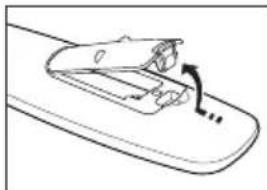
Lift the cover at the back of the remote control upward as shown in the figure.
-
Install two AAA size batteries.
Make sure to match the "+" and "-" ends of the batteries with the diagram inside the compartment.
- Replace the cover.
Remove the batteries and store them in a cool, dry place if you won't be using the remote control for a long time.
If the remote control doesn't work, check the following:
- Is the TV power on?
- Are the plus and minus ends of the batteries reversed?
- Are the batteries drained?
- Is there a power outage, or is the power cord unplugged?
- Is there a special fluorescent light or neon sign nearby?
natural_image
Simple line drawing of a mechanical component with an arrow indicating motion (no text or symbols)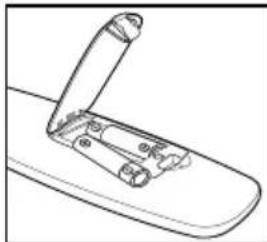
natural_image
Line drawing of a mechanical component with an open lid and internal brackets (no text or symbols)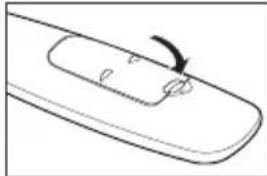
natural_image
Simple line drawing of a curved object with an arrow indicating rotation (no text or symbols)Switching On and Off
The mains lead is attached to the rear of your set.
- Plug the mains lead into an appropriate socket.
The standby indicator lights up on your set.
- Press the ⏻ button on your set.
You also can press the POWER ⏻ button or the TV button on the remote control to turn the TV on.
The programme that you were watching last is reselected automatically.
- Press the numeric button (0\~9) or channel up/down (♡/♡) button on the remote control or √C/P. ⊕∧ button on your set.
When you switch the set on for the very first time, you will be asked to choose language in which the menus are to be displayed.
- To switch your set off, press the POWER button again.
Placing Your Television in Standby Mode
Your set can be placed in standby mode in order to reduce the power consumption. The standby mode can be useful when you wish to interrupt viewing temporarily (during a meal, for example).
- Press the POWER button on the remote control.
The screen is turned off and a red standby indicator appears on your set.
- To switch your set back on, simply press the POWER, numeric buttons (0\~9), TV button or channel up/down (○/▽) button again.
Do not leave your set in standby mode for long periods of time (when you are away on holiday, for example).
It is best to unplug the set from the mains and aerial.
Viewing the Menus
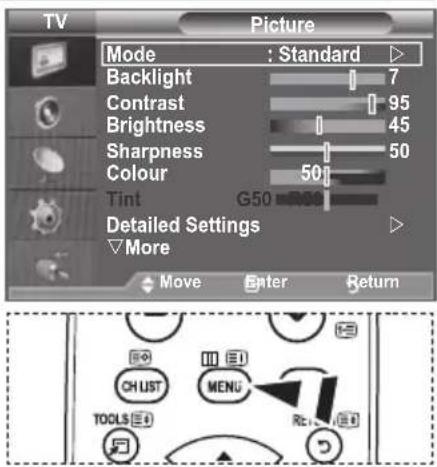
- With the power on, press the MENU button.
The main menu appears on the screen. The menu's left side has icons: Picture, Sound, Channel, Setup, Input. - Press the ▲ or ▼ button to select one of the icons.
Then press the ENTER button to access the icon's sub-menu. - Press the EXIT button to exit.
The on-screen menus disappear from the screen after about one minute.
text_image
TV Picture Mode : Standard ▷ Backlight 7 Contrast 95 Brightness 45 Sharpness 50 Colour 50 Tint G50 Detailed Settings ▷More Move Enter Return CHUST MENU RetUsing the TOOLS Button
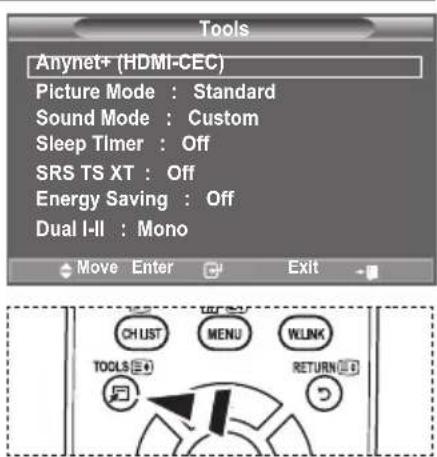
You can use the TOOLS button to select your frequently used functions quickly and easily. The "Tools" menu change depending on which external input mode you are viewing.
- Press the TOOLS button.
The "Tools" menu will appear.
-
Press the ▲ or ▼ button to select a menu.
-
Press the ▲/▼/◄/►/ ENTER按钮 buttons to display, change, or use the selected items. For a more detailed description of each function, refer to the corresponding page.
◆ Anynet+ (HDMI-CEC), see page 38
◆ Picture Mode, see page 15
◆ Sound Mode, see page 21
◆ Sleep Timer, see page 23
◆ SRS TS XT, see page 21
◆ Energy Saving, see page 26
◆ Dual I-II, see page 22
◆ PIP, see page 20
◆ Auto Adjustment, see page 29
text_image
Tools Anynet+ (HDMI-CEC) Picture Mode : Standard Sound Mode : Custom Sleep Timer : Off SRS TS XT : Off Energy Saving : Off Dual I-II : Mono Move Enter Exit CHUST MENU WLINK TOOLS RETURNPlug & Play
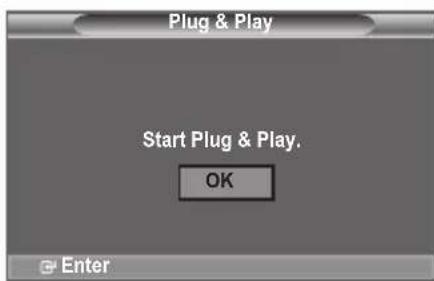
When the TV is initially powered on, several basic settings proceed automatically and subsequently. The following settings are available.
text_image
Plug & Play Start Plug & Play. OK EnterThe Screen Saver is activated if there is no remote control key input for longer than 1 minute while "Plug & Play" is running.
The Screen Saver is activated if there is no operating signal for longer than 15 minutes.
- Press the POWER button on the remote control.
The message "Start Plug & Play" is displayed with "OK" selected.
- Select the appropriate language by pressing the ▲ or ▼ button.
Press the ENTER button to confirm your choice.
- Press the ◀ or ▶ button to select "Store Demo" or "Home Use", then the ENTER button.
We recommend setting the TV to "Home Use" mode for the best picture in your home environment.
"Store Demo" mode is only intended for use in retail environments.
If the unit is accidentally set to "Store Demo" mode and you want to return to "Home Use" (Standard): Press the Volume button on the TV. When the volume OSD is displayed, press and hold the MENU button on the TV for 5 seconds.
- The message "Check antenna input." is displayed with "OK" selected.
Press the ENTER button.
➢ Please check that the antenna cable is connected correctly.
- Select the appropriate country by pressing the ▲ or ▼ button.
Press the ENTER button to confirm your choice.
- The "Auto Store" menu is displayed with the "Start" selected. Press the ENTER button.
The channel search will start and end automatically.
➢ Press the ENTER button at any time to interrupt the memorization process.
After all the available channels are stored, the "Clock Set" menu appears.
- Press the ENTER button.
Select the "Month", "Day", "Year", "Hour", or "Minute" by pressing the ◀ or ▶ button.
Set the "Month", "Day", "Year", "Hour", or "Minute" by pressing the ▲ or ▼ button.
You can also set the "Month", "Day", "Year", "Hour" and "Minute" by pressing the number buttons on the remote control.
- Press the ENTER button to confirm your setting. The message "Enjoy your viewing" is displayed.
When you have finished, press the ENTER button.
Even if theENTER button is not pressed, the message will automatically disappear after several seconds.
◆ Language: Select your language.
◆ Country: Select your country.
◆ Auto Store: Automatically scans for and stores channels available in the local area.
◆ Clock Set: Sets the current time for the TV clock.
If you want to reset this feature...
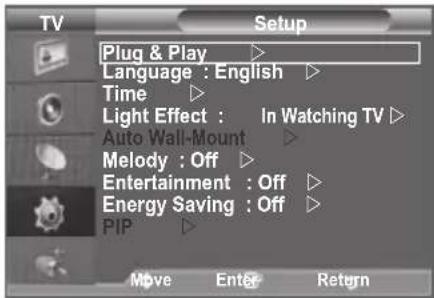
- Press the MENU button to display the menu. Press the ▲ or ▼ button to select "Setup", then press the ENTER button.
- Press the ENTER button again, to select "Plug & Play". For further details on setting up options, refer to the page 9. The "Plug & Play" feature is only available in the TV mode.
text_image
TV Setup Plug & Play ▶ Language : English ▶ Time ▶ Light Effect : In Watching TV ▶ Auto Wall-Mount ▶ Melody : Off ▶ Entertainment : Off ▶ Energy Saving : Off ▶ PIP ▶ Move Enter Return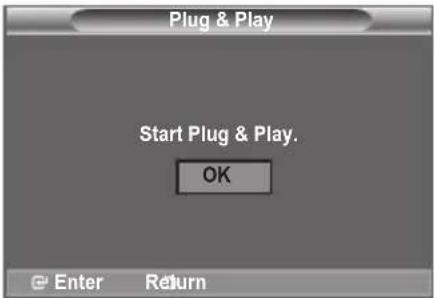
text_image
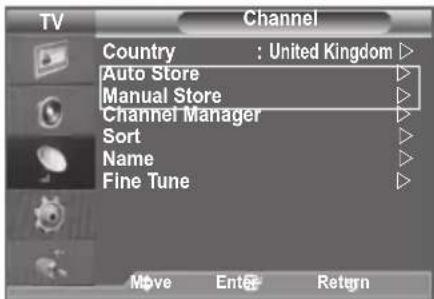
Plug & Play Start Plug & Play. OK Enter Return- Storing Channels Automatically
- Storing Channels Manually
text_image
TV Channel Country : United Kingdom ▷ Auto Store ▷ Manual Store ▷ Channel Manager ▷ Sort ▷ Name ▷ Fine Tune ▷ Move Enter ReturnStoring Channels Automatically
You can scan for the frequency ranges available to you (and availability depends on your country). Automatically allocated programme numbers may not correspond to actual or desired programme numbers. However, you can sort numbers manually and clear any channels you do not wish to watch.
- Press the MENU button to display the menu. Press the ▲ or ▼ button to select "Channel", then press the ENTER button.
- Press the ENTER button to select "Country".
- Select the appropriate country by pressing the ▲ or ▼ button. Press the ENTER button to confirm your choice.
- Press the ▲ or ▼ button to select "Auto Store", then press the ENTER button.
-
Press the ENTER button. ➢ The TV will begin memorizing all of the available channels. ➢ Press the ENTER button at any time to interrupt the memorization process and return to the "Channel" menu.
-
After all the available channels are stored, the "Sort" menu appears. (refer to page 13)
Storing Channels Manually
You can store television channels, including those received via cable networks.
When storing channels manually, you can choose:
◆ Whether or not to store each of the channels found.
- The programme number of each stored channel which you wish to identify.
-
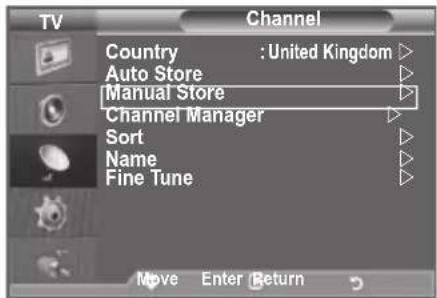
Press the MENU button to display the menu. Press the ▲ or ▼ button to select "Channel", then press the ENTER button.
-
Press the ▲ or ▼ button to select "Manual Store", then press the ENTER button.
-
Select the required option by pressing the ▲ or ▼ button, then press the ENTER button.
-
When you are satisfied with your setting, press the ENTER button.
-
Press the EXIT button to exit.
◆ Programme (Programme number to be assigned to a channel)
- Press the ▲ or ▼ button until you find the correct number.
➢ You can also select the channel number directly by pressing the numeric buttons (0\~9).
text_image
TV Channel Country : United Kingdom Auto Store Manual Store Channel Manager Sort Name Fine Tune Move Enter Return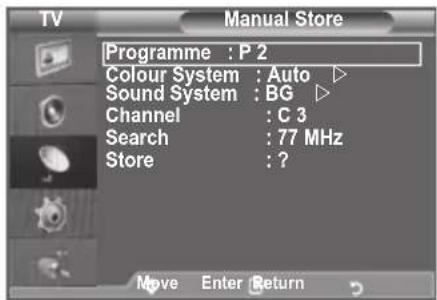
text_image
TV Manual Store Programme : P 2 Colour System : Auto ▶ Sound System : BG ▶ Channel : C 3 Search : 77 MHz Store : ? Move Enter Return◆ Colour System: Auto/PAL/SECAM/NTSC4.43
- Press the ▲ or ▼ button to select the required colour standard.
◆ Sound System: BG/DK/I/L
- Press the ▲ or ▼ button to select the required sound standard.
◆ Channel (When you know the number of the channel to be stored)
- Press the ▲ or ▼ button to select C (Air channel) or S (Cable channel).
- Press the ▶ button, then press the ▲ or ▼ button to select the required number.
➢ You can also select the channel number directly by pressing the numeric buttons (0\~9).
If there is abnormal sound or no sound, re-select the sound standard required.
◆ Search (When you do not know the channel numbers)
- Press the ▲ or ▼ button to start the search.
- The tuner scans the frequency range until the first channel or the channel that you selected is received on the screen.
◆ Store (When you store the channel and associated programme number)
- Set to "OK" by pressing the ENTER button.
Channel mode
- P (Programme mode): When completing tuning, the broadcasting stations in your area have been assigned to position numbers from P00 to P99. You can select a channel by entering the position number in this mode.
- C (Air channel mode): You can select a channel by entering the assigned number to each air broadcasting station in this mode.
- S (Cable channel mode): You can select a channel by entering the assigned number for each cable channel in this mode.
- P (Programme mode): When completing tuning, the broadcasting stations in your area have been assigned to position numbers from P00 to P99. You can select a channel by entering the position number in this mode. - C (Air channel mode): You can select a channel by entering the assigned number to each air broadcasting station in this mode. - S (Cable channel mode): You can select a channel by entering the assigned number for each cable channel in this mode.
Adding / Locking Channels
Using the Channel Manager, you can conveniently lock or add channels.
- Press the MENU button to display the menu.
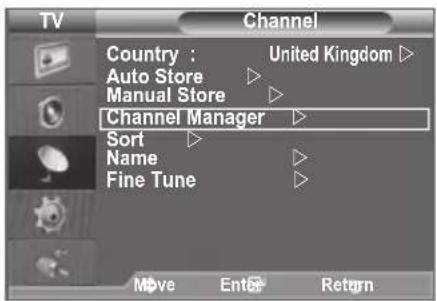
Press the ▲ or ▼ button to select "Channel", then press the ENTER button. - Press the ▲ or ▼ button to select "Channel Manager", then press the ENTER button.
♦ Adding channels
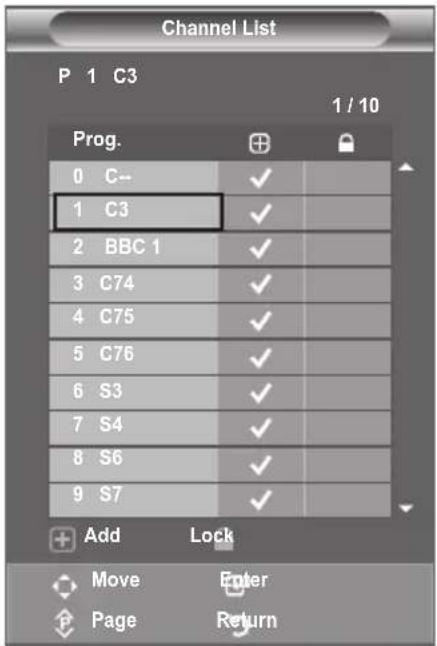
Using the Channel List, you can add channels.
-
Select Channel List by pressing the ENTER button.
-
Move to the ( ) field by pressing the ▲, ▼, ◀ or ▶ button, select a channel to be added, and press the ENTER button to add the channel.
If you press the ENTER button again, the (√ symbol next to the channel disappears and the channel is not added.
“”is active when "Child Lock" is selected to "On".
text_image
TV Channel Country : United Kingdom ▷ Auto Store ▷ Manual Store ▷ Channel Manager ▷ Sort ▷ Name ▷ Fine Tune ▷ Move Enter Return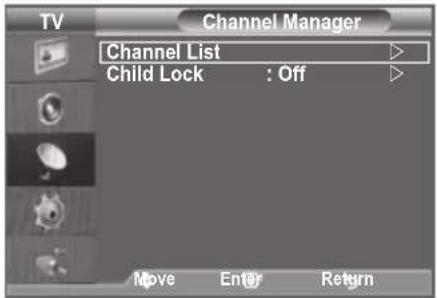
text_image
TV Channel Manager Channel List Child Lock : Off Move Enter Return♦ Locking channels
This feature allows you to prevent unauthorized users, such as children, from watching unsuitable programmes by muting out video and audio.
-
Press the ▲ or ▼ button to select "Child Lock", then press the ENTER button.
-
Select "On" by pressing the ▲ or ▼ button, then press the ENTER button.
-
Press the ▲ or ▼ button to select "Channel List", then press the ENTER button.
-
Move to the ( ) field by pressing the ▲, ▼, ◀ or ▶ button, select a channel to be locked, and press the ENTER button.
If you press the ENTER button again, the (√ symbol next to the channel disappears and the channel lock is cancelled.
A blue screen is displayed when "Child Lock" is activated.
text_image
Channel List P 1 C3 1 / 10 Prog. 0 C-- 1 C3 2 BBC 1 3 C74 4 C75 5 C76 6 S3 7 S4 8 S6 9 S7 Add Lock Move Enter Page Return- Press the EXIT button to exit.
Select "On" or "Off" in "Child Lock" to easily turn the channels which selected on "☐" to be active or inactive.
You can select these options by simply pressing the CH LIST button on the remote control
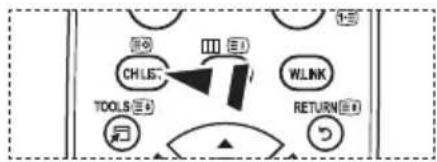
text_image
CH/LS TOOLS WLINK RETURNSorting the Stored Channels
This operation allows you to change the programme numbers of the stored channels.
This operation may be necessary after using the auto store.
- Press the MENU button to display the menu.
Press the ▲ or ▼ button to select "Channel", then press the ENTER button. - Press the ▲ or ▼ button to select "Sort", then press the ENTER button.
- Select the channel number that you wish to change by pressing the ▲ or ▼ button repeatedly.
Press the ENTER button.
The selected channel number and name are moved to right side. -
Press the ▲ or ▼ button to move to the position in which you would like to change and then press the ENTER button.
The selected channel is exchanged with the one previously stored to the chosen number. -
Repeat steps 3 to 4 for another channel to be sorted.
-
Press the EXIT button to exit.
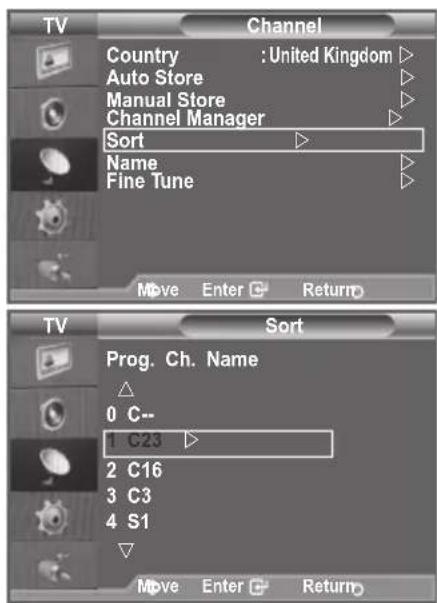
text_image
TV Channel Country : United Kingdom ▷ Auto Store ▷ Manual Store ▷ Channel Manager ▷ Sort ▷ Name ▷ Fine Tune ▷ Move Enter Return TV Sort Prog. Ch. Name △ 0 C-- 1 C23 ▷ 2 C16 3 C3 4 S1 Move Enter ReturnAssigning Channels Names
Channel names will be assigned automatically when channel information is broadcast. These names can be changed, allowing you to assign new names.
- Press the MENU button to display the menu.
Press the ▲ or ▼ button to select "Channel", then press the ENTER button. - Press the ▲ or ▼ button to select "Name", then press the ENTER button.
- If necessary, select the channel to be assigned to a new name by pressing the ▲ or ▼ button. Press the ENTER button
The selection bar is displayed around the name box.
| To... Then... | |
| Select a letter, number or symbol | Press the ▲ or ▼ button |
| Move on the next letter Press the ▶ button | |
| Move back the previous letter Press the ◀ button | |
| Confirm the name | Press the ENTER button |
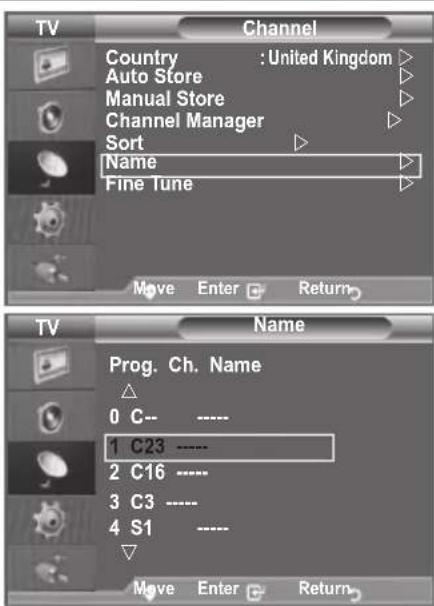
text_image
TV Channel Country : United Kingdom Auto Store Manual Store Channel Manager Sort Name Fine Tune Move Enter Return TV Name Prog. Ch. Name 0 C-- ---- 1 C23 ---- 2 C16 ---- 3 C3 ---- 4 S1 ---- Move Enter ReturnThe following characters are available: Letters of the alphabet (A\~Z) / Numbers (0\~9) / Special characters (+, -, *, /, space)
-
Repeat steps 3 to 4 for each channel to be assigned to a new name.
-
Press the EXIT button to exit.
Fine Tuning Channel Reception
Use fine tuning to manually adjust a particular channel for optimal reception.
- Use the number buttons to directly select the channel that you want to fine tune.
- Press the MENU button to display the menu. Press the ▲ or ▼ button to select "Channel", then press the ENTER button.
- Press the ▲ or ▼ button to select "Fine Tune", then press the ENTER button.
- Press the ◀ or ▶ button to adjust the fine tuning. Press the ENTER button.
- Press the EXIT button to exit.
Fine tuned channels that have been saved are marked with an asterisk "*" on the right-hand side of the channel number in the channel banner. And the channel number turns red.
To reset the fine-tuning, select "Reset" by pressing the ▲ or ▼ button and then press the ENTER button.
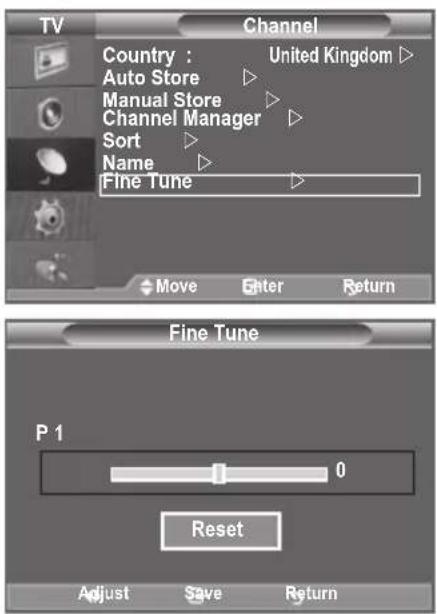
text_image
TV Channel Country : United Kingdom ▷ Auto Store ▷ Manual Store ▷ Channel Manager ▷ Sort ▷ Name ▷ Fine Tune ▷ Move Enter Return Fine Tune P 1 0 Reset Adjust Save ReturnChanging the Picture Standard
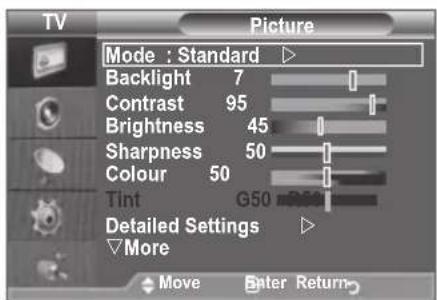
You can select the type of picture which best corresponds to your viewing requirements.
- Press the MENU button to display the menu.
Press the ENTER button, to select "Picture".
-
Press the ENTER button again, to select "Mode".
-
Press the ▲ or ▼ button to select the desired picture effect.
Press the ENTER button.
- Press the EXIT button to exit.
◆ Dynamic: Selects the picture for high-definition in a bright room.
◆ Standard: Selects the picture for optimum display in a normal environment.
◆ Movie: Selects the picture for comfortable display in a dark room.
The Picture mode must be adjusted separately for each input source.
You can also press the P.MODE button on the remote control to select one of the picture settings.
text_image
TV Picture Mode : Standard Backlight 7 Contrast 95 Brightness 45 Sharpness 50 Colour 50 Tint G50 Detailed Settings ▶ More Move Enter Return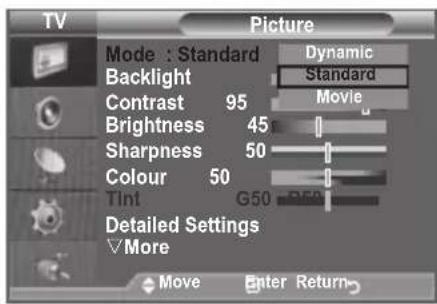
text_image
TV Picture Mode : Standard Backlight Contrast 95 Brightness 45 Sharpness 50 Colour 50 Tint G50 Detailed Settings More Move Enter Return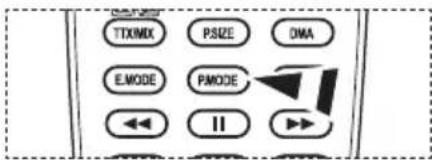
text_image
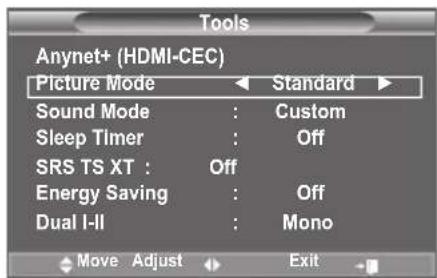
TTXMIX PSIZE DMA EMODE PMODE IIEasy Setting
- Press the TOOLS button on the remote control.
- Press the ▲ or ▼ button to select "Picture Mode".
- Press the ◀ or ▶ button to select the desired picture mode.
- Press the EXIT or TOOLS button to exit.
text_image
Tools Anynet+ (HDMI-CEC) Picture Mode Standard Sound Mode : Custom Sleep Timer : Off SRS TS XT : Off Energy Saving : Off Dual I-II : Mono Move Adjust ExitAdjusting the Custom Picture
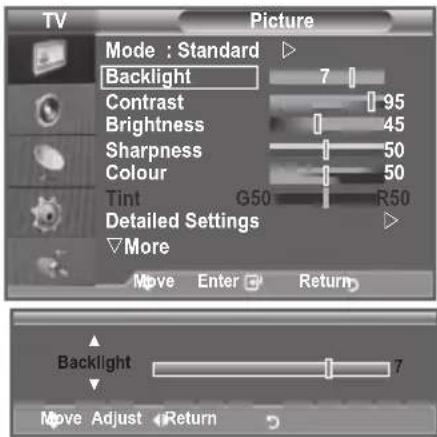
Your set has several settings which allow you to control picture quality.
- To select the desired picture effect, follow the "Changing the Picture Standard" instructions number 1 to 3.
- Press the ▲ or ▼ button to select a particular item. Press the ENTER button.
- Press the ◀ or ▶ button to decrease or increase the value of a particular item. Press the ENTER button.
- Press the EXIT button to exit.
◆ Backlight: Adjusts the screen brightness by adjusting the LCD backlight brightness. (0\~10)
◆ Contrast: Adjusts the lightness and darkness between objects and the background.
♦ Brightness: Adjusts the brightness of the whole screen.
◆ Sharpness: Adjusts the outline of objects to either sharpen them or make them more dull.
◆ Colour: Adjusts the colours, making them lighter or darker.
◆ Tint: Adjusts the colour of objects, making them more red or green for a more natural look.
text_image
TV Picture Mode : Standard Backlight 7 Contrast 95 Brightness 45 Sharpness 50 Colour 50 Tint G50 R50 Detailed Settings More Move Enter Return Backlight 7 Move Adjust ReturnThe adjusted values are stored according to the selected Picture mode.
In PC mode, you can only make changes to "Backlight", "Contrast" and "Brightness".
TV, Ext., AV, S-Video modes of the PAL system, you cannot use the "Tint" Function.
You can return to the factory defaults picture settings by selecting the "Reset". (Refer to "Resetting the Picture Settings to the Factory Defaults" on page 17)
Configuring Detailed Settings on the Picture
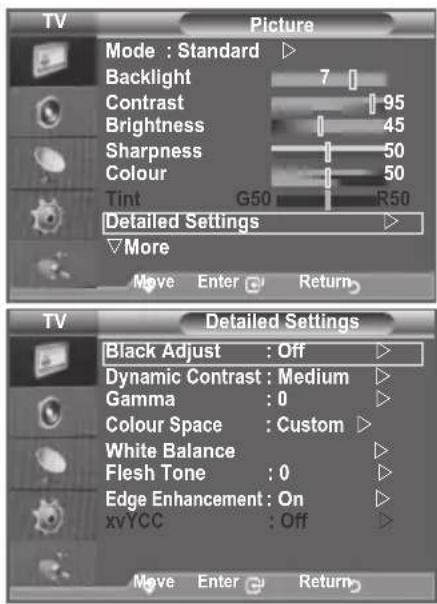
You can set detailed picture settings.
- Press the MENU button to display the menu.
Press the ENTER button, to select "Picture". - Press the ENTER button to select "Mode". Press the ▲ or ▼ button to select "Standard" or "Movie", then press the ENTER button.
- Press the ▲ or ▼ button to select "Detailed Settings", then press the ENTER button.
- Select the required option by pressing the ▲ or ▼ button, then press the ENTER button.
- When you are satisfied with your setting, press the ENTER button.
- Press the EXIT button to exit.
"Detailed Settings" is available in "Standard" or "Movie" mode.
In PC mode, you can only make changes to "Dynamic Contrast", "Gamma" and "White Balance" from among the "Detailed Settings" items.
text_image
TV Picture Mode : Standard ▶ Backlight 7 | Contrast 95 Brightness 45 Sharpness 50 Colour 50 Tint G50 R50 Detailed Settings ▶ ▼More Move Enter Return TV Detailed Settings Black Adjust : Off ▶ Dynamic Contrast : Medium ▶ Gamma : 0 ▶ Colour Space : Custom ▶ White Balance ▶ Flesh Tone : 0 ▶ Edge Enhancement : On ▶ xvYCC : Off ▶ Move Enter ReturnBlack Adjust: Off/Low/Medium/High
You can directly select the black level on the screen to adjust the screen depth.
◆ Dynamic Contrast: Off/Low/Medium/High You can adjust the screen contrast so that the optimal contrast is provided.
♦ Gamma: -3 \~ +3
You can adjust the Primary Colour (Red, Green, Blue) Intensity.
Press the ◀ or ▶ button until you reach the optimal setting.
♦ Colour Space: Auto/Native/Custom
Colour space is a Colour matrix composed of "Red", "Green" and "Blue" Colours.
Select your favourite Colour space to experience the most natural Colour.
Auto: Auto Color Space automatically adjusts to the most natural color tone based on program sources.
♦ Native: Native Color Space offers deep and rich color tone.
♦ Custom: Adjusts the color range to suit your preference.
Customizing the Colour Space
Colour: Red/Green/Blue/Yellow/Cyan/Magenta
Adjusts the Colour range to suit your preference.
"Colour" is available when "Colour Space" is set to "Custom".
Press the ▲ or ▼ button to select "Red", "Green", "Blue", "Yellow", "Cyan" or "Magenta".
Press the ENTER button.
Red/Green/Blue: In "Colour", you can adjust the RGB values for the selected colour.
Press the ▲ or ▼ button to select "Red", "Green" or "Blue" to change it.
Press the ENTER button.
Press the ◀ or ▶ button to decrease or increase the value of a particular item. Press the
ENTER button.
Reset: Resets the colour space to the default values.
- White Balance: R-Offset/G-Offset/B-Offset/R-Gain/G-Gain/B-Gain/Reset
You can adjust the colour temperature for more natural picture colours.
R-Offset/G-Offset/B-Offset/R-Gain/G-Gain/B-Gain: Changing the adjustment value will refresh the adjusted screen.
Select the required option by pressing the ▲ or ▼ button, then press the ENTER button.
Press the ◀ or ▶ button until you reach the optimal setting.
Reset: The previously adjusted white balance will be reset to the factory defaults.
♦ Flesh Tone: -15 \~ +15
You can emphasize the pink 'flesh tone' in the picture.
Press the ◀ or ▶ button until you reach the optimal setting.
➢ Changing the adjustment value will refresh the adjusted screen.
◆ Edge Enhancement: Off/On
You can emphasize object boundaries in the picture.
◆ xvYCC: Off/On
Setting the xvYCC mode to On increases detail and colour space when watching movies from an external device (ie. DVD player) connected to the HDMI or Component IN jacks. You must set the Picture Mode to Movie to enjoy this feature.
Only available in "HDMI" and "Component" on "Movie" mode.
If xvYCC function is active, PIP cannot be selected.
Resetting the Picture Settings to the Factory Defaults
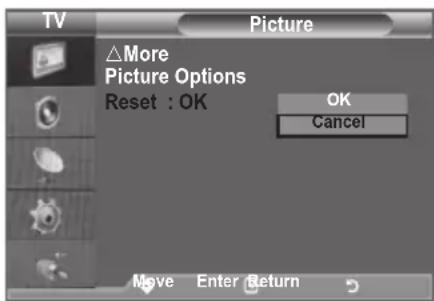
You can return to the factory defaults picture settings.
- To select the desired picture effect, follow the "Changing the Picture Standard" instructions number 1 to 3 (On page 15).
- Press the ▲ or ▼ button to select "Reset", then press the ENTER button.
- Press the ▲ or ▼ button to select "OK" or "Cancel".
Press the ENTER button.
- Press the EXIT button to exit.
The "Reset" will be set for each "Picture" mode.
text_image
TV Picture △More Picture Options Reset : OK OK Cancel Move Enter ReturnConfiguring Picture Option
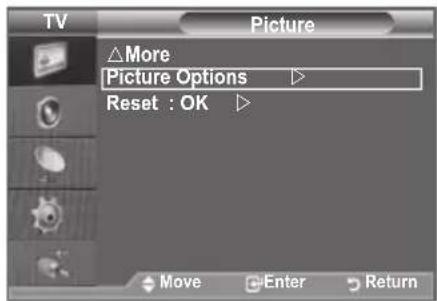
- Press the MENU button to display the menu.
Press the ENTER button, to select "Picture".
-
Press the ▲ or ▼ button to select "Picture Options", then press the ENTER button.
-
Select the required option by pressing the ▲ or ▼ button, then press the ENTER button.
-
When you are satisfied with your setting, press the ENTER button.
-
Press the EXIT button to exit.
In PC mode, you can only make changes to the "Colour Tone" and "Size" from among the items in "Picture Options".
text_image
TV Picture △More Picture Options ▶ Reset : OK ▶ Move Enter Return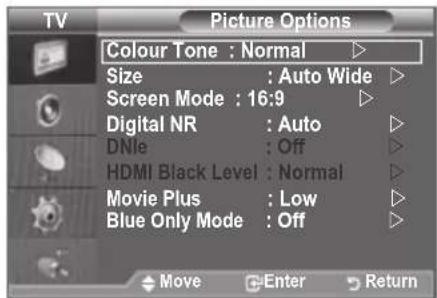
text_image
TV Picture Options Colour Tone : Normal ▶ Size : Auto Wide ▶ Screen Mode : 16:9 ▶ Digital NR : Auto ▶ DNle : Off ▶ HDMI Black Level : Normal ▶ Movie Plus : Low ▶ Blue Only Mode : Off ▶ Move Enter ReturnColour Tone: Cool2/Cool1/Normal/Warm1/Warm2
You can select the most comfortable colour tone to your eyes.
The adjusted values are stored according to the selected "Picture" mode.
“Warm1” or “Warm2” is only activated when the picture mode is "Movie".
◆ Size: Auto Wide/16:9/Wide Zoom/Zoom/4:3/Just Scan
You can select the picture size which best corresponds to your viewing requirements.
◆ Auto Wide: Automatically adjusts the picture size to the "16:9" aspect ratio.
◆ 16:9: Adjusts the picture size to 16:9 appropriate for DVDs or wide broadcasting.
♦ Wide Zoom: Magnify the size of the picture more than 4:3.
◆ Zoom: Magnifies the 16:9 wide picture (in the vertical direction) to fit the screen size.
◆ 4:3: This is the default setting for a video movie or normal broadcasting.
Just Scan: Use the function to see the full image without any cutoff when HDMI (720p/1080i/1080p) or Component (1080i/1080p) signals are input.
➢ "Auto Wide" function is available only in "TV", "Ext.1", "Ext.2", "AV", and "S-Video" mode.
In PC Mode, only "16:9" and "4:3" mode can be adjusted.
➢ Settings can be adjusted and stored for each external device you have connected to an input of the TV.
Temporary image retention may occur when viewing a static image on the set for more than two hours.
"Wide Zoom": Move the screen up/down using the ▲ or ▼ button after selecting the ☐ by pressing the ▶ or ENTER button.
"Zoom": Select □ by pressing the ◀ or ▶ button. Use the ▲ or ▼ button to move the picture up and down. After selecting □, use the ▲ or ▼ button to magnify or reduce the picture size in the vertical direction.
When Double (□,□) mode has been set in PIP, the Picture Size cannot be set.
After selecting "Just Scan" in HDMI (1080i/1080p) or Component (1080i/1080p) mode:
Select by pressing the ◀ or ▶ button. Use the ▲, ▼, ◀ or ▶ button to move the picture.
Reset: Press the ◀ or ▶ button to select "Reset", then press the ENTER button.
You can initialize the setting.
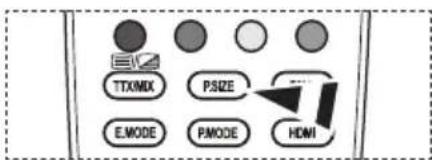
You can select these options by simply pressing the P.SIZE button on the remote control.
text_image
TTXMX PSIZE E.MODE PMODE HDMIScreen Mode: 16:9/Wide Zoom/Zoom/4:3
When setting the picture size to "Auto Wide" in a 16:9 wide TV, you can determine the picture size you want to see the 4:3 WSS (Wide Screen Service) image or nothing. Each individual European country requires different picture size so this function is intended for users to select it.
◆ 16:9: Sets the picture to 16:9 wide mode.
♦ Wide Zoom: Magnify the size of the picture more than 4:3.
◆ Zoom: Magnify the size of the picture vertically on screen.
◆ 4:3: Sets the picture to 4:3 normal mode.
This function is available in "Auto Wide" mode.
This function is not available in "PC", "Component" or "HDMI" mode.
◆ Digital NR: Off/Low/Medium/High/Auto
If the broadcast signal received by your TV is weak, you can activate the Digital Noise Reduction feature to help reduce any static and ghosting that may appear on the screen.
When the signal is weak, select one of the other options until the best picture is displayed.
DNle: Off/ Demo/On
This TV includes the DNle function so as to provide a high visual quality. If you set DNle to on, you can view the screen with the DNle feature activated. If you set the DNle to Demo, you can view the applied DNle and normal pictures on the screen, for demonstration purposes. Using this function, you can view the difference in the visual quality.
DNIe™ (Digital Natural Image engine) DNIe™
This feature brings you more detailed image with 3D noise reduction, detail enhancement, contrast enhancement and white enhancement. New image compensation Algorithm gives brighter, clearer, more detailed image to you. DNle ^™ technology will fit every signal into your eyes.
This function is not available in "Movie" and "Standard" mode.
♦ HDMI Black Level: Normal/Low
You can directly select the black level on the screen to adjust the screen depth.
This function is active only when the external input connects to HDMI(RGB signals).
♦ Movie Plus: Off/Low/Medium/High/Demo
You can view more natural skin and clear text even in fast moving scenes.
Use this function when watching movies.
This function is not available in "Wide Zoom" and "Zoom" modes.
This function is not available when "PIP" is set to "On".
It is not supported in HDMI 1080p/24Hz mode.
◆ Blue Only Mode: Off/On
This function is for AV device measurement experts. This function displays the blue signal only by removing the red and green signals from the video signal so as to provide a Blue Filter effect that is used to adjust the Colour and Tint of video equipment such as DVD players, Home Theaters, etc.
Using this function, you can adjust the Colour and Tint to preferred values appropriate to the signal level of each video device using the Red/Green/Blue/Cyan/Magenta/Yellow Colour Bar Patterns, without using an additional Blue Filter.
“Blue Only Mode” is available when the picture mode is set to “Movie” or “Standard”.
Viewing the Picture In Picture (PIP)
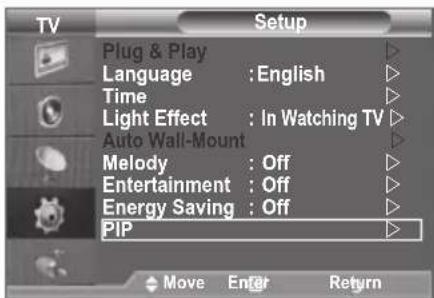
You can display a sub picture within the main picture of set programme or video input. In this way, you can watch the picture of set programme or video input from any connected equipment while watching the main picture.
- Press the MENU button to display the menu.
Press the ▲ or ▼ button to select "Setup", then press the ENTER button. - Press the ▲ or ▼ button to select "PIP", then press the ENTER button.
- Select the required option by pressing the ▲ or ▼ button, then press the ENTER button.
- When you are satisfied with your setting, press the ENTER button.
- Press the EXIT button to exit.
You may notice that the picture in the PIP window becomes slightly unnatural when you use the main screen to view a game or karaoke.
text_image
TV Setup Plug & Play Language : English Time Light Effect : In Watching TV Auto Wall-Mount Melody : Off Entertainment : Off Energy Saving : Off PIP Move Enter Return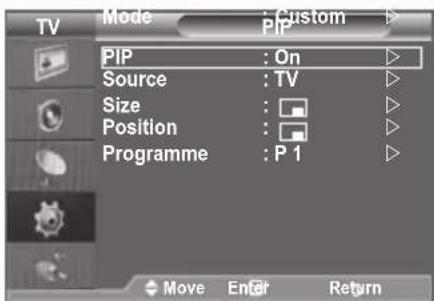
text_image
TV Mode : Custom PIP PIP : On Source : TV Size : Position : Programme : P 1 Move Enter ReturnEasy Setting
- Press the TOOLS button on the remote control.
- Press the ▲ or ▼ button to select "PIP", then press the ENTER button.
- Press the ▲ or ▼ button to select a particular item.
- Press the ◀ or ▶ button to select the required option.
- Press the EXIT or TOOLS button to exit.
◆ PIP: On/Off
You can activate or deactivate the PIP function.
You can select a source of the sub-picture.
Size: /
You can select a size of the sub-picture.
If main picture is in "HDMI" mode, "Size" is available.
Position: /
You can select a position of the sub-picture.
In Double (□,□) mode, "Position" cannot be selected.
Programme
You can select a channel of the sub-picture only when the "Source" is set to "TV".
Sound Features
- Press the MENU button to display the menu. Press the ▲ or ▼ button to select "Sound", then press the ENTER button.
- Select the required option by pressing the ▲ or ▼ button, then press the ENTER button.
- When you are satisfied with your setting, press the ENTER button.
- Press the EXIT button to exit.
Mode: Standard/Music/Movie/Speech/Custom
You can select the type of special sound effect to be used when watching a given broadcast.
Easy Setting
- Press the TOOLS button on the remote control.
- Press the ▲ or ▼ button to select "Sound Mode".
- Press the ◀ or ▶ button to select the desired sound mode.
- Press the EXIT or TOOLS button to exit.
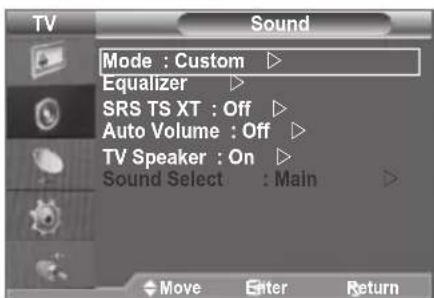
text_image
TV Sound Mode : Custom ▶ Equalizer ▶ SRS TS XT : Off ▶ Auto Volume : Off ▶ TV Speaker : On ▶ Sound Select : Main ▶ Move Enter Return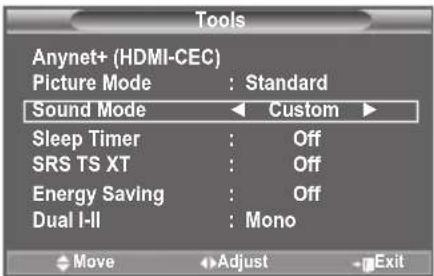
text_image
Tools Anynet+ (HDMI-CEC) Picture Mode : Standard Sound Mode ← Custom ► Sleep Timer : Off SRS TS XT : Off Energy Saving : Off Dual I-II : Mono Move Adjust Exit♦ Equalizer: Balance/100Hz/300Hz/1kHz/3kHz/10kHz
The sound settings can be adjusted to suit your personal preferences.
If you make any changes to these settings, the sound mode is automatically switched to "Custom".
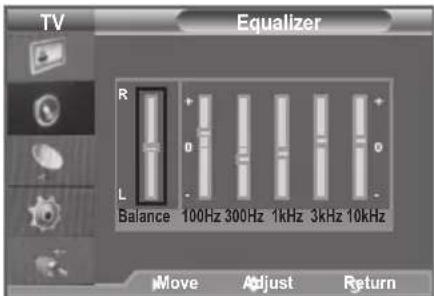
text_image
TV Equalizer R L Balance 100Hz 300Hz 1kHz 3kHz 10kHz Move Adjust Return◆ SRS TS XT: Off/On
TruSurround XT is a patented SRS technology that solves the problem of playing 5.1 multichannel content over two speakers. TruSurround delivers a compelling, virtual surround sound experience through any two-speaker playback system, including internal television speakers. It is fully compatible with all multichannel formats.
Easy Setting
- Press the TOOLS button on the remote control.
- Press the ▲ or ▼ button to select "SRS TS XT".
- Press the ◀ or ▶ button to select the "Off" or "On".
- Press the EXIT or TOOLS button to exit.
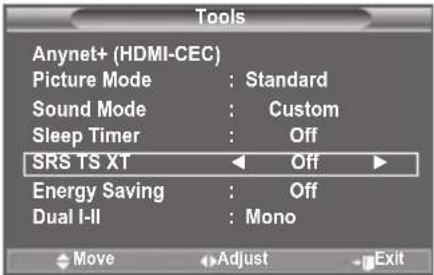
text_image
Tools Anynet+ (HDMI-CEC) Picture Mode : Standard Sound Mode : Custom Sleep Timer : Off SRS TS XT Off Energy Saving : Off Dual I-II : Mono Move Adjust Exit
TruSurround XT, SRS and Symbol are trademarks of SRS Labs, Inc. TruSurround XT technology is incorporated under license from SRS Labs, Inc.
◆ Auto Volume: Off/On
Each broadcasting station has its own signal conditions, and so it is not easy to adjust the volume every time the channel is changed. This feature lets you automatically adjust the volume of the desired channel by lowering the sound output when the modulation signal is high or by raising the sound output when the modulation signal is low.
TV Speaker: Off/On
If you want to hear the sound through separate speakers, cancel the internal amplifier.
The ▲+, ▲- and MUTE buttons do not operate when the "TV Speaker" is set to Off.
When "TV Speaker" is set to "Off", you can operate only "Sound Select" (in PIP mode) in Sound menu.
◆ Sound Select: Main/Sub
When the PIP feature is activated, you can listen to the sound of the sub (PIP) picture.
- Main: Used to listen to the sound of the main picture.
- Sub: Used to listen to the sound of the sub picture.
Selecting the Sound Mode
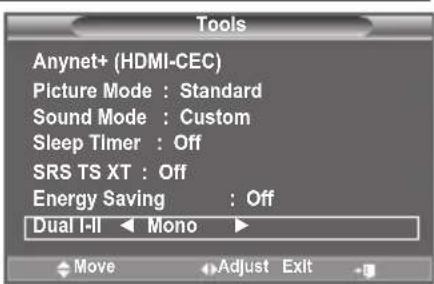
You can set the sound mode in the "Tools" menu. When you set to "Dual I-II", the current sound mode is displayed on the screen.
- Press the TOOLS button on the remote control.
- Press the ▲ or ▼ button to select "Dual I-II".
- Press the ◀ or ▶ button to select required option.
- Press the ENTER button.
text_image
Tools Anynet+ (HDMI-CEC) Picture Mode : Standard Sound Mode : Custom Sleep Timer : Off SRS TS XT : Off Energy Saving : Off Dual I-II Mono| Audio Type Dual | 1/2 | Default | |
| A2 Stereo | Mono MONO | Automatic change | |
| Stereo STEREO | MONO | ||
| Dual DUAL | 1 DUAL 2 | DUAL 1 | |
| NICAM Stereo | Mono MONO | Automatic change | |
| Stereo MONO | STEREO | ||
| Dual | MONO DUAL 1DUAL2 | DUAL 1 | |
If the stereo signal is weak and an automatic switching occurs, then switch to the Mono.
This function is only activated in stereo sound signal. It is deactivated in mono sound signal.
This function is only available in TV mode.
Connecting Headphones (Sold separately)
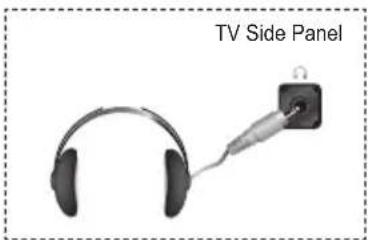
You can connect a set of headphones to your set if you wish to watch a TV programme without disturbing the other people in the room.
When you insert the head set jack into the corresponding port, you can operate only "Auto Volume" and "Sound Select"(in PIP mode) in Sound menu.
➢ Prolonged use of headphones at a high volume may damage your hearing.
You will not receive sound from the speakers when you connect headphones to the system.
The headphone volume and TV volume are adjusted differently.
natural_image
Illustration of a pair of headphones connected to a cable labeled 'TV Side Panel' (no other text or symbols)Setting and Displaying the Current Time
You can set the TV's clock so that the current time is displayed when you press the INFO button. You must also set the time if you wish to use the automatic On/Off timers.
-
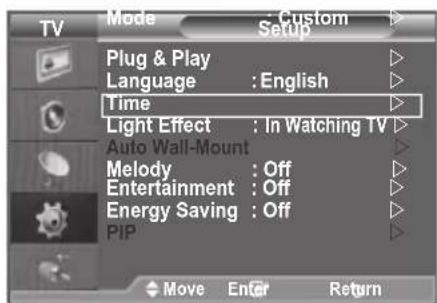
Press the MENU button to display the menu. Press the ▲ or ▼ button to select "Setup", then press the ENTER button.
-
Press the ▲ or ▼ button to select "Time", then press the ENTER button.
-
Press the ENTER button to select "Clock Set".
| To... Press the.... | |
| Move to "Month", "Day", "Year", "Hour" or "Minute" | ◀ or ▶ button. |
| Set the "Month", "Day", "Year", "Hour" or "Minute" | ▲ or ▼ button. |
| Confirm the setting | ENTER ● button |
text_image
TV Mode Custom Setup Plug & Play Language : English Time Light Effect : In Watching TV Auto Wall-Mount Melody : Off Entertainment : Off Energy Saving : Off PIP Move Enter Return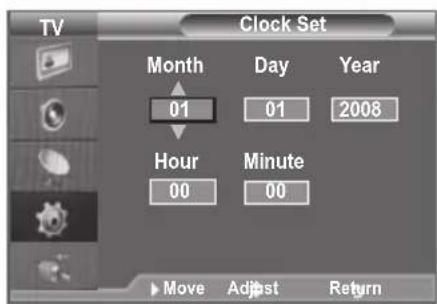
text_image
TV Clock Set Month Day Year 01 01 2008 Hour Minute 00 00 Move Adjust Return- Press the EXIT button to exit.
The current time will appear every time you press the INFO button.
You can also set "Year", "Month", "Day", "Hour" and "Minute" by pressing the number buttons on the remote control.
Setting the Sleep Timer
You can select a time period of between 30 and 180 minutes after which the television automatically switches to standby mode.
- Press the MENU button to display the menu. Press the ▲ or ▼ button to select "Setup", then press the ENTER button.
- Press the ▲ or ▼ button to select "Time", then press the ENTER button.
- Press the ▲ or ▼ button to select "Sleep Timer", then press the ENTER button.
- Press the ▲ or ▼ button repeatedly until the desired time appears (Off, 30, 60, 90, 120, 150, 180). Press the ENTER button.
- Press the EXIT button to exit. ➢ The TV automatically switches to standby mode when the timer reaches 0.
Easy Setting
- Press the TOOLS button on the remote control.
- Press the ▲ or ▼ button to select "Sleep Timer".
- Press the ◀ or ▶ button to select the minute.
- Press the EXIT or TOOLS button to exit.
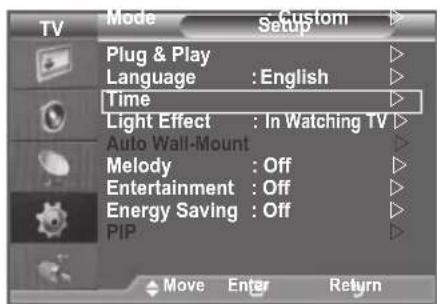
text_image
TV Mode Custom Setup Plug & Play Language : English Time Light Effect : In Watching TV Auto Wall-Mount Melody : Off Entertainment : Off Energy Saving : Off PIP Move Enter Return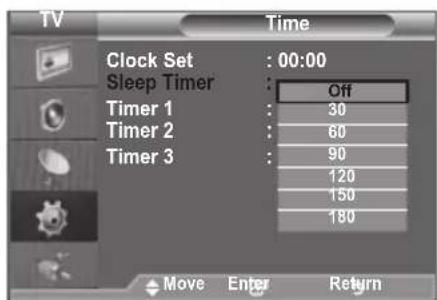
text_image
TV Time Clock Set : 00:00 Sleep Timer : Off Timer 1 : 30 Timer 2 : 60 Timer 3 : 90 120 150 180 Move Enter Return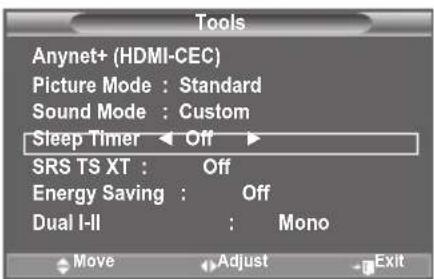
text_image
Tools Anynet+ (HDMI-CEC) Picture Mode : Standard Sound Mode : Custom Sleep Timer Off SRS TS XT : Off Energy Saving : Off Dual I-II : Mono Move Adjust ExitSwitching the Television On and Off Automatically
- Press the MENU button to display the menu. Press the ▲ or ▼ button to select "Setup", then press the ENTER button.
- Press the ▲ or ▼ button to select "Time", then press the ENTER button.
- Press the ▲ or ▼ button to select "Timer 1", "Timer 2", "Timer 3", then press the ENTER button. Three different On/Off Timer Settings can be made.
You must set the clock first.
- Press the ◀ or ▶ button to select the required item below. Press the ▲ or ▼ button to adjust to the setting satisfied.
On Time : Select hour, minute and "Activate"/"Inactivate". (To activate timer with the setting satisfied, set to "Activate".)
- Off Time : Select hour, minute and "Activate"/"Inactivate". (To activate timer with the setting satisfied, set to "Activate".)
Volume : Select the desired turn on volume level.
◆ Repeat : Select "Once", "Everyday", "Mon\~Fri", "Mon\~Sat" or "Sat\~Sun".
◆ Programme : When the On Timer is active, you can turn on a specific channel.
You can set the hour and minute directly by pressing the number buttons on the remote control.
Auto Power Off
When you set the timer On, the TV will eventually turn off, if no controls are operated for 3 hours after the TV was turned on by timer. This function is only available in timer On mode and prevents overheating, which may occur if a TV is on for too long time.
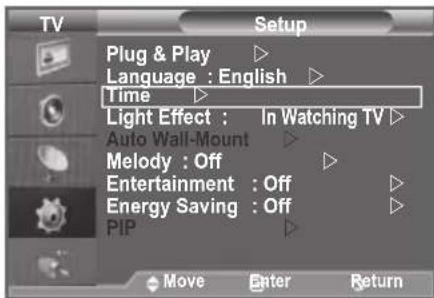
text_image
TV Setup Plug & Play ▶ Language : English ▶ Time ▶ Light Effect : In Watching TV ▶ Auto Wall-Mount ▶ Melody : Off ▶ Entertainment : Off ▶ Energy Saving : Off ▶ PIP ▶ Move Enter Return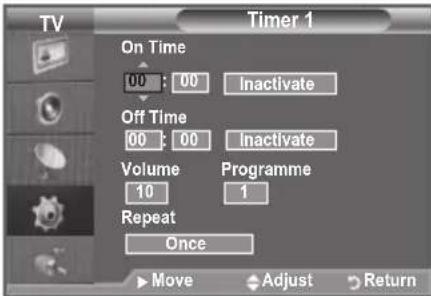
text_image
Timer 1 On Time 00 : 00 Inactivate Off Time 00 : 00 Inactivate Volume Programme 10 1 Repeat Once Move Adjust ReturnChoosing Your Language
When you start using your set for the first time, you must select the language which will be used for displaying menus and indications.
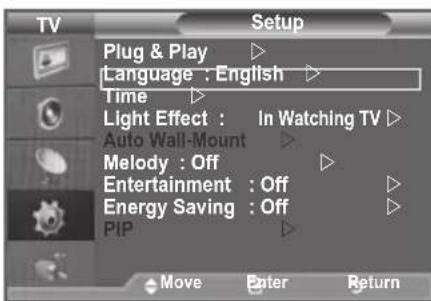
- Press the MENU button to display the on-screen menu. Press the ▲ or ▼ button to select "Setup", then press the ENTER button.
- Press the ▲ or ▼ button to select "Language", then press the ENTER button.
- Select a particular language by pressing the ▲ or ▼ button repeatedly. Press the ENTER button.
- Press the EXIT button to exit.
text_image
TV Setup Plug & Play ▶ Language : English ▶ Time ▶ Light Effect : In Watching TV ▶ Auto Wall-Mount ▶ Melody : Off ▶ Entertainment : Off ▶ Energy Saving : Off ▶ PIP ▶ Move Enter ReturnSetting the Light Effect (depending on the model)
You can turn on/off the LED on the front of TV according to the situation. Use it for saving power or when the LED dazzles your eyes.
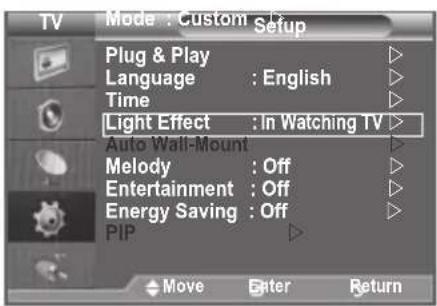
- Press the MENU button to display the on-screen menu. Press the ▲ or ▼ button to select "Setup", then press the ENTER button.
- Press the ▲ or ▼ button to select "Light Effect", then press the ENTER button.
- Press the ▲ or ▼ button to select "Off", "In Standby", "In Watching TV" or "Always".
Press the ENTER button.
- Off: LED will not come on.
◆ In Standby: Turns the LED on in standby mode.
◆ In Watching TV: Turns the LED on while watching TV.
◆ Always: LED is always on.
text_image
TV Mode : Custom Setup Plug & Play Language : English Time Light Effect : In Watching TV Auto Wall-Mount Melody : Off Entertainment : Off Energy Saving : Off PIP Move Enter Return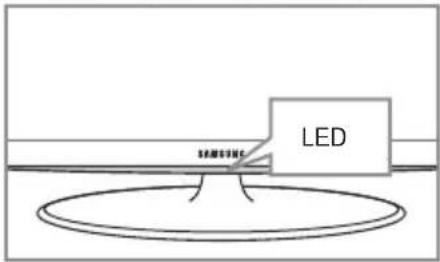
text_image
LEDSet the "Light Effect" to "Off" to reduce the power consumption.
- Press the EXIT button to exit.
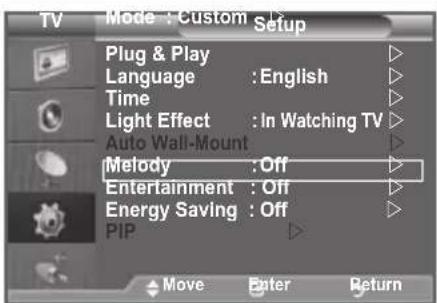
Melody / Entertainment / Energy Saving
- Press the MENU button to display the menu. Press the ▲ or ▼ button to select "Setup", then press the ENTER button.
- Select the required option by pressing the ▲ or ▼ button, then press the ENTER button.
- When you are satisfied with your setting, press the ENTER button.
- Press the EXIT button to exit.
text_image
TV Mode : Custom Setup Plug & Play Language : English Time Light Effect : In Watching TV Auto Wall-Mount Melody : Off Entertainment : Off Energy Saving : Off PIP Move Enter Return◆ Melody: Off/Low/Medium/High
The TV power on/off melody sound can be adjusted.
The Melody does not play
- When no sound is output from the TV because the MUTE button has been pressed.
- When no sound is output from the TV because the (Volume) button has been pressed.
- When the TV is turned off by Sleep Timer function.
Entertainment: Off/Sports/Cinema/Game
The “Entertainment” mode enables you to select the optimal display and sound for sports, cinema and games.
- Off: Switch the "Entertainment" function off.
- Sports: Provides the optimal picture and sound quality for sports. You can enjoy more thrilling colour and sound.
- Cinema: Provides the optimal picture and sound quality for cinema. You can experience a richer picture and enhanced sound.
- Game: Provides the optimal picture and sound quality for games. This mode accelerates the playing speed when using an external game console connected to the TV.
If you set any of the three “Entertainment” modes to On, the settings will be locked and can not be adjusted. If you want to make Picture and Sound mode adjustments, the “Entertainment” mode must be turned off.
The "Entertainment" settings are saved for each input source.
If you set any of the three "Entertainment" modes to On, "SRS TS XT" function is not available.
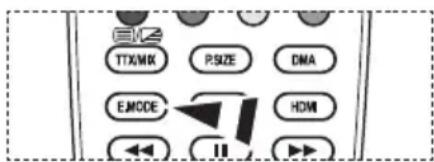
You can press the E.MODE button on the remote control repeatedly to change the "Entertainment" setting.
text_image
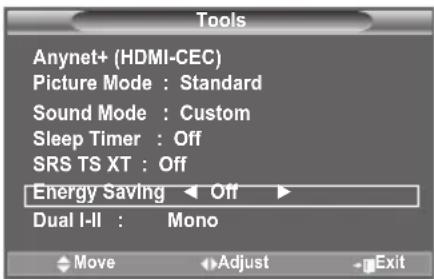
TTX/MK PSIZE DMA EMODE HDMI II◆ Energy Saving: Off/Low/Medium/High/Auto
This feature adjusts the screen brightness depending on the surrounding lighting conditions.
- Off: Turns off the energy saving function.
- Low: Sets the TV to low energy saving mode.
- Medium: Sets the TV to medium energy saving mode.
– High: Sets the TV to high energy saving mode.
- Auto: Automatically adjusts the brightness of the TV screen in accordance with the scenes.
Easy Setting
- Press the TOOLS button on the remote control.
- Press the ▲ or ▼ button to select "Energy Saving".
- Press the ◀ or ▶ button to select the "Off", "Low", "Medium", "High" or "Auto".
- Press the EXIT or TOOLS button to exit.
text_image
Tools Anynet+ (HDMI-CEC) Picture Mode : Standard Sound Mode : Custom Sleep Timer : Off SRS TS XT : Off Energy Saving ← Off → Dual I-II : Mono Move Adjust ExitSelecting the Source
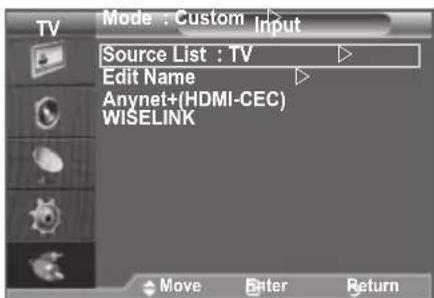
You can select among external sources connected to your TV's input jacks.
- Press the MENU button to display the menu.
Press the ▲ or ▼ button to select "Input", then press the ENTER button.
- Press the ENTER button again, to select "Source List".
When no external device is connected to your set, only "TV", "Ext.1", "Ext.2" are activated in the "Source List". "AV", "S-Video", "Component", "PC", "HDMI1", "HDMI2", "HDMI3" are activated only when they are connected to your set.
- Select the required device by pressing the ▲ or ▼ button. Press the ENTER button.
text_image
TV Mode : Custom Input Source List : TV Edit Name Anynet+(HDMI-CEC) WISELINK Move Enter Return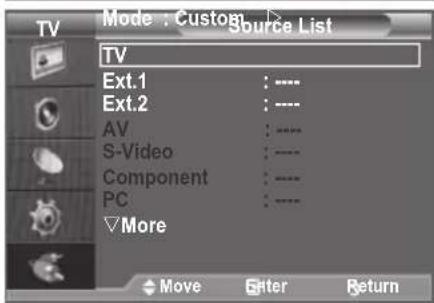
text_image
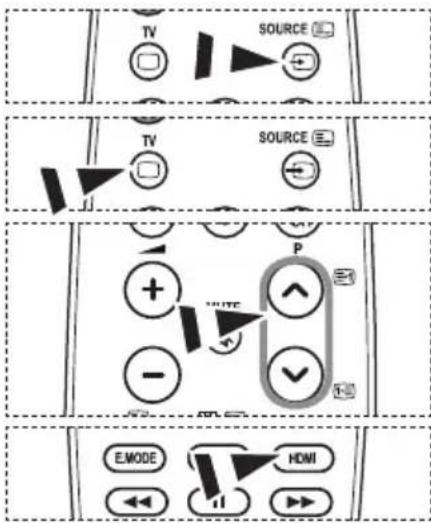
Mode : Custom Source List TV Ext.1 : ---- Ext.2 : ---- AV : ---- S-Video : ---- Component : ---- PC : ---- More Move Enter ReturnPress the SOURCE button on the remote control to toggle between all the available source.
TV mode can be selected by pressing the TV button, number buttons(0\~9), and the P^/√ button on the remote control.
You can also watch HDMI mode simply by pressing the HDMI button on the remote control.
text_image
TV SOURCE TV SOURCE + - WRITE P - E MODE HDMIEditing the Input Source Names
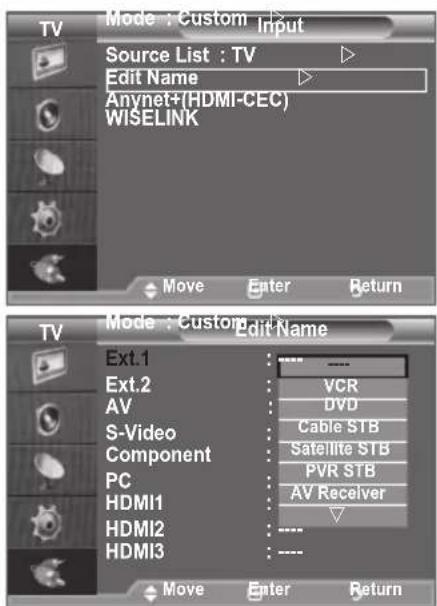
Name the device connected to the input jacks to make your input source selection easier.
- Press the MENU button to display the menu.
Press the ▲ or ▼ button to select "Input", then press the ENTER button.
-
Press the ▲ or ▼ button to select "Edit Name", then press the ENTER button.
-
Press the ▲ or ▼ button to select the device that you wish to edit.
Press the ENTER button.
- Press the ▲ or ▼ button to select the required device.
Press the ENTER button.
- Press the EXIT button to exit.
When a PC with a resolution of 1920 x 1080@60Hz is connected to the HDMI IN 2 port, you should set the "HDMI2" mode to "PC" in the "Edit Name" of the "Input" mode.
text_image
TV Mode : Custom Input Source List : TV Edit Name Anynet+(HDMI-CEC) WISELINK Move Enter Return TV Mode : Custom Edit Name Ext.1 Ext.2 AV S-Video Component PC HDMI1 HDMI2 HDMI3 Move Enter ReturnSetting up Your PC Software (Based on Windows XP)
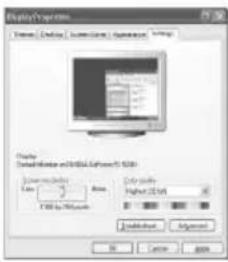
The Windows display-settings for a typical computer are shown below. The actual screens on your PC may be different depending upon your particular version of Windows and your particular video card. Even if your actual screens look different, the same, basic set-up information will apply in almost all cases. (If not, contact your computer manufacturer or Samsung Dealer.)
text_image
Display Properties Form1: Default Default: 100% Lock: 2.0000000000000000000000000000000000000000000000000000000000000000000000000000000000000000000000000000 Display Default: 15x15x15x15x15x15x15x15x15x15x15x15x15x15x15x15x15x15x15x15x15x15x15x15x15x15x15x15x15x15x15x15x15x15x Download Add OK Cancel Help- First, click on "Control Panel" on the Windows start menu.
-
When the control panel window appears, click on "Appearance and Themes" and a display dialog-box will appear.
-
When the control panel window appears, click on "Display" and a display dialog-box will appear.
-
Navigate to the "Settings" tab on the display dialog-box. The correct size setting (resolution): Optimum-1920 X 1080 If a vertical-frequency option exists on your display settings dialog box, the correct value is "60" or "60 Hz". Otherwise, just click "OK" and exit the dialog box.
Display Modes
Both screen position and size will vary depending on the type of PC monitor and its resolution. The resolutions in the table are recommended.
D-Sub Input
| Mode Resolution | Horizontal Frequency (kHz) | Vertical Frequency (Hz) | Pixel Clock Frequency (MHz) | Sync Polarity (H/V) | |
| IBM | 640 x 350 | 31.469 | 70.086 | 25.175 | +/- |
| 720 x 400 | 31.469 | 70.087 | 28.322 | -/+ | |
| VESA | 640 x 480 | 31.469 | 59.940 | 25.175 | -/- |
| 640 x 480 | 37.861 | 72.809 | 31.500 | -/- | |
| 640 x 480 | 37.500 | 75.000 | 31.500 | -/- | |
| 800 x 600 | 37.879 | 60.317 | 40.000 | +/+ | |
| 800 x 600 | 48.077 | 72.188 | 50.000 | +/+ | |
| 800 x 600 | 46.875 | 75.000 | 49.500 | +/+ | |
| 1024 x 768 | 48.363 | 60.004 | 65.000 | -/- | |
| 1024 x 768 | 56.476 | 70.069 | 75.000 | -/- | |
| 1024 x 768 | 60.023 | 75.029 | 78.750 | +/+ | |
| 1280 x 1024 | 63.981 | 60.020 | 108.000 | +/+ | |
| 1280 x 1024 | 79.976 | 75.025 | 135.000 | +/+ | |
| 1360 x 768 | 47.712 | 60.015 | 85.500 | +/+ | |
| 1600 x 1200 | 75.000 | 60.000 | 162.000 | +/+ | |
| CVT 1920 x | 1080RB 66.587 59.934 138.500 +/ - | ||||
HDMI/DVI Input
| Mode Resolution | Horizontal Frequency (kHz) | Vertical Frequency (Hz) | Pixel Clock Frequency (MHz) | Sync Polarity (H/V) | |
| VESA | 640 x 480 | 31.469 | 59.940 | 25.175 | - / - |
| 800 x 600 | 37.879 | 60.317 | 40.000 | + / + | |
| 1024 x 768 | 48.363 | 60.004 | 65.000 | - / - | |
| 1280 x 1024 | 63.981 | 60.020 | 108.000 | + / + | |
| 1360 x 768 | 47.712 | 60.015 | 85.500 | + / + | |
| 1600 x 1200 | 75.000 | 60.000 | 162.000 | + / + | |
| CEA 1920 x | 1080p 67.500 60.000 148.500 + / + | ||||
When using an HDMI/DVI cable connection, you must use the HDMI IN 2 jack.
The interlace mode is not supported.
The set might operate abnormally if a non-standard video format is selected.
Separate and Composite modes are supported. SOG is not supported.
Too long or low quality VGA cable can cause picture noise at high resolution modes (1920x1080 or 1600x1200).
Setting up the TV with your PC
➢ Press the SOURCE button to select PC mode.
- Press the MENU button to display the menu.
Press the ENTER button, to select "Picture".
- Select the required option by pressing the ▲ or ▼ button, then press the ENTER button.
- When you are satisfied with your setting, press the ENTER button.
- Press the EXIT button to exit.
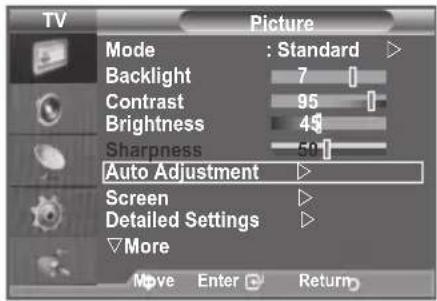
Auto Adjustment
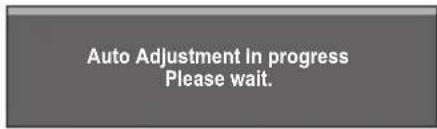
Auto adjustment allows the PC screen of set to self-adjust to the incoming PC video signal. The values of fine, coarse and position are adjusted automatically.
text_image
TV Picture Mode : Standard ▷ Backlight 7 1 Contrast 95 1 Brightness 45 Sharpness 50 1 Auto Adjustment ▷ Screen ▷ Detailed Settings ▷ ▼More Move Enter ReturnEasy Setting
- Press the TOOLS button on the remote control.
- Press the ▲ or ▼ button to select "Auto Adjustment", then press the ENTER button.
text_image
Auto Adjustment In progress Please wait.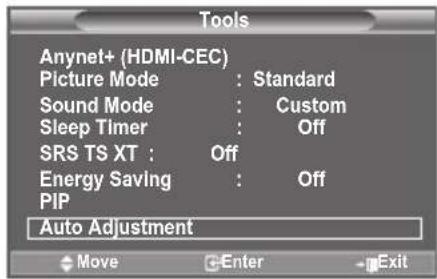
text_image
Tools Anynet+ (HDMI-CEC) Picture Mode : Standard Sound Mode : Custom Sleep Timer : Off SRS TS XT : Off Energy Saving : Off PIP Auto Adjustment Move Enter ExitScreen:
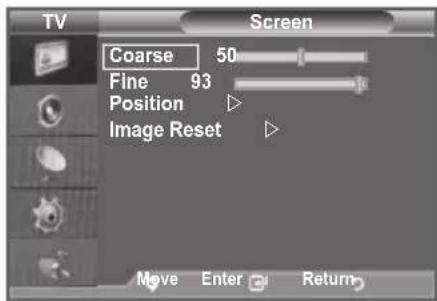
Coarse/Fine
The purpose of picture quality adjustment is to remove or reduce picture noise. If the noise is not removed by Fine-tuning alone, then adjust the frequency as best as possible (coarse) and Fine-tune again. After the noise has been reduced, readjust the picture so that it is aligned on the center of screen.
Press the ▲ or ▼ button to select "Coarse" or "Fine", then press the ENTER button.
Press the ◀ or ▶ button to adjust the screen quality.
Press the ENTER button.
text_image
TV Screen Coarse 50 Fine 93 Position Image Reset Move Enter ReturnPosition
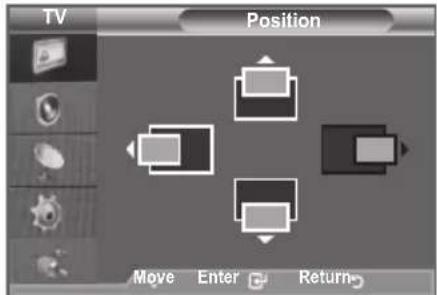
Adjust the PC's screen positioning if it does not fit the TV screen.
Press the ▲ or ▼ button to adjusting the Vertical-Position.
Press the ◀ or ▶ button to adjust the Horizontal-Position.
Press the ENTER button.
text_image
TV Position Move Enter ReturnImage Reset
You can replace all image settings with the factory default values.

text_image
TV Screen Coarse 50 Fine 93 Position Image Reset Move Enter ReturnUsing the WISELINK Function
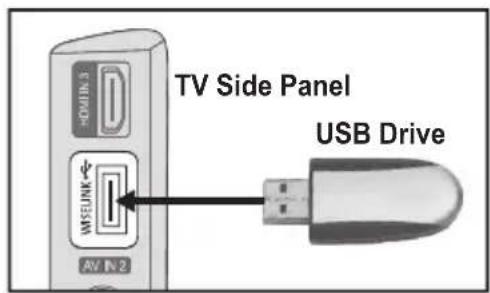
This function enables you to view and listen to photo (JPEG) and audio files (MP3) saved on a USB Mass Storage Class (MSC) device.
Press the POWER button on the remote control or your set. Connect a USB device containing JPEG and/or MP3 files to the WISELINK jack (USB jack) on the side of the TV.
If you enter the WISELINK mode with no USB device connected the message "There is no device connected" will appear. In this case, insert the USB device, exit the screen by pressing the W.LINK button on the remote control and enter the WISELINK screen again.
text_image
TV Side Panel USB Drive HOLD WISUNK AV IN 2Only alphanumeric characters must be used as a folder name or filename (photo, music).
The file system only supports FAT16/32 (The NTFS file system is not supported)
Certain types of USB Digital camera and audio devices may not be compatible with this TV.
Wiselink only supports the USB Mass Storage Class device (MSC). MSC is a Mass Storage Class Bulk-Only Transport device. Examples of MSC are Thumb drives and Flash Card Readers (Both USB HDD and HUB are not supported.)
Before connecting your device to the TV, please back up your files to prevent them from damage or loss of data.SAMSUNG is not responsible for any data file damage or data loss.
Please connect directly to the USB port of your TV. If you are using a separate cable connection, there may be a USB Compatibility problem.
Only MP3 and JPEG file formats are supported.
The Wiselink mp3 format only supports music files with a high sampling frequency (32 kHz, 44.1 kHz, or 48 kHz).
We recommend the sequential jpeg format. Progressive jpeg uses a lot of memory and decoding may fail.
Do not disconnect the USB device while it is loading.
MTP (Media Transfer Protocol) is not supported.
The playing duration of an mp3 file may be displayed as '00:00:00' if its playing time information is not found at the start of the file.
The higher the resolution of the image, the longer it takes to display on the screen.
The Photo or Music List displays up to 300 folders or files.
Loading may take some time depending on the size of the file.
Using the WISELINK Menu
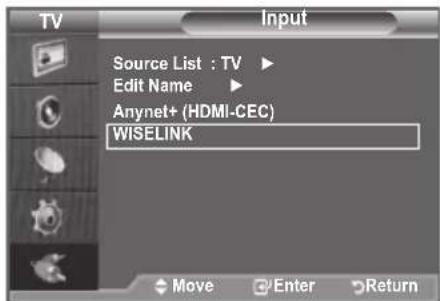
- Press the MENU button. Press the ▲ or ▼ button to select "Input", then press the ENTER button.
-
Press the ▲ or ▼ button to select "WISELINK", then press the ENTER button.
-
Press the ▲ or ▼ button to select the corresponding USB Memory Device, then press the ENTER button.
The "WISELINK" menu differs depending on the USB Memory Device connected to TV.
Some devices may not be supported due to compatibility problems.
- Press the ◀ or ▶ button to move to an icon, then press the ENTER button.
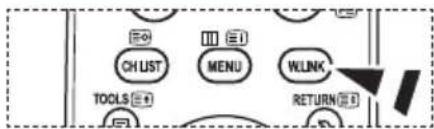
To exit WISELINK mode, press the W.LINK button on the remote control.
text_image
TV Input Source List : TV ▶ Edit Name ▶ Anynet+ (HDMI-CEC) WISELINK Move Enter Return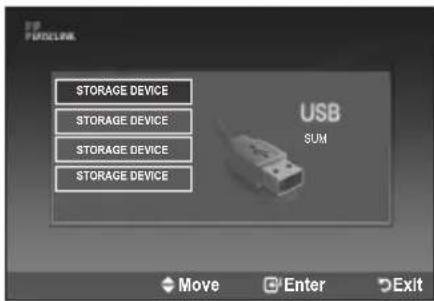
text_image
STORAGE DEVICE STORAGE DEVICE STORAGE DEVICE STORAGE DEVICE USB SUM Move Enter Exit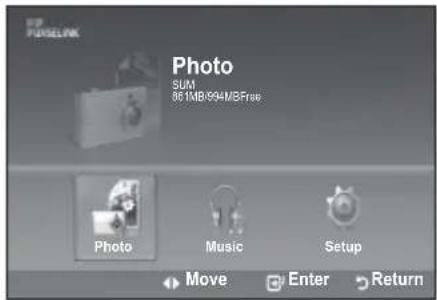
text_image
FOR PURLINK Photo SUM 861MB/994MB/8Free Photo Music Setup Move Enter ReturnPress the W.LINK button on the remote control to display a WISELINK menu.
text_image
CH LIST MENU WLINK TOOLS RETURNUsing the Remote Control Button in WISELINK Menu
| Button Operations | |
| ▲/▼/◄/►Move the cursor and select an item. | |
| ENTER | Select the currently selected item. |
| Play the Slide Show or MP3 file. | |
| Pause the Slide Show or MP3 file. | |
| RETURN Return to the previous menu. | |
| INFO Run various functions from the Photo and Music menus. | |
| Stop the current slide show or MP3 file. | |
| Page Up or Down (file list item) | |
| EXIT Stop the current function and return to the previous high-level menu. | |
Using the PHOTO (JPEG) List
This menu shows JPEG files and folders saved on an USB memory device.
- Complete Steps 1 to 3 of "Using the WISELINK Menu". (Refer to page 31)
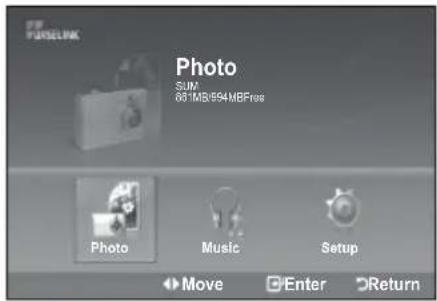
- Press the ◀ or ▶ button to move to "Photo", then press the ENTER button. The saved file information is displayed as a folder or file.
- Press the ▲, ▼, ◀ and ▶ buttons to select a file.
- Pressing the ENTER button over a photo icon shows the currently selected photo in full screen.
- Pressing the ENTER button over a folder icon shows the JPEG files included in the folder.
To exit WISELINK mode, press the W.LINK button on the remote control.
Moving to a photo may take a few seconds to load the file. At this point, the icon will appear at the top left of the screen.
It takes time to show JPEG files as Thumbnail images.
This menu only shows files whose file extension is jpg. Files of other formats such as bmp or tiff will not be displayed.
The files are displayed on a page. 15 thumbnail photos are displayed per page.
The thumbnails are numbered from left to right and from top to bottom, from 1 to 15.
Certain types of USB Digital camera and audio devices may not be compatible with this TV.
➢ Folders are displayed first and they are followed by all JPEG files in the current folder. The folders and JPEG files are sorted in alphabetical order.
If the photo is displayed in full screen, you can zoom in and out or rotate the photo on the screen.
While a full screen is displayed, ◀ or ▶ button will let you see another photo image in the same folder.
➢ Press the button when a Photo icon is selected to start a Slide Show.
➢ Photos without EXIF information may not be displayed as thumbnail images in the PHOTO LIST depending on the picture quality and resolution.
text_image
PHYSELINK Photo SUM 83 MB/994MBFree Photo Music Setup Move Enter Return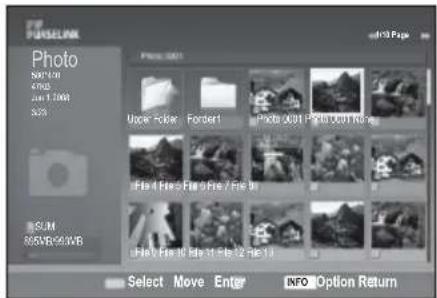
text_image
Photo SINCHI 47KB 2001.1.2003 S25 SUM 805VR/60VR Photo 001 Upper Folder Forder1 Photo 001 Photo 001 File 4 Files 9 Files 9 Files 7 Files 8 File 7 Files 10 File 11 File 12 File 13 Select Move Enter INFO Option ReturnViewing a Slide Show
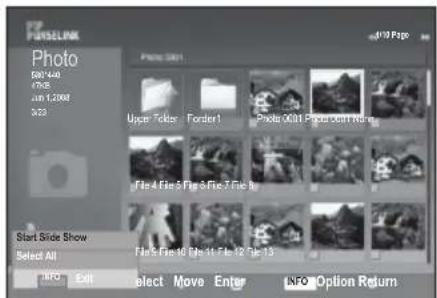
- Press the INFO button to display the option("Start Slide Show", "Select All").
- Press the ▲ or ▼ button to select "Start Slide Show" then press the ENTER button.
During the slide show, files are displayed in order from the currently shown file.
MP3 files can be automatically played during the Slide Show if the Default Background Music is set to On. To enable this function, MP3 files and other photo files must be located in the same folder on the USB Memory Device.
- Press the INFO button during the slide show to set the following options ("Slide Show Speed", "Background Music", "Background Music Setting", "List"). Press the ▲ or ▼ button to select the option, then press the ENTER button.
• After setting the option press the ENTER button to make a change.
text_image
FORSELINK Photo 507448 0768 201.2000 N23 Photo 507 Upper Folder Folder 1 Photo 001t1 Photo 001t1 Right File 4 File 5 File 6 File 7 File 8 File 5 File 10 File 11 File 12 File 13 Start Slide Show Select All INFO Exit select Move Enter INFO Option Return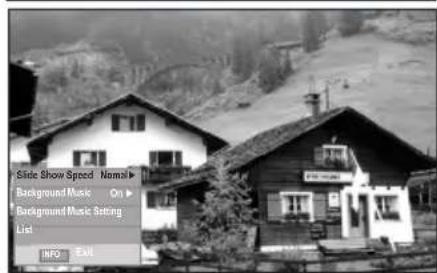
text_image
Side Show Speed Normal Background Music On Background Music Setting List INFO ExitUsing the Menu during a Slide Show
Slide Show Speed:
Select to control the slide show speed.
Press the ▲ or ▼ button to select the required option ("Fast", "Normal", "Slow"), then press the ENTER button.
Background Music:
Select to choose whether you want to play an MP3 file during a slide show.
Press the ▲ or ▼ button to select the required option("On", "Off"), then press the ENTER button.
Background Music Setting:
While the slide show is in progress, MP3 files and folders under the same directory are displayed.
Select a folder using the ▲ or ▼ button and press the ENTER button. The selected folder will be highlighted. Press the RETURN button again to return to the slide show screen. The selected background music is played.
If you turn Off the Background Music, even if the Background Music Settings have been set up, the background music will not be played.
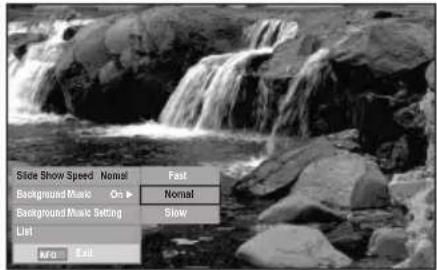
text_image
Slide Show Speed Nomal Fast Background Music On ▶ Nomal Background Music Setting Slow List Kro Exit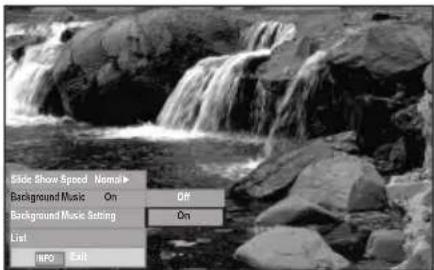
text_image
Slide Show Speed Normal Background Music On Off Background Music Setting On List MPO Exit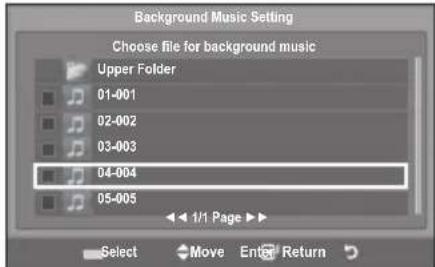
text_image
Background Music Setting Choose file for background music Upper Folder 01-001 02-002 03-003 04-004 05-005 1/1 Page > Select Move Enter ReturnList:
The file information is displayed as a folder or JPEG file.
To exit WISELINK mode, press the W.LINK button on the remote control.
When selecting a photo file, the photo file information is displayed on the left side of the TV screen, such as the resolution, the date modified and the order of the file in the current directory (e.g. 10th out of 15).
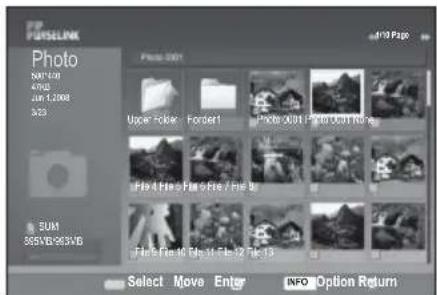
text_image
FORSELINK Photo NAT 108 47KB 200 1,000 523 Photo 301 Upper Noise Forder1 Photo X301 Photo X301 File 4 Files 5 Files 6 Files 7 Files 8 File 5 Files 10 Files 11 Files 12 Files 13 5UN 355VB/963X/6 Select Move Enter INFO Option Return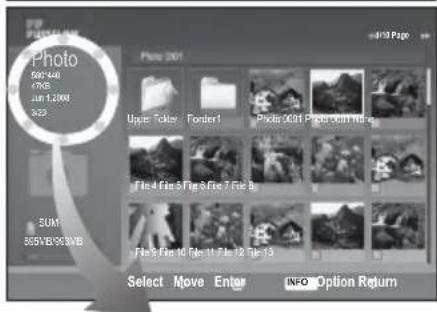
text_image
Photo 500 KB 7KB 1.2 KB 3KB Photo 2001 Upper Filter Forder1 Pixel 0001 Paper 000 MB File 4 File 9 Fig 6 Fig 7 Fig B Flake 4 File 10 Fig 11 Fig 12 Fig 13 Select Move Enter INFO Option Return
: Folder icon
: Photo icon

: Move to the previous folder stage icon
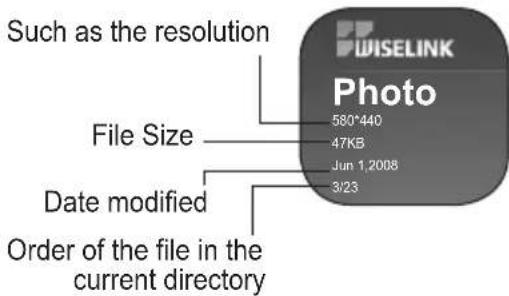
text_image
Such as the resolution File Size Date modified Order of the file in the current directory 580*440 47KB Jun 1,2008 3/23 WISELINK PhotoUsing the Option Menu
-
Complete Steps 1 to 3 of "Using the WISELINK Menu". (Refer to page 31)
-
Press the ◀ or ▶ button to move to "Photo", then press the ENTER button. The saved file information is displayed as a folder or file.
-
Press the ▲, ▼, ◀ and ▶ button to select a file, then press the ENTER button. Pressing the button over a photo thumbnail displays the photo in full screen.
-
Press the INFO button to display the option("Start Slide Show", "Zoom", "Rotate", "List")
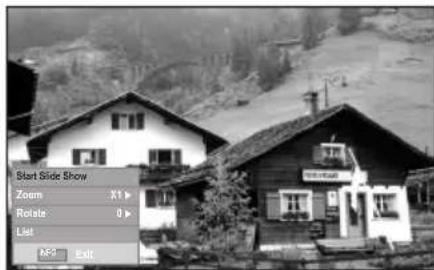
text_image
Start Slide Show Zoom X1 Rotate 0 List MF9 ExitZoom:
- Press the ▲ or ▼ button to select "Zoom", then press the ENTER button.
- Select the required option by pressing the ▲ or ▼ button, then press the ENTER button. (X1, X2, X4)
To pan up/down/left/right in the zoomed-in photo, press the INFO button to exit option menu, then press the ▲, ▼, ◀ and ▶ buttons.
"Start Slide Show" or "Rotate" is disabled when the "Zoom" option is selected.
"x1": Restore a photo to its original size.
"x2": Zoom-in to a photo x2.
"x4": Zoom-in to a photo x4.
/ / / : Move the zoomed-in photo up/down/right/left.
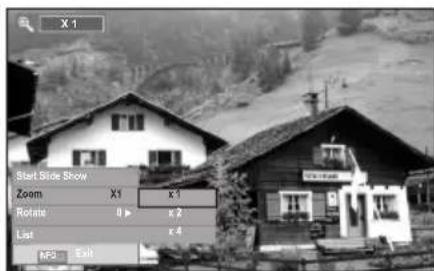
text_image
X 1 Start Slide Show Zoom X1 x 1 Rotate x 2 List x 4 MP3 ExitRotate:
- Press the ▲ or ▼ button to select "Rotate", then press the ENTER button.
- Select the required option by pressing the ▲ or ▼ button, then press the ENTER button. ( 0°, 90°, 180°, 270°)
The rotated file is not saved.
"Start Slide Show" or "Zoom" is disabled when the "Rotate" option is selected.
"> "0°": This rotates a photo to its original position "90°": This rotates a photo by 90 degrees
"180°": This rotates a photo by 180 degrees
"270°": This rotates a photo by 270 degrees
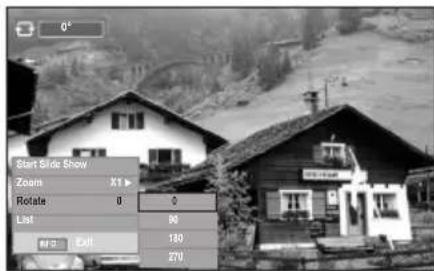
text_image
Start Slide Show Zoom X1 Rotate 0 0 List 90 Exit 180 270Using the MP3 List
This menu shows MP3 files from among the files saved on a USB memory device.
- Complete Steps 1 to 3 of "Using the WISELINK Menu". (Refer to page 31)
-
Press the ◀ or ▶ button to move to "Music", then press the ENTER button. The saved file information is displayed as a folder or file.
-
Press the ▲ or ▼ button to move to an icon, then press the ENTER button.
-
Pressing the ENTER button over a musical note icon immediately plays the music file.
- Pressing the ENTER button over a folder icon shows the music files included in the folder.
-
To select a file on the next page, press the or button to move to the next page.
-
To select all files or a file, press the INFO button to display the Music menus. Press the ENTER button to select "Play", "Repeat Music" or "Select All".
To exit WISELINK mode, press the W.LINK button on the remote control.
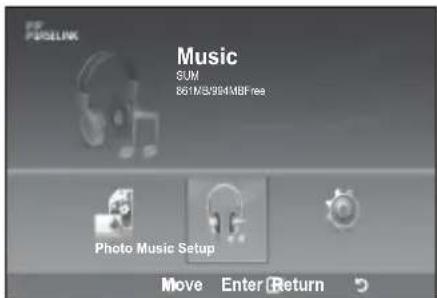
text_image
PFUSELINK Music SUM 861M/3/984MBFree Photo Music Setup Move Enter Return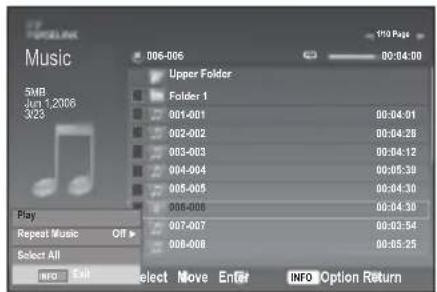
text_image
Music 5MB Jag 1,2006 328 Play Repeat Music Off Select All INFO USE 006-006 Upper Folder Folder 1 001-001 002-002 003-003 004-004 005-005 006-006 007-007 008-008 19:10 Page 00:04:00 00:04:01 00:04:28 00:04:12 00:05:39 00:04:30 00:03:54 00:05:25 Select Move EnGet INFO Option Return
: Folder icon

: Music icon

: Move to the previous folder stage icon
Using the Option Menu
Play:
Select to play MP3 files.
➢ Press the button while playing an MP3 file to pause the file.
➢ Press the button to exit Play mode.
This menu only shows files with the MP3 file extension. Files with other file extensions are not displayed, even if they are saved on the same USB device.
The selected file is displayed on the top with its playing time.
To adjust the music volume, press the VOL ⊕, VOL ⊖ button on the remote control. To mute the sound, press the MUTE button on the remote control.
Repeat Music:
Select to repeatedly play MP3 files in the current folder. You can select On or Off.
Music function information icon

: When all music files are being played.

: When a music file is being played.


: When pressing the ▶ / 📌 button on the remote control while music is playing.

: When pressing the button on the remote control when music is stopped.
Using the Setup Menu
Setup displays the user settings of the WISELINK menu.
- Complete Steps 1 to 3 of "Using the WISELINK Menu". (Refer to page 31)
- Press the ◀ or ▶ button to move to "Setup", then press the ENTER G button.
- Press the ▲ or ▼ button to select an item you want, then press the ENTER button. ("Slide Show Speed", "Background Music", "Background Music Setting", "Repeat Music", "Screen Saver")
- Press the ▲ or ▼ button to select the option, then press the ENTER button.
To exit WISELINK mode, press the W.LINK button on the remote control.
Slide Show Speed:
Select to control the slide show speed. You can select "Fast", "Normal" or "Slow".
Background Music :
Select to determine whether to play an MP3 file during a slide show. You can select Music "On" or Music "Off".
Background Music Setting:
While a slide show is in progress, use the "Background Music Setup" to select a music file to listen to. Select an MP3 file as the background music.
Repeat Music :
Select to determine whether to repeat playing the music when all MP3 files in the current folder have been played.
Screen Saver:
Select to set the waiting time before the screen saver appears. The screensaver will appear when no button is pressed for 1, 5 or 10 minutes.
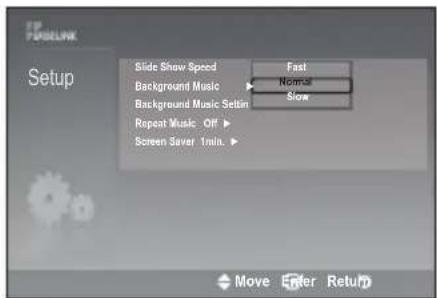
text_image
TIP TURSELINK Setup Slide Show Speed Background Music Background Music Settings Repeat Music Off Screen Saver 1min. Fast Normal Slow Move Enter Return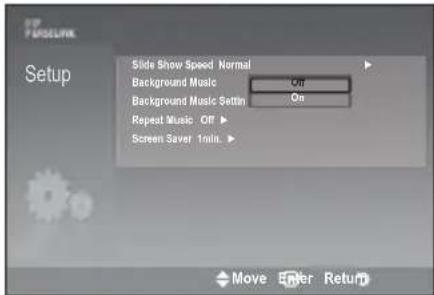
text_image
FUSSELINK Setup Slide Show Speed Normal Background Music Off Background Music Settin On Repeat Music Off Screen Saver 1min. Move Enter Return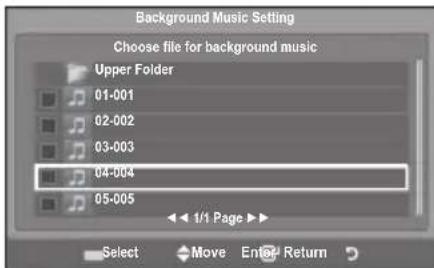
text_image
Background Music Setting Choose file for background music Upper Folder 01-001 02-002 03-003 04-004 05-005 1/1 Page Select Move Enter Return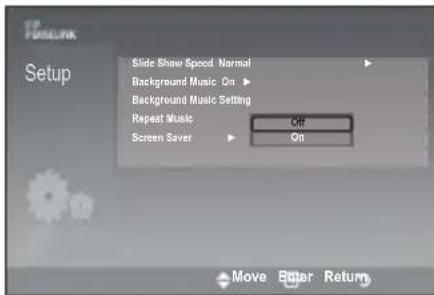
text_image
FUSSELLINK Setup Slide Show Speed Normal Background Music On Background Music Setting Repeat Music Off Screen Saver On Move Enter Return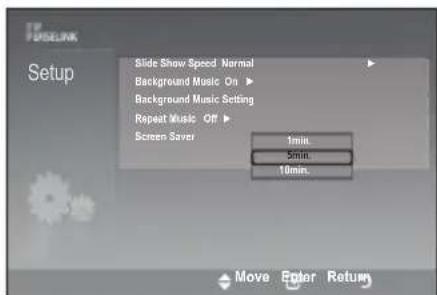
text_image
FUSELINK Setup Slide Show Speed Normal Background Music On ▶ Background Music Setting Repeat Music Off ▶ Screen Saver 1min. 5min. 10min. Move Enter ReturnWhat is Anynet+?
Anynet+ is an AV network system that enables an easy-to-use AV interface for users by controlling all connected AV devices through the Anynet+ menu when Samsung Electronics AV devices are connected.
Connecting Anynet+ Devices
The Anynet+ system supports AV devices supporting Anynet+ only.
Check if there is an Anynet+ mark on the AV device to be connected to the TV.
To directly connect to TV
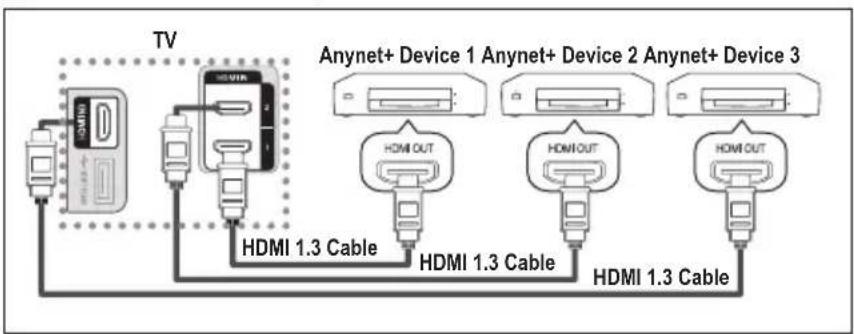
text_image
TV Anynet+ Device 1 Anynet+ Device 2 Anynet+ Device 3 HDMI 1.3 Cable HDMI 1.3 Cable HDMI 1.3 CableConnect the [HDMI 1], [HDMI 2] or [HDMI 3] jack on the TV and the HDMI OUT jack of the corresponding Anynet+ device using the HDMI cable.
To connect to Home Theater
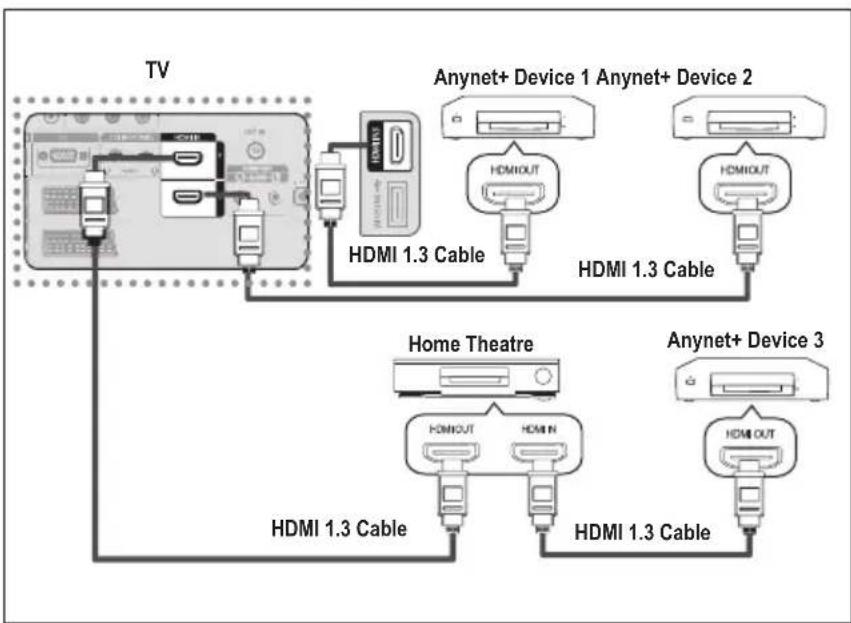
flowchart
graph TD
    TV["TV"] -->|HDMI 1.3 Cable| Anynet+Device1["Anynet+ Device 1"]
    TV -->|HDMI 1.3 Cable| Anynet+Device2["Anynet+ Device 2"]
    TV -->|HDMI 1.3 Cable| HomeTheatre["Home Theatre"]
    TV -->|HDMI 1.3 Cable| Anynet+Device3["Anynet+ Device 3"]
    Anynet+Device1 --> HDMIOUT["HDMI OUT"]
    Anynet+Device2 --> HDMIOUT
    Anynet+Device3 --> HDMIOUT
-
Connect the [HDMI 1], [HDMI 2] or [HDMI 3] jack on the TV and the HDMI OUT jack of the corresponding Anynet+ device using the HDMI cable.
-
Connect the HDMI IN jack of the home theatre and the HDMI OUT jack of the corresponding Anynet+ device using the HDMI cable.
Connect only one receiver.
You can connect an Anynet+ device using the HDMI 1.3 cable. Some HDMI cables may not support Anynet+ functions.
Anynet+ works when the AV device supporting Anynet+ is in the Standby or On status.
Anynet+ supports up to 8 AV devices in total.
Setting Up Anynet+
The following settings are to use Anynet+ functions.
Using the Anynet+ Function
- Press The TOOLS button. Then Press the ENTERG button to select "Anynet+(HDMI-CEC)".
Press the ▲ or ▼ button to select "Setup", then press the ENTER button.
- Press the ENTER button to select "Anynet+ (HDMI-CEC)", then press the ENTER button.
- Press the ▲ or ▼ button to select "On", then press the ENTER button.
The "Anynet+ (HDMI-CEC)" function is enabled.
If you select "Off", "Anynet+ (HDMI-CEC)" is disabled.
When the "Anynet+ (HDMI-CEC)" function is disabled, all the Anynet+ related operations are deactivated.
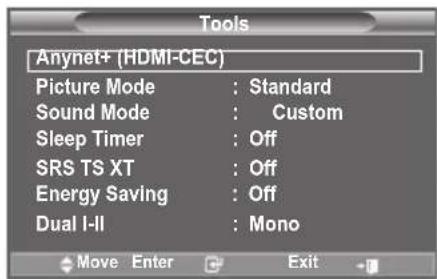
text_image
Tools Anynet+ (HDMI-CEC) Picture Mode : Standard Sound Mode : Custom Sleep Timer : Off SRS TS XT : Off Energy Saving : Off Dual I-II : Mono Move Enter Exit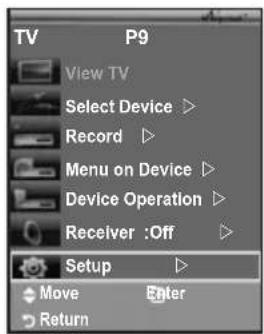
text_image
TV P9 View TV Select Device > Record > Menu on Device > Device Operation > Receiver :Off > Setup Move Enter Return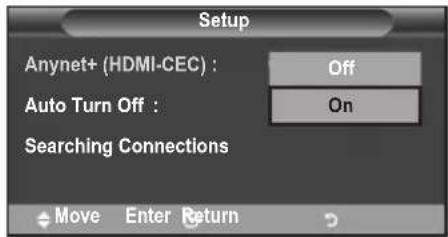
text_image
Setup Anynet+ (HDMI-CEC) : Off Auto Turn Off : On Searching Connections Move Enter ReturnTurning an Anynet+ Device Off Automatically when the TV is Turned Off
- Press the ▲ or ▼ button to select "Auto Turn Off", then press the ENTER button.
- Press the ▲ or ▼ button to select "Yes", then press the ENTER button.
The Auto turn off function is enabled.
If you select "No", the Auto turn off function is cancelled.
Press the EXIT button to exit.
The Select Device setting of the TV remote control is to be set to TV to use the Anynet+ function.
If you set "Auto Turn Off" to "No", connected external devices are also turned off when the TV is turned off. However, if the device is recording, it may not be turned off.
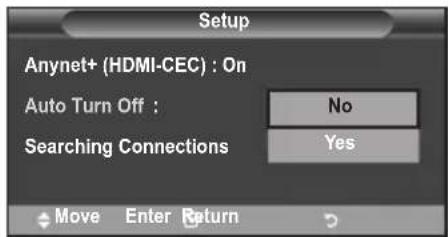
text_image
Setup Anynet+ (HDMI-CEC) : On Auto Turn Off : Searching Connections No Yes Move Enter ReturnScanning and Switching between Anynet+ Devices
- Press the TOOLS button. Then press the ENTERButton to select "Anynet+(HDMI-CEC)".
- Press the ▲ or ▼ button to select "Select Device", then press the ENTER button.
- Press the ▲ or ▼ button to select to a particular device and press the ENTERButton. It is switched to the selected device.
- If you cannot find a device you want, press the ▲ or ▼ button to select "Setup", then press the ENTER button.
- Press the ▲ or ▼ button to select "Searching Connections", then press the ENTER button.
The message "Configuring Anynet+ connection..." is displayed. When searching devices completes, the connected devices are listed in the Anynet+ menu.
Switching to the selected devices may take up to 2 minutes. You cannot cancel the operation during the switching operation.
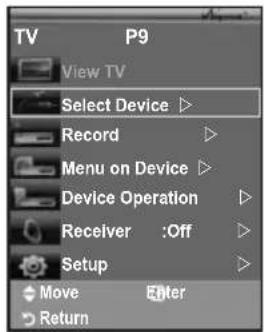
text_image
TV P9 View TV Select Device ▶ Record ▶ Menu on Device ▶ Device Operation ▶ Receiver :Off ▶ Setup ▶ Move Enter Return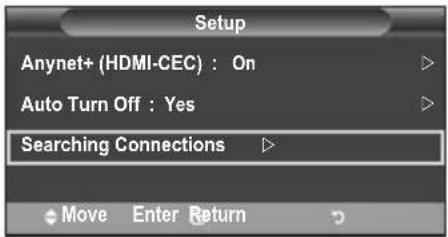
text_image
Setup Anynet+ (HDMI-CEC) : On Auto Turn Off : Yes Searching Connections Move Enter ReturnThe time required to scan for devices is determined by the number of connected devices.
When the device scan is complete, the number of found devices is not displayed.
Although the TV automatically scans devices when it is turned on using the POWER button, devices connected when the TV is on or under a specific circumstance are not displayed in the device list. Therefore select "Searching Connections" menu to search devices.
If you have selected external input mode by pressing the SOURCE button, you cannot use the Anynet+ function. Make sure to switch to an Anynet+ device by using the TOOLS button.
Anynet+ Menu
The Anynet+ menu changes depending on the type and status of the Anynet+ devices connected to the TV.
| Anynet+ Menu Description | |
| View TV Switches from Anynet+ to TV broadcast mode. | |
| Select Device Your TV connects to the corresponding device. | |
| Record Starts a recording. (This menu works only for a device supporting recording.) | |
| Menu on Device Shows the menu of the connected device.Example. When a DVD Recorder is connected, the DVD Recorder's title menu appears. | |
| Device Operation Shows the play control menu of the connected device.Example. When a DVD Recorder is connected, the play control menu of the DVD Recorder appears. | |
| Receiver Sound is output through the receiver. | |
| Setup You can set the environment for using Anynet+. |
TV Remote Control Buttons Available in Anynet+ Mode
| Device Type Operating | Status Available Buttons | |
| Anynet+ Device | After switching to the device, when the menu of the corresponding device is displayed on the screen. | Numeric buttons▲/▼/◄/►/ENTER buttonsColour buttonsEXIT button |
| After switching to the device, while playing a file | ◀◀ (Backward search)/▶◀ (Forward search)/■ (Stop)/ (Play)/■ (Pause) | |
| Device with built-in Tuner | After switching to the device, when you are watching a TV programme | P ∧/∨ button |
| Audio Device When Receiver is activated | VOL ⊕/⊖buttonMUTE button | |
The Anynet+ function only works when the remote control is set to TV.
The button works only while in the recordable state.
You cannot control Anynet+ devices using the buttons on the TV. You can control Anynet+ devices only using the TV remote control.
The TV remote control may not work under certain conditions. In this case, re-select the Anynet+ device.
The Anynet+ functions don't operate for the products from other manufacturers.
In Anynet+ mode, the colour buttons may not work properly.
The operations may differ depending on the device.
Recording
You can make a recording of a TV programme using a recorder.
Press the button.
Recording begins. (Only when the Anynet+ enabled recording device is connected.)
The current TV programme is recorded in the Watching TV status. If you are watching video from another device, the video from the device is recorded.
You can also record the source streams by selecting Record after pressing the TOOLS button.
Before recording, check whether the antenna jack is properly connected to the recording device. For the antenna connection to the recording device, refer to its user manual.
Listening through a Receiver
You can listen to sound through a receiver instead of the TV speaker.
- Press the TOOLS button. Then Press the ENTER button to select "Anynet+(HDMI-CEC)".
Press the ▲ or ▼ button to select "Receiver", then press the ENTER button.
- Press the ◀ or ▶ button to select to "On", then press the ENTER button.
Now you can listen to sound through the receiver.
- Press the EXIT button to exit.
When the receiver is set to On, you can listen to the TV sound through the 2-channel receiver.
If the receiver is exclusively for a home theatre only (supporting audio only), it may not appear in the device list.
In case of a content with copyright problem, listening through the receiver may not properly operate.
If there is a power interruption to the TV when the "Receiver" is set to "On" (by disconnecting the power cord or a power failure), the "TV Speaker" may be set to "Off" when you turn the TV on again. (see page 22)
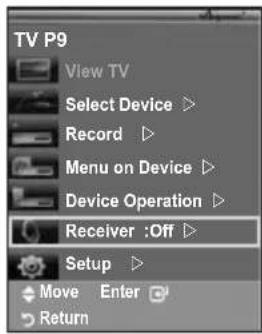
text_image
TV P9 View TV Select Device ▷ Record ▷ Menu on Device ▷ Device Operation ▷ Receiver :Off ▷ Setup ▷ Move Enter ReturnCheck Points before Requesting Service
| Symptom Solution | |
| Anynet+ does not work. | Check if the device is an Anynet+ device. The Anynet+ system supports Anynet+ devices only.Connect only one receiver.Check if the Anynet+ device power cord is properly connected.Check the Anynet+ device's Video/Audio/HDMI 1.3 cable connections.Check whether Anynet+ (HDMI-CEC) is set to On in the Anynet+ setup menu.Check whether the TV remote control is in TV mode.Check whether it is Anynet+ exclusive remote control.Anynet+ doesn't work at a certain condition. (Searching channels, Operating WISELINK, Plug & Play, etc.)When connecting or removing the HDMI 1.3 cable, please make sure to search devices again or restart your TV.Check if the Anynet+ Function of Anynet+ device is set on. |
| I want to start Anynet+. | Check if the Anynet+ device is properly connected to the TV and check if the Anynet+ (HDMI-CEC) is set to On in the Anynet+ Setup menu.Press the TV button on the TV remote control to switch to TV. Then press the TOOLS button to show the Anynet+ menu and select a menu you want. |
| I want to exit Anynet+. | Select View TV in Anynet+ menu.Press the SOURCE button on the TV remote control and select a device other than Anynet+ devices.Press any of P/√, CH LIST, PRE-CH, and such to change to the TV mode. (Note that the channel button operates only when a tuner-embedded Anynet+ device is not connected.) |
| The Connecting to Anynet+ device... message appears on the screen. | You cannot use the remote control when you are configuring Anynet+ or switching to a view mode.Use the remote control when the Anynet+ setting or switching to view mode is complete. |
| The Anynet+ device does not play. | You cannot use the play function when Plug & Play is in progress. |
| The connected device is not displayed. | Check whether or not the device supports Anynet+ functions.Check whether or not the HDMI 1.3 cable is properly connected.Check whether Anynet+ (HDMI-CEC) is set to On in the Anynet+ setup menu.Search Anynet+ devices again.You can connect an Anynet+ device using the HDMI 1.3 cable only. Some HDMI cables may not support Anynet+ functions.If it is terminated by an abnormal situation such as disconnecting the HDMI 1.3 cable or power cord or a power failure, please repeat the device scan. |
| The TV programme cannot be recorded. | Check whether the antenna jack on the recording device is properly connected. |
Teletext Feature
Most television stations provide written information services via Teletext. The index page of the teletext service gives you information on how to use the service. In addition, you can select various options to suit your requirements by using the remote control buttons.
For teletext information to be displayed correctly, channel reception must be stable. Otherwise, information may be missing or some pages may not be displayed.
① □(exit)
Exit from the teletext display
② Ⅲ (index)
Used to display the index (contents) page at any time while you are viewing teletext.
③ (store)
Used to store the teletext pages.
4 (size)
Press to display the double-size letters in the upper half of the screen. For lower half of the screen, press it again. To display normal screen, press it once again.
5 ≡? (reveal)
Used to display the hidden text (answers to quiz games, for example). To display normal screen, press it again.
6 (teletext on/mix)
Press to activate teletext mode after selecting the channel providing the teletext service. Press it twice to overlap the teletext with the current broadcasting screen.
⑦ ≡... (mode)
Press to select the teletext mode (LIST/FLOF). If you press it in the LIST mode, it switches into the List save mode. In the List save mode, you can save teletext page into list using the ☐(store) button.
8 (sub-page)
Used to display the available sub-page.
9 ☑1 (page up)
Used to display the next teletext page.
10 1-≡ (page down)
Used to display the previous teletext page.
11 (hold)
Used to hold the display on a given page if the selected page is linked with several secondary pages which follow on automatically. To resume, press it again.
12 ≡× (cancel)
Used to display the broadcast when searching for a page.
13 Colour buttons (red/green/yellow/blue)
If the FASTEXT system is used by a broadcasting company, the different topics covered on a teletext page are colour-coded and can be selected by pressing the coloured buttons. Press one of them corresponding to the required. The page is displayed with other coloured information that can be selected in the same way. To display the previous or next page, press the corresponding coloured button.
You can change teletext pages by pressing the numeric buttons on the remote control.
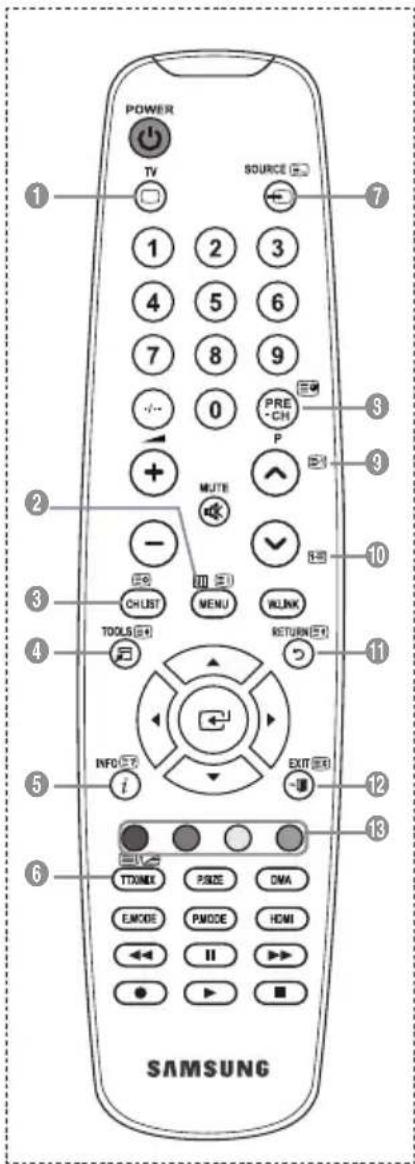
text_image
POWER TV SOURCE 1 2 3 4 5 6 7 8 9 0 PRE CH P + - MUTE - CHUST MENU LINK TOOLS RETURN 4 i INFO EXIT - TTAXIX PSIZE DMA E.MODE PMODE HDMI II ● ▶ ■ SAMSUNG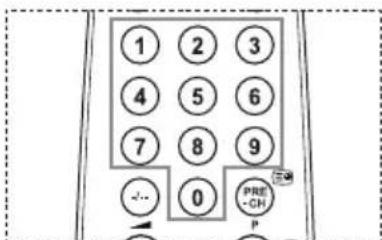
text_image
1 2 3 4 5 6 7 8 9 0 PRE- -CH PThe teletext pages are organized according to six categories:
Part Contents
| A | Selected page number. |
| B | Broadcasting channel identity. |
| C | Current page number or search indications. |
| D | Date and time. |
| E | Text. |
| F | Status information.FASTEXT information. |
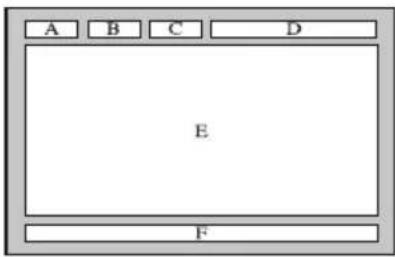
text_image
A B C D E F➢ Teletext information is often divided between several pages displayed in sequence, which can be accessed by:
◆ Entering the page number
◆ Selecting a title in a list
◆ Selecting a coloured heading (FASTEXT system)
➢ Press the TV button to exit from the teletext display.
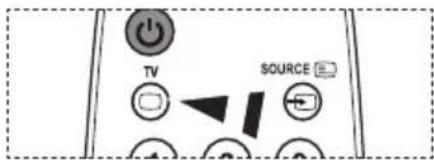
text_image
TV SOURCEAuto Wall-Mount (Sold separately)
Once the auto wall mount is installed, your TV's position can be easily adjusted.
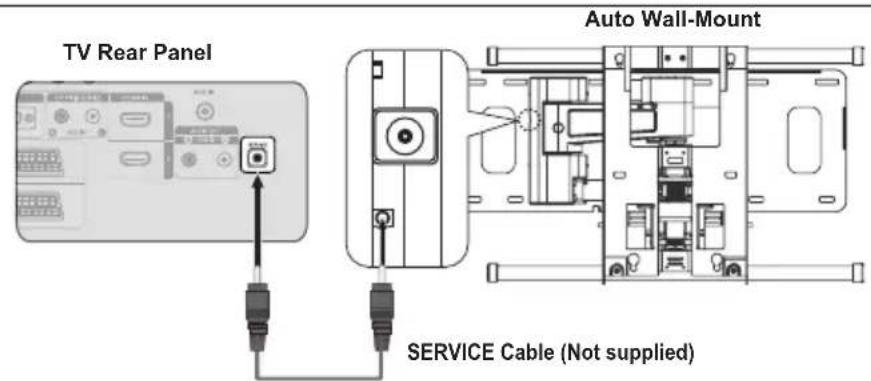
text_image
TV Rear Panel Auto Wall-Mount SERVICE Cable (Not supplied)Entering the menu
- Press the ▲, ▼, ◀ or ▶ button on your remote control.
The Auto Wall-Mount screen is displayed.
If the Auto Wall-Mount screen is not displayed when clicking on a direction button while watching your TV, use the menu to display that screen.
- Press the MENU butt on to display the menu.
Press the ▲ or ▼ button to select "Setup", then press the ENTER button.
- Press the ▲ or ▼ button to select "Auto Wall-Mount", then press the ENTER button.
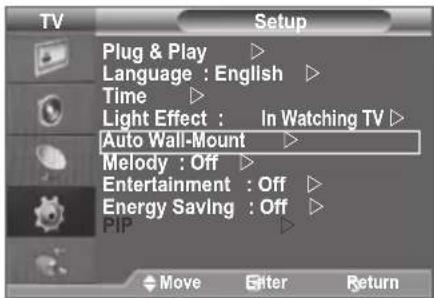
text_image
TV Setup Plug & Play ▷ Language : English ▷ Time ▷ Light Effect : In Watching TV ▷ Auto Wall-Mount ▷ Melody : Off ▷ Entertainment : Off ▷ Energy Saving : Off ▷ PIP ▷ Move Enter ReturnRemembering the Position
- Adjust to the desired position using the ▲,▼,◀,▶ buttons.
If you press an arrow button when no OSD is displayed on the TV screen, the Adjustment screen appears.
➢ Press the INFO button to reset. Press the ◀ or ▶ button to select "Yes", then press the ENTER button.
The position is initialized to the default setting.
- Press the blue button.
Press the ▲ and ▼ buttons to select a save mode from either Position 1, Position 2 or Position 3 in order to save the current position.
To not save the current position, press the RETURN button.
When selecting a save mode, you cannot use the Colour buttons.
- Press the ENTER button to save.
When Position1 is selected, the message "Current position saved as Position1" is displayed.
- Press the ENTER button.
The saved Position appears on the left side of the OSD.
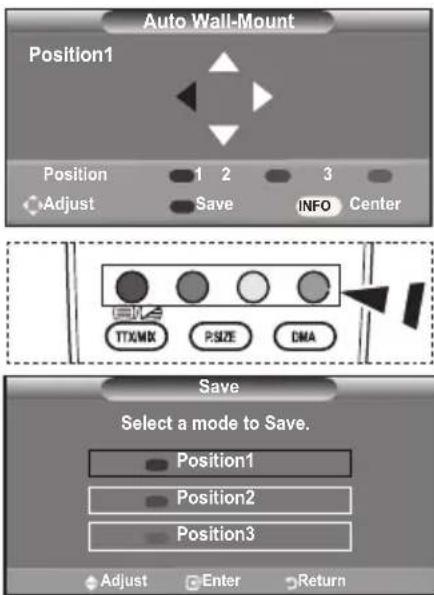
text_image
Auto Wall-Mount Position1 Position 1 2 3 Adjust Save INFO Center TTXMX PSIZE DMA Save Select a mode to Save. Position1 Position2 Position3 Adjust Enter ReturnMoving to the remembered position
-
Complete Step 1 of "Entering the menu".
-
Pressing a Colour (Red, Green, Yellow) button moves the auto wall mount to the saved position.
You can move the wall mount to one of the 3 pre-set positions by pressing the Red (Position 1), Green (Position 2) or Yellow (Position 3) buttons.
If you adjust the position after moving to a pre-set position, the position display will disappear.
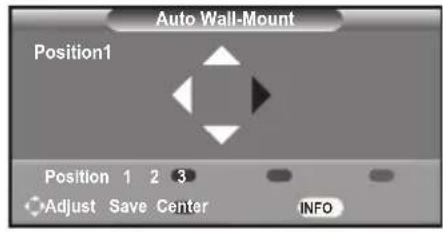
text_image
Auto Wall-Mount Position1 Position 1 2 3 Adjust Save Center INFOFor installation, refer to the Installation Manual provided with the wall mount.
For product installation and the installation and moving of the wall mount, make sure to consult a specialized installation company.
This installation manual is to be used when attaching the wall mount to a wall. When attaching to other building materials, please contact your nearest dealer.
The auto wall mount will not work when Anynet+ and WISELINK are operating.
37, 40 and 46 inch models are not compatible with the old electrically powered wall mount model (WMN5090A*).
Using the Anti-Theft Kensington Lock (depending on the model)
The Kensington lock is a device used to physically fix the system when using it in a public place. The appearance and locking method may differ from the illustration depending on the manufacturer. Refer to the manual provided with the Kensington lock for proper use. The locking device has to be purchased separately.
- Insert the locking device into the Kensington slot on the LCD TV (Figure 1), and turn it in the locking direction (Figure 2).
- Connect the Kensington lock cable.
- Fix the Kensington lock to a desk or a heavy stationary object.
The place of the Kensington Lock may be different depending on its model.
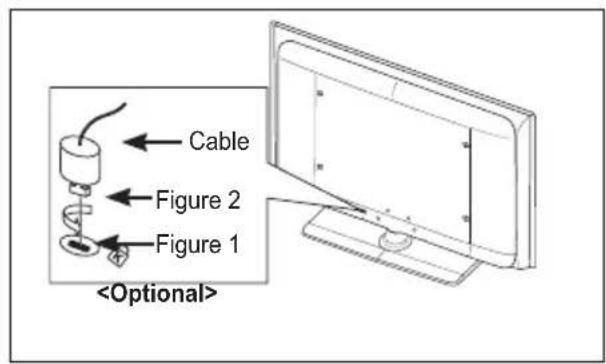
text_image
Cable Figure 2 Figure 1 (Optional)Troubleshooting: Before Contacting Service Personnel
| No sound or picture | ◆ Check that the mains lead has been connected to a wall socket.◆ Check that you have pressed the ◎ button on your set.◆ Check the picture contrast and brightness settings.◆ Check the volume. |
| Normal picture but no sound | ◆ Check the volume.◆ Check whether the MUTE button has been pressed on the remote control.◆ Check if "TV Speaker" is on |
| Screen is black and power indicator light blinks steadily | ◆ On your computer check; Power, Signal Cable.◆ The TV is using its power management system.◆ Move the computer's mouse or press any key on the keyboard. |
| No picture or black and white picture | ◆ Adjust the colour settings.◆ Check that the broadcast system selected is correct. |
| Sound and picture interference | ◆ Try to identify the electrical appliance that is affecting the set and move it further away.◆ Plug your set into a different mains socket. |
| Blurred or snowy picture, distorted sound | ◆ Check the direction, location and connections of your aerial.This interference is often due to the use of an indoor aerial. |
| Remote control malfunctions | ◆ Replace the remote control batteries.◆ Clean the upper edge of the remote control (transmission window).◆ Check the battery terminals. |
| "Check signal cable." message is displayed | ◆ Check that the signal cable is firmly connected to the PC or video sources.◆ Check that the PC or video sources are turned on. |
| On PC mode, "Not Supported Mode." message is displayed | ◆ Check the maximum resolution and the frequency of the video adaptor.◆ Compare these values with the data in the Display Modes. |
| The damaged picture appears in the corner of the screen | If "Just Scan" is selected in some external devices, the damaged picture may appear in the corner of the screen. This symptom is caused by external devices, not TV. |
| The "Resets all settings to the default values" message appears. | This appears when you press and hold the EXIT button for a while. The product settings are reset to the factory defaults. |
| The TFT LCD panel uses a panel consisting of sub pixels (6 220 800) which require sophisticated technology to produce. However, there may be few bright or dark pixels on the screen. These pixels will have no impact on the performance of the product. | |
Technical and Environmental Specifications
| Model Name | LE32A550 LE37A550 LE40A550 | ||
| Screen Size (Diagonal) | 32 inch 37 inch 40 inch | ||
| PC Resolution | 1920 x 1080 @ 60 Hz 1920 x 1080 @ 60 Hz 1920 x 1080 @ 60 Hz | ||
| Sound Output | 10 W X 2 10 W X 2 | 10 W X 2 | |
| Dimensions (WxDxH) | |||
| Body | 865 x 79 x 500 mm | 984 x 87 x 572 mm | 1058 x 91 x 608 mm |
| With stand | 865 x 220 x 561 mm | 984 x 240 x 637 mm | 1058 X 240 X 672 mm |
| Weight With stand | 14 kg | 18 kg | 19 kg |
| Environmental Considerations | |||
| Operating Temperature | 10 °C to 40 °C (50 °F to 104 °F) | ||
| Operating Humidity | 10 % to 80 %, non-condensing | ||
| Storage Temperature | -20 °C to 45 °C (-4 °F to 113 °F) | ||
| Storage Humidity | 5 % to 95 %, non-condensing | ||
| Stand Swivel (Left / Right) | -20° ~ 20° | ||
| Model Name | LE46A550 LE52A550 | ||
| Screen Size (Diagonal) | 46 inch 52 inch | ||
| PC Resolution | 1920 x 1080 @ 60 Hz 1920 x 1080 @ 60 Hz | ||
| Sound Output | 10 W X 2 10 W X 2 | ||
| Dimensions (WxDxH) | |||
| Body | 1186 x 111 x 686 mm | 1330 x 120 x 779 mm | |
| With stand | 1186 X 260 X 749 mm | 1330 X 291 X 842 mm | |
| Weight With stand | 27 kg | 33 kg | |
| Environmental Considerations | |||
| Operating Temperature | 10 °C to 40 °C (50 °F to 104 °F) | ||
| Operating Humidity | 10 % to 80 %, non-condensing | ||
| Storage Temperature | -20 °C to 45 °C (-4 °F to 113 °F) | ||
| Storage Humidity | |||
| Stand Swivel (Left / Right) | -20° ~ 20° | ||
| Model Name | LE32A551 LE37A551 LE40A551 | ||
| Screen Size (Diagonal) | 32 inch 37 inch 40 inch | ||
| PC Resolution | 1920 x 1080 @ 60 Hz 1920 x 1080 @ 60 Hz 1920 x 1080 @ 60 Hz | ||
| Sound Output | 10 W X 2 10 W X 2 | 10 W X 2 | |
| Dimensions (WxDxH) | |||
| Body | 801 X 88 X 526 mm | 918 X 92 X 608 mm | 997 X 92 X 641 mm |
| With stand | 801 X 252 X 574 mm | 918 X 300 X 650 mm | 997 X 300 X 686 mm |
| Weight With stand | 13 kg | 18 kg | 21 kg |
| Environmental Considerations | |||
| Operating Temperature | 10 °C to 40 °C (50 °F to 104 °F) | ||
| Operating Humidity | 10 % to 80 %, non-condensing | ||
| Storage Temperature | -20 °C to 45 °C (-4 °F to 113 °F) | ||
| Storage Humidity | 5 % to 95 %, non-condensing | ||
| Stand Swivel (Left / Right) | -20° ~ 20° | ||
| Model Name | LE46A551 LE52A551 | ||
| Screen Size (Diagonal) | 46 inch 52 inch | ||
| PC Resolution | 1920 x 1080 @ 60 Hz 1920 x 1080 @ 60 Hz | ||
| Sound Output | 10 W X 2 10 W X 2 | ||
| Dimensions (WxDxH) | |||
| Body | 1127 X 100 X 716 mm | 1269 X 109 X 806 mm | |
| With stand | 1127 X 280 X 767 mm | 1269 X 326 X 857 mm | |
| Weight With stand | 28 kg | 32 kg | |
| Environmental Considerations | |||
| Operating Temperature | 10 °C to 40 °C (50 °F to 104 °F) | ||
| Operating Humidity | 10 % to 80 %, non-condensing | ||
| Storage Temperature | -20 °C to 45 °C (-4 °F to 113 °F) | ||
| Storage Humidity | |||
| Stand Swivel (Left / Right) | -20° ~ 20° | ||
| Model Name | LE32A552 LE37A552 LE40A552 | ||
| Screen Size (Diagonal) | 32 inch 37 inch 40 inch | ||
| PC Resolution | 1920 x 1080 @ 60 Hz 1920 x 1080 @ 60 Hz 1920 x 1080 @ 60 Hz | ||
| Sound Output | 10 W X 2 10 W X 2 | 10 W X 2 | |
| Dimensions (WxDxH) | |||
| Body | 801 X 88 X 514 mm | 918 X 92 X 592 mm | 997 X 92 X 628 mm |
| With stand | 801 X 252 X 574 mm | 918 X 300 X 650 mm | 997 X 300 X 686 mm |
| Weight With stand | 13 kg | 18 kg | 21 kg |
| Environmental Considerations | |||
| Operating Temperature | 10 °C to 40 °C (50 °F to 104 °F) | ||
| Operating Humidity | 10 % to 80 %, non-condensing | ||
| Storage Temperature | -20 °C to 45 °C (-4 °F to 113 °F) | ||
| Storage Humidity | 5 % to 95 %, non-condensing | ||
| Stand Swivel (Left / Right) | -20° ~ 20° | ||
| Model Name | LE46A552 LE52A552 | ||
| Screen Size (Diagonal) | 46 inch 52 inch | ||
| PC Resolution | 1920 x 1080 @ 60 Hz 1920 x 1080 @ 60 Hz | ||
| Sound Output | 10 W X 2 10 W X 2 | ||
| Dimensions (WxDxH) | |||
| Body | 1127 X 100 X 700 mm | 1269 X 109 X 791 mm | |
| With stand | 1127 X 280 X 767 mm | 1269 X 326 X 857 mm | |
| Weight With stand | 28 kg | 32 kg | |
| Environmental Considerations | |||
| Operating Temperature | 10 °C to 40 °C (50 °F to 104 °F) | ||
| Operating Humidity | 10 % to 80 %, non-condensing | ||
| Storage Temperature | -20 °C to 45 °C (-4 °F to 113 °F) | ||
| Storage Humidity | |||
| Stand Swivel (Left / Right) | -20° ~ 20° | ||
| Model Name | LE32A553 LE37A553 LE40A553 | ||
| Screen Size (Diagonal) | 32 inch 37 inch 40 inch | ||
| PC Resolution | 1920 x 1080 @ 60 Hz 1920 x 1080 @ 60 Hz 1920 x 1080 @ 60 Hz | ||
| Sound Output | 10 W X 2 10 W X 2 | 10 W X 2 | |
| Dimensions (WxDxH) | |||
| Body | 801 X 88 X 524 mm | 918 X 92 X 601 mm | 997 X 92 X 638 mm |
| With stand | 801 X 252 X 574 mm | 918 X 300 X 650 mm | 997 X 300 X 686 mm |
| Weight With stand | 13 kg | 18 kg | 21 kg |
| Environmental Considerations | |||
| Operating Temperature | 10 °C to 40 °C (50 °F to 104 °F) | ||
| Operating Humidity | 10 % to 80 %, non-condensing | ||
| Storage Temperature | -20 °C to 45 °C (-4 °F to 113 °F) | ||
| Storage Humidity | 5 % to 95 %, non-condensing | ||
| Stand Swivel (Left / Right) | -20° ~ 20° | ||
| Model Name | LE46A553 LE52A553 | ||
| Screen Size (Diagonal) | 46 inch 52 inch | ||
| PC Resolution | 1920 x 1080 @ 60 Hz 1920 x 1080 @ 60 Hz | ||
| Sound Output | 10 W X 2 10 W X 2 | ||
| Dimensions (WxDxH) | |||
| Body | 1127 X 100 X 710 mm | 1269 X 109 X 800 mm | |
| With stand | 1127 X 280 X 767 mm | 1269 X 326 X 857 mm | |
| Weight With stand | 28 kg | 32 kg | |
| Environmental Considerations | |||
| Operating Temperature | 10 °C to 40 °C (50 °F to 104 °F) | ||
| Operating Humidity | 10 % to 80 %, non-condensing | ||
| Storage Temperature | -20 °C to 45 °C (-4 °F to 113 °F) | ||
| Storage Humidity | |||
| Stand Swivel (Left / Right) | -20° ~ 20° | ||
➢ Design and specifications are subject to change without prior notice.
This device is a Class B digital apparatus.
For the power supply and Power Consumption, refer to the label attached to the product.
natural_image
Technical line drawing showing two views of a monitor with a base and a switch, labeled ① and ② (no text or symbols on the diagrams themselves)Installation du support mural
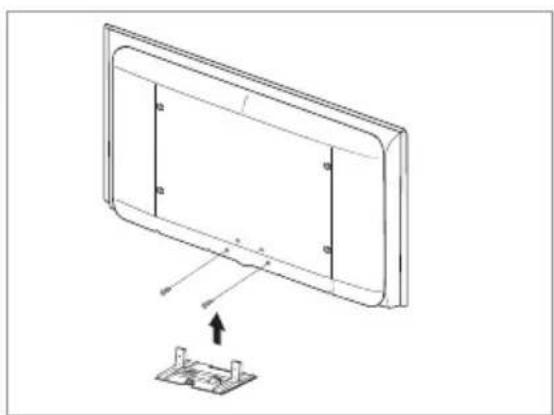
natural_image
Technical line drawing of a flat-screen monitor with an attached circuit board (no text or symbols)natural_image
Line drawing of a mechanical component with an arrow indicating motion (no text or symbols)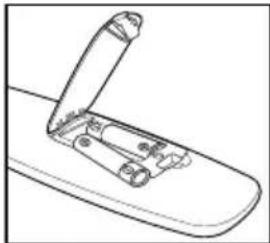
natural_image
Line drawing of a mechanical device with an open lid and lever mechanism (no text or symbols)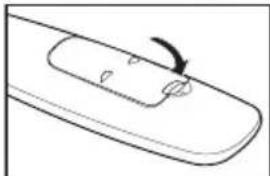
natural_image
Simple line drawing of a curved object with an arrow indicating rotation (no text or symbols)text_image
Plug & Play Start Plug & Play. OK Entertext_image
TTXMIX P/SIZE DMA E/MODE PMODE IIRéglage simple
text_image
TV SOURCE
text_image
TV SOURCE
text_image
Diagram showing directional control buttons with symbols like +, -, -, and P, including a highlighted arrow labeled '***' indicating a change or transition.
text_image
E.WODE H.M.M.P HDMItext_image
Display Properties Theme | Desktop | Screen Safe | Appearance | Settings Create: Current Window on BIOS Software (FOS) (FOS) System parameters Laser Filter 100% or 90% pixels Color density Highest / 120 GB Disinhibition Advanced On Cancel Helptext_image
solution WISELINK Photo 580*440 47KB Jun 1,2008 3/23Date de modification
text_image
TV SOURCEtext_image
TTXMX PSIZE DNA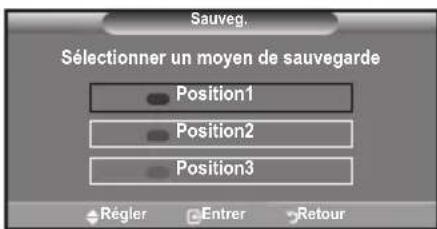
natural_image
Technical line drawing of a rectangular panel with internal components and a base plate, showing no text or symbols.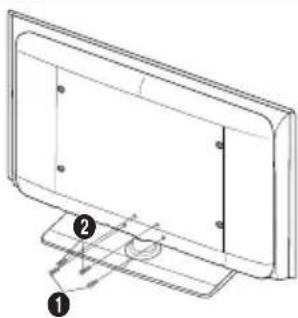
natural_image
Technical line drawing of a monitor with labeled components (no text or symbols present)natural_image
Technical line drawing of a rectangular panel with mounting base and internal components, no text or symbols present⑨ AUDIO OUT [R-AUDIO-L]
natural_image
Simple line drawing of a mechanical component with an arrow indicating rotation (no text or symbols)![SAMSUNG LE46B550A5WXXN - ⑨ AUDIO OUT [R-AUDIO-L] - 1](/content/2026/02/360738/images/74adfac2817a8a9c8b5e10928950ec1e4c8367c6a3b096b09366112ca2b44d24.jpg)
natural_image
Line drawing of a mechanical lever mechanism (no text or symbols)![SAMSUNG LE46B550A5WXXN - ⑨ AUDIO OUT [R-AUDIO-L] - 2](/content/2026/02/360738/images/555f7ae84f063df0ee698dcd9ba08635b58d359e768044909a6abf7c9b57aaf8.jpg)
natural_image
Simple line drawing of a curved arrow pointing to a rectangular object with internal symbols (no text or labels)Ein-und Ausschalten
text_image
Plug & Play Start Plug & Play. OK Entertext_image
TTXM P.SIZE DNA EMODE PMODE << II ▶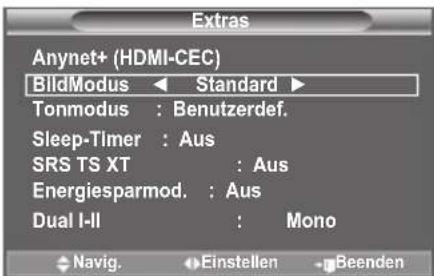
text_image
Extras Anynet+ (HDMI-CEC) BildModus ← Standard ► Tonmodus : Benutzerdef. Sleep-Timer : Aus SRS TS XT : Aus Energiesparmod. : Aus Dual I-II : Mono Navig. Einstellen BeendenBild einstellen
text_image
SIN100 LEDtext_image
Display Properties Options Desktop Screen Save Appearance Settings Display: Download Window on 10000x Software (F:\1000) Screen Display Filter View Color quality 1000x Web Colors Advanced Enable Preset Advanced OK Cancel Applytext_image
WISELINK Photo 580^440 47KB Jun 1,2008 3/23Dateigröße
Änderungsdatum
text_image
TV SOURCEnatural_image
Technical line drawing showing two views of a monitor with a base and a switch, labeled with numbers 1 and 2 (no text or symbols on the diagrams themselves)natural_image
Technical line drawing of a flat-screen monitor with mounting base, showing internal panel structure and mounting bracket (no text or symbols)natural_image
Simple line drawing of a mechanical component with an arrow indicating motion (no text or symbols)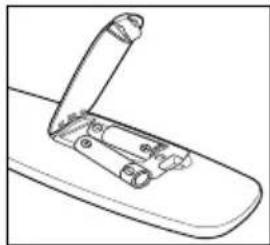
natural_image
Line drawing of a mechanical clamp or bracket component (no text or symbols)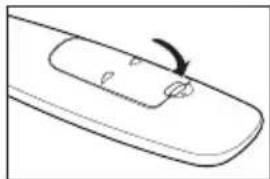
natural_image
Simple line drawing of a curved object with an arrow indicating rotation (no text or symbols)In- en uitschakelen
text_image
TTX/MX P/SIZE DMA E/MODE PMODC IIEenvoudig in te stellen
text_image
TTX/MX P/SIZE E/MODE PMODE HDWI♦ Schermmodus: 16:9/Breedbeeldzoom/Zoom/4:3
♦ Film plus: Uit/Laag/Middel/Hoog/Demo
Picture in Picture (PIP)
♦ Auto Volume: Uit/Aan
◆ Entertainment: Uit/Sport/Film/Spelcomputer
text_image
TV SOURCE TV SOURCE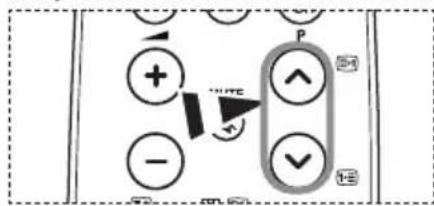
text_image
Diagram showing directional control buttons with plus, minus, and bidirectional arrows indicating movement or selection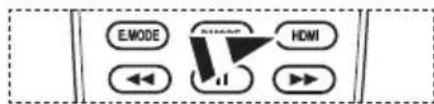
flowchart
graph TD
    A["E.MODE"] --> B["←"]
    C["START"] --> D["↓"]
    E["HDMI"] --> F["→"]
text_image
Display Properties Options Desktop Screen Save Appearance Settings Display: Download Window on 10000x Software (F:\1000) Screen Display Filter View Color quality 1000x Web Colors High (50%) Default/Default Advanced OK Cancel Applytext_image
TV P9 Tv weergeven Apparaat selecteren ▶ Opnemen ▶ Apparaatmenu ▶ Apparaatbediening ▶ Receiver :Uit ▶ Instellingen ▶ Verpl. Enter Terug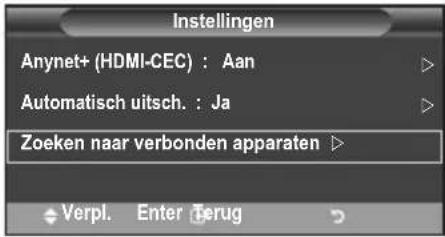
text_image
TV SOURCEnatural_image
Technical line drawing of a device with a base and top component, showing alignment or assembly (no text or symbols)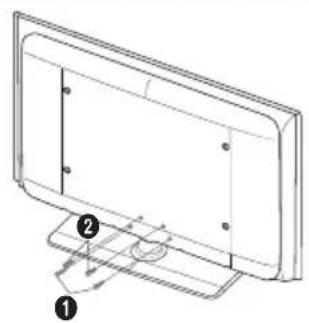
natural_image
Technical line drawing of a flat-screen monitor with labeled components (no text or symbols present)natural_image
Technical line drawing of a flat-screen monitor with mounting base, showing internal panel structure and mounting bracket (no text or symbols)17 Indice Teletext
19 Mantieni Teletext
21 Annulla Teletext
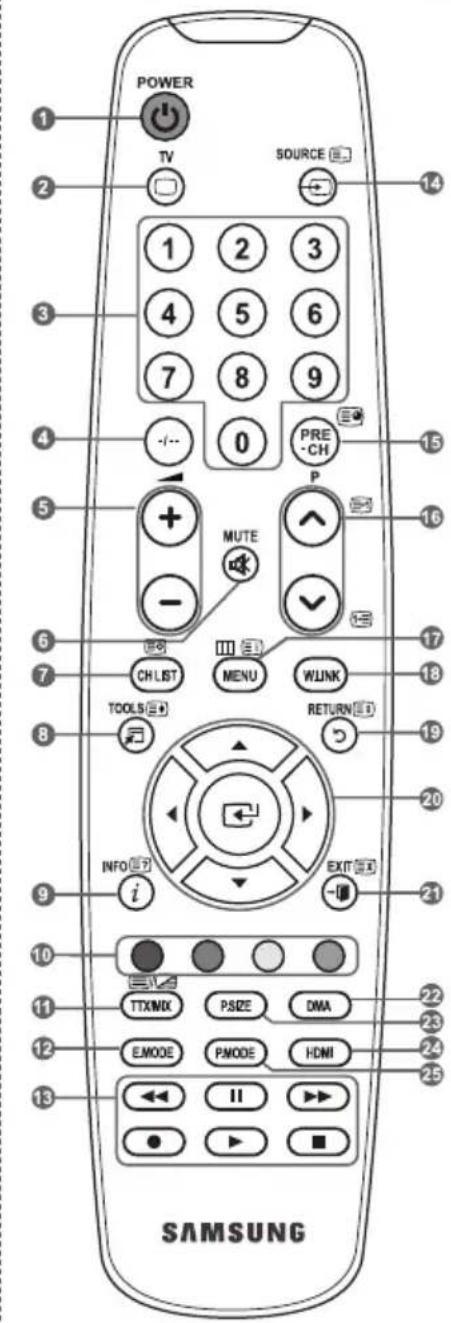
text_image
POWER TV SOURCE 1 2 3 4 5 6 7 8 9 -... 0 PRE-CH P MUTE - CH LIST MENU WLINK TOOLS RETURN INFO EXIT i SAMSUNGnatural_image
Simple line drawing of a mechanical component with an arrow indicating motion (no text or symbols)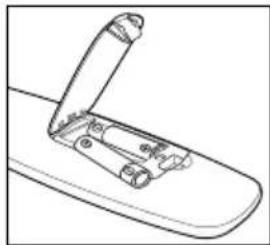
natural_image
Line drawing of a mechanical clamp or bracket component (no text or symbols)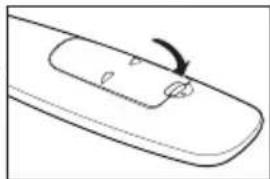
natural_image
Simple line drawing of a curved arrow pointing to a rectangular object on a flat surface (no text or symbols)text_image
Plug & Play Start Plug & Play. OK EnterMelodia/Entertainment/Risp. energia
text_image
TV SOURCE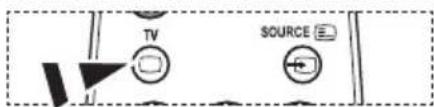
text_image
TV SOURCE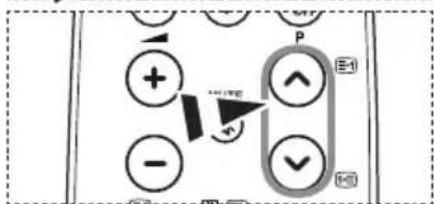
text_image
Diagram showing directional control buttons with symbols and a labeled arrow pointing to a specific button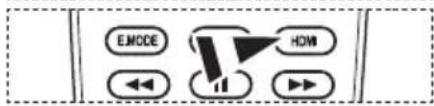
text_image
EMOCE HDMI ←→ ←→text_image
Display Properties Form1, Display1, Screen Type, Objectset, Settings Display: Digital Media on Web/Software (C:\320) Screen selection Lam: 100 by 75 pixels None Extra quality Higher than 50 bits Download Adjustment OK Cancel Helptext_image
WISELINK Photo 580*440 47KB Jun 1,2008 3/23
: icona fotoicona foto
Dimensione file
—
1
58 47

text_image
TV SOURCE Enatural_image
Technical line drawing of a rectangular panel with a base and a small component, showing no text or symbols.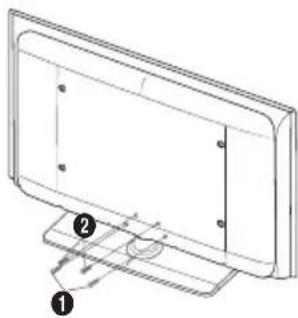
natural_image
Technical line drawing of a monitor with labeled components (no text or symbols present)natural_image
Technical line drawing of a flat-screen monitor with mounting base, showing internal panel structure and mounting bracket (no text or symbols)DVI IN (HDMI2) [R-AUDIO-L]
⑨ AUDIO OUT [R-AUDIO-L]
natural_image
Line drawing of a mechanical component with an arrow indicating motion (no text or symbols)![SAMSUNG LE46B550A5WXXN - ⑨ AUDIO OUT [R-AUDIO-L] - 1](/content/2026/02/360738/images/7ac9959f8cfeef5563b34f08fb72450bc3943325244bcf62a66c9fc9682d0fcc.jpg)
natural_image
Line drawing of a mechanical clamp or bracket component (no text or symbols)![SAMSUNG LE46B550A5WXXN - ⑨ AUDIO OUT [R-AUDIO-L] - 2](/content/2026/02/360738/images/8ddb1d59af07e3720b776ff47d15eba0b443729f79a766fc3c7e546bbcdc28e8.jpg)
natural_image
Simple line drawing of a curved arrow pointing to a rectangular object with internal markings (no text or symbols)Encendido y apagado
text_image
Plug & Play Start Plug & Play. OK Entertext_image
TTX/MX PSIZE DMA EMODE PMODE << || ▶text_image
5.58885619 LEDtext_image
TV SOURCE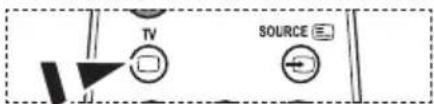
text_image
TV SOURCE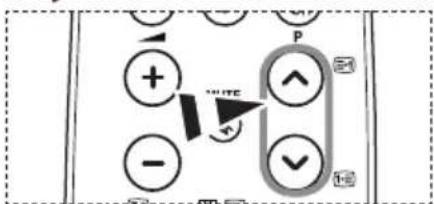
text_image
Diagram showing directional control buttons with symbols and labels like +, -, -, ↑, ∨, and P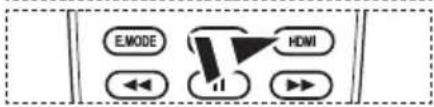
flowchart
graph TD
    A["EMODE"] --> B["↓"]
    C["↓"] --> D["↓"]
    E["↓"] --> F["→"]
    G["HDMI"] --> H["→"]
text_image
Status Properties Display: Default Lock: Inside Operation: Inside Display: Display Master and MSU Software BY MSU Current settings: Type: 100% Base: High Alt Rate 100% Lower Alt Rate Default Adjustment OK Cancel Helptext_image
TV SOURCEnatural_image
Technical line drawing of a monitor with a baseplate and a small component, showing no text or symbols.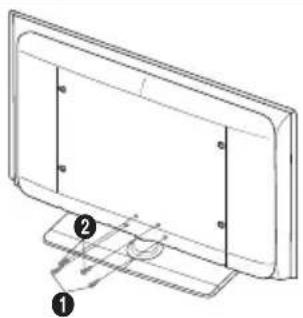
natural_image
Technical line drawing of a monitor with labeled components (no text or symbols present)- Ligue o televisor LCD e a base.
natural_image
Technical line drawing of a rectangular panel with internal components and an attached base plate (no text or symbols)DVI IN (HDMI 2) [R-AUDIO-L]
- Saídas de áudio DVI para dispositivos externos.
Modos suportados para HDMI/DVI e Componente.
| 480i 480p 576i 576p | 720p 1080i | 1080p | ||||
| HDMI/DVI 50Hz X | XXO O O Φ | |||||
| HDMI/DVI 60Hz X | OXXO O Φ | |||||
| Componente O O | O O O O O Φ |
4 ANT IN
⑨ AUDIO OUT [R-AUDIO-L]
⑨ Teletexto – exibir.
natural_image
Simple line drawing of a mechanical component with an arrow indicating motion (no text or symbols)![SAMSUNG LE46B550A5WXXN - ⑨ AUDIO OUT [R-AUDIO-L] - 1](/content/2026/02/360738/images/d1266984241c8540c8728f6be21f9a8a2842f1a8374fc8f73c8d21808b57b1b4.jpg)
natural_image
Line drawing of a mechanical clamp or bracket component (no text or symbols)![SAMSUNG LE46B550A5WXXN - ⑨ AUDIO OUT [R-AUDIO-L] - 2](/content/2026/02/360738/images/66e065342fb26fbdd22a013029578e0bc893ffcf642b8a7b6dcf0ef83a7315fc.jpg)
natural_image
Simple line drawing of a curved arrow pointing to a rectangular object with internal features (no text or symbols)Ligar e desligar
text_image
Plug & Play Start Plug & Play. OK Enternatural_image
Close-up of a pair of headphones connected to a power cord (no text or symbols visible)text_image
TV SOURCE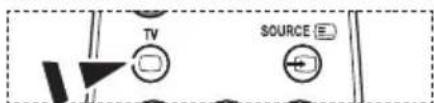
text_image
TV SOURCE E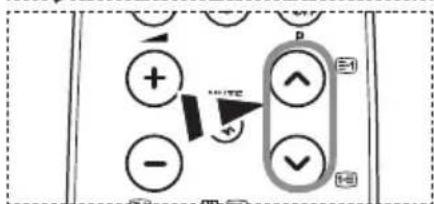
text_image
Diagram showing directional control buttons with plus, minus, and forward/backward indicators and a labeled 'p' button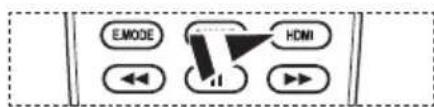
text_image
EMODE HDMIEditar os nomes das fontes de entrada
text_image
Display Properties Theme | Desktop | Screen Save | Appearance | Settings Create: Current Windows on NVIDIA Software (V1.102) Common Modulation Lock View 100% or 90% words Color mode Highest / 120 bit Installation Add to On Cancel Helptext_image
Photo 56.94KB 47KB Jul 7 2015 103 Superior Forder1 Photo 001 Photo 001 New + Real Files Photo File 7 Files + Real Files 8 Files 11 Files 12 Files 13 Select Mover Enter INFO Opção Voltar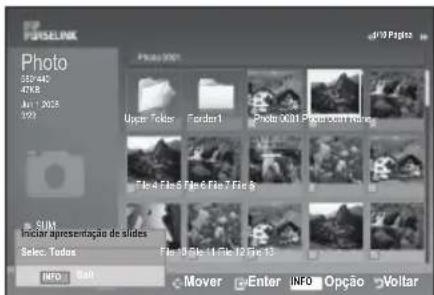
text_image
FORSELINK Photo 350 442 47KB Jul 1 2023 193 Photo 2023 Ugoe Token Forder1 Photo 0631 Papao#o#i #ues File 4 File 5 Fane 6 File 7 Files SUM Iniciar apresentação de slides Sele: Todos File 8 File 11 File 12 File 13 INFO Mover Enter INFO Opção Voltar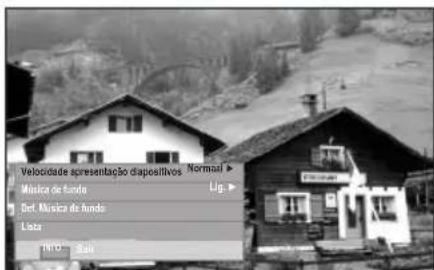
text_image
WISELINK Photo 580*440 47KB Jun 1,2008 3/23text_image
TV SOURCEnatural_image
Diagram of a device with a base and panel, showing a component being inserted (no text or symbols present)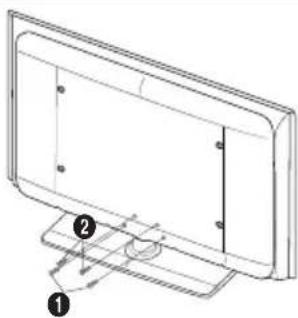
natural_image
Technical line drawing of a monitor with labeled components (no text or symbols present)natural_image
Technical line drawing of a rectangular panel with internal components and an attached base plate (no text or symbols)DVI IN (HDMI2) [R-AUDIO-L]
natural_image
Simple line drawing of a mechanical component with an arrow indicating motion (no text or symbols)![SAMSUNG LE46B550A5WXXN - DVI IN (HDMI2) [R-AUDIO-L] - 1](/content/2026/02/360738/images/e2bab32fe8481b609aa93ae60360085b0b17233559da1185e3bc6eb569516e54.jpg)
natural_image
Line drawing of a mechanical clamp or bracket component (no text or symbols)![SAMSUNG LE46B550A5WXXN - DVI IN (HDMI2) [R-AUDIO-L] - 2](/content/2026/02/360738/images/f268e436594e918ac12488289f7a3283e72ec1a86de64bbade2774f534b4b3db.jpg)
natural_image
Simple line drawing of a curved object with an arrow indicating rotation (no text or symbols)text_image
Plug & Play Start Plug & Play. OK Entertext_image
TTX/MX PSIZE DMA ENCODE PMODE << || ▶Egyszerű beállítás
natural_image
Close-up of a pair of headphones connected to a power cord (no text or symbols visible)text_image
Display Properties Display Options Display Type: Display Display Settings: Display Display Name: Display Display Type: Display Display Location: 100 MHz Display Time: 0.000000 ms Display Network: 100 MHz Display Security: 100 MHz Display Exchange: 100 MHz Display Link: 100 MHz Display Link Width: 100 MHz Display Link Radius: 100 MHz Display Link Width: 100 MHz Display Link Width: 100 MHz Display Link Width: 100 MHz Display Link Width: 100 MHz Display Link Width: 100 MHz Display Link Width: 100 MHz Display Link Width: 100 MHz Display Link Width: 100 MHz Display Link Width: 100 MHz Display Link Width: 100 MHz Display Link Duration: 100 MHz Display Link Duration: 100 MHz Display Link Duration: 100 MHz Display Link Duration: 100 MHz Display Link Duration: 100 MHz Display Link Duration: 100 MHz Display Link Duration: 100 MHz Display Link Duration: 100 MHz Display Link Duration: 100 MHz Display Link Duration: 100 MHz Display Link Width: 100 MHz Display Link Width: 100 MHz Display Link Width: 100 MHz Display Link Width: 100 MHz Display Link Width: 100 MHz Display Link Width: 100 MHz Display Link Width: 100 MHz Display Link Width: 100 MHz Display Link Width: 100 MHz Display Link Length: 52.562.562.562.562.562.562.562.562.562.562.562.562.562.562.562.562.562.562.562.562.562.562.562.562.562.5text_image
TV SOURCE EINFORMACJE NA TEMAT ANYNET+
natural_image
Technical line drawing of a device with a base plate and internal components, showing no text or symbols.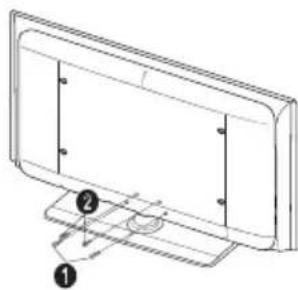
natural_image
Technical line drawing of a flat-screen monitor with labeled components (no text or symbols present)natural_image
Technical line drawing of a rectangular electronic device with internal components and an attached mounting base (no text or symbols)⑨ AUDIO OUT [R-AUDIO-L]
natural_image
Simple line drawing of a mechanical component with an arrow indicating motion (no text or symbols)![SAMSUNG LE46B550A5WXXN - ⑨ AUDIO OUT [R-AUDIO-L] - 1](/content/2026/02/360738/images/70dd607bbf96d55974122e26c1b95df57dea787ae517c49e5ac9320bc3251a39.jpg)
natural_image
Line drawing of a mechanical clamp or bracket component (no text or symbols)![SAMSUNG LE46B550A5WXXN - ⑨ AUDIO OUT [R-AUDIO-L] - 2](/content/2026/02/360738/images/0632d8440813e24166303ee4153f88204e326d59041065b2925dcd7f730914a5.jpg)
natural_image
Simple line drawing of a curved mechanical component with an arrow indicating rotation (no text or symbols)text_image
Plug & Play Start Plug & Play. OK Entertext_image
CHUS TOOLS III III WLINK RETURNtext_image
TTXMK P/SIZE E/MODE PMODE HDWtext_image
Display Properties Planes Desktop Screen Save Appearance Settings Display: Default Window on 10000x Default (F:) / 10000 Screen settings Laser Filter 1000x 900x 800x Color spots Highest ISO rate Controller Advanced OK Cancel Applytext_image
TV SOURCEnatural_image
Technical line drawing of a device with a base and internal components, showing alignment and assembly (no text or symbols)![SAMSUNG LE46B550A5WXXN - ⑨ AUDIO OUT [R-AUDIO-L] - 3](/content/2026/02/360738/images/5304b4fd9fbcae7fd1acb3e6e6df3ee1c3ff563b39808d01c79aa87b70d2db8e.jpg)
natural_image
Technical line drawing of a monitor with labeled components (no text or symbols present)- Propojte LCD televizor a stojan.
natural_image
Technical line drawing of a rectangular panel with internal vertical dividers and an attached base (no text or symbols)DVI IN (HDMI 2)[R-AUDIO-L]
natural_image
Line drawing of a mechanical component with an arrow indicating motion (no text or symbols)![SAMSUNG LE46B550A5WXXN - DVI IN (HDMI 2)[R-AUDIO-L] - 1](/content/2026/02/360738/images/8d996feea4f7e8163e7be93bcd42f293ced2c079bfe3d830a21eeac3580fc5a0.jpg)
natural_image
Line drawing of a mechanical clamp or bracket component (no text or symbols)![SAMSUNG LE46B550A5WXXN - DVI IN (HDMI 2)[R-AUDIO-L] - 2](/content/2026/02/360738/images/1289734f1a1f73ffd6f3c097bff477a3023b2a9562b51ef17e631f0b6880ff3d.jpg)
natural_image
Simple line drawing of a curved arrow pointing to a rectangular object with internal features (no text or symbols)text_image
Plug & Play Start Plug & Play. OK Entertext_image
CHUS TOOLS WLINK RETURNtext_image
TTX/MK P/SIZE DMA EM/DE PM/DE << || ▶Snadné nastavení
♦ PIP: Zapnuto/Vypnuto
♦ SRS TS XT: Vypnuto/Zapnuto
natural_image
Illustration of a Boční panel TV headset connected to a plug (no text or symbols on the device itself)text_image
Display Properties Planes Desktop Screen Save Appearance Settings Display: Default Window on 100% Software (100%) Screen resolution Filter 100% or 90% pixels Color quality Highest (32.0x) Enabled Advanced On Cancel Help6 (zapnout teletext/mix)
text_image
TV SOURCEnatural_image
Technical line drawing of a rectangular panel with a base and a small component, showing no text or symbols.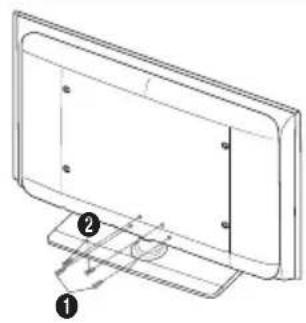
natural_image
Technical line drawing of a monitor with labeled components (no text or symbols present)natural_image
Technical line drawing of a monitor with an attached base plate, showing no text or symbolsDVI IN (HDMI2) [R-AUDIO-L]
⑨ AUDIO OUT [R-AUDIO-L]
natural_image
Line drawing of a mechanical component with an arrow indicating rotation (no text or symbols)![SAMSUNG LE46B550A5WXXN - ⑨ AUDIO OUT [R-AUDIO-L] - 1](/content/2026/02/360738/images/1e563b96d9dcfc43617fb2bfed60f0fb06a2823e130f2546d6e704305d990019.jpg)
natural_image
Line drawing of a mechanical clamp or bracket component (no text or symbols)![SAMSUNG LE46B550A5WXXN - ⑨ AUDIO OUT [R-AUDIO-L] - 2](/content/2026/02/360738/images/b87be966ff4a608ee19e8764fba8d7af34ff84001ddda1c03c6bb09d7d1bf5cc.jpg)
natural_image
Simple line drawing of a curved object with an arrow indicating rotation (no text or symbols)Zapínanie a vypínanie
text_image
Plug & Play Start Plug & Play. OK Entertext_image
CHUS TOOLS WLINK RETURNtext_image
TTXMK PSIZE DNA EMODE PMODE << || ▶Jednoduché nastavenie
text_image
TV SOURCE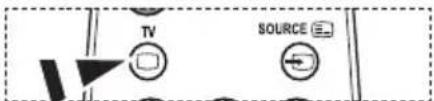
text_image
TV SOURCE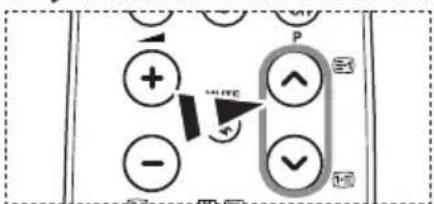
text_image
Diagram showing directional control buttons with symbols like +, -, +, -, and directional arrows labeled 'P' and '+', including a highlighted arrow pointing to the + button.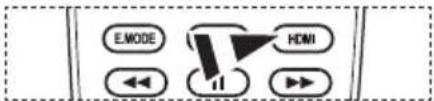
text_image
E.MODE HDMI ←← ↓↓text_image
Display Properties Options Delete Close Save As Properties Display Display Properties in HKEYSLC Software (F:\500) Screen Properties Layer: 1 KB by 90% load Extra-ctrls Higher: 12 KB Default Adjustment OK Cancel Helptext_image
WISELINK Photo 580*440 47KB Jun 1,2008 3/23Veľkost' súboru
6 (zapnút' teletext/mix)
text_image
TV SOURCEMontáž na stenu (Predáva sa samostatne)
natural_image
Technical line drawing of a device with a base and mounting bracket, showing internal components (no text or symbols)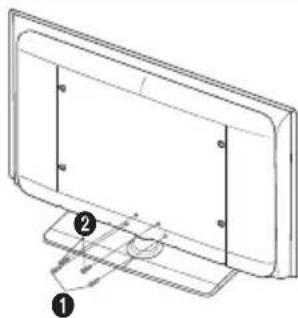
natural_image
Technical line drawing of a monitor with labeled components (no text or symbols present)- Televizor LCD pritrdite na stojalo.
natural_image
Technical line drawing of a rectangular panel with mounting base and internal components, no text or symbols presentDVI IN (HDMI 2) [R-AUDIO-L]
⑨ AUDIO OUT [R-AUDIO-L]
- Priključite avdio RCA-kabla na AUDIO OUT [R-AUDIO-L] na hrbtni strani televizorja in druga konca na ustrezne spojnike avdio vhoda na ojačevalniku ali DVD-domačem kinu.
10 EXT 1, EXT 2
natural_image
Line drawing of a mechanical component with a curved handle and arrow indicating motion (no text or symbols)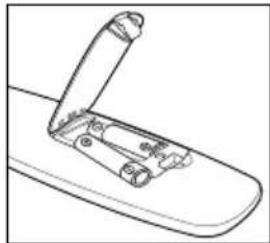
natural_image
Line drawing of a mechanical clamp or bracket component (no text or symbols)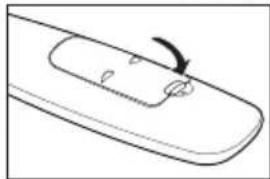
natural_image
Simple line drawing of a curved arrow pointing to a rectangular object with internal lines (no text or symbols)Vklop in izklop
text_image
TV Picture Mode : Standard ▶ Backlight 7 Contrast 95 Brightness 45 Sharpness 50 Colour 50 Tint G50 R50 Detailed Settings ▶ More Move Enter Return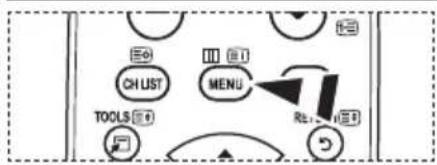
text_image
CHUST TOOLS MENU Rel. 13Uporaba gumba TOOLS
text_image
Plug & Play Start Plug & Play. OK Enter-
S pritiskom gumba ▲ ali ▼ izberite ustrezni jezik. Za potrditev izbora pritisnite gumb ENTER.
-
Pritisnite gumb ◀ ali ▶, da izberete "Store Demo" ali "Home Use", nato pa gumb ENTER.
Priporočamo, da televizor nastavite na način "Home Use", saj to zagotavlja najboljšo slikov domačem okolju.
Način "Store Demo" je namenjen samo uporabi v trgovinah.
Če je enota naključno nastavljena na način "Store Demo" in se želite vrniti v način "Home Use" (Standard): Na televizorju pritisnite gumb za glasnost. Ko je na zaslonu prikaz glasnosti, pritisnite gumb MENU na televizorju in ga držite 5 sekund.
- Prikaže se sporočilo "Check antenna input." s potrjenim "OK". Pritisnite gumb ENTER.
text_image
TV Channel Manager Channel List Child Lock : Off Move En# Return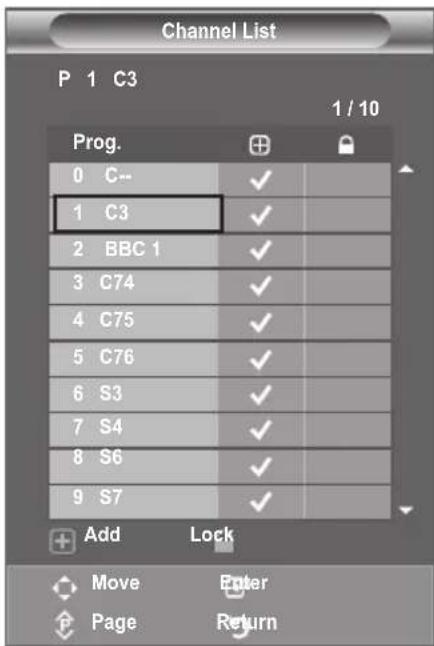
text_image
Channel List P 1 C3 1 / 10 Prog. 0 C-- 1 C3 2 BBC 1 3 C74 4 C75 5 C76 6 S3 7 S4 8 S6 9 S7 Add Lock Move Enter Page Return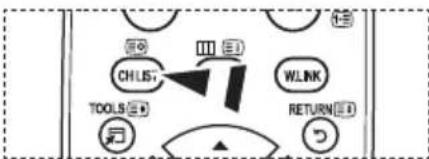
text_image
CHLST TOOLS WLINK RETURNtext_image
TTX/MX P/SIZE DNA EMODE PMODE << || ▶◆ Dynamic Contrast: Off/Low/Medium/High
♦ Colour Space: Auto/Native/Custom
Colour: Red/Green/Blue/Yellow/Cyan/Magenta
Prilagodi barvni obseg po želji.
"Colour" je na voljo, ko je "Colour Space" nastavljeno na "Custom".
Z gumbom ▲ ali ▼ izberite "Red", "Green", "Blue", "Yellow", "Cyan" ali "Magenta".
Pritisnite gumb ENTER
◆ Colour Tone: Cool2/Cool1/Normal/Warm1/Warm2
♦ Digital NR: Off/Low/Medium/High/Auto
♦ HDMI Black Level: Normal/Low
♦ Movie Plus: Off/Low/Medium/High/Demo
◆ Blue Only Mode: Off/On
Mode: Standard/Music/Movie/Speech/Custom
◆ Auto Volume: Off/On
◆ Sound Select: Main/Sub
text_image
TV Setup Plug & Play ▶ Language : English ▶ Time ▶ Light Effect : In Watching TV ▶ Auto Wall-Mount ▶ Melody : Off ▶ Entertainment : Off ▶ Energy Saving : Off ▶ PIP ▶ Move Enter Return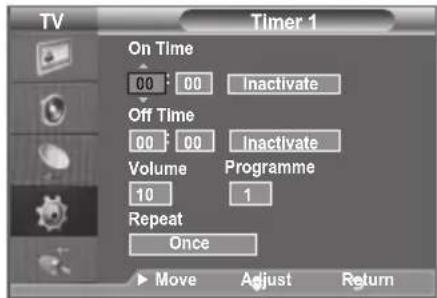
text_image
TV Timer 1 On Time 00 : 00 Inactivate Off Time 00 : 00 Inactivate Volume Programme 10 1 Repeat Once ► Move Adjust ReturnIzbira jezika
text_image
Setup Plug & Play ▶ Language : English ▶ Time ▶ Light Effect : In Watching TV ▶ Auto Wall-Mount ▶ Melody : Off ▶ Entertainment : Off ▶ Energy Saving : Off ▶ PIP ▶ Move Enter Returntext_image
54838162 LEDMelody / Entertainment / Energy Saving
- Pritisnite gumb MENU, da prikažete meni.
S pritiskom gumba ▲ ali ▼ izberite "Setup", nato pa pritisnite gumb ENTER - S pritiskom gumba ▲ ali ▼ izberite želeno možnost, nato pa pritisnite gumb ENTER
- Ko ste zadovoljni z nastavitvijo, pritisnite gumb ENTER.
- Pritisnite gumb EXIT za izhod.
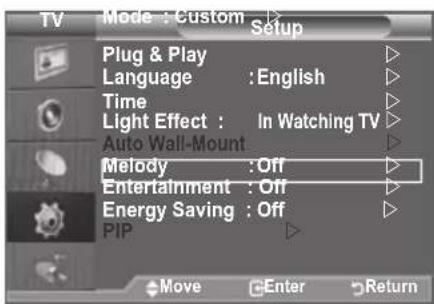
text_image
TV Mode : Custom Setup Plug & Play Language : English Time Light Effect : In Watching TV Auto Wall-Mount Melody : Off Entertainment : Off Energy Saving : Off PIP Move Enter Return◆ Melody: Off/Low/Medium/High
Entertainment: Off/Sports/Cinema/Game
Način “Entertainment” vam omogoča, da izberete dodatne prikaze in zvoke za športne oddaje, kino in igre.
◆ Energy Saving: Off/Low/Medium/High/Auto
text_image
TV SOURCE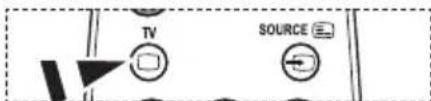
text_image
TV SOURCE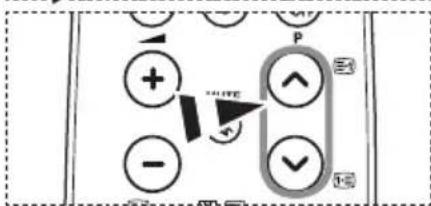
text_image
Diagram showing directional control buttons with symbols like +, -, -, and P, including a highlighted arrow indicating rotation or movement.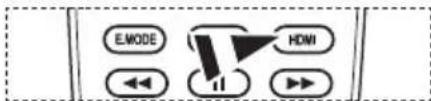
text_image
E.MODE HDMI ←← ↓↓ →text_image
Display Properties Options Desktop Screen Save Appearance Settings Display: Dashed Window on 100% Format (F1, RGB) Screen resolution Layer View 100% or 90% pixels Other quality High/25 GB Displacement Advanced OK Cancel Helptext_image
TV Picture Mode : Standard ▷ Backlight 7 Contrast 95 Brightness 45 Sharpness 50 Auto Adjustment ▷ Screen ▷ Detailed Settings ▷ ▼More Move Enter ReturnOtext_image
Auto Adjustment in progress Please wait.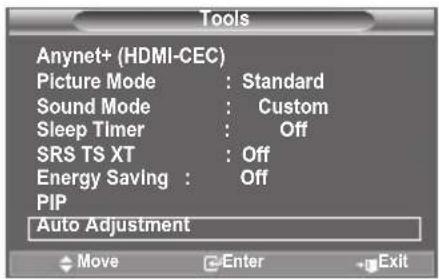
text_image
Tools Anynet+ (HDMI-CEC) Picture Mode : Standard Sound Mode : Custom Sleep Timer : Off SRS TS XT : Off Energy Saving : Off PIP Auto Adjustment Move Enter ExitScreen:
Coarse/Fine
text_image
TV Input Source List : TV ▶ Edit Name ▶ Anynet+ (HDMI-CEC) WISELINK Move Enter Return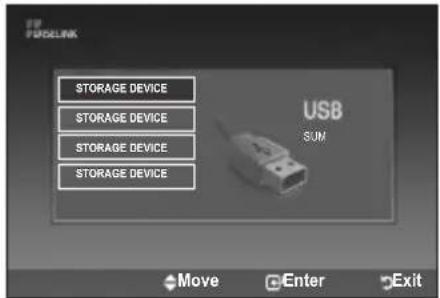
text_image
UP FURLINK STORAGE DEVICE STORAGE DEVICE STORAGE DEVICE STORAGE DEVICE USB SUM Move Enter Exit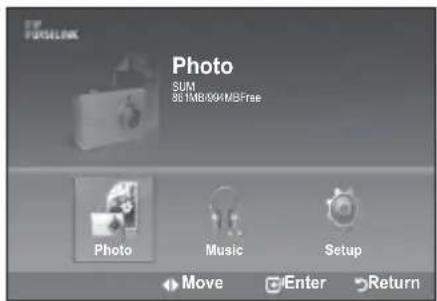
text_image
Photo SUM 3G 1MB/80M/86Free Photo Music Setup Move Enter Return
text_image
CH LIST MENU WLINK TOOLS SET RETURN SETtext_image
FP PURLINK Photo SUM 361MB/694MBFree Photo Music Setup Move Enter Return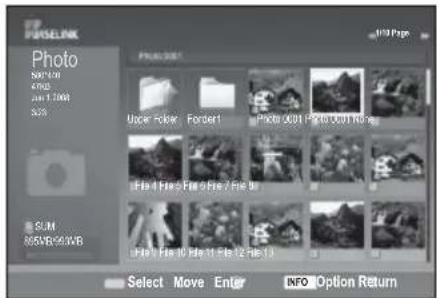
text_image
PHASELINK Photo SINCHI 47KB 2001.1.2003 S25 SUM 865WB/963WB Photo 201 Upper Folder Forder1 Photo 201 Photo 201.jpg File 1 File 2 File 3 File 4 File 5 File 1 File 10 File 11 File 12 File 13 Select Move Enter INFO Option Returntext_image
Store Show Speed Nominal Background Music On Background Music Setting List Add ExitUporaba menija med avtomatskim predvajanjem slik
Slide Show Speed:
text_image
Slide Show Speed Nomal Fast Background Music On ▶ Nomal Background Music Setting Slow List Add Exit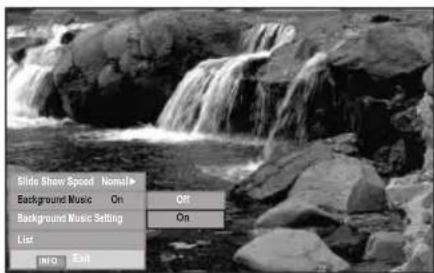
text_image
Side Show Speed Nominal Background Music On Off Background Music Setting On List INFO ExitBackground Music Setting:
text_image
Background Music Setting Choose file for background music Upper Folder 01-001 02-002 03-003 04-004 05-005 1/1 Page Select Move Enter Return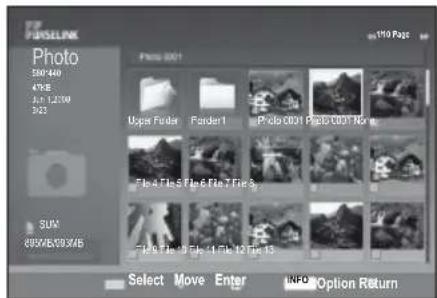
text_image
Photo 500:440 4YBE 3J 1,200 362 Photo 901 Ups Fruke Folder1 Polo 0001 Polo 0007 Nov File 4 Tins 5 File 6 File 7 Futs 128 Futs 13 Futs 14 Futs 12 Futs 13 SUM 805V5/93X5B Select Move Enter INFO Option ReturnList:
Informacije o datoteki se bojo prikazale kot mapa ali JPEG datoteka.
text_image
Start Slide Show Zoom X1 Rotate 0 List MP3 ExitZoom:
- S pritiskom na gumb ▲ ali ▼, izberite opcijo "Zoom", in potem pritisnite gumb ENTER
- S pritiskom gumba ▲ ali ▼ izberite želeno možnost, nato pa pritisnite gumb ENTER (X1, X2, X4)
Če želite povečano fotografijo pomakniti navzgor/navzdol/levo/desno, pritisnite gumb INFO, da zaprete meni z možnostmi, in nato pritiskajte gumb ▲, ▼, ◀ ali ▶.
text_image
X 1 Start Side Show Zoom X1 X 1 Rotate 0 X 2 List X 4 MP3 ExitRotate:
- S pritiskom na gumb ▲ ali ▼, izberite opcijo "Rotate", in potem pritisnite gumb ENTER
- S pritiskom gumba ▲ ali ▼ izberite želeno možnost, nato pa pritisnite gumb ENTER (0°, 90°, 180°, 270°)
Obrnjena slika se ne bo shranila.
text_image
FOSLINK Setup Slide Show Speed Background Music: Background Music Settings Repeat Music Off ▶ Screen Saver Train. Fast Normal Slow Move Enter Return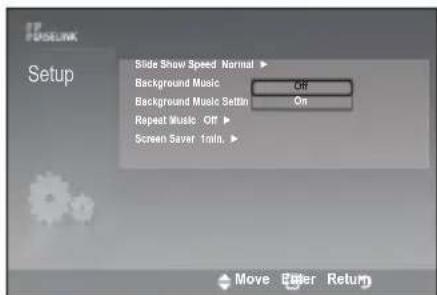
text_image
FUSELINK Setup Slide Show Speed Normal Background Music Off Background Music Settings On Repeat Music Off Screen Saver 1min. Move Enter Return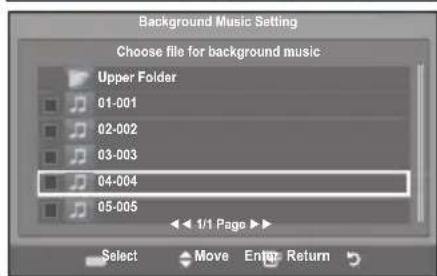
text_image
Background Music Setting Choose file for background music Upper Folder 01-001 02-002 03-003 04-004 05-005 1/1 Page Select Move Enter Return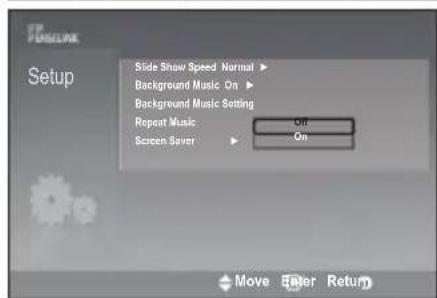
text_image
Setup Slide Show Speed Normal ▶ Background Music On ▶ Background Music Setting Repeat Music On Screen Saver On Move Enter Return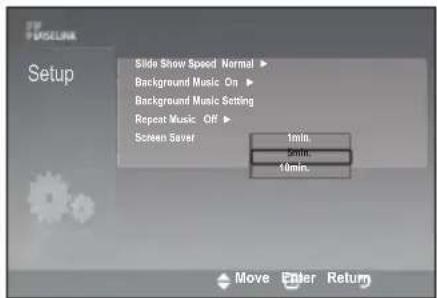
text_image
FUSSELLING Setup Slide Show Speed Normal ▶ Background Music On ▶ Background Music Setting Repeat Music Off ▶ Screen Saver 1min. 3min. 10min. Move Enter ReturnKaj je Anynet+?
text_image
TV P9 View TV Select Device Record Menu on Device Device Operation Receiver :Off Setup Move Enter Return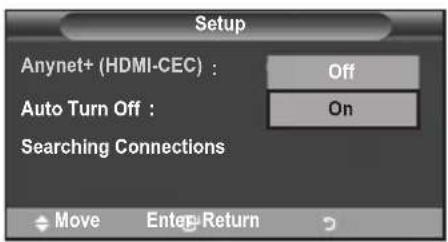
text_image
Setup Anynet+ (HDMI-CEC) : Off Auto Turn Off : On Searching Connections Move Enter ReturnSamodejni izklop naprave v sistemu Anynet+, ko je TV izklopljen
- Pritisnite gumb ▲ ali ▼, da izberete "Auto Turn Off", nato pritisnite gumb ENTER
- Pritisnite gumb ▲ ali ▼, da izberete "Yes", nato pritisnite gumb ENTER
Funkcija "Auto Turn Off" je omogočena.
Funkcijo "Auto Turn Off" prekličete z izbiro "No".
text_image
TV P9 View TV Select Device ▶ Record Menu on Device Device Operation Receiver :Off Setup Move Enter Return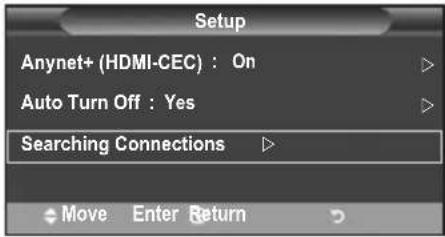
text_image
Setup Anynet+ (HDMI-CEC) : On Auto Turn Off : Yes Searching Connections Move Enter ReturnMeni Anynet+
Vsebina menija Anynet+ je odvisna od vrste in stanja naprav v sistemu Anynet+, ki so povezane s TV.
text_image
TV P9 View TV Select Device > Record > Menu on Device > Device Operation > Receiver :Off > Setup > Move Enter Returntext_image
TV SOURCESamodejni stenski nosilec (naprodaj posebej)
text_image
TV Setup Plug & Play ▶ Language : English ▶ Time ▶ Light Effect : In Watching TV ▶ Auto Wall-Mount ▶ Melody : Off ▶ Entertainment : Off ▶ Energy Saving : Off ▶ PIP ▶ Move Enter ReturnShranjevanje položaja
- Z gumbi ▲,▼,◀,▶ prilagodite želeni položaj.
Correct Disposal of This Product (Waste Electrical & Electronic Equipment)
(Applicable in the European Union and other European countries with separate collection systems)
This marking shown on the product or its literature, indicates that it should not be disposed with other household wastes at the end of its working life. To prevent possible harm to the environment or human health from uncontrolled waste disposal, please separate this from other types of wastes and recycle it responsibly to promote the sustainable reuse of material resources. Household users should contact either the retailer where they purchased this product, or their local government office, for details of where and how they can take this item for environmentally safe recycling. Business users should contact their supplier and check the terms and conditions of the purchase contract. This product should not be mixed with other commercial wastes for disposal.