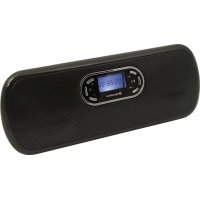
MM007N - Mp3 player ROADSTAR - Free user manual and instructions
Find the device manual for free MM007N ROADSTAR in PDF.



| Product type | MP3 player with FM radio, built-in speakers |
| Brand | Roadstar |
| Model | MM007N |
| Power supply | Rechargeable lithium battery 600 mAh (via AC adapter or USB) |
| Estimated battery life | Up to 10 hours (depending on usage) |
| Display | LCD 128 x 64 pixels, black and white |
| Supported audio formats | MP3, WMA, WAV |
| FM radio | Range 76-90 MHz / 87.5-108 MHz, 40 presets |
| Recording | WAV format 128 Kbps |
| Speakers | 2 x 3W (4 ohms) |
| Headphone output | Yes, 3.5 mm jack |
| Connectivity | USB 2.0, Micro SD card slot, Line-In input (AUX) |
| Signal-to-noise ratio | 90 dB (headphone output), 45 dB (FM) |
| Operating temperature | -5 °C to 50 °C |
| Menu languages | Multilingual (adjustable) |
| Care | Clean with a soft dry cloth. Do not use abrasive products. |
| Safety | Do not expose to moisture or extreme temperatures. |
| Included accessories | USB cable, Line-In cable (used as antenna), AC adapter (not guaranteed) |
| Dimensions | Approximately 20 x 10 x 5 cm (estimate) |
| Weight | Approximately 200 g (estimate) |
| Warranty | 2 years (depending on country) |
Frequently Asked Questions - MM007N ROADSTAR
User questions about MM007N ROADSTAR
0 question about this device. Answer the ones you know or ask your own.
Ask a new question about this device
Download the instructions for your Mp3 player in PDF format for free! Find your manual MM007N - ROADSTAR and take your electronic device back in hand. On this page are published all the documents necessary for the use of your device. MM007N by ROADSTAR.
USER MANUAL MM007N ROADSTAR
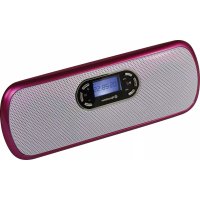
PORTABLE ACTIVE SPEAKER SYSTEM WITH USB / MICRO-SD MP3 PLAYBACK AND FM PLL RADIO.
Charge
Before start using the unit, connect the player with the adapter for charging the built-in battery. You can also connect it to PC by USB cable connecting to the earphone jack to charge. Suggest charge at least 3~5 hours.
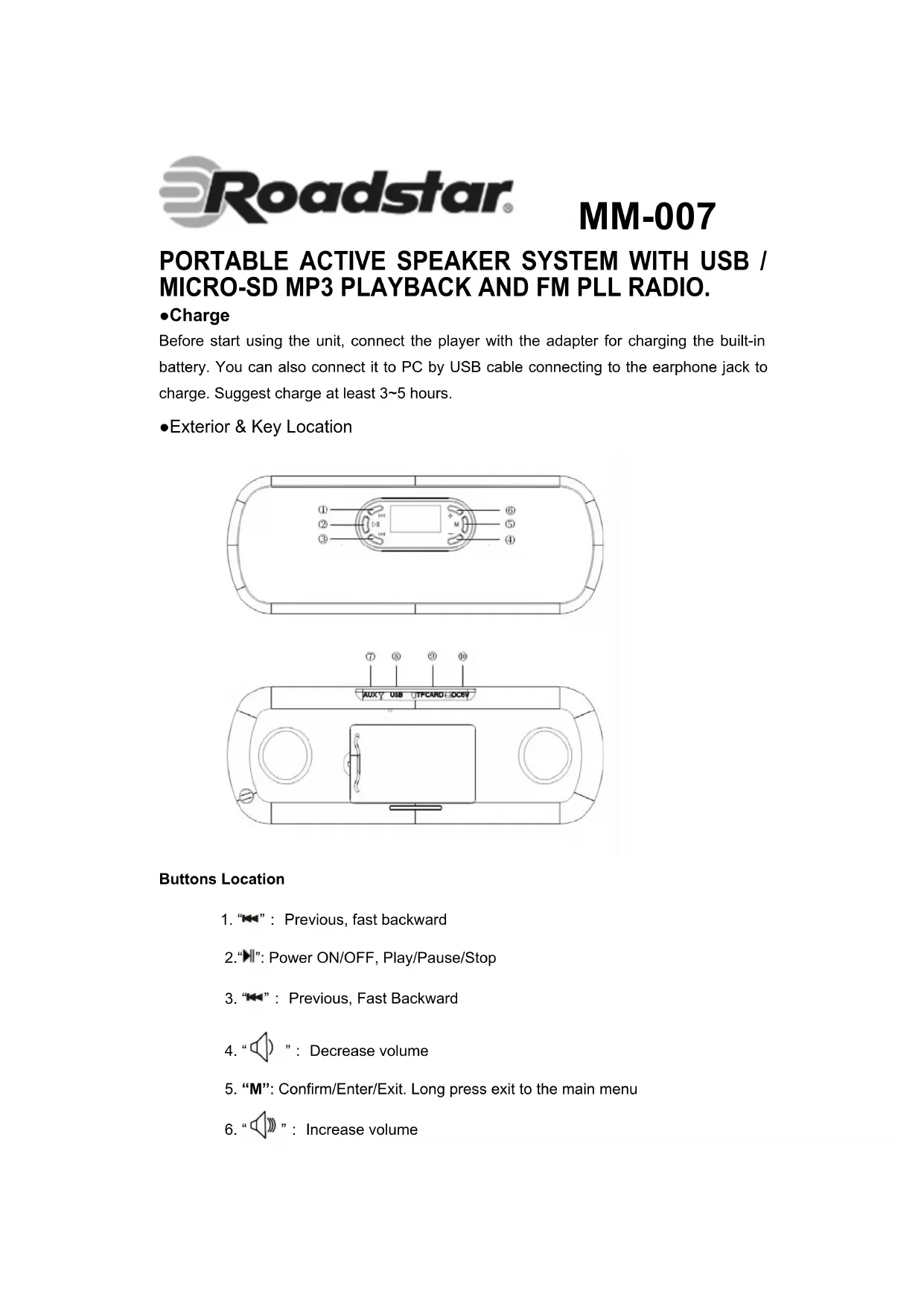
- Exterior & Key Location
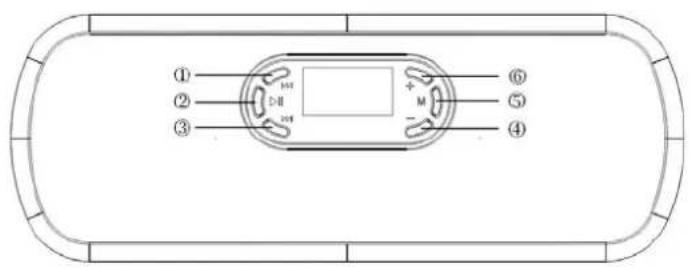
Buttons Location
- "": Previous, fast backward
- "": Power ON/OFF, Play/Pause/Stop
- "": Previous, Fast Backward
- “” : Decrease volume
- "M": Confirm/Enter/Exit. Long press exit to the main menu
-
" : Increase volume
-
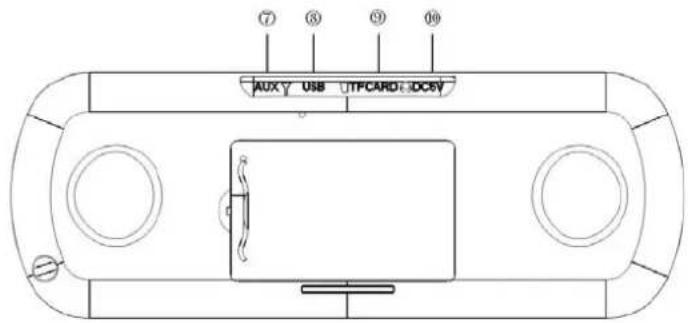
AUX: Line in socket, connection socket for FM antenna
- USB socket
- TF card slot (MICRO SD)
- Earphone socket, connection socket for external adapter charge
Note: all music files and recorded files are stored in Micro SD card, if not Micro SD card inserted, it can not process music play and voice record. Before using, please put the battery into the player & insert Micro SD card!
- System Setting
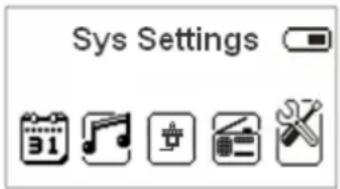
To enter in System Setting menu, switch ON the unit by keeping pressed for 5 seconds the "▶" button, then keep pressed for 5 seconds the MENU button until the clock is displayed. Press the button 4 times, then press MENU button again to enter in the System Setting Menu.
| ( System time ) | Set the date and the time when the record file saved. |
| ( backlight time ) | Set the backlight time |
| (Language) | Choosing different languages |
| (Tool) | Power off set, alarm, time FM set functions |
| (Contrast) | Set display's contrast |
| (Firmware Version) | Version of player's firmware |
| Key tone | Adjust the key tone level |
| (Exit) | Exit this interface |
System time setting
- System setting interface
- Press M key to enter into "System Time"
- Short press M key to set switch the positions.
- Press to increase the data, press to decrease
- Press M key to exit after finish the setup.
Backlight time setting
- Set as 0, keep backlight always on.
- Set among 0-30, press will forward 3 seconds. After setting, press M to confirm.
Language Setting
Press key to select the language you want to set.
TOOL
Power off Set
You can set time in seconds, allow the player power off automatically when the player has no any operation or under any status. It is designed for listening music before sleep. Please note: Sleep mode valid only once after setting, you have to set again if you want to use it next time.
Alarm
- Alarm off: Press M key to switch to select on/off option.
- Time: Set the time of alarm, press key to adjust time, press M key to switch between hour/minute setting. Press M key again to exit.
3.Cycle: Can set the days of alarming you need, press M key to enter and confirm, exit. - Alarm signal: Can set the music of alarm, you can set the files from the Mirco SD card or U-disk.
- Volume: Can adjust the volume by press +1- key
- Exit: Press M key to exit this function.
3. Time FM set
- Time FM on/off: Press M key to switch to select open or close option.
- FM record on/off: Press M key to switch to select open or close option.
- FM time: Can set the FM auto playback time
- Tuner region: Press key to select the region, press M key to confirm.
- Exit: Press M key to exit.
Contrast
Press key to select the suitable contrast rate, short press M to confirm.
Firmware version
You can find the player's firmware's version
Keytone
Press + / - key to adjust the sound level of keytone. Press M key to confirm and exit.
Calendar
To enter in Calendar menu, switch ON the unit by keeping pressed for 5 seconds the "▶" button, then keep pressed for 5 seconds the MENU button until the clock is displayed. Press the × to select the Calendar.
Date and time can be set under this menu. Press key to check the browse the date. Press M & key to exit to main menu.
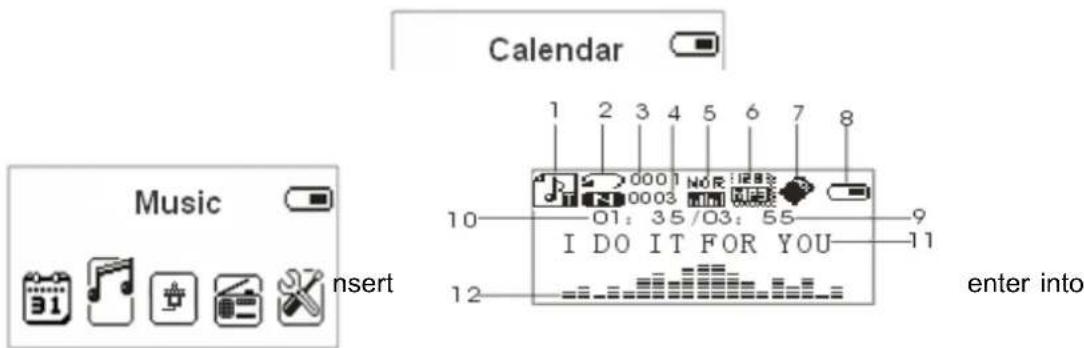
| 1.Music mode, lyric icon 7Extend card | |
| 2.Repeat mode 8.Battery indication | |
| 3.Number of current playing song 9.Total play time for current playing song | |
| 4.Total number of songs 10.Play time for current playing song | |
| 5.Sound effects mode 11.Lyric icon | |
| 6.Bit rate 12. frequency spectrum display | |
Previous/Next song
Under music mode, short press key to previous song, short press key to next song. When music playing, long press key to fast forward, long press key to fast backward.
Volume adjust
Short press - to decrease volume
Short press + to increase volume
Play & Pause (with pause function when recording)
On music mode, press key to play music.
When playing music, press key to pause.
Music submenu
When playing music, press M key to enter into main menu. press /key to select, press M key to enter. They are submenus as below:
1. Cycle mode
There are 7 modes for options: Normal, Repeat one, Folder, Repeat Folder, Repeat All, Random, Intro press key to select and then press M key to confirm.
2. EQ settings
When playing music, Press M key to entry play submenu, Select "EQ settings" & press M key to enter select below EQ models, and press M key to confirm.
| Natural |
| Rock |
| Pop |
| Classic |
| Soft |
| Jazz |
| DBB |
Synchronous Lyric Display
The player supports lyric files with *.LRC "suffix, and displays synchronously. How to use lyric files?
Please make sure the lyric has the same name to the music
For example:
Music file: My heart will go on.mp3
Lyric file: My heart will go on. Irc
How to know if lyric available?
If lyric matched, the icon will be replaced into
When matched lyric available, it will auto display the lyric when playing the music
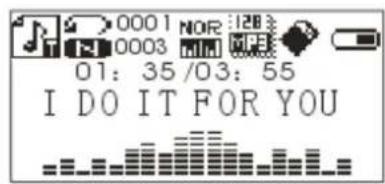
Under music pause or stop state, press M key enter into below submenu:
1.Card folder
Press key to select Card folder, short press M to enter, select the file and short press M to confirm.
Note: The player default to prior to select the files in "card folder". If you want to select freely, press key to pause the music, and press M key to enter submenu selection.
2. Delete file
Under music stop state, press key to select delete file, short press M to enter, select YES /NO and short press M to confirm, then can delete the current file.
3. Delete all
Under music stop state, press key to select delete all, short press M to enter, select YES /NO and short press M to confirm.
4. Back
Select back, return to previous music mode.
5.Exit
Exit to the main menu.
Line in
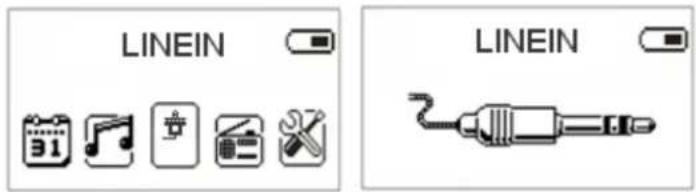
Under any interface, insert Line in cable to enter. When connect the sound source, this player can be used as a active speaker. Short press key to pause or play. Press +/ - to adjust volume,.
Press M key to exit from Line-in function.
FM Radio
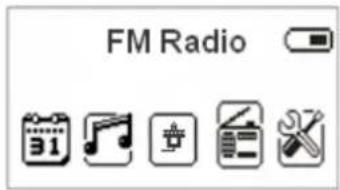
Before enter FM, please insert Line in cable as the FM antenna. No need insert Line in cable to listen FM if using at the place with strong signal.
To enter in Radio menu, switch ON the unit by keeping pressed for 5 seconds the "▶" button, then keep pressed for 5 seconds the MENU button until the clock is displayed. Press the button to select 'FM radio" and press M to entry FM Radio interface
Auto search
Under FM mode, short press M, press key to select "auto search", then press M to confirm. It can search channels by 100 KHz speed forward, and save the searched channels automatically.
Save channel
Under FM mode, short press M to enter submenu, press to select save channel, then short press M key to save.
Select to listen to the channels already saved
Under FM mode, if have two channels saved, can press key to listen
FM record
When listen to FM program, you can record the program you like at the same time.
Short press M key to enter FM submenu, select FM record, the playing program can be recorded on "VOICE" in Micro SD card or U-disk. Press key to record, press again to pause. Long press M key to save record, and return to FM mode.
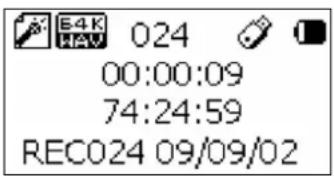

The record saved stored in the folder of Micro SD card or U-disk. Can't record if without insert Micro SD card or U-disk.
Delete channel
Under FM mode, short press M, press key to select "delete channel", press M to confirm.
Delete all
Under FM mode, short press M, press key to select "delete all", press M to confirm, you can delete all the saved channels.
- Troubleshooting
| No Power Check if battery | had installed properly Make sure have enough power |
| No Sound Make sure volume | me is not on 0 position and the connection to earphone is valid Please make sure the earphone is clean Damaged MP3 files may have noise and even cannot be played |
| Strange characters on display | Make sure you have chose correct language |
| FM signal not so good Adjust | just the position for Line in cable and the player Close the other electronic device around Line in cable can be used as antenna |
- Technical Specifications
| Screen 128*64 dot matrix black & white screen | ||
| Battery Replaceable lithium battery 600mAh | ||
| Record Format WAV 128 Kbps | ||
| Music | MP3 Bit rate 8K bps – | 320K bps |
| WMA Bit rate 32K bps – | 320K bps | |
| Freq. Response 20Hz to 20KHz | ||
| SNR 90dB (earphone output) | ||
| Distortion 0.06% (earphone output) | ||
| 4R speaker output | 3W+3W | |
| FM radio | Frequency range 76MHz–90MHz/87.5MHz–108MHz | |
| Radio stations 40 | ||
| SNR | 45dB | |
| Supported Music Formats MP3, WMA, WAV | ||
| Operate Temperature | -5 to 50 degree | |
Please note: Design and characters may change without prior notice.
Correct Disposal of This Product
(Waste Electrical & Electronic Equipment)

This marking shown on the product or its literature, indicates that it should not be disposed with other household wastes at the end of its working life. To prevent possible harm to the environment or human health from uncontrolled waste disposal, please separate this from other types of wastes and recycle it responsibly to promote the sustainable reuse of material resources.
Household users should contact either the retailer where they purchased this product, or their local government office, for details of where and how they can take this item for environmentally safe recycling.
Business users should contact their supplier and check the terms and conditions of the purchase contract. This product should not be mixed with other commercial wastes for disposal.

is a registered Trademark of Roadstar S.A. - Switzerland All rights reserved
2. Delete file (Suprimir archive)
3. Delete all (Suprimir todo)
Save channel (Guardar canal)
FM record (Grabar FM)
Delete channel (Suprimir canal)
En modo FM, presione M brevemente, presione las teclas 山山 para selectionar "delete channel"; seguidamente, presionar la tecla M para confirmar.
Delete all (Suprimir todo)
is a registered Trademark of Roadstar S.A. - Switzerland All rights reserved
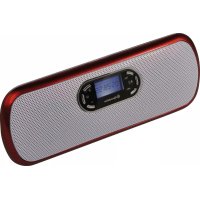
- PORTABLE ACTIVE SPEAKER SYSTEM WITH USB / MICRO-SD MP3 PLAYBACK AND FM PLL RADIO.
- Charge
- - Exterior & Key Location
- Buttons Location
- - System Setting
- System time setting
- Backlight time setting
- Language Setting
- TOOL
- Power off Set
- Alarm
- Time FM set
- Contrast
- Firmware version
- Keytone
- Calendar
- Previous/Next song
- Volume adjust
- Music submenu
- Cycle mode
- EQ settings
- Synchronous Lyric Display
- 1.Card folder
- Delete file
- Delete all
- Back
- 5.Exit
- FM Radio
- Auto search
- Save channel
- Select to listen to the channels already saved
- FM record
- Delete channel
- Delete all
- - Troubleshooting
- Correct Disposal of This Product
- Delete file (Suprimir archive)
- Delete all (Suprimir todo)
- Save channel (Guardar canal)
- FM record (Grabar FM)
- Delete channel (Suprimir canal)
- Delete all (Suprimir todo)
Brand : ROADSTAR
Model : MM007N
Category : Mp3 player