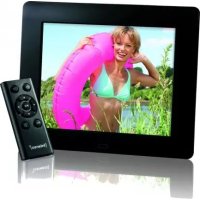
PhotoManager - Digital photo frame INTENSO - Free user manual and instructions
Find the device manual for free PhotoManager INTENSO in PDF.



| Product type | Digital photo frame |
| Brand | Intenso |
| Model | PhotoManager |
| Display | 8-inch TFT LCD digital screen, 4:3 format, 800x600 pixel resolution |
| Supported image formats | JPEG, maximum resolution 8000x8000 pixels |
| Supported memory cards | SD, SDHC, MMC, Memory Stick |
| USB port | USB Host 2.0 for USB flash drive |
| Navigation | 7 buttons on the device and infrared remote control (CR2025 battery included) |
| Main functions | Automatic slideshow with transition effects, individual display, image rotation/zoom, calendar, clock, alarm, automatic on/off |
| Display settings | Brightness, contrast, saturation (from -3 to +3), 4:3/16:9 mode |
| Power supply | 5V 1A power adapter, input 100-240V AC, 50/60Hz |
| Dimensions | 33 x 184 x 225 mm (with stand) |
| Weight | 500 g |
| Operating temperature | -10°C to +40°C |
| Care and cleaning | Clean the screen and housing with a soft, lint-free cloth without chemicals; use specific LCD screen cleaners |
| Safety | Do not open the housing, do not expose to water or heat, protect the screen from direct sunlight, do not use on hot surfaces |
| Spare parts and repairability | No user-serviceable parts; repair by a specialist only |
| Included accessories | Remote control (CR2025 battery included), stand, power adapter, multilingual user manual |
Frequently Asked Questions - PhotoManager INTENSO
User questions about PhotoManager INTENSO
0 question about this device. Answer the ones you know or ask your own.
Ask a new question about this device
Download the instructions for your Digital photo frame in PDF format for free! Find your manual PhotoManager - INTENSO and take your electronic device back in hand. On this page are published all the documents necessary for the use of your device. PhotoManager by INTENSO.
USER MANUAL PhotoManager INTENSO
Intenso Photo-Manager
Bedienungsanleitung
Intenso Photo-Manager
Inhaltsverzeichnis
EINFÜHRUNG....1
ALLGEMEINE PRODUKT MERKMALE 2
ÜBERSICHT....3
FERNBEDIENUNG 4
EINSETZEN DER BATTERIE IN DIE FERNBEDIENUNG 5
ALLGEMEINE PRODUKT MERKMALE
natural_image
Simple line drawing of a rectangular electronic device with a switch and labeled terminals (no text or symbols beyond basic labels)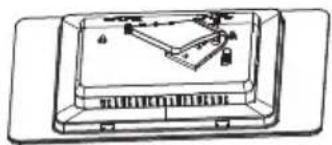
natural_image
Technical line drawing of a mechanical device with internal components (no text or symbols)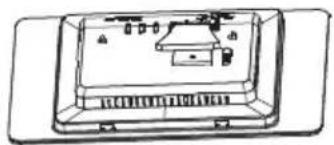
natural_image
Technical line drawing of a rectangular electronic device with internal components and mounting holes (no text or symbols)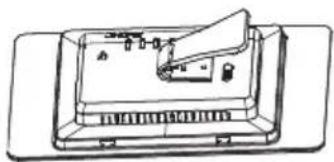
natural_image
Line drawing of a device with a speaker and antenna, no text or symbols presentERSTE SCHRITTE
natural_image
Line drawing of a cable being inserted into a device panel, with an outlet plug nearby (no text or symbols)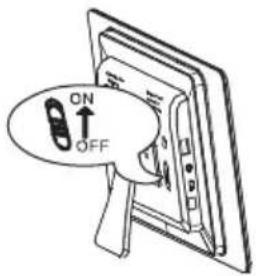
text_image
ON OFFnatural_image
Diagram of a device being inserted into a slide, showing a magnified view of the slide (no text or symbols present)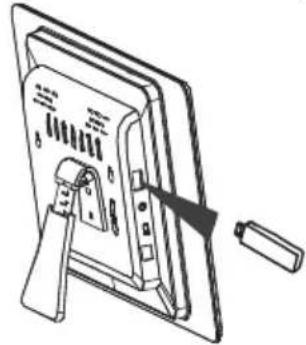
natural_image
Technical line drawing of a mechanical assembly with a tool inserted, showing internal components and a base plate (no text or symbols)Hinweis:
text_image
SD/MMC/MS Ultr Setupnatural_image
Grid of 20 nature photos including animals, grass, trees, butterflies, sun, and landscapes (no text or symbols)Hinweis:
natural_image
Toolbar with six icons including play triangle, magnifying glass, refresh, refresh arrow, square icon, and document (no text or symbols)natural_image
Two clock faces: one showing a sunflower image labeled '2018-11-25 Friday', the other displaying a wall clock with hour and minute hands (no text or symbols on the clock face)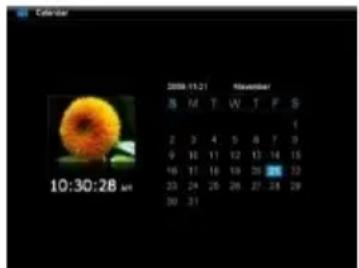
text_image
Calendar 2009-10-21 November S M T W T F S 1 2 3 4 5 6 7 8 9 10 11 12 13 14 15 16 17 18 19 20 21 22 33 24 25 26 27 28 29 30 31Operating Instructions
Intenso Photo-Manager
Table of Contents
INTRODUCTION....1
GENERAL PRODUCT CHARACTERISTICS 2
OVERVIEW 3
REMOTE CONTROL 4
REMOTE CONTROL 4
INSERTING BATTERIES INTO REMOTE CONTROL 5
FASTENING THE FRAME BASE....5
FIRST STEPS....6
USING MEMORY CARDS 7
WATCHING A SLIDE SHOW....8
MAIN MENU 9
WATCHING PHOTOS 10
Starting a Slide Show....10
Displaying Individual Pictures....12
Changing the Display Mode....13
Using the OSD Menu 14
SETUP MENU 16
Adjusting Date and Time....18
Activating Automatic Power On/Off 19
CALENDAR DISPLAY 20
FAQs....21
PRODUCT SPECIFICATIONS....24
SERVICE AND MAINTENANCE 25
INTRODUCTION
Thank you for buying the Intenso's DIGITAL PHOTO FRAME (DF).
Before using this device please carefully read these operating instructions and observe all safety notes. Please store these instructions at a safe place to have an answer at hand whenever you have questions. These instructions have been compiled with great care to enable you to safely use all functions of the DF.
The DF allows you watching digital photos directly from your camera's memory card. You can watch your photos in a slide show mode provided by the photo frame. The DF is compatible with the following card formats: SD™ (Secure Digital), SDHC™ (Secure Digital High Capacity), MMC™ (Multimedia Card), MS™ (Memory Stick) and USB flash drive.
We are not liable for any damages or loss of data in the case of malfunction, maloperation or if you repair the device yourself. Please do not disassemble the device into individual parts and do not try to repair it yourself; in such a case guarantee will expire. Software, hardware and the operating instructions can be all subject to change. We will not inform you hereof and reserve all rights in this matter.
GENERAL PRODUCT CHARACTERISTICS
• Decorative appearance, excellent quality
• Shows pictures (JPEG) without requiring a computer
• Automatic slide show with various transition effects and individual display duration
- Calendar function
- Timer function
• Compatible with SD / MMC and MS cards
• USB slot to connect USB flash drives
• 2-way control: 7 buttons on the digital photo frame, infrared remote control
OVERVIEW
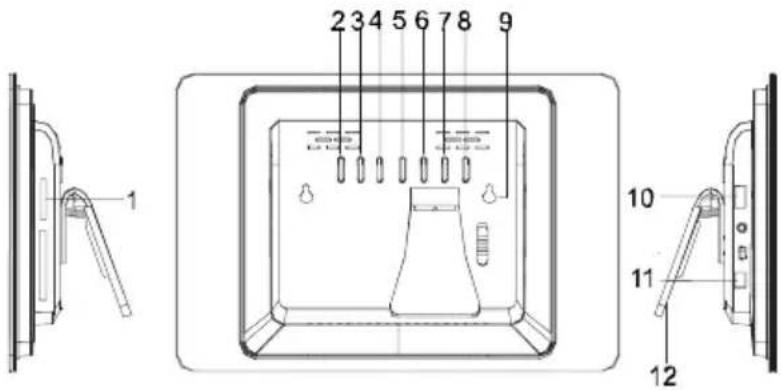
text_image
1 2 3 4 5 6 7 8 9 10 11 121 (SD/MMC/MS) 3-in-1 CardReader
2 Down/next [▼] button
3 Up/back [▲] button
4 Left [◀] button
5 Right [▶] button
6 STOP/END [⊃] button
7 MENU [M] button
8 PLAY/ PAUSE/ ENTER [▶] button
9 Power on/off
10 USB port: USB 2.0 Host
11 Mains adapter 5V 1A
12 Frame base
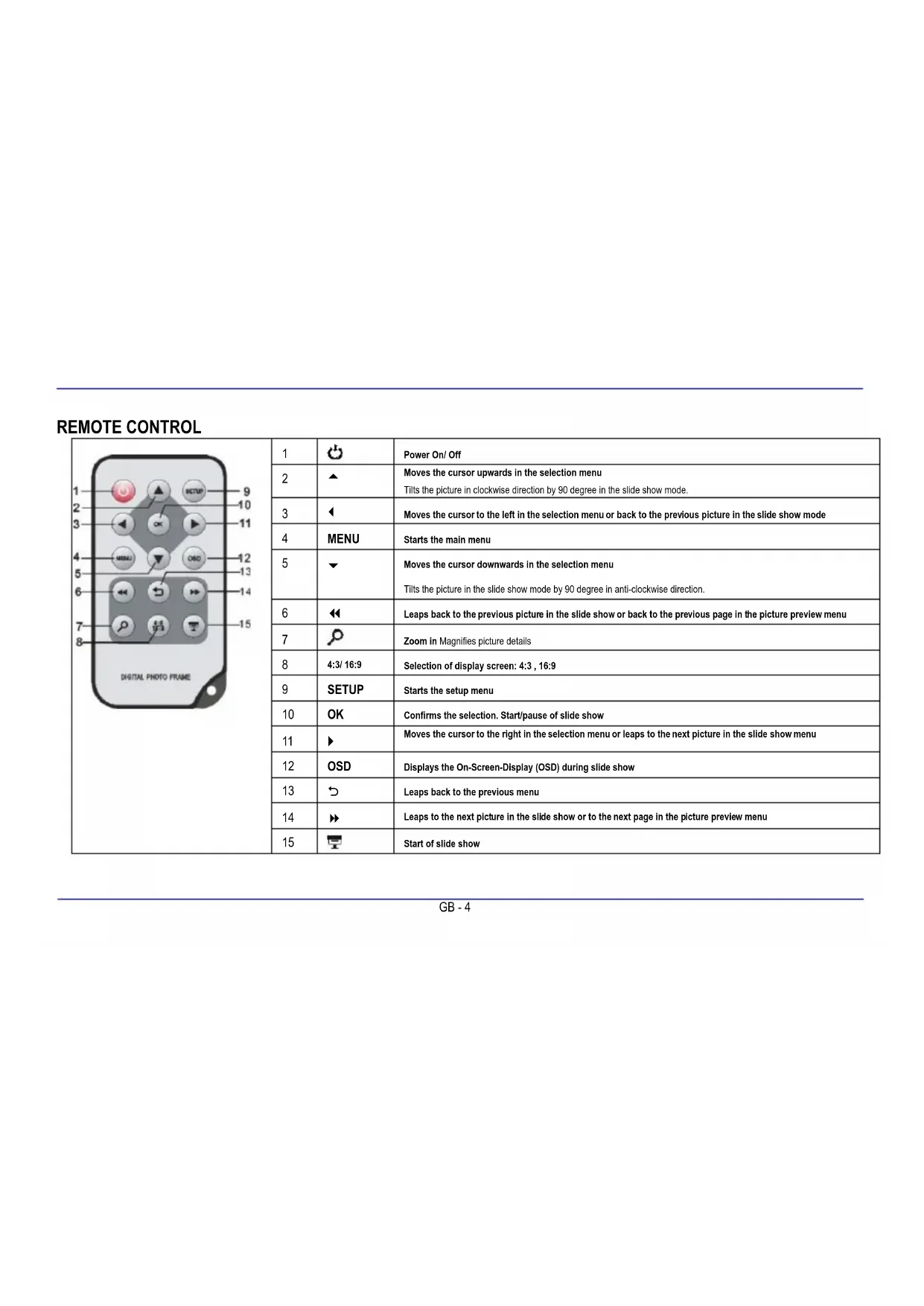
REMOTE CONTROL
| 1 | Power On/ Off | |
| 2 | ▲ | Moves the cursor upwards in the selection menu Tilts the picture in clockwise direction by 90 degree in the slide show mode. |
| 3 | ◀ | Moves the cursor to the left in the selection menu or back to the previous picture in the slide show mode |
| 4 | MENU | Starts the main menu |
| 5 | ▼ | Moves the cursor downwards in the selection menu Tilts the picture in the slide show mode by 90 degree in anti-clockwise direction. |
| 6 | ◀◀ | Leaps back to the previous picture in the slide show or back to the previous page in the picture preview menu |
| 7 | ○ | Zoom in Magnifies picture details |
| 8 | 4:3/ 16:9 | Selection of display screen: 4:3, 16:9 |
| 9 | SETUP | Starts the setup menu |
| 10 | OK | Confirms the selection. Start/pause of slide show |
| 11 | ▶ | Moves the cursor to the right in the selection menu or leaps to the next picture in the slide show menu |
| 12 | OSD | Displays the On-Screen-Display (OSD) during slide show |
| 13 | ⊃ | Leaps back to the previous menu |
| 14 | ▶▶ | Leaps to the next picture in the slide show or to the next page in the picture preview menu |
| 15 | ▽▽▽▽▽▽▽▽▽▽▽▽▽▽▽▽▽▽▽▽▽▽▽▽▽▽▽▽▽▽▽▽▽▽▽▽▽▽▽▽▽▽▽▽▽▽▽▽▽▽▽▽▽▽▽▽▽▽▽▽▽▽▽▽▽▽▽▽▽▽▽▽▽▽▽▽▽▽▽▽▽▽▽▽▽▽▽▽▽▽▽▽▽▽▽▽▽▽▽▽○○○○○○○○○○○○○○○○○○○○○○○○○○○○○○○○○○○○○○○○○○○○○○○○○○○○○○○○○○○○○○○○○○○○○○○○○○○○○○○○○○○○○○○○○○○○○○○○○○○○△△△△△△△△△△△△△△△△△△△△△△△△△△△△△△△△△△△△△△△△△△△△△△△△△△△△△△△△△△△△△△△△△△△△△△△△△△△△△△△△△△△△△△△△△△△△△△△△△△△△□ |
INSERTING BATTERIES INTO REMOTE CONTROL
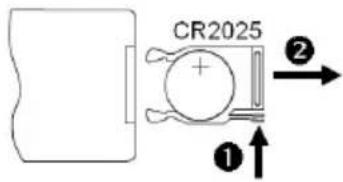
- Turn your remote control upside down with the buttons facing down.
• There is a spring on the left side of the battery compartment. Hold it to the right and simultaneously pull out the battery compartment. - Insert a CR2025 Lithium battery to the battery compartment with the Plus symbol facing upwards.
• Reinsert the battery compartment into the housing of the remote control.
Please note: Please dispose batteries according to legal regulations.
FASTENING THE FRAME BASE
text_image
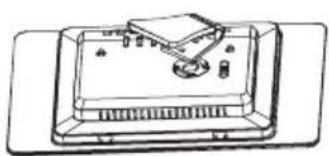
CR2025 ①↑ ②→• Turn the frame base in anticlockwise direction to select the so-called scenery or portrait position.
natural_image
Line drawing of a rectangular electronic device with internal components and connectors (no text or symbols)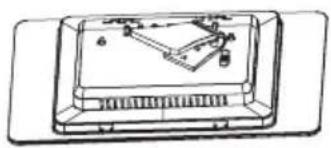
natural_image
Technical line drawing of a mechanical device with internal components (no text or symbols)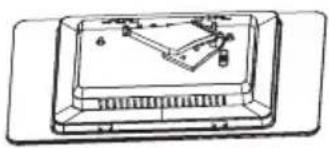
natural_image
Technical line drawing of a mechanical device with internal components and mounting brackets (no text or symbols)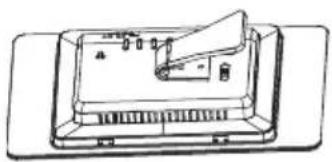
natural_image
Technical line drawing of a mechanical device with no visible text or symbolsFIRST STEPS
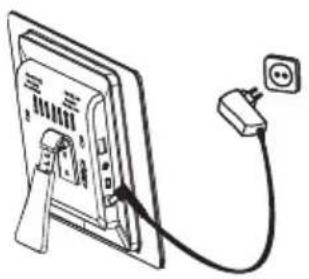
- Connect the frame base to the DIGITAL PHOTO FRAME (DF).
- Connect the mains adapter provided with the DF. Plug the other end of the provided mains adapter into the power outlet.
natural_image
Diagram of a cable being inserted into a device panel, with an outlet plug nearby (no text or symbols)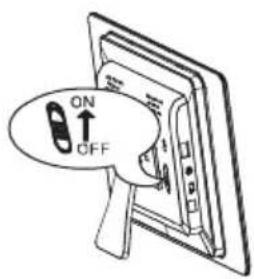
text_image
ON OFF- Move the slider of the DF into "ON" position.
- Using the device for the first time please select the Language in the appearing window by use of the keys on the rear side or the remote control. Confirm your selection with the [▶] button on the rear side or the OK –button on the remote control.
USING MEMORY CARDS
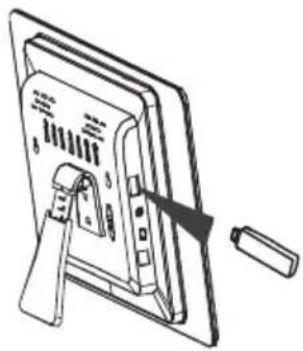
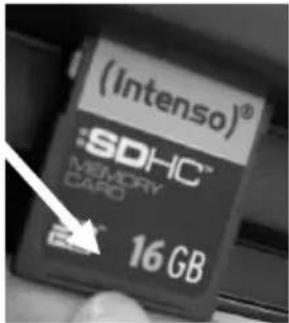
Insert SD / MMC / MS cards into the 3-in-1 card slot with the contacts facing the display. USB storage mediums can be connected with the DIGITAL PHOTE FRAME by inserting these mediums into the USB port (USB host).
text_image
(Intenso)® :SDHC™ MEMORY CAPO 16 GB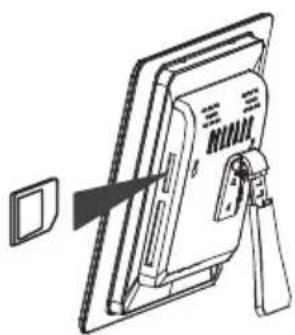
natural_image
Diagram of a device with a screen and a switch, showing an open panel and a magnified view (no text or symbols)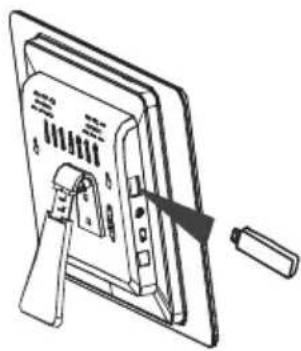
natural_image
Technical line drawing of a device with a handle and panel, no visible text or symbolsPlease note:
- Please do not insert memory cards by use of force.
• The 3-in-1 card reader can only read one card at a time.
Thus, please connect only one SD / MMC or MS card with the photo frame at a time.
- To disconnect inserted cards from the DIGITAL PHOTO FRAME remove them carefully from the card slot. (Please note: SD and MMC cards have a small notch in cross direction. By use of your finger nail you can remove the card from the slot).
WATCHING A SLIDE SHOW
After power-on you will be guided directly to the main menu.
If a memory card or a USB memory stick is connected to the DF, the slide show will start directly after power on.
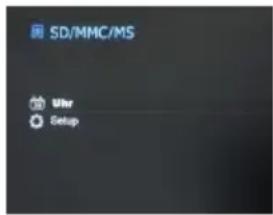
text_image
SD/MMC/MS Ultr SetupPress the MENU button on the rear side of the DF or on the remote control and then the
[▲],[▼] buttons on the rear side of the DF or the ▲,▼ buttons on the remote control to
start the storage medium connected, the setup menu or the calendar.
Please note:
• If a storage medium is connected to the DF the slide show will start automatically after power on.
- If more than one storage medium is connected with the photo frame, after power on the DF will at first read the pictures from the SD / MMC or MS cards.
MAIN MENU
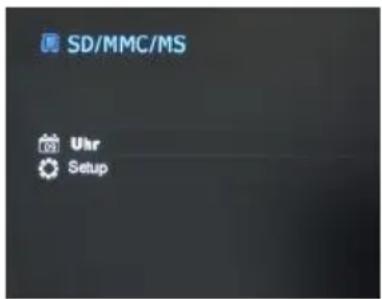
In the main menu you can select the storage mediums connected, the setup menu and the calendar.
-
- Press the MENU -button on the rear side of the DF or on the remote control to access the main menu.
| Menu | Description |
| USB | Displayed if a USB medium is connected. |
| SD/MMC/MS | Displayed if a SD, MS or MMC card is connected. |
| Clock | Display of calendar or time |
| Setup | Menu to make individual settings. |
- Press the [▲], [▼] buttons on the DF or the ▲,▼ buttons on the remote control to select a storage medium or a menu item.
- Confirm your selection by pressing the [▶] button on the DF or the OK -button on the remote control.
Starting a Slide Show
In each menu you can use the [ ] button on the remote control to start the slide show, starting with the first photo. To stop the slide show and to display individual photos please press the [▶] button on the DF or the OK-button on the remote control. By repeatedly pressing the [▶] button on the DF or the OK-button on the remote control you can proceed with the slide show.
- Press the [⊃] button on the remote control or on the DF to leave the slide show and to access the picture preview menu.
- Press the MENU-button on the remote control or on the DF to leave the slide show and to access the main menu.
Please note:
- If an additional storage medium is inserted when watching a slide show, the slide show will automatically leap to the first picture of the new storage medium and the slide show will start with this picture.
- If a SD/MMC/MS-card and a USB drive are connected to the DF at the same time, only the pictures selected on the relevant medium will be continuously played during the slide show. The individual storage mediums are not automatically played one after the other in the slide show.
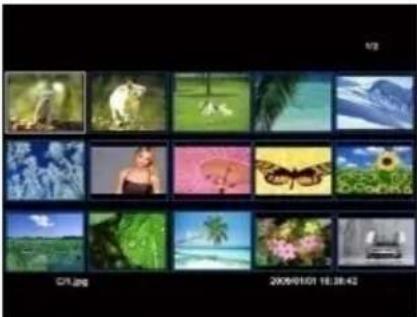
Picture Preview Menu
Picture Preview Menu
The pictures on the storage medium selected are depicted as thumbnails. It is possible to display up to 15 pictures at a time.
- In the main menu please select a storage medium (USB, SD/MMC/MS) and press the OK-button on the DF or on the remote control.
- To navigate within the thumbnails please use the [◀],[▶],[▲],[▼] buttons on the DF or the ▲, ▼, ◀, ▶ buttons on the remote control. To directly access the next preview page please use the ◀ or ▷ button on the remote control.
natural_image
Grid of 20 nature photos including animals, plants, butterflies, and landscapes, displayed in a photo frame (no text or symbols on the images themselves)Please note:
- During a slide show or the picture single view mode you can also access the picture preview menu by pressing the [ ↗] button on the remote control or on the DF.
Displaying Individual Pictures
You can select individual pictures without starting a slide show.
-
In the picture preview menu please select a picture and press the [▶] button on the DF or the OK-button on the remote control. The picture is now displayed in full screen mode. Now please press the [▶] button on the DF or the OK-button on the remote control within the selected display time. Now you will see the II symbol in the screen's lower left corner. For the selected notification time (see page 17).
-
To display previous or following pictures please press the [◀], [▶] buttons on the DF or the ◀, ▶ buttons on the remote control.
• To rotate pictures please press the [▲], [▼] buttons on the DF or the ▲, ▼ buttons on the remote control. -
To display a picture with a magnification, please repeatedly press the ⏻ button on the remote control. If the picture is displayed as a magnified version, you can vary the depicted display window by using the [◀], [▶], [▲], [▼] buttons on the DF or the ▲, ▼, ◀, ▶ buttons on the remote control.
-
To return to the picture preview menu please press the [→] button.
-
Press the [▶] button on the DF or the OK-button on the remote control to start the slide show, starting with the selected photo.
Changing the Display Mode
While watching a picture or during the slide show you can change the display mode by repeatedly pressing the [4:3/16:9] button on the remote control.
• 4:3: With this selection a picture which is saved in the 16:9 or a larger format is stretched and displayed as full screen picture.
• 16:9: With this selection a picture which is saved in the 16:9 or a larger format is displayed in its original format with a black bar at the upper and lower margin.
Please note:
• A photo which is saved in the 4:3 format can only be depicted in the format 4:3.
• This function is not possible with photos whose resolution is lower than 800X600 pixels.
Using the OSD Menu
You can use the OSD menu carry out the following functions.
- Press the [OSD] button on the remote control when watching a picture or a slide show. The OSD menu will appear on the display and the slide show will be stopped.

natural_image
Row of six white icons on a dark green background, including play button, refresh, refresh, upload arrow, save box, and curved arrow (no text or symbols)-
Press the [◀], [▶] buttons on the DF or the ◀, ▶ buttons on the remote control to navigate between the functions.
-
To stop or continue the slide show please select the symbol ▶ and press [▶] on the DF or OK on the remote control. The ▶ (Play) symbol in the OSD-menu will be replaced by the II (Pause) symbol.
- To enlarge the picture please select the symbol 🔒 and press the [▶] button on the DF or OK on the remote control. If the picture is displayed as magnified version, you can vary the depicted display window using the [◀], [▶], [▲], [▼] buttons on the DF or the ▲, ▼, ◀, ▶ buttons on the remote control.
-
To rotate the picture by 90 degrees in clockwise direction please select the ⬤ symbol and press the [▶] button on the DF or OK on the remote control.
-
To rotate the picture by 90 degrees in anti-clockwise direction please select the ⏻ symbol and press the [▶] button on the DF or OK on the remote control.
- By use of the □ symbol you can change between the 4:3 or 16:9. By pressing [▶] on the DF or OK on the remote control you can confirm the format change.
See also at: "Changing the Display Mode (page 13)" - By selecting the ☒ symbol and pressing [▶] on the DF or OK on the remote control the displayed picture will be deleted and removed from the data medium. ( PLEASE NOTE: Prior to deleting there will be no security query !! )
- By selecting the ➤ symbol and pressing [▶] on the DF or OK on the remote control the DF will continue with the slide show.
SETUP MENU
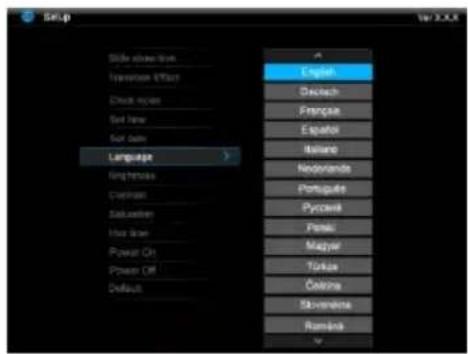
You can individually adjust the configuration of the DIGITAL PHOTFRAME (DF).
- In the main menu please select the menu item SETUP and confirm your selection with the [▶] button on the DF or the OK-button on the remote control. You can also access this menu by pressing the [SETUP] button on the remote control.
- To select a menu item please press the [▲], [▼] buttons on the DF or the ▲, ▼ buttons on the remote control.
- To change the relevant setting please press the [◀], [▶] buttons or the [▶] button on the DF, alternatively the ◀, ▶ buttons on the remote control and confirm your selection by pressing the [▶] button on the DF or the OK-button on the remote control.
- To leave the menu please press the [⊃] button on the remote control or on the DF.
text_image
Selp English Deutsch Française Español Italieno Nordonanda Portuguese Pyceské Pemlé Magyar Turkus Éolome Subérieure Románia| Settings | Description |
| Display duration | Select how long a picture is displayed during a slide show.Settings: 3 sec., 5 sec., 15 sec., 1 min., 15 min. |
| Picture transitions | Select from random and continuous transition modes |
| Clock settings | Select the display mode of your calendar / clock. Options: Monthly calendar, digital clock, analogue clock |
| Time settings | Adjusting the time. |
| Date settings | Adjusting the calendar |
| Language | Select your preferred language. |
| Brightness | Adjusts the brightness of the TFT display. Options: -3, -2, -1, 0, 1, 2, 3. |
| Contrast | Adjusts the contrast of the TFT display. Options: -3, -2, -1, 0, 1, 2, 3. |
| Colour saturation | Adjusts the colour saturation of the TFT display. Options: -3, -2, -1, 0, 1, 2, 3. |
| Display time | Specify how long the notification window of the key's functions is displayed in the slide show mode and the status II (pause) or ▶ (play) in the lower picture. Options: 0 sec., 5 sec., 10 sec., 20 sec. |
| Autom. Power-on | Enables automatic power-on. Once / daily. |
| Autom. Power-off | Enables automatic power-off. Once / daily. |
| Default setting | Device is reset to factory settings. |
Adjusting Date and Time
How to adjust date and time on the Intenso DF:
- In the main menu select the menu item SETUP.
- Press the [▲], [▼] buttons on the DF or the ▲, ▼ buttons on the remote control to select the menu item Time.
- Press the [◀], [▶] buttons on the DF or the ◀, ▶ buttons on the remote control to select the next or previous element (hour, minute). Press the [▲], [▼] buttons on the DF or the ▲, ▼ buttons on the remote control to adjust the desired values.
- To confirm your entries please press the button [▶] on the rear side of the DF or the OK-button on the remote control.
How to adjust the date on the Intenso DF:
- Press the [▲], [▼] buttons on the DF or the ▲, ▼ buttons on the remote control to select the menu item Date.
- Press the [◀], [▶] buttons on the DF or the ◀, ▶ buttons on the remote control to select the next or previous element (month, day, year). Press the [▲], [▼] buttons on the DF or the ▲, ▼ buttons on the remote control to adjust the desired values.
- To confirm your entries please press the button [▶] on the rear side of the DF or the OK-button on the remote control.
Activating Automatic Power On/Off
You can have Intenso's DIGITAL PHOTO FRAME switch on/off automatically at a preset time.
Please note: This function requires setting the correct time in advance.
- In the main menu select the menu item SETUP.
- Press the [▲], [▼] buttons on the DF or the ▲, ▼ buttons on the remote control to select the menu item autom. power-on or autom. power-off.
- Press the [◀], [▶] buttons on the DF or the ◀, ▶ buttons on the remote control to select the next or previous element (hour, minute). Press the [▲], [▼] buttons on the DF or the ▲, ▼ buttons on the remote control to adjust the desired values and the time.
• Off: Disables automatic power-on/off.
- On: The DIGITAL PHOTO FRAME switches on and/or off at the preset time.
- To confirm your entries please press the button [▶] on the DF or the OK-button on the remote control.
CALENDAR DISPLAY
The calendar mode displays the current date, the current time and a slide show with thumbnails in the background.
- In the main menu select the menu item CLOCK.
- To leave the calendar mode please press the [→] button.
Please note:
• Date and time can only be set in the Setup menu.
- By pressing the [▶] button on the rear side of the DF or the OK-button on the remote control the display can show the Monthly Calendar, the Digital Clock or the Analogue Clock.
- By pressing the [▲], [▼] buttons on the rear side of the DF or ▲, ▼ the buttons on the remote control the calendar can show the next months or leap back to the previous one.
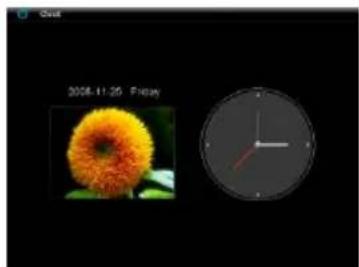
natural_image
Two grayscale images: a sunflower on the left and a wall clock on the right, both without any visible text or symbols.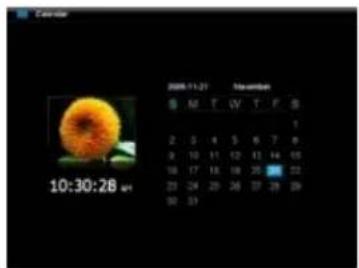
text_image
2009-11-21 Sun-garden S M T W T F S 1 2 3 4 5 6 7 8 9 10 11 12 13 14 15 16 17 18 19 20 21 22 23 24 25 26 27 28 29 30 31FAQs
Why is the actual capacity of a memory card less than specified on the packaging?
The storage capacity of a flash storage medium is specified according to capacity specifications for hard drives and is subject to the SI regulations (International System of Units). This system does not use the binary system, which converts 1024 MB into one 1 GB. The SI standard uses the powers of 1000, where 1000 Megabyte make 1 Gigabyte. Due to this different way of calculation, capacity specification might be different.
Why does the DF not display some pictures of my memory card?
Some not so widespread storage mediums are not compatible with the DF. Please use a compatible card. Please bear in mind that this photo frame can only play photos with the file format "JPEG".
A memory card is inserted but the DF cannot read this card. What can I do?
At first please check if this card is actually compatible with Intenso's DIGITAL PHOTOFRAME.
Then, please check if the card is properly inserted into the card slot. Please bear in mind that only the file format „JPEG“ is supported.
Please note: Some digital cameras do not save pictures by use of the standard format JPEG. In such a case please refer to the operating manual of your camera.
Why are some pictures loaded faster than others?
Pictures with a high resolution need longer times to be displayed. To increase the loading speed please use pictures with a lower resolution.
Please note: The photo frame supports a resolution of up to 8000*8000 pixels.
Why does the software not start although power supply is ensured and the power switch is in "On" position?
This might be a system error. Please reset the software by cutting off power supply for a few seconds.
Why is the main menu not displayed?
Please check if the DF is properly connected to the power outlet and the power switch is in "On" position.
Can I rotate pictures on the display?
Yes, please use your arrow keys [▲], [▼] on the DF or the ▲, ▼ buttons on the remote control.
Please note: With a new start the rotated picture will be displayed in normal mode again.
Can I adjust the colours of pictures?
No. All colours are set when the picture is being taken. However, you can adjust the brightness and the contrast of the display. However, you can adjust the brightness and the contrast of the display.
What is the ideal resolution to display pictures on the DF?
The ideal resolution for this DF is 800*600 pixels.
Why do the functions: Automatic power-on / off not work although I have enabled them?
Please make sure your time settings are correct. If the set time is in the past, the function will be enabled on the next calendar day for the first time.
Please do not move the slider on the rear side of the DF into POWER OFF position. Only change the status of the DF into standby.
PRODUCT SPECIFICATIONS
| Display | Digital TFT LCDDisplay size: 8" inchDisplay modus: 4:3Resolution: 800*600 pixels |
| Mains adapter | Input: 100~240V AC, 50/60HzOutput: 5V 1A DC |
| USB port | USB Host 2.0Supports USB storage mediums |
| Memory cardssupported | SDTM (Secure Digital Card), MMCTM (MultiMedia Card), MSTM (Memory Stick) |
| Picture size supported | JPEG, max. resolution:8000*8000 pixels |
| Operating temperature | -10°C ~ +40°C |
| Dimensions | 33*184*225 mm |
| Weight | 500 g |
| Accessory | Remote control (incl. battery), foot, mains adapter, multi-lingual operating instruction |
SERVICE AND MAINTENANCE
Service
- To avoid risks of electric shocks please do not remove screws or the housing.
- Do not use the device in the vicinity of water. Do not expose the device to rain or moisture. Do not place any objects in the vicinity of the device that store water or any other liquids.
- Do not install this picture frame in the vicinity of heating systems, ovens or other heat emitting devices.
• Do not open the housing. Do not try to repair the device yourself. Leave any repairs to specialised personnel only. - Avoid using your device on sandy places.
- Please do properly connect the plug of the mains adaptor to the existing opening of the DF. Thus, you can avoid electro-static charge.
- Plug in all connections correctly and safely.
- Please do not touch the display. Do not expose the display to direct sunlight.
- The picture frame only plays compatible file formats.
- Pictures might be protected by copyright law of third parties. Playing such pictures without licences might represent an infringement of such copyright laws.
- Please do not touch the DF with metallic object during operation.
• Please avoid operation on pillows, sofas or any other heat emitting home appliances since the device might overheat in such cases. - Please do not remove memory cards while the device is reading. Otherwise this might result in abnormal system ends or loss of data.
- Please do not switch off the device with the slide show running.
- Please do not directly wrap the device after longer operating hours. Please make sure the device has cooled down properly. Otherwise the device might overheat.
- To guarantee better service this operating instruction is subject to alterations.
Device Maintenance
THE DEVICE MUST BE SWITCHED OFF.
NEVER SPRAY OR APPLY LIQUID SUBSTANCES DIRECTLY ONTO THE DISPLAY OR THE HOUSING.
Cleaning the display / housing / frame
Clean the housing, frame and LCD display carefully with a soft cloth which is free of lint and chemicals. Only use cleaning agents which are suitable for cleaning LCD displays.
Disposal of WEEE (Waste Electrical and Electronic Equipment)
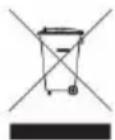
Devices marked with the WEEE logo are subject to the European Community Directive 2002/96/EC.
Waste Electrical and Electronic Equipment must be separated from household rubbish and disposed at sites that collect WEEE.
By orderly disposing WEEE you will avoid damage caused to the environment.
Mode d'emploi
Intenso Photo-Manager
Sommaire
INTRODUCTION....1
CARACTERISTIQUES GENERALES DU PRODUIT .... 2
APERÇU....3
TELECOMMANDE......4
METTRE LA PILE DANS LA TELECOMMANDE....5
FIXATION DU SUPPORT .... 5
PREMIERS PAS....6
UTILISATION DE CARTES DE MEMOIRE....7
REGARDER UN DIAPORAMA 8
MENU PRINCIPAL......9
REGARDER DES PHOTOS .... 10
Passer un diaporama....10
QUESTIONS FREQUEMMENT POSEES....21
SPECIFICATIONS DU PRODUIT 24
SOIN ET ENTRETIEN....25
INTRODUCTION
natural_image
Simple line drawing of a device with ports and connectors (no text or symbols)
natural_image
Line drawing of a mechanical device with internal components and mounting brackets (no text or symbols)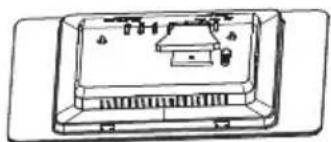
natural_image
Line drawing of a device casing with internal components and mounting holes (no text or symbols)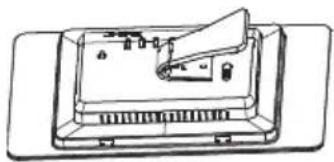
natural_image
Technical line drawing of a device with a mounted component and ventilation slots (no text or symbols)PREMIERS PAS
natural_image
Line drawing of a cable being inserted into a device panel, with an outlet plug nearby (no text or symbols)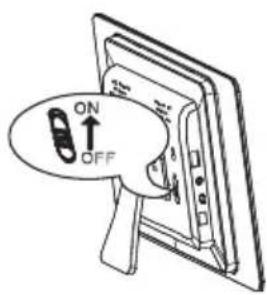
text_image
ON OFFnatural_image
Diagram of a device being inserted into a slide, showing a magnified view of the screen (no text or symbols present)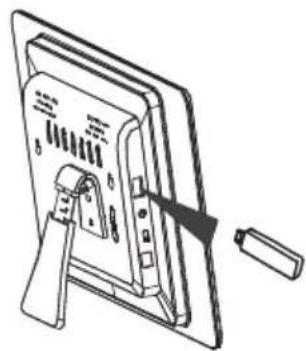
natural_image
Line drawing of a device with a handle and internal components, no text or symbols presentRemarques :
text_image
SD/MMC/MS Ultr Setupnatural_image
Grid of 20 nature photos including animals, plants, butterflies, and landscapes, displayed in a photo frame (no text or symbols on the images themselves)Remarque :
natural_image
Toolbar with six function icons (play, search, refresh, upload, delete, return) on a dark background, no readable text or symbols.text_image
Setup Style: white blue Transitions: white Black color Set time Set date Language English Outreach French Esquatic Nations Netherlands Portuguese Pyelink Primal Magyar Tuliga Cebone Silvvelika RumuleaQUESTIONS FREQUEMMENT POSEES
natural_image
Simple line drawing of a device with a mounted component and wiring (no text or symbols)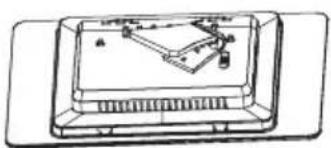
natural_image
Simple line drawing of a computer monitor with an open screen and internal components (no text or symbols)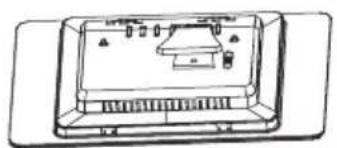
natural_image
Simple line drawing of a rectangular electronic device with internal components and no visible text or symbols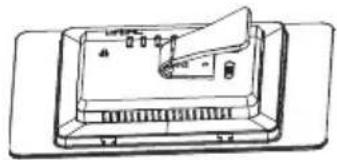
natural_image
Line drawing of a device with a paper clip and control panel (no text or symbols)I PRIMI PASSI
natural_image
Diagram of a cable being inserted into a device with an electrical outlet (no text or symbols)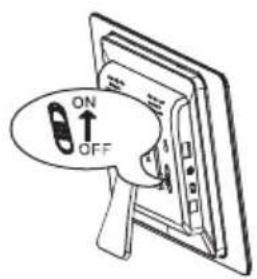
text_image
ON OFFnatural_image
Diagram of a device being inserted into a slide, showing the screen and handle (no text or symbols)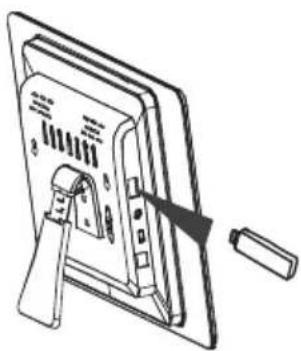
natural_image
Technical line drawing of a mechanical component with a lever and base, no visible text or symbolsAvviso:
text_image
SD/MMC/MS Ultr Setupnatural_image
Grid of 20 nature photos including animals, plants, butterflies, and landscapes (no text or symbols)Avviso:
natural_image
Green textured background with six white icons: play triangle, magnifying glass, refresh, refresh arrow, square icon, and document (no text or symbols)natural_image
Four technical line drawings of a device with internal components and mounting holes, shown from different angles (no text or symbols)PRIMEROS PASOS
natural_image
Diagram of a cable being inserted into a device panel, with an outlet plug nearby (no text or symbols)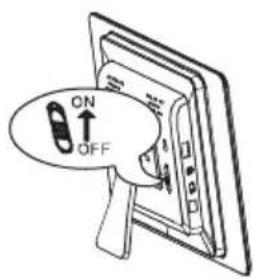
text_image
ON OFFnatural_image
Diagram of a device with a screen and a switch, showing an open panel (no text or symbols present)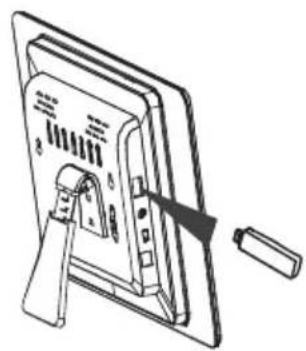
natural_image
Line drawing of a computer monitor with a cable inserted, showing internal components and a handle (no text or symbols)Advertencias:
natural_image
Grid of 20 nature photos including animals, plants, butterflies, and sunflowers (no text or symbols)Advertencia:
natural_image
Row of six white icons on a dark green background, including play triangle, magnifying glass, refresh, refresh arrow, upload square, and close button (no text or symbols)CONTROLE REMOTO....4
INSERINDO PILHAS NO CONTROLE REMOTO 5
natural_image
Simple line drawing of a rectangular electronic device with a mounted component and circuit lines (no text or symbols)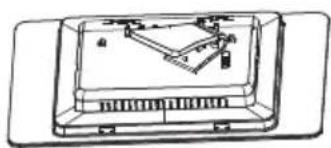
natural_image
Technical line drawing of a mechanical device with internal components (no text or symbols)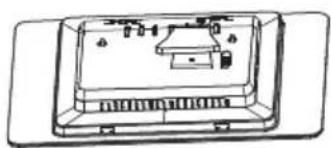
natural_image
Technical line drawing of a mechanical device with internal components (no text or symbols)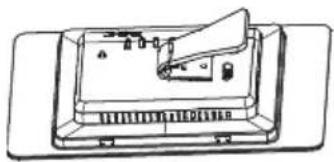
natural_image
Line drawing of a device with a speaker and control panel (no text or symbols)PRIMEIROS PASSOS
natural_image
Line drawing of a cable being inserted into a device panel, with an outlet plug nearby (no text or symbols)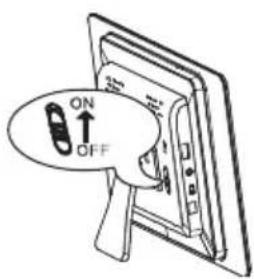
text_image
ON OFFnatural_image
Diagram of a device being inserted into a slide, showing a magnified view of the slide (no text or symbols present)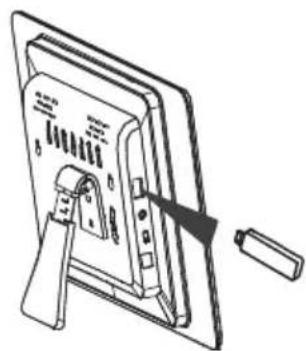
natural_image
Technical line drawing of a mechanical component with a handle and internal structure (no text or symbols)Importante:
text_image
SD/MMC/MS Ukr Setupnatural_image
Grid of 20 nature photos including animals, landscapes, butterflies, and cars (no text or symbols)Aviso:
natural_image
Row of six white icons on a dark background, including play triangle, magnifying glass, refresh, refresh arrow, square icon, and document with cross (no text or symbols)Posso rotar as imagens no visor?
natural_image
Simple line drawing of a device with a mounted component and control panel (no text or symbols)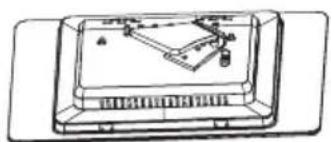
natural_image
Simple line drawing of a device with no visible text, numbers, or symbols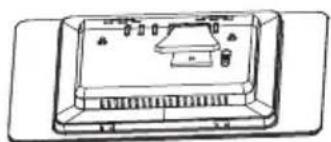
natural_image
Simple line drawing of a rectangular device with internal components and no visible text or symbols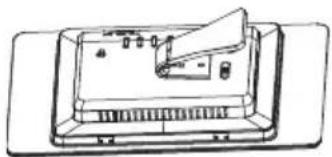
natural_image
Line drawing of a device with a paper clip and control panel (no text or symbols)PIERWSZE KROKI
natural_image
Diagram of a cable being inserted into a device panel, with an outlet plug nearby (no text or symbols)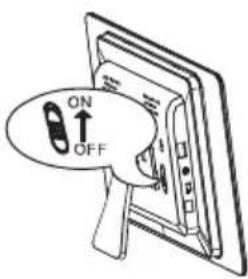
text_image
ON OFFnatural_image
Diagram of a device with a slide and a magnifying glass, showing internal components (no text or symbols)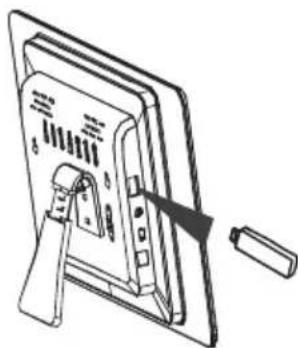
natural_image
Technical line drawing of a device with a handle and internal components, no text or symbols presentUwaga:
natural_image
Grid of 20 nature photos including animals, nature scenes, butterflies, and landscapes (no text or symbols)Uwaga:
natural_image
Row of six white icons on a dark green background, including play triangle, magnifying glass, refresh, refresh arrow, upload square, and cancel (no text or symbols)natural_image
Diagram of a cable being inserted into a device panel, with an outlet plug nearby (no text or symbols)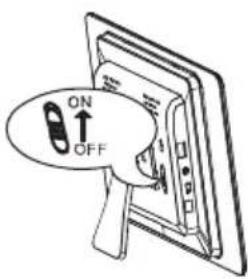
text_image
ON OFFnatural_image
Diagram of a device with a screen and a small inset showing a separate panel (no text or symbols present)