PhoneEasy 312ci - Phone DORO - Free user manual and instructions
Find the device manual for free PhoneEasy 312ci DORO in PDF.



| Product type | Wired telephone with advanced features |
| Brand | Doro |
| Model | PhoneEasy 312ci |
| Dimensions | 175 mm x 175 mm x 60 mm |
| Weight | 750 g (with batteries) |
| Power supply | 4 AA alkaline batteries (for memory and loudspeaker) |
| Display | Large character display, contrast adjustment |
| Keypad | Extra-large, wide keys |
| Main functions | Hands-free speakerphone, directory (30 entries), 3 direct memory keys, call log (15 entries), caller ID, pre-dialing, last number redial |
| Ringer | Adjustable volume (mute/low/medium/high), adjustable melody and tone |
| Handset volume | Adjustable via slider under handset |
| Compatibility | Hearing aid compatible (T-mode) |
| Installation | On desk or wall mount (bracket included) |
| Maintenance and cleaning | Do not use chemicals; keep dry and dust-free |
| Safety | Unplug during thunderstorms; use only high-quality AA alkaline batteries |
| Spare parts and repairability | Replaceable AA batteries; 2-year warranty, repair via dealer after-sales service |
| Warranty | 2 years from date of purchase (excluding batteries) |
| Technical specifications | Tone or pulse dialing; adjustable R key time (100/300/600 ms) |
Frequently Asked Questions - PhoneEasy 312ci DORO
User questions about PhoneEasy 312ci DORO
0 question about this device. Answer the ones you know or ask your own.
Ask a new question about this device
Download the instructions for your Phone in PDF format for free! Find your manual PhoneEasy 312ci - DORO and take your electronic device back in hand. On this page are published all the documents necessary for the use of your device. PhoneEasy 312ci by DORO.
USER MANUAL PhoneEasy 312ci DORO
- Telephone line socket
- Handset hook
3.Keypad - Handset cord socket
- Handset volume
- Recall
- Call memory / OK / OK
- Delete
- Mains adapter socket
-
Ring volume
-
Speed dial keys
- Phone book
- Ring melody
- Ring tone
- Speaker volume
- Speakerphone
- UP/DOWN
- New call indicator
- Ringer indicator
Français
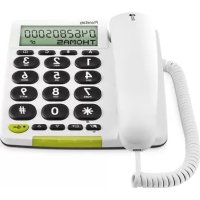
Doro PhoneEasy 312ci can be used as a desktop or wall-mounted telephone. Enhanced ring volume and visual call indication make this telephone well suited for people with hearing difficulties.
The extra-large keypad and easy to read display with large characters make the telephone easy to use even with impaired eyesight.
The built-in phonebook can store up to 30 names and numbers. Three one touch memory keys can be programmed for frequently used numbers or emergency numbers. A call memory logs the 15 most recently incoming and outgoing calls.
A speakerphone function allows you to talk hands-free with the simple press of a button.
Installation
Connection
- Connect the curly cord to the handset and to socket marked on the telephone.
- Connect the telephone line cord to a network wall socket and to the socket on the back of the telephone.
- Lift the handset and listen for the dial tone.
Batteries
Four AA alkaline batteries are needed for the call memory and speakerphone. When BATT. LOW is displayed, replace all 4 batteries. Use only AA alkaline batteries of good quality.
Note!
Before installing or changing the batteries, make sure that the telephone is not connected to the telephone network.
- Disconnect the telephone line cord.
- Remove the battery cover.
- Insert the batteries ensuring correct battery polarity is observed.
- Replace the battery cover and reconnect the telephone line cord.
Basic setup
Before using the telephone the first time, the following basic settings should be made.
After confirming a setting, the next setting is automatically displayed. The setup mode will automatically time out after 30 seconds of inactivity. You can exit setup mode anytime by pressing C/←
Time and date
If the phone has not been setup, the display clock will show 00:00 when the batteries are installed.
- Press and hold for about 5 seconds until the hour flashes.
- Use / to change the value and confirm with
- Repeat steps 1-2 to set the minutes, day and month.
Display language
When the date has been set, ENGLISH is displayed. You can now choose between 8 display languages:
Use / to select the desired language, and confirm with
Display contrast
-2- CONTRAST is displayed.
Use / to select a suitable display contrast setting (1-4), and confirm with
Key tone
KEYT. ON is displayed. You can select if a tone should be heard when a key is pressed.
Use / to set key tone ON/OFF, and confirm with
Flash time
-100- FLASH is displayed.
Use / to set the flash key time (100/300/600 ms), and confirm with
100 is the standard setting for most countries.
300 for France/Portugal.
Call indicator
LED OFF is displayed.
Use / to enable/disable the LED indicator for new calls, and confirm with
Tone/pulse
TONE is displayed.
Use / to select either tone or pulse dialling mode, and confirm with
Note!
If you are unsure of which dialling mode to use, select TONE as this works in most locations.
Basic setup of the telephone is now completed.
Wall mounting
The telephone can be wall mounted by using the included wall mount bracket and two screws (not included).
Warning!
Make sure that no cables, water pipes or gas pipes are located inside the wall before drilling into it.
- Drill two holes in the wall, corresponding to the holes in the wall mount bracket.
- Insert the screws, allowing them to project 5 mm out from the wall.
- Unplug and remove the handset.
- Fit the guide tabs (A) on the bracket into the slots (B) on the back of the telephone, then slide the bracket upwards until it snaps into place.
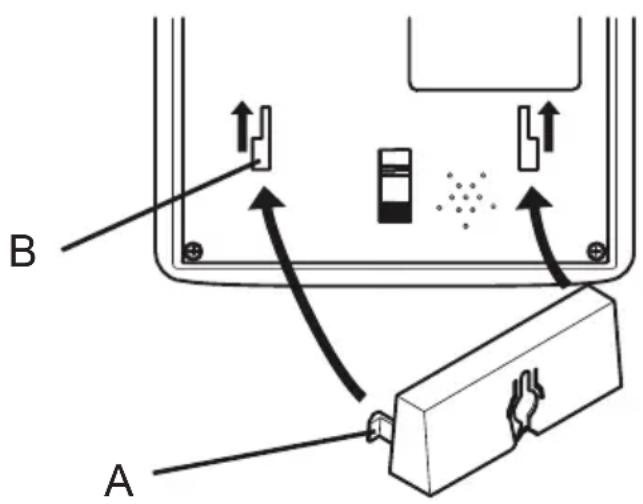
- Position the telephone so that the screws on the wall fit into the slots in the bracket, then slide the telephone downwards until it is hanging on the screws.
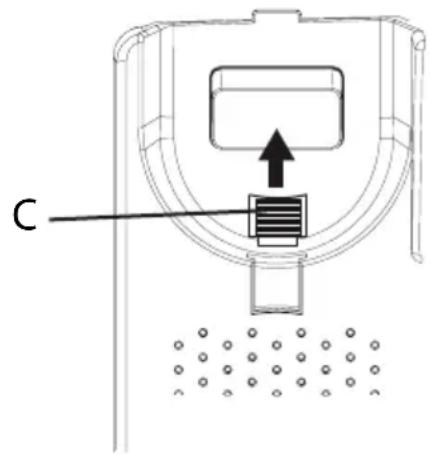
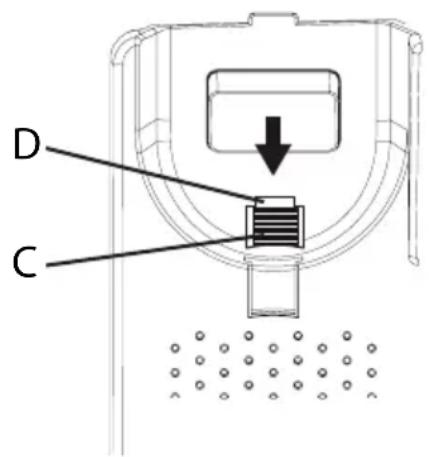
- Remove the handset hook (C) by pushing it upwards, and insert it in the reversed position so that the small tab (D) protrudes. The hook will now keep the handset in the cradle when the phone is wall mounted.
- Reconnect the handset and place it in the cradle.
Note!
If the phone is to be used as a desktop phone again, remember to reverse the position of the handset hook.
Operation
Making a call
Normal dialling
- Lift the handset.
- Dial the desired telephone number using the keypad. Hang up the handset to terminate the call.
Speakerphone
The speakerphone function allows you to make a call without using the handset.
Note!
The speakerphone only works if batteries are installed.
- Press to activate the speakerphone. The LED next to the key will light up.
- Dial the desired telephone number using the keypad. Press again to terminate the call.
Lift the handset to switch from speaker to handset during a call.
Predialling
The pred-dialling function allows you to enter and change a number before it is dialled.
- Enter the desired telephone number using the keypad. Press to delete the last entered digit.
- Lift the handset or press to dial the number.
- Hang up the handset or press to terminate the call.
Quick redial
- Lift the handset or press
- Press to radial the last dialled number.
Dialling numbers in the call memory
- Press to display the most recent call.
- Use / to scroll through the last 15 incoming and outgoing calls.
= Incoming call =Outgoing call
- Lift the handset or press to dial the displayed number.
Speed dial (one-touch dialling)
- Press one of the speed dialling keys A-C. The stored telephone number is displayed.
- Lift the handset or press to dial the number.
- Hang up the handset or press to terminate the call.
Dialling numbers in the phone book
- Press to open the phone book.
- Use / to browse through the phone book, or enter the first character in the name to quickly find an entry.
- Lift the handset or press to dial the number.
Answering
Lift the handset to answer an incoming call, or press to answer using the speakerphone.
English
Additional functions
Call timer
The display shows the current time when in standby mode. During a call the display will show a call timer instead, indicating the duration of the call. The call duration is displayed for 5 seconds after the call is terminated.
Recall key (R)
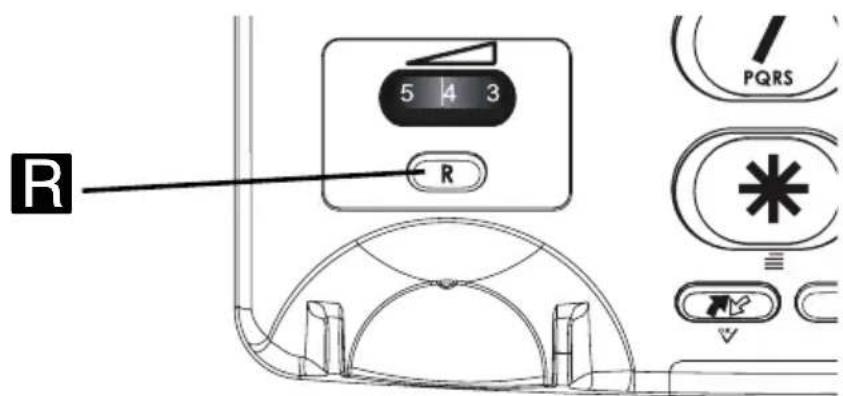
Press the R key followed by the extension number to transfer a call when connected to a PBX system.
Additional network services may be accessible by using the R, and keys. Please contact your network operator for more information about the available network services.
Hearing aid
This telephone is hearing aid compatible. Select the T mode on your hearing aid to enable this feature.
Phone book
The built-in phone book can store up to 30 entries. When the phone book memory is full, - - - 100% is displayed
Storing numbers in the phone book
- Press and hold until a flashing cursor is shown.
- Enter a telephone number (up to 22 digits) using the keypad. Use / to move the cursor and erase if needed. Use to insert a pause in the number.
- Press to confirm. A flashing cursor will be shown on the second line on the display.
- Use the keypad to enter a name (up to 9 characters) for the number to be stored. Press repeatedly to select from the characters for each key:
- Press to confirm. OK is displayed.
- Repeat steps 1-5 to store another number, or press and hold C / to exit from the phone book.
Deleting numbers from the phone book
- Press to open the phone book.
- Use / to browse through the phone book, or enter the first character to quickly find an entry.
- Press and hold to delete the selected entry.
Editing numbers in the phone book
- Press to open the phone book.
- Use / to browse through the phone book, or enter the first character to quickly find an entry.
- Press and hold until the flashing cursor appears in the selected number.
- Use / to move the cursor, and use C and the keypad to erase and enter new data.
- Press to confirm. The cursor will move to the second line on the display.
- Repeat step 4 to edit the name/description for the selected number.
- Press to confirm. OK is displayed.
Dialling from the phone book
- Press to open the phone book.
- Use / to browse through the phone book, or enter the first character in the name to quickly find an entry.
- Lift the handset or press to dial the number.
Speed dial (one-touch dialling)
The telephone has 3 speed dialling keys that can be used for numbers that are called frequently, or for emergency numbers.
Storing speed dial numbers
- Press and hold one of the speed dialling keys A-C until a flashing cursor is shown on the first line on the display.
- Enter a telephone number (up to 22 digits) using the keypad. Use / to move the cursor and to erase if needed. Use to insert a pause in the number.
- Press to confirm. A flashing cursor will be shown on the second line on the display.
- Enter a name or description for the number to be stored (up to 9 characters). Press repeatedly to scroll through the characters for each keypad key (see figure on facing page).
- Press to confirm. OK is displayed.
- Repeat steps 1-5 to store numbers for the other speed dialling keys.
Deleting speed dial numbers
Speed dial numbers can not be deleted, they can only be replaced by storing a new number.
Dialling speed dial numbers
- Press one of the speed dialling keys A-C. The stored telephone number is displayed.
- Lift the handset or press to dial the number.
- Hang up the handset or press to terminate the call.
Caller ID and call memory
Caller ID allows you to see who is calling before you answer and to see who has called in your absence.
Note!
The Caller ID function must be subscribed. Please contact your network operator for more information.
The call memory will store the last 15 incoming and 15 outgoing calls. On the display, incoming (answered and unanswered) calls are indicated with and outgoing calls with .
If the Call Indicator function is active, a blinking light indicates that an unanswered call has been received since the call memory was last checked.
Browsing the call memory
-
Press then / to scroll through the call memory. The number and time of each call will be displayed. For calls older than 24 hours, the date of the call is displayed instead of the time.
-
Press exit the call memory.
Calling numbers in the call memory
- Press then / to scroll through the call memory.
- Lift the handset or press to dial the displayed number
Deleting numbers from the call memory
- Press then / to scroll through the call memory.
- Press and hold to delete the selected entry.
Copying call memory entries to the phone book
- Press then / to scroll through the call memory.
- Press and hold until OK is displayed. The selected number has now been saved to the phone book.
See also Installation / Basic setup.
Ring signal
The ring volume, melody and tone can be adjusted using the sliders on the right side of the telephone.

Ring volume (High/Medium/Low/Off)

Ring melody

Ring tone
Volume control
The speaker volume is adjusted with a slider on the right side of the telephone.
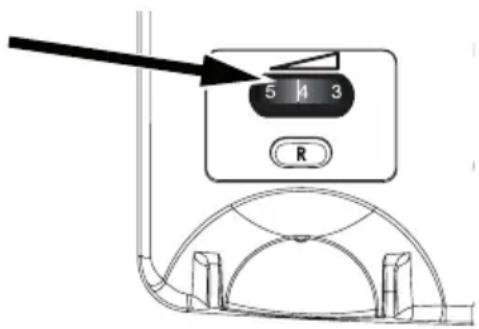
The handset volume control is located under the handset.
English
Care and maintenance
Your unit is a technically advanced product and should be treated with the greatest care. Negligence may void the warranty.
- Protect the unit from moisture. Rain/snowfall, moisture and all types of liquid can contain substances that corrode the electronic circuits. If the unit gets wet, you should remove the battery and allow the unit to dry completely before you replace it.
- Do not use or keep the unit in dusty, dirty environments. The unit's moving parts and electronic components can be damaged.
- Do not keep the unit in warm places. High temperatures can reduce the lifespan for electronic equipment, damage batteries and distort or melt certain plastics.
- Do not keep the unit in cold places. When the unit warms up to normal temperature, condensation can form on the inside which can damage the electronic circuits.
- Do not try to open the unit in any other way than that which is indicated here.
- Do not drop the unit. Do not knock or shake it either. If it is treated roughly the circuits and precision mechanics can be broken.
- Do not use strong chemicals to clean the unit.
The advice above applies to the unit, battery, mains adapter and other accessories. If the telephone is not working as it should, please contact the place of purchase for service. Don't forget the receipt or a copy of the invoice.
Warranty and technical data
This product is guaranteed for a period of 12 months from the date of purchase. In the unlikely event of a fault occurring during this period, please contact the place of purchase. Proof of purchase is required for any service or support needed during the guarantee period.
This guarantee will not apply to a fault caused by an accident or a similar incident or damage, liquid ingress, negligence, abnormal usage, non-maintenance or any other circumstances on the user's part. Furthermore, this guarantee will not apply any fault caused by a thunderstorm or any other voltage fluctuations. As a matter of precaution, we recommend disconnecting the device during a thunderstorm.
Batteries are consumables and are not included in any guarantee.
Use only AA Alkaline batteries of good quality.
UK
If you cannot resolve the fault using the faultfinder section, technical support is available by email on tech@doro-uk.com -premium rate telephone number: 0905 895 0854, calls cost 50 pence per minute (prices correct at the time of publication).
You can also contact us in writing (regarding any Spares or Technical query):
Customer Services
Doro UK Ltd
1 High Street
Chalfont St Peter
Buckinghamshire
SL9 9QE.
Further contact details are available on our website: www.doro-uk.com.
Specifications
Size: 175 mm x 175 mm x 60 mm
Weight: 750g (including batteries)
Battery: 4 × 1.5 ~V AA Alkaline batteries
Declaration of Conformity
Doro hereby declares that Doro PhoneEasy 312ci conforms to the essential requirements and other relevant regulations contained in the Directives 1999/5/EC (R&TTE) and 2002/95/EC (RoHS).
A copy of the Declaration of Conformity is available at www.doro.com/dofc