XL50 - Phone Clarity - Free user manual and instructions
Find the device manual for free XL50 Clarity in PDF.


| Product Type | Amplified Telephone |
| Brand | Clarity |
| Model | XL50 |
| Maximum Amplification | 60 dB (118 dBSPL) |
| Amplification Technology | Digital Clarity Power |
| Tone Settings | 4 modes: low frequencies, uniform amplification, Clarity Power (high frequencies), multiband compression |
| Ringer Volume | 3 positions (side switch) |
| Ringer Tone | Low frequency or high frequency |
| Visual Ringing | Yes, flashing on incoming call |
| Memory | 10 numbers (including 1 emergency), one-touch dialing |
| Redial | Last number dialed (up to 32 digits) |
| Hold | Yes, with indicator light |
| Flash Button | To answer a second call |
| Audio Output | For hearing aids, cochlear implants, etc. |
| Main Power | AC adapter 9 VDC, 500 mA |
| Backup Power | 4 AA alkaline batteries (up to 48 hours backup) |
| Dimensions | 24.13 × 17.78 × 8.25 cm |
| Weight | 1.14 kg |
| Hearing Compatibility | Compatible with hearing aids (Class B) |
| Smart-Plexing | Feedback reduction with full duplex conversation |
| ClarityLogic | Blue button for direct access to a customer service representative |
| Included Accessories | Handset, base, AC adapter, handset cord, telephone line cord, wall mount bracket |
| Warranty | 1-year limited (defects in materials and workmanship) |
Frequently Asked Questions - XL50 Clarity
User questions about XL50 Clarity
0 question about this device. Answer the ones you know or ask your own.
Ask a new question about this device
Download the instructions for your Phone in PDF format for free! Find your manual XL50 - Clarity and take your electronic device back in hand. On this page are published all the documents necessary for the use of your device. XL50 by Clarity.
USER MANUAL XL50 Clarity
XL50™ Amplified Telephone
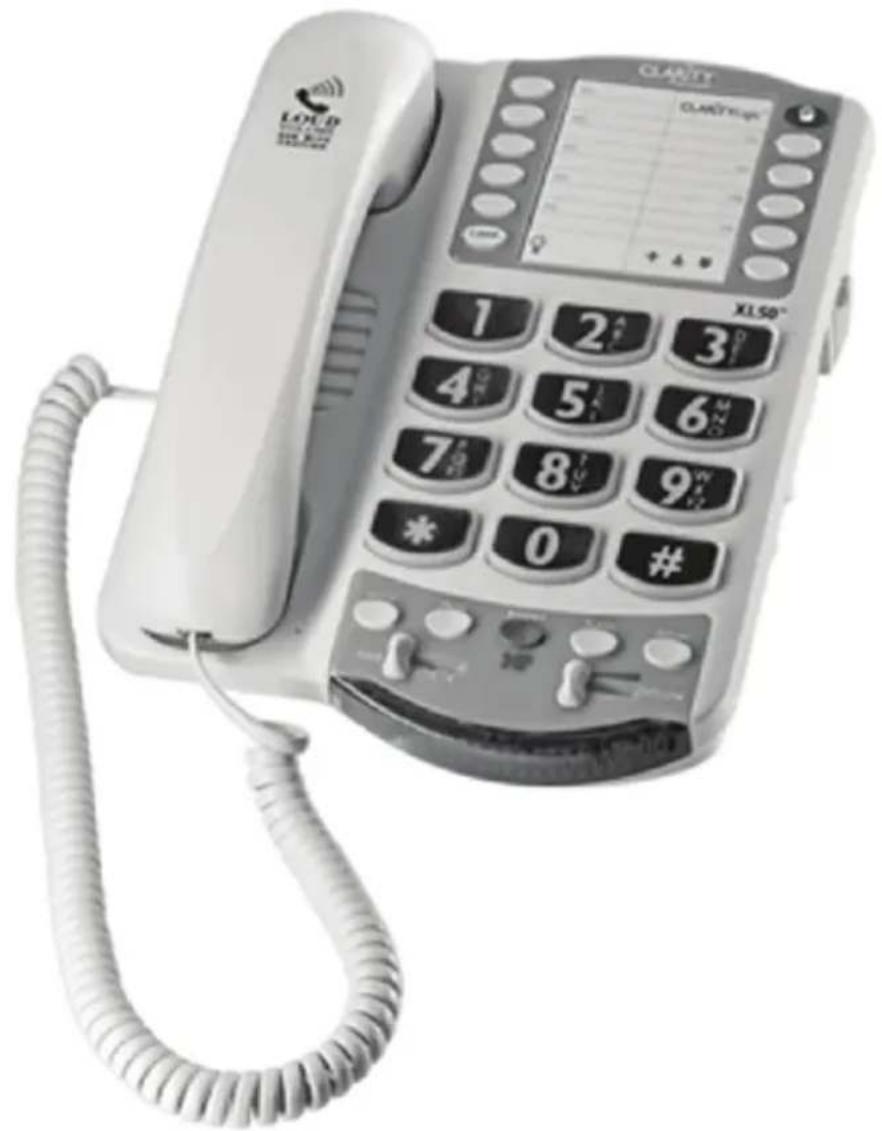
TABLE OF CONTENTS
Introduction 4
Parts Checklist 6
Quick Reference Guide 7
Connecting the phone 9
Introduction to Digital Clarity Power 10
Clarity Power Boost 10
Tone Settings 12
Getting Started
Installing backup batteries 14
Desktop and Wall Mount Installations 15
Placing and receiving calls 17
Features
Memory Storage 18
Adding a memory location 18
Audio Output 20
Notification Options 21
ClarityLogic 24
Troubleshooting 25
Technical Specifications 27
Safety Instructions 28
FCC Requirements and Regulations 30
Warranty and Service 33
INTRODUCTION FEATURES
Thank you for purchasing the Clarity Professional XL50 Amplified Telephone.
Clarity is proud to offer you the only certified 60dB phone in the market. The Clarity Professional XL50 offers our patented Digital Clarity Power that uses digital technology to enhance the volume and clarity of your phone conversations. This User Guide and Quick Start Guide will provide you with the information you need to use your XL50 effectively, easily and safely. Read this manual thoroughly before using your telephone. Keep the manual near the telephone for easy reference.
Digital Clarity Power™ Technology
With Digital Clarity Power, high frequency sounds are amplified more than low frequency sounds so words are not just louder, but clearer and easier to understand. It also provides intelligent amplification to make soft sounds audible, while keeping loud sounds bearable.
Tone Selection
Another added benefit of our patented Digital Clarity Power is the ability to customize the phones performance to your specific hearing needs. The XL50 has four available tone settings that each provide different solutions to help you better hear phone conversations.
Smart-Plexing Technology
Smart-Plexing is the new and advanced way that the XL50 deals with possible feedback issues and is unique to Clarity phones. Feedback occurs when the sound coming out of the earpiece is detected by the microphone on the handset and is reprocessed by the telephone. This causes the telephone to squeal or howl. Most phones will temporarily shut off the microphone to fix this problem, but that results in only one person being able to talk at a time. The Clarity Professional XL50 uses a "smart plexing system where it enables full functionality on both ends of the conversation at all times. Only Clarity offers such a solution that will allow full conversation while controlling feedback.
Notification Accessories
A Wireless Lamp Flasher and Bed Shaker can be connected to the phone to allow for a variety of ways to alert the user that the phone is ringing. The Wireless Lamp Flasher will cause any connected light source to flash when the phone rings. The Bed Shaker is an accessory that will begin to vibrate when the phone rings.
CONTENTS & PARTS CHECKLIST
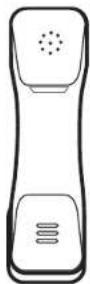
Handset
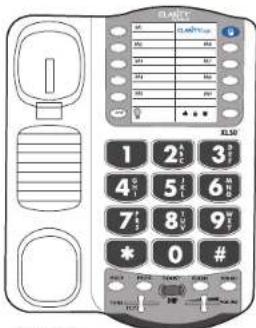
Base unit

Handset coil cord

AC adapter

Telephone line cord

Mounting bracket
User guide
XL50
Quick Reference Guide
FEATURES
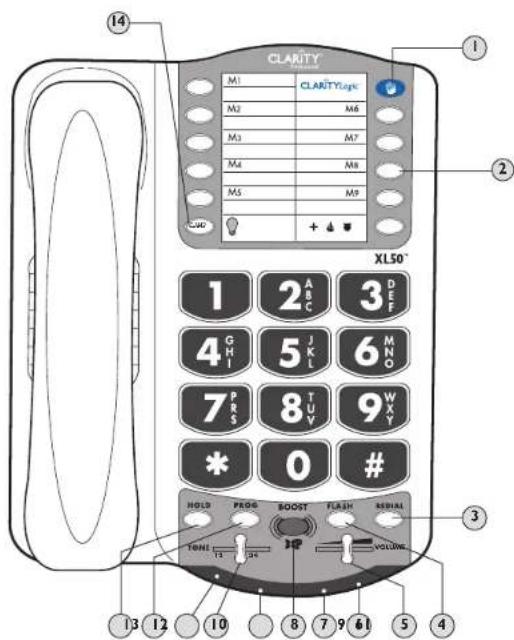
Blue ClarityLogic ButtonTM
9 Boost/Missed calls
2 Memory Buttons
Voicemail/Extension
3 Redial Button
10 Tone Control
4 Flash Button
11 Hold Indicator
5 Volume Slider
12 Program Button
6 Low Battery Indicator
13 Hold Button
7 Visual Ringer
14 Lamp Flasher Button
8 Boost Button
XL50
Quick Reference Guide
FEATURES
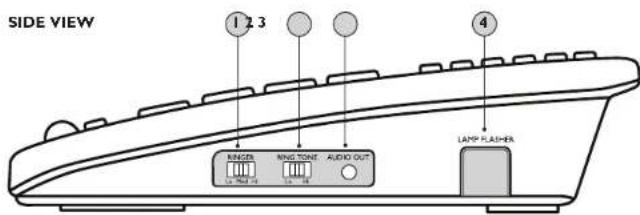
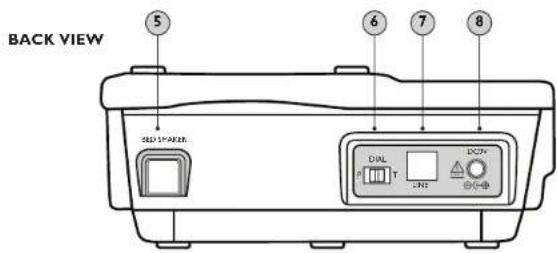
Ringer Volume Switch
5 Bed Shaker Port
2 Ring Tone Switch
6 Pulse/Tone Switch
3 Audio Output Port
7 Phone Line Connection
4 Wireless Lamp Flasher Port
8 AC Adapter Connection
XL50
Quick Reference Guide
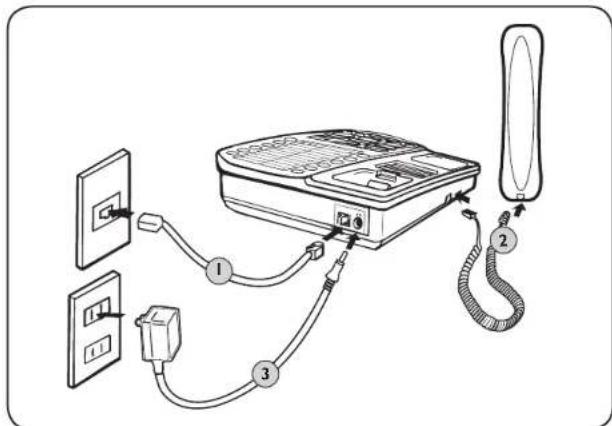
HOW TO CONNECT THE XL50 PHONE FOR DESKTOP USE
I. Connect one end of the telephone line cord to the "Line" jack on the back of the XL50 and the other end to the phone outlet on your wall.
2. Connect the handset cord to the telephone as shown above.
3. Plug the other end into the AC jack on the telephone. Plug the AC adapter into an electric outlet.
4. Lift the handset and listen for a dial tone. The phone is ready to use.
The XL50 phone may also be used as a wall mounted phone.
(Pleasesee page 16 of this guide for instructions.)
INTRODUCTION TO DIGITAL CLARITY POWER
Digital Clarity Power™ Technology
With Digital Clarity Power, the high frequency sounds are amplified more than the low frequency sounds so words are not just louder, but clearer and easier to understand. It also provides intelligent amplification to make soft sounds audible while keeping loud sounds tolerable.
To enable this type of technology, there is actually a computer running information inside the phone. Each time the handset is picked up, the computer will take a little less than a second to engage. This means that any numbers that are dialed or words that are spoken before the computer engages, will not be recognized or heard by the phone.
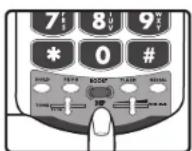
Figure A
Clarity Power BOOST Button
The XL50 has a BOOST button that controls the loudness of the receiver. See Figure A. Once the BOOST button is pressed, an extra level of amplification is added over the entire range of the Volume Control. During a call, the BOOST button can toggle the Clarity Power function on or off according to the user's needs. The BOOST button will reset automatically every time the phone is hung up for at least five seconds. The BOOST light will illuminate while the BOOST function is activated. See Page 23.
Warning: Volume may be at a high level. To protect hearing, lower the Clarity Power Volume Control before using the phone.
Volume Reset Override
On the bottom of the XL50, there is a Volume Reset Override switch. When this is set to "On" the Boost function is automatically enabled every time the phone is picked up. In standard use, when the Override is set to "Off" the Boost function will turn off after the phone is hung up. Setting this switch to "On" is suggested if all the users of the phone need the amplification. Setting this switch to "Off" is useful when people with varying hearing ability use the phone. See Figure B.
Clarity Power Volume Control
The Clarity Power Volume Control adjusts the level of volume the handset both in Boost or non-Boost modes. The volume dial provides up to 15dB of volume before the BOOST button is activated. Once the BOOST button is pressed, the XL50 will provide up to 60dB of gain. See Figure C.
TONE Switch
Adjusting the TONE switch allows you to customize your hearing experience. Since we all have different hearing preferences we suggest exploring each setting to find the one most comfortable for you. The available settings are: low frequency amplification, flat amplification, Clarity Power (high frequency) amplification, and Multi-band Compression (high frequency) amplification. See Figure D and the overview of tone settings featured on pages 12-13.
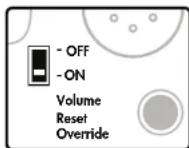
Figure B
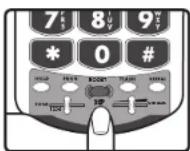
Figure C
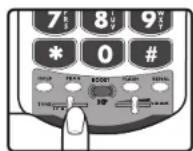
Figure D
OVERVIEW OF XL50 TONE SETTINGS
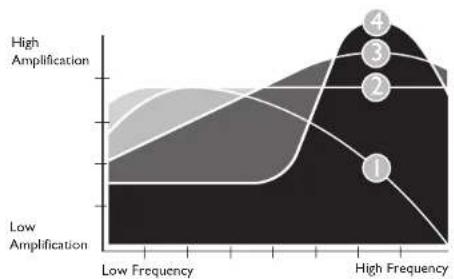
The XL50 offers four different tone settings to provide an experience that may be customized to fit a specific users need. The illustration above shows how the four settings relate to each other and the amount of amplification they give to the different frequencies of sound.
The following charts illustrate each tone setting separately. Read each explanation and examine the charts to help decide what setting will be most beneficial. In addition, make sure to listen to each setting while making a decision. The best way to choose between the settings is to listen to them all and decide which one provides the best telephone conversation experience.
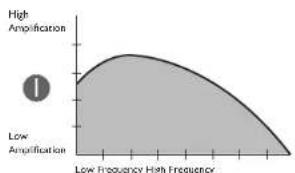
The first tone setting is one that emphasizes the low frequency sounds. This is for those who have a hard time hearing lower pitched sounds.
OVERVIEW OF XL50 TONE SETTINGS
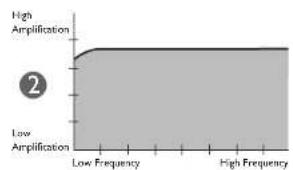
The second tone is a flat amplification of all sounds. This is for the user who wants full volume amplification for every type of sound. This is suggested if the user is wearing a digital hearing aid while using the phone.
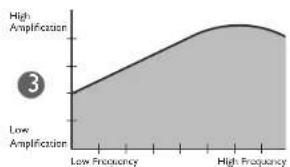
The third tone setting is our set Clarity Power that begins to focus more on the higher frequency sounds and add speech intelligibility. It is a medium between tone setting two (2) and four (4).
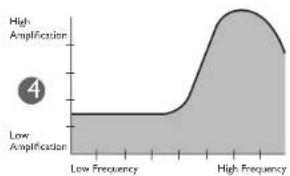
The fourth tone setting provides full emphasis on speech intelligibility using Clarity's Multi-Band Compression. Clarity MBC also enables the phone to amplify the soft sounds to an audible level while controlling the louder sounds, keeping them bearable. This is for the user who may be able to hear the words being spoken, but does not understand or cannot distinguish what is being said.
GETTING STARTED
GETTING STARTED
There are five initial steps involved in setting up your XL50
I. Insert four AA alkaline batteries for back-up in case of AC power outage. See below.
2. Decide if you want the phone to sit on a desk or hang on the wall.
3. Connect the telephone components. Pages 15-16.
4. Program up to 10 telephone numbers to call with the press of a memory button. See Page 18.
5. Set up Notification Options. See Page 20.
Installing the Backup Batteries
If there is a power outage, the XL50 will operate for up to 48 hours with four AA alkaline backup batteries (not included). If the phone is not in use, the batteries will stay charged for several months. See Figure 1.
To install new batteries:
- Slide open the battery compartment cover on the bottom of the telephone. To open the battery compartment, use a pen or similar fine point instrument to press into small opening below the compartment door. This opening is pointed out with the #2 in Figure 1.
- Install four fresh batteries. Be sure to observe battery polarity as imprinted on the base of the compartment. The battery indicator on the top panel will light up if the batteries are running low.
The phone operates as a regular phone if there is no power or battery. Certain functions of the phone do require power however. If no power is being supplied to the phone, it will have no indicator lights, the loud ringer will be disabled, there will be no amplification, and the lighted keypad will not be lit.
Connecting your Telephone
- Carefully remove your telephone from its box. If there is any visible damage, do not attempt to operate this equipment. Return it to the place of purchase.
- Check to be sure that you have all items that come with your XL50 telephone. You should have a Handset, Base Unit, AC Adapter, Mounting Bracket, Handset Line Cord, and Telephone Line Cord.
Choosing a Location
- The XL50 requires a modular phone jack and a standard 120 Volt outlet for operation.
- The unit should be located in an area where it is easy to see the visual display and lighted ringer.
- Choose a location that is out of the way of normal activities.
- The unit can be used as a desk top phone or wall mount phone.
WARNING: Always connect the AC adapter to the phone before you connect it to the AC power. When you finish, disconnect the AC power before you disconnect it from the telephone.
Desk Mounting Instructions
Follow these instructions to place the phone on a desk or table top using the supplied bracket.
I. Plug one end of the long flat telephone line cord into the jack marked LINE located on the back of the telephone. Plug the other end into the telephone wall jack. See Figure 2
2. Insert the plug of the AC adapter into the jack marked DC 9V located on the back of the base unit. Then plug AC adapter into wall outlet. See Figure 2.
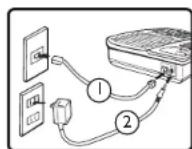
Figure 2
GETTING STARTED
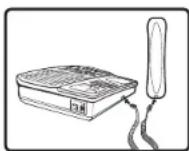
Figure 3
- Plug one end of the modular coiled handset cord into the handset. Plug the other end into the jack located on the left side of the telephone. Place the handset in the cradle. See Figure 3.
- Set the TONE/PULSE switch located on the back of the base to correct dialing mode. Please check with your local telephone company if uncertain of the type of service.
- Lift the handset and listen for a dial tone. The phone is ready to use.
Warning: Use only the power adapter provided with this telephone. Use of any other adapter may damage the product and result in injury.
Wall Mounting Instructions
The phone unit may be mounted on a standard wall plate. The mounting bracket will mount on the telephone with the larger tabs towards the bottom of the phone.
I. Pull the handset hook out of the base and reverse its position so that the hook points up and will hold the handset when you hang up. See Figure 4.
2. Plug one end of the short flat telephone line cord into the jack marked LINE located on the back of the telephone. Then run the cord through the groove on the back of the phone.
3. Insert the tabs of the mounting bracket into the slots in the back of the phone. Push the mounting bracket in and down firmly until it snaps into place. See Figure 5.
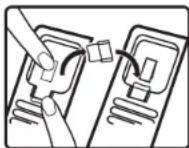
Figure 4
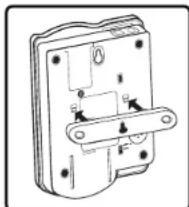
Figure 5
GETTING STARTED
- Plug the flat telephone line cord into the wall plate jack, then align the mounting bracket's keyhole slots with the wall plate studs and slide the base of the phone downward to secure it on the wall. See Figure 6.
- Plug one end of the coiled handset cord into the bottom of the handset. Plug the other end of the handset into the modular jack marked HANDSET located on the left side of the phone. Place receiver in the cradle. See Figure 7.
- Set the TONE/PULSE switch located on the back of the base to correct dialing mode. Please check with your local telephone company if uncertain of the type of service.
- Insert the plug of the AC adapter into the jack marked DC 9V located on the back of the base unit. Then plug the AC adapter into a wall outlet. See Figure 8.
- Locate the small hook on the handset cradle on the base. Pull the hook out and turn around so the small lip faces upward to support the handset.
- Lift the handset and listen for a dial tone. The phone is ready to use.
Placing a Call
I. Lift the handset and dial the number you wish to call.
2. Press the BOOST button and turn the Clarity Power dial to adjust volume. The BOOST button will illuminate to indicate amplification is on.
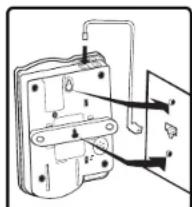
Figure 6
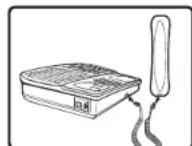
Figure 7
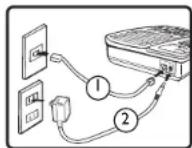
Figure 8
- Plug one end of the long flat telephone line cord into the jack marked LINE located on the back of the telephone.
- Insert the plug of the AC adapter into the jack marked DC 9V located on the back of the base unit.
TELEPHONE OPERATIONS
TELEPHONE OPERATIONS
Receiving a Call
When a call is received, the audible ringer will sound and the visual ringer will flash to alert you of an incoming call. To answer the call, lift the handset or use the headset (if a headset is connected).
FEATURES
Memory Storage
Phone numbers can be stored into the phone's memory to enable one button dialing. The phone directory allows space for 10 different phone numbers. One space is marked to be used to store an emergency number. See Figure 9.
It is important to not store 911 into your phone.
This will prevent inadvertently calling an emergency call center. Only store emergency numbers such as a doctor, hospital, the local fire department or local police station numbers.
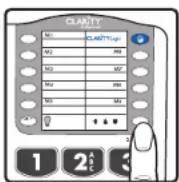
Figure 9
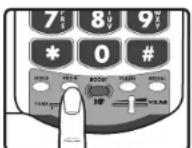
Figure 10
Adding a Memory Location
I. Pick up the handset.
2. Press the PROG button. See Figure 10.
3. Enter the telephone number you wish to store.
4. Press the PROG button.
5. Press the desired memory location (M1-M9 and Emergency) to store the number to.
6. Place the handset back in the cradle.
Note: No audio notification will occur after the number has been stored properly.
To change a Memory Location, reprogram using the same procedure with the button to be changed.
Dialing a Memory Location
I. Pick up the handset.
2. Press the number on the dial pad where the desired number has been stored.
3. The call will automatically dial.
Lamp Flasher / Bed Shaker Notification
A Wireless Lamp Flasher and Bed Shaker can be connected to the phone to allow for a variety of ways to alert the user that the phone is ringing. The Wireless Lamp Flasher will cause any connected light source to flash when the phone rings. The Bed Shaker is an accessory that will begin to vibrate when the phone rings.
This function is only available with the optional Lamp Flasher or Bed Shaker Notification Accessories.
First connect the Lamp Transmitter to the telephone and the Lamp Switch to a nearby lamp. See Figure I I.
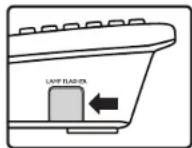
Figure 11
Connect the Bed Shaker to the proper port in the phone for use. See Figure 12.
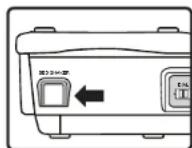
Figure 12
Lamp Control
This function is only available with the optional Lamp Flasher Notification Accessory. This button can be used to turn on or off the light source to which the Lamp Flasher is connected. See Figure 13.
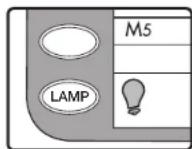
Figure 13
TELEPHONE OPERATIONS
TELEPHONE OPERATIONS
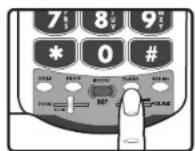
Figure 14
Flash
Flash is a feature that enables you to answer a call if you have call waiting. Please contact your local telephone company for information on subscribing to this feature. Pressing the FLASH button while you are having a phone conversation will pick up the second conversation and place the first call on hold. Press the FLASH button again to continue your conversation with the first caller. See Figure 14.
NOTIFICATION OPTIONS
Ringer Volume
Ringer Volume can be set to one of three (3) positions by pressing the RINGER VOLUME UP or DOWN switch located on the right side of the telephone. See Figure 18.
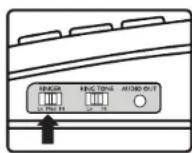
Figure 18
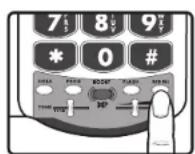
Figure 1S
Last Number Redial
Redial allows you to automatically redial the last telephone number you called (up to 32 digits). To use this feature, listen for dial tone and press the REDIAL button once. Your call will be dialed. The last number dialed will be stored in the XL50 for you until you dial another phone number. See Figure 15.
The ringer settings can be checked without making the ringer sound by pressing and holding the BOOST button for three (3) seconds. See Figure 19.
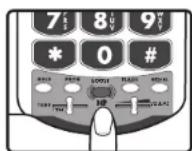
Figure 19
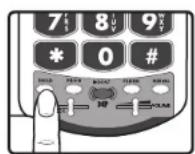
Figure 16
Hold
To put the line on hold, press the HOLD button and return the handset to its cradle. You will notice the HOLD indicator light comes on. To take the phone call off HOLD, press the HOLD button again. See Figure 16.
Note: If you pick up an extension phone on the same line when the XL50 is on HOLD, the XL50 will release the HOLD, and you can continue your conversation on the extension phone.
Ringer Tone
The ringer can be set to ring at two different tones, a low frequency sound or a high frequency sound. This provides the user the ability to select a more favorable ringer, one that is distinguishable and heard more easily. See Figure 20.
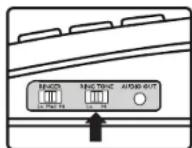
Figure 20
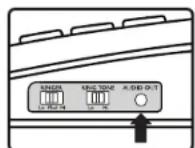
Figure 17
Audio Output
The AUDIO OUTPUT socket allows you to connect the XL50 to a hearing aid, neckloop, cochlear implant or other assistive listening devices. See Figure 17.
It is important to remember that devices compatible with this port are intended to be used for listening only. The phone still requires speaking into the handset for conversation.
To use this port, plug in a compatible cable and connect it to your assistive listening device. Speak into the handset when you use the Audio Output connection.
WARNING: RINGER VOLUME IS VERY LOUD AND CAN DAMAGE YOUR HEARING. NEVER PUT YOUR EAR CLOSE TO THE RINGER.
XL50 Low Battery Indicator
If the batteries are weak or not installed, the Low Battery indicator will light up. Install fresh batteries according to the directions above. See Figure 21.
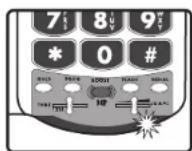
Figure 21
TELEPHONE OPERATIONS
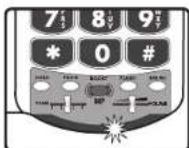
Figure 22
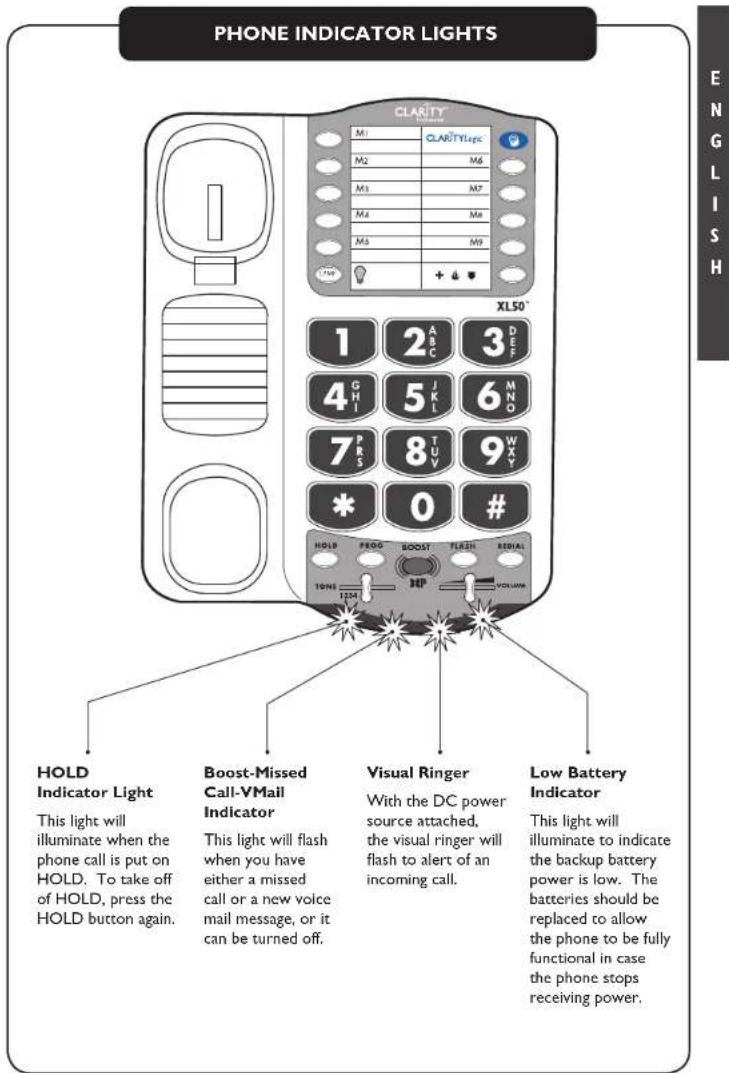
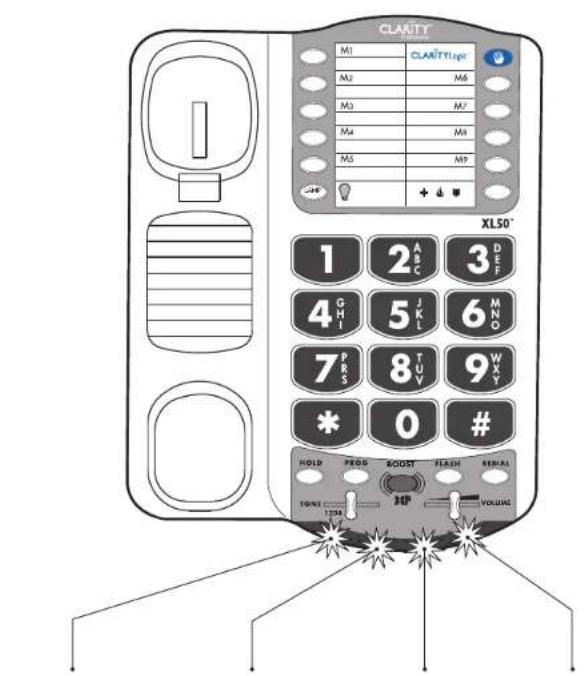
Visual Ringer
With the DC power source attached, the visual ringer will flash to alert of an incoming call.
With the backup batteries inserted, the visual ringer will appear brighter. See Figure 22.
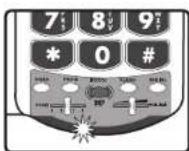
Figure 23
Missed Call/Voice Mail Message Light
This light can flash when you have either a missed call or a new voicemail message, or it can be turned off. See Figure 23.
This function of the light will initially be set to off.
Note: This light will also light up if the phone line is disconnected.

Figure 24
This setting is determined by the switch on the bottom of the phone. Turn the phone over and on the bottom is a switch with three positions. The choices are "VMAIL", "MISSED CALL" and "OFF." See Figure 24.
Note: To use for voicemail notification, you must first subscribe to voicemail messaging with your telephone company.
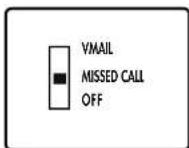
Figure 25
If you do not have voicemail service, the same indicator functions as a missed call indicator. It flashes if an incoming call is not answered by a person or an answering machine after one (I) ring, provided that you set the switch underneath the phone to Missed Calls. The light will continue to flash until the handset is lifted or AC power is disconnected. See Figure 25.
Note: This feature does not require any optional telephone company services.
It is useful when you are away for a short time while expecting a call. If you don't want any notification, set the switch on OFF. See Figure 26.
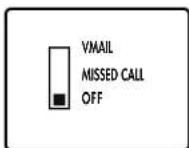
Figure 26

CLARITYLOGIC

CLARiTYLogic
ClarityLogic
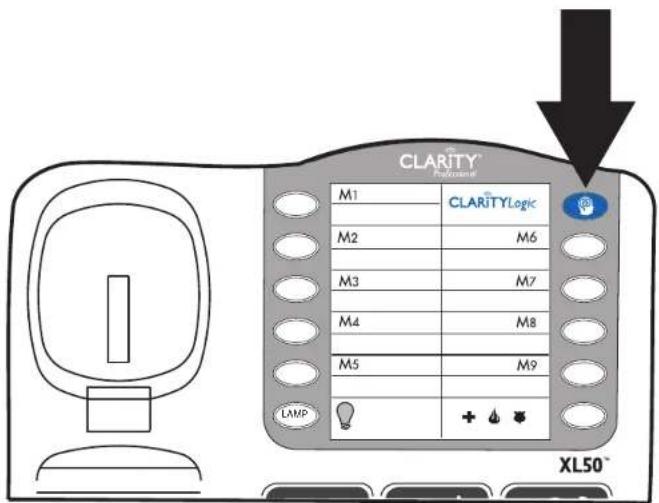
ClarityLogicTM is a new, first-of-its-kind service that allows a Clarity customer representative to remotely adjust settings and configure features on a phone for the user. Customizing the speed dial, adjusting the volume level and tone or programming the phonebook have never been easier thanks to ClarityLogic.
Simply press the blue button (upper right corner of the phone) for direct access to a Customer Care Representative.
TROUBLESHOOTING
No Dial Tone/Phone Will Not Operate
- Check all phone cords and connections. Make sure they are plugged in securely.
- Plug unit into a different phone jack to help determine if the difficulty is with the phone or the phone jack.
- Switch out handset or telephone line cords.
- Disconnect any other equipment that may be attached to the phone.
Unable To Dial Out
- Make sure TONE/PULSE switch is set correctly.
- Phone may be at the end of a long line of phones (loop). Phone may not be getting enough power from the phone line. It may be necessary to wait for a few seconds after lifting the handset to begin dialing.
- The XL50 is not compatible with Digital PBX Systems. If a standard, single line phone works on the system, your XL50 should also.
The Person On The Other End Cannot Hear You
- There is an advanced computer running inside the XL50. Sometimes after the handset is picked up, it will take a little less than a second to engage the phone. Since it is not immediate, if you dial a number before the computer engages, it will not receive the entire phone number that is dialed.
- Too many phones or phone devices on the line may affect your phone's transmission. As a guideline, more than five (5) phones or phone devices may overload the phone line. Disconnect one (1) or two (2) devices to see if that eliminates the problem. If not, contact your local phone company for load guidelines.
- You may not be speaking directly into the transmitter. Always speak directly into the mouth piece in your normal tone of voice.
Interference
-
Check cords and connections. Frayed or poorly connected cords can cause interference. Swap cords if necessary.
-
A RFI (Radio Frequency Interference) filter can be placed on the line to help minimize or eliminate radio or CB transmissions. Try relocating the telephone to another area.
Unable To Hear Phone Ringer
- Too many phone or phone devices on a line may cause your phone to not ring. Disconnect one (1) or two (2) of the devices to see if the problem is eliminated. If not, contact your local phone company for load guide lines.
- If power is not being supplied to the phone, the extra loud ringer will not work.
Volume Control Does Not Work
BOOST must be activated to turn on the additional amplification.
Static On The Line
- Your phone may be located near a touch lamp, microwave, refrigerator or other household appliances. Try relocating your phone to another area.
- A cordless phone on your line may cause static. Try disconnecting the cordless phone. This may eliminate the problem.
- Extra devices attached to the telephone, such as CID units and answering machines may cause static. Disconnecting the devices may eliminate the problem.
- If there is also a DSL service in the home, this will cause interference on the line. That interference is then amplified by the phone, causing a less than optimal quality of conversation. Install the phone line filter provided by the DSL service provider to reduce the amount of interference on the line.
Unable to Access Automated Systems
Automated systems used by banks, long distance voicemail and other applications require that a phone be set to "tone" dialing. Check the switch on the back of the phone labeled "T/P" and set to "T." This will enable the phone to be compatible with these automated systems.
TROUBLESHOOTINGTROUBLESHOOTII
If No Power is being Supplied to the Phone.
- If the power goes out, or the AC Adapter is not properly connected to the phone, several functions of the phone will not work. The amplification, extra loud ringer, and the lighted keypad will not function properly.
- The phone will drain the backup batteries very quickly. This will cause the need for the batteries to be changed frequently and the Low Battery indicator light to constantly illuminate.
Do I Need to Install Batteries?
Batteries are optional. They provide backup in case of a power outage. They are recommended in areas of frequent power outages. This phone uses four (4) alkaline batteries. They will sustain the following functions: amplification, keypad backlighting and loud ringer volume.
Still Not Working?
If, after going through this checklist, the XL50 is still not functioning properly, press the blue ClarityLogic button (upper right corner of the phone) for direct access to a Customer Care Representative.
TECHNICAL SPECIFICATIONS
Amplified dB Level
60dB/118 dBSPL
Tone control range
Full range: 300 to 3000Hz using one slide control.
Dimensions
Size: 912'' × 7'' × 314'' (24.13cm × 17.78cm × 8.25cm)
Weight: 2.52 lbs. (1.14 kg)
Power Requirements
AC Adapter: 9VDC, 500 mA
Batteries: 4 AA alkaline batteries (not included)
IMPORTANT SAFETY INSTRUCTIONS
When using your telephone equipment, basic safety precautions should always be followed to reduce the risk of fire, electric shock and injury to persons including the following:
I. Read and understand all instructions.
2. Follow all warnings and instructions marked on the telephone.
3. Do not use this telephone near a bathtub, wash basin, kitchen sink or laundry tub, in a wet basement, near a swimming pool or any where else there is water.
4. Avoid using a telephone (other than a cordless type) during a storm. There may be a remote risk of electrical shock from lightning.
5. Do not use the telephone to report a gas leak in the vicinity of the leak.
6. Unplug this telephone from the wall outlets before cleaning. Do not use liquid cleaners or aerosol cleaners on the telephone. Use a damp cloth for cleaning.
7. Place this telephone on a stable surface. Serious damage and/or injury may result if the telephone falls.
8. Do not cover the slots and openings on this telephone. This telephone should never be placed near or over a radiator or heat register. This telephone should not be placed in a built-in installation unless proper ventilation is provided.
- Operate this telephone using the electrical voltage as stated on the base unit or the owner's manual. If you are not sure of the voltage in your home, consult your dealer or local power company.
- Do not place anything on the power cord. Install the telephone where no one will step or trip on the cord.
- Do not overload wall outlets or extension cords as this can increase the risk of fire or electrical shock.
- Never push any objects through the slots in the telephone. They can touch dangerous voltage points or short out parts that could result in a risk of fire or electrical shock. Never spill liquid of any kind on the telephone.
- To reduce the risk of electrical shock, do not take this phone apart. Opening or removing covers may expose you to dangerous voltages or other risks. Incorrect reassembly can cause electric shock when the appliance is subsequently used.
- Unplug this product from the wall outlet and refer servicing to the manufacturer under the following conditions:
A. When the power supply cord or plug is frayed or damaged.
B. If liquid has been spilled into the product.
C. If the telephone has been exposed to rain or water.
IMPORTANT SAFETY INSTRUCTIONS
D. If the telephone does not operate normally by following the operating instructions. Adjust only those controls that are covered by the operating instructions. Improper adjustment may require extensive work by a qualified technician to restore the telephone to normal operation.
E. If the telephone has been dropped or the case has been damaged.
F. If the telephone exhibits a distinct change in performance.
15. Never install telephone wiring during a lightning storm.
16. Never install telephone jacks in wet locations unless the jack is specifically designed for wet locations.
17. Never touch uninsulated telephone wires or terminals unless the telephone line has been disconnected at the network interface.
18. Use caution when installing or modifying telephone lines.
SAFETY INSTRUCTIONS FOR BATTERIES
Caution: Risk of explosion if battery is replaced by an incorrect type. Dispose of used batteries according to the instructions.
- Do not dispose of the battery in a fire as it may explode. Check with local codes for possible special disposal instructions.
- Do not open or mutilate the battery. Released electrolyte is corrosive and may cause damage to the eyes and skin. It may be toxic if swallowed.
- Exercise care in handling batteries in order not to short the battery with conducting materials such as rings,bracelets and keys.The battery or conduction material may overheat and cause burns.
REGULATORY COMPLIANCE
REGULATORY COMPLIANCE
Part 68 of FCC Rules Information
a) This equipment complies with Part 68 of the FCC rules and the requirements adopted by the ACTA. On the bottom of this equipment is a label that contains, among other information, a product identifier in the format US:AAAEQ##TXXXX. If requested, this number must be provided to the telephone company.
b) A plug and jack used to connect this equipment to the premises wiring and telephone network must comply with the applicable FCC Part 68 rules and requirements adopted by the ACTA. A compliant telephone cord and modular plug, RJ1C USOC, is provided with this product. It is designed to be connected to a compatible modular jack that is also compliant. See installation instructions for details.
c) The REN is used to determine the number of devices that may be connected to a telephone line. Excessive RENs on a telephone line may result in the devices not ringing in response to an incoming call. In most but not all areas, the sum of RENs should not exceed five (5.0). To be certain of the number of devices that may be connected to a line, as determined by the total RENs, contact the local telephone company. For products approved after July 23, 2001, the REN for this pro-duct is part of the product identifier that has the format US:AAAEQ##TXXXXX.
The digits represented by ## are the REN without a decimal point (e.g., 03 is
a REN of 0.3). For earlier products, the REN is separately shown on the label.
d) If this telephone equipment causes harm to the telephone network, the telephone company will notify you in advance that temporary discontinuance of service may be required. But if advance notice isn't practical, the telephone company will notify the customer as soon as possible. Also, you will be advised of your right to file a complaint with the FCC if you believe it is necessary.
e) The telephone company may make changes in its facilities, equipment, operations or procedures that could affect the operation of the equipment. If this happens the telephone company will provide advance notice in order for you to make necessary modifications to maintain uninterrupted service.
f) If trouble is experienced with this telephone equipment, for repair or warranty information, please contact Clarity, 800-426-3738. If the equipment is causing harm to the telephone network, the telephone company may request that you disconnect the equipment until the problem is resolved.
g) This telephone equipment is not intended to be repaired and it contains no repairable parts. Opening the equipment or any attempt to perform repairs will void the warranty. For service or repairs, call 800-426-3738.
h) Connection to party line service is subject to state tariffs. Contact the state public utility commission, public service
commission or corporation commission for information.
i) If your home has specially wired alarm equipment connected to the telephone line, ensure the installation of this telephone equipment does not disable your alarm equipment. If you have questions about what will disable alarm equipment, consult your telephone company or a qualified installer.
i) This telephone equipment is hearing aid compatible.
Customer-Owned Coin/Credit Card Phones
To comply with state tariffs, the telephone company must be given notification prior to connection. In some states, the state public utility commission, public service commission or corporation commission must give prior approval of connection.
Part 15 of FCC Rules Information
This device complies with Part 15 of the FCC Rules. Operation is subject to the following two conditions: (1) This device may not cause harmful interference, and (2) this device must accept any interference received, including interference that may cause undesired operation.
Your equipment has been tested and found to comply with the limits of a Class B digital device, pursuant to Part 15 of FCC rules. These limits are designed to provide reasonable
protection against harmful interference in residential installation.
This equipment generates, uses and can radiate radio frequency energy and, if not installed and used in accordance with the instructions, may cause harmful interference to radio communications. However, there is no guarantee that interference will not occur in a particular installation; if this equipment does cause harmful interference to radio or television reception, which can be determined by turning the equipment off and on, you are encouraged to try to correct the interference by one of the following measures:
- Where it can be done safely, reorient the receiving television or radio antenna.
- To the extent possible, relocate the television, radio or other receiver with respect to the telephone equipment. (This increases the separation between the telephone equipment and the receiver.)
- Connect the telephone equipment into an outlet on a circuit different from that to which the television, radio, or other receiver is connected.
- Consult the dealer or an experienced Radio/TV Technician for help.
CAUTION: Changes or modifications not expressly approved by the manufacturer responsible for compliance
REGULATORY COMPLIANCE WARRANTY & SERVICE
could void the user's authority to operate the equipment.
Industry Canada Technical Specifications
This product meets the applicable Industry Canada technical specifications.
Before installing this equipment, users should ensure that it is permissible to be connected to the facilities of the local telecommunications company. The equipment must also be installed using an acceptable method of connection. In some cases, the company's inside wiring associated with a single line individual service may be extended by means of a certified connector assembly (telephone extension cord). The customer should be aware that compliance with the above conditions may not prevent degradation of service in some situations. Repairs to certified equipment should be made by an authorized Canadian maintenance facility designated by the supplier.
Any repairs or alterations made by the user to this equipment, or equipment malfunctions, may give the telecommunications company cause to request the user to disconnect the equipment.
Users should ensure for their own protection that the electrical ground connections of the power utility, telephone lines and internal metallic water pipe system, if present, are
connected together. This precaution may be particularly important in rural areas.
CAUTION: Users should not attempt to make such connections themselves, but should contact the appropriate electrical inspection authority, or electrician, as appropriate.
The Ringer Equivalence Number is an indication of the maximum number of terminals allowed to be connected to a telephone interface. The termination on an interface may consist of any combination of devices subject only to the requirement that the sum of the Ringer Equivalence Numbers of all the devices does not exceed five.
(The term "IC:" before the certification/ registration number only signifies that the Industry Canada technical specifications were met.)
The party responsible for regulatory compliance:
Clarity, A Division of Plantronics, Inc.
4289 Bonny Oaks Drive
Chattanooga, TN 37406
Phone: 800-426-3738
The following warranty and service information applies only to products purchased and used in the U.S. and Canada. For warranty information in other countries, please contact your local retailer or distributor.
Limited Warranty
Clarity, a division of Plantronics, Inc. ("Clarity") warrants to the original consumer purchaser that, except for limitations and exclusions set forth below, this product shall be free from defects in materials and workmanship for a period of one (1) year from the date of original purchase ("Warranty Period"). The obligation of Clarity under this warranty shall be at Clarity's option, without charge, of any part or unit that proves to be defective in material or workmanship during the Warranty Period.
Exclusions from Warranty
This warranty applies only to defects in factory materials and factory workmanship. Any condition caused by accident, abuse, misuse or improper operation, violation of instructions furnished by Clarity, destruction or alteration, improper electrical voltages or currents,
or repair or maintenance attempted by anyone other than Clarity or an authorized service center, is not a defect.
covered by this warranty. Telephone companies manufacture different types of equipment and Clarity does not warrant that its equipment is compatible with the equipment of a particular phone company.
Implied Warranties
Under state law, you may be entitled to the benefit of certain implied warranties. These implied warranties will continue in force only during the warranty period. Some states do allow limitations on how long an implied warranty lasts, so the above limitation may not apply to you.
Incidental or
Consequential Damages
Neither Clarity nor your retail dealer or selling distributors has any responsibility for any incidental or consequential damages including without limitation, commercial loss or profit, or for any incidental expenses, expenses, loss of time, or inconvenience. Some states do not allow exclusion or limitation of incidental or consequential damage, so the above limitation or exclusion may not apply to you.
Other Legal Rights
This warranty gives you specific legal rights and you may also have other rights which vary from state to state.
WARRANTY & SERVICE
How to Obtain Warranty Service
To obtain warranty service, please prepay shipment and return the unit to the appropriate facility listed below.
In the United States
Clarity Service Center
4289 Bonny Oaks Drive
Chattanooga, Tennessee 37406
Tel: (423) 622-7793 or
(800)426-3738
Fax: (423) 622-7646 or
(800)325-8871
In Canada
Plantronics Service Center
151 Hymus
Pointe Claire, Quebec
Canada H9R IE9
Tel: (800) 540-8363
(514)956-8363
Fax: (514) 956-1825
Please use the original container, or pack the unit(s) in a sturdy carton with sufficient packing material to prevent damage.
Include the following
information:
I. A proof-of-purchase indicating model number and date of purchase.
2. Bill-to address.
3. Ship-to address.
4. Number and description of units shipped.
5. Name and telephone number of person to call, should contact be necessary.
6. Reason for return and description of the problem.
Damage occurring during shipment is deemed the responsibility of the carrier, and claims should be made directly with the carrier.
Guía del usuario
CLARITY Professional
Opinion Missed CALL (Temoide vondish)
Option O55
Optimistic 174 (degradic
LUCES DEL INDICADOR DEL TELÉFONO
Timbre visual
Indicador de luz
Clarity Service Center
4289 Bonny Oaks Drive
Chattanooga, Tennessee
Tel: (423) 622-7793 o
(800) 426-3738
Fax: (423) 622-7646 o (800) 325-8871
En Canadá
Plantronics Service Center
151 Hymus
Pointe Claire, Quebec
Canada H9R IE9
Tel: (800) 540-8363
(514)956-8363
Fax: (514) 956-1825
Clarity Professional XL50.
Piles : 4 piles alkalines AA (non comprises)
MESURES DE SECURITE
Chattanooga, Tennessee 37406
Tel.: (423) 622-7793 ou (800) 426-3738
Pointe Claire, Quebec
Canada H9R 1E9
CLARITY Amplifying Your Life
Clarity, a Division of Plantronics, Inc.
4289 Bonny Oaks Drive
Chattanooga, TN 37406
800-426-3738
www.clarityproducts.com
©2010 Clarity, a Division of Plantronics, Inc. All rights reserved. Ameriphone, Amplifying Your Life, Clarity, Digital Clarity Power, Clarity Professional, and XL50 are trademarks or registered trademarks of Plantronics, Inc.
Rev. D (9-10)