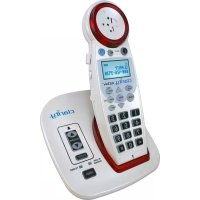
C4230 - Phone Clarity - Free user manual and instructions
Find the device manual for free C4230 Clarity in PDF.


| Product Type | Amplified Corded Phone |
| Brand | Clarity |
| Model | C4230 |
| Dimensions (H x W x D) | 8.5 x 5.5 x 3.8 inches |
| Weight | 1.2 lbs (0.54 kg) |
| Power Supply | AC adapter 9V DC, 500mA |
| Display | LCD with large digits and caller ID |
| Audio Amplification | Up to 50 dB gain |
| Ringer Volume | Adjustable up to 95 dB |
| Visual Indicators | Flashing ringer light for incoming calls |
| Keypad | Large, backlit buttons |
| Memory | Speed dial: 9 one-touch, 20 two-touch |
| Caller ID | 50 name/number memory |
| Headset Compatibility | 3.5mm jack for amplified headset |
| Hearing Aid Compatible | Yes (HAC rated) |
| Additional Features | Boost button for extra amplification, volume control dial |
| Cleaning and Care | Wipe with a soft, dry cloth; do not use liquids |
| Safety | UL listed; use only provided adapter |
| Spare Parts and Repairability | Contact Clarity customer service; limited user-serviceable parts |
| General Information | Designed for individuals with hearing loss; easy-to-read labeling |
Frequently Asked Questions - C4230 Clarity
User questions about C4230 Clarity
0 question about this device. Answer the ones you know or ask your own.
Ask a new question about this device
Download the instructions for your Phone in PDF format for free! Find your manual C4230 - Clarity and take your electronic device back in hand. On this page are published all the documents necessary for the use of your device. C4230 by Clarity.
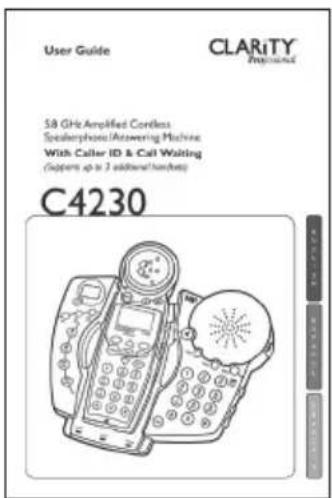
USER MANUAL C4230 Clarity
5.8 GHz Amplified Cordless
Speakerphone/Answering Machine
With Caller ID & Call Waiting
(Supports up to 3 additional handsets)
C4230 ^TM
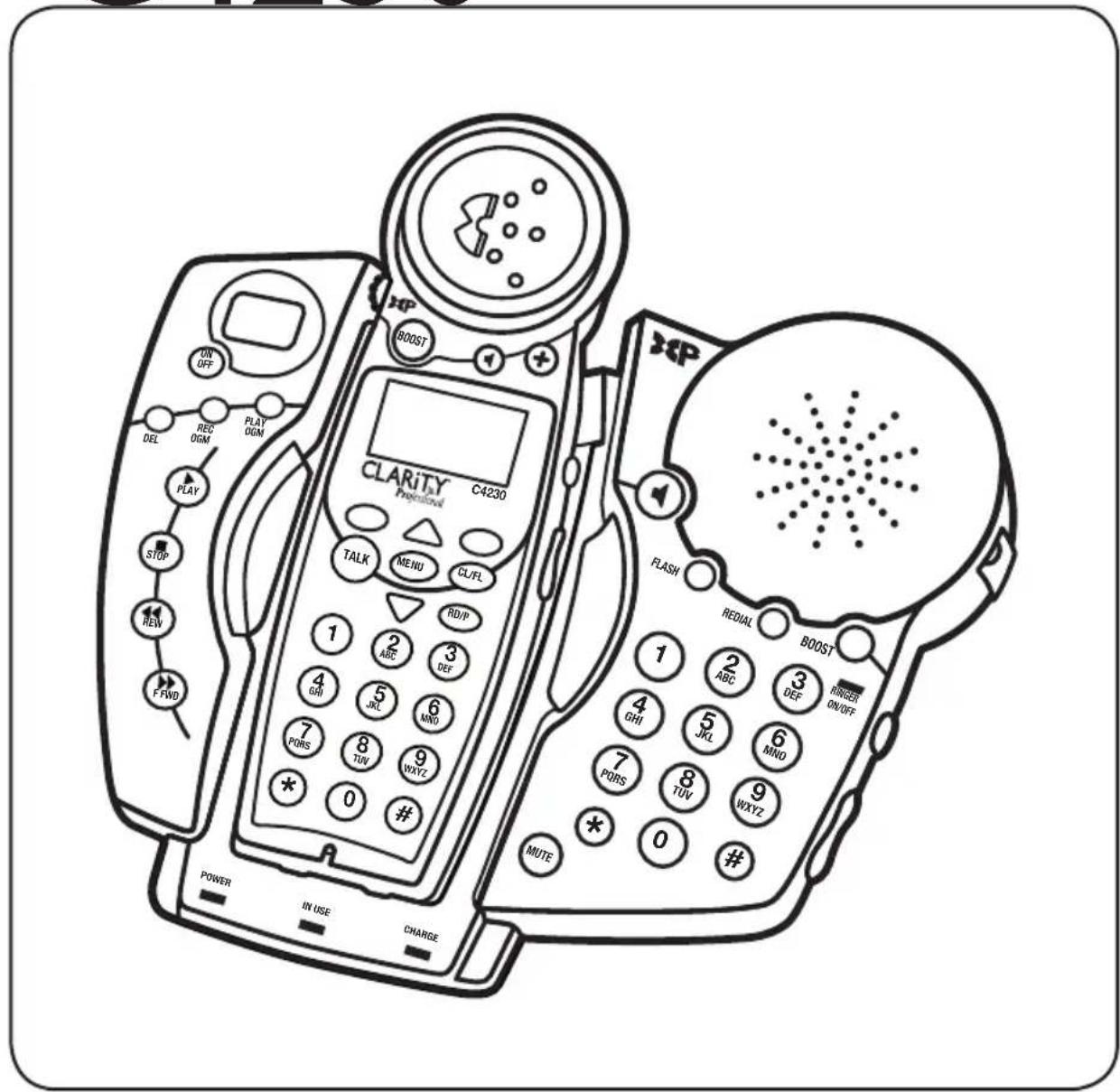
text_image
ON OFF DEL REC OGM PLAY OGM PLAY STOP REV F FWD POWER IN USE CHARGE CLARITY PROFESSIONAL C4230 TALK MENU CL/FL RD/P 1 2 ABC 3 DEF 4 GHI 5 JKL 6 MNO 7 PQRS 8 TUV 9 WXYZ * 0 # MUTE 1 2 ABC 3 DEF 4 GHI 5 JKL 6 MNO 7 PQRS 8 TUV 9 WXYZ * 0 # FLASH REDIAL BOOST RINGER ON/OFFTABLE OF CONTENTS
Getting Started
Safety Instruction 4
Parts Checklist 7
Quick Reference Guide 8
Installation....13
Telephone Operation ....14
Basic Handset Operation ....14
Basic Base Operation ....18
Other Features on Handset 21
Date and Time 23
Initial Setup 24
Phonebook 26
Caller ID 30
Telephone Answering Machine ....33
Access from handset 35
Access from a Remote Location ....40
Troubleshooting......42
Technical Specifications ....44
FCC Requirements and Regulations ....45
Warranty and Service ....48
Introduction
Thank you for purchasing the C4230, 5.8 GHz amplified cordless phone, from Clarity. Using our patented Digital Clarity Power, the C4230 clearly amplifies incoming sound up to 50 dB while cutting out background noise. This phone has many features including a digital answering machine and speakerphone.
This User Guide and Quick Start Guide will provide you with the information you need to use your C4230 effectively, easily and safely. Read this manual thoroughly before using this telephone. Keep the manual near the phone for easy reference.
IMPORTANT SAFETY INSTRUCTIONS
When using your telephone equipment, basic safety precautions should always be followed to reduce the risk of fire, electric shock and injury to persons including the following:
I. Read and understand all instructions.
2. Follow all warnings and instructions marked on the telephone.
3. Do not use this telephone near a bath tub, wash basin, kitchen sink or laundry tub, in a wet basement, near a swimming pool or anywhere else there is water.
4. Avoid using a telephone (other than a cordless type) during a storm. There may be a remote risk of electrical shock from lightning.
5. Do not use the telephone to report a gas leak in the vicinity of the leak.
6. Unplug this telephone from the wall outlets before cleaning. Do not use liquid cleaners or aerosol cleaners on the telephone. Use a damp cloth for cleaning.
7. Place this telephone on a stable surface. Serious damage and/or injury may result if the telephone falls.
8. Do not cover the slots and openings on this telephone. This telephone should never be placed near or over a radiator or heat register. This telephone should not be placed in a built-in installation unless proper ventilation is provided.
9. Operate this telephone using the electrical voltage as stated on the base unit or in the owner's manual. If you are not sure of the voltage in your home, consult your dealer or local power company.
- Do not place anything on the power cord. Install the telephone where no one will step or trip on the cord.
II. Do not overload wall outlets or extension cords as this can increase the risk of fire or electrical shock. - Never push any objects through the slots in the telephone. They can touch dangerous voltage points or short out parts that could result in a risk of fire or electrical shock. Never spill liquid of any kind on the telephone.
- To reduce the risk of electrical shock, do not take this phone apart. Opening or removing covers may expose you to dangerous voltages or other risks. Incorrect reassembly can cause electric shock when the appliance is subsequently used.
- Unplug this product from the wall outlet and refer servicing to the manufacturer under the following conditions:
A. When the power supply cord or plug is frayed or damaged.
B. If liquid has been spilled into the product.
C. If the telephone has been exposed to rain or water.
D. If the telephone does not operate normally by following the operating instructions. Adjust only those controls that are covered by the operating instructions. Improper adjustment may require extensive
IMPORTANT SAFETY INSTRUCTIONS
work by a qualified technician to restore the telephone to normal operation.
E. If the telephone has been dropped or the case has been damaged.
F. If the telephone exhibits a distinct change in performance.
15. Never install telephone wiring during a lightning storm.
16. Never install telephone jacks in wet locations unless the jack is specifically designed for wet locations.
17. Never touch uninsulated telephone wires or terminals unless the telephone line has been disconnected at the network interface.
18. Use caution when installing or modifying telephone lines.
19. Use only the power cord and batteries indicated in the manual. Do not dispose of batteries in a fire. They may explode. Check with local codes for possible special disposal instructions.
20. Plug the AC adaptor into the outlet that is nearest and most accessible to the telephone.
Exposure to high volume sound levels may damage your hearing. Although there is no single volume setting that is appropriate for everyone, you should always use the handset with the volume set at moderate levels and avoid prolonged exposure to high volume sound levels. The louder the volume, the less time is required before your hearing could be affected. If you experience hearing discomfort, you should stop
using the handset. To protect your hearing, some hearing experts suggest that you:
I. Set the volume control in a low position and then adjust the volume to a comfortable level.
2. Limit the amount of time you use the handset at high volume.
3. Avoid turning up the volume to block out noisy surroundings.
CHILDREN: Never allow children to play with the product – small parts may be a choking hazard and the amplified volume may cause hearing damage.
SAFETY INSTRUCTIONS FOR BATTERIES
Caution: Risk of explosion if battery is replaced by an incorrect type. Dispose of used batteries according to the instructions.
I. Use only the approved battery pack in the handset of your cordless phone.
For Handset Unit:
3.6V 800mAh Ni-MH AAA
GPI International Ltd.:
GP80AAAH3BXZ
For Base Unit:
Four (4) AA alkaline batteries
- Do not dispose of the battery in a fire as it may explode. Check with local codes for possible special disposal instructions.
- Do not open or mutilate the battery. Released electrolyte is corrosive and may cause damage to the eyes and skin. It may be toxic if swallowed.
IMPORTANT SAFETY INSTRUCTIONS
- Exercise care in handling batteries in order not to short the battery with conducting materials such as rings, bracelets and keys. The battery or conduction material may over-heat and cause burns.
- Charge the battery (ies) provided with or identified for use with this product only in accordance with the instructions and limitations specified in this manual.
- Observe proper polarity orientation between the battery pack and the battery charger.
Pacemaker Warning
If you or a member of your household has a pacemaker or other medical devices, consult your physician or the manufacturer of the pacemaker or medical device before using this product. The product should be used in accordance with the guidelines provided by your physician or the manufacturer of the pacemaker or medical device.
CONTENTS & PARTS CHECKLIST
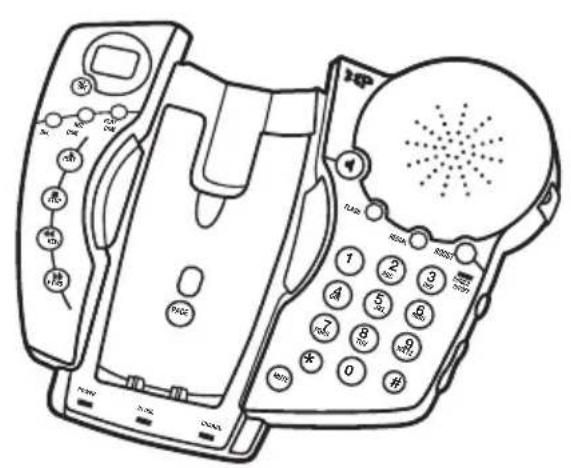
text_image
Line drawing of a landline telephone receiver with labeled buttons and keypadBase
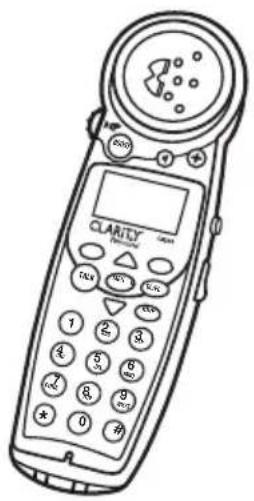
text_image
CLARITY PUMBER 1 2 3 4 5 6 7 8 9 0 1 2 3Handset

natural_image
Simple line drawing of a rounded rectangular shape with a small oval cutout and a curved top (no text or symbols)Battery compartment cover
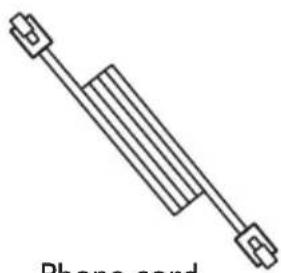
natural_image
Pure electrical circuit lines without any symbolsPhone cord
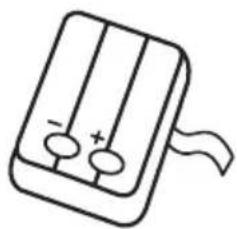
natural_image
Simple line drawing of a battery with two terminals and a curved arrow indicating direction (no text or symbols)Battery pack
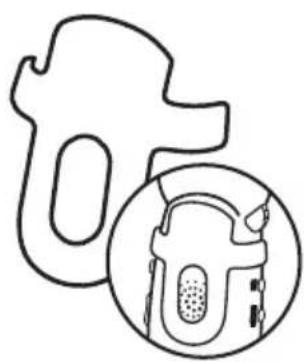
natural_image
Simple line drawing of a stylized object with a circular inset showing a textured object (no text or symbols)Belt clip

natural_image
Simple line drawing of a rectangular box with two pins and a curved arrow below (no text or symbols)AC power adapter
text_image
User Guide CLARITY® Personal 5.8 GHz Amplified Cordless Speakerphone (Answering Machine) With Caller ID & Call Waiting (Supports up to 3 additional addresses) C4230User guide
FUNCTION KEYS
I Speaker
Press On or Off.
2 Flash
Press to receive an incoming call while on a call. (Call Waiting must be activated)
3 Redial
Press to Redial last number dialed.
4 Boost
Press to add an extra level of amplification over the entire range of volume control.
5 Input for (optional) C2210 Lamp Flasher
6 Ringer Style
Press to adjust the style of ring.
7 Volume
Press to control the outgoing Speaker Volume.
8 Mute button
Press to turn OFF speakerphone microphone.
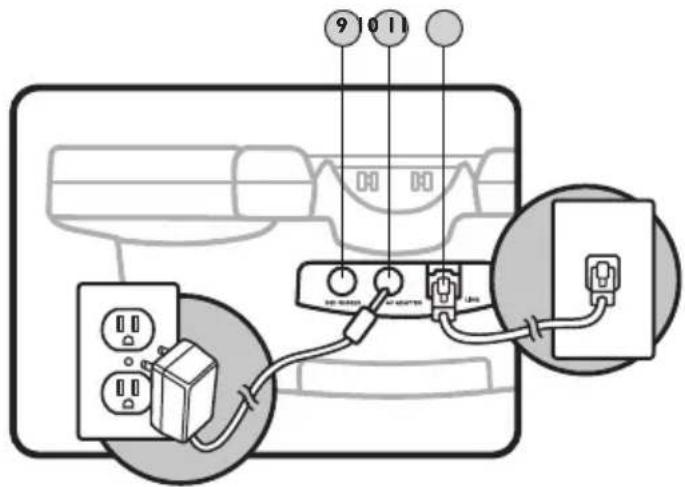
9 Port for (optional) C2210 Bed Shaker
10 AC Adapter
II Phone Line Connection
text_image
Diagram showing connections between a device with power outlets, switches, and numbered wires (9, 10, 11) above it.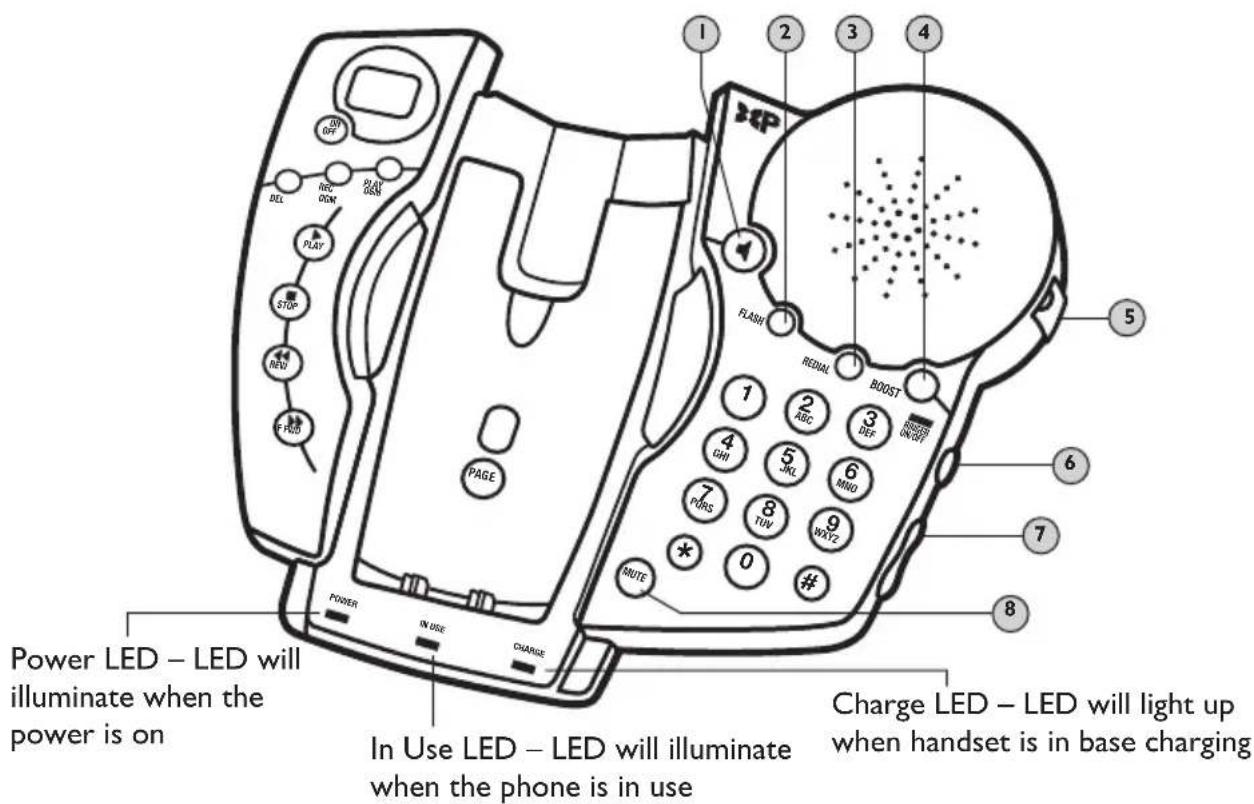
text_image
Power LED – LED will illuminate when the power is on In Use LED – LED will illuminate when the phone is in use Charge LED – LED will light up when handset is in base chargingANSWERING MACHINE DEVICE
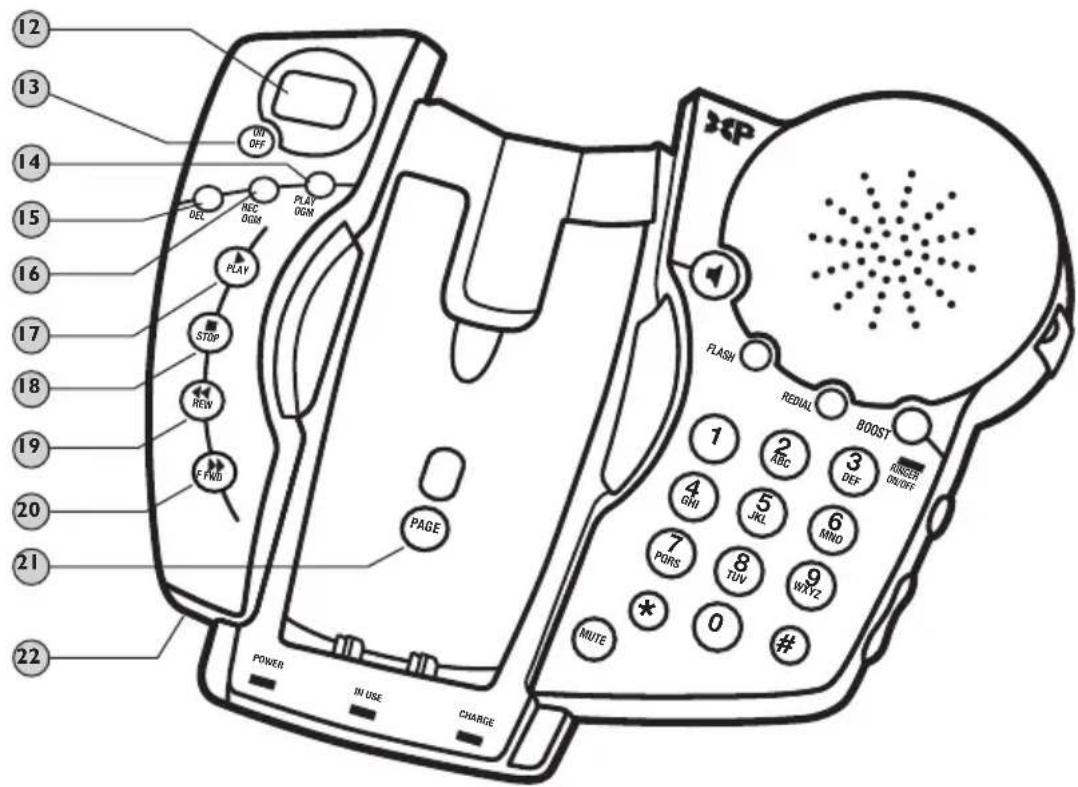
12 Answering Machine Display Displays number of messages.
13 On/Off
Press to turn answering machine On or Off.
14 OGM/Play
Press to Play outgoing message.
15 Delete
Press to Delete a message.
16 OGM/REC
Press to Record outgoing message.
17 Play
Press to Play message.
18 Stop
Press to STOP message playing.
19 Rew
Press to Rewind message.
20 FFWD
Press to Fast Forward through the message.
21 Page
Press to Page handset.
22 Base Microphone
Speak into when recording outgoing answering machine message.
text_image
12 13 14 15 16 17 18 19 20 21 22 ON OFF DEL NEC OGM PLAY STOP REW F FWD PAGE POWER IN USE CHARGE FLASH REDUAL BOOST RINGER ON/OFF 1 2 ABC 3 DEF 4 GHI 5 JKL 6 MNO 7 PORS 8 TUV 9 WRY2 MUTE 0 # #HANDSET
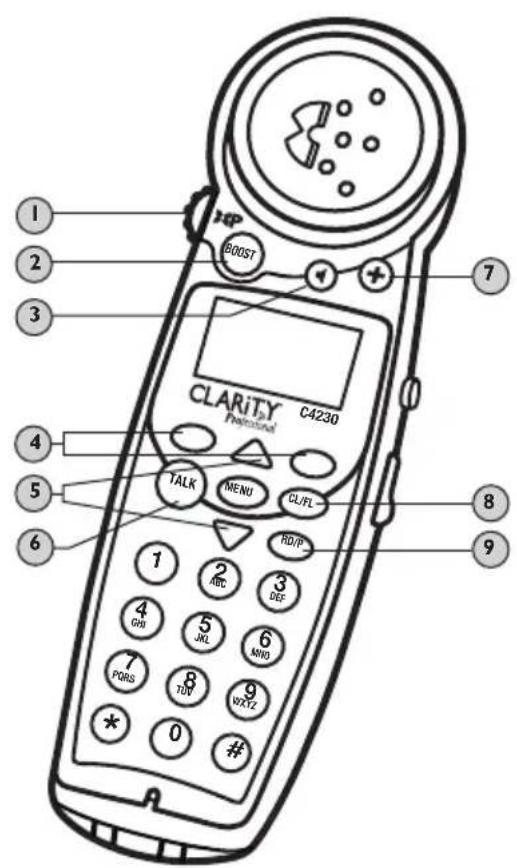
I Volume Control
The dial controls the volume level of the handset, headset or neckloop, and ringer volumes.
2 Boost
When pressed, an extra level of amplification is added over the entire range of volume.
3 Speaker
Press to activate handset speakerphone. Press again to switch back to earpiece.
4 Soft Keys
Press a soft key to select a menu item displayed just above the key.
5 Arrow Buttons
Press up or down Arrows to navigate through the menus.
6 Talk
To make a call Press the TALK button then dial number.
7 Help Key
Press Help Key button to dial preprogrammed number.
8 Flash/Clear
Flash: Call Waiting service is required. While on a call Press (CL/FL) to receive another incoming call.
Clear: While in the menu Press (CL/FL) to go back to the main menu.
9 Redial/Pause
Press to redial (RD/P) last number dialed or insert Pause (2 seconds) when programming memories or pre-dialing.
text_image
1 2 3 4 5 6 7 CLARITY Professional C4230 TALK MENU CL/FL RD/P 1 2 ABC 3 DEF 4 GND 5 JNL 6 NNIO 7 PQRS 8 TDV 9 WXTZ 0 #HANDSET
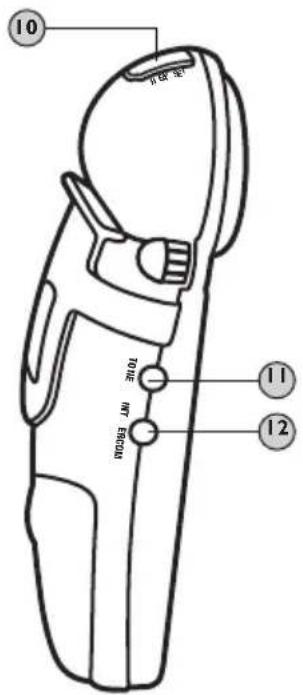
10 Headset
A 2.5 mm headset can be used in the Headset Port.
(We recommend the Plantronics M214C headset.)
II Tone
Press to select the audio tone for the handset. Boost must be ON to activate tone selection.
12 Intercom
Press to call Base or other handset on system.
13 Ringer ON/OFF
Switch to turn Handset Ringer On.
14 Neck Loop
A 3.5 mm neck loop can be used in the Neck Loop Port.
15 Belt clip
Slide belt clip onto handset as shown.
16 Speaker grill
17 Battery
Insert battery pack such that (+) and (-) on battery touch spring in battery compartment.
text_image
10 TROLE MPT. EROZID 11 12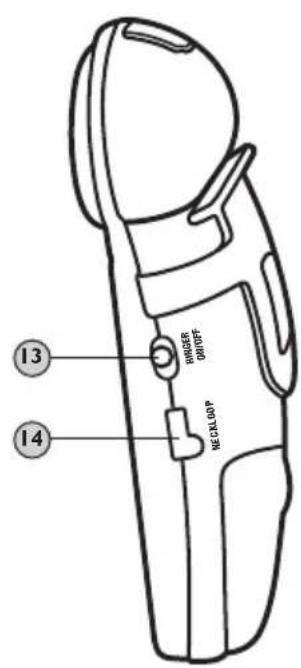
text_image
BHR2ER GRIDF MECKL0IP 13 14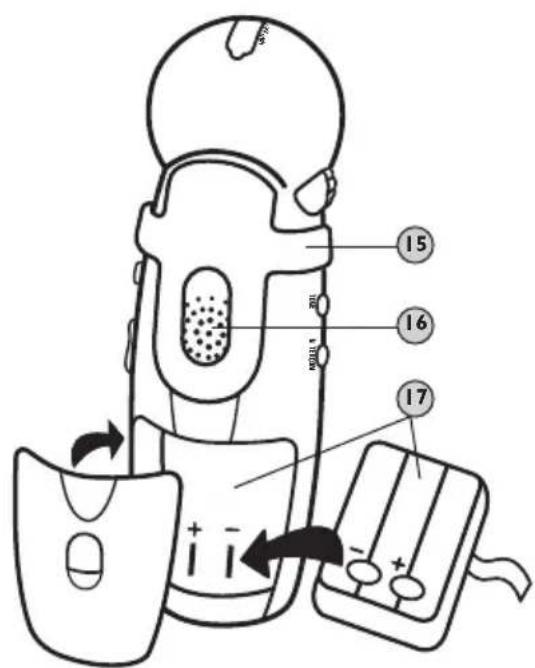
text_image
Diagram of a medical device with numbered parts and directional arrows indicating movement or force directions.OPTIONAL:
Install belt clip to back of phone as shown.
For hands-free conversations, headset with a 2.5mm plug may be purchased separately.
IMPORTANT:
Circular metal contacts on battery need to touch the metal springs inside battery compartment.
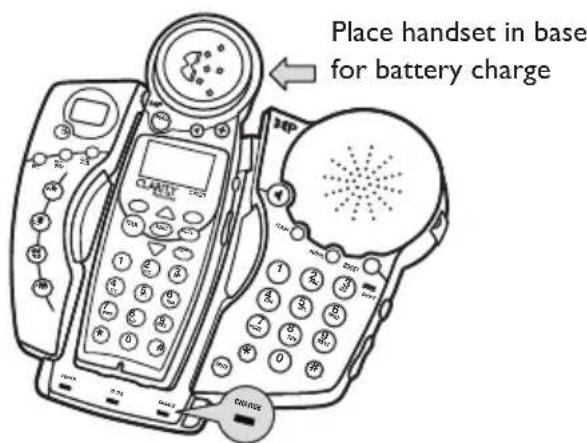
Charging your battery
Battery must be initially charged for a full 12 hours before first use. Failure to fully charge the battery may result in the battery developing a memory. If the battery develops a memory, it will hold less charge with each following charge. Eventually the battery would have to be replaced. Important: You must charge the handset 12 hours before using in order for the handset to register properly to the base.
text_image
Place handset in base for battery chargeIMPORTANT
Handset battery must charge for 12 hours before using.
Installing the Backup Batteries
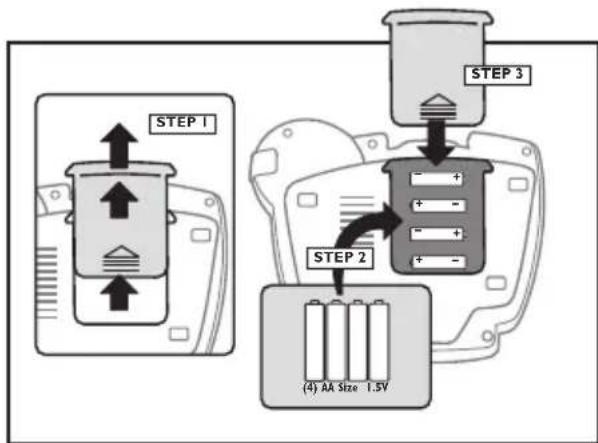
If there is a power outage, the C4230 will operate up to four hours with (4) AA Alkaline (non-rechargeable) batteries (not included).
Note: Operation time depends on what features are being used.
To install or replace battery backup batteries
I. Disconnect telephone line cord.
2. Remove batteries from phone.
3. Install four (4) AA Alkaline batteries with negative (-) end of battery touching the spring.
Warning: Disconnect telephone line cord before replacing batteries.
flowchart
graph TD
    A["STEP 1"] --> B["Step 2"]
    B --> C["STEP 3"]
    C --> D["(4) AA Size 1.5V"]
After installing the four (4) AA Alkaline batteries, please refer to the chart below.
| Power Supply Power LED Status | |
| AC adapter and good batteries Steady GreenAC adapter and no batteries Steady RedAC adapter and low batteries Blinks Green/RedPower failure and good batteries Slow flashing RedPower failure and bad batteries Fast flashing Red | |
HOW TO CONNECT YOUR C4230 PHONE
text_image
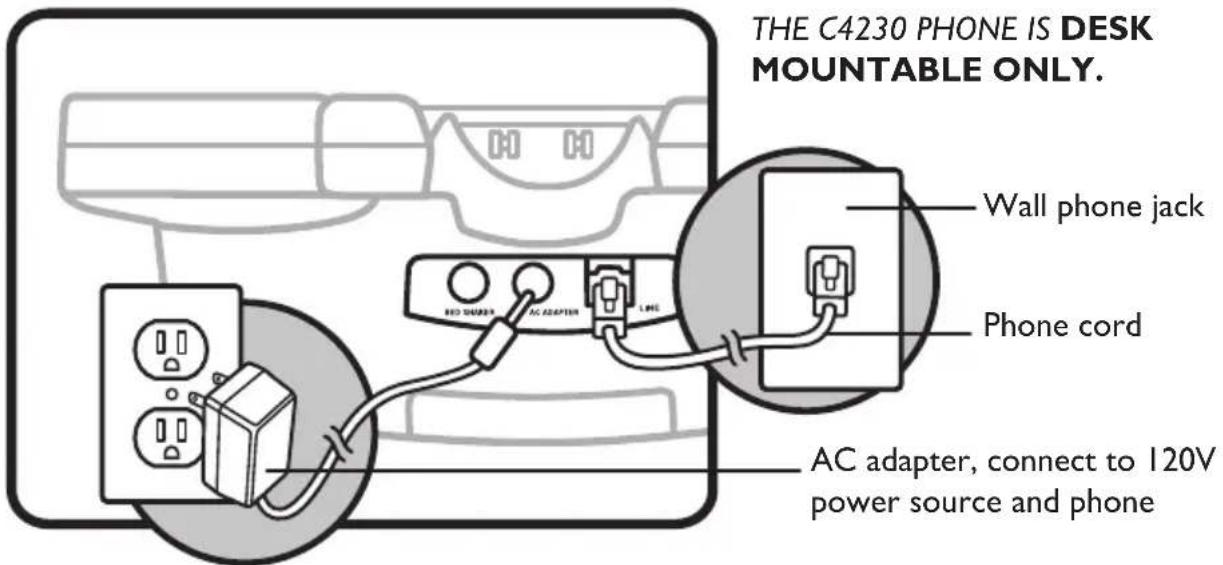
THE C4230 PHONE IS DESK MOUNTABLE ONLY. Wall phone jack Phone cord AC adapter, connect to 120V power source and phoneThe phone cord plugs into the C4230 phone base as shown above. Plug the other end of the phone cord into a telephone wall jack.
Connect the AC adapter to the back of the base and a 120V wall outlet as shown above.
To avoid potential interference, the phone should not be located near electronic equipment, such as personal computers, televisions or microwave ovens.
HOW TO DIAL OR RECEIVE A CALL
I. Complete connection instructions shown in this guide.
2. Install and charge battery as shown on page 11-12.
3. Make sure Red LED light is on at bottom of base.
HANDSET
-
To answer a call, press TALK on the handset.
-
When placing a call press TALK and dial number.
-
After completing a call press TALK again and return handset to base unit.
BASE
-
When receiving a call press SPEAKER ▶ button on base.
-
When placing a call press SPEAKER button then dial number from base.
-
After completing a call press the SPEAKER ▶ button again.
-
Sound will reset to normal level on both handset and base unit after completing calls. Pressing the BOOST button on subsequent calls will return the volume to your set sound level.
TELEPHONE OPERATIONS
BASIC HANDSET OPERATIONS
ANSWERING AND MAKING CALLS
text_image
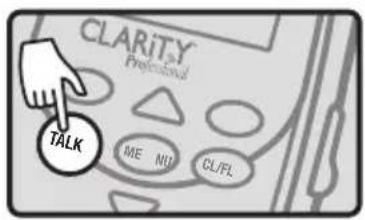
CLARiT5Y Professional TALK ME NU CL/FLAnswering Calls
To answer a call press TALK.
Press FLASH during a call to answer a second call. (If you have call waiting service)
Making Calls
To make a call, press TALK, then dial number.
To end call, press TALK again, or place handset onto base.
text_image
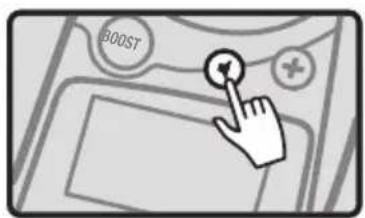
BOOSTHands-Free Speakerphone Calls
Press Speaker ▶ to answer incoming calls.
To make an outgoing call, press Speaker; then dial number. To change back for normal handset use, press Speaker again.
To end call, press TALK.
Digital Clarity Power™ Technology
With Digital Clarity Power, high frequency sounds are amplified more than low frequency sounds so words are not just louder but clearer and easier to understand. It also provides intelligent amplification to make soft sounds audible, while keeping loud sounds bearable.
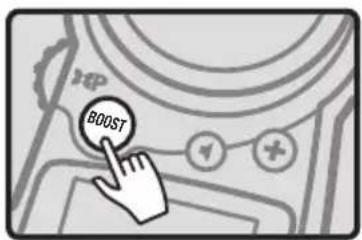
BOOST ON/OFF
text_image
BOOSTBOOST On/Off
The BOOST button controls the loudness of the receiver. Once the BOOST button is pressed, an extra level of amplification is added over the entire range of volume control.
TELEPHONE OPERATIONS
BASIC HANDSET OPERATIONS
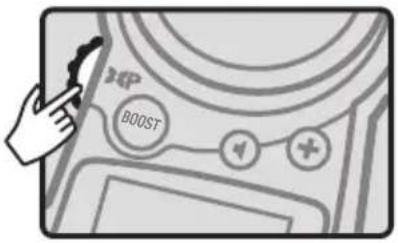
Volume Control
During a call, the dial on the side controls the level of volume for the handset and speakerphone. The volume dial provides up to 16dB of volume before the BOOST button is activated. Once the BOOST button is pressed, the C4230 will provide up to 50dB of amplification.
When phone is not in use, the dial on the side controls the level of the ringer volume.
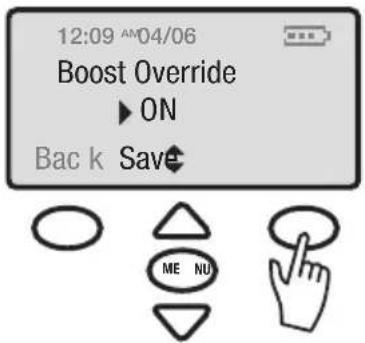
Boost Override
Select Boost Override on the Main Menu. Use the Arrow buttons to scroll from ON to OFF. Select your choice and then press the (soft key) Save.
text_image
EXP BOOST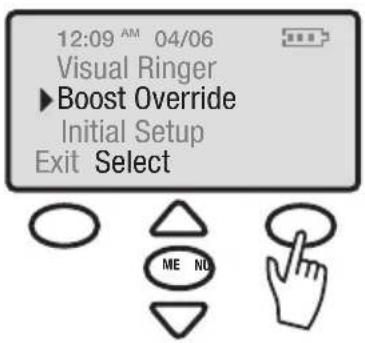
text_image
12:09 AM 04/06 Visual Ringer ►Boost Override Initial Setup Exit Select ME NOON – When the Boost override is set to ON, the Boost function will be ON every time a call starts. If the phone hangs up, the Boost will remain ON.
OFF – When the Boost is set to OFF, the Boost function will be OFF. Every time a call starts, the user will need to press the BOOST button in order to gain the extra level of amplification. If the phone hangs up, the BOOST button will reset to OFF.
BOOST OVERRIDE (ON/OFF)
text_image
12:09 AM04/06 Boost Override ► ON Back Save ME NUAudio Tone
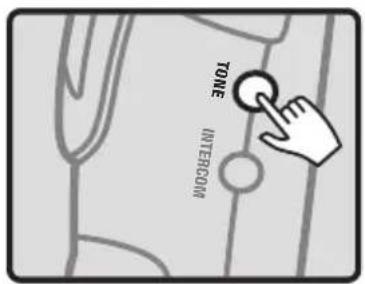
Press the Tone button to change the style of amplification. Switching audio tones will change how the telephone conversation sounds to you. See the matrix on page 16 for general recommendations on audio tones based on your particular hearing situation.
ADJUSTING TONE
text_image
TONE INTERROOMTELEPHONE OPERATIONS
General Recommendations for Tone Settings on the C4230™ Telephone
| Audio Tone 1 | Audio Tone 2 | Audio Tone 3 | Audio Tone 4 | |
| Amplification Type | BassLow FrequencyAmplification | FlatFrequencyAmplification | Clarity Power | MultibandCompression-Low |
| Setting Emphasis | Power/Loudness | Power/Loudness Power | Power/Loudness | SpeechIntelligibility |
| User listens while wearingDigital Hearing Aids | ● | ● | ||
| User listens while wearingAnalog Hearing Aids | ● | |||
| User has difficulty understandingspeech on telephone | ● | |||
| User with Noise InducedHearing Loss | ● | |||
| Mild to Moderate Hearing Loss | ● | ● | ||
| With some High FrequencyHearing Loss | ● | |||
| With significant High FrequencyHearing Loss | ● | |||
| With Low Frequency Hearing Loss | ● | |||
| Moderate to Severe Hearing Loss | ● | ● | ||
| With High Frequency Hearing Loss | ● | ● | ||
| With Low Frequency Hearing Loss | ● | |||
| With Loss across All Frequencies | ● |
\*Notes:
I. These are general recommendations. Hearing loss is specific to each individual; therefore, Clarity® recommends an end user tries all four setting to see which will work best for their particular hearing condition.
2. Boost must be on for audio tone settings to activate.
3. Noise reduction, acoustic echo cancellation and all other DCP ^™ features are active regardless of the tone setting.
TELEPHONE OPERATIONS
BASIC HANDSET OPERATIONS
Flash
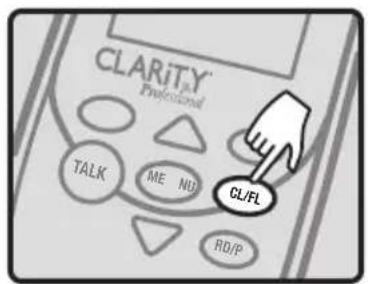
The FLASH (CL/FL) button is activated to use custom calling services such as Call Waiting or Three Way Calling. Please contact your local telephone company for information on these services.
text_image
CLARIT® Professional TALK ME ND RD/P CL/FLLast number dialed
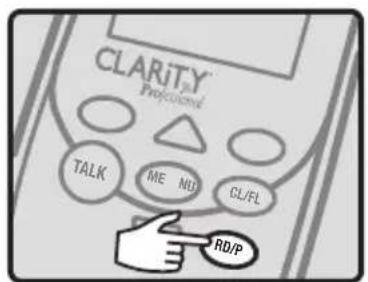
Press RD/P to call last number dialed.
The last number dialed (up to 32 digits) is stored in the redial memory until another number is dialed.
text_image
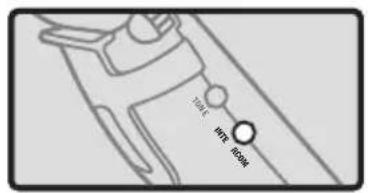
CLARITX Professional TALK ME NU CL/FL RD/PIntercom
Press the Intercom button to page base. To answer a call from the base, press the intercom button or the Talk button. This will allow you to talk to the person on the handset.
text_image
100A 107A 850APause Feature
Programming in a pause will cause the phone to wait two (2) seconds before dialing additional numbers. This feature may be used when it is necessary to dial an access code (9, for example). Wait for the second dial tone, and then dial the outgoing number. Press the RD/P button at the required point during the memory storage process to program a pause.
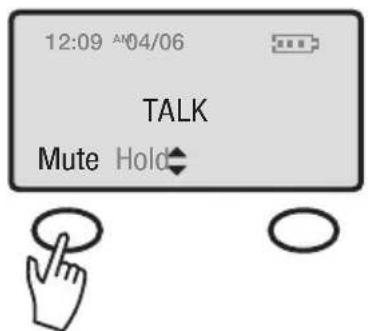
Mute and Hold
Press the (soft key) Mute on the handset and "Mute" will be displayed. This will turn the microphone off on the handset.
text_image
12:09 AN04/06 TALK Mute HoldTELEPHONE OPERATIONS
text_image
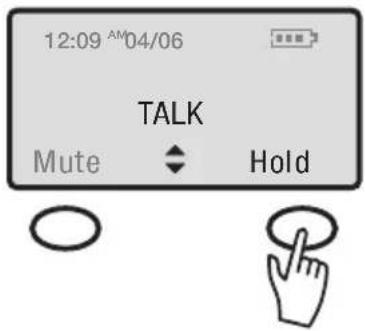
12:09 AM04/06 TALK Mute ◆ HoldPress the (soft key) Hold on the menu to hold the line.
Press the (soft key) Unhold to return to the dialing screen and to your call.
Dialing (Tone/Pulse)
(See Page 25 for instructions)
BASIC BASE OPERATIONS
text_image
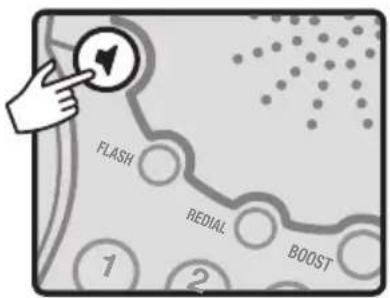
FLASH REDIAL BOOSTMaking and answering calls
If you have call waiting service, press FLASH during a call to answer a second call. To make a call, press
SPEAKERPHONE, then dial number. To end call, press SPEAKERPHONE again.
text_image
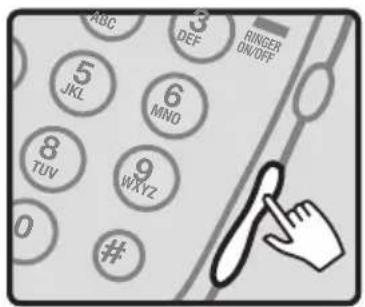
ABC 3 DEF RINGER ON/OFF 5 JKL 6 MNO 8 TUV 9 WXYZ 0 # 0Volume Control
VOLUME UP and VOLUME DOWN buttons are used to adjust the volume of the ringer when SPEAKERPHONE is not in use.
When using the SPEAKERPHONE, VOLUME UP and VOLUME DOWN buttons are used to adjust the volume of the speaker.
When using the Answering Machine, VOLUMEUP and VOLUME DOWN buttons are used to adjust the volume of the answering machine during message playback.
TELEPHONE OPERATIONS
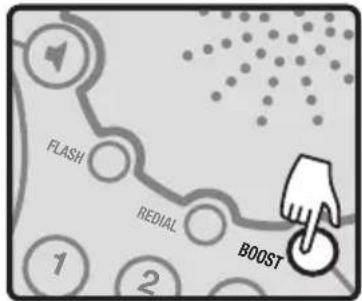
Boost On/Off
The BOOST button controls the loudness of the SPEAKERPHONE. Once the BOOST button is pressed, an extra level of amplification is added over the entire range of volume control.
flowchart
graph TD
    A["1"] --> B["FLASH"]
    B --> C["REDIAL"]
    C --> D["BOOST"]
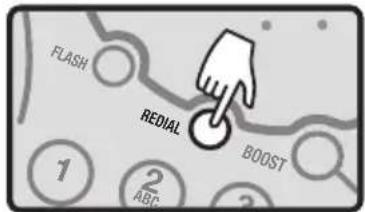
Last number redialed
Press REDIAL to dial last number dialed from the base.
The last number dialed (up to 32 digits) is stored in the redial memory until another number is dialed.
text_image
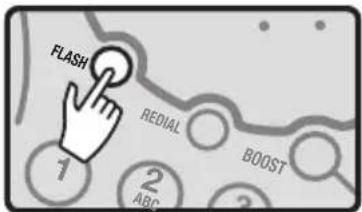
FLASH REDIAL BOOST 1 2 ABCFlash
The FLASH button is activated to use custom calling services such as Call Waiting or Three Way Calling. Please contact your local telephone company for information on these services.
text_image
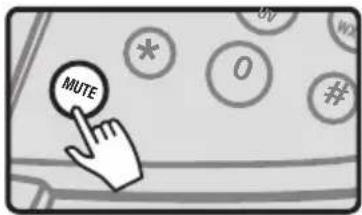
FLASH REDIAL BOOST 1 2 ABCMute
Press the MUTE button to turn the microphone off on the SPEAKERPHONE.
text_image
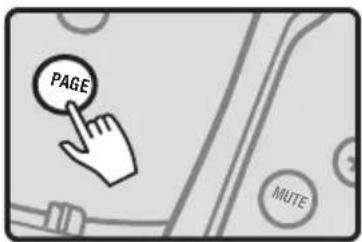
MUTEPage
Press PAGE button to page handset. To stop Paging, do one of the following:
I. Press the PAGE button again on the base.
2. Press the (soft key) EXIT on the handset.
3. Wait for 2 minutes until paging times out.
text_image
PAGE MUTETELEPHONE OPERATIONS
INTERCOM AND PAGING
text_image
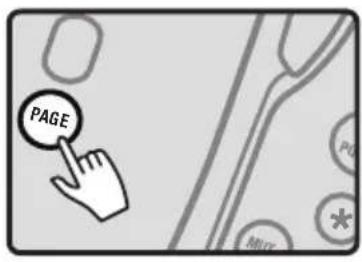
PAGEIntercom from Base
(The intercom will allow the person on the Handset to speak to the person at the Base station.)
Press the PAGE button on the base.
If additional handsets have been purchased, press the page button on the base and the handset number you wish to page on the base dial pad. To Page all handsets, press Page then 0.
text_image
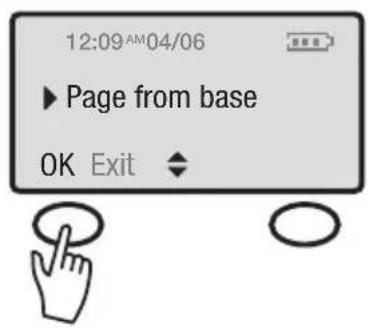
12:09AM04/06 ► Page from base OK Exit ◆The screen on the handset will display "Page from Base." Press the (soft key) OK. This will turn the intercom ON. To turn the intercom OFF, press the (soft key) EXIT on handset.
text_image
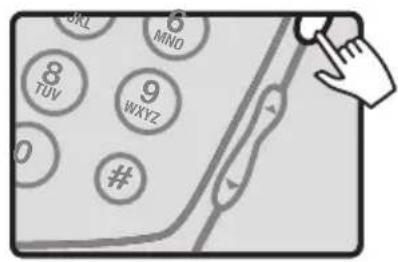
8 TUV 9 WXYZ 0 # MNORinger Style
The ringer style adjustments are located on the side of the telephone base. The style of ring can be adjusted by pressing the RING STYLE key. Six (6) styles are available allowing you to customize the ring on the base. To help choose a ring style, each ring tone will sound for two (2) seconds as the choices are scrolled through.
text_image
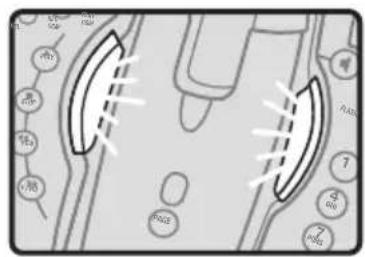
Diagram showing two curved structures with labeled points and dashed lines, possibly illustrating a physical or engineering concept.Visual Ringer
Visual ringers are located in the base. When an incoming call is received, these lights will flash.
TELEPHONE OPERATIONS
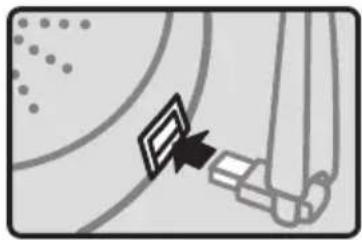
Lamp Flasher
This function is only available with the optional C2210 Lamp Flasher Notification Accessory. Instructions on use will come with purchase of Lamp Flasher. For more information on purchasing contact Clarity at 1-800-426-3738.
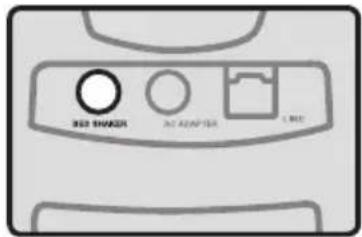
Bed Shaker
This function is only available with the optional C2210 Bed Shaker Notification Accessory. Instructions on use will come with purchase of Bed Shaker. For more information on purchasing contact Clarity at 1-800-426-3738.
OTHER FEATURES ON HANDSET
Ringer Setup
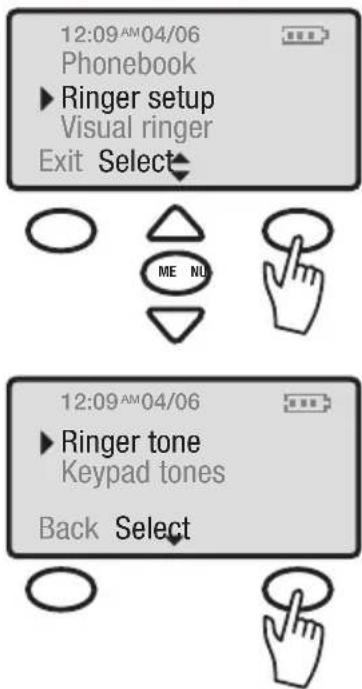
Use the Arrow buttons to scroll down the main menu to Ringer Setup. Press the (soft key) Select to choose Ringer Setup. Then choose from the submenu: Ringer Tone or Keypad Tones.
Ringer Tone: The default Ringer tone will be set to (Ring Tone I). To change ring tone, select Ringer tone from the submenu. Note: There are six (6) Ring Tones to choose from.
Use the Arrow buttons to scroll up and down to choose the ringer style. The ring styles will play as the selections are scrolled through. (The ringer Off/On switch must be On). Select the desired ring tone and then press the (soft key) Save. This will take you back to the submenu.
natural_image
Diagram showing a device interacting with a wall-mounted device (no text or symbols visible)Note: This is not a USB port. Please see the C2210 Lamp Flasher instructions for installation.
text_image
3RD SHRDER AT ADAPTER 1.0 MHzNote: Please see C2210 Bed Shaker instructions for installation.
text_image
12:09AM04/06 Phonebook ► Ringer setup Visual ringer Exit Select ME NU 12:09AM04/06 ► Ringer tone Keypad tones Back Select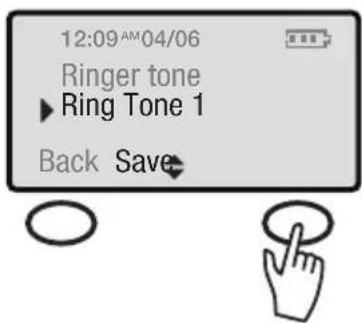
text_image
12:09AM04/06 Ringer tone ► Ring Tone 1 Back SaveTELEPHONE OPERATIONS
text_image
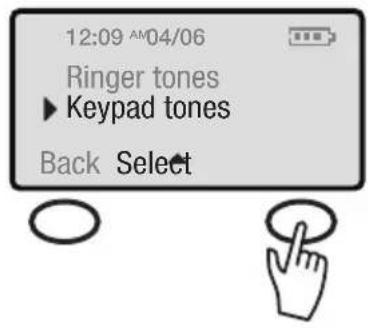
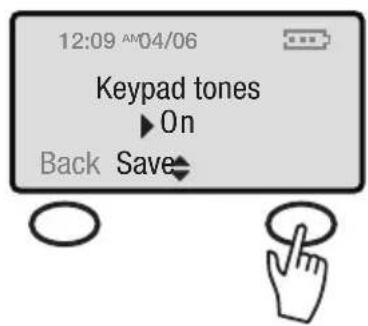
12:09 AM/04/06 Ringer tones ► Keypad tones Back SelectKeypad Tones: The Keypad Tones are defaulted to On. To turn the keypad tones Off, go to the Keypad tones, and press the (soft key) Select.
text_image
12:09 AM04/06 Keypad tones ► On Back SaveUse the Arrow buttons to scroll down to On or Off. Make your selection, and then press the (soft key) Save.
natural_image
Abstract circular diagram with concentric rings and radial lines, no text or symbols presentVisual Ringer
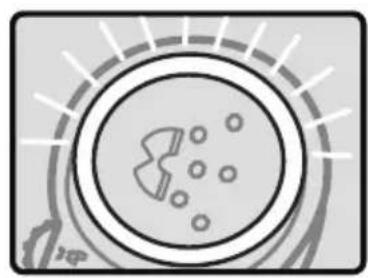
A Visual ringer is located in the handset. When an incoming call is received, the light will flash.
To turn off the Visual Ringer select Menu, scroll down to Visual Ringer and press Select. Next, scroll to Off and press the (soft key) Save.
The visual ringer will also blink when there are new messages on the answering machine.
text_image
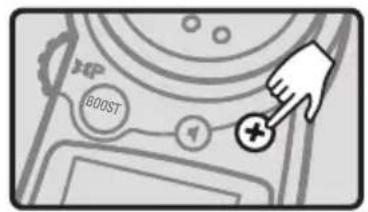
EXP BOOSTHELP Key / Memory Storage
The HELP Button can be programmed with up to 24 digits.
I. Press the HELP Button.
2. Dial the number you wish to store.
3. Press the HELP Button again.
4. A long beep will indicate the programming process is complete.
IMPORTANT: The HELP Button is NOT pre-programmed for 911. We do not recommend programming 911 into your phone memory.
To Place Call Using Help Key
Press the Help Button (The phone will dial the preprogrammed number)
TELEPHONE OPERATIONS
Date and Time
Note: If you have Caller ID service the Date and Time will automatically set when you receive your first call. (Caller ID will not auto set Day of Week)
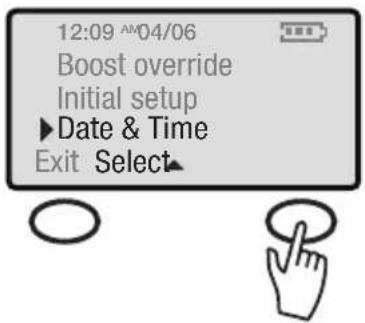
Select DATE AND TIME on the menu screen.
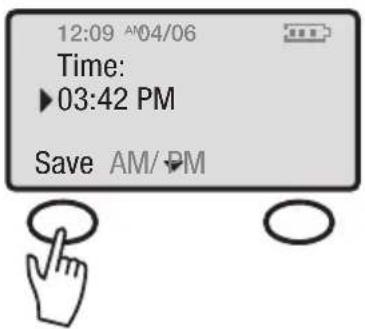
The screen will then display a time with the hour blinking.
Use the key pad to enter the desired time.
Four digits must be entered: (08:25). Press the (soft key) AM/PM to change from AM to PM.
SELECT DATE AND TIME
text_image
12:09 AM/04/06 Boost override Initial setup ► Date & Time Exit Select▲SET TIME
text_image
12:09 ^04/06 Time: ▶ 03:42 PM Save AM/PMPress the Arrow buttons down and Time format will appear on the screen. Use the (soft key) Change to select the desired time format: 12 hour clock or a 24 hour clock.
Press the Arrow button down again and choose Date format. Use the (soft key) Change to select DD/MM or MM/DD. (DD/MM stands for Date/Month and MM/DD stands for Month/Date.) Press the Arrow button down again to enter the Date. Four digits must be entered: (04/06).
SELECT TIME FORMAT
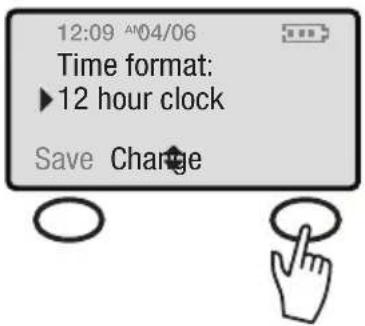
text_image
12:09 ^04/06 Time format: ►12 hour clock Save ChangeSELECT DATE FORMAT
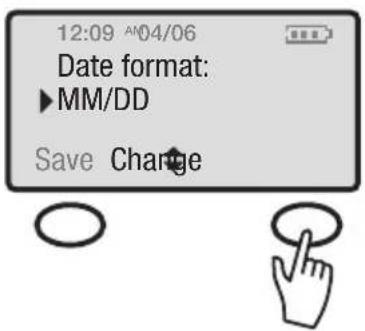
text_image
12:09 ^04/06 Date format: ▶MM/DD Save ChangeTELEPHONE OPERATIONS
SET MONTH AND DATE
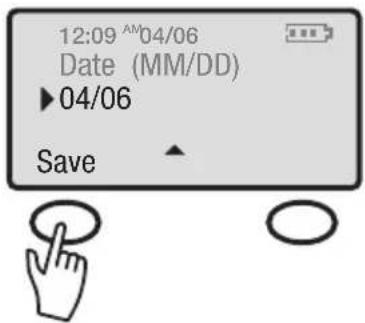
text_image
12:09 AM04/06 Date (MM/DD) ▶ 04/06 SaveOnce the date and time have been entered, press the (soft key) Save to save settings.
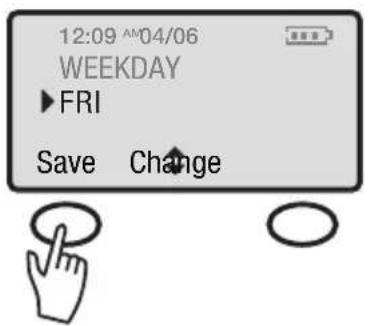
text_image
12:09 AM/04/06 WEEKDAY ▶ FRI Save ChangePress the Arrow button down again and choose the weekday. Use the (soft key) Change to select day of the week. Once the day of the week has been entered, press the (soft key) Save to save setting.
INITIAL SETUP
text_image
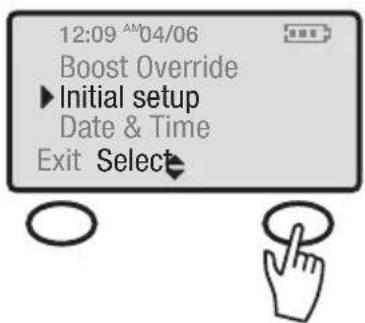
12:09 AM'04/06 Boost Override ►Initial setup Date & Time Exit SelectINITIAL SETUP
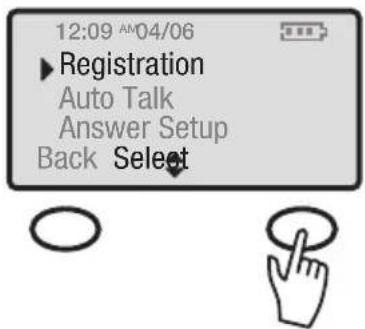
Select Initial Setup on the main menu. The sub menu will then display:
Registration
Auto Talk
Answer Setup
Language
Dialing Mode
LCD Contrast
INITIAL SETUP
text_image
12:09 AM/04/06 ▶ Registration Auto Talk Answer Setup Back SelectRegistration
The handset that comes with the base will automatically be registered to the base. It will be named Handset I. The C4230 will support up to 3 additional handsets. If any additional handsets are purchased, the registration instructions will come with the purchased handset. Contact Clarity Customer Service for information on purchasing additional handsets.
TELEPHONE OPERATIONS
Auto Talk
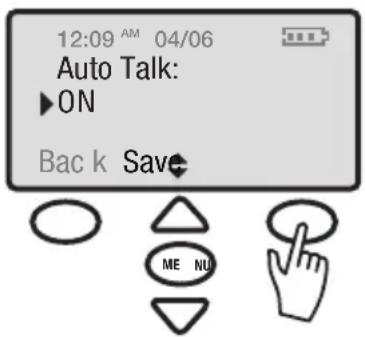
Auto Talk allows the user to remove the Handset from the base during an incoming call and immediately start talking without pressing the Talk Button.
Auto Talk's default is set to Off. When picking the handset off the base, press the Talk button to answer the phone.
For the handset to automatically answer after removing it from the base, set Auto Talk to ON.
Select Auto Talk on the submenu. Scroll to ON or OFF, select the preferred setting, and then press the (soft key) Save.
Telephone Answering Machine (Answer Setup)
(See page 33 for setup instructions.)
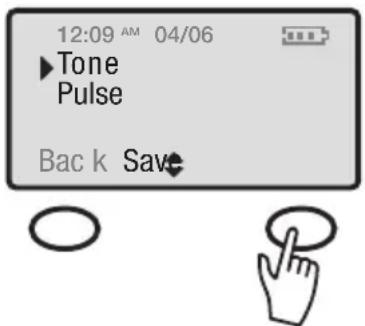
Dialing Mode
Tone or Pulse
Based on the type of telephone service you have, use tone for touch-tone service or pulse for rotary dialing.
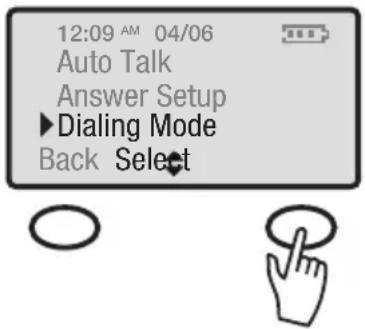
Select Dialing Mode on the submenu. "Tone" or "Pulse" will then be displayed. The pointer will be pointed to the current setting.
Use the Arrow buttons to scroll between Tone and Pulse.
Press the (soft key) Save to save the setting and return to the Main Menu Screen.
Or
Press the * button and dial number to temporarily switch from pulse to tone.
SETTING AUTO TALK
text_image
12:09 AM 04/06 Auto Talk: ▶ON Back Save ME NUSETUP DIALING MODE
text_image
12:09 AM 04/06 Auto Talk Answer Setup ►Dialing Mode Back SelectSELECT DIALING MODE
text_image
12:09 AM 04/06 ►Tone Pulse Back SaveTELEPHONE OPERATIONS
SET LCD CONTRAST
text_image
12:09 AM 04/06 LCD contrast Lo Back Save ME NULCD Contrast
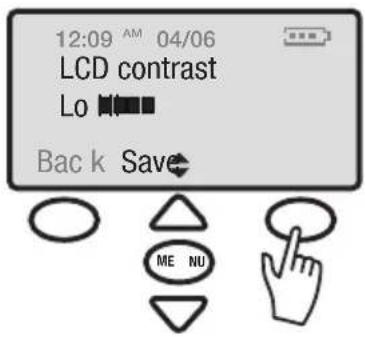
Select LCD Contrast on the submenu.
Use the Arrow buttons to scroll from Lo to Hi. Select the desired setting and then press the (soft key) Save. This will save the setting and return to the Main Menu Screen.
text_image
12:09 AM 04/06 Auto Talk Answer Setup ► Language Back Select ME NOLanguage Menu
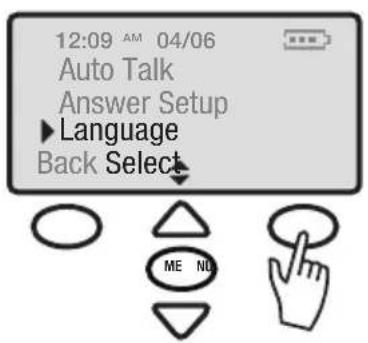
Select Initial setup on the main menu.
text_image
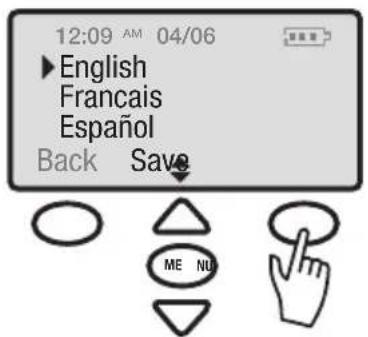
12:09 AM 04/06 ►English Français Español Back Save ME NUUse the Arrow buttons to scroll down and select language on the menu. Choices include English, French or Spanish. Make selection, and press the (soft key) Save. Press the MENU button to return to the main screen.
Handset Phonebook/Memory Storage
The C4230 will hold up to 40 names in the phonebook. The maximum characters for the name entry are 10. Up to 24 digits can be entered for the phone number.
Error tones and timeouts
If more than 10 characters for the name or 24 digits for the phone number are entered an error tone will sound and the character or number will not be accepted.
To enter a pause, dial the number, and press the pound # button twice or press the RD/P Button. This will enter a two (2) second pause.
TELEPHONE OPERATIONS
New Phone book entries
To enter names:
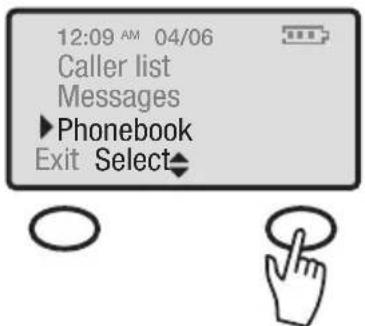
Select PhoneBook in the main menu.
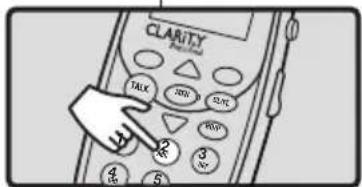
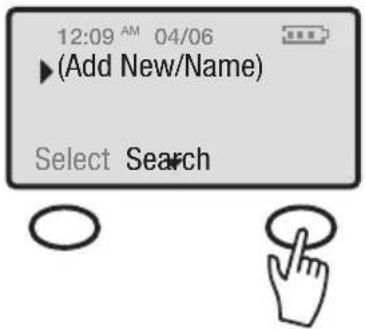
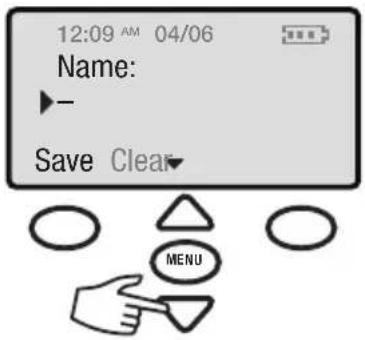
Select "Add New Name" on the sub menu. "Name:" will be displayed on the screen. Type in the name using the dialing pad. If a mistake is made press the (soft key) Clear to clear the last letter. To add a space between names press the POUND (#)button.
EXAMPLE
Press once to enter "A" ABC Press twice to enter "B" Press 3 times to enter "C" Press 4 times to enter "2"
text_image
CLARITY Phone TALK HND SNC RSP 3 2 3 4 5Next, press the Arrow button down to enter phone number.
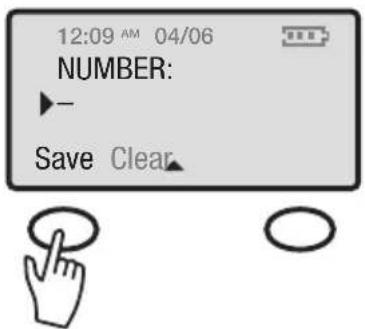
To enter phone number:
After pressing the Arrow button down, "Number:" will be displayed on the screen.
Type in the number using the keypad. If a mistake is made press the (soft key)Clear to clear the last digit.
Press the (soft key) Save and the number and the name will be saved.
If the Names list is full while the user selects New Entry, the word "FULL" is displayed on the screen. Press Exit to return to the NAMES menu. If the Names memory is full, a new entry can be entered after the deletion of another entry.
SELECT PHONEBOOK
text_image
12:09 AM 04/06 Caller list Messages ►Phonebook Exit Select◆NEW PHONEBOOK ENTRY
text_image
12:09 AM 04/06 ▶(Add New/Name) Select SearchADDING NAME TO PHONEBOOK
text_image
12:09 AM 04/06 Name: Save Clear MENUNEW PHONE NUMBER ENTRY
text_image
12:09 AM 04/06 NUMBER: Save ClearTELEPHONE OPERATIONS
text_image
12:09 AM 04/06 (Add new name) ► Clarity Options ViewTo Edit or Erase Entries
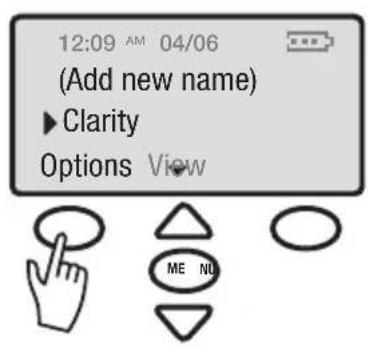
Use the Arrow buttons to browse through the phone book. Select the desired name to edit or delete, and press the (soft key) Option.
text_image
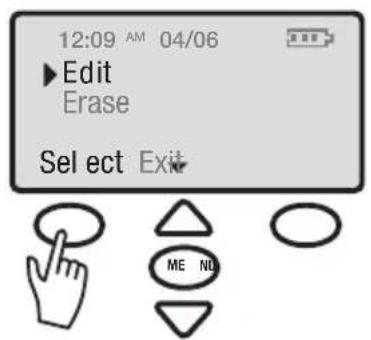
12:09 AM 04/06 ► Edit Erase Select Exit ME NOThe screen will display Edit or Erase. Select Edit.

text_image
12:09 AM 04/06 Name ► Clarity Save Clear ME NOTo edit name use the (soft key) Clear to clear the letters of the name. Retype in the changes then press the (soft key) Save to save the changes.
text_image
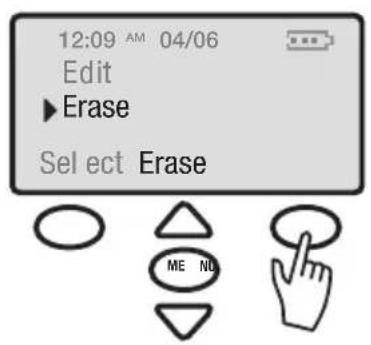
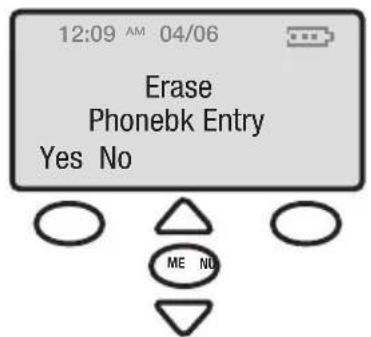
12:09 AM 04/06 Edit ► Erase Select Erase ME NOTo Erase Name and Number select the (soft key) Erase. "Erase phonebk Entry" will appear.
text_image
12:09 AM 04/06 Erase Phonebk Entry Yes No ME NOChoose Yes to erase entry or No to keep entry as is. After making a selection, the main phonebook menu will reappear on the screen.
TELEPHONE OPERATIONS
Saving Caller ID information into Phonebook
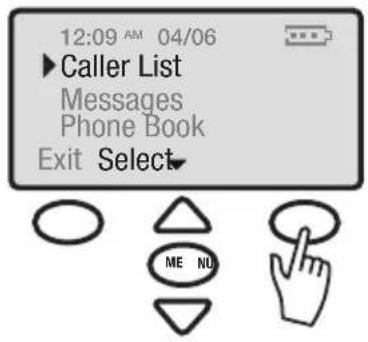
Select Caller List on the Main Menu. Then select the desired name to be stored into the phonebook.
Press the (soft key) Options. Then use the Arrow buttons to scroll down to Store.
Press the (soft key) Select to store the name and number into the phonebook.
Phonebook Search
Select Phonebook on the main menu.
Use the Arrow buttons to scroll down the list of names stored in the phonebook. The list of names will be stored alphabetically.
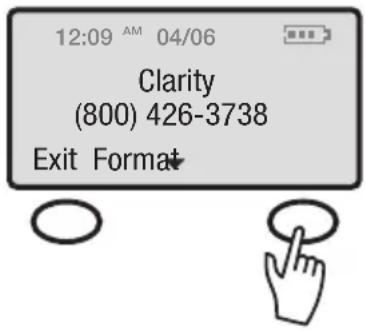
Press the (soft key) View to view name and number. If there is no entry to select, "Empty List" will display.
text_image
12:09 AM 04/06 ▶ Caller List Messages Phone Book Exit Select▼ ME NU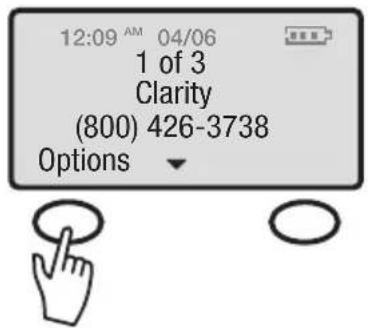
text_image
12:09 AM 04/06 1 of 3 Clarity (800) 426-3738 Options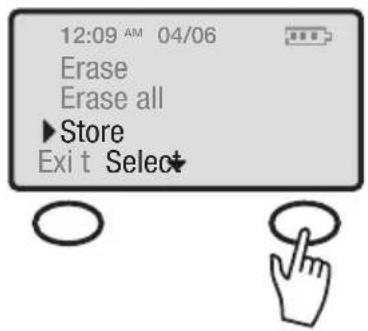
text_image
12:09 AM 04/06 Erase Erase all ►Store Exit Select+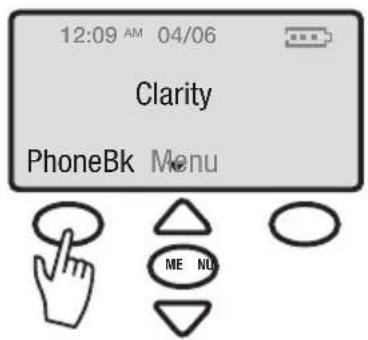
text_image
12:09 AM 04/06 Clarity PhoneBk Menu ME NU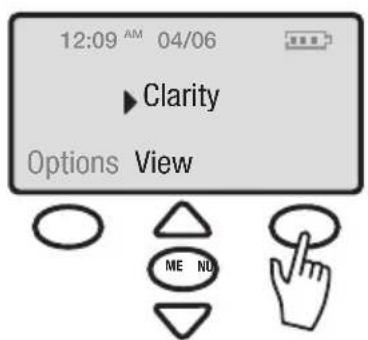
text_image
12:09 AM 04/06 ▶ Clarity Options View ME NOTELEPHONE OPERATIONS
text_image
12:09 AM 04/06 Clarity (800) 426-3738 Exit FormatWhen viewing the phonebook entry, press the (soft key) Format to place the area code in parenthesis or add 1 in front of the area code.
To dial from phonebook
Select the desired name and number from the phone-book and press the TALK button. This will automatically dial the selected phonebook entry.
CALLER ID OPERATIONS
NOTE: This is a service that is provided through your local telephone company.
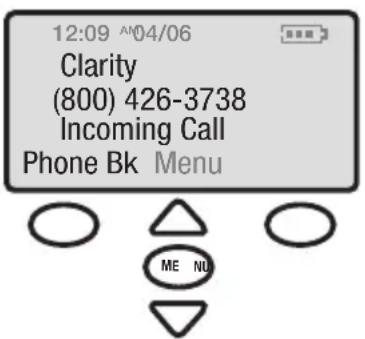
This telephone will automatically display the incoming caller's name and number along with the date and time of the call. It will record up to forty (40) calls and store the data into memory.
text_image
12:09 ^04/06 Clarity (800) 426-3738 Incoming Call Phone Bk Menu ME NUIncoming Call
"Incoming Call" will blink on the handset display when a new call is received. The first row on the display will have the caller's ID. If there is no information, the row will be blank. The second row displays the incoming telephone number. If the number is longer than 12 digits, the LCD will toggle the displayed number between the first 12 digits and the remaining digits.
Receiving Call Waiting Caller ID
When you are on an existing call, a tone will emit, and the caller ID will display the incoming caller's information.
If the 2nd incoming call is not accessed, the Caller ID information will be transferred into the Caller log. This caller information is considered “old”.
TELEPHONE OPERATIONS
Caller ID Review
If there is new call information, the display will show the number of new calls received before they have been reviewed.
Select Caller List from the main menu. Use Arrow buttons to scroll up or down to view the Caller ID content. The first row of the display indicates the sequence of calls received. Press the Arrow button down to scroll through the Caller ID information from the most recent record to the oldest.
No calls
If the Caller ID list is empty, the display will show "No Calls."
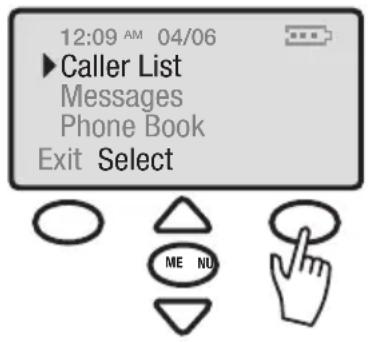
text_image
12:09 AM 04/06 ► Caller List Messages Phone Book Exit Select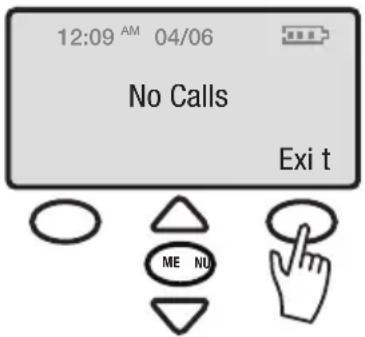
text_image
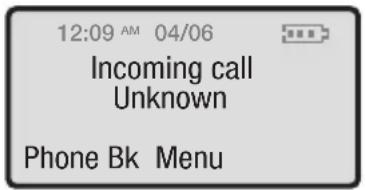
12:09 AM 04/06 No Calls Exit t ME NUUnknown call
If a call is from another country or the caller's number is not available, UNKNOWN is displayed and stored in the Caller ID log.
text_image
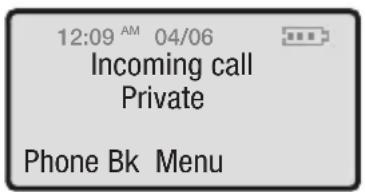
12:09 AM 04/06 Incoming call Unknown Phone Bk MenuBlock Call
If the number is blocked or withheld, PRIVATE is displayed and stored in Caller ID log.
text_image
12:09 AM 04/06 Incoming call Private Phone Bk MenuCallback From Caller ID Information
The desired CID record should be selected from the CID list. Press TALK once. The unit will automatically go off-hook and dial the selected number.
TELEPHONE OPERATIONS
text_image
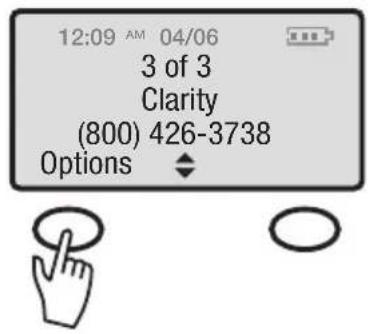
12:09 AM 04/06 3 of 3 Clarity (800) 426-3738 Options ◆Erasing Caller ID Information
Select the desired CID record you would like to delete. Next, press the (soft key) Options.

text_image
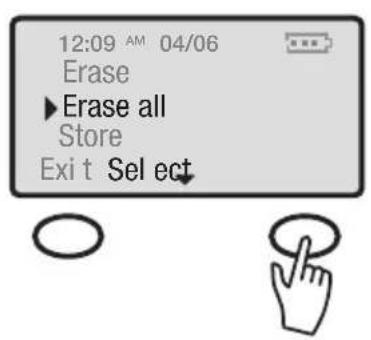
12:09 AM 04/06 ► Erase Erase all Store Exi t SelectChoose erase on the sub-menu, and then press the (soft key) Select.
text_image
12:09 AM 04/06 Erase ► Erase all Store Exi t SelectTo erase all entries, scroll down to Erase All. Press the (soft key) Select.
text_image
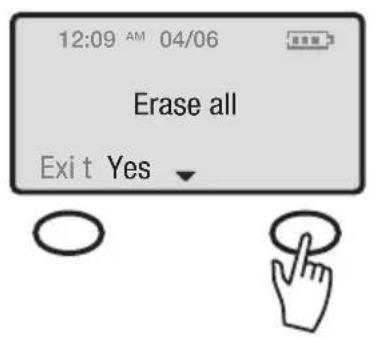
12:09 AM 04/06 Erase all Exit YesThe screen will display "Erase All". Press the (soft key) Yes.
text_image
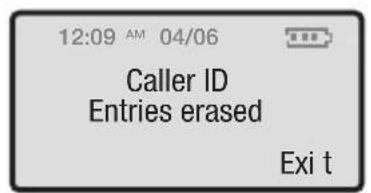
12:09 AM 04/06 Caller ID Entries erased ExitThe screen will then display "Caller ID Entries Erased."
TELEPHONE OPERATIONS
BASIC BASE FUNCTIONS
ANSWERING MACHINE
Message Capacity
The answering machine will hold up to 10 minutes of messages.
The Telephone Answering Machine can be accessed in the following three ways:
- Access from the Base
- Access from the Handset
- Access from a remote location.
ACCESS ANSWERING MACHINE FUNCTIONS FROM BASE
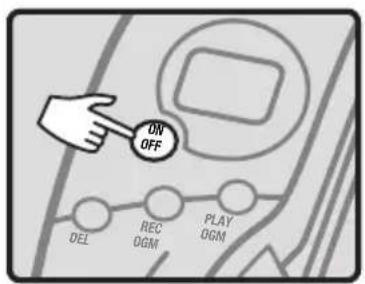
On/Off
Press the ON/OFF button on the base to turn the answering machine ON or OFF.
text_image
ON OFF DEL REC DGM PLAY DGMRew (Rewind)
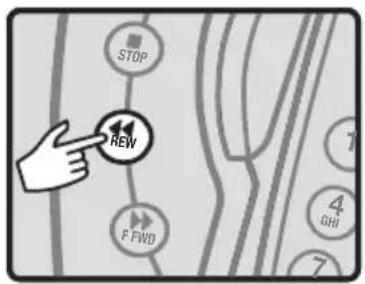
Press the REW (Rewind) button to rewind the message being played.
Press REW multiple times to go to the previous messages.
text_image
STOP REW F FWD GHI 7Stop
Press the STOP button to stop the Message being played.
TELEPHONE OPERATIONS
FFWD
Press the FFWD (Forward) button to forward to the next message.
text_image
DEL REC OGM PLAY OGM PLAY STOP TAPlay
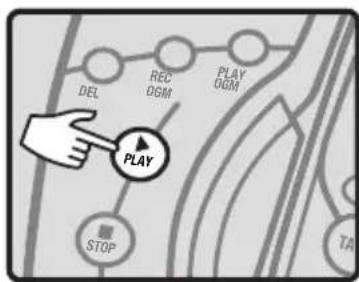
Press the PLAY button to play the messages received.
When playback begins, the number of new messages received will be announced, as well as the day and time message was recorded.
flowchart
graph TD
    A["DEL"] --> B["REC OGM"]
    B --> C["PLAY OGM"]
    C --> D["PLAY"]
    D --> E["STOP"]
    E --> F["TAD"]
Delete
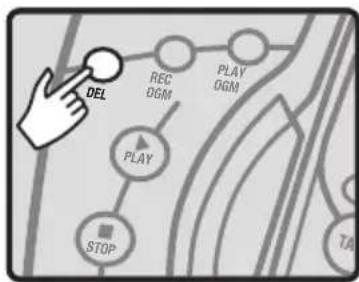
Press the DELETE button to delete the message being played back on the answering machine.
Press and hold the DELETE button when a message is playing until the number of messages begins to blink. After the number of messages begins blinking, press the DELETE button again. This will Delete all messages.
OGM Rec (Outgoing Message)
(The outgoing message will be the message a caller hears when the answering machine answers the call.)
Note: The answering machine comes with a pre-recorded message that can be used.
text_image
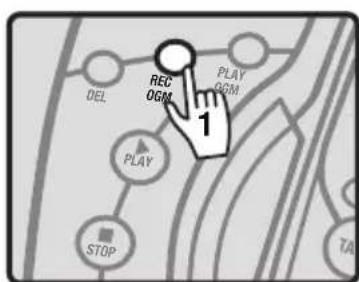
REC OGM PLAY OGM 1 DEL PLAY STOP TAIPress the REC OGM button (1) release and record your own personal outgoing message, press the REC OGM button again to stop your recording. Your message will automatically play back to you. If you do not like your message, record your message again.
See page 36 for additional OGM Options.
flowchart
graph TD
    A["DEL"] --> B["REC OGM"]
    B --> C["PLAY"]
    C --> D["STOP"]
    E["PLAY OGM"] --> F["2"]
    style E fill:#f9f,stroke:#333
    style F fill:#ccf,stroke:#333
OGM Play (Outgoing Message)
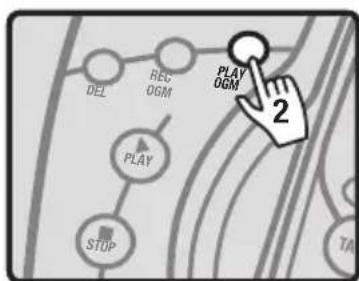
Press the PLAY OGM button (2) to play the outgoing message.
TELEPHONE OPERATIONS
LED Screen
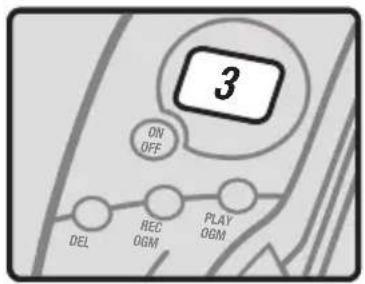
The screen will display the number of messages received on the answering machine.
text_image
3 ON OFF DEL REC OGM PLAY OGMAccess Answering Machine functions from Handset
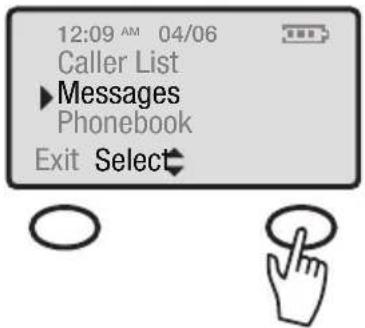
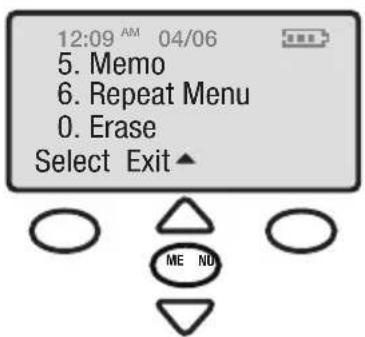
Select Messages from the Main Menu screen. The sub menu will then be displayed. Press the number key on the handset or press the (soft-key) Select on the menu to activate each of the following functions.
I: Review
2: Play/Stop
3: Skip
4: Answer On/Off
5: Memo
6: Repeat Menu
0: Erase
text_image
12:09 AM 04/06 Caller List ►Messages Phonebook Exit Select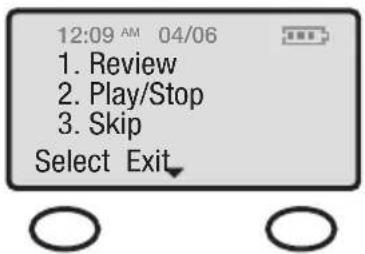
text_image
12:09 AM 04/06 1. Review 2. Play/Stop 3. Skip Select Exit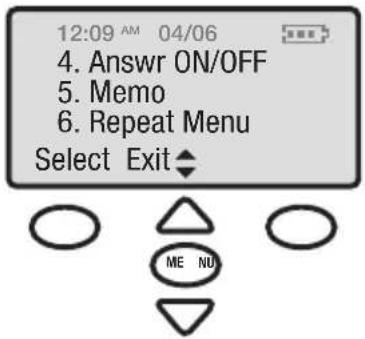
text_image
12:09 AM 04/06 4. Answr ON/OFF 5. Memo 6. Repeat Menu Select Exit ◆ ME NUNote: For best results when recording the outgoing message, speak directly into the base microphone (see diagram on page 9) or record message through the handset (see instructions on page 37).
text_image
12:09 AM 04/06 5. Memo 6. Repeat Menu 0. Erase Select Exit▲ ME NUTELEPHONE OPERATIONS
OTHER HANDSET OPTIONS FOR ANSWERING MACHINE
flowchart
graph TD
    A["12:09 AM 04/06<br>Data Transfer<br>Mute Talk<br>► Answer Setup<br>Back Select"] --> B["12:09 AM 04/06<br>► Answer ON/OFF<br>Outgoing Msg<br>Ring Number<br>Back Select"]
    B --> C["12:09 AM 04/06<br>Answer ON/OFF<br>► Outgoing Msg<br>Ring Number<br>Select Exit ◆"]
    C --> D["12:09 AM 04/06<br>Ring Number<br>Security ID<br>► Playback Speed<br>Select Exit ◆"]
    D --> E["12:09 AM 04/06<br>Message Play Speed<br>► Slow<br>Save Exit ◆"]
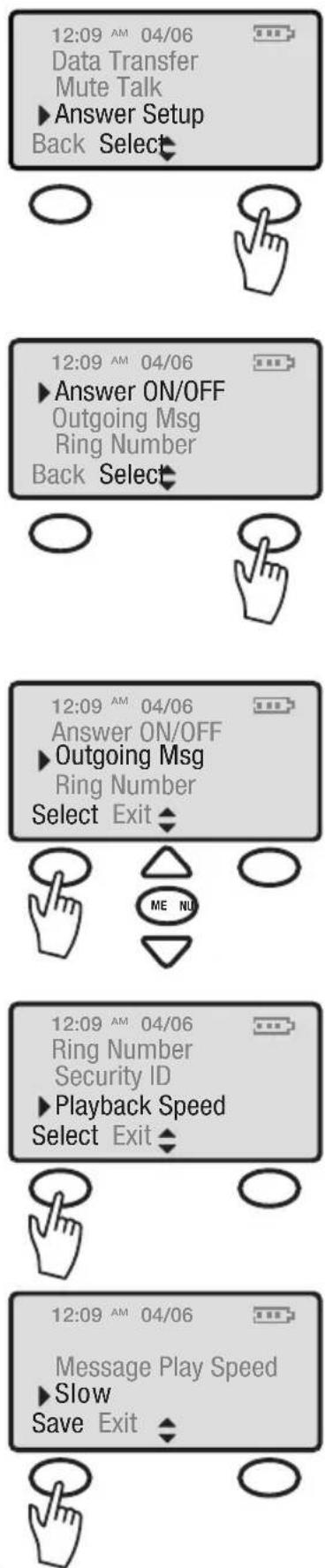
The options below can be accessed by going to the Main Menu and selecting Initial Setup. Use the Arrow keys to scroll to Answer Setup, and press the (soft-key) Select.
Answer On/Off
To turn Answering Machine ON/OFF from the handset. Select Answer ON/OFF. Then Save your choice.
Outgoing Messages
Select Outgoing Msg. Choose one of the following options: Play OGM, Record OGM, Change OGM, or Erase OGM.
Slowdown Message Playback Speed
Select Playback Speed from the submenu. Then, scroll and select the desired speed to playback messages.
Choose one of the following: Normal, Slow, or Slowest and press the (soft key) Save.
TELEPHONE OPERATIONS
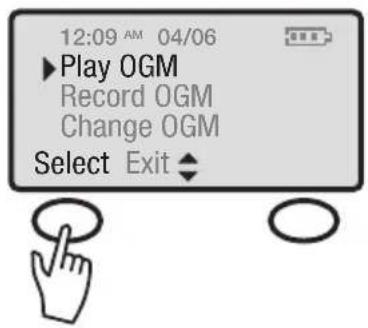
Play OGM
Press the (soft key) Select to play outgoing message.
Record OGM
Use the Arrow button to scroll to Record OGM and the press the (soft key) Select.
A new screen will appear. Select Yes to record outgoing message or No to return to previous menu.
Change OGM
Use the Arrow button to scroll to Change OGM and press the (soft key) Select.
A new screen will appear. Then select Recorded OGM or Default OGM (the prerecorded message).
text_image
12:09 AM 04/06 ►Play OGM Record OGM Change OGM Select Exit ◆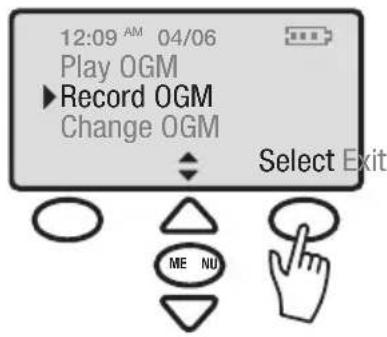
text_image
12:09 AM 04/06 Play OGM Record OGM Change OGM Select Exit ME NU
text_image
12:09 AM 04/06 Record OGM ■ Yes No ME NU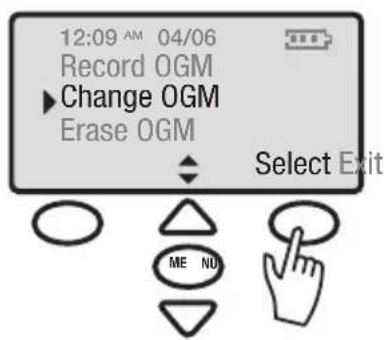
text_image
12:09 AM 04/06 Record OGM ► Change OGM Erase OGM Select Exit ME NO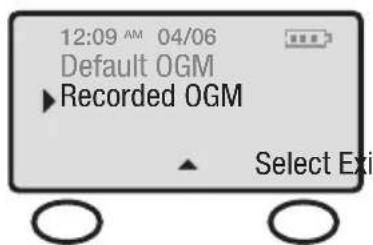
text_image
12:09 AM 04/06 Default OGM ▶ Recorded OGM Select ExiTELEPHONE OPERATIONS
text_image
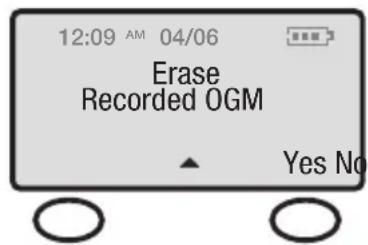
12:09 AM 04/06 Erase Recorded OGM Yes NoErase OGM
Use the Arrow button to scroll to Erase OGM. A new screen will appear. Select Yes or No to Erase.
text_image
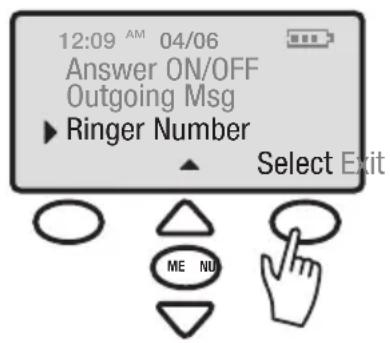
12:09 AM 04/06 Answer ON/OFF Outgoing Msg ► Ringer Number Select Exit ME NURing Number
Select Ringer Number.
text_image
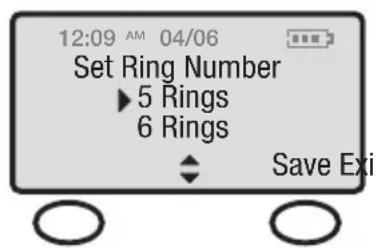
12:09 AM 04/06 Set Ring Number ► 5 Rings 6 Rings Save ExiScroll up or down to select the desired number of rings to have before the Answering Machine answers.
Note: The options are 3-6 rings or toll saver.
Toll Saver
Toll Saver is for remote access.
If you call your phone from a remote location and your answering machine picks up on the second ring, you have a new message. If your answering machine picks up after three (3) or more rings, you do not have a new message.
See page 40 for more Remote Access Options.
TELEPHONE OPERATIONS
Security ID
The Security ID is to access the Answering Machine from a Remote Location. The ID is defaulted as 1 2 3.
To change the Security ID, select Security ID and enter the three (3) digit code you wish to set as your new Security ID number.
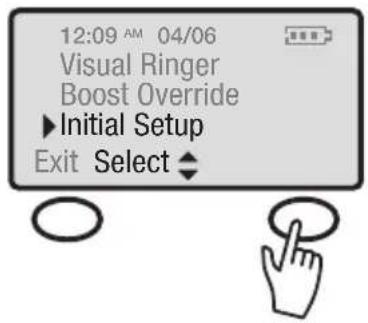
- First select Initial Setup on the main menu.
- Select Answer Setup.
- Select Security ID.
- Enter the three (3) digit code you wish to set as your new Security ID number.
text_image
12:09 AM 04/06 Visual Ringer Boost Override ►Initial Setup Exit Select ◆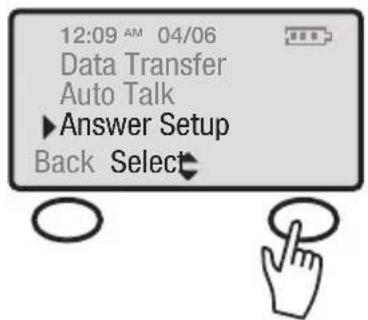
text_image
12:09 AM 04/06 Data Transfer Auto Talk ►Answer Setup Back Select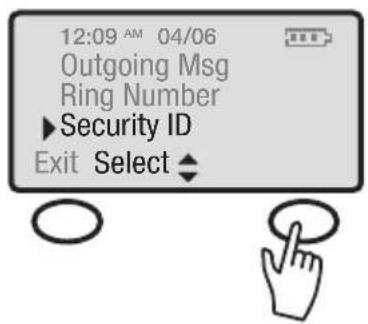
text_image
12:09 AM 04/06 Outgoing Msg Ring Number ►Security ID Exit Select ◆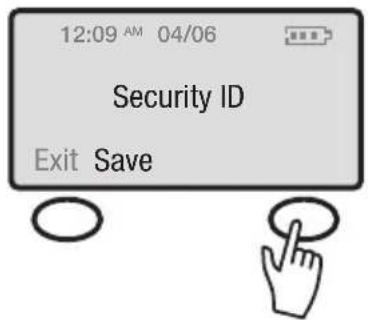
text_image
12:09 AM 04/06 Security ID Exit SaveTELEPHONE OPERATIONS
Access from a Remote Location
The answering machine can be accessed from any touch-tone telephone by entering the three (3) digit security code after hearing the outgoing message.
Access Procedure:
I. Dial your phone number
2. Wait for the Answering Machine to pick up and issue the tone. Enter the security code. The DEFAULT CODE is 1 2 3. (The security code can be changed by the user. See section Security ID on page 39)
3. The menu will announce the following:
Press Two to Play Messages, Press Two again to Stop
Press Zero while playing a Message to Erase
Press One to Review
Press Three to Skip
Press Four to Turn OFF/ON
Press Seven to Review Menu Again
Bypass the Outgoing Message
Press any number after the announcement starts. The outgoing message will be bypassed, and a tone will be heard. The caller will be able to leave a message or enter the security code.
Remote ON while Answering Machine is OFF
If the Answering Machine is OFF, it will automatically answer on the 10th ring and announces “TAM off.” Wait 7 seconds to enter the security ID.
The answering machine can be turned ON by pressing key four (4) after the security code is entered.
TELEPHONE OPERATIONS
Memory is full
If the answering machine memory is full, the answering machine will answer on the 10th ring and announce "Memory Full." Wait seven (7) seconds to enter the security code.
Recording and playing memos
Memos are self-recorded messages. For example, a reminder to yourself or a message for someone else in your household. The memos can be saved, played back and deleted like incoming messages.
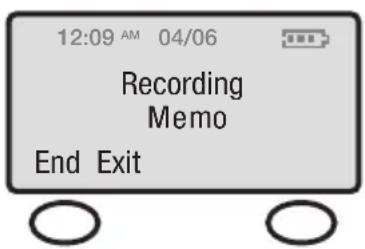
Recording Memos
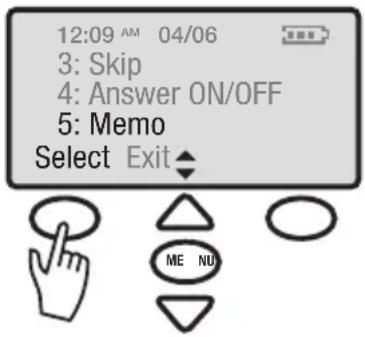
Select Memo from the Message Menu.
text_image
12:09 AM 04/06 3: Skip 4: Answer ON/OFF 5: Memo Select Exit ◀ ME NUIt will automatically start recording. After a memo is recorded, press the (soft key) End. This will save the memo.
The TALK button will then flash displaying a new MEMO (message).
text_image
12:09 AM 04/06 Recording Memo End ExitNote: Memos reduce the overall recording time available on the answering machine.
TROUBLESHOOTING
The unit will not operate / no dial tone:
- Verify the AC Adapter is securely plugged into AC outlet, the base and the telephone.
- Verify the telephone line cord is securely plugged into the wall jack and the telephone.
- Make sure the battery has been placed in the battery compartment correctly. (The circular metal contacts on battery need to touch the metal springs inside battery compartment.)
• Make sure the handset battery is fully charged. - Verify the telephone is in the correct dialing mode tone (touch) or pulse (rotary).
- Make sure you are in the usable range of the base station.
The phone does not ring when you receive a call:
- Make sure the RINGER switch on the handset and base are set to ON.
- Verify the AC Adapter is securely plugged into the AC outlet, the base and the telephone.
- Verify the telephone line cord is securely plugged into the wall jack and the telephone.
- Make sure you are within the usable range of the base station.
- You may have too many extensions on your line. Try unplugging a few devices.
Noise, Static, Interference or Other Calls Heard while Using the Handset:
• Make sure you are within the usable range of the base station.
• Make sure the handset battery is fully charged.
- Try relocating the base unit to another location.
- Make sure the AC Adapter is not plugged into the wall outlet with other appliances.
TROUBLESHOOTING
Phone Will Not Hold Charge:
- Make sure the charging contacts on the handset and base are free of dust and dirt. While unplugged, clean the contacts with a soft cloth.
- Make sure CHARGE LED on the base is lit when the handset is in the cradle.
- Handset battery may have developed a memory, due to user improperly charging, and may need to be replaced. (Battery must be charged a full 12 hours before the first use.)
Difficulty in Placing or Receiving Calls:
- Move closer to the base and try again.
- Make sure you have selected the correct dialing mode, tone or pulse.
- Make sure the AC Adapter is not plugged into a wall outlet with other appliances. Disconnect for 5-10 seconds then reconnect. Place the handset back on the base and reinsert the AC Adapter.
- Make sure the handset battery is fully charged.
Your handset screen is showing Out of Range
- Move closer to the base.
- Place the handset into the base until the screen displays: "Handset Registered." It will take approximately 5-10 seconds for the handset to register to the base.
- Handset may need to be re-registered to the base manually. First, select INITIAL SETUP on the main menu. Second, select REGISTRATION on the sub-menu. The screen will then display “Please hold the page button until beep.” This will register your handset to the base. The screen will then display the handset number.
TECHNICAL SPECIFICATIONS
General
Model Number: C4230
Frequency: 5.8 GHz
Amplification: 50 dB
Handset Unit
Product in Inches: (L × W × H): 7.25 × 2 × 1.25
Weight in Pounds: 0.5 lb.
Base
Product in Inches: (L × W × H): 7 × 7 .75 × 4.75
Weight in Pounds: 1.0 lb.
Power Supply: AC Adaptor (Input: 120V AC, 60 Hz;
Product in Inches: (L x W x H): 7.80 x 5.25 x 5.75
Weight in Pounds: 1.50 lbs.
Additional Handsets
Clarity Part number: C4230 HS
The C4230 will support a total of three (3) additional handsets.
(Additional Handsets sold separately.)
Battery Information
Battery Type: Ni-MH AAA 800 mAh 3.6V
Battery Life Talk Time: 3-4 Hours
Battery Life Standby: 6 days
Battery Backup: alkaline batteries, AA type
4 batteries, not rechargeable
Contact Clarity customer service for information on
purchasing additional handsets or replacement battery.
Clarity Contact information:
Customer Service: 1-800-426-3738
Address: 4289 Bonny Oaks Drive,
Suite 106
Chattanooga, TN 37406
REGULATORY COMPLIANCE
Part 68 of FCC Rules Information
a) This equipment complies with Part 68 of the FCC rules and the requirements adopted by the ACTA. On the bottom of this equipment is a label that contains, among other information, a product identifier in the format US: AAAEQ###TXXXX. If requested, this number must be provided to the telephone company.
b) A plug and jack used to connect this equipment to the premises wiring and telephone network must comply with the applicable FCC Part 68 rules and requirements adopted by the ACTA. A compliant telephone cord and modular plug, RJ1C USOC, is provided with this product. It is designed to be connected to a compatible modular jack that is also compliant. See installation instructions for details.
c) The REN is used to determine the number of devices that may be connected to a telephone line. Excessive RENs on a telephone line may result in the devices not ringing in response to an incoming call. In most but not all areas, the sum of RENs should not exceed five (5.0). To be certain of the number of devices that may be connected to a line, as determined by the total RENs, contact the local telephone company. For products approved after July 23, 2001, the REN for this product is part of the product identifier that has the format US:AAAEQ##TXXXX.
The digits represented by ## are the REN without a decimal point (e.g., 03 is a REN of 0.3). For earlier products, the REN is separately shown on the label.
d) If this telephone equipment causes harm to the telephone network, the telephone company will notify you in advance that temporary discontinuance of service may be required. But if advance notice isn't practical, the telephone company will notify the customer as soon as possible. Also, you will be advised of your right to file a complaint with the FCC if you believe it is necessary.
e) The telephone company may make changes in its facilities, equipment, operations or procedures that could affect the operation of the equipment. If this happens the telephone company will provide advance notice in order for you to make necessary modifications to maintain uninterrupted service.
f) If trouble is experienced with this telephone equipment, for repair or warranty information, please contact Clarity, 1-800-552-3368. If the equipment is causing harm to the telephone network, the telephone company may request that you disconnect the equipment until the problem is resolved.
g) This telephone equipment is not intended to be repaired and it contains no repairable parts. Opening the equipment or any attempt to perform repairs will void the warranty. For service or repairs, call 1-800-552-3368.
h) Connection to party line service is subject to state tariffs. Contact the state public utility commission, public service commission or corporation commission for information.
REGULATORY COMPLIANCE
i) If your home has specially wired alarm equipment connected to the telephone line, ensure the installation of this telephone equipment does not disable your alarm equipment. If you have questions about what will disable alarm equipment, consult your telephone company or a qualified installer.
j) This telephone equipment is hearing aid compatible.
Customer-Owned Coin/Credit Card Phones:
To comply with state tariffs, the tele phone company must be given notification prior to connection. In some states, the state public utility commission, public service commission or corporation commission must give prior approval of connection.
Part 15 of FCC Rules Information
This device complies with Part 15 of the FCC Rules. Operation is subject to the following two conditions: (1) This device may not cause harmful interference, and (2) this device must accept any interference received, including interference that may cause undesired operation.
Your equipment has been tested and found to comply with the limits of a Class B digital device, pursuant to Part 15 of FCC rules. These limits are designed to provide reasonable protection against harmful interference in residential installation.
This equipment generates, uses and can radiate radio frequency energy and, if not installed and used in accordance with the instructions, may cause harmful interference to radio communications. However, there is no guarantee that interference will not occur in a particular installation; if this equipment does cause harmful interference to radio or television reception, which can be determined by turning the equipment off and on, you are encouraged to try to correct the interference by one of the following measures:
I. Where it can be done safely, reorient the receiving television or radio antenna.
2. To the extent possible, relocate the television, radio or other receiver with respect to the telephone equipment. (This increases the separation between the telephone equipment and the receiver.)
3. Connect the telephone equipment into an outlet on a circuit different from that to which the television, radio, or other receiver is connected.
4. Consult the dealer or an experienced Radio/TV Technician for help.
CAUTION: Changes or modifications to this equipment not expressly approved by the party responsible for compliance could void the user's authority to operate the equipment.
REGULATORY COMPLIANCE
Privacy of communications may not be ensured when using this phone.
CAUTION: To maintain the compliance with the FCC's RF exposure guideline, place the base unit at least 20 cm from nearby persons.
For body worn operation, this handset has been tested and meets the FCC RF exposure guidelines when used with the (Plantronics) accessories supplied or designated for this product. Use of other accessories may not ensure compliance with FCC RF exposure guidelines.
Industry Canada Technical Specifications
This product meets the applicable Industry Canada technical specifications.
Before installing this equipment, users should ensure that it is permissible to be connected to the facilities of the local telecommunications company. The equipment must also be installed using an acceptable method of connection. In some cases, the company's inside wiring associated with a single line individual service may be extended by means of a certified connector assembly (telephone extension cord). The customer should be aware that compliance with the above conditions may not prevent degradation of service in some situations. Repairs to certified equipment should be made by an authorized Canadian maintenance facility designated by the supplier.
Any repairs or alterations made by the user to this equipment, or equipment malfunctions, may give the telecommunications company cause to request the user to disconnect the equipment.
Users should ensure for their own protection that the electrical ground connections of the power utility, telephone lines and internal metallic water pipe system, if present, are connected together. This precaution may be particularly important in rural areas.
CAUTION: Users should not attempt to make such connections themselves, but should contact the appropriate electrical inspection authority, or electrician, as appropriate.
The Ringer Equivalence Number is an indication of the maximum number of terminals allowed to be connected to a telephone interface. The termination on an interface may consist of any combination of devices subject only to the requirement that the sum of the Ringer Equivalence Numbers of all the devices does not exceed five.
(The term “IC:” before the certification/registration number only signifies that the Industry Canada technical specifications were met.)
This Class B digital apparatus complies with Canadian ICES-003.
The party responsible for regulatory compliance:
Clarity, A Division of Plantronics, Inc. 4289 Bonny Oaks Drive, Suite 106 Chattanooga, TN 37406 Phone: 1-800-552-3368