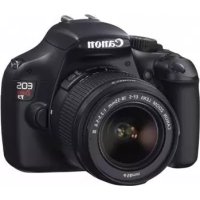
EOS Rebel T3 - Camera CANON - Free user manual and instructions
Find the device manual for free EOS Rebel T3 CANON in PDF.


User questions about EOS Rebel T3 CANON
0 question about this device. Answer the ones you know or ask your own.
Ask a new question about this device
Download the instructions for your Camera in PDF format for free! Find your manual EOS Rebel T3 - CANON and take your electronic device back in hand. On this page are published all the documents necessary for the use of your device. EOS Rebel T3 by CANON.
USER MANUAL EOS Rebel T3 CANON
This basic manual covers only the most basic operations. For other features and more details, see the Camera Instruction Manual file in the CD-ROM.
This basic manual covers only the most basic operations. For other features and more details, see the Camera Instruction Manual .pdf file in the CD-ROM.
Introduction
The EOS REBEL T3/1100D is a high-performance, digital single-lens reflex camera featuring a fine-detail CMOS sensor with approx. 12.2 effective megapixels, DIGIC 4, high-precision and high-speed 9-point AF, approx. 3 fps continuous shooting, Live View shooting, and High-Definition (HD) movie shooting.
The camera is highly responsive for shooting at anytime, provides many functions fitted for advanced shooting, and offers many other features.
Refer to This Manual while Using the Camera to Further Familiarize Yourself with the Camera
With a digital camera, you can immediately view the image you have captured. While reading this manual, take a few test shots and see how they come out. You can then better understand the camera.
To avoid botched pictures and accidents, first read the "SafetyWarnings" (p.80, 81) and "Handling Precautions" (p.8, 9).
Testing the Camera Before Use and Liability
After shooting, playback and check whether the images have been properly recorded. If the camera or memory card is faulty and the images cannot be recorded or downloaded to a computer, Canon cannot be held liable for any loss or inconvenience caused.
Copyrights
Copyright laws in your country may prohibit the use of your recorded images of people and certain subjects for anything but private enjoyment. Also be aware that certain public performances, exhibitions, etc., may prohibit photography even for private enjoyment.

This camera is compatible with SD memory cards, SDHC memory cards, and SDXC memory cards. This manual will refer to all these cards as just "card."
- The camera does not come with a card for recording images. Please purchase it separately.
Instruction Manuals
This Basic Instruction Manual only explains the camera's basic operations and functions. For more detailed instructions, advanced shooting and playback procedures, printing photos, Custom Functions, and more, see the Camera Instruction Manual CD-ROM.
The EOS REBEL T3/EOS 1100D's instruction manuals consist of the following:
- Camera Instruction Manual
Camera Basic Instruction Manual (this booklet)
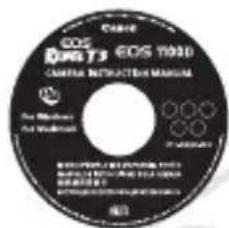
Camera Instruction Manual (CD-ROM)
CD-ROM Contents
Camera Instruction Manual (PDF file)
Explains all the camera's functions and operation procedures. Includes also all the contents in this Basic Instruction Manual.
Quick Reference (PDF file) Guide
Simple guide centering on shooting procedures. Its A4 size enables easy printing to carry it around.
See page 74 on how to view the Camera Instruction Manual (PDF) in the CD-ROM.
- ● Software and Software Instruction Manual
EOS DIGITAL Solution Disk (Software CD-ROM)
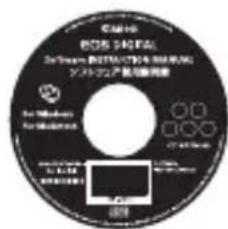
Software Instruction Manual (CD-ROM)
See pages 76 to 78 for an overview of the software programs, installation procedure for a personal computer, and how to view the Software Instruction Manual CD-ROM.
Item Check List
Before starting, check that all the following items have been included with your camera. If anything is missing, contact your dealer.
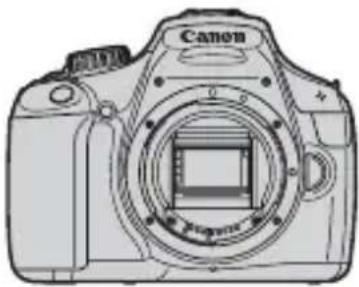
Camera
(with eyecup and body cap)
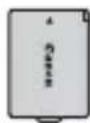
Battery Pack LP-E10
(with protective cover)
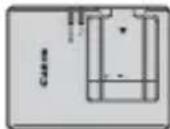
Battery Charger LC-E10/LC-E10E*
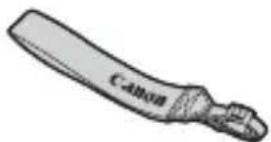
Wide Strap EW-200D

Interface Cable
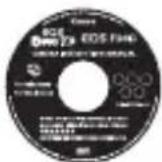
Camera Instruction Manual (CD-ROM)
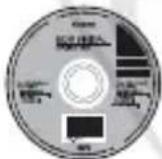
EOS DIGITAL Solution Disk (Software CD-ROM)
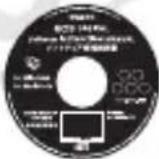
Software Instruction Manual (CD-ROM)
Camera Basic Instruction Manual (this booklet)
-
Battery Charger LC-E10 or LC-E10E is provided. (The LC-E10E comes with a power cord.)
-
If you purchased a Lens Kit, check that the lens is included.
- Be careful not to lose any of the above items.
Conventions Used in this Manual
Icons in this Manual
< : Indicates the Main Dial.
< > < > : Indicates the < > cross keys.
< (SET)> : Indicates the setting button.
4, 6, 10, 16 : Indicates that the respective function remains active for 4 sec., 6 sec., 10 sec., or 16 sec. respectively after you let go of the button.
- In this manual, the icons and markings indicating the camera's buttons, dials, and settings correspond to the icons and markings on the camera and on the LCD monitor.
MENU : Indicates a function which can be changed by pressing the
- All operations explained in this manual assume that the power switch has already been set to < ON> (p.25).
- It is assumed that all the menu settings and Custom Functions are set to the default.
- For explanatory purposes, the instructions show the camera attached with an EF-S18-55mm f/3.5-5.6 IS II lens.
Contents
Introduction 2
Instruction Manuals 3
Item Check List. 4
Conventions Used in this Manual 5
Handling Precautions 8
Quick Start Guide 10
Nomenclature 12
1 Getting Started 19
Charging the Battery 20
Installing and Removing the Battery and Card 22
Turning on the Power 25
Setting the Date and Time 27
Selecting the Interface Language 28
Attaching and Detaching a Lens 29
About the Lens Image Stabilizer 31
Basic Operation 32
34
36
Switching the LCD Monitor Display 38
Feature Guide 39
2 Basic Shooting 41
□ Fully Automatic Shooting. 42
□ Full Auto Techniques. 44
Disabling Flash 45
CA Creative Auto Shooting 46
Shooting Portraits 49
Shooting Landscapes. 50
Shooting Close-ups 51
Shooting Moving Subjects. 52
Shooting Portraits at Night 53
Quick Control 54
3 Shooting with the LCD Monitor (Live View Shooting) 55
Shooting with the LCD Monitor 56
Changing the Autofocus Mode 59
MF: Focusing Manually 64
4 Shooting Movies 65
Shooting Movies 66
5 Image Playback 69
ImagePlayback. 70
Playing Movies 71
Viewing the Camera Instruction Manual CD-ROM / Software Start Guide 73
Viewing the Camera Instruction Manual CD-ROM. 74
Software Start Guide 76
SafetyWarnings. 80
Handling Precautions
Camera Care
- This camera is a precision instrument. Do not drop it or subject it to physical shock.
- The camera is not waterproof and cannot be used underwater. If you accidentally drop the camera into water, promptly consult your nearest Canon Service Center. Wipe off any water droplets with a dry cloth. If the camera has been exposed to salty air, wipe it with a well-wrung wet cloth.
- Never leave the camera near anything having a strong magnetic field such as a magnet or electric motor. Also avoid using or leaving the camera near anything emitting strong radio waves such as a large antenna. Strong magnetic fields can cause camera misoperation or destroy image data.
- Do not leave the camera in excessive heat such as in a car in direct sunlight. High temperatures can cause the camera to malfunction.
- The camera contains precision electronic circuitry. Never attempt to disassemble the camera yourself.
- Use a blower to blow away dust on the lens, viewfinder, reflex mirror, and focusing screen. Do not use cleaners that contain organic solvents to clean the camera body or lens. For stubborn dirt, take the camera to the nearest Canon Service Center.
- Do not touch the camera's electrical contacts with your fingers. This is to prevent the contacts from corroding. Corroded contacts can cause camera misoperation.
- If the camera is suddenly brought in from the cold into a warm room, condensation may form on the camera and internal parts. To prevent condensation, first put the camera in a sealed plastic bag and let it adjust to the warmer temperature before taking it out of the bag.
- If condensation forms on the camera, do not use the camera. This is to avoid damaging the camera. If there is condensation, remove the lens, card and battery from the camera, and wait until the condensation has evaporated before using the camera.
- If the camera will not be used for an extended period, remove the battery and store the camera in a cool, dry, well-ventilated location. Even while the camera is in storage, press the shutter button a few times once in a while to check that the camera is still working.
- Avoid storing the camera where there are corrosive chemicals such as a darkroom or chemical lab.
- If the camera has not been used for an extended period, test all its functions before using it. If you have not used the camera for some time or if there is an important shoot coming up, have the camera checked by your Canon dealer or check the camera yourself and make sure it is working properly.
LCD Monitor
- Although the LCD monitor is manufactured with very high precision technology with over 99.99% effective pixels, there might be a few dead pixels among the remaining 0.01% or less pixels. Dead pixels displaying only black or red, etc., are not a malfunction. They do not affect the images recorded.
- If the LCD monitor is left on for a prolonged period, screen burn-in may occur where you see remnants of what was displayed. However, this is only temporary and will disappear when the camera is left unused for a few days.
- In low or high temperatures, the LCD monitor display may seem slow or it might look black. It will return to normal at room temperature.
Cards
To protect the card and its recorded data, note the following:
- Do not drop, bend, or wet the card. Do not subject it to excessive force, physical shock, or vibration.
- Do not touch the card's electronic contacts with your fingers or anything metallic.
- Do not store or use the card near anything having a strong magnetic field such as a TV set, speakers, or magnet. Also avoid places prone to having static electricity.
- Do not leave the card in direct sunlight or near a heat source.
- Store the card in a case.
- Do not store the card in hot, dusty, or humid locations.
Lens
After detaching the lens from the camera, attach the lens caps or put down the lens with the rear end up to avoid scratching the lens surface and electrical contacts.
Cautions During Prolonged Use
If you use continuous shooting, Live View shooting, or movie shooting for a prolonged period, the camera may become hot. Although this is not a malfunction, holding the hot camera for a long period can cause slight skin burns.
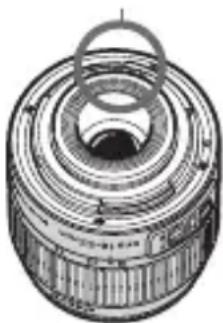
Contacts
About smudges adhering to the front of the sensor
Besides dust entering the camera from outside, in rare cases lubricant from the camera's internal parts may adhere to the front of the sensor. If visible spots remain on the image, having the sensor cleaned by a Canon Service Center is recommended.
Quick Start Guide
1
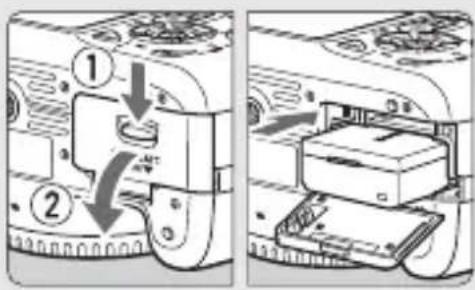
Insert the battery. (p.22)
To charge the battery, see page 20.
2
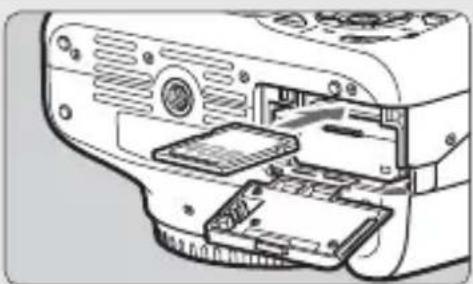
Insert the card. (p.22)
- With the card's label facing toward the camera back, insert it into the slot.
3
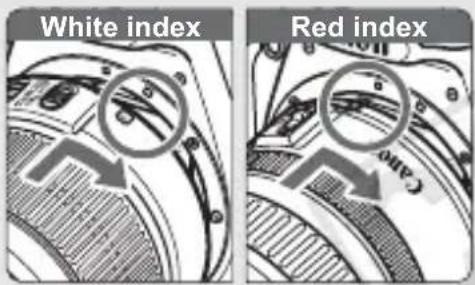
Attach the lens. (p.29)
- Align the lens' white or red index with the camera's index in the matching color.
4
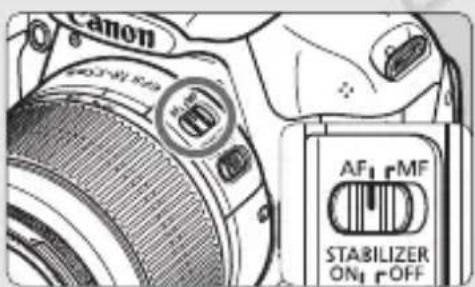
Set the lens focus mode switch to <AF> . (p.29)
5
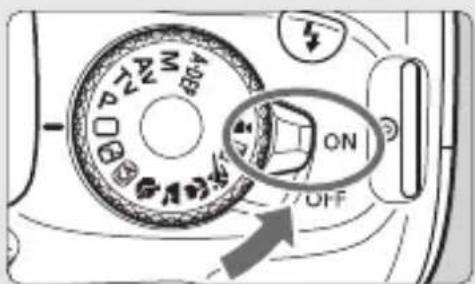
Set the power switch to < ON> . (p.25)
- When the LCD monitor displays the Date/Time setting screen, see page 27.
6
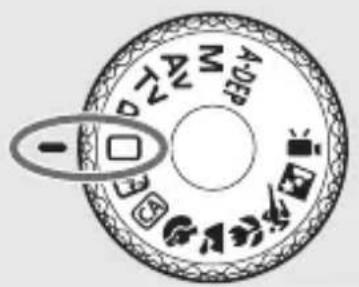
Set the Mode Dial to < > (Full Auto). (p.42)
- All the necessary camera settings will be set automatically.
7
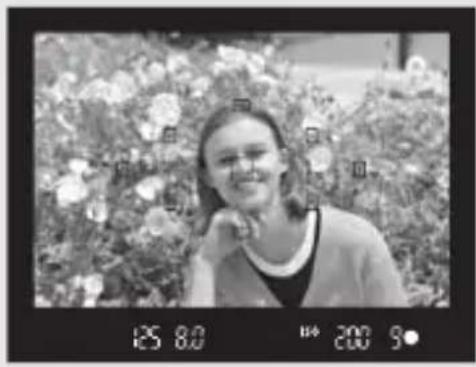
Focus the subject. (p.33)
- Look through the viewfinder and aim the viewfinder center over the subject.
- Press the shutter button halfway, and the camera will focus the subject.
- If necessary, the built-in flash will pop-up automatically.
8
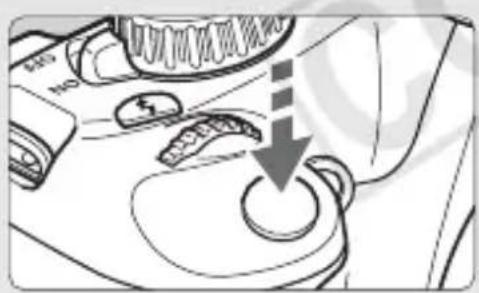
Take the picture. (p.33)
- Press the shutter button completely to take the picture.
9
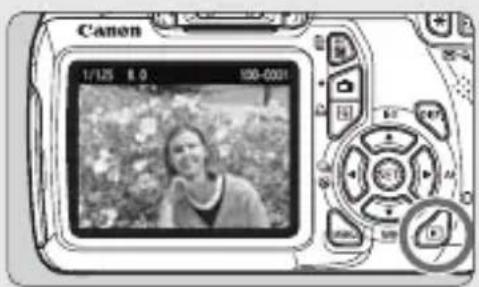
Review the picture. ( )
-
The captured image will be displayed for approx. 2 sec. on the LCD monitor.
To display the image again, press the < > button (p.70). -
To shoot while looking at the LCD monitor, see “Live View Shooting” (p.55).
To view the images captured so far, see "Image Playback" (p.70).
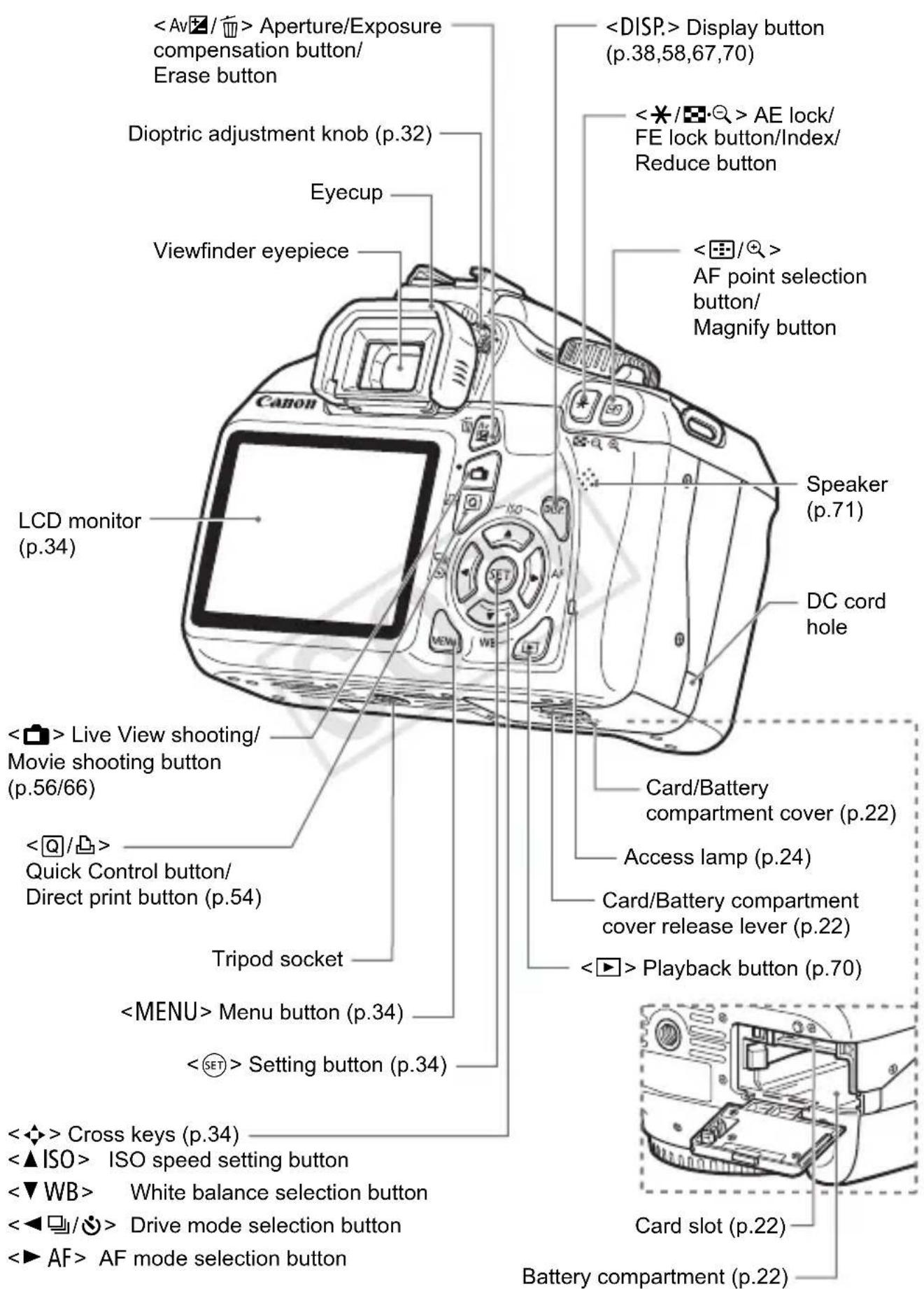
Nomenclature
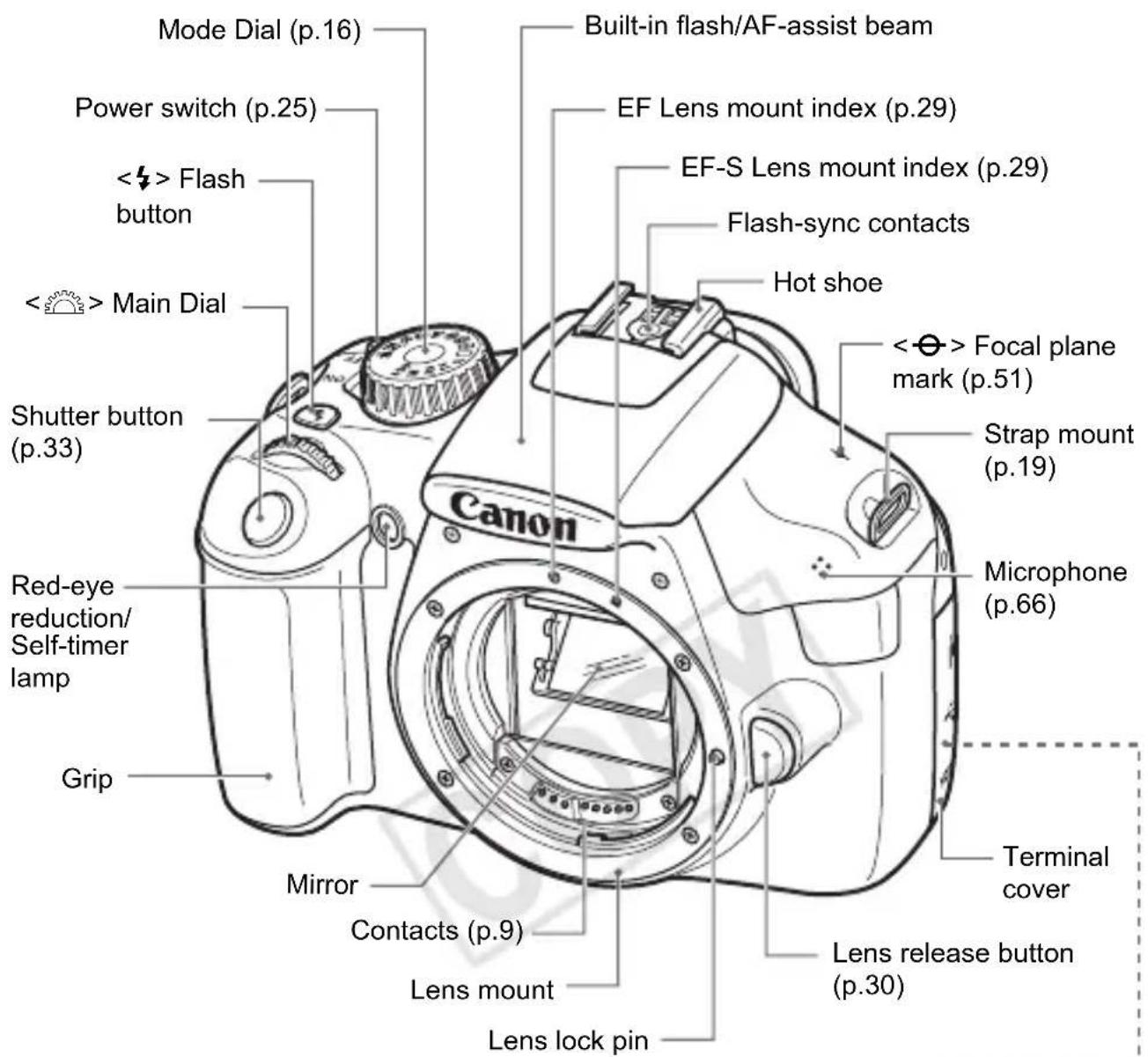

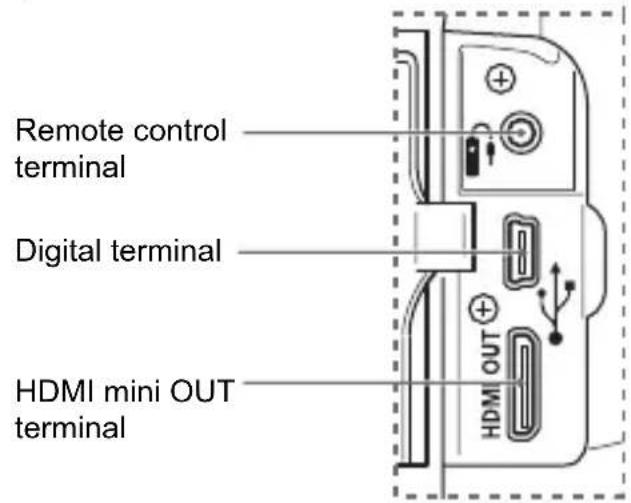

For camera controls without reference page numbers, see the Camera Instruction Manual (PDF) in the Camera Instruction Manual CD-ROM.
Shooting Settings Display
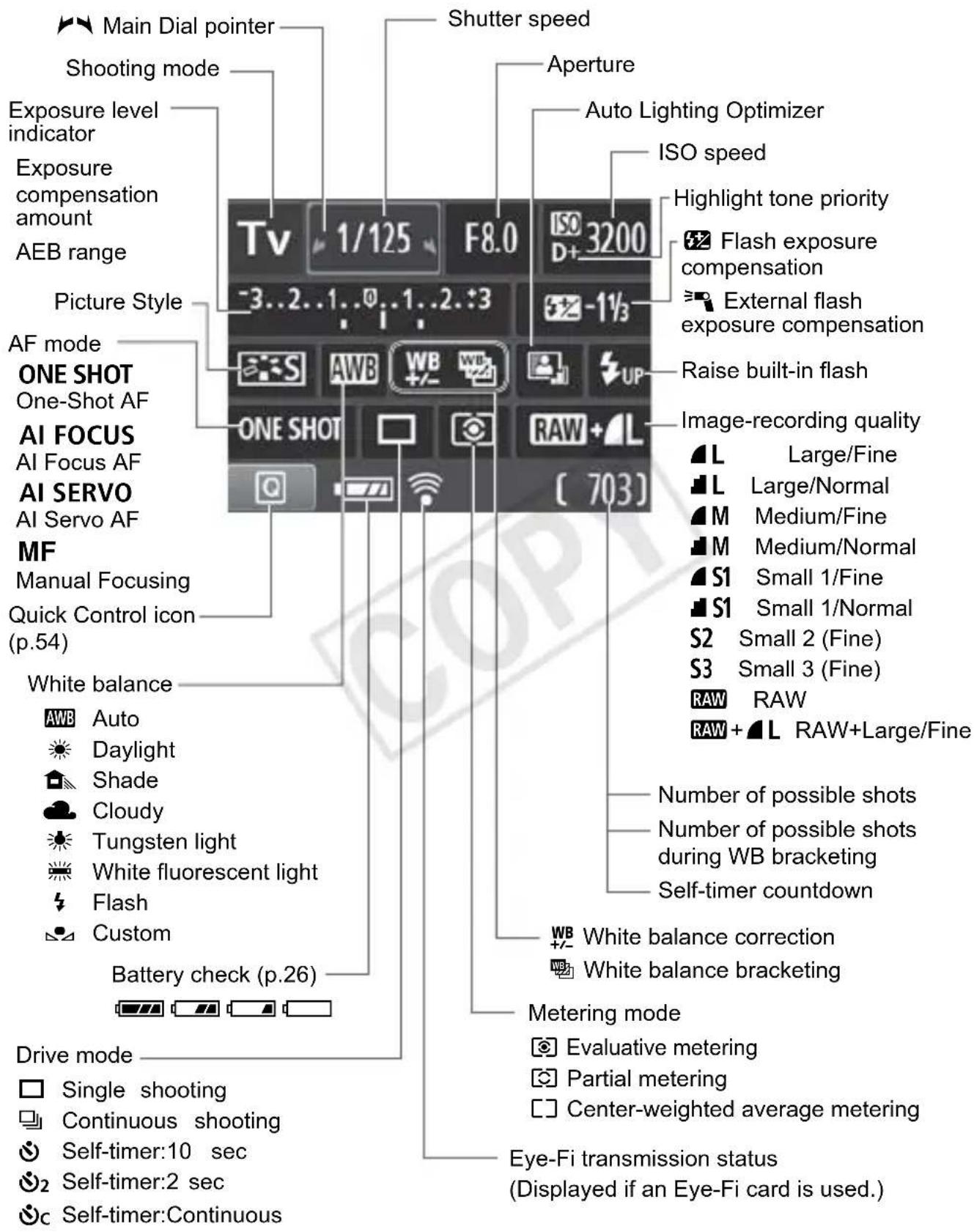
The display will show only the settings currently applied.
Viewfinder Information
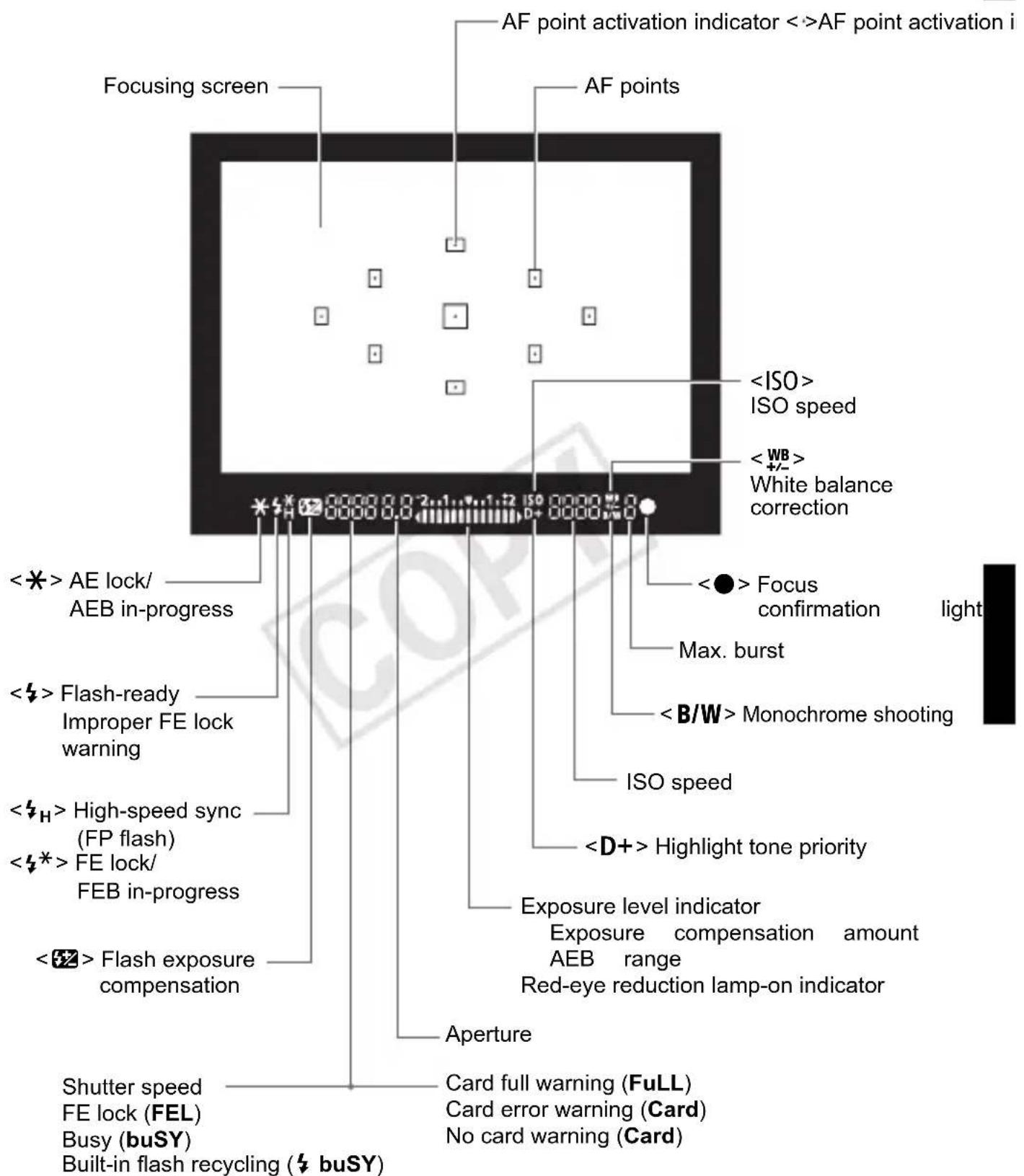
The display will show only the settings currently applied.
Mode Dial
The Mode Dial includes the Basic Zone modes, Creative Zone modes, and the Movie shooting mode.
Creative Zone (
These modes give you more control for shooting various subjects.
P:Program AE
Tv:Shutter-priority AE
Av: Aperture-priority AE
M: Manual exposure
A-DEP: Automatic depth-of-field AE
Basic Zone
All you do is press the shutter button. The camera sets everything to suit the subject.
: Full Auto (p.42)
: Flash Off (p.45)
CA: Creative Auto (p.46)
Movie shooting (p.65)
Image Zone
Lens without a distance scale

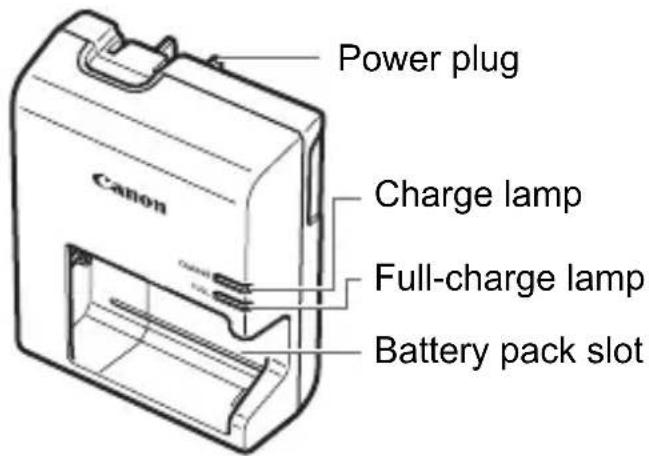
Battery Charger LC-E10
Charger for Battery Pack LP-E10 (p.20).
IMPORTANT SAFETY INSTRUCTIONS-SAVE THESE INSTRUCTIONS. DANGER-TO REDUCE THE RISK OF FIRE OR ELECTRIC SHOCK, CAREFULLY FOLLOW THESE INSTRUCTIONS.
For connection to a supply not in the U.S.A., use an attachment plug adapter of the proper configuration for the power outlet, If needed.
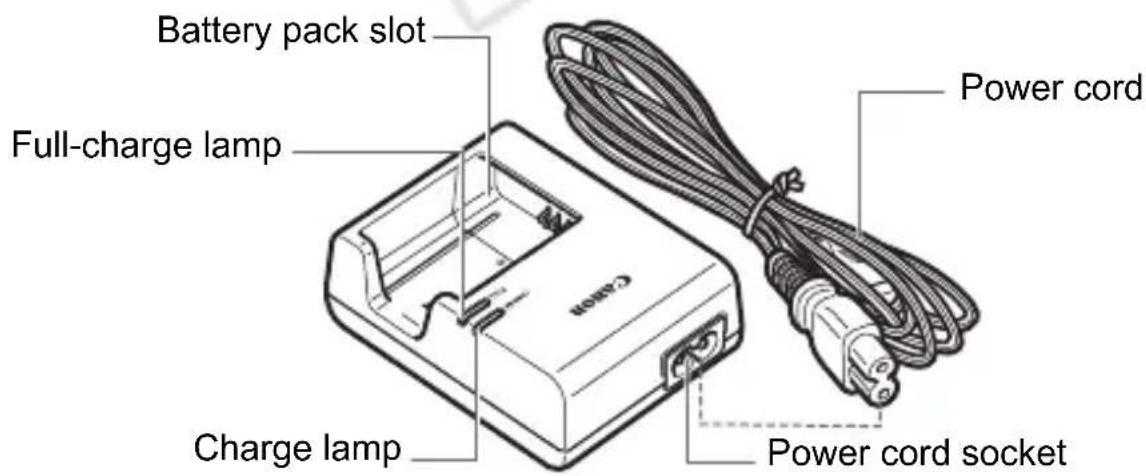
Battery Charger LC-E10E
Charger for Battery Pack LP-E10 (p.20).
#
Getting Started
This chapter explains preparatory steps before you start shooting and basic camera operations.
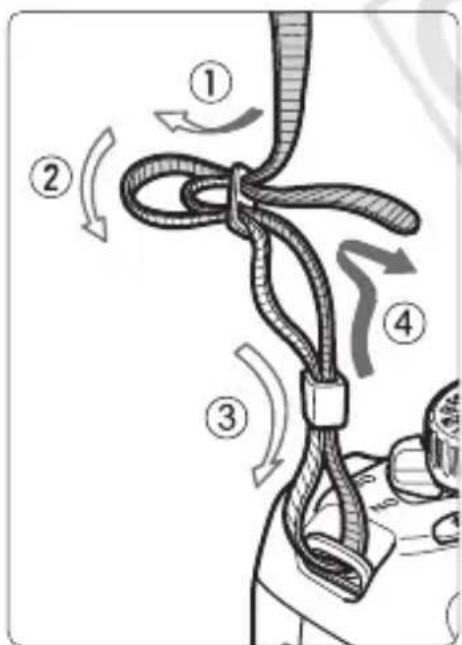
Attaching the Strap
Pass the end of the strap through the camera's strap mount eyelet from the bottom. Then pass it through the strap's buckle as shown in the illustration. Pull the strap to take up any slack and make sure the strap will not loosen from the buckle.
The eyepiece cover is also attached to the strap (
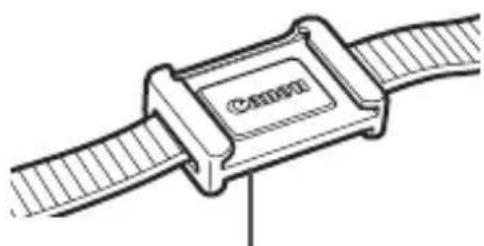
Eyepiece cover
Charging the Battery
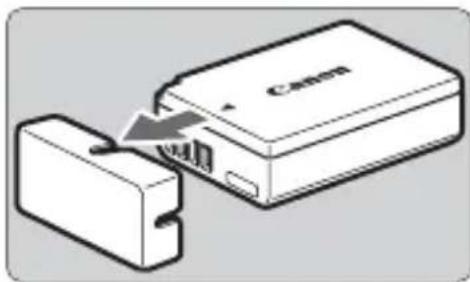
1 Remove the protective cover.
- Detach the protective cover provided with the battery.
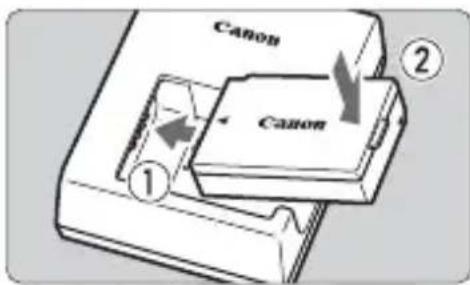
Attach the battery.
-
As shown in the illustration, attach the battery securely to the charger.
-
To detach the battery, follow the above procedure in reverse.
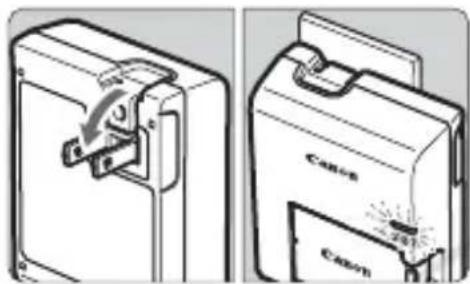
LC-E10
3 Recharge the battery. For LC-E10
As shown by the arrow, flip out the battery charger's prongs and insert the prongs into a power outlet.
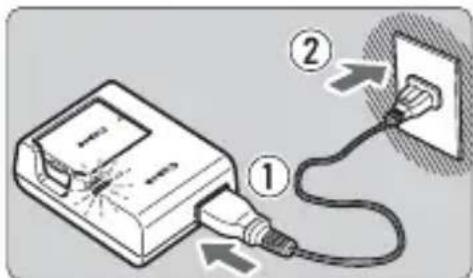
LC-E10E
For LC-E10E
-
Connect the power cord to the charger and insert the plug into the power outlet.
Recharging starts automatically and the charge lamp turns orange.
When the battery is fully recharged, the full-charge lamp will turn green. -
It takes approx. 2 hours to fully recharge a completely exhausted battery at 23^ C / 73^ F . The time required to recharge the battery depends on the ambient temperature and the battery's charge level.
-
For safety reasons, recharging in low temperatures (6^ C - 10^ C / 43^ F - 50^ F) will take a longer time (up to 4 hours).

Tips for Using the Battery and Charger
- Upon purchase, the battery is not fully charged.
Recharge the battery before using.
- Recharge the battery on the day before or on the day it is to be used.
Even during storage, a charged battery will gradually drain and lose its power.
- After recharging the battery, detach it and unplug the charger from the power outlet.
- When not using the camera, remove the battery.
If the battery is left in the camera for a prolonged period, a small amount of power current is released, resulting in excess discharge and shorter battery life. Store the battery with the protective cover (provided) attached. Storing the battery after it is fully charged can lower the battery's performance.
- The battery charger can also be used in foreign countries.
The battery charger is compatible with a 100 V AC to 240 V AC 50/60 Hz power source. If necessary, attach a commercially-available plug adapter for the respective country or region. Do not attach any portable voltage transformer to the battery charger. Doing so can damage the battery charger.
- If the battery becomes exhausted quickly even after being fully charged, the battery has reached the end of its service life.
Purchase a new battery.

- After disconnecting the charger's power plug, do not touch the prongs for at least 3 sec.
- Do not charge any battery other than a Battery Pack LP-E10.
- The Battery Pack LP-E10 is dedicated to Canon products only. Using it with an incompatible battery charger or product may result in malfunction or accidents for which Canon cannot be held liable.
Installing and Removing the Battery and Card
Load a fully-charged Battery Pack LP-E10 into the camera. The card (sold separately) can be an SD, SDHC, or SDXC memory card. The captured images are recorded onto the card.
Make sure the card's write-protect switch is set upward to enable writing/erasing.
Installing the Battery/Card
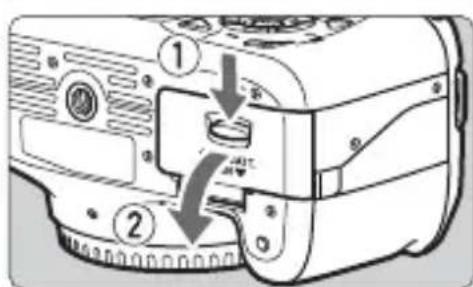
1 Open the cover.
- Slide the lever as shown by the arrows and open the cover.
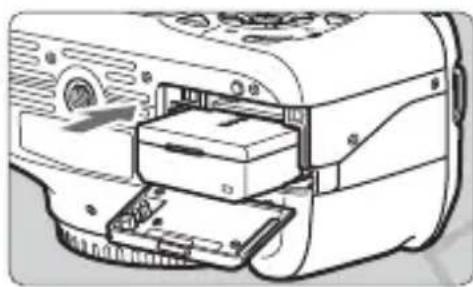
Insert the battery.
- Insert the end with the battery contacts.
- Insert the battery until it locks in place.
Write-protect switch
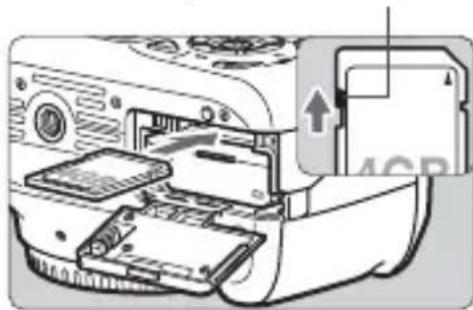
3 Insert the card.
As shown in the illustration, face the card's label side toward the camera back.
- Insert the card straight in all the way.
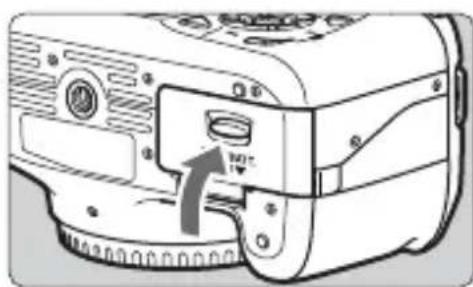
4 Close the cover.
- Press the cover until it snaps shut.
- When you set the power switch to < ON> , the number of possible shots (p.26) will be displayed on the LCD monitor.

After opening the card/battery compartment cover, be careful not to push it back further. Otherwise, the hinge might break.

- The number of possible shots depends on the remaining capacity of the card, image-recording quality, ISO speed, etc.
- Setting [Release shutter without card] to [Disable] will prevent you from forgetting to insert a card ( ).
Removing the Battery/Card
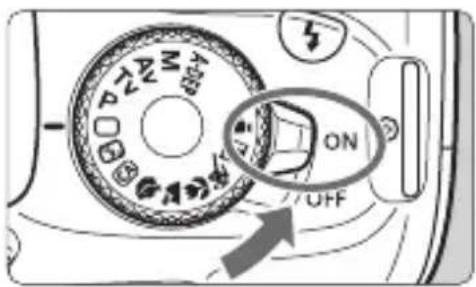
1 Set the power switch to
Open the cover.
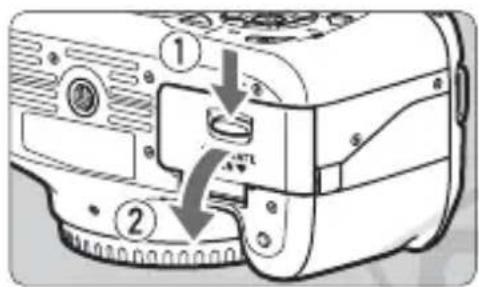
- Make sure the access lamp is off, then open the cover.
- If "Recording ..." is displayed, close the cover.
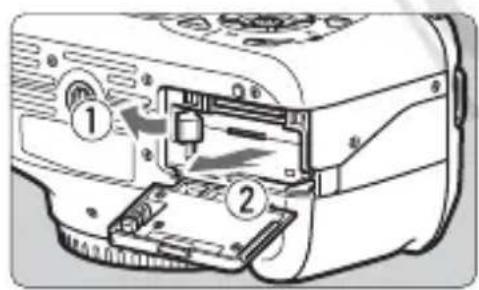
3 Remove the battery.
- Press the battery release lever as shown by the arrow and remove the battery.
- To prevent short circuiting of the battery contacts, be sure to attach the protective cover (provided, p.20) to the battery.
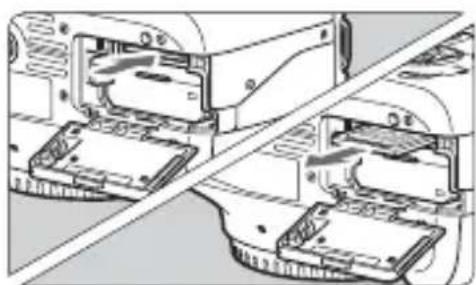
4 Remove the card.
Gently push in the card, then let go. The card will stick out.
- Pull the card straight out.
5 Close the cover.
- Press the cover until it snaps shut.

-
When the access lamp is lit or blinking, it indicates that images are being written to or read by the card, being erased, or data is being transferred. When the access lamp is lit or blinking, do not open the card/battery compartment cover and never do any of the following. Otherwise, the image data may be destroyed or the card or camera may be damaged.
-
Removing the card.
- Removing the battery.
-
Shaking or banging the camera around.
-
If the card already contains recorded images, the image number might not start from 0001 ( )
- Do not touch the card's contacts with your fingers or metal objects.
- If a card-related error message is displayed on the LCD monitor, remove and reinsert the card. If the error persists, use a different card. If you can transfer all the images on the card to a computer, transfer all the images and then format the card with the camera (p.36). The card may then return to normal.
Turning on the Power
If the date/time setting screen appears when you turn on the power switch, see page 27 to set the date/time.
MENU About Auto Power Off
- To save battery power, the camera turns off automatically after about 30 seconds of non-operation. To turn on the camera again, just press the shutter button halfway (p.33).
- You can change the auto power-off time with [Y Auto power off] ( ) .

If you set the power switch to <OFF> while an image is being recorded to the card, [Recording ...] will be displayed and the power will turn off after the card finishes recording the image.
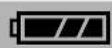
Checking the Battery Level
When the power switch is set to < ON> , the battery level will be indicated in one of four levels:
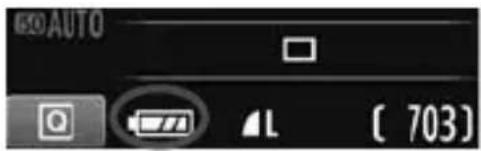
: Battery level is OK.
: Battery level is less than half full.
: Battery will be exhausted soon. (Blinks)
: Battery must be recharged.
Battery Life
| Temperature At 23°C / 73°F At 0°C / 32°F | ||
| No Flash Approx. 800 shots Approx. 750 shots | ||
| 50% Flash Use Approx. 700 shots Approx. 650 shots |
- The figures above are based on a fully-charged Battery Pack LP-E10, no Live View shooting, and CIPA (Camera & Imaging Products Association) testing standards.

-
The number of possible shots will decrease with any of the following operations:
-
Pressing the shutter button halfway for a prolonged period.
- Often activating only the AF without taking a picture.
Using the LCD monitor often. -
Using the lens Image Stabilizer.
-
The lens operation is powered by the camera's battery. Depending on the lens used, the number of possible shots may be lower.
- For the number of possible shots with Live View shooting, see page 57.
MENU Setting the Date and Time
When you turn on the power for the first time or if the date/time has been reset, the Date/Time setting screen will appear. Follow steps 3 and 4 to set the date/time. Note that the date/time appended to recorded images will be based on this date/time setting. Be sure to set the correct date/time.
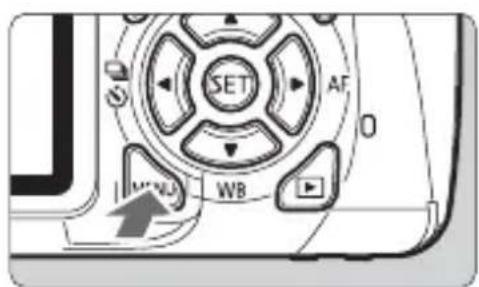
1 Display the menu screen.
- Press the
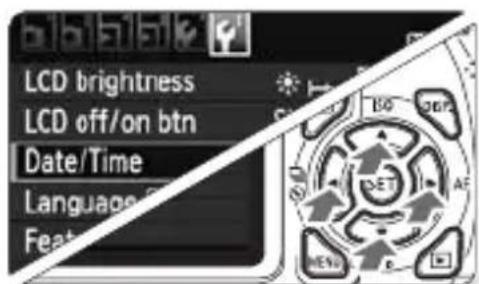
2 Under the [Y:] tab, select [Date/ Time].
- Press the < > key to select the [Y:] tab.
- Press the < > key to select [Date/Time], then press < (SET)> .
![CANON EOS Rebel T3 - Under the [Y:] tab, select [Date/ Time]. - 1](/content/2026/02/354825/images/b21ad88c0cdac3b6ffb2a60b4e720ed9ff85238d0c71713b62337599c8657b8b.jpg)
3 Set the date and time.
- Press the <> key to select the date or time number.
- Press < > so < > is displayed.
- Press the < > key to set the number, then press <> . (Returns to .)
4 Exit the setting.
- Press the <> key to select [OK], then press
The date/time will be set.
If you store the camera without the battery or if the camera's battery becomes exhausted, the date/time might be reset. If this happens, set the date/time again.
The date/time set will start from when you press < > in step 4.
SELECTing the Interface Language
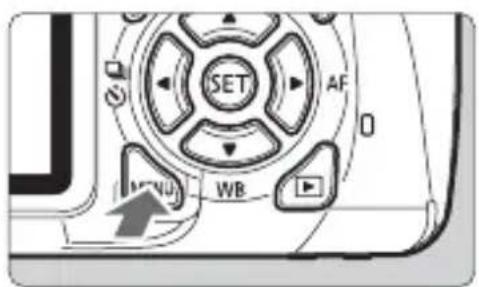
1 Display the menu screen.
- Press the
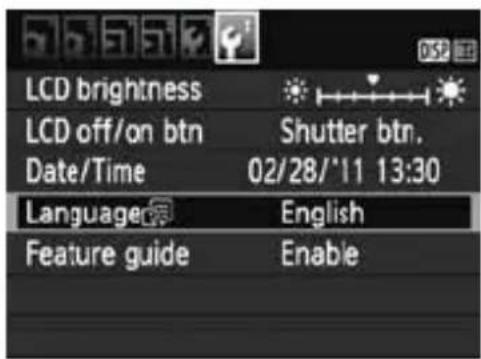
2 Under the [Y:] tab, select [Language].
-
Press the < > key to select the [Tab. 1] tab.
-
Press the < > key to select [Language] (the fourth item from the top), then press < > .
![CANON EOS Rebel T3 - Under the [Y:] tab, select [Language]. - 1](/content/2026/02/354825/images/812e639368f891bce3de8edce1413997a3cc5ed2851be63286ff19eb58869f27.jpg)
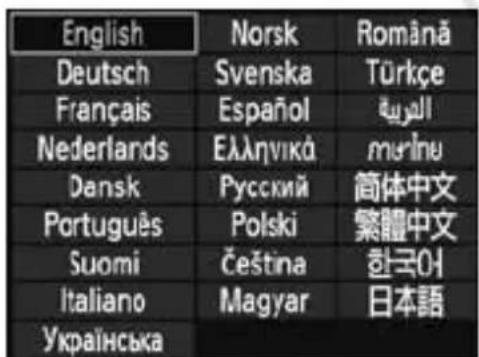
3 Set the desired language.
- Press the <> key to select the language, then press <> .
The interface language will change.
Attaching and Detaching a Lens
Attaching a Lens
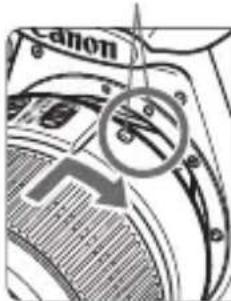
White index
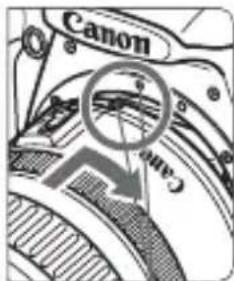
Red index
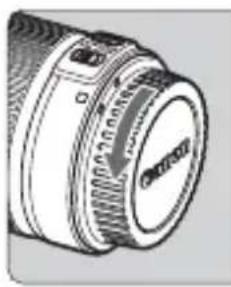
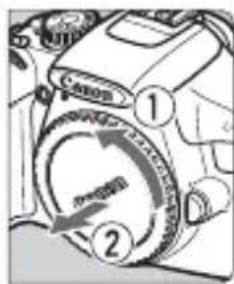
1 Remove the caps.
- Remove the rear lens cap and the body cap by turning them as shown by the arrows.
2 Attach the lens.
- Align the lens' red or white index with the camera's index matching the same color. Turn the lens as shown by the arrow until it snaps in place.
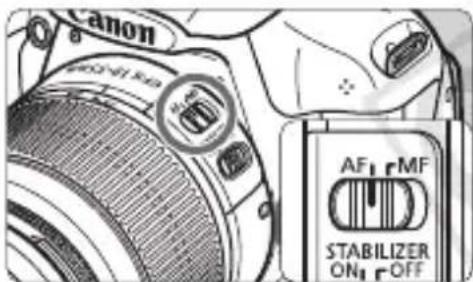
3 On the lens, set the focus mode switch to <AF> (autofocus).
- If it is set to <MF> (manual focus), autofocus will not operate.
4 Remove the front lens cap.
Minimizing Dust
- When changing lenses, do it in a place with minimal dust.
- When storing the camera without a lens attached, be sure to attach the body cap to the camera.
- Remove dust on the body cap before attaching it.
About Zooming
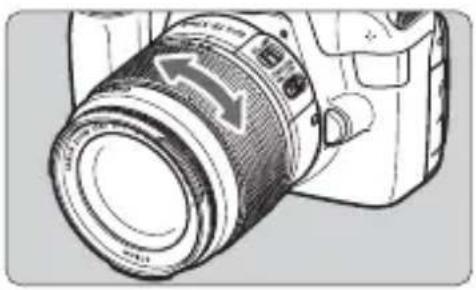
To zoom, turn the zoom ring on the lens with your fingers.
If you want to zoom, do it before focusing. Turning the zoom ring after achieving focus may throw off the focus slightly.
Detaching the Lens
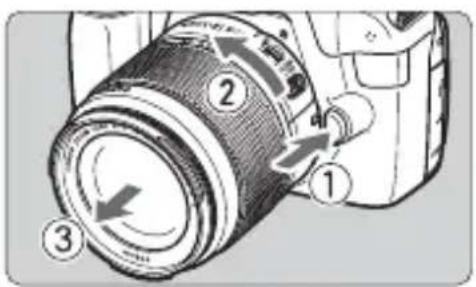
While pressing the lens release button, turn the lens as shown by the arrows.
- Turn the lens until it stops, then detach it.
- Attach the rear lens cap to the detached lens.

- Do not look at the sun directly through any lens. Doing so may cause loss of vision.
- If the front part (focusing ring) of the lens rotates during autofocusing, do not touch the rotating part.

Image Conversion Factor
Since the image sensor size is smaller than the 35mm film format, it will look like the lens focal length is increased by approx. 1.6x.
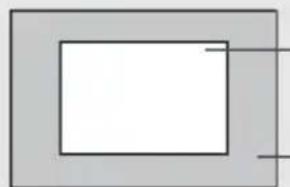
Image sensor size (Approx.) (22.0× 14.7mm / 0.87× 0.58 in.)
35mm image size (36 x 24 mm / 1.42 x 0.94 in.)
About the Lens Image Stabilizer
When you use the IS lens' built-in Image Stabilizer, camera shake is corrected to obtain a sharper shot. The procedure explained here is based on the EF-S18-55mm f/3.5-5.6 IS II lens as an example.
- IS stands for Image Stabilizer.
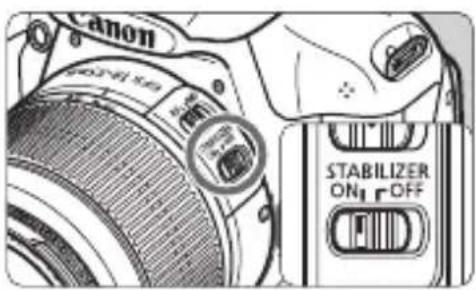
1 Set the IS switch to < ON> .
- Set also the camera's power switch to
.
Press the shutter button halfway.
The Image Stabilizer will operate.
3 Take the picture.
- When the picture looks steady in the viewfinder, press the shutter button completely to take the picture.
The Image Stabilizer may not be effective if the subject moves at the time of exposure.
- The Image Stabilizer may not be effective for excessive shaking such as on a rocking boat.
The Image Stabilizer can operate with the focus mode switch set to either <AF> or <MF> .
- If the camera is mounted on a tripod, you can save battery power by switching the IS switch to
- The Image Stabilizer is effective even when the camera is mounted on a monopod.
- Some IS lenses enable you to switch the IS mode manually to suit the shooting conditions. However, the EF-S18-55mm f/3.5-5.6 IS II switches the IS mode automatically.
Basic Operation
Adjusting the Viewfinder Clarity
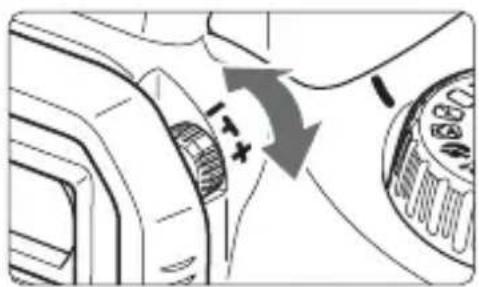
Turn the dioptic adjustment knob.
- Turn the knob left or right until the nine AF points in the viewfinder look sharp.

If the camera's dioptic adjustment still cannot provide a sharp viewfinder image, using Dioptic Adjustment Lens E (10 types, sold separately) is recommended.
Holding the Camera
To obtain sharp images, hold the camera still to minimize camera shake.
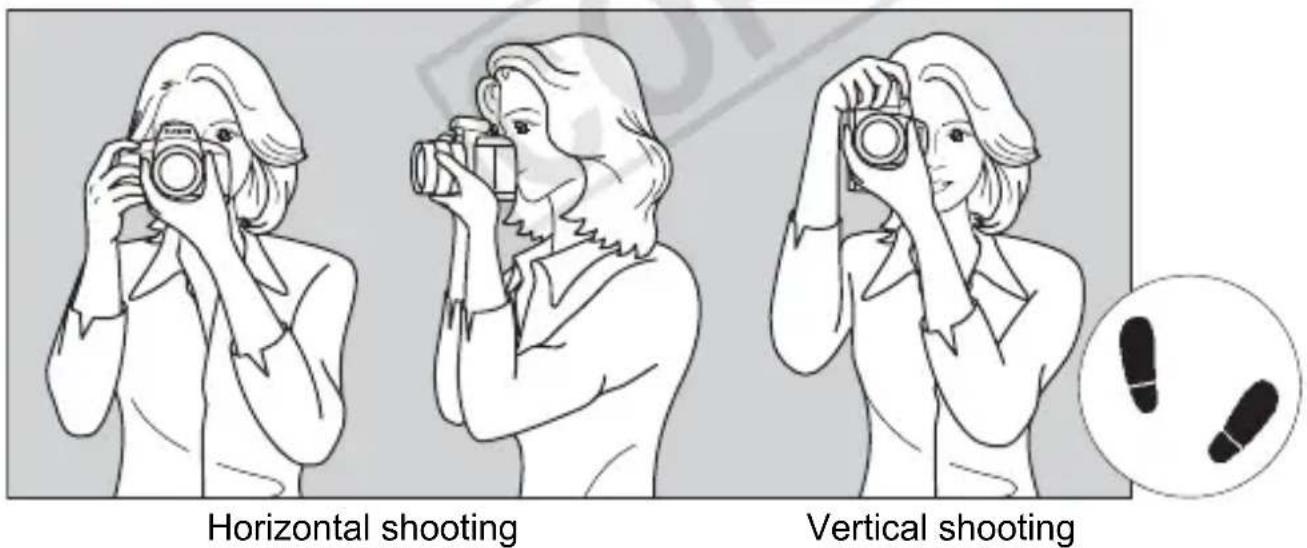
- Wrap your right hand around the camera grip firmly.
- Hold the lens bottom with your left hand.
- Press the shutter button lightly with your right hand's index finger.
- Press your arms and elbows lightly against the front of your body.
- To maintain a stable stance, place one foot in front of the other.
- Press the camera against your face and look through the viewfinder.

To shoot while looking at the LCD monitor, see page 55.
Shutter Button
The shutter button has two steps. You can press the shutter button halfway. Then you can further press the shutter button completely.
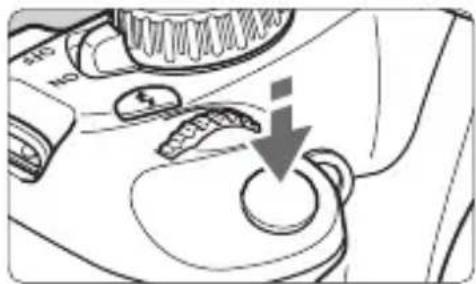
Pressing halfway
This activates autofocus and the automatic exposure system that sets the shutter speed and aperture.
The exposure setting (shutter speed and aperture) is displayed in the viewfinder (业 4)
While you press the shutter button halfway, the LCD monitor will turn off.
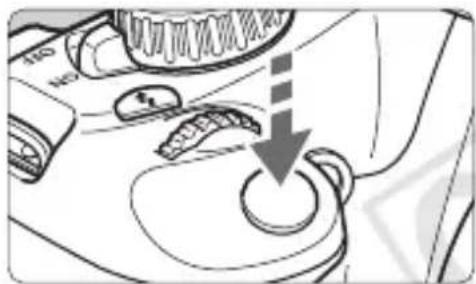
Pressing completely
This releases the shutter and takes the picture.
Preventing Camera Shake
Hand-held camera movement during the moment of exposure is called camera shake. It can cause blurred pictures. To prevent camera shake, note the following:
- Hold and steady the camera as shown on the previous page.
- Press the shutter button halfway to autofocus, then slowly press the shutter button completely.

- If you press the shutter button completely without pressing it halfway first or if you press the shutter button halfway and then press it completely immediately, the camera will take a moment before it takes the picture.
- Even during the menu display, image playback, and image recording, you can instantly go back to shooting-ready by pressing the shutter button halfway.
MENU Menu Operations
With menus, you can set various functions such as the image-recording quality, date/time, etc. While looking at the LCD monitor, use the