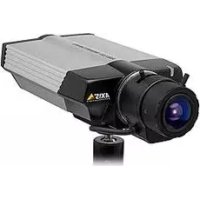
0221002 - Webcam AXIS - Free user manual and instructions
Find the device manual for free 0221002 AXIS in PDF.


| Product type | IP network camera |
| Compatible models | AXIS 221, AXIS 223M |
| Dimensions (H x W x D) | 49 x 88 x 200 mm |
| Weight (without power supply) | 620 g |
| Power | PoE (Power over Ethernet) or PS-K transformer (10-24 V AC or 7-24 V DC) |
| Network connector | RJ-45 Ethernet with PoE support |
| Audio input | 3.5 mm jack for mono microphone or line input |
| Audio output | 3.5 mm line level jack for active speaker or headphones |
| I/O connector | 10 pins: 2 external outputs, 2 digital inputs, RS-485, 3V DC output, GND |
| Lens | CS mount (AXIS 221) or CS adapter ring (AXIS 223M), manual zoom and focus adjustment |
| Resolution | Not specified in the manual; estimate: up to 4CIF (704x576) |
| Focus | Manual with zoom and focus adjustment, DC-IRIS function can be disabled |
| IP assignment methods | AXIS IP Utility, AXIS Camera Management, DHCP, ARP/Ping, UPnP, Bonjour |
| System requirements | Web browser with ActiveX or Java support, administrator rights for installation |
| Maintenance and cleaning | Clean the lens with a soft, lint-free cloth. Avoid solvents. Disconnect before cleaning. |
| Security | Set a root password during first connection. Use shielded cables. Outdoor installation requires a protective housing. |
| Factory reset | Press and hold the control button while powering on until the indicator turns orange, then green. |
| General information | Manual available as PDF download. Technical support at www.axis.com/techsup. |
Frequently Asked Questions - 0221002 AXIS
User questions about 0221002 AXIS
0 question about this device. Answer the ones you know or ask your own.
Ask a new question about this device
Download the instructions for your Webcam in PDF format for free! Find your manual 0221002 - AXIS and take your electronic device back in hand. On this page are published all the documents necessary for the use of your device. 0221002 by AXIS.
USER MANUAL 0221002 AXIS
AXIS 221/223M
Network Camera
Installation Guide
AXIS 221/223M Installation Guide
This installation guide provides instructions for installing the AXIS 221/223M on your network. For all other aspects of using the product, please see the User's Manual, available on the CD included in this package, or from www.axis.com/techsup
Installation steps
- Check the package contents against the list below.
- Hardware overview. See page 4.
- Connect the cables. See page 5.
- Set an IP address. See page 6.
- Set the password. See page 9.
- Adjust the image and focus. See page 10
Important! This product must be used in compliance with local laws and regulations.
1 Package contents
| Item Models/variants/notes | |
| Network camera AXIS 221 N | Network CameraAXIS 223M Network Camera |
| CS lens adaptor ring (AXIS 223M only) | |
| PS-K indoor power supply country specific | |
| Terminal block connector | 10-pin connector block for connecting external devices to the I/O terminal connector3-pin connector block for connecting power to the 3-pin power connector |
| CD AXIS Network Video Product | CD, including product documentation,installation tools and other software |
| Printed Materials AXIS 221/223M Installation Guide (this document)Axis Warranty Document | |
Important!
To use the AXIS 221/223M outdoors it must be installed in a protective housing. For more information on protective housings and other accessories, please visit www.axis.com
② Hardware overview
AXIS 223M - Rear view
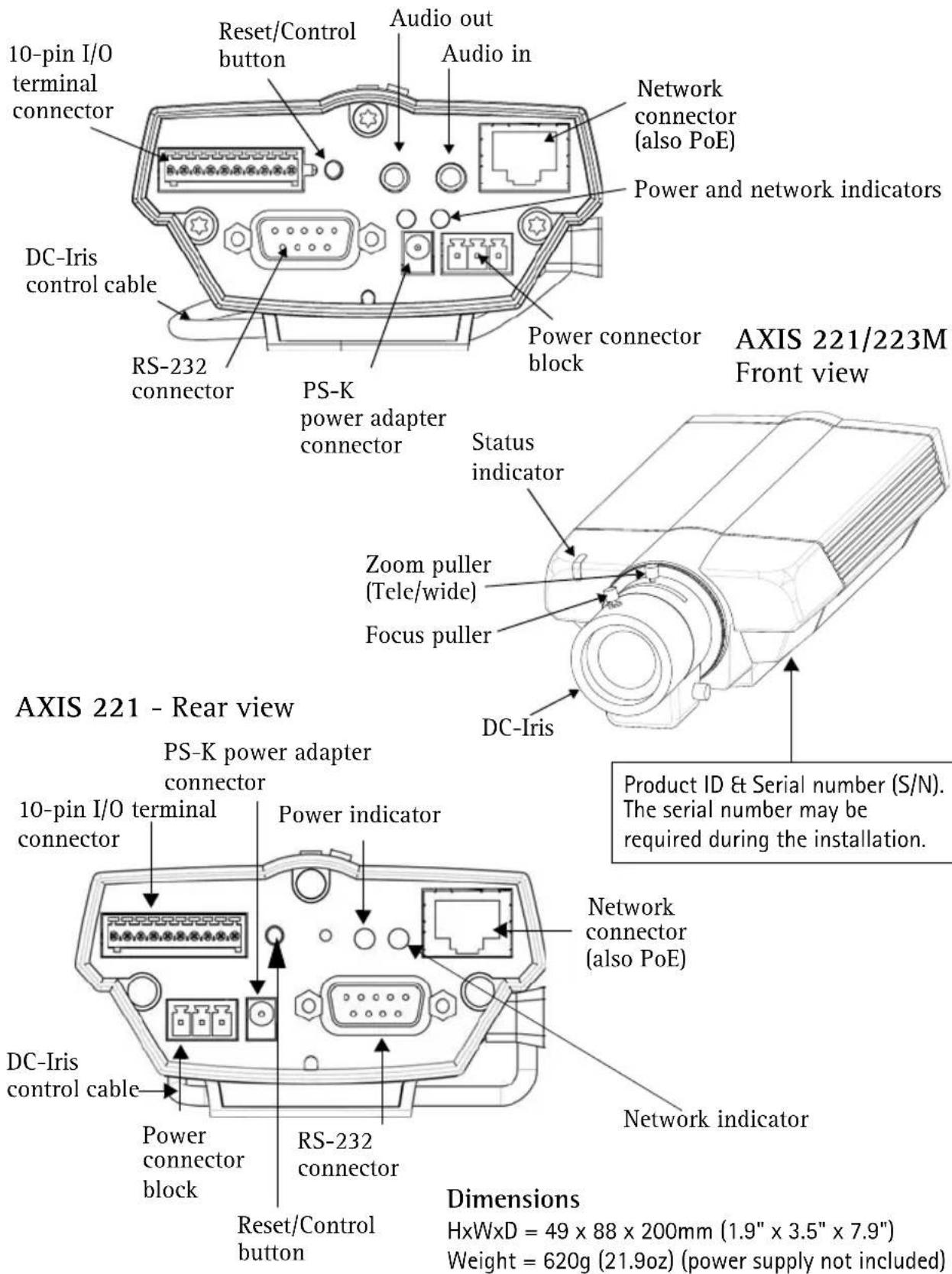
3 Connect the cables
-
Connect the camera to the network using a shielded network cable.
-
Optionally connect external input/output devices, such as alarm devices. See page 13 for information on the terminal connector pins.
-
Optionally connect an active speaker and/or external microphone (AXIS 223M only).
-
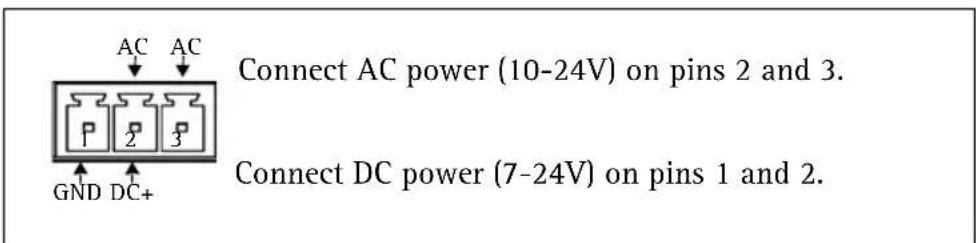
Connect power, using one of the methods listed below:
-
PoE (Power over Ethernet). If available, this is automatically detected when the network cable is connected (see above).
- Connect the supplied indoor power adapter* to the power connector on the camera.
-
The 3 pin power connector block on the rear panel. See the illustration below.
-
Check that the LED indicators show the correct conditions. See the table below for further details. Note that some LEDs can be disabled and may be unlit.
3 pin power connector block
LED indicators
| LED Color | Description | |
| Network Green Steady for connection to 100 Mbit/s network. Flashes for network activity. | ||
| Status | Green | Shows steady green for normal operation. Note: The Status LED can be configured to be unlit during normal operation, or to flash only when the camera is accessed. See the online help files for more information. Go to Setup > System Options > LED settings |
| Amber Steady during startup, reset to factory default or when restoring settings. | ||
| Red Slow flash for failed upgrade. | ||
| Power Green Normal operation. | ||
* only use the supplied PS-K power adapter
4 Assign an IP address
To make it accessible on the network, the AXIS 221/223M must be assigned an IP address.
Depending on the number of cameras you wish to install, the recommended method for assigning IP addresses in Windows is either AXIS IP Utility or AXIS Camera Management. Use the method that best suits your purpose.
Both of these free applications are available on the Axis Network Video Product CD supplied with this product, or they can be downloaded from www.axis.com/techsup
| Method Recommended for Operating system | |||
 | AXIS IP UtilitySee page 7 | Single cameraSmall installations | Windows |
 | AXIS CameraManagementSee page 8 | Multiple camerasLarge installationsInstallation on a different subnet | Windows 2000Windows XP ProWindows 2003 Server |
Notes:
- A network DHCP server is optional.
• The AXIS 221/223M has the default IP address 192.168.0.90 - If assigning the IP address fails, check that there is no firewall blocking the operation.
- For other methods of assigning or discovering the IP address of the AXIS 221/223M, e.g. in other operating systems, see page 12.
AXIS IP Utility - single camera/small installation
AXIS IP Utility automatically discovers and displays Axis devices on your network. The application can also be used to manually assign a static IP address.
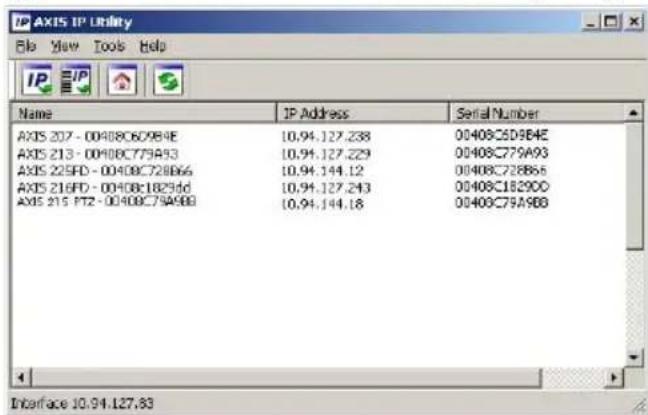
Note that the computer running AXIS IP Utility must be on the same network segment (physical subnet) as the AXIS 221/223M.
Automatic discovery
-
Check that the AXIS 221/223M is connected to the network and that power has been applied.
-
Start AXIS IP Utility.
-
When the camera appears in the window, double-click it to open its home page.
-
See page 9 for instructions on how to assign the password.
Assign the IP address manually
-
Acquire an unused IP address on the same network segment as your computer.
-
Click the button IP Assign new IP address using serial number and enter the serial number and IP address for the AXIS 221/223M. The serial number is located on the product label.
-
Click the Assign button and follow the instructions.
-
Click the Home Page button to access the camera's web pages.
-
See page 9 for instructions on how to set the password.
AXIS Camera Management - multiple cameras/large installations
AXIS Camera Management can automatically find and set IP addresses, show connection status, and manage firmware upgrades for multiple Axis video products.
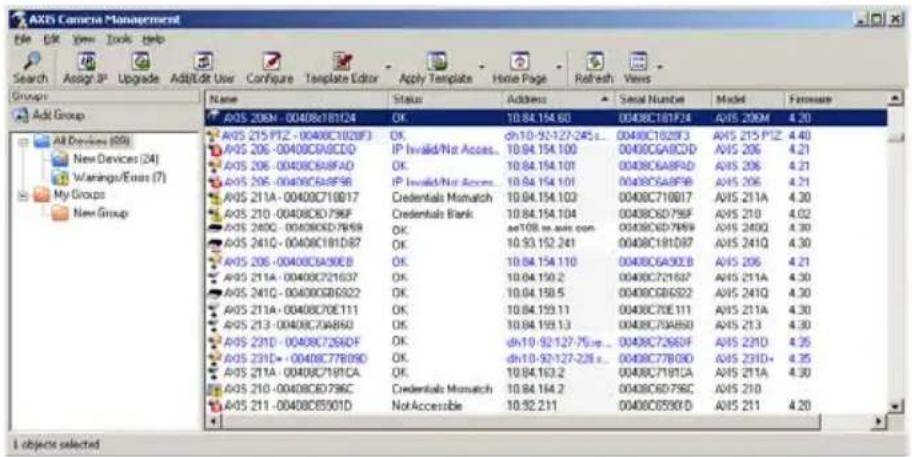
Automatic discovery
- Check that the camera is connected to the network and that power has been applied.
- Start AXIS Camera Management. When the AXIS 221/223M appears in the window, double-click it to open the camera's home page.
- See page 9 for instructions on how to set the password.
Set the IP address in multiple devices
AXIS Camera Management speeds up the process of assigning IP addresses to multiple devices, by suggesting IP addresses from a specified range.
- Select the devices you wish to configure (different models can be selected) and click the Assign IP button.
- Select Obtain IP addresses automatically (DHCP), click the Update button and the program will search in the specified range and suggest an IP address for each device. -or-
Enter the range of IP addresses, the subnet mask and default router that devices can use and click the Update button.
⑤ Set the password
When accessing the AXIS 221/223M for the first time, the 'Configure Root Password' dialog will be displayed.
- Enter a password and then re-enter it, to confirm the spelling. Click OK.
- Enter the user name root in the dialog. Note: The default administrator user name 'root' cannot be deleted.
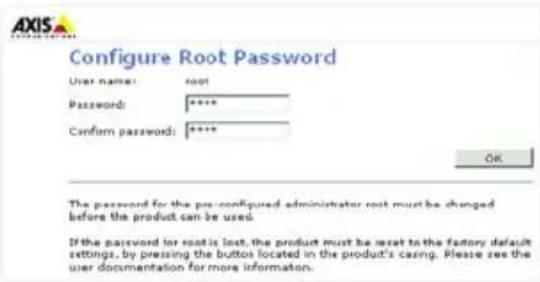
-
Enter the password as set above, and click OK. If the password is lost, the AXIS 221/223M must be reset to the factory default settings. See page 14.
-
If required, click Yes to install AMC (AXIS Media Control), which allows viewing of the video stream in Internet Explorer. You will need administrator rights on the computer to do this.
The Live View page of the AXIS 221/223M is displayed, with links to the Setup tools, which allow you to customize the camera.
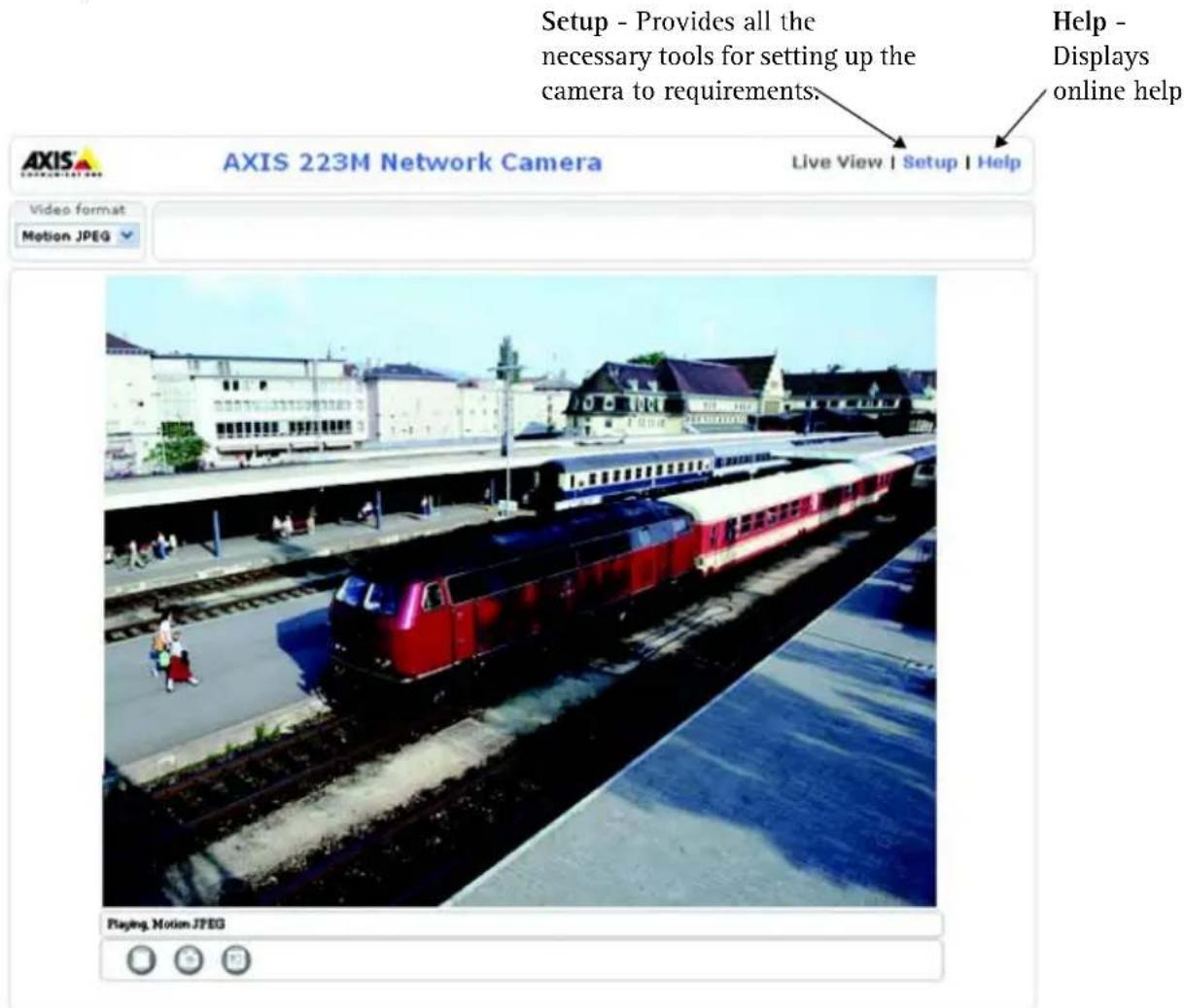

Adjust the image and focus
To adjust the position of the lens:
- Open the Live View page in your web browser.
- Check the image in the Live View page, and move the lens to the desired position.
To focus the AXIS 221/223M:
- From the Basic Configuration page in the setup tools, open the Focus adjustment page.
- Set the DC-Iris to Disabled and click Save.
- Unscrew the zoom puller on the lens by turning it anti-clockwise. Adjust the zoom setting as required.
- Re-tighten the zoom puller.
- Unscrew the focus puller on the lens. Adjust the focus as required. Re-tighten the focus puller.
- From the Focus adjustment page, set the DC-Iris to Enabled and click Save.
Note:
The DC-Iris should always be disabled while focusing the camera. This opens the iris to its maximum, which gives the smallest depth of field and thus the best
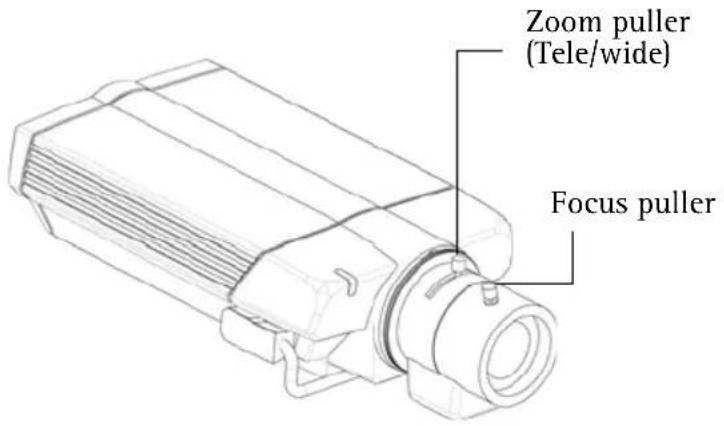
conditions for correct focusing. When the focus is set with this method it will then be maintained in any light conditions.
Back focus adjustment
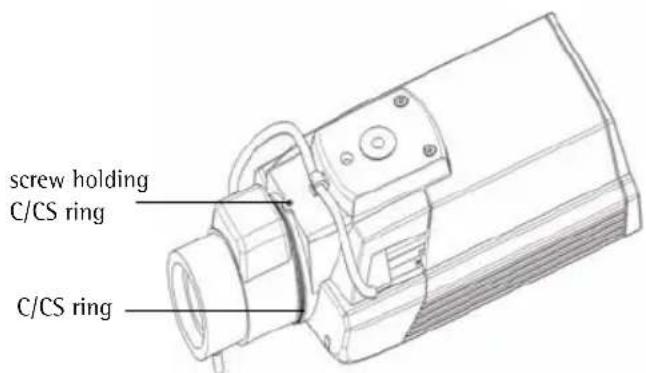
When the lens is changed to a non-standard lens or when the focus achieved using the instructions above is not satisfactory, perform back focus adjustment as follows:
- Loosen the screw that holds the C/CS-ring. C is standard for AXIS 223M and CS for AXIS 221.
- Direct the camera towards an object at least 7 meters away, set
the zoom puller to max wide and check if it is possible to focus the lens.
Underside of the camera
- Set the zoom puller to max tele and again check if it is possible to focus the lens.
- Direct the camera towards a close object, about 30cm away, and set the zoom puller to max wide and check if it is possible to focus the lens.
Set the zoom puller to max tele and again check if it is possible to focus the lens.
- If it is not possible to focus the lens in any of the four situations above, adjust the C/CS-ring, and go back to step 2.
- Tighten the screw that holds the C/CS-ring again.
- After making the back focus adjustment as explained above, adjust the zoom and focus position for the desired view.
Other methods of setting the IP address
The table below shows the other methods available for setting or discovering the IP address. All methods are enabled by default, and all can be disabled.
| Operating system | Notes | |
| UPnPTM | Windows (ME or XP) | When enabled on your computer, the camera is automatically detected and added to “My Network Places.” |
| Bonjour | MAC OSX (10.4 or later) | Applicable to browsers with support for Bonjour. Navigate to the Bonjour bookmark in your browser (e.g. Safari) and click on the link to access the camera's web pages. |
| AXIS Dynamic DNS Service | All A free service | from Axis that allows you to quickly and simply install your camera. Requires an Internet connection with no HTTP proxy. See www.axiscam.net for more information. |
| ARP/Ping | All See below. | The command must be issued within 2 minutes of connecting power to the camera. |
| View DHCP server admin pages | All To view the | admin pages for the network DHCP server, see the server's own documentation. |
Set the IP address with ARP/Ping
- Acquire an IP address on the same network segment your computer is connected to.
- Locate the serial number (S/N) on the AXIS 221/223M label.
- Open a command prompt on your computer and enter the following commands:
| Windows syntax Windows example | |
| arp -s <IP Address> <Serial Number> ping -l 408 -t <IP Address> | arp -s 192.168.0.125 00-40-8c-18-10-00 ping -l 408 -t 192.168.0.125 |
| UNIX/Linux/Mac syntax UNIX/Linux/Mac example | |
| arp -s <IP Address> <Serial Number> temp ping -s 408 <IP Address> | arp -s 192.168.0.125 00:40:8c:18:10:00 temp ping -s 408 192.168.0.125 |
- Check that the network cable is connected to the camera and then start/restart the camera, by disconnecting and reconnecting power.
- Close the command prompt when you see 'Reply from 192.168.0.125: ...' or similar.
- In your browser, type in http://
in the Location/Address field and press Enter on your keyboard.
Notes:
- To open a command prompt in Windows: from the Start menu, select Run... and type cmd. Click OK.
- To use the ARP command on a Mac OS X, use the Terminal utility in Application > Utilities.
Unit connectors
Network connector - RJ-45 Ethernet connector. Supports Power over Ethernet. Using shielded cables is recommended.
Power connector - For the supplied power adapter, PS-K, 9W. The center pin is positive (+).
Audio in - 3.5mm input for a mono microphone, or a line-in mono signal (left channel is used from a stereo signal).
Audio out - Audio output (line level) that can be connected to a public address (PA) system or an active speaker with a built-in amplifier. A pair of headphones can also be attached. A stereo connector must be used for the audio out.
Note:
Audio connectors are present only in AXIS 223M.
10 pin I/O terminal connector block
| Pin | Function Description | |
| 1 Output A On the external device | output terminals (A and B), there is no distinction between positive and negative (+ and -). The terminals use a photocoupler and are electrically isolated from the other internal circuitry.The maximum load should not exceed 100mA and the maximum voltage should be not more than 50 VDC or 35 VAC. | |
| 2 Output B | ||
| 3 Digital Input 1Photocoupler Anode (+) | Photocoupled Input 1. Electrically isolated from the chassis and connectors, this input can be supplied from an external DC voltage or the DC Power Input/Output on pins 9 (DC+) and 10 (GND). | |
| 4 Digital Input 1Photocoupler Cathode (-) | ||
| 5 Digital Input 2Photocoupler Anode (+) | Photocoupled Input 2. As above. | |
| 6 Digital Input 2Photocoupler Cathode (-) | ||
| 7 RS-485-A (non-inverting) A half | -duplex RS-485 interface for controlling auxiliary equipment. | |
| 8 RS-485-B (inverting) | ||
| 9 DC+ Power Output This can drive | the photocoupler inputs or other equipment.The output voltage level is 3.0 V. A maximum current of 100mA can be sourced from the DC output. | |
| 10 GND Ground | ||
Accessing the AXIS 221/223M from the Internet
Once installed, your AXIS 221/223M is accessible on your local network (LAN). To access the camera from the Internet, network routers must be configured to allow incoming traffic, which is usually done on a specific port. Please refer to the documentation for your router for further instructions. For more information on this and other topics, visit the Axis Support Web at www.axis.com/techsup
Resetting to the Factory Default Settings
This will reset all parameters, including the IP address, to the Factory Default settings:
- Disconnect power from the camera.
- Press and hold the Control button and reconnect power.
- Keep the Control button pressed until the Status indicator displays amber (this may take up to 15 seconds), then release the button.
- When the Status indicator displays green (which can take up to 1 minute) the process is complete and the camera has been reset.
- Re-assign the IP address, using one of the methods described in this document.
It is also possible to reset parameters to the original factory default settings via the web interface. For more information, please see the online help or the user's manual.
Further information
The user's manual is available from the Axis Web site at www.axis.com or from the Axis Network Video Product CD supplied with this product.
Tip!
Visit www.axis.com/techsup to check if there is updated firmware available for your AXIS 221/223M. To see the currently installed firmware version, see the Basic Configuration web page in the product's Setup tools.
AXIS 221/223M
Consultez la figure ci-dessous.
natural_image
Technical line drawing of a mechanical device with no visible text or symbolsCôté sous la caméra