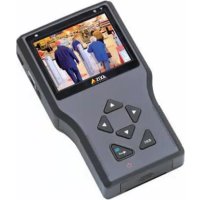
T8412 - Remote control AXIS - Free user manual and instructions
Find the device manual for free T8412 AXIS in PDF.


| Product Type | Portable Installation Monitor |
| Brand | Axis |
| Model | T8412 |
| Dimensions (H x W x D) | 170 x 99 x 38 mm |
| Weight | 0.5 kg (estimated) |
| Display | 8.89 cm color LCD, 320 x 240 resolution |
| Power | 12 V DC +/-10%, 1 A; Lithium-ion battery 7.4 V 2200 mAh |
| Battery Life | 3 h (PoE disabled), 2 h (PoE enabled) |
| Charging Time | Approximately 4 hours |
| Connectors | 1 BNC video input, 1 RJ-45 10BASE-T/100BASE-TX PoE IEEE 802.3af, 1 CAT5 port, 1 USB 2.0, 1 PoE power input |
| Main Functions | Direct viewing of IP/analog camera, digital zoom, PT mode, network cable test, PoE power, instant snapshot, file management |
| Storage | USB key, micro-SD card, T8412 internal memory |
| Compatible With | Axis network cameras, encoders, analog cameras via BNC |
| Maintenance and Cleaning | Clean with a soft, dry cloth. Avoid liquids. |
| Safety | Use in accordance with local laws. Lithium-ion battery: do not expose to heat or moisture. |
| Spare Parts and Repairability | Contact Axis after-sales service for any repair or battery replacement. |
| General Information | Brand: Axis, Model: T8412, Category: Installation Monitor (remote control) |
Frequently Asked Questions - T8412 AXIS
User questions about T8412 AXIS
0 question about this device. Answer the ones you know or ask your own.
Ask a new question about this device
Download the instructions for your Remote control in PDF format for free! Find your manual T8412 - AXIS and take your electronic device back in hand. On this page are published all the documents necessary for the use of your device. T8412 by AXIS.
USER MANUAL T8412 AXIS
This document includes instructions for setting up and using the AXIS T8412 Installation Display.
Legal Considerations
Video and audio surveillance can be prohibited by laws that vary from country to country. Check the laws in your local region before using this product for surveillance purposes.
Electromagnetic Compatibility (EMC)
This equipment generates, uses and can radiate radio frequency energy and, if not installed and used in accordance with the instructions, may cause harmful interference to radio communications. However, there is no guarantee that interference will not occur in a particular installation.
If this equipment does cause harmful interference to radio or television reception, which can be determined by turning the equipment off and on, the user is encouraged to try to correct the interference by one or more of the following measures: Re-orient or relocate the receiving antenna. Increase the separation between the equipment and receiver. Connect the equipment to an outlet on a different circuit to the receiver. Consult your dealer or an experienced radio/TV technician for help. Shielded (STP) network cables must be used with this unit to ensure compliance with EMC standards.
USA - This equipment has been tested and found to comply with the limits for a Class B computing device pursuant to Subpart B of Part 15 of FCC rules, which are designed to provide reasonable protection against such interference when operated in a commercial environment. Operation of this equipment in a residential area is likely to cause interference, in which case the user at his/her own expense will be required to take whatever measures may be required to correct the interference.
Canada - This Class B digital apparatus complies with Canadian ICES-003.
Europe - This digital equipment fulfills the requirements for radiated emission according to limit B of EN55022, and the requirements for immunity according to EN55024 residential and commercial industry.
Australia – This electronic device meets the requirements of the Radio communications (Electromagnetic Compatibility) Standard AS/NZS CISPR22.
Equipment Modifications
This equipment must be installed and used in strict accordance with the instructions given in the user documentation. This equipment contains no user-serviceable components. Unauthorized equipment changes or modifications will invalidate all applicable regulatory certifications and approvals.
Liability
Every care has been taken in the preparation of this document. Please inform your local Axis office of any inaccuracies or omissions. Axis Communications AB cannot be held responsible for any technical or typographical errors and reserves the right to make changes to the product and documentation without prior notice. Axis Communications AB makes no warranty of any kind with regard to the material contained within this document, including, but not limited to, the implied warranties of merchantability and fitness for a particular purpose. Axis Communications AB shall not be liable nor responsible for incidental or consequential damages in connection with the furnishing, performance or use of this material.
RoHS
This product complies with both the European RoHS directive, 2002/95/EC, and the Chinese RoHS regulations, ACPEIP.

WEEE Directive
The European Union has enacted a Directive 2002/96/EC on Waste Electrical and Electronic Equipment (WEEE Directive). This directive is applicable in the European Union member states.

The WEEE marking on this product (see right) or its documentation indicates that the product must not be disposed of together with household waste. To prevent possible harm to human health and/or the environment, the product must be disposed of in an approved and environmentally safe recycling process. For further information on how to dispose of this product correctly, contact the product supplier, or the local authority responsible for waste disposal in your area.
Business users should contact the product supplier for information on how to dispose of this product correctly. This product should not be mixed with other commercial waste.
Support
Should you require any technical assistance, please contact your Axis reseller. If your questions cannot be answered immediately, your reseller will forward your queries through the appropriate channels to ensure a rapid response. If you are connected to the Internet, you can:
- download user documentation
- find answers to resolved problems in the FAQ database. Search by product, category, or phrases
- report problems to Axis support by logging in to your private support area.
AXIS T8412 User's Guide
This user's guide provides instructions for using the AXIS T8412 Installation Display.
Overview - page 4
Battery - page 6
Power up - page 7
Viewing Images - page 8
Menus - page 10
Setup - page 14
Connect to an IP camera - page 11
Snapshot function - page 16
Network cable test - page 12
AV in - page 12
System setup - page 17
Alternative connection methods - page 17
Technical Specifications - page 18
Important!
This product must be used in compliance with local laws and regulations.
Package contents
| Item Models/variants/notes | |
| Installation Display AXIS T8412 | |
| Power supply with power cable 12 V DC Adapter | |
| Battery 7.4V Li-ion Battery Pack 2200mAh | |
| Cables • BNC Cable | • N e t w o r k C a b l e |
| Printed materials AXIS T8412 User's Guide | (this document) |
| Included accessories • Soft carrying case | • Terminator block• C a r c h a r g e r |
Overview
AXIS T8412 is a battery-powered handheld device that greatly simplifies the field installation of both Axis network cameras and analog cameras. It displays live video from a camera and makes setting a camera's viewing angle and focus at the installation site easier than with the use of a laptop or remote computer. It offers user-friendly features such as touchscreen, zoom and snapshot functions. AXIS T8412 can connect directly to a camera, or to a network and search for Axis network video products. An Axis camera with built-in PoE support can even be powered directly by AXIS T8412, giving installers greater flexibility.
- Simplifies setting the camera's viewing angle and focus
The live video display and zoom functions help installers to adjust the field of view and set and test the camera focus.
• Power over Ethernet for powering cameras
AXIS T8412 delivers PoE to Axis network video products with PoE support either from the unit's battery or from PoE by-pass. This allows network cameras with PoE to be powered up and tested without extra tools or the need for electricity and network infrastructures at the installation site.
- User-friendly
AXIS T8412 Installation Display has user-friendly functions that greatly simplify camera setup. For example, the touchscreen monitor is simple and convenient to use at awkward installation locations. Full zoom in the image is via a simple tap on the touchscreen.
- Snapshot function
AXIS T8412 allows installers to take snapshots of images the network camera delivers as proof of finalized installation. The snapshots from network cameras can be saved to USB, Micro SD card, or AXIS T8412.
• Supports both Axis network video products and analog cameras
AXIS T8412 Installation Display supports Axis network cameras and encoders, as well as analog cameras through a BNC connector. AXIS T8412 is shipped with both an Ethernet cable and a BNC cable.
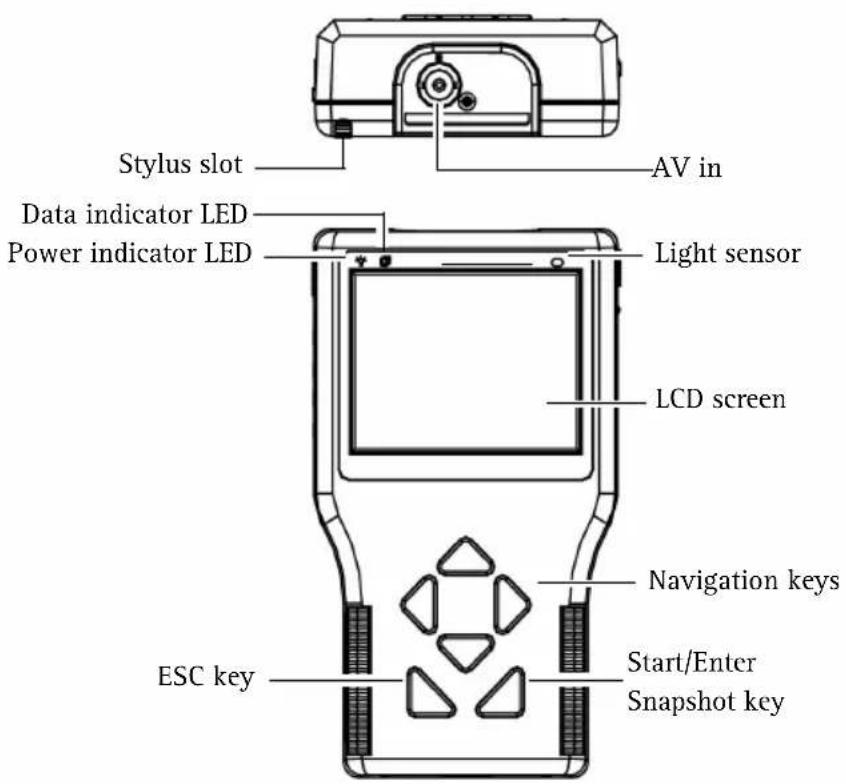
Hardware overview
Unit connectors
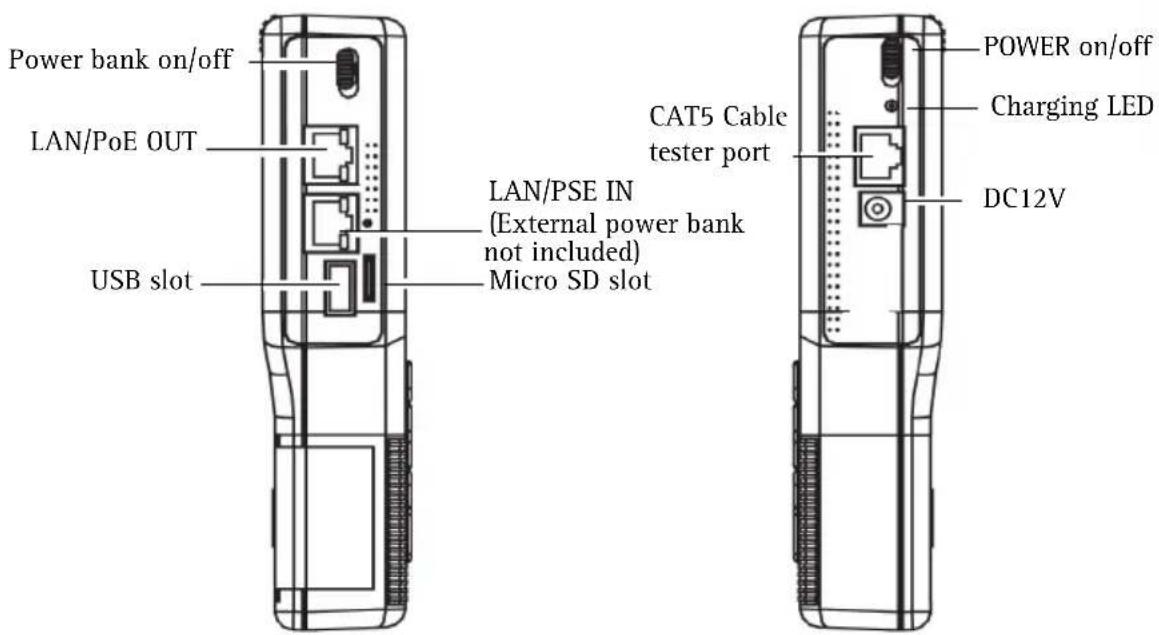
LAN/PoE OUT - RJ-45 Ethernet connector. Provides power to network cameras that are PoE enabled.
LAN/PSE IN - The Power bank provides 48 V DC power (External power bank not included).
USB slot - Connect USB storage devices for data storage.
Micro SD slot - Insert a Micro SD card into the slot for data storage.
AV in - BNC connector for connecting an analog camera. Use a 75 ohm coaxial video cable.
CAT5 Cable tester - for testing and detecting wiring types. See Network cable test, on page 12 for instructions on testing wiring type.
Power Adapter - 12 V DC connector.
LED indicators
| LED Indication | ||
| Power Power-on indicator. | ||
| Data Flashe | when the AXIS T8412 is under operation | |
| Charging The LED will stay lit while the AXIS T8412's battery is charging. | ||
Battery
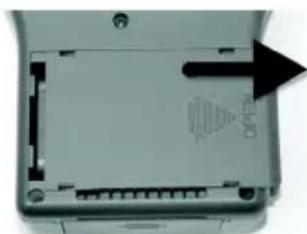
The AXIS T8412 is powered by a rechargeable Li-ion battery pack that takes approximately 4 hours to charge, and provides the AXIS T8412 with up to 3 hours run time.
natural_image
Close-up of a device's internal panel with a black arrow pointing to a component labeled 'ELISA' (no readable text or symbols beyond label)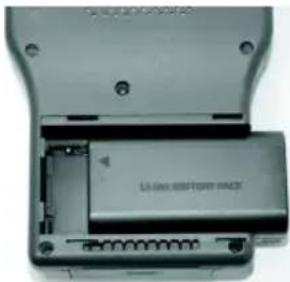
natural_image
Interior view of a device showing an open case with a battery and coiled components (no visible text or symbols)To open the battery compartment cover, press it while sliding it outward, as shown in the figure below.
When installing the battery, make sure that it is oriented correctly as shown in the figure.
During the charging process, the charging indicator will be lit.
Power up
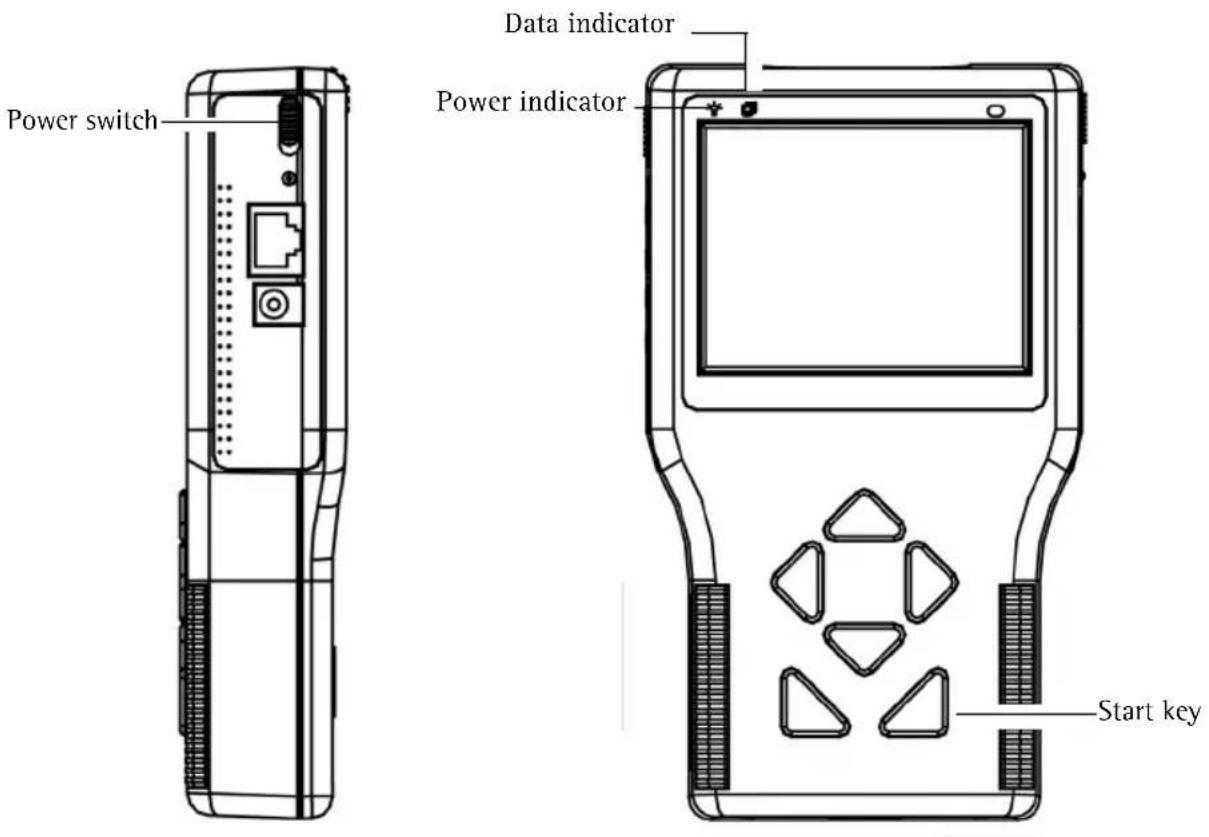
- To power up the AXIS T8412, first set the Power switch to the "ON" position.
- Press the Start key and hold for 3 seconds.
- The Power indicator lights. and a progress bar is displayed on the screen.
- The Data Indicator blinks
- The main menu will appear within 45 seconds.
Viewing images
With AXIS T8412 Installation Display you can connect to a camera either through Connect or Device Search for viewing images, see Connect and Device Search, on page 11. The default view from the camera is at a relatively low resolution. When zooming into the view (see Digital zoom below) the camera's own default resolution is used instead, to provide greater detail.
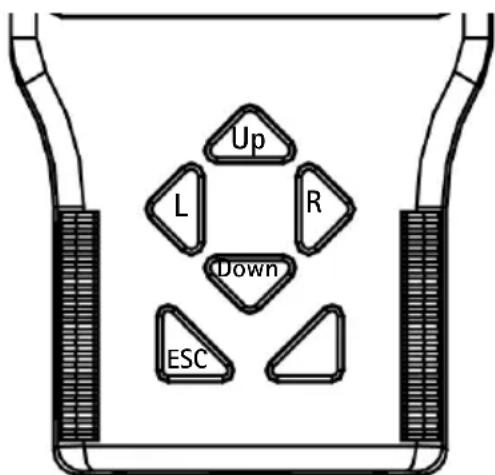
Press the ESC key on the AXIS T8412 front panel at any time to exit the viewing screen.
Digital zoom, PT mode, and Flip view - all cameras
Zoom - Tap ZOOM on the screen for digital zoom. This will show the image at the camera's own default resolution, to allow fine adjustment of the focus.
PT Mode - While digitally zoomed into the view from the camera, the navigation keys can be used to move around in the image. The letters PT (Pan/Tilt) indicate that this is enabled. The arrows and digits at the bottom of the screen indicate the current position.
Flip view - Press and hold the Up and Down navigation keys to flip the view 180 degrees. Press again to flip back again.
DC-Iris cameras
If the camera has a DC-Iris, this can be disabled for focusing by holding down the L and R navigation keys at the same time. Repeat to enable the DC Iris again.
Remote focus cameras
For cameras that support remote focus, this is controlled by the following:
- Press and hold the L and R navigation keys to start the focus procedure. This also automatically disables the DC-Iris. Press and hold the L and R keys again to re-enable the DC-Iris.
- Press and release the L or R key for single small focus steps.
- Press and hold the L or R key for continuous large focus steps.
When digitally zoomed into the image, tap the ZF (Zoom/Focus) indicator/switch to switch to PT (Pan/Tilt) mode.
Cameras with optical zoom
For cameras that support optical zoom, this is controlled by the following:
- Press and hold the Up or Down navigation key for continuous optical zoom, in or out.
- Press and release the Up or Down navigation key for optical zoom in single steps, in or out.
When digitally zoomed into the image, tap the ZF (Zoom/Focus) indicator/switch to switch to PT (Pan/Tilt) mode.
PTZ cameras
When connected to a mechanical PTZ camera, the PTZ functions can be controlled by the following:
- Tap the direction arrows on the screen to pan and tilt the view.
- Press and hold the Up or Down navigation key for continuous optical zoom, in or out.
- Press and release the Up or Down navigation key for optical zoom in single steps, in or out.
Tap ZOOM on the screen for digital zoom, which will show the image at the camera's default resolution. Since the camera has mechanical Pan/Tilt functionality, the digital PT mode is not available.
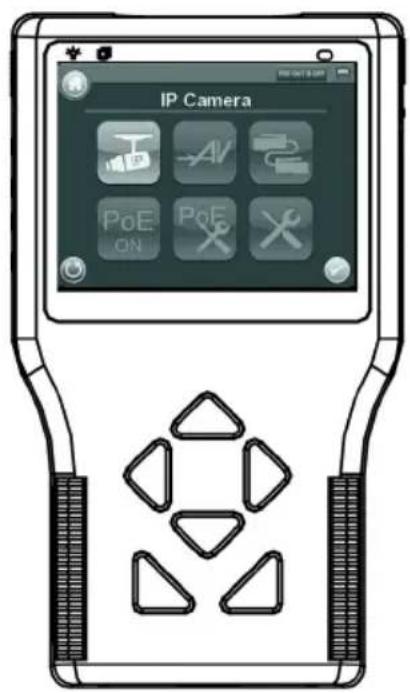
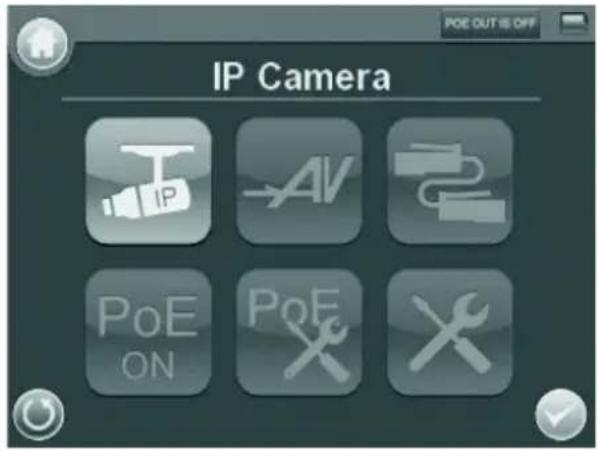
Menus - Main menu
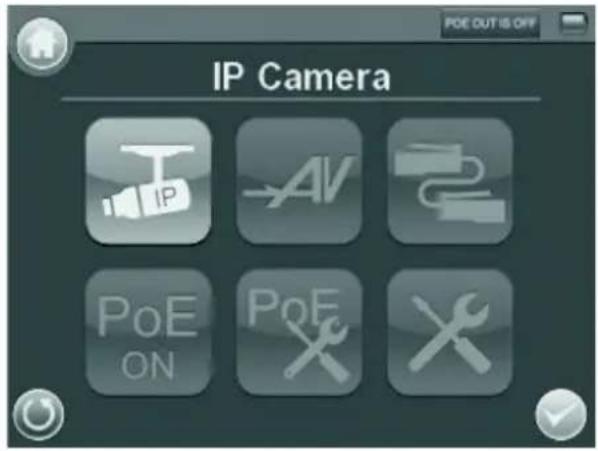
| Button Function | |
 | Main Menu |
| [HDBH] | Return, go to previous page. |
 | Enter, opens a submenu or saves settings. |
 | PoE indicator |
 | Battery status |
 | Connect to an Axis network camera. |
 | View analog camera connected to AV IN connector |
 | CAT5 Network cable test |
 | PoE On/Off |
 | PoE Setup |
 | Setup menu |

IP Camera
natural_image
Three gray square icons representing security and security symbols: plug, security camera, and lock (no text or labels)With AXIS T8412 Installation Display you can connect to a camera either through Connect or Device Search. If the IP address for the camera is not the default address expected, AXIS T8412 will change its own IP address so as to enable the connection. This may take a few seconds to complete.
Connect
From one of AXIS T8412's LAN ports connect a network cable to the camera's network port. From the Main menu tap IP Camera and Connect. Waiting will appear on the LCD display. When the camera is connected successfully, its image will display in the screen.

Device Search
Device search can be used to find all cameras in a local network or a single camera directly. To find cameras on a local Network, connect AXIS T8412 to the LAN with a network cable from one of the LAN ports. Tap the Device Search icon to show the list of cameras found. Tap the IP address of the target camera, enter its Username and Password if different from the default. Tap the Enter icon or the CONNECT button. The camera's image will display in
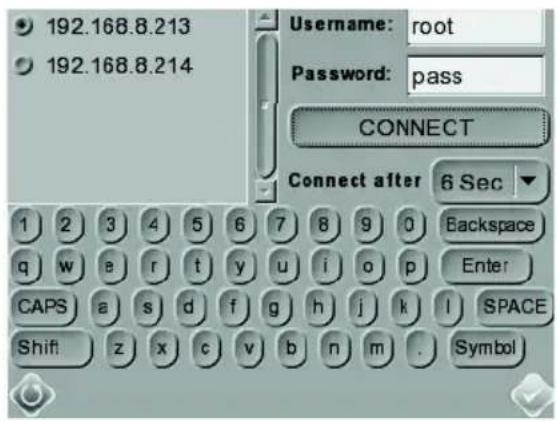
Press the ESC key on the AXIS T8412 front panel to exit the viewing page.

Configure Root Password
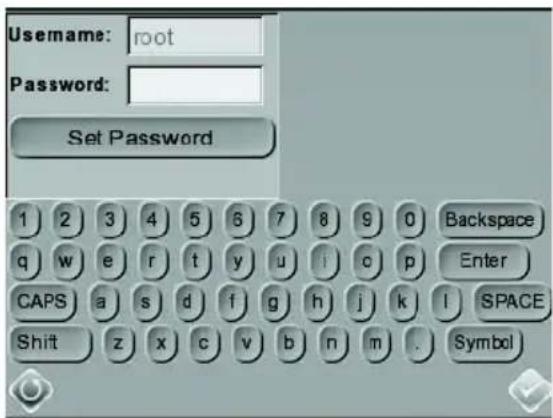
This setting allows you to specify a password for the user "root", which will be used to access all new or factory defaulted cameras. If an individual camera uses a different password, this should be directly entered when accessing that camera instead.
Use the keyboard to tap in the Username and Password and tap Set Password.

AV In
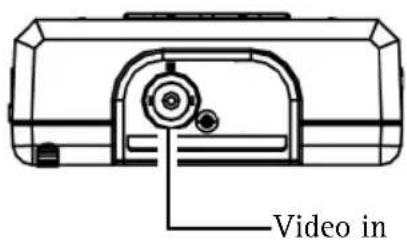
Test analog video by connecting the BNC cable from the camera's video output to the AXIS T8412 video input port. Tap the AV In icon in the Main Menu, and the video signal will be displayed on the LCD screen. Press the ESC key to return to the menu.
To adjust the contrast in the image, go to Setup > Setup AV.
Network cable test
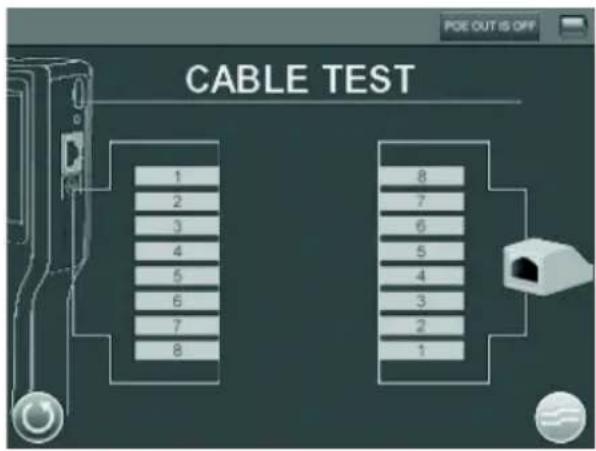
Follow these steps to test a network cable for type; straight or cross, and for errors; open, short or miswire.
- Connect one end of the network cable to the supplied CAT5 Network terminator and the other end to the CAT5 port.
- Tap the CAT5 icon in the Main menu
- The cable's wire map will be displayed on the screen.
Power over Ethernet
AXIS T8412 delivers PoE to Axis network video products with PoE support either from the unit's battery or from PoE by-pass. Tap this icon to turn on and off the Power over Ethernet.

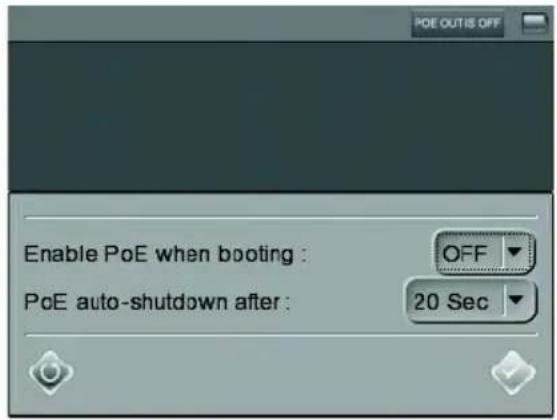
PoE Setup
To enable that PoE starts as soon the AXIS T8412 itself is powered up, select ON from the drop-down list. To limit the amount of time that PoE will be enabled when there is no camera connected, select the number of seconds from the PoE auto-shutdown after drop-down list.

Setup
Under Setup are the menus for IP, AV, System, and Snapshot
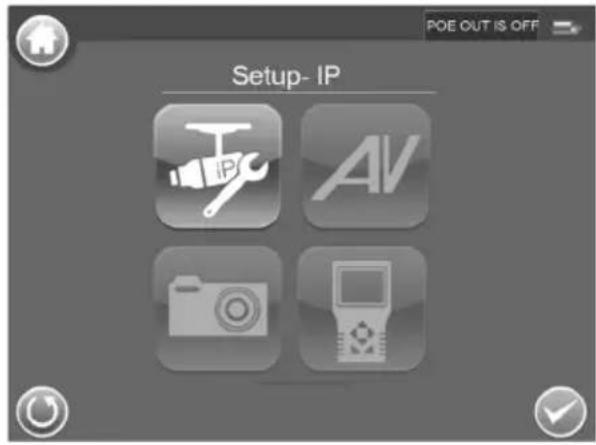

Setup - IP
natural_image
Two gray square icons with gear symbols, no text or labels present
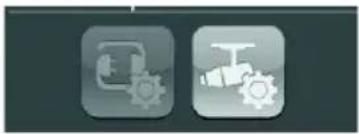
Setup -IP connection
These settings are optional and advanced. In most situations the you will not need to change them. The settings that cannot be changed are intended for future use. Leave other settings as they are, unless specifically required.
![AXIS T8412 192 . 168 . 8 . 122 DHCP SET Camera Profile Default + - Camera IP 192 . 168 . 7 . 221 Camera Type AXIS Camera 1 2 3 4 5 6 7 8 9 0 Backspace q w e r i y u i o p Enter CAPS a s d f g h j k l SPACE Shift z x c v b n m . Symbol AXIS T8412 Address : [192.168.8.122]](/content/2026/02/353767/images/adbb40aede08aadeb17410facbc777da33ce1386bf6d058bd6a6113e94e6e50a.jpg)
- Tap the Setup- IP connection icon. Enter the information in each field using the stylus.
AXIS T8412 - The IP address can be set to DHCP or to a fixed address. DHCP is the default setting and should be used in most situations, even when there is no actual DHCP server available via a network. The IP address is grayed out when set to DHCP. To set a fixed address, tap SET, change the IP address and then tap the Enter icon.
Camera Profile – this allows you to store camera configurations so that they can be recalled later. Select a profile from the list, or change the name and settings.
Camera IP - enter the network camera's IP address.
Camera Type- AXIS Camera (by default)
User Name - enter the user name for the camera. By default Axis' products have "root"
Password - enter the password for the camera. By default Axis' products use "pass". To reveal the password being entered, tap Show.
Management Port, Streaming Port, Streaming Format, and Streaming Protocol can be left at their default settings unless the camera has been set up with different settings.
- To save a new camera profile, make changes and tap the "+" key. To delete a camera profile, find it in the list and tap the "-" key.
- When finished, tap the Enter button and tap the Return button.
Note: If AXIS T8412 detects a camera with an IP address on a different subnet it will automatically change its own address so that a connection becomes possible.

Setup - IP camera
These settings are advanced and not normally required. To make particular settings for an individual camera, tap the IP camera icon and enter the network setting of a network camera.
Import Camera Type - used to import a text file containing camera configuration information from a USB memory stick.
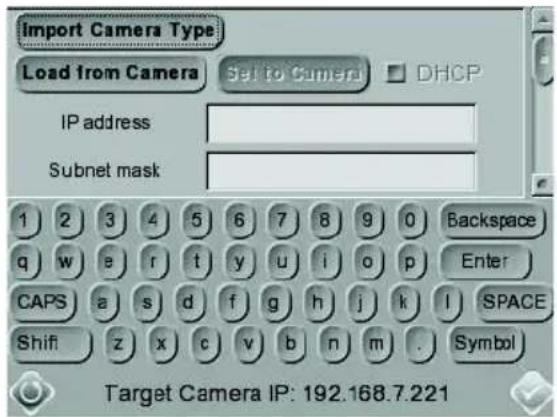
Load from Camera - Load the current camera configuration, which can then be modified and reloaded to the camera, using Set to Camera.

Setup - AV
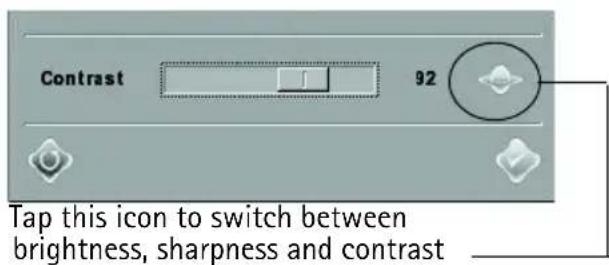
Tap the Setup - AV icon to open the Video Display setup page, from where you can adjust video brightness, sharpness and contrast. Use the up or down keys on the AXIS T8412 front panel to move among the items, or tap the icon on the right-side of the value indicator. To adjust the value, press the left/right keys on the front panel or tap the slider in the page.
Tap the Enter icon to save the settings.
Snapshot Function
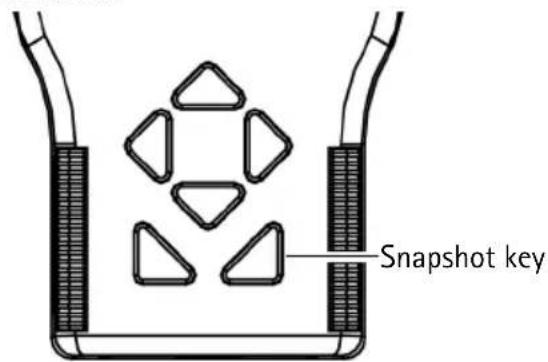
In the IP Camera viewing mode, press the Snapshot key on the AXIS T8412 front panel to save the current image
Edit
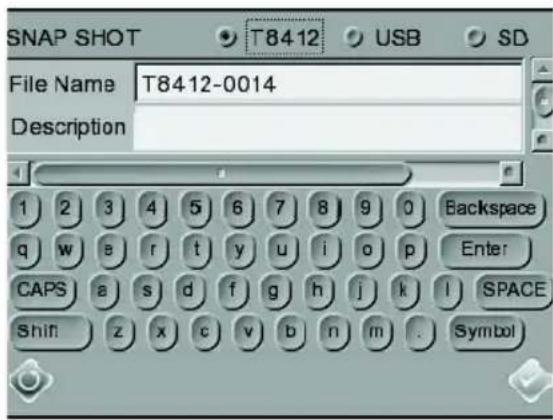
Once the Snapshot key is pressed, the Snapshot editing page will open. Choose a location to store the snapshot by tapping on T8412, USB or SD.
- Enter a file name and description.
- Tap Enter/Save icon and return to the viewing page.
File management
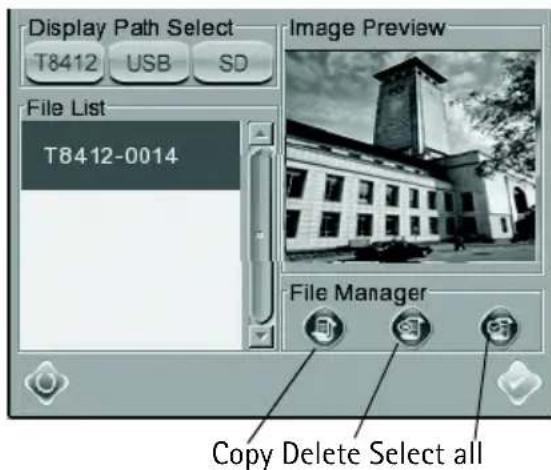
To manage snapshot files from the Main Menu tap the SETUP icon > Setup-Snapshot. Here you can preview, copy and delete images.
- To view files, select the correct Display Path, T8412, USB or SD.
- Available snapshot files are listed under File List.
-
To view a snapshot, tap the file name in the list and the image will appear in Image Preview.
-
Copy - Tap the Copy icon, select the location, and tap Save.
- Delete – Select the file to remove and tap the Delete icon. Tap OK to complete the removal.
- Select all - To select all files for copying or deleting tap the Select all icon.
System Setup
Tap the Setup-System icon to enter the AXIS T8412 System setup page. In this page, you can adjust the brightness of the screen, implement firmware upgrades and restore all settings of the AXIS T8412 to factory default.
Backlight Adjustment - Control the brightness of the AXIS T8412 screen by moving the slider of the Backlight value indicator. A higher value produces a brighter image.
Firmware Upgrade - When you upgrade your AXIS T8412 with the latest firmware from the Axis Web
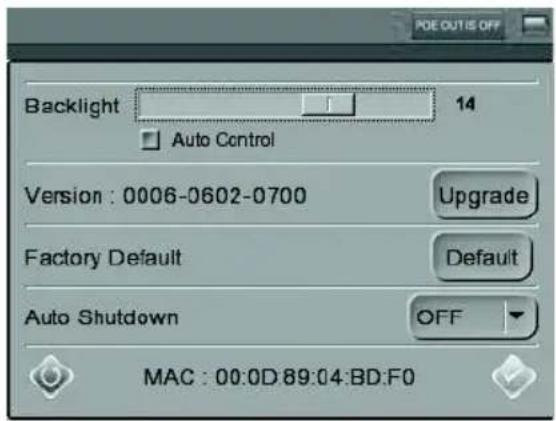
site, your Installation Display receives the latest functionality available. Always read the upgrade instructions and release notes available with each new release, before updating the firmware.
- Save the firmware files (*.tgz, *.tgz.md5) to a USB device in a folder named upgrade\upd_t8412s.
- Tap the Upgrade button, to open the File Select dialog.
- Tap the USB button and select the firmware upgrade file.
- Tap the Enter icon.
Complete Update - Check this option if you would like a complete installation of every component in the firmware. If this option is not checked, only the changes in the firmware will be upgraded.
Restore to Factory Defaults – Restore the AXIS T8412 system to factory default by tapping the Default button,
Auto Shutdown - To save power, tap the drop-down list to choose the amount of idle time before AXIS T8412 shuts down.
Alternative connection methods
External powerbank
Connect a camera to PoE out, connect a powerbank to PSE IN, set the Powerbank's switch to the "ON" position.
Technical Specifications
| Function/ group | Item Specification | |
| Model AXIS T8412 Installation Display | ||
| Display Color | LCD Field Display | 3.5 inches |
| Resolutions | 320x240 | |
| Video Image | settings | Autosensing |
| Network IP Setting | Static IP address | DHCP |
| General Casing | ABS plastic | |
| Memory | 128 MB RAM (16 MB available for snapshots) | |
| Power • 12 V DC +/- 10%, | 1 ACANON BP-915 (7.4 V 2000 mAh)80% capacity after 300 charge cyclesCharge time 3.5 HrsOperation time 3 Hrs with PoE off, 2 Hrs with PoE on. | |
| Connectors • BNC Video in | RJ-45 10BASE-T/100BASE-TX PoE IEEE 802.3afCAT-5USB 2.0PoE | |
| Operating conditions | 0 - 50 °C (32 -122 °F)Humidity 20 - 80% RH (non-condensing) | |
| Local Storage | SD/SDHC memory card slot (card not included) | |
| Approvals • USA/FCC Class | AEurope/CE Class A | |
| Dimensions (HxWxD) 170 x 99 x 38 mm(6.7" x 3.9" x 1.5") | ||
| Weight | 450 g (0.99 lb.) | |
| Included accessories • Soft carrying case with sunshieldProtective rubber sleeveBuilt-in stylusTerminator block for CAT-5 Cable testCAT5 Network cableBNC cableCar charger 12 V DCPower supply | ||
Important!
natural_image
Close-up of a device casing with a black arrow pointing to a component labeled 'OPEN' (no readable text or symbols beyond the label)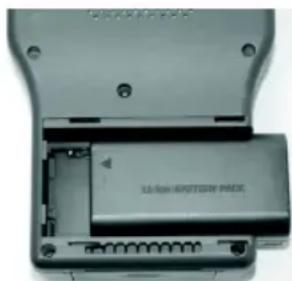
natural_image
Interior view of a device showing an open case with internal components and no visible text or symbols.Menus - Menu principal
natural_image
Three gray square icons representing electrical plug, security camera, and lock (no text or symbols)natural_image
Two gray square icons with gear symbols, no text or labels present
Configuration - Connexion IP
natural_image
Pure diagram of a container with internal geometric shapes and a label 'To' (no text or symbols beyond the label)Wichtig!
natural_image
Close-up of a device casing with a black arrow pointing to the side panel (no visible text or symbols)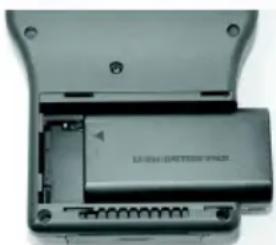
natural_image
Interior view of a device showing a battery pack and connector (no visible text or symbols)natural_image
Three gray square icons representing security and security symbols: plug, camera, and lock (no text or labels)natural_image
Two gray square icons with gear symbols, no text or labels present
Importante!
natural_image
Close-up of a device casing with a black arrow pointing to a component labeled 'D40' (no readable text or symbols beyond label)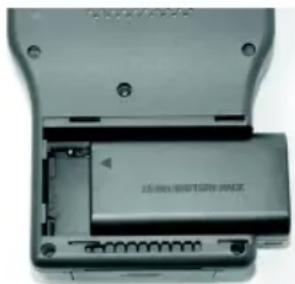
natural_image
Close-up of a gray electronic device with visible internal components and mounting holes (no text or symbols)natural_image
Three gray square icons representing security and security symbols: battery, camera, and lock (no text or labels)natural_image
Two gray square icons with gear symbols, no text or labels present
Configurazione
- Connessione IP
¡Importante!
natural_image
Two views of a device showing internal components with no visible text or symbolsnatural_image
Three gray square icons representing security and security symbols: battery, camera, and lock (no text or labels)natural_image
Two gray square icons with gear symbols, no text or labels present
© Axis Communications AB, 2009-2010
Ver.2.00
Printed: March 2010
Part No. 38447

- Legal Considerations
- Electromagnetic Compatibility (EMC)
- Equipment Modifications
- Liability
- RoHS
- WEEE Directive
- Support
- AXIS T8412 User's Guide
- Overview
- Hardware overview
- Unit connectors
- LED indicators
- Battery
- Power up
- Viewing images
- Digital zoom, PT mode, and Flip view - all cameras
- DC-Iris cameras
- Remote focus cameras
- Cameras with optical zoom
- PTZ cameras
- Menus - Main menu
- IP Camera
- Connect
- Device Search
- Configure Root Password
- AV In
- Network cable test
- Power over Ethernet
- PoE Setup
- Setup
- Setup - IP
- Setup -IP connection
- Setup - IP camera
- Setup - AV
- Snapshot Function
- Edit
- File management
- System Setup
- Alternative connection methods
- External powerbank
- Menus - Menu principal
- Configuration - Connexion IP
- Wichtig!
- Importante!
- Configurazione
- - Connessione IP
Brand : AXIS
Model : T8412
Category : Remote control