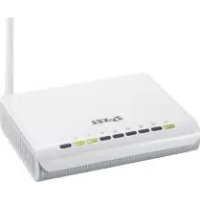
NBG416N - Router ZYXEL - Free user manual and instructions
Find the device manual for free NBG416N ZYXEL in PDF.

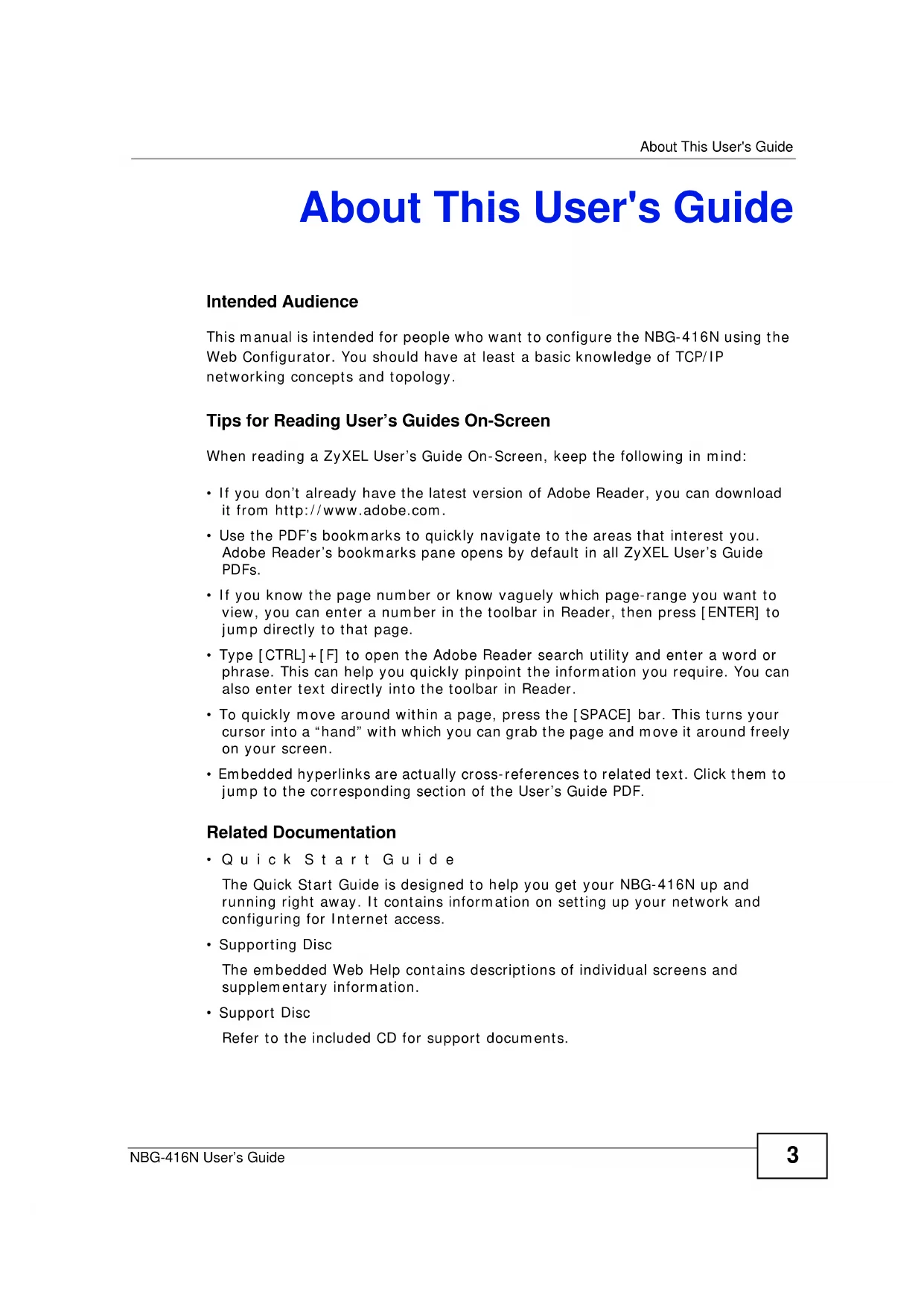

| Product Type | Wireless Router |
| Brand | ZyXEL |
| Model | NBG416N |
| Frequency Band | 2.4 GHz |
| Maximum Speed | 300 Mbps |
| Network Standards | IEEE 802.11b/g/n |
| Ports | 4 LAN ports 10/100 Mbps, 1 WAN port 10/100 Mbps |
| Power Supply | 12V DC, 1A power adapter |
| Dimensions (L x W x H) | 162 x 112 x 30 mm |
| Weight | 210 g |
| Security | WEP, WPA-PSK, WPA2-PSK, MAC filtering, SPI firewall |
| Main Features | NAT router, DHCP server, QoS, port forwarding, VPN pass-through |
| Care and Cleaning | Unplug before cleaning, use a soft dry cloth |
| Operating Temperature | 0°C to 40°C |
| Operating Humidity | 10% to 90% (non-condensing) |
Frequently Asked Questions - NBG416N ZYXEL
User questions about NBG416N ZYXEL
0 question about this device. Answer the ones you know or ask your own.
Ask a new question about this device
Download the instructions for your Router in PDF format for free! Find your manual NBG416N - ZYXEL and take your electronic device back in hand. On this page are published all the documents necessary for the use of your device. NBG416N by ZYXEL.
USER MANUAL NBG416N ZYXEL
Wireless N-lite Home Router
User's Guide
natural_image
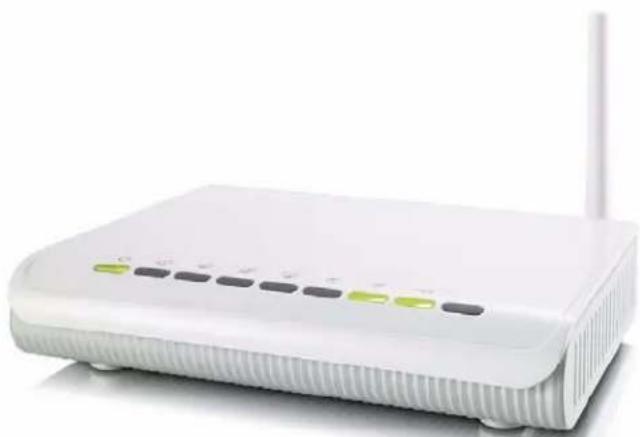
White wireless router with white antenna and control buttons (no visible text or symbols)Default Login Details
IP Address http://192.168.1.1
Username admin
Password 1234
Firmware Version 1.0
Edition 1, 1/2011
www.zyxel.com
ZyXEL
About This User's Guide
Intended Audience
This manual is intended for people who want to configure the NBG-416N using the Web Configurator. You should have at least a basic knowledge of TCP/IP networking concepts and topology.
Tips for Reading User's Guides On-Screen
When reading a ZyXEL User's Guide On-Screen, keep the following in mind:
- If you don't already have the latest version of Adobe Reader, you can download it from http://www.adobe.com.
- Use the PDF's bookmarks to quickly navigate to the areas that interest you. Adobe Reader's bookmarks pane opens by default in all ZyXEL User's Guide PDFs.
- If you know the page number or know vaguely which page-range you want to view, you can enter a number in the toolbar in Reader, then press [ENTER] to jump directly to that page.
- Type [CTRL]+[F] to open the Adobe Reader search utility and enter a word or phrase. This can help you quickly pinpoint the information you require. You can also enter text directly into the toolbar in Reader.
- To quickly move around within a page, press the [SPACE] bar. This turns your cursor into a "hand" with which you can grab the page and move it around freely on your screen.
- Embedded hyperlinks are actually cross-references to related text. Click them to jump to the corresponding section of the User's Guide PDF.
Related Documentation
- Quick Start Guide
The Quick Start Guide is designed to help you get your NBG-416N up and running right away. It contains information on setting up your network and configuring for Internet access.
- Supporting Disc
The embedded Web Help contains descriptions of individual screens and supplementary information.
- Support Disc
Refer to the included CD for support documents.
Documentation Feedback
Send your comments, questions or suggestions to: techwriters@zyxel.com.tw
Thank you!
The Technical Writing Team, ZyXEL Communications Corp.,
6 Innovation Road II, Science-Based Industrial Park, Hsinchu, 30099, Taiwan.
Need More Help?
More help is available at www.zyxel.com.
- Download Library
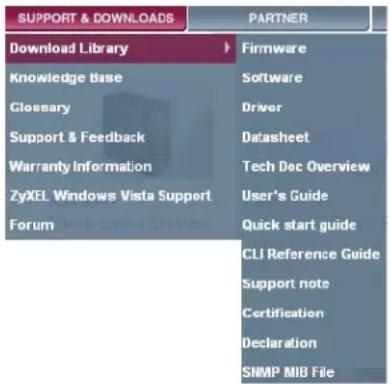
Search for the latest product updates and documentation from this link. Read the Tech Doc Overview to find out how to efficiently use the User Guide, Quick Start Guide and Command Line Interface Reference Guide in order to better understand how to use your product.
- Knowledge Base
If you have a specific question about your product, the answer may be here. This is a collection of answers to previously asked questions about ZyXEL products.
- Forum
This contains discussions on ZyXEL products. Learn from others who use ZyXEL products and share your experiences as well.
Customer Support
Should problems arise that cannot be solved by the methods listed above, you should contact your vendor. If you cannot contact your vendor, then contact a ZyXEL office for the region in which you bought the device.
See http://www.zyxel.com/web/contact_us.php for contact information. Please have the following information ready when you contact an office.
- Product model and serial number.
- Warranty Information.
- Date that you received your device.
Document Conventions
Warnings and Notes
These are how warnings and notes are shown in this User's Guide.
Warnings tell you about things that could harm you or your device.
Note: Notes tell you other important information (for example, other things you may need to configure or helpful tips) or recommendations.
Syntax Conventions
- The NBG-416N may be referred to as the “NBG-416N”, the “device”, the “product” or the “system” in this User’s Guide.
- Product labels, screen names, field labels and field choices are all in bold font.
- A key stroke is denoted by square brackets and uppercase text, for example, [ENTER] means the "enter" or "return" key on your keyboard.
- “Enter” means for you to type one or more characters and then press the [ENTER] key. “Select” or “choose” means for you to use one of the predefined choices.
- A right angle bracket ( > ) within a screen name denotes a mouse click. For example, Maintenance > Log > Log Setting means you first click Maintenance in the navigation panel, then the Log sub menu and finally the Log Setting tab to get to that screen.
- Units of measurement may denote the “metric” value or the “scientific” value. For example, “k” for kilo may denote “1000” or “1024”, “M” for mega may denote “1000000” or “1048576” and so on.
- “e.g.,” is a shorthand for “for instance”, and “i.e.,” means “that is” or “in other words”.
Icons Used in Figures
Figures in this User's Guide may use the following generic icons. The NBG-416N icon is not an exact representation of your device.
NBG-416N Computer Notebook  |  |  |
Server Modem Firewall  |  |  |
Telephone Switch Router  |  |  |
Safety Warnings
- Do NOT use this product near water, for example, in a wet basement or near a swimming pool.
- Do NOT expose your device to dampness, dust or corrosive liquids.
- Do NOT store things on the device.
- Do NOT install, use, or service this device during a thunderstorm. There is a remote risk of electric shock from lightning.
- Connect ONLY suitable accessories to the device.
- Do NOT open the device or unit. Opening or removing covers can expose you to dangerous high voltage points or other risks. ONLY qualified service personnel should service or disassemble this device. Please contact your vendor for further information.
- Make sure to connect the cables to the correct ports.
- Place connecting cables carefully so that no one will step on them or stumble over them.
- Always disconnect all cables from this device before servicing or disassembling.
- Use ONLY an appropriate power adaptor or cord for your device.
- Connect the power adaptor or cord to the right supply voltage (for example, 110V AC in North America or 230V AC in Europe).
- Do NOT allow anything to rest on the power adaptor or cord and do NOT place the product where anyone can walk on the power adaptor or cord.
- Do NOT use the device if the power adaptor or cord is damaged as it might cause electrocution.
- If the power adaptor or cord is damaged, remove it from the power outlet.
- Do NOT attempt to repair the power adaptor or cord. Contact your local vendor to order a new one.
- Do not use the device outside, and make sure all the connections are indoors. There is a remote risk of electric shock from lightning.
- Do NOT obstruct the device ventilation slots, as insufficient airflow may harm your device.
- Antenna Warning! This device meets ETSI and FCC certification requirements when using the included antenna(s). Only use the included antenna(s).
- If you wall mount your device, make sure that no electrical lines, gas or water pipes will be damaged.
Your product is marked with this symbol, which is known as the WEEE mark. WEEE stands for Waste Electronics and Electrical Equipment. It means that used electrical and electronic products should not be mixed with general waste. Used electrical and electronic equipment should be treated separately.

Contents Overview
User's Guide 17
Introduction 19
The WPS Button 23
The Web Configurator 25
Connection Wizard 35
AP Mode 49
Tutorials 57
Technical Reference 65
Wireless LAN 67
WAN 83
LAN 91
DHCP Server 95
Network Address Translation (NAT) 101
Firewall 109
Remote Management 113
Universal Plug-and-Play (UPnP) 117
System 125
Logs 131
Tools 133
Sys OP Mode 139
Language 143
Troubleshooting 145
Product Specifications 153
Table of Contents
About This User's Guide....3
Document Conventions....6
Safety Warnings....8
Contents Overview 9
Table of Contents......11
Part I: User's Guide.... 17
Chapter 1 Introduction......19
1.1 Overview 19
1.2 Applications ...... 19
1.3 Ways to Manage the NBG-416N 20
1.4 Good Habits for Managing the NBG-416N 20
1.5 LEDs 20
Chapter 2 The WPS Button....23
2.1 Overview 23
Chapter 3 The Web Configurator ....25
3.1 Overview 25
3.2 Accessing the Web Configurator 25
3.3 Resetting the NBG-416N 27
3.3.1 Using the RESET Button 27
3.4 Navigating the Web Configurator 27
3.5 Status Screen (Router Mode) 28
3.5.1 Navigation Panel 30
3.5.2 Summary: DHCP Table 32
3.5.3 Summary: Packet Statistics 33
3.5.4 Summary: WLAN Station Status 34
Chapter 4 Connection Wizard ....35
4.1 Wizard Setup 35
4.2 Connection Wizard: STEP 1: System Information .... 36
4.2.1 System Name 36
4.2.2 Domain Name 37
4.3 Connection Wizard: STEP 2: Wireless LAN 38
4.3.1 Extend (WPA-PSK or WPA2-PSK) Security 39
4.4 Connection Wizard: STEP 3: Internet Configuration 39
4.4.1 Ethernet Connection 40
4.4.2 PPPoE Connection 40
4.4.3 PPTP Connection 42
4.4.4 Your IP Address 43
4.4.5 WAN IP Address Assignment 44
4.4.6 IP Address and Subnet Mask 44
4.4.7 DNS Server Address Assignment 45
4.4.8 WAN IP and DNS Server Address Assignment 46
4.4.9 WAN MAC Address 47
4.5 Connection Wizard Complete 48
Chapter 5
AP Mode....49
5.1 Overview 49
5.2 Setting your NBG-416N to AP Mode 49
5.3 Status Screen (AP Mode) 50
5.3.1 Navigation Panel 52
5.4 Configuring Your Settings 53
5.4.1 LAN Settings 53
5.4.2 WLAN and Maintenance Settings 54
5.5 Logging in to the Web Configurator in AP Mode 54
Chapter 6
Tutorials....57
6.1 Overview 57
6.2 How to Connect to the Internet from an AP 57
6.2.1 Configure Wireless Security Using WPS on both your NBG-416N and Wireless Client 57
6.3 Enable and Configure Wireless Security without WPS on your NBG-416N 61
Part II: Technical Reference 65
Chapter 7
Wireless LAN....67
7.1 Overview 67
7.2 What You Can Do 68
7.3 What You Should Know 68
7.3.1 Wireless Security Overview 68
7.4 General Wireless LAN Screen 71
7.4.1 No Security 72
7.4.2 WEP Encryption 73
7.4.3 WPA-PSK/WPA2-PSK 75
7.5 MAC Filter 76
7.6 Wireless LAN Advanced Screen 77
7.7 Quality of Service (QoS) Screen 79
7.8 WPS Screen 80
7.9 WPS Station Screen 81
7.10 Scheduling Screen 81
Chapter 8
WAN 83
8.1 Overview 83
8.2 What You Need To Know 83
8.2.1 Configuring Your Internet Connection 84
8.3 Internet Connection 85
8.3.1 Ethernet Encapsulation 85
8.3.2 PPPoE Encapsulation 87
8.3.3 PPTP Encapsulation 88
Chapter 9
LAN....91
9.1 Overview 91
9.2 What You Need To Know 92
9.2.1 IP Pool Setup 92
9.2.2 LAN TCP/IP 92
9.3 LAN IP Screen 93
Chapter 10
DHCP Server....95
10.1 Overview 95
10.2 What You Can Do 95
10.3 What You Need To Know 95
10.4 General Screen 96
10.5 Advanced Screen 96
10.6 Client List Screen 98
Chapter 11
Network Address Translation (NAT)....101
11.1 Overview 101
11.2 What You Can Do 102
11.2.1 What You Need To Know 102
11.3 General NAT Screen 104
11.4 NAT Application Screen 105
11.5 Technical Reference 107
11.5.1 NAT Port Forwarding: Services and Port Numbers 107
11.5.2 NAT Port Forwarding Example 108
Chapter 12
Firewall....109
12.1 Overview 109
12.2 What You Can Do 109
12.3 What You Need To Know ....110
12.3.1 About the NBG-416N Firewall ....110
12.3.2 VPN Pass Through Features ....110
12.4 General Firewall Screen 111
12.5 Services Screen 111
Chapter 13
Remote Management.... 113
13.1 Overview ...... 113
13.2 What You Need To Know ....113
13.2.1 Remote Management Limitations ....114
13.2.2 Remote Management and NAT ....114
13.2.3 System Timeout ....114
13.3 WWW Screen 115
Chapter 14
Universal Plug-and-Play (UPnP).... 117
14.1 Overview 117
14.2 What You Need to Know ....117
14.3 UPnP Screen 118
14.4 Technical Reference ....119
14.4.1 Using UPnP in Windows XP Example .....119
14.4.2 Web Configurator Easy Access 122
Chapter 15
System 125
15.1 Overview 125
15.2 What You Can Do 125
15.3 System General Screen 125
15.4 Time Setting Screen 127
Chapter 16
Logs 131
16.1 Overview 131
16.2 What You Need to Know 131
16.3 View Log Screen 131
Chapter 17
Tools....133
17.1 Overview 133
17.2 What You Can Do 133
17.3 Firmware Upload Screen 133
17.4 Configuration Screen 136
17.4.1 Backup Configuration 136
17.4.2 Restore Configuration 137
17.4.3 Back to Factory Defaults 138
17.5 Restart Screen 138
Chapter 18
Sys OP Mode....139
18.1 Overview 139
18.2 What You Need to Know 139
18.3 General Screen 140
Chapter 19
Language 143
19.1 Language Screen 143
Chapter 20
Troubleshooting....145
20.1 Power, Hardware Connections, and LEDs 145
20.2 NBG-416N Access and Login 146
20.3 Internet Access 148
20.4 Resetting the NBG-416N to Its Factory Defaults 149
20.5 Wireless Router/AP Troubleshooting 150
Chapter 21
Product Specifications 153
Appendix A IP Addresses and Subnetting 157
Appendix B Pop-up Windows, JavaScript and Java Permissions....167
Appendix C Setting up Your Computer's IP Address 175
21.0.1 Verifying Settings 192
Table of Contents
Appendix D Wireless LANs 193
21.0.2 WPA(2)-PSK Application Example 203
21.0.3 WPA(2) with RADIUS Application Example 203
Appendix E Services 205
Appendix F Open Software Announcements 209
Appendix G Legal Information....231
Index......239
PART I
User's Guide
Introduction
1.1 Overview
This chapter introduces the main features and applications of the NBG-416N.
The NBG-416N extends the range of your existing wired network without additional wiring, providing easy network access to mobile users. You can set up a wireless network with other IEEE 802.11b/g/n compatible devices.
A range of services such as a firewall and content filtering are also available for secure Internet computing.
1.2 Applications
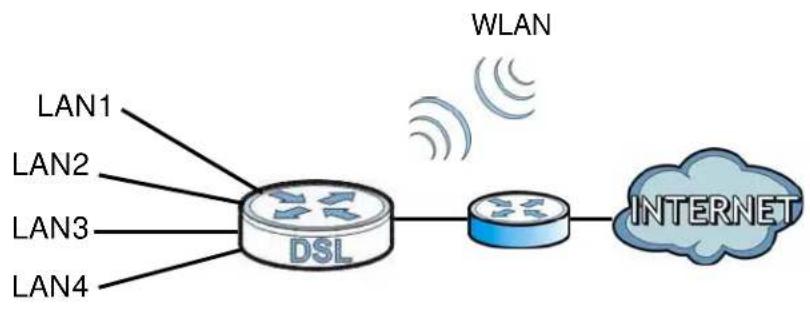
Your can create the following networks using the NBG-416N:
- Wired. You can connect network devices via the Ethernet ports of the NBG-416N so that they can communicate with each other and access the Internet.
- Wireless. Wireless clients can connect to the NBG-416N to access network resources.
- WAN. Connect to a broadband modem/router for Internet access.
Figure 1 NBG-416N Network
flowchart
graph LR
    A["DSL"] --> B["Router"]
    B --> C["INTERNET"]
    style A fill:#f9f,stroke:#333
    style B fill:#bbf,stroke:#333
    style C fill:#dfd,stroke:#333
    subgraph LAN1
        A
        A1["LAN1"]
        A2["LAN2"]
        A3["LAN3"]
        A4["LAN4"]
    end
    subgraph LAN2
        A
        A2
        A3
        A4
    end
    subgraph LAN3
        A
        A3
        A4
    end
    subgraph LAN4
        A
        A3
        A4
    end
    subgraph WLAN
        B
        B1["WLAN"]
        B2["Internet"]
    end
1.3 Ways to Manage the NBG-416N
Use any of the following methods to manage the NBG-416N.
- WPS (Wi-Fi Protected Setup). You can use the WPS button or the WPS section of the Web Configurator to set up a wireless network with your ZyXEL Device.
- Web Configurator. This is recommended for everyday management of the NBG-416N using a (supported) web browser.
1.4 Good Habits for Managing the NBG-416N
Do the following things regularly to make the NBG-416N more secure and to manage the NBG-416N more effectively.
- Change the password. Use a password that's not easy to guess and that consists of different types of characters, such as numbers and letters.
- Write down the password and put it in a safe place.
- Back up the configuration (and make sure you know how to restore it). Restoring an earlier working configuration may be useful if the device becomes unstable or even crashes. If you forget your password, you will have to reset the NBG-416N to its factory default settings. If you backed up an earlier configuration file, you would not have to totally re-configure the NBG-416N. You could simply restore your last configuration.
1.5 LEDs
Figure 2 Front Panel
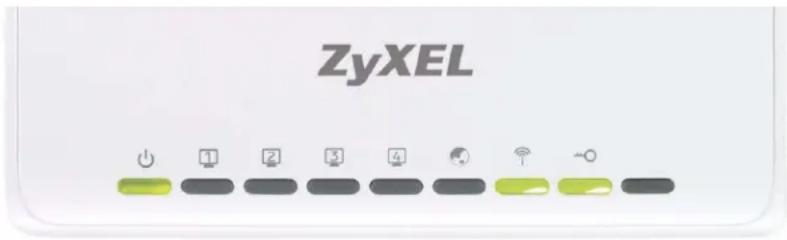
The following table describes the LEDs and the WPS button.
Table 1 Front Panel LEDs and WPS Button
| LED COLOR STATUS DESCRIPTION | ||
| POWER Green On | The NBG-416N is receiving power and functioning properly. | |
| Off The NBG-416N is not receiving power. | ||
Table 1 Front Panel LEDs and WPS Button (continued)
| LED COLOR STATUS DESCRIPTION | |||
LAN 1-4 Green On  | On The NBG-416N has a connection. | successful 10/100MB LAN connection. | |
| Blinking The NBG-416N is sending/receiving data through the LAN. | |||
| Off The LAN is not connected. | |||
| WAN Green On [0246] | The NBG-416N has a successful 10/100MB WAN connection. | ||
| Blinking The NBG-416N is sending/receiving data through the WAN. | |||
| Off The WAN connection is not ready, or has failed. | |||
WLAN Green On  | The NBG-416N is ready, but is not sending/receiving data through the wireless LAN. | ||
| WPS Green On W[6WSY] | WPS status is configured. | ||
The WPS Button
2.1 Overview
Your NBG-416N supports WiFi Protected Setup (WPS), which is an easy way to set up a secure wireless network. WPS is an industry standard specification, defined by the WiFi Alliance.
WPS allows you to quickly set up a wireless network with strong security, without having to configure security settings manually. Each WPS connection works between two devices. Both devices must support WPS (check each device's documentation to make sure).
Depending on the devices you have, you can either press a button (on the device itself, or in its configuration utility) or enter a PIN (a unique Personal Identification Number that allows one device to authenticate the other) in each of the two devices. When WPS is activated on a device, it has two minutes to find another device that also has WPS activated. Then, the two devices connect and set up a secure network by themselves.
For more information on using WPS, see Section 6.2.1 on page 57.
The Web Configurator
3.1 Overview
This chapter describes how to access the NBG-416N Web Configurator and provides an overview of its screens.
The Web Configurator is an HTML-based management interface that allows easy setup and management of the NBG-416N via Internet browser. Use Internet Explorer 6.0 and later versions, Mozilla Firefox 3 and later versions, or Safari 2.0 and later versions. The recommended screen resolution is 1024 by 768 pixels.
In order to use the Web Configurator you need to allow:
- Web browser pop-up windows from your device. Web pop-up blocking is enabled by default in Windows XP SP (Service Pack) 2.
- JavaScript (enabled by default).
- Java permissions (enabled by default).
Refer to Chapter 20 Troubleshooting to see how to make sure these functions are allowed in Internet Explorer.
3.2 Accessing the Web Configurator
1 Make sure your NBG-416N hardware is properly connected and prepare your computer or computer network to connect to the NBG-416N (refer to the Quick Start Guide).
2 Launch your web browser.
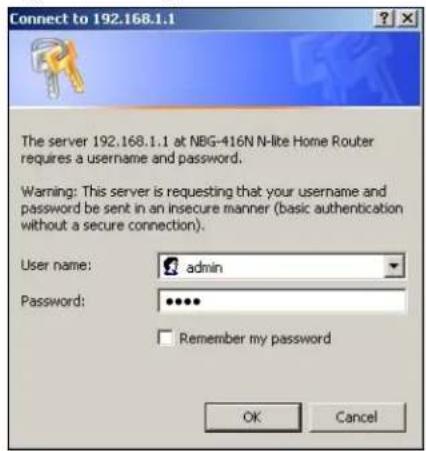
3 Type "http://192.168.1.1" as the website address.
Your computer must be in the same subnet in order to access this website address.
4 Type admin (default) as the user name and 1234 (default) as the password and click OK.
Figure 3 Login Screen
5 You should see a screen asking you to change your password (highly recommended) as shown next. Type a new password (and retype it to confirm) and click Apply or click Ignore.
Figure 4 Change Password Screen
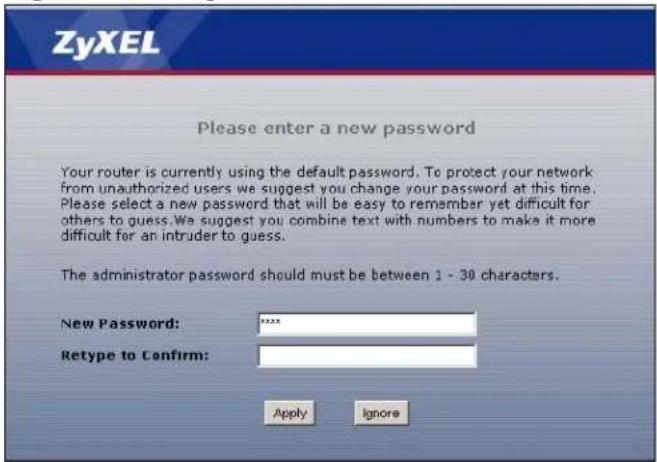
Note: The management session automatically times out when the time period set in the Administrator Inactivity Timer field expires (default five minutes). Simply log back into the NBG-416N if this happens.
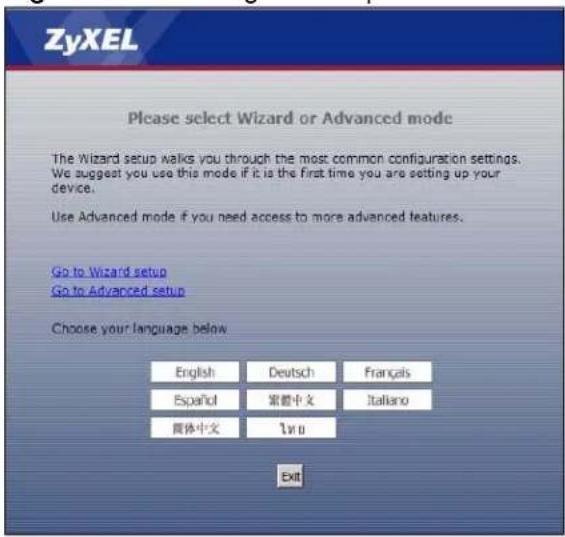
6 Select the setup mode you want to use.
- Click Go to Wizard Setup to use the Configuration Wizard for basic Internet and Wireless setup.
- Click Go to Advanced Setup to view and configure all the NBG-416N's settings.
- Select a language to go to the basic Web Configurator in that language. To change to the advanced configurator see Chapter 19 on page 143.
Figure 5 Selecting the setup mode
3.3 Resetting the NBG-416N
If you forget your password or IP address, or you cannot access the Web Configurator, you will need to use the RESET button at the back of the NBG-416N to reload the factory-default configuration file. This means that you will lose all configurations that you had previously saved, the username will be reset to admin and password will be reset to 1234. The IP address will be reset to "192.168.1.1".
3.3.1 Using the RESET Button
1 Make sure the power LED is on.
2 Press the RESET button for longer than 1 second to restart/reboot the NBG-416N.
3 Press the RESET button for longer than five seconds to set the NBG-416N back to its factory-default configurations.
3.4 Navigating the Web Configurator
The following summarizes how to navigate the Web Configurator from the Status screen in Router Mode and AP Mode.
3.5 Status Screen (Router Mode)
Click on Status. The screen below shows the status screen in Router Mode.
(For information on the status screen in AP Mode see Chapter 5 on page 50.)
Figure 6 Status Screen (Router Mode)
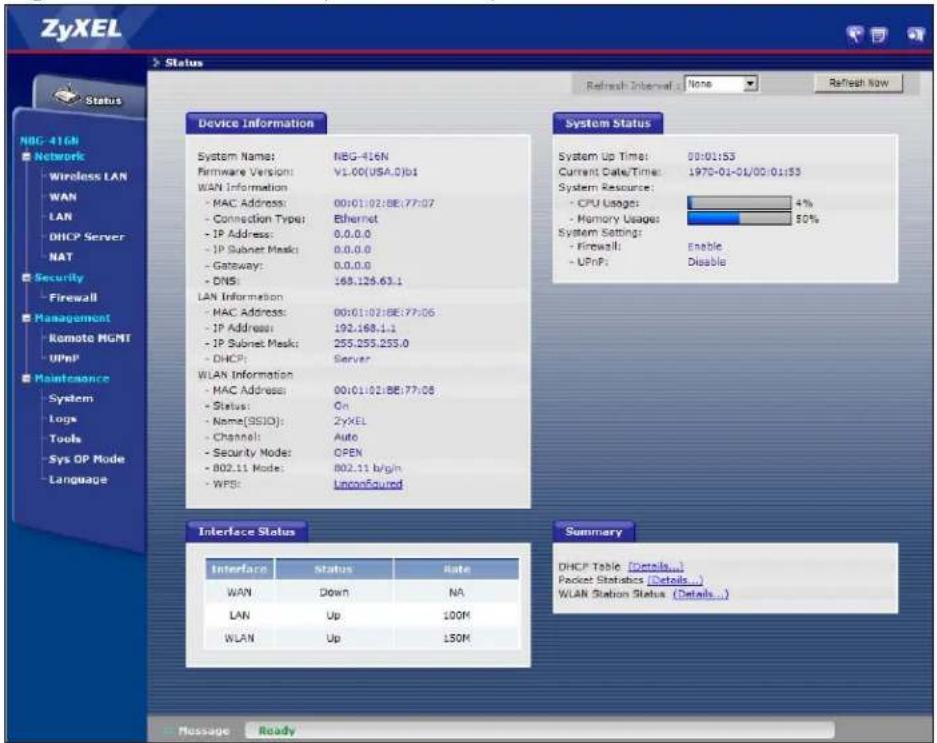
The following table describes the icons shown in the Status screen.
Table 2 Status Screen Icon Key
| ICON DESCRIPTION | |
 | Click this icon to open the setup wizard. |
 | Click this icon to view copyright and a link for related product information. |
 | Click this icon at any time to exit the Web Configurator. |
 | Select a number of seconds or None from the drop-down list box to refresh all screen statistics automatically at the end of every time interval or to not refresh the screen statistics. |
 | Click this button to refresh the status screen statistics. |
The following table describes the labels shown in the Status screen.
Table 3 Web Configurator Status Screen (Router Mode)
| LABEL DESCRIPTION | |
| Device Information | |
| System Name | This is the System Name you enter in the Maintenance > System > General screen. It is for identification purposes. |
| Firmware Version This is the current firmware version of the NBG-416N. | |
| WAN Information | |
| - MAC Address This shows the WAN Ethernet adapter MAC Address of your device. | |
| - Connection Type This shows the current connection type. | |
| - IP Address This shows the WAN port's IP address. | |
| - IP Subnet Mask This shows the WAN port's subnet mask. | |
| - Gateway This shows the WAN port's gateway IP address. | |
| - DNS This shows the IP address of your DNS server. | |
| LAN Information | |
| - MAC Address This shows the LAN Ethernet adapter MAC Address of your device. | |
| - IP Address This shows the LAN port's IP address. | |
| - IP Subnet Mask This shows the LAN port's subnet mask. | |
| - DHCP | This shows the LAN port's DHCP role - Server or None. |
| WLAN Information | |
| - MAC Address This shows the wireless adapter MAC Address of your device. | |
| - Status | This shows the current status of the Wireless LAN - On, Off or Off by scheduler. |
| - Name (SSID) | This shows a descriptive name used to identify the NBG-416N in the wireless LAN. |
| - Channel | This shows the channel number which you select manually. |
| - Security Mode | This shows the level of wireless security the NBG-416N is using. |
| - 802.11 Mode This shows the wireless standard. | |
| - WPS | This displays Configured when the WPS has been set up.This displays Unconfigured if the WPS has not been set up.Click the status to display Network > Wireless LAN > WPS screen. |
| System Status | |
| System Up Time | This is the total time the NBG-416N has been on. |
| Current Date/Time | This field displays your NBG-416N's present date and time. |
| System Resource | |
| - CPU Usage | This displays what percentage of the NBG-416N's processing ability is currently used. When this percentage is close to 100%, the NBG-416N is running at full load, and the throughput is not going to improve anymore. If you want some applications to have more throughput, you should turn off other applications. |
| - Memory Usage | This shows what percentage of the heap memory the NBG-416N is using. |
| System Setting | |
| - Firewall This shows wh | whether the firewall is active or not. |
| - UPnP This shows wh | her UPnP is active or not. |
| Interface Status | |
| Interface | This displays the NBG-416N port types. The port types are: WAN, LAN and WLAN. |
| Status | For the LAN and WAN ports, this field displays Down (line is down) or Up (line is up or connected).For the WLAN, it displays Up when the WLAN is enabled or Down when the WLAN is disabled. |
| Rate | For the LAN ports, this displays the port speed and duplex setting or N/ A when the line is disconnected.For the WAN port, it displays the port speed and duplex setting if you're using Ethernet encapsulation and Idle (line (ppp) idle), Dial (starting to trigger a call) and Drop (dropping a call) if you're using PPPoE or PPTP encapsulation. This field displays N/ A when the line is disconnected.For the WLAN, it displays the maximum transmission rate when the WLAN is enabled and N/ A when the WLAN is disabled. |
| Summary | |
| DHCP Table Use this screen to view current DHCP client information. | |
| Packet Statistics Use this screen to view port status and packet specific statistics. | |
| WLAN Station Status Use this screen to view the wireless stations that are currently associated to the NBG-416N. | |
3.5.1 Navigation Panel
Use the sub-menus on the navigation panel to configure NBG-416N features.
The following table describes the sub-menus.
Table 4 Screens Summary
| LINK TAB FUNCTION | ||||
| Status This screen shows the NBG-416N's general device, system and interface status information. Use this screen to access the wizard, and summary statistics tables. | ||||
| Network | ||||
| LINK | TAB | FUNCTION | ||
| Wireless LAN | General Use this screen to configure wireless LAN. | |||
| MAC Filter Use the MAC filter screen to configure the NBG-416N to block access to devices or block the devices from accessing the NBG-416N. | ||||
| Advanced This screen allows you to configure advanced wireless settings. | ||||
| QoS Use this screen to configure Wi-Fi Multimedia Quality of Service (WMM QoS). WMM QoS allows you to prioritize wireless traffic according to the delivery requirements of individual services. | ||||
| WPS Use this screen to configure WPS. | ||||
| WPS Station Use this screen to add a wireless station using WPS. | ||||
| Scheduling Use this screen to schedule the times the Wireless LAN is enabled. | ||||
| WAN Internet Connection | This screen allows you to configure ISP parameters, WAN IP address assignment, DNS servers and the WAN MAC address. | |||
| LAN IP Use this screen to configure LAN IP address and subnet mask. | ||||
| DHCP Server | General Use this screen to enable the NBG-416N's DHCP server. | |||
| Advanced Use this screen to assign IP addresses to specific individual computers based on their MAC addresses and to have DNS servers assigned by the DHCP server. | ||||
| Client List Use this screen to view current DHCP client information and to always assign an IP address to a MAC address (and host name). | ||||
| NAT General Use this screen to enable NAT. | ||||
| Application | Use this screen to configure servers behind the NBG-416N. | |||
| Security | ||||
| Firewall | General | Use this screen to activate/deactivate the firewall. | ||
| Services | Use this screen to enable or disable ICMP and VPN passthrough features. | |||
| Management | ||||
| Remote MGMT | WWW | Use this screen to configure through which interface(s) and from which IP address(es) users can use HTTP to manage the NBG-416N. | ||
| UPnP | General | Use this screen to enable UPnP on the NBG-416N. | ||
| Maintenance | ||||
| System | General | Use this screen to view and change administrative settings such as system and domain names, password and inactivity timer. | ||
| Time Setting | Use this screen to change your NBG-416N's time and date. | |||
| Logs | View Log | Use this screen to view the logs for the categories that you selected. | ||
| LINK TAB FUNCTION | ||||
| Tools Firmware | ware Use this screen to upload firmware to your NBG-416N. | |||
| Configuration Use this screen to backup and restore the configuration or reset the factory defaults to your NBG-416N. | ||||
| Restart This screen allows you to reboot the NBG-416N without turning the power off. | ||||
| Sys OP Mode | General This screen allows you to select whether your device acts as a Router or a Access Point. | |||
| Language Language | This screen allows you to select the language you prefer. | |||
3.5.2 Summary: DHCP Table
DHCP (Dynamic Host Configuration Protocol, RFC 2131 and RFC 2132) allows individual clients to obtain TCP/IP configuration at start-up from a server. You can configure the NBG-416N's LAN as a DHCP server or disable it. When configured as a server, the NBG-416N provides the TCP/IP configuration for the clients. If DHCP service is disabled, you must have another DHCP server on that network, or else the computer must be manually configured.
Click the DHCP Table (Details...) hyperlink in the Status screen. Read-only information here relates to your DHCP status. The DHCP table shows current DHCP client information (including IP Address, Host Name and MAC Address) of all network clients using the NBG-416N's DHCP server.
Figure 7 Summary: DHCP Table
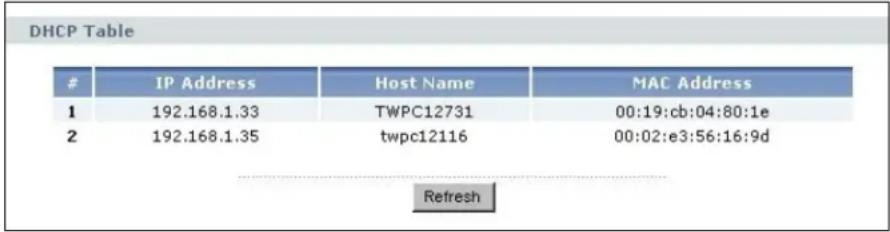
The following table describes the labels in this screen.
Table 5 Summary: DHCP Table
| LABEL DESCRIPTION | |
| # | This is the index number of the host computer. |
| IP Address | This field displays the IP address relative to the # field listed above. |
| Host Name | This field displays the computer host name. |
| MAC Address | This field shows the MAC address of the computer with the name in the Host Name field.Every Ethernet device has a unique MAC (Media Access Control) address which uniquely identifies a device. The MAC address is assigned at the factory and consists of six pairs of hexadecimal characters, for example, 00:A0:C5:00:00:02. |
| Refresh Click | Refresh to renew the screen. |
3.5.3 Summary: Packet Statistics
Click the Packet Statistics (Details...) hyperlink in the Status screen. Read-only information here includes port status, packet specific statistics and the "system up time". The Poll Interval(s) field is configurable and is used for refreshing the screen.
Figure 8 Summary: Packet Statistics
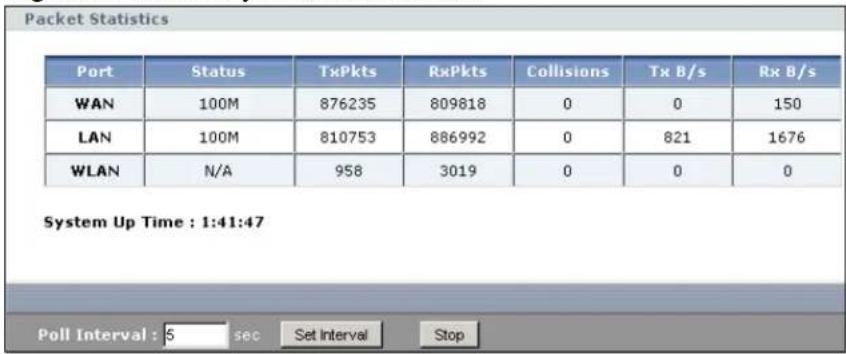
The following table describes the labels in this screen.
Table 6 Summary: Packet Statistics
| LABEL DESCRIPTION | |
| Port This is the NBG-416N's port type. | |
| Status For the LAN | ports, this displays the port speed and duplex setting orDownwhen the line is disconnected.For the WAN port, it displays the port speed and duplex setting if you're using Ethernet encapsulation andIdle(line (ppp) idle),Dial(starting to trigger a call) andDrop(dropping a call) if you're using PPPoE or PPTP encapsulation. This field displaysDownwhen the line is disconnected.For the WLAN, it displays the maximum transmission rate when the WLAN is enabled andDownwhen the WLAN is disabled. |
| TxPkts This is the | number of transmitted packets on this port. |
| RxPkts This is the | number of received packets on this port. |
| Collisions This is the | number of collisions on this port. |
| Tx B/s | This displays the transmission speed in bytes per second on this port. |
| Rx B/s This displays the reception speed in bytes per second on this port. | |
| System Up Time This is the total time the NBG-416N has been on. | |
| Poll Interval(s) Enter the time interval for refreshing statistics in this field. | |
| Set Interval | Click this button to apply the new poll interval you entered in the Poll Interval(s) field. |
| Stop | Click Stop to stop refreshing statistics. |
3.5.4 Summary: WLAN Station Status
Click the WLAN Station Status (Details...) hyperlink in the Status screen. View the wireless stations that are currently associated to the NBG-416N in the
Association List. Association means that a wireless client (for example, your network or computer with a wireless network card) has connected successfully to the AP (or wireless router) using the same SSID, channel and security settings.
Figure 9 Summary: Wireless Association List
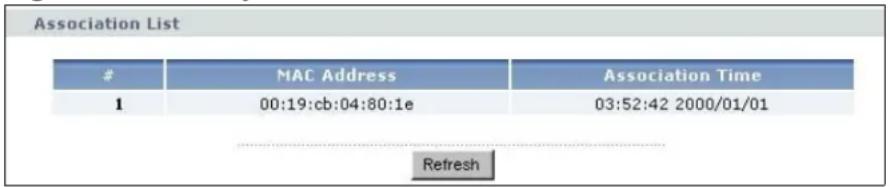
The following table describes the labels in this screen.
Table 7 Summary: Wireless Association List
| LABEL DESCRIPTION | |
| # This is the index | number of an associated wireless station. |
| MAC Address This | field displays the MAC address of an associated wireless station. |
| Association Time | This field displays the time a wireless station first associated with the NBG-416N's WLAN network. |
| Refresh | Click Refresh to reload the list. |
Connection Wizard
4.1 Wizard Setup
This chapter provides information on the wizard setup screens in the Web Configurator.
The Web Configurator's wizard setup helps you configure your device to access the Internet. Refer to your ISP (Internet Service Provider) checklist in the Quick Start Guide to know what to enter in each field. Leave a field blank if you don't have that information.
1 After you access the NBG-416N Web Configurator, click Go to Wizard setup.
You can click Go to Advanced setup to skip this wizard setup and configure basic or advanced features accordingly.
Figure 10 Select Wizard or Advanced Mode
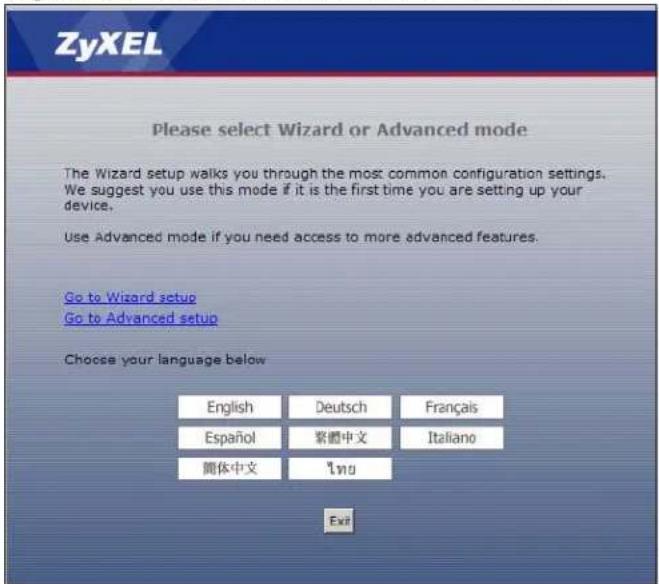
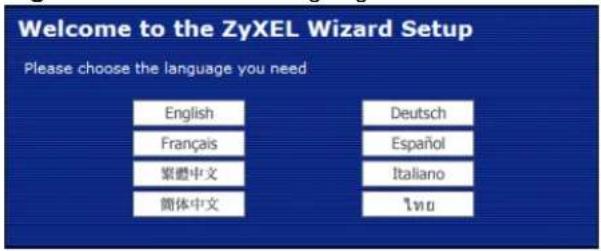
2 Choose a language by clicking on the language's button. The screen will update. Click the Next button to proceed to the next screen.
Figure 11 Select a Language
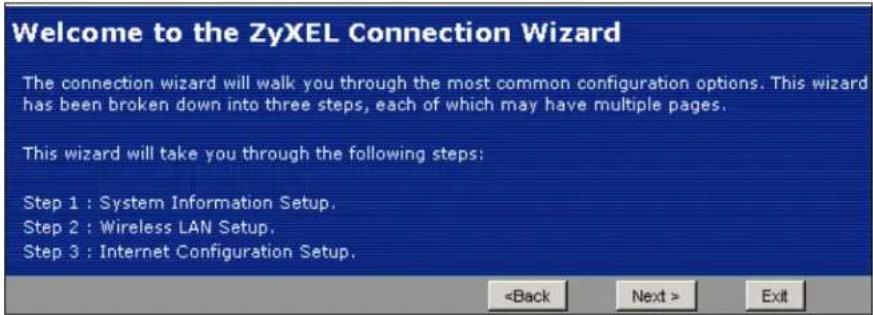
3 Read the on-screen information and click Next.
Figure 12 Welcome to the Connection Wizard
4.2 Connection Wizard: STEP 1: System Information
System Information contains administrative and system-related information.
4.2.1 System Name
System Name is for identification purposes. However, because some ISPs check this name you should enter your computer's "Computer Name".
- In Windows 95/98 click Start > Settings > Control Panel > Network. Click the Identification tab, note the entry for the Computer Name field and enter it as the System Name.
- In Windows 2000, click Start > Settings and Control Panel and then double-click System. Click the Network Identification tab and then the Properties button. Note the entry for the Computer name field and enter it as the System Name.
- In Windows XP, click Start > My Computer > View system information and then click the Computer Name tab. Note the entry in the Full computer name field and enter it as the NBG-416N System Name.
4.2.2 Domain Name
The Domain Name entry is what is propagated to the DHCP clients on the LAN. If you leave this blank, the domain name obtained by DHCP from the ISP is used. While you must enter the host name (System Name) on each individual computer, the domain name can be assigned from the NBG-416N via DHCP.
Click Next to configure the NBG-416N for Internet access.
Figure 13 Wizard Step 1: System Information
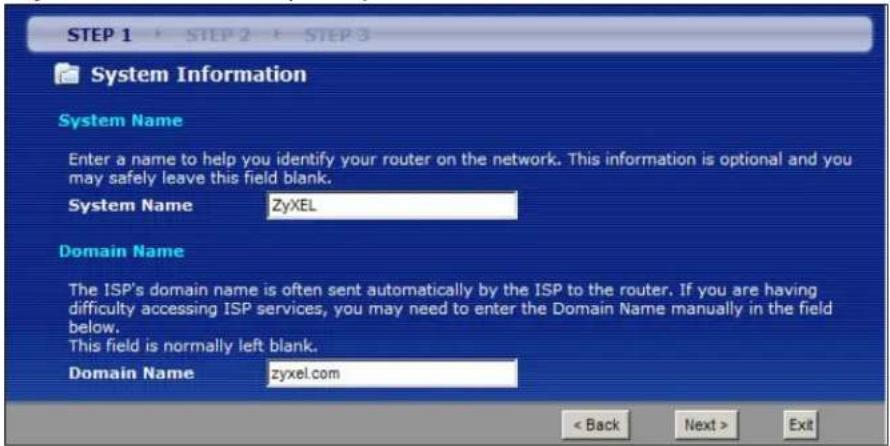
The following table describes the labels in this screen.
Table 8 Wizard Step 1: System Information
| LABEL DESCRIPTION | |
| System Name | System Name is a unique name to identify the NBG-416N in an Ethernet network. Enter a descriptive name. This name can be up to 30 alphanumeric characters long. Spaces are not allowed, but dashes "-" and underscores "-" are accepted. |
| Domain Name | Type the domain name (if you know it) here. If you leave this field blank, the ISP may assign a domain name via DHCP. The domain name entered by you is given priority over the ISP assigned domain name. |
| Back | Click Back to display the previous screen. |
| Next | Click Next to proceed to the next screen. |
| Exit | Click Exit to close the wizard screen without saving. |
4.3 Connection Wizard: STEP 2: Wireless LAN
Set up your wireless LAN using the following screen.
Figure 14 Wizard Step 2: Wireless LAN
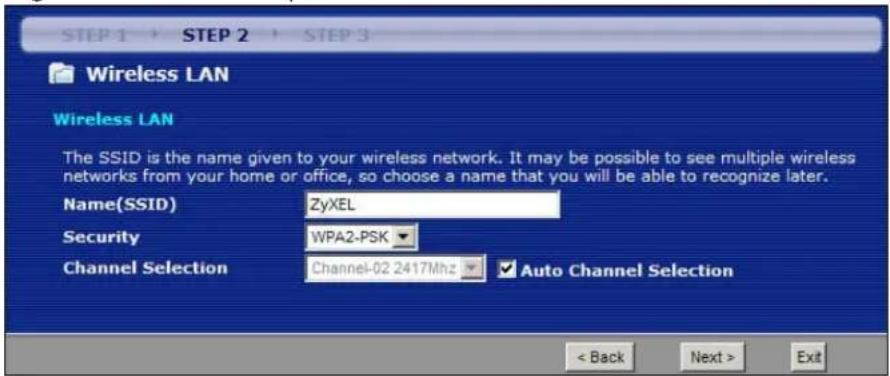
The following table describes the labels in this screen.
Table 9 Wizard Step 2: Wireless LAN
| LABEL DESCRIPTION | |
| Name (SSID) | Enter a descriptive name (up to 32 printable 7-bit ASCII characters) for the wireless LAN.If you change this field on the NBG-416N, make sure all wireless stations use the same SSID in order to access the network. |
| Security | Select a Security level from the drop-down list box.Choose Auto (WPA2-PSK) to have the NBG-416N generate a pre-shared key automatically. After you click Next a screen pops up displaying the generated pre-shared key. Write down the key for use later when connecting other wireless devices to your network. Click OK to continue.Choose None to have no wireless LAN security configured. If you do not enable any wireless security on your NBG-416N, your network is accessible to any wireless networking device that is within range. If you choose this option, skip directly to Section 4.4 on page 39.Choose Extend (WPA-PSK or WPA2-PSK) security to configure a Pre-Shared Key. Choose this option only if your wireless clients support WPA-PSK or WPA2-PSK respectively. If you choose this option, skip directly to Section 4.3.1 on page 39. |
| Channel Selection | The range of radio frequencies used by IEEE 802.11b/g/n wireless devices is called a channel. The device will automatically select the channel with the least interference. |
| Back | Click Back to display the previous screen. |
| Next | Click Next to proceed to the next screen. |
| Exit | Click Exit to close the wizard screen without saving. |
Note: The wireless stations and NBG-416N must use the same SSID, channel ID, WPA-PSK (if WPA-PSK is enabled) or WPA2-PSK (if WPA2-PSK is enabled) for wireless communication.
4.3.1 Extend (WPA-PSK or WPA2-PSK) Security
Choose Extend (WPA-PSK) or Extend (WPA2-PSK) security in the Wireless LAN setup screen to set up a Pre-Shared Key.
Figure 15 Wizard Step 2: Extend (WPA-PSK or WPA2-PSK) Security
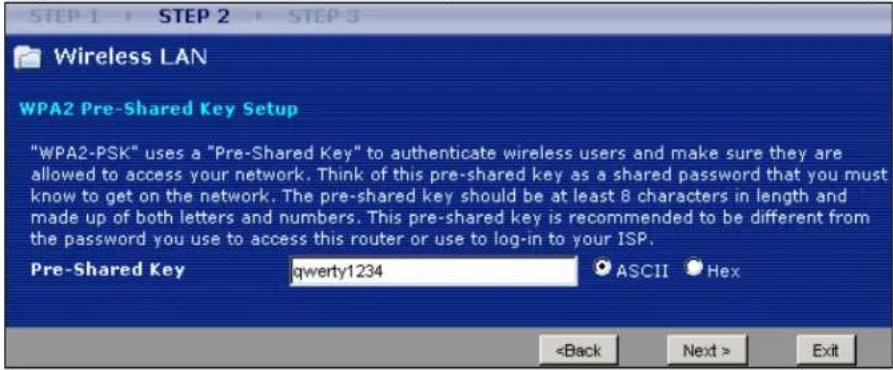
The following table describes the labels in this screen.
Table 10 Wizard Step 2: Extend (WPA-PSK or WPA2-PSK) Security
| LABEL DESCRIPTION | |
| Pre-Shared Key | Type from 8 to 63 case-sensitive ASCII or HEX characters. You can set up the most secure wireless connection by configuring WPA in the wireless LAN screens. You need to configure an authentication server to do this. |
| Back | Click Back to display the previous screen. |
| Next | Click Next to proceed to the next screen. |
| Exit | Click Exit to close the wizard screen without saving. |
4.4 Connection Wizard: STEP 3: Internet Configuration
The NBG-416N offers three Internet connection types. They are Ethernet, PPP over Ethernet or PPTP. The wizard attempts to detect which WAN connection type you are using. If the wizard does not detect a connection type, you must select one from the drop-down list box. Check with your ISP to make sure you use the correct type.
This wizard screen varies according to the connection type that you select.
Figure 16 Wizard Step 3: ISP Parameters.
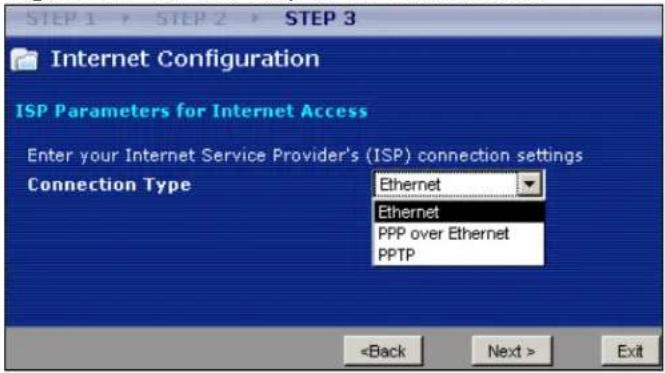
The following table describes the labels in this screen,
Table 11 Wizard Step 3: ISP Parameters
| CONNECTION TYPE | DESCRIPTION |
| Ethernet | Select the Ethernet option when the WAN port is used as a regular Ethernet. |
| PPPoE | Select the PPP over Ethernet option for a dial-up connection. If your ISP gave you an IP address and/or subnet mask, then select PPTP. |
| PPTP Select the PPTP | option for a dial-up connection. |
4.4.1 Ethernet Connection
Choose Ethernet when the WAN port is used as a regular Ethernet. Continue to Section 4.4.4 on page 43.
Figure 17 Wizard Step 3: Ethernet Connection
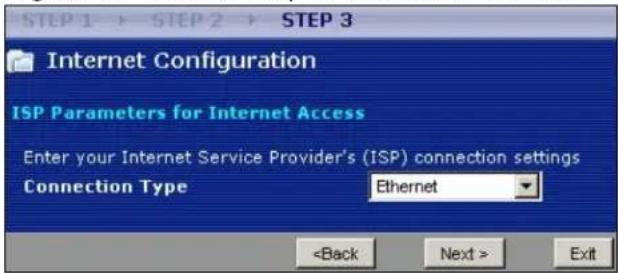
4.4.2 PPPoE Connection
Point-to-Point Protocol over Ethernet (PPPoE) functions as a dial-up connection. PPPoE is an IETF (Internet Engineering Task Force) standard specifying how a host
personal computer interacts with a broadband modem (for example DSL, cable, wireless, etc.) to achieve access to high-speed data networks.
For the service provider, PPPoE offers an access and authentication method that works with existing access control systems (for instance, RADIUS).
One of the benefits of PPPoE is the ability to let end users access one of multiple network services, a function known as dynamic service selection. This enables the service provider to easily create and offer new IP services for specific users.
Operationally, PPPoE saves significant effort for both the subscriber and the ISP/ carrier, as it requires no specific configuration of the broadband modem at the subscriber's site.
By implementing PPPoE directly on the NBG-416N (rather than individual computers), the computers on the LAN do not need PPPoE software installed, since the NBG-416N does that part of the task. Furthermore, with NAT, all of the LAN's computers will have Internet access.
Figure 18 Wizard Step 3: PPPoE Connection
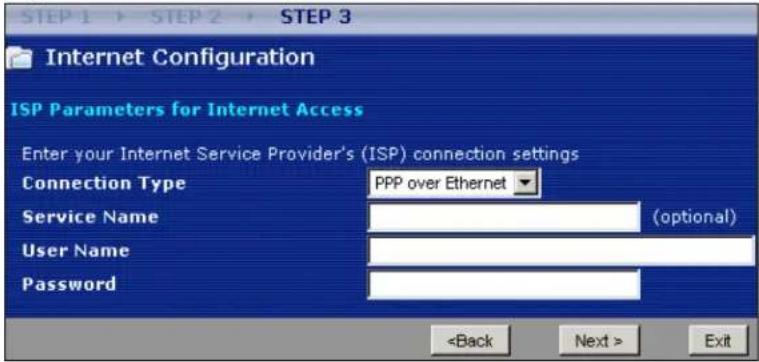
The following table describes the labels in this screen.
Table 12 Wizard Step 3: PPPoE Connection
| LABEL DESCRIPTION | |
| ISP Parameter for Internet Access | |
| Connection Type | Select the PPP over Ethernet option for a dial-up connection. |
| Service Name Type | the name of your service provider. |
| User Name Type | the user name given to you by your ISP. |
| Password Type | the password associated with the user name above. |
| Back | Click Back to return to the previous screen. |
| Next Click Next | to continue. |
| Exit | Click Exit to close the wizard screen without saving. |
4.4.3 PPTP Connection
Point-to-Point Tunneling Protocol (PPTP) is a network protocol that enables transfers of data from a remote client to a private server, creating a Virtual Private Network (VPN) using TCP/IP-based networks.
PPTP supports on-demand, multi-protocol, and virtual private networking over public networks, such as the Internet.
Refer to the appendix for more information on PPTP.
Note: The NBG-416N supports one PPTP server connection at any given time.
Figure 19 Wizard Step 3: PPTP Connection
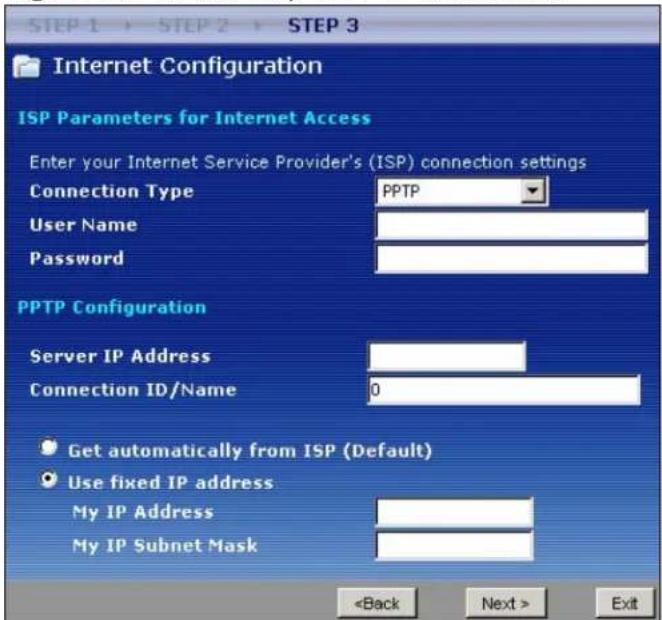
The following table describes the fields in this screen
Table 13 Wizard Step 3: PPTP Connection
| LABEL DESCRIPTION | |
| ISP Parameters for Internet Access | |
| Connection Type | Select PPTP from the drop-down list box. To configure a PPTP client, you must configure the User Name and Password fields for a PPP connection and the PPTP parameters for a PPTP connection. |
| User Name Type | the user name given to you by your ISP. |
| Password Type | the password associated with the User Name above. |
| PPTP Configuration | |
| Server IP Address | Type the IP address of the PPTP server. |
| Connection ID/Name | Enter the connection ID or connection name in this field. It must follow the "c:id" and "n:name" format. For example, C:12 or N:My ISP.This field is optional and depends on the requirements of your ISP. |
| Get automatically from ISP | Select this radio button if your ISP did not assign you a fixed IP address. |
| Use fixed IP address | Select this radio button, provided by your ISP to give the NBG-416N a fixed, unique IP address. |
| My IP Address | Type the (static) IP address assigned to you by your ISP. |
| My IP Subnet Mask | Type the subnet mask assigned to you by your ISP (if given). |
| Back | Click Back to return to the previous screen. |
| Next Click Next to continue. | |
| Exit | Click Exit to close the wizard screen without saving. |
4.4.4 Your IP Address
The following wizard screen allows you to assign a fixed IP address or give the NBG-416N an automatically assigned IP address depending on your ISP.
Figure 20 Wizard Step 3: Your IP Address
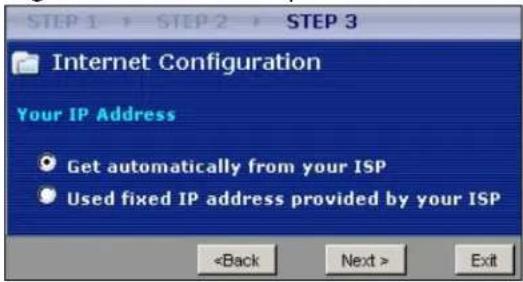
The following table describes the labels in this screen
Table 14 Wizard Step 3: Your IP Address
| LABEL DESCRIPTION | |
| Get automatically from your ISP | Select this option If your ISP did not assign you a fixed IP address. This is the default selection. If you choose this option, skip directly to Section 4.4.9 on page 47. |
| Use fixed IP address provided by your ISP | Select this option if you were given IP address and/or DNS server settings by the ISP. The fixed IP address should be in the same subnet as your broadband modem or router. |
| Back | Click Back to return to the previous screen. |
| Next Click Next to continue. | |
| Exit | Click Exit to close the wizard screen without saving. |
4.4.5 WAN IP Address Assignment
Every computer on the Internet must have a unique IP address. If your networks are isolated from the Internet, for instance, only between your two branch offices, you can assign any IP addresses to the hosts without problems. However, the Internet Assigned Numbers Authority (IANA) has reserved the following three blocks of IP addresses specifically for private networks.
Table 15 Private IP Address Ranges
| 10.0.0.0 - 10.255.255.255 |
| 172.16.0.0 - 172.31.255.255 |
| 192.168.0.0 - 192.168.255.255 |
You can obtain your IP address from the IANA, from an ISP or have it assigned by a private network. If you belong to a small organization and your Internet access is through an ISP, the ISP can provide you with the Internet addresses for your local networks. On the other hand, if you are part of a much larger organization, you should consult your network administrator for the appropriate IP addresses.
Note: Regardless of your particular situation, do not create an arbitrary IP address; always follow the guidelines above. For more information on address assignment, please refer to RFC 1597, Address Allocation for Private Internets and RFC 1466, Guidelines for Management of IP Address Space.
4.4.6 IP Address and Subnet Mask
Similar to the way houses on a street share a common street name, so too do computers on a LAN share one common network number.
Where you obtain your network number depends on your particular situation. If the ISP or your network administrator assigns you a block of registered IP addresses, follow their instructions in selecting the IP addresses and the subnet mask.
If the ISP did not explicitly give you an IP network number, then most likely you have a single user account and the ISP will assign you a dynamic IP address when the connection is established. The Internet Assigned Number Authority (IANA) reserved this block of addresses specifically for private use; please do not use any other number unless you are told otherwise. Let's say you select 192.168.1.0 as the network number; which covers 254 individual addresses, from 192.168.1.1 to 192.168.1.254 (zero and 255 are reserved). In other words, the first three numbers specify the network number while the last number identifies an individual computer on that network.
Once you have decided on the network number, pick an IP address that is easy to remember, for instance, 192.168.1.1, for your NBG-416N, but make sure that no other device on your network is using that IP address.
The subnet mask specifies the network number portion of an IP address. Your NBG-416N will compute the subnet mask automatically based on the IP address that you entered. You don't need to change the subnet mask computed by the NBG-416N unless you are instructed to do otherwise.
4.4.7 DNS Server Address Assignment
Use DNS (Domain Name System) to map a domain name to its corresponding IP address and vice versa, for instance, the IP address of www.zyxel.com is 204.217.0.2. The DNS server is extremely important because without it, you must know the IP address of a computer before you can access it.
The NBG-416N can get the DNS server addresses in the following ways.
1 The ISP tells you the DNS server addresses, usually in the form of an information sheet, when you sign up. If your ISP gives you DNS server addresses, enter them in the DNS Server fields in the Wizard and/or WAN > Internet Connection screen.
2 If the ISP did not give you DNS server information, leave the DNS Server fields set to 0.0.0.0 in the Wizard screen and/or set to From ISP in the WAN > Internet Connection screen for the ISP to dynamically assign the DNS server IP addresses.
4.4.8 WAN IP and DNS Server Address Assignment
The following wizard screen allows you to assign a fixed WAN IP address and DNS server addresses.
Figure 21 Wizard Step 3: WAN IP and DNS Server Addresses
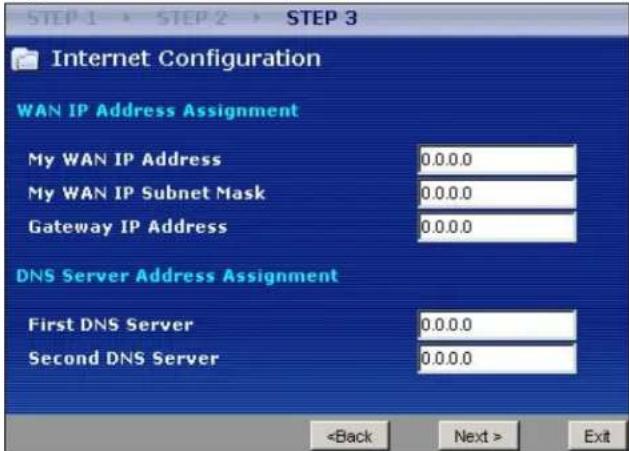
The following table describes the labels in this screen
Table 16 Wizard Step 3: WAN IP and DNS Server Addresses
| LABEL DESCRIPTION | |
| WAN IP Address Assignment | |
| My WAN IP Address Enter your WAN IP address in this field. The WAN IP address should be in the same subnet as your DSL/Cable modem or router. | |
| My WAN IP Subnet Mask | Enter the IP subnet mask in this field. |
| Gateway IP Address Enter the gateway IP address in this field. | |
| System DNS Server Address Assignment (if applicable)DNS (Domain Name System) is for mapping a domain name to its corresponding IP address and vice versa. The DNS server is extremely important because without it, you must know the IP address of a computer before you can access it. The NBG-416N uses a system DNS server (in the order you specify here) to resolve domain names for DDNS and the time server. | |
| First DNS ServerSecond DNS Server | Enter the DNS server's IP address in the fields provided.If you do not configure a system DNS server, you must use IP addresses when configuring DDNS and the time server. |
| Back | Click Back to return to the previous screen. |
| Next Click Next to continue. | |
| Exit | Click Exit to close the wizard screen without saving. |
4.4.9 WAN MAC Address
Every Ethernet device has a unique MAC (Media Access Control) address. The MAC address is assigned at the factory and consists of six pairs of hexadecimal characters, for example, 00:A0:C5:00:00:02.
Table 17 Example of Network Properties for LAN Servers with Fixed IP Addresses
| Choose an IP address 192.168.1.2-192.168.1.32; 192.168.1.65-192.168.1.254. |
| Subnet mask 255.255.255.0 |
| Gateway (or default route) 192.168.1.1(NBG-416N LAN IP) |
This screen allows users to configure the WAN port's MAC address by either using the NBG-416N's MAC address, copying the MAC address from a computer on your LAN or manually entering a MAC address. Once it is successfully configured, the address will be copied to configuration file. It is advisable to clone the MAC address from a computer on your LAN even if your ISP does not presently require MAC address authentication.
Figure 22 Wizard Step 3: WAN MAC Address
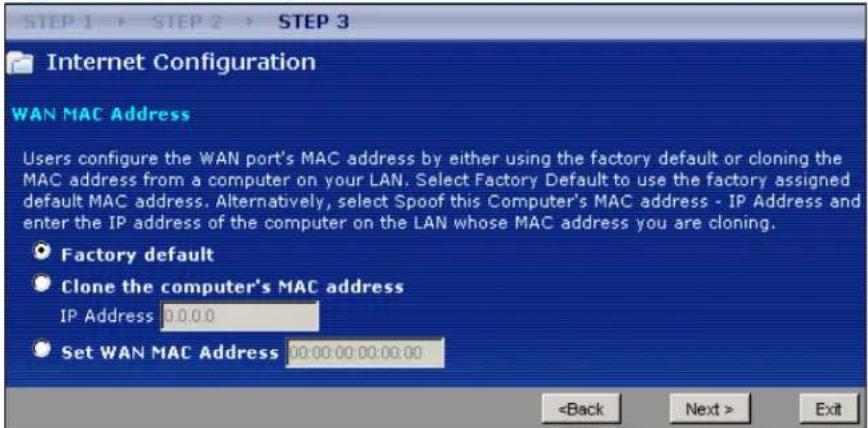
The following table describes the fields in this screen.
Table 18 Wizard Step 3: WAN MAC Address
| LABEL DESCRIPTION | |
| Factory Default | Select Factory Default to use the factory assigned default MAC address. |
| Clone the computer's MAC address | Select this option and enter the IP address of the computer on the LAN whose MAC you are cloning. It is advisable to clone the MAC address from a computer on your LAN even if your ISP does not presently require MAC address authentication. |
| Set WAN MAC Address | Select this option and enter the MAC address you want to use. |
| Back | Click Back to return to the previous screen. |
| Next Click Next to | continue. |
| Exit | Click Exit to close the wizard screen without saving. |
4.5 Connection Wizard Complete
Click Finish to complete the wizard setup.
Figure 23 Connection Wizard Complete
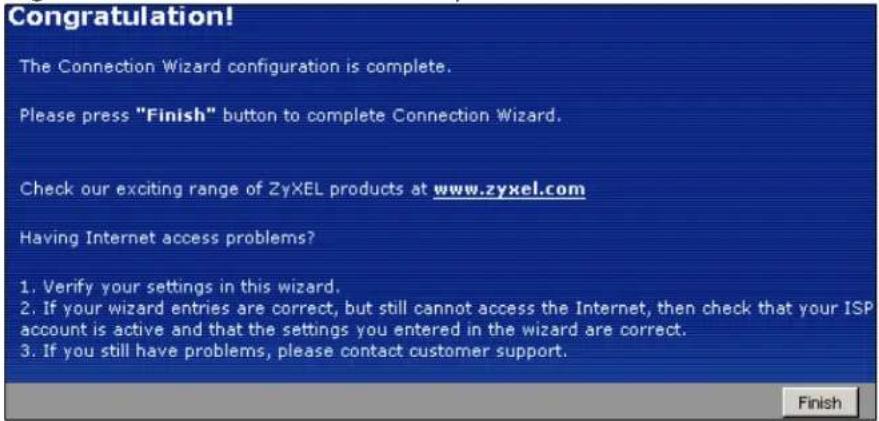
Well done! You have successfully set up your NBG-416N to operate on your network and access the Internet.
AP Mode
5.1 Overview
This chapter discusses how to configure settings while your NBG-416N is set to AP Mode. Many screens that are available in Router Mode are not available in AP Mode.
Note: See Chapter 6 on page 57 for an example of setting up a wireless network in AP mode.
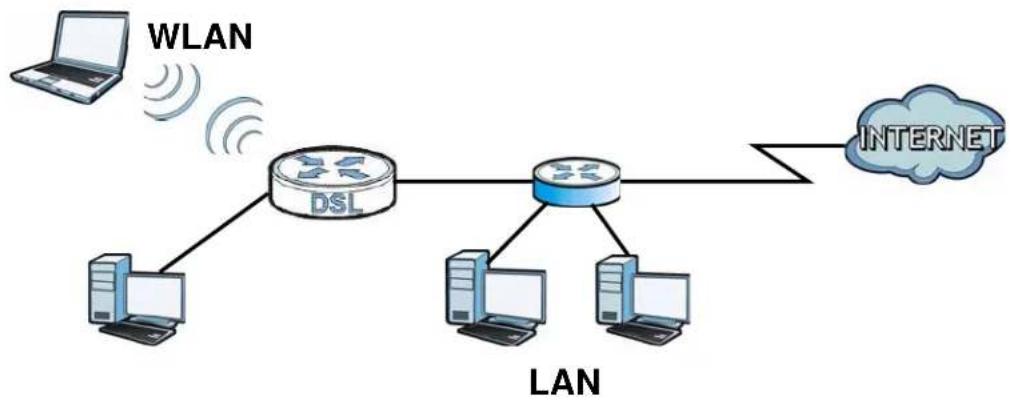
Use your NBG-416N as an AP if you already have a router or gateway on your network. In this mode your device bridges a wired network (LAN) and wireless LAN (WLAN) in the same subnet. See the figure below for an example.
Figure 24 Wireless Internet Access in AP Mode
flowchart
graph TD
    A["Laptop"] -->|WLAN| B["DSL"]
    B --> C["LAN"]
    C --> D["Internet"]
    B -->|Wireless| B
    C -->|Wireless| C
    B -->|Wireless| B
    C -->|Wireless| C
    B -->|Wireless| B
    C -->|Wireless| C
    B -->|Wireless| B
    C -->|Wireless| C
    B -->|Wireless| B
    C -->|Wireless| C
    B -->|Wireless| B
    C -->|Wireless| C
    B -->|Wireless| B
5.2 Setting your NBG-416N to AP Mode
1 Log into the Web Configurator if you haven't already. See the Quick start Guide for instructions on how to do this.
2 To set your NBG-416N to AP Mode, go to Maintenance > Sys OP Mode > General and select Access Point.
Figure 25 Maintenance > Sys OP Mode > General
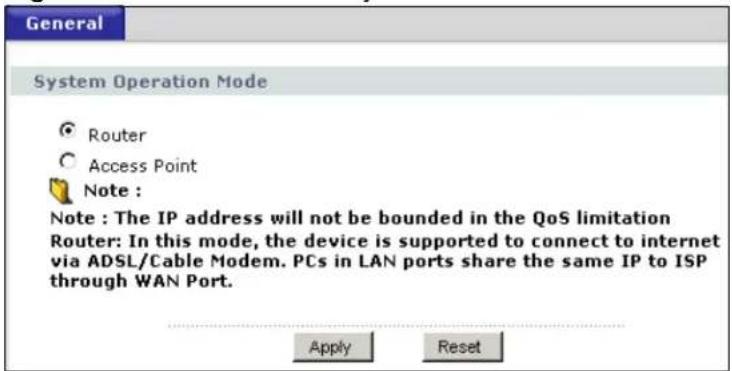
3 A pop-up appears providing information on this mode. Click OK in the pop-up message window. (See Section 18.3 on page 140 for more information on the pop-up.) Click Apply. Your NBG-416N is now in AP Mode.
Note: You have to log in to the Web Configurator again when you change modes.
5.3 Status Screen (AP Mode)
Click on Status. The screen below shows the status screen in AP Mode.
Figure 26 Status Screen (AP Mode)
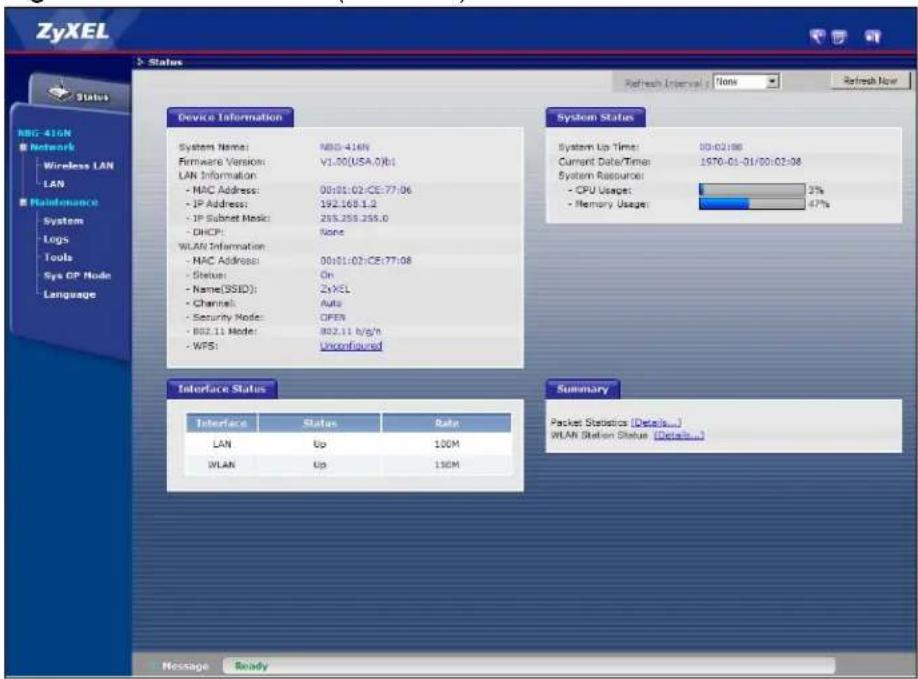
The following table describes the labels shown in the Status screen.
Table 19 Status Screen (AP Mode)
| LABEL DESCRIPTION | |
| Device Information | |
| System Name | This is the System Name you enter in the Maintenance > System > General screen. It is for identification purposes. |
| Firmware Version This is the current firmware version of the NBG-416N. | |
| LAN Information | |
| - MAC Address This shows the LAN Ethernet adapter MAC Address of your device. | |
| - IP Address This shows the LAN port's IP address. | |
| - IP Subnet Mask This shows the LAN port's subnet mask. | |
| - DHCP This shows the LAN port's DHCP role - None. | |
| WLAN Information | |
| - MAC Address This shows the wireless adapter MAC Address of your device. | |
| - Status | This shows the current status of the Wireless LAN - On, Off, or Off by scheduler. |
| - Name (SSID) This shows a descriptive name used to identify the NBG-416N in the wireless LAN. | |
| - Channel This shows the channel number which you select manually. | |
| - Security Mode This shows the level of wireless security the NBG-416N is using. | |
| - 802.11 Mode This shows the IEEE 802.11 standard that the NBG-416N supports.Wireless clients must support the same standard in order to be able to connect to the NBG-416N | |
| - WPS | This shows the WPS (WiFi Protected Setup) Status. Click the status to display Network > Wireless LAN > WPS screen. |
| System Status | |
| System Up Time | This is the total time the NBG-416N has been on. |
| Current Date/Time | This field displays your NBG-416N's present date and time. |
| System Resource | |
| - CPU Usage | This displays what percentage of the NBG-416N's processing ability is currently used. When this percentage is close to 100%, the NBG-416N is running at full load, and the throughput is not going to improve anymore. If you want some applications to have more throughput, you should turn off other applications. |
| - Memory Usage | This shows what percentage of the heap memory the NBG-416N is using. |
| Interface Status | |
| Interface | This displays the NBG-416N port types. The port types are: LAN and WLAN. |
| Status | For the LAN port, this field displays Down (line is down) or Up (line is up or connected).For the WLAN, it displays Up when the WLAN is enabled or Down when the WLAN is disabled. |
| Rate | For the LAN ports, this displays the port speed and duplex setting or N/ A when the line is disconnected.For the WLAN, it displays the maximum transmission rate when the WLAN is enabled and N/ A when the WLAN is disabled. |
| Summary | |
| Packet Statistics Use this screen to view port status and packet specific statistics. | |
| WLAN Station Status Use this screen to view the wireless stations that are currently associated to the NBG-416N. | |
5.3.1 Navigation Panel
Use the menu in the navigation panel to configure NBG-416N features in AP Mode.
The following screen and table show the features you can configure in AP Mode.
Figure 27 Menu: AP Mode
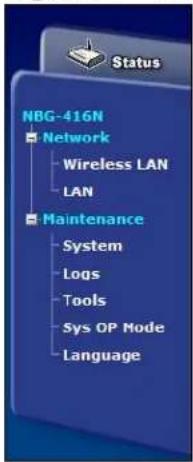
The following table describes the sub-menus.
Table 20 Menu: AP Mode
| LINK TAB FUNCTION | ||
| Status This screen shows the N | BG-416N's general device, system and interface status information. Use this screen to access the wizard, and summary statistics tables. | |
| Network | ||
| LINK | TAB | FUNCTION |
| Wireless LAN | General Use th | is screen to configure wireless LAN. |
| MAC Filter Use | the MAC filter screen to configure the NBG-416N to block access to devices or block the devices from accessing the NBG-416N. | |
| Advanced This | screen allows you to configure advanced wireless settings. | |
| QoS Use this s | screen to configure Wi-Fi Multimedia Quality of Service (WMM QoS). WMM QoS allows you to prioritize wireless traffic according to the delivery requirements of individual services. | |
| WPS Use this s | screen to configure WPS. | |
| WPS Station U | se this screen to add a wireless station using WPS. | |
| Scheduling Use | this screen to schedule the times the Wireless LAN is enabled. | |
| LAN | IP | Use this screen to configure LAN IP address and subnet mask. |
| Maintenance | ||
| System | General | Use this screen to view and change administrative settings such as system and domain names, password and inactivity timer. |
| Time Setting U | se this screen to change your NBG-416N's time and date. | |
| Logs | View Log | Use this screen to view the logs for the categories that you selected. |
| Tools | Firmware | Use this screen to upload firmware to your NBG-416N. |
| Configuration | Use this screen to backup and restore the configuration or reset the factory defaults to your NBG-416N. | |
| Restart | This screen allows you to reboot the NBG-416N without turning the power off. | |
| Sys OP Mode | General This s | screen allows you to select whether your device acts as a Router or a Access Point. |
| Language | Language | This screen allows you to select the language you prefer. |
5.4 Configuring Your Settings
Use this section to configure your NBG-416N settings while in AP Mode.
5.4.1 LAN Settings
Click Network > LAN to see the screen below.
Note: If you change the IP address of the NBG-416N in the screen below, you will need to log into the NBG-416N again using the new IP address.
Figure 28 Network > LAN > IP
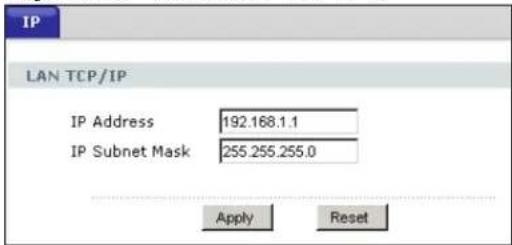
The table below describes the labels in the screen.
Table 21 Network > LAN > IP
| LABEL DESCRIPTION | |
| Get from DHCP Server | Select this to let the DHCP server in the gateway assign the NBG-416N IP address. |
| User Defined LAN IP Select this to give the NBG-416N a static IP address. | |
| IP Address Type the IP | address in dotted decimal notation. The default setting is 192.168.1.2. If you change the IP address you will have to log in again with the new IP address. |
| IP Subnet Mask The subnet mask specifies the network number portion of an IP address. Your NBG-416N will automatically calculate the subnet mask based on the IP address that you assign. Unless you are implementing subnetting, use the subnet mask computed by the NBG-416N. | |
| Apply | Click Apply to save your changes to the NBG-416N. |
| Reset | Click Reset to reload the previous configuration for this screen. |
5.4.2 WLAN and Maintenance Settings
The configuration of wireless and maintenance settings in AP Mode is the same as for Router Mode.
• See Chapter 5 on page 69 for information on the configuring your wireless network.
• See Troubleshooting (145) for information on configuring your maintenance settings.
5.5 Logging in to the Web Configurator in AP Mode
1 Connect your computer to the LAN port of the NBG-416N.
2 The default IP address of the NBG-416N is "192.168.1.2". In this case, your computer must have an IP address in the range between "192.168.1.3" and "192.168.1.254".
3 Click Start > Run on your computer in Windows.
4 Type "cmd" in the dialog box.
5 Type "ipconfig" to show your computer's IP address. If your computer's IP address is not in the correct range then see Appendix C on page 175 for information on changing your computer's IP address.
6 After you've set your computer's IP address, open a web browser such as Internet Explorer and type "192.168.1.2" as the web address in your web browser.
See Chapter 6 on page 57 for a tutorial on setting up a network with an AP.
Tutorials
6.1 Overview
This chapter provides tutorials for your NBG-416N as follows:
• How to Connect to the Internet from an AP
- Configure Wireless Security Using WPS on both your NBG-416N and Wireless Client
- Enable and Configure Wireless Security without WPS on your NBG-416N
6.2 How to Connect to the Internet from an AP
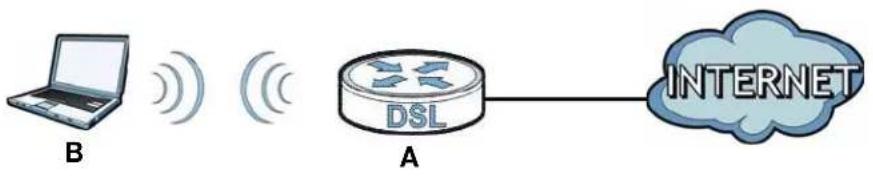
This section gives you an example of how to set up an access point (AP) and wireless client (a notebook, B in this example) for wireless communication. B can access the Internet through the AP wirelessly.
Figure 29 Wireless AP Connection to the Internet
6.2.1 Configure Wireless Security Using WPS on both your NBG-416N and Wireless Client
This section gives you an example of how to set up wireless network using WPS. This example uses the NBG-416N as the AP and NWD210N as the wireless client which connects to a notebook.
Note: The wireless client must be a WPS-aware device (for example, a WPS USB adapter or PCI card).
There are two WPS methods for creating a secure connection. This tutorial shows you how to do both.
- Push Button Configuration (PBC) - create a secure wireless network simply by pressing a button. See Section 6.2.1.1 on page 58. This is the easier method.
- PIN Configuration - create a secure wireless network simply by entering a wireless client's PIN (Personal Identification Number) in the NBG-416N's interface. See Section 6.2.1.2 on page 59. This is the more secure method, since one device can authenticate the other.
6.2.1.1 Push Button Configuration (PBC)
1 Make sure that your NBG-416N is turned on and that it is within range of your computer.
2 Make sure that you have installed the wireless client (this example uses the NWD210N) driver and utility in your notebook.
3 In the wireless client utility, find the WPS settings. Enable WPS and press the WPS button (Start or WPS button)
4 Log into NBG-416N's Web Configurator and press Push Button in the Network > Wireless Client > WPS Station screen.
Note: Your NBG-416N has a WPS button located on its panel, as well as a WPS button in its configuration utility. Both buttons have exactly the same function; you can use one or the other.
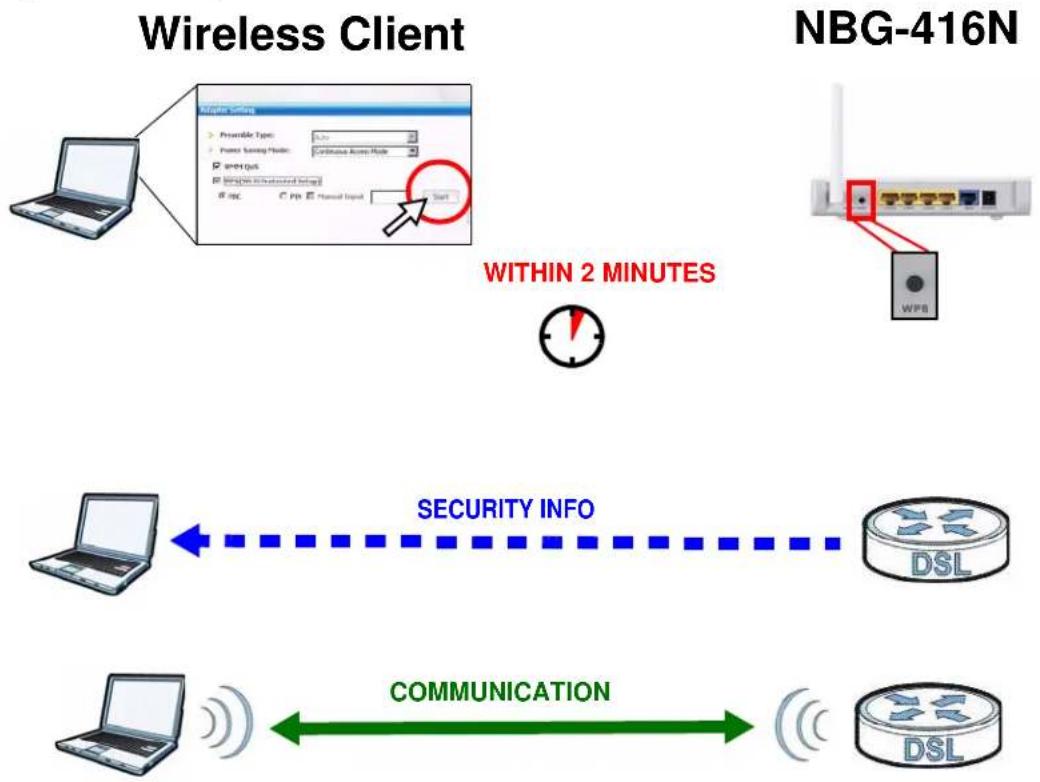
Note: It doesn't matter which button is pressed first. You must press the second button within two minutes of pressing the first one.
The NBG-416N sends the proper configuration settings to the wireless client. This may take up to two minutes. Then the wireless client is able to communicate with the NBG-416N securely.
The following figure shows you an example to set up wireless network and security by pressing a button on both NBG-416N and wireless client (the NWD210N in this example).
Figure 30 Example WPS Process: PBC Method
flowchart
graph TD
    A["Wireless Client"] --> B["Master Setting"]
    B --> C["Preamable Type: 0.5s"]
    B --> D["Power Saving Phone: Continuous Access Mode"]
    B --> E["open QoS"]
    B --> F["Wireless Server"]
    B --> G["IPC: PPs: Manual Input"]
    B --> H["Start"]
    I["NBG-416N"] --> J["Wireless Server"]
    J --> K["WPB"]
    L["SECURITY INFO"] --> M["DSL"]
    N["COMMUNICATION"] --> O["DSL"]
6.2.1.2 PIN Configuration
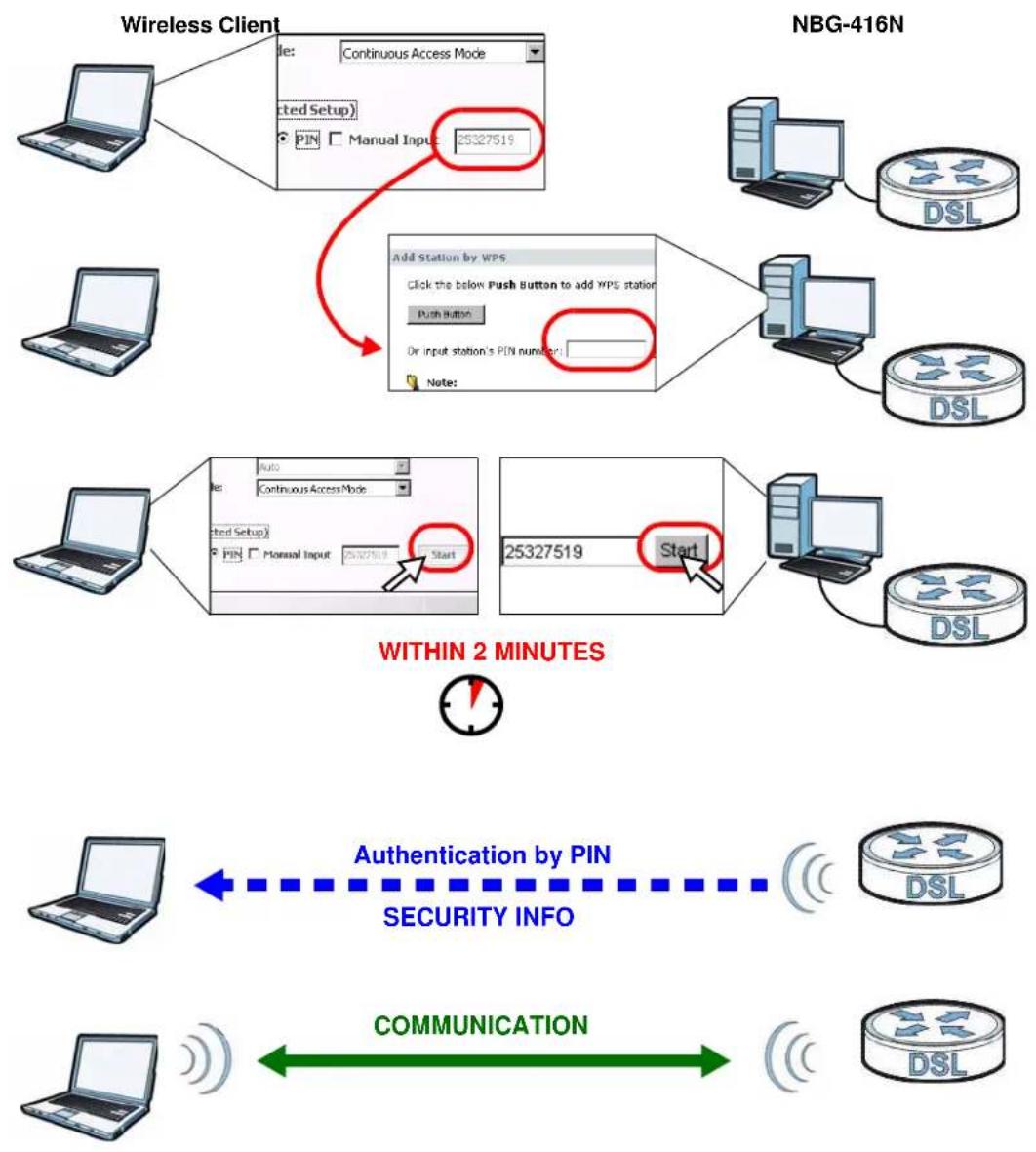
When you use the PIN configuration method, you need to use both NBG-416N's configuration interface and the client's utilities.
1 Launch your wireless client's configuration utility. Go to the WPS settings and select the PIN method to get a PIN number.
2 Enter the PIN number to the PIN field in the Network > Wireless LAN > WPS Station screen on the NBG-416N.
3 Click the Start buttons (or button next to the PIN field) on both the wireless client utility screen and the NBG-416N's WPS Station screen within two minutes.
The NBG-416N authenticates the wireless client and sends the proper configuration settings to the wireless client. This may take up to two minutes. Then the wireless client is able to communicate with the NBG-416N securely.
The following figure shows you the example to set up wireless network and security on NBG-416N and wireless client (ex. NWD210N in this example) by using PIN method.
Figure 31 Example WPS Process: PIN Method
flowchart
graph TD
    A["Wireless Client"] --> B["Add Station by WPS"]
    B --> C["NBG-416N Server"]
    C --> D["Within 2 MINUTES"]
    D --> E["Authentication by PIN"]
    E --> F["SECURITY INFO"]
    F --> G["COMMUNICATION"]
    G --> H["Computer with Wireless/Communication signals"]
6.3 Enable and Configure Wireless Security without WPS on your NBG-416N
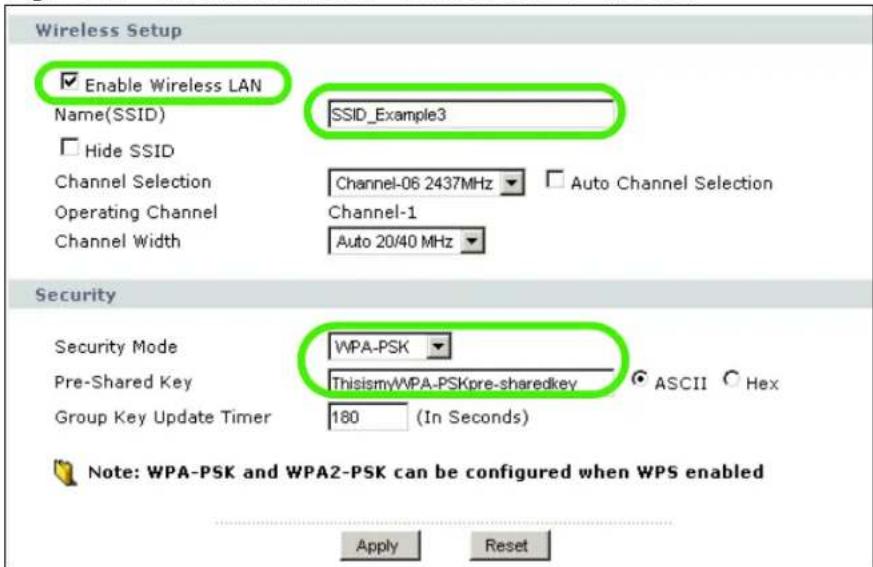
This example shows you how to configure wireless security settings with the following parameters on your NBG-416N.
| SSID SSID_Example3 | |
| Channel 6 | |
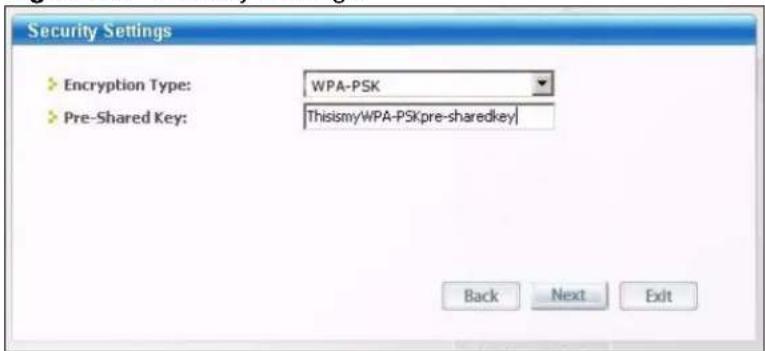
| Security WPA-PSK | (Pre-Shared Key: ThisismyWPA-PSKpre-sharedkey) |
Follow the steps below to configure the wireless settings on your NBG-416N.
The instructions require that your hardware is connected (see the Quick Start Guide) and you are logged into the Web Configurator through your LAN connection (see Section 3.2 on page 25).
1 Open the Wireless LAN > General screen in the NBG-416N's Web Configurator.
2 Make sure the Enable Wireless LAN check box is selected.
3 Enter SSID_Example3 as the SSID and select a channel.
4 Set security mode to WPA-PSK and enter ThisismyWPA-PSKpre-sharedkey in the Pre-Shared Key field. Click Apply.
Figure 32 Tutorial: Network > Wireless LAN > General
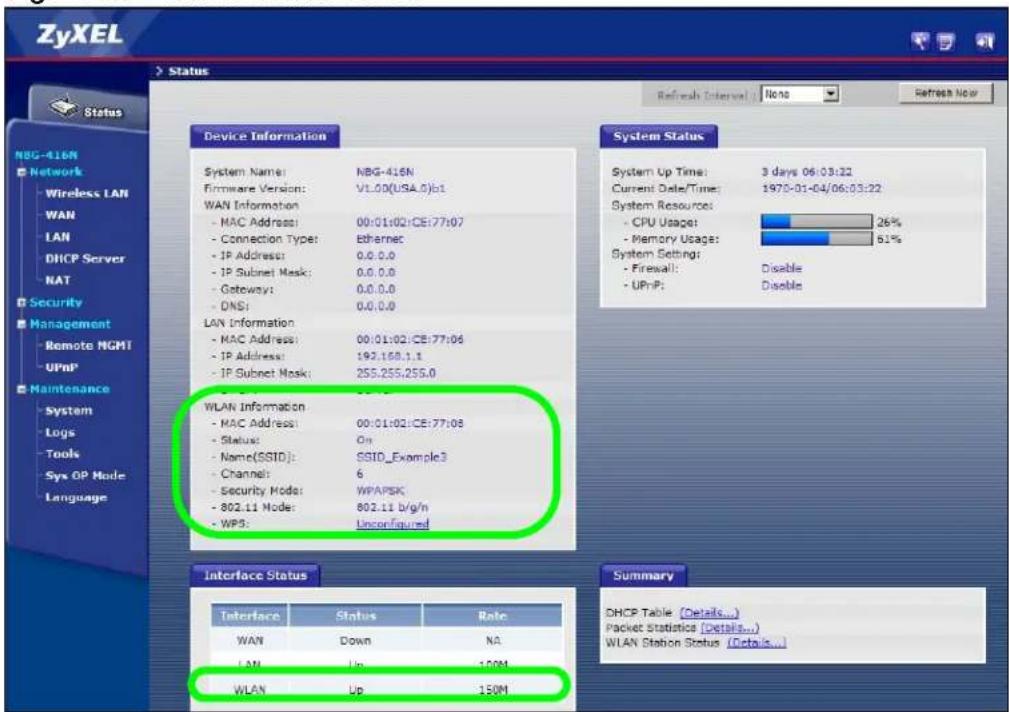
5 Open the Status screen. Verify your wireless and wireless security settings under Device Information and check if the WLAN connection is up under Interface Status.
Figure 33 Tutorial: Status Screen
6.3.0.1 Configure Your Notebook
Note: We use the ZyXEL M-302 wireless adapter utility screens as an example for the wireless client. The screens may vary for different models.
1 The NBG-416N supports IEEE 802.11b, IEEE 802.11g and IEEE 802.11n wireless clients. Make sure that your notebook or computer's wireless adapter supports one of these standards.
2 Wireless adapters come with software sometimes called a "utility" that you install on your computer. See your wireless adapter's User's Guide for information on how to do that.
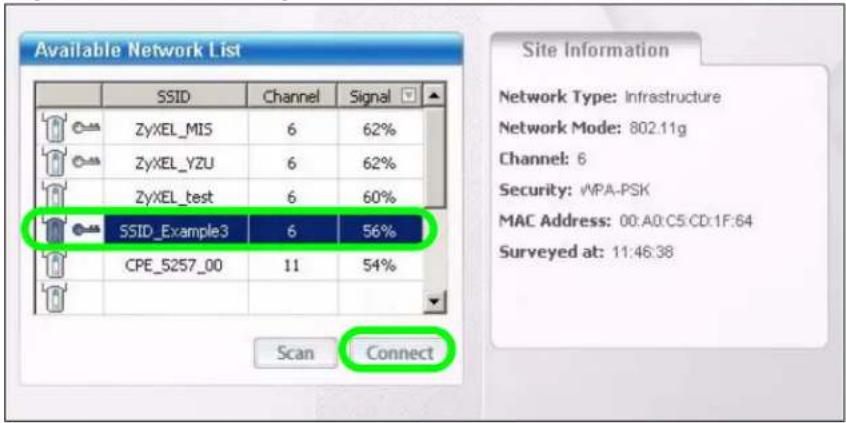
3 After you've installed the utility, open it. If you cannot see your utility's icon on your screen, go to Start > Programs and click on your utility in the list of programs that appears. The utility displays a list of APs within range, as shown in the example screen below.
4 Select SSID_Example3 and click Connect.
Figure 34 Connecting a Wireless Client to a Wireless Network t
5 Select WPA-PSK and type the security key in the following screen. Click Next.
Figure 35 Security Settings
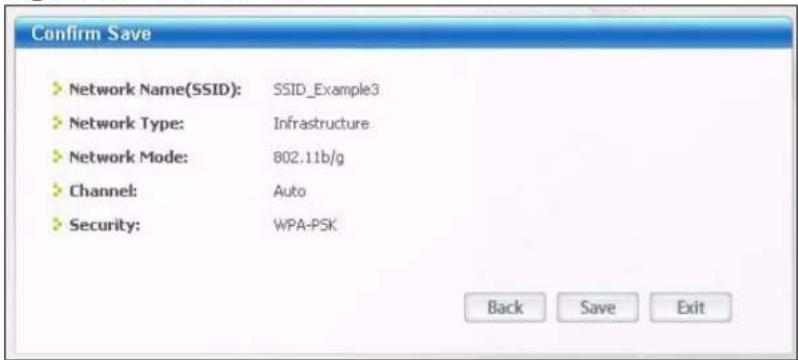
6 The Confirm Save window appears. Check your settings and click Save to continue.
Figure 36 Confirm Save
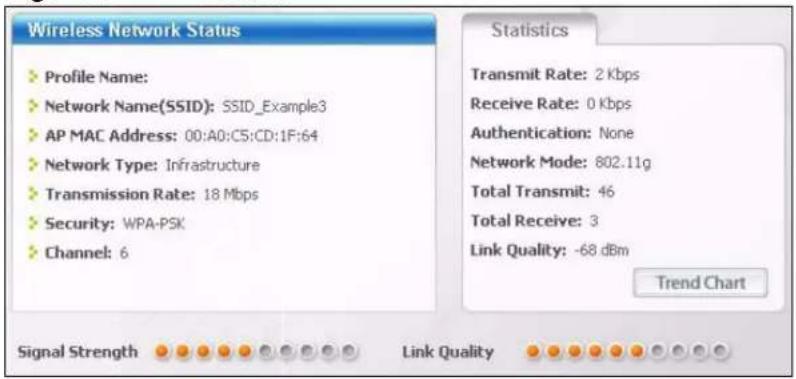
7 Check the status of your wireless connection in the screen below. If your wireless connection is weak or you have no connection, see the Troubleshooting section of this User's Guide.
Figure 37 Link Status
If your connection is successful, open your Internet browser and enter http://www.zyxel.com or the URL of any other web site in the address bar. If you are able to access the web site, your wireless connection is successfully configured.
PART II
Technical Reference
Wireless LAN
7.1 Overview
This chapter discusses how to configure the wireless network settings in your NBG-416N. See the appendices for more detailed information about wireless networks.
The following figure provides an example of a wireless network.
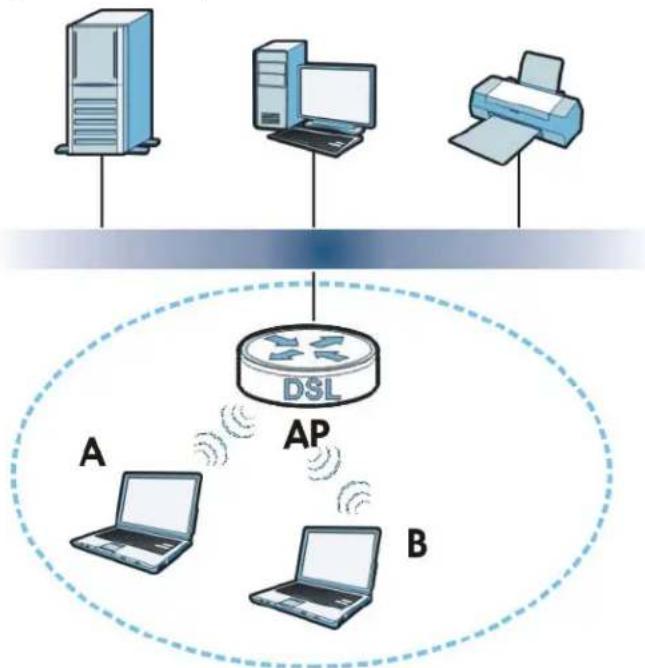
Figure 38 Example of a Wireless Network
flowchart
graph TD
    A["Server"] -->|AP| Router["Router"]
    B["Printer"] -->|AP| Router
    Router -->|AP| A
    Router -->|AP| B
    style Router fill:#f9f,stroke:#333
    style A fill:#ccf,stroke:#333
    style B fill:#ccf,stroke:#333
The wireless network is the part in the blue circle. In this wireless network, devices A and B are called wireless clients. The wireless clients use the access point (AP) to interact with other devices (such as the printer) or with the Internet. Your NBG-416N is the AP.
7.2 What You Can Do
- Use the General screen to enable the Wireless LAN, enter the SSID and select the wireless security mode (Section 7.4 on page 71).
- Use the MAC Filter screen to allow or deny wireless stations based on their MAC addresses from connecting to the NBG-416N (Section 7.5 on page 76).
- Use the Advanced screen to allow intra-BSS networking and set the RTS/CTS Threshold (Section 7.6 on page 77).
- Use the QoS screen to enable Wifi MultiMedia Quality of Service (WMMQoS). This allows the NBG-416N to automatically set priority levels to services, such as e-mail, VoIP, chat, and so on (Section 7.7 on page 79).
- Use the WPS screen to quickly set up a wireless network with strong security, without having to configure security settings manually (Section 7.8 on page 80).
- Use the WPS Station screen to add a wireless station using WPS (Section 7.9 on page 81).
- Use the Scheduling screen to set the times your wireless LAN is turned on and off (Section 7.10 on page 81).
7.3 What You Should Know
Every wireless network must follow these basic guidelines.
- Every wireless client in the same wireless network must use the same SSID.
The SSID is the name of the wireless network. It stands for Service Set IDentity. - If two wireless networks overlap, they should use different channels.
Like radio stations or television channels, each wireless network uses a specific channel, or frequency, to send and receive information. - Every wireless client in the same wireless network must use security compatible with the AP.
Security stops unauthorized devices from using the wireless network. It can also protect the information that is sent in the wireless network.
7.3.1 Wireless Security Overview
The following sections introduce different types of wireless security you can set up in the wireless network.
7.3.1.1 SSID
Normally, the AP acts like a beacon and regularly broadcasts the SSID in the area.
You can hide the SSID instead, in which case the AP does not broadcast the SSID.
In addition, you should change the default SSID to something that is difficult to guess.
This type of security is fairly weak, however, because there are ways for unauthorized devices to get the SSID. In addition, unauthorized devices can still see the information that is sent in the wireless network.
7.3.1.2 MAC Address Filter
Every wireless client has a unique identification number, called a MAC address. ^1 A MAC address is usually written using twelve hexadecimal characters ^2 ; for example, 00A0C5000002 or 00:A0:C5:00:00:02. To get the MAC address for each wireless client, see the appropriate User's Guide or other documentation.
You can use the MAC address filter to tell the AP which wireless clients are allowed or not allowed to use the wireless network. If a wireless client is allowed to use the wireless network, it still has to have the correct settings (SSID, channel, and security). If a wireless client is not allowed to use the wireless network, it does not matter if it has the correct settings.
This type of security does not protect the information that is sent in the wireless network. Furthermore, there are ways for unauthorized devices to get the MAC address of an authorized wireless client. Then, they can use that MAC address to use the wireless network.
7.3.1.3 User Authentication
You can make every user log in to the wireless network before they can use it. This is called user authentication. However, every wireless client in the wireless network has to support IEEE 802.1x to do this.
For wireless networks, there are two typical places to store the user names and passwords for each user.
- In the AP: this feature is called a local user database or a local database.
- In a RADIUS server: this is a server used in businesses more than in homes.
If your AP does not provide a local user database and if you do not have a RADIUS server, you cannot set up user names and passwords for your users.
Unauthorized devices can still see the information that is sent in the wireless network, even if they cannot use the wireless network. Furthermore, there are ways for unauthorized wireless users to get a valid user name and password. Then, they can use that user name and password to use the wireless network.
Local user databases also have an additional limitation that is explained in the next section.
7.3.1.4 Encryption
Wireless networks can use encryption to protect the information that is sent in the wireless network. Encryption is like a secret code. If you do not know the secret code, you cannot understand the message.
The types of encryption you can choose depend on the type of user authentication. (See Section 7.3.1.3 on page 69 for information.)
Table 22 Types of Encryption for Each Type of Authentication
| NO AUTHENTICATION | |
| Weakest No | Security |
| Static WEP | |
| WPA-PSK | |
| Strongest W | WPA2-PSK |
For example, if users do not log in to the wireless network, you can choose no encryption, Static WEP, WPA-PSK, or WPA2-PSK.
Usually, you should set up the strongest encryption that every wireless client in the wireless network supports. Suppose the wireless network has two wireless clients. Device A only supports WEP, and device B supports WEP and WPA. Therefore, you should set up Static WEP in the wireless network.
Note: It is recommended that wireless networks use WPA-PSK, WPA, or stronger encryption. IEEE 802.1x and WEP encryption are better than none at all, but it is still possible for unauthorized devices to figure out the original information pretty quickly.
Note: It is not possible to use WPA-PSK, WPA or stronger encryption with a local user database. In this case, it is better to set up stronger encryption with no authentication than to set up weaker encryption with the local user database.
When you select WPA2 or WPA2-PSK in your NBG-416N, you can also select an option (WPA Compatible) to support WPA as well. In this case, if some wireless clients support WPA and some support WPA2, you should set up WPA2-PSK or WPA2 (depending on the type of wireless network login) and select the WPA Compatible option in the NBG-416N.
Many types of encryption use a key to protect the information in the wireless network. The longer the key, the stronger the encryption. Every wireless client in the wireless network must have the same key.
7.3.1.5 WPS
WiFi Protected Setup (WPS) is an industry standard specification, defined by the WiFi Alliance. WPS allows you to quickly set up a wireless network with strong security, without having to configure security settings manually. Depending on the devices in your network, you can either press a button (on the device itself, or in its configuration utility) or enter a PIN (Personal Identification Number) in the devices. Then, they connect and set up a secure network by themselves. See how to set up a secure wireless network using WPS in the Section 6.2.1 on page 57.
7.4 General Wireless LAN Screen
Use this screen to enable the Wireless LAN, enter the SSID and select the wireless security mode.
Note: If you are configuring the NBG-416N from a computer connected to the wireless LAN and you change the NBG-416N's SSID, channel or security settings, you will lose your wireless connection when you press Apply to confirm. You must then change the wireless settings of your computer to match the NBG-416N's new settings.
Click Network > Wireless LAN to open the General screen.
Figure 39 Network > Wireless LAN > General
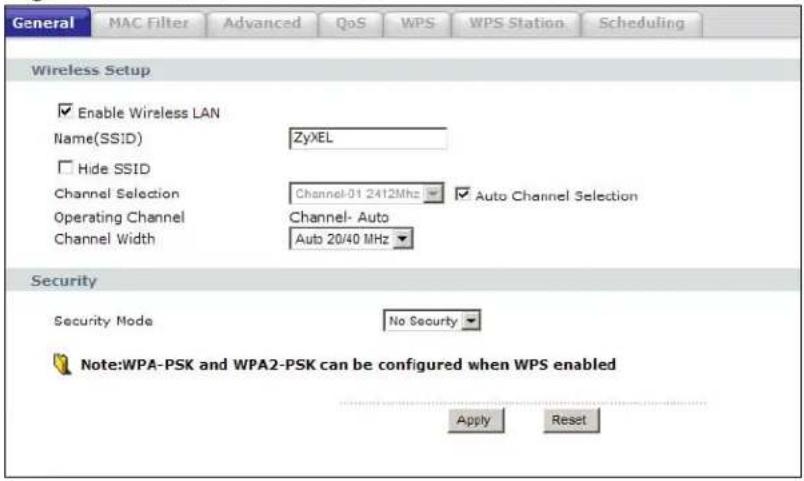
The following table describes the general wireless LAN labels in this screen.
Table 23 Network > Wireless LAN > General
| LABEL DESCRIPTION | |
| Enable Wireless LAN | Click the check box to activate wireless LAN. |
| Name(SSID) | (Service Set IDentity) The SSID identifies the Service Set with which a wireless station is associated. Wireless stations associating to the access point (AP) must have the same SSID. Enter a descriptive name (up to 32 printable 7-bit ASCII characters) for the wireless LAN. |
| Hide SSID Select this check box to hide the SSID in the outgoing beacon frame so a station cannot obtain the SSID through scanning using a site survey tool. | |
| Channel Selection | Set the operating frequency/channel depending on your particular region.Select a channel from the drop-down list box. The options vary depending on the frequency band and the country you are in.Refer to theConnection Wizardchapter for more information on channels.This option is only available ifAuto Channel Selectionis disabled. |
| Auto Channel Selection | Select this check box for the NBG-416N to automatically choose the channel with the least interference. Deselect this check box if you wish to manually select the channel using theChannel Sectionfield. |
| Operating Channel | This displays the channel the NBG-416N is currently using. |
| Channel Width | Select whether the NBG-416N uses a wireless channel width of20MHzor Auto 20/40MHz.A standard 20MHz channel offers transfer speeds of up to 150Mbps whereas a 40MHz channel uses two standard channels and offers speeds of up to 300 Mbps. Because not all devices support 40MHz channels, selectAuto 20/40MHzto allow the NBG-416N to adjust the channel bandwidth automatically. |
| Security Mode | SelectWPA-PSKorWPA2-PSKto add security on this wireless network.The wireless clients which want to associate to this network must have same wireless security settings as this device. After you select to use a security, additional options appears in this screen. See7.4.2and7.4.3sections. Or you can selectNo Securityto allow any client to associate this network without authentication.Note: If you enable the WPS function, onlyNo Security,WPA-PSKandWPA2-PSKare available in this field. |
| Apply | ClickApplyto save your changes back to the NBG-416N. |
| Reset | ClickResetto reload the previous configuration for this screen. |
See the rest of this chapter for information on the other labels in this screen.
7.4.1 No Security
Select No Security to allow wireless stations to communicate with the access points without any data encryption.
Note: If you do not enable any wireless security on your NBG-416N, your network is accessible to any wireless networking device that is within range.
Figure 40 Network > Wireless LAN > General: No Security
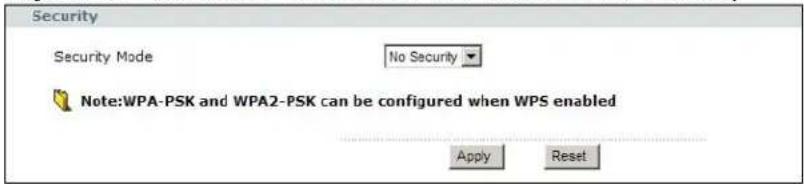
The following table describes the labels in this screen.
Table 24 Network > Wireless LAN > General: No Security
| LABEL DESCRIPTION | |
| Security Mode | Choose No Security from the drop-down list box. |
| Apply | Click Apply to save your changes back to the NBG-416N. |
| Reset | Click Reset to reload the previous configuration for this screen. |
7.4.2 WEP Encryption
WEP encryption scrambles the data transmitted between the wireless stations and the access points to keep network communications private. It encrypts unicast and multicast communications in a network. Both the wireless stations and the access points must use the same WEP key.
Your NBG-416N allows you to configure up to four 64-bit or 128-bit WEP keys but only one key can be enabled at any one time.
In order to configure and enable WEP encryption; click Network > Wireless LAN to display the General screen. Select Static WEP from the Security Mode list.
Figure 41 Network > Wireless LAN > General: Static WEP
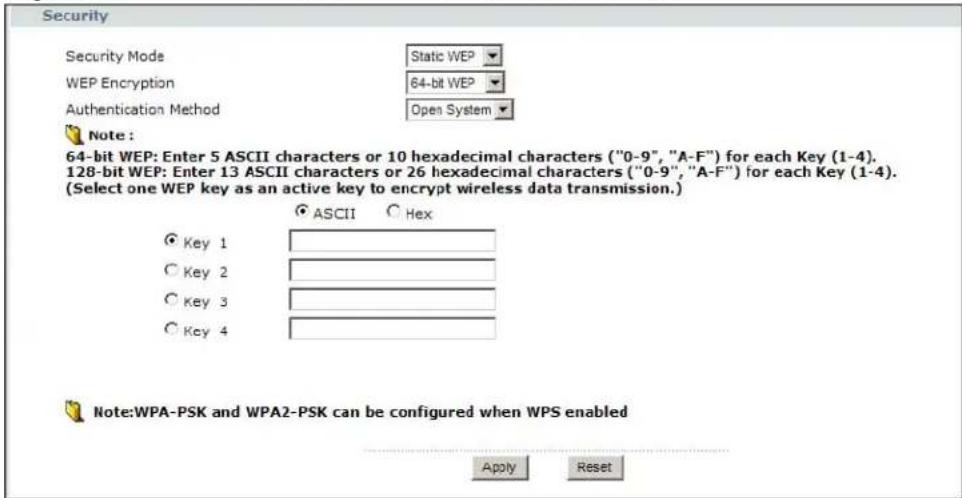
The following table describes the wireless LAN security labels in this screen.
Table 25 Network > Wireless LAN > General: Static WEP
| LABEL DESCRIPTION | |
| Security Mode | Choose Static WEP from the drop-down list box. |
| WEP Encryption | Select 64-bit WEP or 128-bit WEP to enable data encryption. |
| Authentication Method | Select Auto, Open System or Shared Key from the drop-down list box.This field specifies whether the wireless clients have to provide the WEP key to login to the wireless client. Keep this setting at Auto or Open System unless you want to force a key verification before communication between the wireless client and the ZyXEL Device occurs. Select Shared Key to force the clients to provide the WEP key prior to communication. |
| ASCII Select this | option in order to enter ASCII characters as WEP key. |
| Hex Select this option | option in order to enter hexadecimal characters as a WEP key.The preceding "0x", that identifies a hexadecimal key, is entered automatically. |
| Key 1 to Key 4 The WEP keys are used to encrypt data. Both the NBG-416N and the wireless stations must use the same WEP key for data transmission.If you chose 64-bit WEP, then enter any 5 ASCII characters or 10 hexadecimal characters ("0-9", "A-F").If you chose 128-bit WEP, then enter 13 ASCII characters or 26 hexadecimal characters ("0-9", "A-F").You must configure at least one key, only one key can be activated at any one time. The default key is key 1. | |
| Apply | Click Apply to save your changes back to the NBG-416N. |
| Reset | Click Reset to reload the previous configuration for this screen. |
7.4.3 WPA-PSK/WPA2-PSK
Click Network > Wireless LAN to display the General screen. Select WPA-PSK or WPA2-PSK from the Security Mode list.
Figure 42 Network > Wireless LAN > General: WPA-PSK/WPA2-PSK
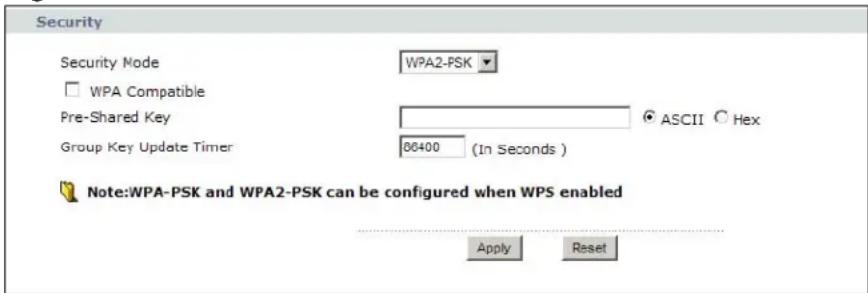
The following table describes the labels in this screen.
Table 26 Network > Wireless LAN > General: WPA-PSK/WPA2-PSK
| LABEL DESCRIPTION | |
| Security Mode | Choose WPA-PSK or WPA2-PSK from the drop-down list box. |
| WPA Compatible | This check box is available only when you select WPA2-PSK in the Security Mode field.Select the check box to have both WPA2 and WPA wireless clients be able to communicate with the NBG-416N even when the NBG-416N is using WPA2-PSK. |
| Pre-Shared Key | WPA-PSK/ WPA2-PSK uses a simple common password for authentication.Type a pre-shared key from 8 to 63 case-sensitive ASCII characters (including spaces and symbols).Type a pre-shared key less than 64 case-sensitive HEX characters ("0-9", "A-F"). |
| Group Key Update Timer | The Group Key Update Timer is the rate at which the AP (if using WPA-PSK/ WPA2-PSK key management) or RADIUS server (if using WPA/ WPA2 key management) sends a new group key out to all clients. The re-keying process is the WPA/WPA2 equivalent of automatically changing the WEP key for an AP and all stations in a WLAN on a periodic basis. Setting of the Group Key Update Timer is also supported in WPA-PSK/ WPA2-PSK mode. |
| Apply | Click Apply to save your changes back to the NBG-416N. |
| Reset | Click Reset to reload the previous configuration for this screen. |
7.5 MAC Filter
The MAC filter screen allows you to configure the NBG-416N to give exclusive access to up to 16 devices (Allow) or exclude up to 16 devices from accessing the NBG-416N (Deny). Every Ethernet device has a unique MAC (Media Access Control) address. The MAC address is assigned at the factory and consists of six pairs of hexadecimal characters, for example, 00:A0:C5:00:00:02. You need to know the MAC address of the devices to configure this screen.
To change your NBG-416N's MAC filter settings, click Network > Wireless LAN > MAC Filter. The screen appears as shown.
Figure 43 Network > Wireless LAN > MAC Filter
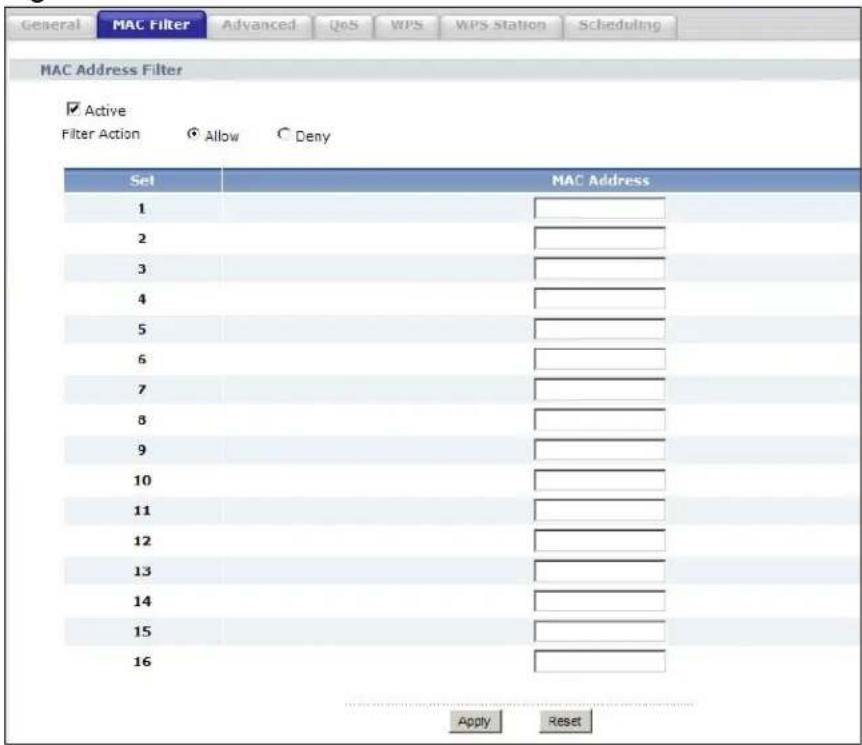
The following table describes the labels in this menu.
Table 27 Network > Wireless LAN > MAC Filter
| LABEL DESCRIPTION | |
| Active | Select Yes from the drop down list box to enable MAC address filtering. |
| Filter Action | Define the filter action for the list of MAC addresses in the MAC Address table.Select Deny to block access to the NBG-416N, MAC addresses not listed will be allowed to access the NBG-416N.Select Allow to permit access to the NBG-416N, MAC addresses not listed will be denied access to the NBG-416N. |
| Set This is the index number of the MAC address. | |
| MAC Address | Enter the MAC addresses of the wireless station that are allowed or denied access to the NBG-416N in these address fields. Enter the MAC addresses in a valid MAC address format, that is, six hexadecimal character pairs, for example, 12:34:56:78:9a:bc. |
| Apply | Click Apply to save your changes back to the NBG-416N. |
| Reset | Click Reset to reload the previous configuration for this screen. |
7.6 Wireless LAN Advanced Screen
Use this screen to allow intra-BSS networking and set the RTS/CTS Threshold.
Click Network > Wireless LAN > Advanced. The screen appears as shown.
Figure 44 Network > Wireless LAN > Advanced
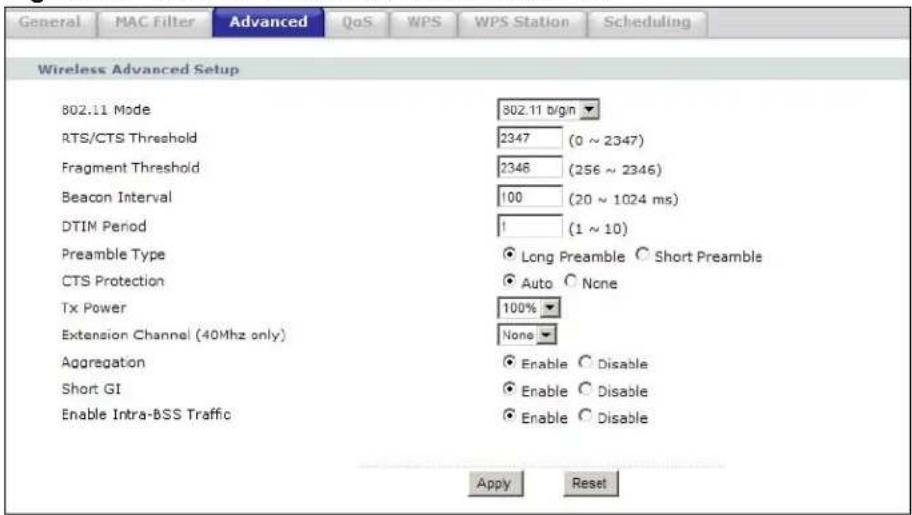
The following table describes the labels in this screen.
Table 28 Network > Wireless LAN > Advanced
| LABEL DESCRIPTION | |
| Wireless Advanced Setup | |
| RTS/CTSThreshold | Data with its frame size larger than this value will perform the RTS (Request To Send)/CTS (Clear To Send) handshake.Enter a value between 0 and 2347. |
| Fragmentation Threshold | The threshold (number of bytes) for the fragmentation boundary for directed messages. It is the maximum data fragment size that can be sent. Enter an even number between 256 and 2346.This field is not available when Super Mode is selected. |
| Beacon Interval | When a wirelessly networked device sends a beacon, it includes with it a beacon interval. This specifies the time period before the device sends the beacon again. The interval tells receiving devices on the network how long they can wait in low-power mode before waking up to handle the beacon. This value can be set from 20 to 1024 ms. A high value helps save current consumption of the access point. |
| DTIM Period | Delivery Traffic Indication Message (DTIM) is the time period after which broadcast and multicast packets are transmitted to mobile clients in the Active Power Management mode. A high DTIM value can cause clients to lose connectivity with the network. This value can be set from 1 to 10. |
| Preamble Type | A preamble affects the timing in your wireless network. There are two preamble modes: long and short. If a device uses a different preamble mode than the NBG-416N does, it cannot communicate with the NBG-416N. |
| CTS Protection | When set to None, the NBG-416N protects wireless communication against interference.Select Auto to let the NBG-416N determine whether to turn this feature on or off in the current environment. |
| Tx Power This field | If you select Auto 20/40MHz as your Channel Bandwidth in the Wireless LAN > General screen, the extension channel enables the NBG-419N to get higher data throughput. This also lowers radio interference and traffic. |
| Extension Channel | |
| Aggregation | Select Enable to allow the grouping of several A-MSDUs (Aggregate MAC Service Data Units) into one large A-MPDU (Aggregate MAC Protocol Data Unit). This function allows faster data transfer rates. |
| Short GI | Select Enable to use Short GI (Guard Interval). The guard interval is the gap introduced between data transmission from users in order to reduce interference. Reducing the GI increases data transfer rates but also increases interference. Increasing the GI reduces data transfer rates but also reduces interference. |
| Enable Intra-BSS Traffic | A Basic Service Set (BSS) exists when all communications between wireless clients or between a wireless client and a wired network client go through one access point (AP).Intra-BSS traffic is traffic between wireless clients in the BSS. When Intra-BSS is enabled, wireless client A and B can access the wired network and communicate with each other. When Intra-BSS is disabled, wireless client A and B can still access the wired network but cannot communicate with each other. |
| Apply | Click Apply to save your changes to the NBG-416N. |
| Reset | Click Reset to reload the previous configuration for this screen. |
7.7 Quality of Service (QoS) Screen
Use the QoS screen to enable Wifi MultiMedia Quality of Service (WMMQoS). This allows the NBG-416N to automatically set priority levels to services, such as e-mail, VoIP, chat, and so on.
Click Network > Wireless LAN > QoS. The following screen appears.
Figure 45 Network > Wireless LAN > QoS
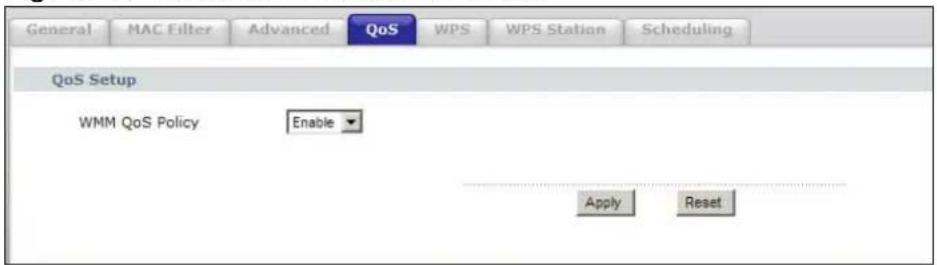
The following table describes the labels in this screen.
Table 29 Network > Wireless LAN > QoS
| LABEL DESCRIPTION | |
| Enable WMM QoS Check this to have the NBG-416N automatically give a service a priority level according to the ToS value in the IP header of packets it sends. WMM QoS (Wifi MultiMedia Quality of Service) gives high priority to voice and video, which makes them run more smoothly. | |
| Apply | Click Apply to save your changes to the NBG-416N. |
| Reset | Click Reset to reload the previous configuration for this screen. |
7.8 WPS Screen
Use this screen to enable/disable WPS, view or generate a new PIN number and check current WPS status. To open this screen, click Network > Wireless LAN > WPS tab.
Figure 46 Network > Wireless LAN > WPS
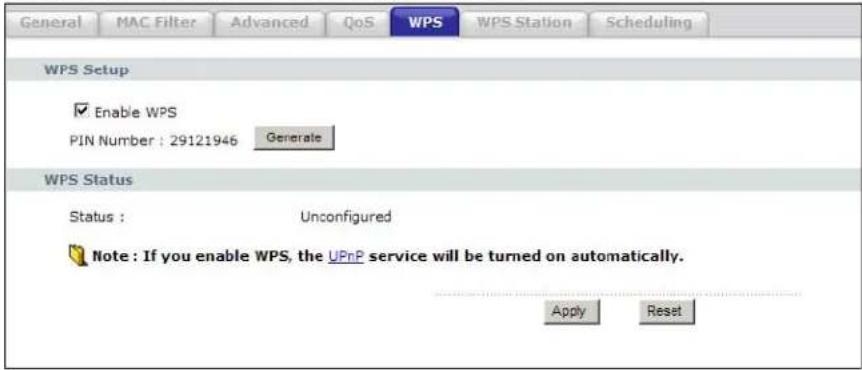
The following table describes the labels in this screen.
Table 30 Network > Wireless LAN > WPS
| LABEL DESCRIPTION | |
| WPS Setup | |
| Enable WPS Select this to enable the WPS feature. | |
| PIN Number | This displays a PIN number last time system generated. Click Generate to generate a new PIN number. |
| WPS Status | |
| Status | This displays Configured when the NBG-416N has connected to a wireless network using WPS or when Enable WPS is selected and wireless or wireless security settings have been changed. The current wireless and wireless security settings also appear in the screen.This displays Unconfigured if WPS is disabled and there are no wireless or wireless security changes on the NBG-416N or you click Release_Configuration to remove the configured wireless and wireless security settings. |
| Release Configuration | This button is only available when the WPS status displays Configured.Click this button to remove all configured wireless and wireless security settings for WPS connections on the NBG-416N. |
| Apply | Click Apply to save your changes back to the NBG-416N. |
| Refresh | Click Refresh to get this screen information afresh. |
7.9 WPS Station Screen
Use this screen when you want to add a wireless station using WPS. To open this screen, click Network > Wireless LAN > WPS Station tab.
Note: Note: After you click Push Button on this screen, you have to press a similar button in the wireless station utility within 2 minutes. To add the second wireless station, you have to press these buttons on both device and the wireless station again after the first 2 minutes.
Figure 47 Network > Wireless LAN > WPS Station
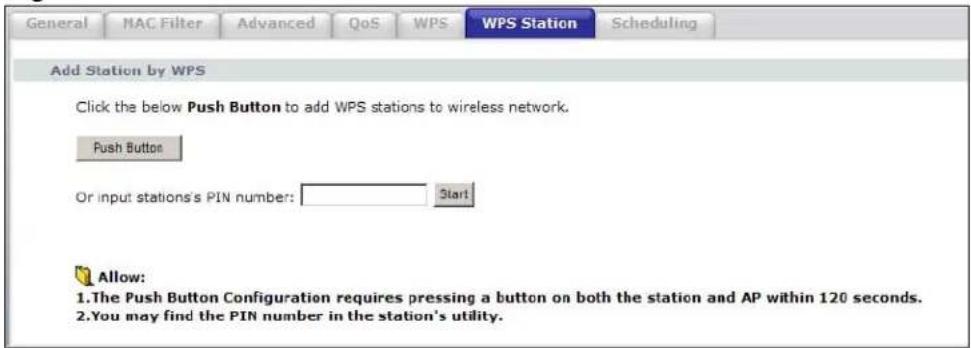
The following table describes the labels in this screen.
Table 31 Network > Wireless LAN > WPS Station
| LABEL DESCRIPTION | |
| Push Button Use | this button when you use the PBC (Push Button Configuration) method to configure wireless stations's wireless settings. See Section 6.2.1.1 on page 58.Click this to start WPS-aware wireless station scanning and the wireless security information synchronization. |
| Or input station's PIN number | Use this button when you use the PIN Configuration method to configure wireless station's wireless settings. See Section 6.2.1.2 on page 59.Type the same PIN number generated in the wireless station's utility.Then click Start to associate to each other and perform the wireless security information synchronization. |
7.10 Scheduling Screen
Use this screen to set the times your wireless LAN is turned on and off. Wireless LAN scheduling is disabled by default. The wireless LAN can be scheduled to turn
on or off on certain days and at certain times. To open this screen, click Network > Wireless LAN > Scheduling tab.
Figure 48 Network > Wireless LAN > Scheduling
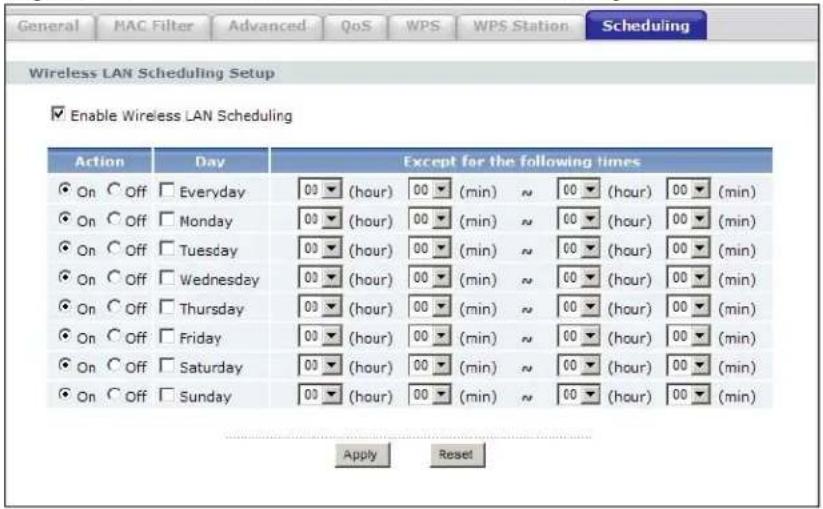
The following table describes the labels in this screen.
Table 32 Network > Wireless LAN > Scheduling
| LABEL DESCRIPTION | |
| Enable Wireless LAN Scheduling | Select this to enable Wireless LAN scheduling. |
| Action | Select On or Off to specify whether the Wireless LAN is turned on or off. This field works in conjunction with the Day and Except for the following times fields. |
| Day | Select Everyday or the specific days to turn the Wireless LAN on or off. If you select Everyday you can not select any specific days. This field works in conjunction with the Except for the following times field. |
| Except for the following times | Select a begin time using the first set of hour and minute (min) drop down boxes and select an end time using the second set of hour and minute (min) drop down boxes. If you have chosen On earlier for the WLAN Status the Wireless LAN will turn off between the two times you enter in these fields. If you have chosen Off earlier for the WLAN Status the Wireless LAN will turn on between the two times you enter in these fields.Note: Entering the same begin time and end time will mean the whole day. |
| Apply | Click Apply to save your changes back to the NBG-416N. |
| Reset | Click Reset to reload the previous configuration for this screen. |
8.1 Overview
This chapter discusses the NBG-416N's WAN screens. Use these screens to configure your NBG-416N for Internet access.
A WAN (Wide Area Network) connection is an outside connection to another network or the Internet. It connects your private networks (such as a LAN (Local Area Network) and other networks, so that a computer in one location can communicate with computers in other locations.
Figure 49 LAN and WAN
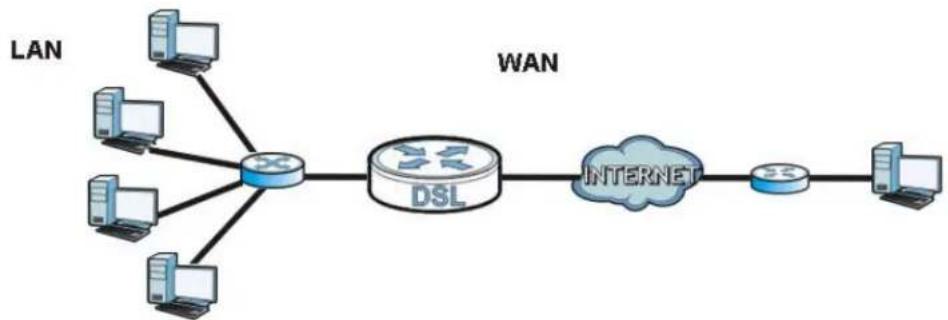
flowchart
graph LR
    LAN -->|LAN| LAN1["Computer"]
    LAN -->|LAN| LAN2["Computer"]
    LAN -->|LAN| LAN3["Computer"]
    LAN -->|LAN| LAN4["Computer"]
    LAN1 -->|LAN| LAN5["Switch"]
    LAN2 -->|LAN| LAN5
    LAN3 -->|LAN| LAN5
    LAN4 -->|LAN| LAN5
    LAN5 -->|DSL| Internet["Internet"]
    Internet -->|DSL| LAN6["Server"]
    LAN6 -->|LAN| LAN7["Computer"]
See the chapter about the connection wizard for more information on the fields in the WAN screens.
8.2 What You Need To Know
The information in this section can help you configure the screens for your WAN connection, as well as enable/disable some advanced features of your NBG-416N.
8.2.1 Configuring Your Internet Connection
Encapsulation Method
Encapsulation is used to include data from an upper layer protocol into a lower layer protocol. To set up a WAN connection to the Internet, you need to use the same encapsulation method used by your ISP (Internet Service Provider). If your ISP offers a dial-up Internet connection using PPPoE (PPP over Ethernet) or PPTP (Point-to-Point Tunneling Protocol), they should also provide a username and password (and service name) for user authentication.
WAN IP Address
The WAN IP address is an IP address for the NBG-416N, which makes it accessible from an outside network. It is used by the NBG-416N to communicate with other devices in other networks. It can be static (fixed) or dynamically assigned by the ISP each time the NBG-416N tries to access the Internet.
If your ISP assigns you a static WAN IP address, they should also assign you the subnet mask and DNS server IP address(es) (and a gateway IP address if you use the Ethernet or ENET ENCAP encapsulation method).
DNS Server Address Assignment
Use Domain Name System (DNS) to map a domain name to its corresponding IP address and vice versa, for instance, the IP address of www.zyxel.com is 204.217.0.2. The DNS server is extremely important because without it, you must know the IP address of a computer before you can access it.
The NBG-416N can get the DNS server addresses in the following ways.
1 The ISP tells you the DNS server addresses, usually in the form of an information sheet, when you sign up. If your ISP gives you DNS server addresses, manually enter them in the DNS server fields.
2 If your ISP dynamically assigns the DNS server IP addresses (along with the NBG-416N's WAN IP address), set the DNS server fields to get the DNS server address from the ISP.
WAN MAC Address
The MAC address screen allows users to configure the WAN port's MAC address by either using the factory default or cloning the MAC address from a computer on your LAN. Choose Factory Default to select the factory assigned default MAC Address.
Otherwise, click Clone the computer's MAC address - IP Address and enter the IP address of the computer on the LAN whose MAC you are cloning. Once it is successfully configured, the address will be copied to configuration file. It is recommended that you clone the MAC address prior to hooking up the WAN Port.
8.3 Internet Connection
Use this screen to change your NBG-416N's Internet access settings. Click Network > WAN. The screen differs according to the encapsulation you choose.
8.3.1 Ethernet Encapsulation
This screen displays when you select Ethernet encapsulation.
Figure 50 Network > WAN > Internet Connection: Ethernet Encapsulation
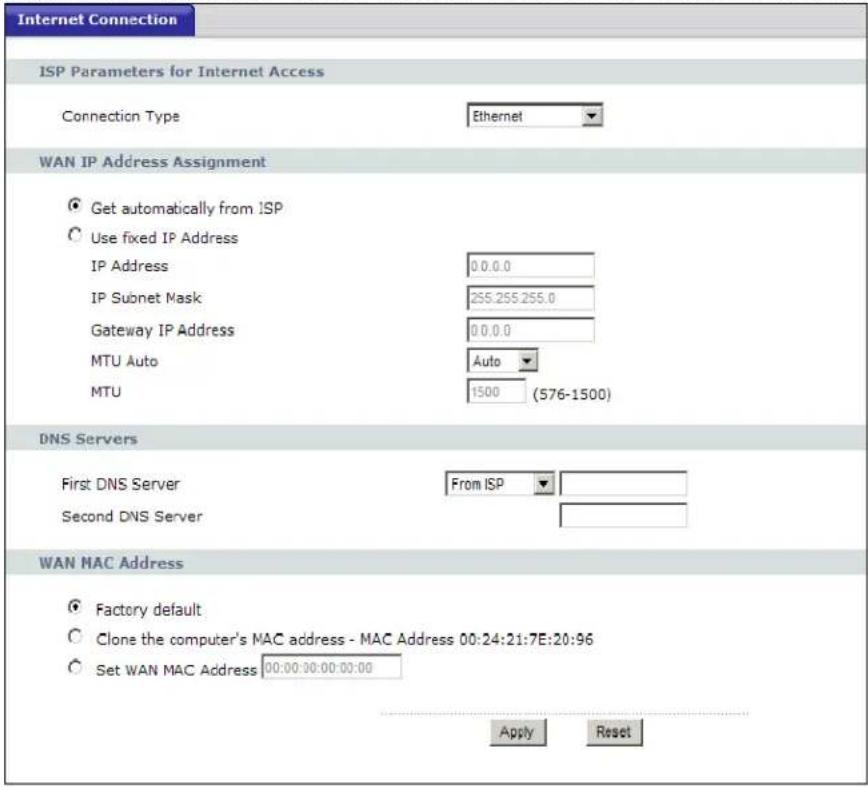
The following table describes the labels in this screen.
Table 33 Network > WAN > Internet Connection: Ethernet Encapsulation
| LABEL DESCRIPTION | |
| ISP Parameters for Internet Access | |
| Connection Type | You must choose the Ethernet option when the WAN port is used as a regular Ethernet. |
| WAN IP Address Assignment | |
| Get automatically from ISP | Select this option If your ISP did not assign you a fixed IP address. This is the default selection. |
| Use fixed IP Address | Select this option If the ISP assigned a fixed IP address. |
| IP Address | Enter your WAN IP address in this field if you selected Use Fixed IP Address. |
| IP Subnet Mask | Enter the IP Subnet Mask in this field. |
| Gateway IP Address | Enter a Gateway IP Address (if your ISP gave you one) in this field. |
| MTU Auto | Select Auto if you want to have the Maximum Transmission Unit (MTU) automatically configured. Select Manual if you want to have enter the MTU manually in the field below. |
| MTU Enter the | MTU or the largest packet size per frame that your NBG-416N can receive and process. |
| DNS Servers | |
| First DNS Server Second DNS Server | Select From ISP if your ISP dynamically assigns DNS server information (and the NBG-416N's WAN IP address). The field to the right displays the (read-only) DNS server IP address that the ISP assigns.Select User-Defined if you have the IP address of a DNS server. Enter the primary and secondary DNS server's IP address in the fields to the right. |
| WAN MAC Address | The MAC address section allows users to configure the WAN port's MAC address by either using the NBG-416N's MAC address, copying the MAC address from a computer on your LAN or manually entering a MAC address. |
| Factory default | Select Factory default to use the factory assigned default MAC Address. |
| Clone the computer's MAC address - IP Address | Select Clone the computer's MAC address - IP Address and enter the IP address of the computer on the LAN whose MAC you are cloning. Once it is successfully configured, the address will be copied to the rom file. It will not change unless you change the setting or upload a different ROM file. |
| Set WAN MAC Address | Select this option and enter the MAC address you want to use. |
| Apply | Click Apply to save your changes back to the NBG-416N. |
| Reset | Click Reset to begin configuring this screen afresh. |
8.3.2 PPPoE Encapsulation
The NBG-416N supports PPPoE (Point-to-Point Protocol over Ethernet). PPPoE is an IETF standard (RFC 2516) specifying how a personal computer (PC) interacts with a broadband modem (DSL, cable, wireless, etc.) connection. The PPP over Ethernet option is for a dial-up connection using PPPoE.
For the service provider, PPPoE offers an access and authentication method that works with existing access control systems (for example Radius).
One of the benefits of PPPoE is the ability to let you access one of multiple network services, a function known as dynamic service selection. This enables the service provider to easily create and offer new IP services for individuals.
Operationally, PPPoE saves significant effort for both you and the ISP or carrier, as it requires no specific configuration of the broadband modem at the customer site.
By implementing PPPoE directly on the NBG-416N (rather than individual computers), the computers on the LAN do not need PPPoE software installed, since the NBG-416N does that part of the task. Furthermore, with NAT, all of the LANs' computers will have access.
This screen displays when you select PPPoE encapsulation.
Figure 51 Network > WAN > Internet Connection: PPPoE Encapsulation
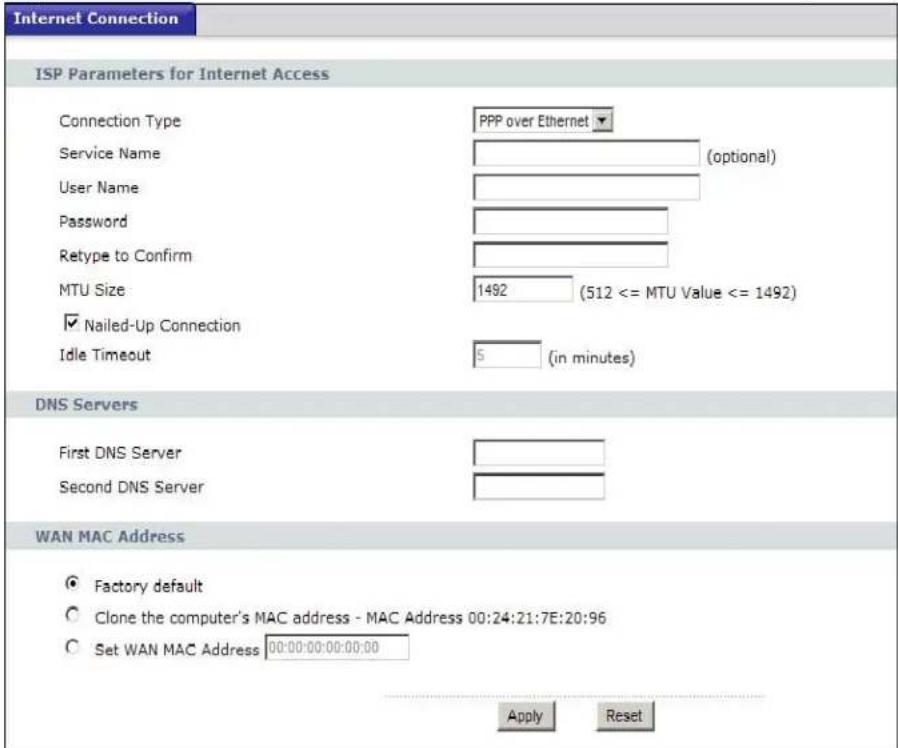
The following table describes the labels in this screen.
Table 34 Network > WAN > Internet Connection: PPPoE Encapsulation
| LABEL DESCRIPTION | |
| ISP Parameters for Internet Access | |
| Connection Type | Select PPP over Ethernet if you connect to your Internet via dial-up. |
| Service Name Type | Type the PPPoE service name provided to you. PPPoE uses a service name to identify and reach the PPPoE server. |
| User Name Type | the user name given to you by your ISP. |
| Password Type | the password associated with the user name above. |
| Retype to Confirm | Type your password again to make sure that you have entered is correctly. |
| MTU Size Enter | the MTU or the largest packet size per frame that your NBG-416N can receive and process. |
| Nailed-Up Connection | Select Nailed-Up Connection if you do not want the connection to time out. |
| Idle Timeout | This value specifies the time in minutes that elapses before the router automatically disconnects from the PPPoE server. |
| DNS Servers | |
| First DNS ServerSecond DNS Server | Enter the primary and secondary DNS server's IP addresses.If you do not configure a DNS server, you must know the IP address of a computer in order to access it. |
| WAN MAC Address | The MAC address section allows users to configure the WAN port's MAC address by using the NBG-416N's MAC address, copying the MAC address from a computer on your LAN or manually entering a MAC address. |
| Factory default | Select Factory default to use the factory assigned default MAC Address. |
| Clone the computer's MAC address - IP Address | Select Clone the computer's MAC address - IP Address and enter the IP address of the computer on the LAN whose MAC you are cloning.Once it is successfully configured, the address will be copied to the rom file. It will not change unless you change the setting or upload a different ROM file. |
| Set WAN MAC Address | Select this option and enter the MAC address you want to use. |
| Apply | Click Apply to save your changes back to the NBG-416N. |
| Reset | Click Reset to begin configuring this screen afresh. |
8.3.3 PPTP Encapsulation
Point-to-Point Tunneling Protocol (PPTP) is a network protocol that enables secure transfer of data from a remote client to a private server, creating a Virtual Private Network (VPN) using TCP/IP-based networks.
PPTP supports on-demand, multi-protocol and virtual private networking over public networks, such as the Internet.
This screen displays when you select PPTP encapsulation.
Figure 52 Network > WAN > Internet Connection: PPTP Encapsulation
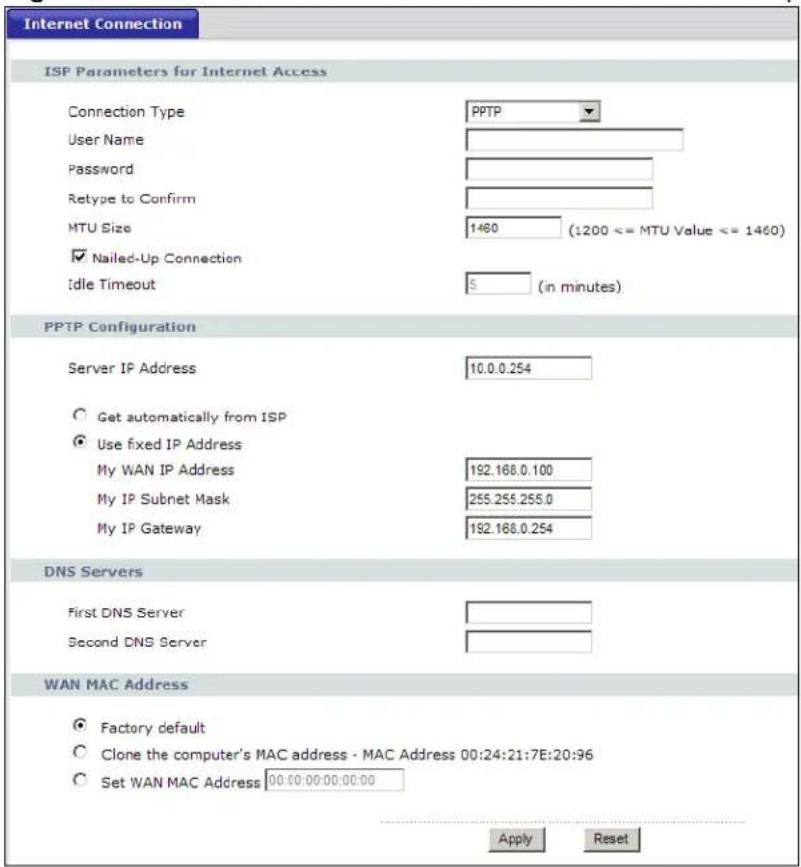
The following table describes the labels in this screen.
Table 35 Network > WAN > Internet Connection: PPTP Encapsulation
| LABEL DESCRIPTION | |
| ISP Parameters for Internet Access | |
| Connection Type Point-to-Point Tunneling Protocol (PPTP) is a network protocol that enables secure transfer of data from a remote client to a private server, creating a Virtual Private Network (VPN) using TCP/IP-based networks. PPTP supports on-demand, multi-protocol, and virtual private networking over public networks, such as the Internet. The NBG-416N supports only one PPTP server connection at any given time.To configure a PPTP client, you must configure theUser NameandPasswordfields for a PPP connection and the PPTP parameters for a PPTP connection. | |
| User Name Type the | user name given to you by your ISP. |
| LABEL DESCRIPTION | |
| Password | Type the password associated with theUser Nameabove. |
| Retype to Confirm Type | type your password again to make sure that you have entered correctly. |
| MTU Size Enter the MTU or the largest packet size per frame that your NBG-416N can receive and process. | |
| Nailed-up Connection | Select Nailed-Up Connectionif you do not want the connection to time out. |
| Idle Timeout This value specifies the time in minutes that elapses before the NBG-416N automatically disconnects from the PPTP server. | |
| PPTP Configuration | |
| Server IP Address/ Domain | Type the IP address of the PPTP server. |
| Connection ID/ Name | Type your identification name for the PPTP server. |
| Get automatically from ISP | Select this option If your ISP did not assign you a fixed IP address. This is the default selection. |
| Use fixed IP Address | Select this option If the ISP assigned a fixed IP address. |
| My WAN IP Address | Enter your WAN IP address in this field if you selectedUse Fixed IP Address. |
| My IP Subnet Mask | Your NBG-416N will automatically calculate the subnet mask based on the IP address that you assign. Unless you are implementing subnetting, use the subnet mask computed by the NBG-416N. |
| My IP Gateway Enter a Gateway IP Address (if your ISP gave you one) in this field. | |
| DNS Servers | |
| First DNS Server Second DNS Server | Enter the primary and secondary DNS server's IP addresses. If you do not configure a DNS server, you must know the IP address of a computer in order to access it. |
| WAN MAC Address The MAC address section allows users to configure the WAN port's MAC address by either using the NBG-416N's MAC address, copying the MAC address from a computer on your LAN or manually entering a MAC address. | |
| Factory default | SelectFactory defaultto use the factory assigned default MAC Address. |
| Clone the computer's MAC address - IP Address | SelectClone the computer's MAC address - IP Addressand enter the IP address of the computer on the LAN whose MAC you are cloning. Once it is successfully configured, the address will be copied to the rom file. It will not change unless you change the setting or upload a different ROM file. |
| Set WAN MAC Address | Select this option and enter the MAC address you want to use. |
| Apply | ClickApplyto save your changes back to the NBG-416N. |
| Reset | ClickResetto begin configuring this screen afresh. |
9.1 Overview
This chapter describes how to configure LAN settings.
A Local Area Network (LAN) is a shared communication system to which many computers are attached. A LAN is a computer network limited to the immediate area, usually the same building or floor of a building. The LAN screens can help you configure a LAN DHCP server, manage IP addresses, and partition your physical network into logical networks.
Figure 53 LAN Setup
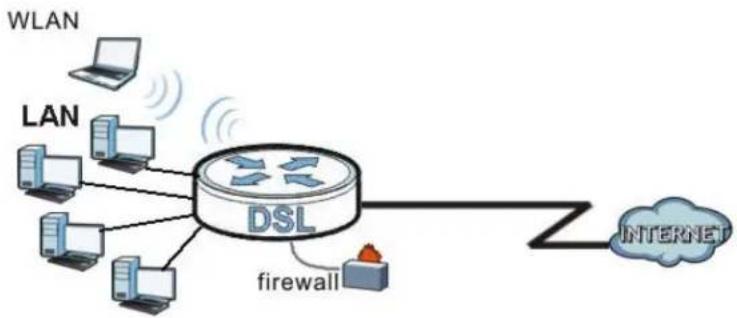
flowchart
graph TD
    A["DSL"] --> B["firewall"]
    B --> C["Internet"]
    D["WLAN"] --> A
    E["Laptop"] --> A
    F["LAN"] --> A
    G["Laptop"] --> A
    H["Laptop"] --> A
    I["Laptop"] --> A
The LAN screens can help you configure a LAN DHCP server and manage IP addresses.
9.2 What You Need To Know
The actual physical connection determines whether the NBG-416N ports are LAN or WAN ports. There are two separate IP networks, one inside the LAN network and the other outside the WAN network as shown next.
Figure 54 LAN and WAN IP Addresses
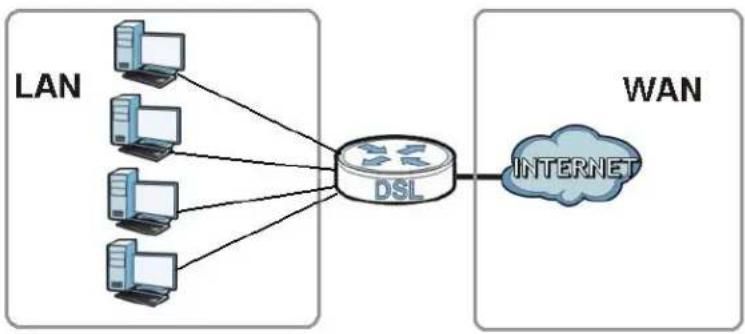
flowchart
graph LR
    subgraph LAN
        A1["Computer"] --> DSL["DSL"]
        A2["Computer"] --> DSL
        A3["Computer"] --> DSL
        A4["Computer"] --> DSL
        A5["Computer"] --> DSL
    end
    subgraph WAN
        B1["Internet"]
    end
The LAN parameters of the NBG-416N are preset in the factory with the following values:
- IP address of 192.168.1.1 with subnet mask of 255.255.255.0 (24 bits)
- DHCP server enabled with 32 client IP addresses starting from 192.168.1.33.
These parameters should work for the majority of installations. If your ISP gives you explicit DNS server address(es), read the embedded Web Configurator help regarding what fields need to be configured.
9.2.1 IP Pool Setup
The NBG-416N is pre-configured with a pool of 32 IP addresses starting from 192.168.1.33 to 192.168.1.64. This configuration leaves 31 IP addresses (excluding the NBG-416N itself) in the lower range (192.168.1.2 to 192.168.1.32) for other server computers, for instance, servers for mail, FTP, TFTP, web, etc., that you may have.
Refer to Section 4.4.6 on page 44 for information on IP Address and Subnet Mask.
9.2.2 LAN TCP/IP
The NBG-416N has built-in DHCP server capability that assigns IP addresses and DNS servers to systems that support DHCP client capability.
Refer to the Section 4.4.7 on page 45 section for information on System DNS Servers.
9.3 LAN IP Screen
Use this screen to change your basic LAN settings. Click Network > LAN.
Figure 55 Network > LAN > IP
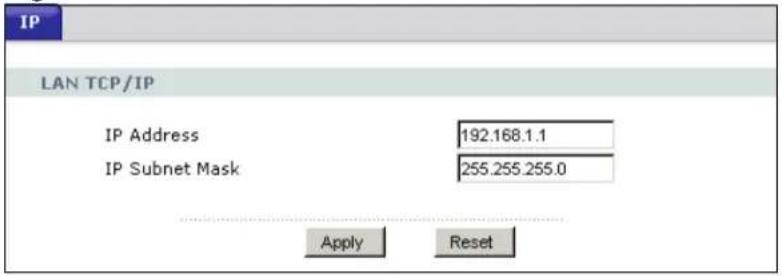
The following table describes the labels in this screen.
Table 36 Network > LAN > IP
| LABEL DESCRIPTION | |
| IP Address Type the IP address of your NBG-416N in dotted decimal notation 192.168.1.1 (factory default). | |
| IP Subnet Mask The subnet mask specifies the network number portion of an IP address. Your NBG-416N will automatically calculate the subnet mask based on the IP address that you assign. Unless you are implementing subnetting, use the subnet mask computed by the NBG-416N. | |
| Apply | Click Apply to save your changes back to the NBG-416N. |
| Reset | Click Reset to begin configuring this screen afresh. |
DHCP Server
10.1 Overview
DHCP (Dynamic Host Configuration Protocol, RFC 2131 and RFC 2132) allows individual clients to obtain TCP/IP configuration at start-up from a server. You can configure the NBG-416N's LAN as a DHCP server or disable it. When configured as a server, the NBG-416N provides the TCP/IP configuration for the clients. If DHCP service is disabled, you must have another DHCP server on your LAN, or else the computer must be manually configured.
10.2 What You Can Do
- Use the General screen to enable the DHCP server (Section 10.4 on page 96).
- Use the Advanced screen to assign IP addresses on the LAN to specific individual computers based on their MAC Addresses (Section 10.5 on page 96).
- Use the Client List screen to view the current DHCP client information (Section 10.6 on page 98).
10.3 What You Need To Know
Every Ethernet device has a unique MAC (Media Access Control) address. The MAC address is assigned at the factory and consists of six pairs of hexadecimal characters, for example, 00:A0:C5:00:00:02. Find out the MAC addresses of your network devices if you intend to add them to the DHCP Client List screen.
Refer to Section 4.4.6 on page 44 for information on IP Address and Subnet Mask.
Refer to the Section 4.4.7 on page 45 section for information on System DNS Servers.
10.4 General Screen
Use this screen to enable the DHCP server. Click Network > DHCP Server. The following screen displays.
Figure 56 Network > DHCP Server > General
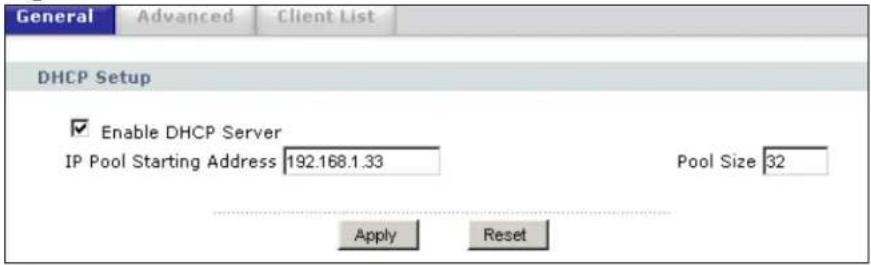
The following table describes the labels in this screen.
Table 37 Network > DHCP Server > General
| LABEL DESCRIPTION | |
| Enable DHCP Server | Enable or Disable DHCP for LAN.DHCP (Dynamic Host Configuration Protocol, RFC 2131 and RFC 2132) allows individual clients (computers) to obtain TCP/IP configuration at startup from a server. Leave the Enable DHCP Server check box selected unless your ISP instructs you to do otherwise. Clear it to disable the NBG-416N acting as a DHCP server. When configured as a server, the NBG-416N provides TCP/IP configuration for the clients. If not, DHCP service is disabled and you must have another DHCP server on your LAN, or else the computers must be manually configured. When set as a server, fill in the following four fields. |
| IP Pool Starting Address | This field specifies the first of the contiguous addresses in the IP address pool for LAN. |
| Pool Size | This field specifies the size, or count of the IP address pool for LAN. |
| Apply | Click Apply to save your changes back to the NBG-416N. |
| Reset | Click Reset to begin configuring this screen afresh. |
10.5 Advanced Screen
This screen allows you to assign IP addresses on the LAN to specific individual computers based on their MAC addresses. You can also use this screen to configure the DNS server information that the NBG-416N sends to the DHCP clients.
To change your NBG-416N's static DHCP settings, click Network > DHCP Server > Advanced. The following screen displays.
Figure 57 Network > DHCP Server > Advanced
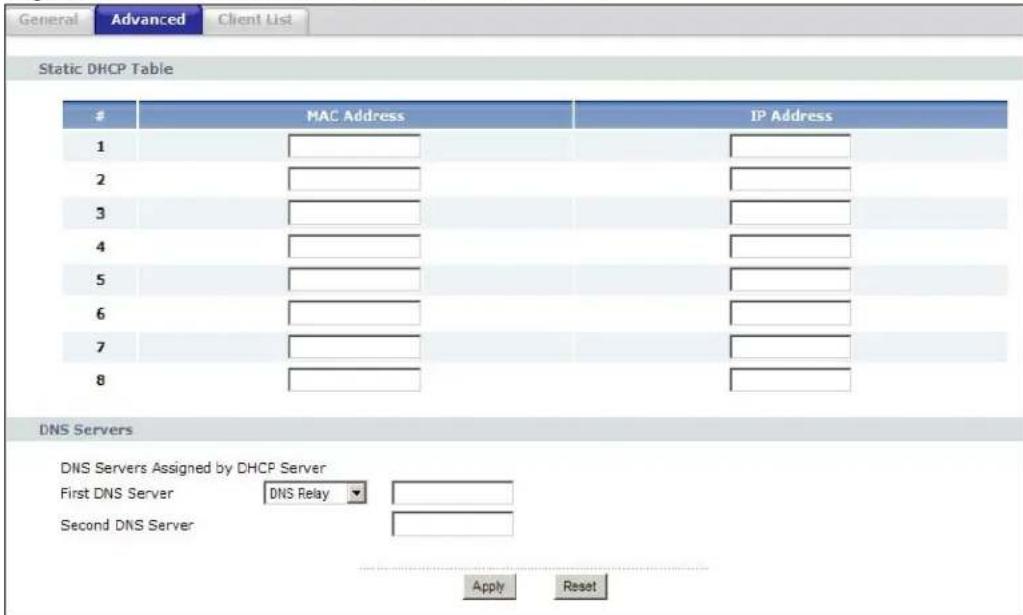
The following table describes the labels in this screen.
Table 38 Network > DHCP Server > Advanced
| LABEL DESCRIPTION | |
| Static DHCP Table | |
| # This is the index | number of the static IP table entry (row). |
| MAC Address | Type the MAC address (with colons) of a computer on your LAN. |
| IP Address Type th | e LAN IP address of a computer on your LAN. |
| DNS Server | |
| DNS Servers Assigned by DHCP Server | The NBG-416N passes a DNS (Domain Name System) server IP address (in the order you specify here) to the DHCP clients. If you do not configure the DNS server, the DHCP service is disabled and you must have another DHCP sever on your LAN, or else the computers must have their DNS server addresses manually configured. |
| First DNS ServerSecond DNS Server | SelectUser-Definedif you have the IP address of a DNS server.Enter the DNS server's IP address in the field to the right. If you choseUser-Defined, but leave the IP address set to 0.0.0.0,User-Definedchanges to Noneafter you clickApply. If you set a second choice toUser-Defined, and enter the same IP address, the secondUser-Definedchanges to Noneafter you clickApply.SelectDNS Relayto have the NBG-416N act as a DNS proxy. TheNBG-416N's LAN IP address displays in the field to the right (read-only). The NBG-416N tells the DHCP clients on the LAN that the NBG-416N itself is the DNS server. When a computer on the LAN sends aDNS query to the NBG-416N, the NBG-416N forwards the query to theNBG-416N's system DNS server (configured in theWAN > InternetConnectionscreen) and relays the response back to the computer.You can only selectDNS Relayfor one of the three servers; if youselectDNS Relayfor a second or third DNS server, that choicechanges to Noneafter you clickApply. |
| Apply | ClickApplyto save your changes back to the NBG-416N. |
| Reset | ClickResetto begin configuring this screen afresh. |
10.6 Client List Screen
The DHCP table shows current DHCP client information (including IP Address, Host Name and MAC Address) of network clients using the NBG-416N's DHCP servers.
Configure this screen to always assign an IP address to a MAC address (and host name). Click Network > DHCP Server > Client List.
Note: You can also view a read-only client list by clicking the DHCP Table (Details...) hyperlink in the Status screen.
The following screen displays.
Figure 58 Network > DHCP Server > Client List
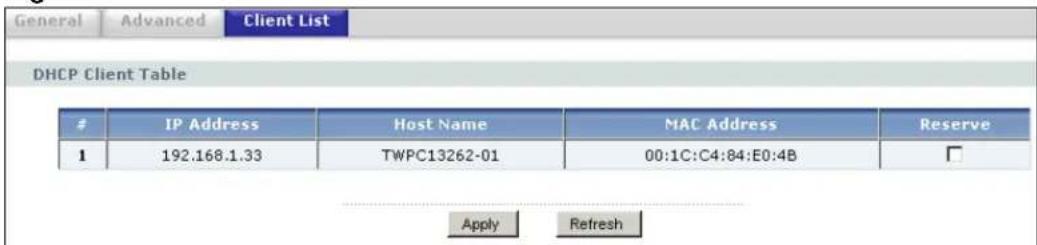
The following table describes the labels in this screen.
Table 39 Network > DHCP Server > Client List
| LABEL DESCRIPTION | |
| # This is the index number of the host computer. | |
| IP Address This field | displays the IP address relative to the # field listed above. |
| Host Name This field | displays the computer host name. |
| MAC Address The MAC (Media Access Control) or Ethernet address on a LAN(Local Area Network) is unique to your computer (six pairs of hexadecimal notation).A network interface card such as an Ethernet adapter has a hardwired address that is assigned at the factory. This address follows an industry standard that ensures no other adapter has a similar address. | |
| Reserve Select this check box in the DHCP Setup section to have the NBG-416N always assign the IP address(es) to the MAC address(es) (and host name(s)). After you click Apply, the MAC address and IP address also display in the Advanced screen (where you can edit them). | |
| Apply Click Apply to save your settings. | |
| Refresh Click Refresh to reload the DHCP table. | |
Network Address Translation (NAT)
11.1 Overview
This chapter discusses how to configure NAT on the NBG-416N.
NAT (Network Address Translation - NAT, RFC 1631) is the translation of the IP address of a host in a packet. For example, the source address of an outgoing packet, used within one network is changed to a different IP address known within another network.
Each packet has two addresses – a source address and a destination address. For outgoing packets, NAT maps private (local) IP addresses to globally unique ones required for communication with hosts on other networks. It replaces the original IP source address in each packet and then forwards it to the Internet. The NBG-416N keeps track of the original addresses and port numbers so incoming reply packets can have their original values restored. The following figure illustrates this.
Figure 59 NAT Example
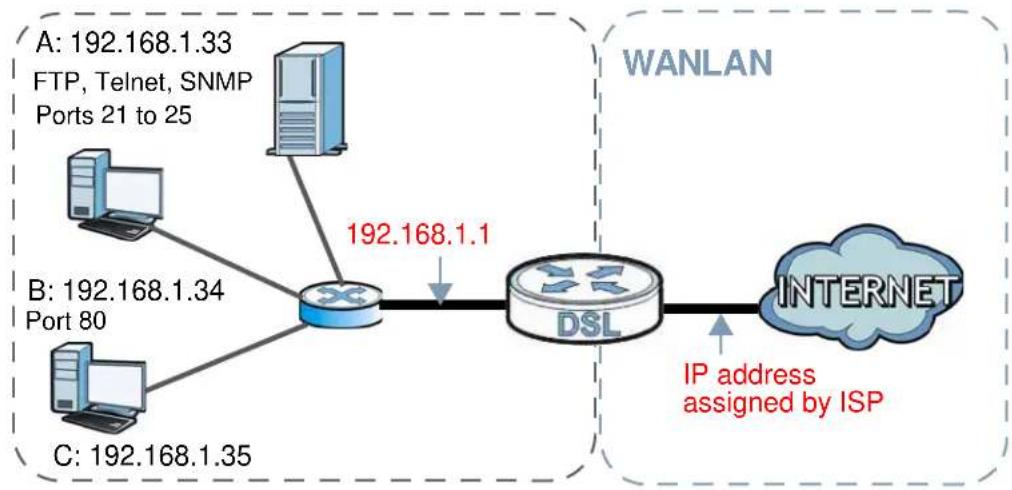
flowchart
graph LR
    A["Router"] -->|192.168.1.33 FTP, Telnet, SNMP Ports 21 to 25| B["Switch"]
    B -->|192.168.1.1| C["DSL"]
    C --> D["INTERNET"]
    E["Router"] -->|B: 192.168.1.34 Port 80| B
    F["Router"] -->|C: 192.168.1.35| B
    G["IP address assigned by ISP"] --> C
For more information on IP address translation, refer to RFC 1631, The IP Network Address Translator (NAT).
Note: You must create a firewall rule in addition to setting up NAT, to allow traffic from the WAN to be forwarded through the NBG-416N.
11.2 What You Can Do
- Use the General screen to enable NAT and set a default server (Section 11.3 on page 104).
- Use the Application screen to change your NBG-416N's port forwarding settings (Section 11.4 on page 105).
11.2.1 What You Need To Know
The following terms and concepts may help as you read through this chapter.
Inside/Outside
This denotes where a host is located relative to the NBG-416N, for example, the computers of your subscribers are the inside hosts, while the web servers on the Internet are the outside hosts.
Global/Local
This denotes the IP address of a host in a packet as the packet traverses a router, for example, the local address refers to the IP address of a host when the packet is in the local network, while the global address refers to the IP address of the host when the same packet is traveling in the WAN side.
Note: Inside/outside refers to the location of a host, while global/local refers to the IP address of a host used in a packet.
An inside local address (ILA) is the IP address of an inside host in a packet when the packet is still in the local network, while an inside global address (IGA) is the IP address of the same inside host when the packet is on the WAN side. The following table summarizes this information.
Table 40 NAT Definitions
| ITEM DESCRIPTION | |
| Inside This refers to the host on the LAN. | |
| Outside This refers to the host on the WAN. | |
| ITEM DESCRIPTION | |
| Local This refers to the packet address (source or destination) as the packet travels on the LAN. | |
| Global This refers to the packet address (source or destination) as the packet travels on the WAN. |
Note: NAT never changes the IP address (either local or global) of an outside host.
What NAT Does
In the simplest form, NAT changes the source IP address in a packet received from a subscriber (the inside local address) to another (the inside global address) before forwarding the packet to the WAN side. When the response comes back, NAT translates the destination address (the inside global address) back to the inside local address before forwarding it to the original inside host. Note that the IP address (either local or global) of an outside host is never changed.
The global IP addresses for the inside hosts can be either static or dynamically assigned by the ISP. In addition, you can designate servers, for example, a web server and a telnet server, on your local network and make them accessible to the outside world. If you do not define any servers, NAT offers the additional benefit of firewall protection. With no servers defined, your NBG-416N filters out all incoming inquiries, thus preventing intruders from probing your network. For more information on IP address translation, refer to RFC 1631, The IP Network Address Translator (NAT).
How NAT Works
Each packet has two addresses – a source address and a destination address. For outgoing packets, the ILA (Inside Local Address) is the source address on the LAN, and the IGA (Inside Global Address) is the source address on the WAN. For incoming packets, the ILA is the destination address on the LAN, and the IGA is the destination address on the WAN. NAT maps private (local) IP addresses to globally unique ones required for communication with hosts on other networks. It replaces the original IP source address in each packet and then forwards it to the Internet. The NBG-416N keeps track of the original addresses and port numbers
so incoming reply packets can have their original values restored. The following figure illustrates this.
Figure 60 How NAT Works
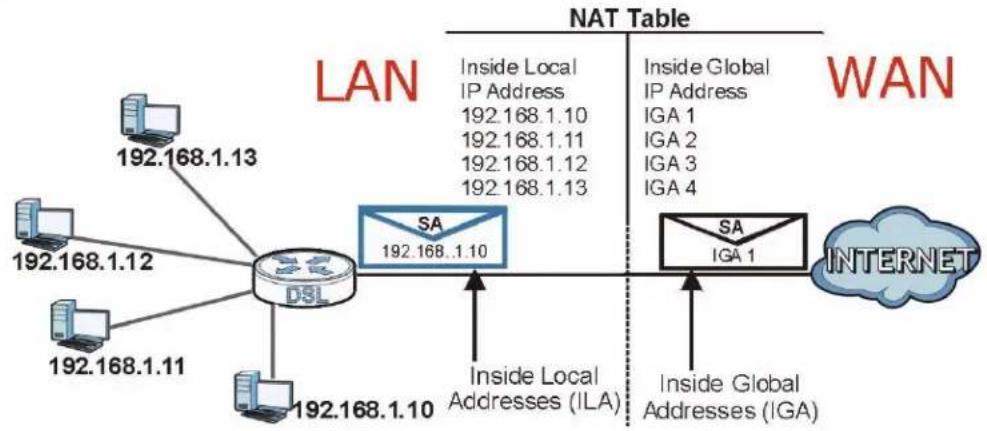
flowchart
graph TD
    subgraph LAN
        A["192.168.1.13"] --> B["DSL"]
        C["192.168.1.12"] --> B
        D["192.168.1.11"] --> B
        E["192.168.1.10"] --> B
    end
    subgraph WAN
        F["SA 192.168..1.10"] --> G["SA"]
        H["SA 1"] --> I["SA"]
        J["Internet"] --> K["SA"]
        L["ISA 1"] --> M["ISA 4"]
    end
    B -->|Inside Local Addresses (ILA)| G
    B -->|Inside Global Addresses (IGA)| M
    style B fill:#f9f,stroke:#333
    style G fill:#bbf,stroke:#333
    style M fill:#bbf,stroke:#333
11.3 General NAT Screen
Use this screen to enable NAT and set a default server. Click Network > NAT to open the General screen.
Figure 61 Network > NAT > General
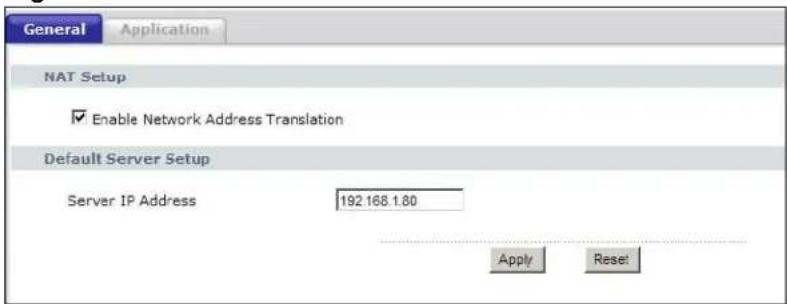
The following table describes the labels in this screen.
Table 41 Network > NAT > General
| LABEL DESCRIPTION | |
| NAT Setup | |
| Enable Network Address Translation | Network Address Translation (NAT) allows the translation of an Internet protocol address used within one network (for example a private IP address used in a local network) to a different IP address known within another network (for example a public IP address used on the Internet).Select the check box to enable NAT. |
| Default Server Setup | |
| Server IP Address | In addition to the servers for specified services, NAT supports a default server. A default server receives packets from ports that are not specified in the Application screen.If you do not assign a Default Server IP address, the NBG-416N discards all packets received for ports that are not specified in the Application screen or remote management. |
| Apply | Click Apply to save your changes back to the NBG-416N. |
| Reset | Click Reset to begin configuring this screen afresh. |
11.4 NAT Application Screen
Use the Application screen to forward incoming service requests to the server(s) on your local network. You may enter a single port number or a range of port numbers to be forwarded, and the local IP address of the desired server. The port number identifies a service; for example, web service is on port 80 and FTP on port 21. In some cases, such as for unknown services or where one server can support more than one service (for example both FTP and web service), it might be better to specify a range of port numbers.
In addition to the servers for specified services, NAT supports a default server. A service request that does not have a server explicitly designated for it is forwarded to the default server. If the default is not defined, the service request is simply discarded.
Note: Many residential broadband ISP accounts do not allow you to run any server processes (such as a Web or FTP server) from your location. Your ISP may periodically check for servers and may suspend your account if it discovers any active services at your location. If you are unsure, refer to your ISP.
Port forwarding allows you to define the local servers to which the incoming services will be forwarded. To change your NBG-416N's port forwarding settings, click Network > NAT > Application. The screen appears as shown.
Note: If you do not assign a Default Server IP address in the NAT > General screen, the NBG-416N discards all packets received for ports that are not specified in this screen or remote management.
Refer to Appendix E on page 205 for port numbers commonly used for particular services.
Figure 62 Network > NAT > Application
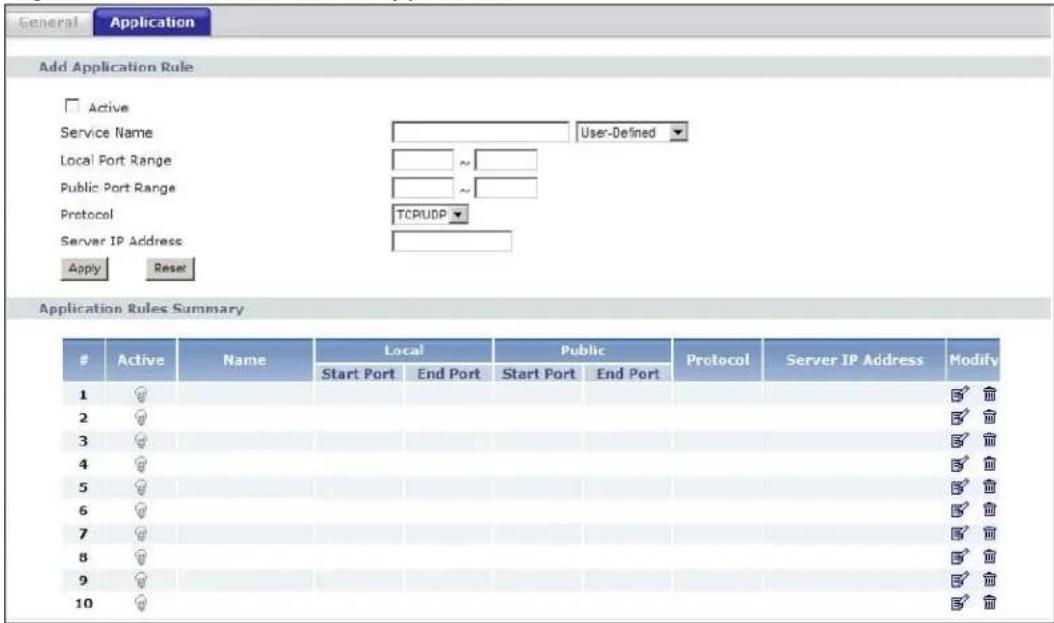
The following table describes the labels in this screen.
Table 42 Network > NAT > Application
| LABEL DESCRIPTION | |
| Add Application Rule | |
| Active Select the | check box to enable this rule and the requested service can be forwarded to the host with a specified internal IP address.Clear the checkbox to disallow forwarding of these ports to an inside server without having to delete the entry. |
| Service Name Type | a name (of up to 31 printable characters) to identify this rule in the first field next to Service Name. Otherwise, select a predefined service in the second field next to Service Name. The predefined service name and port number(s) will display in the Service Name and Port fields. |
| Local Port Range | Type a port number(s) to be forwarded.To specify a range of ports, enter a hyphen (-) between the first port and the last port, such as 10-20.To specify two or more non-consecutive port numbers, separate them by a comma without spaces, such as 123,567. |
| Public Port Range | |
| Server IP Address | Type the inside IP address of the server that receives packets from the port(s) specified in the Port field. |
| Apply | Click Apply to save your changes to the Application Rules Summary table. |
| Reset | Click Reset to not save and return your new changes in the Service Name and Port fields to the previous one. |
| Application Rules Summary | |
| # This is the num | ber of an individual port forwarding server entry. |
| Active This icon is | turned on when the rule is enabled. |
| Name This field displays a name to identify this rule. | |
| Local Start/End Port | This field displays the port number(s). |
| Public Start/End Port | |
| Protocol This field displays the traffic protocol type. | |
| Server IP Address | This field displays the inside IP address of the server. |
| Modify | Click the Edit icon to display and modify an existing rule setting in the fields under Add Application Rule.Click the Remove icon to delete a rule. |
11.5 Technical Reference
The following section contains additional technical information about the NBG-416N features described in this chapter.
11.5.1 NAT Port Forwarding: Services and Port Numbers
A port forwarding set is a list of inside (behind NAT on the LAN) servers, for example, web or FTP, that you can make accessible to the outside world even though NAT makes your whole inside network appear as a single machine to the outside world.
Use the Application screen to forward incoming service requests to the server(s) on your local network. You may enter a single port number or a range of port numbers to be forwarded, and the local IP address of the desired server. The port number identifies a service; for example, web service is on port 80 and FTP on port 21. In some cases, such as for unknown services or where one server can support more than one service (for example both FTP and web service), it might be better to specify a range of port numbers.
In addition to the servers for specified services, NAT supports a default server. A service request that does not have a server explicitly designated for it is forwarded
to the default server. If the default is not defined, the service request is simply discarded.
Note: Many residential broadband ISP accounts do not allow you to run any server processes (such as a Web or FTP server) from your location. Your ISP may periodically check for servers and may suspend your account if it discovers any active services at your location. If you are unsure, refer to your ISP.
11.5.2 NAT Port Forwarding Example
Let's say you want to assign ports 21-25 to one FTP, Telnet and SMTP server (A in the example), port 80 to another (B in the example) and assign a default server IP address of 192.168.1.35 to a third (C in the example). You assign the LAN IP addresses and the ISP assigns the WAN IP address. The NAT network appears as a single host on the Internet.
Figure 63 Multiple Servers Behind NAT Example
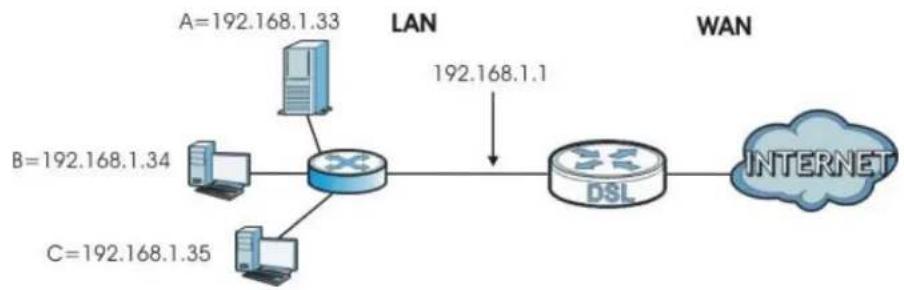
flowchart
graph LR
    A["A=192.168.1.33"] --> B["Router"]
    C["B=192.168.1.34"] --> B
    D["C=192.168.1.35"] --> B
    B --> E["192.168.1.1"]
    E --> F["DSL"]
    F --> G["INTERNET"]
Firewall
12.1 Overview
Use these screens to enable and configure the firewall that protects your NBG-416N and your LAN from unwanted or malicious traffic.
Enable the firewall to protect your LAN computers from attacks by hackers on the Internet and control access between the LAN and WAN. By default the firewall:
- allows traffic that originates from your LAN computers to go to all of the networks.
- blocks traffic that originates on the other networks from going to the LAN.
The following figure illustrates the default firewall action. User A can initiate an IM (Instant Messaging) session from the LAN to the WAN (1). Return traffic for this session is also allowed (2). However other traffic initiated from the WAN is blocked (3 and 4).
Figure 64 Default Firewall Action
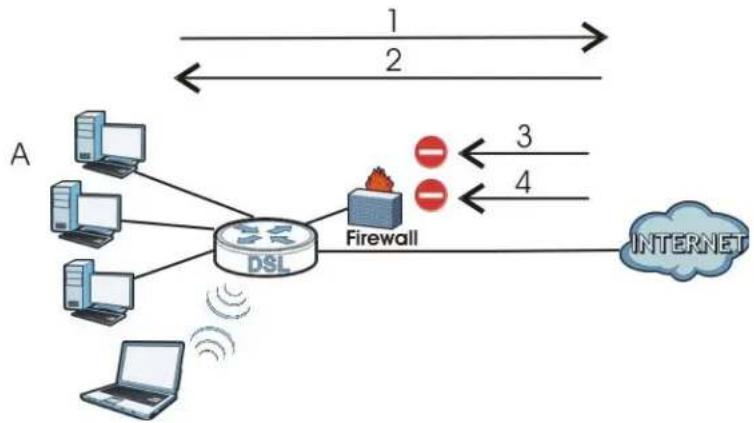
flowchart
graph LR
    A["Client 1"] --> DSL["DSL"]
    B["Client 2"] --> DSL
    C["Client 3"] --> DSL
    D["Client 4"] --> DSL
    DSL --> Firewall["Firewall"]
    Firewall --> Internet["INTERNET"]
    DSL -->|Wireless| Laptop["Laptop"]
    Firewall -->|Wireless| Firewall
    style DSL fill:#f9f,stroke:#333
    style Firewall fill:#ccf,stroke:#333
    style Internet fill:#cfc,stroke:#333
12.2 What You Can Do
- Use the General screen to enable or disable the NBG-416N's firewall (Section 12.4 on page 111).
- Use the Services screen to enable or disable ICMP and VPN passthrough features (Section 12.5 on page 111).
12.3 What You Need To Know
The NBG-416N's firewall feature physically separates the LAN and the WAN and acts as a secure gateway for all data passing between the networks.
12.3.1 About the NBG-416N Firewall
The NBG-416N firewall is a stateful inspection firewall and is designed to protect against Denial of Service attacks when activated (click the General tab under Firewall and then click the Enable Firewall check box). The NBG-416N's purpose is to allow a private Local Area Network (LAN) to be securely connected to the Internet. The NBG-416N can be used to prevent theft, destruction and modification of data, as well as log events, which may be important to the security of your network.
The NBG-416N is installed between the LAN and a broadband modem connecting to the Internet. This allows it to act as a secure gateway for all data passing between the Internet and the LAN.
The NBG-416N has one Ethernet WAN port and four Ethernet LAN ports, which are used to physically separate the network into two areas. The WAN (Wide Area Network) port attaches to the broadband (cable or DSL) modem to the Internet.
The LAN (Local Area Network) port attaches to a network of computers, which needs security from the outside world. These computers will have access to Internet services such as e-mail, FTP and the World Wide Web. However, "inbound access" is not allowed (by default) unless the remote host is authorized to use a specific service.
12.3.2 VPN Pass Through Features
A Virtual Private Network (VPN) is a way to securely connect two networks over the Internet. For example a home network and one in a business office. This requires special equipment on both ends of the connection.
The NBG-416N is not one of the endpoints but it does allow traffic from those endpoints to pass through. The NBG-416N allows the following types of VPN traffic to pass through:
- IP security (IPSec)
- Point-to-Point Tunneling Protocol (PPTP)
12.4 General Firewall Screen
Use this screen to enable or disable the NBG-416N's firewall, and set up firewall logs. Click Security > Firewall to open the General screen.
Figure 65 Security > Firewall > General
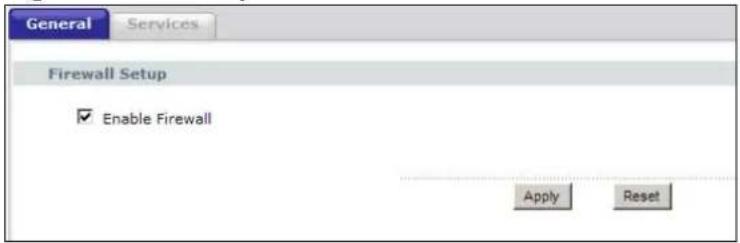
The following table describes the labels in this screen.
Table 43 Security > Firewall > General
| LABEL DESCRIPTION | |
| Enable Firewall Select this check box to activate the firewall. The NBG-416N performs access control and protects against Denial of Service (DoS) attacks when the firewall is activated. | |
| Apply | Click Apply to save the settings. |
| Reset | Click Reset to start configuring this screen again. |
12.5 Services Screen
Use the Services screen to enable or disable ICMP and VPN passthrough features.
Click Security > Firewall > Services. The screen appears as shown next.
Figure 66 Security > Firewall > Services
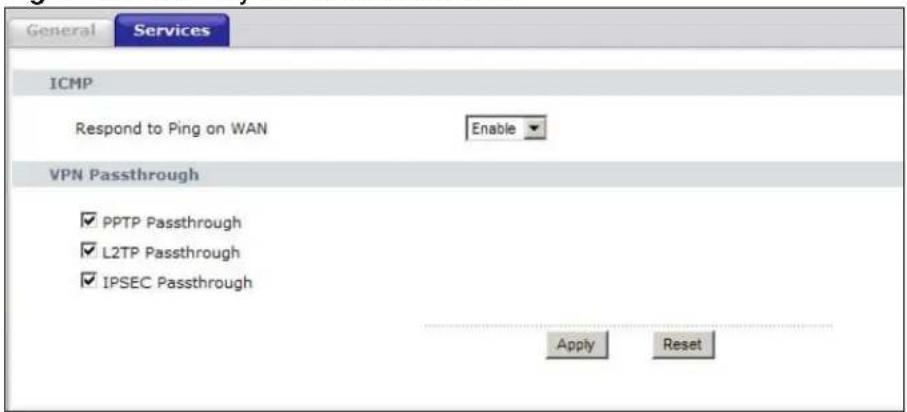
The following table describes the labels in this screen.
Table 44 Security > Firewall > Services
| LABEL DESCRIPTION | |
| ICMP Internet Control | Control Message Protocol is a message control and error-reporting protocol between a host server and a gateway to the Internet. ICMP uses Internet Protocol (IP) datagrams, but the messages are processed by the TCP/IP software and directly apparent to the application user. |
| Respond to Ping on WAN | The NBG-416N will not respond to any incoming Ping requests when Disable is selected. Select Enable to reply to incoming WAN Ping requests. |
| VPN Passthrough | Select the checkbox to enable the advanced pass through features:PPTP Passthrough: Select this option to allow the NBG-416N to pass through VPN traffic using PPTP.L2TP Passthrough: Select this option to enable computers on your LAN to make L2TP VPN connections to servers on the Internet.IPSEC Passthrough: Select this option to allow the NBG-416N to pass through VPN traffic using the IPsec protocol. |
| Apply | Click Apply to save the settings. |
| Reset | Click Reset to start configuring this screen again. |
Remote Management
13.1 Overview
This chapter provides information on the Remote Management screens.
Remote management allows you to determine which services/protocols can access which NBG-416N interface (if any) from which computers.
You may manage your NBG-416N from a remote location via:
• LAN only • LAN and WAN
Note: When you configure remote management to allow management from the LAN and WAN in the options above, you still need to configure a firewall rule to allow access. See the firewall chapters for details on configuring firewall rules.
13.2 What You Need To Know
13.2.1 Remote Management Limitations
Remote management over LAN or WAN will not work when:
1 You have disabled that service in one of the remote management screens.
2 The IP address in the Secured Client IP Address field does not match the client IP address. If it does not match, the NBG-416N will disconnect the session immediately.
3 There is already another remote management session with an equal or higher priority running. You may only have one remote management session running at one time.
4 There is a firewall rule that blocks it.
13.2.2 Remote Management and NAT
When NAT is enabled:
- Use the NBG-416N's WAN IP address when configuring from the WAN.
- Use the NBG-416N's LAN IP address when configuring from the LAN.
13.2.3 System Timeout
There is a default system management idle timeout of five minutes (three hundred seconds). The NBG-416N automatically logs you out if the management session remains idle for longer than this timeout period. The management session does not time out when a statistics screen is polling. You can change the timeout period in the System screen.
13.3 WWW Screen
To change your NBG-416N's World Wide Web settings, click Management > Remote MGMT to display the WWW screen.
Figure 67 Management > Remote MGMT > WWW
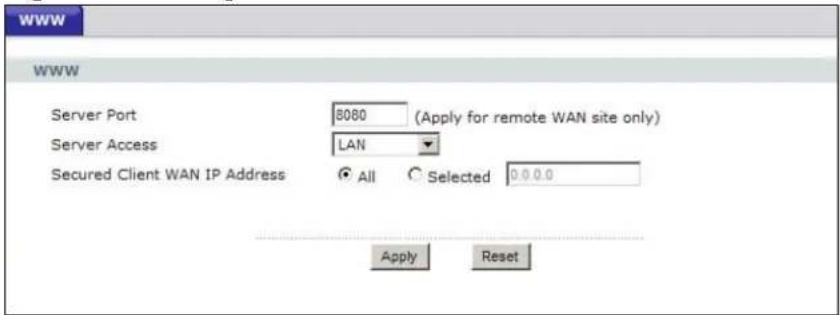
The following table describes the labels in this screen.
Table 45 Management > Remote MGMT > WWW
| LABEL DESCRIPTION | |
| Server Port You may change the server port number for a service if needed, however you must use the same port number in order to use that service for remote management. | |
| Server Access Select the interface(s) through which a computer may access the NBG-416N using this service. | |
| Secured Client IP Address | A secured client is a “trusted” computer that is allowed to communicate with the NBG-416N using this service.Select All to allow any computer to access the NBG-416N using this service.Choose Selected to just allow the computer with the IP address that you specify to access the NBG-416N using this service.Note: This only applies on WAN IP. |
| Apply | Click Apply to save your customized settings and exit this screen. |
| Reset | Click Reset to begin configuring this screen afresh. |
Universal Plug-and-Play (UPnP)
14.1 Overview
This chapter introduces the UPnP feature in the Web Configurator.
Universal Plug and Play (UPnP) is a distributed, open networking standard that uses TCP/IP for simple peer-to-peer network connectivity between devices. A UPnP device can dynamically join a network, obtain an IP address, convey its capabilities and learn about other devices on the network. In turn, a device can leave a network smoothly and automatically when it is no longer in use.
14.2 What You Need to Know
How do I know if I'm using UPnP?
UPnP hardware is identified as an icon in the Network Connections folder (Windows XP). Each UPnP compatible device installed on your network will appear as a separate icon. Selecting the icon of a UPnP device will allow you to access the information and properties of that device.
NAT Traversal
UPnP NAT traversal automates the process of allowing an application to operate through NAT. UPnP network devices can automatically configure network addressing, announce their presence in the network to other UPnP devices and enable exchange of simple product and service descriptions. NAT traversal allows the following:
• Dynamic port mapping
- Learning public IP addresses
- Assigning lease times to mappings
Windows Messenger is an example of an application that supports NAT traversal and UPnP.
See the NAT chapter for more information on NAT.
Cautions with UPnP
The automated nature of NAT traversal applications in establishing their own services and opening firewall ports may present network security issues. Network information and configuration may also be obtained and modified by users in some network environments.
When a UPnP device joins a network, it announces its presence with a multicast message. For security reasons, the NBG-416N allows multicast messages on the LAN only.
All UPnP-enabled devices may communicate freely with each other without additional configuration. Disable UPnP if this is not your intention.
14.3 UPnP Screen
Use this screen to enable UPnP. Click the Management > UPnP to open the following screen.
Figure 68 Management > UPnP > General
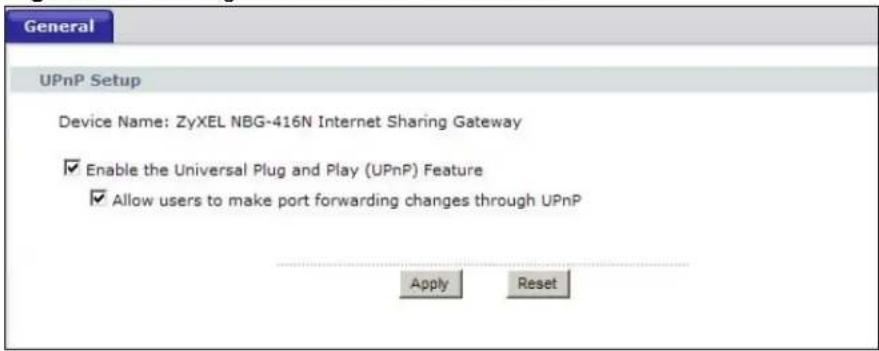
The following table describes the labels in this screen.
Table 46 Management > UPnP > General
| LABEL DESCRIPTION | |
| Enable the Universal Plug and Play (UPnP) Feature | Select this check box to activate UPnP. Be aware that anyone could use a UPnP application to open the Web Configurator's login screen without entering the NBG-416N's IP address (although you must still enter the password to access the Web Configurator). |
| Allow users to make port forwarding changes through UPnP | Select this check box to allow UPnP-enabled applications to automatically configure the NBG-416N so that they can communicate through the NBG-416N, for example by using NAT traversal, UPnP applications automatically reserve a NAT forwarding port in order to communicate with another UPnP enabled device; this eliminates the need to manually configure port forwarding for the UPnP enabled application. |
| Apply | Click Apply to save the setting to the NBG-416N. |
| Reset | Click Reset to begin configuring this screen afresh. |
14.4 Technical Reference
The sections show examples of using UPnP.
14.4.1 Using UPnP in Windows XP Example
This section shows you how to use the UPnP feature in Windows XP. You must already have UPnP installed in Windows XP and UPnP activated on the NBG-416N.
Make sure the computer is connected to a LAN port of the NBG-416N. Turn on your computer and the NBG-416N.
14.4.1.1 Auto-discover Your UPnP-enabled Network Device
1 Click start and Control Panel. Double-click Network Connections. An icon displays under Internet Gateway.
2 Right-click the icon and select Properties.
Figure 69 Network Connections
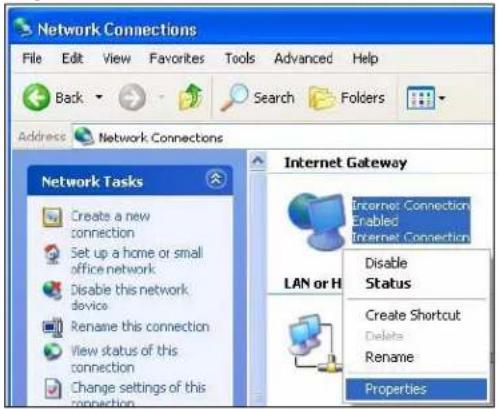
3 In the Internet Connection Properties window, click Settings to see the port mappings there were automatically created.
Figure 70 Internet Connection Properties
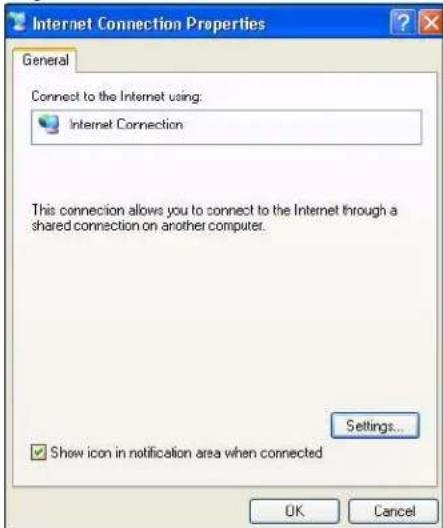
4 You may edit or delete the port mappings or click Add to manually add port mappings.
Figure 71 Internet Connection Properties: Advanced Settings
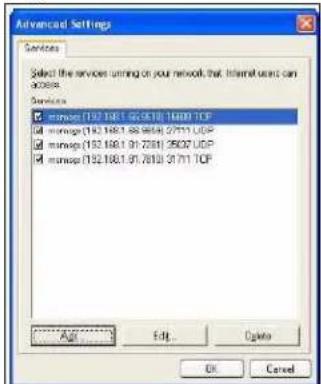
Figure 72 Internet Connection Properties: Advanced Settings: Add
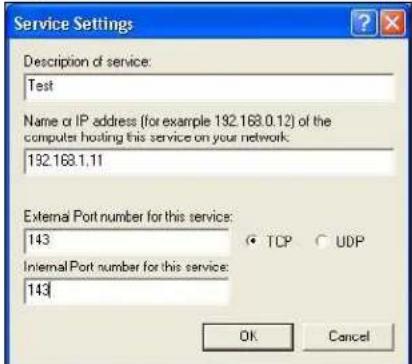
Note: When the UPnP-enabled device is disconnected from your computer, all port mappings will be deleted automatically.
5 Select Show icon in notification area when connected option and click OK. An icon displays in the system tray.
Figure 73 System Tray Icon
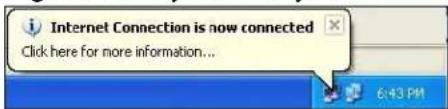
6 Double-click on the icon to display your current Internet connection status.
Figure 74 Internet Connection Status
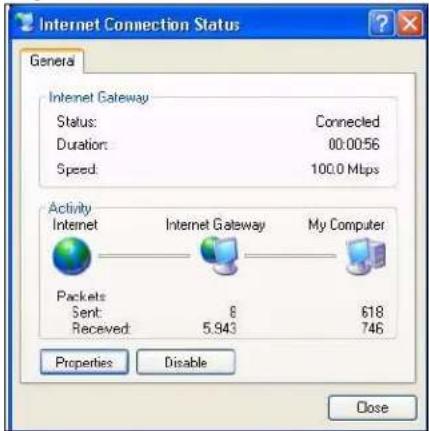
14.4.2 Web Configurator Easy Access
With UPnP, you can access the web-based configurator on the NBG-416N without finding out the IP address of the NBG-416N first. This comes helpful if you do not know the IP address of the NBG-416N.
Follow the steps below to access the Web Configurator.
1 Click Start and then Control Panel.
2 Double-click Network Connections.
3 Select My Network Places under Other Places.
Figure 75 Network Connections
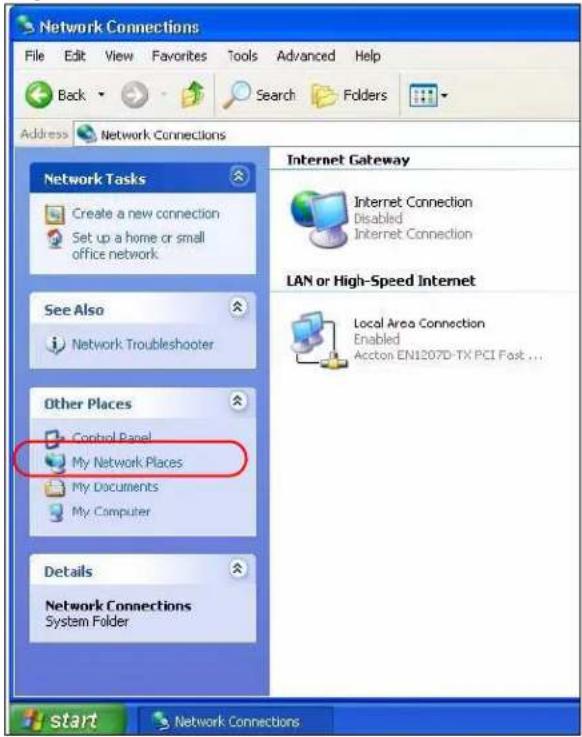
4 An icon with the description for each UPnP-enabled device displays under Local Network.
5 Right-click on the icon for your NBG-416N and select Invoke. The Web Configurator login screen displays.
Figure 76 Network Connections: My Network Places
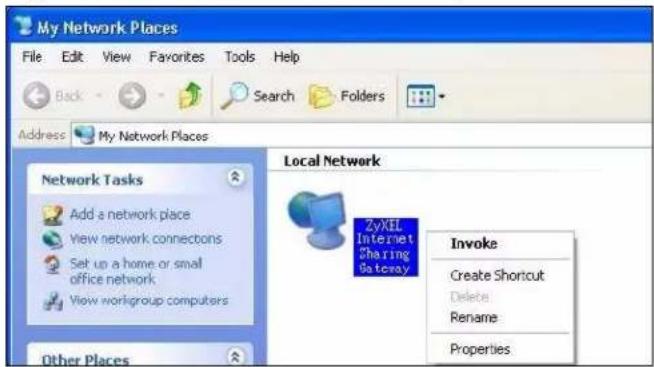
15.1 Overview
This chapter provides information on the System screens.
See the chapter about wizard setup for more information on the next few screens.
15.2 What You Can Do
- Use the General screen to enter a name to identify the NBG-416N in the network and set the password (Section 15.3 on page 125).
- Use the Time Setting screen to change your NBG-416N's time and date (Section 15.4 on page 127).
15.3 System General Screen
Use this screen to enter a name to identify the NBG-416N in the network and set the password. Click Maintenance > System. The following screen displays.
Figure 77 Maintenance > System > General
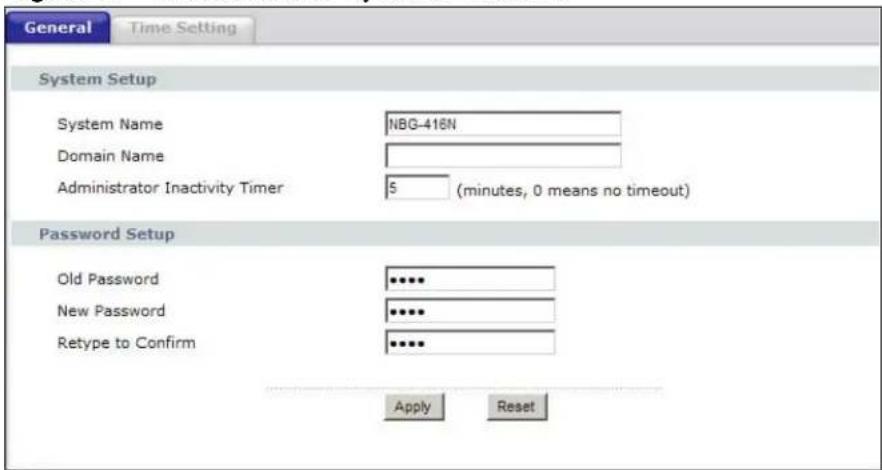
The following table describes the labels in this screen.
Table 47 Maintenance > System > General
| LABEL DESCRIPTION | |
| System Setup | |
| System Name System | Item Name is a unique name to identify the NBG-416N in an Ethernet network. It is recommended you enter your computer's "Computer name" in this field (see the chapter about wizard setup for how to find your computer's name).This name can be up to 30 alphanumeric characters long. Spaces are not allowed, but dashes "-" and underscores "_" are accepted. |
| Domain Name Enter | The domain name (if you know it) here. If you leave this field blank, the ISP may assign a domain name via DHCP.The domain name entered by you is given priority over the ISP assigned domain name. |
| Administrator Inactivity Timer | Type how many minutes a management session can be left idle before the session times out. The default is 5 minutes. After it times out you have to log in with your password again. Very long idle timeouts may have security risks. A value of "0" means a management session never times out, no matter how long it has been left idle (not recommended). |
| Password Setup Change your NBG-416N's password (recommended) using the fields as shown. | |
| Old Password Type | the default password or the existing password you use to access the system in this field. |
| New Password Type | your new system password (up to 30 characters). Note that as you type a password, the screen displays an asterisk (*) for each character you type. |
| Retype to Confirm | Type the new password again in this field. |
| Apply | Click Apply to save your changes back to the NBG-416N. |
| Reset | Click Reset to begin configuring this screen afresh. |
15.4 Time Setting Screen
To change your NBG-416N's time and date, click Maintenance > System > Time Setting. The screen appears as shown. Use this screen to configure the NBG-416N's time based on your local time zone.
Figure 78 Maintenance > System > Time Setting
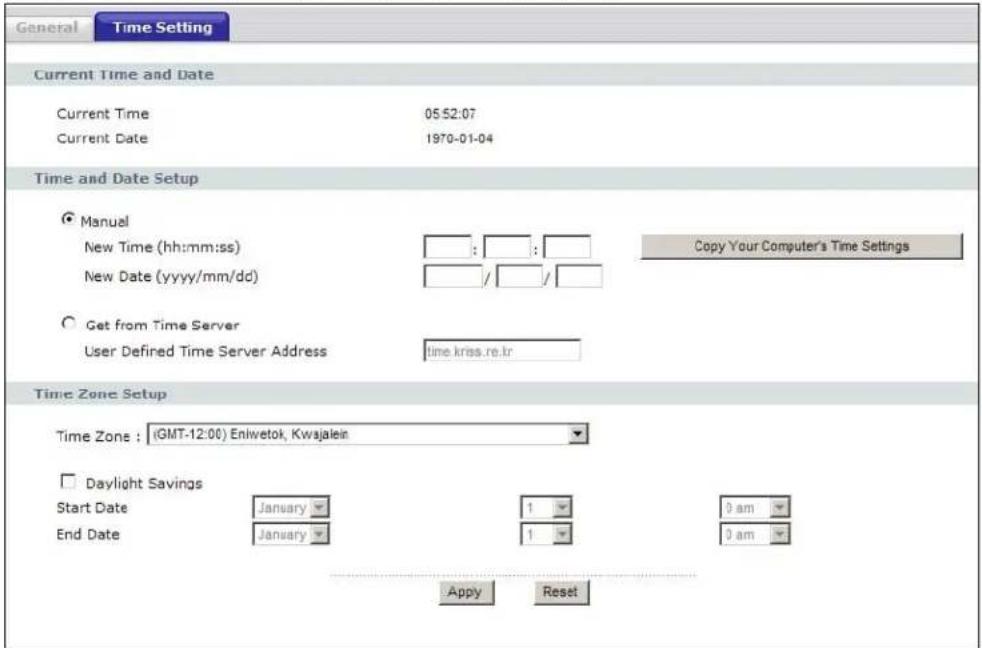
The following table describes the labels in this screen.
Table 48 Maintenance > System > Time Setting
| LABEL DESCRIPTION | |
| Current Time and Date | |
| Current Time This | field displays the time of your NBG-416N.Each time you reload this page, the NBG-416N synchronizes the time with the time server. |
| Current Date This | field displays the date of your NBG-416N.Each time you reload this page, the NBG-416N synchronizes the date with the time server. |
| Time and Date Setup | |
| Manual Select this | radio button to enter the time and date manually. If you configure a new time and date, Time Zone and Daylight Saving at the same time, the new time and date you entered has priority and the Time Zone and Daylight Saving settings do not affect it. |
| Copy Your Computer's Time Settings | Click this to copy the time settings of your computer into the NBG-416N's time and date setup. |
| New Time (hh:mm:ss) | This field displays the last updated time from the time server or the last time configured manually.When you set Time and Date Setup to Manual, enter the new time in this field and then click Apply. |
| New Date (yyyy/mm/dd) | This field displays the last updated date from the time server or the last date configured manually.When you set Time and Date Setup to Manual, enter the new date in this field and then click Apply. |
| Get from Time Server | Select this radio button to have the NBG-416N get the time and date from the time server you specified below. |
| Auto | Select Auto to have the NBG-416N automatically search for an available time server and synchronize the date and time with the time server after you click Apply. |
| User Defined Time Server Address | Select User Defined Time Server Address and enter the IP address or URL (up to 20 extended ASCII characters in length) of your time server. Check with your ISP/network administrator if you are unsure of this information. |
| Time Zone Setup | |
| Time Zone Choose | the time zone of your location. This will set the time difference between your time zone and Greenwich Mean Time (GMT). |
| Daylight Savings D | daylight saving is a period from late spring to early fall when many countries set their clocks ahead of normal local time by one hour to give more daytime light in the evening.Select this option if you use Daylight Saving Time. |
| Start Date Configure | the day and time when Daylight Saving Time starts if you selected Daylight Savings. The o'clock field uses the 24 hour format. Here are a couple of examples:Daylight Saving Time starts in most parts of the United States on the first Sunday of April. Each time zone in the United States starts using Daylight Saving Time at 2 A.M. local time. So in the United States you would select First, Sunday, April and type 2 in the o'clock field.Daylight Saving Time starts in the European Union on the last Sunday of March. All of the time zones in the European Union start using Daylight Saving Time at the same moment (1 A.M. GMT or UTC). So in the European Union you would select Last, Sunday, March. The time you type in the o'clock field depends on your time zone. In Germany for instance, you would type 2 because Germany's time zone is one hour ahead of GMT or UTC (GMT+1). |
| End Date Configure | the day and time when Daylight Saving Time ends if you selectedDaylight Savings. The o'clockfield uses the 24 hour format. Here are a couple of examples:Daylight Saving Time ends in the United States on the last Sunday of October. Each time zone in the United States stops using Daylight Saving Time at 2 A.M. local time. So in the United States you would selectLast, Sunday, Octoberand type 2 in the o'clockfield.Daylight Saving Time ends in the European Union on the last Sunday of October. All of the time zones in the European Union stop using Daylight Saving Time at the same moment (1 A.M. GMT or UTC). So in the European Union you would selectLast, Sunday, October. The time you type in the o'clockfield depends on your time zone. In Germany for instance, you would type 2 because Germany's time zone is one hour ahead of GMT or UTC (GMT+1). |
| Apply | ClickApplyto save your changes back to the NBG-416N. |
| Reset | ClickResetto begin configuring this screen afresh. |
16.1 Overview
This chapter contains information about configuring general log settings and viewing the NBG-416N's logs.
The Web Configurator allows you to look at all of the NBG-416N's logs in one location.
16.2 What You Need to Know
An alert is a type of log that warrants more serious attention. They include system errors, attacks (access control) and attempted access to blocked web sites or web sites with restricted web features such as cookies, active X and so on. Some categories such as System Errors consist of both logs and alerts. You may differentiate them by their color in the View Log screen. Alerts display in red and logs display in black.
Alerts are e-mailed as soon as they happen. Logs may be e-mailed as soon as the log is full (see Log Schedule). Selecting many alert and/or log categories (especially Access Control) may result in many e-mails being sent.
16.3 View Log Screen
Use the View Log screen to see the logged messages for the NBG-416N. Options include logs about system maintenance, system errors, access control, allowed or blocked web sites, blocked web features (such as ActiveX controls, Java and cookies), attacks (such as DoS) and IPSec.
Log entries in red indicate system error logs. The log wraps around and deletes the old entries after it fills. Click a column heading to sort the entries. A triangle indicates ascending or descending sort order.
Click Maintenance > Logs to open the View Log screen.
Figure 79 Maintenance > Logs > View Log
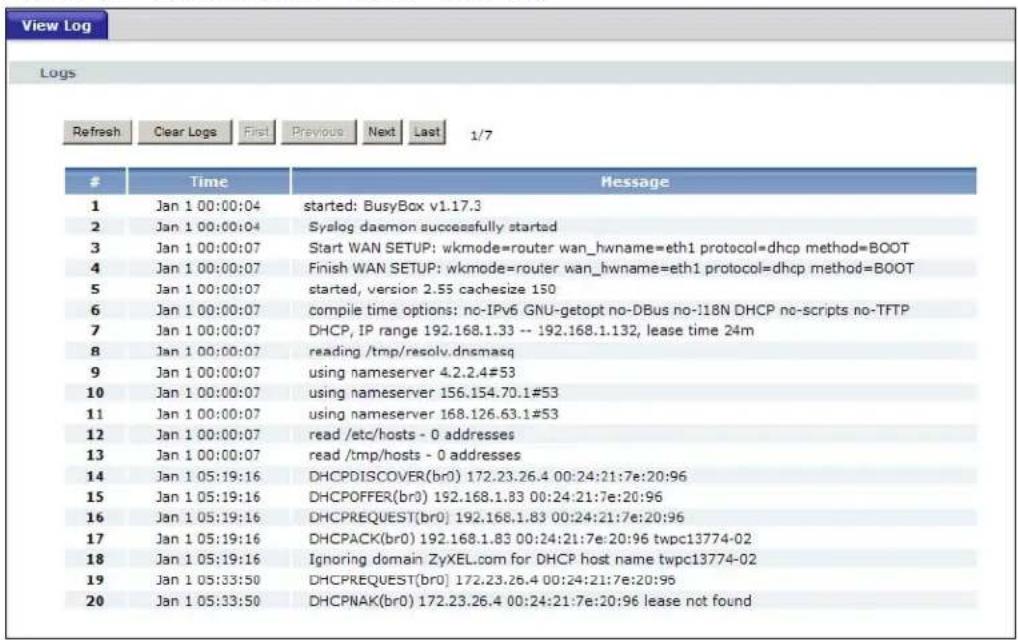
The following table describes the labels in this screen.
Table 49 Maintenance > Logs > View Log
| LABEL DESCRIPTION | |
| Refresh | Click Refresh to renew the log screen. |
| Clear Logs | Click Clear Logs to delete all the logs. |
| Next | Click Next to show the next page of log entries. |
| Last | Click Last to show the last page of log entries. |
| # This is the index | number of the log entry. |
| Time This field displays the time the log was recorded. See the chapter on system maintenance and information to configure the NBG-416N's time and date. | |
| Message This field | states the reason for the log. |
17.1 Overview
This chapter shows you how to upload a new firmware, upload or save backup configuration files and restart the NBG-416N.
17.2 What You Can Do
- Use the Firmware screen to upload firmware to your NBG-416N (Section 17.3 on page 133).
- Use the Configuration screen to view information related to factory defaults, backup configuration, and restoring configuration (Section 17.4 on page 136).
- Use the Restart screen to have the NBG-416N reboot (Section 17.5 on page 138).
17.3 Firmware Upload Screen
Find firmware at www.zyxel.com in a file that (usually) uses the system model name with a “*.bin” extension, e.g., “NBG-416N.bin”. The upload process uses HTTP (Hypertext Transfer Protocol) and may take up to two minutes. After a successful upload, the system will reboot.
Click Maintenance > Tools. Follow the instructions in this screen to upload firmware to your NBG-416N.
Figure 80 Maintenance > Tools > Firmware
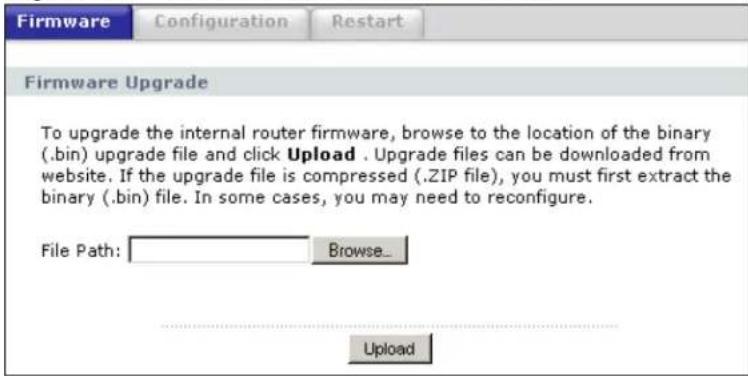
The following table describes the labels in this screen.
Table 50 Maintenance > Tools > Firmware
| LABEL DESCRIPTION | |
| File Path | Type in the location of the file you want to upload in this field or click Browse... to find it. |
| Browse... | Click Browse... to find the .bin file you want to upload. Remember that you must decompress compressed (.zip) files before you can upload them. |
| Upload | Click Upload to begin the upload process. This process may take up to two minutes. |
Note: Do not turn off the NBG-416N while firmware upload is in progress!
After you see the Firmware Upload In Process screen, wait for several minutes before logging into the NBG-416N again.
Figure 81 Upload Warning
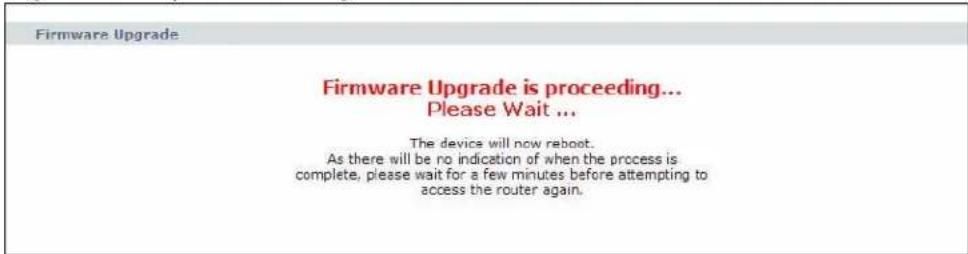
The NBG-416N automatically restarts in this time causing a temporary network disconnect. In some operating systems, you may see the following icon on your desktop.
Figure 82 Network Temporarily Disconnected
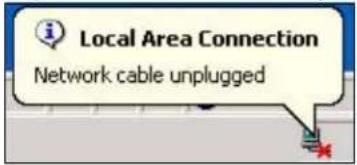
After two minutes, log in again and check your new firmware version in the Status screen.
If the upload was not successful, the following screen will appear. Click Return to go back to the Firmware screen.
Figure 83 Upload Error Message
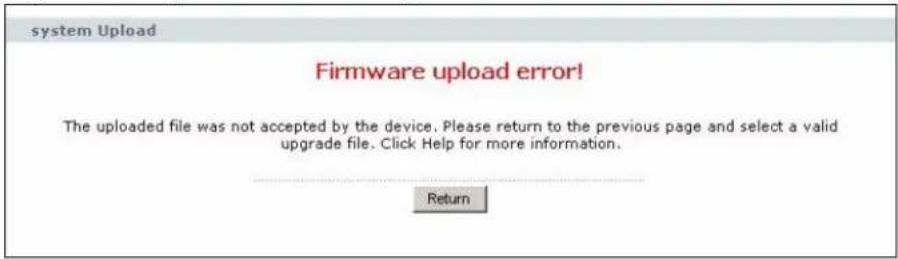
17.4 Configuration Screen
Click Maintenance > Tools > Configuration. Information related to factory defaults, backup configuration, and restoring configuration appears as shown next.
Figure 84 Maintenance > Tools > Configuration
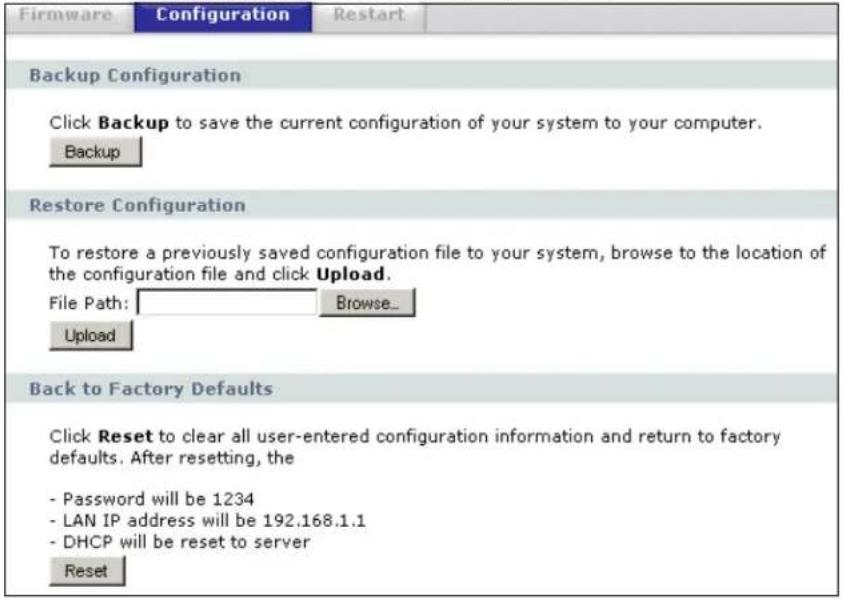
17.4.1 Backup Configuration
Backup configuration allows you to back up (save) the NBG-416N's current configuration to a file on your computer. Once your NBG-416N is configured and functioning properly, it is highly recommended that you back up your configuration file before making configuration changes. The backup configuration file will be useful in case you need to return to your previous settings.
Click Backup to save the NBG-416N's current configuration to your computer.
17.4.2 Restore Configuration
Restore configuration allows you to upload a new or previously saved configuration file from your computer to your NBG-416N.
Table 51 Maintenance Restore Configuration
| LABEL DESCRIPTION | |
| File Path | Type in the location of the file you want to upload in this field or click Browse... to find it. |
| Browse... | Click Browse... to find the file you want to upload. Remember that you must decompress compressed (.ZIP) files before you can upload them. |
| Upload | Click Upload to begin the upload process. |
Note: Do not turn off the NBG-416N while configuration file upload is in progress.
After you see a "configuration upload successful" screen, you must then wait one minute before logging into the NBG-416N again.
Figure 85 Configuration Restore Successful
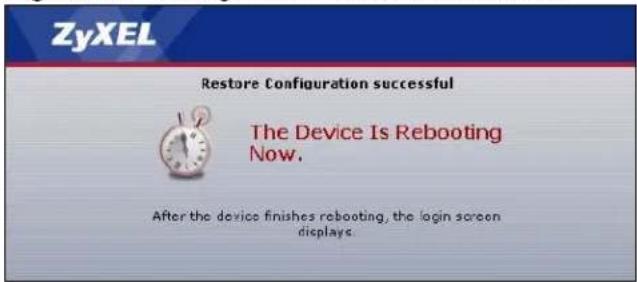
The NBG-416N automatically restarts in this time causing a temporary network disconnect. In some operating systems, you may see the following icon on your desktop.
Figure 86 Temporarily Disconnected
If you uploaded the default configuration file you may need to change the IP address of your computer to be in the same subnet as that of the default NBG-416N IP address (192.168.1.1). See Appendix C on page 175 for details on how to set up your computer's IP address.
If the upload was not successful, the following screen will appear. Click Return to go back to the Configuration screen.
Figure 87 Configuration Restore Error
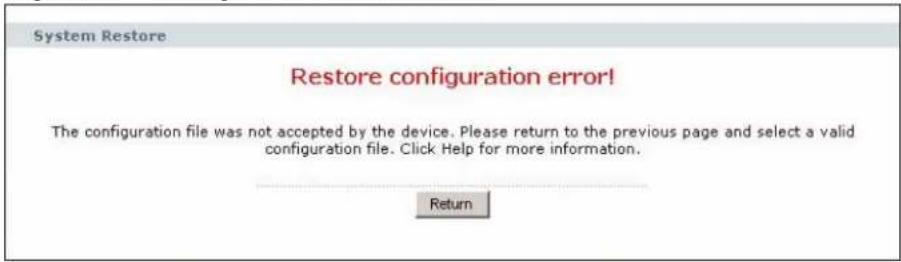
17.4.3 Back to Factory Defaults
Pressing the Reset button in this section clears all user-entered configuration information and returns the NBG-416N to its factory defaults.
You can also press the RESET button on the rear panel to reset the factory defaults of your NBG-416N. Refer to Section 3.3.1 on page 27 for more information on the RESET button.
17.5 Restart Screen
System restart allows you to reboot the NBG-416N without turning the power off.
Click Maintenance > Tools > Restart. Click Restart to have the NBG-416N reboot. This does not affect the NBG-416N's configuration.
Figure 88 Maintenance > Tools > Restart
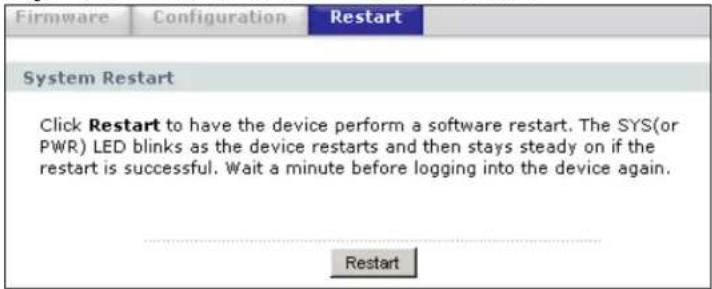
Sys OP Mode
18.1 Overview
The Sys OP Mode (System Operation Mode) function lets you configure whether your NBG-416N is a router or AP.
You can choose between Router Mode and AP Mode depending on your network topology and the features you require from your device. See Section 1.1 on page 19 for more information on which mode to choose.
18.2 What You Need to Know
Router
A router connects your local network with another network, such as the Internet. The router has two IP addresses, the LAN IP address and the WAN IP address.
Figure 89 LAN and WAN IP Addresses in Router Mode
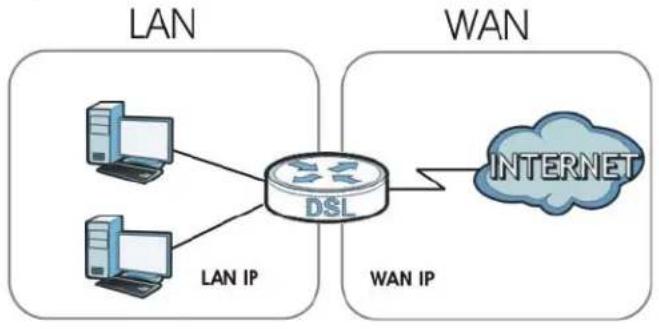
flowchart
graph LR
    subgraph LAN
        A["Computer"] -->|LAN IP| DSL["DSL"]
        B["Computer"] -->|LAN IP| DSL
    end
    subgraph WAN
        C["Internet"] --> DSL
    end
AP
An AP extends one network and so has just one IP address. All Ethernet ports on the AP have the same IP address. To connect to the Internet, another device, such as a router, is required.
Figure 90 IP Address in AP Mode
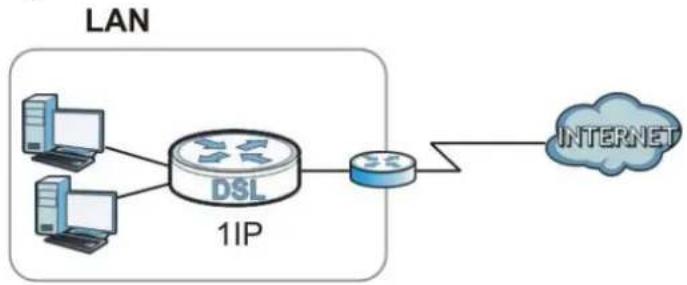
flowchart
graph LR
    A["Computer"] --> C["DSL"]
    B["Computer"] --> C["DSL"]
    C["DSL"] --> D["Router"]
    D["Router"] --> E["INTERNET"]
18.3 General Screen
Use this screen to select how you connect to the Internet.
Figure 91 Maintenance > Sys OP Mode > General
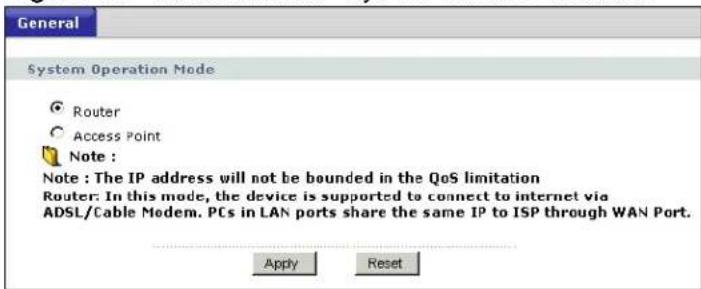
If you select Router mode, the following pop-up message window appears.
Figure 92 Maintenance > Sys Op Mode > General: Router
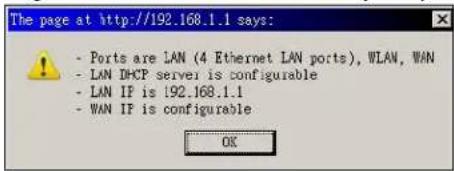
- In this mode there are both LAN and WAN ports. The LAN Ethernet and WAN Ethernet ports have different IP addresses.
- The DHCP server on your device is enabled and allocates IP addresses to other devices on your local network.
- The LAN IP address of the device on the local network is set to 192.168.1.1.
- You can configure the IP address settings on your WAN port. Contact your ISP or system administrator for more information on appropriate settings.
If you select Access Point the following pop-up message window appears.
Figure 93 Maintenance > Sys Op Mode > General: AP

• In AP Mode all Ethernet ports have the same IP address.
- All ports on the rear panel of the device are LAN ports, including the port labeled WAN. There is no WAN port.
- The DHCP server on your device is disabled. In AP mode there must be a device with a DHCP server on your network such as a router or gateway which can allocate IP addresses.
The IP address of the device on the local network is set to 192.168.1.2.
The following table describes the labels in the General screen.
Table 52 Maintenance > Sys Op Mode > General
| LABEL DESCRIPTION | |
| System Operation Mode | |
| Router | Select Router if your device routes traffic between a local network and another network such as the Internet. This mode offers services such as a firewall or content filter. |
| Access Point | Select Access Point if your device bridges traffic between clients on the same network. |
| Apply | Click Apply to save your settings. |
| Reset | Click Reset to return your settings to the default (Router). |
Note: If you select the incorrect System Operation Mode, you cannot connect to the Internet.
Language
19.1 Language Screen
Use this screen to change the language for the Web Configurator display.
Click the language you prefer. The Web Configurator language changes after a while without restarting the NBG-416N.
Figure 94 Language
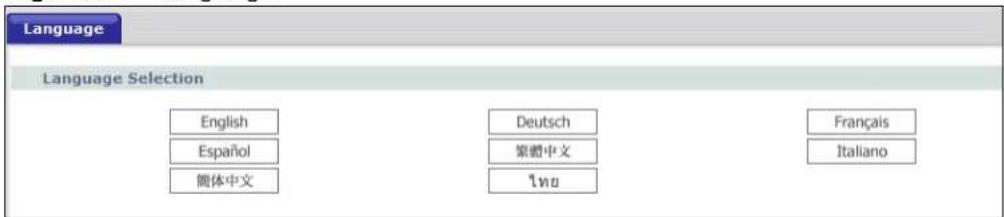
Troubleshooting
This chapter offers some suggestions to solve problems you might encounter. The potential problems are divided into the following categories.
• Power, Hardware Connections, and LEDs
• NBG-416N Access and Login
- Internet Access
- Resetting the NBG-416N to Its Factory Defaults
• Wireless Router/AP Troubleshooting
20.1 Power, Hardware Connections, and LEDs
The NBG-416N does not turn on. None of the LEDs turn on.
1 Make sure you are using the power adaptor or cord included with the NBG-416N.
2 Make sure the power adaptor or cord is connected to the NBG-416N and plugged in to an appropriate power source. Make sure the power source is turned on.
3 Disconnect and re-connect the power adaptor or cord to the NBG-416N.
4 If the problem continues, contact the vendor.
One of the LEDs does not behave as expected.
1 Make sure you understand the normal behavior of the LED. See Section 1.5 on page 20.
2 Check the hardware connections. See the Quick Start Guide.
3 Inspect your cables for damage. Contact the vendor to replace any damaged cables.
4 Disconnect and re-connect the power adaptor to the NBG-416N.
5 If the problem continues, contact the vendor.
20.2 NBG-416N Access and Login
I don't know the IP address of my NBG-416N.
1 The default IP address is 192.168.1.1.
2 If you changed the IP address and have forgotten it, you might get the IP address of the NBG-416N by looking up the IP address of the default gateway for your computer. To do this in most Windows computers, click Start > Run, enter cmd, and then enter ipconfig. The IP address of the Default Gateway might be the IP address of the NBG-416N (it depends on the network), so enter this IP address in your Internet browser. Set your device to Router Mode, login (see the Quick Start Guide for instructions) and go to the Device Information table in the Status screen. Your NBG-416N's IP address is available in the Device Information table.
- If the DHCP setting under LAN information is None, your device has a fixed IP address.
- If the DHCP setting under LAN information is Client, then your device receives an IP address from a DHCP server on the network.
3 If your NBG-416N is a DHCP client, you can find your IP address from the DHCP server. This information is only available from the DHCP server which allocates IP addresses on your network. Find this information directly from the DHCP server or contact your system administrator for more information.
4 Reset your NBG-416N to change all settings back to their default. This means your current settings are lost. See Section 20.4 on page 149 in the Troubleshooting for information on resetting your NBG-416N.
I forgot the username and password.
1 The default username is admin and default password is 1234.
2 If this does not work, you have to reset the device to its factory defaults. See Section 20.4 on page 149.
I cannot see or access the Login screen in the Web Configurator.
1 Make sure you are using the correct IP address.
• The default IP address is 192.168.1.1.
- If you changed the IP address (Section 7.3 on page 102), use the new IP address.
- If you changed the IP address and have forgotten it, see the troubleshooting suggestions for I don't know the IP address of my NBG-416N.
2 Check the hardware connections, and make sure the LEDs are behaving as expected. See the Quick Start Guide.
3 Make sure your Internet browser does not block pop-up windows and has JavaScript and Java enabled. See Appendix B on page 167.
4 Make sure your computer is in the same subnet as the NBG-416N. (If you know that there are routers between your computer and the NBG-416N, skip this step.)
- If there is a DHCP server on your network, make sure your computer is using a dynamic IP address. See Section 7.3 on page 102.
- If there is no DHCP server on your network, make sure your computer's IP address is in the same subnet as the NBG-416N. See Section 7.3 on page 102.
5 Reset the device to its factory defaults, and try to access the NBG-416N with the default IP address. See Section 7.3 on page 102.
6 If the problem continues, contact the network administrator or vendor, or try one of the advanced suggestions.
Advanced Suggestions
- If your computer is connected to the WAN port or is connected wirelessly, use a computer that is connected to a LAN/ETHERNET port.
I can see the Login screen, but I cannot log in to the NBG-416N.
1 Make sure you have entered the password correctly. The default username is admin and default password is 1234. This field is case-sensitive, so make sure [Caps Lock] is not on.
2 This can happen when you fail to log out properly from your last session. Try logging in again after 5 minutes.
3 Disconnect and re-connect the power adaptor or cord to the NBG-416N.
4 If this does not work, you have to reset the device to its factory defaults. See Section 20.4 on page 149.
20.3 Internet Access
I cannot access the Internet.
1 Check the hardware connections, and make sure the LEDs are behaving as expected. See the Quick Start Guide.
2 Make sure you entered your ISP account information correctly in the wizard. These fields are case-sensitive, so make sure [Caps Lock] is not on.
3 If you are trying to access the Internet wirelessly, make sure the wireless settings in the wireless client are the same as the settings in the AP.
4 Disconnect all the cables from your device, and follow the directions in the Quick Start Guide again.
5 Go to Maintenance > Sys OP Mode > General. Check your System Operation Mode setting.
- Select Router if your device routes traffic between a local network and another network such as the Internet.
- Select Access Point if your device bridges traffic between clients on the same network.
6 If the problem continues, contact your ISP.
I cannot access the Internet anymore. I had access to the Internet (with the NBG-416N), but my Internet connection is not available anymore.
1 Check the hardware connections, and make sure the LEDs are behaving as expected. See the Quick Start Guide and Section 1.5 on page 20.
2 Reboot the NBG-416N.
3 If the problem continues, contact your ISP.
The Internet connection is slow or intermittent.
1 There might be a lot of traffic on the network. Look at the LEDs, and check Section 1.5 on page 20. If the NBG-416N is sending or receiving a lot of information, try closing some programs that use the Internet, especially peer-to-peer applications.
2 Check the signal strength. If the signal strength is low, try moving the NBG-416N closer to the AP if possible, and look around to see if there are any devices that might be interfering with the wireless network (for example, microwaves, other wireless networks, and so on).
3 Reboot the NBG-416N.
4 If the problem continues, contact the network administrator or vendor, or try one of the advanced suggestions.
Advanced Suggestion
- Check the settings for QoS. If it is disabled, you might consider activating it.
20.4 Resetting the NBG-416N to Its Factory Defaults
If you reset the NBG-416N, you lose all of the changes you have made. The NBG-416N re-loads its default settings, and the username/password resets to admin/1234. You have to make all of your changes again.
You will lose all of your changes when you push the RESET button.
To reset the NBG-416N,
1 Make sure the power LED is on.
2 Press the RESET button for longer than 1 second to restart/reboot the NBG-416N.
3 Press the RESET button for longer than five seconds to set the NBG-416N back to its factory-default configurations.
If the NBG-416N restarts automatically, wait for the NBG-416N to finish restarting, and log in to the Web Configurator. The username is admin and password is 1234.
If the NBG-416N does not restart automatically, disconnect and reconnect the NBG-416N's power. Then, follow the directions above again.
20.5 Wireless Router/AP Troubleshooting
I cannot access the NBG-416N or ping any computer from the WLAN (wireless AP or router).
1 Make sure the wireless LAN is enabled on the NBG-416N.
2 Make sure the wireless adapter on the wireless station is working properly.
3 Make sure the wireless adapter installed on your computer is IEEE 802.11 compatible and supports the same wireless standard as the NBG-416N.
4 Make sure your computer (with a wireless adapter installed) is within the transmission range of the NBG-416N.
5 Check that both the NBG-416N and your wireless station are using the same wireless and wireless security settings.
6 Make sure traffic between the WLAN and the LAN is not blocked by the firewall on the NBG-416N.
7 Make sure you allow the NBG-416N to be remotely accessed through the WLAN interface. Check your remote management settings.
• See Chapter 7 Wireless LAN for more information.
I can access the Web Configurator after I switched to AP mode.
When you change from router mode to AP mode, your computer must have an IP address in the range between "192.168.1.3" and "192.168.1.254".
Refer to Appendix C on page 175 for instructions on how to change your computer's IP address.
Product Specifications
The following tables summarize the NBG-416N's hardware and firmware features.
Table 53 Hardware Features
| Dimensions (W x D x H) | 162 mm x 115 mm x 33 mm |
| Weight 216 g | |
| Power Specification Input: 100 -- 240VAC, 50/60 HzOutput: 5VDC /1A | |
| Ethernet ports Auto-ne gotiating: 10 Mbps, 100 Mbps in either half-duplex or full-duplex mode.Auto-crossover: Use either crossover or straight-through Ethernet cables. | |
| 4-5 Port Switch A combination of switch and router makes your NBG-416N a cost-effective and viable network solution. You can add up to four computers to the NBG-416N without the cost of a hub when connecting to the Internet through the WAN port. You can add up to five computers to the NBG-416N when you connect to the Internet in AP mode. Add more than four computers to your LAN by using a hub. | |
| LEDs PWR, LAN1-4, WAN, WLAN, WPS | |
| Reset Button The reset | button is built into the rear panel. Use this button to restore the NBG-416N to its factory default settings. Press for 1 second to restart the device. Press for 5 seconds to restore to factory default settings. |
| WPS button Press the WPS on two WPS enabled devices within 120 seconds for a security-enabled wireless connection. | |
| Antenna | The NBG-416N is equipped with a 2.4GHz detachable antenna to provide clear radio transmission and reception on the wireless network. |
| Operation Environment | Temperature: 0^ C ~ 40^ C / 32^ F ~ 104^ FHumidity: 20% ~ 90% |
| Storage Environment Temperature: -30^ C ~ 70^ C / -22^ F ~ 158^ FHumidity: 20% ~ 95% | |
Table 54 Firmware Features
| FEATURE DESCRIPTION | |
| Default LAN IP Address 192.168.1.1 (router)192.168.1.2. (AP) | |
| Default LAN Subnet Mask | 255.255.255.0 (24 bits) |
| Default Username admin | |
| Default Password 1234 | |
| DHCP Pool 192.168.1.33 to 192.168.1.64 | |
| Wireless Interface Wireless LAN | |
| Default Wireless SSID ZyXEL | |
| Device Management Use the Web Configurator to easily configure the rich range of features on the NBG-416N. | |
| Wireless Functionality Allows IEEE802.11b, IEEE802.11g, and/or IEEE 802.11n wireless clients to connect to the NBG-416N wirelessly. Enable wireless security (WPA(2)-PSK) and/or MAC filtering to protect your wireless network.Note: The NBG-416N may be prone to RF (Radio Frequency) interference from other 2.4 GHz devices such as microwave ovens, wireless phones, Bluetooth enabled devices, and other wireless LANs. | |
| Firmware Upgrade Download new firmware (when available) from the ZyXEL web site and use the Web Configurator to put it on the NBG-416N.Note: Only upload firmware for your specific model! | |
| Configuration Backup & Restoration | Make a copy of the NBG-416N's configuration and put it back on the NBG-416N later if you decide you want to revert back to an earlier configuration. |
| Network Address Translation (NAT) | Each computer on your network must have its own unique IP address. Use NAT to convert a single public IP address to multiple private IP addresses for the computers on your network. |
| Firewall You can configure firewall on the NBG-416N for secure Internet access. When the firewall is on, by default, all incoming traffic from the Internet to your network is blocked unless it is initiated from your network. This means that probes from the outside to your network are not allowed, but you can safely browse the Internet and download files for example. | |
| Remote Management This allows you to decide whether a service (HTTP or FTP traffic for example) from a computer on a network (LAN or WAN for example) can access the NBG-416N. | |
| Wireless LAN Scheduler | You can schedule the times the Wireless LAN is enabled/disabled. |
| Time and Date Get the current time and date from an external server when you turn on your NBG-416N. You can also set the time manually. These dates and times are then used in logs. | |
| Port Forwarding If you have a server (mail or web server for example) on your network, then use this feature to let people access it from the Internet. | |
| DHCP (Dynamic Host Configuration Protocol) | Use this feature to have the NBG-416N assign IP addresses, an IP default gateway and DNS servers to computers on your network. |
| Logging Use logs for troubleshooting. You can view logs in the Web Configurator. | |
| PPPoE PPPoE mimics a dial-up Internet access connection. | |
| PPTP Encapsulation Point-to-Point Tunneling Protocol (PPTP) enables secure transfer of data through a Virtual Private Network (VPN). The NBG-416N supports one PPTP connection at a time. | |
| Universal Plug and Play (UPnP) | The NBG-416N can communicate with other UPnP enabled devices in a network. |
IP Addresses and Subnetting
This appendix introduces IP addresses and subnet masks.
IP addresses identify individual devices on a network. Every networking device (including computers, servers, routers, printers, etc.) needs an IP address to communicate across the network. These networking devices are also known as hosts.
Subnet masks determine the maximum number of possible hosts on a network. You can also use subnet masks to divide one network into multiple sub-networks.
Introduction to IP Addresses
One part of the IP address is the network number, and the other part is the host ID. In the same way that houses on a street share a common street name, the hosts on a network share a common network number. Similarly, as each house has its own house number, each host on the network has its own unique identifying number - the host ID. Routers use the network number to send packets to the correct network, while the host ID determines to which host on the network the packets are delivered.
Structure
An IP address is made up of four parts, written in dotted decimal notation (for example, 192.168.1.1). Each of these four parts is known as an octet. An octet is an eight-digit binary number (for example 11000000, which is 192 in decimal notation).
Therefore, each octet has a possible range of 00000000 to 11111111 in binary, or 0 to 255 in decimal.
The following figure shows an example IP address in which the first three octets (192.168.1) are the network number, and the fourth octet (16) is the host ID.
Figure 95 Network Number and Host ID
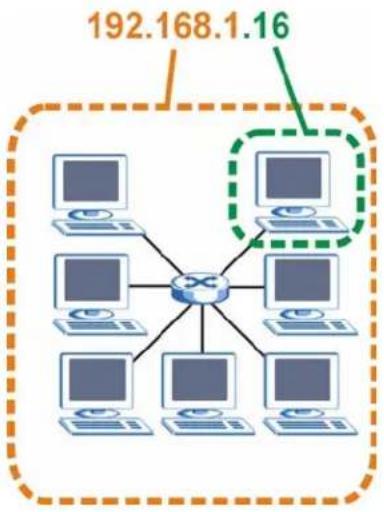
flowchart
graph TD
    A["Router"] --> B["Computer 1"]
    A --> C["Computer 2"]
    A --> D["Computer 3"]
    A --> E["Computer 4"]
    A --> F["Computer 5"]
    A --> G["Computer 6"]
    A --> H["Computer 7"]
    A --> I["Computer 8"]
    A --> J["Computer 9"]
    A --> K["Computer 10"]
    A --> L["Computer 11"]
    A --> M["Computer 12"]
    A --> N["Computer 13"]
    A --> O["Computer 14"]
    A --> P["Computer 15"]
    A --> Q["Computer 16"]
    A --> R["Computer 17"]
    A --> S["Computer 18"]
    A --> T["Computer 19"]
    A --> U["Computer 20"]
    A --> V["Computer 21"]
    A --> W["Computer 22"]
    A --> X["Computer 23"]
    A --> Y["Computer 24"]
    A --> Z["Computer 25"]
    A --> AA["Computer 26"]
    A --> AB["Computer 27"]
    A --> AC["Computer 28"]
    A --> AD["Computer 29"]
    A --> AE["Computer 30"]
    A --> AF["Computer 31"]
    A --> AG["Computer 32"]
    A --> AH["Computer 33"]
    A --> AI["Computer 34"]
    A --> AJ["Computer 35"]
    A --> AK["Computer 36"]
    A --> AL["Computer 37"]
    A --> AM["Computer 38"]
    A --> AN["Computer 39"]
    A --> AO["Computer 40"]
    A --> AP["Computer 41"]
    A --> AQ["Computer 42"]
    A --> AR["Computer 43"]
    A --> AS["Computer 44"]
    A --> AT["Computer 45"]
    A --> AU["Computer 46"]
    A --> AV["Computer 47"]
    A --> AW["Computer 48"]
    A --> AX["Computer 49"]
    A --> AY["Computer 50"]
How much of the IP address is the network number and how much is the host ID varies according to the subnet mask.
Subnet Masks
A subnet mask is used to determine which bits are part of the network number, and which bits are part of the host ID (using a logical AND operation). The term "subnet" is short for "sub-network".
A subnet mask has 32 bits. If a bit in the subnet mask is a "1" then the corresponding bit in the IP address is part of the network number. If a bit in the subnet mask is "0" then the corresponding bit in the IP address is part of the host ID.
The following example shows a subnet mask identifying the network number (in bold text) and host ID of an IP address (192.168.1.2 in decimal).
Table 55 Subnet Mask - Identifying Network Number
| 1STOCTET:(192) | 2NDOCTET:(168) | 3RDOCTET:(1) | 4THOCTET(2) | |
| IP Address (Binary) 110000 | 00 10101000 | 00000001 00 | 0000010 | |
| Subnet Mask (Binary) 1111 | 1111 11111 | 111 111111 | 11 00000000 |
Table 55 Subnet Mask - Identifying Network Number
| 1ST OCTET: (192) | 2ND OCTET: (168) | 3RD OCTET: (1) | 4TH OCTET (2) | |
| Network Number 11000000 | 10101000 | 00000001 | ||
| Host ID 00000010 |
By convention, subnet masks always consist of a continuous sequence of ones beginning from the leftmost bit of the mask, followed by a continuous sequence of zeros, for a total number of 32 bits.
Subnet masks can be referred to by the size of the network number part (the bits with a "1" value). For example, an "8-bit mask" means that the first 8 bits of the mask are ones and the remaining 24 bits are zeroes.
Subnet masks are expressed in dotted decimal notation just like IP addresses. The following examples show the binary and decimal notation for 8-bit, 16-bit, 24-bit and 29-bit subnet masks.
Table 56 Subnet Masks
| BINARY | DECIMAL | ||||
| 1ST OCTET | 2ND OCTET | 3RD OCTET | 4TH OCTET | ||
| 8-bit mask | 1111111 00 | 000000 0000 | 00000 00000 | 000 255.0.0.0 | 0 |
| 16-bit mask | 11111111 1 | 1111111 00 | 000000 0000 | 0000 255.25 | 5.0.0 |
| 24-bit mask | 11111111 1 | 1111111 11 | 111111 0000 | 0000 255.25 | 5.255.0 |
| 29-bit mask | 11111111 1 | 1111111 11 | 111111 1111 | 1000 255.25 | 5.255.248 |
Network Size
The size of the network number determines the maximum number of possible hosts you can have on your network. The larger the number of network number bits, the smaller the number of remaining host ID bits.
An IP address with host IDs of all zeros is the IP address of the network (192.168.1.0 with a 24-bit subnet mask, for example). An IP address with host IDs of all ones is the broadcast address for that network (192.168.1.255 with a 24-bit subnet mask, for example).
As these two IP addresses cannot be used for individual hosts, calculate the maximum number of possible hosts in a network as follows:
Table 57 Maximum Host Numbers
| SUBNET MASK HOST ID SIZE | MAXIMUM NUMBER OF HOSTS | |||
| 8 bits 2 | 55.0.0.0 24 bits 2 | ^24 - 2 16777 | 214 | |
| 16 bits | 255.255.0.0 16 bits 2 | ^16 - 2 65534 | ||
| 24 bits | 255.255.255.0 8 bits 2 | ^8 - 2 254 | ||
| 29 bits | 255.255.255.2 48 | 3 bits 2 | ^3 - 2 6 | |
Notation
Since the mask is always a continuous number of ones beginning from the left, followed by a continuous number of zeros for the remainder of the 32 bit mask, you can simply specify the number of ones instead of writing the value of each octet. This is usually specified by writing a “/” followed by the number of bits in the mask after the address.
For example, 192.1.1.0 /25 is equivalent to saying 192.1.1.0 with subnet mask 255.255.255.128.
The following table shows some possible subnet masks using both notations.
Table 58 Alternative Subnet Mask Notation
| SUBNET MASK | ALTERNATIVE NOTATION | LAST OCTET (BINARY) | LAST OCTET (DECIMAL) |
| 255.255.255.0 /24 | 0000 0000 0 | ||
| 255.255.255.128 | /25 1000 0000 1 | 28 | |
| 255.255.255.192 | /26 1100 0000 1 | 92 | |
| 255.255.255.224 | /27 1110 0000 2 | 24 | |
| 255.255.255.240 | /28 1111 0000 2 | 40 | |
| 255.255.255.248 | /29 1111 1000 2 | 48 | |
| 255.255.255.252 | /30 1111 1100 2 | 52 |
Subnetting
You can use subnetting to divide one network into multiple sub-networks. In the following example a network administrator creates two sub-networks to isolate a group of servers from the rest of the company network for security reasons.
In this example, the company network address is 192.168.1.0. The first three octets of the address (192.168.1) are the network number, and the remaining octet is the host ID, allowing a maximum of 2^8 - 2 or 254 possible hosts.
The following figure shows the company network before subnetting.
Figure 96 Subnetting Example: Before Subnetting
You can “borrow” one of the host ID bits to divide the network 192.168.1.0 into two separate sub-networks. The subnet mask is now 25 bits (255.255.255.128 or /25).
The “borrowed” host ID bit can have a value of either 0 or 1, allowing two subnets; 192.168.1.0 /25 and 192.168.1.128 /25.
The following figure shows the company network after subnetting. There are now two sub-networks, A and B.
Figure 97 Subnetting Example: After Subnetting
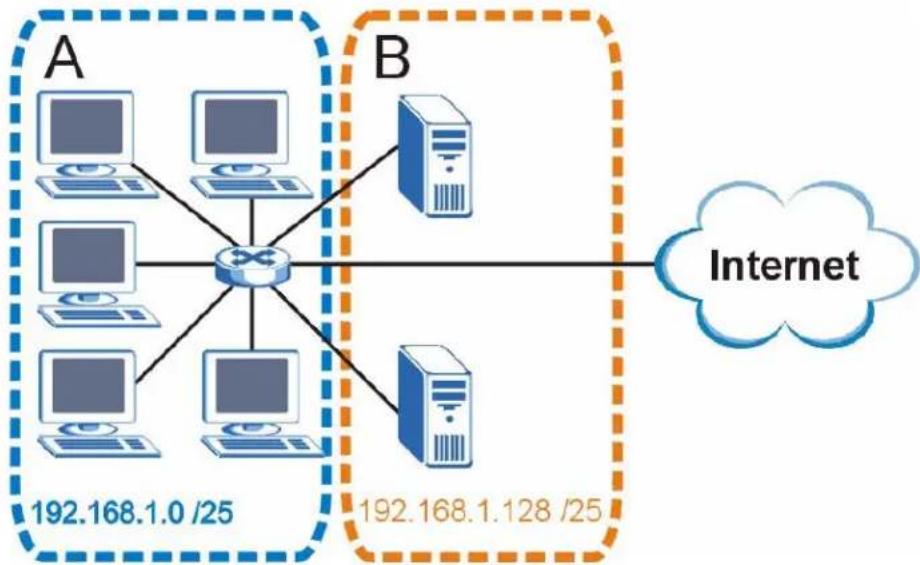
flowchart
graph TD
    subgraph A
        A1["Computer 1"] --> A2["Computer 2"]
        A3["Computer 3"] --> A4["Computer 4"]
        A5["Computer 5"] --> A6["Computer 6"]
        A7["Computer 7"] --> A8["Computer 8"]
        A9["Computer 9"] --> A10["Computer 10"]
    end
    subgraph B
        B1["Server"] --> B2["Server"]
        B3["Server"] --> B4["Server"]
        B5["Server"] --> B6["Server"]
    end
    A1 --> B1
    A2 --> B2
    A3 --> B3
    A4 --> B4
    A5 --> B5
    A6 --> B6
    A7 --> B7
    A8 --> B8
    A9 --> B9
    B1 --> C["Internet"]
    B2 --> C
    B3 --> C
    B4 --> C
    B5 --> C
    B6 --> C
    B7 --> C
    B8 --> C
    B9 --> C
In a 25-bit subnet the host ID has 7 bits, so each sub-network has a maximum of 2^7 - 2 or 126 possible hosts (a host ID of all zeroes is the subnet's address itself, all ones is the subnet's broadcast address).
192.168.1.0 with mask 255.255.255.128 is subnet A itself, and 192.168.1.127 with mask 255.255.255.128 is its broadcast address. Therefore, the lowest IP address that can be assigned to an actual host for subnet A is 192.168.1.1 and the highest is 192.168.1.126.
Similarly, the host ID range for subnet B is 192.168.1.129 to 192.168.1.254.
Example: Four Subnets
The previous example illustrated using a 25-bit subnet mask to divide a 24-bit address into two subnets. Similarly, to divide a 24-bit address into four subnets, you need to "borrow" two host ID bits to give four possible combinations (00, 01, 10 and 11). The subnet mask is 26 bits
(11111111.11111111.11111111.11000000) or 255.255.255.192.
Each subnet contains 6 host ID bits, giving 2^6 - 2 or 62 hosts for each subnet (a host ID of all zeroes is the subnet itself, all ones is the subnet's broadcast address).
Table 59 Subnet 1
| IP/SUBNET MASK NETW | WORK NUMBER | LAST OCTET BIT VALUE |
| IP Address (Decimal) 192.168.1.0 | ||
| IP Address (Binary) | 11000000.10101000.00000001. | 00000000 |
| Subnet Mask (Binary) | 11111111.11111111.11111111. | 11000000 |
| Subnet Address: 192.168.1.0 | Lowest Host ID: 192.168.1.1 | |
| Broadcast Address: 192.168.1.63 | Highest Host ID: 192.168.1.62 | |
Table 60 Subnet 2
| IP/SUBNET MASK NETW | WORK NUMBER | LAST OCTET BIT VALUE |
| IP Address 192.168.1.64 | ||
| IP Address (Binary) | 11000000.10101000.00000001. | 01000000 |
| Subnet Mask (Binary) | 11111111.11111111.11111111. | 11000000 |
| Subnet Address: 192.168.1.64 | Lowest Host ID: 192.168.1.65 | |
| Broadcast Address: 192.168.1.127 | Highest Host ID: 192.168.1.126 | |
Table 61 Subnet 3
| IP/SUBNET MASK NETWORK | WORK NUMBER | LAST OCTET BIT VALUE |
| IP Address | 192.168.1. | 128 |
| IP Address (Binary) | 11000000.10101000.00000001. | 10000000 |
| Subnet Mask (Binary) | 11111111.11111111.11111111. | 11000000 |
| Subnet Address: 192.168.1.128 | Lowest Host ID: 192.168.1.129 | |
| Broadcast Address: 192.168.1.191 | Highest Host ID: 192.168.1.190 | |
Table 62 Subnet 4
| IP/SUBNET MASK | NETWORK NUMBER | LAST OCTET BIT VALUE |
| IP Address | 192.168.1. | 192 |
| IP Address (Binary) | 11000000.10101000.00000001. | 11000000 |
| Subnet Mask (Binary) | 11111111.11111111.11111111. | 11000000 |
| IP/SUBNET MASK NETWORK | WORK NUMBER | LAST OCTET BIT VALUE |
| Subnet Address:192.168.1.192 | Lowest Host ID: 192.168.1.193 | |
| Broadcast Address:192.168.1.255 | Highest Host ID: 192.168.1.254 | |
Example: Eight Subnets
Similarly, use a 27-bit mask to create eight subnets (000, 001, 010, 011, 100, 101, 110 and 111).
The following table shows IP address last octet values for each subnet.
Table 63 Eight Subnets
| SUBNET | SUBNET ADDRESS | FIRST ADDRESS | LAST ADDRESS | BROADCAST ADDRESS |
| 1 0 1 30 31 | ||||
| 2 32 33 62 63 | ||||
| 3 64 65 94 95 | ||||
| 4 96 97 126 1 | 27 | |||
| 5 128 129 158 | 159 | |||
| 6 160 161 190 | 191 | |||
| 7 192 193 222 | 2223 | |||
| 8 224 225 254 | 255 |
Subnet Planning
The following table is a summary for subnet planning on a network with a 24-bit network number.
Table 64 24-bit Network Number Subnet Planning
| NO. “BORROWED”HOST BITS | SUBNET MASK NO. SUBNETS | NO. HOSTS PER SUBNET |
| 1 255.255.255.128 (/25) 2 126 | ||
| 2 255.255.255.192 (/26) 4 62 | ||
| 3 255.255.255.224 (/27) 8 30 | ||
| 4 255.255.255.240 (/28) 16 14 | ||
| 5 255.255.255.248 (/29) 32 6 | ||
| 6 255.255.255.252 (/30) 64 2 | ||
| 7 255.255.255.254 (/31) 128 1 |
The following table is a summary for subnet planning on a network with a 16-bit network number.
Table 65 16-bit Network Number Subnet Planning
| NO. “BORROWED”HOST BITS | SUBNET MASK NO. SUBNETS | NO. HOSTS PER SUBNET |
| 1 255.255.128.0 (/17) | 2 32766 | |
| 2 255.255.192.0 (/18) | 4 16382 | |
| 3 255.255.224.0 (/19) | 8 8190 | |
| 4 255.255.240.0 (/20) | 16 4094 | |
| 5 255.255.248.0 (/21) | 32 2046 | |
| 6 255.255.252.0 (/22) | 64 1022 | |
| 7 255.255.254.0 (/23) | 128 510 | |
| 8 255.255.255.0 (/24) | 256 254 | |
| 9 255.255.255.128 (/25) | 512 126 | |
| 10 255.255.255.192 (/26) | 1024 62 | |
| 11 255.255.255.224 (/27) | 2048 30 | |
| 12 255.255.255.240 (/28) | 4096 14 | |
| 13 255.255.255.248 (/29) | 8192 6 | |
| 14 255.255.255.252 (/30) | 16384 2 | |
| 15 255.255.255.254 (/31) | 32768 1 |
Configuring IP Addresses
Where you obtain your network number depends on your particular situation. If the ISP or your network administrator assigns you a block of registered IP addresses, follow their instructions in selecting the IP addresses and the subnet mask.
If the ISP did not explicitly give you an IP network number, then most likely you have a single user account and the ISP will assign you a dynamic IP address when the connection is established. If this is the case, it is recommended that you select a network number from 192.168.0.0 to 192.168.255.0. The Internet Assigned Number Authority (IANA) reserved this block of addresses specifically for private use; please do not use any other number unless you are told otherwise. You must also enable Network Address Translation (NAT) on the NBG-416N.
Once you have decided on the network number, pick an IP address for your NBG-416N that is easy to remember (for instance, 192.168.1.1) but make sure that no other device on your network is using that IP address.
The subnet mask specifies the network number portion of an IP address. Your NBG-416N will compute the subnet mask automatically based on the IP address
that you entered. You don't need to change the subnet mask computed by the NBG-416N unless you are instructed to do otherwise.
Private IP Addresses
Every machine on the Internet must have a unique address. If your networks are isolated from the Internet (running only between two branch offices, for example) you can assign any IP addresses to the hosts without problems. However, the Internet Assigned Numbers Authority (IANA) has reserved the following three blocks of IP addresses specifically for private networks:
• 10.0.0.0 — 10.255.255.255
• 172.16.0.0 — 172.31.255.255
• 192.168.0.0 — 192.168.255.255
You can obtain your IP address from the IANA, from an ISP, or it can be assigned from a private network. If you belong to a small organization and your Internet access is through an ISP, the ISP can provide you with the Internet addresses for your local networks. On the other hand, if you are part of a much larger organization, you should consult your network administrator for the appropriate IP addresses.
Regardless of your particular situation, do not create an arbitrary IP address; always follow the guidelines above. For more information on address assignment, please refer to RFC 1597, Address Allocation for Private Internets and RFC 1466, Guidelines for Management of IP Address Space.
Pop-up Windows, JavaScript and Java Permissions
In order to use the Web Configurator you need to allow:
- Web browser pop-up windows from your device.
- JavaScript (enabled by default).
- Java permissions (enabled by default).
Note: Internet Explorer 6 screens are used here. Screens for other Internet Explorer versions may vary.
Internet Explorer Pop-up Blockers
You may have to disable pop-up blocking to log into your device.
Either disable pop-up blocking (enabled by default in Windows XP SP (Service Pack) 2) or allow pop-up blocking and create an exception for your device's IP address.
Disable pop-up Blockers
1 In Internet Explorer, select Tools, Pop-up Blocker and then select Turn Off Pop-up Blocker.
Figure 98 Pop-up Blocker
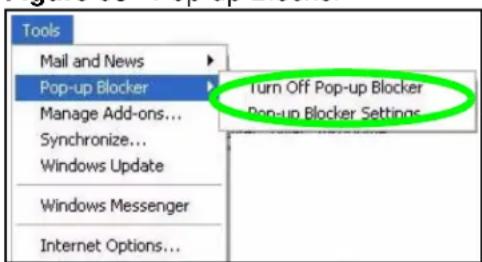
You can also check if pop-up blocking is disabled in the Pop-up Blocker section in the Privacy tab.
1 In Internet Explorer, select Tools, Internet Options, Privacy.
2 Clear the Block pop-ups check box in the Pop-up Blocker section of the screen. This disables any web pop-up blockers you may have enabled.
Figure 99 Internet Options: Privacy
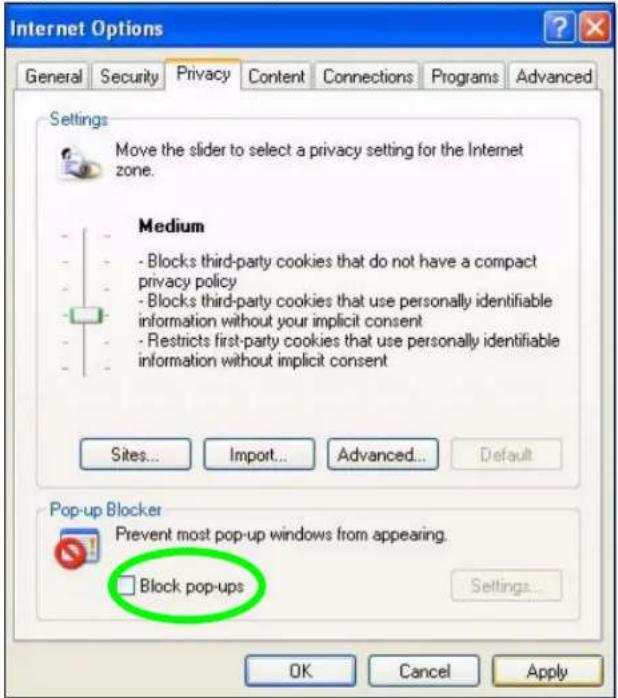
3 Click Apply to save this setting.
Enable pop-up Blockers with Exceptions
Alternatively, if you only want to allow pop-up windows from your device, see the following steps.
1 In Internet Explorer, select Tools, Internet Options and then the Privacy tab.
2 Select Settings...to open the Pop-up Blocker Settings screen.
Figure 100 Internet Options: Privacy
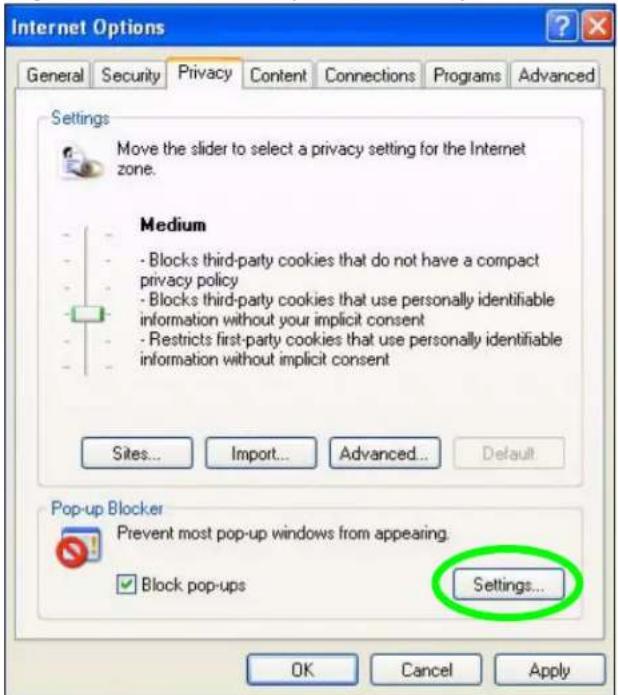
3 Type the IP address of your device (the web page that you do not want to have blocked) with the prefix "http://". For example, http://192.168.167.1.
4 Click Add to move the IP address to the list of Allowed sites.
Figure 101 Pop-up Blocker Settings
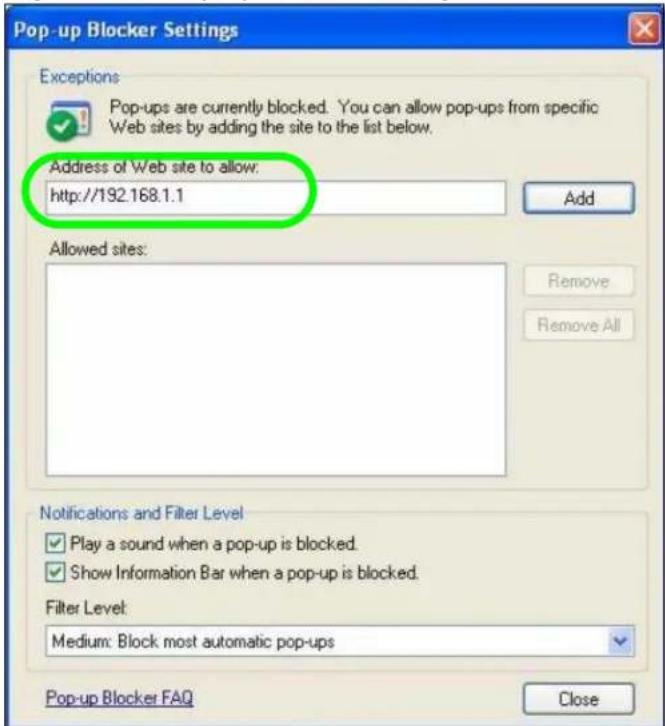
5 Click Close to return to the Privacy screen.
6 Click Apply to save this setting.
JavaScript
If pages of the Web Configurator do not display properly in Internet Explorer, check that JavaScript are allowed.
1 In Internet Explorer, click Tools, Internet Options and then the Security tab.
Figure 102 Internet Options: Security
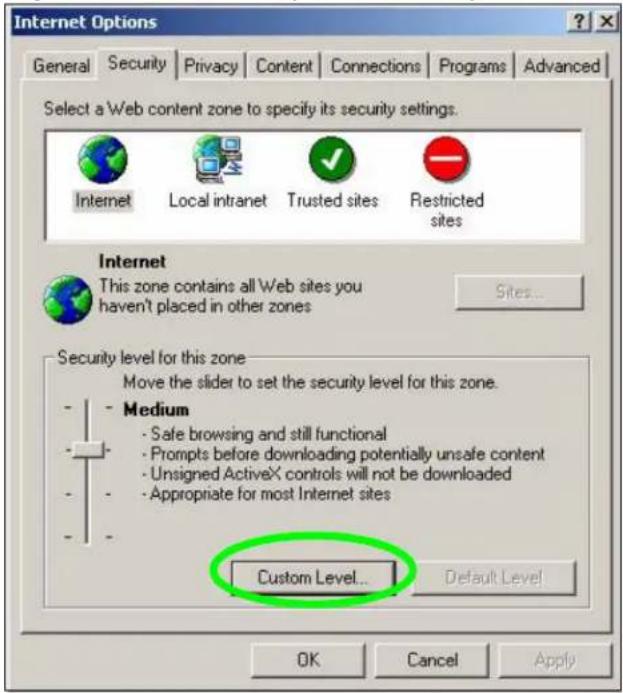
2 Click the Custom Level... button.
3 Scroll down to Scripting.
4 Under Active scripting make sure that Enable is selected (the default).
5 Under Scripting of Java applets make sure that Enable is selected (the default).
6 Click OK to close the window.
Figure 103 Security Settings - Java Scripting
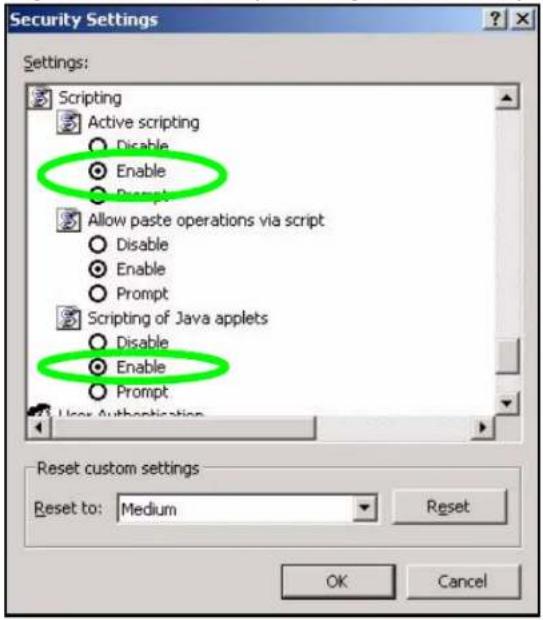
Java Permissions
1 From Internet Explorer, click Tools, Internet Options and then the Security tab.
2 Click the Custom Level... button.
3 Scroll down to Microsoft VM.
4 Under Java permissions make sure that a safety level is selected.
5 Click OK to close the window.
Figure 104 Security Settings - Java
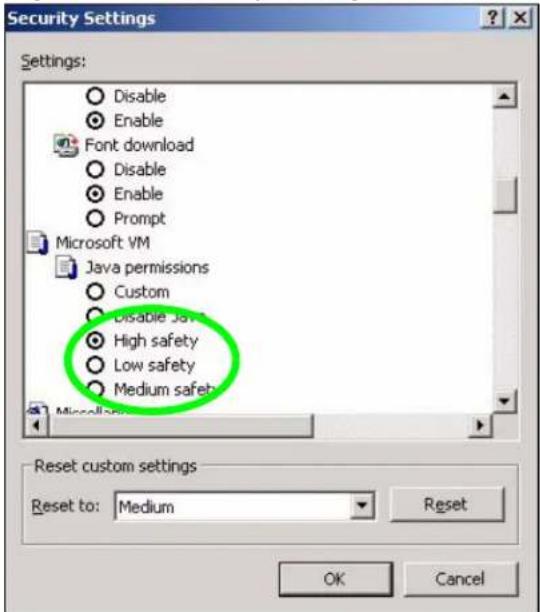
JAVA (Sun)
1 From Internet Explorer, click Tools, Internet Options and then the Advanced tab.
2 Make sure that Use Java 2 for
3 Click OK to close the window.
Figure 105 Java (Sun)
![Internet Options General Security Privacy Content Connections Programs Advanced Settings: Use inline AutoComplete Use Passive FTP (for firewall and DSL modem compatibility) Use smooth scrolling HTTP 1.1 settings Use HTTP 1.1 Use HTTP 1.1 through proxy connections Java (Sum) Use Java 2 v1.4.1_07 for [requires restart] Microsoft VM Java console enabled (requires restart) Java logging enabled JIT compiler for virtual machine enabled (requires restart) Multimedia Always show Internet Explorer (5.0 or later) Radio toolbar Don't display online media content in the media bar Enable Automatic Image Resizing Restore Defaults OK Cancel Apply](/content/2026/02/353420/images/ed460c2d52d382c159dd987ae65f6c9e7f6bff6438c4c19fcacd3f9039d16670.jpg)
Setting up Your Computer's IP Address
All computers must have a 10M or 100M Ethernet adapter card and TCP/IP installed.
Windows 95/98/Me/NT/2000/XP, Macintosh OS 7 and later operating systems and all versions of UNIX/LINUX include the software components you need to install and use TCP/IP on your computer. Windows 3.1 requires the purchase of a third-party TCP/IP application package.
TCP/IP should already be installed on computers using Windows NT/2000/XP, Macintosh OS 7 and later operating systems.
After the appropriate TCP/IP components are installed, configure the TCP/IP settings in order to "communicate" with your network.
If you manually assign IP information instead of using dynamic assignment, make sure that your computers have IP addresses that place them in the same subnet as the Prestige's LAN port.
Windows 95/98/Me
Click Start, Settings, Control Panel and double-click the Network icon to open the Network window.
Figure 106 Windows 95/98/Me: Network: Configuration
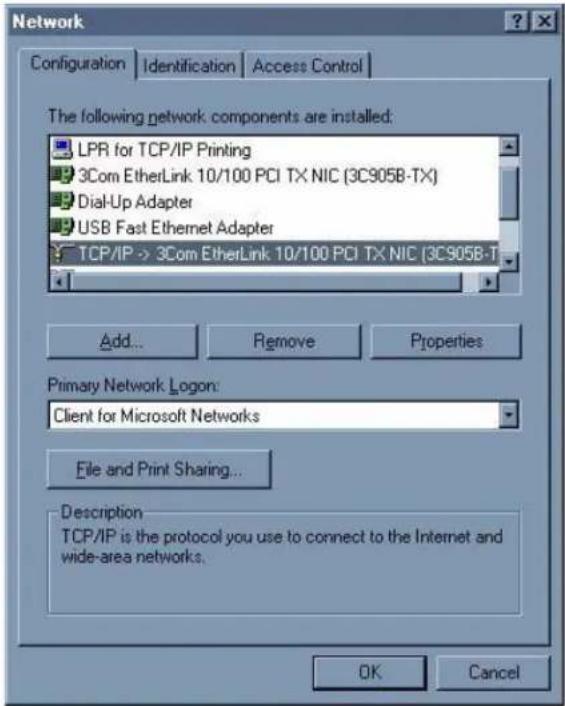
Installing Components
The Network window Configuration tab displays a list of installed components. You need a network adapter, the TCP/IP protocol and Client for Microsoft Networks.
If you need the adapter:
1 In the Network window, click Add.
2 Select Adapter and then click Add.
3 Select the manufacturer and model of your network adapter and then click OK.
If you need TCP/IP:
1 In the Network window, click Add.
2 Select Protocol and then click Add.
3 Select Microsoft from the list of manufacturers.
4 Select TCP/IP from the list of network protocols and then click OK.
If you need Client for Microsoft Networks:
1 Click Add.
2 Select Client and then click Add.
3 Select Microsoft from the list of manufacturers.
4 Select Client for Microsoft Networks from the list of network clients and then click OK.
5 Restart your computer so the changes you made take effect.
Configuring
1 In the Network window Configuration tab, select your network adapter's TCP/IP entry and click Properties
2 Click the IP Address tab.
- If your IP address is dynamic, select Obtain an IP address automatically.
- If you have a static IP address, select Specify an IP address and type your information into the IP Address and Subnet Mask fields.
Figure 107 Windows 95/98/Me: TCP/IP Properties: IP Address
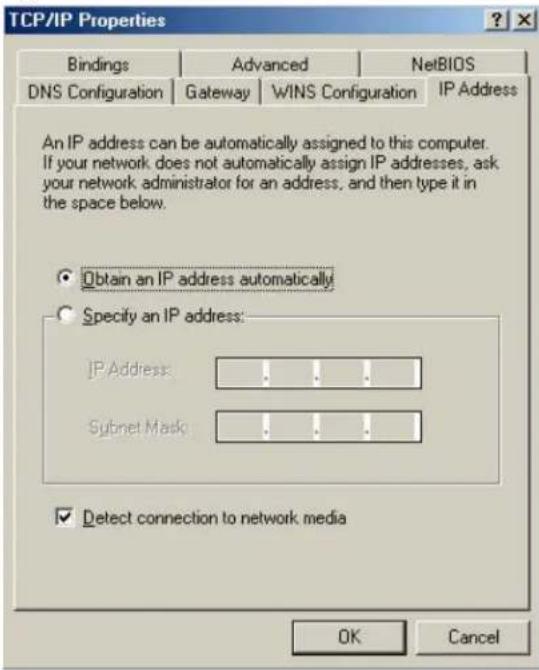
3 Click the DNS Configuration tab.
- If you do not know your DNS information, select Disable DNS.
- If you know your DNS information, select Enable DNS and type the information in the fields below (you may not need to fill them all in).
Figure 108 Windows 95/98/Me: TCP/IP Properties: DNS Configuration
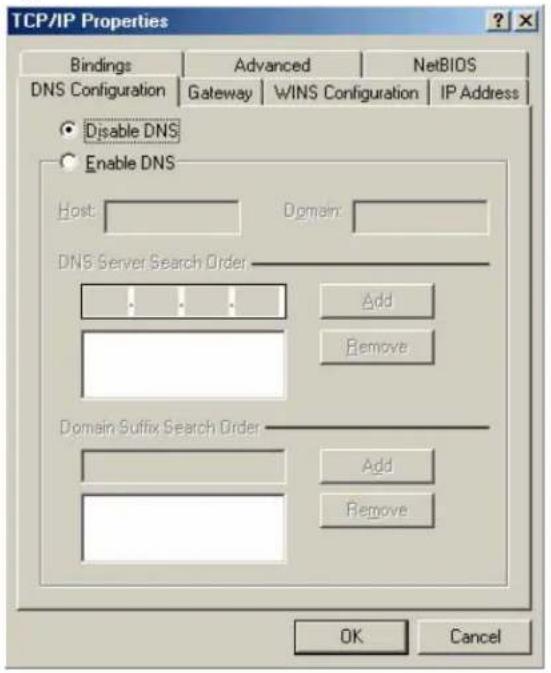
4 Click the Gateway tab.
- If you do not know your gateway's IP address, remove previously installed gateways.
- If you have a gateway IP address, type it in the New gateway field and click Add.
5 Click OK to save and close the TCP/IP Properties window.
6 Click OK to close the Network window. Insert the Windows CD if prompted.
7 Turn on your Prestige and restart your computer when prompted.
Verifying Settings
1 Click Start and then Run.
2 In the Run window, type "winipcfg" and then click OK to open the IP Configuration window.
3 Select your network adapter. You should see your computer's IP address, subnet mask and default gateway.
Windows 2000/NT/XP
The following example figures use the default Windows XP GUI theme.
1 Click start (Start in Windows 2000/NT), Settings, Control Panel.
Figure 109 Windows XP: Start Menu
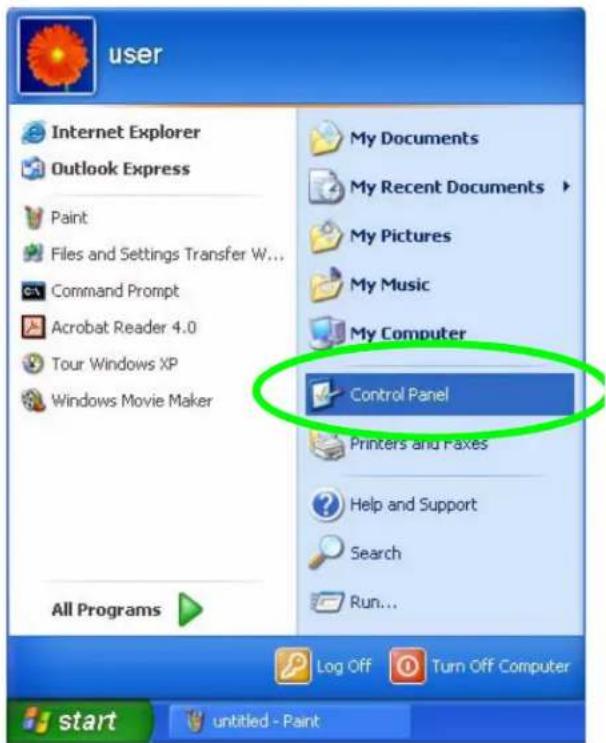
2 In the Control Panel, double-click Network Connections (Network and Dial-up Connections in Windows 2000/NT).
Figure 110 Windows XP: Control Panel
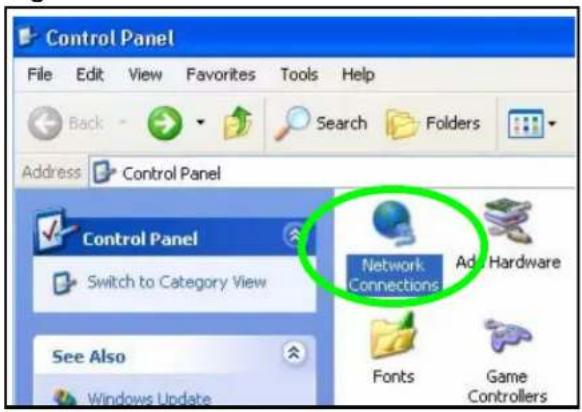
3 Right-click Local Area Connection and then click Properties.
Figure 111 Windows XP: Control Panel: Network Connections: Properties
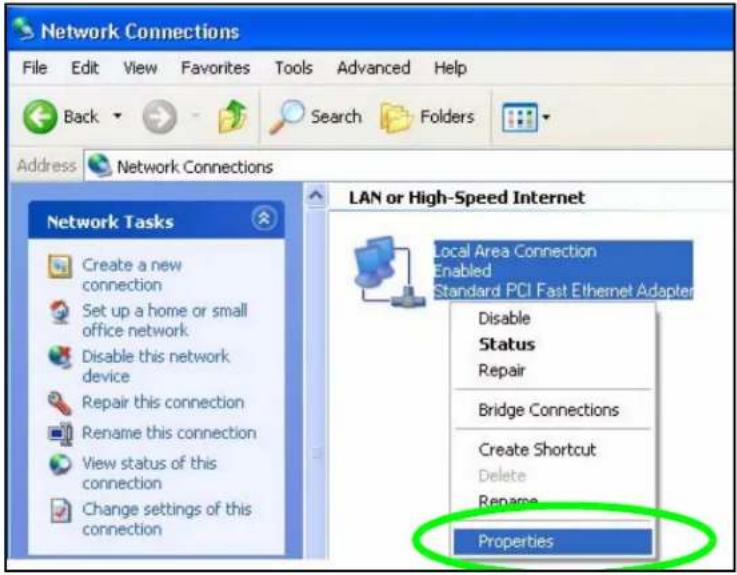
4 Select Internet Protocol (TCP/IP) (under the General tab in Win XP) and then click Properties.
Figure 112 Windows XP: Local Area Connection Properties
![Local Area Connection Properties General Authentication Advanced Connect using: Accton EN1207D-TX PCI Fast Ethernet Adapter Configure... This connection uses the following items: Client for Microsoft Networks File and Printer Sharing for Microsoft Networks 365 Packet Schedules Internet Protocol [TCP/IP] Install... Uninstall Properties Description Transmission Control Protocol/Internet Protocol. The default wide area network protocol that provides communication across diverse interconnected networks. Show icon in notification area when connected OK Cancel](/content/2026/02/353420/images/adec4bf87c325100af2c5e02990f603b2f3ffdc55942fd78f4e0d6a1184b32da.jpg)
5 The Internet Protocol TCP/IP Properties window opens (the General tab in Windows XP).
- If you have a dynamic IP address click Obtain an IP address automatically.
- If you have a static IP address click Use the following IP Address and fill in the IP address, Subnet mask, and Default gateway fields.
- Click Advanced.
Figure 113 Windows XP: Internet Protocol (TCP/IP) Properties
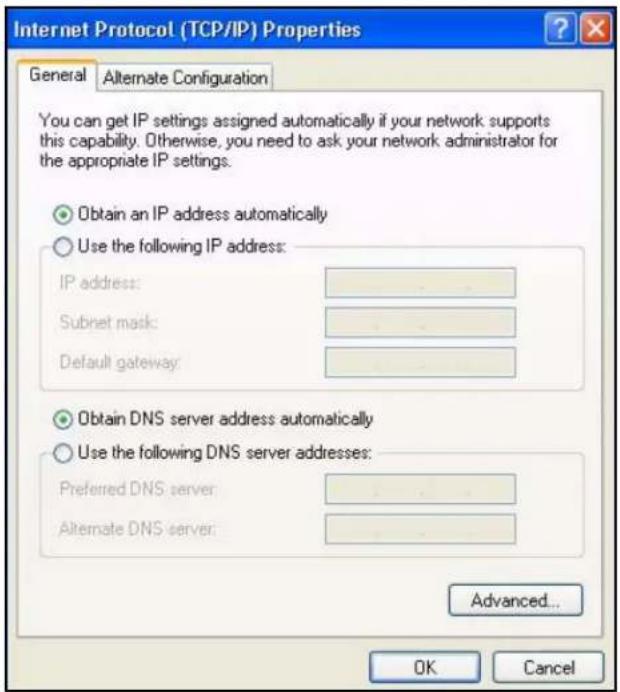
6 If you do not know your gateway's IP address, remove any previously installed gateways in the IP Settings tab and click OK.
Do one or more of the following if you want to configure additional IP addresses:
- In the IP Settings tab, in IP addresses, click Add.
- In TCP/IP Address, type an IP address in IP address and a subnet mask in Subnet mask, and then click Add.
- Repeat the above two steps for each IP address you want to add.
- Configure additional default gateways in the IP Settings tab by clicking Add in Default gateways.
- In TCP/IP Gateway Address, type the IP address of the default gateway in Gateway. To manually configure a default metric (the number of transmission hops), clear the Automatic metric check box and type a metric in Metric.
- Click Add.
- Repeat the previous three steps for each default gateway you want to add.
- Click OK when finished.
Figure 114 Windows XP: Advanced TCP/IP Properties
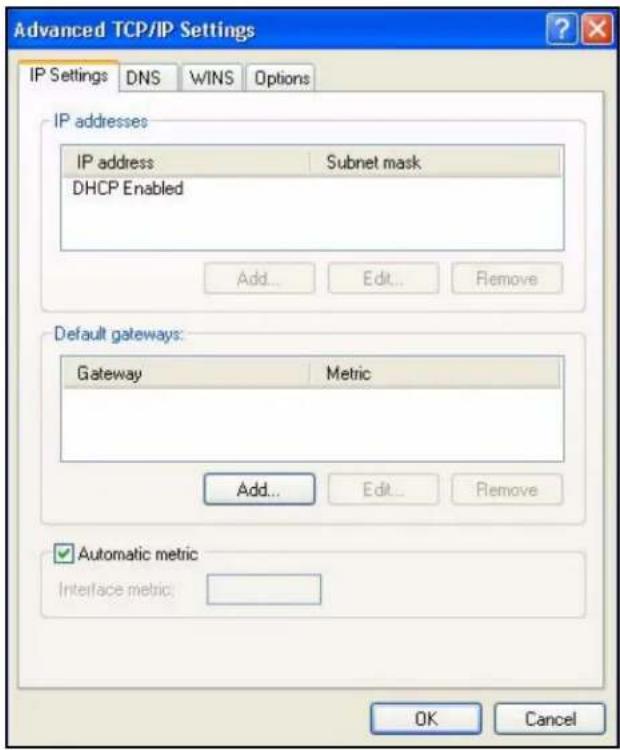
7 In the Internet Protocol TCP/IP Properties window (the General tab in Windows XP):
- Click Obtain DNS server address automatically if you do not know your DNS server IP address(es).
- If you know your DNS server IP address(es), click Use the following DNS server addresses, and type them in the Preferred DNS server and Alternate DNS server fields.
If you have previously configured DNS servers, click Advanced and then the DNS tab to order them.
Figure 115 Windows XP: Internet Protocol (TCP/IP) Properties
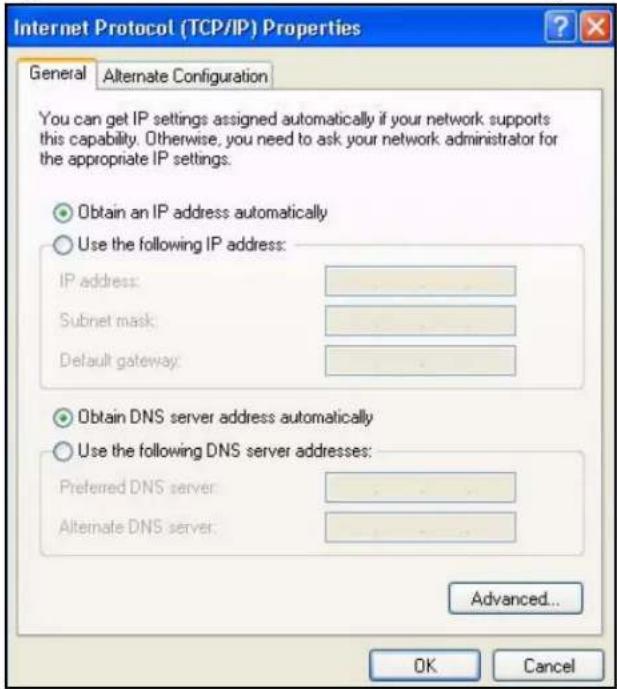
8 Click OK to close the Internet Protocol (TCP/IP) Properties window.
9 Click Close (OK in Windows 2000/NT) to close the Local Area Connection Properties window.
10 Close the Network Connections window (Network and Dial-up Connections in Windows 2000/NT).
11 Turn on your Prestige and restart your computer (if prompted).
Verifying Settings
1 Click Start, All Programs, Accessories and then Command Prompt.
2 In the Command Prompt window, type "ipconfig" and then press [ENTER]. You can also open Network Connections, right-click a network connection, click Status and then click the Support tab.
Macintosh OS 8/9
1 Click the Apple menu, Control Panel and double-click TCP/IP to open the TCP/IP Control Panel.
Figure 116 Macintosh OS 8/9: Apple Menu
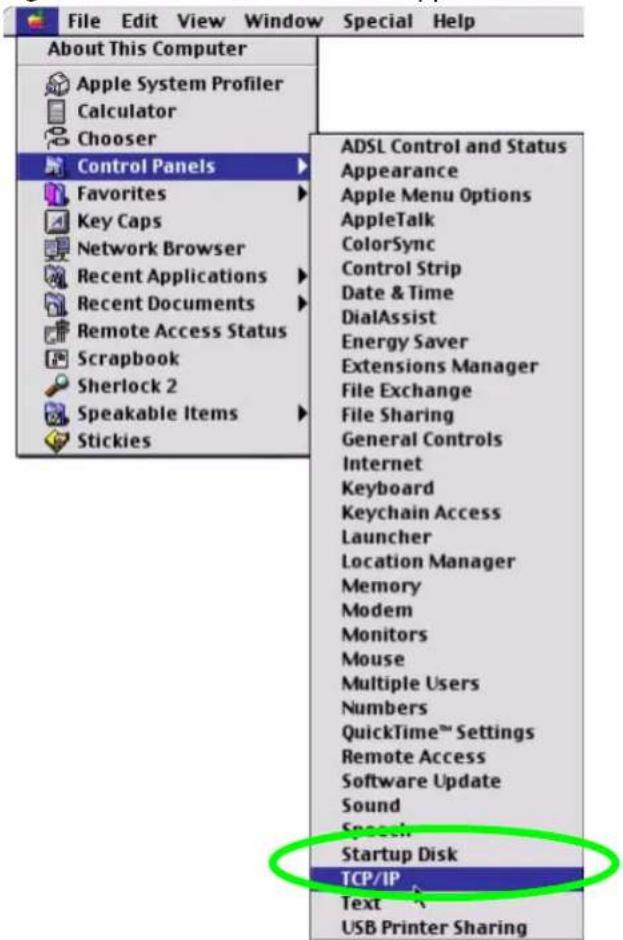
2 Select Ethernet built-in from the Connect via list.
Figure 117 Macintosh OS 8/9: TCP/IP
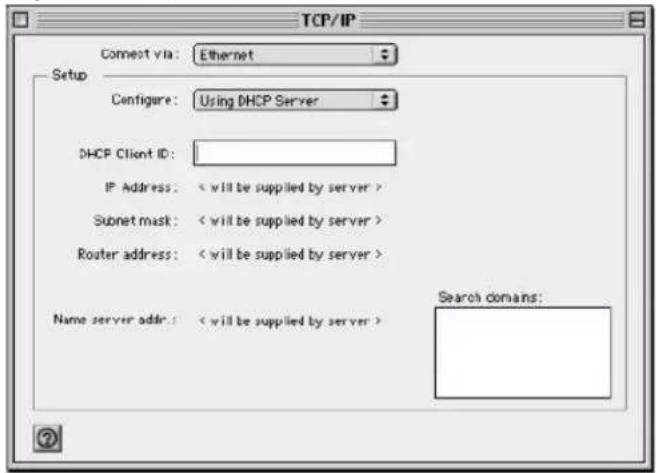
3 For dynamically assigned settings, select Using DHCP Server from the Configure: list.
4 For statically assigned settings, do the following:
• From the Configure box, select Manually.
- Type your IP address in the IP Address box.
- Type your subnet mask in the Subnet mask box.
- Type the IP address of your Prestige in the Router address box.
5 Close the TCP/IP Control Panel.
6 Click Save if prompted, to save changes to your configuration.
7 Turn on your Prestige and restart your computer (if prompted).
Verifying Settings
Check your TCP/IP properties in the TCP/IP Control Panel window.
Macintosh OS X
1 Click the Apple menu, and click System Preferences to open the System Preferences window.
Figure 118 Macintosh OS X: Apple Menu
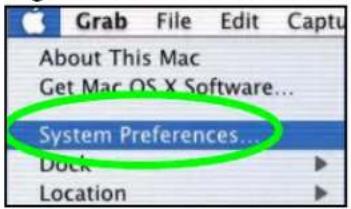
2 Click Network in the icon bar.
- Select Automatic from the Location list.
- Select Built-in Ethernet from the Show list.
- Click the TCP/IP tab.
3 For dynamically assigned settings, select Using DHCP from the Configure list.
Figure 119 Macintosh OS X: Network
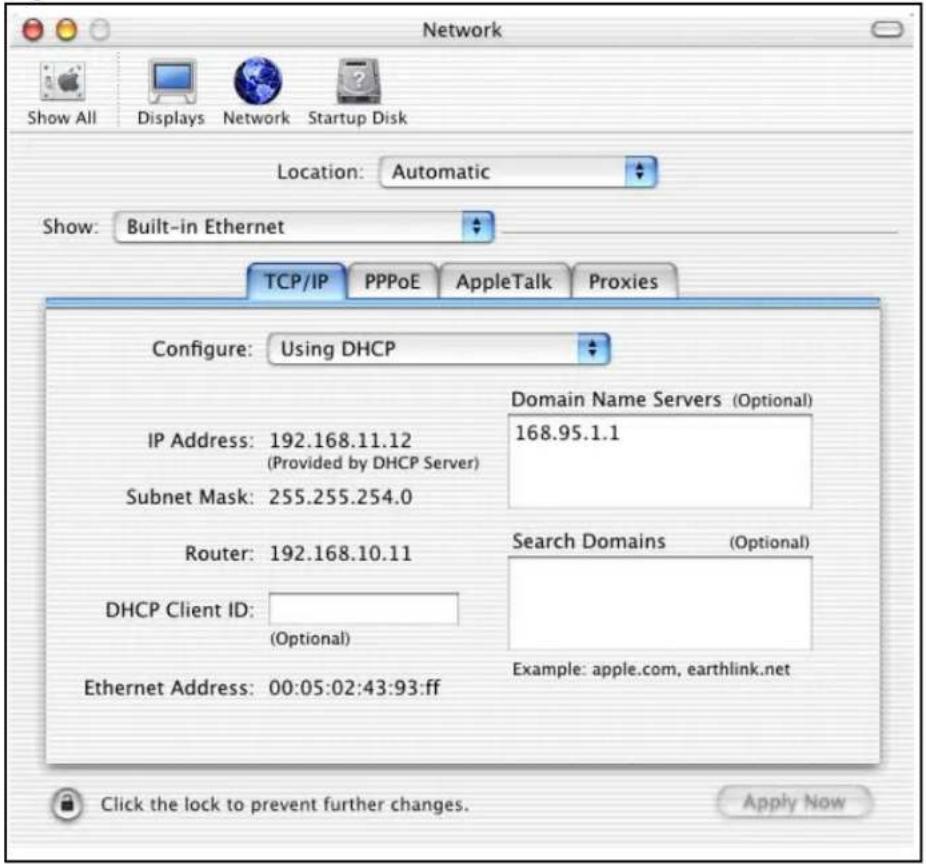
4 For statically assigned settings, do the following:
- From the Configure box, select Manually.
- Type your IP address in the IP Address box.
- Type your subnet mask in the Subnet mask box.
- Type the IP address of your Prestige in the Router address box.
5 Click Apply Now and close the window.
6 Turn on your Prestige and restart your computer (if prompted).
Verifying Settings
Check your TCP/IP properties in the Network window.
Linux
This section shows you how to configure your computer's TCP/IP settings in Red Hat Linux 9.0. Procedure, screens and file location may vary depending on your Linux distribution and release version.
Note: Make sure you are logged in as the root administrator.
Using the K Desktop Environment (KDE)
Follow the steps below to configure your computer IP address using the KDE.
1 Click the Red Hat button (located on the bottom left corner), select System Setting and click Network.
Figure 120 Red Hat 9.0: KDE: Network Configuration: Devices
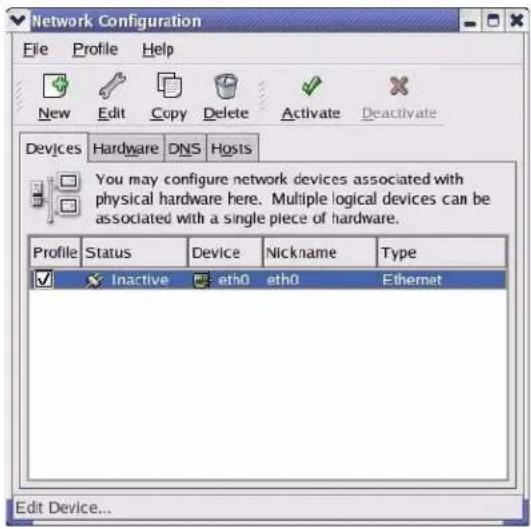
2 Double-click on the profile of the network card you wish to configure. The Ethernet Device General screen displays as shown.
Figure 121 Red Hat 9.0: KDE: Ethernet Device: General
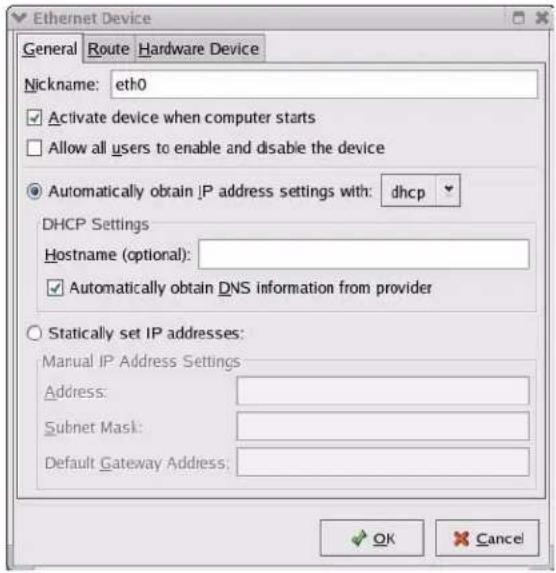
- If you have a dynamic IP address click Automatically obtain IP address settings with and select dhcp from the drop down list.
- If you have a static IP address click Statically set IP Addresses and fill in the Address, Subnet mask, and Default Gateway Address fields.
3 Click OK to save the changes and close the Ethernet Device General screen.
4 If you know your DNS server IP address(es), click the DNS tab in the Network Configuration screen. Enter the DNS server information in the fields provided.
Figure 122 Red Hat 9.0: KDE: Network Configuration: DNS
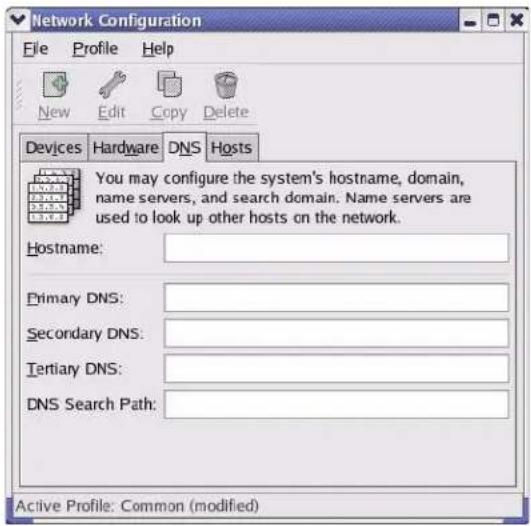
5 Click the Devices tab.
6 Click the Activate button to apply the changes. The following screen displays. Click Yes to save the changes in all screens.
Figure 123 Red Hat 9.0: KDE: Network Configuration: Activate
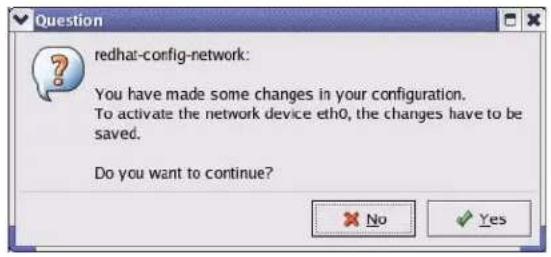
7 After the network card restart process is complete, make sure the Status is Active in the Network Configuration screen.
Using Configuration Files
Follow the steps below to edit the network configuration files and set your computer IP address.
1 Assuming that you have only one network card on the computer, locate the ifconfig-eth0 configuration file (where eth0 is the name of the Ethernet card). Open the configuration file with any plain text editor.
- If you have a dynamic IP address, enter dhcp in the BOOTPROTO= field. The following figure shows an example.
Figure 124 Red Hat 9.0: Dynamic IP Address Setting in ifconfig-eth0
DEVICE=eth0
ONBOOT=yes
BOOTPROTO=dhcp
USERCTL=no
PEERDNS=yes
TYPE=Ethernet
- If you have a static IP address, enter static in the BOOTPROTO= field. Type IPADDR= followed by the IP address (in dotted decimal notation) and type NETMASK= followed by the subnet mask. The following example shows an example where the static IP address is 192.168.1.10 and the subnet mask is 255.255.255.0.
Figure 125 Red Hat 9.0: Static IP Address Setting in ifconfig-eth0
DEVICE=eth0
ONBOOT=yes
BOOTPROTO=static
IPADDR=192.168.1.10
NETMASK=255.255.255.0
USERCTL=no
PEERDNS=yes
TYPE=Ethernet
2 If you know your DNS server IP address(es), enter the DNS server information in the resolv.conf file in the /etc directory. The following figure shows an example where two DNS server IP addresses are specified.
Figure 126 Red Hat 9.0: DNS Settings in resolv.conf
nameserver 172.23.5.1
nameserver 172.23.5.2
3 After you edit and save the configuration files, you must restart the network card. Enter ./network restart in the /etc/rc.d/init.d directory. The following figure shows an example.
Figure 127 Red Hat 9.0: Restart Ethernet Card
[root@localhost init.d]# network restart
Shutting down interface eth0: [OK]
Shutting down loopback interface: [OK]
Setting network parameters: [OK]
Bringing up loopback interface: [OK]
Bringing up interface eth0: [OK]
21.0.1 Verifying Settings
Enter ifconfig in a terminal screen to check your TCP/IP properties.
Figure 128 Red Hat 9.0: Checking TCP/IP Properties
[root@localhost]# ifconfig
eth0 Link encap:Ethernet HWaddr 00:50:BA:72:5B:44
inet addr:172.23.19.129 Bcast:172.23.19.255 Mask:255.255.255.0
UP BROADCAST RUNNING MULTICAST MTU:1500 Metric:1
RX packets:717 errors:0 dropped:0 overruns:0 frame:0
TX packets:13 errors:0 dropped:0 overruns:0 carrier:0
collisions:0 txqueuelen:100
RX bytes:730412 (713.2 Kb) TX bytes:1570 (1.5 Kb)
Interrupt:10 Base address:0x1000
[root@localhost]#
Wireless LANs
Wireless LAN Topologies
This section discusses ad-hoc and infrastructure wireless LAN topologies.
Ad-hoc Wireless LAN Configuration
The simplest WLAN configuration is an independent (Ad-hoc) WLAN that connects a set of computers with wireless stations (A, B, C). Any time two or more wireless adapters are within range of each other, they can set up an independent network, which is commonly referred to as an Ad-hoc network or Independent Basic Service Set (IBSS). The following diagram shows an example of notebook computers using wireless adapters to form an Ad-hoc wireless LAN.
Figure 129 Peer-to-Peer Communication in an Ad-hoc Network
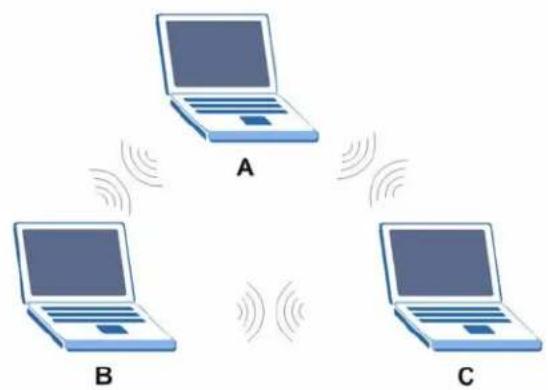
BSS
A Basic Service Set (BSS) exists when all communications between wireless stations or between a wireless station and a wired network client go through one access point (AP).
Intra-BSS traffic is traffic between wireless stations in the BSS. When Intra-BSS is enabled, wireless station A and B can access the wired network and communicate
with each other. When Intra-BSS is disabled, wireless station A and B can still access the wired network but cannot communicate with each other.
Figure 130 Basic Service Set

flowchart
graph TD
    A["Server"] --> B["Ethernet"]
    C["Computer"] --> D["Ethernet"]
    E["Printer"] --> D
    F["Computer"] --> G["BSS"]
    H["Computer"] --> G
    I["Computer"] --> G
    J["Computer"] --> G
    style A fill:#f9f,stroke:#333
    style C fill:#f9f,stroke:#333
    style E fill:#f9f,stroke:#333
    style F fill:#f9f,stroke:#333
    style H fill:#f9f,stroke:#333
    style I fill:#f9f,stroke:#333
    style J fill:#f9f,stroke:#333
ESS
An Extended Service Set (ESS) consists of a series of overlapping BSSs, each containing an access point, with each access point connected together by a wired network. This wired connection between APs is called a Distribution System (DS).
This type of wireless LAN topology is called an Infrastructure WLAN. The Access Points not only provide communication with the wired network but also mediate wireless network traffic in the immediate neighborhood.
An ESSID (ESS IDentification) uniquely identifies each ESS. All access points and their associated wireless stations within the same ESS must have the same ESSID in order to communicate.
Figure 131 Infrastructure WLAN
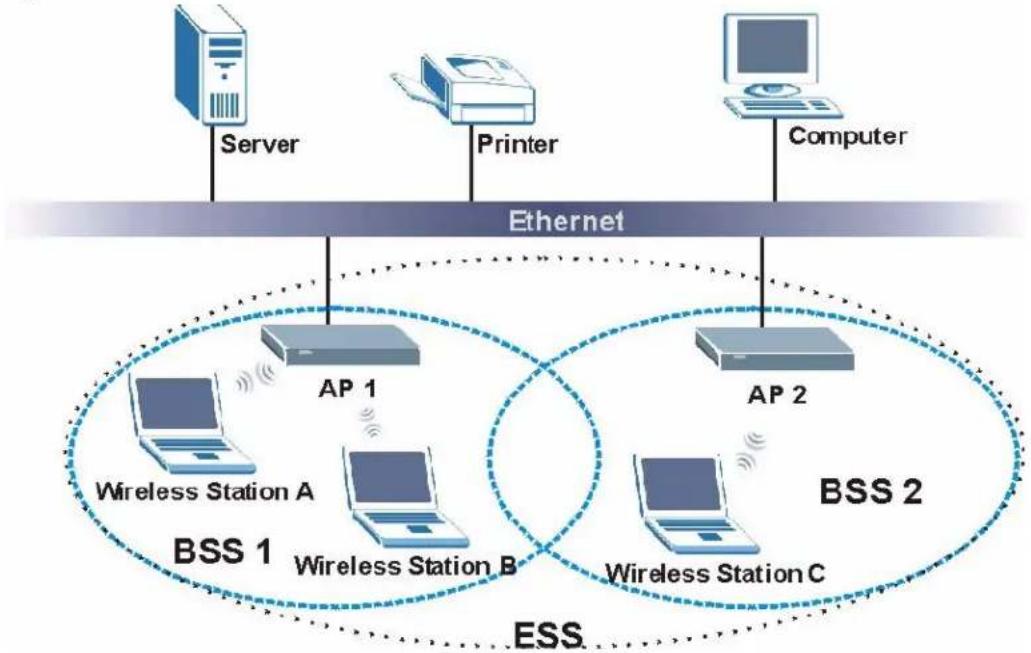
flowchart
graph TD
    Server -->|Ethernet| Server1["Server"]
    Printer -->|Ethernet| Printer1["Printer"]
    Computer -->|Ethernet| Computer1["Computer"]
    AP1["AP 1"] --> AP2["AP 2"]
    AP2 --> BSS1["BSS 1"]
    AP2 --> BSS2["BSS 2"]
    AP2 --> BSS3["BSS 3"]
    AP1 --> WirelessStationA["Wireless Station A"]
    AP1 --> WirelessStationB["Wireless Station B"]
    AP2 --> WirelessStationC["Wireless Station C"]
    AP2 --> WirelessStationD["Wireless Station D"]
    AP2 -.-> ESS["ESS"]
Channel
A channel is the radio frequency(ies) used by IEEE 802.11a/b/g wireless devices. Channels available depend on your geographical area. You may have a choice of channels (for your region) so you should use a different channel than an adjacent AP (access point) to reduce interference. Interference occurs when radio signals from different access points overlap causing interference and degrading performance.
Adjacent channels partially overlap however. To avoid interference due to overlap, your AP should be on a channel at least five channels away from a channel that an adjacent AP is using. For example, if your region has 11 channels and an adjacent AP is using channel 1, then you need to select a channel between 6 or 11.
RTS/CTS
A hidden node occurs when two stations are within range of the same access point, but are not within range of each other. The following figure illustrates a hidden node. Both stations (STA) are within range of the access point (AP) or
wireless gateway, but out-of-range of each other, so they cannot "hear" each other, that is they do not know if the channel is currently being used. Therefore, they are considered hidden from each other.
Figure 132 RTS/CTS
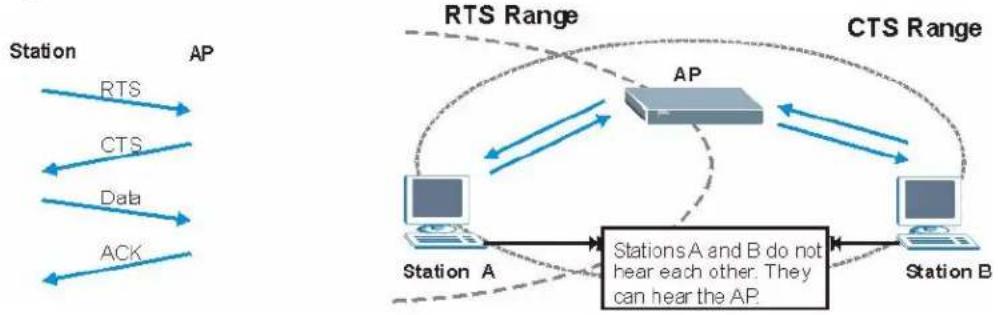
flowchart
graph TD
    subgraph RTS Range
        A["AP"] --> B["Station A"]
        B --> C["Station B"]
        C --> D["AP"]
        D --> E["CTS"]
        E --> F["Data"]
        F --> G["ACK"]
        H["RTS"] --> I["AP"]
        J["CTS"] --> K["AP"]
        L["Data"] --> M["AP"]
        N["ACK"] --> O["AP"]
    end
    subgraph CTS Range
        P["AP"] --> Q["Station A"]
        Q --> R["Station B"]
        R --> S["AP"]
        S --> T["CTS"]
        T --> U["Data"]
        U --> V["ACK"]
        W["RTS"] --> X["AP"]
        Y["CTS"] --> Z["AP"]
        AA["Data"] --> AB["AP"]
        AC["ACK"] --> AD["AP"]
        AE["RTS"] --> AF["AP"]
        AG["CTS"] --> AH["AP"]
        AI["Data"] --> AJ["AP"]
        AK["ACK"] --> AL["AP"]
        AM["RTS"] --> AN["AP"]
        AO["CTS"] --> AP
        AP --> AQ["AP"]
        AQ --> AR["CTS"]
        AR --> AS["Data"]
        AS --> AT["ACK"]
        AU["RTS"] --> AV["AP"]
        AW["CTS"] --> AX["AP"]
        AY["AP"] --> AZ["Station A"]
        BA["CTS"] --> BB["Station B"]
    end
    style RTS Range fill:#f9f,stroke:#333
    style CTS Range fill:#f9f,stroke:#333
    style CTS Range fill:#f9f,stroke:#333
    style CTS Range fill:#f9f,stroke:#333
    style CTS Range fill:#f9f,stroke:#333
    style CTS Range fill:#f9f,stroke:#333
    style CTS Range fill:#f9f,stroke:#333
    note right of AP
        StationsA andB do not hear each other. They can hear the AP.
    end
When station A sends data to the AP, it might not know that the station B is already using the channel. If these two stations send data at the same time, collisions may occur when both sets of data arrive at the AP at the same time, resulting in a loss of messages for both stations.
RTS/ CTS is designed to prevent collisions due to hidden nodes. An RTS/ CTS defines the biggest size data frame you can send before an RTS (Request To Send)/CTS (Clear to Send) handshake is invoked.
When a data frame exceeds the RTS/CTS value you set (between 0 to 2432 bytes), the station that wants to transmit this frame must first send an RTS (Request To Send) message to the AP for permission to send it. The AP then responds with a CTS (Clear to Send) message to all other stations within its range to notify them to defer their transmission. It also reserves and confirms with the requesting station the time frame for the requested transmission.
Stations can send frames smaller than the specified RTS/CTS directly to the AP without the RTS (Request To Send)/CTS (Clear to Send) handshake.
You should only configure RTS/CTS if the possibility of hidden nodes exists on your network and the "cost" of resending large frames is more than the extra network overhead involved in the RTS (Request To Send)/CTS (Clear to Send) handshake.
If the RTS/CTS value is greater than the Fragmentation Threshold value (see next), then the RTS (Request To Send)/CTS (Clear to Send) handshake will never occur as data frames will be fragmented before they reach RTS/CTS size.
Note: Enabling the RTS Threshold causes redundant network overhead that could negatively affect the throughput performance instead of providing a remedy.
Fragmentation Threshold
A Fragmentation Threshold is the maximum data fragment size (between 256 and 2432 bytes) that can be sent in the wireless network before the AP will fragment the packet into smaller data frames.
A large Fragmentation Threshold is recommended for networks not prone to interference while you should set a smaller threshold for busy networks or networks that are prone to interference.
If the Fragmentation Threshold value is smaller than the RTS/CTS value (see previously) you set then the RTS (Request To Send)/CTS (Clear to Send) handshake will never occur as data frames will be fragmented before they reach RTS/CTS size.
Preamble Type
A preamble is used to synchronize the transmission timing in your wireless network. There are two preamble modes: Long and Short.
Short preamble takes less time to process and minimizes overhead, so it should be used in a good wireless network environment when all wireless stations support it.
Select Long if you have a 'noisy' network or are unsure of what preamble mode your wireless stations support as all IEEE 802.11b compliant wireless adapters must support long preamble. However, not all wireless adapters support short preamble. Use long preamble if you are unsure what preamble mode the wireless adapters support, to ensure interpretability between the AP and the wireless stations and to provide more reliable communication in 'noisy' networks.
Select Dynamic to have the AP automatically use short preamble when all wireless stations support it, otherwise the AP uses long preamble.
Note: The AP and the wireless stations MUST use the same preamble mode in order to communicate.
IEEE 802.11g Wireless LAN
IEEE 802.11g is fully compatible with the IEEE 802.11b standard. This means an IEEE 802.11b adapter can interface directly with an IEEE 802.11g access point (and vice versa) at 11 Mbps or lower depending on range. IEEE 802.11g has
several intermediate rate steps between the maximum and minimum data rates. The IEEE 802.11g data rate and modulation are as follows:
Table 66 IEEE 802.11g
| DATA RATE (MBPS) | MODULATION |
| 1 DBPSK (Differential | Binary Phase Shift Keyed) |
| 2 DQPSK (Differential | Quadrature Phase Shift Keying) |
| 5.5 / 11 CCK (Complementary Code Keying) | |
| 6/9/12/18/24/36/48/54 | OFDM (Orthogonal Frequency Division Multiplexing) |
IEEE 802.1x
In June 2001, the IEEE 802.1x standard was designed to extend the features of IEEE 802.11 to support extended authentication as well as providing additional accounting and control features. It is supported by Windows XP and a number of network devices. Some advantages of IEEE 802.1x are:
- User based identification that allows for roaming.
- Support for RADIUS (Remote Authentication Dial In User Service, RFC 2138, 2139) for centralized user profile and accounting management on a network RADIUS server.
- Support for EAP (Extensible Authentication Protocol, RFC 2486) that allows additional authentication methods to be deployed with no changes to the access point or the wireless stations.
RADIUS
RADIUS is based on a client-server model that supports authentication, authorization and accounting. The access point is the client and the server is the RADIUS server. The RADIUS server handles the following tasks:
- Authentication
Determines the identity of the users. - Authorization
Determines the network services available to authenticated users once they are connected to the network. - Accounting
Keeps track of the client's network activity.
RADIUS is a simple package exchange in which your AP acts as a message relay between the wireless station and the network RADIUS server.
Types of RADIUS Messages
The following types of RADIUS messages are exchanged between the access point and the RADIUS server for user authentication:
- Access-Request
Sent by an access point requesting authentication.
- Access-Reject
Sent by a RADIUS server rejecting access.
- Access-Accept
Sent by a RADIUS server allowing access.
- Access-Challenge
Sent by a RADIUS server requesting more information in order to allow access. The access point sends a proper response from the user and then sends another Access-Request message.
The following types of RADIUS messages are exchanged between the access point and the RADIUS server for user accounting:
- Accounting - Request
Sent by the access point requesting accounting.
• Accounting-Response
Sent by the RADIUS server to indicate that it has started or stopped accounting.
In order to ensure network security, the access point and the RADIUS server use a shared secret key, which is a password, they both know. The key is not sent over the network. In addition to the shared key, password information exchanged is also encrypted to protect the network from unauthorized access.
Types of Authentication
This appendix discusses some popular authentication types: EAP-MD5, EAP-TLS, EAP-TTLS, PEAP and LEAP.
The type of authentication you use depends on the RADIUS server or the AP. Consult your network administrator for more information.
EAP-MD5 (Message-Digest Algorithm 5)
MD5 authentication is the simplest one-way authentication method. The authentication server sends a challenge to the wireless station. The wireless station 'proves' that it knows the password by encrypting the password with the challenge and sends back the information. Password is not sent in plain text.
However, MD5 authentication has some weaknesses. Since the authentication server needs to get the plaintext passwords, the passwords must be stored. Thus someone other than the authentication server may access the password file. In addition, it is possible to impersonate an authentication server as MD5 authentication method does not perform mutual authentication. Finally, MD5 authentication method does not support data encryption with dynamic session key. You must configure WEP encryption keys for data encryption.
EAP-TLS (Transport Layer Security)
With EAP-TLS, digital certifications are needed by both the server and the wireless stations for mutual authentication. The server presents a certificate to the client. After validating the identity of the server, the client sends a different certificate to the server. The exchange of certificates is done in the open before a secured tunnel is created. This makes user identity vulnerable to passive attacks. A digital certificate is an electronic ID card that authenticates the sender's identity. However, to implement EAP-TLS, you need a Certificate Authority (CA) to handle certificates, which imposes a management overhead.
EAP-TTLS (Tunneled Transport Layer Service)
EAP-TTLS is an extension of the EAP-TLS authentication that uses certificates for only the server-side authentications to establish a secure connection. Client authentication is then done by sending username and password through the secure connection, thus client identity is protected. For client authentication, EAP-TTLS supports EAP methods and legacy authentication methods such as PAP, CHAP, MS-CHAP and MS-CHAP v2.
PEAP (Protected EAP)
Like EAP-TTLS, server-side certificate authentication is used to establish a secure connection, then use simple username and password methods through the secured connection to authenticate the clients, thus hiding client identity. However, PEAP only supports EAP methods, such as EAP-MD5, EAP-MSCHAPv2 and EAP-GTC (EAP-Generic Token Card), for client authentication. EAP-GTC is implemented only by Cisco.
LEAP
LEAP (Lightweight Extensible Authentication Protocol) is a Cisco implementation of IEEE 802.1x.
Dynamic WEP Key Exchange
The AP maps a unique key that is generated with the RADIUS server. This key expires when the wireless connection times out, disconnects or reauthentication times out. A new WEP key is generated each time reauthentication is performed.
If this feature is enabled, it is not necessary to configure a default encryption key in the Wireless screen. You may still configure and store keys here, but they will not be used while Dynamic WEP is enabled.
Note: EAP-MD5 cannot be used with dynamic WEP key exchange
For added security, certificate-based authentications (EAP-TLS, EAP-TTLS and PEAP) use dynamic keys for data encryption. They are often deployed in corporate environments, but for public deployment, a simple user name and password pair is more practical. The following table is a comparison of the features of authentication types.
Table 67 Comparison of EAP Authentication Types
| EAP-MD5 | EAP-TLS | EAP-TTLS | PEAP | LEAP | |
| Mutual Authentication No | Yes Yes Yes Yes | ||||
| Certificate – Client | No | Yes | Optional | Optional | No |
| Certificate – Server | No | Yes | Yes | Yes | No |
| Dynamic Key Exchange | No | Yes | Yes | Yes | Yes |
| Credential Integrity | None | Strong | Strong | Strong | Moderate |
| Deployment Difficulty | Easy | Hard | Moderate | Moderate | Moderate |
| Client Identity Protection | No No | Yes Yes No |
WPA(2)
Wi-Fi Protected Access (WPA) is a subset of the IEEE 802.11i standard. WPA2 (IEEE 802.11i) is a wireless security standard that defines stronger encryption, authentication and key management than WPA.
Key differences between WPA(2) and WEP are improved data encryption and user authentication.
Encryption
Both WPA and WPA2 improve data encryption by using Temporal Key Integrity Protocol (TKIP), Message Integrity Check (MIC) and IEEE 802.1x. In addition to TKIP, WPA2 also uses Advanced Encryption Standard (AES) in the Counter mode with Cipher block chaining Message authentication code Protocol (CCMP) to offer stronger encryption.
Temporal Key Integrity Protocol (TKIP) uses 128-bit keys that are dynamically generated and distributed by the authentication server. It includes a per-packet key mixing function, a Message Integrity Check (MIC) named Michael, an extended initialization vector (IV) with sequencing rules, and a re-keying mechanism.
TKIP regularly changes and rotates the encryption keys so that the same encryption key is never used twice. The RADIUS server distributes a Pairwise Master Key (PMK) key to the AP that then sets up a key hierarchy and management system, using the pair-wise key to dynamically generate unique data encryption keys to encrypt every data packet that is wirelessly communicated between the AP and the wireless clients. This all happens in the background automatically.
WPA2 AES (Advanced Encryption Standard) is a block cipher that uses a 256-bit mathematical algorithm called Rijndael.
The Message Integrity Check (MIC) is designed to prevent an attacker from capturing data packets, altering them and resending them. The MIC provides a strong mathematical function in which the receiver and the transmitter each compute and then compare the MIC. If they do not match, it is assumed that the data has been tampered with and the packet is dropped.
By generating unique data encryption keys for every data packet and by creating an integrity checking mechanism (MIC), TKIP makes it much more difficult to decode data on a Wi-Fi network than WEP, making it difficult for an intruder to break into the network.
The encryption mechanisms used for WPA and WPA-PSK are the same. The only difference between the two is that WPA-PSK uses a simple common password, instead of user-specific credentials. The common-password approach makes WPA-PSK susceptible to brute-force password-guessing attacks but it's still an improvement over WEP as it employs an easier-to-use, consistent, single, alphanumeric password.
User Authentication
WPA or WPA2 applies IEEE 802.1x and Extensible Authentication Protocol (EAP) to authenticate wireless clients using an external RADIUS database.
If both an AP and the wireless clients support WPA2 and you have an external RADIUS server, use WPA2 for stronger data encryption. If you don't have an external RADIUS server, you should use WPA2 -PSK (WPA2 -Pre-Shared Key) that only requires a single (identical) password entered into each access point, wireless gateway and wireless client. As long as the passwords match, a wireless client will be granted access to a WLAN.
If the AP or the wireless clients do not support WPA2, just use WPA or WPA-PSK depending on whether you have an external RADIUS server or not.
Select WEP only when the AP and/or wireless clients do not support WPA or WPA2. WEP is less secure than WPA or WPA2.
21.0.2 WPA(2)-PSK Application Example
A WPA(2)-PSK application looks as follows.
1 First enter identical passwords into the AP and all wireless clients. The Pre-Shared Key (PSK) must consist of between 8 and 63 ASCII characters (including spaces and symbols).
2 The AP checks each wireless client's password and (only) allows it to join the network if the password matches.
3 The AP derives and distributes keys to the wireless clients.
4 The AP and wireless clients use the TKIP or AES encryption process to encrypt data exchanged between them.
Figure 133 WPA(2)-PSK Authentication
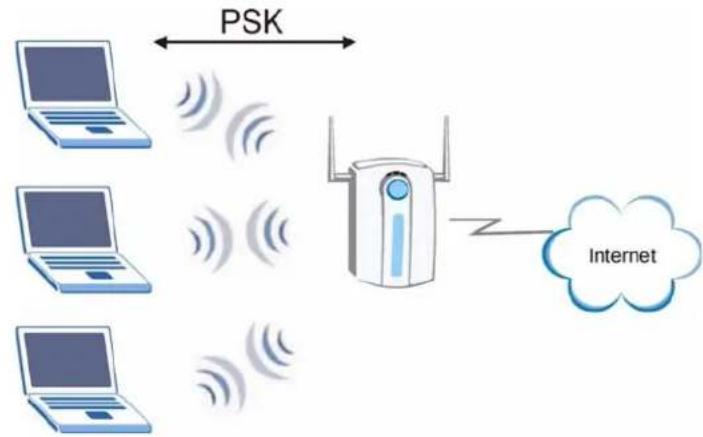
flowchart
graph TD
    A["Laptop"] <-->|PSK| B["Wi-Fi Device"]
    C["Laptop"] <-->|PSK| B
    D["Laptop"] <-->|PSK| B
    E["Laptop"] <-->|PSK| B
    B --> F["Internet"]
21.0.3 WPA(2) with RADIUS Application Example
You need the IP address of the RADIUS server, its port number (default is 1812), and the RADIUS shared secret. A WPA(2) application example with an external RADIUS server looks as follows. "A" is the RADIUS server. "DS" is the distribution system.
1 The AP passes the wireless client's authentication request to the RADIUS server.
2 The RADIUS server then checks the user's identification against its database and grants or denies network access accordingly.
3 The RADIUS server distributes a Pairwise Master Key (PMK) key to the AP that then sets up a key hierarchy and management system, using the pair-wise key to dynamically generate unique data encryption keys to encrypt every data packet that is wirelessly communicated between the AP and the wireless clients.
Security Parameters Summary
Refer to this table to see what other security parameters you should configure for each Authentication Method/ key management protocol type. MAC address filters are not dependent on how you configure these security features.
Table 68 Wireless Security Relational Matrix
| AUTHENTICATION METHOD/ KEYMANAGEMENTPROTOCOL | ENCRYPTION METHOD | ENTERMANUAL KEY | IEEE 802.1X |
| Open None No Disable | |||
| Enable without Dynamic WEP Key | |||
| Open | WEP | No | Enable with Dynamic WEP Key |
| Yes Enable without Dynamic WEP Key | |||
| Yes Disable | |||
| Shared | WEP | No | Enable with Dynamic WEP Key |
| Yes Enable without Dynamic WEP Key | |||
| Yes Disable | |||
| WPA TKIP No Enable | |||
| WPA-PSK TKIP Yes Enable | |||
| WPA2 AES No Enable | |||
| WPA2-PSK AES Yes Enable | |||
Services
The following table lists some commonly-used services and their associated protocols and port numbers.
- Name: This is a short, descriptive name for the service. You can use this one or create a different one, if you like.
- Protocol: This is the type of IP protocol used by the service. If this is TCP/UDP, then the service uses the same port number with TCP and UDP. If this is User-Defined, the Port(s) is the IP protocol number, not the port number.
- Port(s): This value depends on the Protocol.
- If the Protocol is TCP, UDP, or TCP/UDP, this is the IP port number.
- If the Protocol is USER, this is the IP protocol number.
- Description: This is a brief explanation of the applications that use this service or the situations in which this service is used.
Table 69 Examples of Services
| NAME PROTOCOL | PORT(S) DESCRIPTION | ||
| AH (IPSEC_TUNNEL) | User-Defined 51 The IPSEC AH | (Authentication Header) tunneling protocol uses this service. | |
| AIM | TCP | 5190 | AOL's Internet Messenger service. |
| AUTH | TCP | 113 | Authentication protocol used by some servers. |
| BGP | TCP | 179 | Border Gateway Protocol. |
| BOOTP_CLIENT | UDP | 68 | DHCP Client. |
| BOOTP_SERVER | UDP | 67 | DHCP Server. |
| CU-SEEME TCP/UDP | TCP/UDP | 764824032 | A popular videoconferencing solution from White Pines Software. |
| DNS | TCP/UDP | 53 | Domain Name Server, a service that matches web names (e.g. www.zyxel.com) to IP numbers. |
| ESP (IPSEC_TUNNEL) | User-Defined 50 The IPSEC ESP | (Encapsulation Security Protocol) tunneling protocol uses this service. | |
| FINGER | TCP | 79 | Finger is a UNIX or Internet related command that can be used to find out if a user is logged on. |
| NAME | PROTOCOL | PORT(S) | DESCRIPTION |
| FTP TCP | TCP | 2021 | File Transfer Program, a program to enable fast transfer of files, including large files that may not be possible by e-mail. |
| H.323 | TCP | 1720 | NetMeeting uses this protocol. |
| HTTP | TCP | 80 | Hyper Text Transfer Protocol - a client/server protocol for the world wide web. |
| HTTPS | TCP | 443 | HTTPS is a secured http session often used in e-commerce. |
| ICMP | User-Defined | 1 | Internet Control Message Protocol is often used for diagnostic purposes. |
| ICQ | UDP | 4000 | This is a popular Internet chat program. |
| IGMP (MULTICAST) | User-Defined 2 Internet Group | Multicast Protocol is used when sending packets to a specific group of hosts. | |
| IKE | UDP | 500 | The Internet Key Exchange algorithm is used for key distribution and management. |
| IMAP4 | TCP | 143 | The Internet Message Access Protocol is used for e-mail. |
| IMAP4S | TCP | 993 | This is a more secure version of IMAP4 that runs over SSL. |
| IRC | TCP/UDP | 6667 | This is another popular Internet chat program. |
| MSN Messenger | TCP | 1863 | Microsoft Networks' messenger service uses this protocol. |
| NetBIOS | TCP/UDPTCP/UDPTCP/UDPTCP/UDP | 137138139445 | The Network Basic Input/Output System is used for communication between computers in a LAN. |
| NEW-ICQ | TCP | 5190 | An Internet chat program. |
| NEWS | TCP | 144 | A protocol for news groups. |
| NFS | UDP | 2049 | Network File System - NFS is a client/server distributed file service that provides transparent file sharing for network environments. |
| NNTP | TCP | 119 | Network News Transport Protocol is the delivery mechanism for the USENET newsgroup service. |
| PING | User-Defined | 1 | Packet INternet Groper is a protocol that sends out ICMP echo requests to test whether or not a remote host is reachable. |
| POP3 TCP 110 Post | Office Protocol version 3 lets a | client computer get e-mail from a POP3 server through a temporary connection (TCP/IP or other). | |
| POP3S TCP 995 This is a more secure version of PC | P3 that runs over SSL. | ||
| PPTP | TCP | 1723 | Point-to-Point Tunneling Protocol enables secure transfer of data over public networks. This is the control channel. |
| PPTP_TUNNEL (GRE) | User-Defined 47 PPTP (Point-to-Point Tunneling Protocol) enables secure transfer of data over public networks. This is the data channel. | ||
| RCMD TCP 512 Remote Command Service. | |||
| REAL_AUDIO | TCP | 7070 | A streaming audio service that enables real time sound over the web. |
| REXEC TCP 514 Remote Execution Daemon. | |||
| RLOGIN TCP 513 Remote Login. | |||
| ROADRUNNER | TCP/UDP | 1026 | This is an ISP that provides services mainly for cable modems. |
| RTELNET | TCP | 107 | Remote Telnet. |
| RTSP | TCP/UDP | 554 | The Real Time Streaming (media control) Protocol (RTSP) is a remote control for multimedia on the Internet. |
| SFTP | TCP | 115 | The Simple File Transfer Protocol is an old way of transferring files between computers. |
| SMTP | TCP | 25 | Simple Mail Transfer Protocol is the message-exchange standard for the Internet. SMTP enables you to move messages from one e-mail server to another. |
| SMTPS | TCP | 465 | This is a more secure version of SMTP that runs over SSL. |
| SNMP | TCP/UDP | 161 | Simple Network Management Program. |
| SNMP-TRAPS | TCP/UDP | 162 | Traps for use with the SNMP (RFC:1215). |
| SQL-NET | TCP | 1521 | Structured Query Language is an interface to access data on many different types of database systems, including mainframes, midrange systems, UNIX systems and network servers. |
| SSDP | UDP | 1900 | The Simple Service Discovery Protocol supports Universal Plug-and-Play (UPnP). |
| SSH | TCP/UDP | 22 | Secure Shell Remote Login Program. |
| STRM WORKS | UDP | 1558 | Stream Works Protocol. |
| SYSLOG | UDP | 514 | Syslog allows you to send system logs to a UNIX server. |
| TACACS | UDP | 49 | Login Host Protocol used for (Terminal Access Controller Access Control System). |
| TELNET | TCP | 23 | Telnet is the login and terminal emulation protocol common on the Internet and in UNIX environments. It operates over TCP/IP networks. Its primary function is to allow users to log into remote host systems. |
| TFTP | UDP | 69 | Trivial File Transfer Protocol is an Internet file transfer protocol similar to FTP, but uses the UDP (User Datagram Protocol) rather than TCP (Transmission Control Protocol). |
| VDOLIVE | TCP | 7000 | A videoconferencing solution. The UDP port number is specified in the application. |
| UDP | user-defined | ||
Open Software Announcements
End-User License Agreement for "NBG416N"
WARNING: ZyXEL Communications Corp. IS WILLING TO LICENSE THE SOFTWARE TO YOU ONLY UPON THE CONDITION THAT YOU ACCEPT ALL OF THE TERMS CONTAINED IN THIS LICENSE AGREEMENT. PLEASE READ THE TERMS CAREFULLY BEFORE COMPLETING THE INSTALLATION PROCESS AS INSTALLING THE SOFTWARE WILL INDICATE YOUR ASSENT TO THEM. IF YOU DO NOT AGREE TO THESE TERMS, THEN ZyXEL IS UNWILLING TO LICENSE THE SOFTWARE TO YOU, IN WHICH EVENT YOU SHOULD RETURN THE UNINSTALLED SOFTWARE AND PACKAGING TO THE PLACE FROM WHICH IT WAS ACQUIRED OR ZyXEL, AND YOUR MONEY WILL BE REFUNDED. HOWEVER, CERTAIN ZYXEL'S PRODUCTS MAY CONTAIN-IN PART-SOME THIRD PARTY'S FREE AND OPEN SOFTWARE PROGRAMS WHICH ALLOW YOU TO FREELY COPY, RUN, DISTRIBUTE, MODIFY AND IMPROVE THE SOFTWARE UNDER THE APPLICABLE TERMS OF SUCH THRID PARTY'S LICENSES ("OPEN-SOURCED COMPONENTS"). THE OPEN-SOURCED COMPONENTS ARE LISTED IN THE NOTICE OR APPENDIX BELOW. ZYXEL MAY HAVE DISTRIBUTED TO YOU HARDWARE AND/OR SOFTWARE, OR MADE AVAILABLE FOR ELECTRONIC DOWNLOADS THESE FREE SOFTWARE PROGRAMS OF THRID PARTIES AND YOU ARE LICENSED TO FREELY COPY, MODIFY AND REDISTIBUTE THAT SOFTWARE UNDER THE APPLICABLE LICENSE TERMS OF SUCH THIRD PARTY. NONE OF THE STATEMENTS OR DOCUMENTATION FROM ZYXEL INCLUDING ANY RESTRICTIONS OR CONDITIONS STATED IN THIS END USER LICENSE AGREEMENT SHALL RESTRICT ANY RIGHTS AND LICENSES YOU MAY HAVE WITH RESPECT TO THE OPEN-SOURCED COMPONENTS UNDER THE APPLICABLE LICENSE TERMS OF SUCH THIRD PARTY.
1. Grant of License for Personal Use
ZyXEL Communications Corp. ("ZyXEL") grants you a non-exclusive, non-sublicense, non-transferable license to use the program with which this license is distributed (the "Software"), including any documentation files accompanying the Software ("Documentation"), for internal business use only, for up to the number of users specified in sales order and invoice. You have the right to make one backup copy of the Software and Documentation solely for archival, back-up or disaster recovery purposes. You shall not exceed the scope of the license granted
hereunder. Any rights not expressly granted by ZyXEL to you are reserved by ZyXEL, and all implied licenses are disclaimed.
2. Ownership
You have no ownership rights in the Software. Rather, you have a license to use the Software as long as this License Agreement remains in full force and effect. Ownership of the Software, Documentation and all intellectual property rights therein shall remain at all times with ZyXEL. Any other use of the Software by any other entity is strictly forbidden and is a violation of this License Agreement.
3. Copyright
The Software and Documentation contain material that is protected by international copyright law, trade secret law, international treaty provisions, and the applicable national laws of each respective country. All rights not granted to you herein are expressly reserved by ZyXEL. You may not remove any proprietary notice of ZyXEL or any of its licensors from any copy of the Software or Documentation.
4. Restrictions
You may not publish, display, disclose, sell, rent, lease, modify, store, loan, distribute, or create derivative works of the Software, or any part thereof. You may not assign, sublicense, convey or otherwise transfer, pledge as security or otherwise encumber the rights and licenses granted hereunder with respect to the Software. ZyXEL is not obligated to provide any maintenance, technical or other support for the resultant modified Software. You may not copy, reverse engineer, decompile, reverse compile, translate, adapt, or disassemble the Software, or any part thereof, nor shall you attempt to create the source code from the object code for the Software. Except as and only to the extent expressly permitted in this License, you may not market, co-brand, and private label or otherwise permit third parties to link to the Software, or any part thereof. You may not use the Software, or any part thereof, in the operation of a service bureau or for the benefit of any other person or entity. You may not cause, assist or permit any third party to do any of the foregoing. Portions of the Software utilize or include third party software and other copyright material. Acknowledgements, licensing terms and disclaimers for such material are contained in the License Notice as below for the third party software, and your use of such material is exclusively governed by their respective terms. ZyXEL has provided, as part of the Software package, access to certain third party software as a convenience. To the extent that the Software contains third party software, ZyXEL has no express or implied obligation to provide any technical or other support for such software other than compliance with the applicable license terms of such third party, and makes no warranty (express, implied or statutory) whatsoever with respect thereto. Please contact the appropriate software vendor or manufacturer directly for technical support and customer service related to its software and products.
5. Confidentiality
You acknowledge that the Software contains proprietary trade secrets of ZyXEL and you hereby agree to maintain the confidentiality of the Software using at least as great a degree of care as you use to maintain the confidentiality of your own most confidential information. You agree to reasonably communicate the terms and conditions of this License Agreement to those persons employed by you who come into contact with the Software, and to use reasonable best efforts to ensure their compliance with such terms and conditions, including, without limitation, not knowingly permitting such persons to use any portion of the Software for the purpose of deriving the source code of the Software.
6. No Warranty
THE SOFTWARE IS PROVIDED "AS IS." TO THE MAXIMUM EXTENT PERMITTED BY LAW, ZyXEL DISCLAIMS ALL WARRANTIES OF ANY KIND, EITHER EXPRESSED OR IMPLIED, INCLUDING, WITHOUT LIMITATION, IMPLIED WARRANTIES OF MERCHANTABILITY AND FITNESS FOR A PARTICULAR PURPOSE, AND NON-INFRINGEMENT. ZyXEL DOES NOT WARRANT THAT THE FUNCTIONS CONTAINED IN THE SOFTWARE WILL MEET ANY REQUIREMENTS OR NEEDS YOU MAY HAVE, OR THAT THE SOFTWARE WILL OPERATE ERROR FREE, OR IN AN UNINTERUPTED FASHION, OR THAT ANY DEFECTS OR ERRORS IN THE SOFTWARE WILL BE CORRECTED, OR THAT THE SOFTWARE IS COMPATIBLE WITH ANY PARTICULAR PLATFORM. SOME JURISDICTIONS DO NOT ALLOW THE WAIVER OR EXCLUSION OF IMPLIED WARRANTIES SO THEY MAY NOT APPLY TO YOU. IF THIS EXCLUSION IS HELD TO BE UNENFORCEABLE BY A COURT OF COMPETENT JURISDICTION, THEN ALL EXPRESS AND IMPLIED WARRANTIES SHALL BE LIMITED IN DURATION TO A PERIOD OF THIRTY (30) DAYS FROM THE DATE OF PURCHASE OF THE SOFTWARE, AND NO WARRANTIES SHALL APPLY AFTER THAT PERIOD.
7. Limitation of Liability
IN NO EVENT WILL ZyXEL BE LIABLE TO YOU OR ANY THIRD PARTY FOR ANY INCIDENTAL OR CONSEQUENTIAL DAMAGES (INCLUDING, WITHOUT LIMITATION, INDIRECT, SPECIAL, PUNITIVE, OR EXEMPLARY DAMAGES FOR LOSS OF BUSINESS, LOSS OF PROFITS, BUSINESS INTERRUPTION, OR LOSS OF BUSINESS INFORMATION) ARISING OUT OF THE USE OF OR INABILITY TO USE THE SOFTWARE OR PROGRAM, OR FOR ANY CLAIM BY ANY OTHER PARTY, EVEN IF ZyXEL HAS BEEN ADVISED OF THE POSSIBILITY OF SUCH DAMAGES. ZyXEL's TOTAL AGGREGATE LIABILITY WITH RESPECT TO ITS OBLIGATIONS UNDER THIS AGREEMENT OR OTHERWISE WITH RESPECT TO THE SOFTWARE AND DOCUMENTATION OR OTHERWISE SHALL BE EQUAL TO THE PURCHASE PRICE, BUT SHALL IN NO EVENT EXCEED THE PRODUCT'S PRICE. BECAUSE SOME STATES/COUNTRIES DO NOT ALLOW THE EXCLUSION OR LIMITATION OF LIABILITY FOR CONSEQUENTIAL OR INCIDENTAL DAMAGES, THE ABOVE LIMITATION MAY NOT APPLY TO YOU.
8. Export Restrictions
THIS LICENSE AGREEMENT IS EXPRESSLY MADE SUBJECT TO ANY APPLICABLE LAWS, REGULATIONS, ORDERS, OR OTHER RESTRICTIONS ON THE EXPORT OF THE SOFTWARE OR INFORMATION ABOUT SUCH SOFTWARE WHICH MAY BE IMPOSED FROM TIME TO TIME. YOU SHALL NOT EXPORT THE SOFTWARE, DOCUMENTATION OR INFORMATION ABOUT THE SOFTWARE AND DOCUMENTATION WITHOUT COMPLYING WITH SUCH LAWS, REGULATIONS, ORDERS, OR OTHER RESTRICTIONS. YOU AGREE TO INDEMNIFY ZyXEL AGAINST ALL CLAIMS, LOSSES, DAMAGES, LIABILITIES, COSTS AND EXPENSES, INCLUDING REASONABLE ATTORNEYS' FEES, TO THE EXTENT SUCH CLAIMS ARISE OUT OF ANY BREACH OF THIS SECTION 8.
9. Audit Rights
ZyXEL SHALL HAVE THE RIGHT, AT ITS OWN EXPENSE, UPON REASONABLE PRIOR NOTICE, TO PERIODICALLY INSPECT AND AUDIT YOUR RECORDS TO ENSURE YOUR COMPLIANCE WITH THE TERMS AND CONDITIONS OF THIS LICENSE AGREEMENT.
10. Termination
This License Agreement is effective until it is terminated. You may terminate this License Agreement at any time by destroying or returning to ZyXEL all copies of the Software and Documentation in your possession or under your control. ZyXEL may terminate this License Agreement for any reason, including, but not limited to, if ZyXEL finds that you have violated any of the terms of this License Agreement. Upon notification of termination, you agree to destroy or return to ZyXEL all copies of the Software and Documentation and to certify in writing that all known copies, including backup copies, have been destroyed. All provisions relating to confidentiality, proprietary rights, and non-disclosure shall survive the termination of this Software License Agreement.
11. General
This License Agreement shall be construed, interpreted and governed by the laws of Republic of China without regard to conflicts of laws provisions thereof. The exclusive forum for any disputes arising out of or relating to this License Agreement shall be an appropriate court or Commercial Arbitration Association sitting in ROC, Taiwan if the parties agree to a binding arbitration. This License Agreement shall constitute the entire Agreement between the parties hereto. This License Agreement, the rights granted hereunder, the Software and Documentation shall not be assigned by you without the prior written consent of ZyXEL. Any waiver or modification of this License Agreement shall only be effective if it is in writing and signed by both parties hereto. If any part of this License Agreement is found invalid or unenforceable by a court of competent
jurisdiction, the remainder of this License Agreement shall be interpreted so as to reasonably effect the intention of the parties.
NOTE: Some components of this product incorporate free software programs covered under the open source code licenses which allows you to freely copy, modify and redistribute the software. For at least three (3) years from the date of distribution of the applicable product or software, we will give to anyone who contacts us at the ZyXEL Technical Support (support@zyxel.com.tw), for a charge of no more than our cost of physically performing source code distribution, a complete machine-readable copy of the complete corresponding source code for the version of the Programs that we distributed to you if we are in possession of such.
Notice
Information herein is subject to change without notice. Companies, names, and data used in examples herein are fictitious unless otherwise noted. No part may be reproduced or transmitted in any form or by any means, electronic or mechanical, for any purpose, except the express written permission of ZyXEL Communications Corporation.
This Product includes Linux Kernel, Busybox, dnsmasq, iptables, wireless_tools, Pptp-client and igmpproxy software under GPL 2.0 license.
GNU GENERAL PUBLIC LICENSE
Version 2, June 1991
Copyright (C) 1989, 1991 Free Software Foundation, Inc.
59 Temple Place - Suite 330, Boston, MA 02111-1307, USA
Everyone is permitted to copy and distribute verbatim copies of this license document, but changing it is not allowed.
Preamble
The licenses for most software are designed to take away your freedom to share and change it. By contrast, the GNU General Public License is intended to guarantee your freedom to share and change free software--to make sure the software is free for all its users. This General Public License applies to most of the Free Software Foundation's software and to any other program whose authors commit to using it. (Some other Free Software Foundation software is covered by the GNU Library General Public License instead.) You can apply it to your programs, too.
When we speak of free software, we are referring to freedom, not price. Our General Public Licenses are designed to make sure that you have the freedom to distribute copies of free software (and charge for this service if you wish), that you receive source code or can get it if you want it, that you can change the software or use pieces of it in new free programs; and that you know you can do these things.
To protect your rights, we need to make restrictions that forbid anyone to deny you these rights or to ask you to surrender the rights. These restrictions translate to certain responsibilities for you if you distribute copies of the software, or if you modify it. For example, if you distribute copies of such a program, whether gratis or for a fee, you must give the recipients all the rights that you have. You must make sure that they, too, receive or can get the source code. And you must show them these terms so they know their rights.
We protect your rights with two steps: (1) copyright the software, and (2) offer you this license which gives you legal permission to copy, distribute and/or modify the software. Also, for each author's protection and ours, we want to make certain that everyone understands that there is no warranty for this free software. If the software is modified by someone else and passed on, we want its recipients to know that what they have is not the original, so that any problems introduced by others will not reflect on the original authors' reputations.
Finally, any free program is threatened constantly by software patents. We wish to avoid the danger that redistributors of a free program will individually obtain patent licenses, in effect making the program proprietary. To prevent this, we have made it clear that any patent must be licensed for everyone's free use or not licensed at all.
The precise terms and conditions for copying, distribution and modification follow.
TERMS AND CONDITIONS FOR COPYING, DISTRIBUTION AND MODIFICATION
-
This License applies to any program or other work which contains a notice placed by the copyright holder saying it may be distributed under the terms of this General Public License. The "Program", below, refers to any such program or work, and a "work based on the Program" means either the Program or any derivative work under copyright law: that is to say, a work containing the Program or a portion of it, either verbatim or with modifications and/or translated into another language. (Hereinafter, translation is included without limitation in the term "modification".) Each licensee is addressed as "you". Activities other than copying, distribution and modification are not covered by this License; they are outside its scope. The act of running the Program is not restricted, and the output from the Program is covered only if its contents constitute a work based on the Program (independent of having been made by running the Program). Whether that is true depends on what the Program does.
-
You may copy and distribute verbatim copies of the Program's source code as you receive it, in any medium, provided that you conspicuously and appropriately publish on each copy an appropriate copyright notice and disclaimer of warranty; keep intact all the notices that refer to this License and to the absence of any warranty; and give any other recipients of the Program a copy of this License along with the Program. You may charge a fee for the physical act of transferring a copy, and you may at your option offer warranty protection in exchange for a fee.
-
You may modify your copy or copies of the Program or any portion of it, thus forming a work based on the Program, and copy and distribute such modifications or work under the terms of Section 1 above, provided that you also meet all of these conditions:
a) You must cause the modified files to carry prominent notices stating that you changed the files and the date of any change.
b) You must cause any work that you distribute or publish, that in whole or in part contains or is derived from the Program or any part thereof, to be licensed as a whole at no charge to all third parties under the terms of this License.
c) If the modified program normally reads commands interactively when run, you must cause it, when started running for such interactive use in the most ordinary way, to print or display an announcement including an appropriate copyright notice and a notice that there is no warranty (or else, saying that you provide a warranty) and that users may redistribute the program under these conditions, and telling the user how to view a copy of this License. (Exception: if the Program itself is interactive but does not normally print such an announcement, your work based on the Program is not required to print an announcement.)
These requirements apply to the modified work as a whole. If identifiable sections of that work are not derived from the Program, and can be reasonably considered independent and separate works in themselves, then this License, and its terms, do not apply to those sections when you distribute them as separate works. But
when you distribute the same sections as part of a whole which is a work based on the Program, the distribution of the whole must be on the terms of this License, whose permissions for other licensees extend to the entire whole, and thus to each and every part regardless of who wrote it. Thus, it is not the intent of this section to claim rights or contest your rights to work written entirely by you; rather, the intent is to exercise the right to control the distribution of derivative or collective works based on the Program. In addition, mere aggregation of another work not based on the Program with the Program (or with a work based on the Program) on a volume of a storage or distribution medium does not bring the other work under the scope of this License.
- You may copy and distribute the Program (or a work based on it, under Section 2) in object code or executable form under the terms of Sections 1 and 2 above provided that you also do one of the following:
a) Accompany it with the complete corresponding machine-readable source code, which must be distributed under the terms of Sections 1 and 2 above on a medium customarily used for software interchange; or,
b) Accompany it with a written offer, valid for at least three years, to give any third party, for a charge no more than your cost of physically performing source distribution, a complete machine-readable copy of the corresponding source code, to be distributed under the terms of Sections 1 and 2 above on a medium customarily used for software interchange; or, c) Accompany it with the information you received as to the offer to distribute corresponding source code. (This alternative is allowed only for noncommercial distribution and only if you received the program in object code or executable form with such an offer, in accord with Subsection b above.) The source code for a work means the preferred form of the work for making modifications to it. For an executable work, complete source code means all the source code for all modules it contains, plus any associated interface definition files, plus the scripts used to control compilation and installation of the executable. However, as a special exception, the source code distributed need not include anything that is normally distributed (in either source or binary form) with the major components (compiler, kernel, and so on) of the operating system on which the executable runs, unless that component itself accompanies the executable. If distribution of executable or object code is made by offering access to copy from a designated place, then offering equivalent access to copy the source code from the same place counts as distribution of the source code, even though third parties are not compelled to copy the source along with the object code.
-
You may not copy, modify, sublicense, or distribute the Program except as expressly provided under this License. Any attempt otherwise to copy, modify, sublicense or distribute the Program is void, and will automatically terminate your rights under this License. However, parties who have received copies, or rights, from you under this License will not have their licenses terminated so long as such parties remain in full compliance.
-
You are not required to accept this License, since you have not signed it. However, nothing else grants you permission to modify or distribute the Program or its derivative works. These actions are prohibited by law if you do not accept this License. Therefore, by modifying or distributing the Program (or any work based on the Program), you indicate your acceptance of this License to do so, and all its terms and conditions for copying, distributing or modifying the Program or works based on it.
-
Each time you redistribute the Program (or any work based on the Program), the recipient automatically receives a license from the original licensor to copy, distribute or modify the Program subject to these terms and conditions. You may not impose any further restrictions on the recipients' exercise of the rights granted herein. You are not responsible for enforcing compliance by third parties to this License.
-
If, as a consequence of a court judgment or allegation of patent infringement or for any other reason (not limited to patent issues), conditions are imposed on you (whether by court order, agreement or otherwise) that contradict the conditions of this License, they do not excuse you from the conditions of this License. If you cannot distribute so as to satisfy simultaneously your obligations under this License and any other pertinent obligations, then as a consequence you may not distribute the Program at all. For example, if a patent license would not permit royalty-free redistribution of the Program by all those who receive copies directly or indirectly through you, then the only way you could satisfy both it and this License would be to refrain entirely from distribution of the Program. If any portion of this section is held invalid or unenforceable under any particular circumstance, the balance of the section is intended to apply and the section as a whole is intended to apply in other circumstances. It is not the purpose of this section to induce you to infringe any patents or other property right claims or to contest validity of any such claims; this section has the sole purpose of protecting the integrity of the free software distribution system, which is implemented by public license practices. Many people have made generous contributions to the wide range of software distributed through that system in reliance on consistent application of that system; it is up to the author/donor to decide if he or she is willing to distribute software through any other system and a licensee cannot impose that choice. This section is intended to make thoroughly clear what is believed to be a consequence of the rest of this License.
-
If the distribution and/or use of the Program is restricted in certain countries either by patents or by copyrighted interfaces, the original copyright holder who places the Program under this License may add an explicit geographical distribution limitation excluding those countries, so that distribution is permitted only in or among countries not thus excluded. In such case, this License incorporates the limitation as if written in the body of this License.
-
The Free Software Foundation may publish revised and/or new versions of the General Public License from time to time. Such new versions will be similar in
spirit to the present version, but may differ in detail to address new problems or concerns. Each version is given a distinguishing version number. If the Program specifies a version number of this License which applies to it and "any later version", you have the option of following the terms and conditions either of that version or of any later version published by the Free Software Foundation. If the Program does not specify a version number of this License, you may choose any version ever published by the Free Software Foundation.
- If you wish to incorporate parts of the Program into other free programs whose distribution conditions are different, write to the author to ask for permission. For software which is copyrighted by the Free Software Foundation, write to the Free Software Foundation; we sometimes make exceptions for this. Our decision will be guided by the two goals of preserving the free status of all derivatives of our free software and of promoting the sharing and reuse of software generally.
NO WARRANTY
-
BECAUSE THE PROGRAM IS LICENSED FREE OF CHARGE, THERE IS NO WARRANTY FOR THE PROGRAM, TO THE EXTENT PERMITTED BY APPLICABLE LAW. EXCEPT WHEN OTHERWISE STATED IN WRITING THE COPYRIGHT HOLDERS AND/OR OTHER PARTIES PROVIDE THE PROGRAM "AS IS" WITHOUT WARRANTY OF ANY KIND, EITHER EXPRESSED OR IMPLIED, INCLUDING, BUT NOT LIMITED TO, THE IMPLIED WARRANTIES OF MERCHANTABILITY AND FITNESS FOR A PARTICULAR PURPOSE. THE ENTIRE RISK AS TO THE QUALITY AND PERFORMANCE OF THE PROGRAM IS WITH YOU. SHOULD THE PROGRAM PROVE DEFECTIVE, YOU ASSUME THE COST OF ALL NECESSARY SERVICING, REPAIR OR CORRECTION.
-
IN NO EVENT UNLESS REQUIRED BY APPLICABLE LAW OR AGREED TO IN WRITING WILL ANY COPYRIGHT HOLDER, OR ANY OTHER PARTY WHO MAY MODIFY AND/OR REDISTRIBUTE THE PROGRAM AS PERMITTED ABOVE, BE LIABLE TO YOU FOR DAMAGES, INCLUDING ANY GENERAL, SPECIAL, INCIDENTAL OR CONSEQUENTIAL DAMAGES ARISING OUT OF THE USE OR INABILITY TO USE THE PROGRAM (INCLUDING BUT NOT LIMITED TO LOSS OF DATA OR DATA BEING RENDERED INACCURATE OR LOSSES SUSTAINED BY YOU OR THIRD PARTIES OR A FAILURE OF THE PROGRAM TO OPERATE WITH ANY OTHER PROGRAMS), EVEN IF SUCH HOLDER OR OTHER PARTY HAS BEEN ADVISED OF THE POSSIBILITY OF SUCH DAMAGES.
END OF TERMS AND CONDITIONS
All other trademarks or trade names mentioned herein, if any, are the property of their respective owners.
This Product includes ppp software under below license
Copyrights:
All of the code can be freely used and redistributed. The individual source files each have their own copyright and permission notice. Pppd, pppstats and pppdump are under BSD-style notices. Some of the pppd plugins are GPL'd. Chat is public domain.
This Product includes mini_upnp software under below license
Copyright (c) 2005-2008, Thomas BERNARD
All rights reserved.
Redistribution and use in source and binary forms, with or without modification, are permitted provided that the following conditions are met:
* Redistributions of source code must retain the above copyright notice, this list of conditions and the following disclaimer.
* Redistributions in binary form must reproduce the above copyright notice, this list of conditions and the following disclaimer in the documentation and/or other materials provided with the distribution.
* The name of the author may not be used to endorse or promote products derived from this software without specific prior written permission.
THIS SOFTWARE IS PROVIDED BY THE COPYRIGHT HOLDERS AND CONTRIBUTORS "AS IS" AND ANY EXPRESS OR IMPLIED WARRANTIES, INCLUDING, BUT NOT LIMITED TO, THE IMPLIED WARRANTIES OF MERCHANTABILITY AND FITNESS FOR A PARTICULAR PURPOSE ARE DISCLAIMED.
IN NO EVENT SHALL THE COPYRIGHT OWNER OR CONTRIBUTORS BE LIABLE FOR ANY DIRECT, INDIRECT, INCIDENTAL, SPECIAL, EXEMPLARY, OR CONSEQUENTIAL DAMAGES (INCLUDING, BUT NOT LIMITED TO, PROCUREMENT OF SUBSTITUTE GOODS OR SERVICES; LOSS OF USE, DATA, OR PROFITS; OR BUSINESS INTERRUPTION) HOWEVER CAUSED AND ON ANY THEORY OF LIABILITY, WHETHER IN CONTRACT, STRICT LIABILITY, OR TORT (INCLUDING NEGLIGENCE OR OTHERWISE) ARISING IN ANY WAY OUT OF THE USE OF THIS SOFTWARE, EVEN IF ADVISED OF THE POSSIBILITY OF SUCH DAMAGE.
This Product includes igmpproxy software under below license
igmpproxy - IGMP proxy based multicast router
Copyright (C) 2005 Johnny Egeland johnny@rlo.org
This program is free software; you can redistribute it and/or modify it under the terms of the GNU General Public License as published by the Free Software Foundation; either version 2 of the License, or (at your option) any later version.
This program is distributed in the hope that it will be useful, but WITHOUT ANY WARRANTY; without even the implied warranty of MERCHANTABILITY or FITNESS FOR A PARTICULAR PURPOSE. See the GNU General Public License for more details.
You should have received a copy of the GNU General Public License along with this program; if not, write to the Free Software Foundation, Inc., 59 Temple Place, Suite 330, Boston, MA 02111-1307 USA
This software is derived work from the following software. The original source code has been modified from its original state by the author of igmpproxy.
smcroute 0.92 - Copyright (C) 2001 Carsten Schill carsten@cschill.de
- Licensed under the GNU General Public License, version 2
mrouted 3.9-beta3 - COPYRIGHT 1989 by The Board of Trustees of Leland Stanford Junior University.
- Original license can be found in the Stanford.txt file.
This Product includes uClibc software under LGPL 2.1 license GNU LESSER GENERAL PUBLIC LICENSE
Version 2.1, February 1999
Copyright (C) 1991, 1999 Free Software Foundation, Inc.
51 Franklin Street, Fifth Floor, Boston, MA 02110-1301 USA
Everyone is permitted to copy and distribute verbatim copies of this license document, but changing it is not allowed.
[This is the first released version of the Lesser GPL. It also counts as the successor of the GNU Library Public License, version 2, hence the version number 2.1.]
Preamble
The licenses for most software are designed to take away your freedom to share and change it. By contrast, the GNU General Public Licenses are intended to
guarantee your freedom to share and change free software--to make sure the software is free for all its users.
This license, the Lesser General Public License, applies to some specially designated software packages--typically libraries--of the Free Software Foundation and other authors who decide to use it. You can use it too, but we suggest you first think carefully about whether this license or the ordinary General Public License is the better strategy to use in any particular case, based on the explanations below.
When we speak of free software, we are referring to freedom of use, not price. Our General Public Licenses are designed to make sure that you have the freedom to distribute copies of free software (and charge for this service if you wish); that you receive source code or can get it if you want it; that you can change the software and use pieces of it in new free programs; and that you are informed that you can do these things.
To protect your rights, we need to make restrictions that forbid distributors to deny you these rights or to ask you to surrender these rights. These restrictions translate to certain responsibilities for you if you distribute copies of the library or if you modify it.
For example, if you distribute copies of the library, whether gratis or for a fee, you must give the recipients all the rights that we gave you. You must make sure that they, too, receive or can get the source code. If you link other code with the library, you must provide complete object files to the recipients, so that they can relink them with the library after making changes to the library and recompiling it. And you must show them these terms so they know their rights.
We protect your rights with a two-step method: (1) we copyright the library, and (2) we offer you this license, which gives you legal permission to copy, distribute and/or modify the library.
To protect each distributor, we want to make it very clear that there is no warranty for the free library. Also, if the library is modified by someone else and passed on, the recipients should know that what they have is not the original version, so that the original author's reputation will not be affected by problems that might be introduced by others.
Finally, software patents pose a constant threat to the existence of any free program. We wish to make sure that a company cannot effectively restrict the users of a free program by obtaining a restrictive license from a patent holder. Therefore, we insist that any patent license obtained for a version of the library must be consistent with the full freedom of use specified in this license.
Most GNU software, including some libraries, is covered by the ordinary GNU General Public License. This license, the GNU Lesser General Public License,
applies to certain designated libraries, and is quite different from the ordinary General Public License. We use this license for certain libraries in order to permit linking those libraries into non-free programs.
When a program is linked with a library, whether statically or using a shared library, the combination of the two is legally speaking a combined work, a derivative of the original library. The ordinary General Public License therefore permits such linking only if the entire combination fits its criteria of freedom. The Lesser General Public License permits more lax criteria for linking other code with the library.
We call this license the "Lesser" General Public License because it does Less to protect the user's freedom than the ordinary General Public License. It also provides other free software developers Less of an advantage over competing non-free programs. These disadvantages are the reason we use the ordinary General Public License for many libraries. However, the Lesser license provides advantages in certain special circumstances.
For example, on rare occasions, there may be a special need to encourage the widest possible use of a certain library, so that it becomes a de-facto standard. To achieve this, non-free programs must be allowed to use the library. A more frequent case is that a free library does the same job as widely used non-free libraries. In this case, there is little to gain by limiting the free library to free software only, so we use the Lesser General Public License.
In other cases, permission to use a particular library in non-free programs enables a greater number of people to use a large body of free software. For example, permission to use the GNU C Library in non-free programs enables many more people to use the whole GNU operating system, as well as its variant, the GNU/Linux operating system.
Although the Lesser General Public License is Less protective of the users' freedom, it does ensure that the user of a program that is linked with the Library has the freedom and the wherewithal to run that program using a modified version of the Library.
The precise terms and conditions for copying, distribution and modification follow. Pay close attention to the difference between a "work based on the library" and a "work that uses the library". The former contains code derived from the library, whereas the latter must be combined with the library in order to run.
TERMS AND CONDITIONS FOR COPYING, DISTRIBUTION AND MODIFICATION
- This License Agreement applies to any software library or other program which contains a notice placed by the copyright holder or other authorized party saying it may be distributed under the terms of this Lesser General Public License (also called "this License"). Each licensee is addressed as "you".
A "library" means a collection of software functions and/or data prepared so as to be conveniently linked with application programs (which use some of those functions and data) to form executables.
The "Library", below, refers to any such software library or work which has been distributed under these terms. A "work based on the Library" means either the Library or any derivative work under copyright law: that is to say, a work containing the Library or a portion of it, either verbatim or with modifications and/or translated straightforwardly into another language. (Hereinafter, translation is included without limitation in the term "modification".)
"Source code" for a work means the preferred form of the work for making modifications to it. For a library, complete source code means all the source code for all modules it contains, plus any associated interface definition files, plus the scripts used to control compilation and installation of the library.
Activities other than copying, distribution and modification are not covered by this License; they are outside its scope. The act of running a program using the Library is not restricted, and output from such a program is covered only if its contents constitute a work based on the Library (independent of the use of the Library in a tool for writing it). Whether that is true depends on what the Library does and what the program that uses the Library does.
- You may copy and distribute verbatim copies of the Library's complete source code as you receive it, in any medium, provided that you conspicuously and appropriately publish on each copy an appropriate copyright notice and disclaimer of warranty; keep intact all the notices that refer to this License and to the absence of any warranty; and distribute a copy of this License along with the Library.
You may charge a fee for the physical act of transferring a copy, and you may at your option offer warranty protection in exchange for a fee.
- You may modify your copy or copies of the Library or any portion of it, thus forming a work based on the Library, and copy and distribute such modifications or work under the terms of Section 1 above, provided that you also meet all of these conditions:
a) The modified work must itself be a software library.
b) You must cause the files modified to carry prominent notices stating that you changed the files and the date of any change.
c) You must cause the whole of the work to be licensed at no charge to all third parties under the terms of this License.
d) If a facility in the modified Library refers to a function or a table of data to be supplied by an application program that uses the facility, other than as an
argument passed when the facility is invoked, then you must make a good faith effort to ensure that, in the event an application does not supply such function or table, the facility still operates, and performs whatever part of its purpose remains meaningful.
(For example, a function in a library to compute square roots has a purpose that is entirely well-defined independent of the application. Therefore, Subsection 2d requires that any application-supplied function or table used by this function must be optional: if the application does not supply it, the square root function must still compute square roots.)
These requirements apply to the modified work as a whole. If identifiable sections of that work are not derived from the Library, and can be reasonably considered independent and separate works in themselves, then this License, and its terms, do not apply to those sections when you distribute them as separate works. But when you distribute the same sections as part of a whole which is a work based on the Library, the distribution of the whole must be on the terms of this License, whose permissions for other licensees extend to the entire whole, and thus to each and every part regardless of who wrote it.
Thus, it is not the intent of this section to claim rights or contest your rights to work written entirely by you; rather, the intent is to exercise the right to control the distribution of derivative or collective works based on the Library.
In addition, mere aggregation of another work not based on the Library with the Library (or with a work based on the Library) on a volume of a storage or distribution medium does not bring the other work under the scope of this License.
- You may opt to apply the terms of the ordinary GNU General Public License instead of this License to a given copy of the Library. To do this, you must alter all the notices that refer to this License, so that they refer to the ordinary GNU General Public License, version 2, instead of to this License. (If a newer version than version 2 of the ordinary GNU General Public License has appeared, then you can specify that version instead if you wish.) Do not make any other change in these notices.
Once this change is made in a given copy, it is irreversible for that copy, so the ordinary GNU General Public License applies to all subsequent copies and derivative works made from that copy.
This option is useful when you wish to copy part of the code of the Library into a program that is not a library.
- You may copy and distribute the Library (or a portion or derivative of it, under Section 2) in object code or executable form under the terms of Sections 1 and 2 above provided that you accompany it with the complete corresponding machine-
readable source code, which must be distributed under the terms of Sections 1 and 2 above on a medium customarily used for software interchange.
If distribution of object code is made by offering access to copy from a designated place, then offering equivalent access to copy the source code from the same place satisfies the requirement to distribute the source code, even though third parties are not compelled to copy the source along with the object code.
- A program that contains no derivative of any portion of the Library, but is designed to work with the Library by being compiled or linked with it, is called a "work that uses the Library". Such a work, in isolation, is not a derivative work of the Library, and therefore falls outside the scope of this License.
However, linking a "work that uses the Library" with the Library creates an executable that is a derivative of the Library (because it contains portions of the Library), rather than a "work that uses the library". The executable is therefore covered by this License. Section 6 states terms for distribution of such executables.
When a "work that uses the Library" uses material from a header file that is part of the Library, the object code for the work may be a derivative work of the Library even though the source code is not. Whether this is true is especially significant if the work can be linked without the Library, or if the work is itself a library. The threshold for this to be true is not precisely defined by law.
If such an object file uses only numerical parameters, data structure layouts and accessors, and small macros and small inline functions (ten lines or less in length), then the use of the object file is unrestricted, regardless of whether it is legally a derivative work. (Executables containing this object code plus portions of the Library will still fall under Section 6.)
Otherwise, if the work is a derivative of the Library, you may distribute the object code for the work under the terms of Section 6. Any executables containing that work also fall under Section 6, whether or not they are linked directly with the Library itself.
- As an exception to the Sections above, you may also combine or link a "work that uses the Library" with the Library to produce a work containing portions of the Library, and distribute that work under terms of your choice, provided that the terms permit modification of the work for the customer's own use and reverse engineering for debugging such modifications.
You must give prominent notice with each copy of the work that the Library is used in it and that the Library and its use are covered by this License. You must supply a copy of this License. If the work during execution displays copyright notices, you must include the copyright notice for the Library among them, as well
as a reference directing the user to the copy of this License. Also, you must do one of these things:
a) Accompany the work with the complete corresponding machine-readable source code for the Library including whatever changes were used in the work (which must be distributed under Sections 1 and 2 above); and, if the work is an executable linked with the Library, with the complete machine-readable "work that uses the Library", as object code and/or source code, so that the user can modify the Library and then relink to produce a modified executable containing the modified Library. (It is understood that the user who changes the contents of definitions files in the Library will not necessarily be able to recompile the application to use the modified definitions.)
b) Use a suitable shared library mechanism for linking with the Library. A suitable mechanism is one that (1) uses at run time a copy of the library already present on the user's computer system, rather than copying library functions into the executable, and (2) will operate properly with a modified version of the library, if the user installs one, as long as the modified version is interface-compatible with the version that the work was made with.
c) Accompany the work with a written offer, valid for at least three years, to give the same user the materials specified in Subsection 6a, above, for a charge no more than the cost of performing this distribution.
d) If distribution of the work is made by offering access to copy from a designated place, offer equivalent access to copy the above specified materials from the same place.
e) Verify that the user has already received a copy of these materials or that you have already sent this user a copy.
For an executable, the required form of the "work that uses the Library" must include any data and utility programs needed for reproducing the executable from it. However, as a special exception, the materials to be distributed need not include anything that is normally distributed (in either source or binary form) with the major components (compiler, kernel, and so on) of the operating system on which the executable runs, unless that component itself accompanies the executable.
It may happen that this requirement contradicts the license restrictions of other proprietary libraries that do not normally accompany the operating system. Such a contradiction means you cannot use both them and the Library together in an executable that you distribute.
- You may place library facilities that are a work based on the Library side-by-side in a single library together with other library facilities not covered by this License, and distribute such a combined library, provided that the separate distribution of
the work based on the Library and of the other library facilities is otherwise permitted, and provided that you do these two things:
a) Accompany the combined library with a copy of the same work based on the Library, uncombined with any other library facilities. This must be distributed under the terms of the Sections above.
b) Give prominent notice with the combined library of the fact that part of it is a work based on the Library, and explaining where to find the accompanying uncombined form of the same work.
-
You may not copy, modify, sublicense, link with, or distribute the Library except as expressly provided under this License. Any attempt otherwise to copy, modify, sublicense, link with, or distribute the Library is void, and will automatically terminate your rights under this License. However, parties who have received copies, or rights, from you under this License will not have their licenses terminated so long as such parties remain in full compliance.
-
You are not required to accept this License, since you have not signed it. However, nothing else grants you permission to modify or distribute the Library or its derivative works. These actions are prohibited by law if you do not accept this License. Therefore, by modifying or distributing the Library (or any work based on the Library), you indicate your acceptance of this License to do so, and all its terms and conditions for copying, distributing or modifying the Library or works based on it.
-
Each time you redistribute the Library (or any work based on the Library), the recipient automatically receives a license from the original licensor to copy, distribute, link with or modify the Library subject to these terms and conditions. You may not impose any further restrictions on the recipients' exercise of the rights granted herein. You are not responsible for enforcing compliance by third parties with this License.
-
If, as a consequence of a court judgment or allegation of patent infringement or for any other reason (not limited to patent issues), conditions are imposed on you (whether by court order, agreement or otherwise) that contradict the conditions of this License, they do not excuse you from the conditions of this License. If you cannot distribute so as to satisfy simultaneously your obligations under this License and any other pertinent obligations, then as a consequence you may not distribute the Library at all. For example, if a patent license would not permit royalty-free redistribution of the Library by all those who receive copies directly or indirectly through you, then the only way you could satisfy both it and this License would be to refrain entirely from distribution of the Library.
If any portion of this section is held invalid or unenforceable under any particular circumstance, the balance of the section is intended to apply, and the section as a whole is intended to apply in other circumstances.
It is not the purpose of this section to induce you to infringe any patents or other property right claims or to contest validity of any such claims; this section has the sole purpose of protecting the integrity of the free software distribution system which is implemented by public license practices. Many people have made generous contributions to the wide range of software distributed through that system in reliance on consistent application of that system; it is up to the author/donor to decide if he or she is willing to distribute software through any other system and a licensee cannot impose that choice.
This section is intended to make thoroughly clear what is believed to be a consequence of the rest of this License.
-
If the distribution and/or use of the Library is restricted in certain countries either by patents or by copyrighted interfaces, the original copyright holder who places the Library under this License may add an explicit geographical distribution limitation excluding those countries, so that distribution is permitted only in or among countries not thus excluded. In such case, this License incorporates the limitation as if written in the body of this License.
-
The Free Software Foundation may publish revised and/or new versions of the Lesser General Public License from time to time. Such new versions will be similar in spirit to the present version, but may differ in detail to address new problems or concerns.
Each version is given a distinguishing version number. If the Library specifies a version number of this License which applies to it and "any later version", you have the option of following the terms and conditions either of that version or of any later version published by the Free Software Foundation. If the Library does not specify a license version number, you may choose any version ever published by the Free Software Foundation.
- If you wish to incorporate parts of the Library into other free programs whose distribution conditions are incompatible with these, write to the author to ask for permission. For software which is copyrighted by the Free Software Foundation, write to the Free Software Foundation; we sometimes make exceptions for this. Our decision will be guided by the two goals of preserving the free status of all derivatives of our free software and of promoting the sharing and reuse of software generally.
NO WARRANTY
- BECAUSE THE LIBRARY IS LICENSED FREE OF CHARGE, THERE IS NO WARRANTY FOR THE LIBRARY, TO THE EXTENT PERMITTED BY APPLICABLE LAW. EXCEPT WHEN OTHERWISE STATED IN WRITING THE COPYRIGHT HOLDERS AND/OR OTHER PARTIES PROVIDE THE LIBRARY "AS IS" WITHOUT WARRANTY OF ANY KIND, EITHER EXPRESSED OR IMPLIED, INCLUDING, BUT NOT LIMITED TO, THE IMPLIED WARRANTIES OF MERCHANTABILITY AND FITNESS FOR A PARTICULAR
PURPOSE. THE ENTIRE RISK AS TO THE QUALITY AND PERFORMANCE OF THE LIBRARY IS WITH YOU. SHOULD THE LIBRARY PROVE DEFECTIVE, YOU ASSUME THE COST OF ALL NECESSARY SERVICING, REPAIR OR CORRECTION.
- IN NO EVENT UNLESS REQUIRED BY APPLICABLE LAW OR AGREED TO IN WRITING WILL ANY COPYRIGHT HOLDER, OR ANY OTHER PARTY WHO MAY MODIFY AND/OR REDISTRIBUTE THE LIBRARY AS PERMITTED ABOVE, BE LIABLE TO YOU FOR DAMAGES, INCLUDING ANY GENERAL, SPECIAL, INCIDENTAL OR CONSEQUENTIAL DAMAGES ARISING OUT OF THE USE OR INABILITY TO USE THE LIBRARY (INCLUDING BUT NOT LIMITED TO LOSS OF DATA OR DATA BEING RENDERED INACCURATE OR LOSSES SUSTAINED BY YOU OR THIRD PARTIES OR A FAILURE OF THE LIBRARY TO OPERATE WITH ANY OTHER SOFTWARE), EVEN IF SUCH HOLDER OR OTHER PARTY HAS BEEN ADVISED OF THE POSSIBILITY OF SUCH DAMAGES.
END OF TERMS AND CONDITIONS
Legal Information
Copyright
Copyright © 2011 by ZyXEL Communications Corporation.
The contents of this publication may not be reproduced in any part or as a whole, transcribed, stored in a retrieval system, translated into any language, or transmitted in any form or by any means, electronic, mechanical, magnetic, optical, chemical, photocopying, manual, or otherwise, without the prior written permission of ZyXEL Communications Corporation.
Published by ZyXEL Communications Corporation. All rights reserved.
Disclaimer
ZyXEL does not assume any liability arising out of the application or use of any products, or software described herein. Neither does it convey any license under its patent rights nor the patent rights of others. ZyXEL further reserves the right to make changes in any products described herein without notice. This publication is subject to change without notice.
Certifications
Notices
Changes or modifications not expressly approved by the party responsible for compliance could void the user's authority to operate the equipment.
This device has been designed for the WLAN 2.4 GHz network throughout the EC region and Switzerland, with restrictions in France.
Viewing Certifications
1 Go to http://www.zyxel.com.
2 Select your product on the ZyXEL home page to go to that product's page.
3 Select the certification you wish to view from this page.
Federal Communications Commission (FCC) Interference Statement
The device complies with Part 15 of FCC rules. Operation is subject to the following two conditions:
- This device may not cause harmful interference.
- This device must accept any interference received, including interference that may cause undesired operations.
This device has been tested and found to comply with the limits for a Class B digital device pursuant to Part 15 of the FCC Rules. These limits are designed to provide reasonable protection against harmful interference in a residential installation. This device generates, uses, and can radiate radio frequency energy, and if not installed and used in accordance with the instructions, may cause harmful interference to radio communications. However, there is no guarantee that interference will not occur in a particular installation.
If this device does cause harmful interference to radio/television reception, which can be determined by turning the device off and on, the user is encouraged to try to correct the interference by one or more of the following measures:
1 Reorient or relocate the receiving antenna.
2 Increase the separation between the equipment and the receiver.
3 Connect the equipment into an outlet on a circuit different from that to which the receiver is connected.
4 Consult the dealer or an experienced radio/TV technician for help.

FCC Radiation Exposure Statement
- This transmitter must not be co-located or operating in conjunction with any other antenna or transmitter.
- IEEE 802.11b or 802.11g operation of this product in the U.S.A. is firmware-limited to channels 1 through 11.
- To comply with FCC RF exposure compliance requirements, a separation distance of at least 20 cm must be maintained between the antenna of this device and all persons.
注意!
依據 低功率電波輻射性電機管理辦法
Changes or modifications not expressly approved by the party responsible for compliance could void the user's authority to operate the equipment.
This device has been designed for the WLAN 2.4 GHz network throughout the EC region and Switzerland, with restrictions in France.
This Class B digital apparatus complies with Canadian ICES-003.
Viewing Certifications
1 Go to http://www.zyxel.com.
2 Select your product on the ZyXEL home page to go to that product's page.
3 Select the certification you wish to view from this page.
ZyXEL Limited Warranty
ZyXEL warrants to the original end user (purchaser) that this product is free from any defects in materials or workmanship for a period of up to two years from the date of purchase. During the warranty period, and upon proof of purchase, should the product have indications of failure due to faulty workmanship and/or materials, ZyXEL will, at its discretion, repair or replace the defective products or components without charge for either parts or labor, and to whatever extent it shall deem necessary to restore the product or components to proper operating condition. Any replacement will consist of a new or re-manufactured functionally equivalent product of equal or higher value, and will be solely at the discretion of ZyXEL. This warranty shall not apply if the product has been modified, misused, tampered with, damaged by an act of God, or subjected to abnormal working conditions.
Note
Repair or replacement, as provided under this warranty, is the exclusive remedy of the purchaser. This warranty is in lieu of all other warranties, express or implied, including any implied warranty of merchantability or fitness for a particular use or purpose. ZyXEL shall in no event be held liable for indirect or consequential damages of any kind to the purchaser.
To obtain the services of this warranty, contact your vendor. You may also refer to the warranty policy for the region in which you bought the device at http://www.zyxel.com/web/support_warranty_info.php.
Registration
Register your product online to receive e-mail notices of firmware upgrades and information at www.zyxel.com for global products, or at www.us.zyxel.com for North American products.
End-User License Agreement for "NBG-416N"
WARNING: ZyXEL Communications Corp. IS WILLING TO LICENSE THE ENCLOSED SOFTWARE TO YOU ONLY UPON THE CONDITION THAT YOU ACCEPT ALL OF THE TERMS CONTAINED IN THIS LICENSE AGREEMENT. PLEASE READ THE TERMS CAREFULLY BEFORE COMPLETING THE INSTALLATION PROCESS AS INSTALLING THE SOFTWARE WILL INDICATE YOUR ASSENT TO THEM. IF YOU DO NOT AGREE TO THESE TERMS, THEN ZyXEL, INC. IS UNWILLING TO LICENSE THE SOFTWARE TO YOU, IN WHICH EVENT YOU SHOULD RETURN THE UNINSTALLED
SOFTWARE AND PACKAGING TO THE PLACE FROM WHICH IT WAS ACQUIRED, AND YOUR MONEY WILL BE REFUNDED.
1 Grant of License for Personal Use
ZyXEL Communications Corp. ("ZyXEL") grants you a non-exclusive, non sublicense, non-transferable license to use the program with which this license is distributed (the "Software"), including any documentation files accompanying the Software ("Documentation"), for internal business use only, for up to the number of users specified in sales order and invoice. You have the right to make one backup copy of the Software and Documentation solely for archival, back-up or disaster recovery purposes. You shall not exceed the scope of the license granted hereunder. Any rights not expressly granted by ZyXEL to you are reserved by ZyXEL, and all implied licenses are disclaimed.
2 Ownership
You have no ownership rights in the Software. Rather, you have a license to use the Software as long as this License Agreement remains in full force and effect. Ownership of the Software, Documentation and all intellectual property rights therein shall remain at all times with ZyXEL. Any other use of the Software by any other entity is strictly forbidden and is a violation of this License Agreement.
3 Copyright
The Software and Documentation contain material that is protected by United States Copyright Law and trade secret law, and by international treaty provisions. All rights not granted to you herein are expressly reserved by ZyXEL. You may not remove any proprietary notice of ZyXEL or any of its licensors from any copy of the Software or Documentation.
4 Restrictions
You may not publish, display, disclose, sell, rent, lease, modify, store, loan, distribute, or create derivative works of the Software, or any part thereof. You may not assign, sublicense, convey or otherwise transfer, pledge as security or otherwise encumber the rights and licenses granted hereunder with respect to the Software. Certain components of the Software, and third party open source programs included with the Software, have been or may be made available by ZyXEL on its Open Source web site (ftp://opensource.zyxel.com) (collectively the "Open-Sourced Components") You may modify or replace only these Open-Sourced Components; provided that you comply with the terms of this License and any applicable licensing terms governing use of the Open-Sourced Components. ZyXEL is not obligated to provide any maintenance, technical or other support for the resultant modified Software. You may not copy, reverse engineer, decompile, reverse compile, translate, adapt, or disassemble the Software, or any part thereof, nor shall you attempt to create the source code from the object code for
the Software. Except as and only to the extent expressly permitted in this License, by applicable licensing terms governing use of the Open-Sourced Components, or by applicable law, you may not market, co-brand, private label or otherwise permit third parties to link to the Software, or any part thereof. You may not use the Software, or any part thereof, in the operation of a service bureau or for the benefit of any other person or entity. You may not cause, assist or permit any third party to do any of the foregoing. Portions of the Software utilize or include third party software and other copyright material. Acknowledgements, licensing terms and disclaimers for such material are contained in the online electronic documentation for the Software (ftp://opensource.zyxel.com), and your use of such material is governed by their respective terms. ZyXEL has provided, as part of the Software package, access to certain third party software as a convenience. To the extent that the Software contains third party software, ZyXEL has no express or implied obligation to provide any technical or other support for such software. Please contact the appropriate software vendor or manufacturer directly for technical support and customer service related to its software and products.
5 Confidentiality
You acknowledge that the Software contains proprietary trade secrets of ZyXEL and you hereby agree to maintain the confidentiality of the Software using at least as great a degree of care as you use to maintain the confidentiality of your own most confidential information. You agree to reasonably communicate the terms and conditions of this License Agreement to those persons employed by you who come into contact with the Software, and to use reasonable best efforts to ensure their compliance with such terms and conditions, including, without limitation, not knowingly permitting such persons to use any portion of the Software for the purpose of deriving the source code of the Software.
6 No Warranty
THE SOFTWARE IS PROVIDED "AS IS." TO THE MAXIMUM EXTENT PERMITTED BY LAW, ZyXEL DISCLAIMS ALL WARRANTIES OF ANY KIND, EITHER EXPRESSED OR IMPLIED, INCLUDING, WITHOUT LIMITATION, IMPLIED WARRANTIES OF MERCHANTABILITY AND FITNESS FOR A PARTICULAR PURPOSE. ZyXEL DOES NOT WARRANT THAT THE FUNCTIONS CONTAINED IN THE SOFTWARE WILL MEET ANY REQUIREMENTS OR NEEDS YOU MAY HAVE, OR THAT THE SOFTWARE WILL OPERATE ERROR FREE, OR IN AN UNINTERUPTED FASHION, OR THAT ANY DEFECTS OR ERRORS IN THE SOFTWARE WILL BE CORRECTED, OR THAT THE SOFTWARE IS COMPATIBLE WITH ANY PARTICULAR PLATFORM. SOME JURISDICTIONS DO NOT ALLOW THE WAIVER OR EXCLUSION OF IMPLIED WARRANTIES SO THEY MAY NOT APPLY TO YOU. IF THIS EXCLUSION IS HELD TO BE UNENFORCEABLE BY A COURT OF COMPETENT JURISDICTION, THEN ALL EXPRESS AND IMPLIED WARRANTIES SHALL BE LIMITED IN DURATION TO A PERIOD OF THIRTY (30) DAYS FROM THE DATE OF PURCHASE OF THE SOFTWARE, AND NO WARRANTIES SHALL APPLY AFTER THAT PERIOD.
7 Limitation of Liability
IN NO EVENT WILL ZyXEL BE LIABLE TO YOU OR ANY THIRD PARTY FOR ANY INCIDENTAL OR CONSEQUENTIAL DAMAGES (INCLUDING, WITHOUT LIMITATION, INDIRECT, SPECIAL, PUNITIVE, OR EXEMPLARY DAMAGES FOR LOSS OF BUSINESS, LOSS OF PROFITS, BUSINESS INTERRUPTION, OR LOSS OF BUSINESS INFORMATION) ARISING OUT OF THE USE OF OR INABILITY TO USE THE PROGRAM, OR FOR ANY CLAIM BY ANY OTHER PARTY, EVEN IF ZyXEL HAS BEEN ADVISED OF THE POSSIBILITY OF SUCH DAMAGES. ZyXEL's AGGREGATE LIABILITY WITH RESPECT TO ITS OBLIGATIONS UNDER THIS AGREEMENT OR OTHERWISE WITH RESPECT TO THE SOFTWARE AND DOCUMENTATION OR OTHERWISE SHALL BE EQUAL TO THE PURCHASE PRICE, BUT SHALL IN NO EVENT EXCEED THE PRODUCT°∅S PRICE. BECAUSE SOME STATES/COUNTRIES DO NOT ALLOW THE EXCLUSION OR LIMITATION OF LIABILITY FOR CONSEQUENTIAL OR INCIDENTAL DAMAGES, THE ABOVE LIMITATION MAY NOT APPLY TO YOU.
8 Export Restrictions
THIS LICENSE AGREEMENT IS EXPRESSLY MADE SUBJECT TO ANY APPLICABLE LAWS, REGULATIONS, ORDERS, OR OTHER RESTRICTIONS ON THE EXPORT OF THE SOFTWARE OR INFORMATION ABOUT SUCH SOFTWARE WHICH MAY BE IMPOSED FROM TIME TO TIME. YOU SHALL NOT EXPORT THE SOFTWARE, DOCUMENTATION OR INFORMATION ABOUT THE SOFTWARE AND DOCUMENTATION WITHOUT COMPLYING WITH SUCH LAWS, REGULATIONS, ORDERS, OR OTHER RESTRICTIONS. YOU AGREE TO INDEMNIFY ZyXEL AGAINST ALL CLAIMS, LOSSES, DAMAGES, LIABILITIES, COSTS AND EXPENSES, INCLUDING REASONABLE ATTORNEYS' FEES, TO THE EXTENT SUCH CLAIMS ARISE OUT OF ANY BREACH OF THIS SECTION 8.
9 Audit Rights
ZyXEL SHALL HAVE THE RIGHT, AT ITS OWN EXPENSE, UPON REASONABLE PRIOR NOTICE, TO PERIODICALLY INSPECT AND AUDIT YOUR RECORDS TO ENSURE YOUR COMPLIANCE WITH THE TERMS AND CONDITIONS OF THIS LICENSE AGREEMENT.
10 Termination
This License Agreement is effective until it is terminated. You may terminate this License Agreement at any time by destroying or returning to ZyXEL all copies of the Software and Documentation in your possession or under your control. ZyXEL may terminate this License Agreement for any reason, including, but not limited to, if ZyXEL finds that you have violated any of the terms of this License Agreement. Upon notification of termination, you agree to destroy or return to ZyXEL all copies of the Software and Documentation and to certify in writing that all known copies, including backup copies, have been destroyed. All provisions
relating to confidentiality, proprietary rights, and non-disclosure shall survive the termination of this Software License Agreement.
11 General
This License Agreement shall be construed, interpreted and governed by the laws of Republic of China without regard to conflicts of laws provisions thereof. The exclusive forum for any disputes arising out of or relating to this License Agreement shall be an appropriate court or Commercial Arbitration Association sitting in ROC, Taiwan. This License Agreement shall constitute the entire Agreement between the parties hereto. This License Agreement, the rights granted hereunder, the Software and Documentation shall not be assigned by you without the prior written consent of ZyXEL. Any waiver or modification of this License Agreement shall only be effective if it is in writing and signed by both parties hereto. If any part of this License Agreement is found invalid or unenforceable by a court of competent jurisdiction, the remainder of this License Agreement shall be interpreted so as to reasonably effect the intention of the parties.
Note: NOTE: Some components of the Vantage CNM 2.3 incorporate source code covered under the Apache License, GPL License, LGPL License, Sun License, and Castor License. To obtain the source code covered under those Licenses, please check ftp://opensource.zyxel.com to get it.
Index
A
Address Assignment 84
Alert 131
alternative subnet mask notation 160
AP 19
AP (Access Point) 195
AP Mode
menu 52
overview 49
status screen 50
AP+ Bridge 19
B
Backup configuration 136
Bridge/Repeater 19
BSS 193
C
CA 200
Certificate Authority 200
certifications
notices 231, 233
viewing 232, 233
Channel 29, 51, 195
Interference 195
channel 68
Configuration
backup 136
reset the factory defaults 138
restore 137
copyright 231
CPU usage 29, 51
CTS (Clear to Send) 196
D
Daylight saving 128
DHCP 32, 95
DHCP server
see also Dynamic Host Configuration Protocol
DHCP client information 98
DHCP client list 98
DHCP server 92, 95
DHCP table 32, 98
DHCP client information
DHCP status
Dimensions 153
disclaimer 231
DNS 45, 97
DNS server
see also Domain name system
DNS Server 84
DNS server 97
Domain name 37
vs host name. see also system name
Domain Name System 97
Domain Name System. See DNS.
duplex setting 30, 52
Dynamic Host Configuration Protocol 95
Dynamic WEP Key Exchange 200
E
EAP Authentication 199
Encryption 201
encryption 70
and local (user) database 70
key 70
WPA compatible 70
ESS 194
ESSID 150
Extended Service Set 194
Extended wireless security 39
F
Factory LAN defaults 92, 95
FCC interference statement 232
Firewall
ICMP packets 111
ZyXEL device firewall 110
firewall
stateful inspection 109
Firmware upload 133
file extension
using HTTP
firmware version 29, 51
Fragmentation Threshold 197
L
LAN 91
IP pool setup 92
LAN overview 91
LAN setup 91
LAN TCP/IP 92
Language 143
Link type 30, 51
local (user) database 69
and encryption 70
Local Area Network 91
Log 131
G
General wireless LAN screen 71
H
Hidden Node 195
|
IANA 166
IBSS 193
IEEE 802.11g 197
Independent Basic Service Set 193
Internet Assigned Numbers Authority See IANA
Internet connection Ethernet
PPPoE. see also PPP over Ethernet PPTP
WAN connection
Internet connection wizard 39
IP Address 93, 105
IP address 44 dynamic
IP Pool 96
M
MAC 76
MAC address 69, 84
cloning 47, 85
MAC address filter 69
MAC address filtering 76
MAC filter 76
managing the device
good habits 20
using the Web Configurator. See Web Configurator.
using the WPS. See WPS.
MBSSID 19
Media access control 76
Memory usage 29, 51
mode 19
N
NAT 101, 104, 165
global 102
how it works 101, 103
inside 102
local 102
outside 102
overview 101
port forwarding 107
see also Network Address Translation
server 103
server sets 107
NAT traversal 117
Navigation Panel 30, 52
navigation panel 30, 52
Network Address Translation 101, 104
0
operating mode 19
P
Point-to-Point Protocol over Ethernet 40, 87
Point-to-Point Tunneling Protocol 42, 88
Pool Size 96
Port forwarding 105, 107
default server 105, 107
example 108
local server 105
port numbers
services
port speed 30, 52
Power Specification 153
PPPoE 40, 87
benefits 41
dial-up connection
see also Point-to-Point Protocol over Ethernet 40
PPTP 42, 88
see also Point-to-Point Tunneling Protocol 42
Preamble Mode 197
product registration 234
Q
Quality of Service (QoS) 79
R
RADIUS 198
Shared Secret Key 199
RADIUS Message Types 199
RADIUS Messages 199
RADIUS server 69
registration
product 234
related documentation 3
Remote management 113
and NAT 114
and the firewall 113
limitations 114
system timeout 114
Reset button 27, 138
Reset the device 27
Restore configuration 137
RF (Radio Frequency) 154
Roaming 77
RTS (Request To Send) 196
RTS Threshold 195, 196
RTS/CTS Threshold 68, 77
S
safety warnings 8
Scheduling 81
Security Parameters 204
Service Set 72
Service Set Identification 72
Service Set IDentity. See SSID.
services
and port numbers 205
and protocols 205
SSID 29, 51, 68, 72
stateful inspection firewall 109
Static DHCP 96
Status 28
subnet 157
Subnet Mask 93
subnet mask 45, 158
subnetting 161
Summary
DHCP table 32
Packet statistics 33
Wireless station status 34
syntax conventions 6
Sys Op Mode 139
System General Setup 125
System Name 126
System name 36
vs computer name
System restart 138
T
TCP/IP configuration 95
Temperature 153
Time setting 127
U
Universal Plug and Play 117 application 117
UPnP 117
security issues 118
Use Authentication 202
user authentication 69 local (user) database 69 RADIUS server 69
V
VPN 88
W
WAN
IP address assignment 44
WAN (Wide Area Network) 83
WAN IP address 44
WAN IP address assignment 46
WAN MAC address 84
warranty 234
note 234
Web Configurator 20
how to access 25
Overview 25
Web configurator navigating 27
WEP Encryption 74
WEP encryption 73
WEP key 73
Wireless association list 34
wireless channel 150
wireless LAN 150
wireless LAN scheduling 81
Wireless LAN wizard 38
Wireless network basic guidelines 68
channel 68
encryption 70
example 67
MAC address filter 69
overview 67
security 68
SSID 68
Wireless security 68
overview 68
type 68
wireless security 150
Wireless tutorial 49, 57 WPS 57
Wizard setup 35
complete 48
Internet connection 39
system information 36
wireless LAN 38
WLAN
Interference 195
Security Parameters 204
WPA compatible 70
WPA, WPA2 201
WPS 20
- User's Guide
- Default Login Details
- About This User's Guide
- Intended Audience
- Tips for Reading User's Guides On-Screen
- Related Documentation
- Documentation Feedback
- Need More Help?
- Customer Support
- Document Conventions
- Warnings and Notes
- Warnings tell you about things that could harm you or your device.
- Syntax Conventions
- Icons Used in Figures
- Safety Warnings
- Contents Overview
- User's Guide 17
- Technical Reference 65
- Table of Contents
- Chapter 5
- AP Mode....49
- Chapter 6
- Tutorials....57
- Part II: Technical Reference 65
- Chapter 7
- Wireless LAN....67
- Chapter 8
- WAN 83
- Chapter 9
- LAN....91
- Chapter 10
- DHCP Server....95
- Chapter 11
- Network Address Translation (NAT)....101
- Chapter 12
- Firewall....109
- Chapter 13
- Remote Management.... 113
- Chapter 14
- Universal Plug-and-Play (UPnP).... 117
- Chapter 15
- System 125
- Chapter 16
- Logs 131
- Chapter 17
- Tools....133
- Chapter 18
- Sys OP Mode....139
- Chapter 19
- Language 143
- Chapter 20
- Troubleshooting....145
- Chapter 21
- Product Specifications 153
- PART I
- Introduction
- Overview
- Applications
- Ways to Manage the NBG-416N
- Good Habits for Managing the NBG-416N
- LEDs
- The WPS Button
- Overview
- The Web Configurator
- Overview
- Accessing the Web Configurator
- Resetting the NBG-416N
- Using the RESET Button
- Navigating the Web Configurator
- Status Screen (Router Mode)
- Navigation Panel
- Summary: DHCP Table
- IP Address Host Name MAC Address
- Summary: Packet Statistics
- Summary: WLAN Station Status
- MAC Address Association Time
- Connection Wizard
- Wizard Setup
- Connection Wizard: STEP 1: System Information
- System Name
- Domain Name
- Connection Wizard: STEP 2: Wireless LAN
- Extend (WPA-PSK or WPA2-PSK) Security
- Connection Wizard: STEP 3: Internet Configuration
- Ethernet Connection
- PPPoE Connection
- PPTP Connection
- Your IP Address
- WAN IP Address Assignment
- IP Address and Subnet Mask
- DNS Server Address Assignment
- WAN IP and DNS Server Address Assignment
- WAN MAC Address
- Connection Wizard Complete
- AP Mode
- Overview
- Setting your NBG-416N to AP Mode
- Status Screen (AP Mode)
- Navigation Panel
- Configuring Your Settings
- LAN Settings
- WLAN and Maintenance Settings
- Logging in to the Web Configurator in AP Mode
- Tutorials
- Overview
- How to Connect to the Internet from an AP
- Configure Wireless Security Using WPS on both your NBG-416N and Wireless Client
- Push Button Configuration (PBC)
- PIN Configuration
- Enable and Configure Wireless Security without WPS on your NBG-416N
- Configure Your Notebook
- PART II
- Technical Reference
- Wireless LAN
- Overview
- What You Can Do
- What You Should Know
- Wireless Security Overview
- SSID
- MAC Address Filter
- User Authentication
- Encryption
- WPS
- General Wireless LAN Screen
- No Security
- WEP Encryption
- WPA-PSK/WPA2-PSK
- MAC Filter
- Wireless LAN Advanced Screen
- Quality of Service (QoS) Screen
- WPS Screen
- WPS Station Screen
- Scheduling Screen
- Overview
- What You Need To Know
- Configuring Your Internet Connection
- Encapsulation Method
- WAN IP Address
- DNS Server Address Assignment
- WAN MAC Address
- Internet Connection
- Ethernet Encapsulation
- PPPoE Encapsulation
- PPTP Encapsulation
- Overview
- What You Need To Know
- IP Pool Setup
- LAN TCP/IP
- LAN IP Screen
- DHCP Server
- Overview
- What You Can Do
- What You Need To Know
- General Screen
- Advanced Screen
- MAC Address IP Address
- Client List Screen
- IP Address Host Name MAC Address Reserve
- Network Address Translation (NAT)
- Overview
- What You Can Do
- What You Need To Know
- Inside/Outside
- Global/Local
- What NAT Does
- How NAT Works
- General NAT Screen
- NAT Application Screen
- Active Name Local Public Protocol Server IP Address Modify
- Technical Reference
- NAT Port Forwarding: Services and Port Numbers
- NAT Port Forwarding Example
- Firewall
- Overview
- What You Can Do
- What You Need To Know
- About the NBG-416N Firewall
- VPN Pass Through Features
- General Firewall Screen
- Services Screen
- Remote Management
- Overview
- What You Need To Know
- Remote Management Limitations
- Remote Management and NAT
- System Timeout
- WWW Screen
- Universal Plug-and-Play (UPnP)
- Overview
- What You Need to Know
- How do I know if I'm using UPnP?
- NAT Traversal
- Cautions with UPnP
- UPnP Screen
- Technical Reference
- Using UPnP in Windows XP Example
- Auto-discover Your UPnP-enabled Network Device
- Web Configurator Easy Access
- Select My Network Places under Other Places.
- Overview
- What You Can Do
- System General Screen
- Time Setting Screen
- Overview
- What You Need to Know
- View Log Screen
- Time Message
- Overview
- What You Can Do
- Firmware Upload Screen
- Configuration Screen
- Backup Configuration
- Restore Configuration
- Back to Factory Defaults
- Restart Screen
- Sys OP Mode
- Overview
- What You Need to Know
- Router
- AP
- General Screen
- Language
- Language Screen
- Troubleshooting
- Power, Hardware Connections, and LEDs
- NBG-416N Access and Login
- I cannot see or access the Login screen in the Web Configurator.
- Advanced Suggestions
- Internet Access
- I cannot access the Internet.
- The Internet connection is slow or intermittent.
- Advanced Suggestion
- Resetting the NBG-416N to Its Factory Defaults
- You will lose all of your changes when you push the RESET button.
- Wireless Router/AP Troubleshooting
- Product Specifications
- IP Addresses and Subnetting
- Introduction to IP Addresses
- Structure
- Subnet Masks
- Network Size
- Notation
- Subnetting
- Example: Four Subnets
- Example: Eight Subnets
- Subnet Planning
- Configuring IP Addresses
- Private IP Addresses
- Pop-up Windows, JavaScript and Java Permissions
- Internet Explorer Pop-up Blockers
- Disable pop-up Blockers
- Enable pop-up Blockers with Exceptions
- JavaScript
- Java Permissions
- JAVA (Sun)
- Setting up Your Computer's IP Address
- Windows 95/98/Me
- Installing Components
- Configuring
- Verifying Settings
- Windows 2000/NT/XP
- Macintosh OS 8/9
- Macintosh OS X
- Linux
- Using the K Desktop Environment (KDE)
- Using Configuration Files
- Verifying Settings
- Wireless LANs
- Wireless LAN Topologies
- Ad-hoc Wireless LAN Configuration
- BSS
- ESS
- Channel
- RTS/CTS
- Fragmentation Threshold
- Preamble Type
- IEEE 802.11g Wireless LAN
- IEEE 802.1x
- RADIUS
- Types of RADIUS Messages
- Types of Authentication
- EAP-MD5 (Message-Digest Algorithm 5)
- EAP-TLS (Transport Layer Security)
- EAP-TTLS (Tunneled Transport Layer Service)
- PEAP (Protected EAP)
- LEAP
- Dynamic WEP Key Exchange
- WPA(2)
- Encryption
- User Authentication
- WPA(2)-PSK Application Example
- WPA(2) with RADIUS Application Example
- Security Parameters Summary
- Services
- Open Software Announcements
- Grant of License for Personal Use
- Ownership
- Copyright
- Restrictions
- Confidentiality
- No Warranty
- Limitation of Liability
- Export Restrictions
- Audit Rights
- Termination
- General
- Notice
- Preamble
- NO WARRANTY
- END OF TERMS AND CONDITIONS
- Legal Information
- Copyright
- Disclaimer
- Certifications
- Notices
- Viewing Certifications
- Federal Communications Commission (FCC) Interference Statement
- FCC Radiation Exposure Statement
- 注意!
- ZyXEL Limited Warranty
- Note
- Registration
- End-User License Agreement for "NBG-416N"
- Grant of License for Personal Use
- Ownership
- Copyright
- Restrictions
- Confidentiality
- No Warranty
- Limitation of Liability
- Export Restrictions
- Audit Rights
- Termination
- General
- Index
- A
- B
- C
- D
- E
- F
- L
- G
- H
- |
- M
- N
- 0
- P
- Q
- R
- S
- T
- U
- V
- W
Brand : ZYXEL
Model : NBG416N
Category : Router