EasyManual
U310W + NP01SK3D - Projector NEC - Free user manual and instructions
Find the device manual for free U310W + NP01SK3D NEC in PDF.


User questions about U310W + NP01SK3D NEC
0 question about this device. Answer the ones you know or ask your own.
Ask a new question about this device
Download the instructions for your Projector in PDF format for free! Find your manual U310W + NP01SK3D - NEC and take your electronic device back in hand. On this page are published all the documents necessary for the use of your device. U310W + NP01SK3D by NEC.
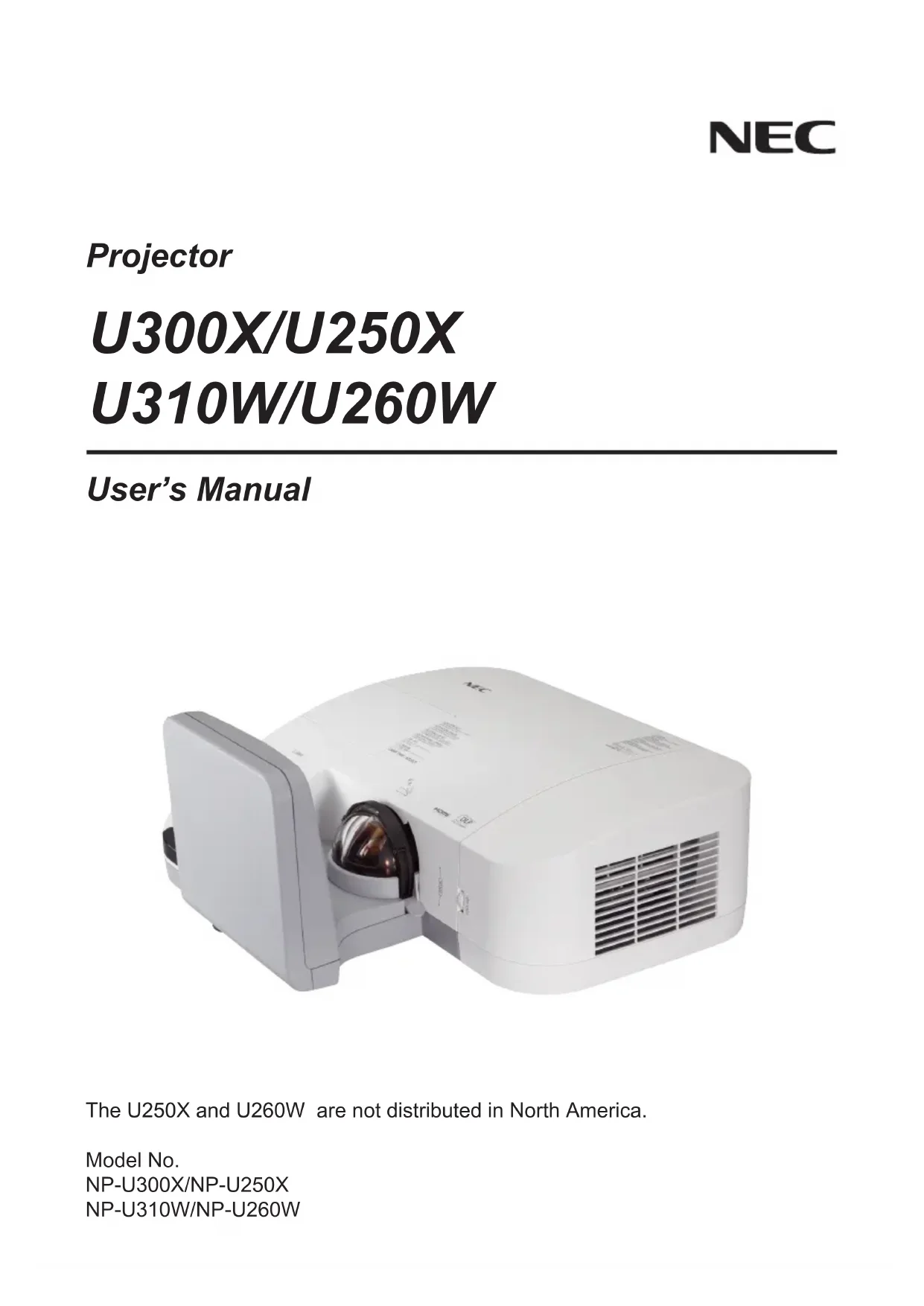
USER MANUAL U310W + NP01SK3D NEC
U300X/U250X U310W/U260W
User's Manual
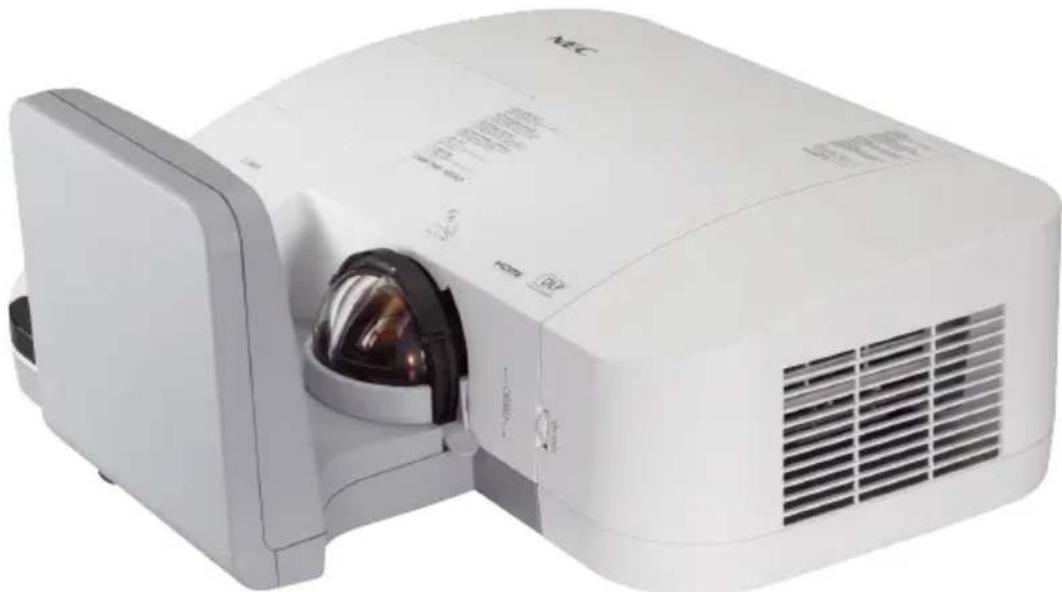
The U250X and U260W are not distributed in North America.
Model No.
NP-U300X/NP-U250X
NP-U310W/NP-U260W
- DLP and BrilliantColor are trademarks of Texas Instruments.
- IBM is a trademark or registered trademark of International Business Machines Corporation.
- Macintosh, Mac OS X, iMac, and PowerBook are trademarks of Apple Inc., registered in the U.S. and other countries.
- Microsoft, Windows, Windows Vista, Internet Explorer, .NET Framework, and PowerPoint are either a registered trademark or trademark of Microsoft Corporation in the United States and/or other countries.
- MicroSaver is a registered trademark of Kensington Computer Products Group, a division of ACCO Brands.
- Virtual Remote Tool uses WinI2C/DDC library, © Nicomsoft Ltd.
- HDMI, the HDMI Logo and High-Definition Multimedia Interface are trademarks or registered trademarks of HDMI Licensing LLC.

HIGHOEPINPTIONMULTIEDIMINTERPAE
- Blu-ray is a trademark of Blu-ray Disc Association
- Other product and company names mentioned in this user's manual may be the trademarks or registered trademarks of their respective holders.
NOTES
(1) The contents of this user's manual may not be reprinted in part or whole without permission.
(2) The contents of this user's manual are subject to change without notice.
(3) Great care has been taken in the preparation of this user's manual; however, should you notice any questionable points, errors or omissions, please contact us.
(4) Notwithstanding article (3), NEC will not be responsible for any claims on loss of profit or other matters deemed to result from using the Projector.
Safety Cautions
Precautions
Please read this manual carefully before using your NEC U300X/U250X/U310W/U260W projector and keep the manual handy for future reference.
CAUTION

To turn off main power, be sure to remove the plug from power outlet.
The power outlet socket should be installed as near to the equipment as possible, and should be easily accessible.
CAUTION

TO PREVENT SHOCK, DO NOT OPEN THE CABINET.
THERE ARE HIGH-VOLTAGE COMPONENTS INSIDE.
REFER SERVICING TO QUALIFIED SERVICE PERSONNEL.

This symbol warns the user that uninsulated voltage within the unit may be sufficient to cause electrical shock. Therefore, it is dangerous to make any kind of contact with any part inside of the unit.

This symbol alerts the user that important information concerning the operation and maintenance of this unit has been provided.
The information should be read carefully to avoid problems.
WARNING: TO PREVENT FIRE OR SHOCK, DO NOT EXPOSE THIS UNIT TO RAIN OR MOISTURE. DO NOT USE THIS UNIT'S PLUG WITH AN EXTENSION CORD OR IN AN OUTLET UNLESS ALL THE PRONGS CAN BE FULLY INSERTED.
DOC Compliance Notice (for Canada only)
This Class B digital apparatus meets all requirements of the Canadian Interference-Causing Equipment Regulations.
Machine Noise Information Regulation - 3. GPSGV,
The highest sound pressure level is less than 70dB (A) in accordance with EN ISO 7779.
Disposing of your used product

EU-wide legislation as implemented in each Member State requires that used electrical and electronic products carrying the mark (left) must be disposed of separately from normal household waste. This includes projectors and their electrical accessories or lamps. When you dispose of such products, please follow the guidance of your local authority and/or ask the shop where you purchased the product.
After collecting the used products, they are reused and recycled in a proper way. This effort will help us reduce the wastes as well as the negative impact such as mercury contained in a lamp to the human health and the environment at the minimum level. The mark on the electrical and electronic products only applies to the current European Union Member States.
WARNING TO CALIFORNIA RESIDENTS:
Handling the cables supplied with this product will expose you to lead, a chemical known to the State of California to cause birth defects or other reproductive harm. WASH HANDS AFTER HANDLING.
RF Interference (for USA only)
WARNING
The Federal Communications Commission does not allow any modifications or changes to the unit EXCEPT those specified by NEC Display Solutions of America, Inc. in this manual. Failure to comply with this government regulation could void your right to operate this equipment. This equipment has been tested and found to comply with the limits for a Class B digital device, pursuant to Part 15 of the FCC Rules. These limits are designed to provide reasonable protection against harmful interference in a residential installation. This equipment generates, uses, and can radiate radio frequency energy and, if not installed and used in accordance with the instructions, may cause harmful interference to radio communications. However, there is no guarantee that interference will not occur in a particular installation.
If this equipment does cause harmful interference to radio or television reception, which can be determined by turning the equipment off and on, the user is encouraged to try to correct the interference by one or more of the following measures:
Reorient or relocate the receiving antenna.
- Increase the separation between the equipment and receiver.
- Connect the equipment into an outlet on a circuit different from that to which the receiver is connected.
- Consult the dealer or an experienced radio / TV technician for help.
For UK only: In UK, a BS approved power cord with moulded plug has a Black (five Amps) fuse installed for use with this equipment. If a power cord is not supplied with this equipment please contact your supplier.
Important Safeguards
These safety instructions are to ensure the long life of your projector and to prevent fire and shock. Please read them carefully and heed all warnings.

Installation
-
Do not place the projector in the following conditions:
-
on an unstable cart, stand, or table.
- near water, baths, or damp rooms.
- in direct sunlight, near heaters, or heat radiating appliances.
- in a dusty, smoky or steamy environment.
- on a sheet of paper or cloth, rugs or carpets.
If you wish to have the projector installed on the ceiling:
- Do not attempt to install the projector yourself.
- The projector must be installed by qualified technicians in order to ensure proper operation and reduce the risk of bodily injury.
- In addition, the ceiling must be strong enough to support the projector and the installation must be in accordance with any local building codes.
- Please consult your dealer for more information.
Place the projector in a horizontal position
The tilt angle of the projector should not exceed 15 degrees, nor should the projector be installed in any way other than the desktop and ceiling mount, otherwise lamp life could decrease dramatically.
Fire and Shock Precautions
- Ensure that there is sufficient ventilation and that vents are unobstructed to prevent the build-up of heat inside your projector. Allow at least 4 inches (10cm) of space between your projector and a wall.
- Do not try to touch the ventilation outlet as it can become heated while the projector is turned on and immediately after the projector is turned off.

- Prevent foreign objects such as paper clips and bits of paper from falling into your projector. Do not attempt to retrieve any objects that might fall into your projector. Do not insert any metal objects such as a wire or screwdriver into your projector. If something should fall into your projector, disconnect it immediately and have the object removed by a qualified service personnel.
- Do not place any objects on top of the projector.
- Do not touch the power plug during a thunderstorm. Doing so can cause electrical shock or fire.
- The projector is designed to operate on a power supply of 100-240V AC 50/60Hz . Ensure that your power supply fits this requirement before attempting to use your projector.
- Do not look into the mirror while the projector is on. Serious damage to your eyes could result.
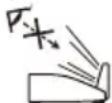
- Keep any items (magnifying glass etc.) out of the light path of the projector. The light path being projected from the mirror is extensive, therefore any kind of abnormal objects that can redirect light coming out of the mirror, can cause unpredictable outcome such as a fire or injury to the eyes.
- Do not block the light path between the light source and the mirror with any objects. Doing so could cause the object to catch on fire.
- Do not place any objects, which are easily affected by heat, in front of the projector mirror or a projector exhaust vent.
Doing so could lead to the object melting or getting your hands burned from the heat that is emitted from the light output and exhaust.
-
Handle the power cord carefully. A damaged or frayed power cord can cause electric shock or fire.
-
Do not use any power cord other than the one supplied.
- Do not bend or tug the power cord excessively.
- Do not place the power cord under the projector, or any heavy object.
- Do not cover the power cord with other soft materials such as rugs.
- Do not heat the power cord.
-
Do not handle the power plug with wet hands.
-
Turn off the projector, unplug the power cord and have the projector serviced by a qualified service personnel under the following conditions:
-
When the power cord or plug is damaged or frayed.
- If liquid has been spilled into the projector, or if it has been exposed to rain or water.
- If the projector does not operate normally when you follow the instructions described in this user's manual.
- If the projector has been dropped or the cabinet has been damaged.
-
If the projector exhibits a distinct change in performance, indicating a need for service.
-
Disconnect the power cord and any other cables before carrying the projector.
- Turn off the projector and unplug the power cord before cleaning the cabinet or replacing the lamp.
- Turn off the projector and unplug the power cord if the projector is not to be used for an extended period of time.
- When using a LAN cable:
For safety, do not connect to the connector for peripheral device wiring that might have excessive voltage.
Remote Control Precautions
- Handle the remote control carefully.
- If the remote control gets wet, wipe it dry immediately.
- Avoid excessive heat and humidity.
- Do not short, heat, or take apart batteries.
- Do not throw batteries into fire.
- If you will not be using the remote control for a long time, remove the batteries.
- Ensure that you have the batteries' polarity (+ / -) aligned correctly.
- Do not use new and old batteries together, or use different types of batteries together.
- Dispose of used batteries according to your local regulations.
Lamp Replacement
To replace the lamp, follow all instructions provided on pages 61-62.
- Be sure to replace the lamp when the message [THE LAMP HAS REACHED THE END OF ITS USABLE LIFE. PLEASE REPLACE THE LAMP.] appears. If you continue to use the lamp after the lamp has reached the end of its usable life, the lamp bulb may shatter, and pieces of glass may be scattered in the lamp case. Do not touch them as the pieces of glass may cause injury.
If this happens, contact your dealer for lamp replacement.
A Lamp Characteristic
The projector has a high-pressure mercury lamp as a light source.
A lamp has a characteristic that its brightness gradually decreases with age. Also repeatedly turning the lamp on and off will increase the possibility of its lower brightness.

CAUTION:
- DO NOT TOUCH THE LAMP immediately after it has been used. It will be extremely hot. Turn the projector off and then disconnect the power cord. Allow at least one hour for the lamp to cool before handling.
- When removing the lamp from a ceiling-mounted projector, make sure that no one is under the projector. Glass fragments could fall if the lamp has been burned out.
Note for US Residents
The lamp in this product contains mercury. Please dispose according to Local, State or Federal Laws.

Health precautions to users viewing 3D images
- Before viewing, be sure to read health care precautions that may be found in the user's manual included with your LCD shutter eyeglasses or your 3D compatible content such as DVDs, video games, computer's video files and the like.
To avoid any adverse symptoms, heed the following:
- Do not use LCD shutter eyeglasses for viewing any material other than 3D images.
- Allow a distance of 2m / 7 feet or greater between the screen and a user. Viewing 3D images from too close a distance can strain your eyes.
- Avoid viewing 3D images for a prolonged period of time. Take a break of 15 minutes or longer after every hour of viewing.
- If you or any member of your family has a history of light-sensitive seizures, consult a doctor before viewing 3D images.
- While viewing 3D images, if you get sick such as nausea, dizziness, queasiness, headache, eyestrain, blurry vision, convulsions, and numbness, stop viewing them. If symptoms still persist, consult a doctor.
About High Altitude mode
- Set [Fan Mode] to [High] when using the projector at altitudes approximately 2500 feet/760 meters or higher.
- Using the projector at altitudes approximately 2500 feet/760 meters or higher without setting to [High] can cause the projector to overheat and the protector could shut down. If this happens, wait a couple minutes and turn on the projector.
- Using the projector at altitudes less than approximately 2500 feet/760 meters and setting to [High] can cause the lamp to overcool, causing the image to flicker. Switch [Fan Mode] to [Auto].
- Using the projector at altitudes approximately 2500 feet/760 meters or higher can shorten the life of optical components such as the lamp.
About Copyright of original projected pictures:
Please note that using this projector for the purpose of commercial gain or the attraction of public attention in a venue such as a coffee shop or hotel and employing compression or expansion of the screen image with the following functions may raise concern about the infringement of copyrights which are protected by copyright law. [Aspect Ratio], [Keystone], Magnifying feature and other similar features.
Table of Contents
Table of Contents. 1
Usage Notice 2
Precautions 2
Introduction 4
Product Features 4
Package Overview 5
Product Overview 6
Projector 6
Connection Ports 7
Control Panel. 8
Removing and Attaching the Cable Cover 9
Remote Control 10
Battery Installation 13
Using the Downloadable Software 14
Installation 23
Connecting the Projector 23
Connect to Computer/Notebook/ Network 23
Connect to Video Sources 24
Powering On/Off the Projector 25
Powering On the Projector 25
Powering Off the Projector 26
Warning Indicator 27
Adjusting the Projected Image 28
Adjusting the Height of Projector Image 28
Adjusting the Projector Focus 29
Adjusting Projection Image Size 29
Throw Distance and Screen Size 30
User Controls. 31
On Screen Display 31
How to operate 31
Menu Tree 32
IMAGE 34
IMAGE | Advanced 36
SCREEN 38
SCREEN | 3D Settings 40
SETTING 41
SETTING | Signal (RGB) 43
SETTING | Advanced 44
SETTING | Advanced | Network 45
SETTING | Advanced | Security 48
OPTIONS 50
OPTIONS | Lamp/Filter Settings 52
OPTIONS|Information 53
OPTIONS | Advanced 54
Appendices 55
Troubleshooting 55
Cleaning the Filter 60
Replacing the lamp 61
Cleaning procedure for the aspherical mirror and lens 63
Specifications 64
Compatibility Modes 66
Analog RGB 66
HDMI 66
Component 67
Composite Video / S-Video 67
Ceiling Mount Installation 68
Cabinet Dimensions 69
Pin Assignments of D-Sub
COMPUTER Input Connector 70
PC Control Codes and Cable Connection 71
Troubleshooting Check List. 72
TCO Certification 74
Usage Notice
Precautions

Follow all warnings, precautions and maintenance as recommended in this user's guide to maximize the life of your unit.
■ Warning- This projector will detect the life of the lamp itself. Please be sure to change the lamp when it shows warning messages.
■ Warning- Reset the "Clear Lamp Hours" function from the on-screen display "OPTIONS | Lamp/Filter Settings" menu after replacing the lamp module (refer to page 52).
■ Warning- When switching the projector off, please ensure the cooling cycle has been completed before disconnecting power. Allow 25 seconds for the projector to cool down.
■ Warning- Turn on the projector first and then the signal sources.
■ Warning- When the lamp reaches the end of its life, it will burn out and may make a loud popping sound. If this happens, the projector will not turn back on until the lamp module has been replaced. To replace the lamp, follow the procedures listed under "Replacing the Lamp".
Turkish RoHS information relevant for Turkish market EEE Yonetmeligine Uygundur.
This device is not intended for use in the direct field of view at visual display workplaces. To avoid incommodating reflections at visual display workplaces this device must not be placed in the direct field of view.
High gain type screens are not optimal for use with this projector. The lower the screen gain (i.e., screen gain on the order of 1), the better the appearance of the projected image.
Usage Notice
Do:
Turn off the product before cleaning.
Use a soft cloth moistened with mild detergent to clean the display housing.
- Disconnect the power plug from AC outlet if the product is not being used for a long period of time.
If the mirror or lens is soiled, use a commercially available cleaning cloth for lens.
Do not:
Use abrasive cleaners, waxes or solvents to clean the unit.
Use under the following conditions:
- Extremely heat, cold or humidity.
- In areas susceptible to excessive dust and dirt.
- In direct sunlight.
- Move the projector by holding the cable cover.
- Hang from the projector in a ceiling or wall mounted installation.
- Apply excessively strong pressure against the mirror or lens.
- Keep finger prints off the mirror surface.
Introduction
Product Features
This product is an XGA/WXGA single chip 0.55^ / 0.65^ DLP™ projector. Outstanding features include:
U300X/U250X True XGA, 1024× 768 addressable pixels U310W/U260W True WXGA, 1280× 800 addressable pixels
Single chip DLP TM technology
NTSC/NTSC4.43/PAL/PAL-M/PAL-N/SE-CAM and SDTV(480i/576i),EDTV(480p/576p), HDTV(720p/1080i/1080p) compatible
- Multi-Auto functions: Auto detection, Auto image and Auto saving the adjustments
Full function remote control
- User friendly multilingual on screen display
Advanced digital keystone correction and high quality full screen image re-scaling
Built-in mono 10-Watt speaker.
UXGA/WXGA/SXGA+/SXGA/XGA/SVGA/VGA/MAC compatible
3D features supported
Introduction

Package Overview
Do not throw away the mirror cover, carton, and packing materials.
This projector comes with all the items shown below. Check to make sure your unit is complete. Contact your dealer immediately if anything is missing.

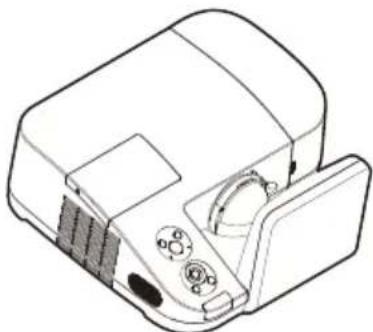
Projector
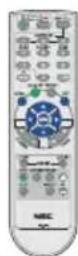
Remote Control (P/N:79TC3051)
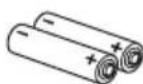
Batteries (AAAx2)
The cable cover is attached to the projector at the time of shipment. When you use the projector for the first time, remove the cable cover before connecting cables. Refer to page 9 for removing and attaching the cable cover.
US (P/N:79TC3011) EU (P/N:79TC3021)
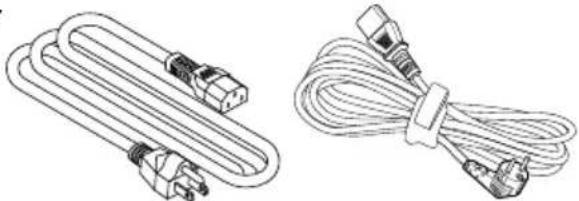
Power Cord (3m)x1
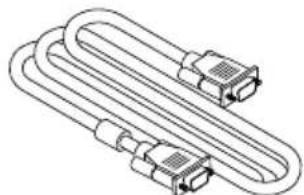
Computer Cable (VGA) (3m)
(P/N:79TC3081)

Due to the difference in applications for each country, some regions may have different accessories.
Documentation:
NEC Projector CD-ROM (P/N: 7N951534)
Quick Setup Guide (P/N: 7N8N1121)
Important Information (For North America: 7N8N1101) (For Other countries than North America: 7N8N1101 and 7N8N1111)
For Europe:
Guarantee Policy For customers in Europe:You will find our current valid Guarantee Policy on our Web Site:www.nec-display-solutions.com
For North America:
Registration Card
Limited Warranty
Introduction
Product Overview
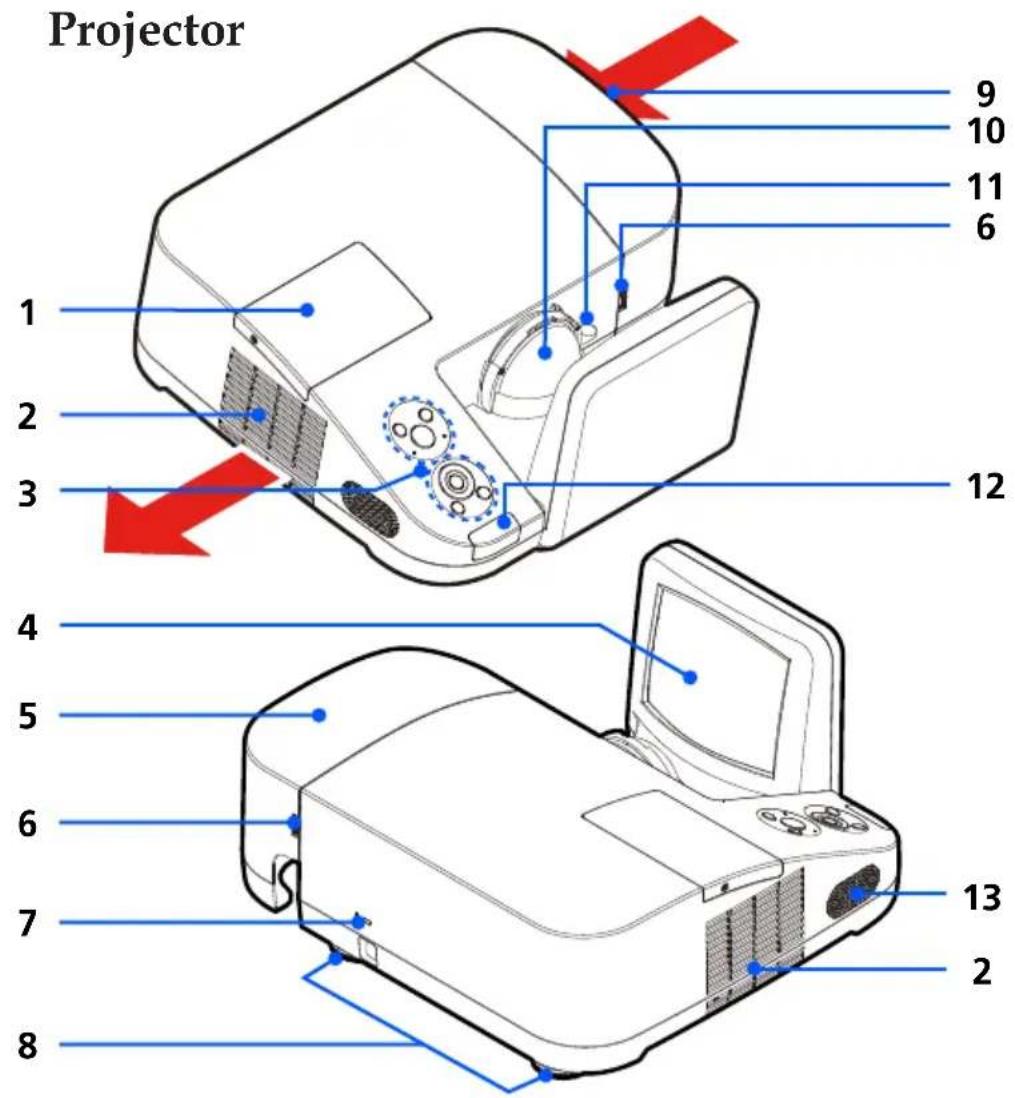
- Lamp Cover
Security System)
-
Ventilation (outlet)
-
Tilt Adjusting Feet
-
Control Panel
-
Ventilation (inlet)
-
Mirror
-
Lens
-
Cable Cover
-
Focus Lever
-
Release rings for Cable Cover
-
Remote Sensor
-
Kensington™ Lock Port (This security slot supports the MicroSaver®
-
Speaker
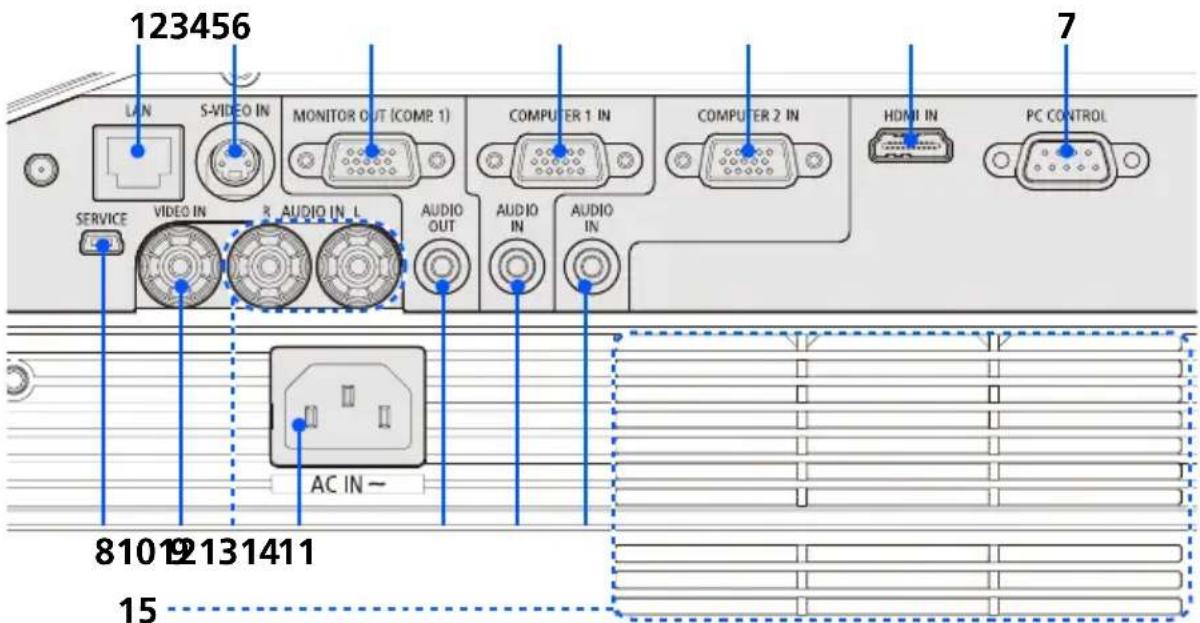
Connection Ports
- LAN Connector
- S-VIDEO IN Connector
- MONITOR OUT Connector
- COMPUTER 1 IN Connector
- COMPUTER 2 IN Connector
- HDMI Connector
- PC CONTROL Connector
- SERVICE Port (for service purpose only)
- VIDEO IN Connector
- AUDIO IN L/R Connector
- AC IN
- AUDIO OUT Connector
- AUDIO IN Jack (For COMPUTER 1 IN)
- AUDIO IN Jack (For COMPUTER 2 IN)
- Ventilation (inlet)
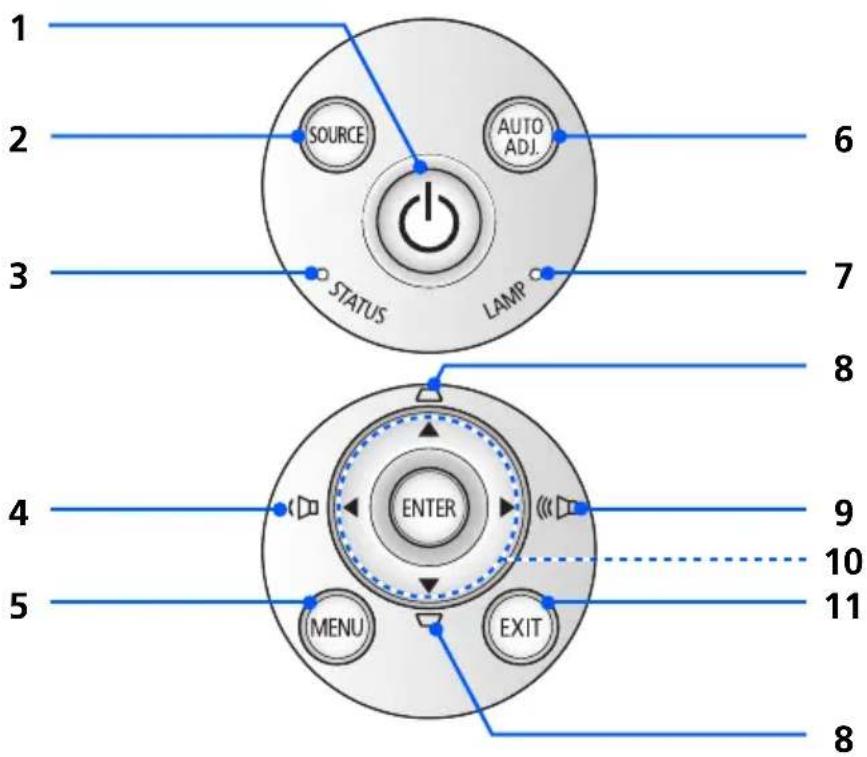
Control Panel
| 1 POWER ON/OFF and LED indicator | Power on the projector. Refer to the "Power On/Off the Proje-cotor" section on pages 25-26. |
| 2 SOURCE Press "SOURCE" to select an input signal. | |
| 3 STATUS LED Indicate the projector's temperature status. | |
| 4 VOLUME - Decrease speaker volume. | |
| 5 MENU Press "MENU" to launch the Onscreen display (OSD), back to the top level of OSD for the OSD main menu operation | |
| 6 AUTO ADJ. Automatically synchronize the projector to the input source. | |
| 7 LAMP LED Indicate the projector's lamp status. | |
Introduction
| 8 KEYSTONE Correction | Adjust the image to compensate for distortion caused by tilting the projector (vertical ± 40 degrees). |
| 9 VOLUME + Increase speaker volume. | |
| 10 Four Directional Select Keys | Use or or to select items or make adjustments to your selection. |
| 11 EXIT Exit the settings. | |
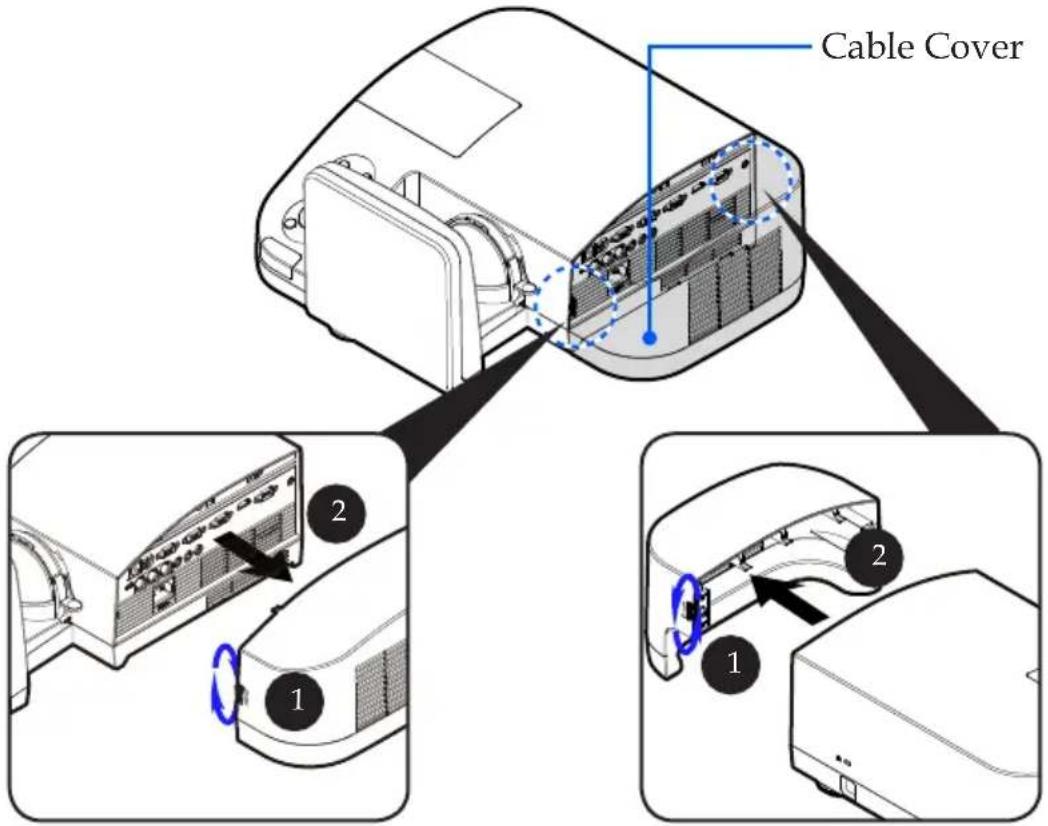
Removing and Attaching the Cable Cover
Procedure for Removing and Attaching the Cable Cover:
-
Release the left and right rings on both sides of the cable cover. 1
-
Remove the cable cover. ②
- Install the cable cover by reversing the previous steps.
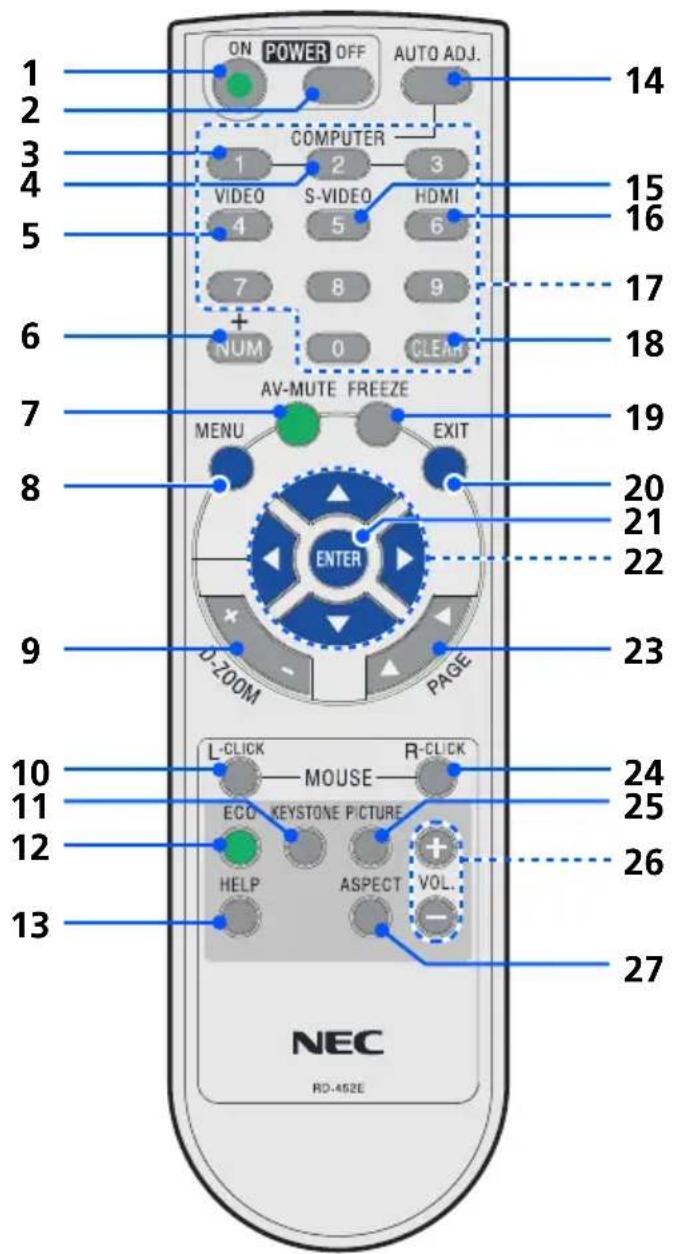
Remote Control
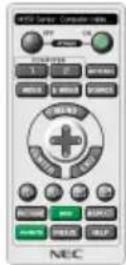
1 POWER ON Power on the projector. Refer to the "Power On/Off the Projector" section on pages 25-26.
2 POWER OFF Power off the projector.Refer to the "Power On/Off the Proje c tor" section on pages 25-26.
Introduction
| 3 COMPUTER 1 Press “1” to choose COMPUTER 1 IN connector. | |
| 4 COMPUTER 2 Press “2” to choose COMPUTER 2 IN connector. | |
| 5 VIDEO Press “VIDEO” to choose VIDEO IN connector. | |
| 6 NUM Select password. When you input a password, you must press “NUM” and other number button simultaneously. | |
| 7 AV-MUTE Momentarily turn off/on the audio and video. | |
| 8 MENU Press “MENU” to launch the Onscreen display (OSD), back to the top level of OSD for the OSD main menu operation | |
| 9 D-ZOOM Zoom in/out the projected im- age. | |
| 10 L-CLICK Mouse left click. | |
| 11 KEYSTONE Correction | Adjust the image to compensate for distortion caused by tilt- ing the projector (vertical ± 40 degrees). |
| 12 ECO Dim the projector lamp which will lower power consumption and extend the lamp life. (refer to page 52) | |
| 13 HELP This function ensures easy setup and operation. | |
| 14 AUTO ADJ. Automatically synchronize the projector to the input source. | |
| 15 S-VIDEO Press “S-VIDEO” to choose S- VIDEO IN connector. | |
| 16 HDMI Press “HDMI” to choose HDMI IN connector. | |
Introduction

When the reduced image is displayed, the , button is not available to move the image.
| 17 Number Button Select password. | |
| 18 CLEAR Clear the number while you input the password. | |
| 19 FREEZE Freeze To pause the screen image. Press again to resume the screen image. | |
| 20 EXIT Exit the settings. | |
| 21 ENTER Confirm your section of items in sub menu operation. | |
| 22 Four Directional Select Buttons | Use or or to select items or make adjustments to your selection. When the image is enlarged by using the D-ZOOM + button, the ▲ , ▼or ▴ button moves the image. |
| 23 PAGE Use this button to page up or page down. | |
| 24 R-CLICK Mouse right click. | |
| 25 PICTURE Mode | Select the Picture mode from Presentation, Movie, sRGB, Game and User. |
| 26 VOL. +/- Increase/decrease speaker volume. | |
| 27 ASPECT Use this function to choose your desired aspect ratio. (refer to page 38) | |
Introduction
Battery Installation
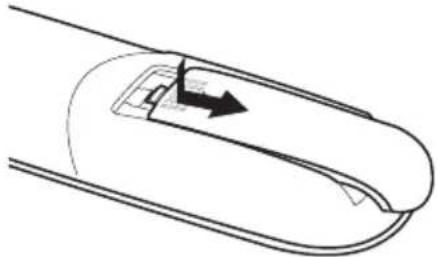
- Press firmly and slide the battery cover off.

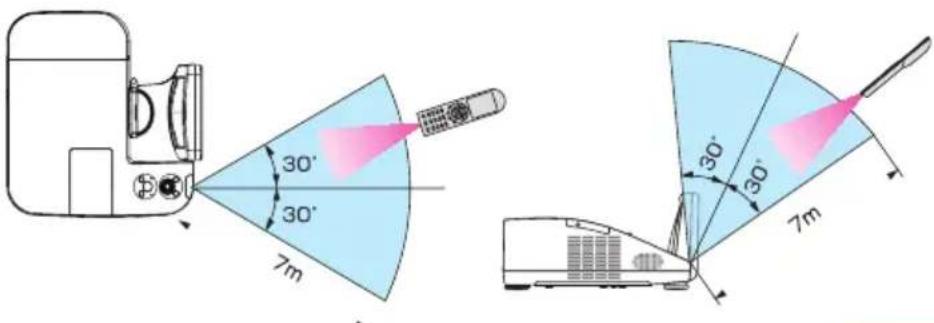
The infrared signal operates by line-of-sight up to a distance of about 22 feet/7 m and within a 60-degree angle of the remote sensor on the projector cabinet.
The projector will not respond if there are objects between the remote control and the sensor, or if strong light falls on the sensor. Weak batteries will also prevent the remote control from properly operating the projector.
- Install new batteries (AAA). Ensure that you have the batteries' polarity (+ / -) aligned correctly.
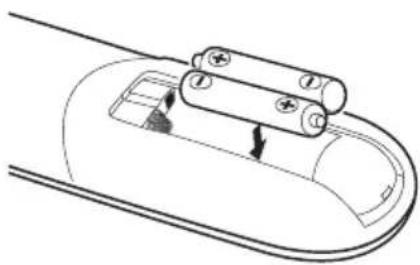
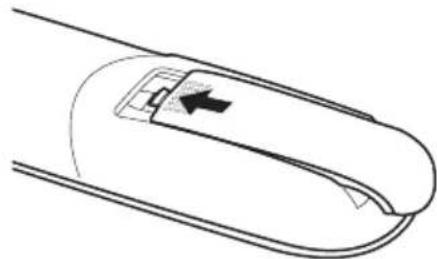
- Slip the cover back over the batteries until it snaps into place. Do not mix different types of batteries or new and old batteries.
Remote Control Precautions
- Handle the remote control carefully.
- If the remote control gets wet, wipe it dry immediately.
- Avoid excessive heat and humidity.
- Do not place the battery upside down.
CAUTION:
Danger of explosion if battery is incorrectly replaced.
Replace only with the same or equivalent type recommended by the manufacturer.
Dispose of used batteries according to your local regulations.
Introduction

When "Computer 1" is selected for input, the Virtual Remote screen or the toolbar will be displayed as well as your computer screen.
Use the supplied computer cable (VGA) to connect the COMPUTER 1 IN connector directly with the monitor output connector of the computer to use Virtual Remote Tool. Using a switcher or other cables than the supplied computer cable (VGA) may cause failure in signal communication. VGA cable connector: Pin Nos. 12 and 15 are required for DDC/CI.
Virtual Remote Tool may not work depending on your computer's specifications and version of graphic adapters or drivers.
The projector does not support the LAN automatic search feature of Virtual Remote Tool. To connect the projector, register an IP address manually.
Using the Downloadable Software
Using the Computer Cable (VGA) to Operate the Projector (Virtual Remote Tool)
Using the utility software "Virtual Remote Tool" that you can download from our web site (http://www.nec-display.com/dl/en/index.html), Virtual Remote screen (or toolbar) can be displayed on your computer screen.
This will help you perform operations such as projector's power on or off and signal selection via the computer cable (VGA), serial cable, or LAN connection.
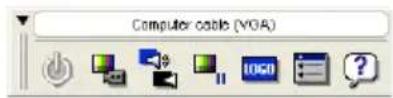
Virtual Remote screen Toolbar
This section provides an outline of preparation for use of Virtual Remote Tool.
For information on how to use Virtual Remote Tool, see Help of Virtual Remote Tool. (-> page 18)
-
Step 1: Install Virtual Remote Tool on the computer. (-> page 15)
-
Step 2: Connect the projector to the computer. (-> page 16)
-
Step 3: Start Virtual Remote Tool. (-> page 17)
TIP:
- Virtual Remote Tool can be used with a LAN and a serial connection.
- For update information on Virtual Remote Tool, visit our website: http://www.nec-display.com/dl/en/index.html
TIP:
- The projector's COMPUTER 1 IN connector supports DDC/CI (Display Data Channel Command Interface). DDC/CI is a standard interface for bidirectional communication between display/projector and computer.
Introduction

To install or uninstall the program, the Windows user account must have [Administrator] privilege (Windows 7, Windows Vista and Windows XP)
Exit all running programs before installation. If another program is running, the installation may not be completed.
Step 1: Install Virtual Remote Tool on the computer
Supported OS
Virtual Remote Tool will run on the following operating systems.
Windows 7 Home Basic 1, Windows 7 Home Premium 1, Windows Professional 1, Windows 7 Enterprise 1, Windows 7 Ultimate *1
Windows Vista Home Basic 1, Windows Vista Home Premium 1, Windows Vista Business 1, Windows Vista Enterprise 1, Windows Vista Ultimate *1
Windows XP Home Edition 2, Windows XP Professional 2
1: Supports 32-bit version.
2: To run Virtual Remote Tool, "Microsoft .NET Framework Version 2.0 or later" is required. The Microsoft .NET Framework Version 2.0 or later is available from Microsoft's web page. Install the Microsoft .NET Framework Version 2.0 or later on your computer.
1 Download the updated VRT exe file from our web site (http://www.nec-display.com/dl/en/index.html).
2 Double-click the VRT. exe icon.
The Installer will start and the Wizard screen will appear.
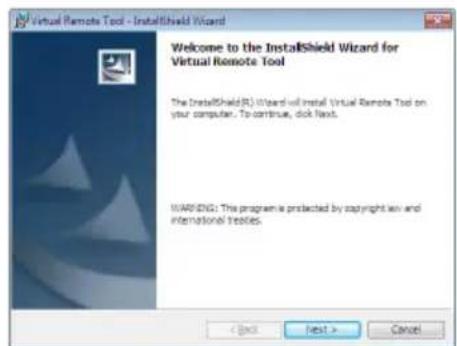
3 Click "Next".
"END USER LICENSE AGREEMENT" screen will be displayed.
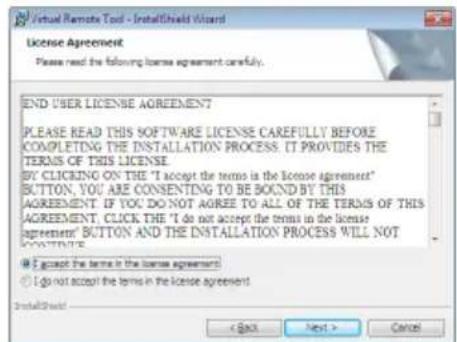
Read "END USER LICENSE AGREEMENT" carefully.
Introduction
4 If you agree, click "I accept the terms in the license agreement" and then click "Next".
Follow the instructions on the installer screens to complete the installation.

After the installation is completed, the shortcut icon for Virtual Remote Tool
TIP:Uninstalling Virtual Remote Tool
Preparation:
Exit Virtual Remote Tool before uninstalling. To uninstall Virtual Remote Tool, the Windows user account must have "Administrator" privilege (Windows 7 and Windows Vista) or "Computer Administrator" privilege (Windows XP).
For Windows 7/Windows Vista
1 Click "Start" and then "Control Panel".
The Control Panel window will be displayed.
2 Click "Uninstall a program" under "Programs"
The "Programs and Features" window will be displayed.
3 Select Virtual Remote Tool and click it.
4 Click "Uninstall/Change" or "Uninstall".
When the "User Account Control" window is displayed, click "Continue".
Follow the instructions on the screens to complete the uninstallation.
- For Windows XP
1 Click "Start" and then "Control Panel".
The Control Panel window will be displayed.
2 Double-click "Add / Remove Programs".
The Add / Remove Programs window will be displayed.
3 Click Virtual Remote Tool from the list and then click "Remove".
Follow the instructions on the screens to complete the uninstallation.
Step 2: Connect the projector to the computer
1 Use the supplied computer cable (VGA) to connect the COMPUTER 1 IN connector of the projector directly with the monitor output connector of the computer.
Introduction
2 Connect the supplied power cord to the AC IN of the projector and the wall outlet.
The projector is in the standby condition.
TIP:
- When Virtual Remote Tool starts for the first time, "Easy Setup" window will be displayed to navigate your connections.
Step 3: Start Virtual Remote Tool
Start using the shortcut icon

Start from the Start menu
Click [Start] -> [All Programs] or [Programs] -> [NEC Projector User Supportware] -> [Virtual Remote Tool] -> [Virtual Remote Tool].
When Virtual Remote Tool starts for the first time, "Easy Setup" window will be displayed.
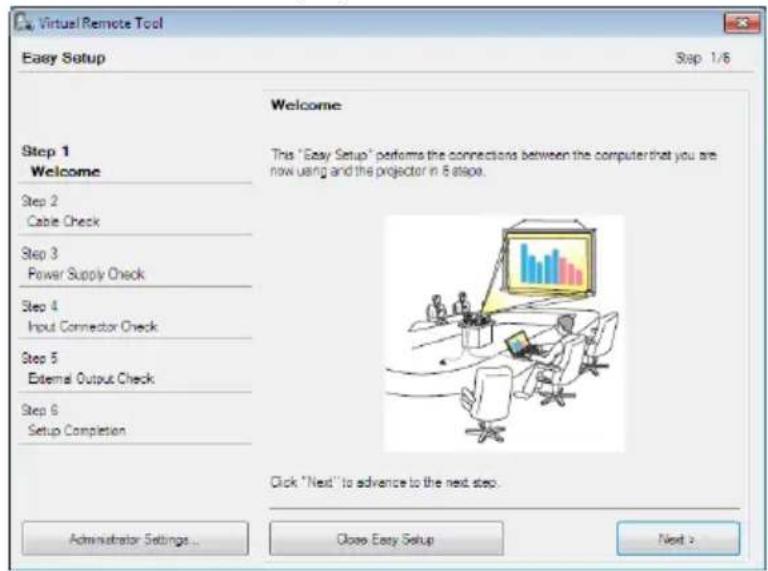
Follow the instructions on the screens.

When "Power-Saving" is selected for "Standby Mode" from the menu, the projector cannot be controlled via the computer cable (VGA), serial cable or network (wired LAN) connection.
When "Easy Setup" is completed, the Virtual Remote Tool screen will be displayed.
Introduction
TIP:
- The Virtual Remote Tool screen (or Toolbar) can be displayed without displaying "Easy Setup" window. To do so, click to place a check mark for "Do not use Easy Setup next time" on the screen at Step 6 in "Easy Setup".
Exiting Virtual Remote Tool
1 Click the Virtual Remote Tool icon on the Taskbar. The pop-up menu will be displayed.
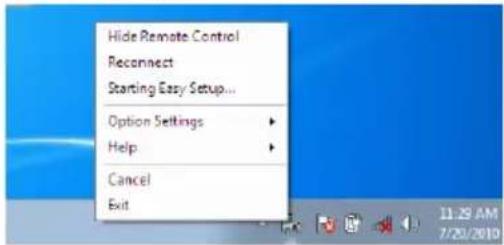
2 Click "Exit".
The Virtual Remote Tool will be closed.
Viewing the help file of Virtual Remote Tool Displaying the help file using the taskbar
1 Click the Virtual Remote Tool icon on the taskbar when Virtual Remote Tool is running.
The pop-up menu will be displayed.
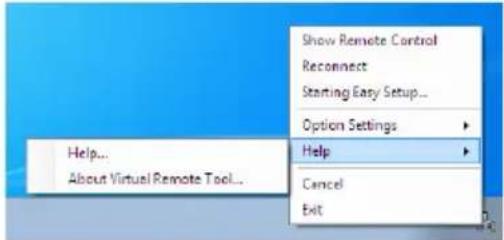
Introduction
2 Click "Help".
The Help screen will be displayed
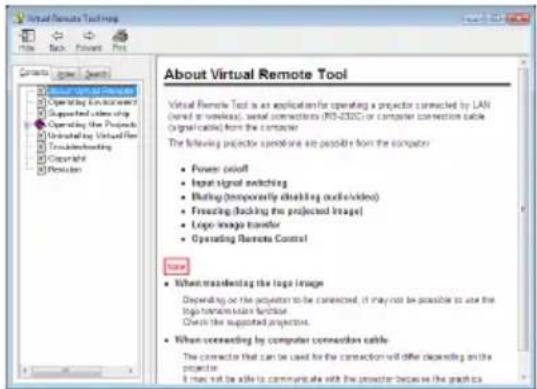
Displaying the help file using the Start Menu.
Click "Start" -> "All programs" or "Programs" -> "NEC Projector User Supportware" -> "Virtual Remote Tool" and then "Virtual Remote Tool Help" in this order.
The Help screen will be displayed.
Controlling the Projector over a LAN (PC Control Utility Pro 4)
Using the utility software "PC Control Utility Pro 4" that you can download from our web site (http://www.nec-display.com/dl/en/index.html), the projector can be controlled from a computer over a LAN.
Control Functions
Power On/Off, signal selection, picture freeze, picture mute, audio mute, adjusting, error message notification, event schedule.

When the projector is in the standby condition, the Error Alert function of PC Control Utility Pro4 is not available.
To make this function available even in the standby condition, use the E-Mail Alert function of the projector. (-> page 46)
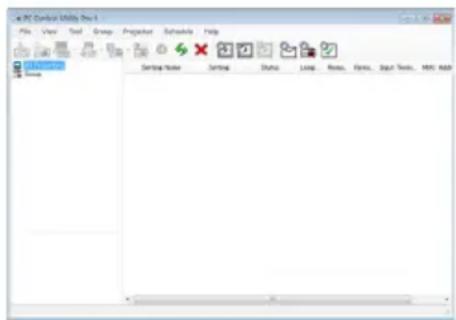
Screen of PC Control Utility Pro 4
This section provides an outline of preparation for use of PC Control Utility Pro 4. For information on how to use PC Control Utility Pro 4, see Help of PC Control Utility Pro 4. ( > page 22)
- Step 1: Install PC Control Utility Pro 4 on the computer. (-> page 21)
- Step 2: Connect the projector to a LAN. (-> page 22)
- Step 3: Start PC Control Utility Pro 4. ( -> page 22)
TIP:
PC Control Utility Pro 4 can be used with a serial connection.
- For update information on PC Control Utility Pro 4, visit our website: http://www.nec-display.com/dl/en/index.html
Introduction
Step 1: Install PC Control Utility Pro 4 on the computer
- Supported OS - PC Control Utility Pro 4 will run on the following operating systems.
Windows 7 Home Basic 1, Windows 7 Home Premium 1, Windows Professional 1, Windows 7 Enterprise 1, Windows 7 Ultimate *1
Windows Vista Home Basic 1, Windows Vista Home Premium 1, Windows Vista Business 1, Windows Vista Enterprise 1, Windows Vista Ultimate *1
Windows XP Home Edition 2, Windows XP Professional 2

To install or uninstall the program, the Windows user account must have [Administrator] privilege (Windows 7, Windows Vista and Windows XP)
Exit all running programs before installation. If another program is running, the installation may not be completed.
*1: Supports 32-bit version.
*2: To run PC Control Utility Pro 4, "Microsoft .NET Framework Version 2.0 or later" is required. The Microsoft .NET Framework Version 2.0 or later is available from Microsoft's web page. Install the Microsoft .NET Framework Version 2.0 or later on your computer.
1 Download the updated PCCUP4 exe file from our web site (http://www.necdisplay.com/dl/en/index.html).
2 Double-click the PCCUP4. exe icon. The Installer will start and the Wizard screen will appear.
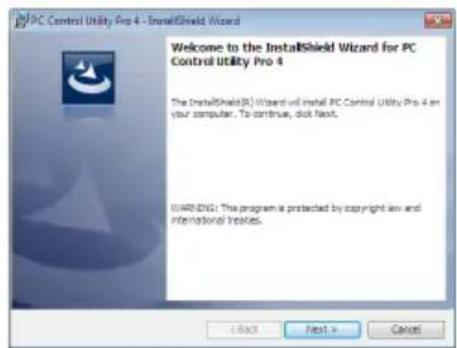
3 Click "Next".
"END USER LICENSE AGREEMENT" screen will be displayed.
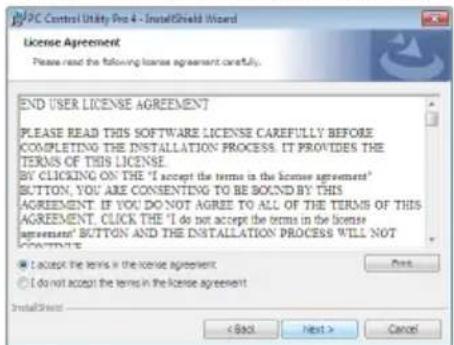

For the Schedule function of the PC Control utility Pro 4 to work, you must have your computer running and not in standby/sleep mode. Select "Power Options" from the "Control Panel" in Windows and disable its standby/sleep mode before running the scheduler.
[Example] For Windows 7:
Select "Control Panel" -> "System and Security" -> "Power Options" -> "Change when the computer sleeps" -> "Put the computer to sleep" -> "Never".
When "Power-Saving" is selected for "Standby Mode" from the menu, the projector cannot be controlled via the serial cable or network (wired LAN) connection.
The projector does not support the LAN automatic search feature of PC Control Utility Pro 4. To connect the projector, register an IP address manually.
Read "END USER LICENSE AGREEMENT" carefully.
4 If you agree, click "I accept the terms in the license agreement" and then click "Next".
Follow the instructions on the installer screens to complete the installation.
TIP:Uninstalling PC Control Utility Pro 4
- To uninstall PC Control Utility Pro 4, do the same procedures stated as in "Uninstalling Virtual Remote Tool". Read "Virtual Remote Tool" as "PC Control Utility Pro 4" ( > page 16)
Step 2: Connect the projector to a LAN
Connect the projector to the LAN by following the instructions in "Connecting the Projector" on page 23 and "How to use web browser to control your projector" in pages 46-47.
Step 3: Start PC Control Utility Pro 4
Click "Start" -> "All programs" or "Programs" -> "NEC Projector User Supportware" -> "PC Control Utility Pro 4" -> "PC Control Utility Pro 4".
TIP:Viewing the Help of PC Control Utility Pro 4
- Displaying the Help file of PC Control Utility Pro 4 while it is running. Click "Help (H)" -> "Help (H)" of window of PC Control Utility Pro 4 in this order. The pop-up menu will be displayed.
- Displaying the help file using the Start Menu. Click "Start" -> "All programs" or "Programs" -> "NEC Projector User Supportware" -> "PC Control Utility Pro 4" -> "PC Control Utility Pro 4 Help".
The Help screen will be displayed.
Connecting the Projector
Connect to Computer/Notebook/Network

Make sure that the power plug is fully inserted into both the projector AC inlet and the wall outlet.
To the wall outlet
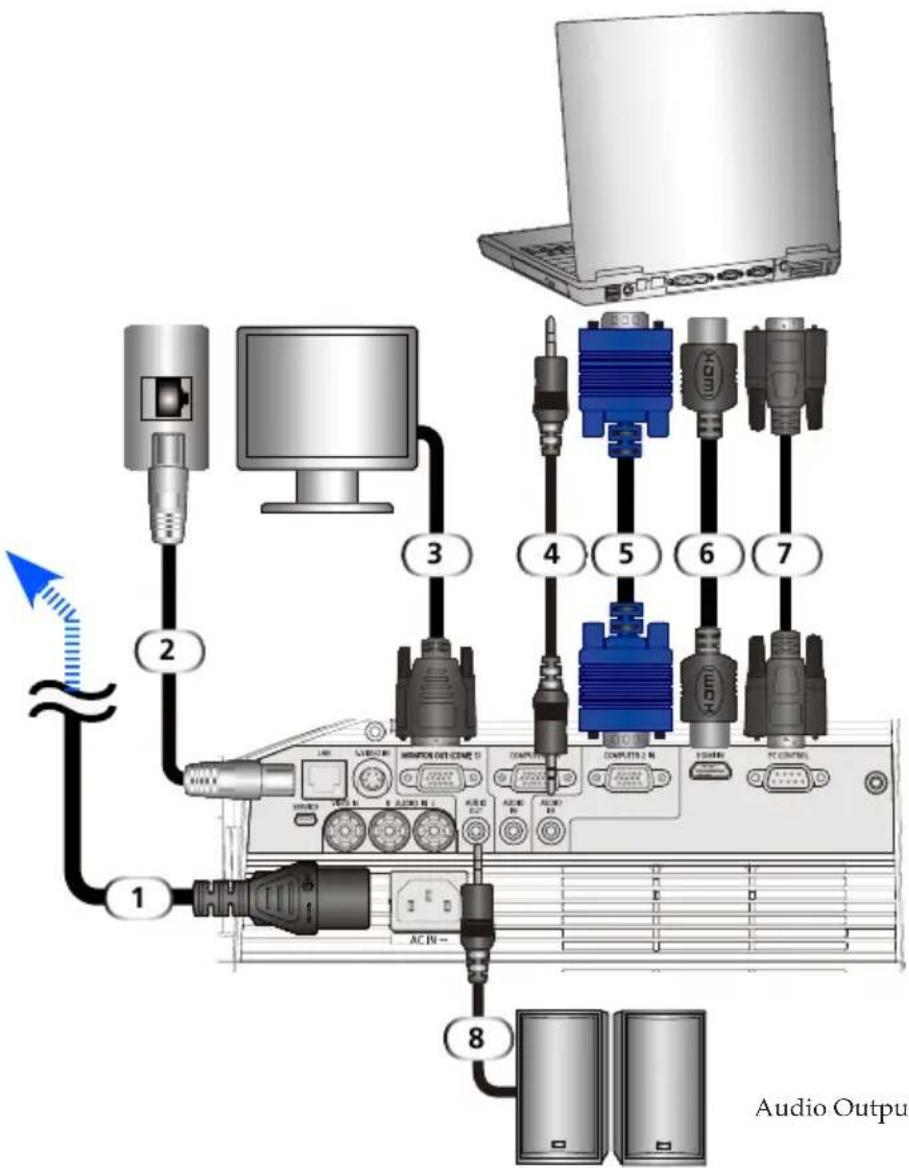
- Power cord (supplied)
2....Network Cable - VGA out cable
- Audio in cable
- Computer cable (VGA) (supplied)
6.HDMI cable
7.RS232 cable - Audio out cable
Installation
Connect to Video Sources

Make sure that the power plug is fully inserted into both the projector AC inlet and the wall outlet.
DVD Player, Blu-ray Player, Set-top Box, HDTV receiver
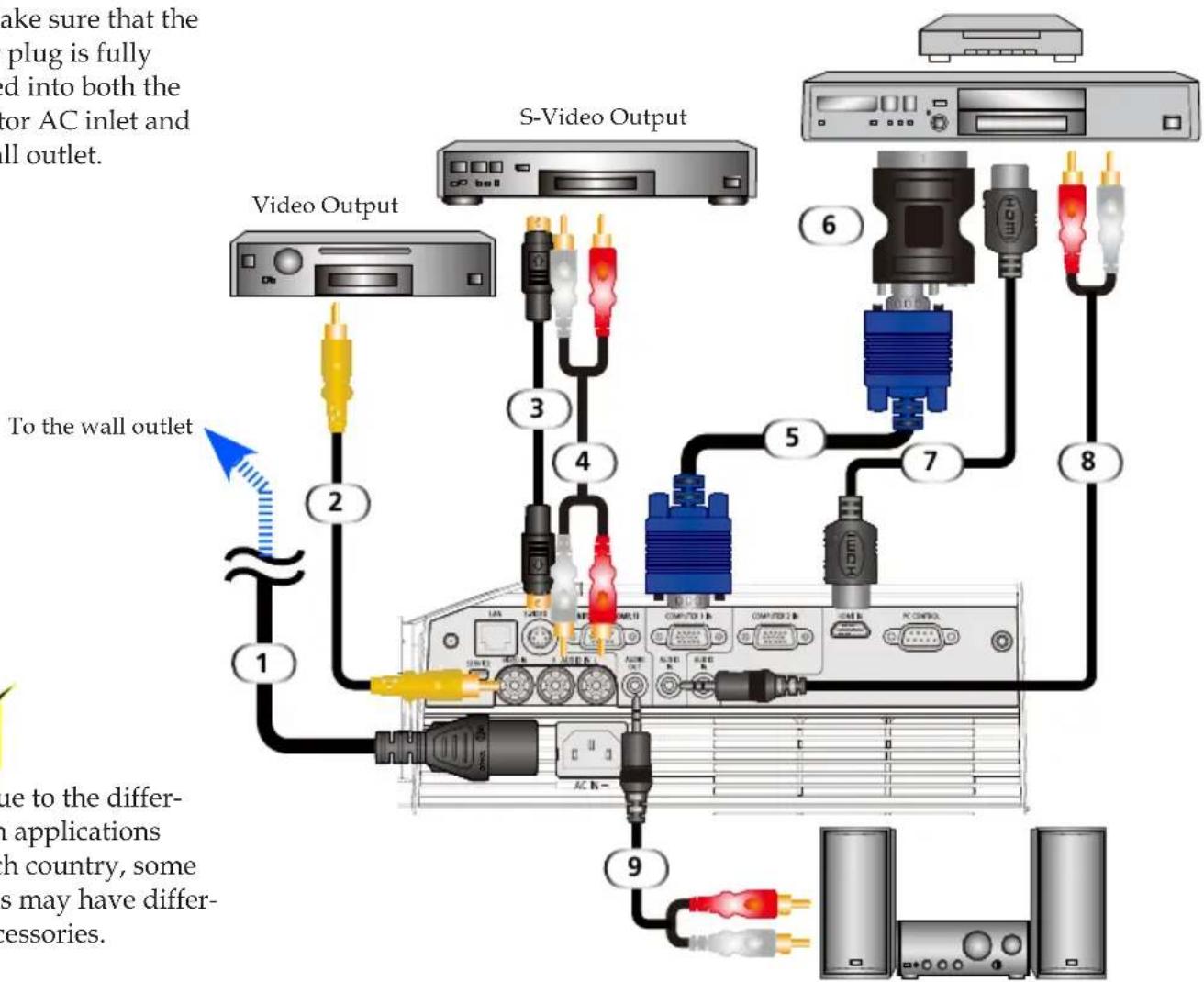
Audio Output

Due to the difference in applications for each country, some regions may have different accessories.
1.....Power cord (supplied)
2. Composite video cable
3. S-Video cable
4. Audio in cable
5. Computer cable (VGA) (supplied)
6. SCART/VGA adaptor
7.HDMI cable
8. Audio in cable
8. Audio out cable
Powering On/Off the Projector
Powering On the Projector

Before using the projector, remove the mirror cover.

(^*) When "Power-Saving" is selected for "Standby Mode", the Power LED will turn red: when "Normal" is selected for "Standby Mode", the Power LED will turn orange.
- Ensure that the power cord and signal cable are securely connected. The Power LED will turn orange or red ^(*) .
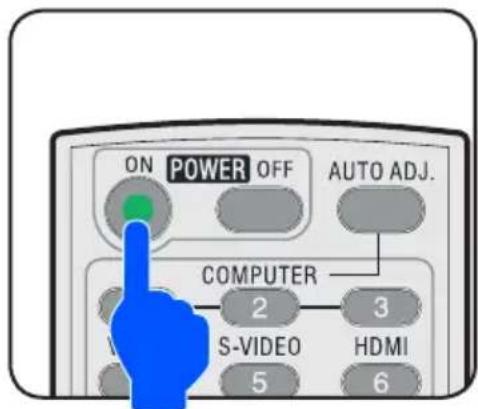
- Turn on the lamp by pressing "POWER ON" on the remote control or on the control panel. The Power LED will flash blue. The startup screen (NEC logo) will display and the Power LED will turn blue.
- Turn on your source (computer, notebook, video player,etc.) The projector will detect your source automatically.
If you connect multiple sources at the same time, use the SOURCE button on the control panel or use "COMPUTER 1", "COMPUTER 2", "S-VIDEO", "VIDEO", "HDMI" on the remote control to switch inputs.

Turn on the projector first and then the signal sources.
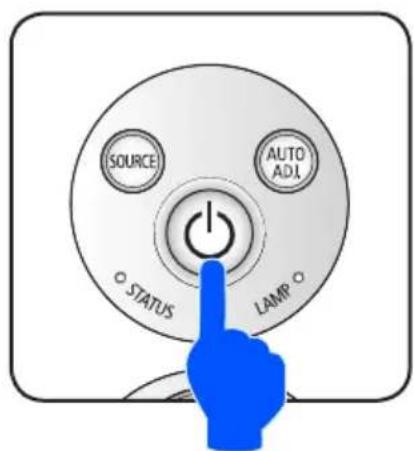
or
Installation
Powering Off the Projector
- Press the "POWER OFF" button on the remote control or the button on the control panel to turn off the projector lamp, you will see a message as below on the on-screen display.
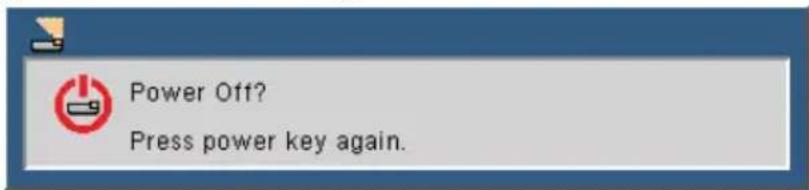
-
Press the "POWER OFF" button again to confirm.
-
The cooling fan continues to operate for about 25 seconds during the cool down period and the Power LED will flash blue. When the light turns orange or red, the projector has entered standby mode.
If you wish to turn the projector back on, you must wait until the projector has completed the cooling cycle and has entered standby mode. Once in standby mode, simply press the "POWER ON" button on the remote control or the button on the control panel to restart the projector.
-
Disconnect the power cord from the electrical outlet and the projector.
-
Do not turn on the projector immediately following a power off procedure.
Installation
Warning Indicator
When the "STATUS" LED indicator flashes red, it indicates the projector has overheated. The projector will automatically shut itself down.
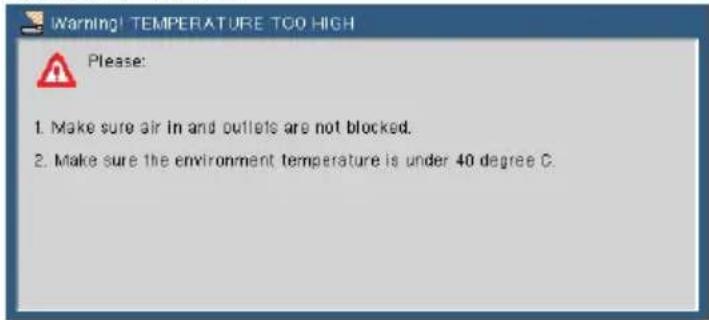
When the "LAMP" LED indicator turns red and the message below displays on-screen, the projector has detected that the lamp is approaching its end of life. When you see this message, change the lamp as soon as possible.


When the "STATUS" LED indicator flashes red and the message below displays on-screen, it indicates the fan failed. Stop using the projector and disconnect the power cord from the electrical outlet, then contact your local dealer or our service center.

Adjusting the Projected Image
Adjusting the Height of Projector Image
The projector is equipped with adjustable feet to raise and lower the image to fill the screen.
- Rotate the tilt adjustable feet counter clockwise to raise the projector or clockwise to lower it. Repeat with the remaining feet as needed.
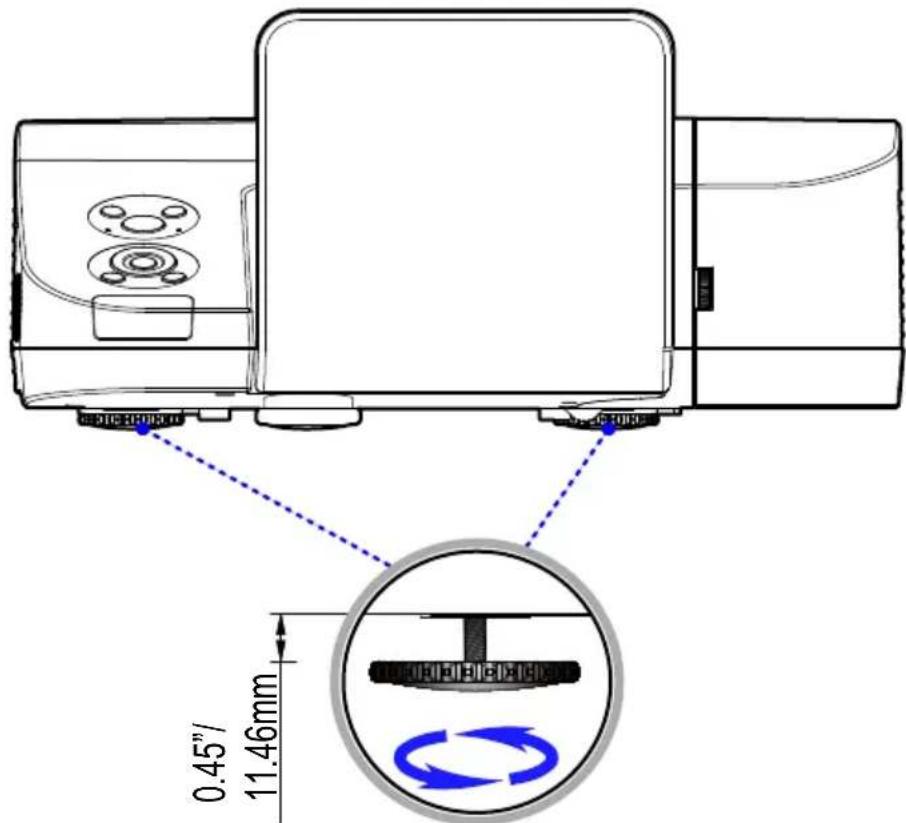
Tilt adjusting feet
Adjusting the Projector Focus
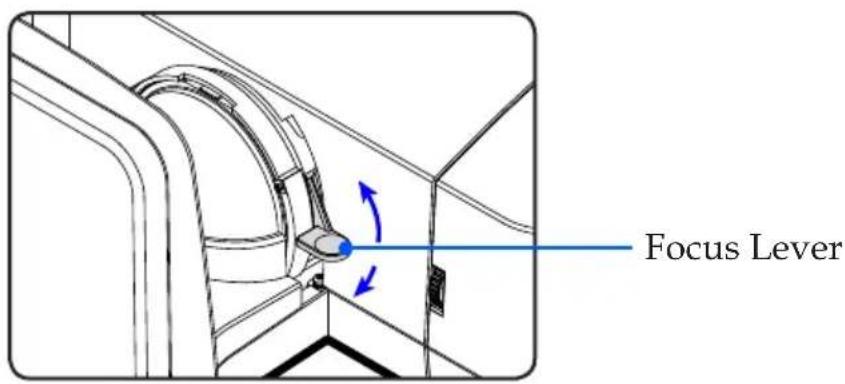
To focus the image, rotate the focus lever until the image is clear.
U300X/U250X series: The projector will focus at distances from 19^ to 26^ / 475 to 662mm .
U310W/U260W series: The projector will focus at distances from 19^ to 26^ / 495 to 661~mm .
Adjusting Projection Image Size
U300X/U250X series: Projection Image Size from 63^ to 85^ (1.600 to 2.159 meters).
U310W/U260W series: Projection Image Size from 77" to 100" (1.956 to 2.540 meters).
Installation
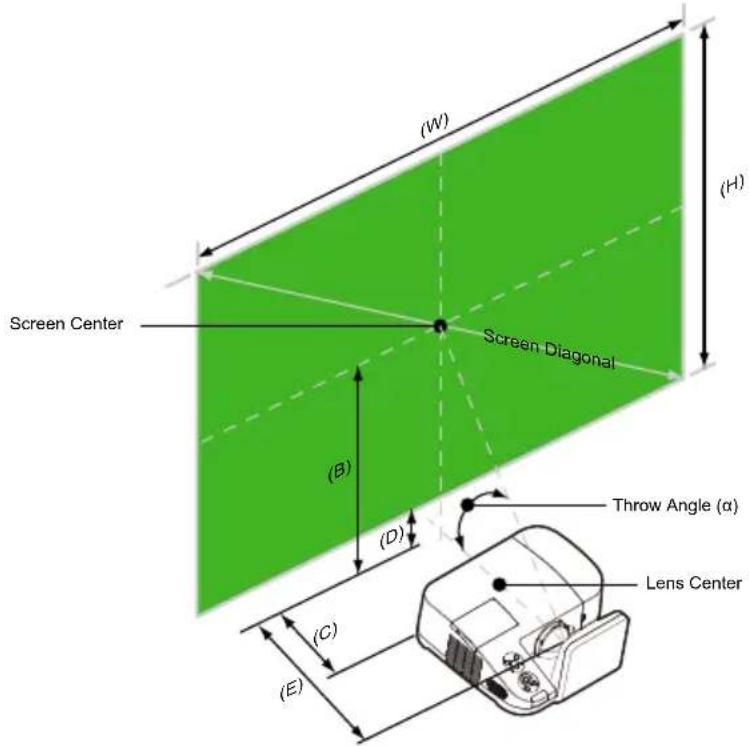
Throw Distance and Screen Size
B Vertical distance between lens center and screen center
C = > Horizontal distance between screen and projector
E = > Throw distance
D = > Vertical distance between lens center and bottom of screen (top of screen for ceiling mount)
= > Throw angle
U300X/U250X
| Screen Size | (B) (C) (D) (E) | (α) | ||||||||||||||
| Diagonal Width | (W) Height (H) | |||||||||||||||
| inch mm | inch mm | inch mm | inch mm | inch mm | inch mm | mm inch | mm degree | |||||||||
| 63 160 | 0 50 1280 | 38 960 29 | 749 5 133 | 11 269 | 19 475 55.3 | |||||||||||
| 65 165 | 1 52 1321 | 39 991 30 | 773 6 150 | 11 277 | 19 492 55.3 | |||||||||||
| 70 177 | 8 56 1422 | 42 1067 38 | 832 8 | 192 | 12 299 21 | 534 55.3 | ||||||||||
| 75 190 | 5 60 1524 | 45 1143 35 | 892 9 235 | 13 320 | 23 577 55.3 | |||||||||||
| 77 195 | 6 62 1565 | 46 1173 36 | 915 10 25 | 51 13 329 | 23 594 55.3 | |||||||||||
| 80 203 | 2 64 1626 | 48 1219 37 | 951 11 | 277 | 13 341 24 | 619 55.3 | ||||||||||
| 85 215 | 9 68 1727 | 51 1295 40 | 1010 | 13 320 | 14 363 26 | 662 55.3 | ||||||||||
U310W/U260W
| Screen Size | (B) (C) (D) (E) | (a) | |||||||||||||
| Diagonal Width | (W) Height (H) | ||||||||||||||
| inch mm | inch mm | inch mm | inch mm | inch mm | inch mm | mm inch | mm degree | ||||||||
| 77 195 | 6 65 1659 | 41 1037 31 | 777 6 153 | 10 259 | 19 495 55.3 | ||||||||||
| 80 203 | 2 68 1723 | 42 1077 32 | 808 7 174 | 14 11 269 | 20 516 55.3 | ||||||||||
| 85 215 | 9 72 1831 | 45 1144 34 | 858 8 214 | 14 11 286 | 22 568 55.3 | ||||||||||
| 87.2 22 | 15 74 187 | 3 46 1174 | 35 880 9 | 226 | 12 293 22 569 55.3 | ||||||||||
| 90 228 | 6 76 1939 | 48 1212 36 | 909 10 246 | 12 303 23 588 | 55.3 | ||||||||||
| 95 241 | 3 81 2046 | 50 1279 38 | 959 11 | 283 | 13 320 25 625 55.3 | ||||||||||
| 100 | 2540 85 | 2154 53 1 | 346 40 10 | 10 18 | 319 13 837 26 661 | 55.3 | |||||||||
This graph is for user's reference only.
On Screen Display
The Projector has a multilingual On Screen Display that allows you to make image adjustments and change a variety of settings. The projector will automatically detect the source.
How to operate
-
To open the OSD, press the MENU button on the Remote Control.
-
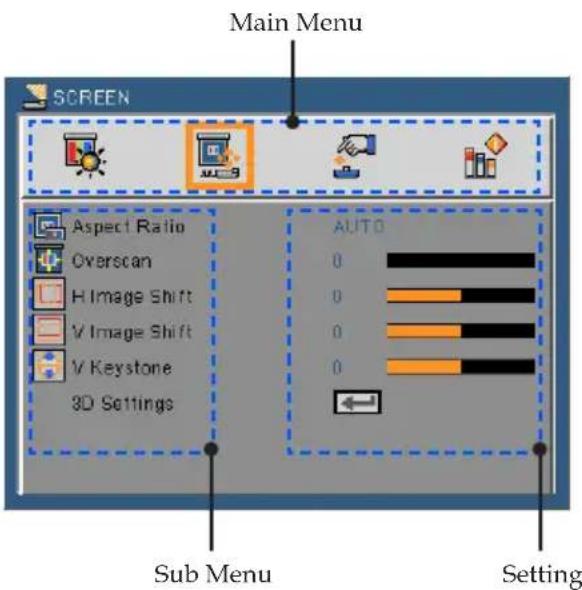
When OSD is displayed, use the buttons to select any item in the main menu. While making a selection on a particular page, press the button to enter sub menu.
-
Use the buttons to select the desired item in the sub menu and adjust the settings by using the button.
-
If the setting has icon, you could press the ENTER button to enter another sub menu. Press the MENU button to close the sub menu after adjustment.
-
After adjusting the settings, press the MENU button go back to the main menu.
-
To exit, press the MENU button again. The OSD will be closed and the projector will automatically save the new settings.

If no button operation is made for 30 seconds, the OSD will be closed automatically.
Menu Tree
| Main Menu Sub Menu Settings | ||
| IMAGE | Picture Mode | |
| Wall Color | Presentation / High-Bright / Movie / sRGB / Blackboard / Video / User1 / User2 | |
| Brightness 0~100 | ||
| Contrast 0~100 | ||
| Sharpness 0~31 | ||
| Saturation 0~100 | ||
| Hue 0~100 | ||
| Advanced Gamma Film / Video / Graphics / PC | ||
| BrilliantColor™ | 0~10 | |
| Color Temp. Low / Medium / High | ||
| Color | Red Gain / Green Gain / Blue Gain / Red Bias / Green Bias / Blue Bias / Cyan Gain / Magenta Gain / Yellow Gain / Reset / Exit | |
| Color Space AUTO / RGB / YUV | ||
| Input | HDMI / Computer 1 / Computer 2 / S-Video / Video / Exit | |
| Exit | ||
| SCREEN | Aspect Ratio | |
| Overscan | AUTO / 4:3 / 16:9 / 16:10 / 15:9 / 5:4 / Native | |
| H Image Shift -50~50 | 0~3 | |
| V Image Shift -50~50 | ||
| V Keystone -40 ~40 | ||
| Digital Zoom 80~200 | ||
| 3D Settings 3D Off / On | ||
| 3D Invert Off / On | ||
| 3D Over/Under Off / On | ||
| Exit | ||
| SETTING | Language | |
| Orientation | ||
| Menu Location | ||
| Signal | Phase | |
| Clock | -5~5 | |
| H. Position | -5~5 | |
| V. Position | -5~5 | |
| Exit | ||
| Mute | Off / On | |
| Volume | 0~31 | |
| SETTING | Advanced Logo On / Off | |
| PC Control Mode PC Control / LAN | ||
| Network | ||
| Closed Caption Off / CC1 / CC2 / CC3 / CC4 / T1 / T2 / T3 / T4 | ||
| Security | ||
| Video Level AUTO / Normal / Enhance | ||
| Exit | ||
| SETTING | Advanced | Network Network State Disconnect / Connect | |
| DHCP Off / On | ||
| IP Address 0.0.0.0 | ||
| Subnet mask 0.0.0.0 | ||
| Gateway 0.0.0.0 | ||
| DNS 0.0.0.0 | ||
| Apply Off / On | ||
| Exit | ||
| Security Security Off / On | ||
| Security Timer Month / Day / Hour / Exit | ||
| Change Password | ||
| Exit | ||
| OPTIONS | Input Search | Off / On |
| Fan Mode | AUTO / High Speed | |
| Information Hide | Off / On | |
| Background Color | Black / Blue | |
| Lamp/Filter Settings | Lamp Hours Used (Normal) | |
| Lamp Hours Used (ECO) | ||
| Lamp Life Reminder Off / On | ||
| ECO Mode Off / On | ||
| Clear Lamp Hours | ||
| Filter Usage Hours | ||
| Clear Filter Usage Hours | ||
| Exit | ||
| Information | ||
| Advanced Standby Mode Normal / Power-Saving | ||
| Direct Power On Off / On | ||
| Auto Power Off (min.) 0~180 | ||
| Off Timer (min.) 0~995 | ||
| Control Panel Lock Off / On | ||
| Exit | ||
| Reset | Off / On | |
User Controls
IMAGE
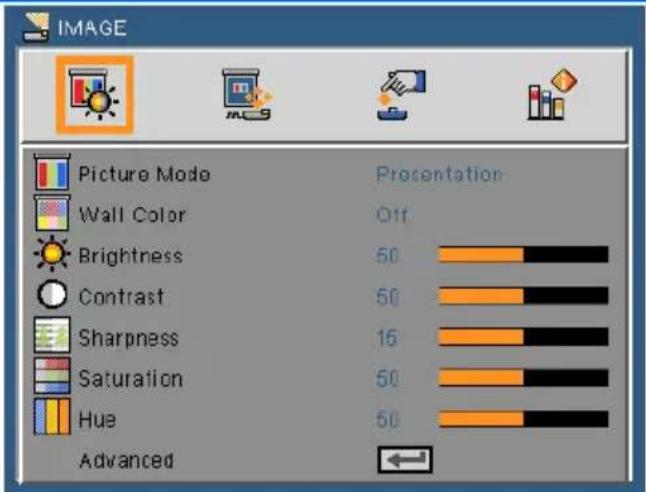
Picture Mode
There are many factory presets optimized for various types of images. Use the button to select the item.
Presentation: For computer or notebook.
High-Bright: Maximum brightness from PC input.
Movie: For home theater.
sRGB: Standardized accurate color.
Blackboard: This mode should be selected to achieve optimum color settings when projecting onto a blackboard (green).
Video: This mode is recommended for typical TV program viewing.
User: Memorize user's settings.
Wall Color
Use this function to choose a proper color according to the wall. It will compensate the color deviation due to the wall color to show the correct image tone.
Brightness
Adjust the brightness of the image.
Press the button to darken image.
Press the button to lighten the image.
Contrast
The contrast controls the degree of difference between the lightest and darkest parts of the picture. Adjusting the contrast changes the
User Controls

"Saturation" and "Hue" functions are only supported under Video mode.
amount of black and white in the image.
Press the button to decrease the contrast.
Press the button to increase the contrast.
Sharpness
Adjust the sharpness of the image.
Press the button to decrease the sharpness.
Press the button to increase the sharpness.
Saturation
Adjust a video image from black and white to fully saturated color.
Press the button to decrease the amount of saturation in the image.
Press the button to increase the amount of saturation in the image.
Hue
Adjust the color balance of red and green.
Press the button to increase the amount of green in the image.
Press the button to increase the amount of red in the image.
Advanced
Refer to next page.
User Controls
IMAGE | Advanced
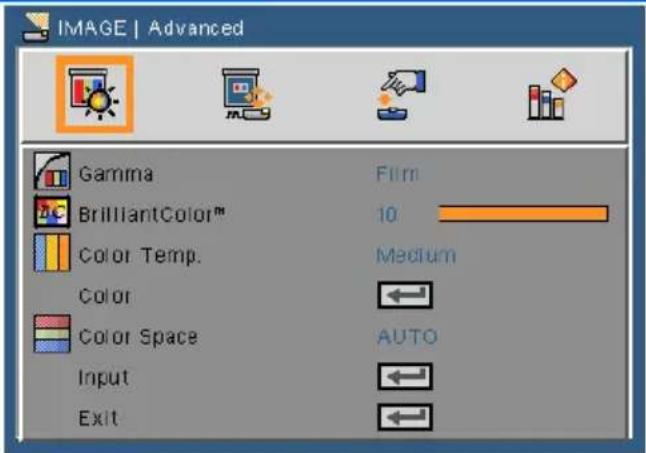
Gamma
This allows you to choose a gamma table that has been fine-tuned to bring out the best image quality for the input.
Film: for home theater.
Video: for video or TV source.
Graphics: for image source.
PC: for PC or computer source.
BrilliantColorTM
This adjustable item utilizes a new color-processing algorithm and system level enhancements to enable higher brightness while providing true, more vibrant colors. The range is from "0" to "10". If you prefer a stronger enhanced image, adjust toward the maximum setting. For a smoother, more natural image, adjust toward the minimum setting.
Color Temp
Adjust the color temperature. At higher temperature, the screen looks colder; at lower temperature, the screen looks warmer.

The Color Temp is not available when "High-Bright" or "sRGB" is selected for "Picture mode".
User Controls
Color
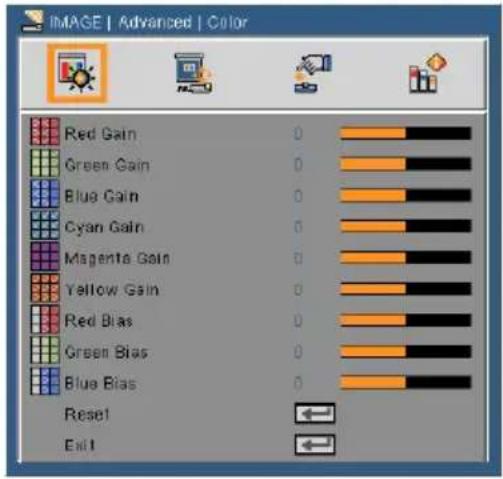
Press into the next menu as below and then use the button to select item.

Red Gain/Green Gain/Blue Gain/Red Bias/Green Bias/Blue Bias/Cyan Gain/Magenta Gain/Yellow Gain: Use the button to select Red, Green, Blue, Cyan, Magenta and Yellow Colors.
Reset: Choose "Yes" to return the factory default settings for color adjustments.
Color Space
Select an appropriate color matrix type from AUTO, RGB or YUV.
Input
Use this option to enable / disable input sources. Press enter the sub menu and select which sources you require. Press the ENTER button to finalize the selection. The projector will not search for inputs that are not selected.
Exit
Press return to the previous menu.
User Controls
SCREEN
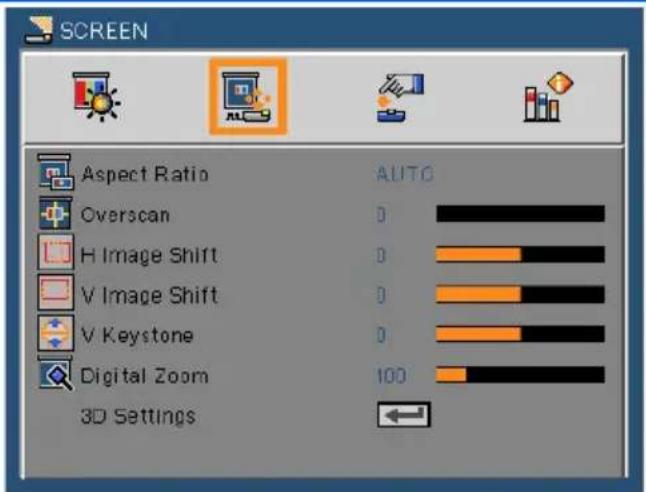
Aspect Ratio
Use this function to choose your desired aspect ratio.
4:3: This format is for 4 × 3 input sources.
16:9: This format is for 16× 9 input sources, like HDTV and DVD enhanced for Wide screen TV.
16:10: This format is for 16 × 10 input sources, like widenscreen laptops.
15:9: This format is for non-16x9, letterbox source and for users who use external 16x9 lens to display 1.67:1 aspect ratio using full resolution.
5:4: This format is for 5 × 4 input sources.
Native: This format displays the original image without any scaling.
AUTO: Automatically selects the appropriate display format.

Each I/O has different setting of "Overscan".
Overscan
Overscan function removes the noise in a video image. Overscan the image to remove video encoding noise on the edge of video source.
H Image Shift
Shift the projected image position horizontally.
V Image Shift
Shift the projected image position vertically.
User Controls
V Keystone
Press the button to adjust image distortion vertically. If the image looks trapezoidal, this option can help make the image rectangular.
Digital Zoom
Zoom in or out the image. The default image size is 100.
3D Settings
Refer to next page.
User Controls
SCREEN | 3D Settings
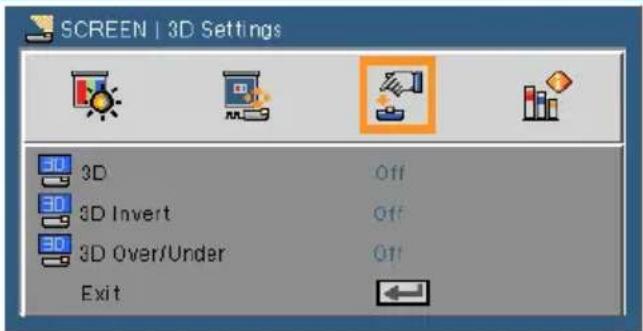

3D
Choose "On" to turn this item on for 3D images.
3D Invert
3D Invert and "3D Over/ Under"only available when 3D is enabled.
Choose "On" to invert left and right frame contents.
Choose "Off" for default frame contents.
3D Over/Under
Choose "On" to invert over and under frame contents.
Choose "Off" for default frame contents.
Exit
Press to return to the previous menu.
TIP: 3D supported signal
For PC Signal: 640x480@120Hz, 640x480@60Hz, 800x600@120Hz, 800x600@60Hz, 1024x768@120Hz, 1024x768@60Hz, 1280x720@120Hz, 1280x720@60Hz
For Video Signal: 480i@60Hz,480p@60Hz,720p@60Hz
User Controls
SETTING
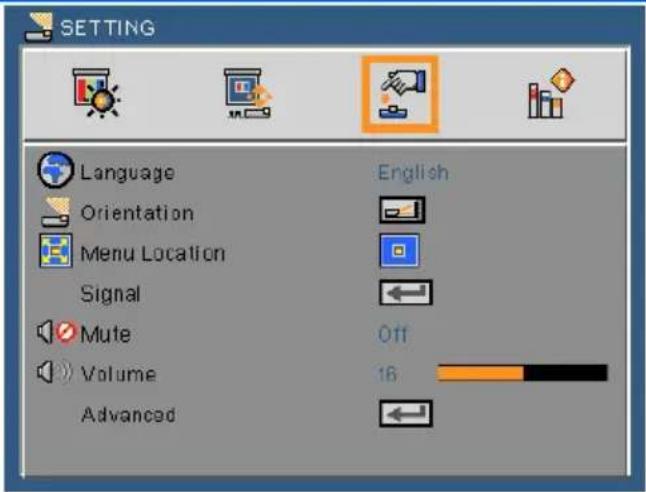
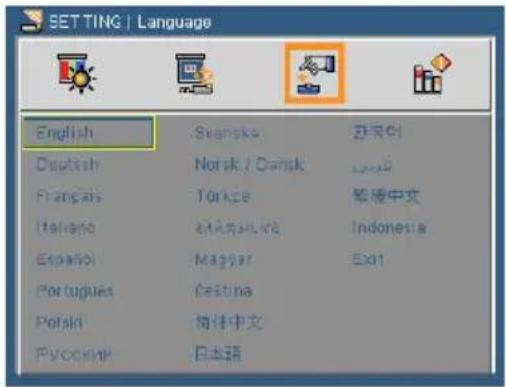
Language
Choose the multilingual OSD menu. Press the button into the sub menu and then use the button to select your preferred language. Press to finalize the selection.

Rear-Desktop and Rear-Ceiling are to be used with a translucent screen.
Orientation
DesktopFront
This is the default selection. The image is projected straight on the screen.
Desktop Rear
When selected, the image will appear reversed.
Ceiling Front
When selected, the image will turn upside down.
User Controls
Ceiling Rear
When selected, the image will appear reversed in upside down position.
Menu Location
Choose the menu location on the display screen.
Signal
Refer to next page.
Mute
Choose "On" to turn mute on.
Choose "Off" to turn mute off.
Volume
Press the button to decrease the volume.
Press the button to increase the volume.
Advanced
Refer to page 44.
User Controls
SETTING | Signal (RGB)

"Signal" is only supported in Analog VGA (RGB) signal.
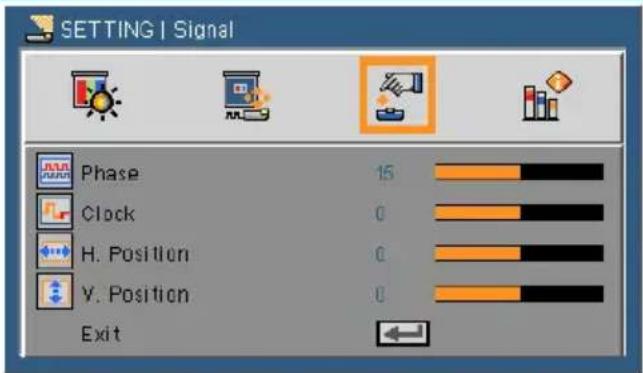
Phase
Synchronize the signal timing of the display with the graphic card. If the image appears to be unstable or flickers, use this function to correct it.
Clock
Change the display data frequency to match the frequency of your computer's graphic card. Use this function only if the image appears to flicker vertically.
H. Position
Press the button to move the image left.
Press the button to move the image right.
V. Position
Press the button to move the image down.
Press the button to move the image up.
Exit
Press return to the previous menu.
User Controls
SETTING | Advanced
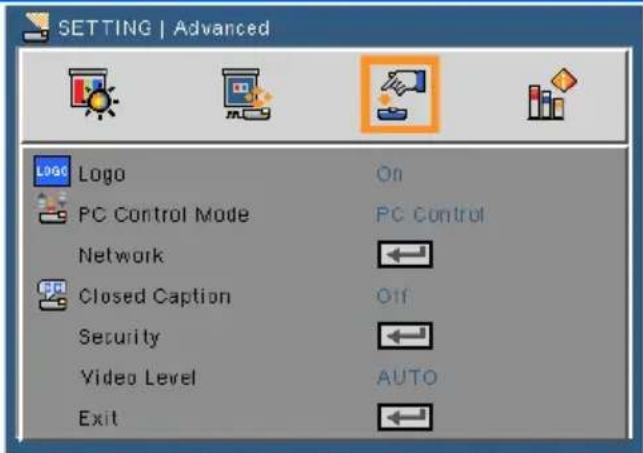
Logo
Use this function to display the startup screen (NEC logo).
On: Displays the NEC logo.
Off: Not display the NEC logo.
PC Control Mode

When "Power-Saving" is selected for "Standby Mode" from the menu, the projector cannot be controlled in standby mode from external equipment.

"Video Level" is only supported under HDMI source.
PC Control: Allow PC control of an individual projector. (Default setting)
LAN: Allow projector control via web browser (Internet Explorer) using the network.
Network
Refer to next page.
Closed Caption
Use this function to enable close caption and activate the closed caption menu. Select an appropriate closed captions option: Off, CC1, CC2, CC3, CC4, T1, T2, T3 and T4.
Security
Refer to page 48.
Video Level
Select "AUTO" to automatically detect video level. If automatic detection may not work well, select "Normal" to disable the "Enhance" feature of your HDMI equipment or select "Enhance" to improve image contrast and increase detail in the dark areas.
Exit
Press return to the previous menu.
User Controls
SETTING | Advanced | Network
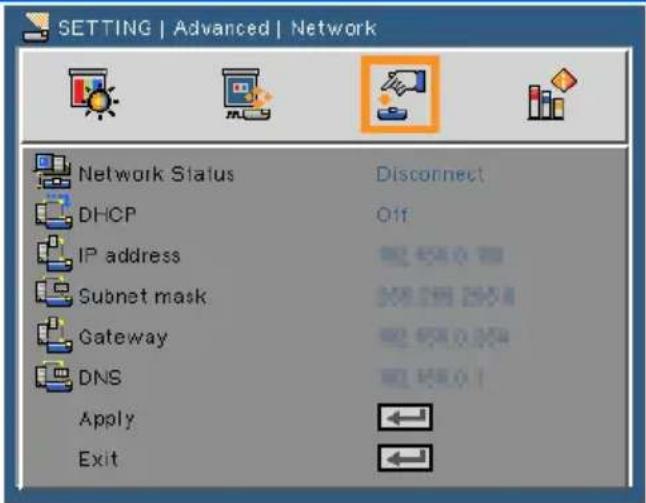
Network Status
Display the network connection status.
DHCP
Use this function to select your desired startup screen. If you change the setting from one to another, when you exit the OSD menu, the new setting will take effect on next open.
On: Assign an IP address to the projector from an external DHCP server automatically.
Off: Assign an IP address manually.
IP Address
Select an IP address.
Subnet Mask
Select subnet mask number.
Gateway
Select the default gateway of the network connected to the projector.
DNS
Select DNS number.
Apply
Press and then choose "On" to apply the selection.
Exit
Press to return to the previous menu.
User Controls
How to use web browser to control your projector
- Turn on DHCP to allow the DHCP server to automatically assign an IP, or manually enter the required network information.
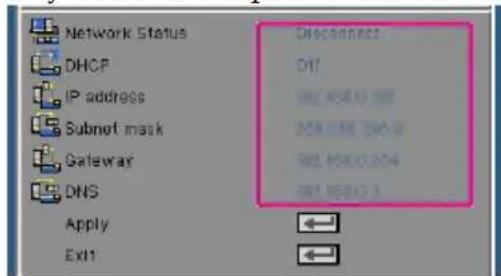
-
Then choose apply and press button to complete the configuration process.
-
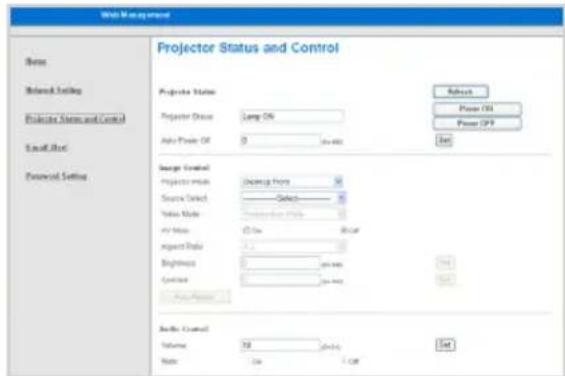
Open your web browser and type in from the OSD LAN screen then the web page will display as below:

When you used the projector IP address, you can not link to your service server.
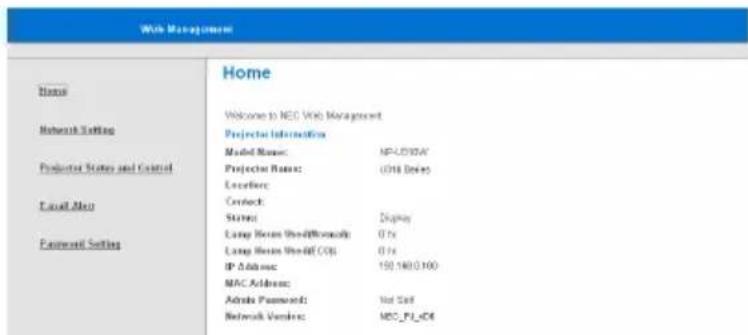
- Open "Projector Status and Control" to control your projector.
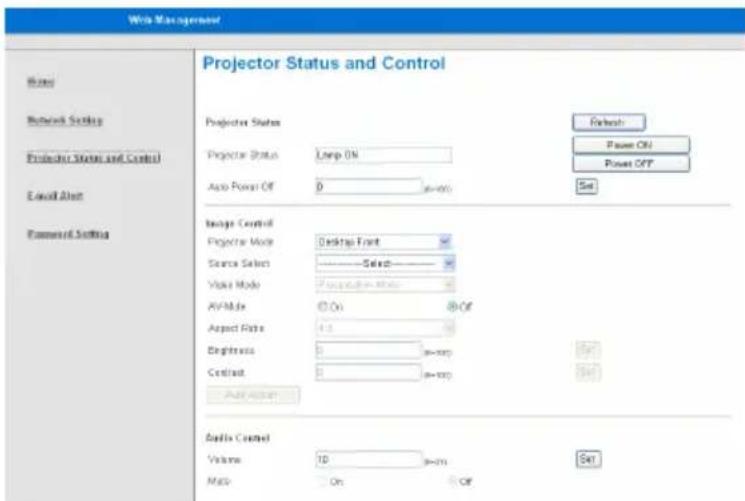
When making a direct connection from your computer to the projector
Step 1: Find an IP Address (default:192.168.0.100) from LAN function of projector.
IP address 192.168.0.100
User Controls
Step 2: Select apply and press the ENTER button on the remote control or the control panel to submit function or press the MENU button on the remote control or the control panel to exit.
Step 3: To open Network Connections, click Start, click Control Panel, click Network and Internet Connections, and then click Network Connections. Click the connection you want to configure, and then, under Network Tasks , click Change settings of this connection.
Step 4: On the General tab, under This connection uses the following items, click Internet Protocol (TCP/IP), and then click "Properties."
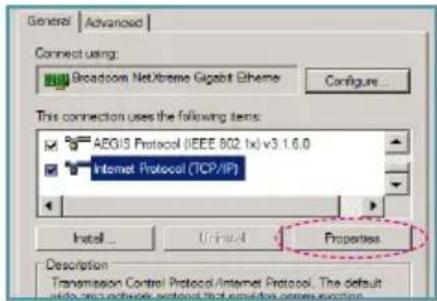
Step 5: Click Use the following IP address, and type in as below:
1) IP address: 192.168.0.100
2) Subnet mask: 255.255.255.0
3) Default gateway:192.168.0.254
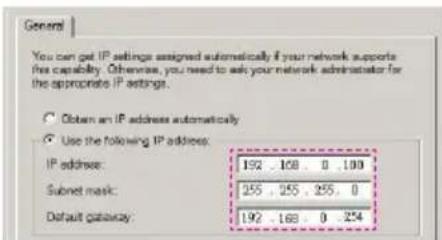
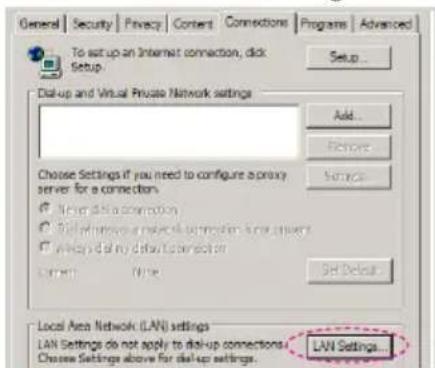
Step 6: To open Internet Options, click IE web browser, click Internet Options, click the Connections tab and click "LAN Settings..."
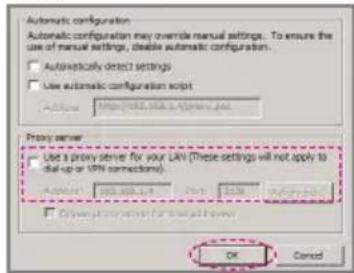
Step 7: The Local Area Network (LAN) Setting dialog box appears, In the Proxy Server area, cancel the Use a proxy server for your LAN check box, then click "OK" button twice.
Step 8: Open your IE and type in the IP address of 192.168.0.100 in the URL then press the ENTER button key.
Step 9: Open "Projector Status and Control" to control your projector.
User Controls
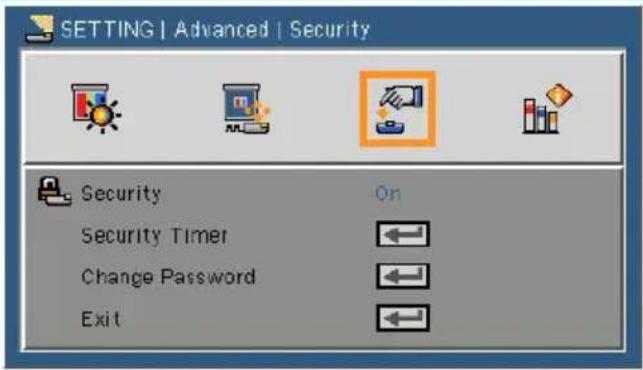
SETTING | Advanced | Security

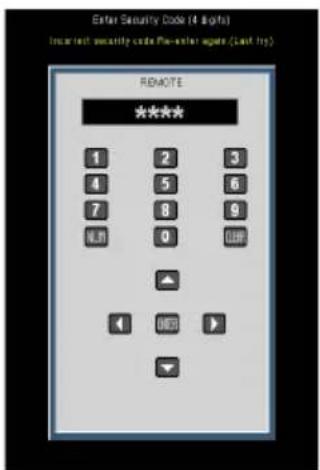
Password default value is "1234" (first time).
When you input the password, you must press the NUM button and other number button on the remote control at the same time.
Security
On: Choose "On" to use security verification when turning on the projector.
Off: Choose "Off" to be able to switch on the projector without password verification.
Security Timer
Use this function to set how long (Month/Day/Hour) the projector can be used. Once this time has elapsed you will be requested to enter your password again.
Change Password
First time:
- Press to set the password.
- The password has to be 4 digits.
- Use number buttons on the remote control to enter your new password and then press key to confirm your password.
Change Password:
- Press input old password.
- Use number buttons to enter the current password and then press to confirm.
- Enter a new password (4 digits in length) using the number buttons on the remote control, then press confirm.
- Enter the new password again and press confirm.
User Controls
If the incorrect password is entered 3 times, the projector will automatically shut down.
If you have forgotten your password, please contact your local office for support.
Exit
Press to return to the previous menu.
User Controls
OPTIONS
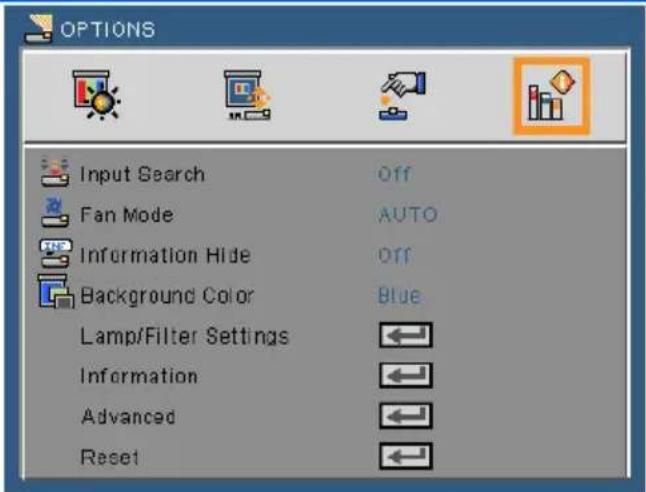

With the optional dust filter installed, "High" is selected for "Fan Mode". Dust filter is Optional and may not be required in some regions.
Input Search
On: The projector will search for other signals if the current input signal is lost.
Off: The projector will only search current input connection.
Fan Mode
AUTO: The built-in fans automatically run at a variable speed according to the internal temperature.
High: The built-in fans run at high speed.
The built-in fans run at a high speed. Select this option when using the projector at altitudes approximately 2500 feet/760 meters or higher.
Information Hide
On: Choose "On" to hide the info message.
Off: Choose "Off" to show the "searching" message.
Background Color
Use this feature to display a "Black" or "Blue" screen when no signal is available.
Lamp/Filter Settings
Refer to next page.
Information
Refer to page 53.
User Controls
Advanced
Refer to page 54.
Reset
Choose "On" to return the display parameters on all menus to the factory default settings.
User Controls
OPTIONS | Lamp/Filter Settings
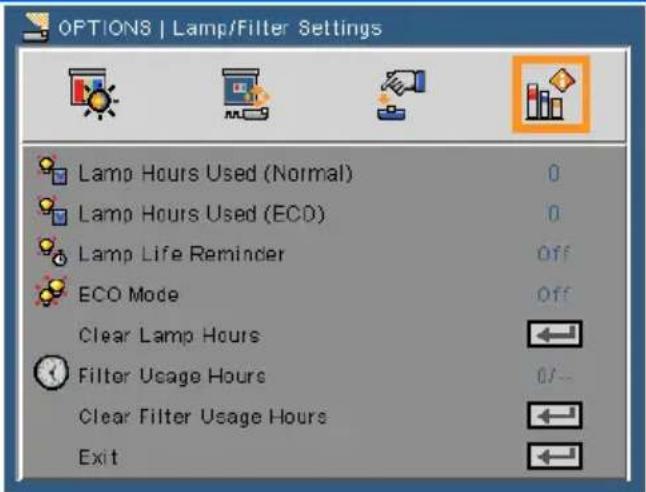
Lamp Hours Used (Normal)
Display the projection time for normal mode.
Lamp Hours Used (ECO)
Display the projection time for ECO mode.
Lamp Life Reminder
Choose this function to show or to hide the warning message when the changing lamp message is displayed.
The message will appear when the lamp has reached the end of its life.
ECO Mode
Choose "On" to dim the projector lamp which will lower power consumption and extend the lamp life. Choose "Off" to return to normal mode.
Clear Lamp Hours
Reset the lamp hour counter after replacing the lamp.
Filter Usage Hours
Display the projection time for using filter.
Clear Filter Usage Hours
Reset the filter hour counter after replacing the filter.
Exit
Press to return to the previous menu.
User Controls
OPTIONS | Information
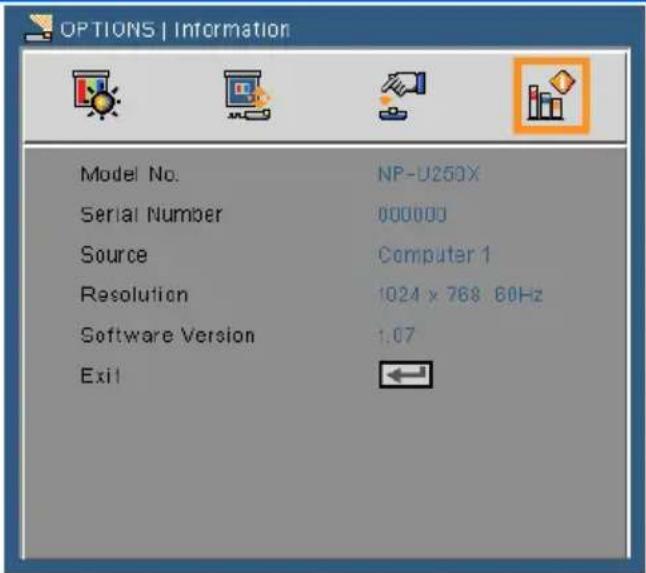
Information
To display the projector information for source, resolution, and software version on the screen.
User Controls
OPTIONS | Advanced
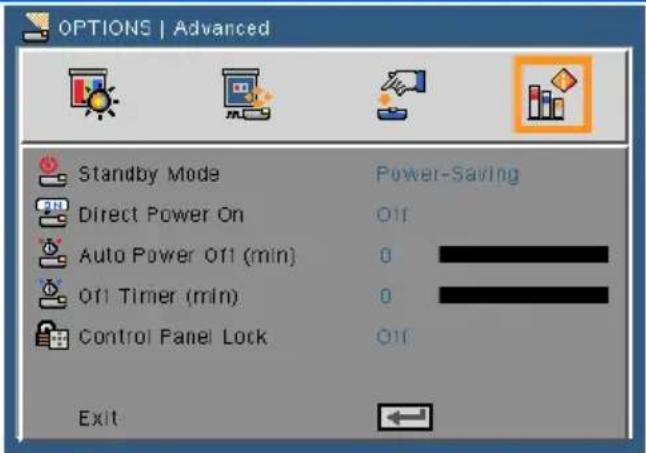

Power-Saving mode will disable the following connectors, buttons or functions when the projector is in standby:
- AUDIO OUT connector
- LAN and Mail Alert functions
- Buttons other than POWER button on the cabinet
- Buttons other than POWER ON button on the remote control
- PC Control connector
- Virtual Remote Tool, PC Control Utility Pro 4
Standby Mode
Power-Saving: Choose "Power-Saving" to save power dissipation further < 0.5W .
Normal: Choose "Normal" to return to normal standby.
Direct Power On
Choose "On" to activate Direct Power mode. The projector will automatically power on when AC power is supplied, without pressing the button on the projector control panel or the POWER ON button on the remote control.
Auto Power Off (min)
Sets the countdown timer interval. The countdown timer will start, when there is no signal being sent to the projector. The projector will automatically power off when the countdown has finished (in minutes).
Off Timer (min)
Sets the countdown timer interval. The countdown timer will start, with or without a signal being sent to the projector. The projector will automatically power off when the countdown has finished (in minutes).
Control Panel Lock
When the keypad lock function is "On", the control panel will be locked however, the projector can be operated by the remote control. By selecting "Off", you will be able to reuse the control panel. Press and hold the ENTER button on the projector cabinet for about 10 seconds to turn off "Control Panel Lock".
Troubleshooting
If you experience trouble with the projector, refer to the following information. If the problem persists, please contact your local dealer or service center.
Problem: No image appears on screen
Ensure all the cables and power connections are correctly and securely connected as described in the "Installation" section.
Ensure the pins of connectors are not crooked or broken.
Check if the projection lamp has been securely installed. Please refer to the "Replacing the lamp" section.
Make sure the projector is switched on.
Ensure that the "AV-MUTE" feature is not turned on.
Problem: Partial, scrolling or incorrectly displayed image
Press "AUTO ADJ." on the remote control or control panel.
If you are using a PC:
For Windows 95, 98, 2000, XP, Windows 7:
- From the "My Computer" icon, open the "Control Panel" folder, and double click the "Display" icon.
- Select the "Settings" tab
- Click on the "Advanced Properties".
For Windows Vista:
- From the "My Computer" icon, open the "Control Panel" folder, and double click the "Appearance and Personalization"
- Select "Personalization"
- Click "Adjust screen resolution" to display "Display Settings". Click on the "Advanced Settings".
If the projector is still not projecting the whole image, you will also need to change the monitor display you are using. Refer to the following steps.
Appendices
- Verify the resolution setting is less than or equal to 1280 × 1024 resolution.
- Select the "Change" under the "Monitor" tab.
- Click on "Show all devices". Next, select "Standard monitor types" under the SP box; choose the resolution mode you need under the "Models" box.
If you are using a Notebook:
- First, follow the steps above to adjust resolution of the computer.
- Press the toggle output settings. example: [Fn] + [F4]
Compaq [Fn] ^+ [F4] Hewlett Dell [Fn] ^+ [F8] Packard [Fn] ^+ [F4] Gateway [Fn] ^+ [F4] NEC [Fn] ^+ [F3] IBM [Fn] ^+ [F7] Toshiba [Fn] ^+ [F5]
Macintosh Apple:
System Preference->Display->Arrangement->Mirror display
If you experience difficulty changing resolutions or your monitor freezes, restart all equipment including the projector.
Problem: The screen of the Notebook or PowerBook computer is not displaying a presentation
If you are using a Notebook PC:
Some Notebook PCs may deactivate their own screens when a second display device is in use. Each has a different way to be reactivated. Refer to your computer's documentation for detailed information.
Problem: Image is unstable or flickering
Adjust the "Phase" to correct it. Refer to the "Setting" section for more information.
Change the monitor color setting from your computer.
Problem: Image has vertical flickering bar
Use "Clock" to make an adjustment.
Check and reconfigure the display mode of your graphic card to make it compatible with the product.
Problem: Image is out of focus
Adjust the Focus Lever on the projector lens.
Make sure the projection screen is between the required distance 5^ to 12^ / 130 to 314mm [U300X/U250X] / 6^ to 12^ / 148 to 311 mm [U310W/U260W] from the projector (refer to page 29).
Problem: The image is stretched when displaying 16:9 DVD
The projector automatically detects 16:9 DVD and adjusts the aspect ratio by digitizing to full screen with 4:3 default setting.
If the image is still stretched, you will also need to adjust the aspect ratio by referring to the following:
Please select 4:3 aspect ratio type on your DVD player if you are playing a 16:9 DVD.
If you can't select 4:3 aspect ratio type on your DVD player, please select 4:3 aspect ratio in the on screen menu.
Problem: Image is reversed
Select "SETTING-->Orientation" from the OSD and adjust the projection direction.
Problem: Lamp burns out or makes a popping sound
- When the lamp reaches its end of life, it will burn out and may make a loud popping sound. If this happens, the projector will not turn on until the lamp module has been replaced. To replace the lamp, follow the procedures in the "Replacing the Lamp".
Appendices
Problem: LED lighting message
Power Indicator
| Indicator Condition Projector Condition Note | |||
| Off The main power is off -- | |||
| Blinking light Blue 0.5 sec | On, | 0.5 sec Off | The projector is getting ready to turn on. Wait for a moment. |
| 2.5 sec On,0.5 sec Off | Off Timer is enabled. -- | ||
| Steady light Blue The projector is turned on. -- | |||
| Orange "Normal" is selected for | "Standby Mode" -- | ||
| Red "Power-Saving" is selected | for "Standby Mode" -- | ||
Status Indicator
| Indicator Condition Projector Condition | Savings for "Standby Mode") | -- | ||
| Off Normal or Standby ("Power") | ||||
| Blinking light Red 1 cycle | 0.5 sec | On, 2.5 sec Off) | Lamp cover error or lamp housing error | Replace the lamp cover or lamp housing correctly. |
| 2 cycle (0.5 sec On, 0.5 sec Off) | Temperature error | The projector is overheated. Move the projector to a cooler location. | ||
| 3 cycle (0.5 sec On, 0.5 sec Off) | Power error | Power unit is not working properly. Contact your dealer. | ||
| 4 cycle (0.5 sec On, 0.5 sec Off) | Fan error | Fans will not work correctly. | ||
| 6 cycle (0.5 sec On, 0.5 sec Off) | Lamp error | Lamp fails to light. Wait a full minute and then turn on again. | ||
| Green | Re-firing the lamp (The projector is cooling down) | The projector is re-firing. Wait for a moment. | ||
| Steady light Green | Standby ("No" | mal" for "Standby Mode") -- | ||
| Orange | CONTROL PANEL LOCK is on. | You have pressed cabinet button when Control Panel Lock is on. | ||
Lamp Indicator
| Indicator Condition Projector Condition Note | |||
| Off Normal | -- | ||
| Blinking light Red Lamp has reached its end of life. Lamp replacement message will be displayed. | Replace the lamp. | ||
| Steady light Red Lamp has reached its end of life. The projector will not turn on until the lamp is replaced. | Wait for a moment. | ||
| Green | "ECO Mode" is set to "On" | ||
Appendices
Problem: Message Reminders
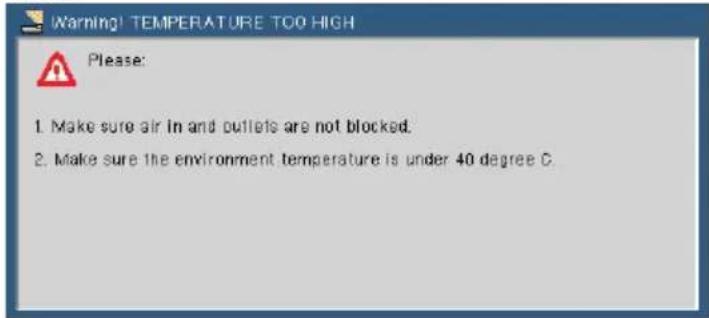
Over temperature - the projector has exceeded its recommended operating temperature and must be allowed to cool down before it may be used.
Replacing the lamp - the lamp is about to reach its maximum lifetime. Prepare to replace it soon.
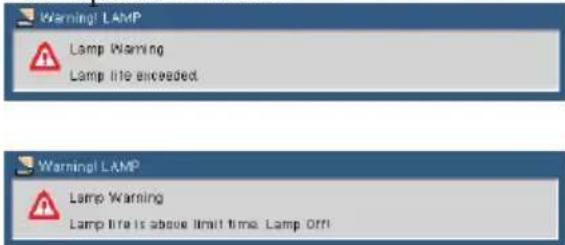
NOTE: When you continue to use the projector for another 100 hours after the lamp has reached the end of its life, the projector cannot turn on.
If this happens, after replacing the lamp, connect the power cord and then press the HELP button on the remote control. This will allow you to turn on the projector. Clear the lamp hours by selecting "OPTIONS" -> "Lamp/Filter Settings" -> "Clear Lamp Usage Hours" from the menu.
Fan failed - the system fan is not working.

Cleaning the filter
Appendices
Cleaning the Filter
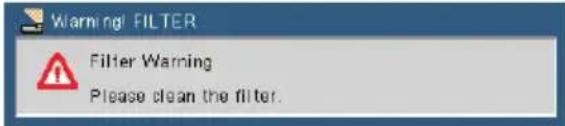
The air-filter sponge keeps dust and dirt from getting inside the projector and should be frequently cleaned. If the filter is dirty or clogged, your projector may overheat.

The message for filter cleaning will be displayed for one minute when the projector is turned on or off. To cancel the message, press any button on the projector cabinet or the remote control.
CAUTION:
- Turn off the projector, and unplug the projector before replacing the filter.
- Only clean the outside of the filter cover with a vacuum cleaner.
- Do not attempt to operate the projector without the filter cover.
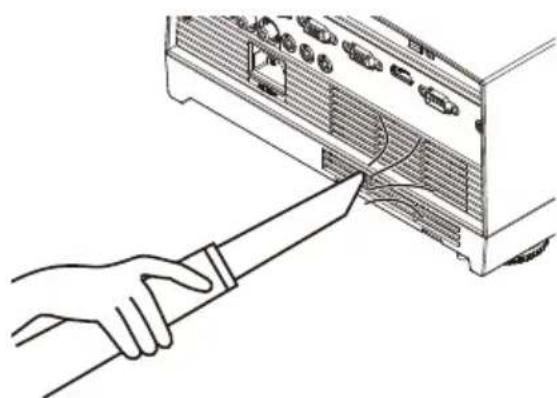
To clean the air-filter
Use a small vacuum cleaner designed for computers and other office equipment.
If the dirt is difficult to remove or the filter is broken, please contact your local dealer or service center to obtain a new filter.
To replace the filter
CAUTION:
- Before replacing the filter, remove dust and dirt from the projector cabinet.
- The projector contains high-precision parts. Keep out dust and dirt during filter replacement.
- Do not wash the filter with water. Water will damage the filter membrane.
- Reattach the filter cover correctly. Failure to do so may cause projector malfunction.
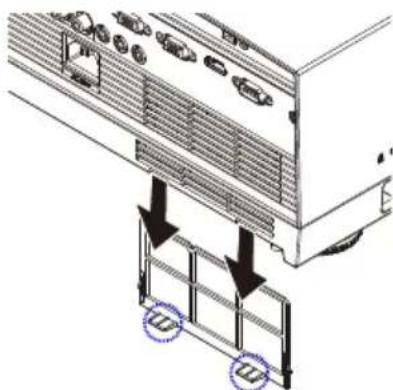
Replacing Procedure:
- Disconnect the power cord.
- Pull the filter out.
- Replace the filter.
- Install the new filter by reversing the previous steps.
5 After replacing the filter, turn on the power, and press the [MENU] button ->OPTIONS | Lamp/Filter Settings -> Clear Filter Usage Hours to reset the filter usage hours. Refer to page 52.
Replacing the lamp
(optional lamp NP19LP(U250X/U260W)/NP20LP(U300X/U310W))
The projector will detect the lamp life at 2500 hours (U250X/U260W) / 2500 hours (U300X/U310W) in Eco Mode Off. When the "Power" LED indicator flashes red and the message below displays on-screen, the projector has detected that the lamp is approaching its end of life. (Refer to page 27) It will show you a warning message

Warning: To avoid burns, allow the projector to cool for at least 60 minutes before you replace the lamp!



When you see this message, change the lamp as soon as possible. Make sure the projector has been cooled down for at least 60 minutes before changing the lamp.
The lamp life in Eco Mode On: up to 3000 hours (U300X/U310W) and up to 4000 hours (U250X/U260W).
Appendices

Warning: To reduce the risk of personal injury, do not drop the lamp module or touch the lamp bulb. The bulb may shatter and cause injury if it is dropped.

Do not break the glass on the lamp housing. Keep finger prints off the glass surface on the lamp housing. Leaving finger prints on the glass surface might cause an unwanted shadow and poor picture quality.
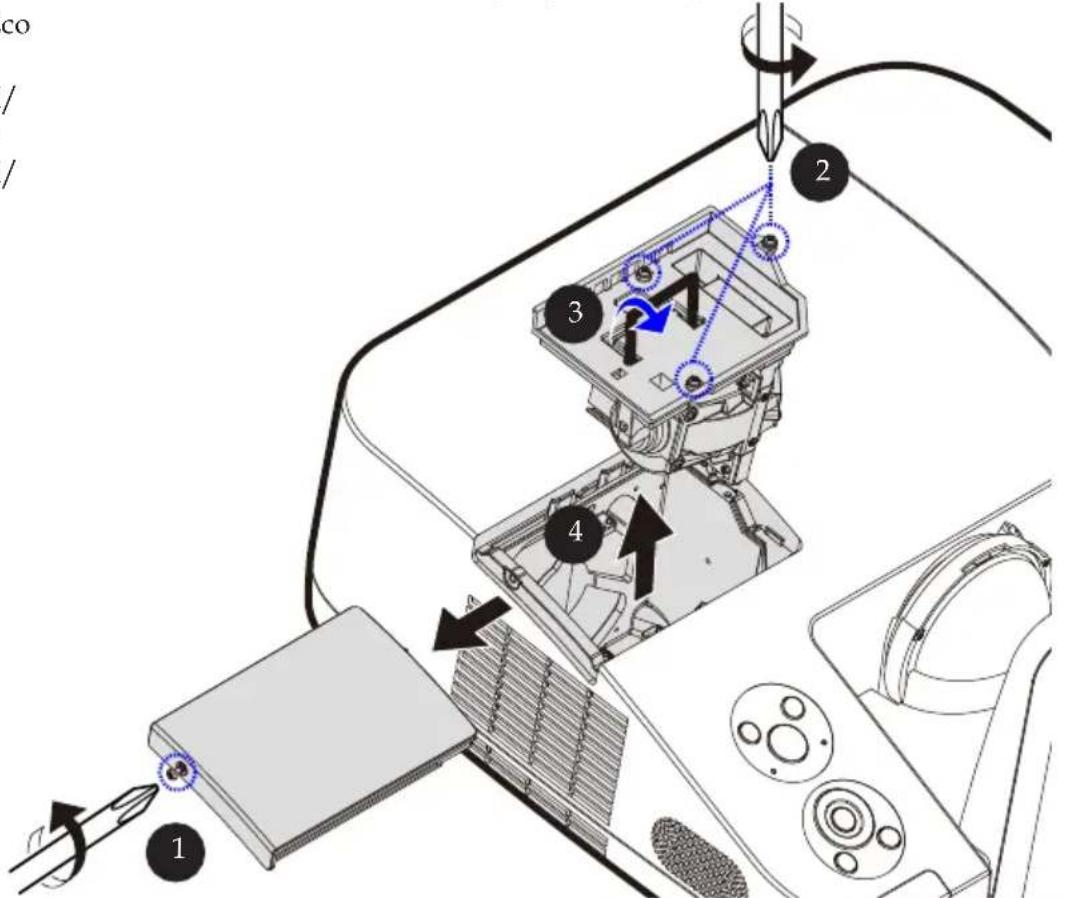
Lamp Replacing Procedure:
- Switch off the power to the projector by pressing the POWER OFF button on the remote control or the button on the control panel.
- Allow the projector to cool down at least 60 minutes.
- Disconnect the power cord.
-
Use a screwdriver to remove the screw from the cover. 1
-
Push up and remove the cover.
-
Remove 3 screws from the lamp module ② and pull up the handle. ③
-
Pull out the lamp module. 4
- Install the new lamp module by reversing the previous steps. Be sure to tighten the screws on the lamp module and the lamp cover.
- After replacing the lamp, turn on the power, and select the [MENU] button -> OPTIONS | Lamp/Filter Settings -> Clear Lamp Hours to reset the lamp usage hours. Refer to page 52.
Cleaning procedure for the aspherical mirror and lens
If the aspherical mirror or lens of projection lens is dusty or blemished, please clean the mirror or lens as following procedure:
- Turn off the projector and cool projector down for a while.
- Unplug the power cord from outlet.
- Blow the dust by blower for cameras which you could buy from camera shops. Wipe the mirror or lens gently using a cleaning cloth.

CAUTION:
- Do not wipe the mirror, if there is dust on it. Please blow the dust by blower first.
Always wipe the mirror or lens with a cleaning cloth. - Please do not wipe the mirror or lens hard because that may cause serious damage on the surface of mirror or lens.
- Wiping might scratch the mirror or lens. Optical performance of the projector will thus be impacted if mirror or lens is scratched after wiping. Optical performance impact will be dependent on the scratch condition of them.
- Do not use liquid cleaners or chemicals on the cloth because it may contaminate the cloth and cause serious damage on the surface of mirror or lens.
Appendices
Specifications
| Optical | U300X U250X | U310W U260W | ||
| Projection System Single | DLP® chip (0.55", aspect ratio 4:3) Single DLP® chip (0.65", aspect ratio 16:10) | |||
| Resolution *1 | 1024 × 768 pixels (XGA) 1280 × 800 pixels (WXGA) | |||
| Lens Manual focus | ||||
| F2.71 | ||||
| Lamp 280W AC | (245W in ECO mode) | 230W AC (190W in ECO mode) | 280W AC (245W in ECO mode) | 230W AC (190W in ECO mode) |
| Light Output *2*3 | 3000 lumens 2500 lumens 3100 lumens 2600 | lumens | lumens | |
| Approx. 80% in ECO mode | ||||
| Contrast Ratio *3(full white:full black) | 2000:1 | |||
| Image Size (Diagonal) 63 | to 85 inches/ 1.6 to 2.16 m 77 to 100 inches/ | 1.96 to 2.54 m | ||
| Projection Distance (mini. - max.) | 19 to 26 inches / 475 to 662 mm 19 to 26 inches | ches / 495 to 661 mm | ||
| Projection Angle 55.3° | ||||
1 Effective pixels are more than 99.99%.
2 This is the light output value (lumens) when [Picture Mode] is set to [High-Bright] in the menu. If any other mode is selected as [Picture Mode], the light output value may drop slightly.
*3 Compliance with ISO21118-200
| Electrical | U300X U250X | U310W U260W | ||
| Inputs 2 x RGB/Component (D-Sub 15P), 1 x HDMI (19P) HDCP supported "4, 1 x S-Video(DIN 4P), 1 x Video (RCA), 1 x (L/R) RCA Audio, 2 x Stereo Mini Audio | ||||
| Outputs 1 x RGB (D-Sub 15P), 1 x Stereo Mini Audio | ||||
| PC Control 1 x PC Control | Port (D-Sub 9P) | |||
| Wired LAN Port 1 x RJ-45 | (10/100 BASE-T) | |||
| Service Port | 1 x mini USB (for service purpose only) | |||
| Color Reproduction | 16.7 million colors simultaneously, Full color | |||
| Compatible Signals "5" | Analog: VGA/SVGA/XGA/XGA+/WXGA/Quad-VGA/WXGA+/SXGA/SXGA+/WXGA+/WXGA++/UXGA480i/480p/576i/576p/720p/1080i/1080pHDMI: VGA/SVGA/XGA/WXGA/Quad-VGA/SXGA/SXGA+/WXGA++/480p/576p/720p/1080i/1080p | |||
| Video Bandwidth | RGB: 80 MHz (Max.) | |||
| Horizontal Resolution | 540 TV lines: NTSC/NTSC4.43/PAL/PAL-M/PAL-N/PAL60300 TV lines: SECAM | |||
| Scan Rate | Horizontal: 31.35 kHz to 91.1 kHzVertical: 56 Hz to 120 Hz (HDMI: 50 to 85 Hz) | |||
Appendices
| Electrical | U300X U250X | U310W U260W | ||
| Sync Compatibility Separate Sync | ||||
| Built-in Speaker 10W (monaural) | ||||
| Power Requirement 100 - 240V AC, 50/60 Hz | ||||
| Input Current 100 - 240V AC, 50-60Hz, 3.5-1.5A | 100 - 240V AC, 50-60Hz, 3.0-1.3A | 100 - 240V AC, 50-60Hz, 3.5-1.5A | 100 - 240V AC, 50-60Hz, 3.0-1.3A | |
| Power Consumption | ||||
| ECO Mode On 315W+/-10% @110Vac | 245W+/-10% @110Vac | 315W+/-10% @110Vac | 245W+/-10% @110Vac | |
| ECO Mode Off 360W+/-10% @110Vac | 300W+/-10% @110Vac | 360W+/-10% @110Vac | 300W+/-10% @110Vac | |
| Standby (Normal) 3 W | ||||
| Standby (Power-saving) | 0.5 W | |||
4 HDMP (Deep Color, Lip Sync) with HDCP
What is HDCP/HDCP technology?
HDCP is an acronym for High-bandwidth Digital Content Protection. High bandwidth Digital Content Protection (HDCP) is a system for preventing illegal copying of video data sent over a Digital Visual Interface (DVI).
If you are unable to view material via the HDMI input, this does not necessarily mean the projector is not functioning properly. With the implementation of HDCP, there may be cases in which certain content is protected with HDCP and might not be displayed due to the decision/intention of the HDCP community (Digital Content Protection, LLC).
5 An image with higher or lower resolution than the projector's native resolution (U300X/U250X: 1024 × 768 and U310W/U260W: 1280 × 800) will be displayed with scaling technology.
| Mechanical | U300X U250X | U310W U260W | ||
| Installation Orientation | Desktop/Front, Desktop/Rear, Ceiling/Front, Ceiling/Rear | |||
| Dimensions 12.9" (W) × 5 | 5" (H) × 15.5" (D) /327 mm (W) × 138 mm (H) × 393 mm (D)(not including protrusions)16.8" (W) × 7.9" (H) × 16.0" (D) /427 mm (W) × 200 mm (H) × 406 mm (D)(with cable cover and tilt adjusting wheel) | |||
| Weight 14.3 lbs/6.5 kg | ||||
| Environmental Considerations | Operational Temperatures : 41° to 104°F (5° to 40°C),(ECO mode selected automatically at 95°F to 104°F/35°C to 40°C)20% to 80% humidity (non-condensing)Storage Temperatures : 14° to 122°F (-10° to 50°C),20% to 80% humidity (non-condensing) | |||
| Regulations UL/C-UL Approved | Approved (UL 60950-1, CSA 60950-1)Meets DOC Canada Class B requirementsMeets FCC Class B requirementsMeets AS/NZS CISPR.22 Class BMeets EMC Directive (EN55022, EN55024, EN61000-3-2, EN61000-3-3)Meets Low Voltage Directive (EN60950-1, TÜV GS Approved)CE | |||
Compatibility Modes
Analog RGB

(^1) Native resolution on XGA model (U300X/U250X).
(^2) Native resolution on WXGA model (U310W/ U260W).
(^*3) The projector may fail to display these signals correctly when [AUTO] is selected for [Aspect Ratio] in the on-screen menu. The factory default is [AUTO] for [Aspect Ratio]. To display these signals, select [16:9] for [Aspect Ratio].
| Signal Resolution (dots) | Aspect Ratio | Refresh Rate (Hz) |
| VGA 640x480 4:3 60/72/75/85 | ||
| SVGA 800x600 4:3 56/60/72/75/85 | ||
| XGA 1024x768 | (1) | 4:3 60/70/75/85 |
| XGA+ 1152x864 4:3 60/75/85 | ||
| WXGA | 1280x768(12) | 15:9 60 |
| 1280x800(2) | 16:10 60 | |
| 1360x768(3) | 16:9 60 | |
| Quad-VGA 1280x960 4:3 60 | ||
| SXGA 1280x1024 5:4 60 | ||
| SXGA+ 1400x1050 4:3 60 | ||
| WXGA+ 1440x900 16:10 60 | ||
| WXGA++ 1600x900 | (3) | 16:9 60 |
| UXGA 1600x1200 4:3 60 | ||
| HD | 1280x720 16:9 60 | |
| MAC 13" | 640x480 4:3 67 | |
| MAC 16" | 832x624 4:3 75 | |
| MAC 19" | 1024x768 4:3 75 | |
| MAC 21" | 1152x870 4:3 75 |
HDMI
| Signal Resolution (dots) | Aspect Ratio | Refresh Rate (Hz) |
| VGA 640x480 4:3 60 | ||
| SVGA 800x600 4:3 60 | ||
| XGA 1024x768 | (1) | 4:3 60 |
| WXGA | 1280x768(12) | 15:9 60 |
| 1280x800(12) | 16:10 60 | |
| 1360x768(13) | 16:9 60 | |
| Quad-VGA 1280x960 4 | 3 60 | |
| SXGA 1280x1024 5:4 60 | ||
| SXGA+ 1400x1050 4:3 | 60 | |
| WXGA+ 1440x900 16:1 | 0 60 | |
| WXGA++ 1600x900 | (13) | 16:9 60 |
| HDTV 1920x1080 16:9 | 50/60 | |
| HDTV(1080i) | 1920x1080 16:9 50/60 | |
| HDTV(720p) 1280x720 | 16:9 50/60 | |
| SDTV(480p) 720x480 4 | 3/16:9 | 60 |
| SDTV(576p) 720x576 4 | 3/16:9 | 50 |

Note:"** for analog signal only.
Component
| Signal Resolution (dots) | Aspect Ratio | Refresh Rate (Hz) |
| HDTV(1080p) 1920x108 | 30 16:9 60 | |
| HDTV(1080i) 1920x108 | 0 16:9 50/60 | |
| HDTV(720p) 1280x720 | 16:9 50/60 | |
| SDTV(480p) 720x480 4:3/16:9 60 | ||
| SDTV(576p) 720x576 4:3/16:9 50 | ||
| SDTV(480i) | 720x480 4:3/16:9 60 | |
| SDTV(576i) | 720x576 4:3/16:9 50 | |
Composite Video/S-Video
| Signal Aspect | Ratio | Refresh Rate (Hz) |
| NTSC 4:3 60 | ||
| PAL 4:3 50 | ||
| PAL60 4:3 60 | ||
| SECAM 4:3 50 |
TIP:
- An image with higher or lower resolution than the projector's native resolution (U300X/U250X: 1024 x 768 / U310W/U260W: 1280 x 800) will be displayed with scaling technology.
- Sync on Green and Composite sync signals are not supported.
- Signals other than those specified in the table above may not be displayed correctly. If this should happen, change the refresh rate or resolution on your PC. Refer to Display Properties help section of your PC for procedures.
Appendices
Ceiling Mount Installation
- To prevent damaging your projector, please use the ceiling mount package for installation.
- If you buy a ceiling mount from another company, please ensure the screws used to attach a mount to the projector met the following specifications:

Please note that damage resulting from incorrect installation will invalidate the warranty.

Warning:
- If you buy a ceiling mount from another company, please ensure that there is at least 10cm distance between the bottom cover of the projector and the ceiling.
- Avoid placing the projector near sources of heat such air-conditioning units and heaters otherwise it may overheat and shut down automatically.
- Ceiling mounts should be attached to metal, concrete or wood.
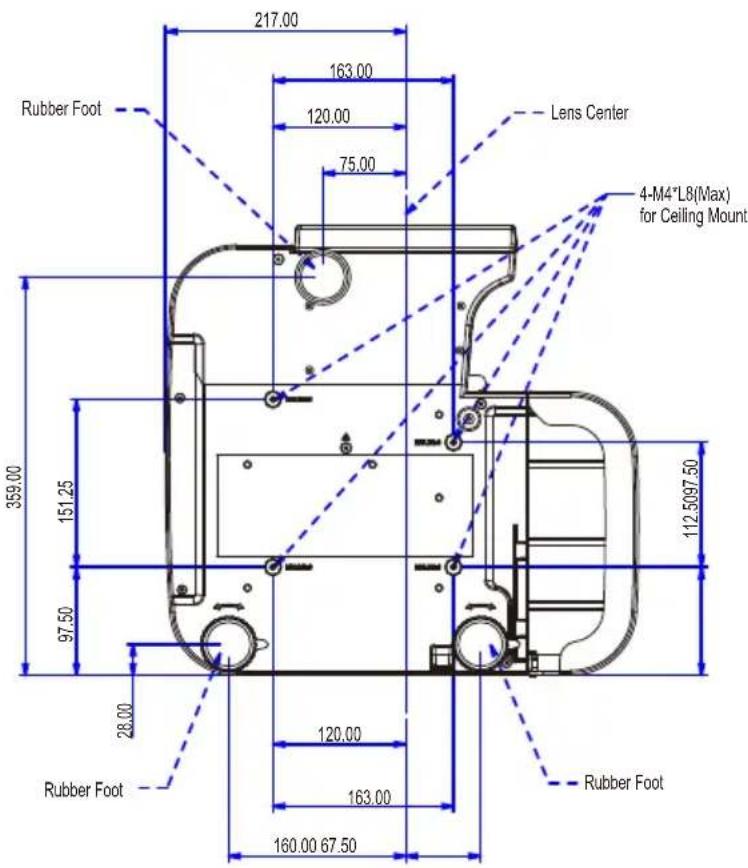
Unit: mm
Cabinet Dimensions
Unit: mm
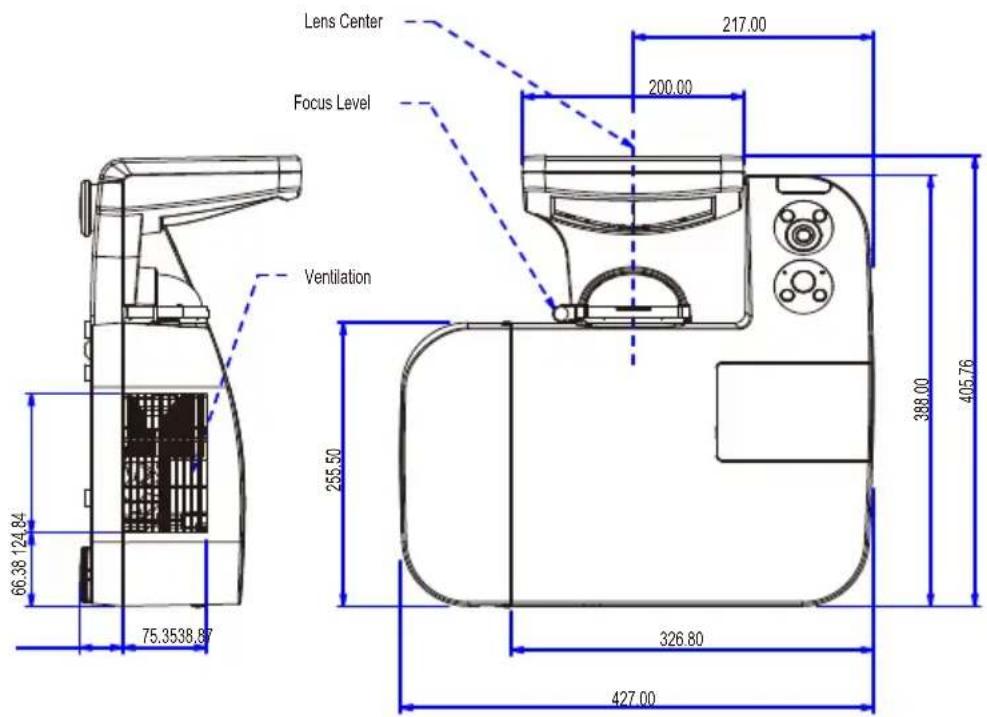
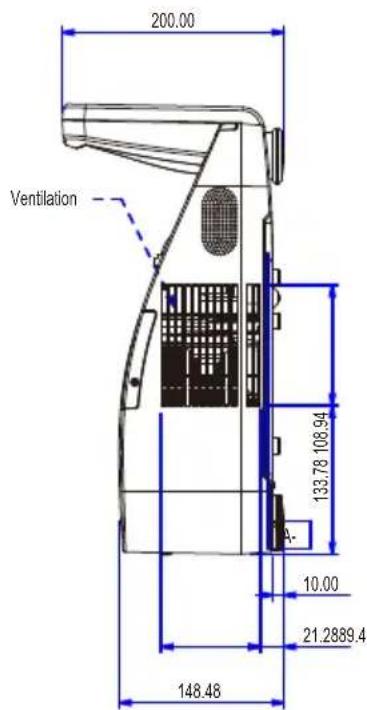
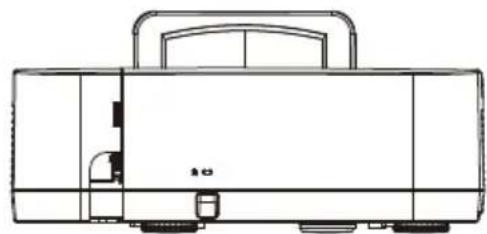
Pin Assignments of D-Sub COMPUTER Input Connector
Mini D-Sub 15 Pin Connector
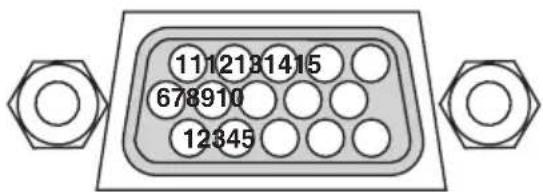
Signal Level
Video signal: 0.7Vp-p (Analog)
Sync signal: TTL level
| Pin No. | RGB Signal (Analog) YCbCr Signal | |
| 1 Red | Cr | |
| 2 Green | Y | |
| 3 Blue | Cb | |
| 4 Ground | ||
| 5 Ground | ||
| 6 Red | Ground Cr Ground | |
| 7 Green | Gro Y Ground | |
| 8 Blue | Ground Cb Ground | |
| 9 No | Connection | |
| 10 Sync | Signal Ground | |
| 11 No | Connection | |
| 12 Bi-directional DATA (SDA) | ||
| 13 | Horizontal Sync or Composite Sync | |
| 14 Vertical Sync | ||
| 15 Data Clock | ||
COMPUTER 1 IN
NOTE: Pin Nos. 12 and 15 are required for DDC/CI.
PC Control Codes and Cable Connection
PC Control Codes
| Function Code Data | |||||||
| POWER ON 02H 00H 00H 00H 00H 02H | |||||||
| POWER OFF 02H 01H 00H 00H 00H 03H | |||||||
| INPUT SELECT COMPUTER 1 02H 03H 00H 00H 02H 01H 01H 09H | |||||||
| INPUT SELECT COMPUTER 2 02H 03H 00H 02H 01H 02H 0AH | |||||||
| INPUT SELECT HDMI 02H 03H 00H 00H 02H 01H 1AH 22H | |||||||
| INPUT SELECT VIDEO 02H 03H 00H 00H 02H 01H 06H 0EH | |||||||
| INPUT SELECT S-VIDEO 02H 03H 00H 00H 02H 01H 0BH 13H | |||||||
| PICTURE MUTE ON 02H 10H 00H 00H 00H 12H | |||||||
| PICTURE MUTE OFF 02H 11H 00H 00H 00H 13H | |||||||
| SOUND MUTE ON 02H 12H 00H 00H 00H 14H | |||||||
| SOUND MUTE OFF 02H 13H 00H 00H 00H 15H | |||||||
NOTE: Contact your local dealer for a full list of the PC Control Codes if needed.
Cable Connection
Communication Protocol
Baud rate 38400 bps
Data length 8 bits
Parity No parity
Stop bit . One bit
X on/off None
Communications procedure Full duplex
PC Control Connector (D-SUB 9P)
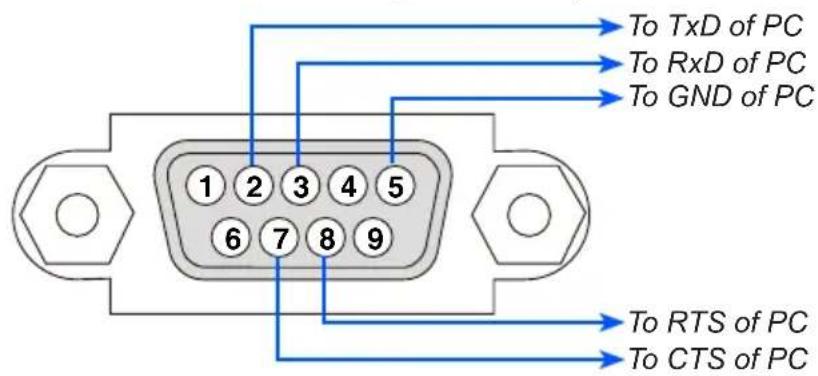
NOTE 1: Pins 1, 4, 6 and 9 are no used.
NOTE 2: Jumper "Request to Send" and "Clear to Send" together on both ends of the cable to simplify cable connection.
Troubleshooting Check List
Before contacting your dealer or service personnel, check the following list to be sure repairs are needed also by referring to the "Troubleshooting" section in your user's manual. This checklist below will help us solve your problem more efficiently.
- Print the following pages.
Frequency of occurrence always sometimes (How often? other
Power
No power (POWER indicator does not light blue).
Power cable's plug is fully inserted into the wall outlet.
Lamp cover is installed correctly.
Lamp Hours Used (lamp operation hours) was cleared after lamp replacement.
No power even though you press and hold the POWER button for a minimum of 1 second.
Shut down during operation.
- Power cable's plug is fully inserted into the wall outlet.
Lamp cover is installed correctly.
Power Management is turned off (only models with the Power Management function).
Video and Audio
No image is displayed from your PC or video equipment to the projector.
Stno image even though you connect the projector to the PC first, then start the PC.
Enabling your notebook PC's signal output to the projector.
- A combination of function keys will enable/disable the external display. Usually, the combination of the "Fn" key along with one of the 12 function keys turns the external display on or off.
No image (blue background).
StiIhno image even though you press the AUTO ADJUST button.
StiHo image even though you carry out [RESET] in the projector's menu.
Signal cable's plug is fully inserted into the input connector A message appears on the screen.
(
The source connected to the projector is active and available.
Stno image even though you adjust the brightness and/or the contrast.
Input source's resolution and frequency are supported by the projector.
Image is too dark.
Remains unchanged even though you adjust the brightness and/or the contrast.
Image is distorted.
Image appears to be trapezoidal (unchanged even though you carry out the [KEYSTONE] adjustment).
Parts of the image are lost.
- Unchanged even though you press the AUTO ADJUST button.
Still unchanged even though you carry out [RESET] in the projector's menu.
Image is shifted in the vertical or horizontal direction.
Horizontal and vertical positions are correctly adjusted on a computer signal.
Input source's resolution and frequency are supported by the projector.
Stone pixels are lost.
Image is flickering.
- Unchanged even though you press the AUTO ADJUST button.
Still unchanged even though you carry out [RESET] in the projector's menu.
Image shows flickering or color drift on a computer signal.
Image appears blurry or out of focus.
Unchanged even though you checked the signal's resolution on PC and changed it to projector's native resolution.
The throw distance is within 5" to 12" (130 to 314 mm) on U300X/U250X and 6" to 12" (148 to 311 mm) on U310W/ U260W.
Unchanged even though you adjusted the focus.
No sound.
Audio cable is correctly connected to the audio input of the projector.
Still unchanged even though you adjusted the volume level.
Other
Remote control does not work.
No obstacles between the sensor of the projector and the remote control.
Projector is placed near a fluorescent light that can disturb the infrared remote controls.
Batteries are new and are not reversed in installation
Buttons on the projector cabinet do not work.
[CONTROL PANEL LOCK] is not turned on in the menu.
Still unchanged even though you press and hold the EXIT
- button for minimum of 10 seconds.
In the space below please describe your problem in detail.

Information on application and environment where your projector is used
Projector
Model number:
Serial No.:
Date of purchase:
Lamp operating time (hours):
Lamp Mode: Normal
Eco
□
Information on input signal:
Horizontal synch frequency [ ] kHz
Vertical synch frequency [ ] Hz
Synch polarity H (+) (-)
□
m = 311
V (+) (-)
□
Synch type Separate
Composite
□
Sync on Green
□
STATUS Indicator:
Steady light Orange
Blue
( x - 2x) t - xy^2 = ( x - 2x) f^ t
□
Flashing light [ ] cycles
Remote control model number:
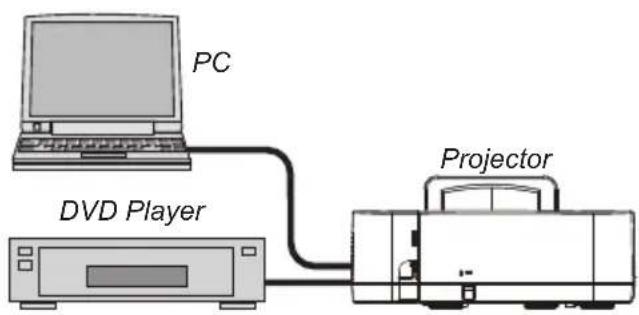
Signal cable
NEC standard or other manufacturer's cable?
Model number:
Length:
inch/m
Distribution amplifier
Model number:
Switcher
Model number:
Adapter
Model number:
Installation environment
Screen size: inch
Screen type: White matte Beads Polarization
Wide angle High contrast
Throw distance: feet/inch/m
Orientation:Ceilingmount Desktop
Power outlet connection:
Connected directly to wall outlet
□ Connected to power cord extender or other (the number of connected equipment
Connected to a power cord reel or other (the number of connected equipment
Computer
Manufacturer:
Model number:
Notebook PC Desktop
Native resolution:
Refresh rate:
Video adapter:
Other:
Video equipment
VCR, DVD player, Video camera, Video game or other
Manufacturer:
Model number:
TCO Certification
Some models in this product family are TCO certified. All TCO certified models have the TCO mark on the marking plate (on the bottom of the product). To see a list of our TCO certified projectors and their TCO Certification (in English only), visit our website at http://www.nec-display.com/ap/en projector/tco/index.html
The TCO certification, designed by TCO Development, is an international environmental and ergonomics standard for IT equipment.
In some cases we may post a list of TCO certified models on our website before the TCO mark is placed on the product. This difference in timing is related to the date certification is received compared with the projectors manufacturing date.