WF50 - Network accessory Yealink - Free user manual and instructions
Find the device manual for free WF50 Yealink in PDF.

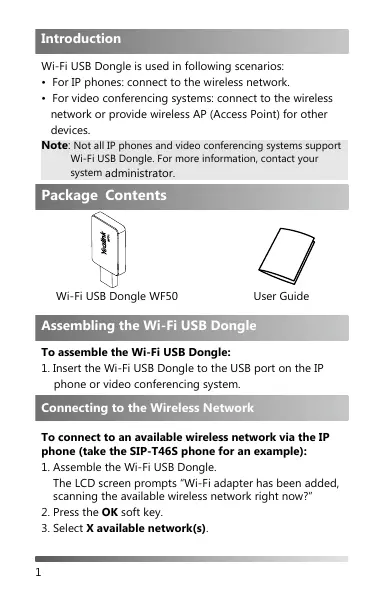

| Product Type | Wireless Network Adapter |
| Brand | Yealink |
| Model | WF50 |
| Category | Network Accessory |
| Dimensions (L x W x H) | 50 x 20 x 10 mm |
| Weight | 20 g |
| Power Supply | USB Port (5 V, 500 mA) |
| Supported Wireless Standards | IEEE 802.11 b/g/n |
| Frequency Band | 2.4 GHz |
| Security | WEP, WPA, WPA2, WPA3 |
| Host Interface | USB 2.0 |
| Operating Temperature | 0 °C to 40 °C |
| Storage Temperature | -10 °C to 60 °C |
| Relative Humidity | 10% to 90% (non-condensing) |
| Main Function | Wireless connection for Yealink terminals |
| Compatibility | Yealink IP phones and other USB devices |
| Installation | Plug-and-play, no driver required |
| Maintenance and Cleaning | Wipe with a soft, dry cloth |
| Electrical Safety | Compliant with CE, FCC standards |
| RF Exposure | Minimum distance of 20 cm from the body |
| Spare Parts and Repairability | Not user-repairable, no spare parts available |
| Warranty | 2 years (manufacturer standard) |
Frequently Asked Questions - WF50 Yealink
User questions about WF50 Yealink
0 question about this device. Answer the ones you know or ask your own.
Ask a new question about this device
Download the instructions for your Network accessory in PDF format for free! Find your manual WF50 - Yealink and take your electronic device back in hand. On this page are published all the documents necessary for the use of your device. WF50 by Yealink.
USER MANUAL WF50 Yealink
Wi-Fi USB Dongle is used in following scenarios:
- For IP phones: connect to the wireless network.
For video conferencing systems: connect to the wireless network or provide wireless AP (Access Point) for other devices.
Note: Not all IP phones and video conferencing systems support Wi-Fi USB Dongle. For more information, contact your system administrator.
Package Contents
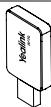
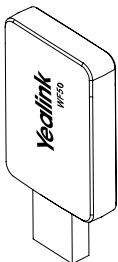
Wi-Fi USB Dongle WF50

User Guide
Assembling the Wi-Fi USB Dongle
To assemble the Wi-Fi USB Dongle:
- Insert the Wi-Fi USB Dongle to the USB port on the IP phone or video conferencing system.
Connecting to the Wireless Network
To connect to an available wireless network via the IP phone (take the SIP-T46S phone for an example):
- Assemble the Wi-Fi USB Dongle.
The LCD screen prompts "Wi-Fi adapter has been added, scanning the available wireless network right now?"
- Press the OK soft key.
-
Select X available network(s).
-
Select the desired wireless network and then press the Connect soft key.
- (Optional.) Enter its password in the Password field.
- Press the OK soft key.
Once the connection completes successfully, the icon appears after the SSID.

To connect to an available wireless network via the video conferencing system:
- Assemble the Wi-Fi USB Dongle.
The monitor prompts "Wi-Fi adapter is connected".
- On your remote control, navigate to More -> Setting -> Advanced -> Wi-Fi.
- Check the Wi-Fi checkbox.
- If you already enabled wireless AP, press OK to disable it.
- Select the desired wireless network and then press OK.
- (Optional.) Enter its password in the Password field.
- Select Join to Network.
Once the connection completes successfully, the icon appears on your monitor.

Providing Wireless AP for Other Devices
To provide wireless AP via the video conferencing system:
- Assemble the Wi-Fi USB Dongle.
The monitor prompts "Wi-Fi adapter is connected". - On your remote control, navigate to More->Setting-> Advanced->Wireless AP.
- Check the Wireless AP checkbox.
- If you already enabled Wi-Fi, press OK to disable it.
Other devices can connect to this wireless AP. Once the connection is successful, the number of connections appears beside the icon.
Why can't the Wi-Fi feature be enabled?
- Ensure the Wi-Fi USB dongle is not broken.
Ensure the Wi-Fi USB dongle is assembled and detected by the phone/video conferencing system successfully.
Why can't the phone/video conferencing system connect to the wireless network?
-If the network is secure, ensure the entered password is right.
- Ensure your gateway/rodger enables the wireless network feature.
Reboot your gateway/router.
- Turn off the Wi-Fi feature and then turn it on again.
Why is the wireless signal strength low?
- Ensure the phone/video conferencing system and your gateway/rodger are within the working range and there is no obvious interference (walls, doors, and so on) between them.
Technical Support
Visit Yealink WIKI (http://support.yealink.com/) for the latest firmware, guides, FAQ, Product documents, and more. For better service, we sincerely recommend you to use Yealink Ticketing system (https://ticket.yealink.com) to submit all your technical issues.

YEALINK(XIAMEN) NETWORK TECHNOLOGY CO.,LTD.
Web: www.yealink.com
Addr: No.666 Huan Rd. Huli District Xiamen City, Fujian, P.R. China
Copyright©2018 YEALINK(XIAMEN) NETWORK
TECHNOLOGY CO.,LTD. All rights reserved.
Yealink
USB无线网络适配器 WF50
用户指南 (V1.1)
介绍
Any Changes or modifications not expressly approved by the party responsible for compliance could void the user's authority to operate the equipment.
This device complies with part 15 of the FCC Rules. Operation is subject to the following two conditions: (1) This device may not cause harmful interference, and (2) this device must accept any interference received, including interference that may cause undesired operation.
IMPORTANT NOTE:
Note: This equipment has been tested and found to comply with the limits for a Class B digital device, pursuant to part 15 of the FCC Rules. These limits are designed to provide reasonable protection against harmful interference in a residential installation. This equipment generates, uses and can radiate radio frequency energy and, if not installed and used in accordance with the instructions, may cause harmful interference to radio communications. However, there is no guarantee that interference will not occur in a particular installation. If this equipment does cause harmful interference to radio or television reception, which can be determined by turning the equipment off and on, the user is encouraged to try to correct the interference by one or more of the following measures:
—Reorient or relocate the receiving antenna.
—Increase the separation between the equipment and receiver.
-Connect the equipment into an outlet on a circuit different from that to which the receiver is connected.
—Consult the dealer or an experienced radio/TV technician for help.
FCC Radiation Exposure Statement:
This equipment complies with FCC radiation exposure limits set forth for an uncontrolled environment. This equipment should be installed and operated with minimum distance 20cm between the radiator& your body.
ISEDC Warning
This device complies with Innovation, Science, and Economic Development Canada licence-exempt RSS standard(s). Operation is subject to the following two conditions:
(1) this device may not cause interference, and
(2) this device must accept any interference, including interference that may cause undesired operation of the device.
The device is compliance with RF exposure guidelines, users can obtain Canadian information on RF exposure and compliance. The minimum distance from body to use the device is 20cm.
- Package Contents
- Assembling the Wi-Fi USB Dongle
- To assemble the Wi-Fi USB Dongle:
- Connecting to the Wireless Network
- To connect to an available wireless network via the IP phone (take the SIP-T46S phone for an example):
- To connect to an available wireless network via the video conferencing system:
- Providing Wireless AP for Other Devices
- To provide wireless AP via the video conferencing system:
- Why can't the Wi-Fi feature be enabled?
- Why can't the phone/video conferencing system connect to the wireless network?
- Why is the wireless signal strength low?
- Technical Support
- Yealink
- USB无线网络适配器 WF50
- 介绍
- IMPORTANT NOTE:
- FCC Radiation Exposure Statement:
- ISEDC Warning
Brand : Yealink
Model : WF50
Category : Network accessory