ManualGo.com
 DiOVDP-IP01 - Video intercom DIO - Free user manual and instructions
Find the device manual for free DiOVDP-IP01 DIO in PDF.



Download the instructions for your Video intercom in PDF format for free! Find your manual DiOVDP-IP01 - DIO and take your electronic device back in hand. On this page are published all the documents necessary for the use of your device. DiOVDP-IP01 by DIO.
USER MANUAL DiOVDP-IP01 DIO
1x 1x 1x 1x 8x 1x 1x . Registering your warranty To register your warranty, il in the online form at www.chacon.com/warranty
2. Description of the product
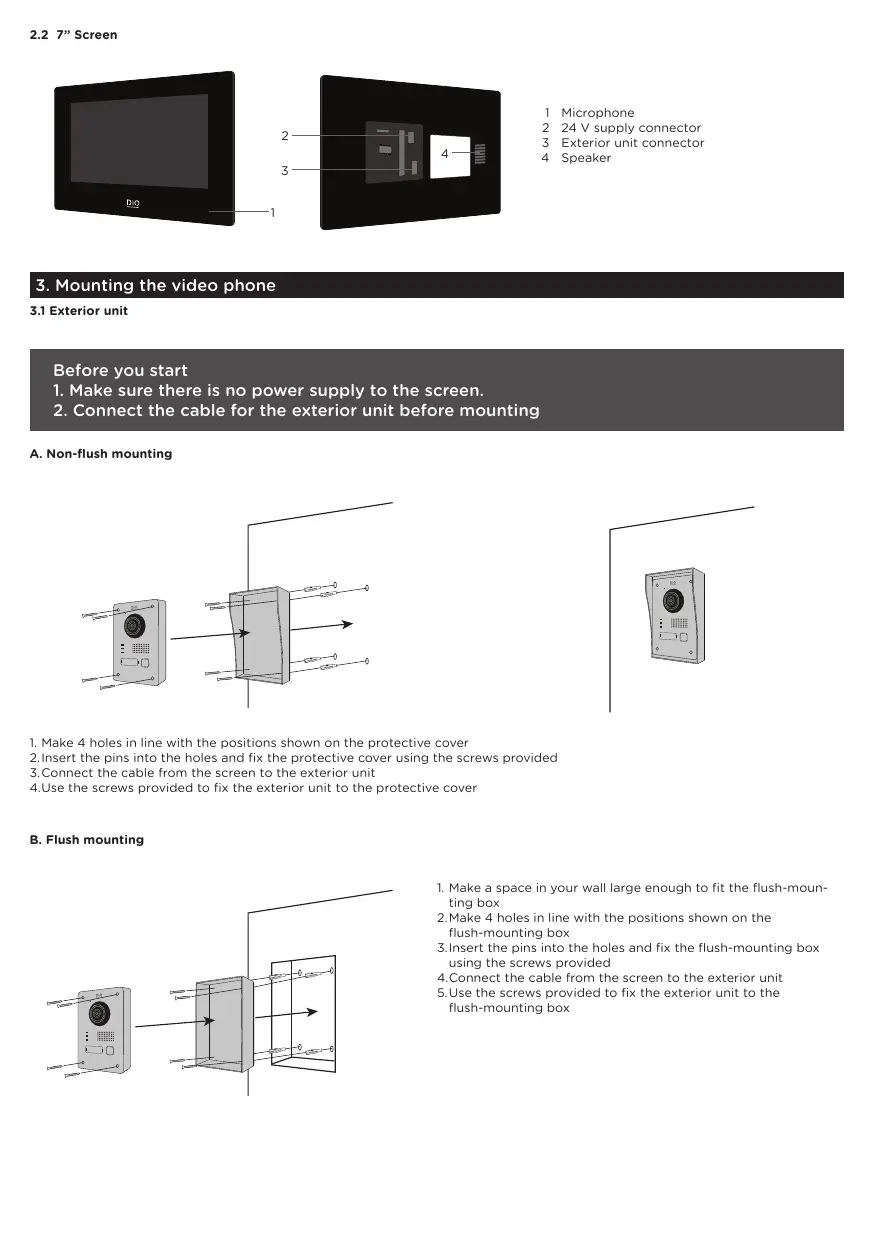
3. Mounting the video phone
31 Exterior unit Before you start
1. Make sure there is no power supply to the screen.
2. Connect the cable for the exterior unit before mounting
A. Non-flush mounting
1. Make 4 holes in line with the positions shown on the protective cover
2:insert the pins into the holes and fix the pratective cover using the screws provided
3. Connect the cable from the screen to the exterior unit
A.Use the screws provided to fix the exterior unit to the protective cover
1. Make a space in your wall large enough to fit the flush-moun-
ting box 2.Make 4 holes in line with the positions shown on the flush-mounting box 3.insert the pins into the holes and fix the flush-mounting box using the screws provided 4.Connect the cable from the screen to the exterior unit S.Use the screws provided to fix the exterior unit to the flush-mounting box
1. Make 4 holes in line with the positions shown on the wall bracket
2.Insert the pins into the holes and fix the wall bracket using the screws provided
3. Connect the power supply connectors and the connector for the exterior unit
4.Fix the screen to the wall bracket as shown in Figure 3.
4. Initial configuratioi
41 Configuration wizard When you power the device up for the first time, an on-screen wizard will help you configure the important parameters for your video phone: Please follow these steps before using the device Create Password
Wiard-Language V4 Step1 Choose an administrator password in order to access the settings menu another time. Step 2 Select your language CES izard-Netuork 2/4 iard-Settings 3/4 &œ indoor Station Type LocaiP 92168126 Floor 1 Subnet Mask 2552662650 Room N ' Gateway rezisanr Step 3 Step 4 Configure a local network between the interior and exterior units. We advise that you do not select the DHCP option and you stick to the default settings. You can find out the stage number and the unit number if you are installing multiple devices within a network This is optional
= Step 5 Var Rae Devices 4/4 e Make sure that your exterior unit appears on the ist of peripherals
An empty list indicates a problem with the wiring between ono2ooss the monitor and the exterior unit. If this is the case, power the unit down and check your connections. Previous Finn
4.2 Connection to the wireless network
You do not have to connect your unit to the wireless network. I is only used to add it into the smartphone app for remote control purposes. Select the settings menu from the home screen 4 Then select the Wi-Fi icon from the left-hand menu Select your network from the drop-down list
5. Installing the app
The application is available for Android and iOS. Search for and install the “Guarding Vision” app on Android Play Store or Apple Store, depending on the model of your smartphone. Open the application and create a user account by following the on-sereen instructions. 5:1 Set-up via GR code Select the settings menu from the home screen on vour video phone monitor 4 Ga to “@uaring Vian serie parameters” 10 record te uit GR code I the “uaraing Vision app an your amariphons, elec te "con in te op rit come Select “Analyse code” from he drop-doun menu Use your camera to scan the GR code on the video-phone screen
Select the settings menu from the home screen on your video phone monitor 4: Go to “information on the device” 1 record the serial number of te device. I the “Guarding Vision app on your smathone select ie "con in ie op ht comme Select “Add manually” from the drop-down menu. Enter ie serai number shoumn on he screen of your video phone Note The default password for your device is 123456 ‘The default verification code for your device is ABCDEF.
input voltage 100-240V input AC frequency 50-60Hz Output voltage 240V DC Output current 15A Output power 36w Average active efficiency 80% Efficiency at low load (10 %) 76% No-load power consumption 2w Consumption Exterior unit <IOW, Interior unit <8W No. of rings
Speaking time From 905 to 1205 Audio frequency
Security AESI28 Protocols TCP/IP RTSP, WIFI Infrared High power LED con ICR Infrared distance 3 Meters Exterior unit 10449 Interior unit 6249 Direct current(DC) no Alternating current (AC) C Indoor use equipment Class Il equipment To identify equipment meeting the safety requirement specified for Class Il equipment according to IEC 6140»
Don't throw batteries or out of order products with the household waste (garbage). The dangerous substances that they are likely to include may harm health or the environment. Make your retailer take back these products or use the selective collect of garbage proposed by your city. Hereby, Chacon, declares that the radio equipment type ‘DiOVDP-IPOT is in compliance with the Directive 2014/53/EU http:/chacon.com/conformity