SELPHY CP770 - Photo printer CANON - Free user manual and instructions
Find the device manual for free SELPHY CP770 CANON in PDF.


| Product type | Compact photo printer |
| Brand | Canon |
| Model | SELPHY CP770 |
| Dimensions (printer only) | 248.0 x 156.4 x 77.3 mm |
| Weight (printer only) | Approximately 1,060 g |
| Power supply | Compact power adapter CA-CP200 (100-240 V AC); optional rechargeable lithium-ion battery NB-CP2L |
| Printing method | Dye-sublimation thermal transfer (with overcoat) |
| Print resolution | 300 x 300 dpi |
| LCD screen | 2.5-inch TFT color display |
| Supported paper sizes | Postcard (100x148 mm), L (89x119 mm), Card (54x86 mm), Wide format (100x200 mm) |
| Print speed (postcard) | Approx. 52 seconds |
| Interface and connectivity | USB (PictBridge, Canon Direct Print, computer); wireless IrDA, IrSimple, Bluetooth (with optional BU-30 unit) |
| Compatible memory cards | CF, Microdrive, xD-Picture, SD/SDHC, miniSD/miniSDHC, MMC, Memory Stick (full list, adapter required for some formats) |
| Main functions | Printing from memory cards, DPOF, wireless printing, red-eye correction, color adjustment, multiple layout (1, 2, 4, 8 + index), date printing |
| Power consumption | 60 W max (4 W standby) |
| Operating temperature | 5 to 40 °C |
| Operating humidity | 20 to 80% |
| Maintenance | Interior cleaning with supplied cleaning block; exterior with soft cloth |
| Supplied accessories | Ink cassette, paper tray (postcard size), power adapter, Solution Disk (CD), manual |
| Optional accessories | Bluetooth unit BU-30, battery NB-CP2L, paper trays for L, card, wide format |
| Safety | Do not use solvents; avoid humidity and dust; observe electrical precautions |
Frequently Asked Questions - SELPHY CP770 CANON
User questions about SELPHY CP770 CANON
0 question about this device. Answer the ones you know or ask your own.
Ask a new question about this device
Download the instructions for your Photo printer in PDF format for free! Find your manual SELPHY CP770 - CANON and take your electronic device back in hand. On this page are published all the documents necessary for the use of your device. SELPHY CP770 by CANON.
USER MANUAL SELPHY CP770 CANON
Beautiful Prints and Fun!
SELPHY Has Come to Your Home.
A stylish and powerful printer for preserving precious family moments. SELPHY enriches your daily life with beautiful photo prints.
BEAUTIFUL Long lasting fine prints

FUN
>>>Table of Contents
*Unpack. p. 4
*Getting Started. p. 5
* Printing from Memory Cards. p. 7
*What You Can Do with Your SELPHY Printer. .p.9
* Printing from Digital Cameras, Mobile Phones or Computers.. p. 15
*Accessories (Sold Separately) p. 20
* Cleaning, Storing or Carrying the Printer. p. 21
* Troubleshooting.. p. 23
* Please Read (Safety Precautions and Handling Precautions) .p.27
* Specifications. p. 30

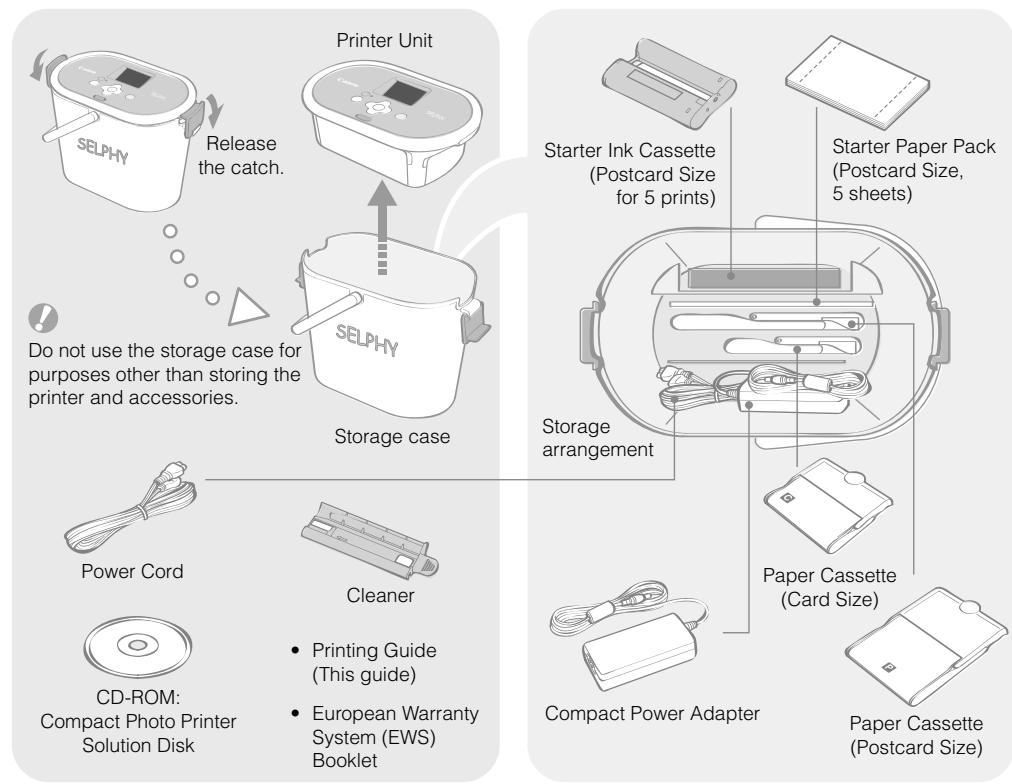
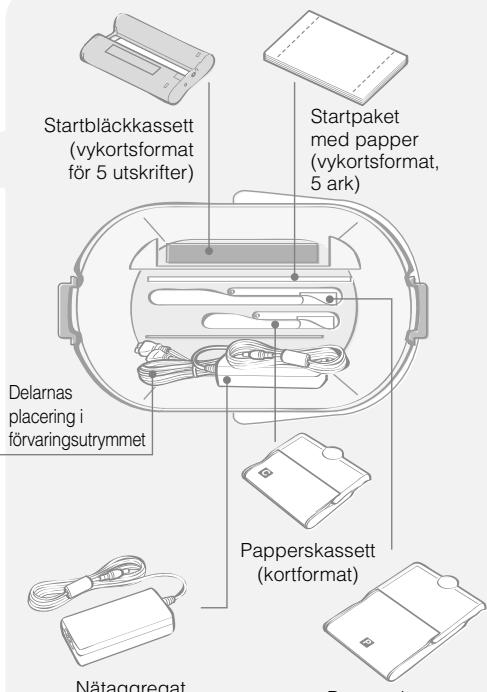
Package Contents
The package contains the following accessories. If there is anything missing, please contact the store where you purchased this product.

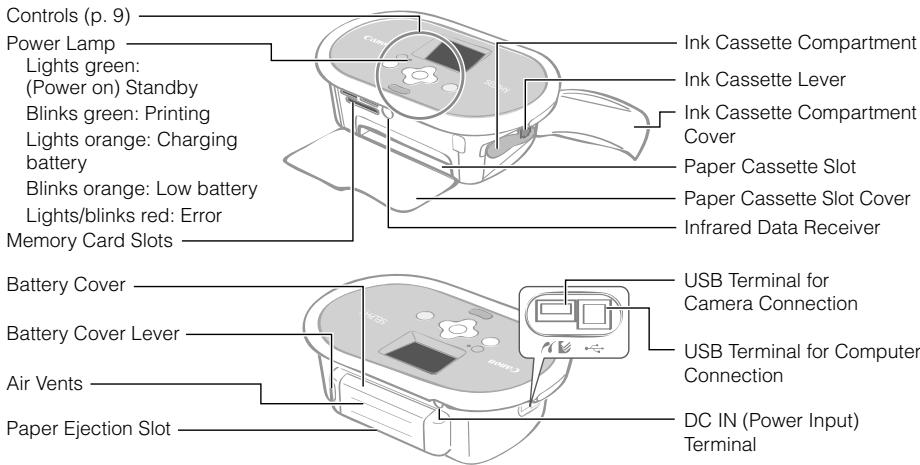
Components Guide
Getting Started
Insert the ink and paper cassettes into the printer.

Preparing the Ink Cassette
Confirm that the ink sheet is taut with no slack.
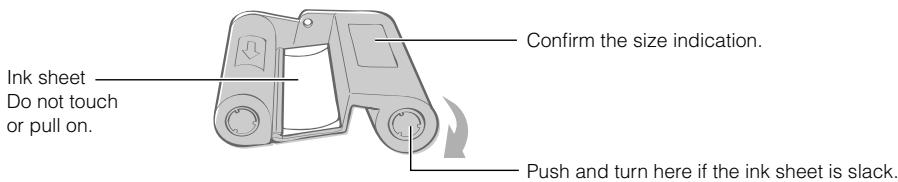

Preparing the Paper Cassette
1 Open the outer lid.
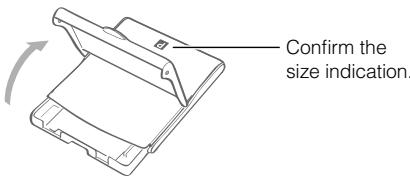
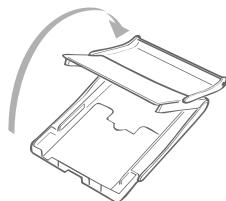
2 Open the inner lid.
For Wide Size paper cassette (sold separately), slide the inner lid first, then open it.
3 Set the paper.
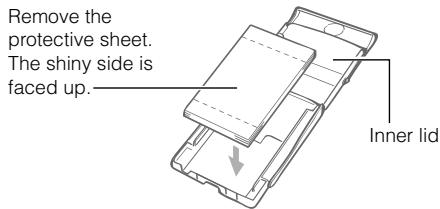
For Postcard Size paper with a stamp field, orient the stamp field on the reverse side towards the inner lid.
4 Close the inner lid.
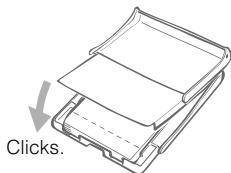
For Wide Size paper cassette, close the inner lid and slide it until it clicks.

- Always use the paper specific to SELPHY CP series printers included in the genuine Canon brand Color Ink/Paper Sets. Commercially sold printing paper, regular postcards, or paper specified for use in SELPHY ES series printers cannot be used.
- Do not set 19 or more sheets in the paper cassette (13 or more for Wide Size sheets).
- Mistakenly reversing the paper in the cassette may damage the printer.
- Do not bend the paper at the perforations or separate it before printing.
- Do not use label sheets that have begun to peel or label sheets with portions peeled back.
- Do not write on a sheet before printing with the printer. It may lead to a malfunction.
- Do not print on printed paper.
- Never reuse a spent ink cassette.
1 Open the two covers of the printer.
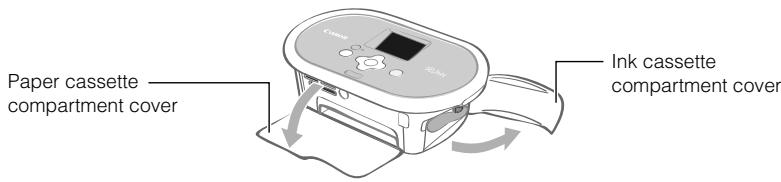
2 Insert the ink cassette and the paper cassette.
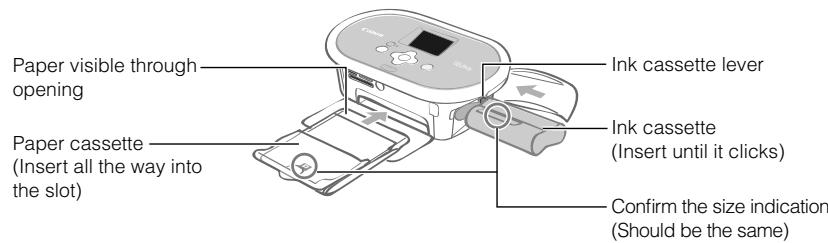

To remove the ink cassette, slide up the ink cassette lever.
3 Close the ink cassette cover.

Placing and Connecting the Printer
Set up and connect your SELPHY printer in the following manner for safe use.
① Insert the power cord to the compact power adapter.
② Plug the other end into a power outlet.
③ Connect the compact power adapter to the printer.
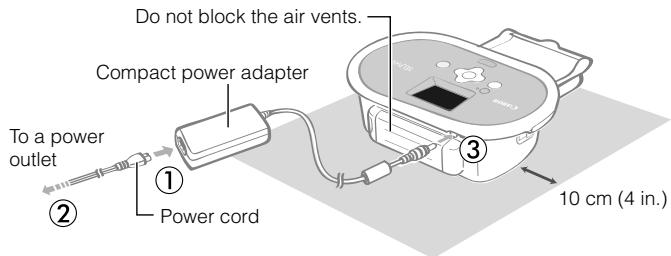
Make sure there is free space at the front and back of the printer of at least the length of the paper. (During printing, the paper will pass in and out.)

- Do not place the printer on an unstable or tilted surface.
- Keep the printer at least 1 meter (3 ft.) from devices emitting electromagnetic waves or strong magnetic fields.

You can also use the battery pack sold separately (p. 20).
Printing from Memory Cards
Print images from a memory card that is inserted into the printer.

- Make sure that no camera or computer is connected to the printer.
- This SELPHY printer supports image data conforming to the Design rule for Camera File system (Exif compliant) and DPOF (Ver.1.00) standard.
- Use a memory card formatted in the device used for taking the images. A memory card formatted in the computer might not be recognized.
- Images that have been edited on a computer might not be displayed or printed properly.
- An image that has been taken by a mobile phone might not be displayed or printed properly depending on the size of the image when it was taken.
- Movies cannot be played back on this printer.

Compatible Memory Cards
| Slot | Memory Cards |
| CF microdrive | CompactFlash Card Microdrive |
| xD-Picture Card*1 | |
| SD/miniSD/MMC+RS-MMC | SD Memory Card miniSD Card SDHC Memory Card miniSDHC Card MultiMediaCard MMCplus Card HC MMCplus Card MMCmobile Card RS-MMCCard*2 |
| microSD Card microSDHC Card MMCmicro Card | |
| MS MS Duo | Memory Stick Memory Stick PRO Memory Stick Duo Memory Stick PRO Duo |
| Memory Stick micro |
: You need to use the specific adapter for the memory card. Please purchase the specific adapter.
1 Purchase the CompactFlash Card Adapter for xD-Picture Card.
2 Reduced-Size MultiMediaCard

- For memory cards requiring an adapter, be sure to first insert the memory card into the adapter before inserting the adapter into the appropriate card slot. If you insert the memory card into a card slot without first inserting it into an adapter, you may not be able to remove the memory card from the printer.
- Please refer to the user guide included with your memory card and adapter for handling instructions.
Printing the Selected Image (Basic Printing)
You can select images, specify the number of copies for each, and then print them all out. If you want to embed the date, follow the instructions on page 12 before printing.

- Do not pull out the paper cassette or open the ink cassette cover just after turning on the printer or while printing. This will lead to malfunctions.
- During printing, the paper will pass in and out several times. Do not touch or pull on the paper until printing has finished and the printed sheet collects on the print output tray (on top of the paper cassette).
- Do not let 10 or more sheets of printed paper collect on the print output tray.
- Do not pull out the memory card during printing.
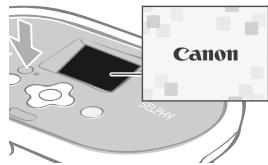
Press and hold until the start-up image appears on the LCD monitor to turn on the power.

To change the display language, refer to page 14.
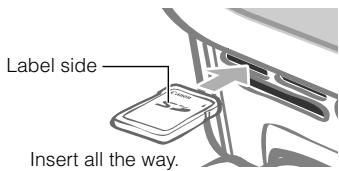
2 Insert a single memory card into the appropriate card slot.

When inserting a small memory card like miniSD Card in the "SD/miniSD/MMC+/RS-MMC" slot, insert the card in the lower portion of the slot.
3 Press or to select the image you wish to print.

Press and hold down or : Jumps images by 5.
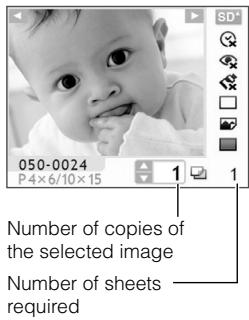
4 Press or to set the number of copies.

- Press and hold down or : Increases or decreases the number of copies by 5.
- You can specify up to 99 copies (or total of 999 prints).
Number of copies of the selected image Number of sheets required
5 Press
Printing starts.

- To print other images together, repeat the steps 3 and 4.
- Pressing when the total number of prints is 0 copies will print one copy of the image displayed on the LCD monitor.
- To remove a memory card, grasp the portion of the card protruding from the card slot and pull it out.
- Use a marker pen to write on the printed sheets.
Enjoy a multitude of basic and advanced functions with SELPHY.

Buttons and LCD Monitor
Controls
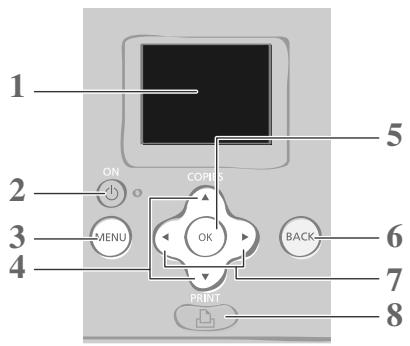
1 LCD monitor Displays images, setting screens, and error messages.
Turns on or off the power.
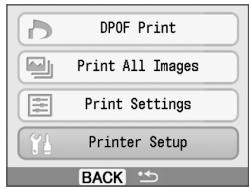
3 (MENU) Displays the menu screen.
DPOF Print (p. 13)
Print All Images (p. 13)
- Print Settings (p. 10)
- Printer Setup (p. 14)
4 , Specifies the number of prints or changes menu items.
5 OK Selects settings.
6 (BACK) Returns to the previous operation or cancels printing.
7 , Switches between images or changes setting values.
8 8 Startsprinting.

The LCD monitor may be covered with a thin plastic film for protection against scratches during shipment. If so, remove the film before using the printer.
LCD Monitor
Display when [Info Display] (p. 14) is set to [On].
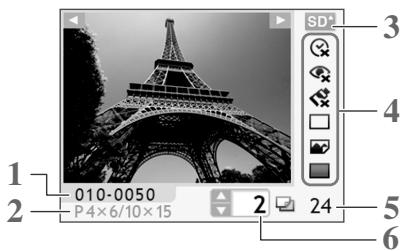
1 File Number
2 Installed ink cassette type (In this example, [P] stands for Postcard Size)
3 Card slot being used
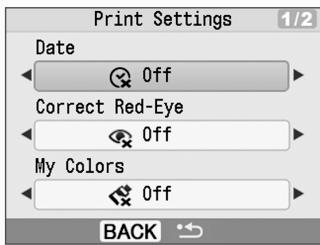
4 Print Settings (p. 10)
Date
Correct Red-Eye
My Colors
Page Layout
Image Optimize
Borders
(Settings that are not available are grayed out)
5 Number of sheets required
6 Number of copies of the selected image
The default setting is marked as
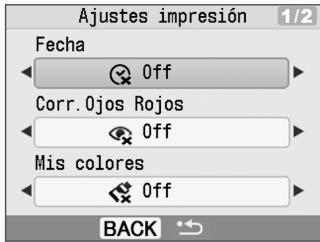
Date
Prints images with the date when they were taken.
On, Off (V)
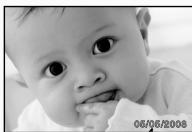
05/05/2008
Correct Red-Eye
Corrects red-eye in the image.
On, Off (V)
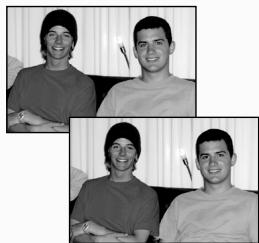
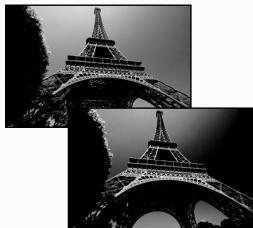
My Colors
Changes the color of the image.
Off () Vivid1
Neutral*2, Positive Film*3
Se Sepia, B/W
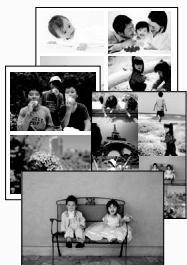
Page Layout
Sets the number of images to print on a single sheet of paper. The number of copies selected for an image (p. 8) will be printed in the set layout.
1-up () ,2-up,
4-up, 8-up,
Index
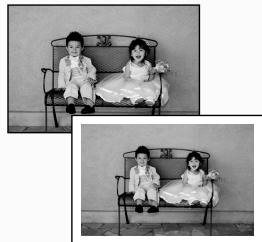
Borders
Prints bordered or borderless.
- Bordered, -Borderless (✓)
Image Optimize
Corrects the images for optimum quality.
On (√), Off
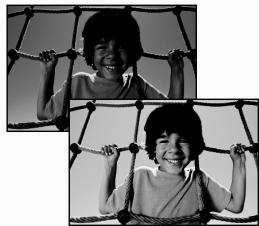
1 Contrast and color depth are enhanced.
2 Contrast and color depth are suppressed.
*3 Produces intense, yet natural-looking colors, such as those obtained with positive film.
1 Press (MENU).
The menu screen appears.

[DPOF Print] displays only when you insert a memory card with DPOF settings made with the camera.
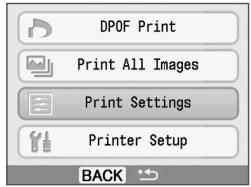
2 Press or to select [Print Settings].
3 Press OK.
The Print Settings menu appears.
4 Press or to select an item you wish to set.
Press or to change the setting value.

To change multiple settings, repeat the steps 4 and 5.
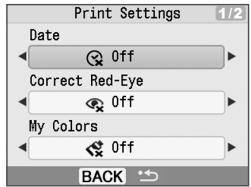
6 Press (BACK).
Returns to the menu screen.
Press (BACK) again to return to image display.

- When printing with a camera connected, the print settings made with the camera will be used.
- Depending on the selected layout, some settings may not be available. You can check the available settings when [Info Display] is set to [On] on the LCD monitor (p. 9).
Correct Red-Eye
-
Depending on the image, red-eye may not be automatically detected or optimally corrected. In the following examples red-eye may not be corrected.
-
Faces that appear extremely small, large, dark or bright in relation to the overall image.
-
Faces turned to the side or at a diagonal, or faces with a portion hidden.
-
Images could have portions other than the eyes mistakenly corrected. Set [Correct Red-Eye] to [On] only when printing images with red-eye.
Page Layout
- The position of the image in the layout cannot be selected.
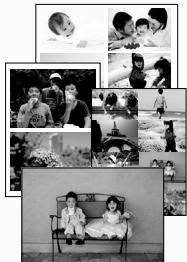
- When you select [Index] and the print mode is set to [Print All Images] (p. 13), all images in the memory card can be printed out as a thumbnail index.
Printing with the Date
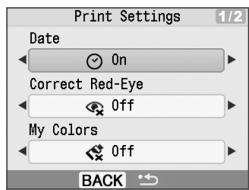
Print images with the date when the images were taken. Follow the steps below before selecting images.

Press (BACK).
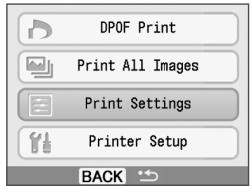
1 Press (MENU).
2 Select [Print Settings] with or , then press OK.
3 Press or to select [Date].
4 Press or to set [Date] to [On].
Returns to the menu screen.
Press (BACK) again to return to image display.
An image in the memory card appears.
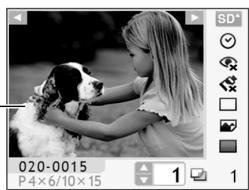

- You can change the display order of the date in [Date Format] (p. 14).
- Printing with the date may not be possible depending on the selected layout (p. 10). Make sure that [Info Display] is set to [On] in the LCD monitor and check if [Date] is available (p. 9).
Printing Images Using Camera Specified Settings (DPOF Print)
Select images or specify print settings with the camera before printing. For details on the DPOF settings, refer to the user guide provided with your camera.
1 Insert a memory card, containing DPOF settings made with the camera into the card slot.
The confirmation screen for the DPOF settings appears.
2 Press OK and check the settings.
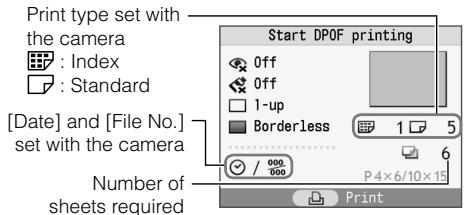
3 Press
Printing starts.

- The date and file number reflect the DPOF settings. These settings cannot be changed with the printer.
- The screen of step 2 also appears if you press (MENU) to select [DPOF Print] and press OK. Be sure to insert a memory card containing DPOF settings, otherwise [DPOF Print] will not appear on the LCD monitor.
Print All Images
Print all the images on the memory card.
1 Press (MENU) and select [Print All Images] with ▲ or ▼.
![CANON SELPHY CP770 - Press (MENU) and select [Print All Images] with ▲ or ▼. - 1](/content/2019/12/30808/images/bb3daf2b9927b366a1f38141ee265f321f42d678397340c52159952b2cee4ce9.jpg)
2 Press OK and check the settings.

- Press or to specify the number of copies of the selected image.
- You can specify up to 99 copies (or total of 999 prints).

3 Press
Printing starts.
You can make printer settings such as the display language.
The default setting is marked as
| Item | Description | Settings |
| Date Format | Sets the date format used when printing out with the date. | yy/mm/dd, mm/dd/yy, dd/mm/yy (✓) |
| Language | Sets the display language of the LCD monitor. | See below. |
| Info Display | Displays the properties of the print settings or file number of the image. | On (✓), Off* |
- The image display will be large but it will take some time until it displays.
1 Press (MENU).
2 Select [Printer Setup] with or , then press OK.
3 Press or to select an item you wish to set.
4 Press or to change the setting value.

To change multiple settings, repeat steps 3 and 4.
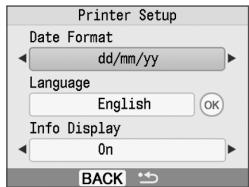
5 Press (BACK).
Returns to the menu screen. Press (BACK) again to return to image display.

Changing the [Language] setting
1 Select [Language] in step 3, then press OK.
2 Press , , or to select the language you wish to set.
3 Press OK.
Returns to the [Printer Setup] screen.
![CANON SELPHY CP770 - Changing the [Language] setting - 1](/content/2019/12/30808/images/03b7c9dfc0a312bf8dfa14a2d6fac83016a08ec19f401b64b1137f504241c780.jpg)
![CANON SELPHY CP770 - Changing the [Language] setting - 2](/content/2019/12/30808/images/da1823b46f5405c5fabe6cd37df093b2d8240c78f1436abfb820eca6f731d521.jpg)
Printing from a Camera
Print from a camera supporting (PictBridge*) (p. 11) or (Canon Direct Print) by connecting it to the printer. This guide explains the procedure for printing with a Canon digital camera connected as an example.
- PictBridge is an industry standard that allows any digital camera or video camera, regardless of the manufacturer or model, to print images directly without using a computer.

- Make sure that no memory cards are inserted into the printer and that no computer is connected to the printer before connecting a camera.
- Ensure the camera's communication settings are configured correctly.
- Set the print setup with the camera.
- For camera handling details, refer to the user guide provided with your camera.
1 Connect a camera with the printer using the USB cable supplied with the camera.
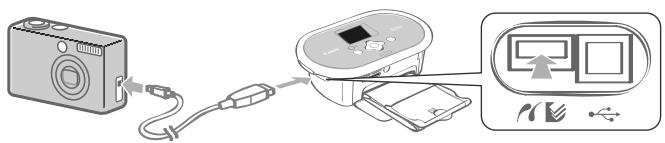
2 Turn on the power of the printer first, then the camera. Play back the images with the camera.
The 7 or the 2 icon appears on the LCD monitor of the camera.
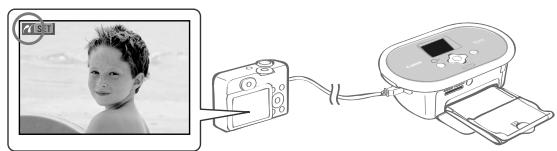
3 Select the desired image on the camera, and press the button of the camera.
Printing starts.

- If the camera does not feature the button, make the settings with the camera until printing. For details, refer to the user guide provided with your camera.
- Printing cannot be canceled with (BACK) on the printer while printing with a camera connected. Operate the camera to cancel printing.
- When printing from a (Canon Direct Print) connected camera on Wide Size paper (100 x 200 mm (4 x 8 in.)), the image will print only up to 100 x 150 mm (4 x 6 in.), aligned to the left.
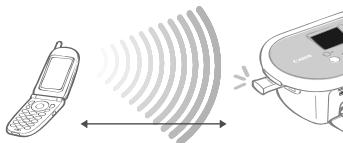
Print images wirelessly from a mobile phone supporting infrared data communication (IrDA or IrSimple) or Bluetooth.

- Make sure that no memory cards are inserted in the printer, and no camera or computer is connected to the printer during wireless printing.
- You cannot establish a wireless connection between the printer and a computer.
- Only image data files up to approx. 2 MB can be transmitted (maximum data size varies depending on the mobile phone).
- Data transmission time increases when data size is large. Accordingly, it may take some time before printing starts.
- Movies, E-mails, phone directories, or image data, for example, downloaded from a URL attached to an E-mail may not be printable.
- The printer may not be able to print images saved onto the memory card of certain mobile phones.
- Printing cannot be canceled by pressing (BACK) during wireless printing.
- The position and orientation (horizontal or vertical) of images for printing is set automatically by the printer.
- The edges of the image may be cropped with certain paper sizes.
- For information on how to use the mobile phone's wireless functions, refer to the user guide of your mobile phone.
- Infrared (IrDA, IrSimple) Wireless Printing
1 Turn the printer's power on.
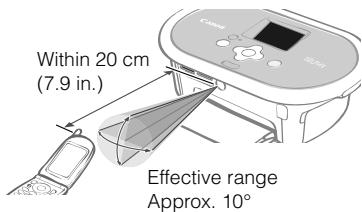
2 Transmit an image from your mobile phone to the printer.
Power lamp blinks green during data transmission. Printing starts after data transmission is completed.
Printing via Bluetooth
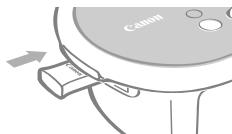
1 Install Bluetooth Unit BU-30, sold separately.
2 Turn the printer's power on.
3 Transmit an image from your mobile phone to the printer.
Bluetooth unit blinks blue during data transmission. Printing starts after data transmission is completed.
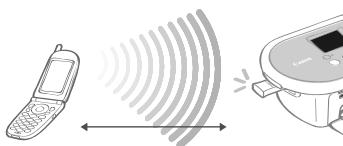
Up to approx. 10m (33 ft.)

For instructions for connecting or communication with Bluetooth, refer to the user guide provided with your Bluetooth unit. If prompted by the mobile phone for a device to connect to, select [Canon SELPHY CP770-xx:xx:xx] (where x refers to a numerical digit).
Print from a computer connected to the printer.

- Make sure that no memory card is inserted in the printer, and that no camera is connected to the printer before connecting a computer.
- The printer may not function properly if other USB devices (with the exception of a USB mouse or USB keyboard) are used at the same time as the printer. Disconnect all other USB devices from your computer and then reconnect the printer.
- Do not put your computer into the standby mode (or sleep mode) while the printer is connected to a USB port. If you accidentally do so, do not disconnect the USB cable from your computer while it is in standby mode.
- For details on how to use the computer, refer to the user guide of your computer.
System Requirements
| Windows | Macintosh | |
| OS | Windows Vista, Windows XP Service Pack 2, Windows 2000 Service Pack 4 | Mac OS X (v10.3 - v10.4) |
| Configuration | The above OS should be pre-installed on computers with built-in USB ports. | |
| CPU | Windows Vista: Pentium 1.3 GHz or higher Windows XP/Windows 2000: Pentium 500 MHz or higher | PowerPC G3/G4/G5 or Intel processor |
| RAM | Windows Vista: 512 MB or more Windows XP/Windows 2000: 256 MB or more | 256 MB or more |
| Interface | USB | |
| Free Hard Disk Space | 520 MB or more (when all applications are installed) | 320 MB or more (when all applications are installed) |
| Display | 1,024 x 768 pixels or more High Color (16 bit) or better | 1,024 x 768 pixels or more 32,000 colors or better |
Introduction to the Supplied Programs
The software necessary for printing with the printer connected to a computer is included on the supplied Compact Photo Printer Solution Disk.
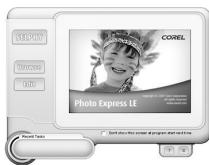
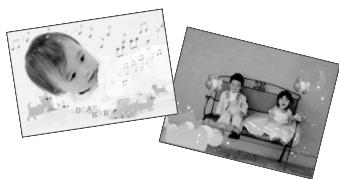
Ulead Photo Express LE (Windows Vista, Windows XP)
Use this software's functions to add frames or text to your images, and to easily print them in various ways.
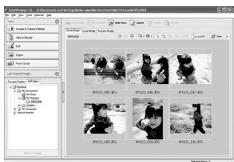
ZoomBrowser EX (Windows)/ImageBrowser (Macintosh)
Use this multi-function software not only for printing, but also for managing, viewing, editing, and exporting images.

- Do not connect the computer to the printer before placing the CD-ROM in the computer.
- You must login to the computer as an administrator before beginning installation.

The instructions in this section are intended for Windows XP and Mac OS X (v10.4). If you are using another version, actual screen contents and procedures may differ slightly from those indicated here.
Windows
1 Place the supplied CD-ROM in the computer.
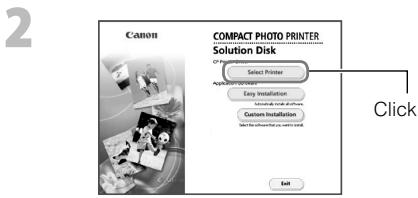
Macintosh
1 Place the supplied CD-ROM in the computer and double-click the icon in the CD-ROM window.
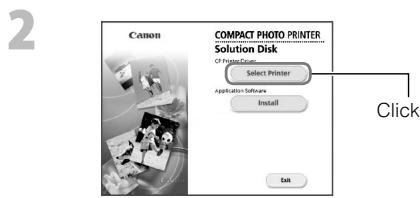
Click to select your printer name.
3 Click [Yes], if you consent to the software license agreement.
4 Connect the computer to the printer, and turn the printer's power on.
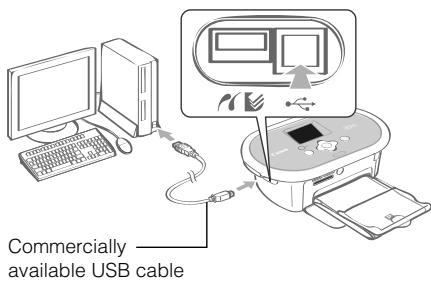
3 Click [Agree], if you consent to the software license agreement.
4 Click to select [Easy Install], then click [Install].
5 Restart your computer.
6 Connect the computer to the printer (see the figure left), and turn the printer's power on.
7 Register your printer on the Printer List in the [Printer Setup Utility].
5 Click [Finish].
Windows
1 Place the supplied CD-ROM in the computer.
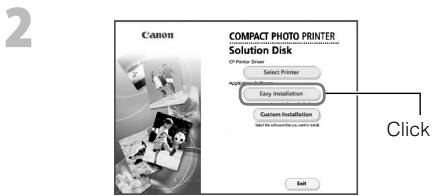
3 Click [Install].
Macintosh
1 Place the supplied CD-ROM in the computer and double-click the icon in the CD-ROM window.
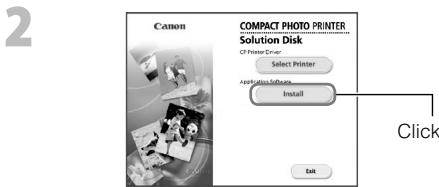
3 Select [Easy Installation] and click [Next].
Follow the onscreen instructions to proceed.
4 Click [Restart] or [Finish], then remove the CD-ROM after screen returns to the desktop.
4 Click [OK], then remove the CD-ROM.

Refer to the [Help] menu of the software for operations.
- For Ulead Photo Express LE customer support, consult the following website. http://ulead.com/events/canon/selphy
Accessories (Sold Separately)

Color Ink/Paper Sets and Paper Cassettes
The color ink cassette and the paper cassette differ depending on the paper size. Check the table below*1.
| Paper size | Color Ink/Paper Set | Sheets | Paper Cassette |
| Postcard Size | Color Ink/Paper Set KP-36IP | 36 | Paper Cassette PCP-CP300 (Included with the SELPHY) |
| Color Ink/Paper Set KP-72IP | 72 | ||
| Color Ink/Paper Set KP-72IN | 72 | ||
| Color Ink/Paper Set KP-108IP | 108 | ||
| Color Ink/Paper Set KP-108IN | 108 | ||
| L Size | Color Ink/Paper Set KL-36IP | 36 | Paper Cassette PCL-CP300 |
| Card Size | Color Ink/Paper Set KC-36IP | 36 | Paper Cassette PCC-CP300 (Included with the SELPHY) |
| Color Ink/Label Set KC-18IF (Full-page labels) | 18 | ||
| Color Ink/Label Set KC-18IL (8-label sheets)*2 | 18 | ||
| Wide Size | Color Ink/Paper Set KW-24IP | 24 | Paper Cassette PCW-CP100 |
1 Some accessories may not be available depending on region.
2 Set the page layout to [8-up] (p. 10).

Other Accessories
- Bluetooth Unit BU-30: You can print wirelessly from a mobile phone supporting Bluetooth.
- Battery Pack NB-CP2L: You can print at locations without a power outlet.
- Charging the Battery Pack
1 Remove the battery cover.
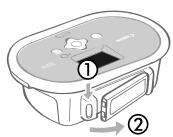
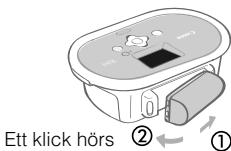
① Press and hold down the battery cover lever.
② Remove the cover.
Attach the battery pack.
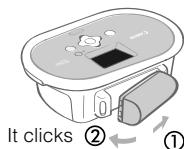
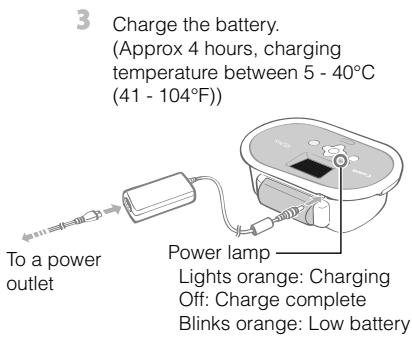
Number of prints (while using the fully charged battery pack)
Postcard/L Size: Approx. 36, Card Size: Approx. 72, Wide Size: Approx. 24

When the battery pack is not used, remove it from the printer, put the terminal cover on the battery pack, and put the battery cover back on the printer.
Cleaning, Storing or Carrying the Printer

Cleaning the Printer
- Cleaning the Inside of the Printer
Remove dust inside of the printer with the supplied cleaner.
1 Remove the ink cassette (p. 6).
2 Insert the cleaner all the way in the ink cassette compartment and slide it in and out 2 or 3 times.
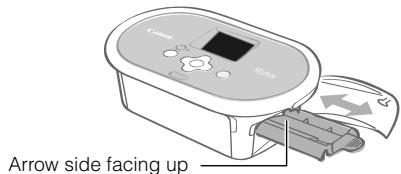
Do not touch white parts of the cleaner as its performance may be affected.
- Cleaning the Printer Casing
Wipe the casing with a soft dry cloth.

Never use volatile solvents such as benzine, paint thinner, or diluted neutral solvent. They may cause deformation or peeling of the printer's casing.
- Cleaning the Back of the Printer
Clean the dust from the air vents on the back.
If dust enters from the air vents and gets on the ink sheet, the printer may not print cleanly. If dust becomes lodged on the ink sheet, use a commercially available blower brush to remove it so that you do not touch the ink sheet.
- Storing the Printer
- Detach the power cord of the compact power adapter from the power outlet (If using the battery pack, remove it).
- Remove the compact power adapter and paper cassette from the printer, store the printer flat so that dust does not enter.
- Place the printer in the storage case and close the lock to store it. If the lock does not close properly, check if the printer is placed correctly.
-
Store the accessories as follows.
-
Paper cassette: Keep the remaining paper left inside the cassette and close the outer lid.
- Ink cassette: Keep the ink cassette in the printer. Otherwise, store it in a bag to avoid dust.
- Compact power adapter, battery pack: Wait until the compact power adapter (or battery pack) has cooled down to normal temperature before storing after usage.

If dirt or foreign objects enter the printer, print quality may deteriorate.
- Storing Prints
-
Avoid storing prints in the following places.
-
Places with high temperatures (40°C/104°F or higher).
-
Places with high humidity or dusty areas.
-Places subject to direct sunlight. -
Please avoid the following actions as they may result in color change, color fading or color bleeding.
-
Sticking any type of adhesive tape on a print surface.
- Allowing print surfaces to come into contact with vinyl or plastic.
- Applying alcohol or other volatile solvents to a print surface.
-
Leaving print surfaces tightly pressed against other surfaces or objects for prolonged periods.
-
If you wish to mount prints in an album, select an album with photo covers made of nylon, polypropylene or cellophane.

Color may change over time depending on the conditions of storage. Canon assumes no liability for color changes.

Carrying the Printer
- Remove the paper and ink cassettes and close the covers.
- Carry the printer and accessories stored in the storage case. Do not swing the storage case.
- Be careful when lifting the printer with the battery pack attached. The printer may tilt backwards
Consult this section when the printer does not function as expected or an error occurred.

You Think There is a Problem
If the solutions below do not remedy your problem, contact the retail outlet or a Canon customer support center.
Printer and Power Source
Power will not turn on
- Has the plug come out of the power outlet? (p. 6)
- Is the connector of the compact power adapter securely connected to the printer's DC IN terminal? (p. 6)
- Did you try pressing for a long time? (p. 8)
When using the battery pack
Is the battery sufficiently charged? (p. 20)
- When attaching it, did you press on the battery until it clicked into place? (p. 20)
Printing Problems
Cannot Print
- Is the printer power turned on? (p. 8)
Is the ink cassette empty? Replace the ink cassette. - Are you using the correct combination of paper, paper cassette and ink cassette? (p. 6)
- Is the printer connected to more than one device at once?
- Do not connect simultaneously to a camera, memory card or computer.
- Is there paper in the paper cassette? Is the paper cassette inserted all the way in?
- Is the ink cassette inserted all the way in?
Is the ink sheet slack? (p. 5) - Are you using the specified paper?
- Were the perforated portions of the paper folded over or separated before printing?
- Has the printer overheated? The printer will temporarily stop when it exceeds a certain temperature. This is not a malfunction. Wait until the temperature drops and the printer resumes. If the printer is connected to a computer when this happens, a message will appear on the computer display. Do not cancel the print. Wait until printing resumes.
Printing from Memory Cards
- Is the memory card inserted all the way into the slot with the label facing upward? (p. 8)
- Do the image files conform to the Design rule for Camera File system?
- Have you inserted the memory card directly into the card slot without first inserting the card into the adapter? (p. 7)
Some memory cards require a specific adapter.
Cannot Print (continued from previous page)
Printing from Cameras
- Is the printer connected to the camera correctly? (p.15)
- Does the firmware of the Canon-brand camera support the printer?
- Does the camera battery have sufficient charge?
Replace the battery with a fully charged (or new) battery, or use the compact power adapter for the camera.
Printing from Computers
- Did you install the printer driver according to the correct procedures? (p. 18)
- Is the printer connected directly to a port on the computer with the USB cable?
The printer may not operate correctly if it is connected to a USB hub.
Problems Exclusive to Windows
- Is the printer set to offline?
Right-click the printer icon and cancel the offline setting.
Problems Exclusive to Macintosh
- Is the printer registered on the Printer List? (p. 18)
Image Does Not Appear When Memory Card Is Inserted
- Is the memory card inserted all the way into the slot with the label facing upward? (p. 8)
- Do the image files conform to the Design rule for Camera File system?
- Have you inserted the memory card directly into the card slot without first inserting the card into the adapter? (p. 7)
Some memory cards require a specific adapter.
Cannot Print the Date
Printing from Memory Cards
Is the date imprint option set? (p. 12)
If you are using DPOF printing, the date imprint settings are configured on the device used for the DPOF settings.
Printing from mobile phones
- When using infrared data communication or Bluetooth, the date will not be printed.
Printing from Cameras
- Is the date imprint option set to [Off] on the camera?
Set the date imprint option to [On] on the camera. However, if the setting is [Default], the date imprint settings of the printer will be used.
Cannot Print Cleanly
- Is the ink sheet or paper dirty?
Is dirt lodged within the printer? (p. 21) - Has condensation formed within the printer?
Leave it to dry at room temperature for a while.
- Is the printer placed near a device with a strong electromagnetic or magnetic field?
Electromagnetic waves from video game devices or strong magnetism from speakers may distort images. Set it at least 1 meter (3 ft.) apart.
Colors on the Computer Display and the Print Are Different
- Color generation methods are different for computer displays and printers. Moreover, the variance may be attributable to the environment in which the display is viewed (color and strength of the light), or to the display's color adjustment settings.
After using the computer to cancel a print in progress, an image that had already been printed was printed again when resumed printing.
- Are you using a Macintosh computer?
When you restart printing on a Macintosh computer after canceling, an already printed image may print again when printing resumes.
Paper Problems
Paper Will Not Fit into Cassette
- Does the paper size match the size of the paper cassette? (p. 6)
Paper is Not Being Advanced Properly
- Check the paper and paper cassette are correctly inserted. (p. 6)
Frequent Paper Jams
- Has too much paper been placed in the paper cassette?
Do not place 19 or more sheets in the cassette (13 or more for Wide Size sheets). - Have 10 or more sheets collected on the print output tray?
- Is the paper folded or bent?
- Have you printed on a sheet that has already been used?
Cannot Print the Specified Number of Prints. Paper Left Over
-
Are you wasting ink sheet capacity with following operations?
-
Repeatedly turning the printer on and off without printing.
- Cancel printing while printing is in progress.
Pulling on the ink sheet. - Taking out the ink cassette when the paper runs out while printing multiple copies.
Do not remove the ink cassette when removing and refilling the paper cassette.
If a problem occurs with the printer, a message accompanied with a possible solution appears in the LCD monitor. In this section, other possible solutions are described. If a problem occurs while the printer is connected to the camera, the camera's LCD monitor may display an error message.
No paper, or cassette incorrectly inserted!
- Check that the paper cassette is firmly inserted all the way into the printer.
- If the paper is not feeding correctly into the printer, remove the paper cassette and any paper left in the printer.
Paper jam!
- Contact a Canon Customer Support center if the paper will not come out even when the power is turned off and back on.
There is a problem with the ink cassette!
- Contact a Canon Customer Support center for assistance if the ink cassette is stuck in the printer.
Cannot read data from memory card!
-
The following images cannot be printed.
-
Images other than JPEG
Corrupted images -
Press (BACK) to return to the original screen.
Communication error!
- When printing from a mobile phone (wirelessly), the maximum image file size that can be transmitted is approx. 2 MB (maximum file size varies depending on the mobile phone).
- Press (BACK) to return to the original screen.
No images on card!
- Check to see if the memory card is properly inserted all the way into the slot.
- Do the image files confirm to the Design rule for Camera File system?
Error!
- Turn the printer's power off and turn it on again. If the error message continues to display, contact a Canon Customer Support center for assistance.
Safety Precautions
Use this equipment correctly according to the following precautions to avoid the risk of injury, fire, electrical shock, malfunction or other hazards.
Equipment refers to the printer unit and accessories.
Equipment
WARNING
- Store the equipment in a place where it cannot be reached by children.
- Do not disassemble or modify the equipment.
- Do not use the storage case for purposes other than storing the printer and accessories.
- If the equipment is dropped or the casing becomes damaged, do not continue operation.
- Stop operating the equipment immediately if it emits smoke or noxious fumes. Immediately contact the retail outlet or a Canon Customer Support center.
- Do not allow water or other liquids to enter the interior of the equipment. If the equipment is subjected to water droplets or damp salty air, gently wipe it with a soft, absorbent cloth.
- Do not insert or drop metallic objects or flammable substances into the equipment interior. If it occurs, immediately turn off the printer power and remove the power cord from the power outlet. (If powering it by battery, remove the battery.)
- Do not touch metal parts of the device or the power plug during thunderstorms. Immediately stop using the equipment and distance yourself from it.
- Do not use flammable solvents such as alcohol, benzine, or paint thinner to clean the equipment.
- Do not rest heavy objects on the power cord or plug, pull on it with excessive force or damage it.
- Do not use a power source (compact power adapter, battery) that is not specified for the equipment.
- Remove the power cord on a regular periodic basis and wipe away the dust or dirt that collects on the plug, the exterior of the power outlet and the surrounding area.
- Do not handle the power cord if your hands are wet.
-
Do not play the supplied CD-ROM(s) in any CD player that does not support data CD-ROMs. Playing the CD-ROM(s) in an audio CD player (music player) could damage the speakers. It is also possible to suffer from hearing loss from listening with headphones to the loud sounds of a CD-ROM played on a music CD player.
-
Do not stick any part of your hand into the printer interior.
-
Do not use or store the equipment in the following types of places.
-
Humid or dusty areas
- Places subject to heavy vibrations
- Places near flames or subject to direct sunlight
-
Places that may heat up such as an automobile trunk or dashboard
-
Do not attach metallic pins or allow dirt to collect on the power plug or recharging connectors.
- Do not excessively pull or bend the power cord.
- Do not use the compact power adapter for any other equipment except this printer, use it beyond its rated capacity or voltage, or leave the plug partially inserted into a power outlet.
- Unplug the equipment when you are not using it.
Leaving the equipment plugged in during prolonged periods of non-use poses risk of electric shock or fire. - Do not touch the paper or remove the paper cassette while printing is in progress.
Battery

CAUTIONS
RISK OF EXPLOSION IF BATTERY IS REPLACED BY AN INCORRECT TYPE.
DISPOSE OF USED BATTERIES ACCORDING TO LOCAL REGULATION.
Handling Precautions
For the handling of memory cards, cameras, mobile phones, or computers, refer to the supplied user guide of each product.
Warning Against Copyright Infringement
Please respect all copyrights. Use of images produced by this printer for purposes other than personal entertainment may be prohibited by law.
Warranty Limitations
For information on your printer's warranty, please refer to the Canon European Warranty System (EWS) Booklet supplied with your printer.
For Canon Customer Support contacts, please see the European Warranty System (EWS) Booklet.
Printer
- Do not apply excessive force to the printer.
Force or impact on the printer may result in paper jams or equipment damage.
- Do not turn the power on and off repeatedly when you do not intend to print.
The printer initialization process consumes ink and the equivalent of several pages could be wasted.
- Be careful not to spray the equipment with insecticides or volatile substances. In addition, do not store the equipment in contact with rubber or vinyl products for long periods of time.
These materials may cause deformation of the printer's casing.
-
If the printer overheats, it will temporarily stop operating. This does not mean that the printer has malfunctioned. The printer will resume normal printing as soon as it cools down. Temporary stoppages are most likely to occur in the following cases:
-
When printing continuously.
- If a room is unusually warm.
-
If the air vents on the back of the printer are blocked or if ventilation is inadequate.
-
Do not touch the springs of the paper cassette.
If the springs are bent or deformed, paper will not feed correctly into the printer.
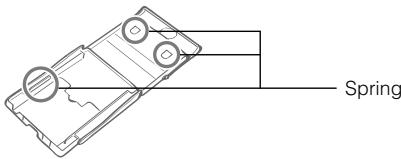
- Do not place any foreign objects in the print output tray (on the top of the paper cassette).
- Do not touch the print side (shiny side) of the paper with your fingers.
Always hold the paper along the edges (outside the perforated border). Be sure that hands are dry before touching the paper. Sharp objects will scratch the paper surface. Keep the paper surface free from fingerprints, dust, water droplets, etc.
- Do not handle the ink cassette with wet or sweaty hands.
To prevent malfunctions and damage caused by electromagnetic fields
- Never position the equipment close to motors or other devices that generate strong electromagnetic fields. Moreover, do not use near televisions or AM radio.
To prevent condensation
- Avoid condensation on the equipment when moving it from a cold to a hot place, by putting it in an airtight, sealable plastic bag and allow for adjustment to temperature changes gradually before removing from the bag. In the event that condensation does form within the equipment, keep it at room temperature until the water droplets evaporate naturally before use.
Specifications
All data is measured according to standard Canon testing procedures. We reserve the right to change specifications without notice.
SELPHY CP770
| Printing Method | Dye-sublimation thermal transfer (with overcoating) | |
| Print Resolution | 300 x 300 dpi | |
| Gradation | 256 shades per color | |
| Ink | Dedicated ink cassette (Y/M/C/overcoating) | |
| Paper | Postcard Size, L Size, Card Size (including full page label sheets, 8-label sheets), Wide Size | |
| Print Size | Borderless | Bordered |
| Postcard Size | 100.0 x 148.0 mm (3.94 x 5.83 in.) | 91.3 x 121.7 mm (3.59 x 4.79 in.) |
| L Size | 89.0 x 119.0 mm (3.50 x 4.69 in.) | 78.8 x 105.1 mm (3.10 x 4.14 in.) |
| Card Size | 54.0 x 86.0 mm (2.13 x 3.39 in.) | 49.9 x 66.4 mm (1.96 x 2.61 in.) |
| (per label) | 22.0 x 17.3 mm (0.87 x 0.68 in.) | |
| Wide Size | 100.0 x 200.0 mm (3.94 x 7.87 in.) | 91.3 x 121.7 mm (3.59 x 4.79 in.) |
| Printing Speed*1 | Printing from Memory Cards | Connected to Cameras with PictBridge |
| Postcard Size | Approx. 52 sec. | Approx. 52 sec. |
| L Size | Approx. 43 sec. | Approx. 43 sec. |
| Card Size | Approx. 25 sec. | Approx. 25 sec. |
| Wide Size | Approx. 1 min. 5 sec. | Approx. 1 min. 5 sec |
| Feeding System | Automatic paper feed from paper cassette | |
| Ejection System | Automatic paper ejection on top of paper cassette | |
| LCD Monitor | 2.5-inch type, TFT color | |
| Interface | ||
| USB | Connecting to a PictBridge compliant device/a Canon Direct Print compliant camera: USB compliant Type A connector | |
| Connecting to a computer: USB compliant Type B connector | ||
| Wireless | IrDA, IrSimple/Bluetooth*2 | |
| Memory Cards | CF (CompactFlash) Card, Microdrive, xD-Picture Card*3, SD Memory Card, miniSD Card, SDHC Memory Card, miniSDHC Card, MultiMediaCard, MMCplus Card, HC MMCplus Card, MMCmobile Card, RS-MMC Card, microSD Card*3, microSDHC Card*3, MMCmicro Card*3, Memory Stick, Memory Stick PRO, Memory Stick Duo, Memory Stick PRO Duo, Memory Stick micro*3 | |
| Operating Temperatures | 5 - 40°C (41 - 104°F) | |
| Operating Humidity | 20 - 80% | |
| Power Source | Compact Power Adapter CA-CP200 | |
| Power Consumption | 60 W or less (4 W or less on standby) | |
| Dimensions | Printer only: 248.0 x 156.4 x 77.3 mm (9.76 x 6.16 x 3.04 in.) | |
| With storage case: 276.0 x 174.0 x 205.8 mm (10.9 x 6.85 x 8.10 in.) | ||
| Weight (printer only) | Printer only: Approx. 1060 g (approx. 37.4 oz.) | |
| Storage case: Approx. 410 g (approx. 14.5 oz.) | ||
1 Measured from start of the yellow printing pass to final output.
2 Bluetooth Unit BU-30 (sold separately) is required.
*3 Specialized adapter is required.
Compact Power Adapter CA-CP200
| Rated Input | 100 – 240 V AC (50/60 Hz) |
| 1.5 A (100 V) – 0.75 A (240 V) | |
| Rated Output | 24 V DC, 2.2 A |
| Operating Temperatures | 0 – 45°C (32 – 113°F) |
| Dimensions | 122.0 x 60.0 x 30.5 mm (4.80 x 2.36 x 1.20 in.) (excluding power cord) |
| Weight | Approx. 310 g (10.9 oz.) |
Battery Pack NB-CP2L (Sold Separately)
| Type | Rechargeable lithium-ion battery |
| Nominal Voltage | 22.2 V DC |
| Nominal Capacity | 1200 mAh |
| Charge Cycles | Approx. 300 times |
| Number of Prints* | |
| Postcard Size | Approx. 36 prints |
| L Size | Approx. 36 prints |
| Card Size | Approx. 72 prints |
| Wide Size | Approx. 24 prints |
| Operating Temperatures | 5 – 40°C (41 – 104°F) |
| Dimensions | 110.0 x 40.7 x 37.5 mm (4.33 x 1.60 x 1.48 in.) |
| Weight | Approx. 230 g (8.11 oz.) |
- Test conditions:
Normal temperature (23^ / 73^) , Canon images, continuous print. The above data may vary according to the printing environment and the image to be printed.
Canon shall not be liable for any damage to this product and/or accidents such as fire, etc., caused by the malfunction of non-genuine Canon accessories (e.g., a leakage and/or explosion of a battery pack). Please note that this warranty does not apply to repairs arising out of the malfunction of non-genuine Canon accessories, although you may request such repairs on a chargeable basis.


European Union (and EEA) only.
This symbol indicates that this product is not to be disposed of with your household waste, according to the WEEE Directive (2002/96/EC) and your national law. This product should be handed over to a designated collection point, e.g., on an authorized one-for-one basis when you buy a new similar product or to an authorized collection site for recycling waste electrical and electronic equipment (EEE). Improper handling of this type of waste could have a possible negative impact on the environment and human health due to potentially hazardous substances that are generally associated with EEE. At the same time, your cooperation in the correct disposal of this product will contribute to the effective usage of natural resources. For more information about where you can drop off your waste equipment for recycling, please contact your local city office, waste authority, approved WEEE scheme or your household waste disposal service.
For more information regarding return and recycling of WEEE products, please visit www.canon-europe.com/environment.
(EEA: Norway, Iceland and Liechtenstein)
SELPHY


- Microsoft, Windows Vista and the Windows Vista logo are trademarks or registered trademarks of Microsoft Corporation in the United States and/or other countries.
- Macintosh and the Mac logo are trademarks of Apple Inc., registered in the U.S. and other countries.
- The SDHC logo and miniSDHC logo are trademarks.
- Corel, the Corel logo, Ulead and Ulead Photo Express are trademarks or registered trademarks of Corel Corporations and/or its subsidiaries.
- Portions of the code used in this firmware are based in part on the work of the Independent JPEG Group.
- No part of this guide may be reproduced, transmitted, transcribed, stored in a retrieval system, or translated into any language in any form, by any means, without the prior written permission of Canon.
- While every effort has been made to ensure that the information contained in this guide is accurate and complete, no liability can be accepted for any errors or omissions. Canon reserves the right to change the specifications of the hardware and software described herein at any time without prior notice.
- Canon makes no warranties for damages resulting from corrupted or lost data due to a mistaken operation or malfunction of the camera, the printer, the software, the memory cards, personal computers, peripheral devices, or use of non-Canon memory cards.
EN
you can | Open up a world of online Canon digital photos with
CANON iIMAGE GATEWAY
Share your photos with friends
and family
Create and share online photo albums.
Build your own albums around :
such as birthdays, holidays and
celebrations . Be creative by applying funbackgrounds and love to your album .
backgrounds and layouts to your albums ,then email them to family and friends
so they can share the fun.
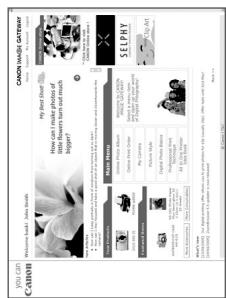
Customise your camera
Great start-up images and sounds.
Simply click on My Camera² to download those little extras that will personalise
your camera. Choose a Picture Style
as you would a film, allowing you to
produce the best result for your subject.
Get hints, tips and ideas
Get the most out of your product and
learn how to take great photos with
hints and tips. Discover ways to enjoy
your product even more!
Register your new Canon digital product today
iMA@E
GATEWAY allowing you to share your photos with friends
and family. Order photo prints directly from your
online photo album. Get hints, tips and
ideas, plus customise your camera with
great start-up images and sounds.
With Canon iIMAGE GATEWAY you can!
-
Insert the Canon Solution Disk bundled with your product.
-
Select your region, country and language and then click on the "Register"
button and you will be directed to the CANON iIMAGE GATEWAY website. - Follow the online instructions and complete the registration form. You will then be sent your login details and password via email to your registered
CANON IMAGE GATEWAY is currently only available in the
following European countries: United Kingdom, Deutschland,
France, Italia, Suomi, Danmark, Nederland, Sverige, Schweiz, N
Eire, Belgie, Österreich, España, Luxembourg, Elanda, Portugal
SELPHY CP770
COMPACT PHOTO PRINTER
Print Guide
SJOVT at lave dit eget album
>>>Indhold
Menukaermbilled vises.

Paper jam/Papirstop!
sieve bagrunde after layouts tilding
sove Bagrundige erer lttimelbums . Ragefter kan du c's sende dem
albums: Bageteri kan du sa sende otil familie og wenner, s' de kan delo
LCD-Monitor
1-up () 2-up,
4-up, 8-up,
Bordes
Imprime con cordes o sin cordes.
Conbordes, Sinbordes ()
Optimizar Auto.
Hasta aprox. 10 m (33 pies)

L'impression commence.

- Impression DPOF (p. 13)
- Tout imprimer (p. 13)
- Réglages impression (p. 10)
- Réglage imprimante (p. 14)
L'impression commence.

L'impression commence.
L'impression commence.

Page Layout/Paragraphindeling
Paper jam/Papier storing!
C. further research on other sources
SELPHY CP770
COMPACT PHOTO PRINTER
Tulostusopas
Helppo tulostaa
Kauniita kuvia
Hauska käytää
There is a problem with the ink cassette!/Ongelma mustekasetissa!
Compact Photo Printer
Solution Disk
European Warranty System (EWS)
Nātagregat
Papperskassett (vykortsformat)

My Colors/Mina farger
2 Satt in batteriet.
Ett klick hors
Paper jam!/Pappersstopp!
There is a problem with the ink cassette!/Det Är problem med blackkassetten!
Nătaggregat CA-CP200
| Nominell ineffekt | 100 – 240 V AC (50/60 Hz) |
| 1,5 A (100 V) – 0,75 A (240 V) | |
| Nominell uteffekt | 24 V DC, 2,2 A |
| Drifttemperatur | 0 – 45 °C |
| Mätt | 122,0 x 60,0 x 30,5 mm(utan tatsächkel) |
| Vikt | Ca. 310 g |
Batteri NB-CP2L (säljs separat)
| Typ | Laddningsbart litiumjonbatteri |
| Nominell spänning | 22,2 V DC |
| Nominell kapacitet | 1 200 mAh |
| Laddningscykler | Ca 300 timmar |
| Antal utskrifter* | |
| Vykortsf格式 | Ca. 36 utskrifter |
| L-format | Ca. 36 utskrifter |
| Kortformat | Ca. 72 utskrifter |
| Brett format | Ca. 24 utskrifter |
| Drifttemperatur | 5 – 40 °C |
| Mätt | 110,0 x 40,7 x 37,5 mm |
| Vikt | Ca. 230 g |
Open up a world of online digital photos with CANON iIMAGE GATEWAY

CANON iMAGE GATEWAY
Register your new Canon digital product today and start enjoying 100MB of online space allowing you to share your photos with friends
and family. Order photo prints directly from your
online photo album. Get hints, tips andideas, plus customise your camera withgreat start-up images and sounds.With Canon iIMAGE GATEWAY™ you can!