55SJ850V, 65SJ850V - Television LG - Free user manual and instructions
Find the device manual for free 55SJ850V, 65SJ850V LG in PDF.



User questions about 55SJ850V, 65SJ850V LG
0 question about this device. Answer the ones you know or ask your own.
Ask a new question about this device
Download the instructions for your Television in PDF format for free! Find your manual 55SJ850V, 65SJ850V - LG and take your electronic device back in hand. On this page are published all the documents necessary for the use of your device. 55SJ850V, 65SJ850V by LG.
USER MANUAL 55SJ850V, 65SJ850V LG
Safety and Reference
LED TV*
- LG LED TV applies LCD screen with LED backlights.
Please read this manual carefully before operating your set and retain it for future reference.
MFL69365753
Warning! Safety instructions

CAUTION
RISK OF ELECTRIC SHOCK DO NOT OPEN

CAUTION : TO REDUCE THE RISK OF ELECTR. REMOVE COVER (OR BACK). NO USER-SEERF REFER TO QUALIFIED SERVICE PERSONN
This symbol is intended to alert the user to uninsulated "dangerous voltage" within the enclosure that may be of su cient magnitude to of electric shock to persons.
This symbol is intended to alert the user to important operating and maintenance (ser) instructions in the literature accompanying the
WARNING : TO REDUCE THE RISK OF FIREDO NOT EXPOSE THIS PRODUCT TO RAIN
t Make sure to connect Mains cable to compliant AC mains socket with Grounded earth pin. (Except for devices which are not grounded on earth.) Otherwise possibility you may be electrocuted or injured.
- Insert power cable plug completely into wall socket otherwise not secured completely into socket, re ignition may break out
t Ensure the power cord does not come into contact with hot or such as a heater. This may cause a re or an electric shock h
STRIC SHOCK: Place heavy object, or the product itself, on power or SERVICEALRUE PAWRSTAIN result in re or electric shock.
EL. t Bend antenna cable between inside and outside building to prevent rain from owing in. This may cause water damaged the presence of the Product and could give an electric shock.
When mounting TV onto wall make sure to neatly install and isolate cabling from rear of TV as to not create possibility of e shock / re hazard.
The presence of a DO not plug too many electrical devices into a single multiple pricing) electrical outlet. Otherwise, this may result in re due to overapppliance heating.
AND ELECTRIC SHOCK product or let it fall over when connecting OR MOISTURE devices. Otherwise, this may result in injury or damage to the product.
TO PREVENT THE SPREAD OF FIRE, KEEK ANTI-MOISTURE PACKING material or vinyl packing out OTHER ITMES WITH OPEN FLAMES AWAY FROM CHILDREN. Anti-moisture material is harmful if PRODUCT AT ALL TIMES. SWALLOWED. If swallowed by mistake, force the patient to vomi
t Do not place the TV and/or remote control in the foll environments:
and visit the nearest hospital. Additionally, vinyl packing can be used in education. Keep it out of the reach of children.
- A location exposed to direct sunlight
t Do not let your children climb or cling onto the TV.
- An area with high humidity such as a bathroom
Otherwise, the TV may fall over, which may cause serious injury. Dispose of used batteries carefully to ensure that a small child
- Near any heat source such as stoves and other dev produce heat
vices that does not consume them. Please seek Doctor- Medical Attention immediately if child consumes batteries.
- Near kitchen counters or humidiers where they can be exposed to steam or oil
DO NOT INSERT any metal objects/conductors (like a metal)
- An area exposed to rain or wind
chopstick/cutlery/screwdriver) into the end of power cable wh
- Near containers of water such as vases
the power plug is plugged into wall socket. Additionally, do no
Otherwise, this may result in re, electric shock, malfu product deformation.
touch the power plug right after unplugging from the wall sock
You may be electrocuted.
t Do not place the product where it might be exposed may cause a re hazard.
t Do not put or store in ammable substances near the product.
It Mains Plug is the TV connecting/disconnecting device mains electric supply. This plug must remain readily operable when TV is in use.
tand is a danger of combustion/explosion or re due to carel handling of the in ammable substances.
t Do not touch the power plug with wet hands. Additio the cord pin is wet or covered with dust, dry the pow completely or wipe dust o . You may be electrocuted moisture.
Cape to AG drop metallic objects such as coins, hair pins, chopstic attachment product, or in ammable objects such as paper and matches. Children must pay particular attention. Electrical sh
Do not spray water on the product or scrub with an in Tharneab should be enough distance between an outside antenna a substance (thinner or benzene). Fire or electric shockpawedntes to keep the former from touching the latter even when can occur. the antenna falls. This may cause an electric shock.
Do not allow any impact, shock or any objects to fall into the product on places such as unstable shelves or and do not drop anything onto the screen. You may be stranded surfaces. Also avoid places where there is vibration or the product can be damaged.
t Never touch this product or antenna during a thunder proityguy fall or ip over, which may cause injury or damage storm. to the product.
You may be electrocuted.
If you install the TV on a stand, you need to take actions to prevent
t Never touch the wall outlet when there is leakage of gas, proshutterom overturning. Otherwise, the product may fall windows and ventilate. It may cause a re or a burn byaespahich may cause injury.
t Do not disassemble, repair or modify the product at today. wintend to mount the product to a wall, attach VESA standa discretion. Fire or electric shock accident can occur. mounting interface (optional parts) to the back of the product. Contact the service centre for check, calibration or repairs you install the set to use the wall mounting bracket
t If any of the following occur, unplug the product immediptiedyma parts), x it carefully so as not to drop.
contact your local service centre.
- The product has been damaged
- Foreign objects have entered the product
- The product produced smoke or a strange smell. This may result in re or electric shock.
t Only use the attachments / accessories speci ed by the manufacturer.
t When installing the antenna, consult with a quali ed service technician. If not installed by a quali ed technician, this may create a re hazard or an electric shock hazard.
t Unplug the TV from AC mains wall socket if you do not intend to recommend that you maintain a distance of at least 2 to 7 use the TV for a long period of time. Accumulated dust can cause the diagonal screen size when watching TV. If you watch re hazard and insulation deterioration can cause elec tior period of time, this may cause blurred vision.
shock/ re. t Only use the speci ed type of battery. This could cause damage
t Apparatus shall not be exposed to dripping or splashing farnote control.
objects lled with liquids, such as vases, shall be placed on the mix new batteries with old batteries. This may cause the apparatus. batteries to overheat and leak.
t Do not install this product on a wall if it could be exposed to oil. Battery should not be exposed to excessive heat. For example oil mist. This may damage the product and cause it to away from direct Sunlight, open replace and electric
t If water enters or comes into contact with TV, AC adapter power
cord please disconnect the power cord and contact service centre immediately. Otherwise, this may result in electric shock of internal lighting eg Sunlight, fluorescent lighting. If this occurs
t Only use an authorized AC adapter and power cord aboVed lighting or darken viewing area.
LG Electronics. Otherwise, this may result in re, elec h necting external devices such as video game console malfunction or product deformation. make sure the connecting cables are long enough. Otherwise,
The product may fall over, which may cause injury or damage the device in re or electric shock.
t Be careful in handling the adapter to prevent any exten shoRs the product On/O by plugging-in or unplugging to it. An external shock may cause damage to the adape power plug to the wall outlet. (Do not use the power plug for
It Make sure the power cord is connected securely to the power plug. It may cause mechanical failure or could give an electric shock on the TV.
t Install the product where no radio wave occurs.
Batteries should not be exposed to excessive heat. For example, keep away from direct Sunlight, open replace and electric
heaterspower
t Signal from Remote Control can be interrupted due to external/ internal lighting eg Sunlight , fluorescent lighting . If this occurs
turning or darken viewing area.
When connecting external devices such as video game console, make sure the connecting cables are long enough. Otherwise,
This product may fall over, which may cause injury or damage the product.
Do not turn the product On/O by plugging-in or unplugging the power plug to the wall outlet. (Do not use the power plug for
the power plug shock.
t Please follow the installation instructions below to prevent the product from overheating.
- The distance between the product and the wall should be more than 10cm .
- Do not install the product in a place with no ventilation (e.g., on a bookshelf or in a cupboard).
- Do not install the product on a carpet or cushion.
- Make sure the air vent is not blocked by a tablecloth or curtain. This may result in re.
t Take care not to touch the ventilation openings when watching theTV for long periods as the ventilation openings may become hot. This does not a cct the operation or performance of the product.
t Periodically examine the cord of your appliance, and if the TV is turned on for the rst time after it was shipped from appearance indicates damage or deterioration, unplus factory, initialization of the TV may take a few minutes. discontinue use of the appliance, and have the cord replaced with an exact replacement part by an authorized servicer. Your TV's OSD (On Screen Display) may di er slightly from th
t Prevent dust collecting on the power plug pins or outlet. This may cause a re hazard.
t Protect the power cord from physical or mechanical abuse, such as being twisted, kinked, pinched, closed in a door, or walked upon. Pay particular attention to plugs, wall outlets, and the point where the cord exits the appliance.
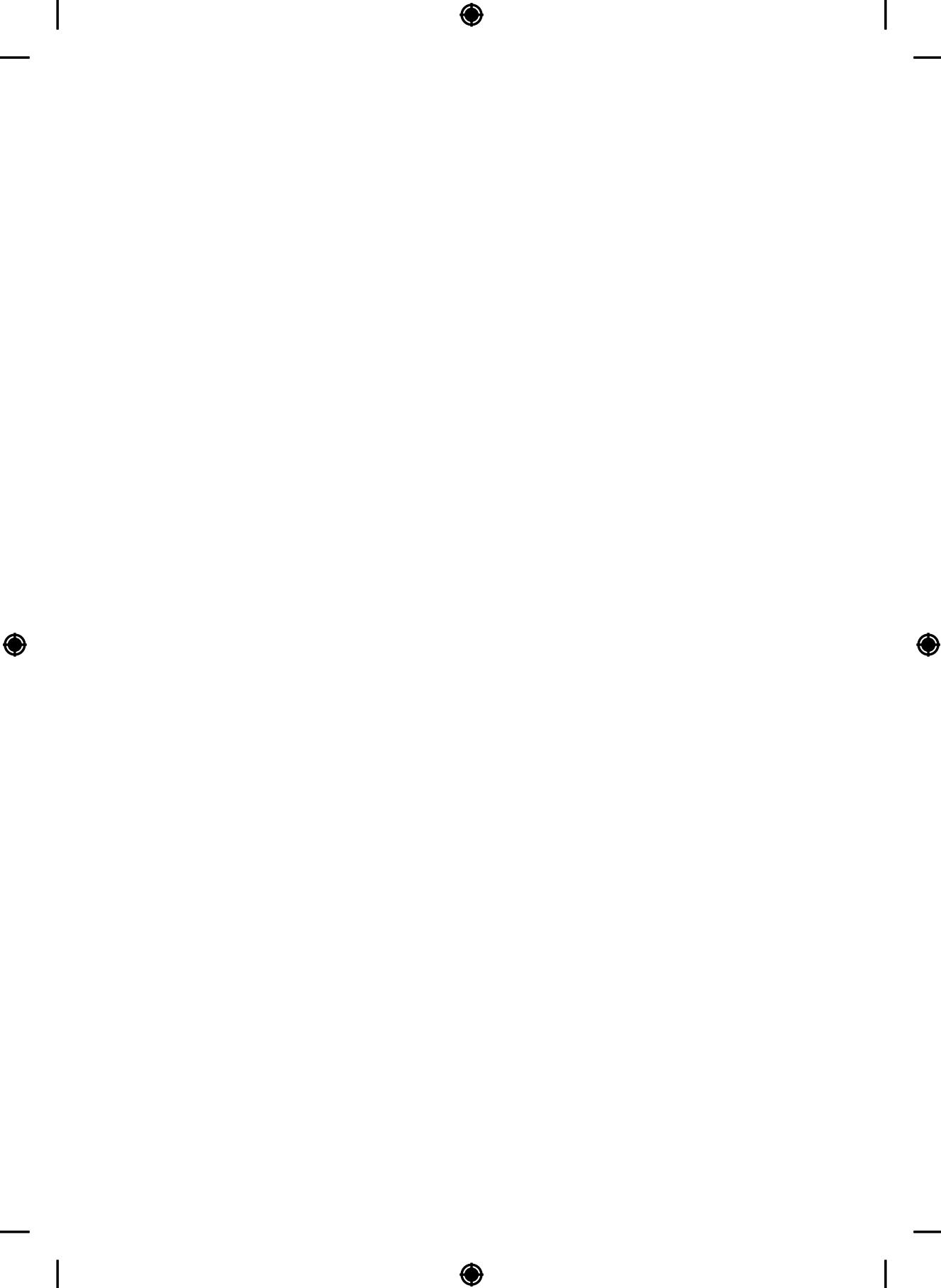
Do not press strongly upon the panel with a hand or shal object such as nail, pencil or pen, or make a scratch on it, as it may cause damage to screen. For an optimal connection, HDMI cables and USB devices sh
t Avoid touching the screen or holding your nger(s) ag h e zels less than 10 mm thick and 18 mm width. Use an long periods of time. Doing so may produce some temporary or permanent distortion/damage to screen. memory stick does not t into your TV's USB port.
t As long as this unit is connected to the AC wall outlet, it is not disconnected from the AC power source even if you turn on this unit by SWITCH.
t When unplugging the cable, grab the plug and unplug it, by pulling at the plug. Don't pull at the cord to unplug the power cord from the power board, as this could be hazardous. t Use a certi ed cable with the HDMI logo attached.
When moving the product, make sure you turn the pot to use a certi ed HDMI cable, the screen may not be. Then, unplug the power cables, antenna cables and all acronnction error may occur. (Recommended HDMI Cable cables. - High-Speed HDMbale (3 m or less)
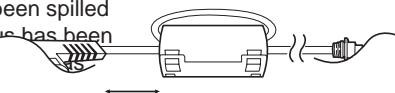
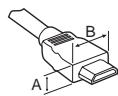
The TV set or power cord may be damaged, which may hightapeedDouble with Ethernet (3 m or less) hazard or cause electric shock. t How to use the ferrite core (Depending on model)
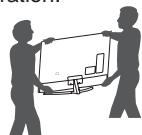
t When moving or unpacking the product, work in pairs because the core to reduce the electromagnetic interferer product is heavy. Otherwise, this may result in injury. the power cord. Wind the power cord on the ferrite core once
t Refer all servicing to quali ed service personnel. Servicing is required when the apparatus has been damaged in any way, such as power supply cord or plug is damaged, liquid has been spilled or objects have fallen into the apparatus, the apparatus has been exposed to rain or moisture, does not operate normally been dropped.
t Do not use high voltage electrical goods near the TV (e.g. elec trom (+ / - 2cm) mosquito-swatter). This may result in product malfunction.
t When cleaning the product and its components, unplug the power rst and wipe it with a soft cloth. Applying excessive force may cause scratches or discolouration. Do not spray with water or wipe with a wet cloth. Never use glass cleaner, car or industrial shiner, abrasives or wax, benzene, alcohol etc., which can damage the product and its panel. Otherwise, this may result in re, electric shock or product damage (Deformation, corrosion or breakage).

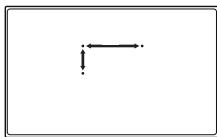
^*A≤ 10 mm
^*B≤ 18 mm

[TV side]

t Do not use any unapp and product life span.
Any damage or injuries caused by using unapproved items are not covered by the warranty. Please note:
t Some models have a thin lm attached on to the sccn and this must not be removed. t It is recommended to move the TV in the box or packing material
t When attaching the stand to the TV set, place that the TV originally came in.
facing down on a cushioned table or at surface Before moving or lifting the TV, disconnect the power cord and protect the screen from scratches. all cables.
t Make sure that the screws are inserted correctly when holding the TV, the screen should face away from you to fastened securely. (If they are not fastened secure damage.
enough, the TV may tilt forward after being installed.) Do not use too much force and over tighten the screws; otherwise screw may be damaged and not tighten correctly.
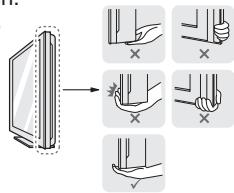
t Make sure to wring any excess water or clean the top and bottom of the TV frame rmly. Make sure not to the cloth. hold the transparent part, speaker, or speaker grill area.
t Do not spray water or cleaner directly onto the TV screen.
t Make sure to spray just enough of water or cleaner onto a dry cloth to wipe the screen.
t When cleaning the product, be careful not to allow any liquid or foreign objects to enter the gap between the upper, left or right side of the panel and the guide panel. (Depending on model)


Separate purchase
t When transporting a large TV, there should be at least 2 people. t When transporting the TV by hand, hold the TV as shown in the following illustration.
Separate purchase items can be changed or modi ed for quality.
improvement without any noti cation. Contact your dealer to buy these.
items.These devices only work with certain models. on its side or tilt towards the left or right.
The model name or design may be changed depending on the upgrad e do not apply excessive pressure to cause exing / bending of fr of product functions, manufacturer's circumstances or policies. chassis as it may damage screen.
Depending on model)
AN-MR650A
Magic Remote
t When handling the TV, be careful not to damage the protruding buttons.

t Avoid touching the screen at all times, as this may result in damage to the screen.
t Do not move the TV by holding the cable holders, as the cable holders may break, and injuries and damage to the TV may occur.
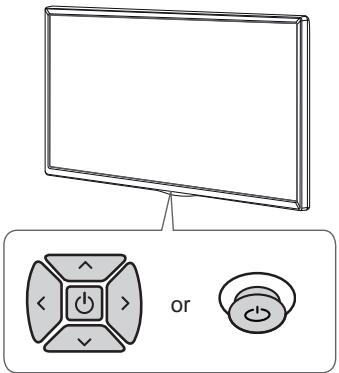
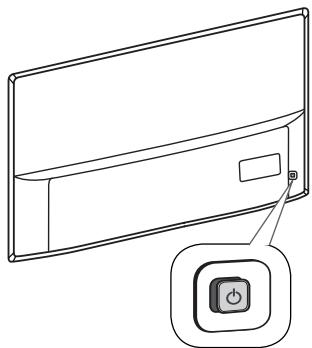
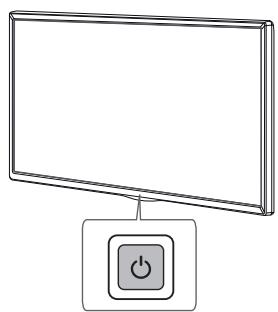
Using the button
Depending on model)
You can simply operate the TV functions, using the b
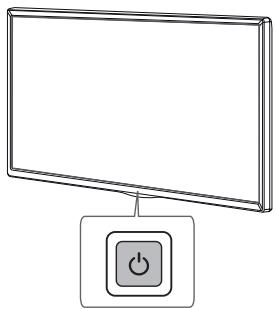
Basic functions
| Power On (Press) Power Q(Press and hold) | |||
| Volume Control | |||
| Programmes Control | |||
| <C type> | |||
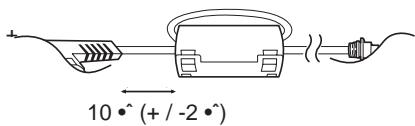
| Power On (Press) Power Q(Press and Hold) Menu Control Q(Press) Menu Selection (Press) and Hold | |||
1 All running apps will close, and any recording in progress will s
2 You can access and adjust the menu by pressing the button wTV is on.
3 You can use the function when you access menu control.
Adjusting the menu
Depending on model)
When the TV is turned on, press the time. You can adjust the Menu items using the button.
| ○ | Turns the power o . |
| ◎ | Accesses the settings menu. |
| × | Clears on-screen displays and returns to T |
| ◎ | Changes the input source. |
| ▲▼ | Scrolls through the saved programmes. |
| + | Adjusts the volume level. |
Mounting on a table
Mounting on a wall
1 Lift and tilt the TV into its upright position on a table. Attach an optional wall mount bracket at the rear of the TV carefully.
t Leave a 10 cm (minimum) space from the wall for proper installation and install the wall mount bracket on a solid wall perpendicular to ventilation.
theoor. When you attach the TV to other building materials, please
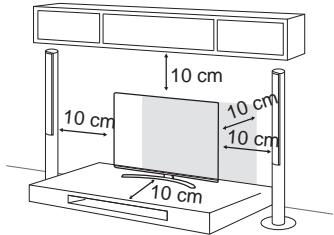
2 Connect the power cord to a wall outlet.

t Do not place the TV near or on sources of heat, as may result in re or other damage.
t Do not apply foreign substances (oils, lubricants, et the screw parts when assembling the product. (Doing so may damage the product.)
Securing the TV to a wall
(This feature is not available for all models.)
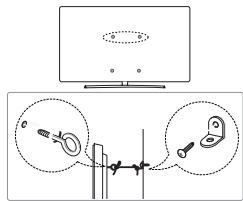
1 Insert and tighten the eye-bolts, or TV brackets and of the TV.
t If there are bolts inserted at the eye-bolts position bolts rst.
2 Mount the wall brackets with the bolts to the wall. Match the location of the wall bracket and the eye-b of the TV.
3 Connect the eye-bolts and wall brackets tightly with Make sure to keep the rope horizontal with the at s
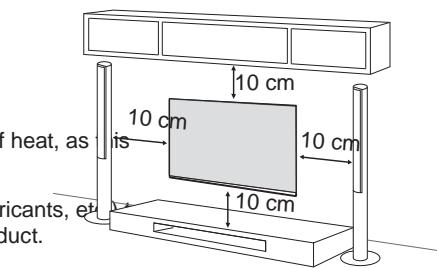
Make sure to use screws and wall mount bracket that meet the VES standard. Standard dimensions for the wall mount kits are described the following table.
Separate purchase (Wall mounting bracket)
| Model | 43UJ75**43UJ74**43UJ70**43UJ67**43UJ65**43UJ63** | 55SJ93**55SJ85**49/55SJ81**49/55SJ80**49/55UJ75**49/55UJ74**49/55UJ70**49/55UJ67**49/55UJ65**49/55UJ63** |
| VESA (A x B) (m²) | 200 x 200 | 300 x 300 |
| Standard screw bolts on the rear | M6 | M6 |
| Number of screws | 4 | 4 |
| Tswatundgurnoprocket surface | LSW240BMSW240 | LSW350BMSW240 |

t Make sure that children do not climb on or hang on the TV.
t Use a platform or cabinet that is strong and large enough to support the TV securely.
t Brackets, bolts and ropes are not provided. You can obtain additional accessories from your local dealer.
| Model | 65SJ93**60/65SJ85**60/65SJ81**65SJ80**60/65UJ75**65UJ70**65UJ67**60/65UJ65**60/65UJ63** | 75/86SJ95**70/75UJ67**75UJ65** |
| VESA (A x B) (m | \( m \) 0 0 x 300 | 600 x 400 |
| Standard screw | M6 | M8 |
| Number of screw | 4 | |
| Wall mount brack | kBTW350B | LSW640B |
| Model | 55/65SJ95** | |
| VESA (A x B) (m | \( m \) 0 0 x 200 | |
| Standard screw | M6 | |
| Number of screw | 4 | |
| Wall mount brack | kBTW420B |
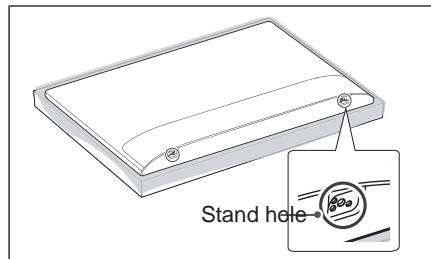
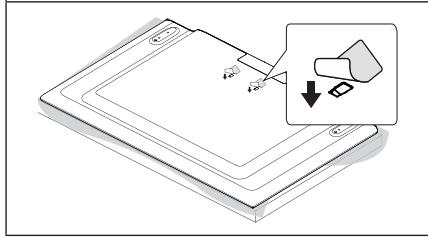
When installing the wall mounting bracket, it is recommended to cover the stand hole using tape, in order to prevent the inux of dust and insects. (Depending on model)

t Remove the stand before installing the TV on a wall mount by performing the stand attachment in reverse.
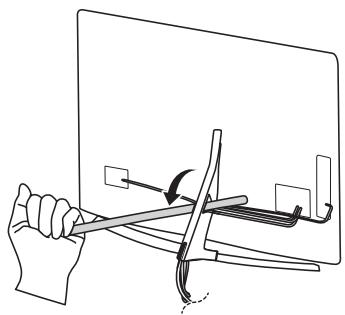
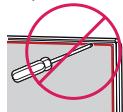
t Do not use a sharp object when you detached the cable cover. This could damage the cable or the cabinet. It may also cause personal harm. (Depending on model)
Connections (noti cations)
Satellite dish connection
(Only satellite models)
Connect various external devices to the TV and switch input modes to
select an external device . For more information of external device ,
connection, refer to the manual provided with each device.
Available external devices are: HD receivers, DVD players, VCRs, audio
systems, USB storage devices, PC, gaming devices, and other external
devices.
Depending on model)
The external device connection may di er from the mode encrypted (pay) services in digital TV mode.
Connect external devices to the TV regardless of the order of the CI module is inserted into the PCMCIA card slot in the TV port.
t If you record a TV program on a DVD recorder or VCR, make sure to Cause damage to the TV and the PCMCIA card slot.
To connect the TV signal input cable to the TV through a VCD recorder, the TV does not display any video and audio when Cl + CAM is connected, please contact to the Terrestrial/Cable/Satellite Service Operator.
Refer to the external equipment's manual for operating instructions.
If you connect a gaming device to the TV, use the cable supplied
me USB Hubs may not work. If a USB device connected using a
t In PC mode, there may be noise associated with the be so tected, connect it to the USB port on the TV directly. vertical pattern, contrast or brightness. If noise is present, change
the PC output to another resolution, change the reathte connections another rate or adjust the brightness and contrast on the PICTURE
menu until the picture is clear. Connect your TV
t In PC mode, some resolution settings may not work to connect the external device and the TV with the HDMI cable depending on the graphics card. Some separate cable is not provided.
t If ULTRA HD content is played on your PC, video or a direct way General HDMI ULTRA HD Deep become disrupted intermittently depending on your PC'slour
performance. (Depending on model) - On Support 4K @ 50/60 Hz (4:4:4, 4:2:2, 4:2:0)
t When connecting via a wired LAN, it is recommended to use a port 4K @ 50/60 Hz 8 bit (4:2:0)
7 cable.
If the device connected to Input Port also supports ULTRA HD De
Antenna connection
Connect the TV to a wall antenna socket with an RF cable. 15 feet HDVI port of chargeback MSA HD Deep
t Use a signal splitter to use more than 2 TVs.
t If the image quality is poor, install a signal ampli er propertio to Dolby Digital / Dolby Digital Plus (32 kHz, 44.1 kHz, 48 kHz), improve the image quality. DTS (44.1 kHz, 48 kHz).
If the image quality is poor with an antenna connected to a realign the antenna in the correct direction.
An antenna cable and converter are not supplied. (Depending on model)
t Supported DTV Audio: MPEG, Dolby Digital, Dolby Digital Plus, HE-AAC
t For a location that is not supported with ULTRA HD broadcasting, this TV cannot receive ULTRA HD broadcasts directly. (Depending on model)
Remote control
(POWER)rnstheTVonor0.
TV/RAD Selects Radio, TV and DTV programme.
(Some buttons and services may not be provided depending on models.)
or regions ) ( Q . Settingsceases the Quick Settings.
Live ZOOM By zooming in on the selected area, you can view it in control. Please read this manual carefully and use the SUBFIE REcalls your preferred subtitle in digital mode.
To replace batteries, open the battery cover, replace ballenters (dustolents numbers.
V AAA) matching ends to the label inside the Alphabet buttoEster letters.
compartment, and close the battery cover. To remove the accessories the saved programmes list.
perform the installation actions in reverse.
perrnent are instaition actions in rvefied. GUIDeshowsprogramme guide.
Make sure to point the remote control toward the remote receiver for the previously viewed programme.
on the TV. QUICK ACCESS* You can access apps or Live TV using the number
- To use the button press and hold for more than 3 seconds corresponding to the features.
To use the button, press and hold for more than 3 seconds. Adjusts the volume level.
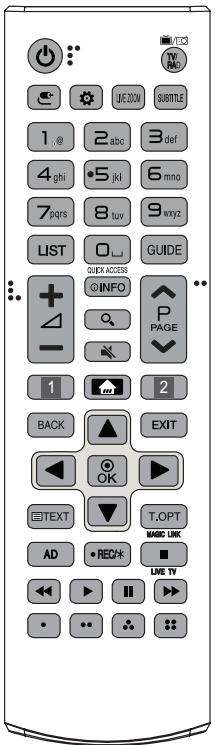
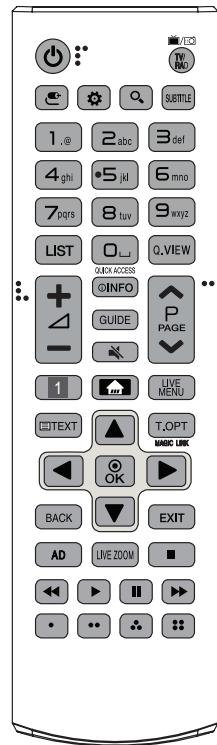
1INFO Views the information of the current programme and screen.
Q. (SEARGe)arch for content such as TV programmes, movies and other videos, or perform a web search by entering text in the search bar.
(MUTEMutes all sounds.
P Scrol1s through the saved programmes.
PAGE Moves to the previous or next screen.
1,2 Streaming Service buffersects to the Video
Streaming Service.
(HOMeshowsHome menu.
- Pressing and holding shows previous history. LIVE MENbows the list of Programmes and Recommended
BACK Returns to the previous level.
EXIT Clears on-screen displays and returns to TV viewing. Navigation buttons (up/down/left/sgn)lls through menus or options.
OK Selects menus or options and con rms your input.
Teletext peroTEXT,T.OPT) These buttons are used for teletext.
MAGIC LINK* Provides content related to the programme you are currently watching.
AD Audio descriptions function will be enabled.
-REC/*Starts to record and displays record menu.
(Only Time Mach supported model)
LIVETV Returns to LIVE TV.
Control butto, , , ,) Controls media contents.
These access special functions in some menus.
Magic remote functions
B
(Some buttons and services may not be provided depending on the volume level.)
(Some buttons and services may not be provided depending on models.
of regions.) (MUTEBMutes all sounds.
When the message "Magic remote battery is low. Change the battery."is displayed, replace the battery.
Network connection is required to use the voice recognition functio
To replace batteries, open the battery cover, replace batteries (the voice) recognition button.
matching the and ends to the label inside the compa t peak when the voice display window appears on the TV screen and close the battery cover. Be sure to point the magico gert search for content such as TV programmes, movies the remote control sensor on the TV. To remove the bateries or, or perform a web search by entering text in the the installation actions in reverse. search bar.
- To use the button, press and hold for more than 3 seconds. OMS Shows Home menu.
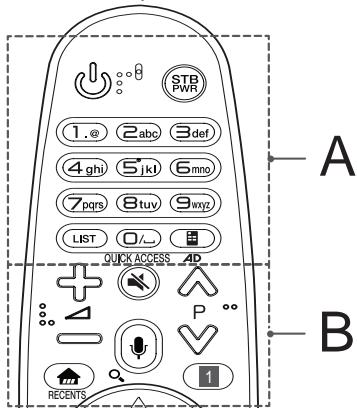
RECENTs* Shows previous history
Q. Settings accesses the Quick Settings.
- Pressing and holding button displays settings menu.
1STBMENU Displays the set-top box Home menu.
- When you are not watching via a set-top box: the display change to the set-top box screen.
A
(POWER)urns the TV on or o.
STBPWR You can turn your set-top box on or o by adding the set-top box to the universal remote control for your TV.
Number button enters numbers.
Alphabet buttoEsters letters.
LIST Accesses the saved programmes list.
(L) (Space) pens an empty space on the screen keyboard.
Screen RemDi plays the Screen Remote.
- Accesses the Universal Control Menu.
QUICK ACCESS* You can access apps or Live TV using the member you can change programmes by using the Wheel button.
buttons corresponding to the features.
AD^* Audio descriptions function will be enabled.
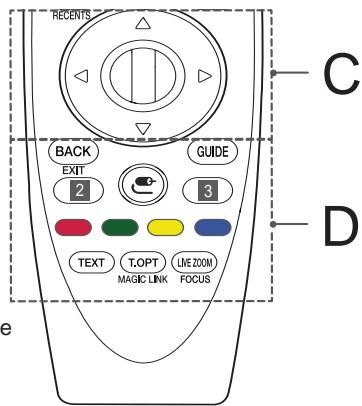
① Wheel (CR)ess the center of the Wheel button to select a
Remember you can change programmes by using the Wheel button.
(up/down/left/right) Press the up, down, left or right button to scroll the menu. If you pressed buttons
while the pointer is in use, the pointer will disappear from the screen and Magic Remote will operate like a general remote control. To display the pointer on the screen again, shake Magic Remote to the left and right.
D
Licenses
BACK Returns to the previous level.
EXIT* Clears on-screen displays and returns to last GUIDE Shows programme guide.
Supported licenses may di er by model. For more information ab out Viewing licenses, www.lg.com
DOLBY AUDIO
HMI
HIGH-DEFINITION MULTIMEDIA INTERFACE
2,3 Streaming Service buttnects to the Video Streaming Service.
C (INPUT) changes the input source.
- Pressing and holding on displays all the lists of external inputs.


DOLBY VISION
(Only UJ75, SJ80, SJ81, SJ85, SJ93, SJ95)
Q. Settings processes the Quick Settings.
- Pressing and holding button displays settings menu.
These access special functions in some
menus.
Teletext buttonEXT,T.OPT) These buttons are used for teletext.
MAGIC LINK* Provides content related to the programme you are currently watching. To obtain
LIVE ZOOM By zooming in on the selected area, you can see it full screen. lge.com.
FOCUS* You can zoom in on the area where the remote control is pointed.
Registering magic remote
How to register the magic remote
To use the Magic Remote, rst pair it with your TV.
1 Put batteries into the Magic Remote and turn the TV on.
2 Point the Magic Remote at your TV channels the remote control.
- If the TV fails to register the Magic Remote, try again after turning the TV off and back on.
How to deregister the magic remote
Press BACK and (HOME)buttons at the same time, for ve seconds, to unpair the Magic Remote with your TV.
- Pressing and holding button will let you cancel and re-register Magic Remote at once.
Open source software notice information
To obtain the source code under GPL, LGPL, MPL and other open projects, that is contained in this product: http://papersonline. gelse.com.
In addition to the source code, all referred license terms, warrant disclaimers and copyright notices are available for download.
LG Electronics will also provide open source code to you on CDfor a charge covering the cost of performing such distribution (su as the cost of media, shipping, and handling) upon email request opensource@Ige.com. This o er is valid for three (3) years from t on which you purchased the product.
External control device
setup
To obtain the external control device setup information, please visit www/lg.com
Troubleshooting
Cannot control the TV with the remote control.
Check the remote control sensor on the product and fiydiag panel is an advanced product that contains millions of pixels
t Check if there is any obstacle between the product and the asymetiny black dots and/or brightly coloured dots (red, b control. or green) at a size of 1 ppm on the panel. This does not indicate
t Check if the batteries are still working and properly installed and does not aect the performance and reliability to , to). of the product.
No image display and no sound is produced.
t Check if the product is turned on.
t Check if the power cord is connected to a wall outlet? You may nd erent brightness and color of the panel depending
Check if there is a problem in the wall outlet by connecting the viewing position(left/right/top/down). Products. This phenomenon occurs due to the character
The TV turns o suddenly.
t Check the power control settings. The power supply interrupted.
t Check if Sheep Timer Power is activated in the Timersettings.
t Check if Ateo Power activated iGemeraEco Modesettings. (Depending on model)
If there is no signal while the TV is on, the TV will turn automatically after 15 minutes of inactivity.
When connecting to the PCC (big) valid Format displayed.
t Turn the TV o /on using the remote control.
t Reconnect the HDMI cable.
t Restart the PC with the TV on.
Abnormal Display
If the product feels cold to the touch, there may be a small "icker" when it is turned on. This is normal, there is nothing wrong with product.
ffnagpiel is an advanced product that contains millions of pixels
no the agreetiny black dots and/or brightly coloured dots (red, b or green) at a size of 1 ppm on the panel. This does not indicate
Installation and does not act the performance and reliability of the product.
This phenomenon also occurs in third-party products and is not subject to exchange or refund.
. You may nd di erent brightness and color of the panel depending
efing viewinng position(left/right/top/down).
This phenomenon occurs due to the characteristic of the panel. It is not related with the product performance, and it is not malfunction.
Displaying a still image for a prolonged period of time may cause an image sticking. Avoid displaying a xed image on the TV screen for a long period of time.
Generated Sound
t "Cracking" noise: A cracking noise that occurs when watching or turning o the TV is generated by plastic thermal contraction due to temperature and humidity. This noise is common for products where thermal deformation is required.
t Electrical circuit humming/panel buzzing: A low level noise is generated from a high-speed switching circuit, which supplies a large amount of current to operate a product. It varies depending on the product.
This generated sound does not act the performance and reliability of the product.
Speci cations
Wireless module speci cation
t As band channels can vary per country, the user cannot change or adjust the operating frequency. This product is con gured for the regional frequency table.
t For consideration of the user, this device should be installed and operated with a minimum distance of 20cm between the device and the body.
| Wireless module (LGSBWAC72) specific | |
| Wireless LAN (IEEE 802.11a/b/g/n/ac) | |
| Frequency Range | Output Power (Max.) |
| 2400 to 2483.5 MHz | 14 dBm |
| 5150 to 5725 MHz | 16.5 dBm |
| 5725 to 5850 MHz (Not for EU) | 11.5 dBm |
| Bluetooth | |
| Frequency Range | Output Power (Max.) |
| 2400 to 2483.5 MHz | 8.5 dBm |
- "IEEE 802.11ac" is not available in all countries.
| CI Module (W x H x D) | 100.0 mm x 55.0 mm x | |
| Environment condition | Operating Temperature | 0 °C to 40 °C |
| Operating Humidity | Less than 80 % | |
| Storage Temperature | -20 °C to 60 °C | |
| Storage Humidity | Less than 85 % | |
Depending on country
| Digital TV | Analogue TV | |||
| Television system | DVB-T DVB-T2 DVB-C DVB-S/S2 | PAL/SECAM, B/G SECAM L | ||
| Channel coverage (Band) | DVB-S/S2 | DVB-C | DVB-T/T2 | MHz MHz MHz MHz MHz MHz MHz MHz MHz MHz MHz MHz MHz MHz MHz MHz MHz MHz MHz MHz MHz MHz MHz MHz MHz MHz MHz MHz MHz MHz MHz MHz MHz MHz MHz MHz MHz MHz MHz MHz MHz MHz MHz MHz MHz MHz MHz MHz MHz MHz MHz |
| 950 ~ 2150 MHz | 46 ~ 890 MHz | VHF III: 174 ~ 230 UHF IV: 470 ~ 606 UHF V: 606 ~ 862 S Band II: 230 ~ 300 S Band III: 300 ~ 470 | 46 ~ 862 MHz MHz MHz MHz MHz MHz MHz MHz MHz MHz MHz MHz MHz MHz MHz MHz MHz MHz MHz MHz MHz MHz MHz MHz MHz MHz MHz MHz MHz MHz MHz MHz MHz MHz MHz MHz MHz MHz MHz MHz MHz MHz MHz MHz MHz MHz MHz MHz MHz MHz 2,000 | |
| Maximum number of storable programmes | 6,000 | |||
| External antenna impedance | 75 | |||
BENUTZERHANDBUCH
PCM (32 kHz, 44,1 kHz, 48 kHz, 96 kHz, 192 kHz)
(schbeinig.vom Modell)
e reynovabelaeneaane aeneae enaneae neae neneae neae neae neae neae neae neae neae neae neae neae neae neae neae neae neae neae neae neae neae neae neae neae neae neae neae neae neae neae neae neae neae neae neae neae neae neae neae neae neae neae neae neae neae neae neae neae neae neae neae neae
$$ ^ {\prime \prime} \bullet - ^ {\prime \prime} \in - ^ {\prime \prime} \bullet \frac {1}{2} 0 0 0 0 0 0 0 0 0 0 0 0 0 0 0 0 0 0 0 0 0 0 0 0 0 0 0 0 0 0 0 0 0 0 0 0 0 0 0 0 0 0 0 0 0 0 0 0 0 0 1 $$
$$ \in \bullet - \hat {\cdot}, \bullet -, - \% _ {0} \bullet \bullet \mathrm {C E}, \dots \hat {\bullet} \bullet \bullet , \bullet , \bullet , \dagger , -, \bullet , \quad \hat {\cdot} \bullet , $$
$$ \bullet \bullet \bullet \bullet \bullet \bullet , \bullet \bullet \bullet \check {Z}, \bullet \dagger - \% _ {0} \quad \bullet \bullet O E, \hat {} - \dagger , $$
$$ , \dagger . \bullet , ^ {\bullet} \bullet + \dots \dots \dots \ddot {S} \dagger , \bullet \% _ {0 0} ^ {\bullet}, - ^ {\bullet}, f, (\dots) ^ {\bullet} \dagger + $$
$$ \bullet \hat {\bullet} ^ {\prime} \in - \% _ {0 0} < , \dagger \bullet \hat {\bullet} ^ {\prime} \bullet \bullet \dagger^ {\prime \prime} \bullet < \dots \dagger - \% _ {0 0} < \bullet \circ E, (\bullet \bullet \bullet \check {S} \dagger , $$
$$ f - \% \bullet \tilde{S} \dagger \dots \bullet \% -). $$
$$ t, f \tilde {Z} _ {-}, \dots , \dots - \%, \dots - \% 00 \dots \% 00 \in - t, \dots + \dots + \dots + \dots + $$
$$ \dagger (\dagger \bullet \bullet \bullet \dagger (\bullet \% _ {0} \dagger , \bullet \bullet \bullet \dots \dagger (\bullet \bullet \bullet \in \%) - . $$
$$ t \bullet - ^ {\prime}, \bullet \bullet \bullet , f - \bullet \check {Z} \bullet - \bullet +, t \bullet \bullet \dots . $$
$$ t - \bullet , f \bullet^ {\prime \prime} \bullet - < O S D (O n S c r e e n D i s p l a y) \quad \dagger , ^ {\prime}, \dagger \dagger < \dagger \bullet \bullet \dots < $$
$$ \left( \begin{array}{c c c c c c c c} \bullet & f \tilde {Z} _ {\text {一}} & - & , f - \bullet \tilde {Z} & \bullet \bullet \bullet \bullet^ {\prime} & \bullet & \tilde {Z} (\bullet & \bullet \bullet , \bullet \bullet , & - \end{array} \right. $$
$$ \bullet \quad \bullet \in_ {n} \bullet \bullet \bullet f. $$
$$ t f - \check {Z} - \bullet , \hat {\cdot} - - \bullet \dots \in \check {Z} (\bullet , f \check {Z} _ {n} \bullet -, f - \check {Z} \bullet , $$
$$ , \left. \right.\left. \right.\left. \right.\left. \right.\left. \right.\left. \right.\left. \right.\left. \right.\left. \right.\left. \right.\left. \right.\left. \right.\left. \right.\left. \right.\left. \right.\left. \right.\left. \right.\left. \right.\left. \right.\left. \right.\left. \right.\left. \right.\left. \right.\left. \right.\left. \right.\left. \right.\left.\left.\left.\left.\left.\left.\left.\left. f \dots f \dots f \dots f \dots f \dots f \dots f \dots f \dots f \dots f \dots f \dots f \dots f \dots f \dots f \dots f \dots f \dots f \dots f \dots f \dots f \dots f \dots f \dots f \dots f \dots f \dots f \dots f \dots f \dots f \dots f \dots f \dots f \dots f \dots g \dots g \dots g \dots g \dots g \dots g \dots g \dots g \dots g \dots g \dots g \dots g \dots g \dots g \dots g \dots g \dots g \dots g \dots g \dots g \dots g \dots g \dots g \dots g \dots g \dots g \dots g \dots g \dots g \dots g \dots g \dots g \dots g \dots g \right.\right.\right.\right.\right.\right.\right.\right. $$
$$ , \bullet + - \bullet - \bullet \bullet . $$
$$ t \quad \tilde {Z} ^ {\bullet \bullet} _ {n}, \bullet_ {f} \tilde {Z} _ {n} ^ {\bullet} -, \bullet_ {n} \bullet^ {\prime}, \tilde {Z} _ {n} ^ {\bullet} (\bullet -) \bullet \in \otimes (\bullet \dots \dots + 1, $$
$$ \dagger \dots \bullet \dagger . $$
$$ t \bullet^ {\prime \prime} \bullet \dots \bullet \bullet \check {Z} _ {n}, - \bullet \bullet \bullet \bullet \bullet C E, \bullet f \check {Z} _ {n} \cdot -, $$
$$ f - \bullet \check {Z} \bullet , \quad \%, \% _ {0} \bullet \in \bullet , \check {Z} \bullet . $$
$$ t \bullet_ {m} - \% _ {00} \quad - _ {m} \bullet \quad \bullet \bullet \text {OE}, (\dots \bullet \bullet \bullet , \bullet , $$
$$ \bullet \in_ {n} \bullet - - f \bullet , f \check {Z} _ {n} \bullet -, \bullet \text {0 0 " "}, \check {S} \bullet \bullet (\bullet \bullet - f \bullet + \dagger , \bullet $$
$$ \dots \dots \ddot {S} +, \% _ {0} ^ {\prime} - \dagger (\ddot {S}, \dots - \bullet \in^ {-}, \dots \circ E, \cdot $$
$$ t - \dagger , \hat {\bullet} \dots \dagger f, \dots , f \cdot \dagger , \quad \check {S}, \hat {\bullet} \check {S} f \cdot \check {S}, H D M I $$
$$ \hat {\cdot} - \check {S}, \hat {\cdot} ^ {\prime}, \text {U S B} \dots \check {Z} \dots , \check {Z} _ {n}, \dots \% _ {0 0}, (\hat {-} \bullet \bullet \bullet \bullet 1 0 $$
$$ 1 3 - \hat {\cdot} - \dots \% 00 / (- \hat {\cdot} \dots \bullet \cdot \cdot 1 8 _ {n} - \cdot . \cdot + - \dots \dots - \dots \cdot \cdot \cdot \hat {Z} ^ {\prime} + $$
$$ \hat {\bullet} \hat {S} f \bullet \bullet \quad \dagger \dots \dots - \text {USB} 2.0, \bullet \%, \quad \hat {\bullet} f - \text {USB} \dots \quad \text {USB} $$
$$ \text {m e m o r y s t i c k} f ^ {\bullet}, - \cdot - \% _ {0 0} \dots + ^ {\prime} \bullet \text {U S B} + ^ {\prime} \dots \dots . $$

$$ { } ^ { * } A \leq 1 0 , \bullet $$
$$ ^ {*} B \leq 1 8, \bullet $$
$$ \begin{array}{l} t \bullet + - \bullet - \dots \bullet - \bullet - + \check {Z}, ^ {\prime} \bullet^ {\prime} f - \bullet \bullet \check {Z} \bullet - \bullet \in \bullet \ H D M I. \ t, f ^ {\bullet}, _ {n} \bullet \dagger - \bullet - \dots \bullet \bullet \bullet - \bullet - \dagger \check {Z}, \hat {} ^ {\bullet} f - H D M I, \dagger , \dagger \ \bullet f \check {Z} _ {\bullet} -, \dagger , \bullet \% _ {0 0} \bullet \dots - \hat {} , \dots \bullet \dots , \bullet^ {\wedge} \pm - \bullet \% _ {0 0} \ \dagger \cdot . (, ^ {-} ^ {\prime} \bullet , - \bullet^ {-} \hat {\bullet} \check {S} f \bullet H D M I) \ - \bullet^ {\prime} f - H D M T ^ {M} \ddagger \bullet \dots (\quad , \dagger \cdot (\overline {{Z}} _ {n} \bullet - 3 Z \bullet) \ - \cdot f - H D M ^ {T M} \ddagger \dots .. , \dagger \cdot \text {E t h e r n t} (\check {Z}, - 3 \ \breve {Z} \bullet) \ t \bullet \dots , \bullet \dots + (\bullet \bullet \dots , \bullet \bullet \bullet \dagger (\%, 0.0\% \in \bullet , \check {Z} \bullet) \ - \bullet + - \bullet - \dots \bullet , \bullet \bullet \dots , \bullet \bullet \bullet + \in -, \bullet - ^ {\prime} \bullet \bullet - ( \ , \quad + \dots^ {\wedge} \bullet \in , \text {t} - \hat {\tilde {Z}} (c \bullet \bullet) \quad \hat {\tilde {Z}} (f - \bullet f \bullet c. \ \dots \bullet^ {n} \bullet \bullet \bullet \bullet \% _ {0 0} \quad \hat {\bullet} ^ {n} f - \bullet \bullet f \bullet (\quad , \bullet \dots , \bullet \bullet \bullet \dagger . \ [ \dots \% ] + \dots \% + 1 \ \begin{array}{c} \text {H D M I .} \end{array} \ - \bullet + - \bullet - \dots \bullet , \bullet \bullet \dots , \bullet \bullet \bullet \dagger \in -, \bullet - ^ {\prime} \bullet \bullet - ( \ , \dagger \bullet \bullet \bullet \in , \dagger - \hat {Z} (c \bullet \bullet) \bullet Z (\quad \hat {\bullet} ^ {\prime} f - \bullet \bullet f \bullet c. \ \dots \bullet^ {n} \bullet \bullet \bullet \bullet \% _ {0 0} \quad \hat {\bullet} ^ {n} f - \bullet \bullet f \bullet (\quad , \bullet \dots , \dots \dots \dagger . \ [ \begin{array}{c c} \bullet & \bullet \ \bullet & \bullet \end{array} _ {0 0} & \bullet_ {n} ] \ \end{array} $$

$$ 1 0 \hat {\cdot} (+ / - 2 \hat {\cdot}) $$

$$ t - \bullet \in \langle \bullet \bullet \bullet (\hat {-} - \in -, f - + \bullet + \bullet + f - \% 00\bullet - $$
$$ < \bullet (B > $$
$$ < \bullet < C > $$
$$ \begin{array}{l} \begin{array}{l} 1 - \dots (\dots \bullet \in \tilde {Z} (i) \bullet \hat {\bullet} \bullet \bullet , - ^ {i} \hat {\bullet} \bullet \bullet , \hat {\bullet} - \frac {1}{2} \frac {1}{2} \frac {1}{2} \frac {1}{2} \frac {1}{2} \frac {1}{2} \frac {1}{2} \frac {1}{2} \frac {1}{2} \frac {1}{2} \dots \ \bullet \dots \tilde {Z} - ^ {i + 1} f - ^ {\wedge} \dots . \end{array} \ \begin{array}{c c c c c c c c c} 2 & \dots & \bullet & , & \hat {\mathbf {\Phi}} & \bullet & , \dagger & \dagger \bullet \bullet & \dagger \bullet , - , & \check {Z}, \dagger \in - \ & \bullet \bullet \text {- - } \dagger^ {+} \bullet \bullet & & \bullet , . \end{array} \ 3 \bullet \dots \bullet , \bullet \dagger - \bullet - \dots \bullet \dots , \dagger \bullet - \bullet \in \bullet \bullet \bullet , \ \end{array} $$
| ··· |
| ( ,‰● ∈ · ,Z● ) |
| - ,† †●● · †●, - ●, ●∈ · -† Z,†, ● ... • ^ ♂●● |
| • %‰. ●●● , ● ● ● ● ● _ , ● , ● , ● |
| ^ . ● . |
| ••••∈••† + ^•.... | |
| ••-•• † •, ••••S. | |
| × | -€••... S, •f••••S, • ••, - †, ' , †^- ••-••... †, ', ' ... •••• †••• †. |
| ••∈... † (•+€... (•- f . | |
| ∧ ∨ | •- † •'^• Z, •∈•‰ ... ^, %‰... . |
| + | ' - † •••Zf Z, † ( ... . |

1+°·-°.…·+,t.00·t·^00t Z+ 0%o,SZ,0
-,·+ -····· +············ Magic, “········································································································································································································. ••“·····+,+…<
- - Magic- 0,00 0 0 ,t 0 t.
- Z+ t... Magic ... t, t... t^... ... T T S (OK) t...
*,+,"·t+ t... Magic +,+●·+ ●-,... -%00- ●,∈. ... ●-,∈... ... ●",%0,+,+●.
f
Magic
... • „,^ -% BACK ^- ( -+ • ,) €- .Z, • f• ... , €-, ^ • €... † "† †" †- - † Magic · †, †...
*,. .ZGUIDE. .Magic.
-,f ,% _ 0 f ( 一 一 Z ) _ n , 一 一 一 一 一 一 一 一 一 一 一 一 一 一 一 一 一
$$ \begin{array} { l } \cdots \ \vdots \ \bullet , \bullet , - f , \quad \bullet , \bullet , - \quad + \quad + \quad + \quad + \quad + \quad + \quad + \quad + \quad + \quad + \quad + \quad + \quad + \quad + \quad + \quad + \quad + \quad + \quad + \quad + \quad + \quad + \quad + \quad + \quad + \quad + \quad + \quad + \quad + \quad + \quad + \quad + \quad + \quad + ① \ t . Z ^ { e } " \bullet , - 4 + \dots + \dots " & \bullet C E , \quad \hat { c } ^ { - } \ \bullet , \bullet , \bullet , \bullet , \bullet , \bullet , \bullet , \bullet , \bullet , \bullet , \bullet , \bullet , \bullet , \bullet , \bullet , \bullet , \bullet , \bullet , \bullet , \bullet , \bullet , \bullet , \bullet , \bullet , \bullet , \bullet , \bullet , \bullet , \bullet , \bullet , \bullet , \bullet , \bullet , \bullet , ① \ t . Z ^ { e } " \bullet , ① , ② , ③ , ④ , ⑤ , ⑥ , ⑦ , ⑧ , ⑨ , ⑩ , ⑪ , ⑫ , ⑬ , ⑭ , ⑮ \ & ⑯ \ t . Z ^ { e } " \bullet , ① , ② , ③ , ④ , ⑤ , ⑥ , ⑦ , ⑧ , ⑨ , ⑩ , ⑪ , ⑫ , ⑬ , ⑭ \ & ⑰ \ t . Z ^ { e } " \bullet , ① , ② , ③ , ④ , ⑤ , ⑥ , ⑦ - " & ⑧ \ & ⑨ \ t . Z ^ { e } " \bullet , ① , ② , ③ , ④ , ⑤ , ⑥ , ⑦ - " & ⑧ \ & ⑨ \ t . Z ^ { e } " \bullet , ① , ② , ③ , ④ , ⑤ , ⑥ , ⑦ - " & ⑧ \ & ⑩ \ t . Z ^ { e } " \bullet , ① , ② , ③ , ④ , ⑤ , ⑥ , ⑦ - " & ⑧ \ & ⑨ \ t . Z ^ { e } " \bullet , ① , ② , ③ , ④ , ⑤ , ⑥ , ⑦ - " & ⑧ \ & ⑪ \ t . Z ^ { e } " \bullet , ① , ② , ③ , ④ , ⑤ , ⑥ , ⑦ - " & ⑧ \ & ⑨ \ t . Z ^ { e } " \bullet , ① , ② , ③ , ④ , ⑤ , ⑥ , ⑦ - " & ⑧ \ & ⑺ \ t . Z ^ { e } " \bullet , ① , ② , ③ , ④ , ⑤ , ⑥ , - " & f ^ { - } ( z ) = f ^ { - } ( z ) + f ^ { - } ( z ) + f ^ { - } ( z ) + f ^ { - } ( z ) + f ^ { - } ( z ) + f ^ { - } ( z ) + f ^ { - } ( z ) + f ^ { - } ( z ) + f ^ { - } ( z ) + f ^ { - } ( z ) + f ^ { - } ( z ) + f ^ { - } ( z ) + g ^ { - } ( z ) + g ^ { - } ( z ) + g ^ { - } ( z ) + g ^ { - } ( z ) + g ^ { - } ( z ) + g ^ { - } ( z ) + g ^ { - } ( z ) + g ^ { - } ( z ) + g ^ { - } ( z ) + g ^ { - } ( z ) + g ^ { - } ( z ) + g _ { n } ^ { - } ( z ) + g _ { n } ^ { - } ( z ) + g _ { n } ^ { - } ( z ) + g _ { n } ^ { - } ( z ) + g _ { n } ^ { - } ( z ) + g _ { n } ^ { - } ( z ) + g _ { n } ^ { - } ( z ) + g _ { n } ^ { - } ( z ) + f ^ { - } ( z ) \ & t . Z ^ { e } " \bullet \ & t . Z ^ { e } " \bullet \ & t . Z ^ { e } " \bullet \ & t . Z ^ { e } " \bullet \ & t . Z ^ { e } " \bullet \ & t . Z ^ { e } " \bullet \ & t . Z ^ { e } " \bullet \ & t . Z ^ { e } " \bullet \ & t . Z ^ { e } " \bullet \ & t _ {\cdot} f ^ {\cdot}, \% _ {\cdot} \% _ {\cdot} -, ... ;, \% _ {\cdot} -, -, -, -, -, -, -, -, -, -, -, -, -, -, -, -, -, -, -, -, -, -, -, -, -, -, -, -, -, -, -, -, -, -, -, -, -, -, -, -, -, -, -, -, -, -, -, -, -, -, -, -, -, -, -, -, -, -, -, -, -, -, -, -, -, -, -, -, -, -, -, -, -, -, -, -, -, -, -, -, -, - f ^ {-} \ & t _ {\cdot} f ^ {\cdot}, \% _ {\cdot} \% _ {\cdot} -, ... ;, \% _ {\cdot} -, -, -, -, -, -, -, -, -, -, -, - f ^ {-} \ & t _ {\cdot} f ^ {\cdot}, \% _ {\cdot} \% _ {\cdot} -, ... ;, \% _ {\cdot} -, - f ^ {-} \ & t _ {\cdot} f ^ {\cdot}, \% _ {\cdot} \% _ {\cdot} -, ... ;, \% _ {\cdot} -, - f ^ {-} \ & t _ {\cdot} f ^ {\cdot}, \% _ {\cdot} \% _ {\cdot} - f ^ {-} \ & t _ {\cdot} f ^ {\cdot}, \% _ {\cdot} \% _ {\cdot} - f ^ {-} \ & t _ {\cdot} f ^ {\cdot}, \% _ {\cdot} \% _ {\cdot} - f ^ {-} \ & t _ {\cdot} f ^ {\cdot}, \% _ {\cdot} \% _ {\cdot} - f ^ {-} \ & t _ {\cdot} f ^ {\cdot}, \%{\cdot} \% _ {\cdot} - f ^ {-} \ & t _ {\cdot} f ^ {\cdot}, \% _ {\cdot} \% _ {\cdot} - f ^ {-} \ & t _ {\cdot} f ^ {\cdot}, \% _ {\cdot} \% _ {\cdot} - f ^ {-} \ & t _ {\cdot} f ^ {\cdot}, \% _ {\cdot} \% _ {\cdot} - f ^ {-} \ & t _ {\cdot^ {}} f ^ {}, \% _ {\cdot^ {}} + f ^ {} \ & t _ {\cdot^ {}} f ^ {}, \% _ {\cdot^ {}} + f ^ {} \ & t _ {\cdot^ {}} f ^ {}, \% _ {\cdot^ {}} + f ^ {} \ & t _ {\cdot^ {}} f ^ {}, \% _ {\cdot^ {}} + f ^ {} \ & t _ {\cdot^ {}} f ^ {}, \% _ {\cdot^ {}} + f ^ {} \ & t {\cdot^ {}} f ^ {}, \% _ {\cdot^ {}} + f ^ {} \ & t _ {\cdot^ {}} f ^ {}, \% _ {\cdot^ {}} + f ^ {} \ & t _ {\cdot^ {}} f ^ {}, \% _ {\cdot^ {}} + f ^ {} \ & t _ {\cdot^ {}} f ^ {}, \% _ {\cdot^ {}} + f ^ {} \ & t _ {\cdot^ {} f}, \% _ {\cdot^ {} f} - f ^ {} \ & t _ {\cdot^ {} f}, \% _ {\cdot^ {} f} - f ^ {} \ & t _ {\cdot^ {} f}, \% _ {\cdot^ {} f} - f ^ {} \ & t _ {\cdot^ {} f}, \% _ {\cdot^ {} f} - f ^ {} \ & t _ {\cdot^ {} f}, \% _ {\cdot^ {} f} - f ^ {} \ & t _ {\cdot^ {} / n}, \% _ {\cdot^ {} / n} - f ^ {} \ & t _ {\cdot^ {} / n}, \% _ {\cdot^ {} / n} - f ^ {} \ & t _ {\cdot^ {} / n}, \% _ {\cdot^ {} / n} - f ^ {} \ & t _ {\cdot^ {} / n}, \% _ {\cdot^ {} / n} - f ^ {} \ & t _ {\cdot^ {} / n}, \% _ {\cdot^ {} / n} - f * \ & t _ {\cdot^ {} / n}, \% _ {\cdot^ {} / n} - f * \ & t _ {\cdot^ {} / n}, \% _ {\cdot^ {} / n} - f * \ & t _ {\cdot^ {} / n}, \% _ {\cdot^ {} / n} - f * \ & t _ {\cdot^ {} / n}, \% _ {\cdot^ {} / n} - f * \ & t _ {\cdot^ {}} / n, \% _ {\cdot^ {}} - f * \ & t _ {\cdot^ {}} / n, \% _ {\cdot^ {}} - f * \ & t _ {\cdot^ {}} / n, \% _ {\cdot^ {}} - f * \ & t _ {\cdot^ {}} / n, \% _ {\cdot^ {*}} - f * \ & t _ {\cdots} / n, \% _ {\cdots} - f * \ & t _ {\cdots} / n, \% _ {\cdots} - f * \ & t _ {\cdots} / n, \% _ {\cdots} - f * \ & t _ {\cdots} / n, \% _ {\cdots} - f * \ & t _ {\cdots} / n, \% _ {\cdots} - f * \ & t _ {\cdots} / n, \% _ {\cdots}.\ & t _ {1}, f, f, f, S F H D M I.\ & t. T. T. T. T. T. T. T. T. T. T. T. T. T. T. T. T. T. T. T. T. T. T. T. T. T. T. T. T. T. T. T. T. T. T. T. T. T. T. T. T. T. T. T. T. T. T. T. T. T. T. I.\ & t . T . T . T . T . T . T . T . T . T . T . T . T . T . T . T . T . T . T . T . T . T . T . T . T . T . T . T . T . T . T . T . T . T . T . T . T . T . T . T . T . T . T . T . T . T . T . T . T . T . T . I.\ & t . T . T . T . T . T . I I I I I I I I I I I I I I I I I I I I I I I I I I I I I I I I I I I I I I I I I I I I I I I I I I I \end{array} $$
$$
\begin{array}{l} \bullet f - \infty \bullet \check {Z} (\bullet \quad \dagger \quad , \%) f \ t ^ {\prime \prime} \left( \begin{array}{c c c c c c c c c} & & \hat {,} & \% _ {0 0} - & \bullet^ {\prime}, \dagger & \ddot {c} & \bullet \bullet \bullet \bullet , & f - \ddot {Z} ^ {\bullet} & , \% _ {0 0}, ^ {\prime} \bullet \end{array} , \right. \ \dots + \left( \right.f _ {1}, \dots , \dots , \dots , \dots , \dots , \dots , \dots , \dots , \dots , \dots , \dots , \dots , \dots , \dots , \dots , \dots , \dots , \dots , \dots , \dots , \dots , \dots , \dots , \dots , \dots , \dots , \dots , \dots , \dots , \dots , \dots , \dots , \dots , \dots , f _ {1}, \dots , \dots , \dots , \dots , \dots , \dots , \dots , \dots , \dots , \dots , \dots , \dots , \dots , \dots , \dots , \dots , \dots , \dots , \dots , \dots , \dots , \dots , \dots , \dots , \dots , \dots , \dots , \dots , \dots , \dots , \dots , \dots . \ \bullet \bullet - \bullet \in \bullet . \quad \bullet \bullet \mathrm {O E}, \check {\mathrm {Z}} _ {n} \bullet - f - \bullet \check {\mathrm {S}} ^ {\prime} \bullet \in -, \bullet , \ \bullet^ {\prime \prime}, \quad \dots \check {S} _ {1} \ t \bullet (\bullet , \dagger \check {Z} \bullet \check {S} \dagger , \dots \dagger , \dots \dagger \hat {\bullet} \dots^ {\prime} \bullet \check {Z} \bullet - \ \bullet \in^ {\wedge} \quad \text ` + \bullet \quad \text { + 20 ^ {\wedge}}. \ \bullet^ {\prime \prime} + ^ {\prime \prime} \dots^ {\prime \prime} = 1. \ \end{array}
$$
| f-€•Z(• †,‰f (LGSBWAC72) | |
| LAN (IEEE 802.11a/b/g/n/ac) | |
| • „ „ ... S, | “•”f (‘Z€.) |
| 2.400 ZŠ< 2.483,5 MHz5.150 ZŠ< 5.725 MHz5.725 ZŠ< 5.850 MHz (- „●(E.) | 14 dBm16,5 dBm11,5 dBm |
| Bluetooth | |
| • „ „ ... S, | “•”f (‘Z€.) |
| 2.400 ZŠ< 2.483,5 MHz | 8,5 dBm |
* sIEEE802.11ac) f, ,-fZ - ● (-, 0
| Cl (x x CE) | 100,0 mm x 55,0 mm x | |
| € | Z | 0°C ZŠ(40°C |
| • | -€ • • 80% | |
| Z | -20°C ZŠ(60°C | |
| • | -€ • • 85% | |
$$ \left( \begin{array}{c} \% \bullet \in \bullet \uparrow ,^{\prime}\bullet \end{array} \right) $$
| f | · | |||
| €š | DVB-T DVB-T2 DVB-C DVB-S/S2 | PAL/SECAM, B/G SECAM L | ||
| ' S (… ) | DVB-S/S2 | DVB-C | DVB-T/T2 | MHz MHz MHz46 ~ 862 MHz MHz |
| 950 ~ 2.150 MHz | 46 ~ 890 MHz | VHF III: 174 ~ 230 UHF IV: 470 ~ 606 UHF V: 606 ~ 862 αe',† S II: 230 ~ 300 αe',† S III: 300 ~ 470 | ||
| · · · · · · | 6.000 | 2.000 | ||
| €š · | 75 TM | |||
D/K, I
MANUALE UTENTE
Record the model number and serial number of the TV.
Refer to the label on the back cover and quote this
information to your dealer when requiring any service.
MODEL
SERIAL