24MT35S-PZ - Television LG - Free user manual and instructions
Find the device manual for free 24MT35S-PZ LG in PDF.


User questions about 24MT35S-PZ LG
0 question about this device. Answer the ones you know or ask your own.
Ask a new question about this device
Download the instructions for your Television in PDF format for free! Find your manual 24MT35S-PZ - LG and take your electronic device back in hand. On this page are published all the documents necessary for the use of your device. 24MT35S-PZ by LG.
USER MANUAL 24MT35S-PZ LG
- Printing Specification
| 1. Trim size (Format) : 182 mm x 257 mm (B5) | |
| 2. Printing colors | |
| • Cover : 1 Color (Black) | |
| • Inside : 1 Color (Black) | |
| 3. Stock (Paper) | |
| • Cover : Uncoated, wood-free paper 80 g/㎡ | |
| • Inside : Uncoated, wood-free paper 80 g/㎡ | |
| 4. Bindery : Saddle stitching | |
| 5. Language : ENG/GER/FRE/ITA/SPA/RUS (6) | |
| 6. Number of pages : 60 | |
| NOTE | “This part contains Eco-hazardous substances (Pb, Cd, Hg, Cr6+, PBB, PBDE, etc.) within LG standard level, Details should be followed Eco-SCM management standard[LG(56)-A-2524]. Especially, Part should be followed and controlled the following specification. (1) Eco-hazardous substances test report should be submitted when Part certification test and First Mass Production. (2) Especially, Don’t use or contain lead(Pb) and cadmium(Cd) in ink. |
- Origin Notification
| LGEAK : Printed in Kazakhstan | LGEKR : Printed in Korea | LGERS : Printed in Mexico |
| LGEAZ : Printed in Brazil | LGEMA : Printed in Poland | LGESY : Printed in China |
| LGEEG : Printed in Egypt | LGEMX : Printed in Mexico | LGETH : Printed in Thailand |
| LGEIL : Printed in India | LGEND : Printed in China | LGEVN : Printed in Vietnam |
| LGEIN : Printed in Indonesia | LGERA : Printed in Russia | LGEWR : Printed in Poland |
| LGEAS : Printed in Algeria |
- Changes
| 10 | ||||
| 9 | ||||
| 8 | ||||
| 7 | ||||
| 6 | ||||
| 5 | ||||
| 4 | ||||
| 3 | Feb/18/2014 | No-eul.Choi | EKME200392 | Added 'Soft AP' word in OSD, because of Software update. |
| 2 | Aug/13/2013 | MK PARK | EKMD800180 | Delete the Magic Remote contents page. |
| 1 | Feb/25/2013 | HJ LEE | EKMD200434 | Added the sentence for common use |
| Rev. Number | MMM/DD/YYYY | Signature | ECO Number | Change Contents |
| Front (ENG) P/No. | 2 | ... | ... | ... | 8 | Blank | Back |
| Front (GER) | 2 | ... | ... | ... | 8 | Blank | Back |
| Front (FRE) | 2 | ... | ... | ... | 8 | Blank | Back |
| Front (ITA) | 2 | ... | ... | ... | 8 | Blank | Back |
| Front (SPA) | 2 | ... | ... | ... | 8 | Blank | Back |
| Front (RUS) | 2 | ... | ... | ... | 8 | Blank | Back |
SMART TV
Quick Setup Guide
Please read this manual carefully before operating your set and retain it for future reference.
- Image shown may differ from your TV.
- Image shown on a PC or mobile phone may vary depending on the OS(Operating System).
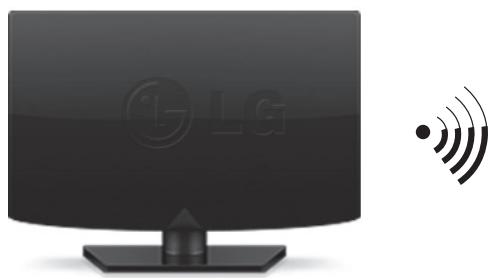
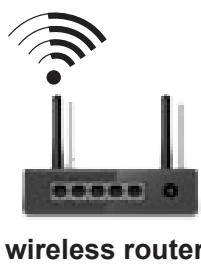
Wireless Network Connection
Wired Network Connection
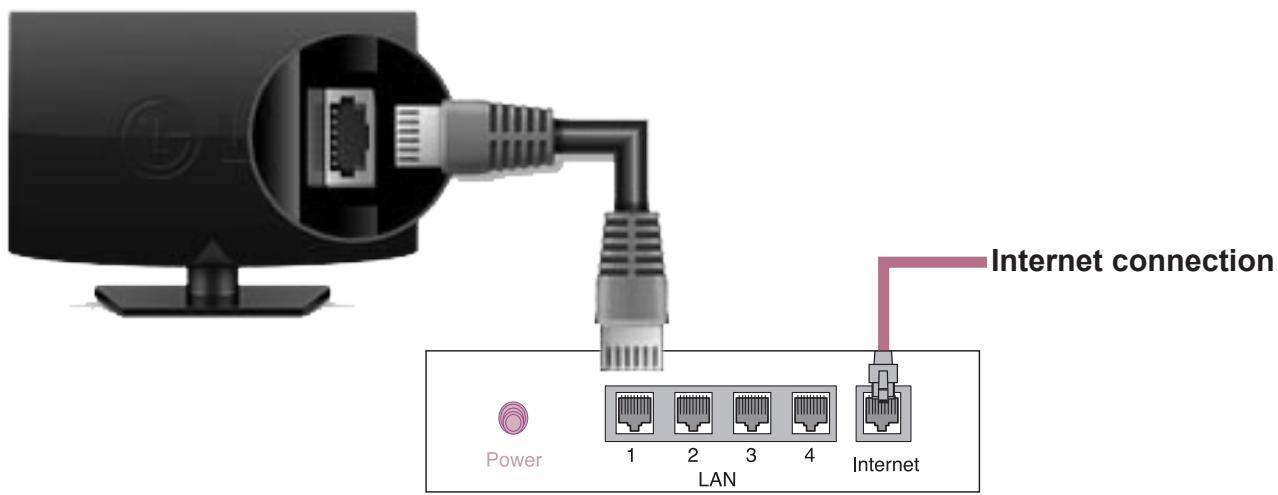
Wired router
Network Setting
Premium Apps are pre-installed on the TV. These may vary by country.
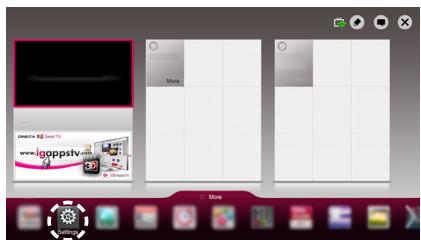
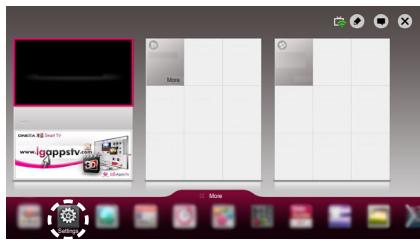
1 Press the SMART button to access the Smart Home menu. Select Settings and press Wheel(OK).
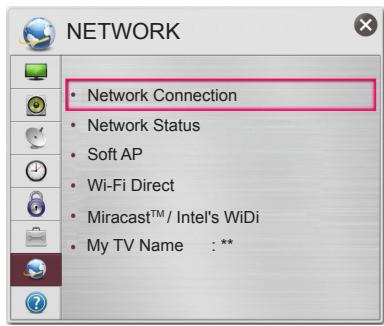
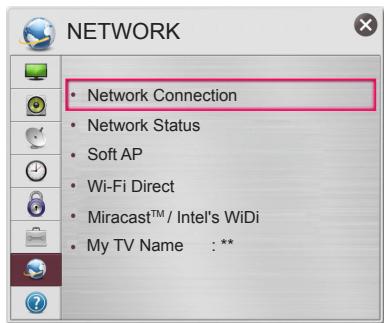
2 Select the NETWORK Network Connection menu.
3 Select the Start Connection.
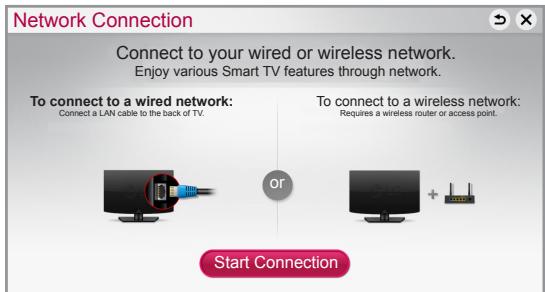
4 The device automatically tries to connect to the network available(wired network first).
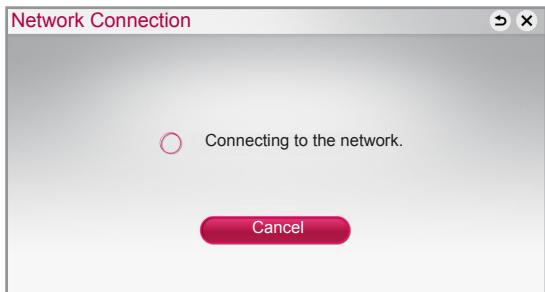
If you select Cancel or it fails to connect to the network, the network list available is displayed. Choose the network you want.
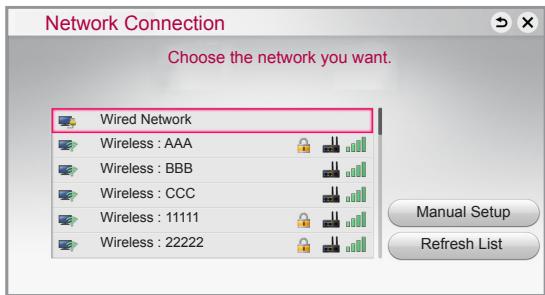
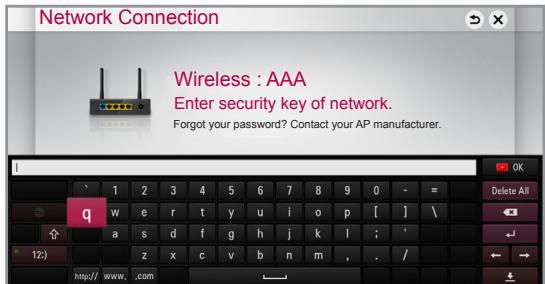
If you want to connect your TV to a wireless router, select the network you want and enter the password.
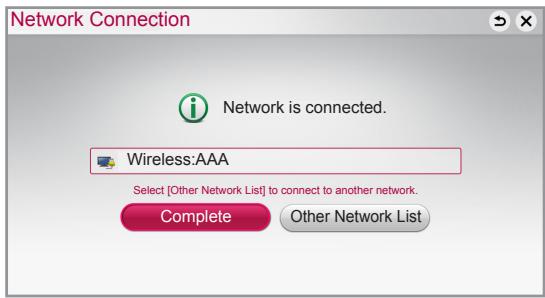
5 The connected network is displayed. Select Complete to confirm the network connection. If you select the Other Network List, the network list available is displayed.
Troubleshooting Network Problems
1 Press the SMART button to access the Smart Home menu. Select Settings and press Wheel(OK).
2 Select the NETWORK Network Status menu.
Follow the instructions below that correlate to your network status.
Check the TV or the router.
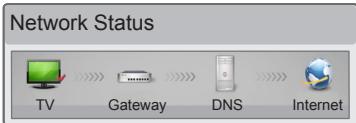
When an appears TV.
1 Check the connection status of TV, AP and cable modem.
Power off and power on TV, AP and cable modem.
If you are using a static IP, enter IP directly.
4 Contact internet companies or AP companies.
Additional points to check when using a wireless connection
1 Check the password for the wireless connection in the router settings window.
Change the router SSID (network name) on the wireless channel.
Check the router or consult your Internet service provider.
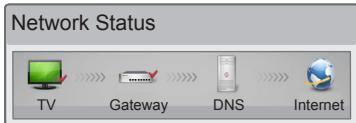
When an appears TV and Gateway.
Unplug the power cord of the AP, cable modem and try to connect after 5 seconds.
Initialize(Reset) the AP or cable modem.
Contact internet companies or AP companies.
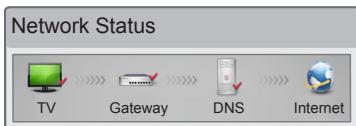
When an appears TV, Gateway and DNS.
Unplug the power cord of the AP, cable modem and try to connect after 5 seconds.
Initialize(Reset) the AP or cable modem.
Check that the MAC address of the TV/rodter is registered with your Internet service provider. (The MAC address displayed on the right pane of the network status window should be registered with your Internet service provider.)
4 Check the router manufacturer's website to make sure your router has the latest firmware version installed.
SmartShare PC SW Installing & Setting
Install the SmartShare PC SW(DLNA) programme on your PC.
1 Go to www.lg.com Then, select your region.
2 Select SUPPORT. Then, Search for your model.
3 Select Drivers & Software or SOFTWARE UPDATE. Then, select SmartShare PC SW(DLNA).
4 You can run the programme when installation is complete.

NOTE
- DLNA service is only available if TV and other devices are connected via a single router.
DLNA Connection to Smartphone
1 Check that Wi-Fi is enabled on your smartphone.
2 Install/run the app for sharing content on your smartphone (It's called SmartShare on LG phones).
3 Enable your smartphone to share content files with other devices.
4 Select the file type you want to play (movie, audio or photo).
5 Select a movie, music or photo file to play on the TV.
6 Add the selected file to the playlist.
7 Select a TV model name on which to play the files. (The TV model name is labelled on the rear side of the panel.)
8 Play the media file to view and enjoy it on your TV.
Updating the TV Firmware
SMART Settings SUPPORT Software Update
Uses Software Update to check and obtain the latest version. If not updated, certain functions may not work properly. It is also possible to check manually for available updates.
| Software Update | Set it to On. If an update is available, a prompt will appear to perform the update. |
| Automatic update mode | If an update is available, the update automatically starts without prompting. |
| Check Update Version | Checks the latest update version installed. When a new update is available, the download process can be performed manually. |

NOTE
- When the update starts, a pop-up window is displayed to show the update status and then disappears within five seconds.
- The latest version can be obtained via the digital broadcast signal or an internet connection.
- Changing the programme while downloading the software via a digital broadcast signal interrupts the download process. Returning to the initial programme allows downloading to resume.
- If software is not updated, certain functions may not work properly.
[For Finland/Sweden/Denmark/Norway models.]
If the software update is performed via the broadcasting signal, you will be prompted to continue the update regardless of whether the Automatic update mode is enabled or not.
Wi-Fi Direct Setting
SMART Settings NETWORK Wi-Fi Direct
The Wi-Fi Direct function supports wireless connection technology. With SmartShare™, you can share files or screens of devices connected to Wi-Fi Direct.
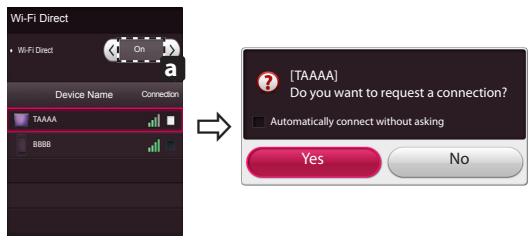
1 If Wi-Fi Direct is set to On, a list of available devices appears.
» To use Wi-Fi Direct, go to Settings NETWORK and set Wi-Fi Direct(a) to On.
2 When you are prompted to request connection, select Yes. Wi-Fi Direct is now connected to your TV.
- If you are not using Wi-Fi Direct to minimize the interference between Wi-Fi devices, it is recommended to set Wi-Fi Direct(a) to Off. You can only use devices that support Wi-Fi Direct.
Miracast™ Setting
Miracast™ allows a portable device to securely send video and sound to TV wirelessly.
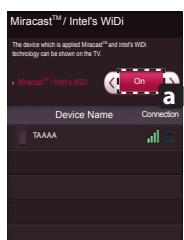
1 Miracast™ is set to On on your TV or portable device. Go to the Network settings to set the Miracast™.
2 When your portable device is detected, select the device.
3 For more information about how to connect the portable device, refer to the portable device manual.
WiDi (Wireless Display) Setting
WiDi represents Wireless Display. Intel's WiDi (Wireless Display) technology enables easy and fast connection without wires or internet network for mirrored and dual monitor display on your TV. You can sit back and experience your favorite movies, videos, photos, online shows and more in full HD on your TV with great image clarity and sound.
1 Intel's WiDi is set to On. Connect your laptop to AP. (Without AP, it is possible to this function; it is recommended to connect to AP.) Your laptops run the Intel WiDi programme.
2 It detects LG Smart TVs available, which supports WiDi. In the list, select the TV you want and click Connect. Enter the PIN number(a) shown on the screen into the input field(b) on your laptop and then click Continue.

NOTE
- When you connect the TV and laptop, you should set up TV mode for "Live TV" and "external input". If not, your computer cannot detect LG Smart TV.
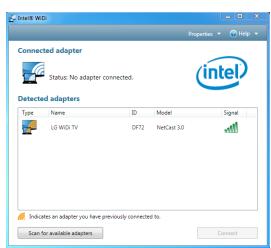

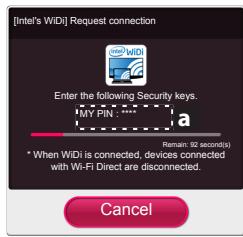
TV Screen
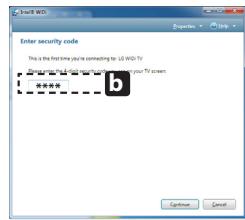
Notebook Screen
3 The wireless environment may affect the screen display. If the connection is poor, the Intel WiDi connection may be lost.
- LG TV is not need to register.
- For more information on Intel WiDi, visit http://intel.com/go/widi.
- A list of Intel's WiDi devices does not appear on the TV screen. Please check the list on your laptop.
Universal Control
To use the Universal Control function (for Magic Remote Control only)
With the Magic Remote Control, you can easily control your set-top box, Blu-ray player, home theater system, and Sound Bar.
1 Check if the device is connected to the TV.
2 After pressing the [123]1Q.MENU button on the Magic Remote Control, select the device you want to control in the Change Device tab. The Screen Remote that can control the device appears.
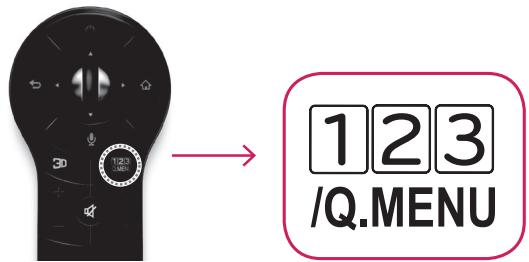
3 You can control external devices using the Screen Remote on the screen.
(This may not work with the '123' button for some models.)
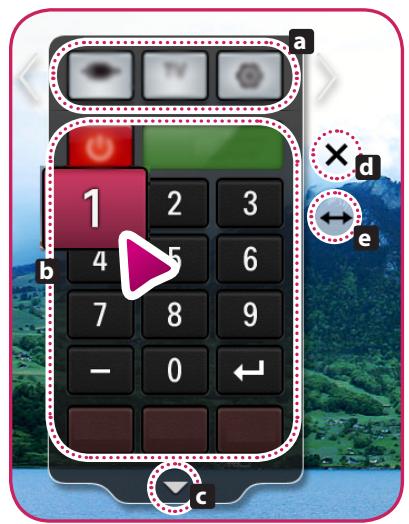
» a : Change Device tab
» b : Device control buttons
» C : Expand the ScreenRemote
» d : Exits the Screen Remote
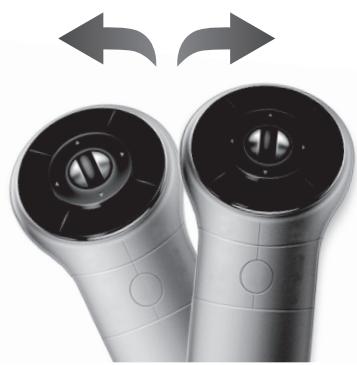
» ⑥: Moves the position of the ScreenRemote to left or right
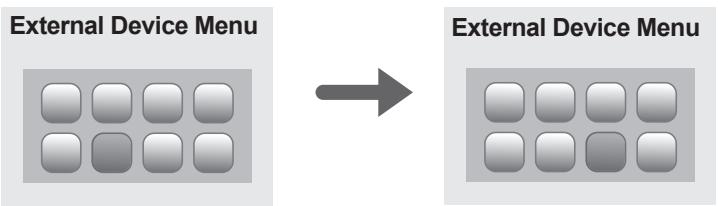
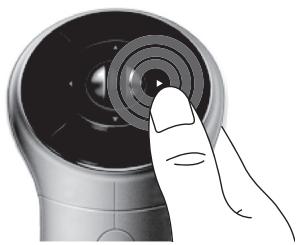
4 Control external devices using the navigation keys, wheel (OK), or BACK button on the Magic Remote Control.


LG
Life's Good
SMART TV
KpaTkoe pyKOBoIDCTBO NO yCTaHOBKe
6ecnpoBODHn MapwpyTN3aTop
YcTaHOBka n HacTpoiKa SmartShare PC SW
YctaHOBIne nporpamMy SmartShare PC SW(DLNA) Ha KOMnbIOTep.
1Перейдente www.lg.com 3aTeM BbIbePte cBOnperNoH.
2 BbIbepeTe IODePJKKA. 3aTeM HauINTe CBOIO MOeJIb.
3 BbIepeTe Drivers & Software nIe SOFTWARE UPDATE. 3aTeM BbIepeTe SmartShare PC SW(DLNA).
4 Iocne 3aBepseHn yCTaHObK MoXHo 3aYcTnTb IpOrpamMy.

ПОНМЕЧАНС
CepBnDCLNAIOCTyIeHToJIbKO,ecNI TeJIeBn3Op INpyrHe yCTpOcTBA NOIKIIOneHbK eINHOmMy MapIpyTu3aTopy.
HacrtpoiKa MiracastTM
MiracastTM no3BOJIAET OCUJECTBJIaTb 6e3OpaCHyU 6ecpOBoHyu OTnpaBky BnDeo n ayDIO C nepeHocHoro yCTpOJCTBa Ha TeNEBu3Op.
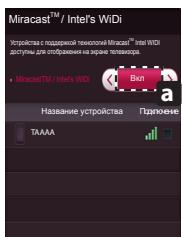
1 Miracast™ yctaHOBJIeHa Ha BKn. Ha TeNeBn3ope nIi NpeHocHom yCTpoiCTBe. IpeeiDITe K CTeBbIM HAcTPOiKam dIy HAcTPOiKN Miracast™.
2 После обаруженя поразочantoа ВьберптугостBO.
3Дляпolyченя долоннельноинфорmaци O podknioчени nepehocho ro yctpoiCTBa obpatntecb K pykoBOOCTBy 3TOro yctpoiCTBa.